
Learning Objectives Use this ppt to catch up
Learning Objectives: Use this ppt to catch up on any work missed so far LESSON 1 INPUT/OUTPUT DEVICES Key Jargon:
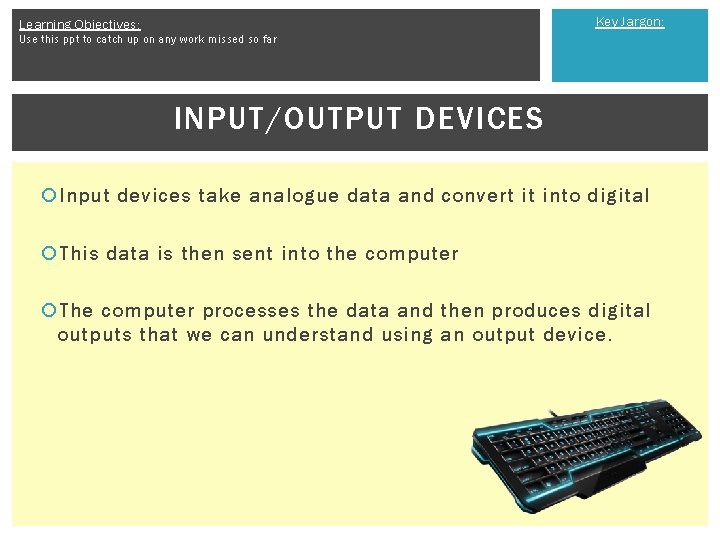
Key Jargon: Learning Objectives: Use this ppt to catch up on any work missed so far INPUT/OUTPUT DEVICES Input devices take analogue data and convert it into digital This data is then sent into the computer The computer processes the data and then produces digital outputs that we can understand using an output device.
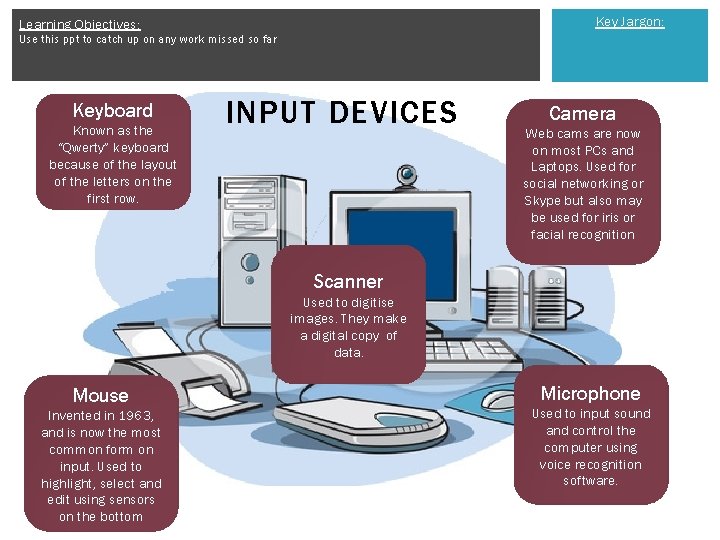
Key Jargon: Learning Objectives: Use this ppt to catch up on any work missed so far Keyboard Known as the “Qwerty” keyboard because of the layout of the letters on the first row. INPUT DEVICES Camera Web cams are now on most PCs and Laptops. Used for social networking or Skype but also may be used for iris or facial recognition Scanner Used to digitise images. They make a digital copy of data. Mouse Invented in 1963, and is now the most common form on input. Used to highlight, select and edit using sensors on the bottom Microphone Used to input sound and control the computer using voice recognition software.
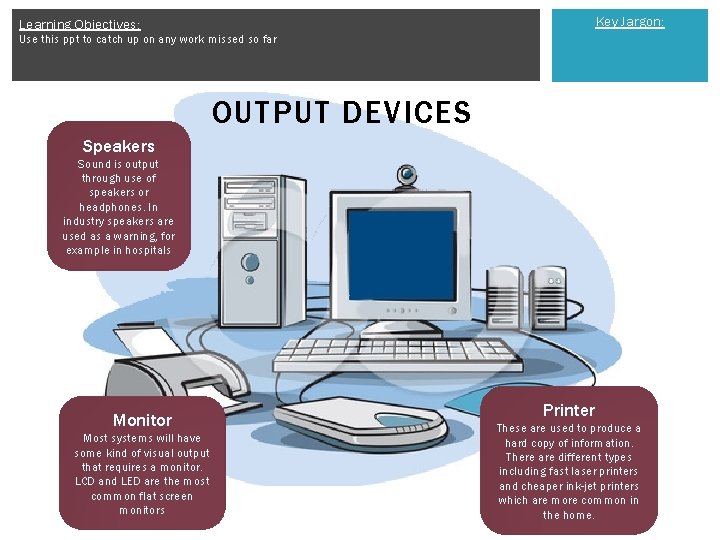
Key Jargon: Learning Objectives: Use this ppt to catch up on any work missed so far OUTPUT DEVICES Speakers Sound is output through use of speakers or headphones. In industry speakers are used as a warning, for example in hospitals Monitor Most systems will have some kind of visual output that requires a monitor. LCD and LED are the most common flat screen monitors Printer These are used to produce a hard copy of information. There are different types including fast laser printers and cheaper ink-jet printers which are more common in the home.
Key Jargon: Learning Objectives: Use this ppt to catch up on any work missed so far COMMUNICATION DEVICES A piece of equipment or hardware designed to move information from one place to another, in other words, allowing one computer device to communicate with another. Network interface card (NIC) or Network connector Wi-fi cards Router Modem
Key Jargon: Learning Objectives: Use this ppt to catch up on any work missed so far TASK 1 Label each of the inputs and outputs in the U 1 T 1 Hardware booklet: Inputs: Scanner, Webcam, Microphone, Mouse, Keyboard, touch-screen, Stylus Outputs: Printer, Monitor, Speakers, LED Lights, Plotter. Communication Devices: Vo. IP Phone, Tablet, Mobile Phone, Braille Keyboard For each consider the purpose and add a benefit/limitation.
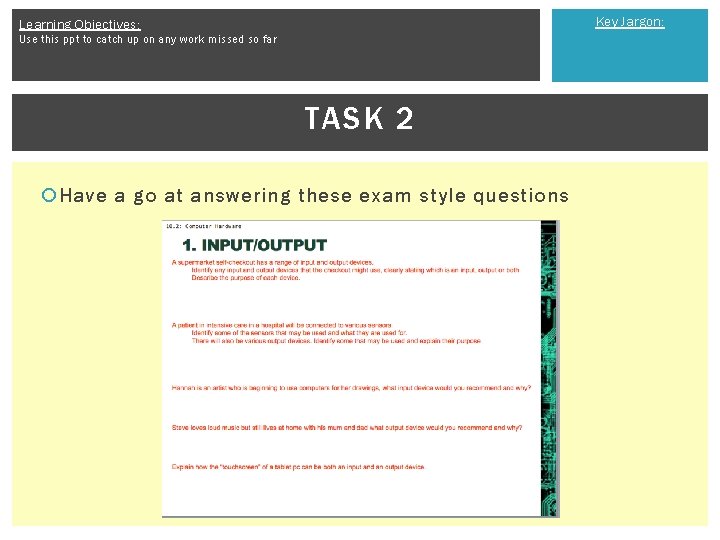
Key Jargon: Learning Objectives: Use this ppt to catch up on any work missed so far TASK 2 Have a go at answering these exam style questions
Key Jargon: Learning Objectives: Use this ppt to catch up on any work missed so far ANSWERS A supermarket self-checkout has a range of input and output devices. Identify any input and output devices that the checkout might use, clearly stating which is an input, output or both. Describe the purpose of each device. § INPUT: keypad, barcode scanner, electronic scales, epos keypad, magnetic strip reader, coin weight checker, bank note scanner § OUTPUT: bleeper, epos display, printer, flashing light to call attendant § BOTH touchscreen
Key Jargon: Learning Objectives: Use this ppt to catch up on any work missed so far ANSWERS A patient in intensive care in a hospital will be connected to various sensors. Identify some of the sensors that may be used and what they are used for. There will also be various output devices. Identify some that may be used and explain their purpose § SENSORS: Used to monitor heart rate, blood pressure, brain activity, weight, temperature, oxygen, levels in the blood … § OUTPUTS: To alert carers buzzers, lights. To provide data screens, printouts of charts and graphs
Key Jargon: Learning Objectives: Use this ppt to catch up on any work missed so far ANSWERS Hannah is an artist who is beginning to use computers for her drawings, what input device would you recommend and why? § Graphic tablet to allow her to create accurate and detailed drawings straight onto the computers Steve loves loud music but still lives at home with his mum and dad what output device would you recommend and why? § Headphones so that he can listen to his headphones without disturbing his mum and dad. Explain how the “touchscreen” of a tablet pc can be both an input and an output device. § The screen outputs the display and is therefore an output device, whereas the screen is also a touch pad with allows users to input information.
Key Jargon: Learning Objectives: Use this ppt to catch up on any work missed so far LESSON 2 COMPONENTS
Key Jargon: Learning Objectives: Use this ppt to catch up on any work missed so far COMPONENTS There are many different components that go into making a computer How many can you name?
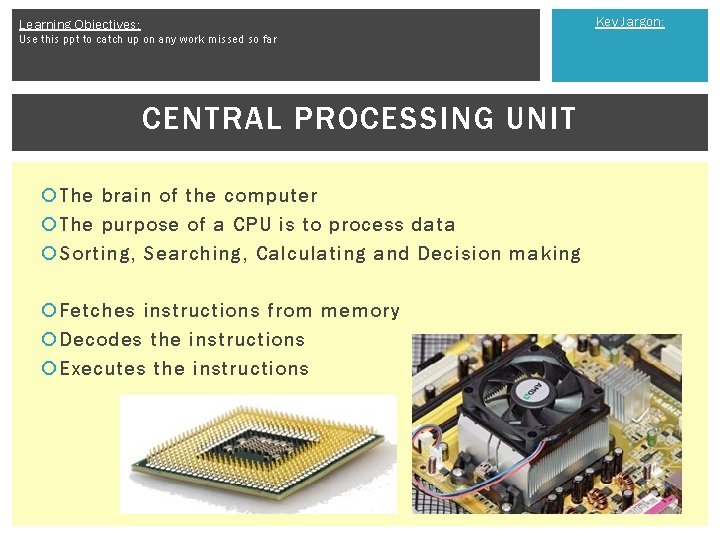
Key Jargon: Learning Objectives: Use this ppt to catch up on any work missed so far CENTRAL PROCESSING UNIT The brain of the computer The purpose of a CPU is to process data Sorting, Searching, Calculating and Decision making Fetches instructions from memory Decodes the instructions Executes the instructions
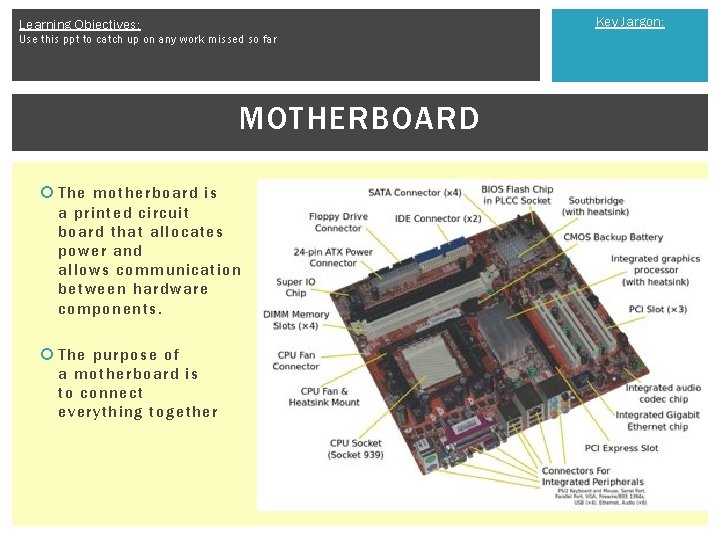
Key Jargon: Learning Objectives: Use this ppt to catch up on any work missed so far MOTHERBOARD The motherboard is a printed circuit board that allocates power and allows communication between hardware components. The purpose of a motherboard is to connect everything together
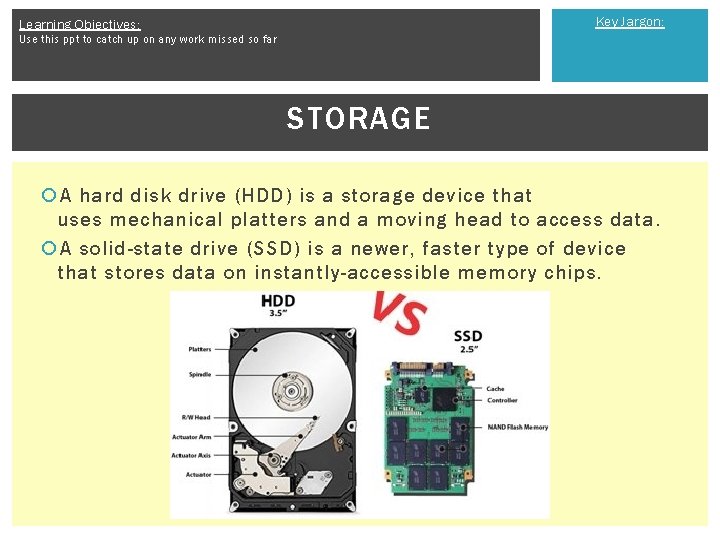
Key Jargon: Learning Objectives: Use this ppt to catch up on any work missed so far STORAGE A hard disk drive (HDD) is a storage device that uses mechanical platters and a moving head to access data. A solid-state drive (SSD) is a newer, faster type of device that stores data on instantly-accessible memory chips.
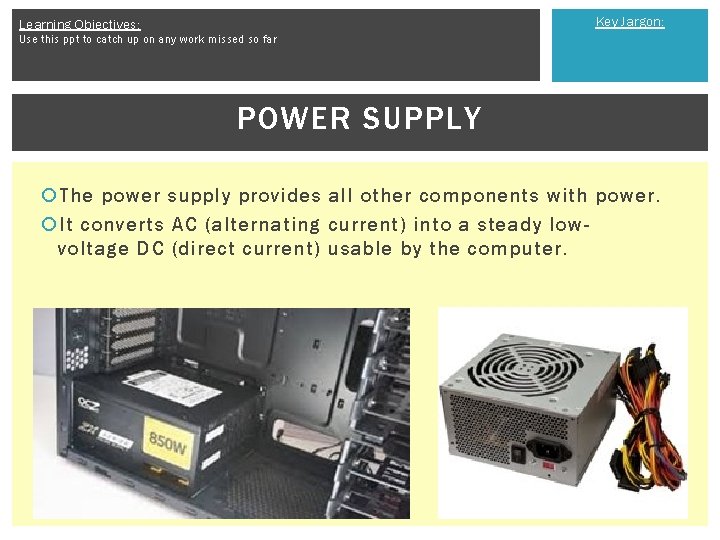
Key Jargon: Learning Objectives: Use this ppt to catch up on any work missed so far POWER SUPPLY The power supply provides all other components with power. It converts AC (alternating current) into a steady lowvoltage DC (direct current) usable by the computer.
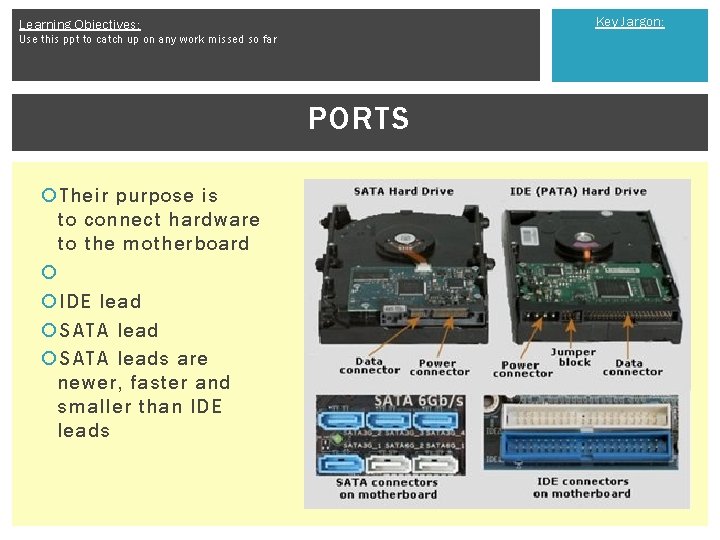
Key Jargon: Learning Objectives: Use this ppt to catch up on any work missed so far PORTS Their purpose is to connect hardware to the motherboard IDE lead SATA leads are newer, faster and smaller than IDE leads
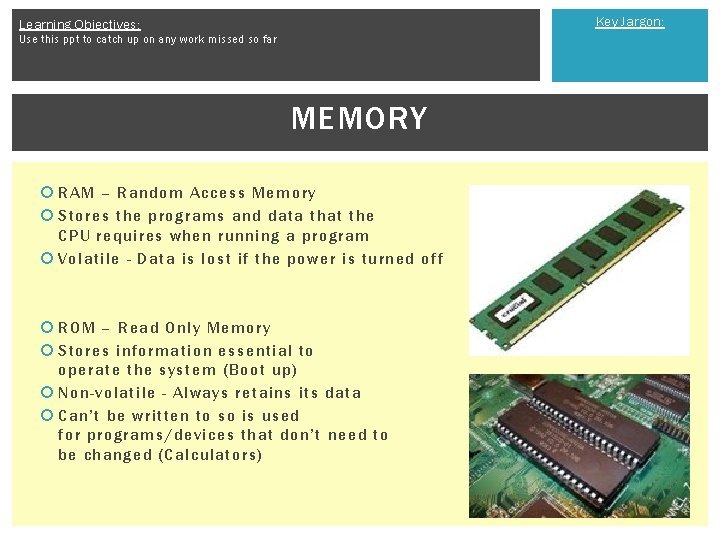
Key Jargon: Learning Objectives: Use this ppt to catch up on any work missed so far MEMORY RAM – Random Access Memory Stores the programs and data that the CPU requires when running a program Volatile - Data is lost if the power is turned off ROM – Read Only Memory Stores information essential to operate the system (Boot up) Non-volatile - Always retains its data Can’t be written to so is used for programs/devices that don’t need to be changed (Calculators)
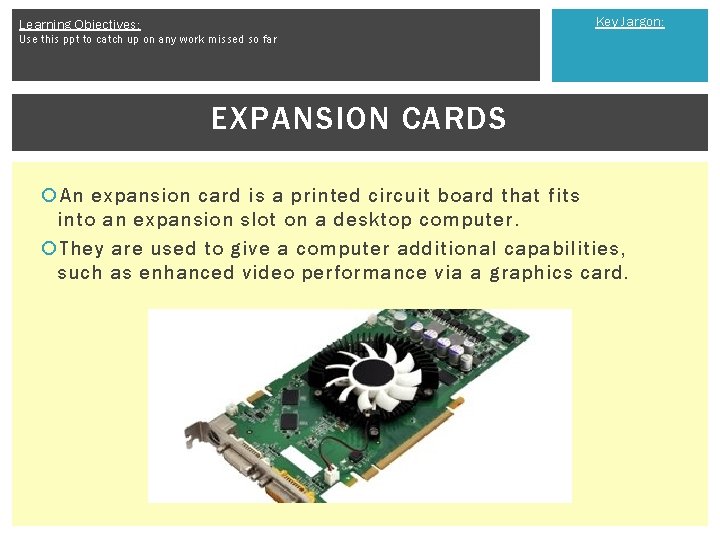
Key Jargon: Learning Objectives: Use this ppt to catch up on any work missed so far EXPANSION CARDS An expansion card is a printed circuit board that fits into an expansion slot on a desktop computer. They are used to give a computer additional capabilities, such as enhanced video performance via a graphics card.
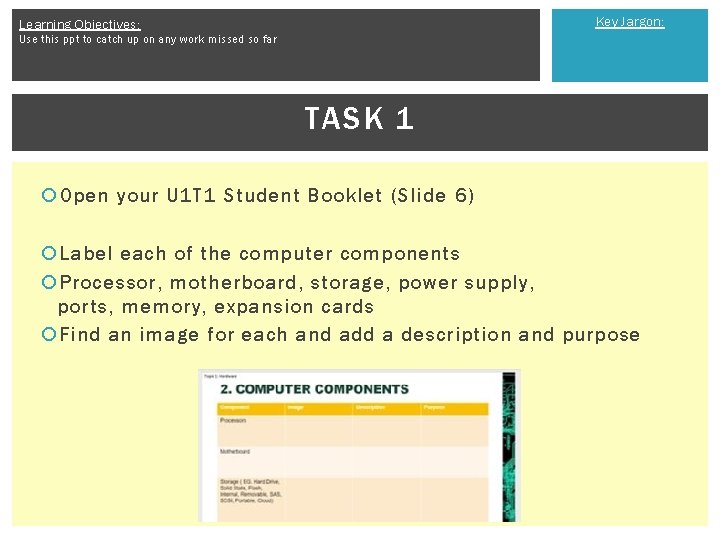
Key Jargon: Learning Objectives: Use this ppt to catch up on any work missed so far TASK 1 Open your U 1 T 1 Student Booklet (Slide 6) Label each of the computer components Processor, motherboard, storage, power supply, ports, memory, expansion cards Find an image for each and add a description and purpose
Key Jargon: Learning Objectives: Use this ppt to catch up on any work missed so far LESSON 3 - SYSTEM TYPES
Key Jargon: Learning Objectives: Use this ppt to catch up on any work missed so far SYSTEM TYPES Desktop/server Tablet/hybrid Smartphone Embedded system (e. g. cars, home appliances, etc. ) Mainframe Quantum
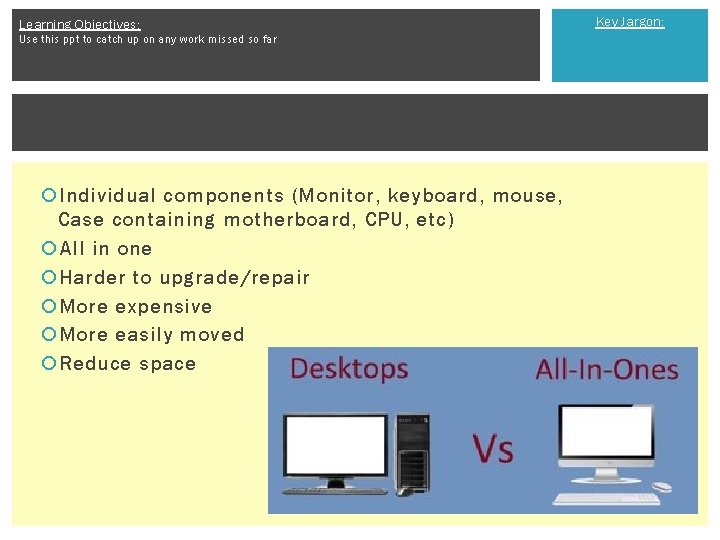
Learning Objectives: Use this ppt to catch up on any work missed so far Individual components (Monitor, keyboard, mouse, Case containing motherboard, CPU, etc) All in one Harder to upgrade/repair More expensive More easily moved Reduce space Key Jargon:
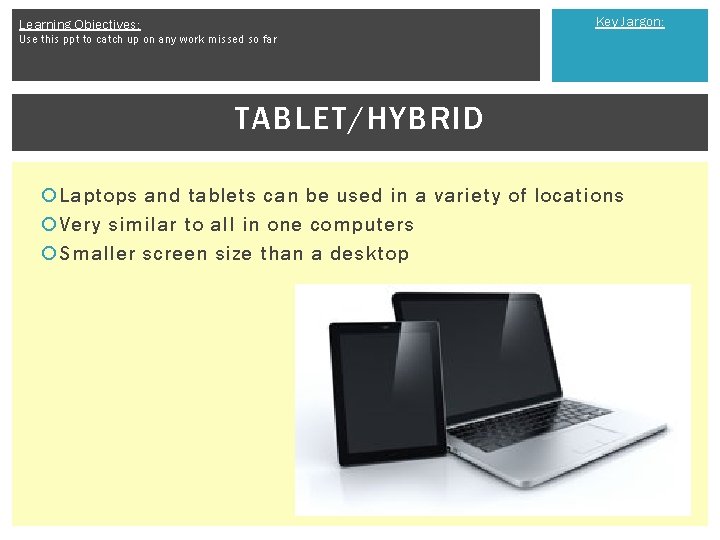
Key Jargon: Learning Objectives: Use this ppt to catch up on any work missed so far TABLET/HYBRID Laptops and tablets can be used in a variety of locations Very similar to all in one computers Smaller screen size than a desktop
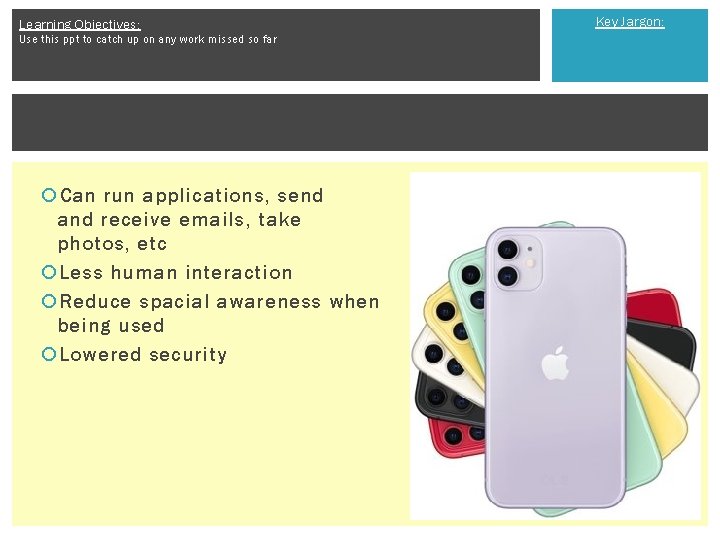
Learning Objectives: Use this ppt to catch up on any work missed so far Can run applications, send and receive emails, take photos, etc Less human interaction Reduce spacial awareness when being used Lowered security Key Jargon:
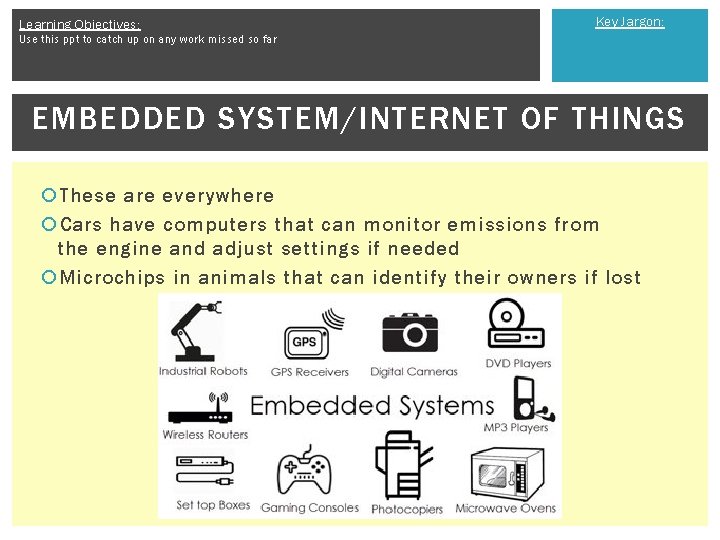
Learning Objectives: Key Jargon: Use this ppt to catch up on any work missed so far EMBEDDED SYSTEM/INTERNET OF THINGS These are everywhere Cars have computers that can monitor emissions from the engine and adjust settings if needed Microchips in animals that can identify their owners if lost
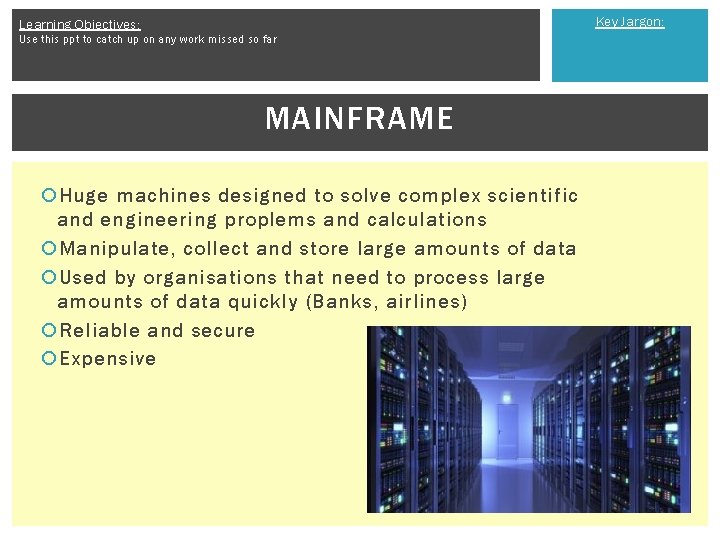
Key Jargon: Learning Objectives: Use this ppt to catch up on any work missed so far MAINFRAME Huge machines designed to solve complex scientific and engineering proplems and calculations Manipulate, collect and store large amounts of data Used by organisations that need to process large amounts of data quickly (Banks, airlines) Reliable and secure Expensive
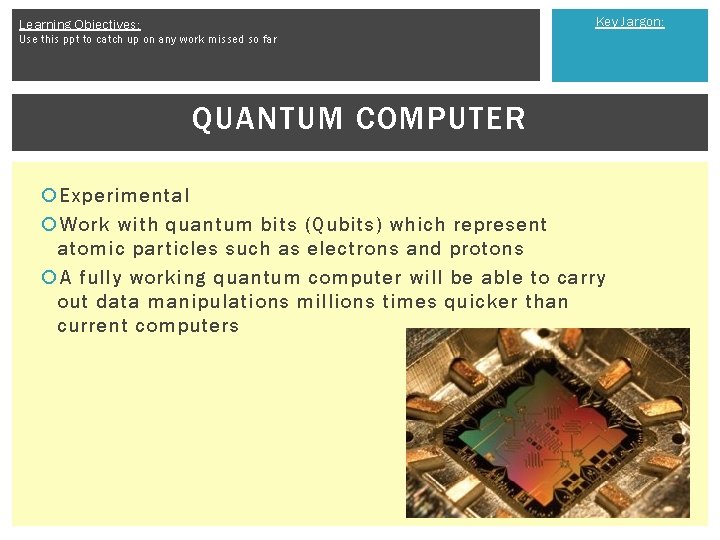
Key Jargon: Learning Objectives: Use this ppt to catch up on any work missed so far QUANTUM COMPUTER Experimental Work with quantum bits (Qubits) which represent atomic particles such as electrons and protons A fully working quantum computer will be able to carry out data manipulations millions times quicker than current computers
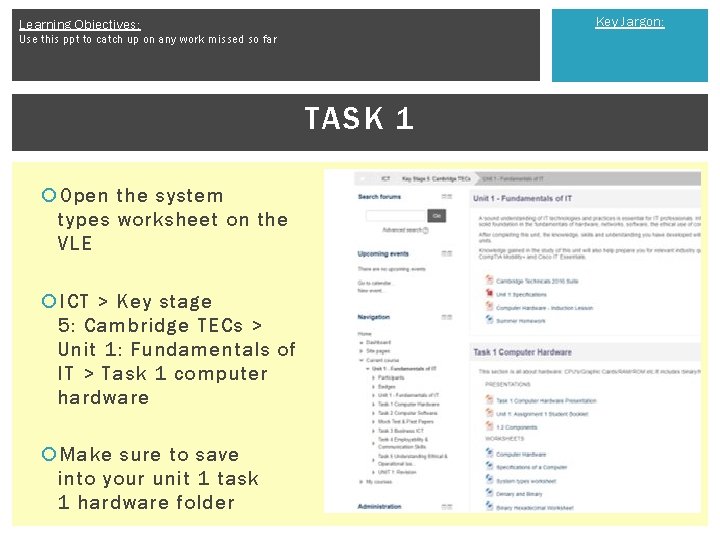
Key Jargon: Learning Objectives: Use this ppt to catch up on any work missed so far TASK 1 Open the system types worksheet on the VLE ICT > Key stage 5: Cambridge TECs > Unit 1: Fundamentals of IT > Task 1 computer hardware Make sure to save into your unit 1 task 1 hardware folder
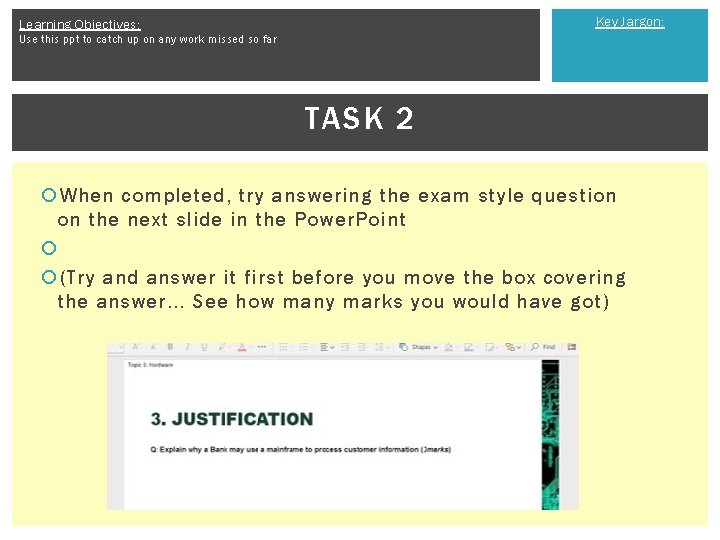
Key Jargon: Learning Objectives: Use this ppt to catch up on any work missed so far TASK 2 When completed, try answering the exam style question on the next slide in the Power. Point (Try and answer it first before you move the box covering the answer. . . See how many marks you would have got)
Learning Objectives: Use this ppt to catch up on any work missed so far LESSON 4 CONNECTIVITY METHODS Key Jargon:
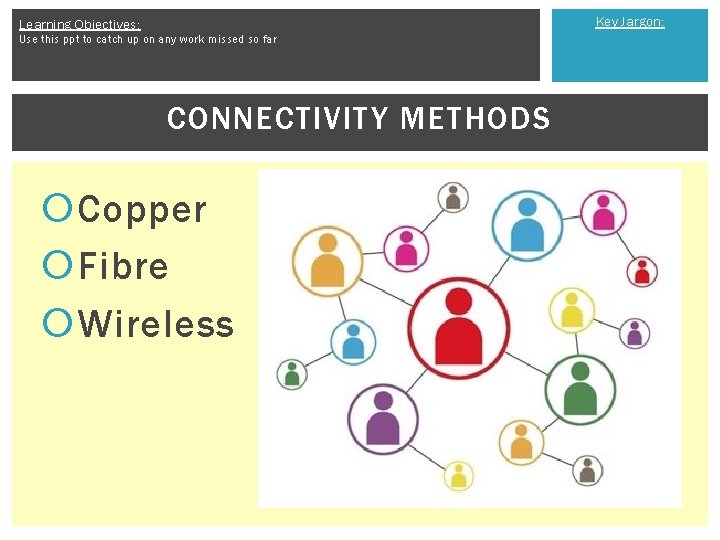
Key Jargon: Learning Objectives: Use this ppt to catch up on any work missed so far CONNECTIVITY METHODS Copper Fibre Wireless
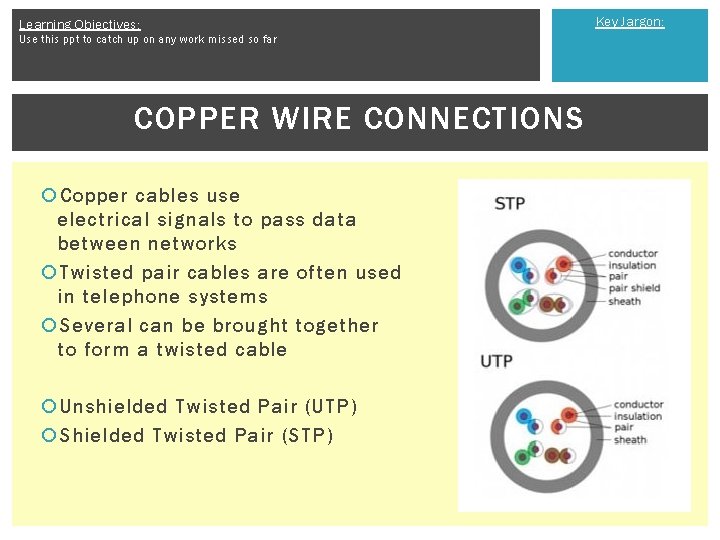
Learning Objectives: Use this ppt to catch up on any work missed so far COPPER WIRE CONNECTIONS Copper cables use electrical signals to pass data between networks Twisted pair cables are often used in telephone systems Several can be brought together to form a twisted cable Unshielded Twisted Pair (UTP) Shielded Twisted Pair (STP) Key Jargon:
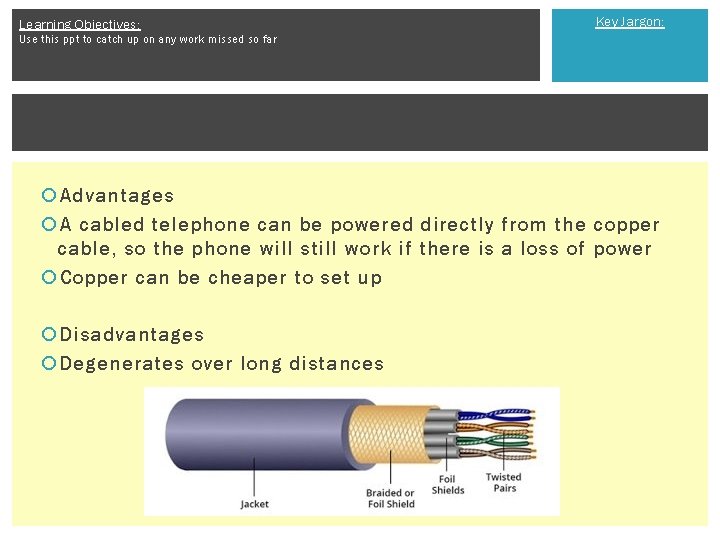
Learning Objectives: Key Jargon: Use this ppt to catch up on any work missed so far Advantages A cabled telephone can be powered directly from the copper cable, so the phone will still work if there is a loss of power Copper can be cheaper to set up Disadvantages Degenerates over long distances
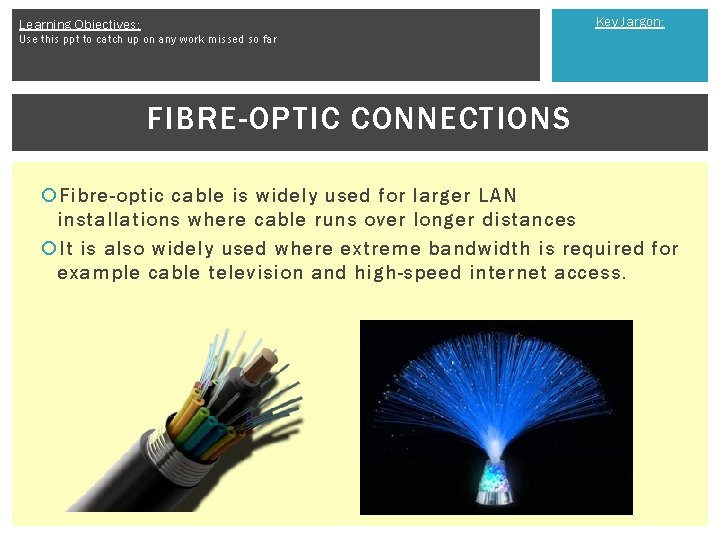
Key Jargon: Learning Objectives: Use this ppt to catch up on any work missed so far FIBRE-OPTIC CONNECTIONS Fibre-optic cable is widely used for larger LAN installations where cable runs over longer distances It is also widely used where extreme bandwidth is required for example cable television and high-speed internet access.
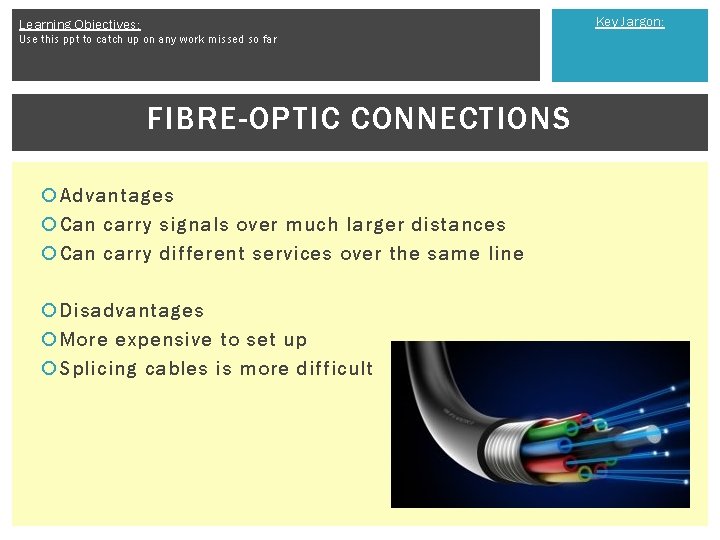
Key Jargon: Learning Objectives: Use this ppt to catch up on any work missed so far FIBRE-OPTIC CONNECTIONS Advantages Can carry signals over much larger distances Can carry different services over the same line Disadvantages More expensive to set up Splicing cables is more difficult
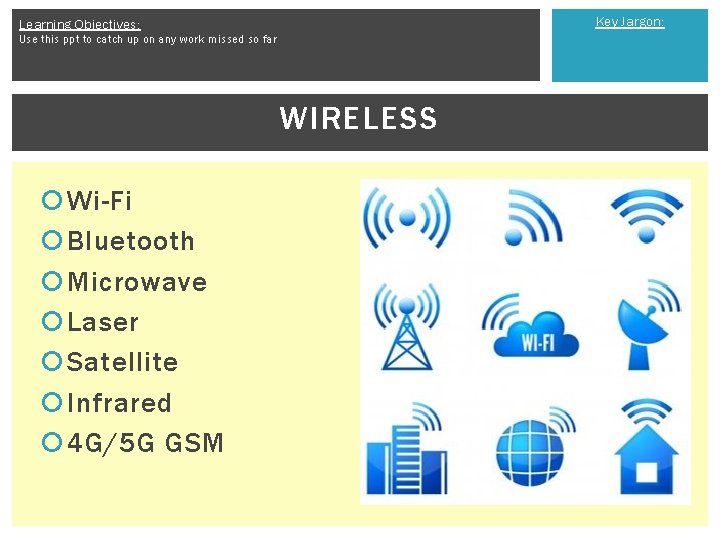
Key Jargon: Learning Objectives: Use this ppt to catch up on any work missed so far WIRELESS Wi-Fi Bluetooth Microwave Laser Satellite Infrared 4 G/5 G GSM
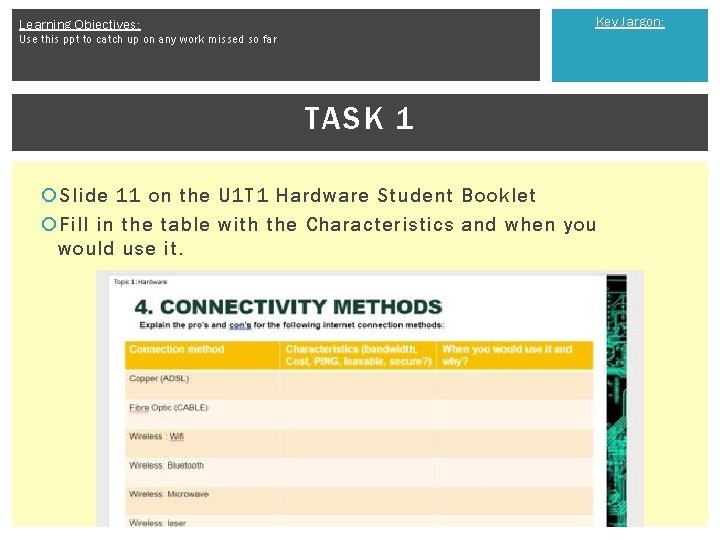
Key Jargon: Learning Objectives: Use this ppt to catch up on any work missed so far TASK 1 Slide 11 on the U 1 T 1 Hardware Student Booklet Fill in the table with the Characteristics and when you would use it.
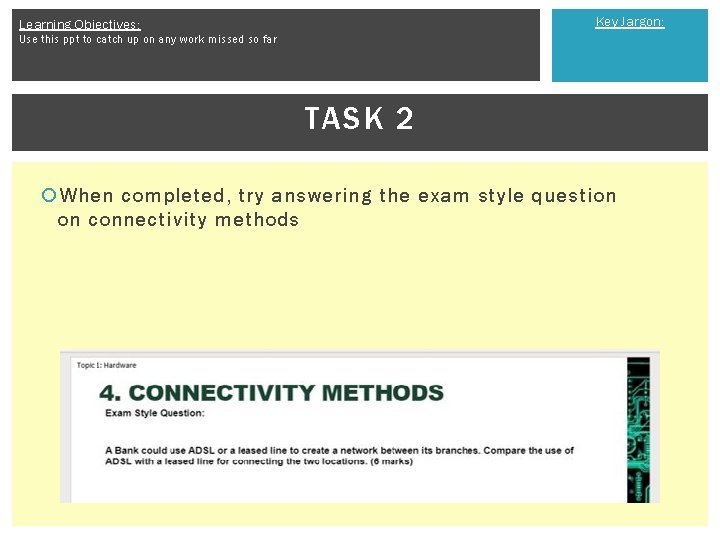
Key Jargon: Learning Objectives: Use this ppt to catch up on any work missed so far TASK 2 When completed, try answering the exam style question on connectivity methods
Key Jargon: Learning Objectives: Use this ppt to catch up on any work missed so far LESSON 5 COMMUNICATION HARDWARE
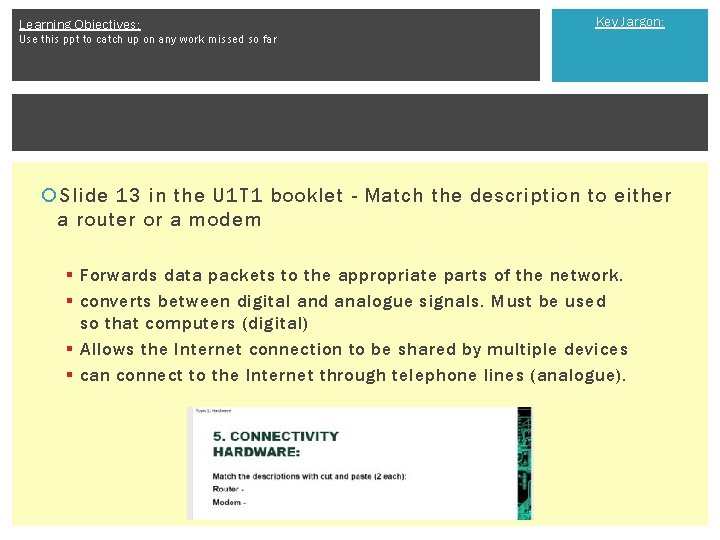
Learning Objectives: Key Jargon: Use this ppt to catch up on any work missed so far Slide 13 in the U 1 T 1 booklet - Match the description to either a router or a modem § Forwards data packets to the appropriate parts of the network. § converts between digital and analogue signals. Must be used so that computers (digital) § Allows the Internet connection to be shared by multiple devices § can connect to the Internet through telephone lines (analogue).
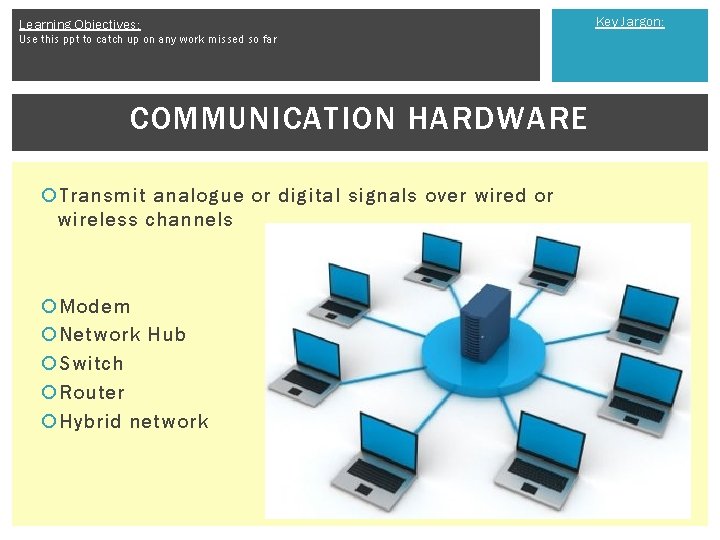
Learning Objectives: Use this ppt to catch up on any work missed so far COMMUNICATION HARDWARE Transmit analogue or digital signals over wired or wireless channels Modem Network Hub Switch Router Hybrid network Key Jargon:
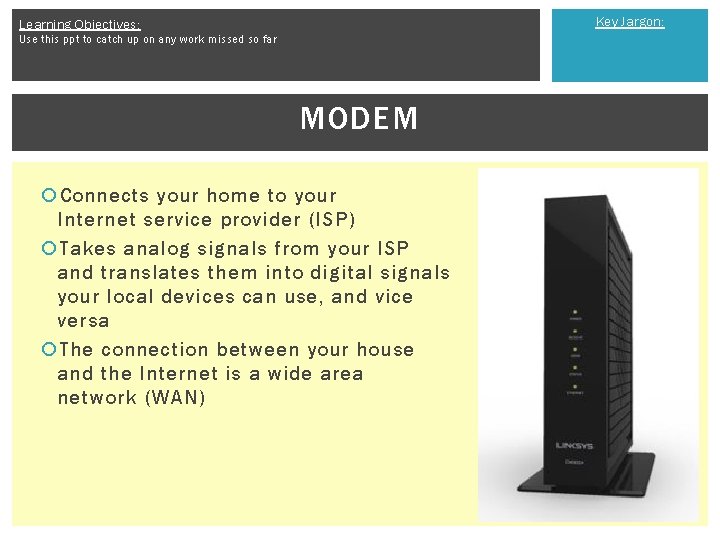
Key Jargon: Learning Objectives: Use this ppt to catch up on any work missed so far MODEM Connects your home to your Internet service provider (ISP) Takes analog signals from your ISP and translates them into digital signals your local devices can use, and vice versa The connection between your house and the Internet is a wide area network (WAN)
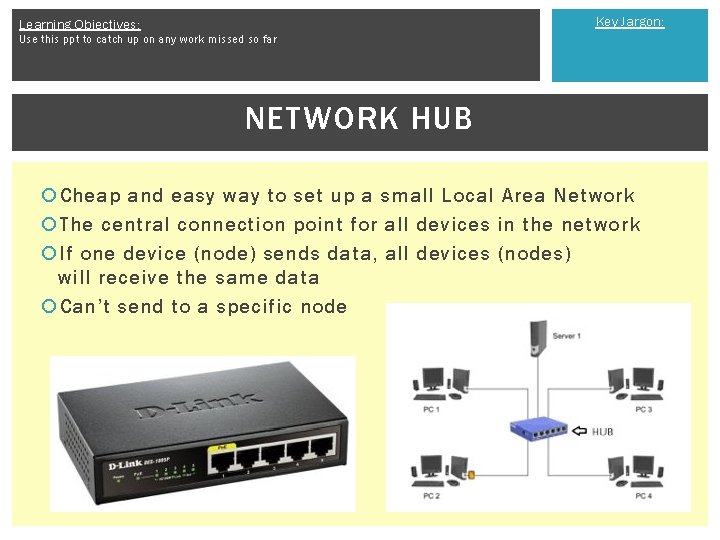
Key Jargon: Learning Objectives: Use this ppt to catch up on any work missed so far NETWORK HUB Cheap and easy way to set up a small Local Area Network The central connection point for all devices in the network If one device (node) sends data, all devices (nodes) will receive the same data Can’t send to a specific node
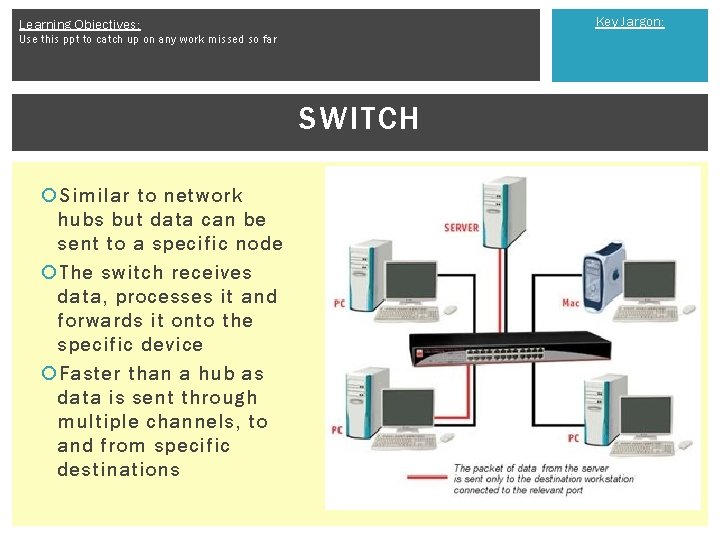
Key Jargon: Learning Objectives: Use this ppt to catch up on any work missed so far SWITCH Similar to network hubs but data can be sent to a specific node The switch receives data, processes it and forwards it onto the specific device Faster than a hub as data is sent through multiple channels, to and from specific destinations
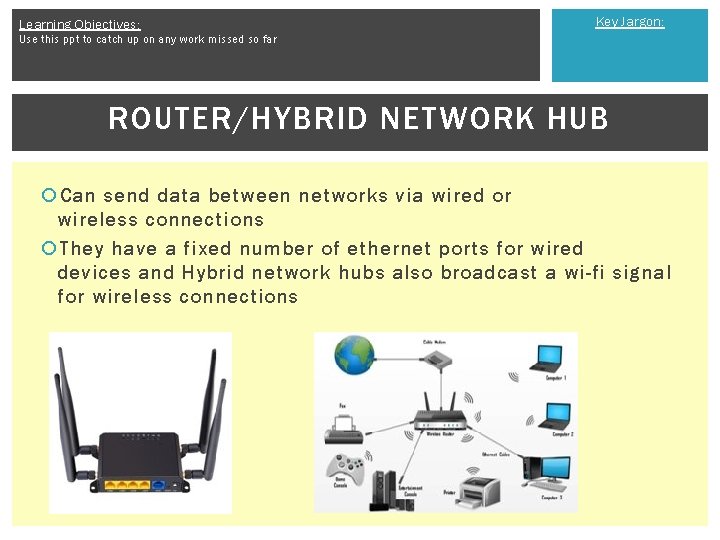
Learning Objectives: Key Jargon: Use this ppt to catch up on any work missed so far ROUTER/HYBRID NETWORK HUB Can send data between networks via wired or wireless connections They have a fixed number of ethernet ports for wired devices and Hybrid network hubs also broadcast a wi-fi signal for wireless connections
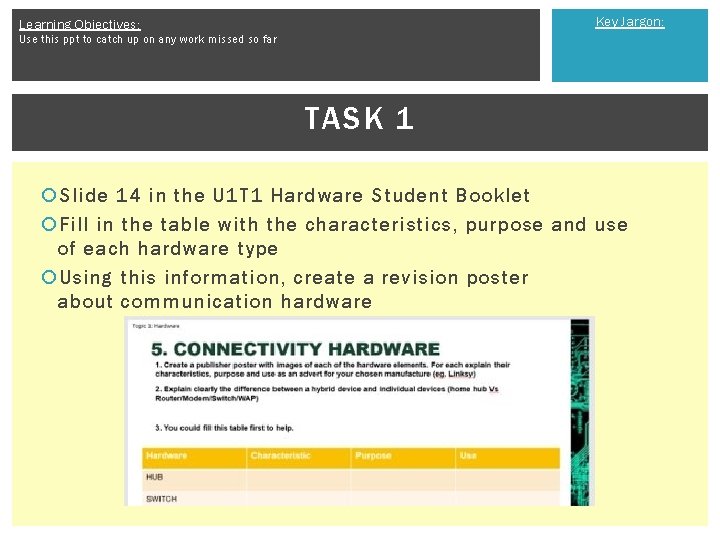
Key Jargon: Learning Objectives: Use this ppt to catch up on any work missed so far TASK 1 Slide 14 in the U 1 T 1 Hardware Student Booklet Fill in the table with the characteristics, purpose and use of each hardware type Using this information, create a revision poster about communication hardware

Key Jargon: Learning Objectives: Use this ppt to catch up on any work missed so far LESSON 6 TROUBLESHOOTING
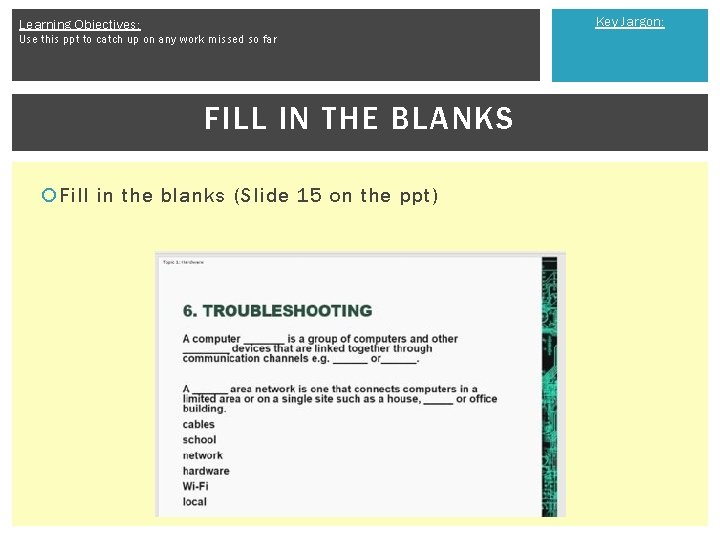
Key Jargon: Learning Objectives: Use this ppt to catch up on any work missed so far FILL IN THE BLANKS Fill in the blanks (Slide 15 on the ppt)
Key Jargon: Learning Objectives: Use this ppt to catch up on any work missed so far HARDWARE FAULTS Faults can occur for several reasons: Power surges Poor maintenance Accidental damage Malware Intentional damage
Key Jargon: Learning Objectives: Use this ppt to catch up on any work missed so far HARDWARE FAULTS IT technicians and help desk staff must log the issue (i. e. battery will not charge, hard drive failure) on a fault log sheet identifying the: § § § § Machine Owners or users Fault Date Symptoms Problem history Back up documentation
Key Jargon: Learning Objectives: Use this ppt to catch up on any work missed so far WHAT TO DO? Always look for the simplest explanation first § i. e. Computer is not turning on? Check it is plugged into the mains Record the steps you take to identify the fault State the tools you have used Record the actions you have taken to resolve the issue § i. e. Replaced hard disc, updated drivers, reinstalled software etc. Note the product specification of any new software or hardware § So if it is faulty you can let the supplier know Record the time taken and costs
Learning Objectives: Key Jargon: Use this ppt to catch up on any work missed so far TROUBLESHOOTING TOOL - EVENT VIEWER When errors occur, the event viewer is updated with information about it: § § § What the problem is Date and time The seriousness of the problem What caused it An event ID number Who was logged on at the time
Key Jargon: Learning Objectives: Use this ppt to catch up on any work missed so far SELF TEST PROGRAMS May be provided by the hardware manufacturers Power on Supply Test (POST) Ping tests Ipconfig/Ifconfig Nslookup
Learning Objectives: Key Jargon: Use this ppt to catch up on any work missed so far POWER ON SUPPLY TEST (POST) A function of the BIOS for a particular computer It checks memory, power supply, hardware, CPU, BIOS and heat/cooling Two types of BIOS-related diagnostic information are provided: Beep codes § One beep means that all is well from the motherboard as the CPU is functioning § More than one beep means there is an error § Each BIOS has its own set of beep codes which can be downloaded from the manufacturers website to identify a particular error POST codes § A visual, two-characters read out of the stage that the POST is at
Key Jargon: Learning Objectives: Use this ppt to catch up on any work missed so far PING Ping tests the connectivity between the requesting host and the destination host It uses the Internet Control Message Protocol (ICMP) to send an echo request message to the destination host and listens for a response called the echo reply message A response shows that the host can be reached Troubleshooting - This procedure can be repeated with different hosts until the source of the problem is identified
Key Jargon: Learning Objectives: Use this ppt to catch up on any work missed so far IPCONFIG/IFCONFIG Identifies the specific IP configuration of the hosts affected by the problem Especially useful where dynamic addressing is used and the IP address of each host can change
Key Jargon: Learning Objectives: Use this ppt to catch up on any work missed so far NSLOOKUP Aids the diagnosis of issues with dynamic name systems (DNS) addresses Looks up the IP addresses associated with a particular domain name such as bbc. co. uk If the utility can’t determine this information there is a DNS issue Can also query DNS servers to find out if there is an issue with the default DNS server

Key Jargon: Learning Objectives: Use this ppt to catch up on any work missed so far DIAGNOSTIC SOFTWARE Available from third parties Some are free and others require payment They include memory testers
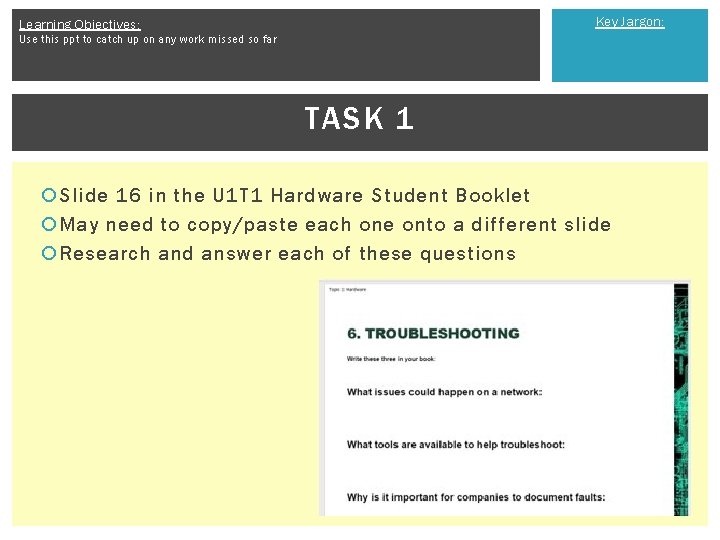
Key Jargon: Learning Objectives: Use this ppt to catch up on any work missed so far TASK 1 Slide 16 in the U 1 T 1 Hardware Student Booklet May need to copy/paste each one onto a different slide Research and answer each of these questions
Learning Objectives: Use this ppt to catch up on any work missed so far LESSON 7 - UNITS OF MEASUREMENT Key Jargon:
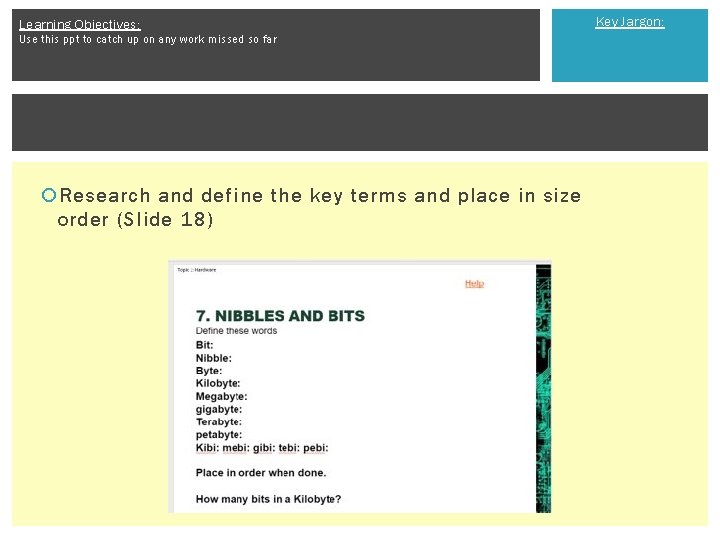
Learning Objectives: Use this ppt to catch up on any work missed so far Research and define the key terms and place in size order (Slide 18) Key Jargon:
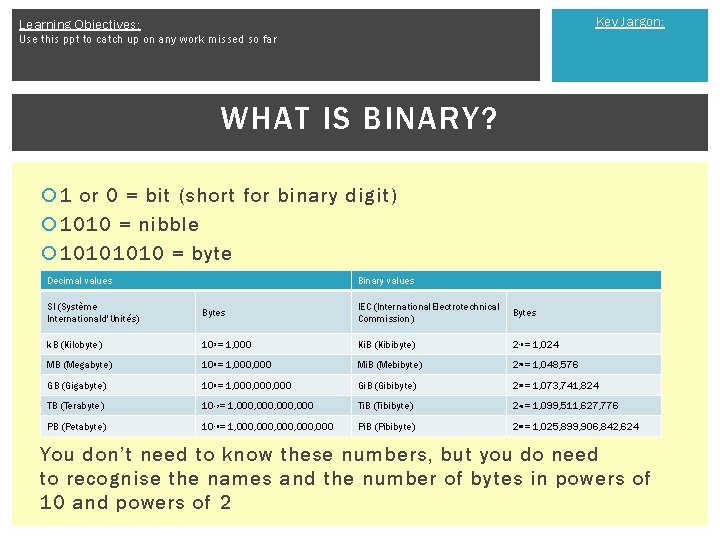
Key Jargon: Learning Objectives: Use this ppt to catch up on any work missed so far WHAT IS BINARY? 1 or 0 = bit (short for binary digit) 1010 = nibble 1010 = byte Decimal values Binary values SI (Système Internationald'Unités) Bytes IEC (International. Electrotechnical Commission) Bytes k. B (Kilobyte) 10 = 1, 000 Ki. B (Kibibyte) 2 = 1, 024 MB (Megabyte) 10 = 1, 000 Mi. B (Mebibyte) 2 = 1, 048, 576 GB (Gigabyte) 10 = 1, 000, 000 Gi. B (Gibibyte) 2 = 1, 073, 741, 824 TB (Terabyte) 10 = 1, 000, 000 Ti. B (Tibibyte) 2 = 1, 099, 511, 627, 776 PB (Petabyte) 10 = 1, 000, 000 Pi. B (Pibibyte) 2 = 1, 025, 899, 906, 842, 624 3 6 9 12 15 10 20 30 40 50 You don’t need to know these numbers, but you do need to recognise the names and the number of bytes in powers of 10 and powers of 2
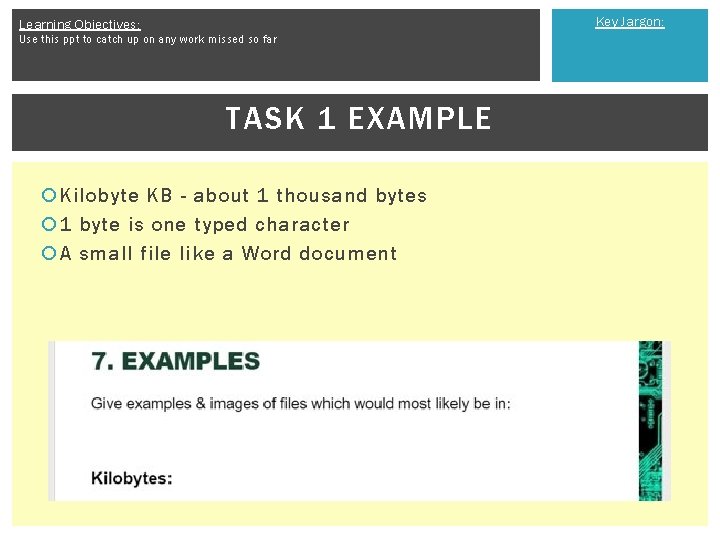
Key Jargon: Learning Objectives: Use this ppt to catch up on any work missed so far TASK 1 EXAMPLE Kilobyte KB - about 1 thousand bytes 1 byte is one typed character A small file like a Word document
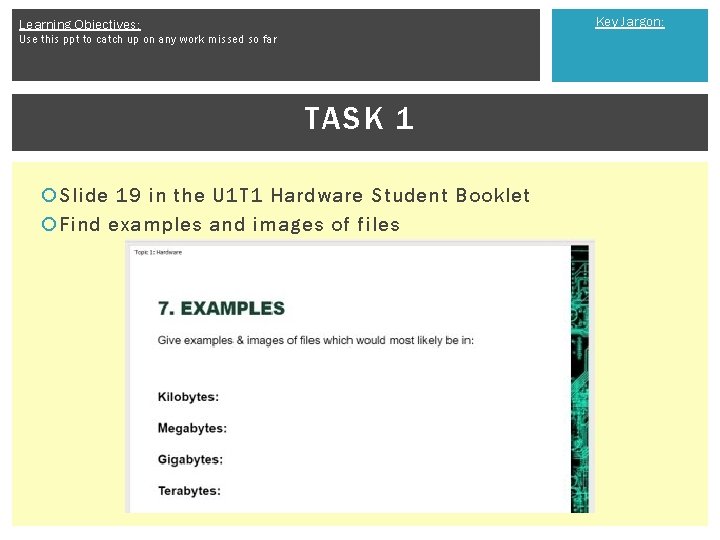
Key Jargon: Learning Objectives: Use this ppt to catch up on any work missed so far TASK 1 Slide 19 in the U 1 T 1 Hardware Student Booklet Find examples and images of files
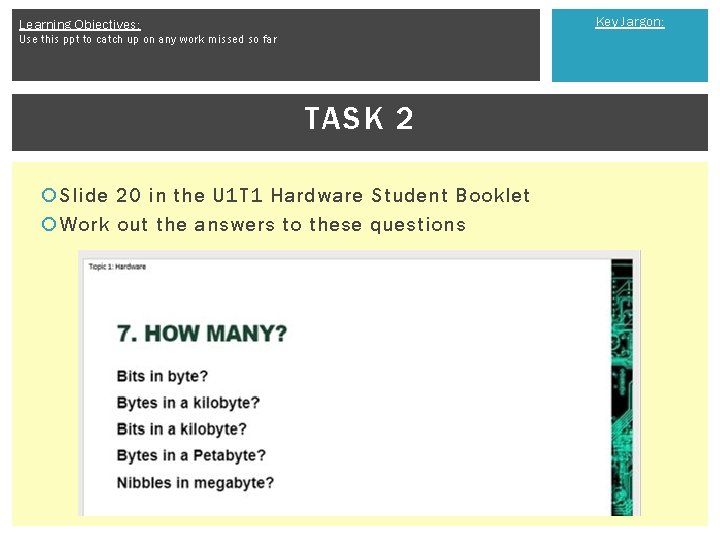
Key Jargon: Learning Objectives: Use this ppt to catch up on any work missed so far TASK 2 Slide 20 in the U 1 T 1 Hardware Student Booklet Work out the answers to these questions
- Slides: 66