
Learning Objectives Input methods for drawing Understanding drawing
Learning Objectives • Input methods for drawing • Understanding drawing command options • Arcs and its various options. • Rectangles • Ellipses, and elliptical arcs. • Polygons such as hexagons and pentagons. • Polylines and donuts. • Point style and point size. • Infinite lines/Construction lines/Xline & Xray. • Construction lines. • Simple text – Single line text Back to Menu

Mouse, Menu, Toolbar, or Command Line input Methods? Just about everything is essentially circles and lines. You can input them using their control points, which vary based on which command you use. The drawing database is essentially a list of the points used. Lines have two endpoints, plus a midpoint. Circles have a center and radius. The software will let you choose to enter your first object point for object creation by Dynamic Pick, or by Absolute Coordinate entry, typically. Back to Menu
Methods for Drawing New Auto. CAD users sometimes scratch their head over all the input methods. They ask “Is one way better than another? ” Experienced Auto. CAD users know that speed is a combination of reducing keystrokes and familiarity helps them to do that. Experienced Auto. CAD users may tend to keep their hands on the keyboard typing in the commands they know with Command Aliases. Examples of command aliases are C for circle or L for line. Users new to Auto. CAD will be very happy that they can quickly find draw commands organized in the Draw Content Panel of the Ribbon, and that icons show the tool, while by default the tool tip displays the tool name written out. Further, new users who hesitate with their mouse pick over a tool, are offered helpful tips or even videos explaining their options. If you’re new to Auto. CAD, your main objective will be to get comfortable with available commands. THERE IS NO SUBSTITUTE FOR CONTACT TIME USING THE SOFTWARE. PERIOD. Scheduling adequate practice time is essential for building skill and mastering the use of CAD software. Back to Menu

Understanding drawing command options Many Auto. CAD learners will ask, “Why are there six ways to draw a circle? ” or “Do I need to know all these options? ” The simple answer is “YES”. However, as an example, you may or may not use all six options creating circles for every drawing you do, and you might never need to draw an arc once you master the options for circles and the options for trimming circles. Still, the longer you use Auto. CAD, the more likely you are to master all of the options… eventually. Back to Menu
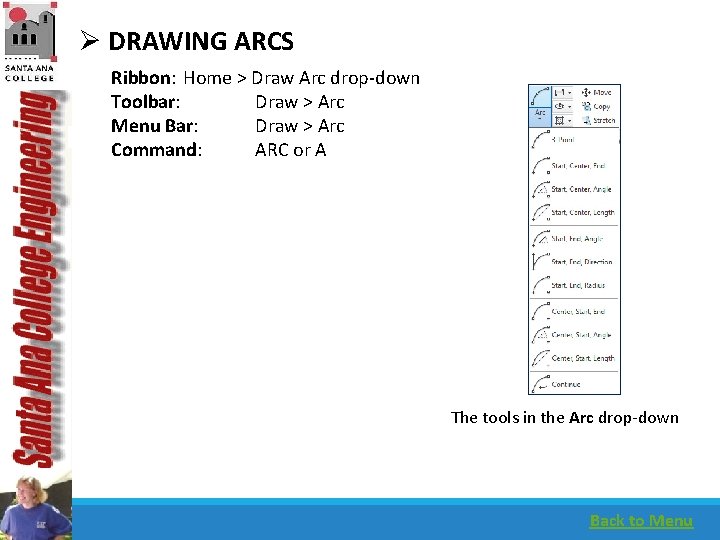
Ø DRAWING ARCS Ribbon: Home > Draw Arc drop-down Toolbar: Draw > Arc Menu Bar: Draw > Arc Command: ARC or A The tools in the Arc drop-down Back to Menu
The 3 -Point Option The Start, Center, End Option The Start, Center, Angle Option The Start, Center, Length Option The Start, End, Angle Option The Start, End, Direction Option The Start, End, Radius Option IMPORTANT: • Except for 3 point option, the arc generates in a counter-clockwise direction. The Center, Start, End Option The Center, Start, Angle Option The Center, Start, Length Option Continue Option • The selected order for Center, Start, End can be switched around by using options. Back to Menu

Ø DRAWING RECTANGLES Ribbon: Home > Draw > Rectangle Toolbar: Draw > Rectangle Tool Palettes: Draw > Rectangle Command: RECTANG Invoking the Rectangle tool from the Draw panel Back to Menu
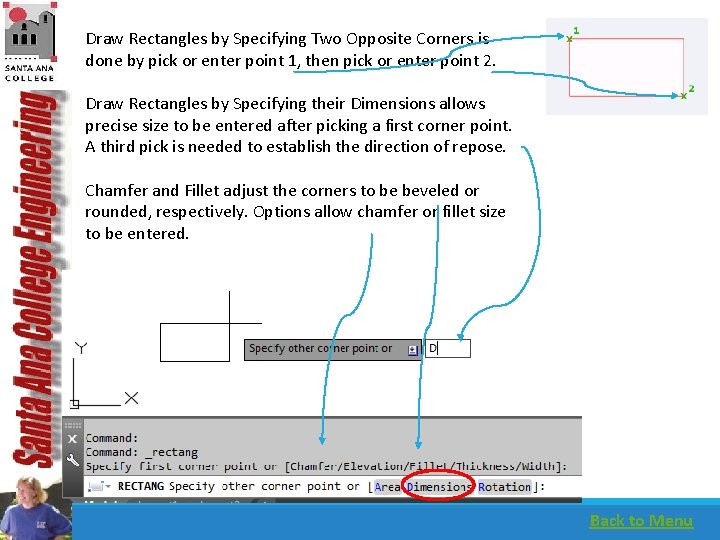
Draw Rectangles by Specifying Two Opposite Corners is done by pick or enter point 1, then pick or enter point 2. Draw Rectangles by Specifying their Dimensions allows precise size to be entered after picking a first corner point. A third pick is needed to establish the direction of repose. Chamfer and Fillet adjust the corners to be beveled or rounded, respectively. Options allow chamfer or fillet size to be entered. Back to Menu
More Rectangle Options: 1. Draw Rectangles by Specifying the Area and One Side 2. Width stays set until changed. Beware! 3. Draw Rectangle Rotated at an Angle by use of Rotate option with the angle value. Note: Thickness and Elevation are generally not 2 D options. These are for 3 D work typically. Back to Menu
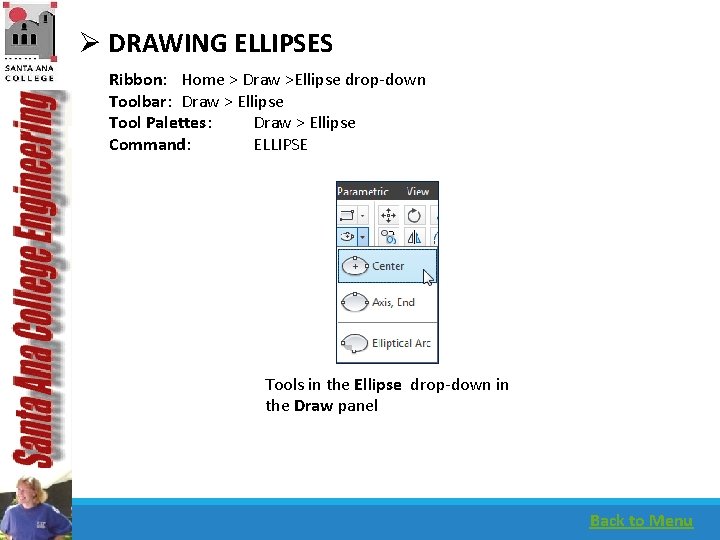
Ø DRAWING ELLIPSES Ribbon: Home > Draw >Ellipse drop-down Toolbar: Draw > Ellipse Tool Palettes: Draw > Ellipse Command: ELLIPSE Tools in the Ellipse drop-down in the Draw panel Back to Menu
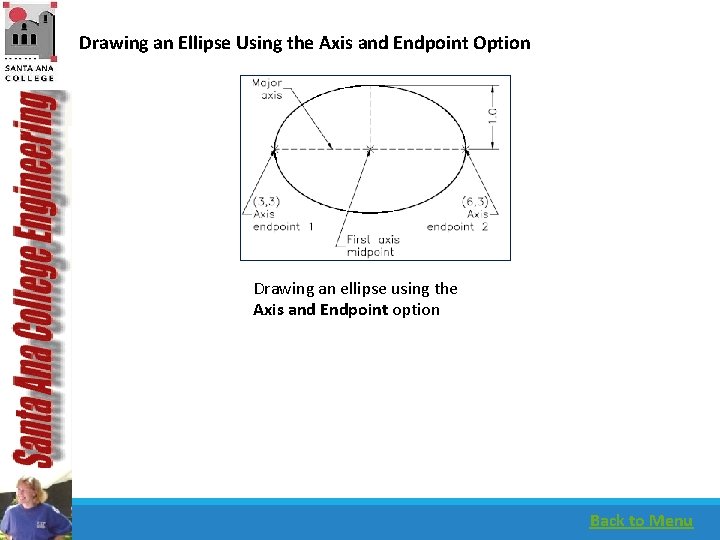
Drawing an Ellipse Using the Axis and Endpoint Option Drawing an ellipse using the Axis and Endpoint option Back to Menu
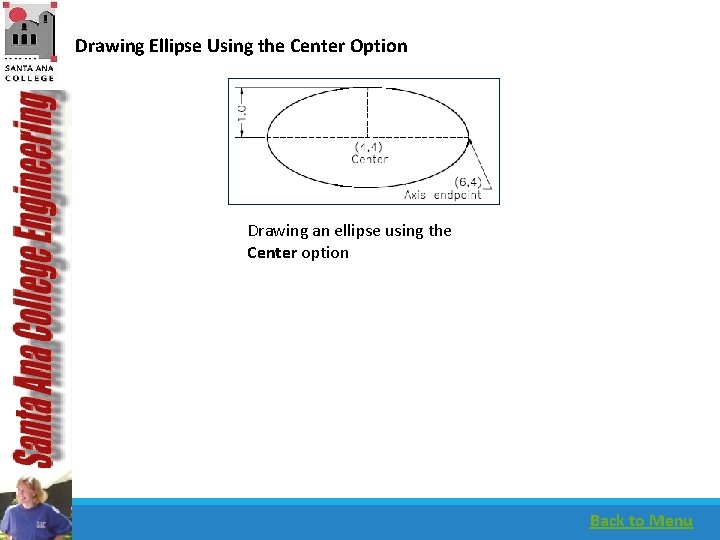
Drawing Ellipse Using the Center Option Drawing an ellipse using the Center option Back to Menu
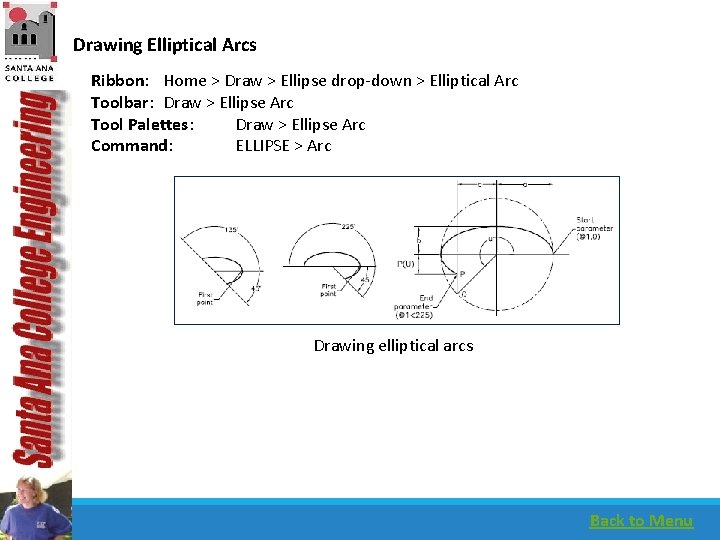
Drawing Elliptical Arcs Ribbon: Home > Draw > Ellipse drop-down > Elliptical Arc Toolbar: Draw > Ellipse Arc Tool Palettes: Draw > Ellipse Arc Command: ELLIPSE > Arc Drawing elliptical arcs Back to Menu
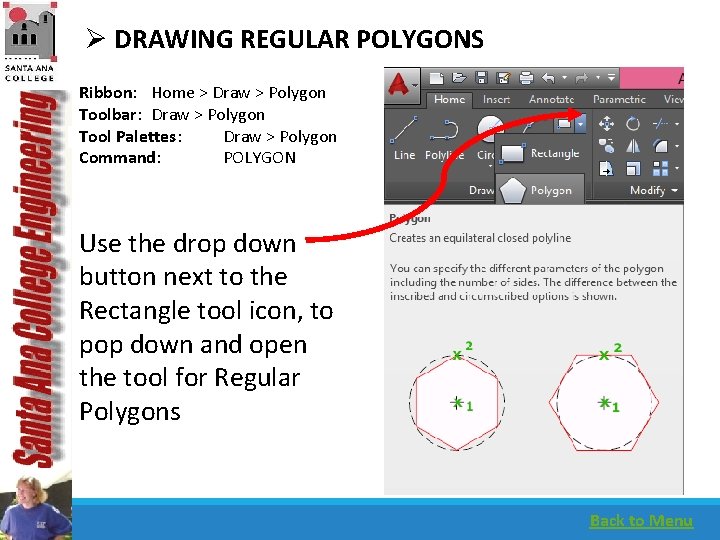
Ø DRAWING REGULAR POLYGONS Ribbon: Home > Draw > Polygon Toolbar: Draw > Polygon Tool Palettes: Draw > Polygon Command: POLYGON Use the drop down button next to the Rectangle tool icon, to pop down and open the tool for Regular Polygons Back to Menu
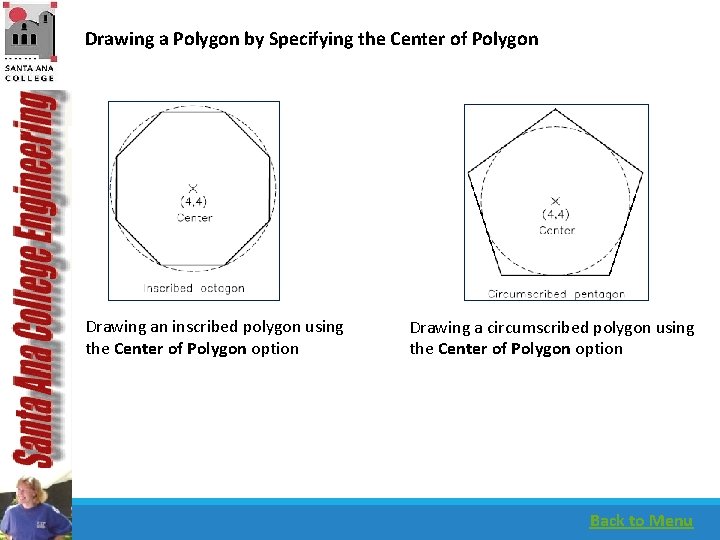
Drawing a Polygon by Specifying the Center of Polygon Drawing an inscribed polygon using the Center of Polygon option Drawing a circumscribed polygon using the Center of Polygon option Back to Menu
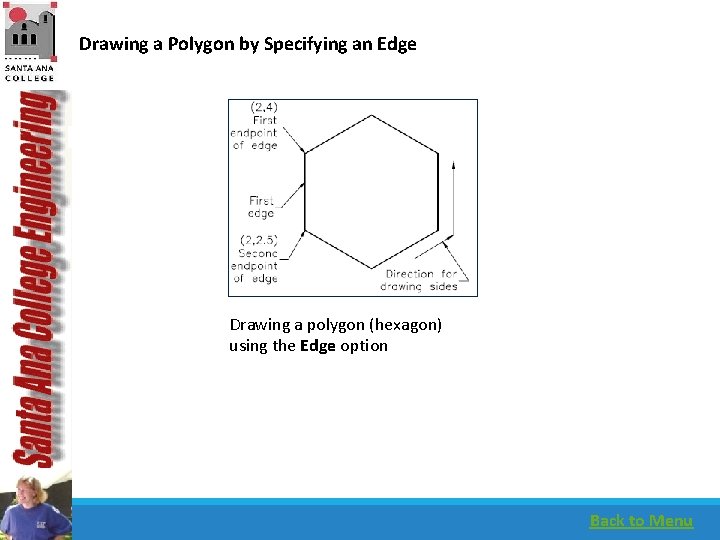
Drawing a Polygon by Specifying an Edge Drawing a polygon (hexagon) using the Edge option Back to Menu
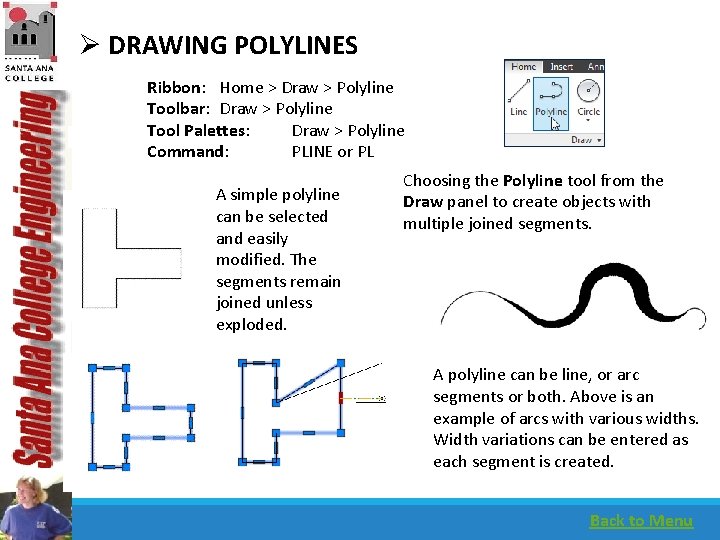
Ø DRAWING POLYLINES Ribbon: Home > Draw > Polyline Toolbar: Draw > Polyline Tool Palettes: Draw > Polyline Command: PLINE or PL A simple polyline can be selected and easily modified. The segments remain joined unless exploded. Choosing the Polyline tool from the Draw panel to create objects with multiple joined segments. A polyline can be line, or arc segments or both. Above is an example of arcs with various widths. Width variations can be entered as each segment is created. Back to Menu
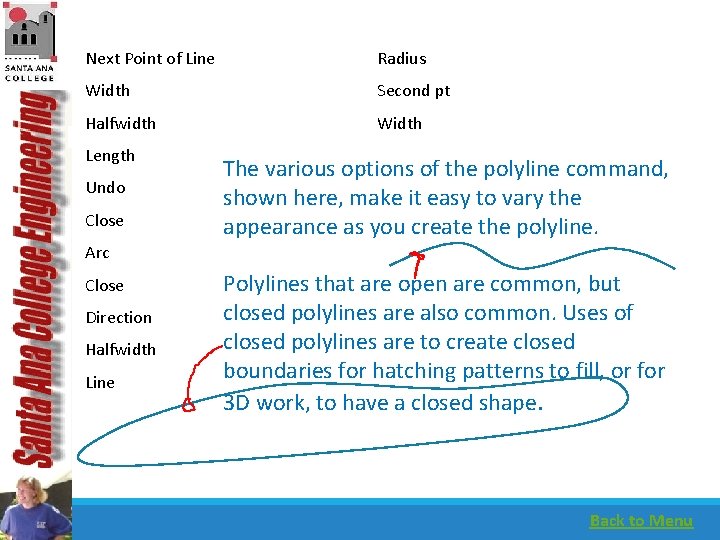
Next Point of Line Radius Width Second pt Halfwidth Width Length Undo Close The various options of the polyline command, shown here, make it easy to vary the appearance as you create the polyline. Arc Close Direction Halfwidth Line Polylines that are open are common, but closed polylines are also common. Uses of closed polylines are to create closed boundaries for hatching patterns to fill, or for 3 D work, to have a closed shape. Back to Menu
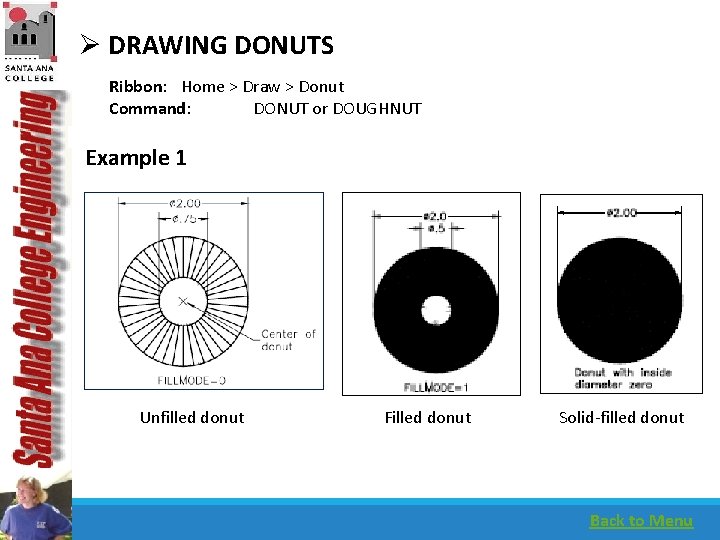
Ø DRAWING DONUTS Ribbon: Home > Draw > Donut Command: DONUT or DOUGHNUT Example 1 Unfilled donut Filled donut Solid-filled donut Back to Menu
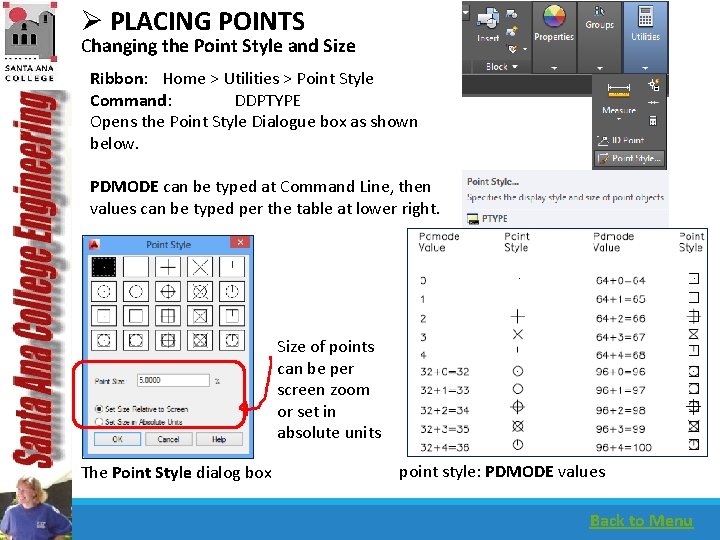
Ø PLACING POINTS Changing the Point Style and Size Ribbon: Home > Utilities > Point Style Command: DDPTYPE Opens the Point Style Dialogue box as shown below. PDMODE can be typed at Command Line, then values can be typed per the table at lower right. Size of points can be per screen zoom or set in absolute units The Point Style dialog box point style: PDMODE values Back to Menu
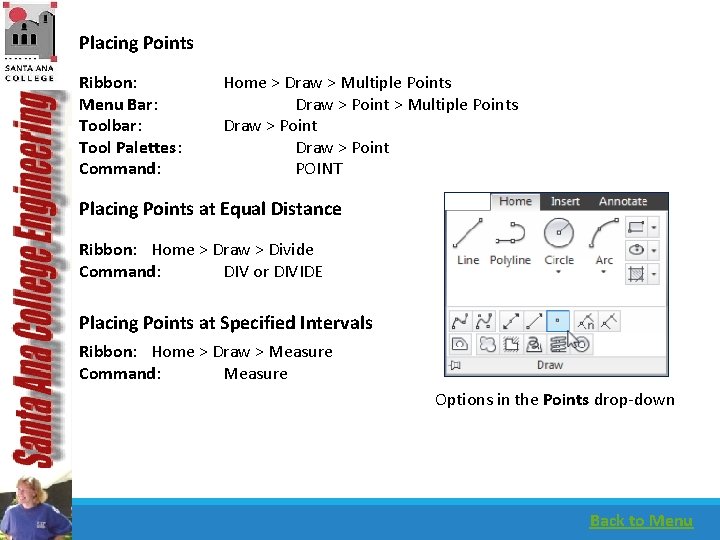
Placing Points Ribbon: Menu Bar: Toolbar: Tool Palettes: Command: Home > Draw > Multiple Points Draw > Point POINT Placing Points at Equal Distance Ribbon: Home > Draw > Divide Command: DIV or DIVIDE Placing Points at Specified Intervals Ribbon: Home > Draw > Measure Command: Measure Options in the Points drop-down Back to Menu
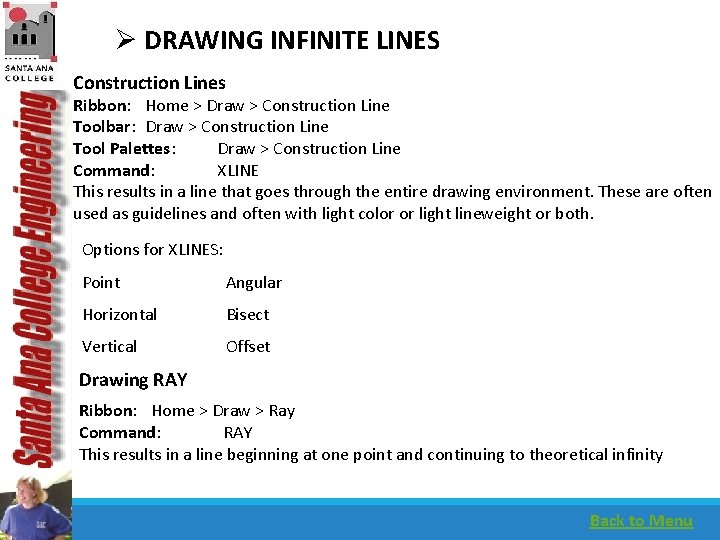
Ø DRAWING INFINITE LINES Construction Lines Ribbon: Home > Draw > Construction Line Toolbar: Draw > Construction Line Tool Palettes: Draw > Construction Line Command: XLINE This results in a line that goes through the entire drawing environment. These are often used as guidelines and often with light color or light lineweight or both. Options for XLINES: Point Angular Horizontal Bisect Vertical Offset Drawing RAY Ribbon: Home > Draw > Ray Command: RAY This results in a line beginning at one point and continuing to theoretical infinity Back to Menu
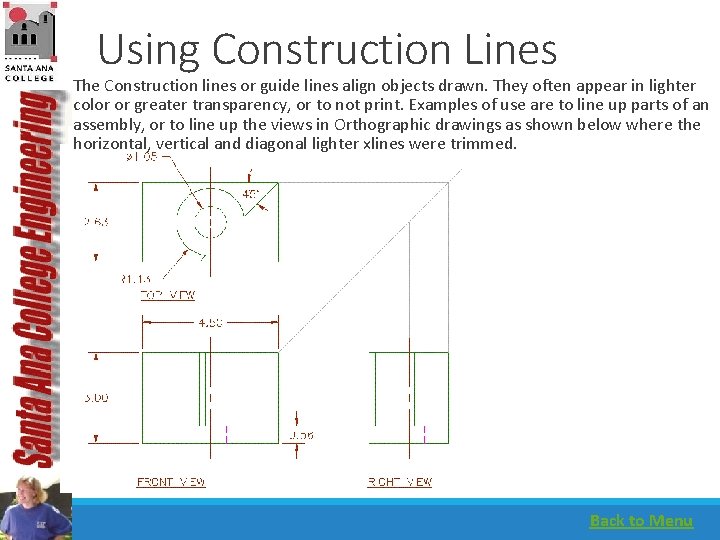
Using Construction Lines The Construction lines or guide lines align objects drawn. They often appear in lighter color or greater transparency, or to not print. Examples of use are to line up parts of an assembly, or to line up the views in Orthographic drawings as shown below where the horizontal, vertical and diagonal lighter xlines were trimmed. Back to Menu
Ø WRITING A SINGLE LINE TEXT Ribbon: Home > Annotation > Text drop-down > Single Line Command: TEXT Results in defaulting the values below: Choose the Single Line tool from the Draw panel Current text style: "Standard" Text height: 0. 2000 Annotative: No Specify start point of text or [Justify/Style]: Specify the starting point of the text. Specify height<current>: Enter the text height. Specify rotation angle of text <0>: generally press enter to accept the value of 0 and draw horizontal lines of text. 90 will result in the text rotating counterclockwise to be right reading. • It is preferable almost always to use Annotative Text, however. Prior to using Annotative Text, beginning Auto. CAD users often set the variable Annoautoscale to 4 to ensure visability and autoscaling. It is -4 by default. Back to Menu
- Slides: 24