
Lean Forward With Touch Cast Studio More Than


- Slides: 16
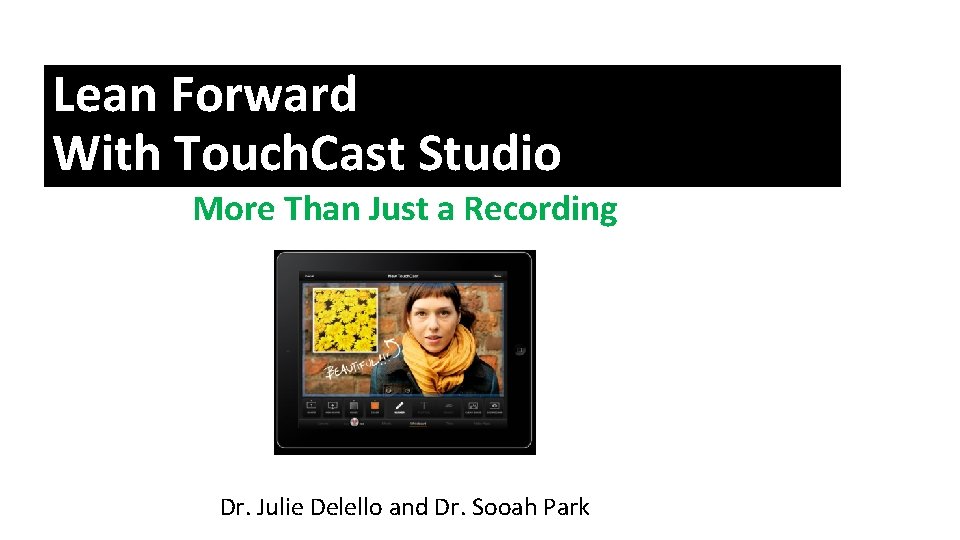
Lean Forward With Touch. Cast Studio More Than Just a Recording Dr. Julie Delello and Dr. Sooah Park
Lean Back/Lean Forward Television Audience Measurement; Nielsen Holdings N. V. (2014) Terms use to describe the different modes of engagement that users adopt with media. Television may be regarded as a lean back medium, involving minimum interaction with the viewer, who sits passively and waits to be entertained, while the laptop is a lean forward medium, requiring constant interaction between the user and the materials being displayed on screen.
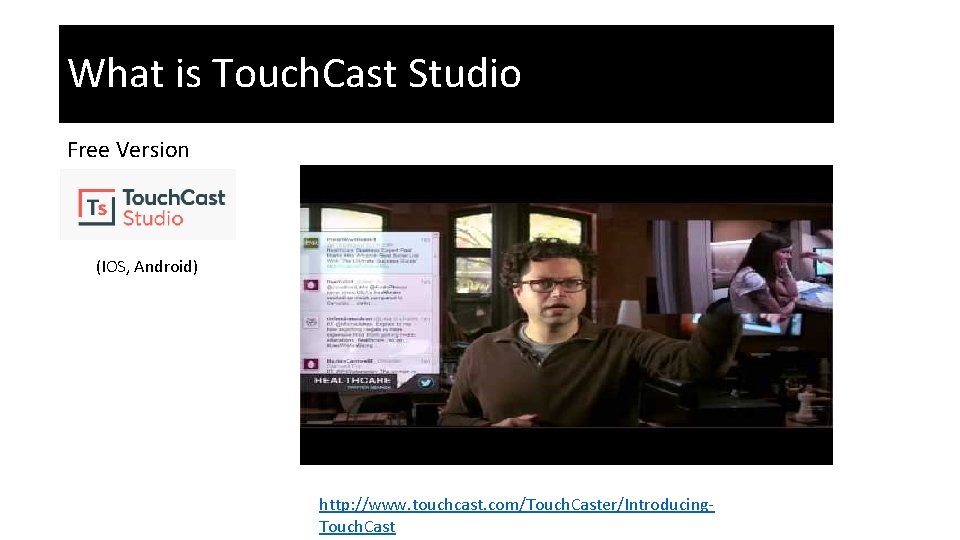
What is Touch. Cast Studio Free Version (IOS, Android) http: //www. touchcast. com/Touch. Caster/Introducing. Touch. Cast
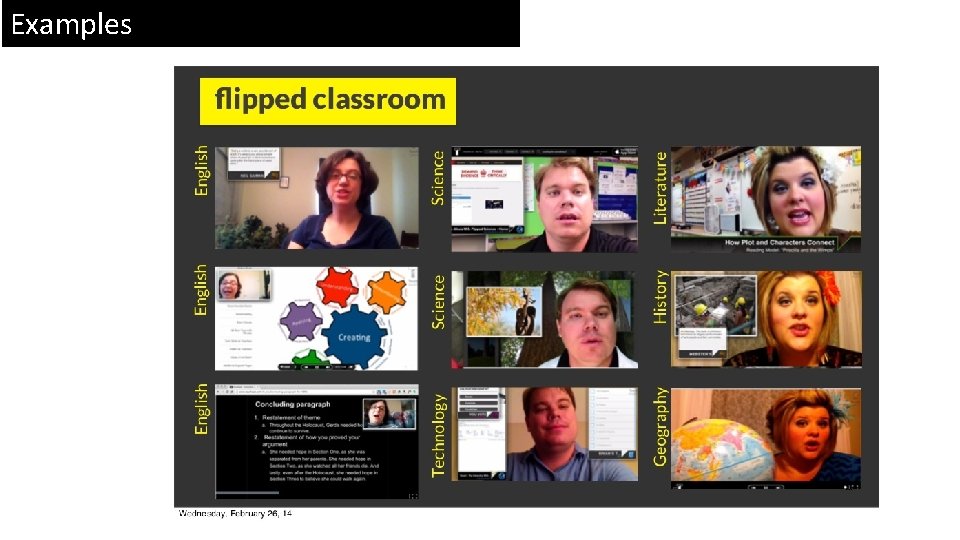
Examples
Planning Ahead • Write Your Script. • On your i. Pad, download any images that you might want to use. These need to be clear (no blurred edges) and check for copyrights. You can simply download from the Internet or upload your own.
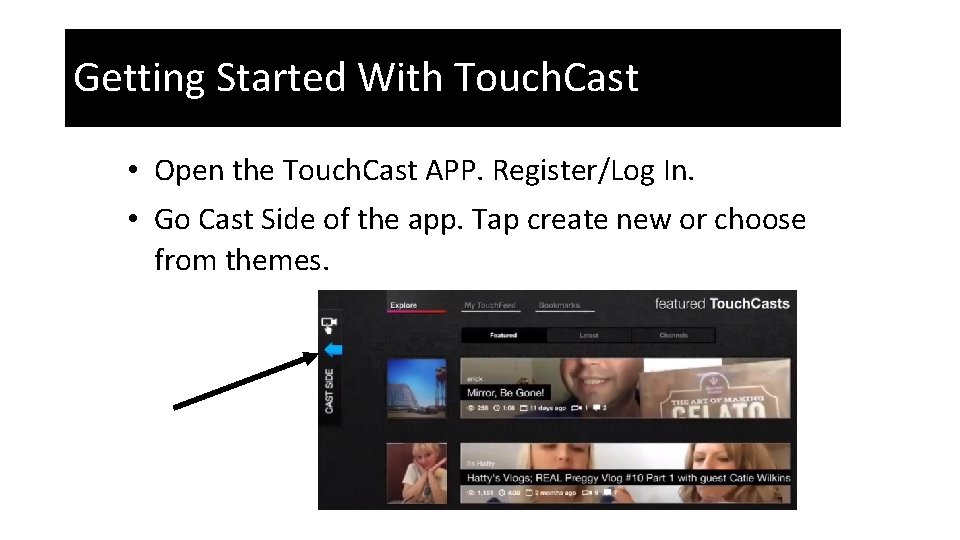
Getting Started With Touch. Cast • Open the Touch. Cast APP. Register/Log In. • Go Cast Side of the app. Tap create new or choose from themes.
Example of Themes
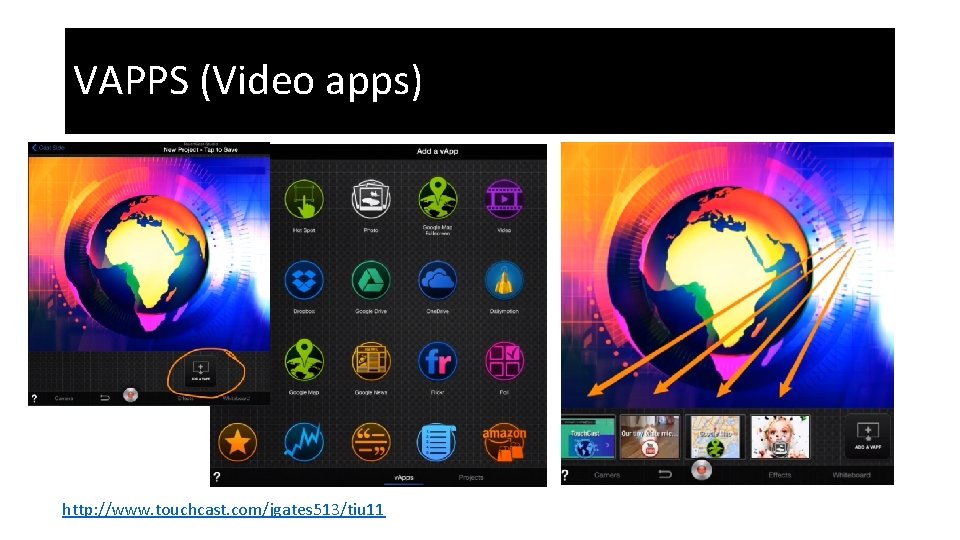
VAPPS (Video apps) http: //www. touchcast. com/jgates 513/tiu 11
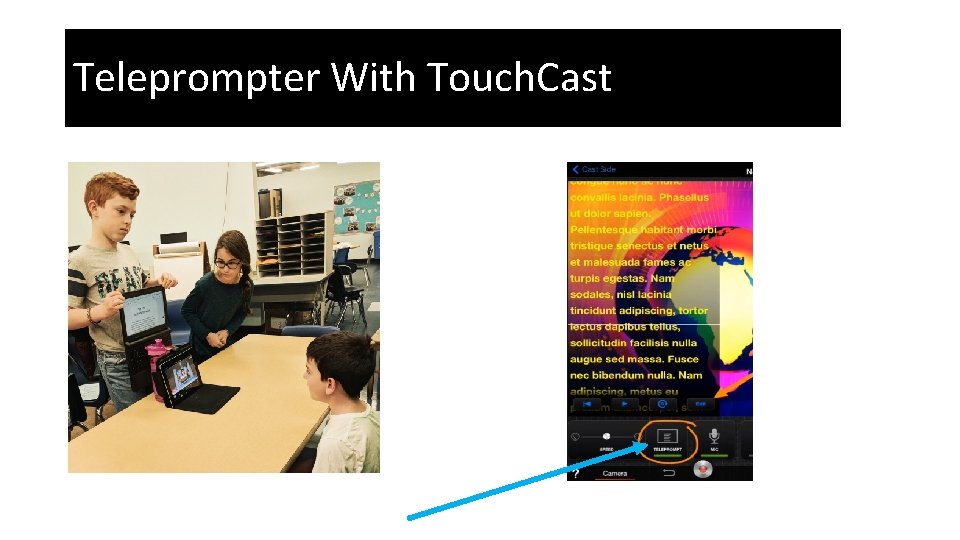
Teleprompter With Touch. Cast
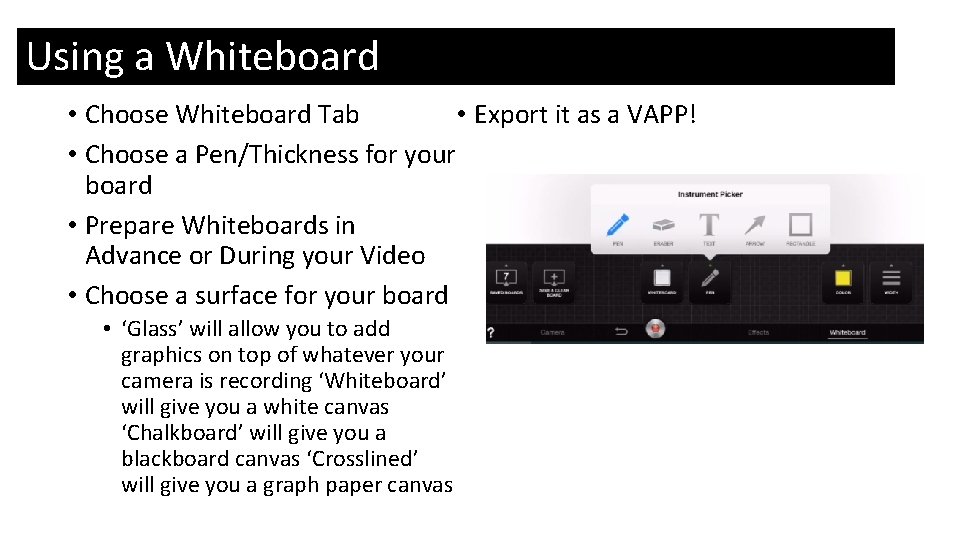
Using a Whiteboard • Export it as a VAPP! • Choose Whiteboard Tab • Choose a Pen/Thickness for your board • Prepare Whiteboards in Advance or During your Video • Choose a surface for your board • ‘Glass’ will allow you to add graphics on top of whatever your camera is recording ‘Whiteboard’ will give you a white canvas ‘Chalkboard’ will give you a blackboard canvas ‘Crosslined’ will give you a graph paper canvas
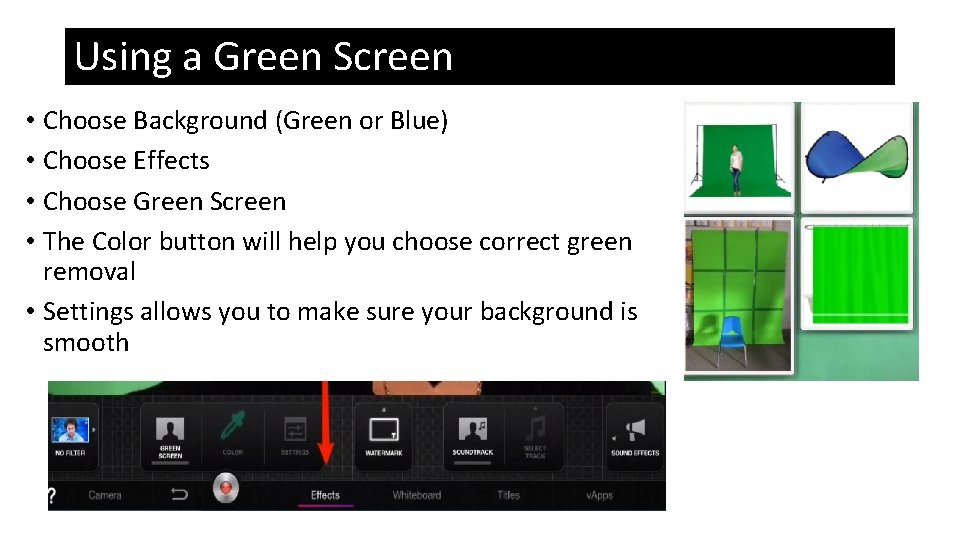
Using a Green Screen • Choose Background (Green or Blue) • Choose Effects • Choose Green Screen • The Color button will help you choose correct green removal • Settings allows you to make sure your background is smooth
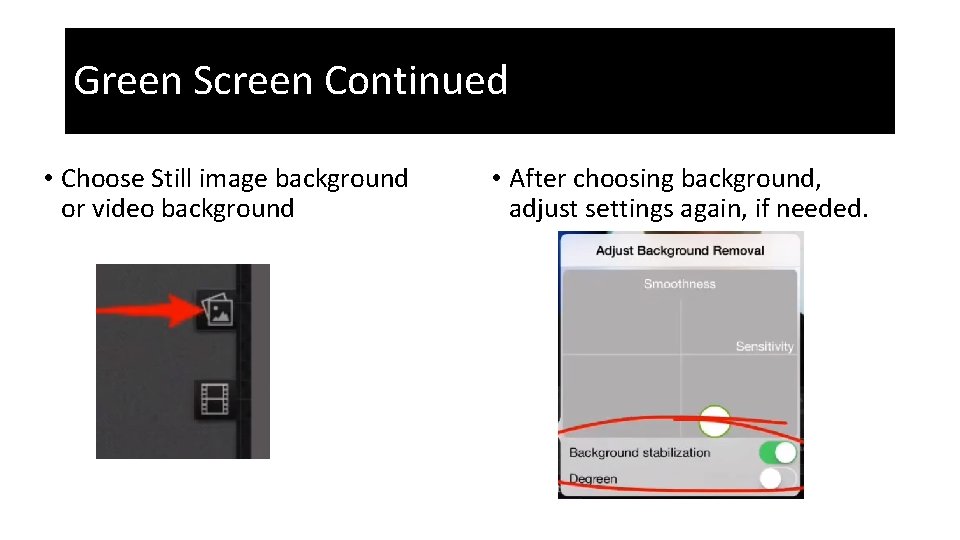
Green Screen Continued • Choose Still image background or video background • After choosing background, adjust settings again, if needed.
Recording Your Video • Make sure the volume is turned up all the way if you record on your i. Pad. An external microphone may help. • Wear a color that is not green, red, or tan (black works well) (or blue if using the blue screen) • You will need to stand or sit in front of the green (or blue) screen. Sit a few inches away to keep shadows off screen. • Record your video (Push the Record Button) • Upload your video to your i. Pad (Dropbox, One Drive…)
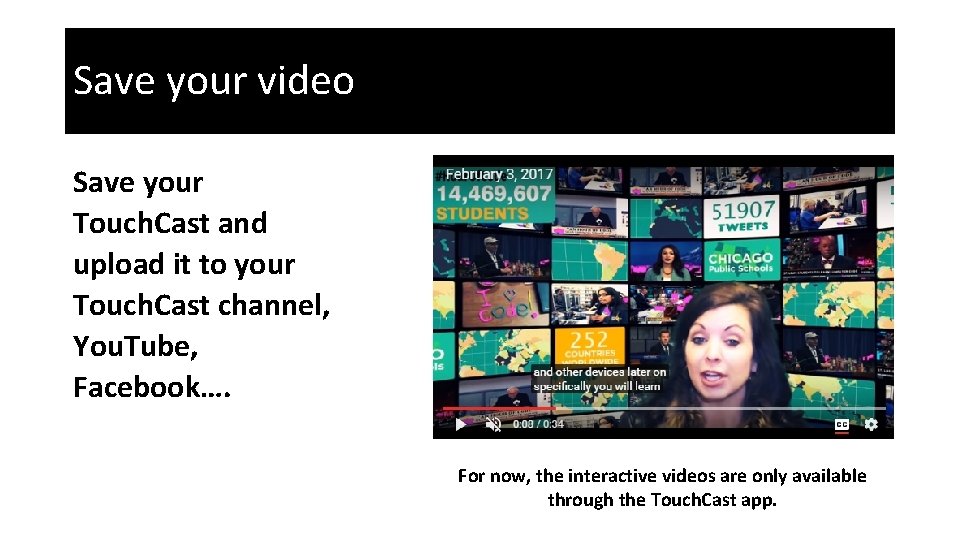
Save your video Save your Touch. Cast and upload it to your Touch. Cast channel, You. Tube, Facebook…. For now, the interactive videos are only available through the Touch. Cast app.
Examples
Your Turn Try making your own video! Help Guides and Tutorials: http: //cindystech. weebly. com/uploads/1/6/6/8/16689692/tc_studio_i pad_reference_guide_1 -16. pdf https: //www. touchcast. com/tutorials