
Layout in WPF Rujchai Ungarunyawee Department of Computer

- Slides: 35
Layout in WPF Rujchai Ung-arunyawee Department of Computer Engineering Khon Kaen University
Layout History �. NET 1. 0 �Coordinate-based layout only �Anchoring and Docking �. NET 2. 0 �Coordinate-based layout is standard �Flow-based layout is optional � Flow. Layout. Panel and Table. Layout. Panel �. NET 3. 0 and greater �Flow-based layout is standard �Coordinate-based layout is optional �Developers can now create resolution-independent, size -independent interfaces that scale well on different monitors.
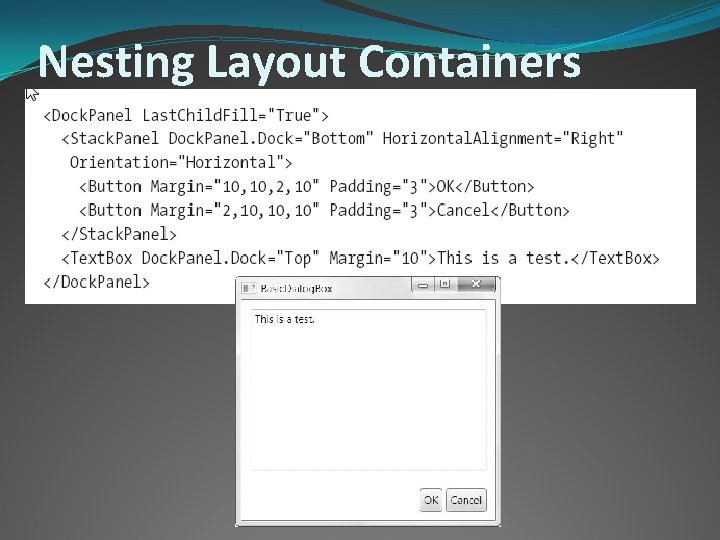
The WPF Layout Philosophy �WPF window can hold only a single element. �You need to place a container in your window and then add other elements to that container. �Elements (like controls) should not be explicitly sized. �Elements do not indicate their position with screen coordinates. �Layout containers can be nested.
The Layout Containers �All the WPF layout containers are panels �Panel class has 3 public properties: Background, Children, and Is. Item. Host.
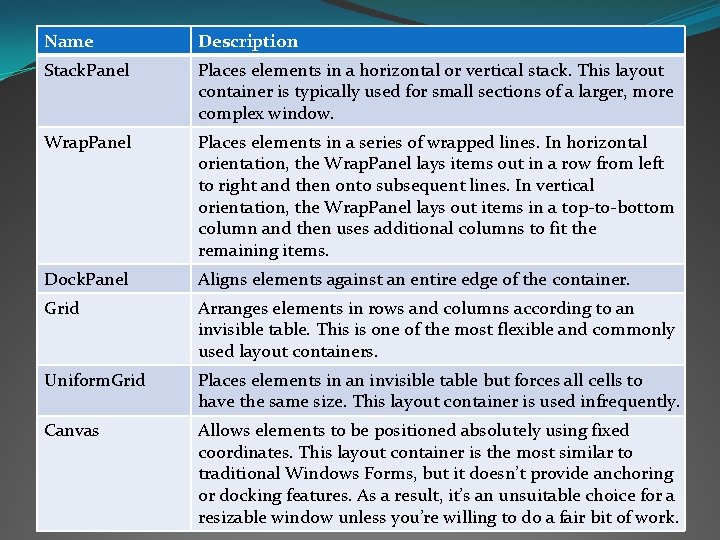
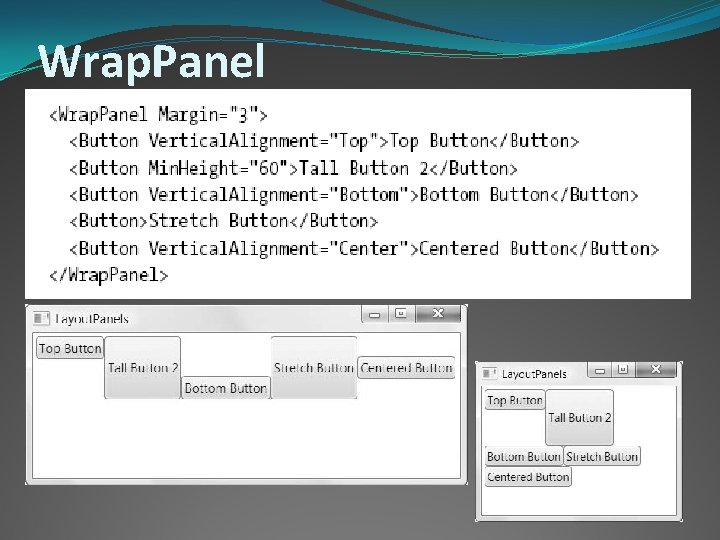
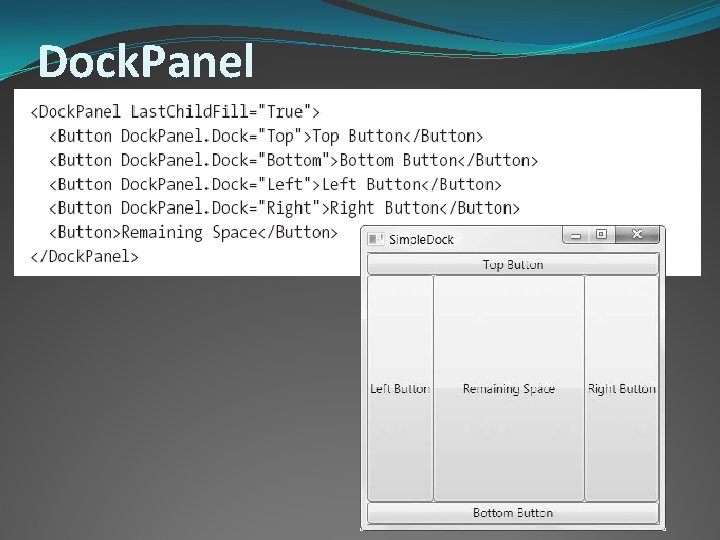
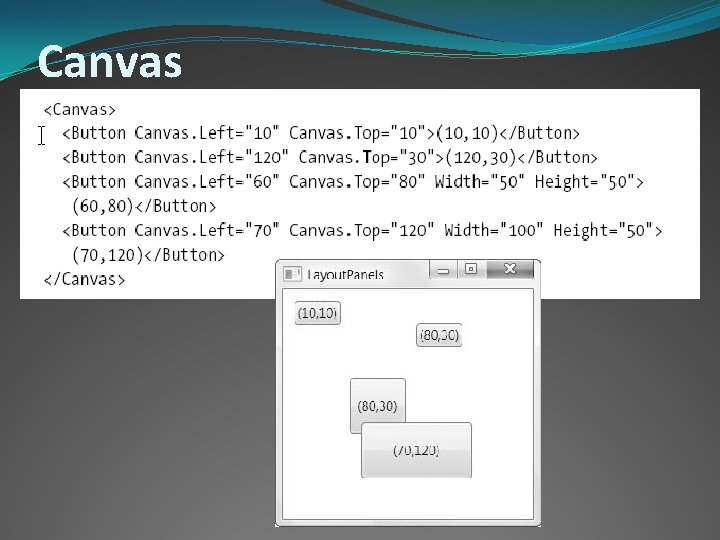
Name Description Stack. Panel Places elements in a horizontal or vertical stack. This layout container is typically used for small sections of a larger, more complex window. Wrap. Panel Places elements in a series of wrapped lines. In horizontal orientation, the Wrap. Panel lays items out in a row from left to right and then onto subsequent lines. In vertical orientation, the Wrap. Panel lays out items in a top-to-bottom column and then uses additional columns to fit the remaining items. Dock. Panel Aligns elements against an entire edge of the container. Grid Arranges elements in rows and columns according to an invisible table. This is one of the most flexible and commonly used layout containers. Uniform. Grid Places elements in an invisible table but forces all cells to have the same size. This layout container is used infrequently. Canvas Allows elements to be positioned absolutely using fixed coordinates. This layout container is the most similar to traditional Windows Forms, but it doesn’t provide anchoring or docking features. As a result, it’s an unsuitable choice for a resizable window unless you’re willing to do a fair bit of work.
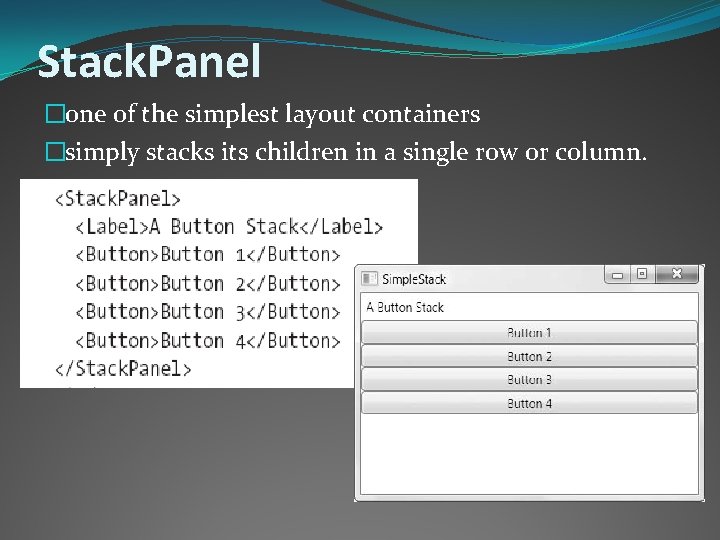
Stack. Panel �one of the simplest layout containers �simply stacks its children in a single row or column.
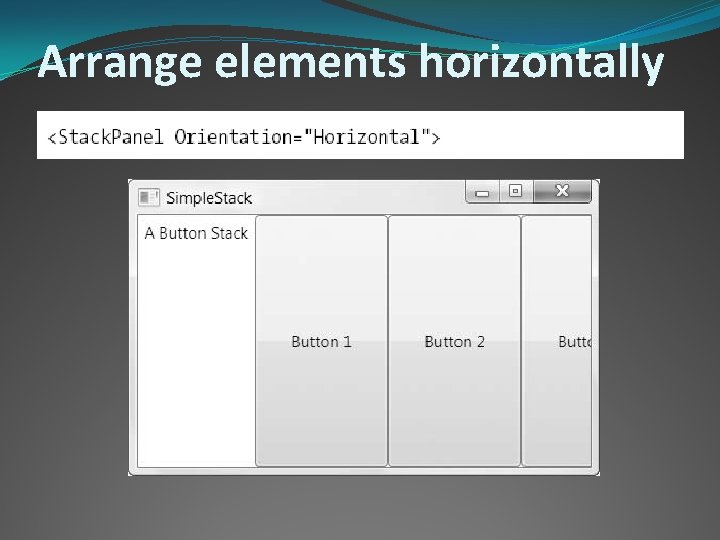
Arrange elements horizontally
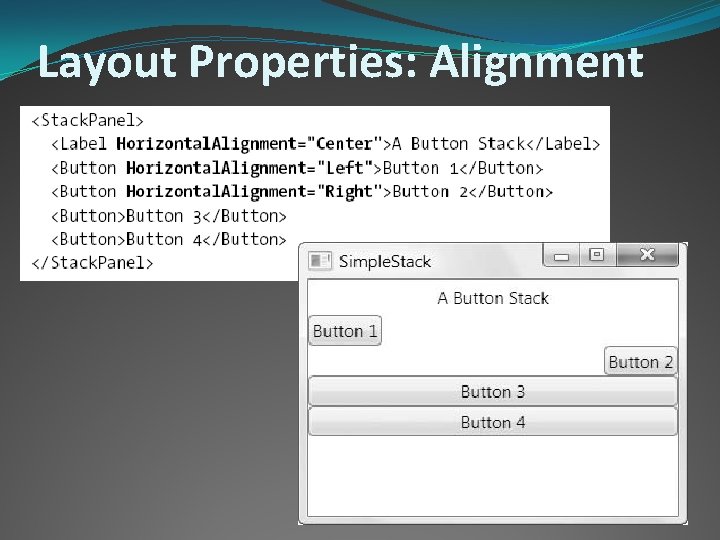
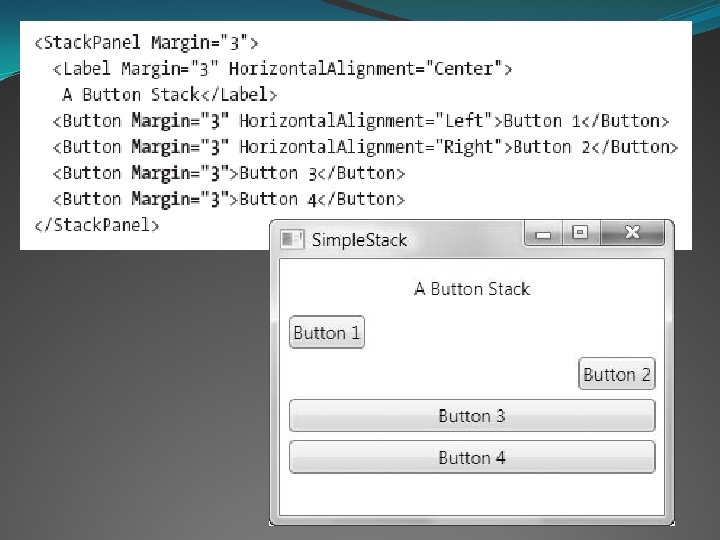
Layout Properties: Alignment
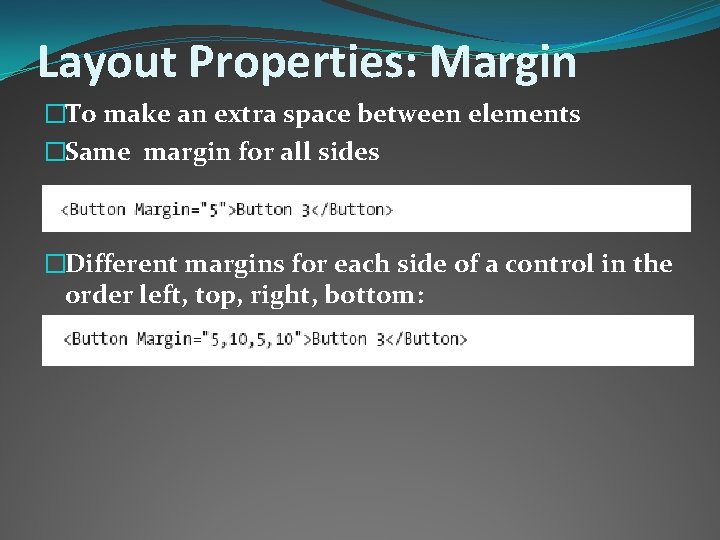
Layout Properties: Margin �To make an extra space between elements �Same margin for all sides �Different margins for each side of a control in the order left, top, right, bottom:
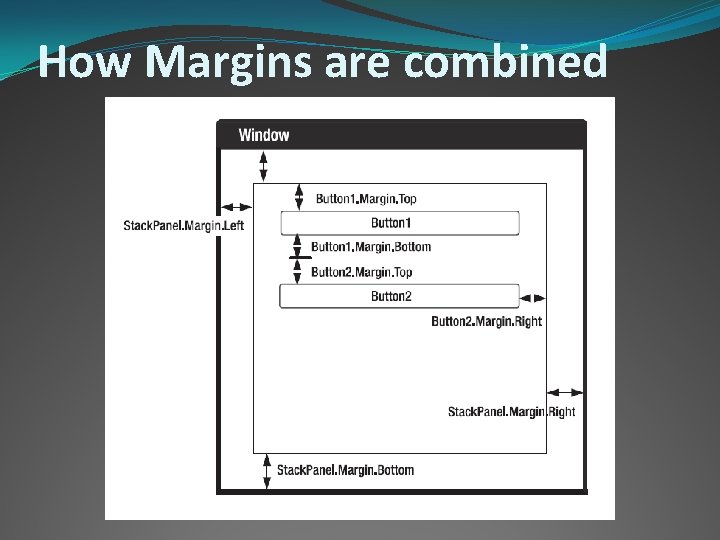
How Margins are combined
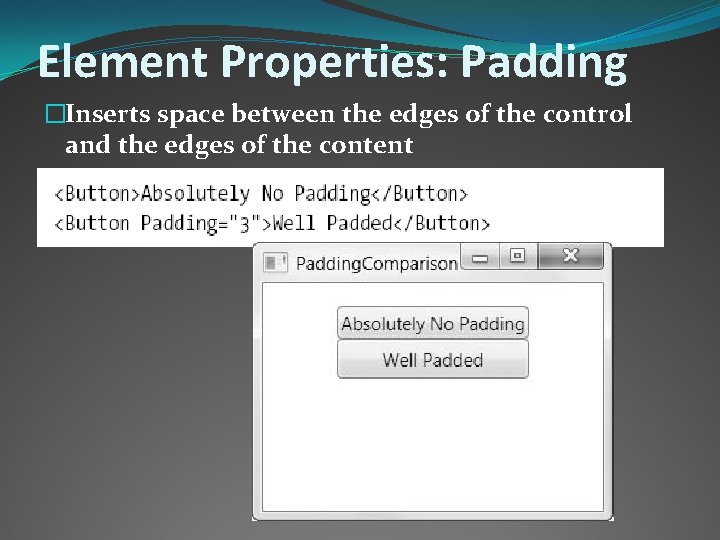
Element Properties: Padding �Inserts space between the edges of the control and the edges of the content
Wrap. Panel
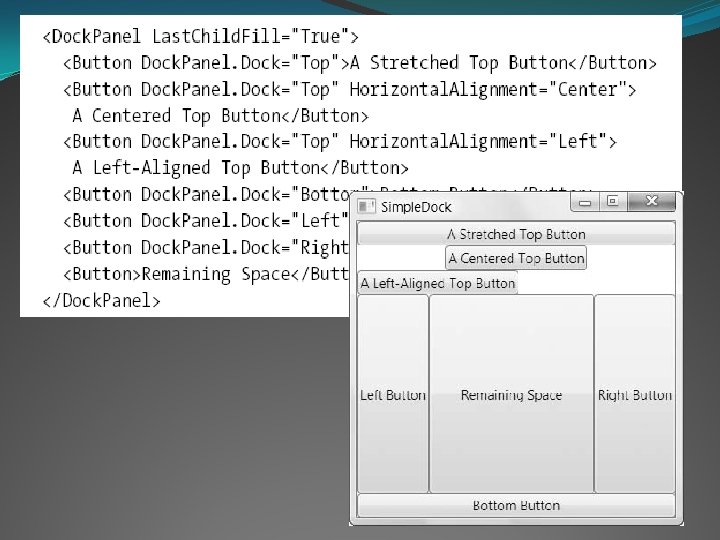
Dock. Panel
Nesting Layout Containers
Grid �The most powerful layout container in WPF �Used by Visual Studio when creating a new XAML file. �Separates elements into an invisible grid of rows and columns �More than one element can be placed in a single cell �Element may itself be another layout container that organizes its own group of contained controls: Nesting Layout.
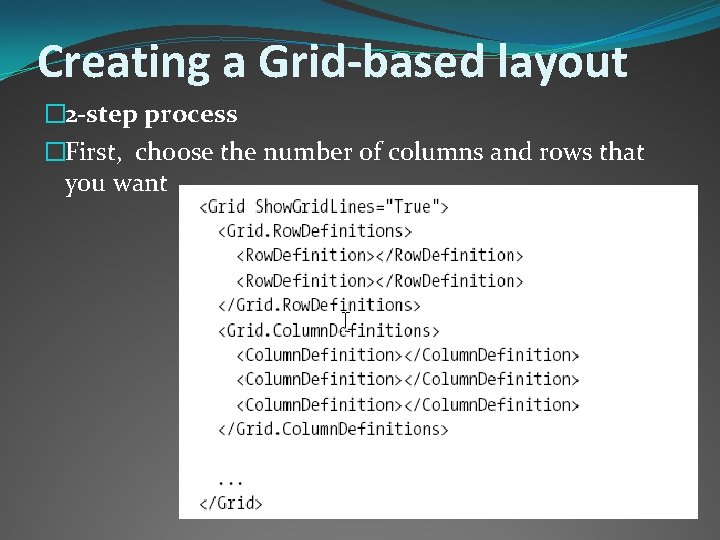
Creating a Grid-based layout � 2 -step process �First, choose the number of columns and rows that you want
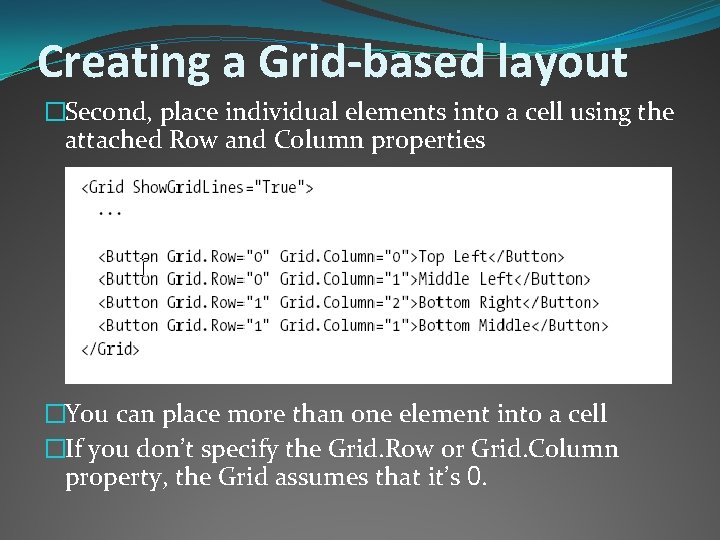
Creating a Grid-based layout �Second, place individual elements into a cell using the attached Row and Column properties �You can place more than one element into a cell �If you don’t specify the Grid. Row or Grid. Column property, the Grid assumes that it’s 0.
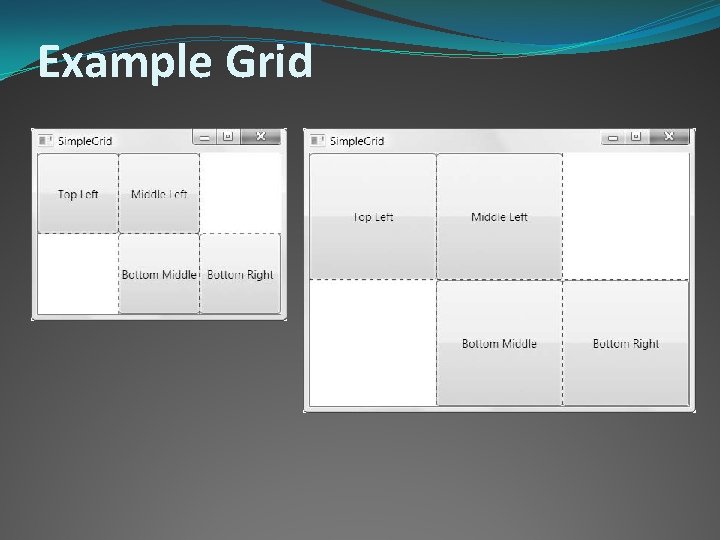
Example Grid
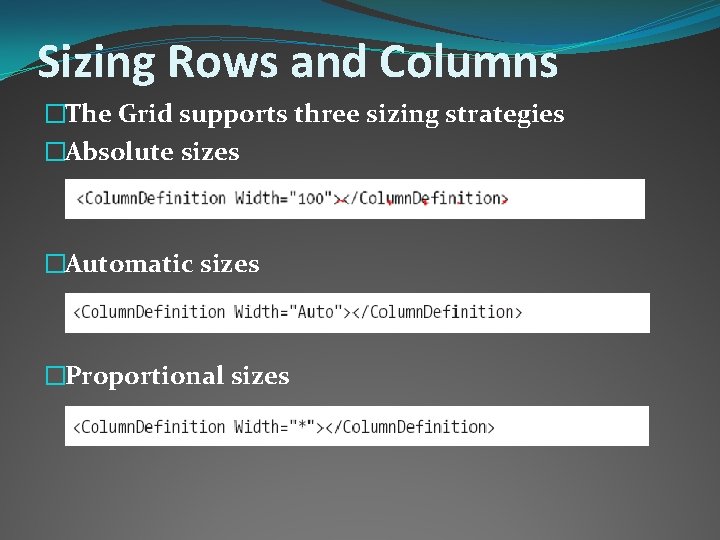
Sizing Rows and Columns �The Grid supports three sizing strategies �Absolute sizes �Automatic sizes �Proportional sizes
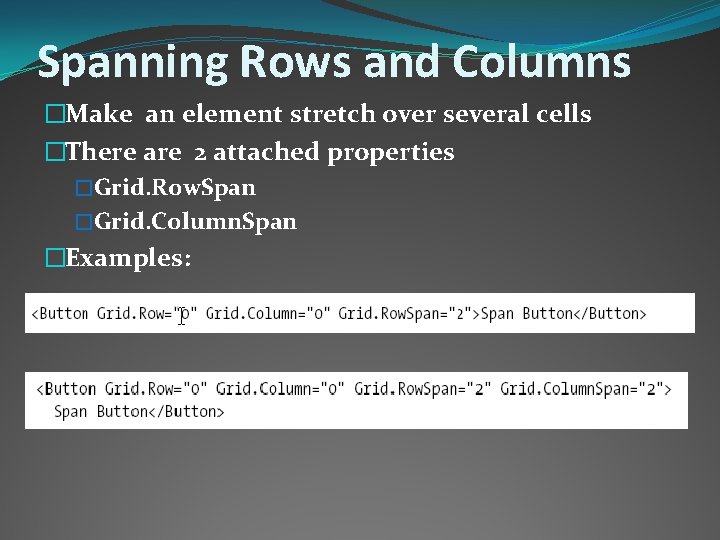
Spanning Rows and Columns �Make an element stretch over several cells �There are 2 attached properties �Grid. Row. Span �Grid. Column. Span �Examples:
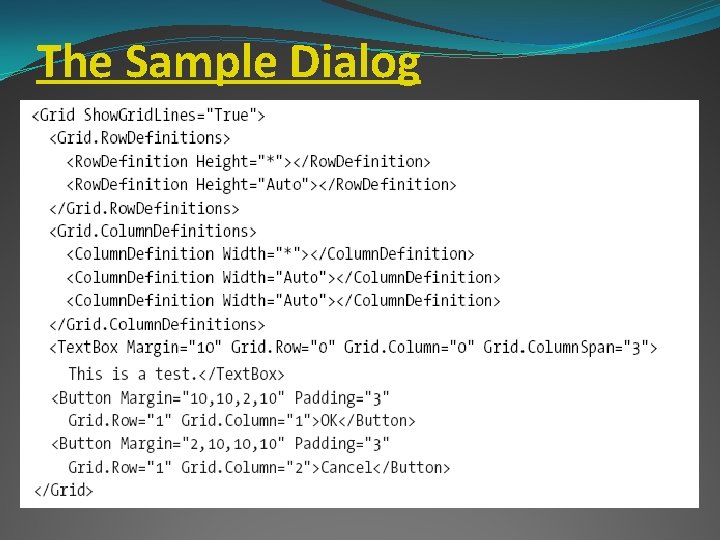
The Sample Dialog
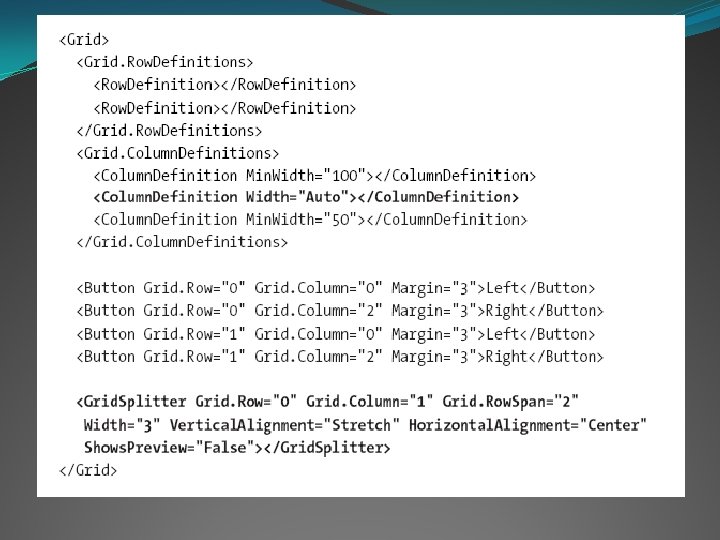
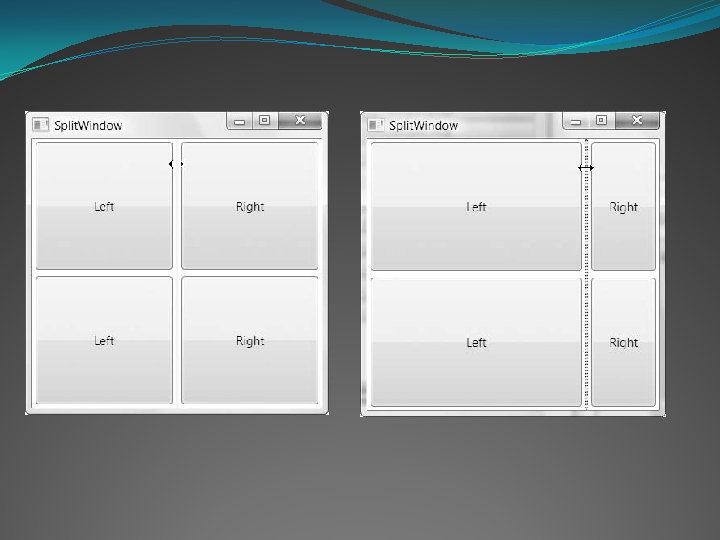
Splitter �In WPF, Splitter bars are represented by the Grid. Splitter class and are a feature of the Grid �Provides the ability to resize rows or columns �Always resizes entire rows or columns (not single cells) �The Grid. Splitter must be placed in a Grid cell �Horizontal splitter resizes rows �Set Horizontal. Alignment to Stretch and Vertical. Alignment to Center �Vertical splitter resizes columns �Set Vertical. Alignment to Stretch and Horizontal. Alignment to Center
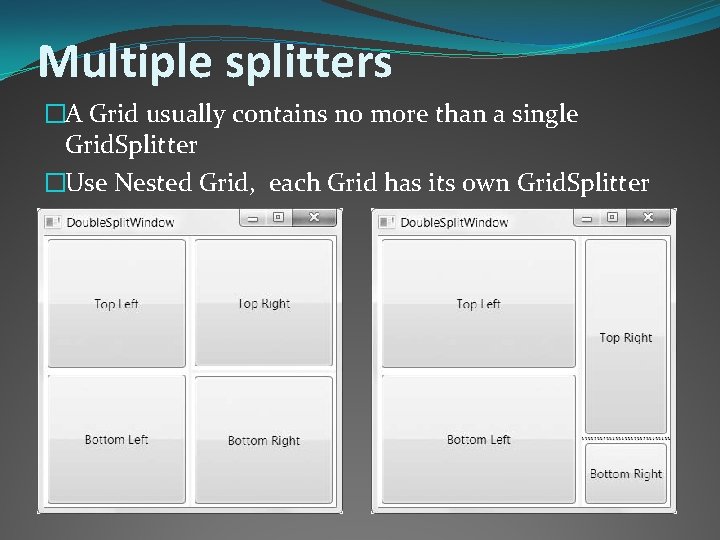
Multiple splitters �A Grid usually contains no more than a single Grid. Splitter �Use Nested Grid, each Grid has its own Grid. Splitter
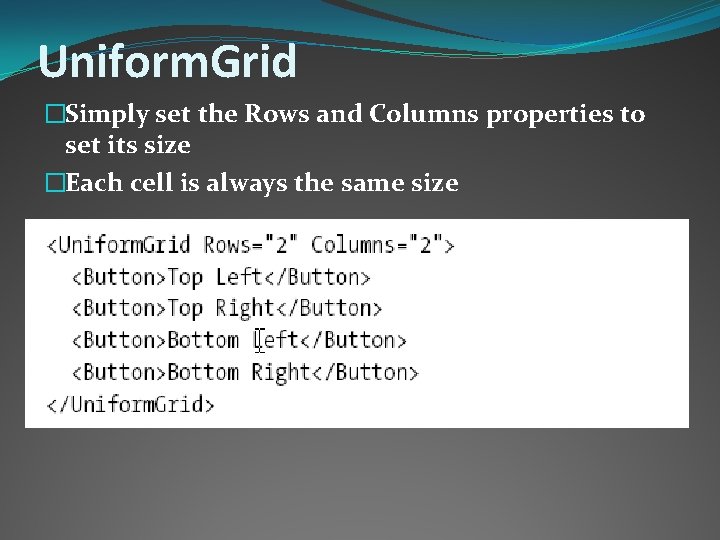
Uniform. Grid �Simply set the Rows and Columns properties to set its size �Each cell is always the same size
Canvas
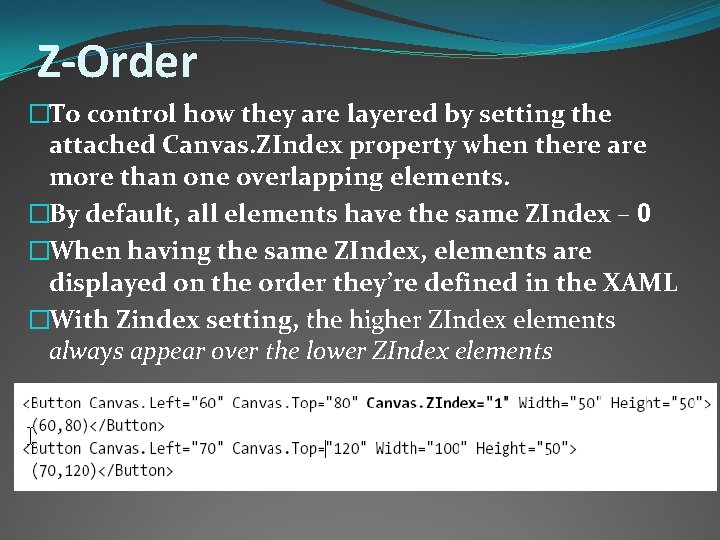
Z-Order �To control how they are layered by setting the attached Canvas. ZIndex property when there are more than one overlapping elements. �By default, all elements have the same ZIndex – 0 �When having the same ZIndex, elements are displayed on the order they’re defined in the XAML �With Zindex setting, the higher ZIndex elements always appear over the lower ZIndex elements
Z-Order in Code-Behind �Useful if you need to change the position of an element Programmatically. �Call Canvas. Set. ZIndex() �Pass in the element you want to modify and the new ZIndex you want to apply.
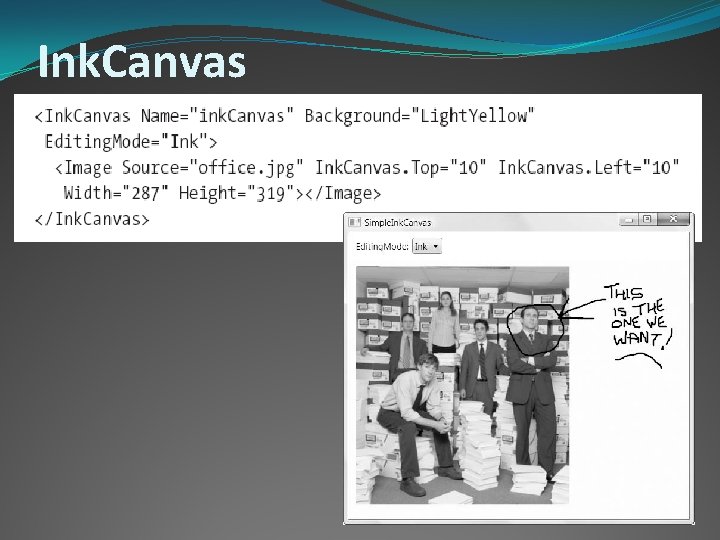
Ink. Canvas
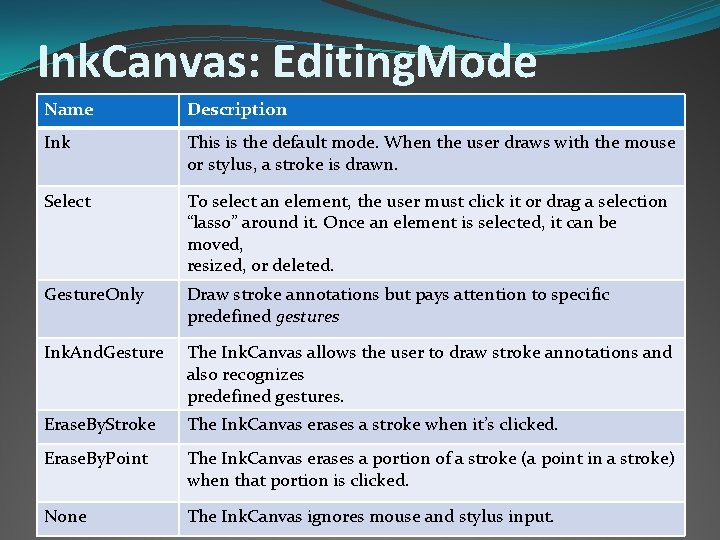
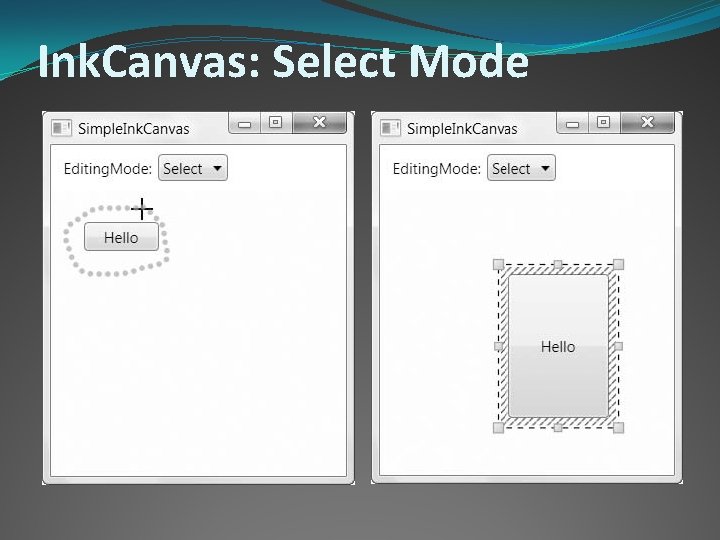
Ink. Canvas: Editing. Mode Name Description Ink This is the default mode. When the user draws with the mouse or stylus, a stroke is drawn. Select To select an element, the user must click it or drag a selection “lasso” around it. Once an element is selected, it can be moved, resized, or deleted. Gesture. Only Draw stroke annotations but pays attention to specific predefined gestures Ink. And. Gesture The Ink. Canvas allows the user to draw stroke annotations and also recognizes predefined gestures. Erase. By. Stroke The Ink. Canvas erases a stroke when it’s clicked. Erase. By. Point The Ink. Canvas erases a portion of a stroke (a point in a stroke) when that portion is clicked. None The Ink. Canvas ignores mouse and stylus input.
Ink. Canvas: Select Mode