
LAUSD FYAP Student Information Systems Overview for New

- Slides: 41
LAUSD & FYAP Student Information Systems Overview for New Counselors Presented by Los Angeles Unified School District
1. 2. 3. 4. Student Data Identify your caseload by using: Mi. S (LAUSD) My. Data (LAUSD) Data Match (Exchange between DCFS & LAUSD) SITS – Student Information Tracking System (DCFS)
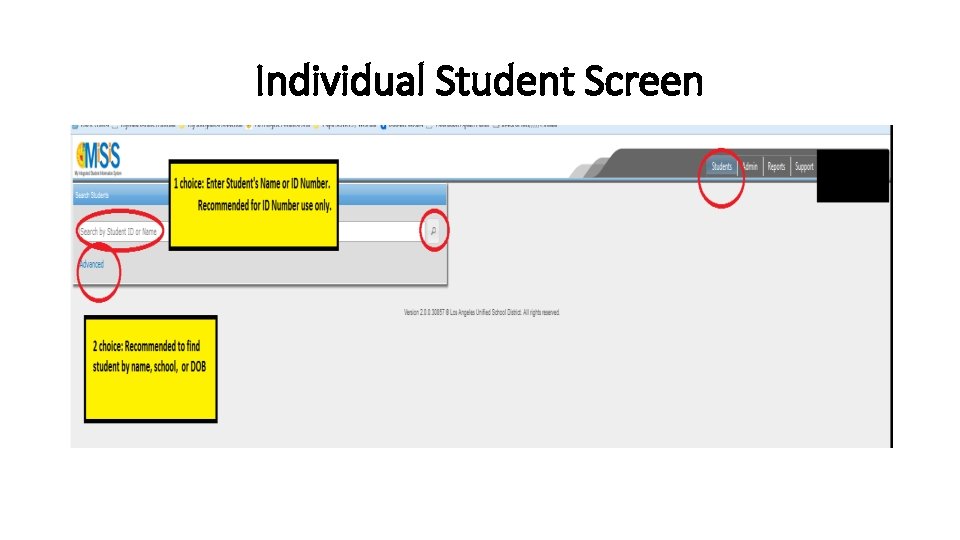
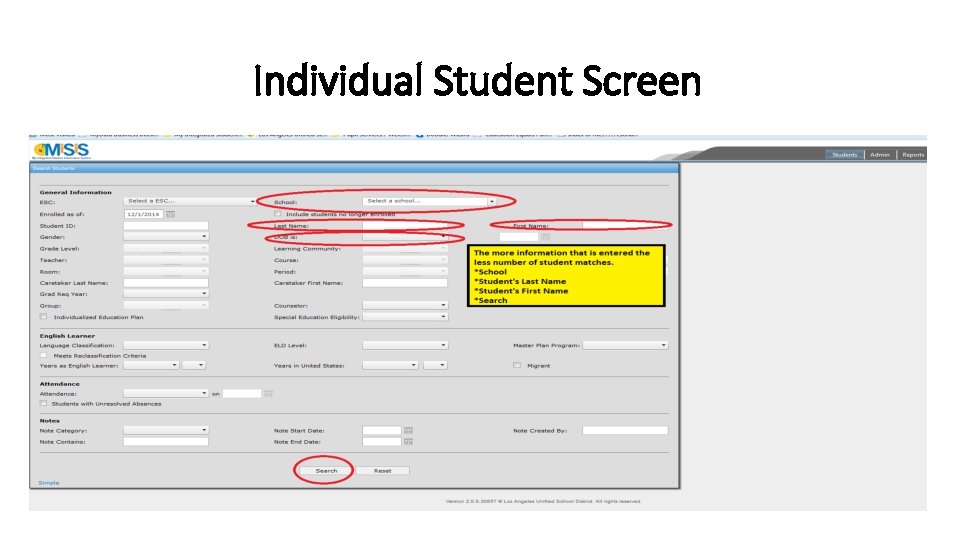
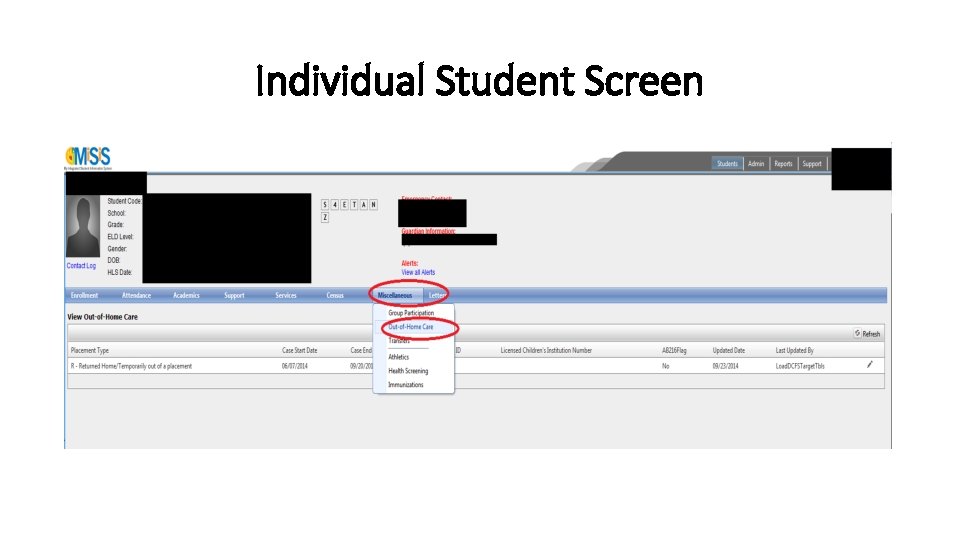
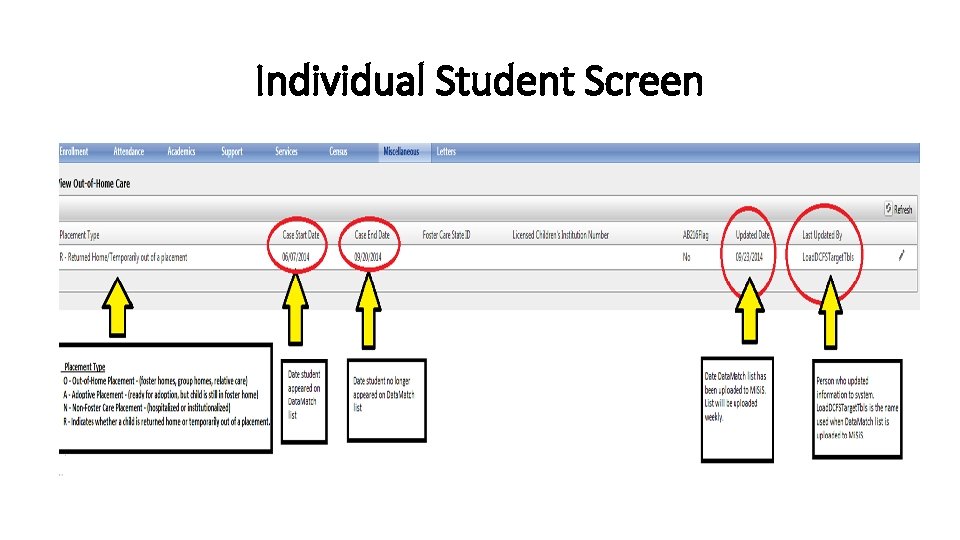
1. Mi. S - My integrated Student information System LAUSD’s system for entering, managing, analyzing, and reporting all data connected to every single student. In this section you will learn: a. b. c. d. e. Logging into Mi. S Searching for a student Viewing an individual student’s screen Locating the “Out of Home Care” identifier on Mi. S How to run an “Out of Home Care” report that identifies all foster youth at your schools
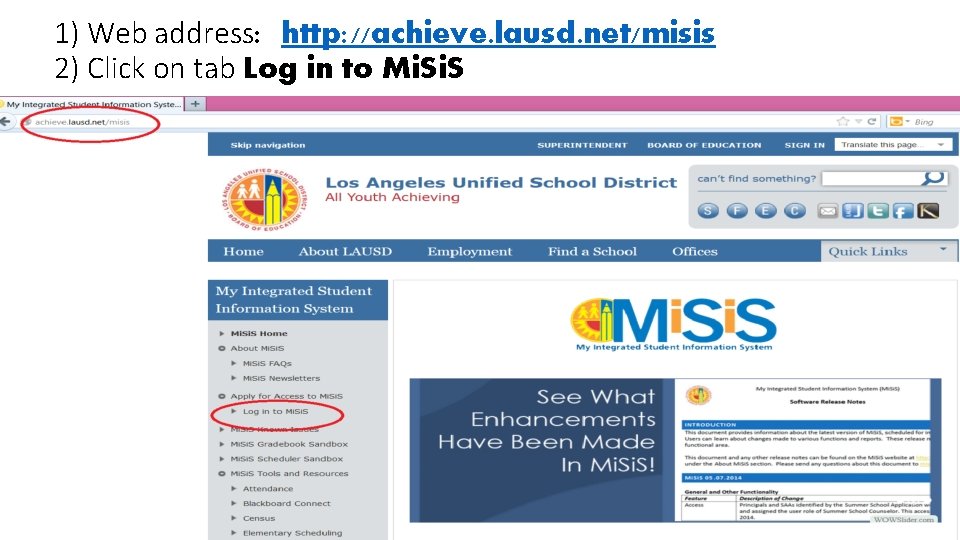
1) Web address: http: //achieve. lausd. net/misis 2) Click on tab Log in to Mi. S
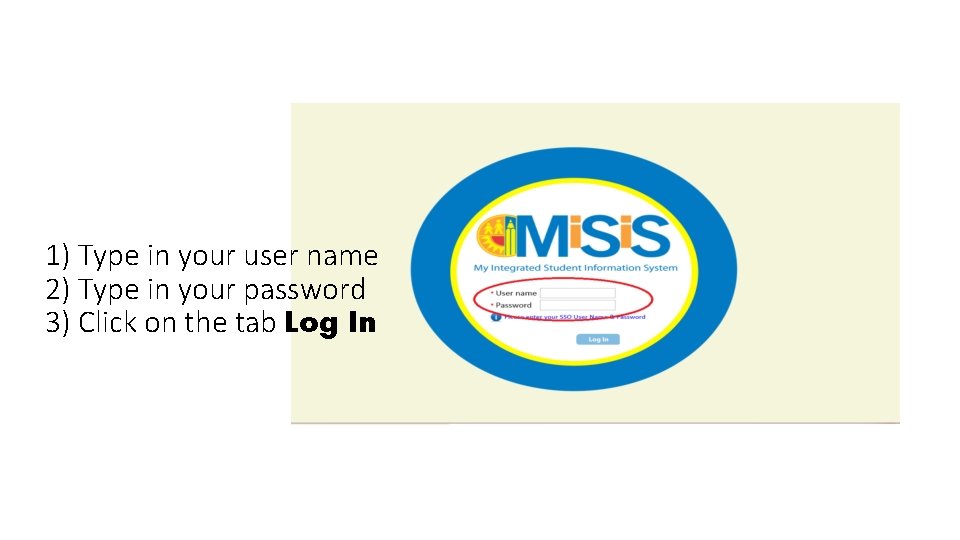
1) Type in your user name 2) Type in your password 3) Click on the tab Log In
Individual Student Screen
Individual Student Screen
Individual Student Screen
Individual Student Screen
Mi. S Out of Home Care Report Identifying who the foster youth are at your schools
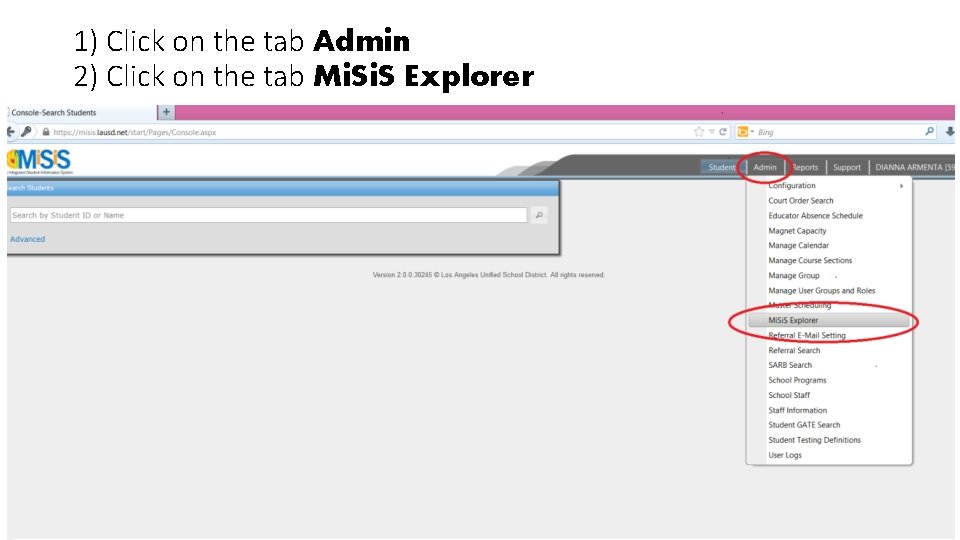
1) Click on the tab Admin 2) Click on the tab Mi. S Explorer
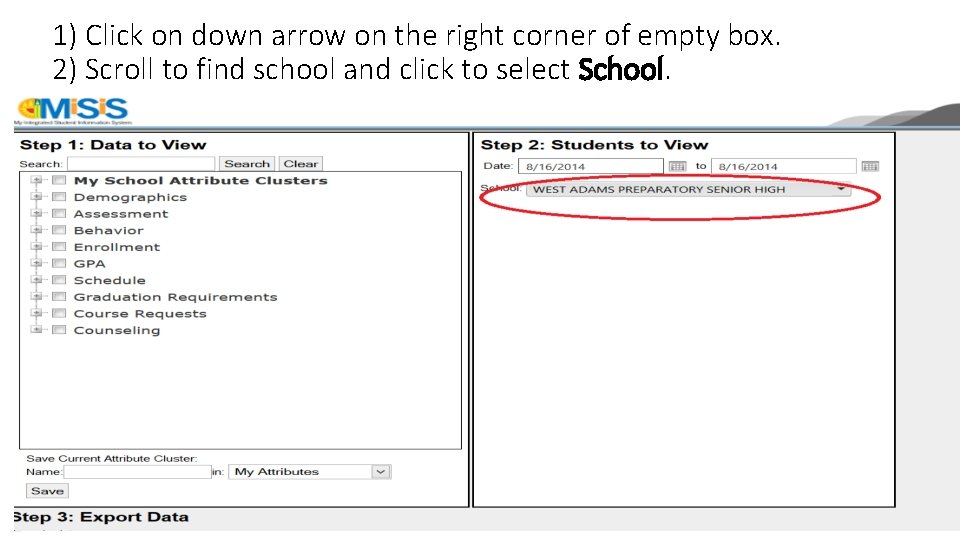
1) Click on down arrow on the right corner of empty box. 2) Scroll to find school and click to select School.
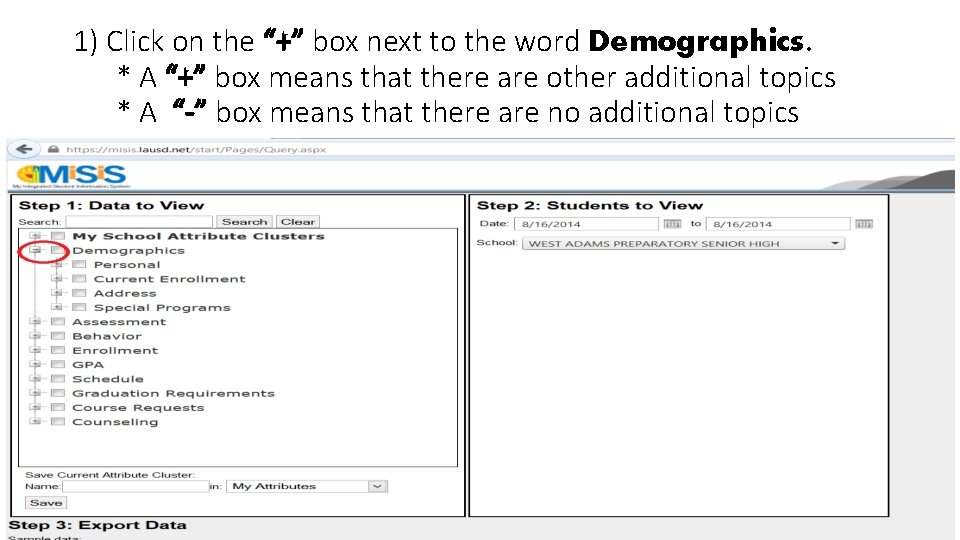
1) Click on the “+” box next to the word Demographics. * A “+” box means that there are other additional topics * A “-” box means that there are no additional topics
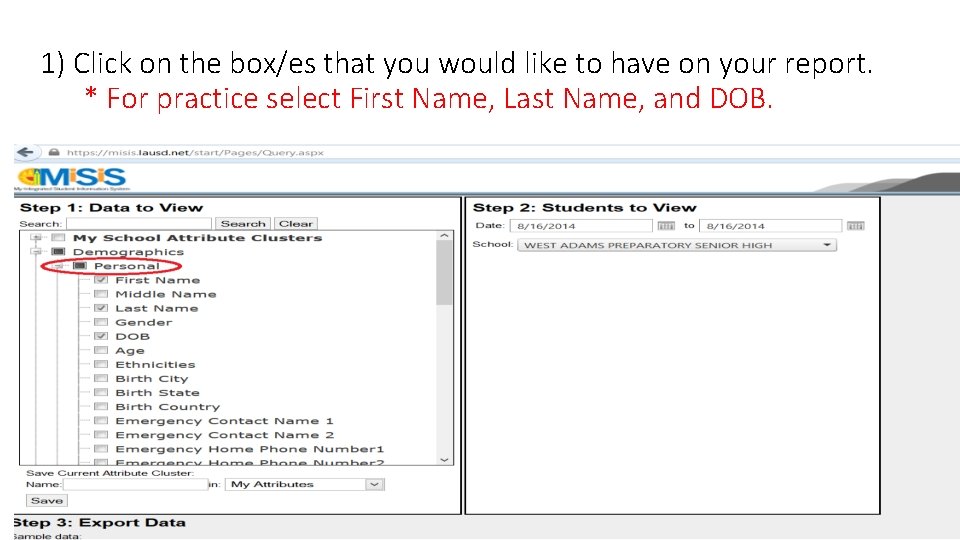
1) Click on the box/es that you would like to have on your report. * For practice select First Name, Last Name, and DOB.
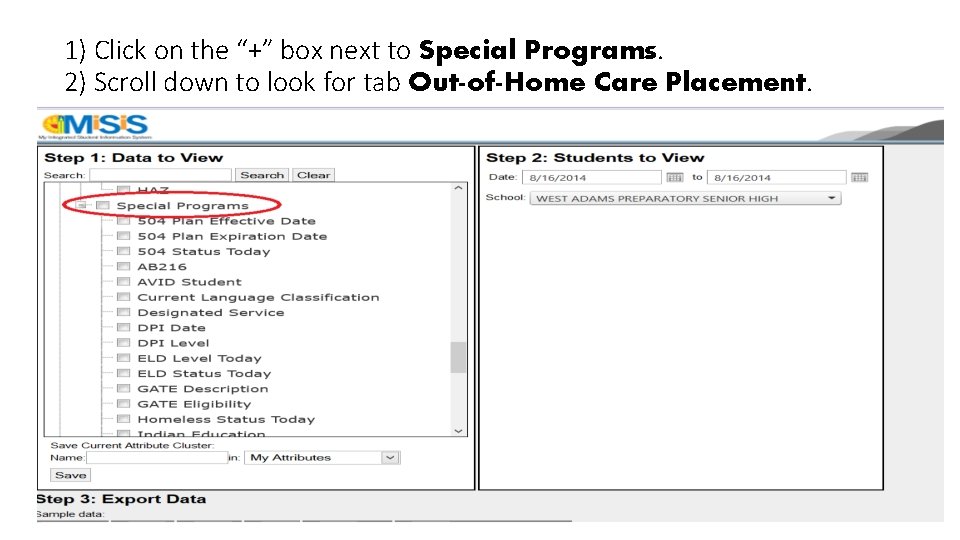
1) Click on the “+” box next to Special Programs. 2) Scroll down to look for tab Out-of-Home Care Placement.
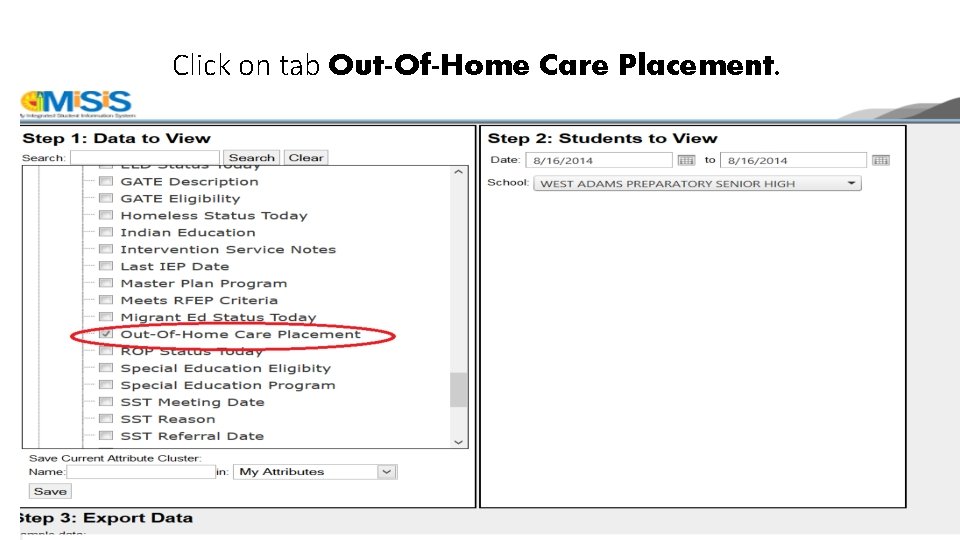
Click on tab Out-Of-Home Care Placement.
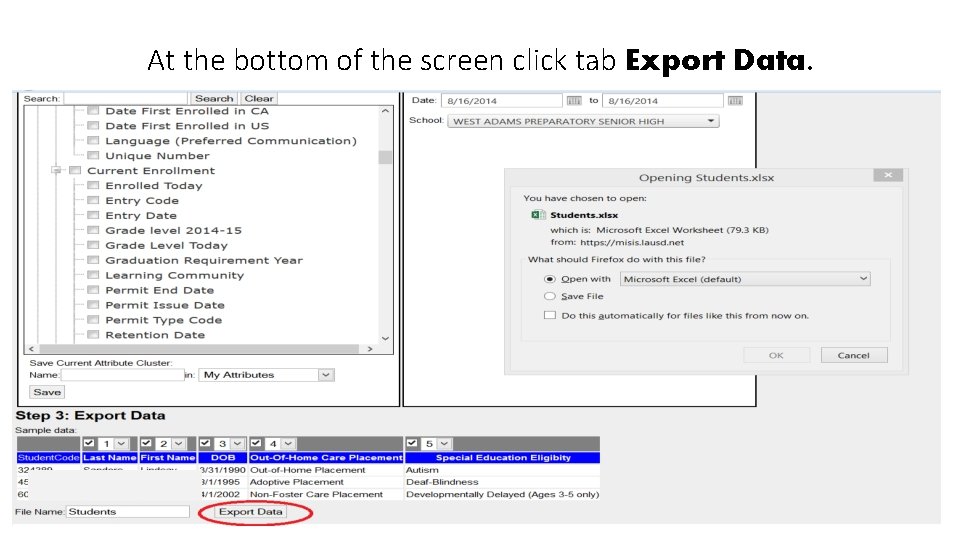
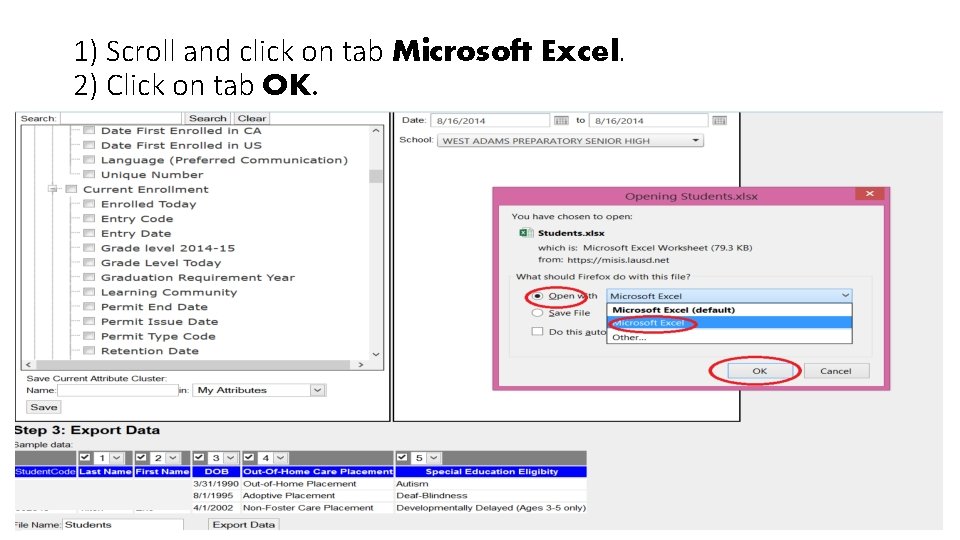
At the bottom of the screen click tab Export Data.
1) Scroll and click on tab Microsoft Excel. 2) Click on tab OK.
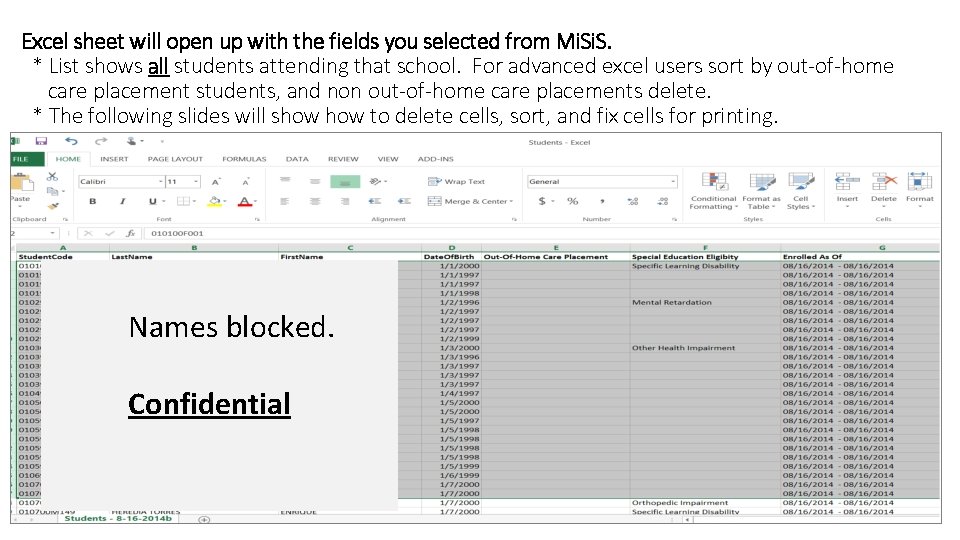
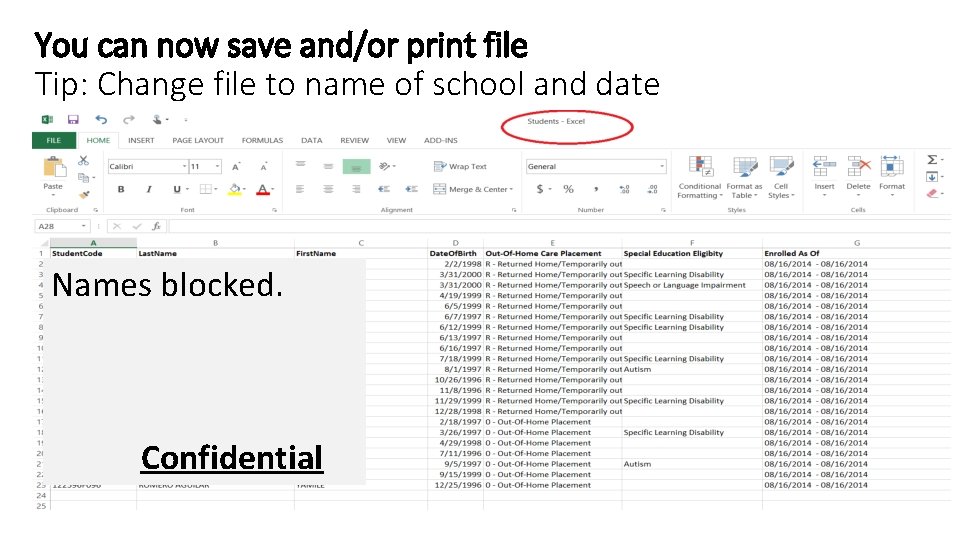
Excel sheet will open up with the fields you selected from Mi. S. * List shows all students attending that school. For advanced excel users sort by out-of-home care placement students, and non out-of-home care placements delete. * The following slides will show to delete cells, sort, and fix cells for printing. Names blocked. Confidential
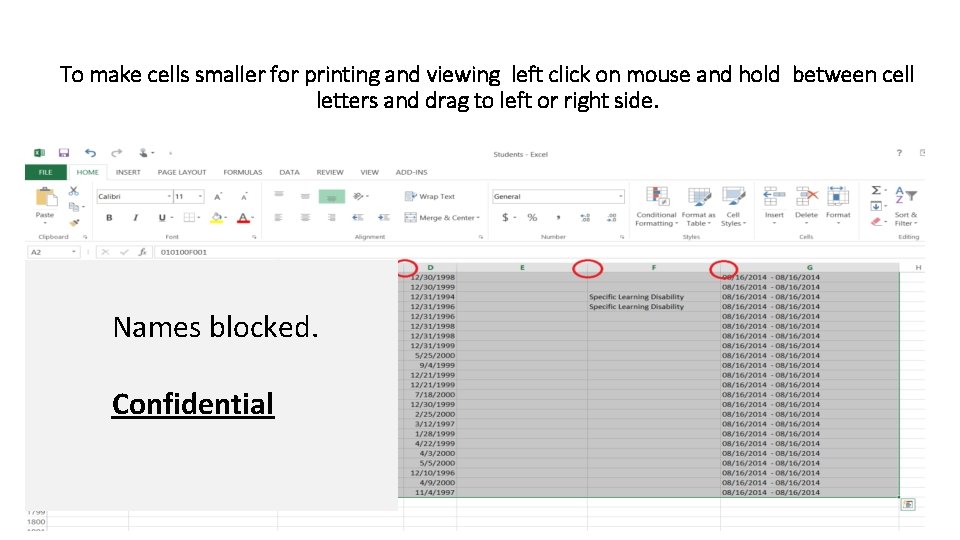
To make cells smaller for printing and viewing left click on mouse and hold between cell letters and drag to left or right side. Names blocked. Confidential
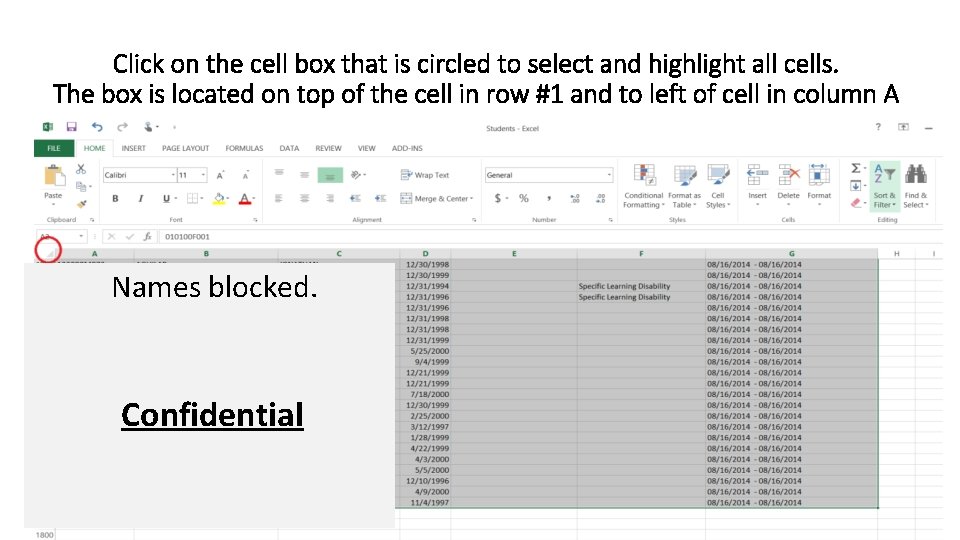
Click on the cell box that is circled to select and highlight all cells. The box is located on top of the cell in row #1 and to left of cell in column A Names blocked. Confidential
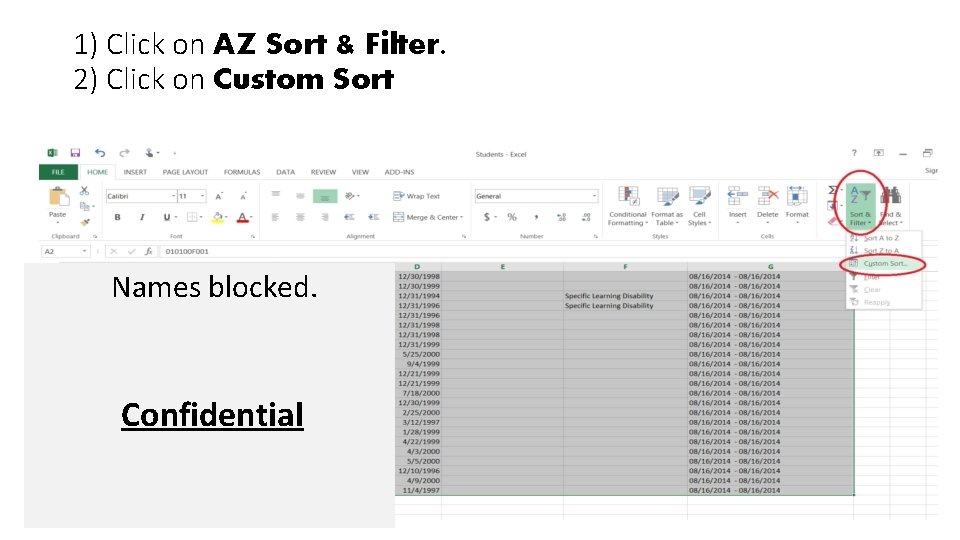
1) Click on AZ Sort & Filter. 2) Click on Custom Sort Names blocked. Confidential
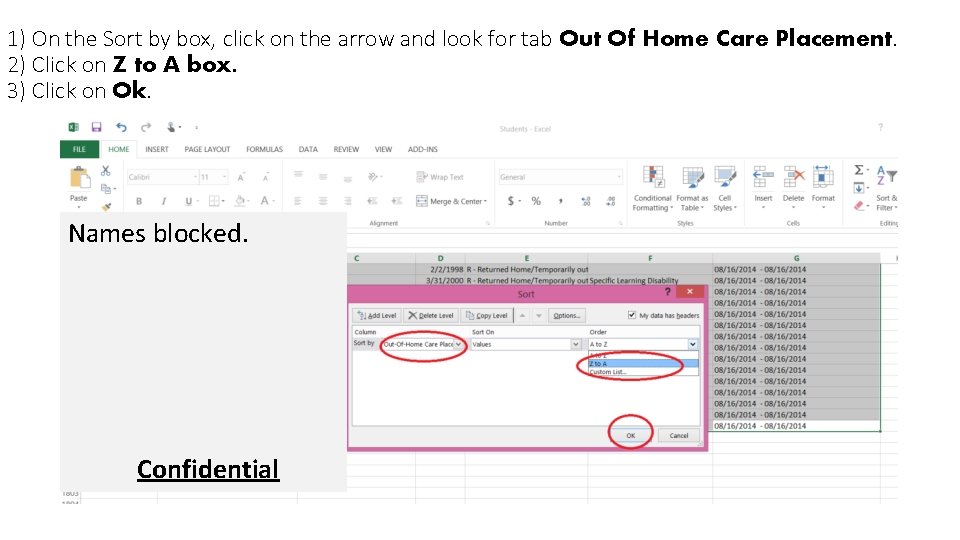
1) On the Sort by box, click on the arrow and look for tab Out Of Home Care Placement. 2) Click on Z to A box. 3) Click on Ok. Names blocked. Confidential
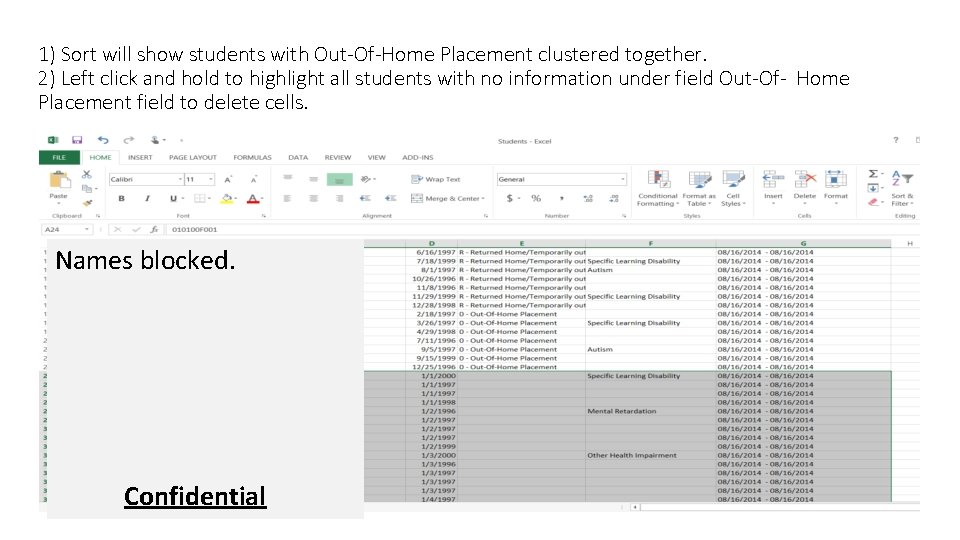
1) Sort will show students with Out-Of-Home Placement clustered together. 2) Left click and hold to highlight all students with no information under field Out-Of- Home Placement field to delete cells. Names blocked. Confidential
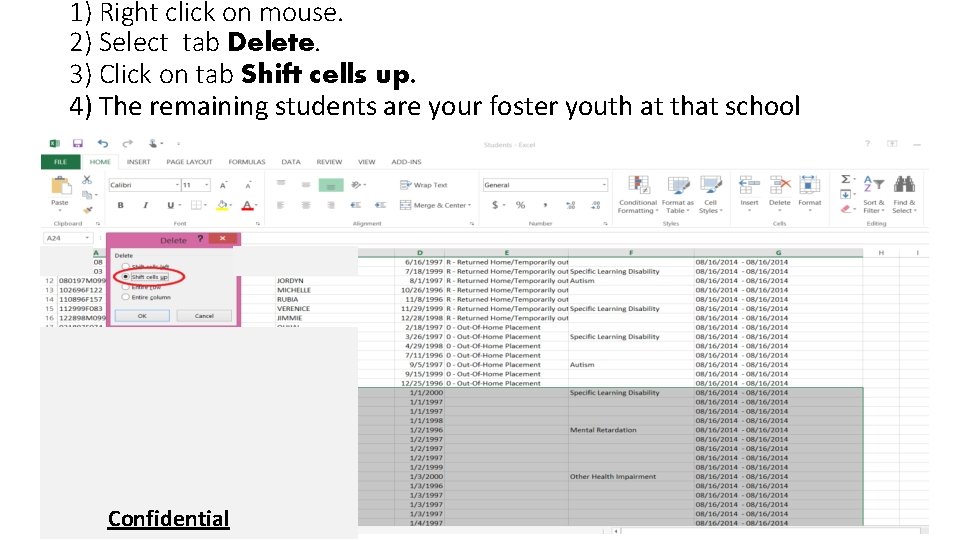
1) Right click on mouse. 2) Select tab Delete. 3) Click on tab Shift cells up. 4) The remaining students are your foster youth at that school Confidential
You can now save and/or print file Tip: Change file to name of school and date Names blocked. Confidential
2. My. Data - reports student information such as state test scores, student grades, attendance, A-G coursework, periodic assessments, English Language Learner data, student attendance and student behavior reports such as discipline referrals and suspensions. In this section you will learn: a. How to view a comprehensive student history report b. Where to find additional detailed information on specific topics (i. e. attendance, enrollment, etc. )
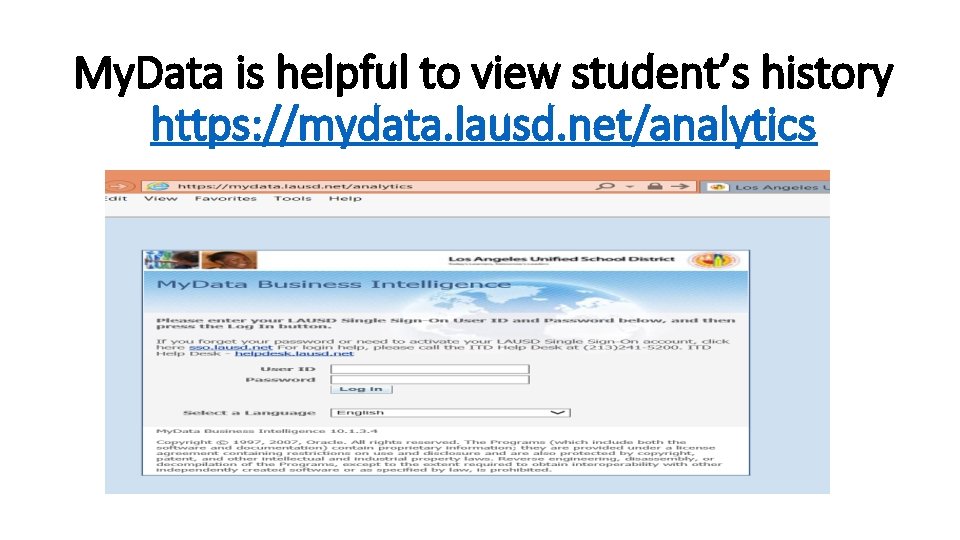
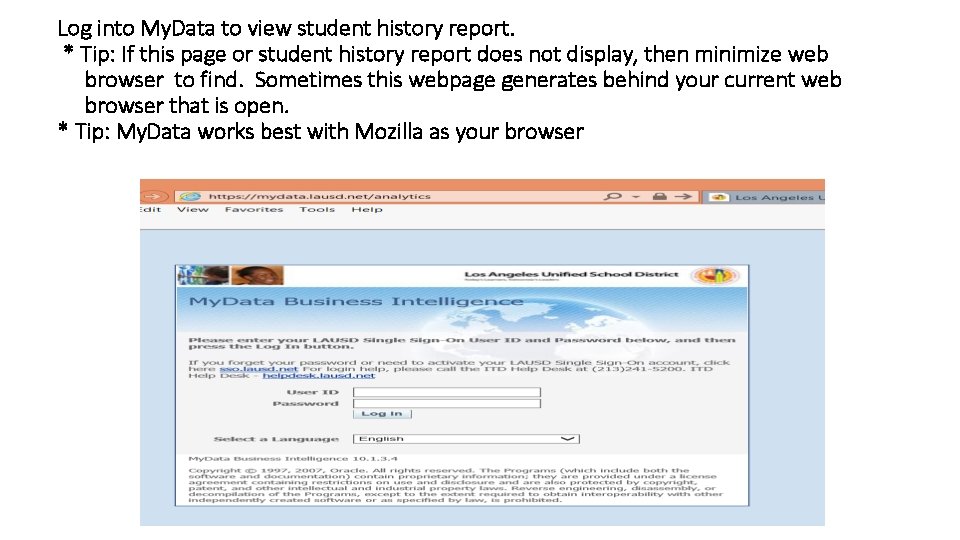
My. Data is helpful to view student’s history https: //mydata. lausd. net/analytics
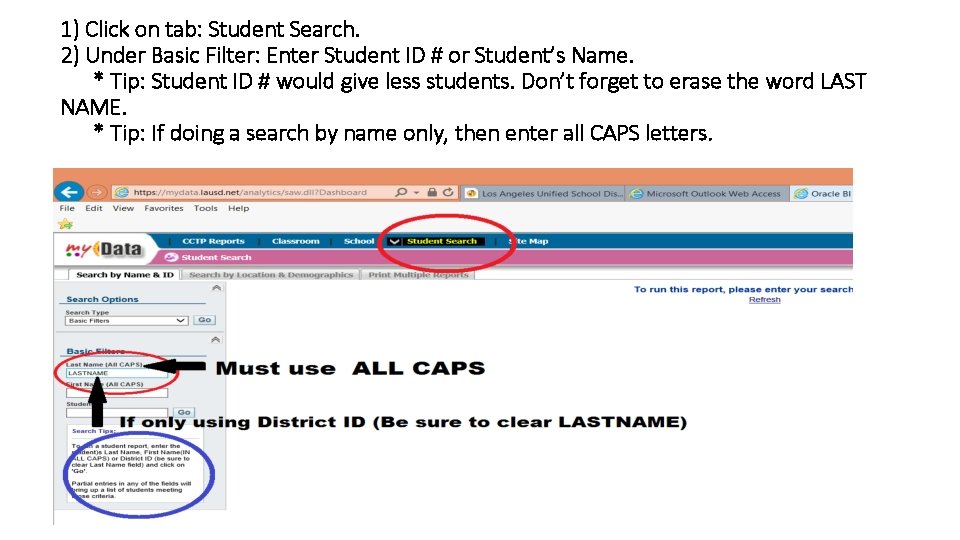
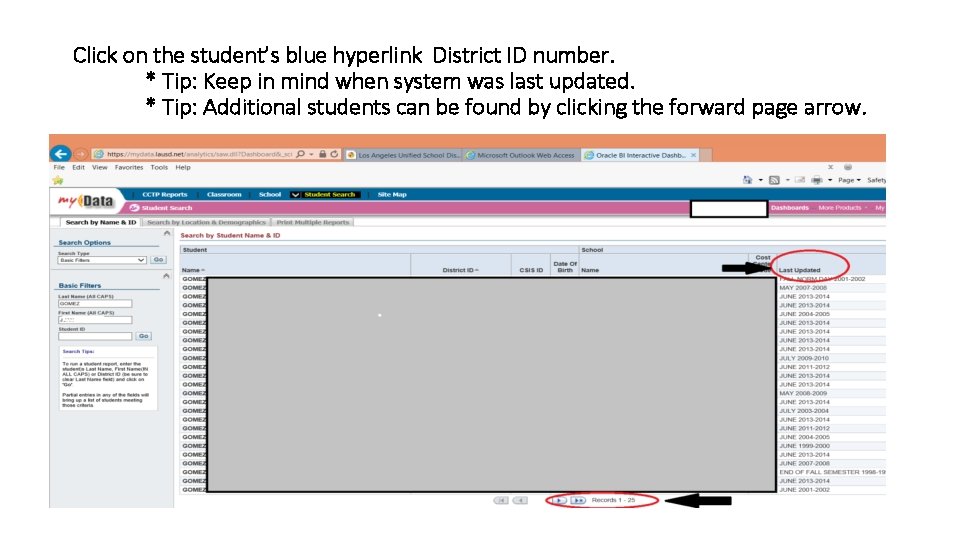
1) Click on tab: Student Search. 2) Under Basic Filter: Enter Student ID # or Student’s Name. * Tip: Student ID # would give less students. Don’t forget to erase the word LAST NAME. * Tip: If doing a search by name only, then enter all CAPS letters.
Click on the student’s blue hyperlink District ID number. * Tip: Keep in mind when system was last updated. * Tip: Additional students can be found by clicking the forward page arrow.
Log into My. Data to view student history report. * Tip: If this page or student history report does not display, then minimize web browser to find. Sometimes this webpage generates behind your current web browser that is open. * Tip: My. Data works best with Mozilla as your browser
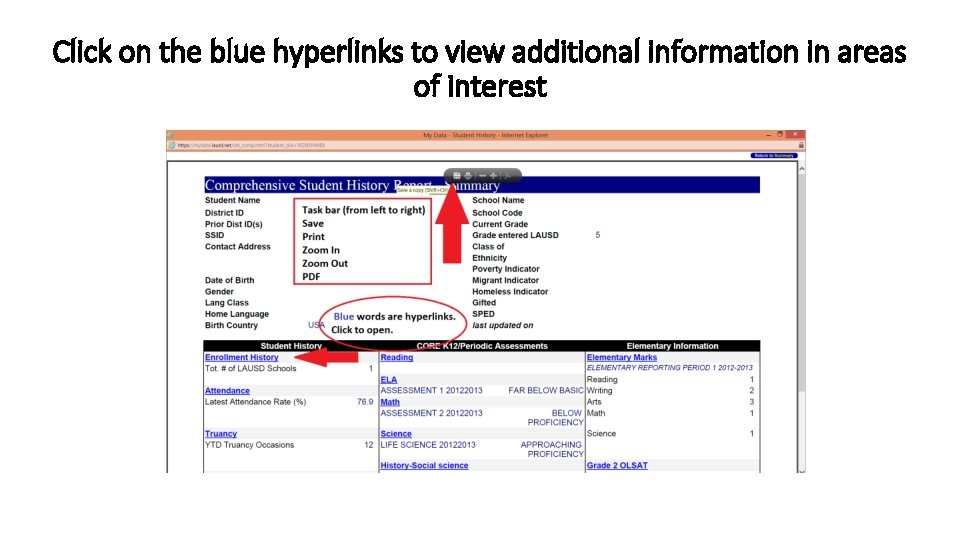
Click on the blue hyperlinks to view additional information in areas of interest
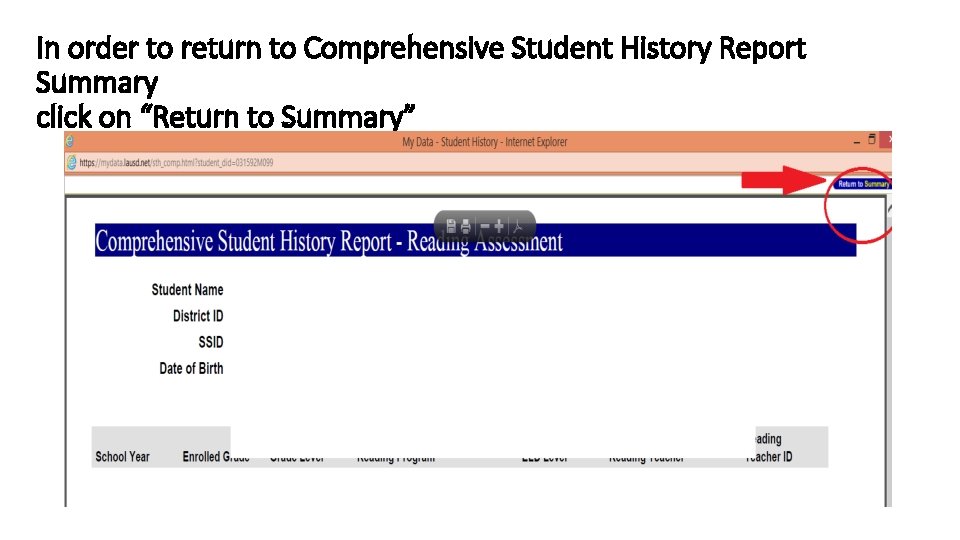
In order to return to Comprehensive Student History Report Summary click on “Return to Summary”
3. Data Match – An excel sheet that contains important student information that is a result of the sharing of data between LAUSD and the Department of Children & Family Services (DCFS). You will receive a copy of the data match for your schools from your lead counselor periodically. In this section you will learn: a. What student information is available through the data match
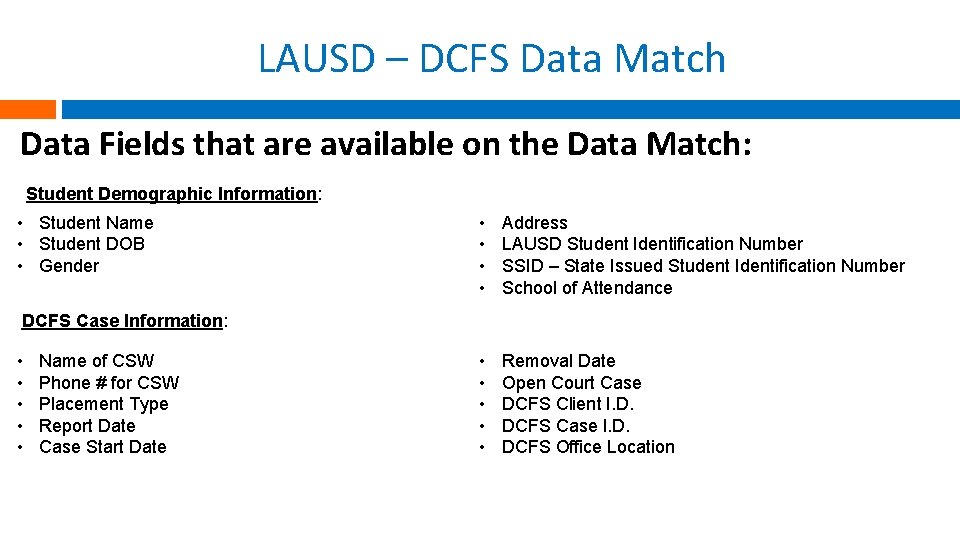
LAUSD – DCFS Data Match Data Fields that are available on the Data Match: Student Demographic Information: • Student Name • Student DOB • Gender • • Address LAUSD Student Identification Number SSID – State Issued Student Identification Number School of Attendance • • • Removal Date Open Court Case DCFS Client I. D. DCFS Case I. D. DCFS Office Location DCFS Case Information: • • • Name of CSW Phone # for CSW Placement Type Report Date Case Start Date
3. SITS (Student Information Tracking System) – DCFS database for CSWs In this section you will learn: 1. How to log on to SITS (first you will need to fill out form to gain access) 2. How to search for students on SITS 3. What student information is available on SITS
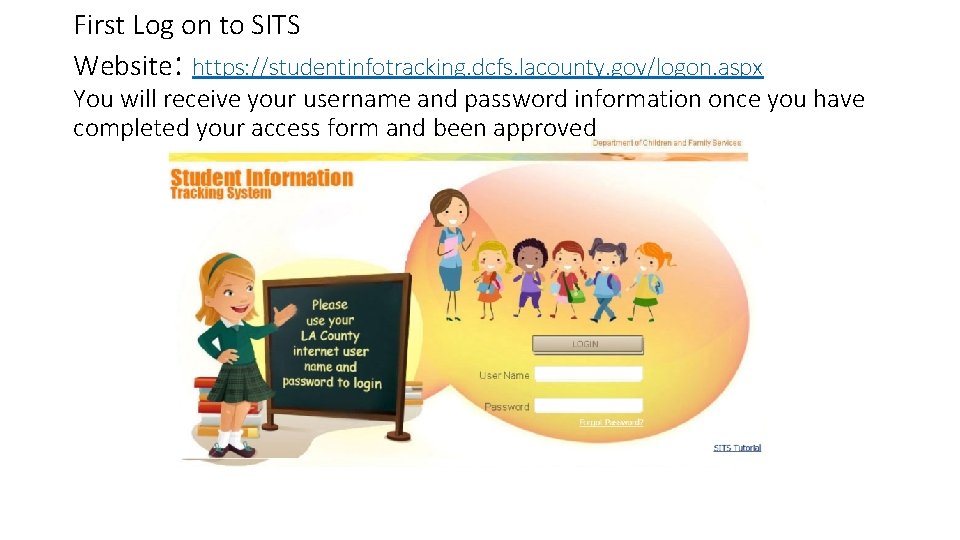
First Log on to SITS Website: https: //studentinfotracking. dcfs. lacounty. gov/logon. aspx You will receive your username and password information once you have completed your access form and been approved
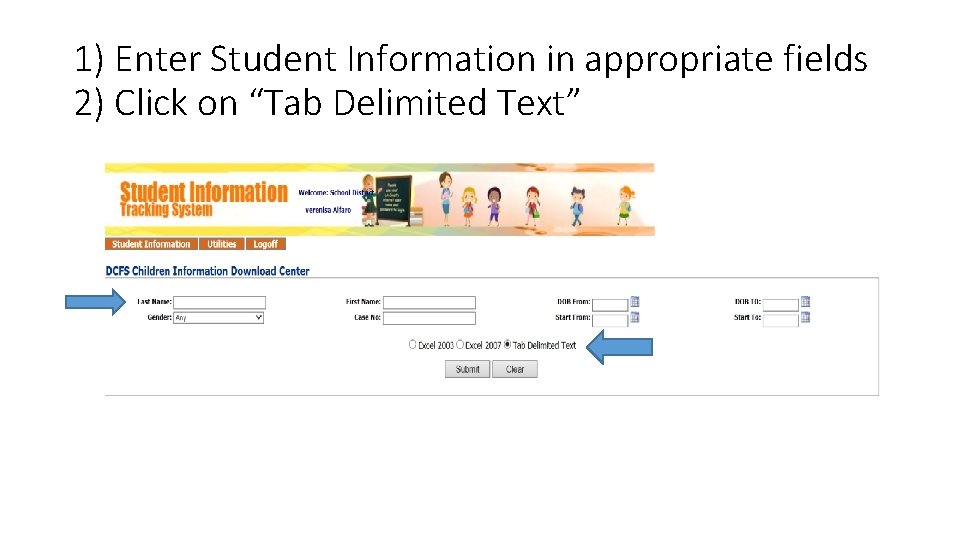
1) Enter Student Information in appropriate fields 2) Click on “Tab Delimited Text”
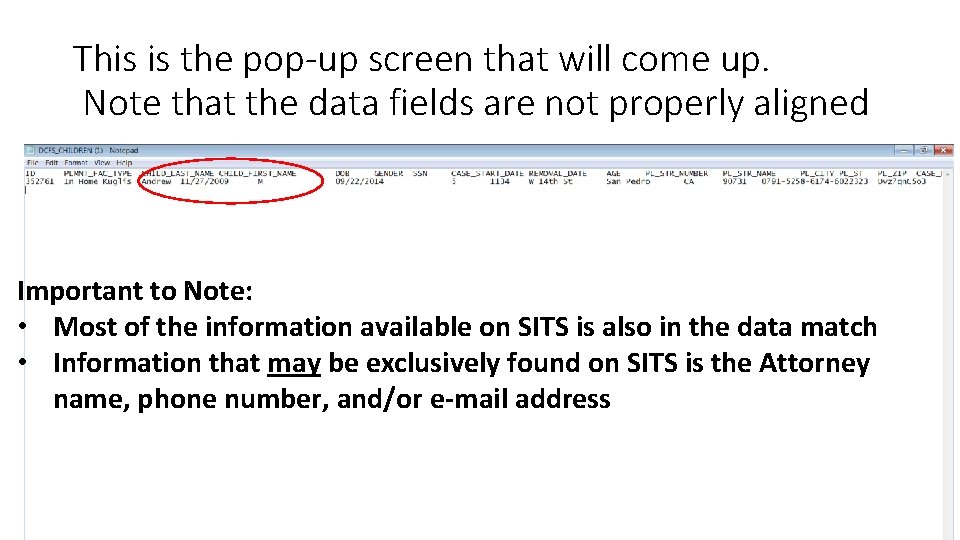
This is the pop-up screen that will come up. Note that the data fields are not properly aligned Important to Note: • Most of the information available on SITS is also in the data match • Information that may be exclusively found on SITS is the Attorney name, phone number, and/or e-mail address
Summary Four sources of student information to help guide your work with your students/families, complete your comprehensive academic assessment, and identify any barriers to student learning and academic success: • • Mi. S My. Data LAUSD – DCFS Data Match SITS
QUESTIONS? ? ?