
Label Submission Approval System LSAS Webinar Presentation January
Label Submission Approval System LSAS Webinar Presentation January 23, 2013 Labeling and Program Delivery Division USDA, FSIS, OPPD

Introduction and Background The Labeling and Program Delivery Division (LPDD) within the United States Department of Agriculture (USDA), Food Safety and Inspection Service (FSIS) develops and provides labeling guidance, policies and inspection methods and administers programs to protect consumers from misbranded and economically adulterated meat, poultry, and egg products which ensure that all labels are truthful and not misleading. Labeling includes all forms of product identification, health-related claims, net weight, species identification and nutrition. LSAS is a web-based software application that integrates and implements a secure electronic label application process for establishments to submit label applications and appeals. LPDD launched the Label Submission Approval System (LSAS) on May 22, 2012. 2

Label Review and Approval Process Benefits • Increased speed, accuracy, & efficiency • Improved service to constituents • Accountability for the public health mission of the Food Safety and Inspection Service (FSIS) 3
LSAS Submitter Benefits • Wizard available to assist submitters with determining which labels can be submitted through the Generic Label submission process will reduce submission errors and questions to LPDD staff around generic approval • Application processing will be faster vs. paper submission • Realize cost and time savings vs. shipping via surface mail • Quick and ready online access to application status • Access via Level 2 e. Authentication 4

LSAS: Submitter Benefits (Continued) • Storage and record keeping in an electronic environment allowing establishments to save & re-submit standard documentation (e. g. , documents that support claims; written protocols) vs. having to print and re-submit with each label application • Edit checks in the system will check formatting and submission errors, allowing for corrections in “real time” vs. correcting upon return from LPDD, reducing turnaround time for label review • Enhanced communication mechanisms (e. g. , messaging within LSAS), reducing initial time spent on first time application submission and re-submissions 5
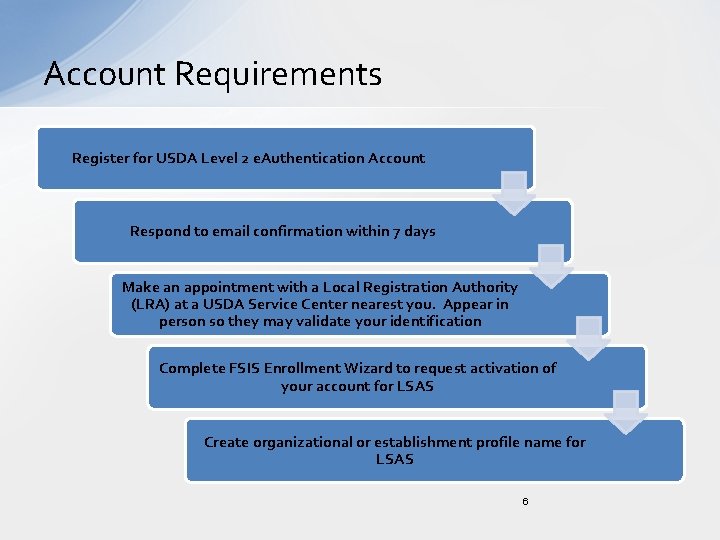
Account Requirements Register for USDA Level 2 e. Authentication Account Respond to email confirmation within 7 days Make an appointment with a Local Registration Authority (LRA) at a USDA Service Center nearest you. Appear in person so they may validate your identification Complete FSIS Enrollment Wizard to request activation of your account for LSAS Create organizational or establishment profile name for LSAS 6
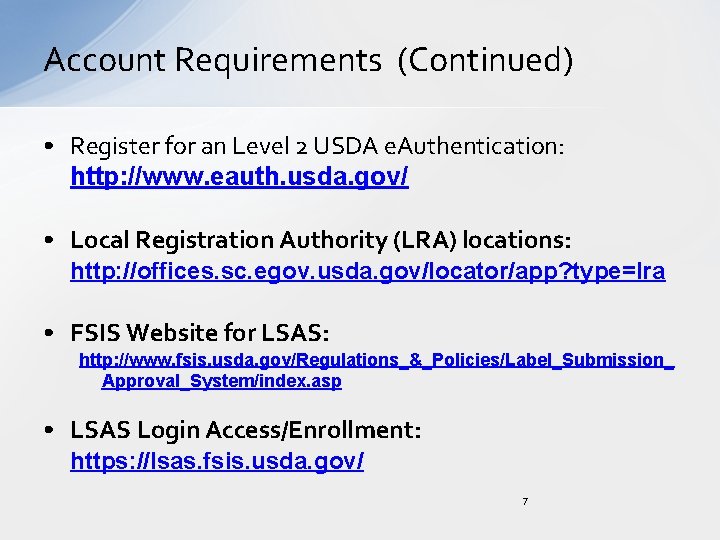
Account Requirements (Continued) • Register for an Level 2 USDA e. Authentication: http: //www. eauth. usda. gov/ • Local Registration Authority (LRA) locations: http: //offices. sc. egov. usda. gov/locator/app? type=lra • FSIS Website for LSAS: http: //www. fsis. usda. gov/Regulations_&_Policies/Label_Submission_ Approval_System/index. asp • LSAS Login Access/Enrollment: https: //lsas. fsis. usda. gov/ 7
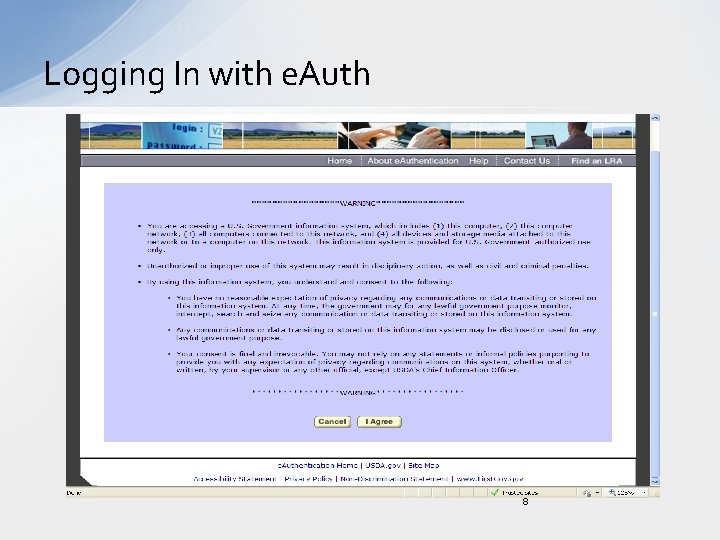
Logging In with e. Auth 8
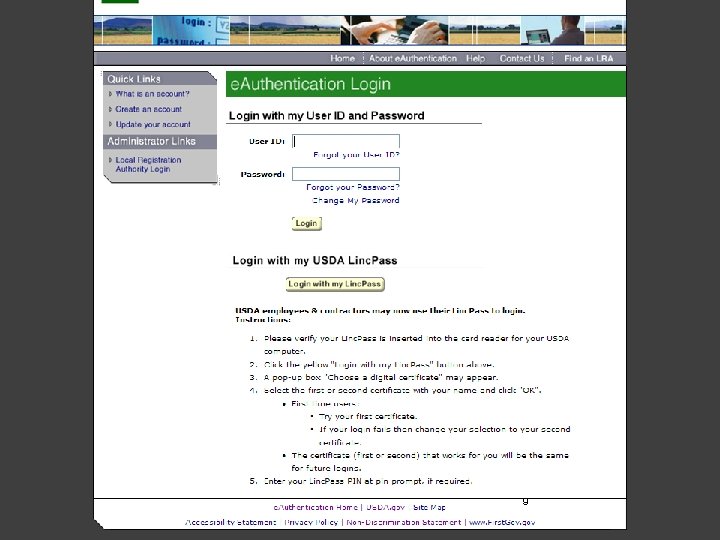
Logging in with e. Auth credentials 9
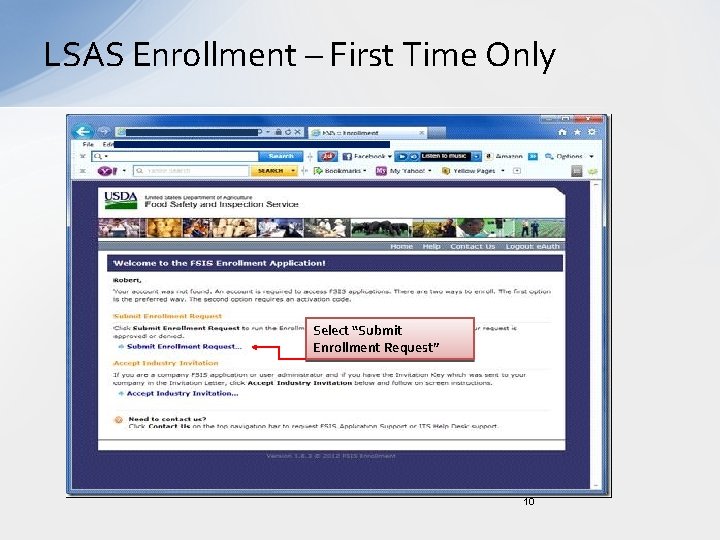
LSAS Enrollment – First Time Only Select “Submit Enrollment Request” 10
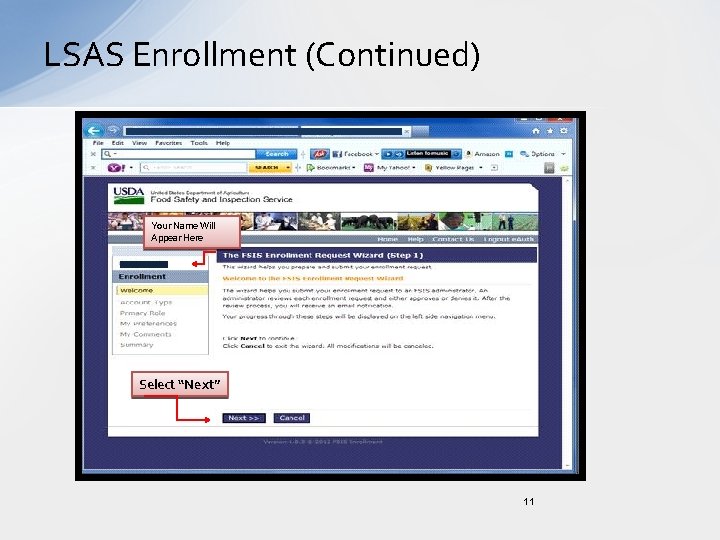
LSAS Enrollment (Continued) Your Name Will Appear Here Select “Next” 11
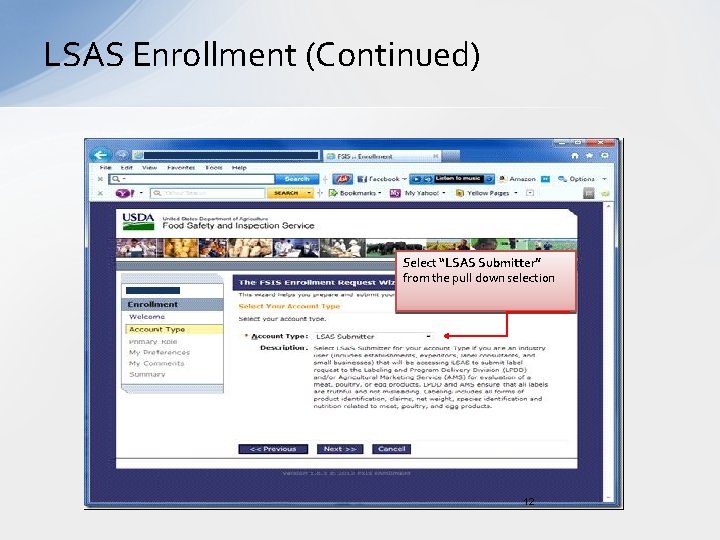
LSAS Enrollment (Continued) Select “LSAS Submitter” from the pull down selection 12
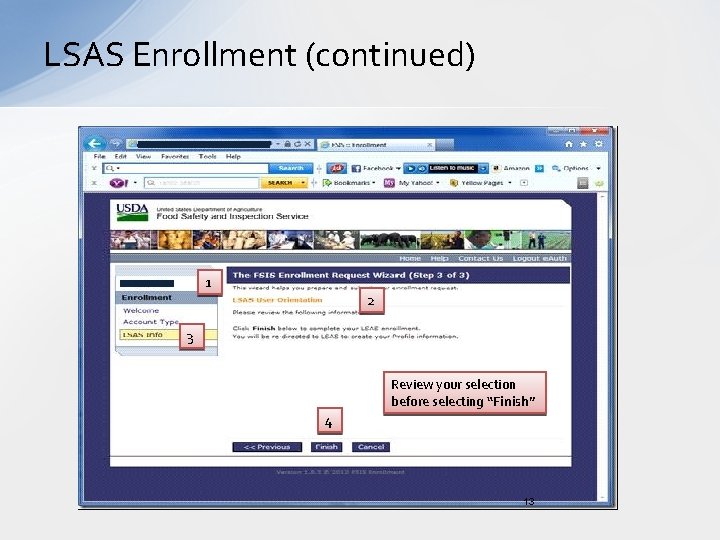
LSAS Enrollment (continued) 1 2 3 Review your selection before selecting “Finish” 4 13
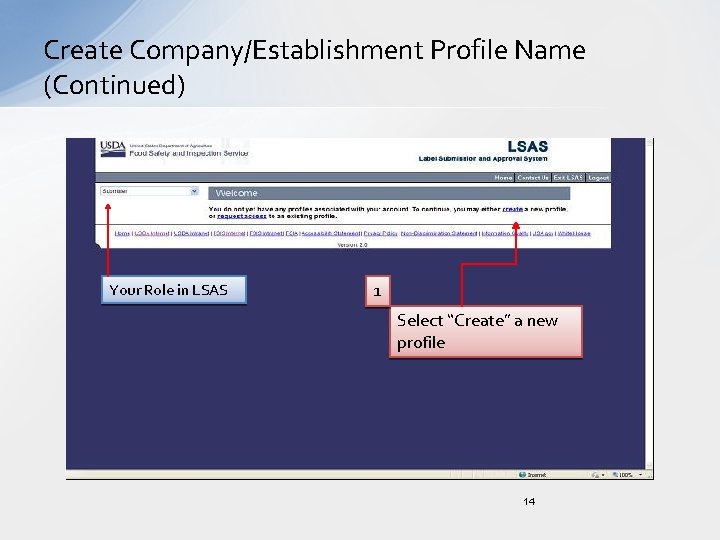
Create Company/Establishment Profile Name (Continued) Your Role in LSAS 1 Select “Create” a new profile 14
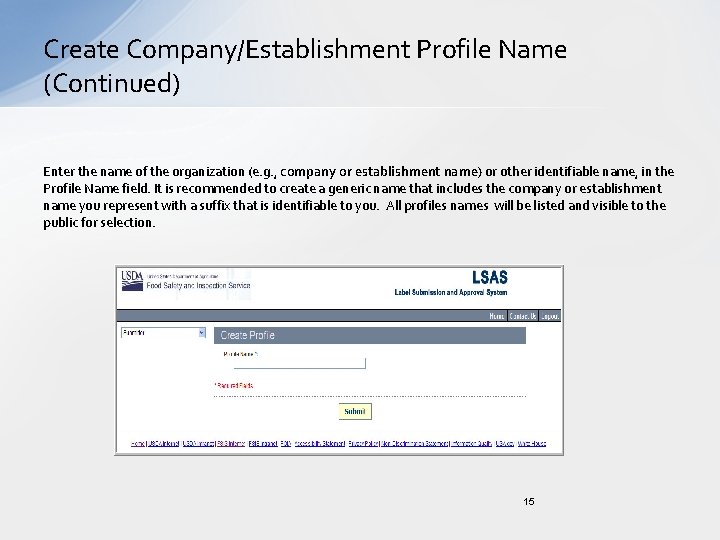
Create Company/Establishment Profile Name (Continued) Enter the name of the organization (e. g. , company or establishment name) or other identifiable name, in the Profile Name field. It is recommended to create a generic name that includes the company or establishment name you represent with a suffix that is identifiable to you. All profiles names will be listed and visible to the public for selection. 15
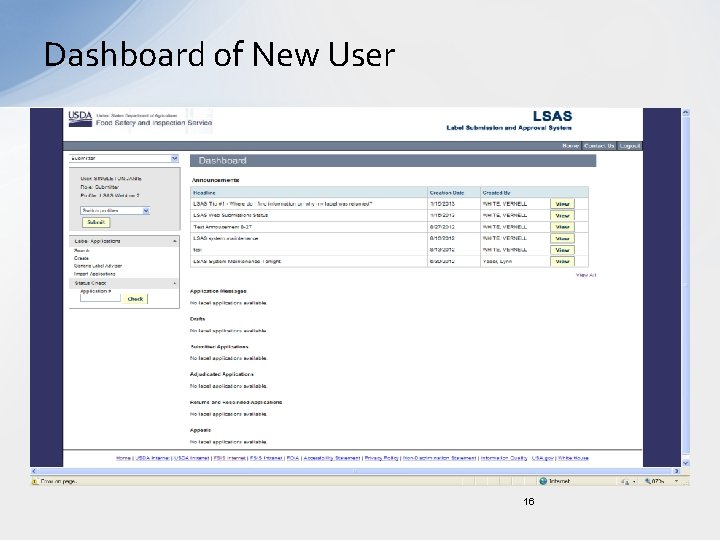
Dashboard of New User 16
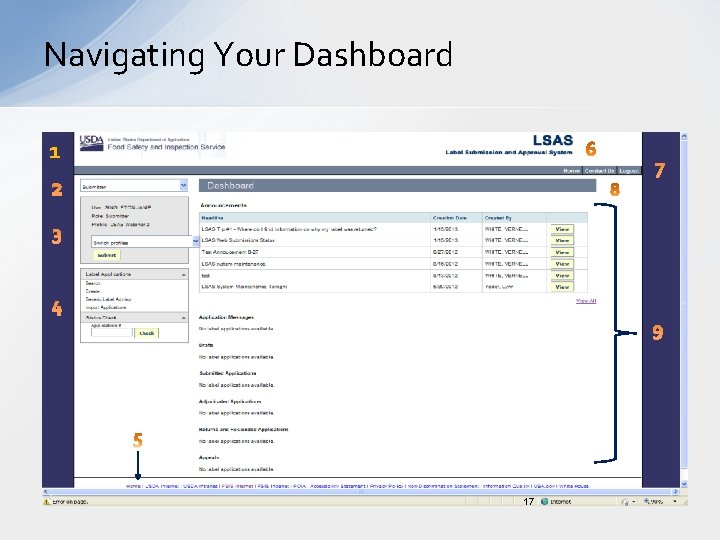
Navigating Your Dashboard 1 7 4 9 17
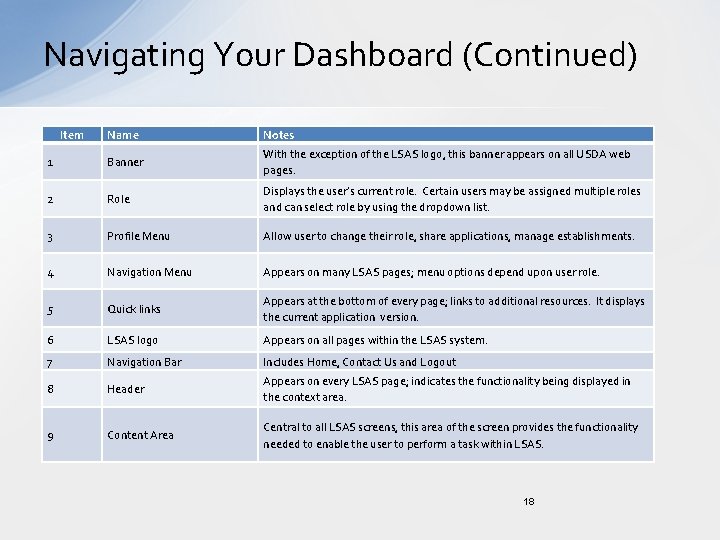
Navigating Your Dashboard (Continued) Item Name Notes 1 Banner With the exception of the LSAS logo, this banner appears on all USDA web pages. 2 Role Displays the user’s current role. Certain users may be assigned multiple roles and can select role by using the dropdown list. 3 Profile Menu Allow user to change their role, share applications, manage establishments. 4 Navigation Menu Appears on many LSAS pages; menu options depend upon user role. 5 Quick links Appears at the bottom of every page; links to additional resources. It displays the current application version. 6 LSAS logo Appears on all pages within the LSAS system. 7 Navigation Bar Includes Home, Contact Us and Logout 8 Header Appears on every LSAS page; indicates the functionality being displayed in the context area. 9 Content Area Central to all LSAS screens, this area of the screen provides the functionality needed to enable the user to perform a task within LSAS. 18
How to create a label submission The following slides will help guide you through creating a typical label submission. Examples provided are for demonstration purposes only, and do not reflect any actual proprietary information or submissions to LSAS. 19
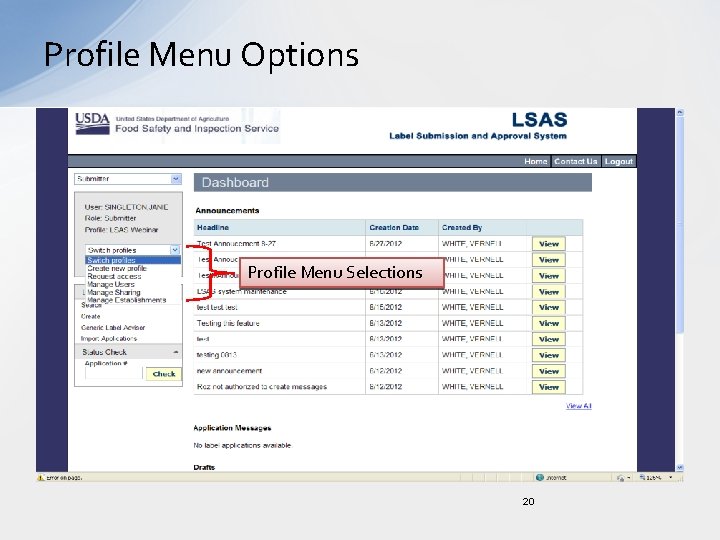
Profile Menu Options Profile Menu Selections 20
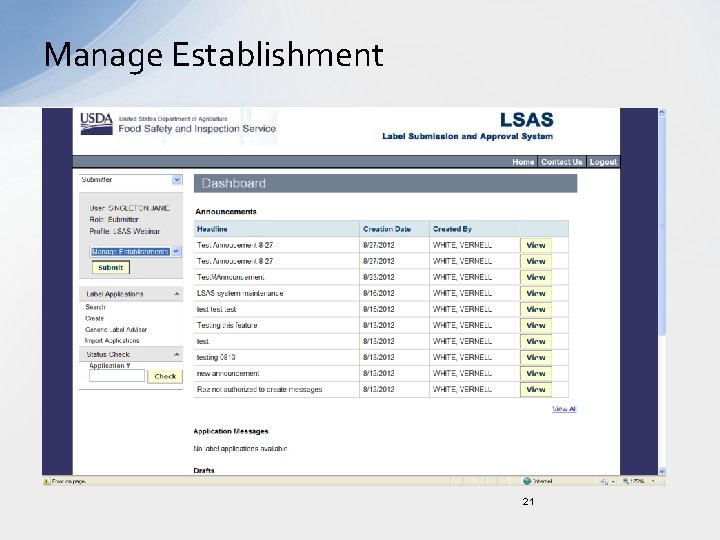
Manage Establishment 21
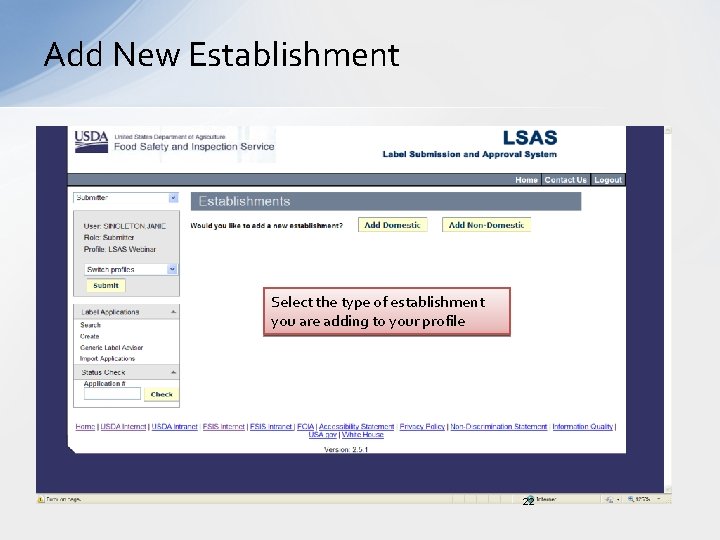
Add New Establishment Select the type of establishment you are adding to your profile 22
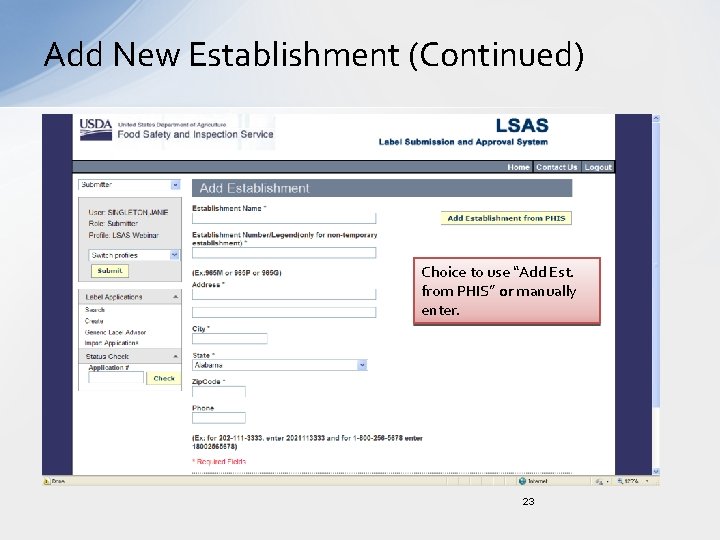
Add New Establishment (Continued) Choice to use “Add Est. from PHIS” or manually enter. 23
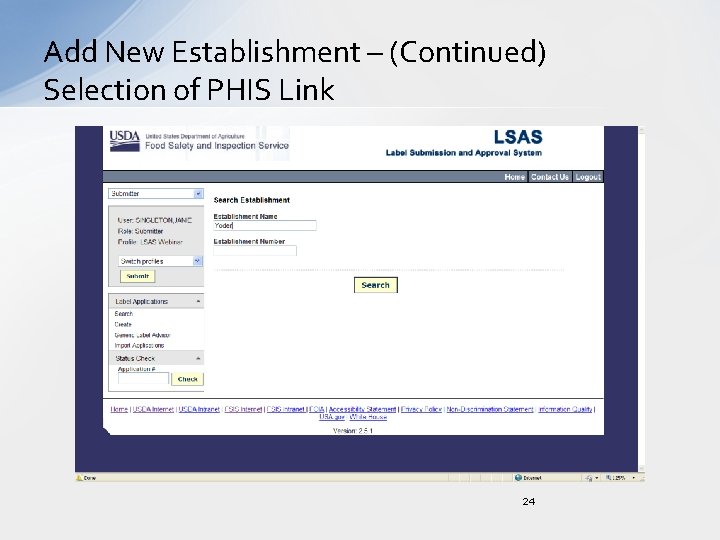
Add New Establishment – (Continued) Selection of PHIS Link 24
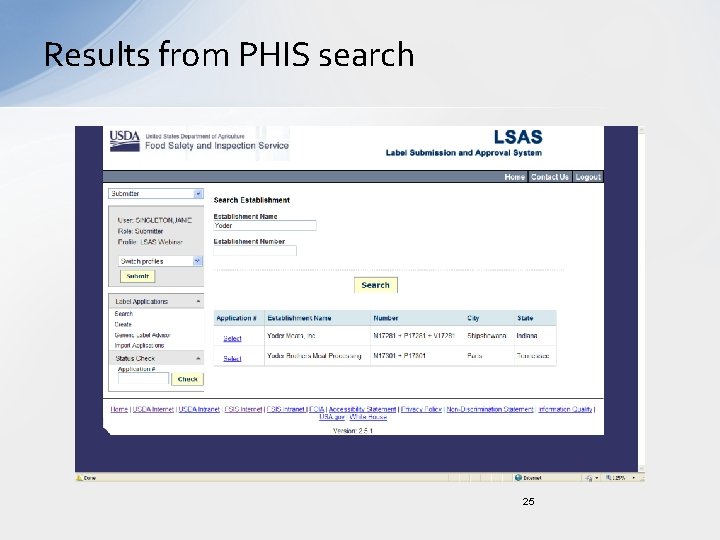
Results from PHIS search 25
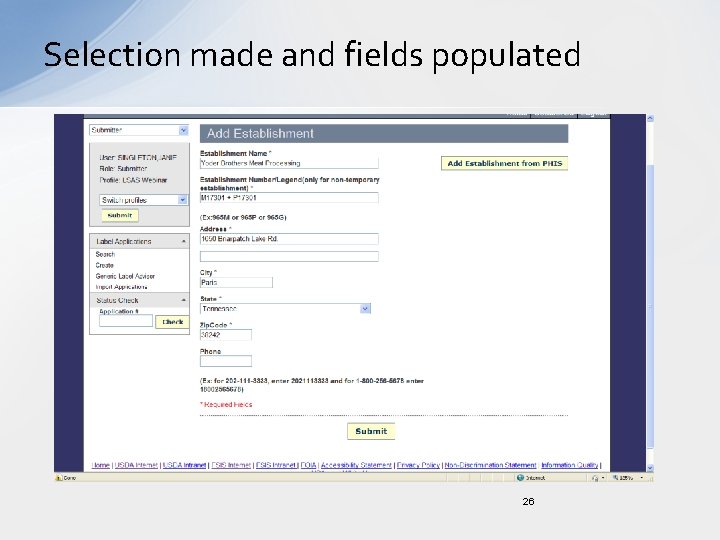
Selection made and fields populated 26
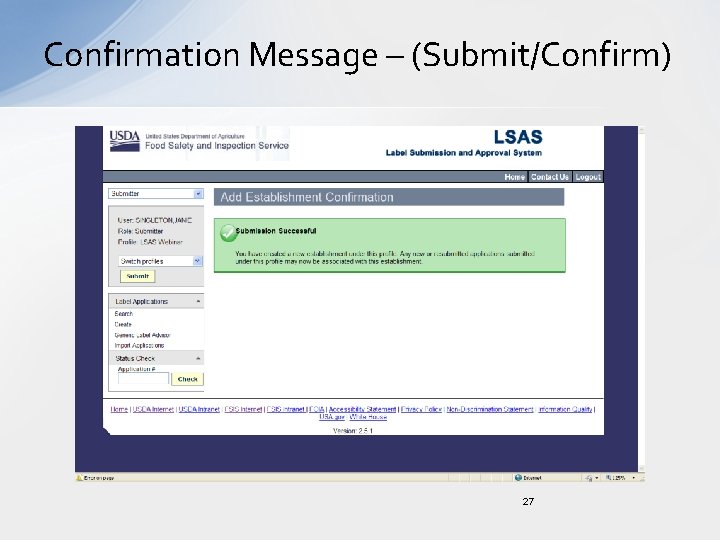
Confirmation Message – (Submit/Confirm) 27
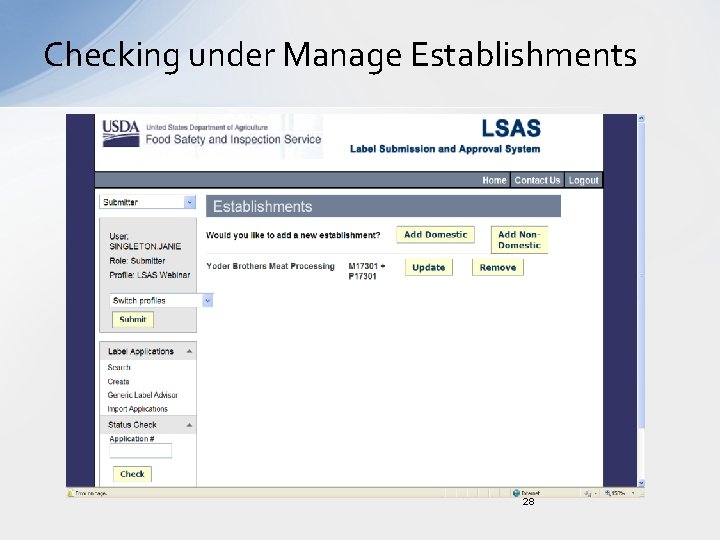
Checking under Manage Establishments 28
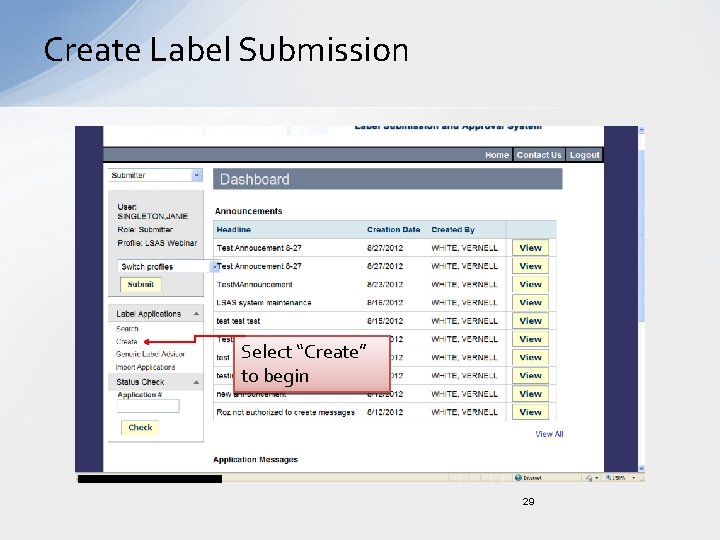
Create Label Submission Select “Create” to begin 29
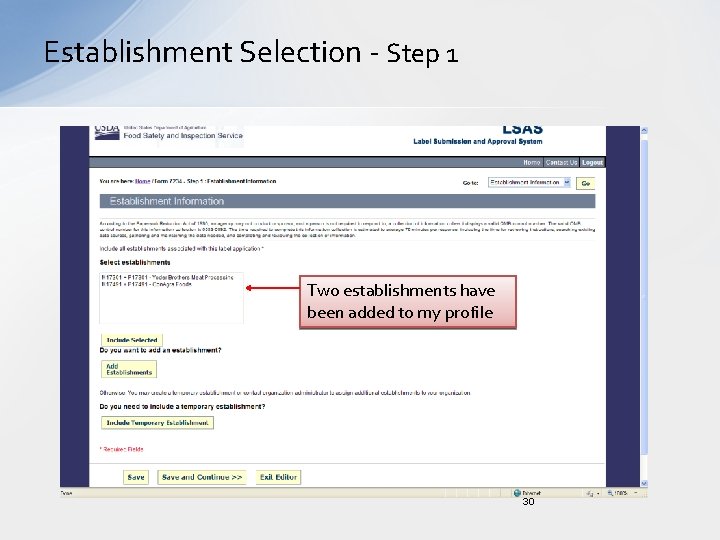
Establishment Selection - Step 1 Two establishments have been added to my profile 30
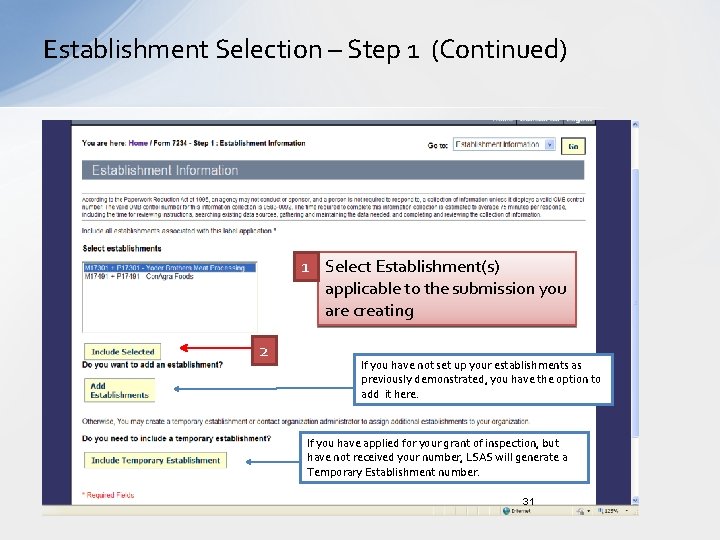
Establishment Selection – Step 1 (Continued) 1 Select Establishment(s) applicable to the submission you are creating 2 If you have not set up your establishments as previously demonstrated, you have the option to add it here. If you have applied for your grant of inspection, but have not received your number, LSAS will generate a Temporary Establishment number. 31
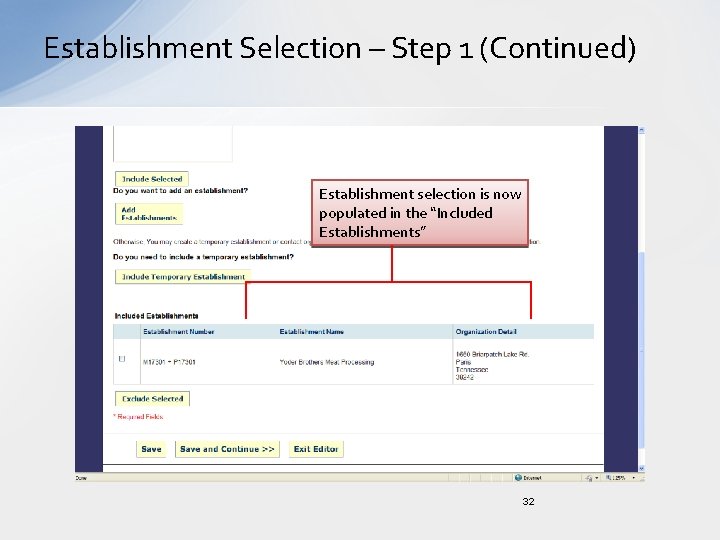
Establishment Selection – Step 1 (Continued) Establishment selection is now populated in the “Included Establishments” 32
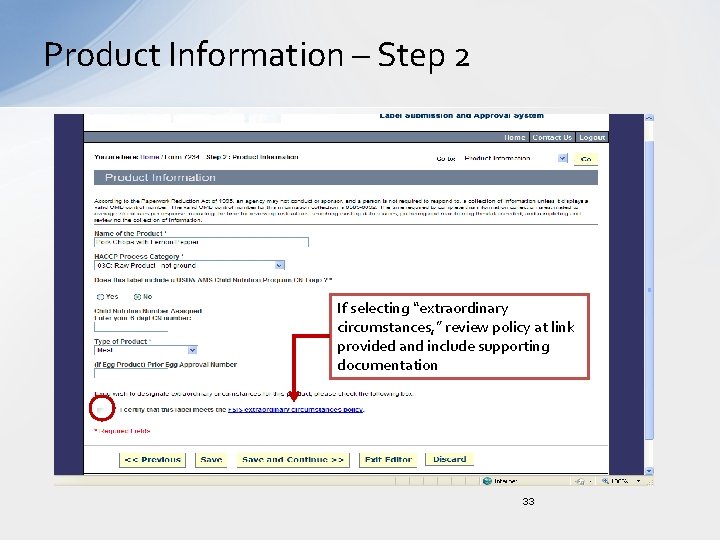
Product Information – Step 2 If selecting “extraordinary circumstances, ” review policy at link provided and include supporting documentation 33
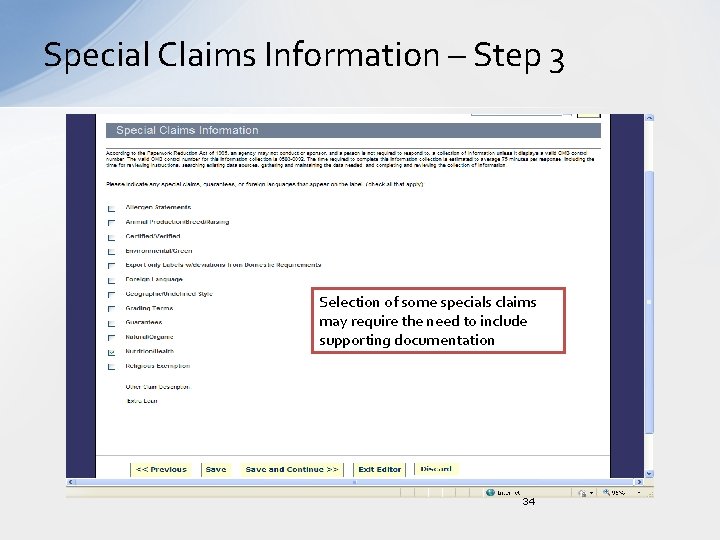
Special Claims Information – Step 3 Selection of some specials claims may require the need to include supporting documentation 34
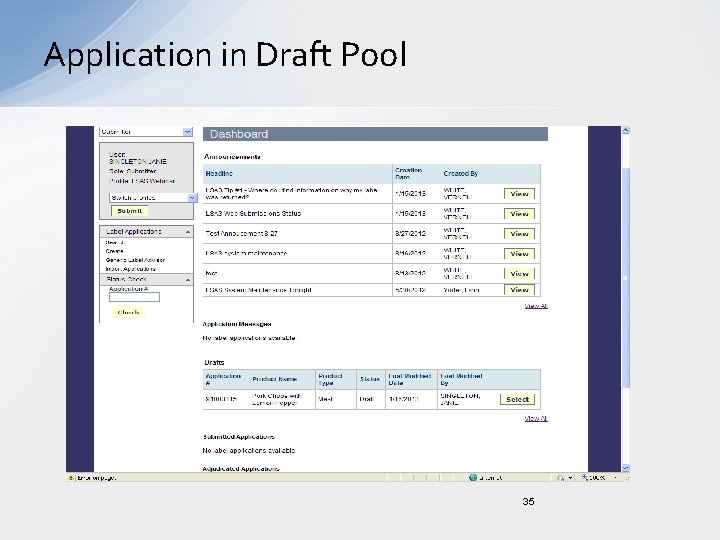
Application in Draft Pool 35
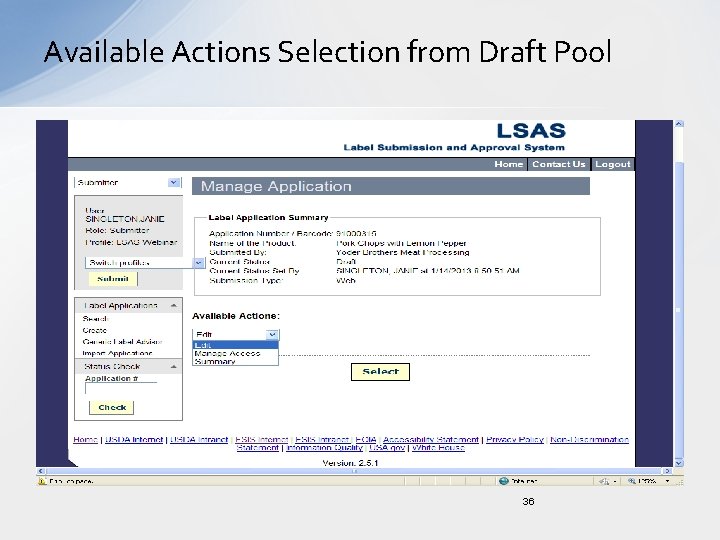
Available Actions Selection from Draft Pool 36
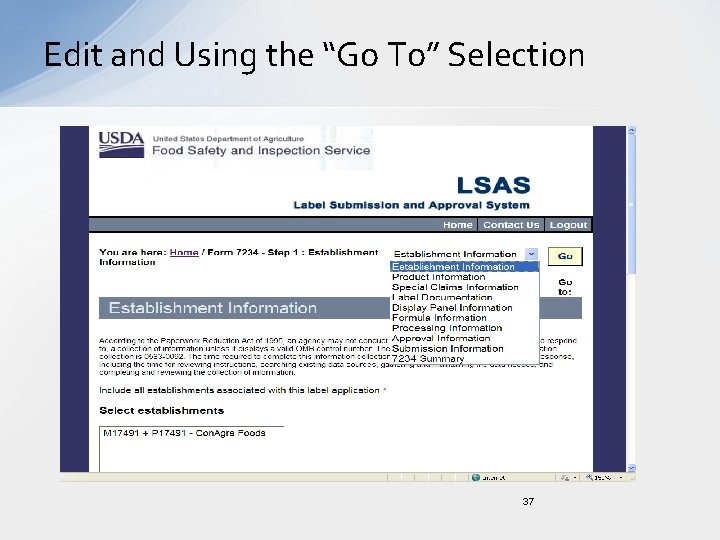
Edit and Using the “Go To” Selection 37
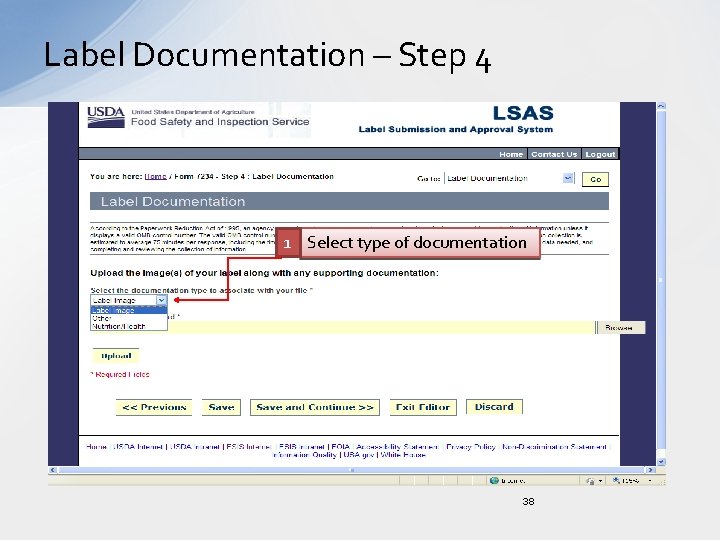
Label Documentation – Step 4 1 Select type of documentation 38
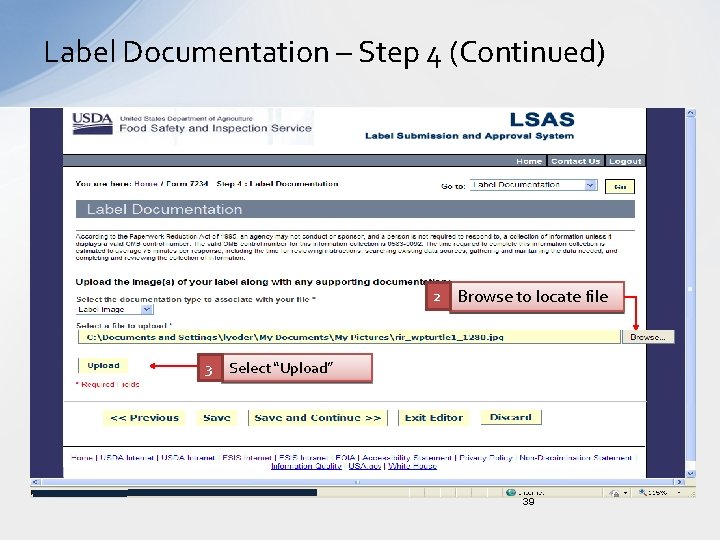
Label Documentation – Step 4 (Continued) 2 Browse to locate file 3 Select “Upload” 39
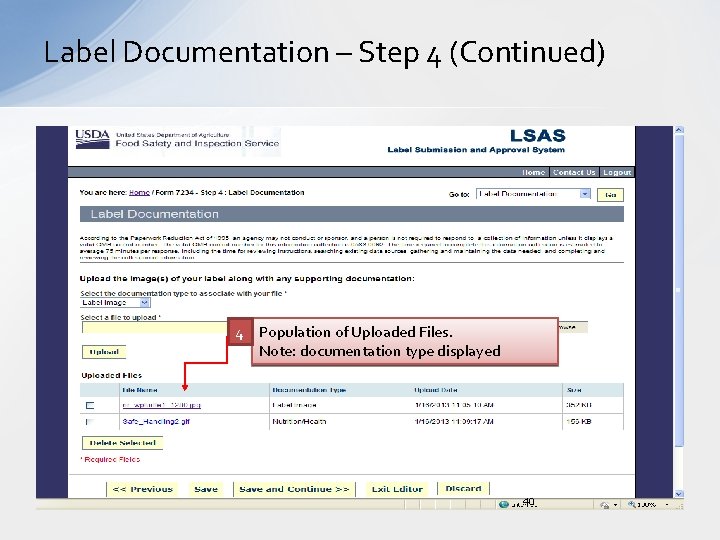
Label Documentation – Step 4 (Continued) 4 Population of Uploaded Files. Note: documentation type displayed 40
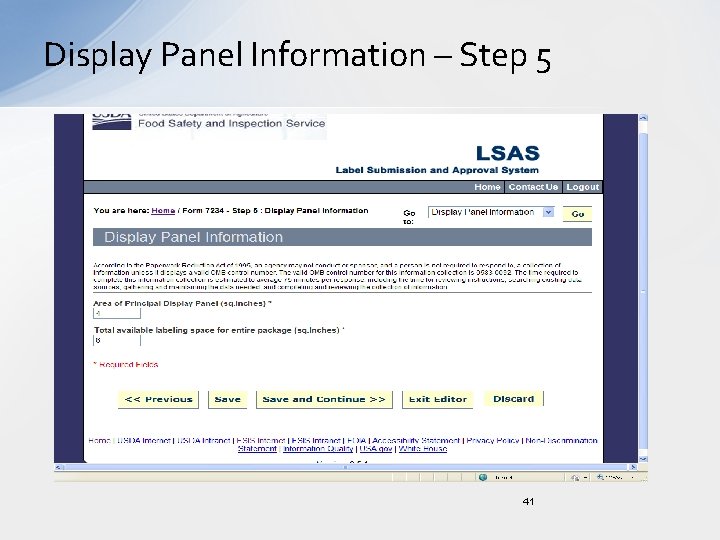
Display Panel Information – Step 5 41
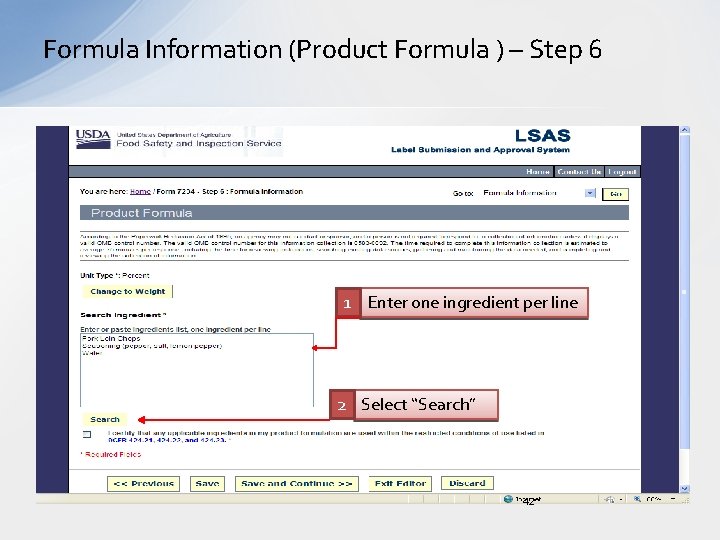
Formula Information (Product Formula ) – Step 6 1 Enter one ingredient per line 2 Select “Search” 42
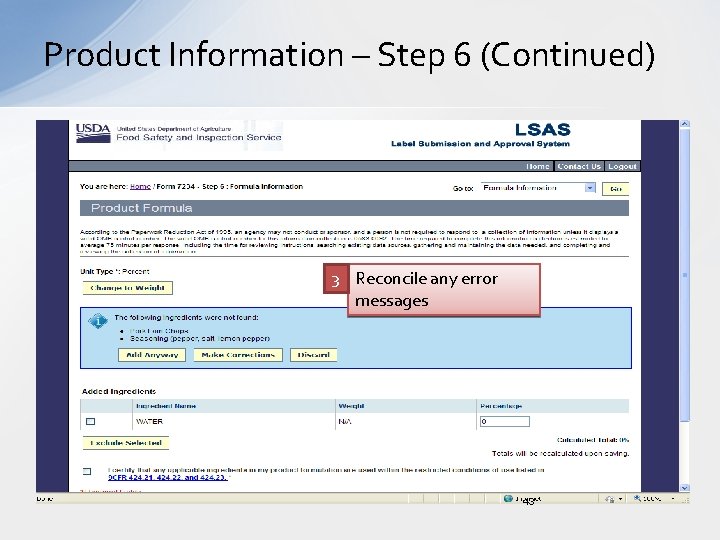
Product Information – Step 6 (Continued) 3 Reconcile any error messages 43
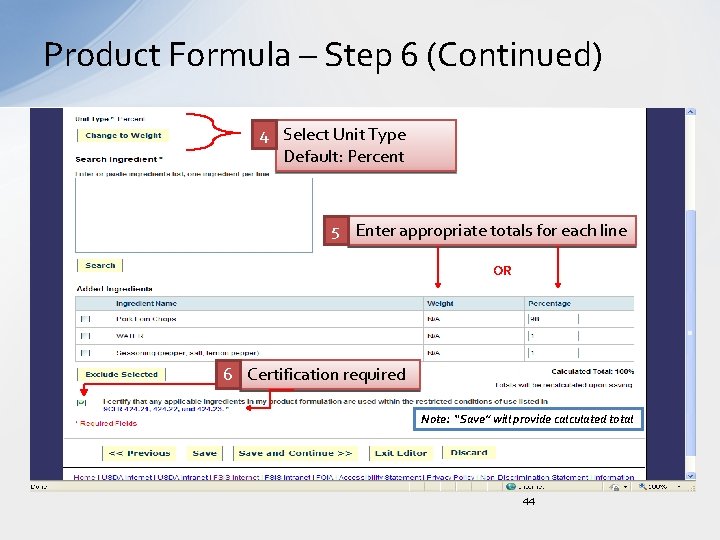
Product Formula – Step 6 (Continued) 4 Select Unit Type Default: Percent 5 Enter appropriate totals for each line OR 6 Certification required Note: “Save” will provide calculated total 44
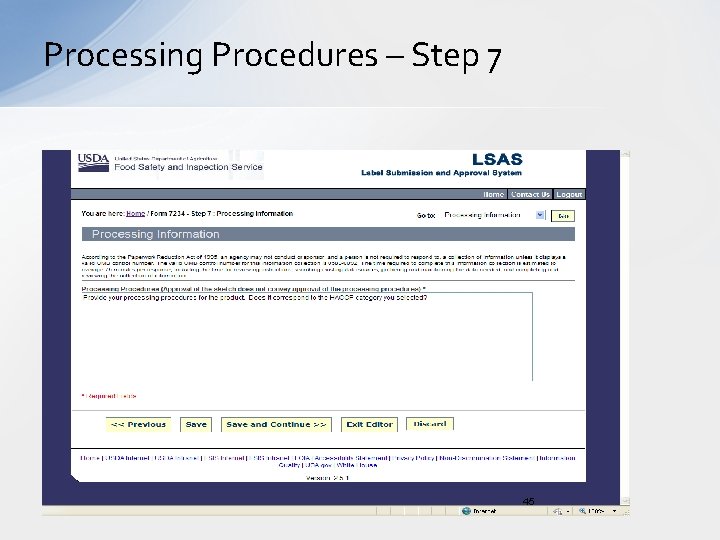
Processing Procedures – Step 7 45
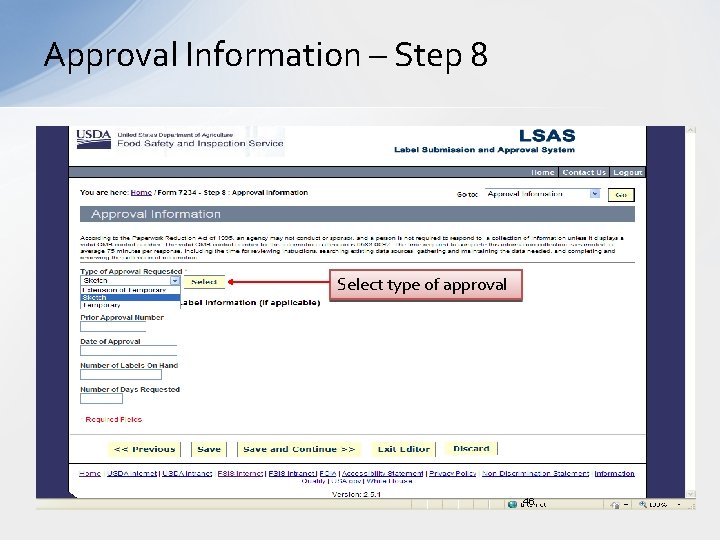
Approval Information – Step 8 Select type of approval 46
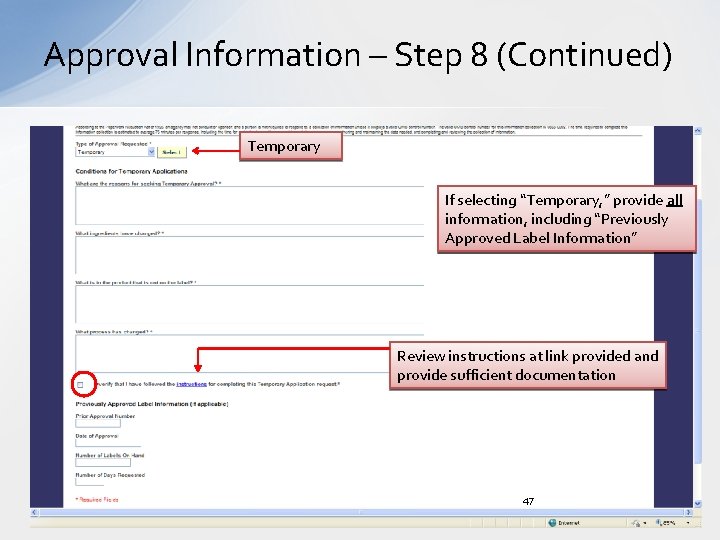
Approval Information – Step 8 (Continued) Temporary If selecting “Temporary, ” provide all information, including “Previously Approved Label Information” Review instructions at link provided and provide sufficient documentation 47
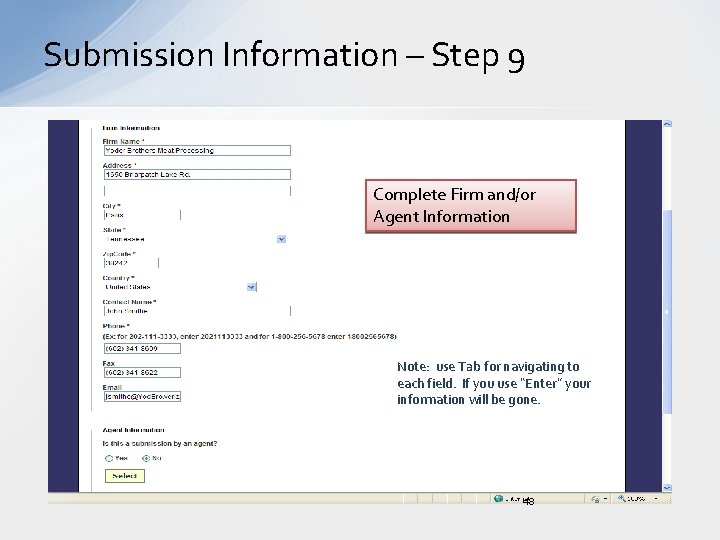
Submission Information – Step 9 Complete Firm and/or Agent Information Note: use Tab for navigating to each field. If you use “Enter” your information will be gone. 48
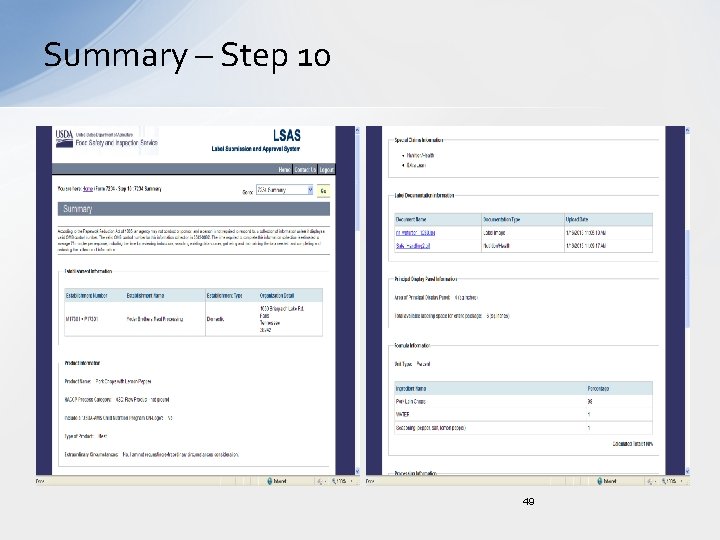
Summary – Step 10 49
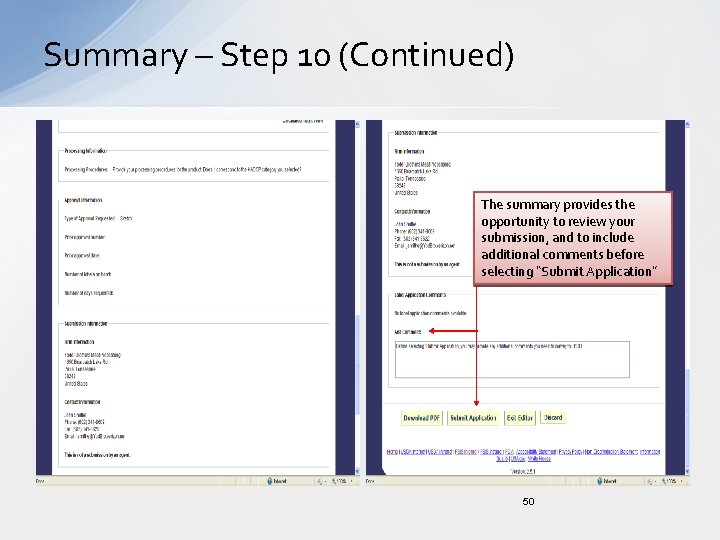
Summary – Step 10 (Continued) The summary provides the opportunity to review your submission, and to include additional comments before selecting “Submit Application” 50
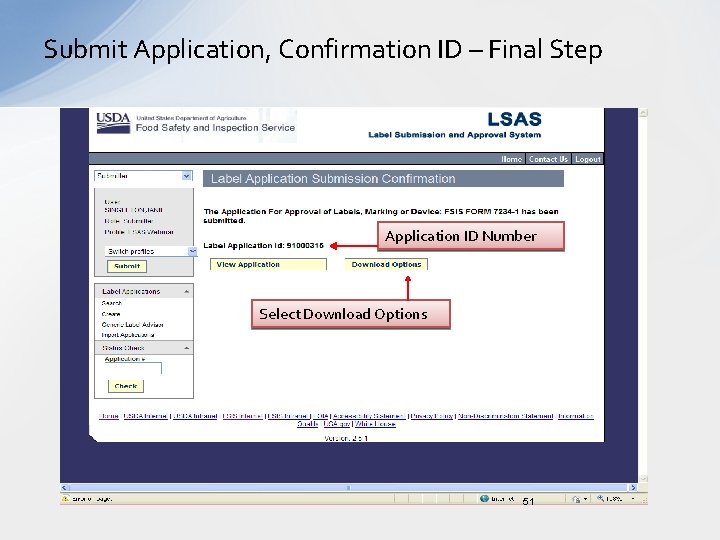
Submit Application, Confirmation ID – Final Step Application ID Number Select Download Options 51
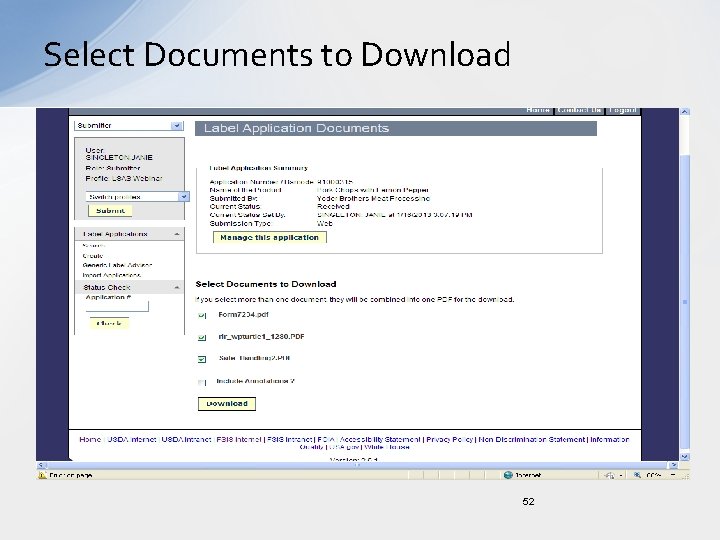
Select Documents to Download 52
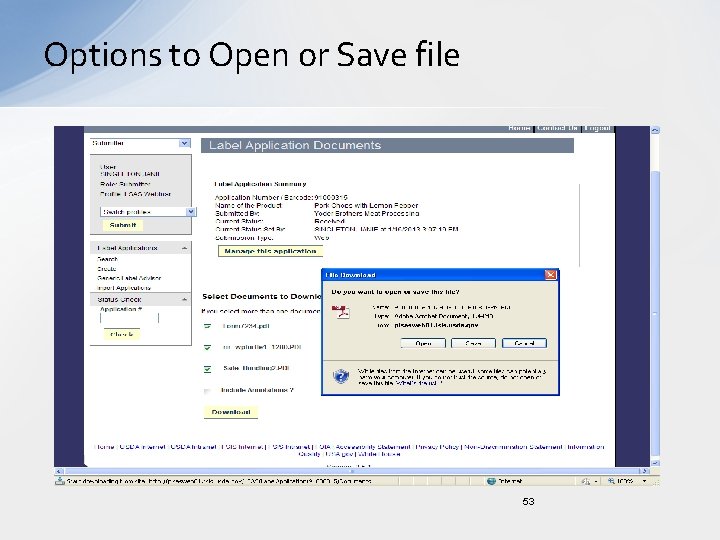
Options to Open or Save file 53

Downloaded edition populated on 7234 -1 with supporting documents 54
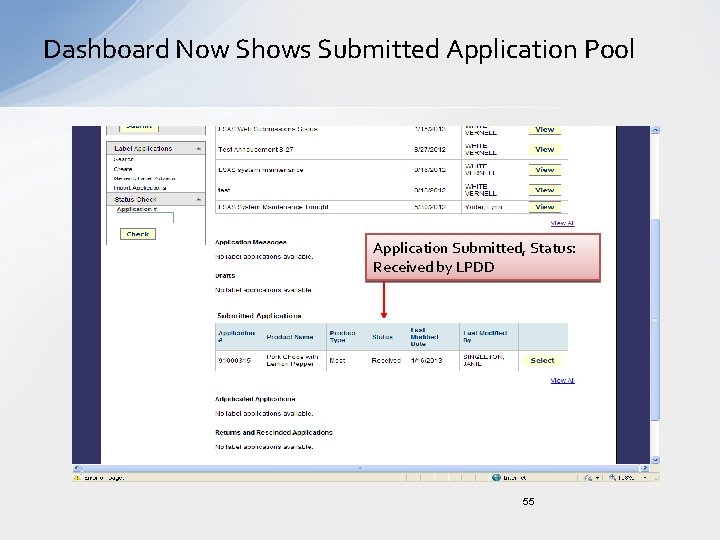
Dashboard Now Shows Submitted Application Pool Application Submitted, Status: Received by LPDD 55
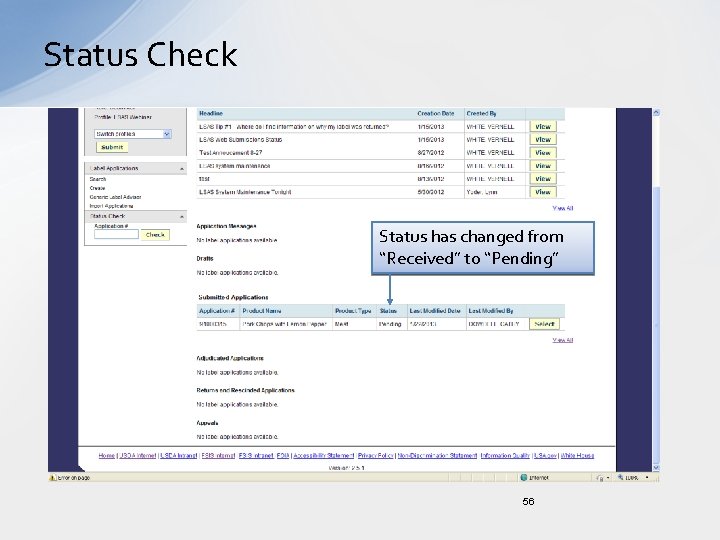
Status Check Status has changed from “Received” to “Pending” 56
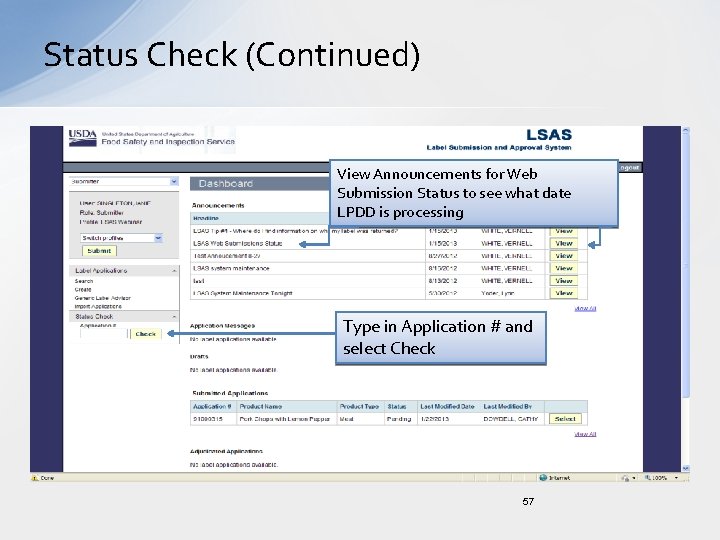
Status Check (Continued) View Announcements for Web Submission Status to see what date LPDD is processing Type in Application # and select Check 57
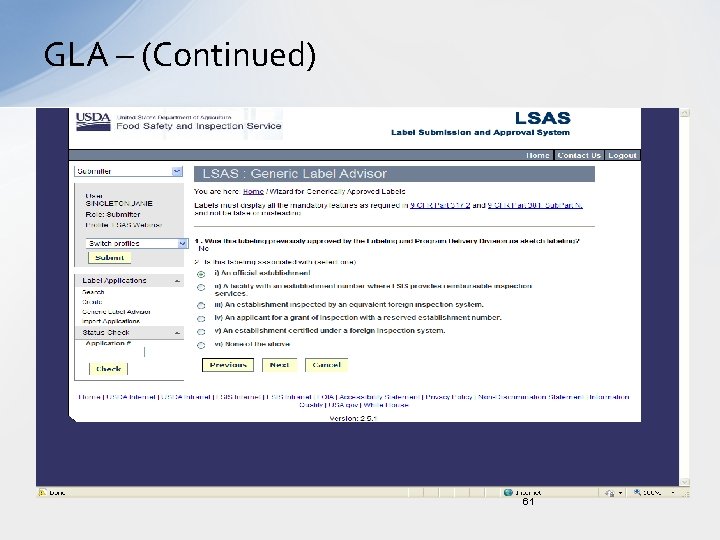
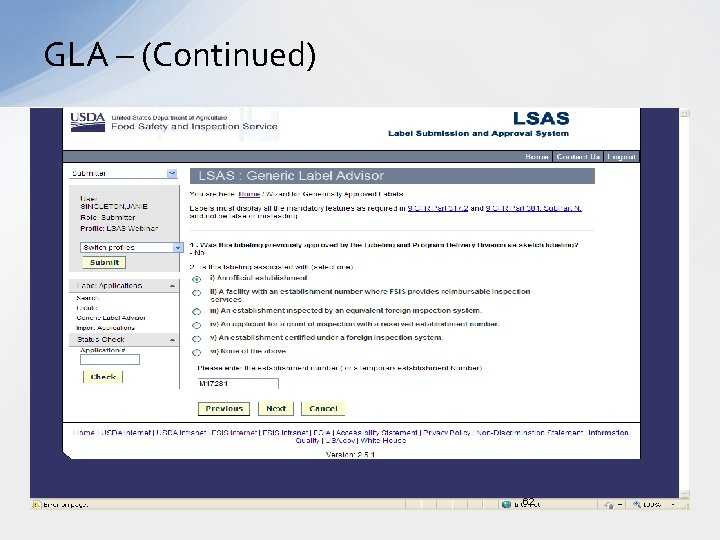
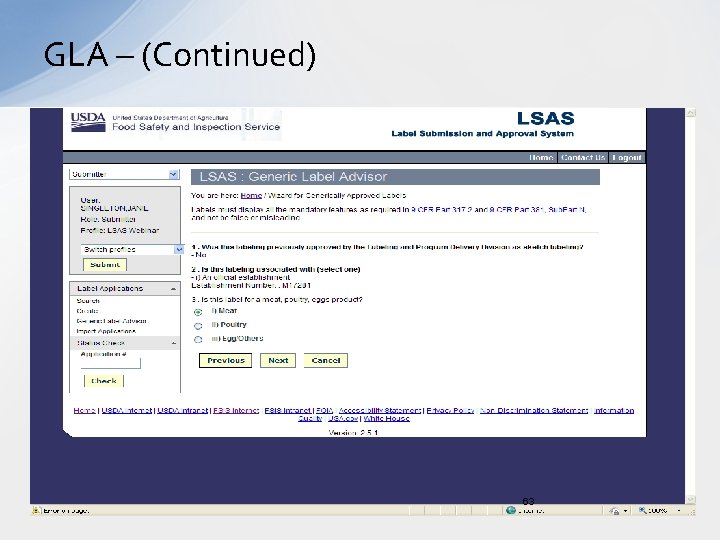
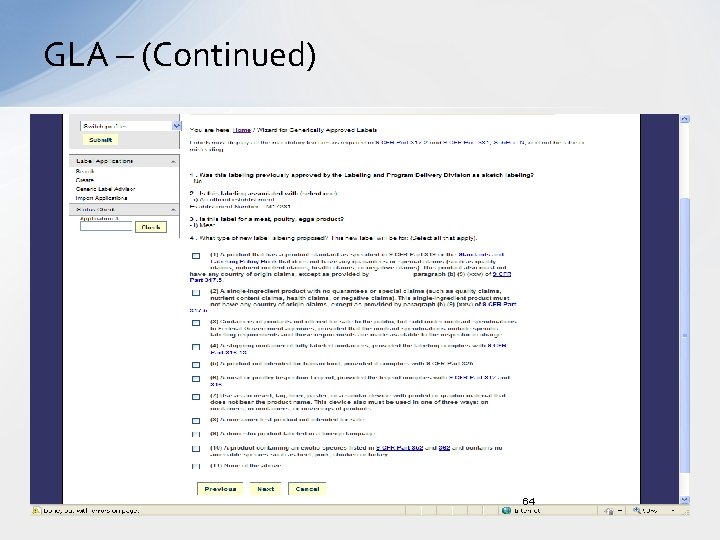
Generic Label Advisor 58
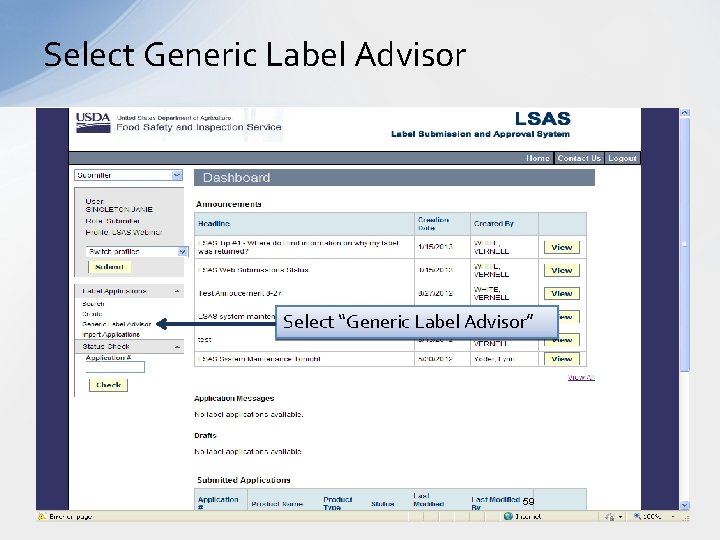
Select Generic Label Advisor Select “Generic Label Advisor” 59
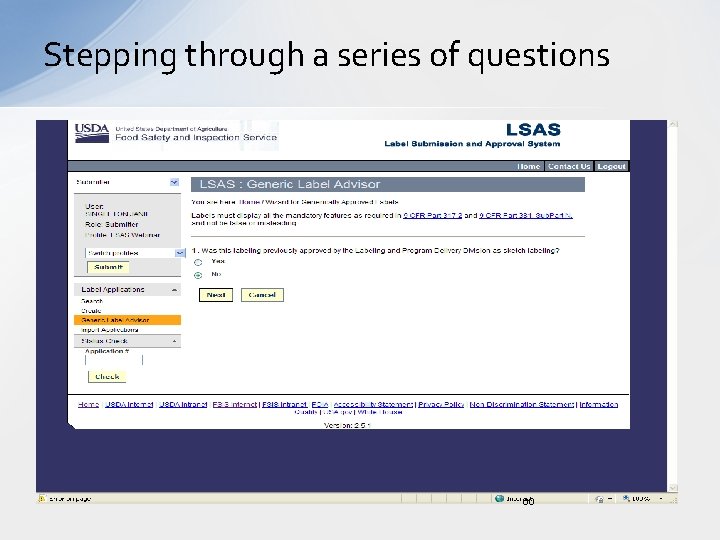
Stepping through a series of questions 60
GLA – (Continued) 61
GLA – (Continued) 62
GLA – (Continued) 63
GLA – (Continued) 64
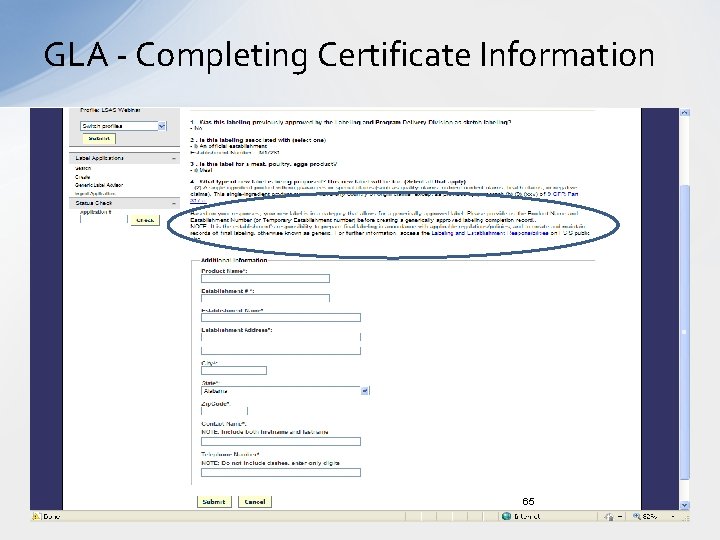
GLA - Completing Certificate Information 65
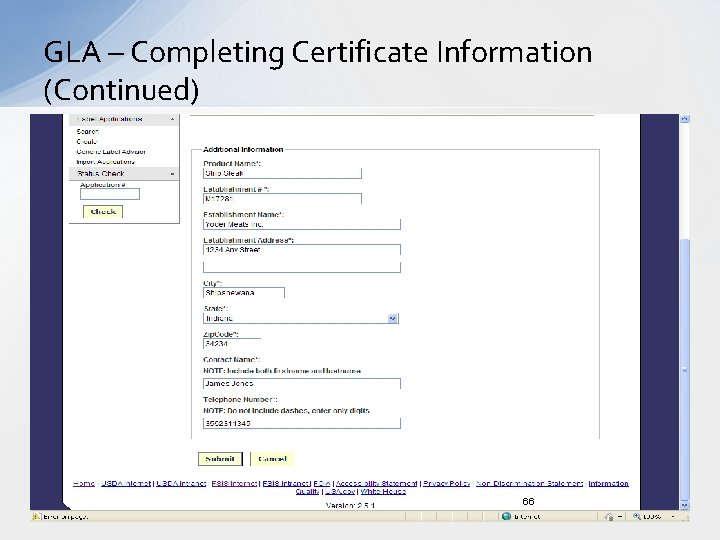
GLA – Completing Certificate Information (Continued) 66
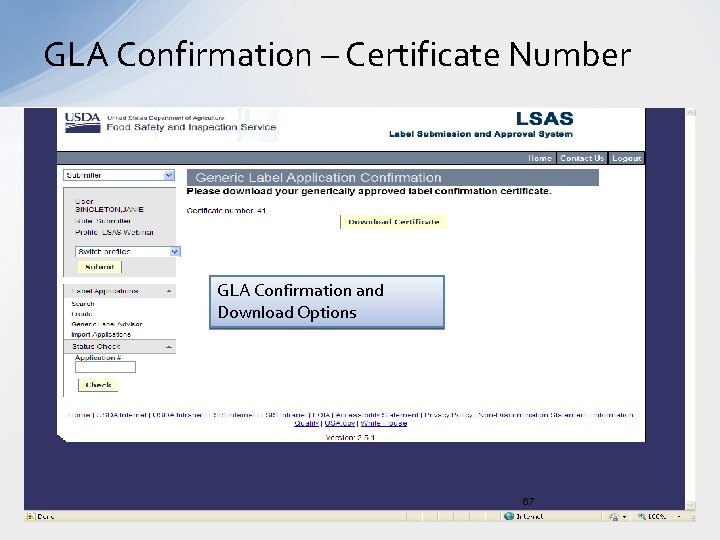
GLA Confirmation – Certificate Number GLA Confirmation and Download Options 67
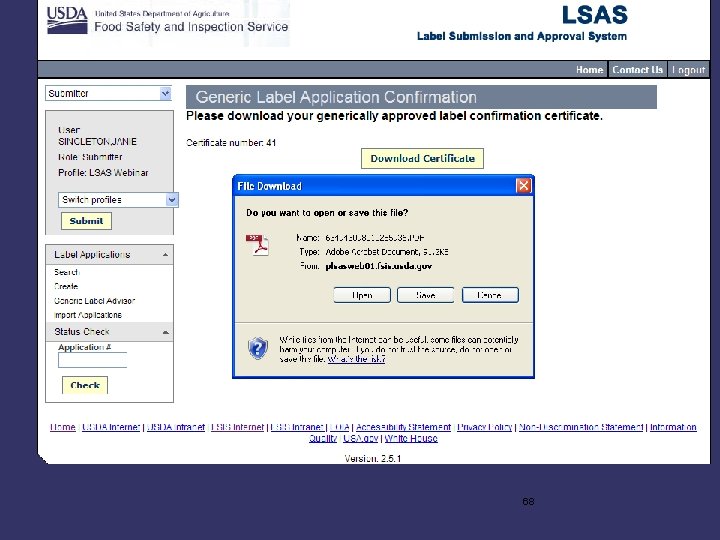
68
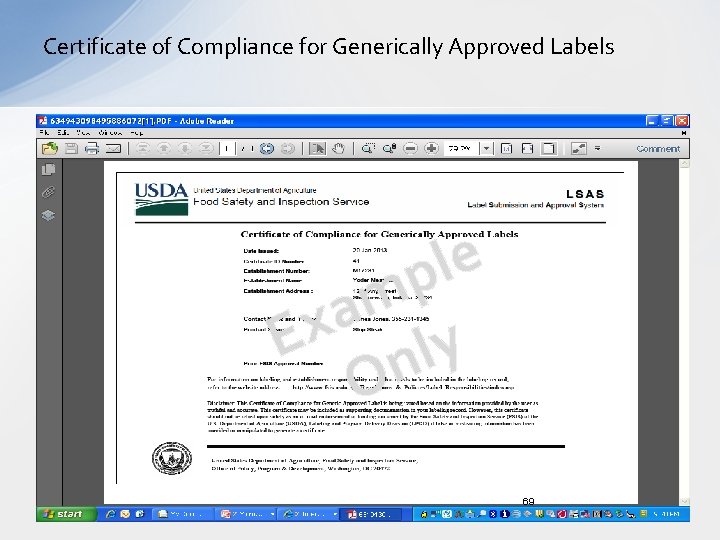
Certificate of Compliance for Generically Approved Labels e l p m a x E nly O 69

e l p m a Ex y l n O 70
Additional Resources • LPDD Labeling Guidance: http: //www. fsis. usda. gov/About_FSIS/labeling_&_consumer_protection/index. asp • Child Nutrition (CN) Labeling Program: http: //www. fns. usda. gov/cnd/cnlabeling/default. htm • Industry User Guide: http: //www. fsis. usda. gov/PDF/LSAS_Industry_User_Guide_052112. pdf • Generic Labeling: http: //www. fsis. usda. gov/Regulations_&_Policies/Generic_Labeling/index. asp 71
Additional Resources (Continued) • LSAS Administrator: LSAS@fsis. usda. gov or lynn. yoder@fsis. usda. gov • ask. FSIS: http: //askfsis. custhelp. com/ 72

73
- Slides: 73