
Lab 3 Confidence Intervals LETS GET READY TO
Lab 3: Confidence Intervals LET’S GET READY TO GET READY!!!
Let’s get to get ready… Navigate to lab page. Download Instructions and save to Stats folder. Download Work. Sheet and save to Stats folder. Crank up SPSS and open our data set: Data. Coll 1 Smile!!

Goals today Calculate and interpret confidence intervals (CIs) by hand Calculate and interpret confidence intervals (CIs) using SPSS.
Shoes, Shoes Take out a slip of paper and write down how many pairs of shoes you own. Collect Be No at your table and hand the slips to The Darkness. honest! shoe-shaming!!!! This is a safe space for shoe aficionados (like me)
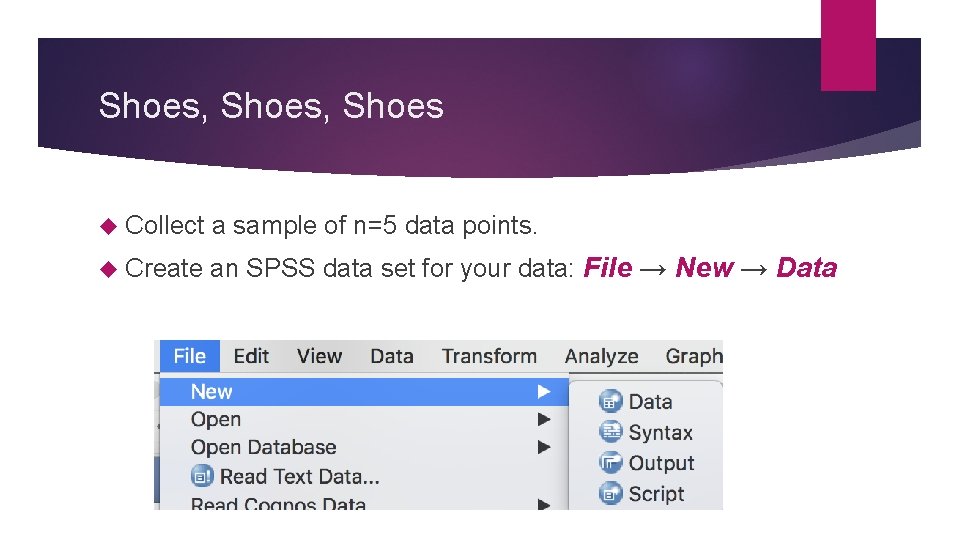
Shoes, Shoes Collect a sample of n=5 data points. Create an SPSS data set for your data: File → New → Data
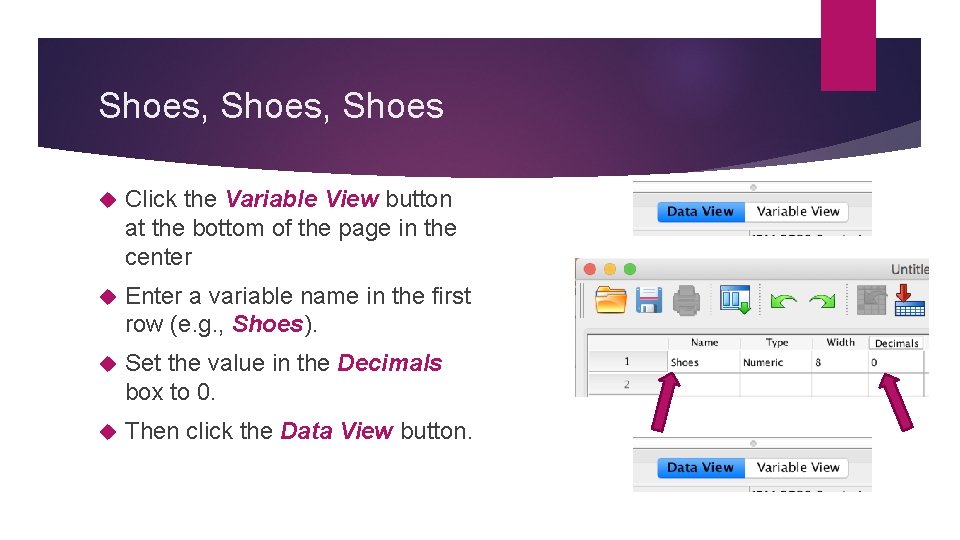
Shoes, Shoes Click the Variable View button at the bottom of the page in the center Enter a variable name in the first row (e. g. , Shoes). Set the value in the Decimals box to 0. Then click the Data View button.
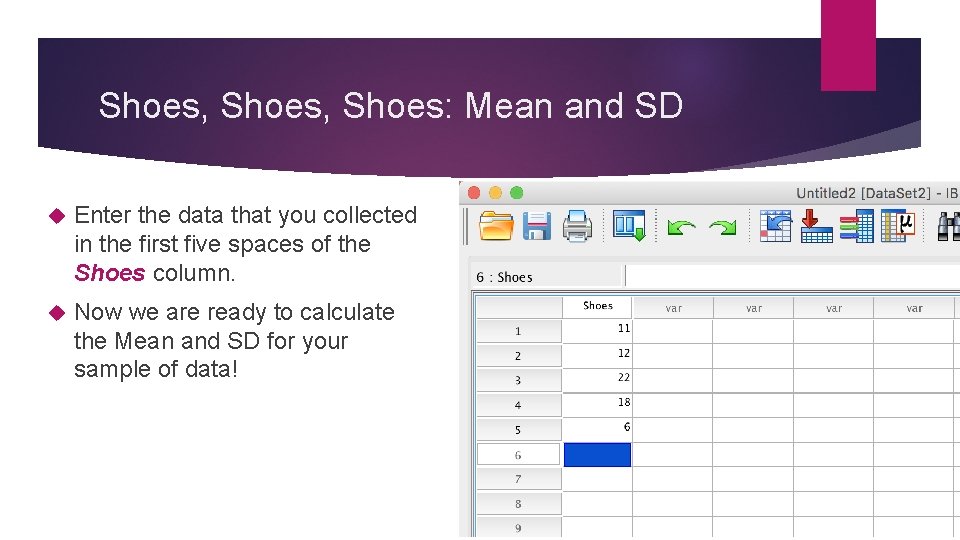
Shoes, Shoes: Mean and SD Enter the data that you collected in the first five spaces of the Shoes column. Now we are ready to calculate the Mean and SD for your sample of data!
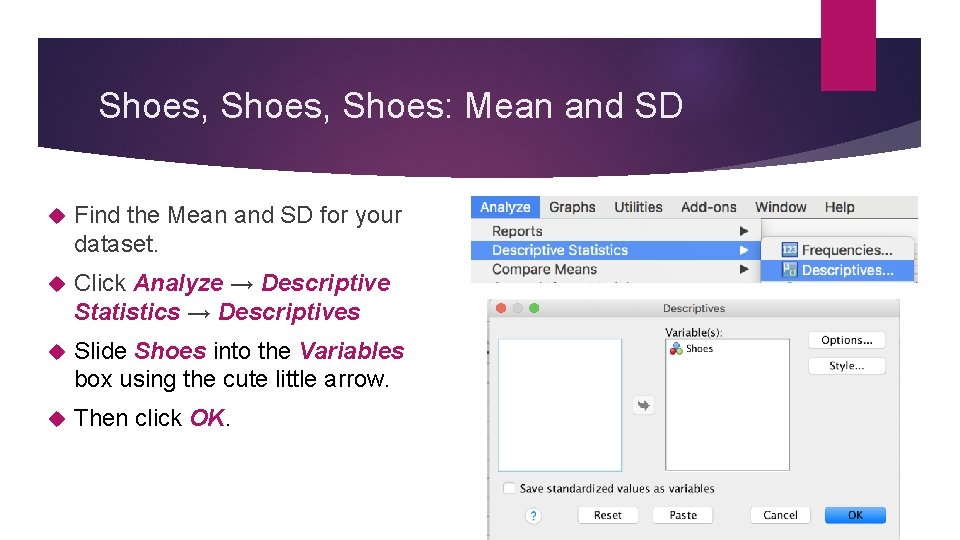
Shoes, Shoes: Mean and SD Find the Mean and SD for your dataset. Click Analyze → Descriptive Statistics → Descriptives Slide Shoes into the Variables box using the cute little arrow. Then click OK.
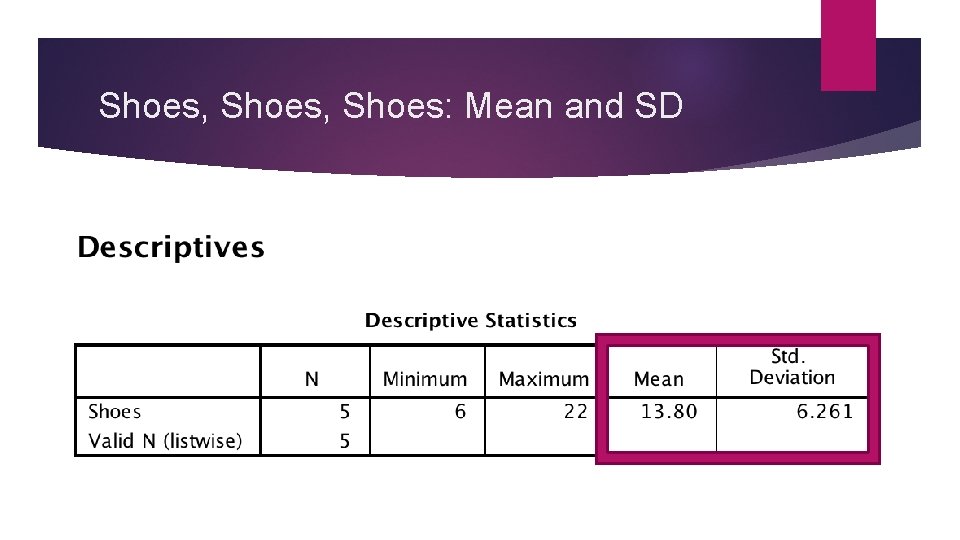
Shoes, Shoes: Mean and SD
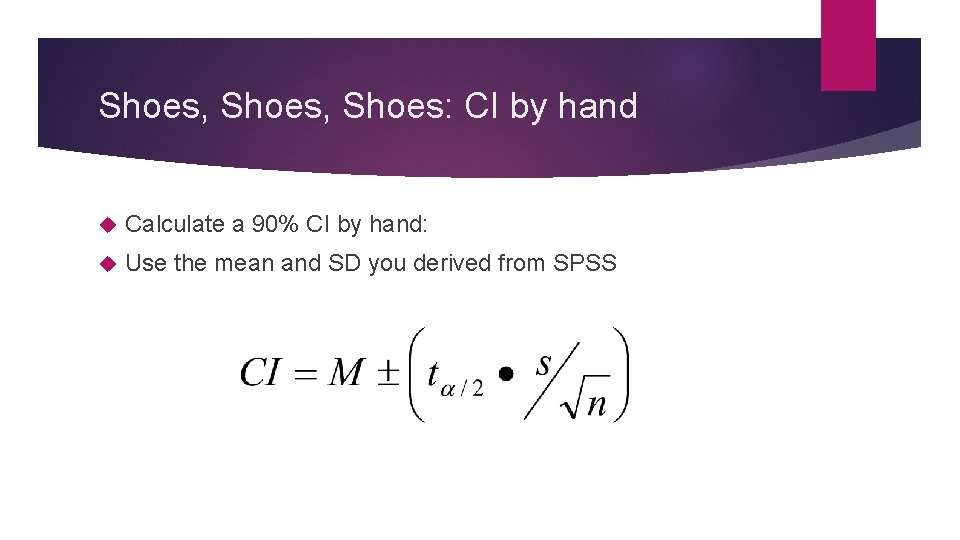
Shoes, Shoes: CI by hand Calculate a 90% CI by hand: Use the mean and SD you derived from SPSS
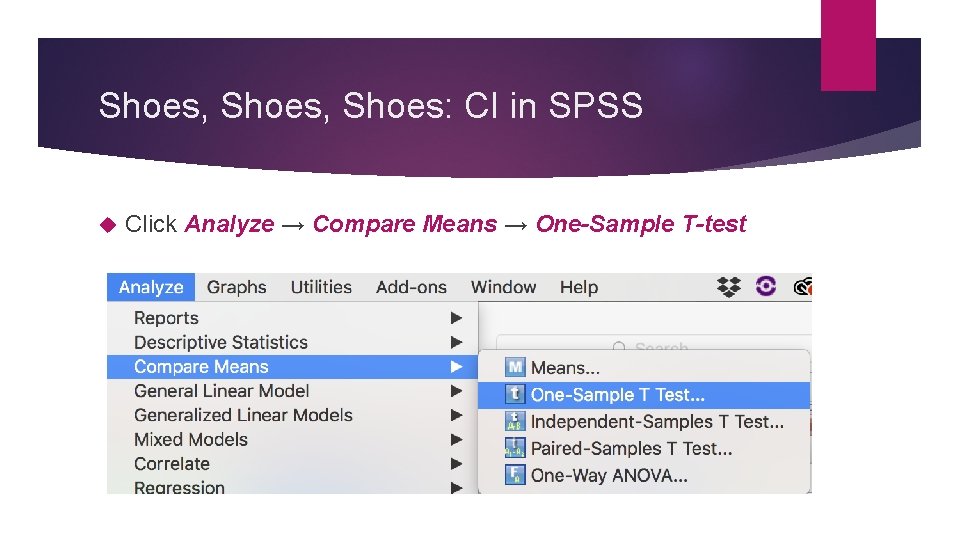
Shoes, Shoes: CI in SPSS Click Analyze → Compare Means → One-Sample T-test
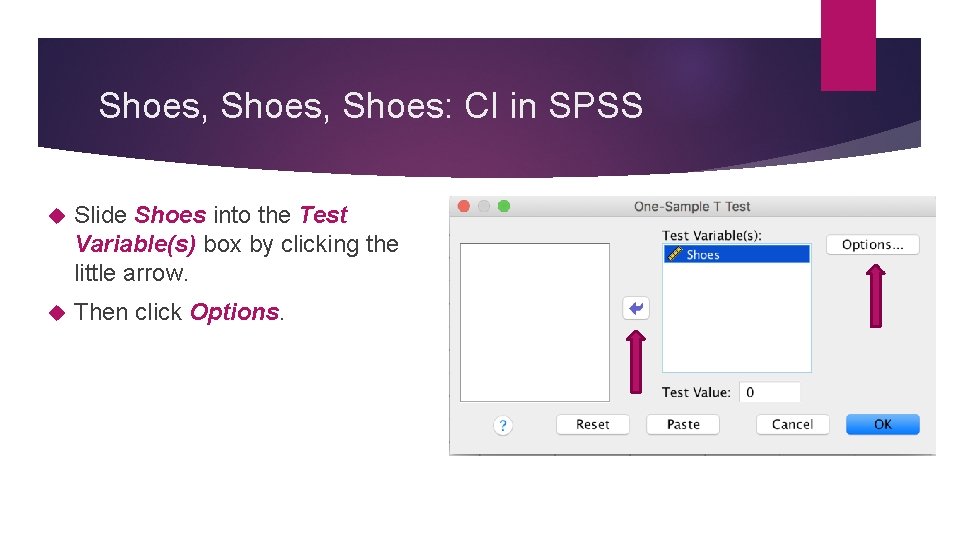
Shoes, Shoes: CI in SPSS Slide Shoes into the Test Variable(s) box by clicking the little arrow. Then click Options.
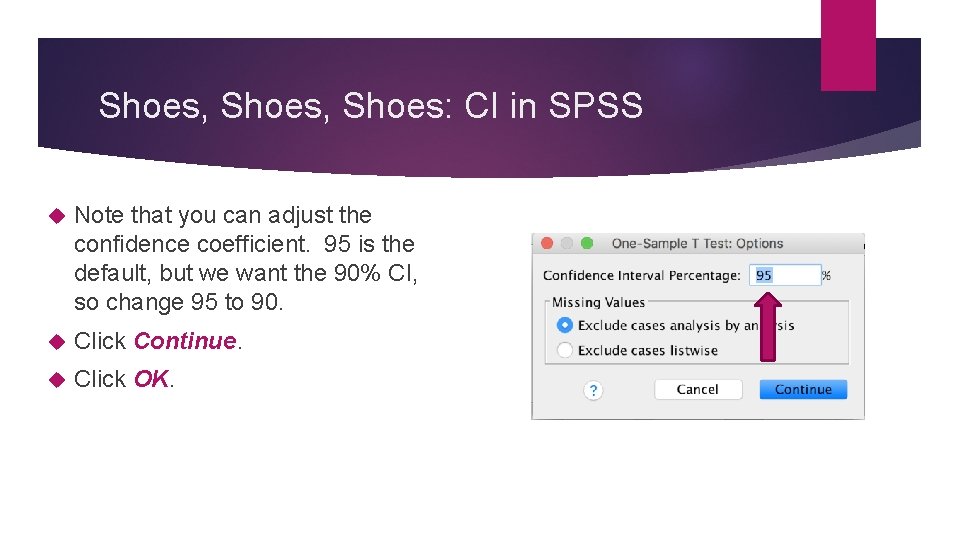
Shoes, Shoes: CI in SPSS Note that you can adjust the confidence coefficient. 95 is the default, but we want the 90% CI, so change 95 to 90. Click Continue. Click OK.
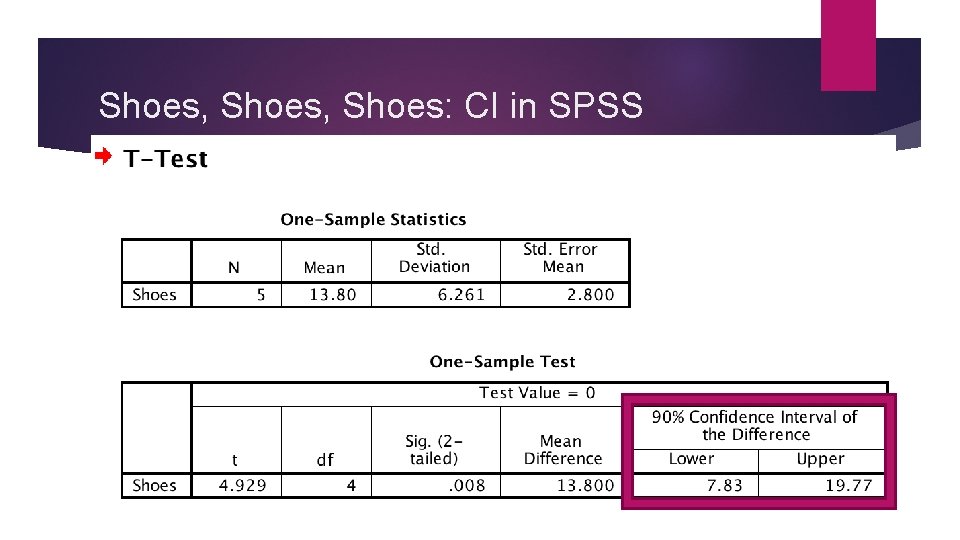
Shoes, Shoes: CI in SPSS
Answer Questions #1 on the answer sheet Data set n= 5 What is alpha? Calculate a 90% CI by hand interpret: Calculate a 90% CI using SPSS.
Shoes, Shoes: n = 10 Collect data from 5 additional subjects (do it right this time!) Add the additional 5 data points into your SPSS data set. Calculate the Mean and SD for your data set using the procedures outlined above (Analyze → Descriptive Statistics → Descriptives). Then calculate the CI using the procedures outlined above (Analyze → Compare Means → One-Sample T-test).
Answer Questions #2 on the answer sheet Data set n = 10 What is you new mean, SD, and SE? Calculate a 90% CI using RC and report: Is the SE smaller or larger than the 1 st sample? How does this affect the CI? Is the CI wider or narrower than the first sample?
CIs for Eskine’s data First you need to upload our data: File → Open → Data Open the dataset: Data. Coll 1 We are going to calculate three separate Cis, one for each of our three conditions: Water Sweet Disgusting To do this, we are going to use Select Cases.
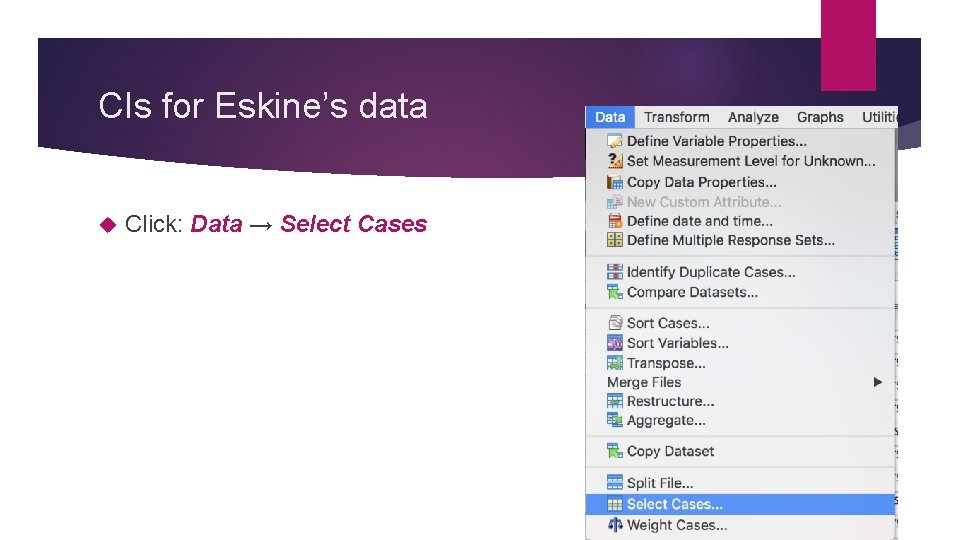
CIs for Eskine’s data Click: Data → Select Cases
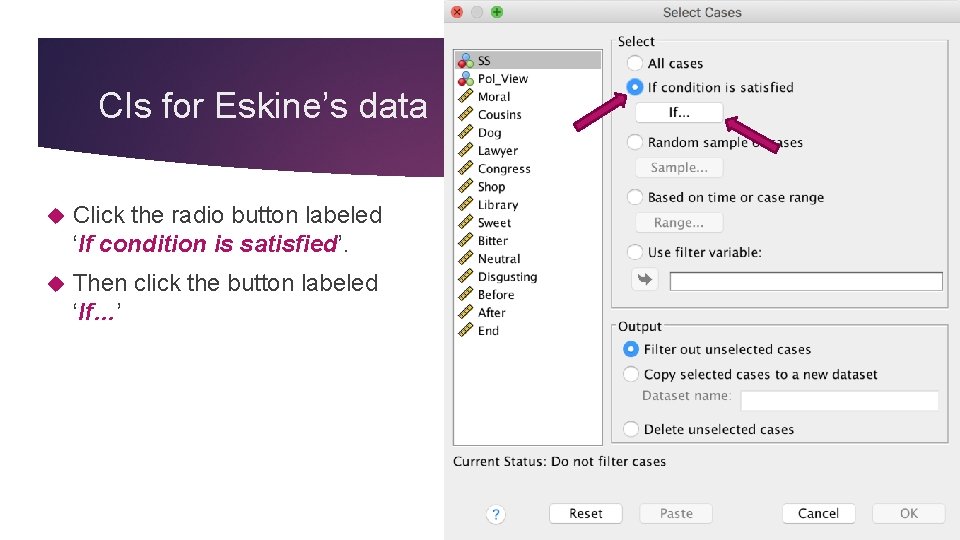
CIs for Eskine’s data Click the radio button labeled ‘If condition is satisfied’. Then click the button labeled ‘If…’
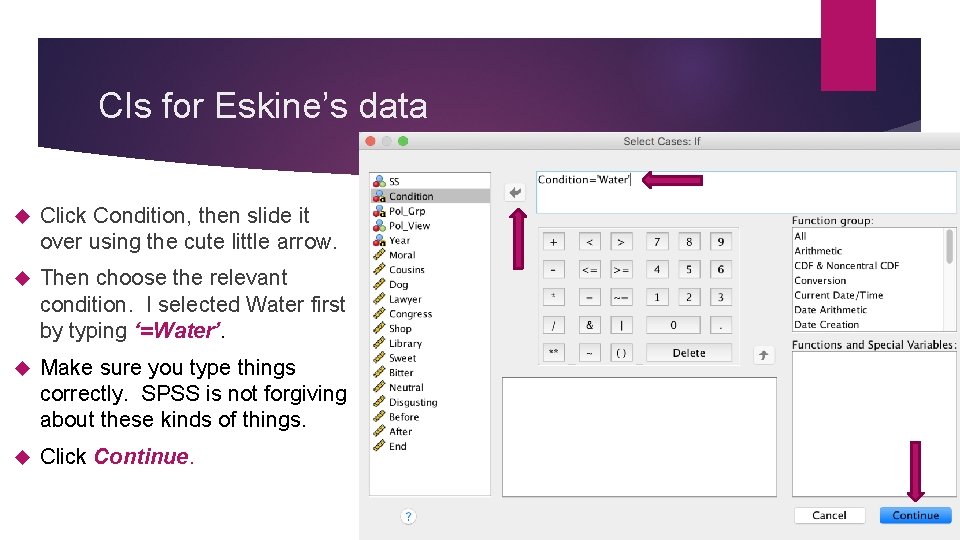
CIs for Eskine’s data Click Condition, then slide it over using the cute little arrow. Then choose the relevant condition. I selected Water first by typing ‘=Water’. Make sure you type things correctly. SPSS is not forgiving about these kinds of things. Click Continue.
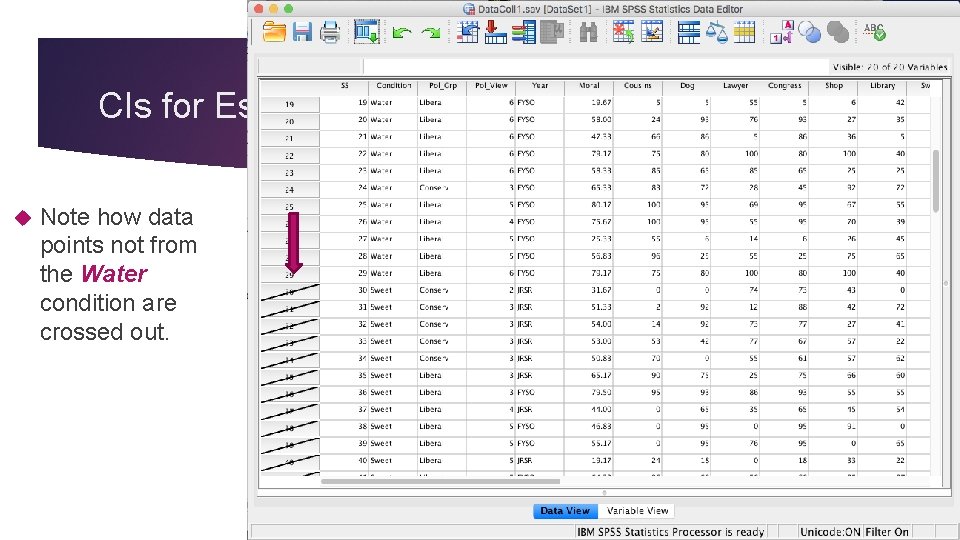
CIs for Eskine’s data Note how data points not from the Water condition are crossed out.
Cis for Eskine’s data Now you can ask SPSS to calculate the CI for the Water condition exactly as you did for the shoe example earlier: Analyze → Compare Means → One-Sample T-test Make sure you select Moral as the variable and click Options to set the proper confidence coefficient Repeat these steps to calculate CIs for the Sweet and Disgusting conditions. Use Select Cases, to select only data points in the Sweet condition; then calculate the CI. Then CI. select cases in the Disgusting condition and re-calculate the

Homework STOP Save your output! File→ Save
Homework: Calculate the 95% CI for all three conditions in our data set The output will give you the 95% CI for the mean morality rating of people in the Water condition (since you were using the smaller dataset with just people in the water condition) Activate each of the remaining two data sets (sweet, disgusting) in turn and complete the steps above. You should now have 3 different 95% CIs, one for each condition.
Answer Part 2 on the Answer Sheet Comparison of CIs Within Our Data Does the CI for the disgust group include the mean value for the sweet condition? Does the CI for the disgust condition include the mean value for the water condition? Does the CI for the sweet condition include the mean value for the water condition? Based on the CIs, do you think that the taste manipulation truly affected moral judgements?
Answer Part 2 on the Answer Sheet Comparison of our Data to Eskine, et al. ’s Does the 95% CI for the disgust condition include the mean reported by Eskine et al. , for their bitter condition (their version of the disgusting condition)? Does the 95% CI for the neutral condition include the mean reported by Eskine et al. , for their water (control) condition? Does the 95% CI for the sweet condition include the mean reported by Eskine et al for their sweet condition? Based on the CIs you generated, do you think that drinking a bitter drink and eating a disgusting jelly bean have the same effect on moral judgments?

Homework STOP Save your output before you quit! File→ Save output
- Slides: 28