
lab 2 BASIC DRAWING SKILLS DET 111 ENGINEERING
lab 2: BASIC DRAWING SKILLS DET 111 – ENGINEERING DRAWING Dr. Suzanna HR & En. Mohammad Isa AA
CONTENTS 1. 2. 3. 4. LINES & RECTANGLES CANCEL, ERASE & UNDO CIRCLES, ARCS & POLYGONS FILLET & CHAMFER DET 111 – ENGINEERING DRAWING Dr. Suzanna HR & En. Mohammad Isa AA
LINES & RECTANGLES 1 § Three ways to enter a point: I. ABSOLUTE COORDINATE Ø Points enter relate to the origin of the WCS Ø Enter point as X , Y II. RELATIVE COORDINATE Ø Points enter in relation to the first point entered Ø Enter point as @X , Y Ø Line is drawn from the first point to another point X units over and Y units up relative to the previous point III. POLAR COORDINATE Ø Draw a line at certain distance at a particular angle Ø Enter line as @D<A Ø D = distance , A = angle DET 111 – ENGINEERING DRAWING Dr. Suzanna HR & En. Mohammad Isa AA
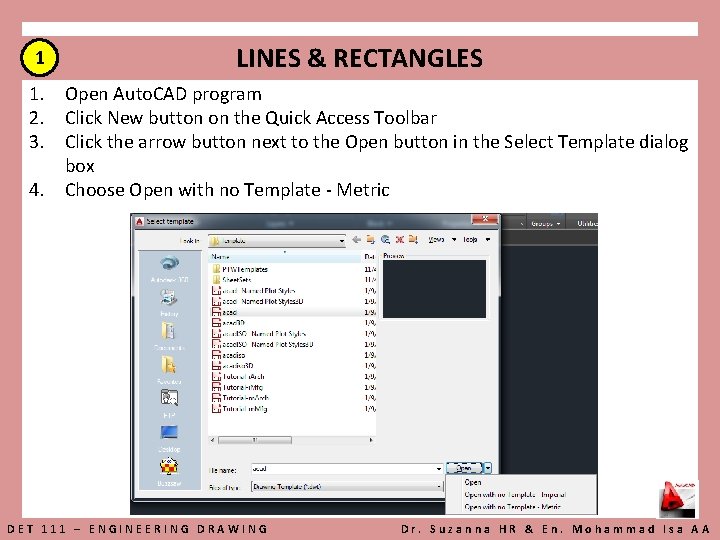
1 LINES & RECTANGLES 1. Open Auto. CAD program 2. Click New button on the Quick Access Toolbar 3. Click the arrow button next to the Open button in the Select Template dialog box 4. Choose Open with no Template - Metric DET 111 – ENGINEERING DRAWING Dr. Suzanna HR & En. Mohammad Isa AA
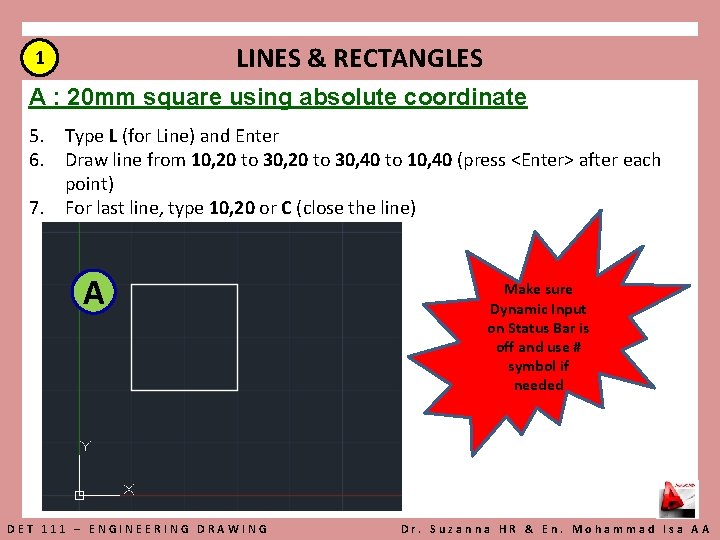
LINES & RECTANGLES 1 A : 20 mm square using absolute coordinate 5. Type L (for Line) and Enter 6. Draw line from 10, 20 to 30, 40 to 10, 40 (press <Enter> after each point) 7. For last line, type 10, 20 or C (close the line) A DET 111 – ENGINEERING DRAWING Make sure Dynamic Input on Status Bar is off and use # symbol if needed Dr. Suzanna HR & En. Mohammad Isa AA
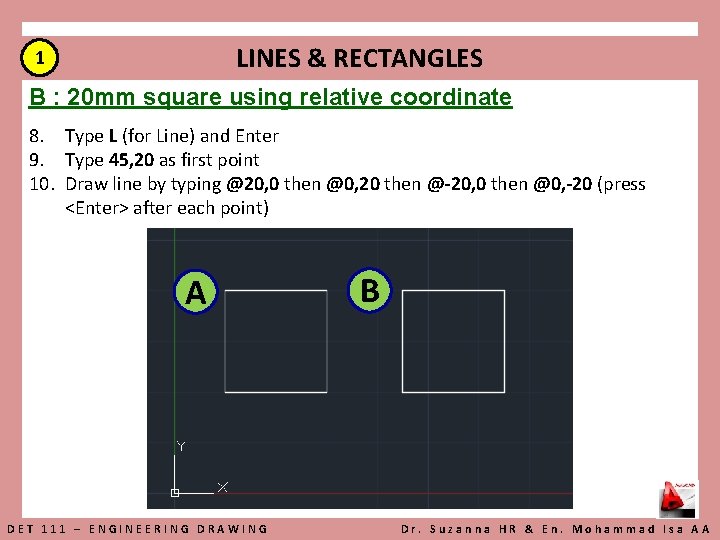
LINES & RECTANGLES 1 B : 20 mm square using relative coordinate 8. Type L (for Line) and Enter 9. Type 45, 20 as first point 10. Draw line by typing @20, 0 then @0, 20 then @-20, 0 then @0, -20 (press <Enter> after each point) A DET 111 – ENGINEERING DRAWING B Dr. Suzanna HR & En. Mohammad Isa AA
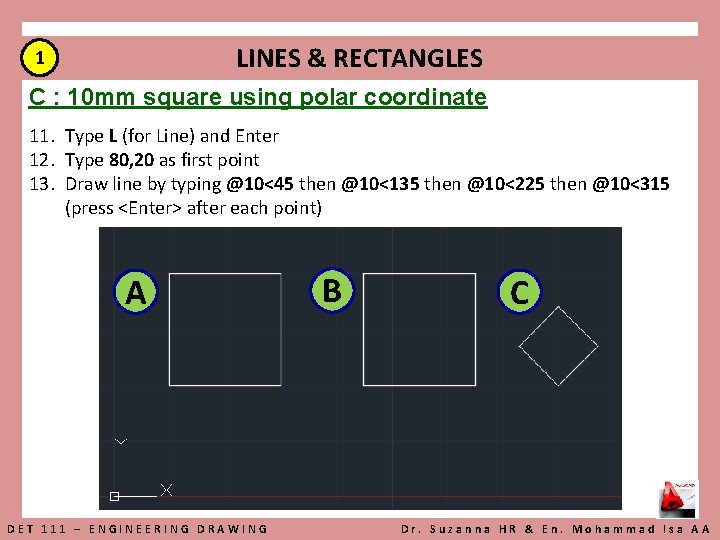
LINES & RECTANGLES 1 C : 10 mm square using polar coordinate 11. Type L (for Line) and Enter 12. Type 80, 20 as first point 13. Draw line by typing @10<45 then @10<135 then @10<225 then @10<315 (press <Enter> after each point) A DET 111 – ENGINEERING DRAWING B C Dr. Suzanna HR & En. Mohammad Isa AA

LINES & RECTANGLES 1 D : Rectangle using absolute coordinate 14. Click the Rectangle tool in the Draw panel 15. Type 10, 50 as first corner point 16. Type #40, 70 as other corner point D A DET 111 – ENGINEERING DRAWING B C Dr. Suzanna HR & En. Mohammad Isa AA
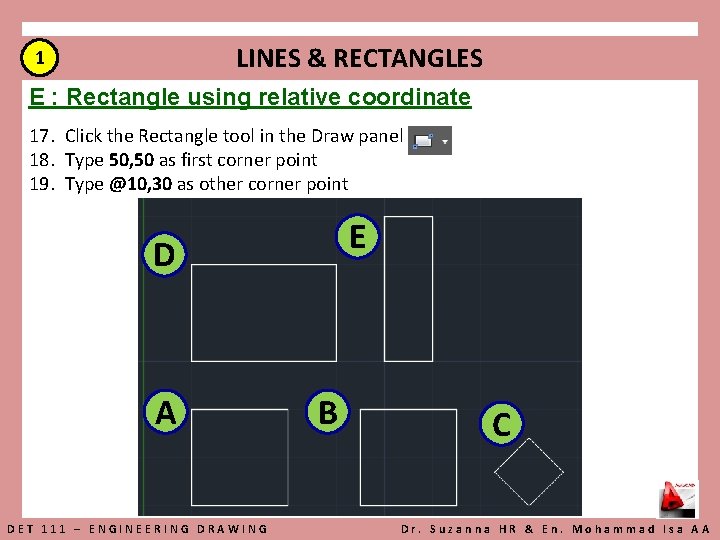
LINES & RECTANGLES 1 E : Rectangle using relative coordinate 17. Click the Rectangle tool in the Draw panel 18. Type 50, 50 as first corner point 19. Type @10, 30 as other corner point E D A DET 111 – ENGINEERING DRAWING B C Dr. Suzanna HR & En. Mohammad Isa AA
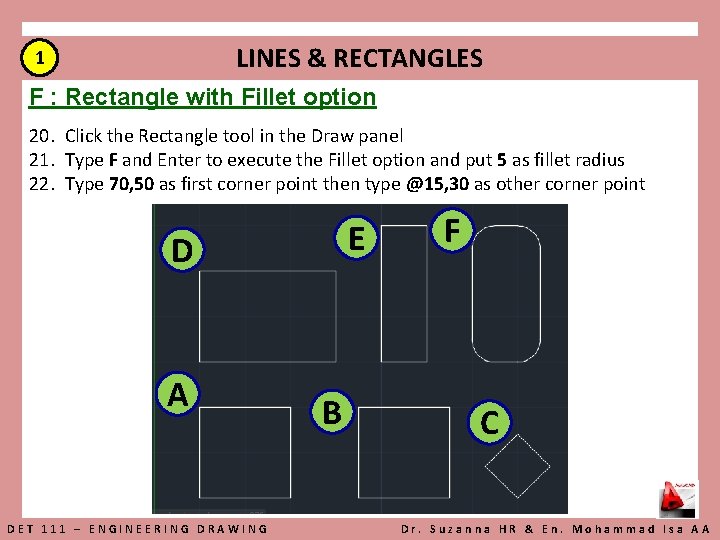
LINES & RECTANGLES 1 F : Rectangle with Fillet option 20. Click the Rectangle tool in the Draw panel 21. Type F and Enter to execute the Fillet option and put 5 as fillet radius 22. Type 70, 50 as first corner point then type @15, 30 as other corner point E D A DET 111 – ENGINEERING DRAWING B F C Dr. Suzanna HR & En. Mohammad Isa AA
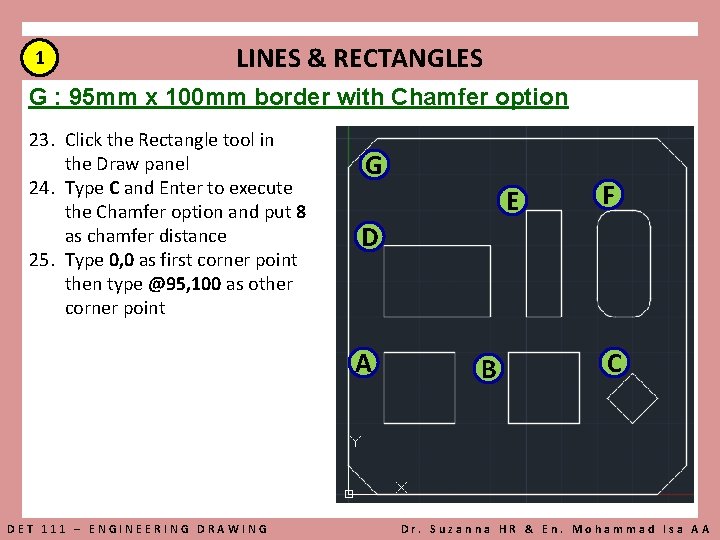
1 LINES & RECTANGLES G : 95 mm x 100 mm border with Chamfer option 23. Click the Rectangle tool in the Draw panel 24. Type C and Enter to execute the Chamfer option and put 8 as chamfer distance 25. Type 0, 0 as first corner point then type @95, 100 as other corner point G E D A DET 111 – ENGINEERING DRAWING F B C Dr. Suzanna HR & En. Mohammad Isa AA
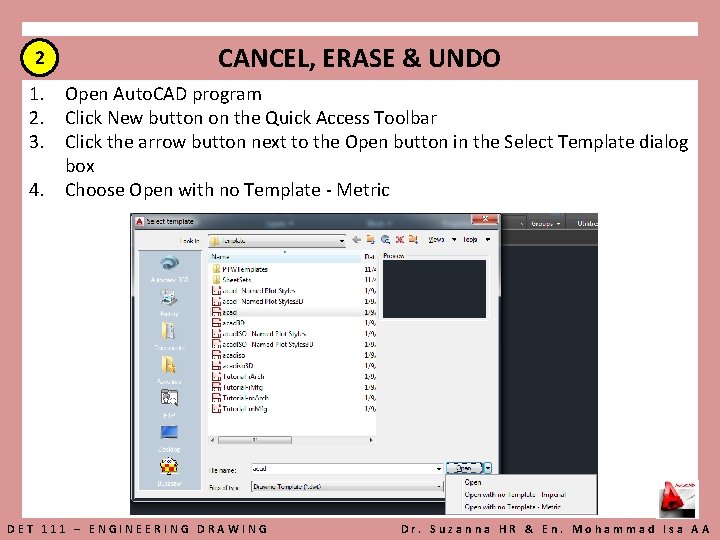
2 CANCEL, ERASE & UNDO 1. Open Auto. CAD program 2. Click New button on the Quick Access Toolbar 3. Click the arrow button next to the Open button in the Select Template dialog box 4. Choose Open with no Template - Metric DET 111 – ENGINEERING DRAWING Dr. Suzanna HR & En. Mohammad Isa AA
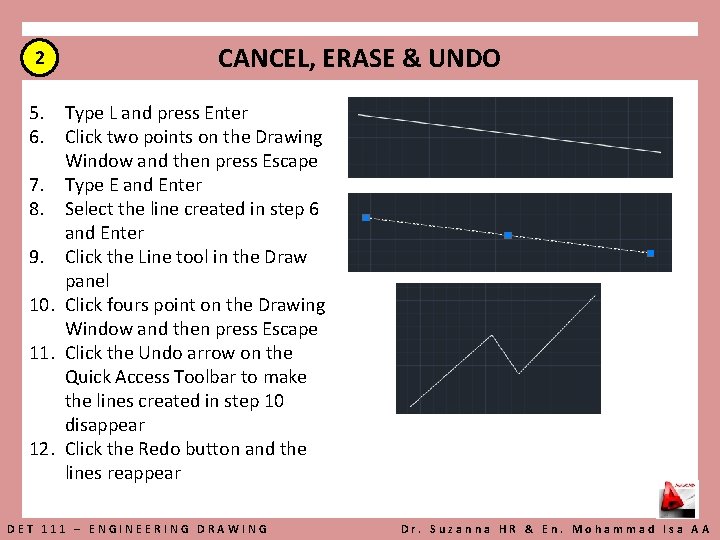
2 CANCEL, ERASE & UNDO 5. Type L and press Enter 6. Click two points on the Drawing Window and then press Escape 7. Type E and Enter 8. Select the line created in step 6 and Enter 9. Click the Line tool in the Draw panel 10. Click fours point on the Drawing Window and then press Escape 11. Click the Undo arrow on the Quick Access Toolbar to make the lines created in step 10 disappear 12. Click the Redo button and the lines reappear DET 111 – ENGINEERING DRAWING Dr. Suzanna HR & En. Mohammad Isa AA
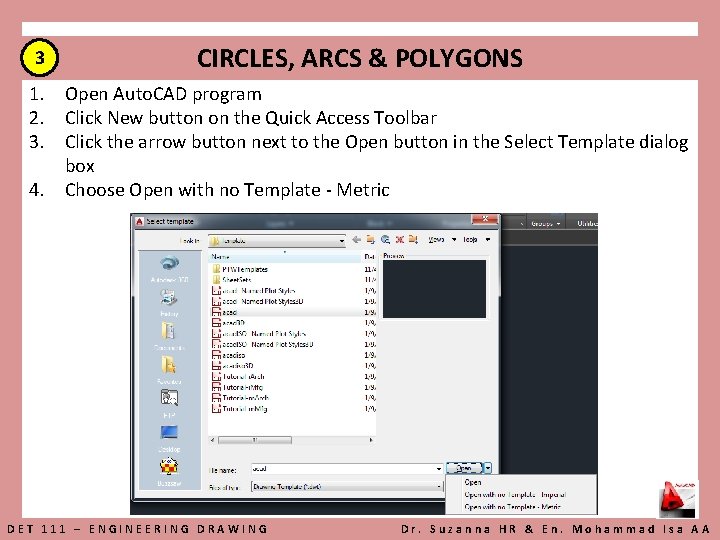
3 CIRCLES, ARCS & POLYGONS 1. Open Auto. CAD program 2. Click New button on the Quick Access Toolbar 3. Click the arrow button next to the Open button in the Select Template dialog box 4. Choose Open with no Template - Metric DET 111 – ENGINEERING DRAWING Dr. Suzanna HR & En. Mohammad Isa AA
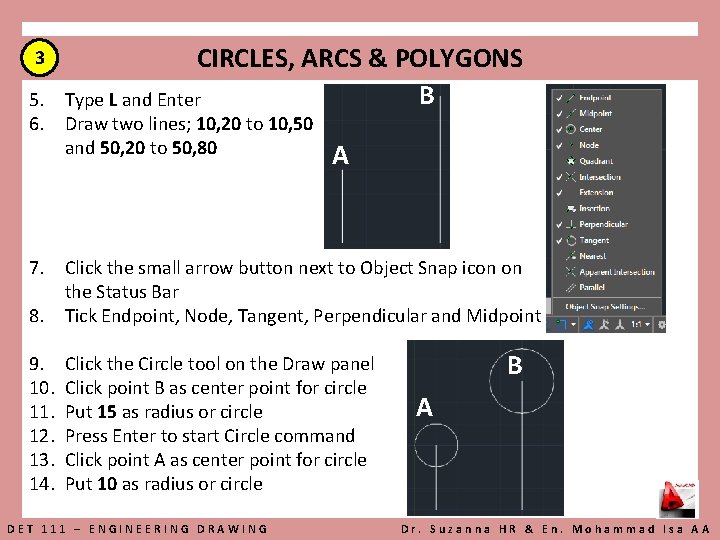
3 CIRCLES, ARCS & POLYGONS B Type L and Enter 5. 6. Draw two lines; 10, 20 to 10, 50 and 50, 20 to 50, 80 A 7. Click the small arrow button next to Object Snap icon on the Status Bar 8. Tick Endpoint, Node, Tangent, Perpendicular and Midpoint 9. 10. 11. 12. 13. 14. Click the Circle tool on the Draw panel Click point B as center point for circle Put 15 as radius or circle Press Enter to start Circle command Click point A as center point for circle Put 10 as radius or circle DET 111 – ENGINEERING DRAWING B A Dr. Suzanna HR & En. Mohammad Isa AA
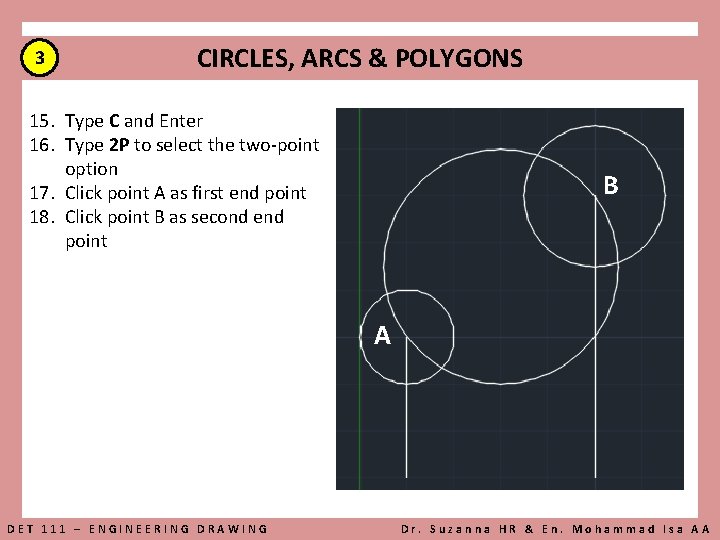
3 CIRCLES, ARCS & POLYGONS 15. Type C and Enter 16. Type 2 P to select the two-point option 17. Click point A as first end point 18. Click point B as second end point B A DET 111 – ENGINEERING DRAWING Dr. Suzanna HR & En. Mohammad Isa AA
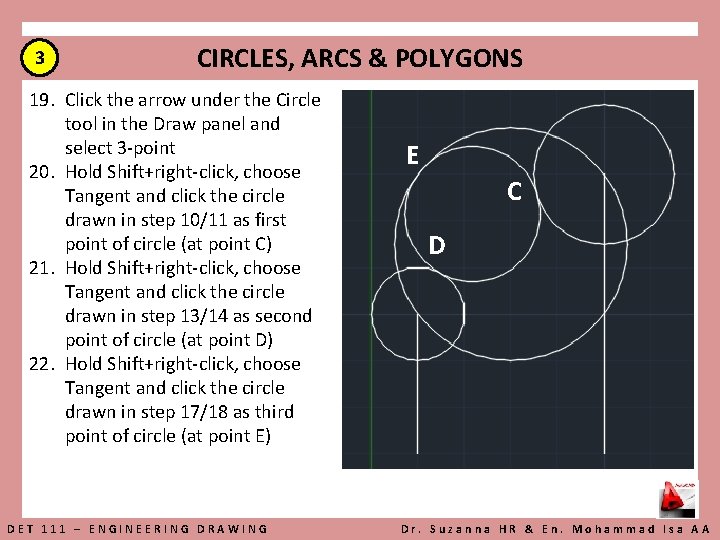
3 CIRCLES, ARCS & POLYGONS 19. Click the arrow under the Circle tool in the Draw panel and select 3 -point 20. Hold Shift+right-click, choose Tangent and click the circle drawn in step 10/11 as first point of circle (at point C) 21. Hold Shift+right-click, choose Tangent and click the circle drawn in step 13/14 as second point of circle (at point D) 22. Hold Shift+right-click, choose Tangent and click the circle drawn in step 17/18 as third point of circle (at point E) DET 111 – ENGINEERING DRAWING E C D Dr. Suzanna HR & En. Mohammad Isa AA
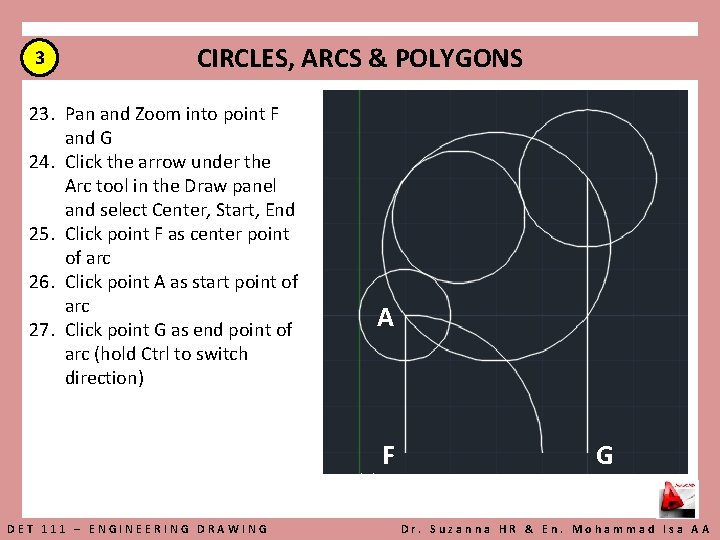
3 CIRCLES, ARCS & POLYGONS 23. Pan and Zoom into point F and G 24. Click the arrow under the Arc tool in the Draw panel and select Center, Start, End 25. Click point F as center point of arc 26. Click point A as start point of arc 27. Click point G as end point of arc (hold Ctrl to switch direction) A F DET 111 – ENGINEERING DRAWING G Dr. Suzanna HR & En. Mohammad Isa AA
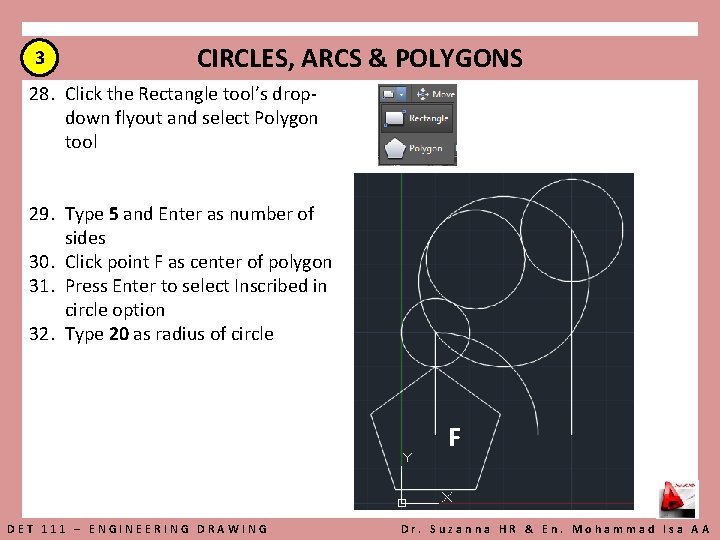
3 CIRCLES, ARCS & POLYGONS 28. Click the Rectangle tool’s dropdown flyout and select Polygon tool 29. Type 5 and Enter as number of sides 30. Click point F as center of polygon 31. Press Enter to select Inscribed in circle option 32. Type 20 as radius of circle F DET 111 – ENGINEERING DRAWING Dr. Suzanna HR & En. Mohammad Isa AA
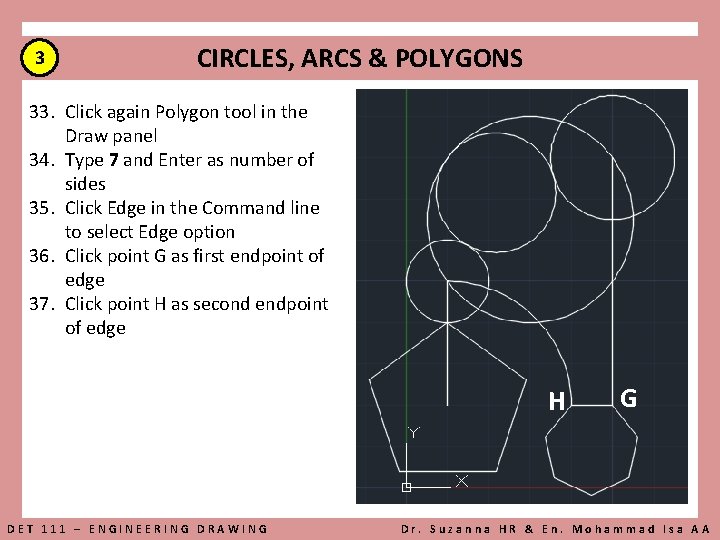
3 CIRCLES, ARCS & POLYGONS 33. Click again Polygon tool in the Draw panel 34. Type 7 and Enter as number of sides 35. Click Edge in the Command line to select Edge option 36. Click point G as first endpoint of edge 37. Click point H as second endpoint of edge H G F DET 111 – ENGINEERING DRAWING Dr. Suzanna HR & En. Mohammad Isa AA
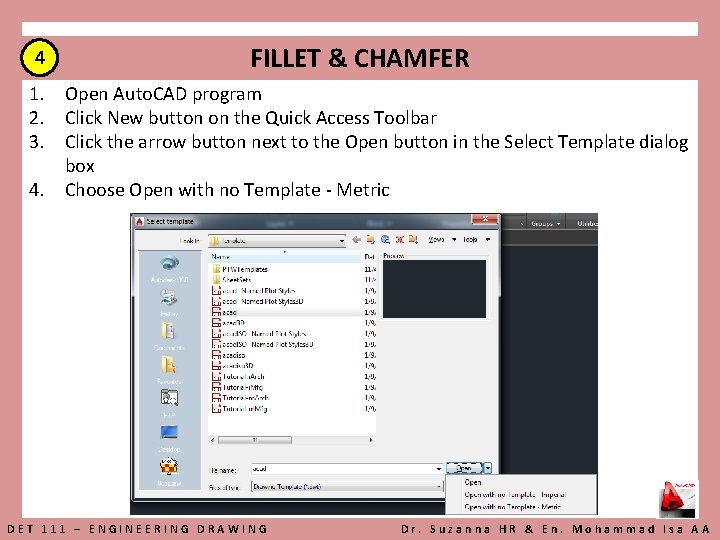
4 FILLET & CHAMFER 1. Open Auto. CAD program 2. Click New button on the Quick Access Toolbar 3. Click the arrow button next to the Open button in the Select Template dialog box 4. Choose Open with no Template - Metric DET 111 – ENGINEERING DRAWING Dr. Suzanna HR & En. Mohammad Isa AA
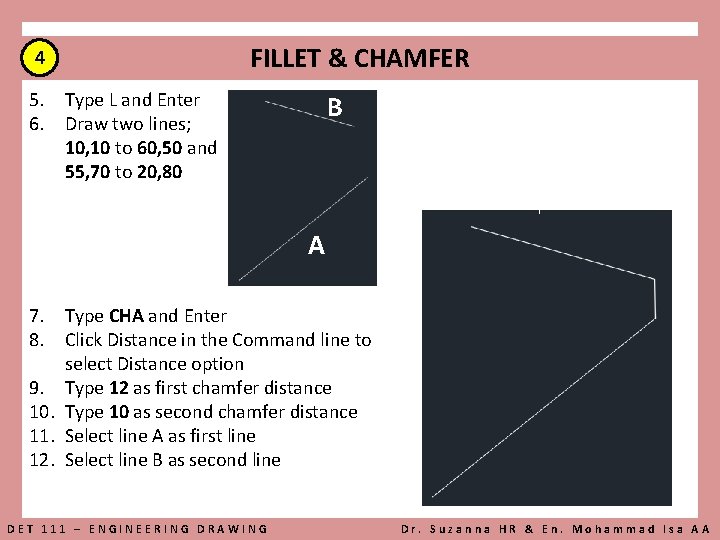
4 FILLET & CHAMFER 5. Type L and Enter 6. Draw two lines; 10, 10 to 60, 50 and 55, 70 to 20, 80 B A 7. Type CHA and Enter 8. Click Distance in the Command line to select Distance option 9. Type 12 as first chamfer distance 10. Type 10 as second chamfer distance 11. Select line A as first line 12. Select line B as second line DET 111 – ENGINEERING DRAWING Dr. Suzanna HR & En. Mohammad Isa AA
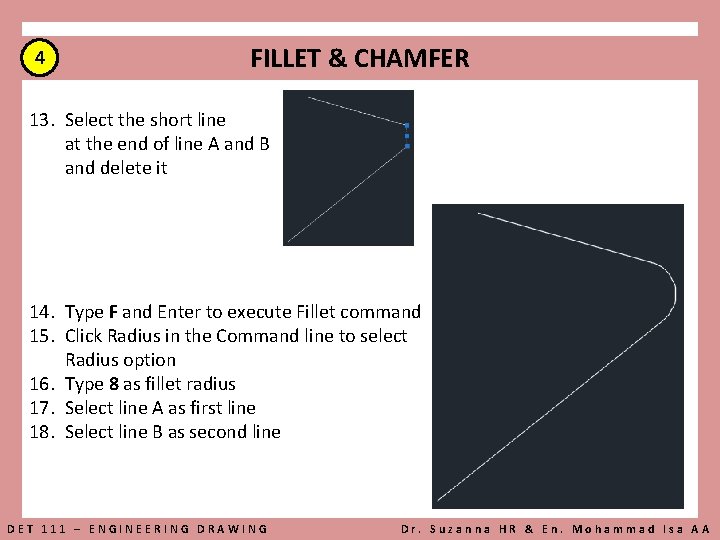
4 FILLET & CHAMFER 13. Select the short line at the end of line A and B and delete it 14. Type F and Enter to execute Fillet command 15. Click Radius in the Command line to select Radius option 16. Type 8 as fillet radius 17. Select line A as first line 18. Select line B as second line DET 111 – ENGINEERING DRAWING Dr. Suzanna HR & En. Mohammad Isa AA
- Slides: 23