
Lab 10 Creating a Presentation Microsoft Power Point
Lab 10: Creating a Presentation Microsoft Power. Point PYP 002 Preparatory Computer Science MS Power. Point Presentation 1
Objectives o The students should understand have hands on experience in n n Creating an effective presentation Enhancing a presentation with graphics and charts PYP 002 Preparatory Computer Science MS Power. Point Presentation 2
Outline o o o Introduction to Power. Point Presentation Creating a presentation Inserting presentation components n n n o Slides Bullet lists Graphics Charts Tables Viewing a slide show PYP 002 Preparatory Computer Science MS Power. Point Presentation 3
Introduction to Power. Point Presentation PYP 002 Preparatory Computer Science MS Power. Point Presentation 4
Power. Point Presentation o o A Power. Point presentation consists of a number of slides. It begins with a title slide and is followed by other slides. Each slide contains objects like n n n Title Bulleted list Graphics PYP 002 Preparatory Computer Science MS Power. Point Presentation 5
Power. Point Presentation o MS Power. Point can be used to n n Create a slide show for a presentation Print slides on transparencies Create handouts Convert a presentation to HTML to be viewed though a Web browser PYP 002 Preparatory Computer Science MS Power. Point Presentation 6
Power. Point Presentation o In order to prepare a Power. Point presentation n Have a good idea about what you plan to present. Normally o o n n n Bulleted lists can be used to present key concepts Numbered lists can be used to present steps in a process Tables can be used to present numerical or statistical data Numerical data can be presented as charts or graphs All slides in a presentation should have a similar “look” or design Avoid clutter and unnecessary graphical elements Unnecessary animations can be annoying rather than pleasing PYP 002 Preparatory Computer Science MS Power. Point Presentation 7
MS Power. Point Application o To start Power. Point n One way to run MS Power. Point Program is Start | All Programs | Microsoft Power. Point Application window as shown in the next slide will open PYP 002 Preparatory Computer Science MS Power. Point Presentation 8

MS Power. Point Application Window Slides and Outline Tabs Formatting Toolbars Slide’s Thumbnail Tasks Pane View Buttons Speaker Notes PYP 002 Preparatory Computer Science MS Power. Point Presentation 9
MS Power. Point Application o Two basic features of MS Power. Point that allow users to prepare attractive and consistent presentations are 1. Slide Design o o 2. By default, a slide will be black-and-white without any design A design template inserts a background color or image, chooses fonts and text colors. Slide layout o o A slide layout defines what can be placed on the slide MS Power. Point offers more than 20 slide layouts PYP 002 Preparatory Computer Science MS Power. Point Presentation 10
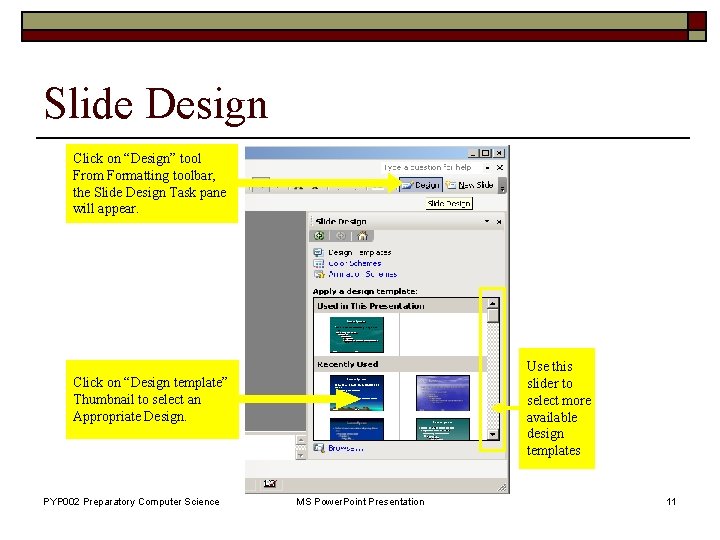
Slide Design Click on “Design” tool From Formatting toolbar, the Slide Design Task pane will appear. Use this slider to select more available design templates Click on “Design template” Thumbnail to select an Appropriate Design. PYP 002 Preparatory Computer Science MS Power. Point Presentation 11
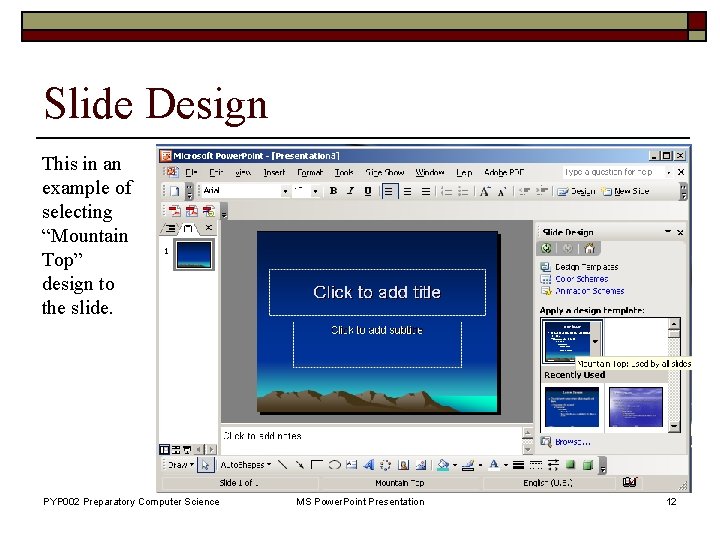
Slide Design This in an example of selecting “Mountain Top” design to the slide. PYP 002 Preparatory Computer Science MS Power. Point Presentation 12

Thumbnail with Associated Menu o Slide design can be applied to all slides or to selected slides in the presentation PYP 002 Preparatory Computer Science MS Power. Point Presentation 13
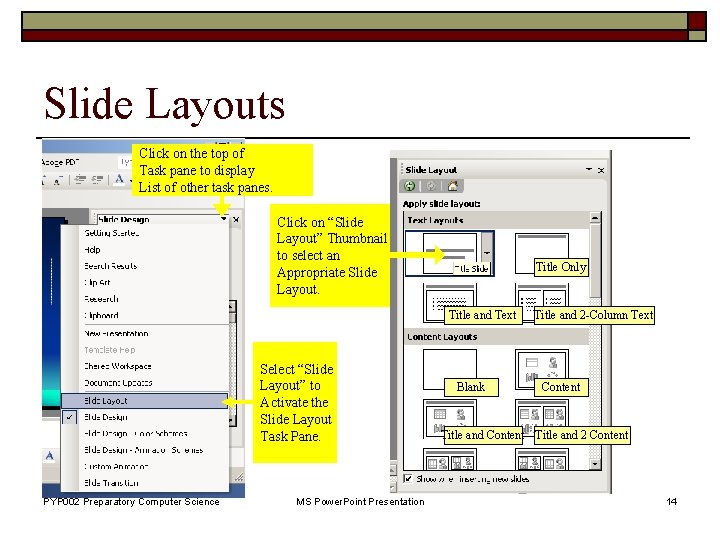
Slide Layouts Click on the top of Task pane to display List of other task panes. Click on “Slide Layout” Thumbnail to select an Appropriate Slide Layout. Title Only Title and Text Select “Slide Layout” to Activate the Slide Layout Task Pane. PYP 002 Preparatory Computer Science MS Power. Point Presentation Blank Title and 2 -Column Text Content Title and 2 Content 14
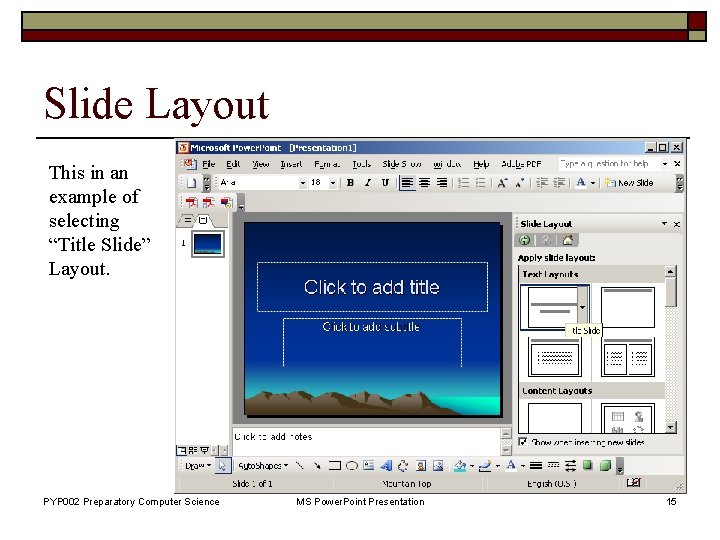
Slide Layout This in an example of selecting “Title Slide” Layout. PYP 002 Preparatory Computer Science MS Power. Point Presentation 15
Creating a Presentation PYP 002 Preparatory Computer Science MS Power. Point Presentation 16
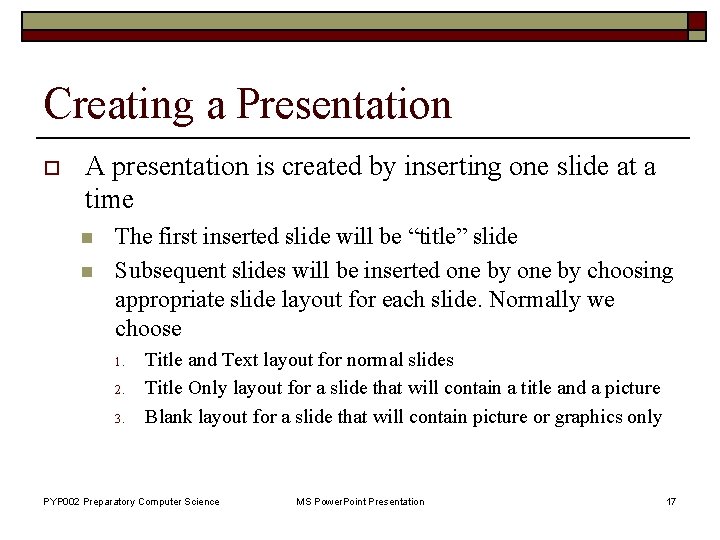
Creating a Presentation o A presentation is created by inserting one slide at a time n n The first inserted slide will be “title” slide Subsequent slides will be inserted one by choosing appropriate slide layout for each slide. Normally we choose 1. 2. 3. Title and Text layout for normal slides Title Only layout for a slide that will contain a title and a picture Blank layout for a slide that will contain picture or graphics only PYP 002 Preparatory Computer Science MS Power. Point Presentation 17
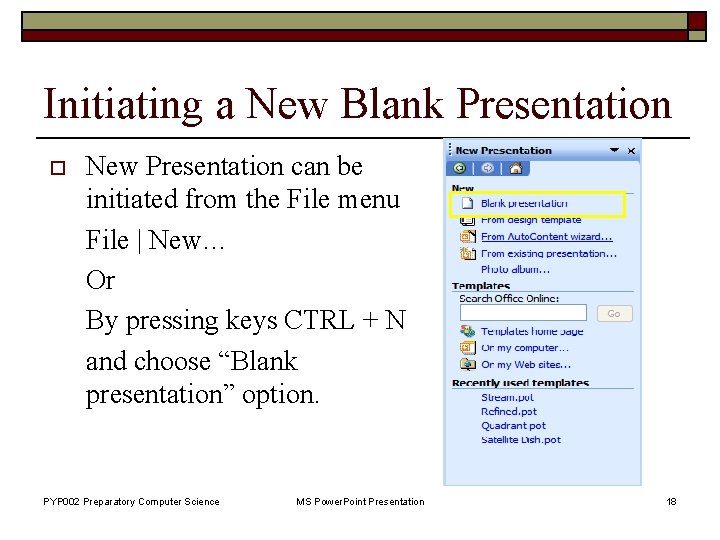
Initiating a New Blank Presentation o New Presentation can be initiated from the File menu File | New… Or By pressing keys CTRL + N and choose “Blank presentation” option. PYP 002 Preparatory Computer Science MS Power. Point Presentation 18
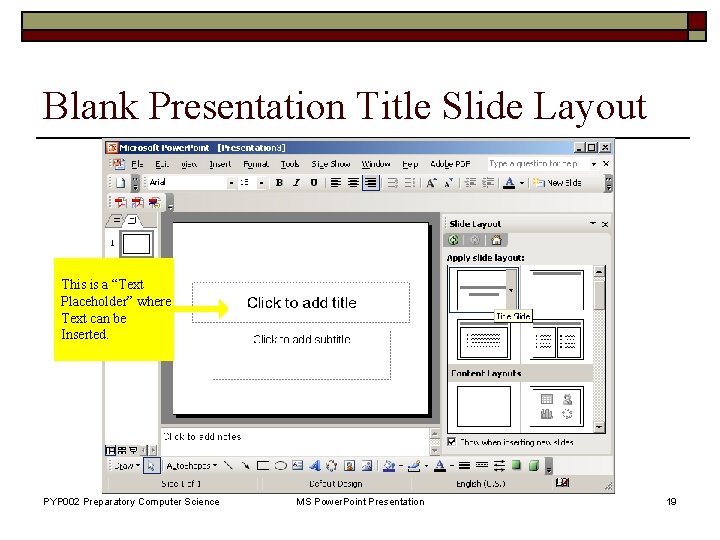
Blank Presentation Title Slide Layout This is a “Text Placeholder” where Text can be Inserted. PYP 002 Preparatory Computer Science MS Power. Point Presentation 19
A New Presentation Window o In the new presentation window n n o Type title of presentation Type subtitle Then insert a new slide. PYP 002 Preparatory Computer Science MS Power. Point Presentation 20
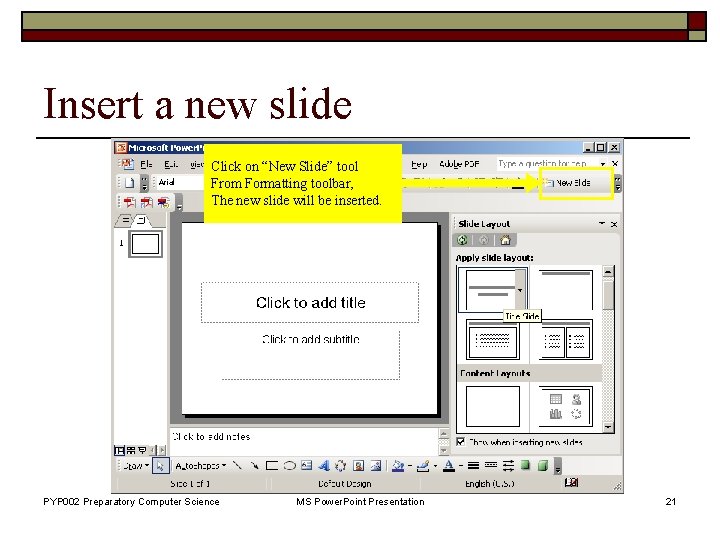
Insert a new slide Click on “New Slide” tool From Formatting toolbar, The new slide will be inserted. PYP 002 Preparatory Computer Science MS Power. Point Presentation 21
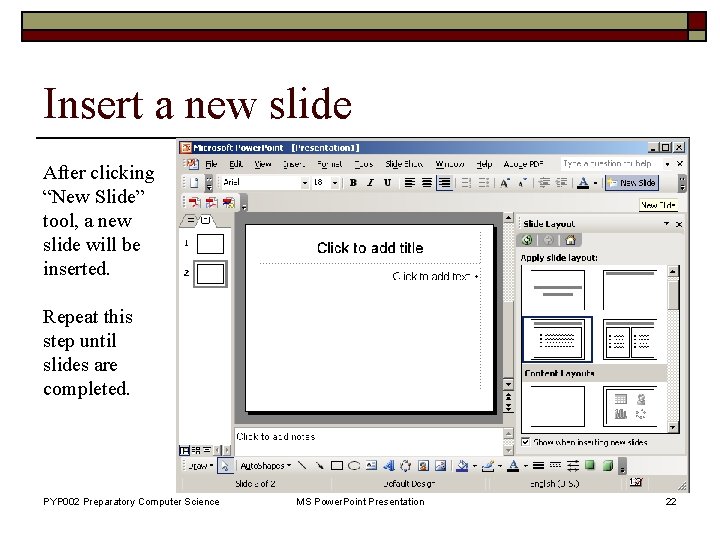
Insert a new slide After clicking “New Slide” tool, a new slide will be inserted. Repeat this step until slides are completed. PYP 002 Preparatory Computer Science MS Power. Point Presentation 22
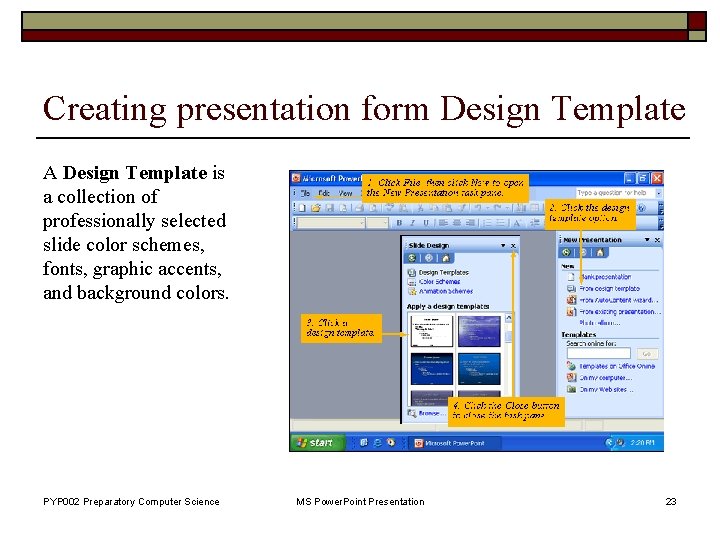
Creating presentation form Design Template A Design Template is a collection of professionally selected slide color schemes, fonts, graphic accents, and background colors. PYP 002 Preparatory Computer Science MS Power. Point Presentation 23
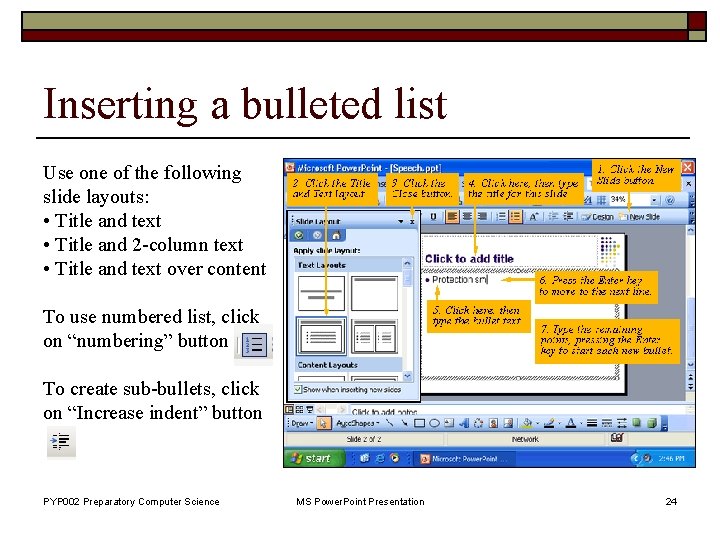
Inserting a bulleted list Use one of the following slide layouts: • Title and text • Title and 2 -column text • Title and text over content To use numbered list, click on “numbering” button To create sub-bullets, click on “Increase indent” button PYP 002 Preparatory Computer Science MS Power. Point Presentation 24
Adding Clip Art and Photographs o o o Choose Insert Picture Choose Insert Clip Art button from the drawing toolbar Once inserted the graphics can be moved or resized. PYP 002 Preparatory Computer Science MS Power. Point Presentation 25
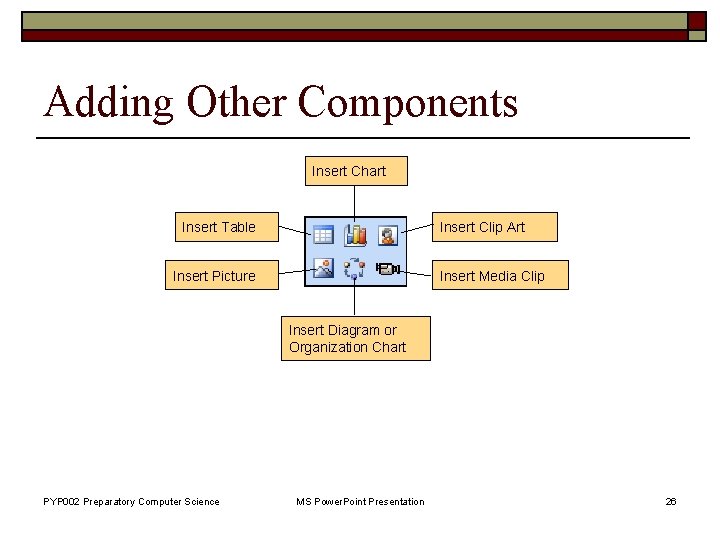
Adding Other Components Insert Chart Insert Table Insert Clip Art Insert Picture Insert Media Clip Insert Diagram or Organization Chart PYP 002 Preparatory Computer Science MS Power. Point Presentation 26
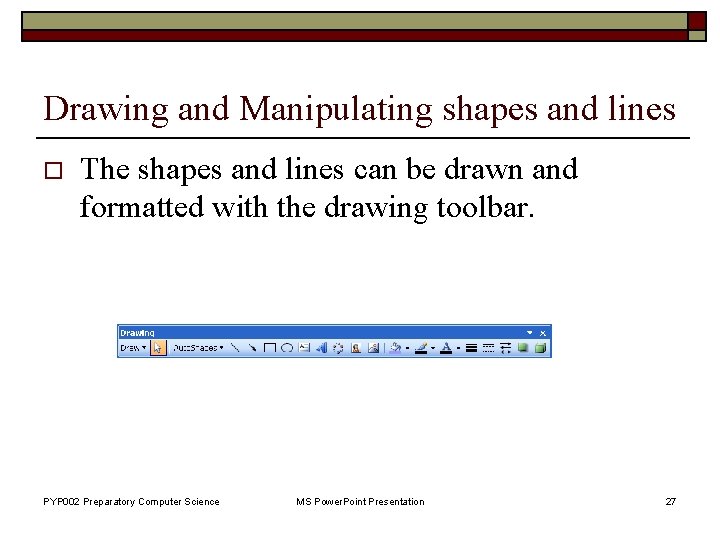
Drawing and Manipulating shapes and lines o The shapes and lines can be drawn and formatted with the drawing toolbar. PYP 002 Preparatory Computer Science MS Power. Point Presentation 27
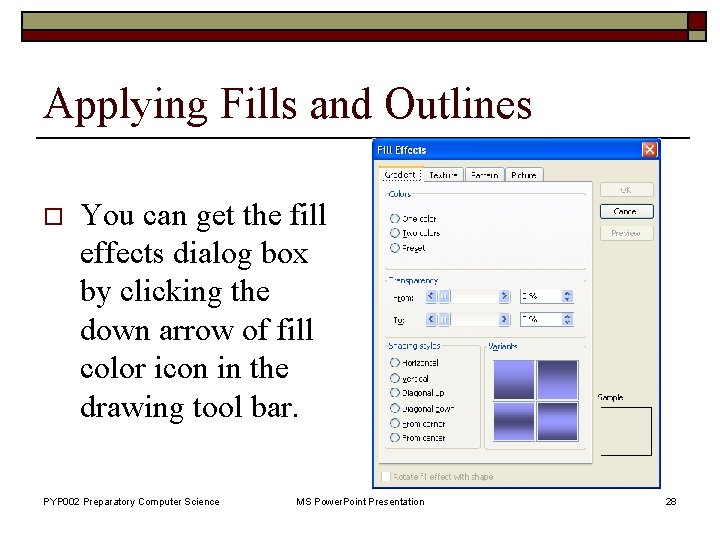
Applying Fills and Outlines o You can get the fill effects dialog box by clicking the down arrow of fill color icon in the drawing tool bar. PYP 002 Preparatory Computer Science MS Power. Point Presentation 28
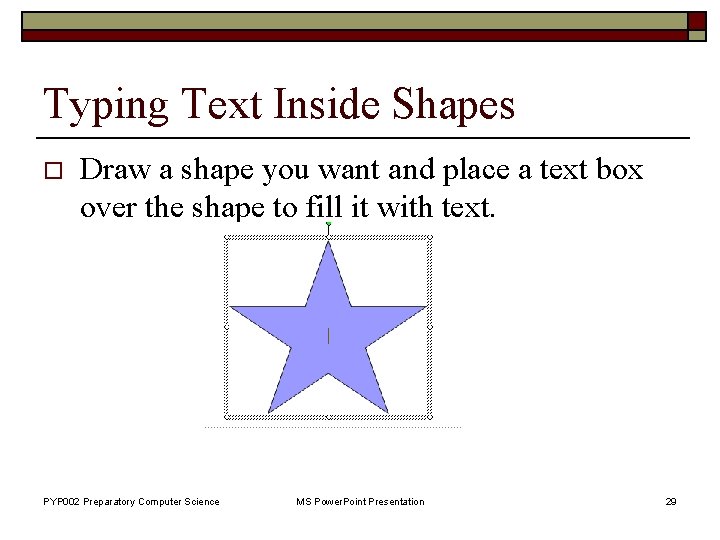
Typing Text Inside Shapes o Draw a shape you want and place a text box over the shape to fill it with text. PYP 002 Preparatory Computer Science MS Power. Point Presentation 29
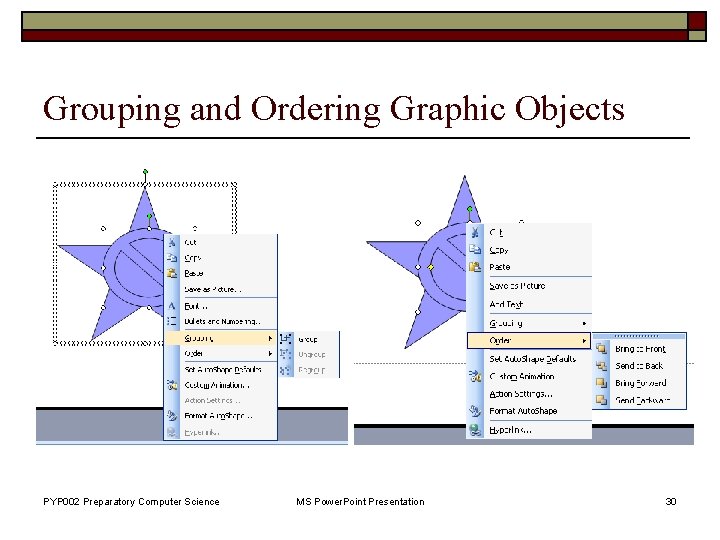
Grouping and Ordering Graphic Objects PYP 002 Preparatory Computer Science MS Power. Point Presentation 30
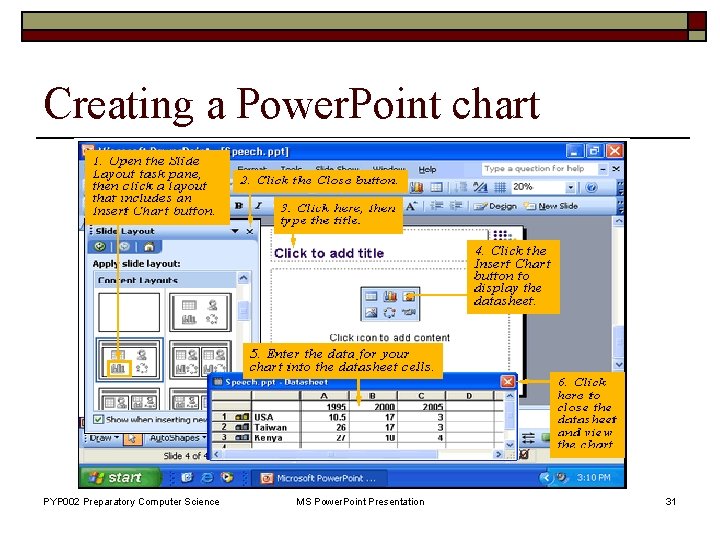
Creating a Power. Point chart PYP 002 Preparatory Computer Science MS Power. Point Presentation 31
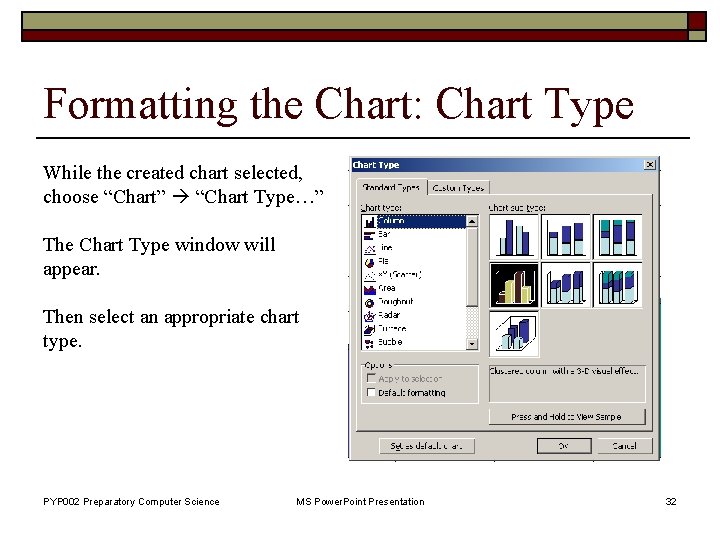
Formatting the Chart: Chart Type While the created chart selected, choose “Chart” “Chart Type…” The Chart Type window will appear. Then select an appropriate chart type. PYP 002 Preparatory Computer Science MS Power. Point Presentation 32
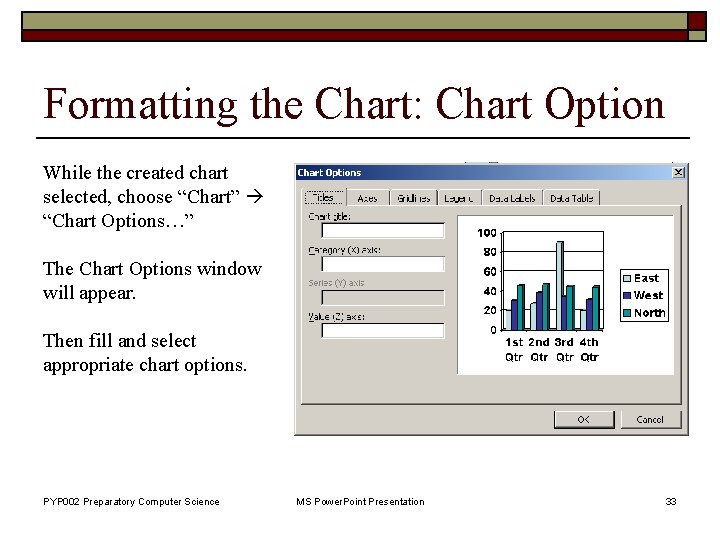
Formatting the Chart: Chart Option While the created chart selected, choose “Chart” “Chart Options…” The Chart Options window will appear. Then fill and select appropriate chart options. PYP 002 Preparatory Computer Science MS Power. Point Presentation 33
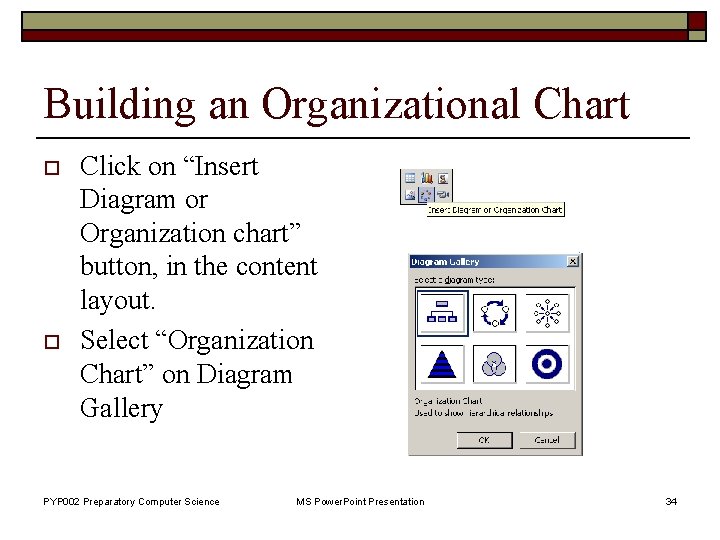
Building an Organizational Chart o o Click on “Insert Diagram or Organization chart” button, in the content layout. Select “Organization Chart” on Diagram Gallery PYP 002 Preparatory Computer Science MS Power. Point Presentation 34
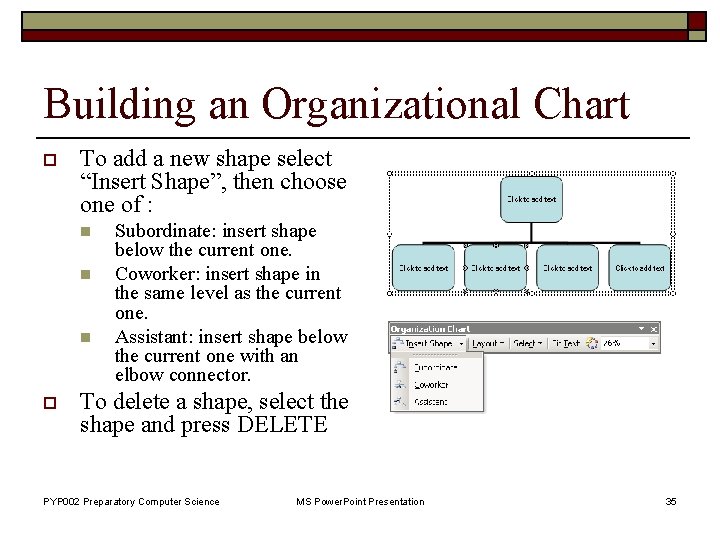
Building an Organizational Chart o To add a new shape select “Insert Shape”, then choose one of : n n n o Subordinate: insert shape below the current one. Coworker: insert shape in the same level as the current one. Assistant: insert shape below the current one with an elbow connector. To delete a shape, select the shape and press DELETE PYP 002 Preparatory Computer Science MS Power. Point Presentation 35
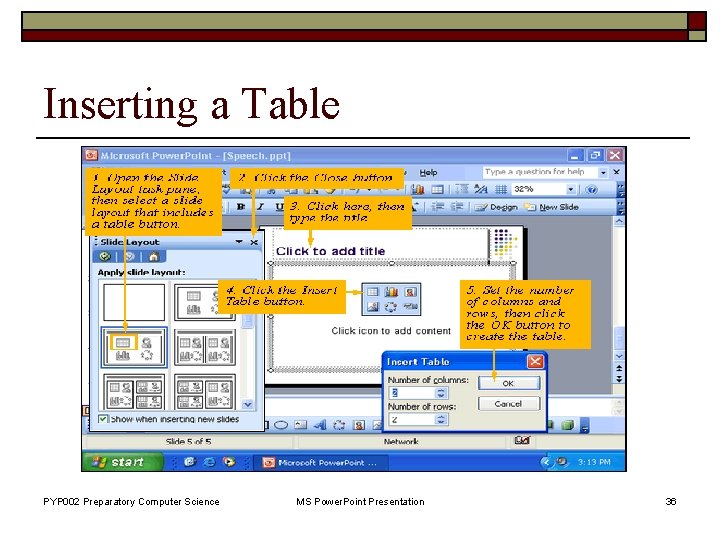
Inserting a Table PYP 002 Preparatory Computer Science MS Power. Point Presentation 36
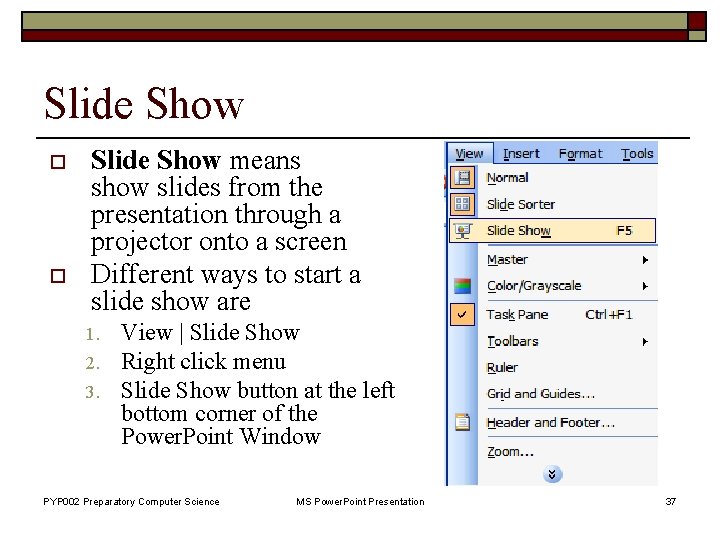
Slide Show o o Slide Show means show slides from the presentation through a projector onto a screen Different ways to start a slide show are 1. 2. 3. View | Slide Show Right click menu Slide Show button at the left bottom corner of the Power. Point Window PYP 002 Preparatory Computer Science MS Power. Point Presentation 37
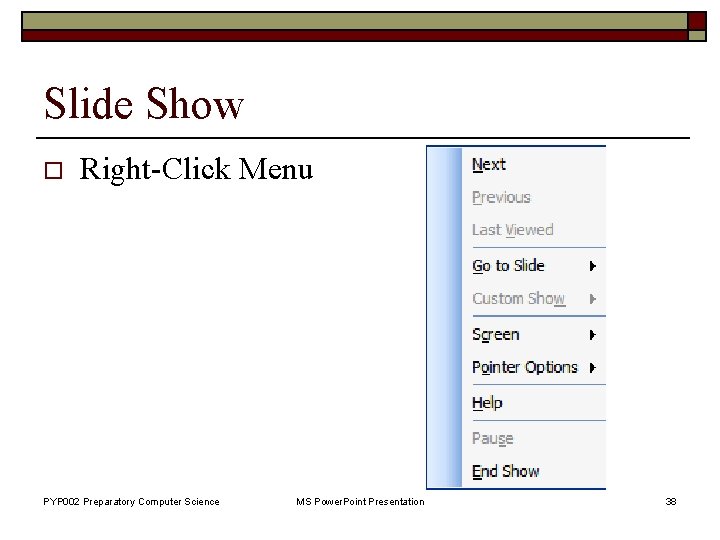
Slide Show o Right-Click Menu PYP 002 Preparatory Computer Science MS Power. Point Presentation 38
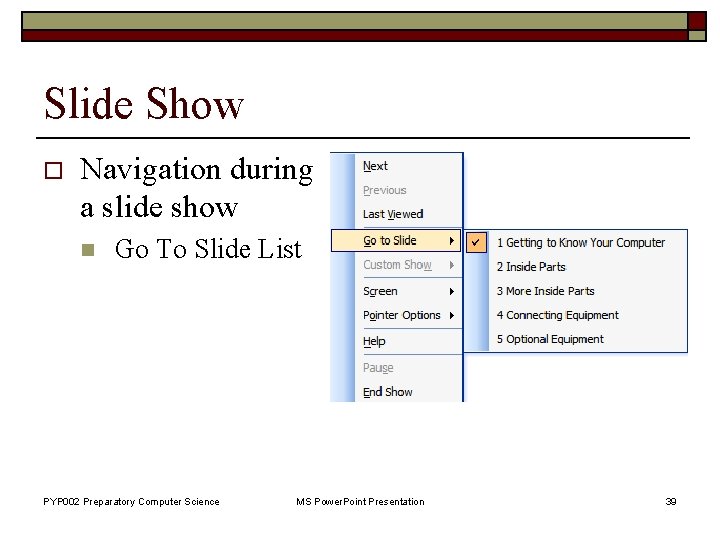
Slide Show o Navigation during a slide show n Go To Slide List PYP 002 Preparatory Computer Science MS Power. Point Presentation 39
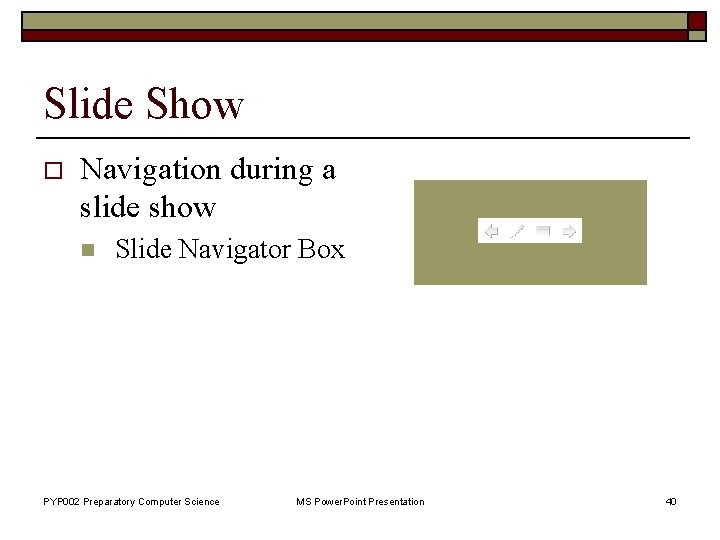
Slide Show o Navigation during a slide show n Slide Navigator Box PYP 002 Preparatory Computer Science MS Power. Point Presentation 40
- Slides: 40