
Kronos In Touch Terminal Job Aid Punching in
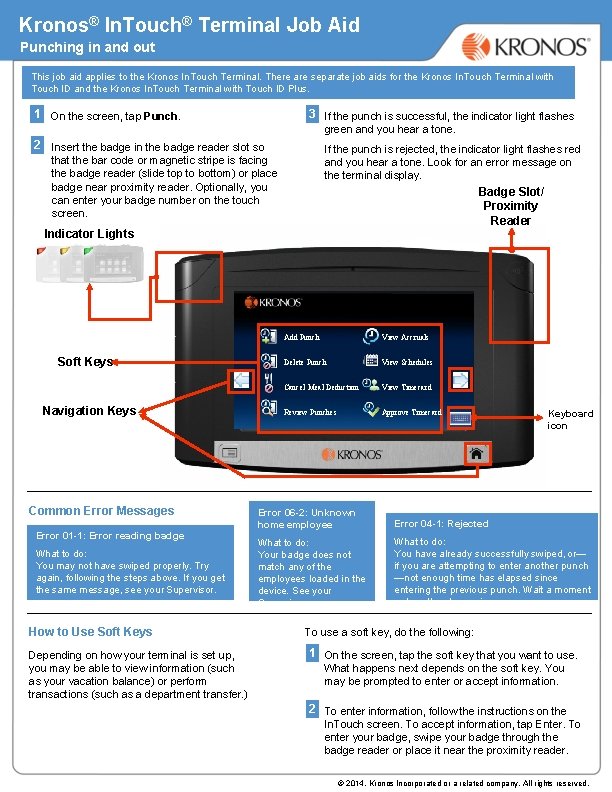
Kronos® In. Touch® Terminal Job Aid Punching in and out This job aid applies to the Kronos In. Touch Terminal. There are separate job aids for the Kronos In. Touch Terminal with Touch ID and the Kronos In. Touch Terminal with Touch ID Plus. 1 On the screen, tap Punch. 3 If the punch is successful, the indicator light flashes green and you hear a tone. 2 Insert the badge in the badge reader slot so If the punch is rejected, the indicator light flashes red and you hear a tone. Look for an error message on the terminal display. that the bar code or magnetic stripe is facing the badge reader (slide top to bottom) or place badge near proximity reader. Optionally, you can enter your badge number on the touch screen. Badge Slot/ Proximity Reader Indicator Lights Soft Keys Navigation Keys Common Error Messages Error 01 -1: Error reading badge What to do: You may not have swiped properly. Try again, following the steps above. If you get the same message, see your Supervisor. How to Use Soft Keys Depending on how your terminal is set up, you may be able to view information (such as your vacation balance) or perform transactions (such as a department transfer. ) Add Punch View Accruals Delete Punch View Schedules Cancel Meal Deduction View Timecard Review Punches Approve Timecard Keyboard icon Error 06 -2: Unknown home employee Error 04 -1: Rejected What to do: Your badge does not match any of the employees loaded in the device. See your Supervisor. What to do: You have already successfully swiped, or— if you are attempting to enter another punch —not enough time has elapsed since entering the previous punch. Wait a moment or two, then try again. To use a soft key, do the following: 1 On the screen, tap the soft key that you want to use. What happens next depends on the soft key. You may be prompted to enter or accept information. 2 To enter information, follow the instructions on the In. Touch screen. To accept information, tap Enter. To enter your badge, swipe your badge through the badge reader or place it near the proximity reader. © 2014, Kronos Incorporated or a related company. All rights reserved.
- Slides: 1