
Kothari Print Pro Setup and Installation General Usage

- Slides: 66
Kothari Print Pro Setup and Installation General Usage
• Getting familiar with software interface and controls. • Settings up the software for first use. Outline • Setting up the images for printing. • Print history. • Other features.
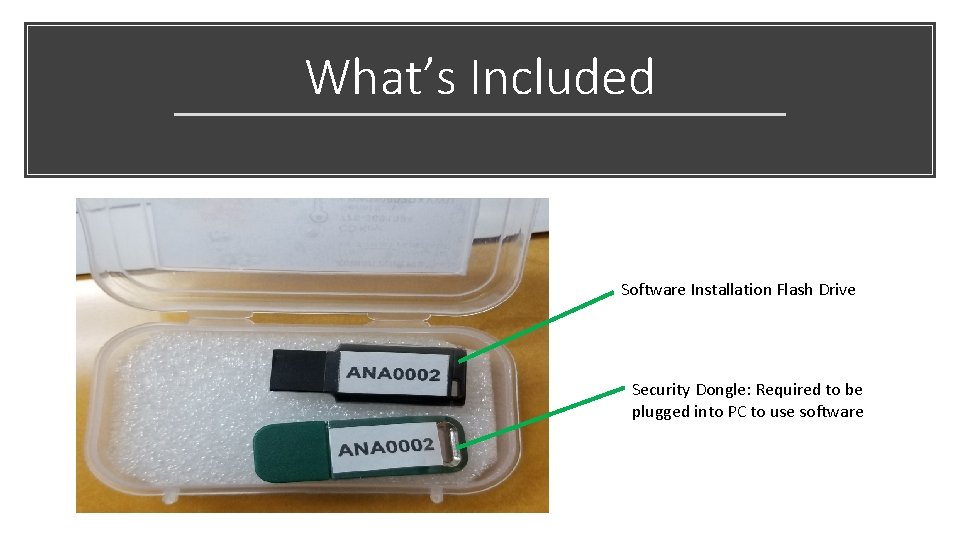
What’s Included Software Installation Flash Drive Security Dongle: Required to be plugged into PC to use software
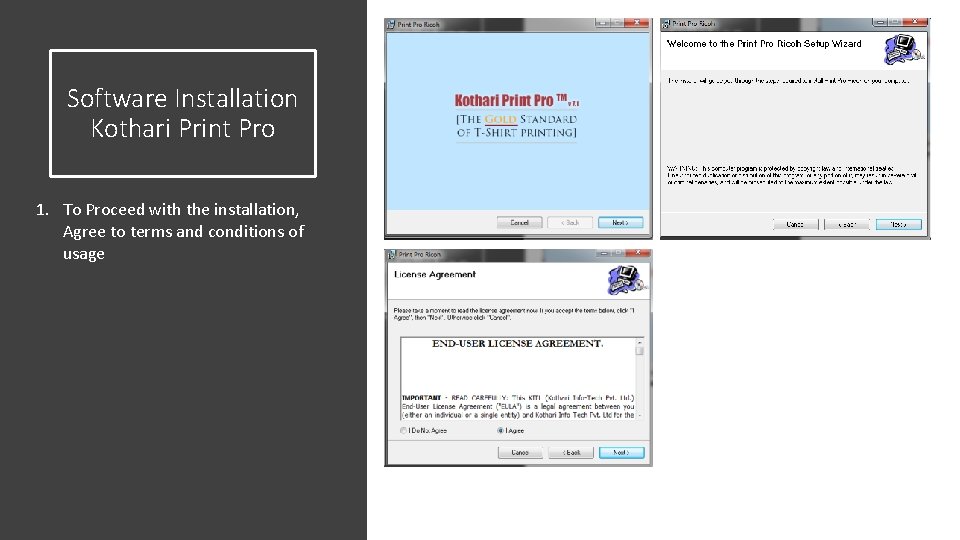
Software Installation Kothari Print Pro 1. To Proceed with the installation, Agree to terms and conditions of usage
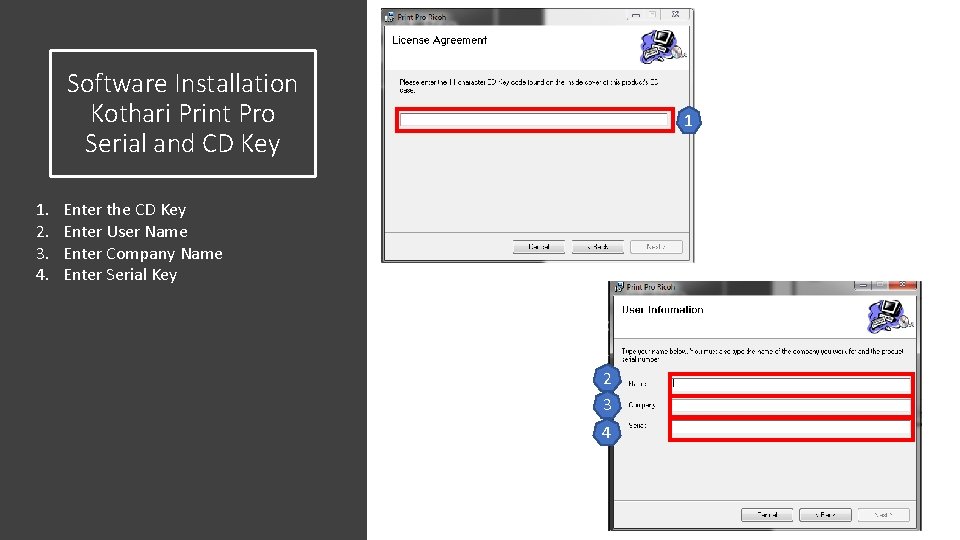
Software Installation Kothari Print Pro Serial and CD Key 1. 2. 3. 4. 1 Enter the CD Key Enter User Name Enter Company Name Enter Serial Key 2 3 4
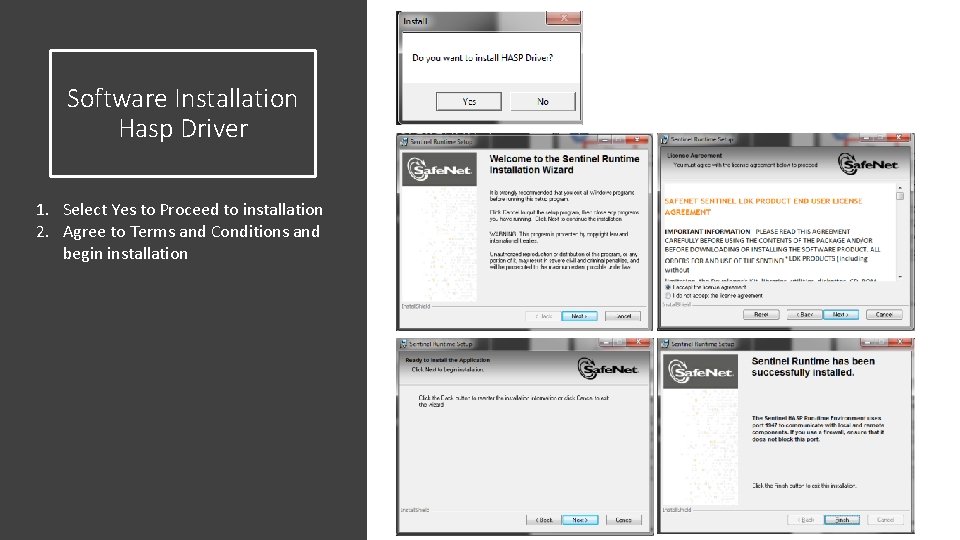
Software Installation Hasp Driver 1. Select Yes to Proceed to installation 2. Agree to Terms and Conditions and begin installation
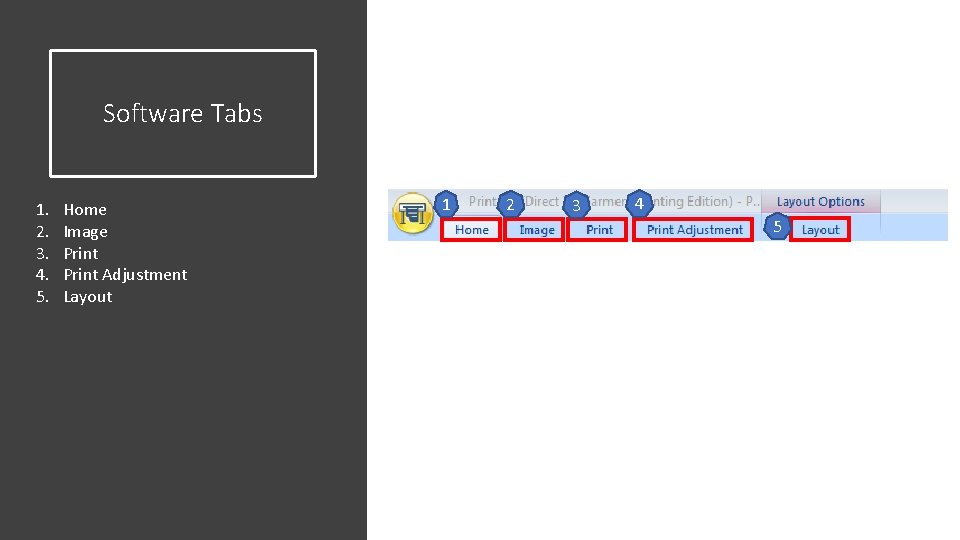
Software Tabs 1. 2. 3. 4. 5. Home Image Print Adjustment Layout 1 2 3 4 5
Home Tab Overview
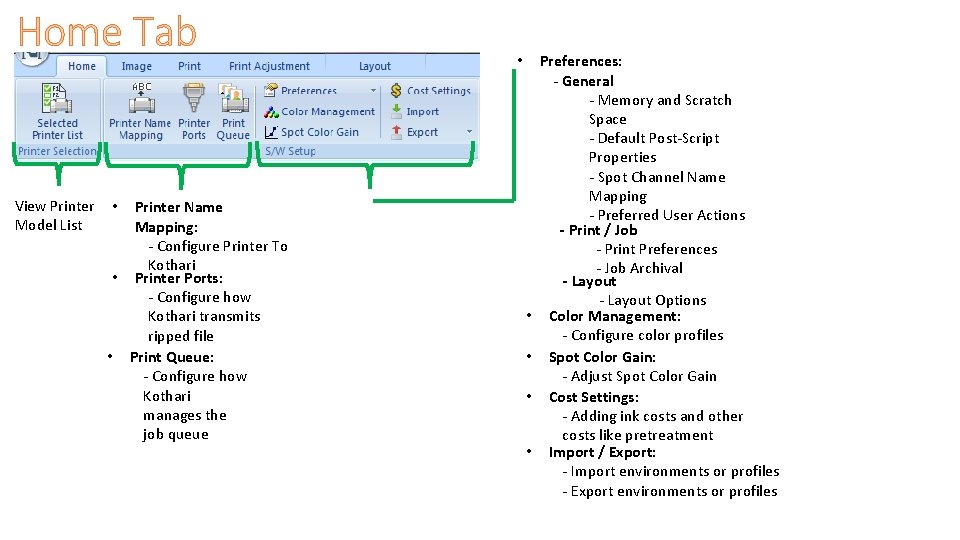
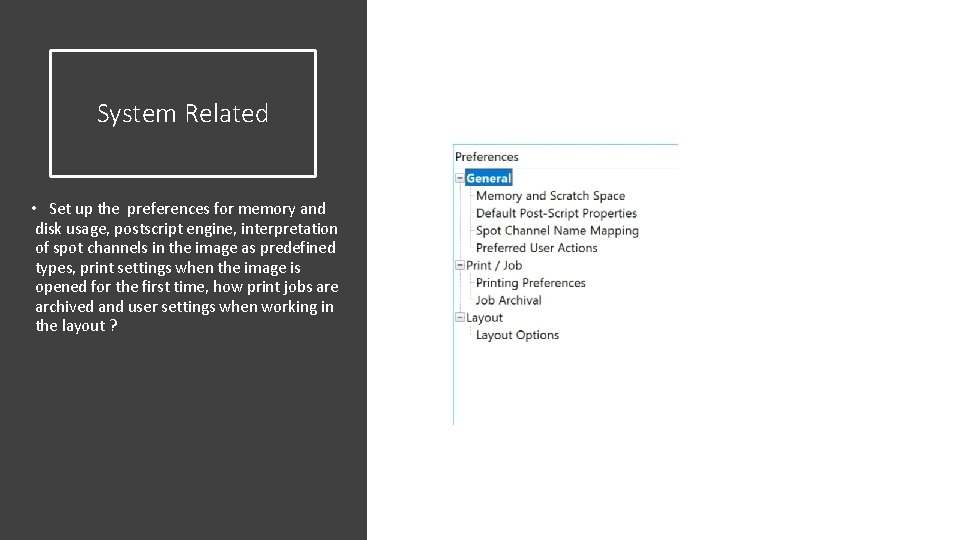
Home Tab View Printer Model List Printer Name Mapping: - Configure Printer To Kothari • Printer Ports: - Configure how Kothari transmits ripped file • Print Queue: - Configure how Kothari manages the job queue • • • Preferences: - General - Memory and Scratch Space - Default Post-Script Properties - Spot Channel Name Mapping - Preferred User Actions - Print / Job - Print Preferences - Job Archival - Layout Options Color Management: - Configure color profiles Spot Color Gain: - Adjust Spot Color Gain Cost Settings: - Adding ink costs and other costs like pretreatment Import / Export: - Import environments or profiles - Export environments or profiles
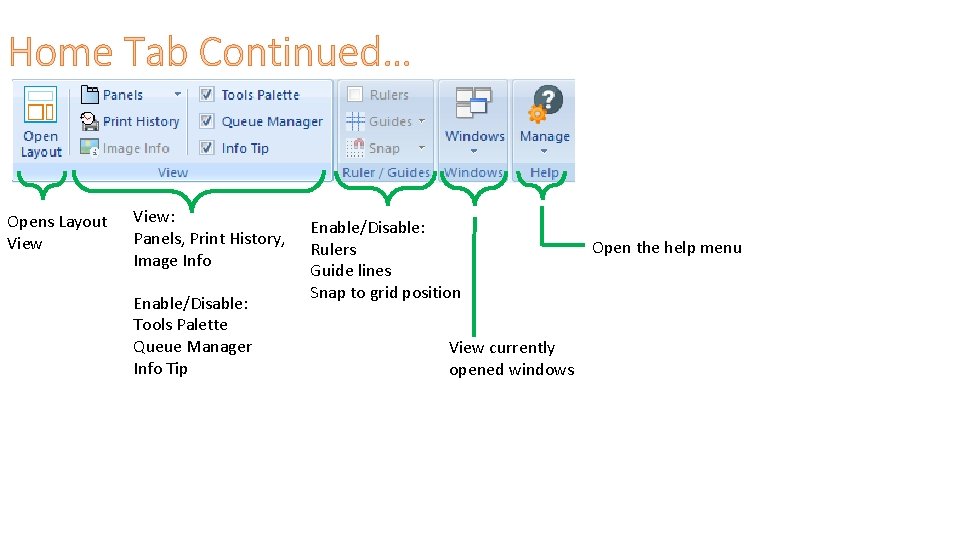
Home Tab Continued… Opens Layout View: Panels, Print History, Image Info Enable/Disable: Tools Palette Queue Manager Info Tip Enable/Disable: Rulers Guide lines Snap to grid position View currently opened windows Open the help menu
Image Tab Overview
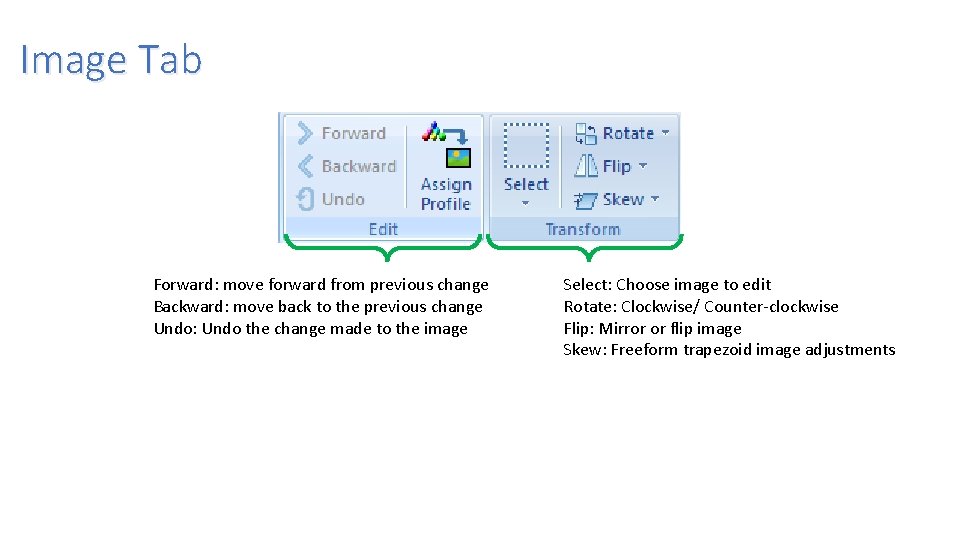
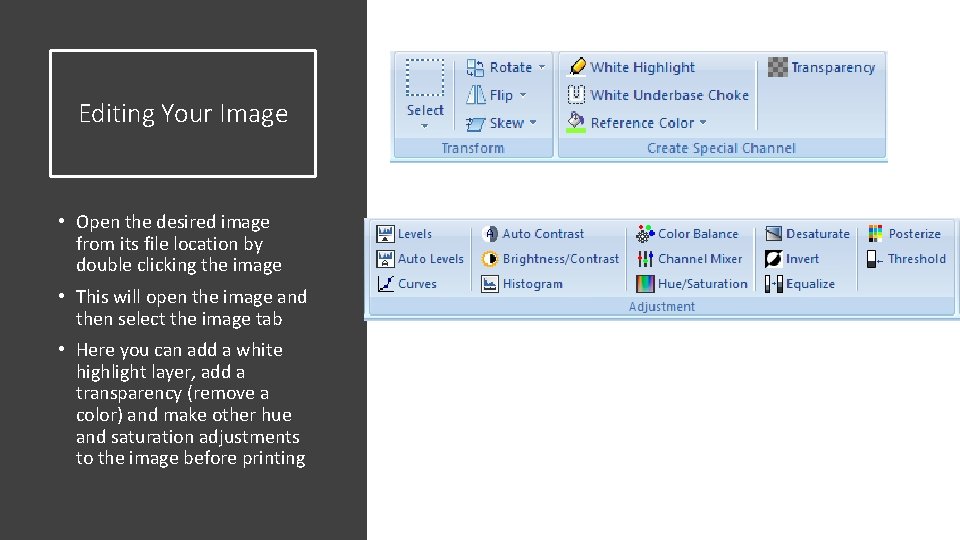
Image Tab Forward: move forward from previous change Backward: move back to the previous change Undo: Undo the change made to the image Select: Choose image to edit Rotate: Clockwise/ Counter-clockwise Flip: Mirror or flip image Skew: Freeform trapezoid image adjustments
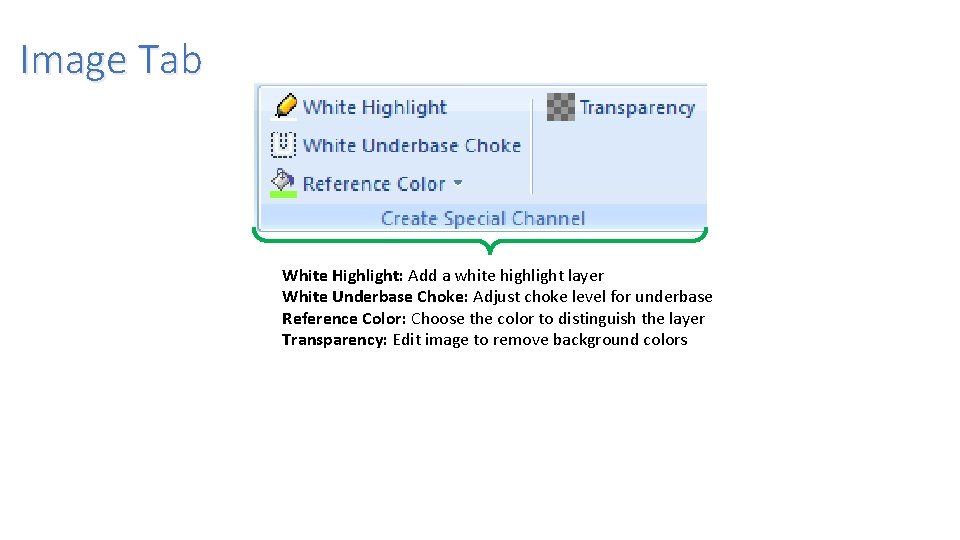
Image Tab White Highlight: Add a white highlight layer White Underbase Choke: Adjust choke level for underbase Reference Color: Choose the color to distinguish the layer Transparency: Edit image to remove background colors
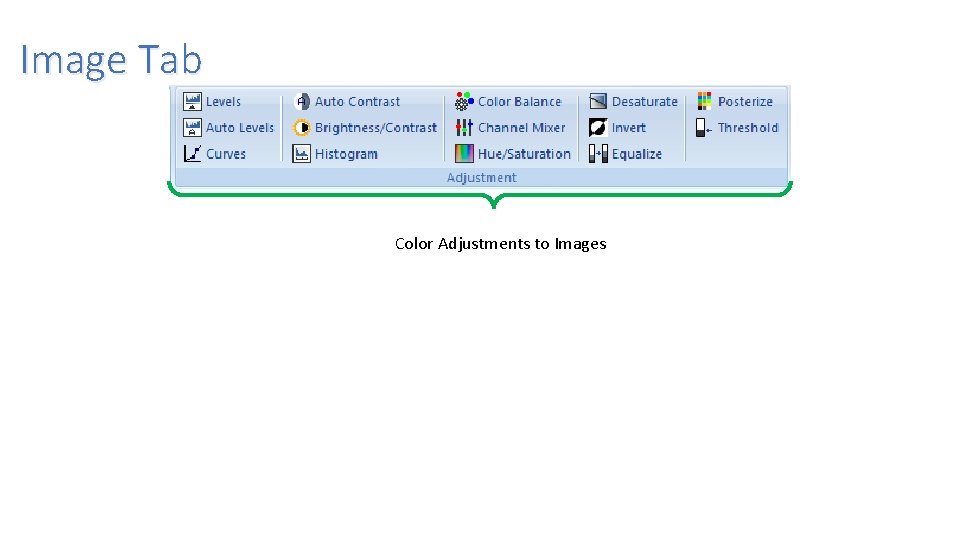
Image Tab Color Adjustments to Images
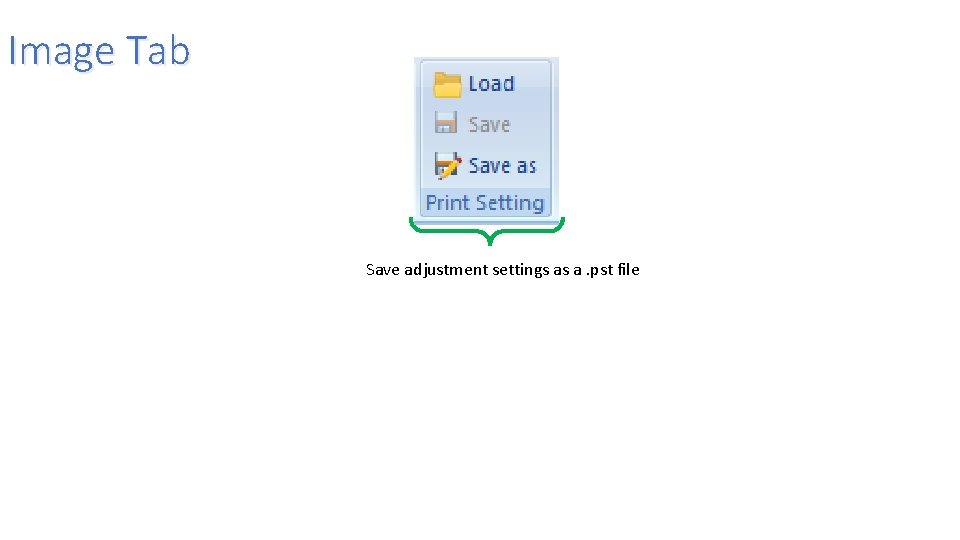
Image Tab Save adjustment settings as a. pst file
Print Tab Overview
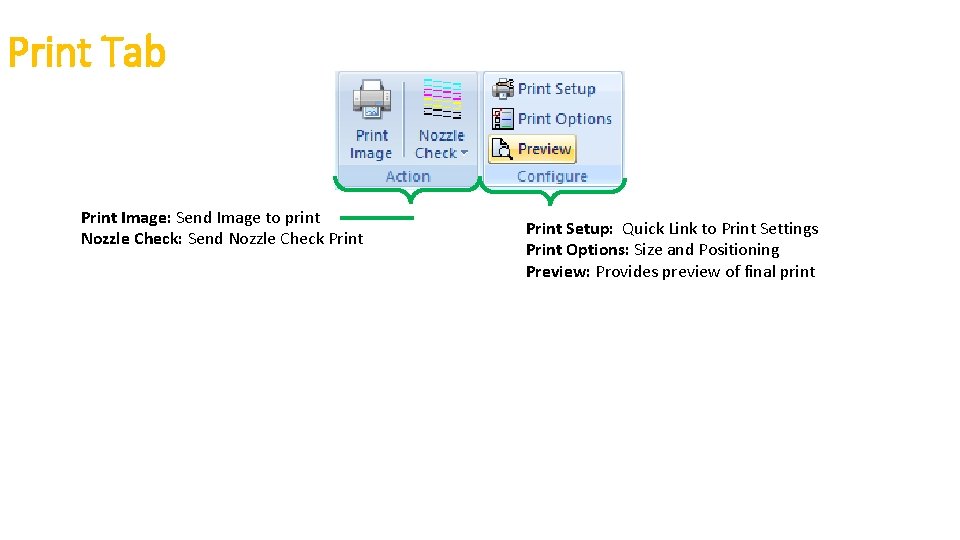
Print Tab Print Image: Send Image to print Nozzle Check: Send Nozzle Check Print Setup: Quick Link to Print Settings Print Options: Size and Positioning Preview: Provides preview of final print
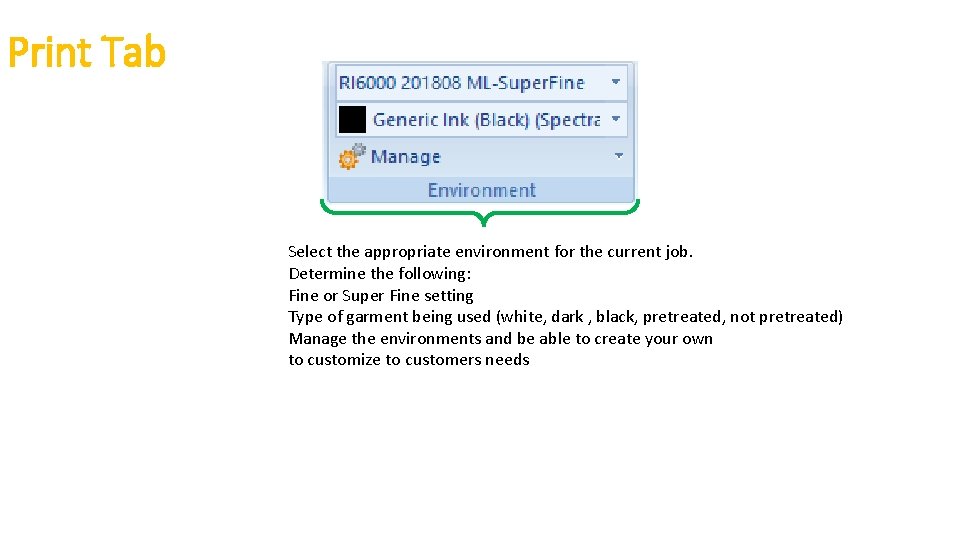
Print Tab Select the appropriate environment for the current job. Determine the following: Fine or Super Fine setting Type of garment being used (white, dark , black, pretreated, not pretreated) Manage the environments and be able to create your own to customize to customers needs
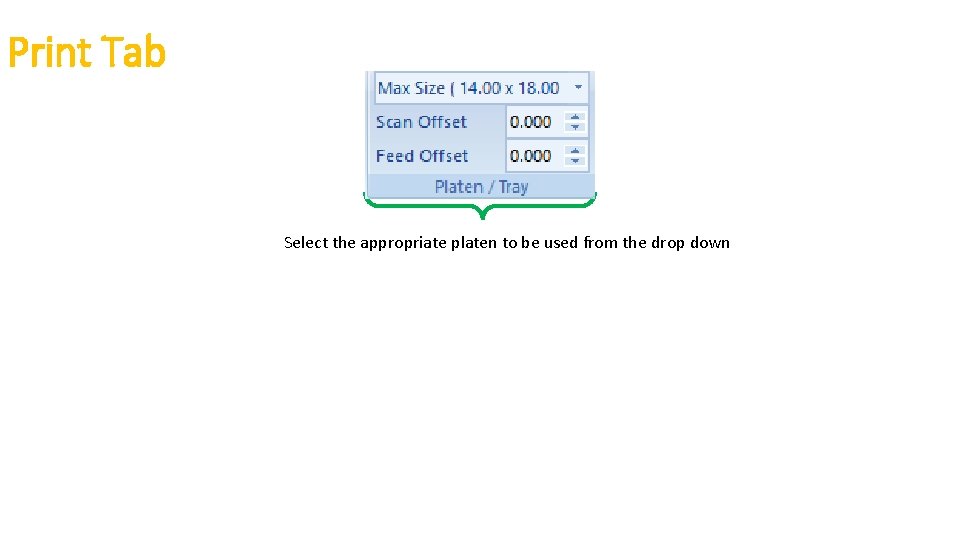
Print Tab Select the appropriate platen to be used from the drop down
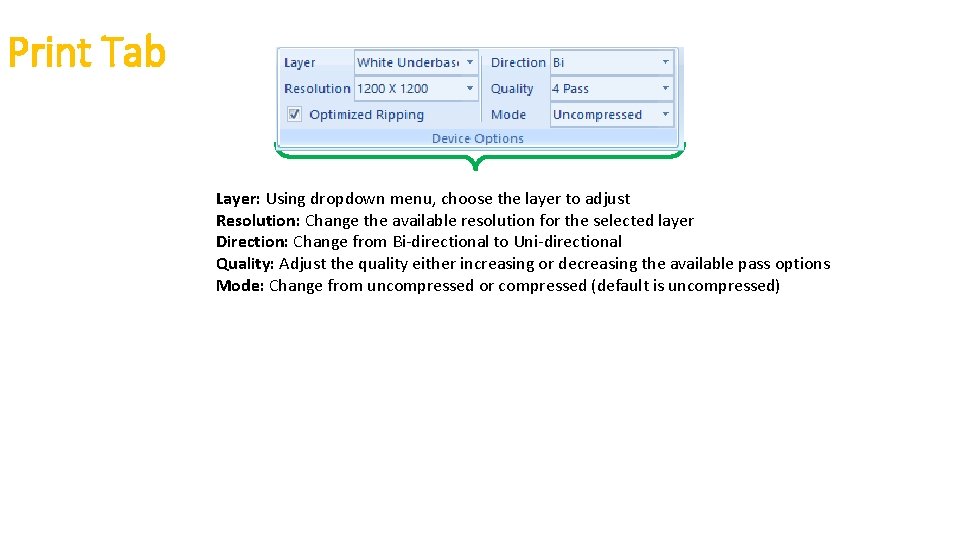
Print Tab Layer: Using dropdown menu, choose the layer to adjust Resolution: Change the available resolution for the selected layer Direction: Change from Bi-directional to Uni-directional Quality: Adjust the quality either increasing or decreasing the available pass options Mode: Change from uncompressed or compressed (default is uncompressed)
Setting up the printer
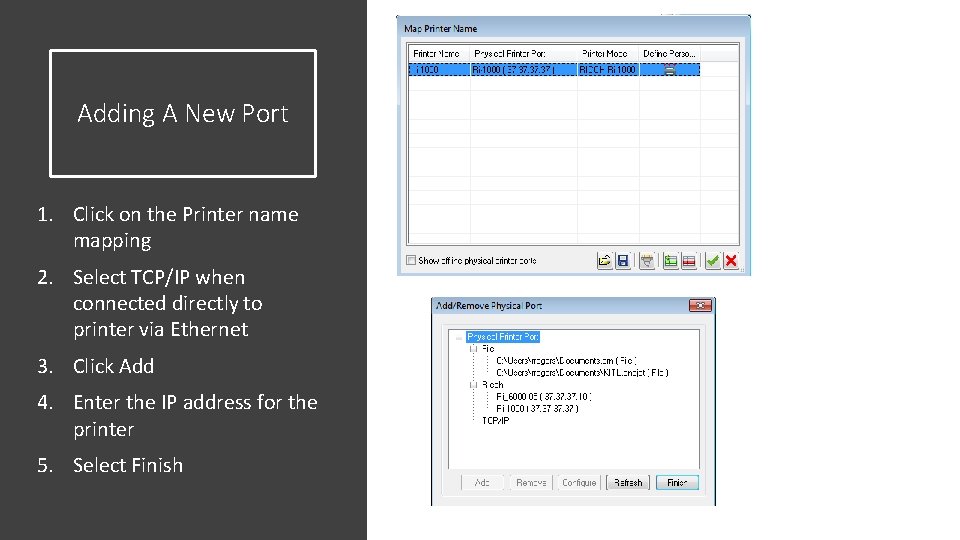
Adding A New Port 1. Click on the Printer name mapping 2. Select TCP/IP when connected directly to printer via Ethernet 3. Click Add 4. Enter the IP address for the printer 5. Select Finish
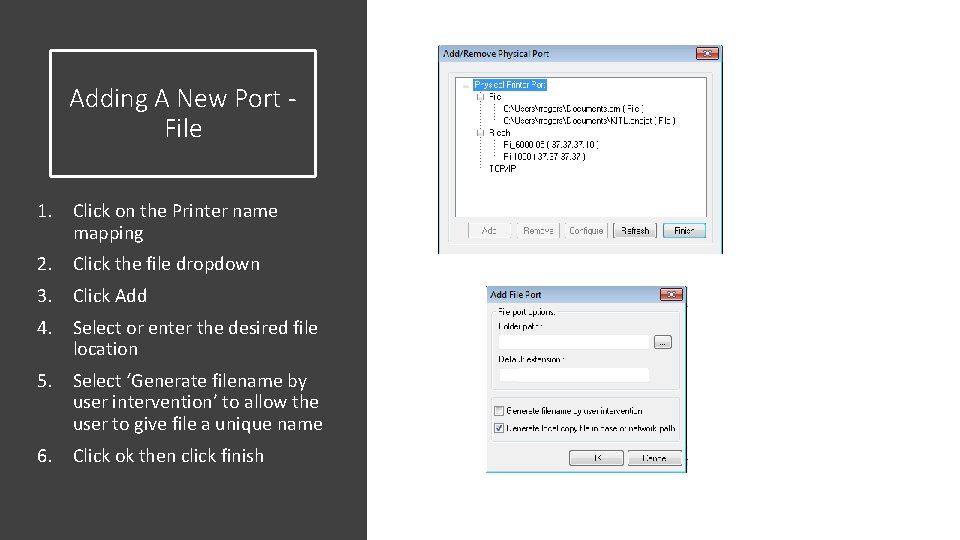
Adding A New Port File 1. Click on the Printer name mapping 2. Click the file dropdown 3. Click Add 4. Select or enter the desired file location 5. Select ‘Generate filename by user intervention’ to allow the user to give file a unique name 6. Click ok then click finish
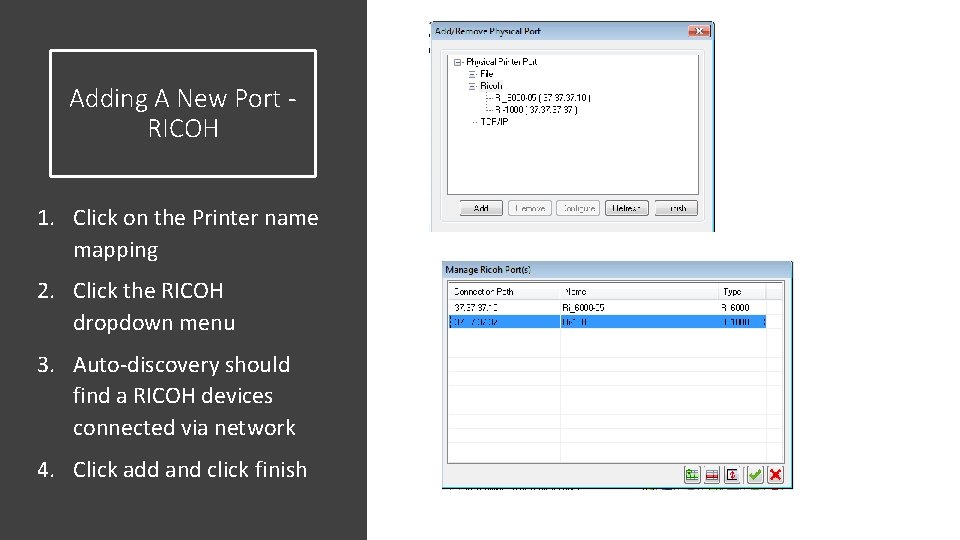
Adding A New Port RICOH 1. Click on the Printer name mapping 2. Click the RICOH dropdown menu 3. Auto-discovery should find a RICOH devices connected via network 4. Click add and click finish
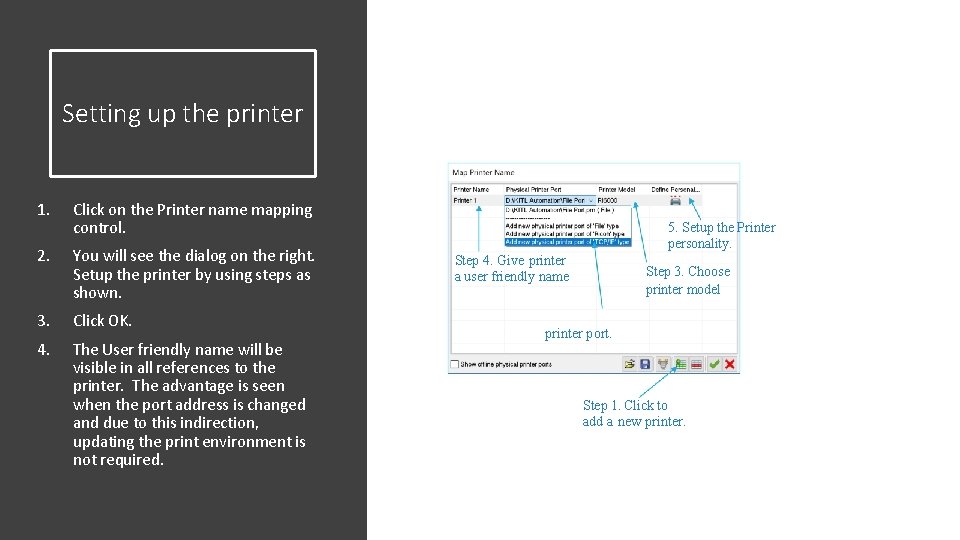
Setting up the printer 1. Click on the Printer name mapping control. 2. You will see the dialog on the right. Setup the printer by using steps as shown. 3. Click OK. 4. The User friendly name will be visible in all references to the printer. The advantage is seen when the port address is changed and due to this indirection, updating the print environment is not required. 5. Setup the Printer personality. Step 4. Give printer a user friendly name Step 3. Choose printer model printer port. Step 1. Click to add a new printer.
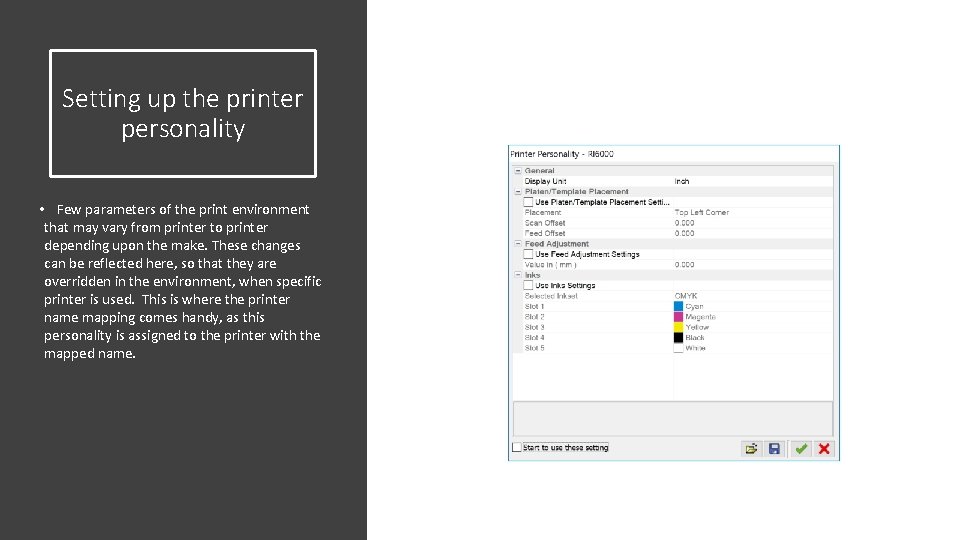
Setting up the printer personality • Few parameters of the print environment that may vary from printer to printer depending upon the make. These changes can be reflected here, so that they are overridden in the environment, when specific printer is used. This is where the printer name mapping comes handy, as this personality is assigned to the printer with the mapped name.
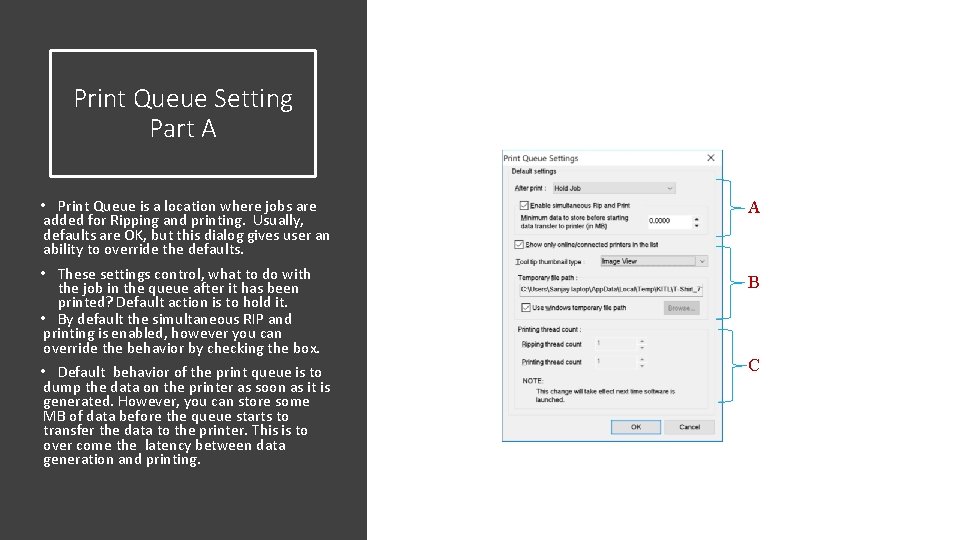
Print Queue Setting Part A • Print Queue is a location where jobs are added for Ripping and printing. Usually, defaults are OK, but this dialog gives user an ability to override the defaults. • These settings control, what to do with the job in the queue after it has been printed? Default action is to hold it. • By default the simultaneous RIP and printing is enabled, however you can override the behavior by checking the box. • Default behavior of the print queue is to dump the data on the printer as soon as it is generated. However, you can store some MB of data before the queue starts to transfer the data to the printer. This is to over come the latency between data generation and printing. A B C
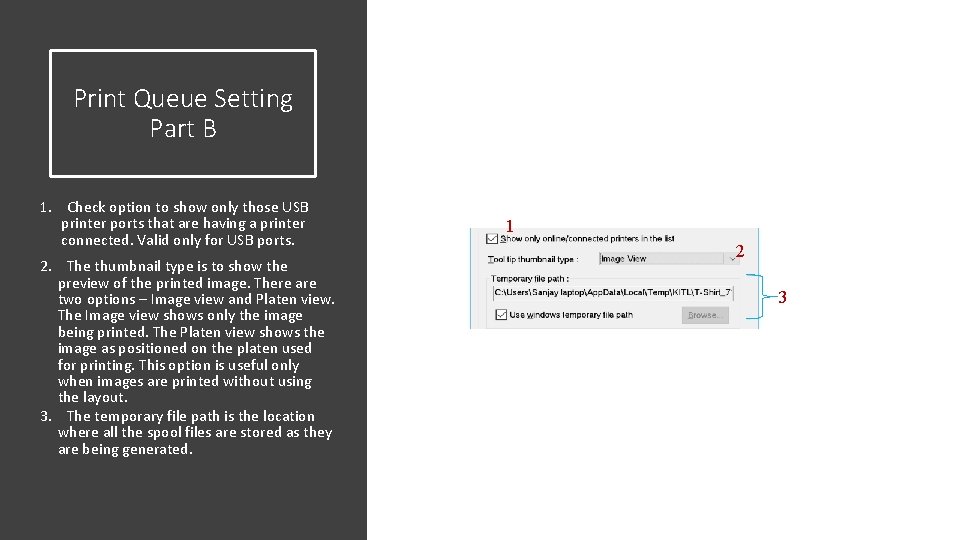
Print Queue Setting Part B 1. Check option to show only those USB printer ports that are having a printer connected. Valid only for USB ports. 2. The thumbnail type is to show the preview of the printed image. There are two options – Image view and Platen view. The Image view shows only the image being printed. The Platen view shows the image as positioned on the platen used for printing. This option is useful only when images are printed without using the layout. 3. The temporary file path is the location where all the spool files are stored as they are being generated. 1 2 3
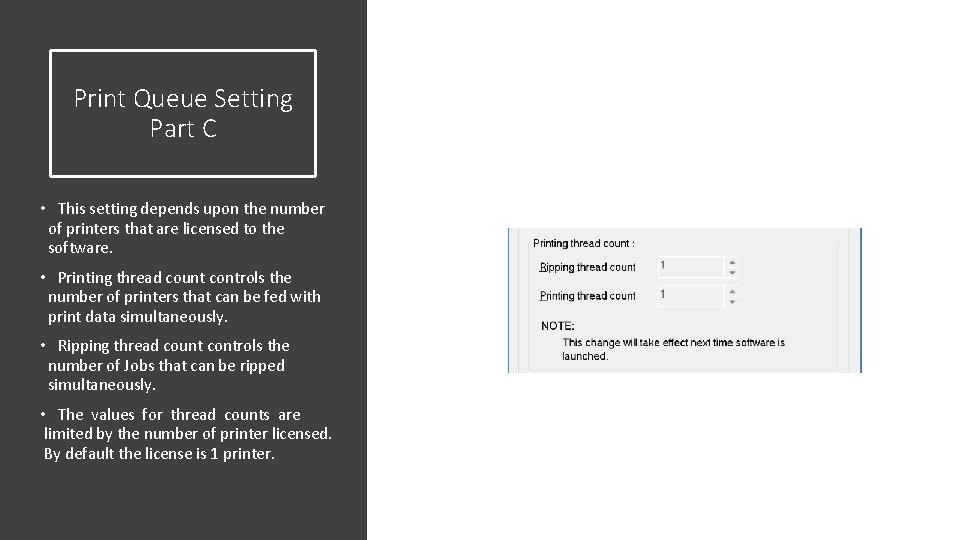
Print Queue Setting Part C • This setting depends upon the number of printers that are licensed to the software. • Printing thread count controls the number of printers that can be fed with print data simultaneously. • Ripping thread count controls the number of Jobs that can be ripped simultaneously. • The values for thread counts are limited by the number of printer licensed. By default the license is 1 printer.
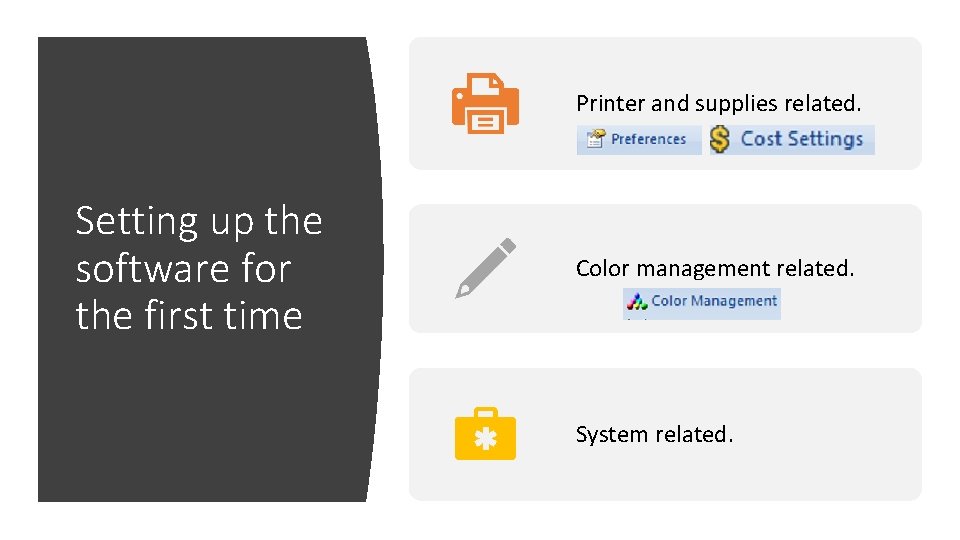
Printer and supplies related. Setting up the software for the first time Color management related. System related.
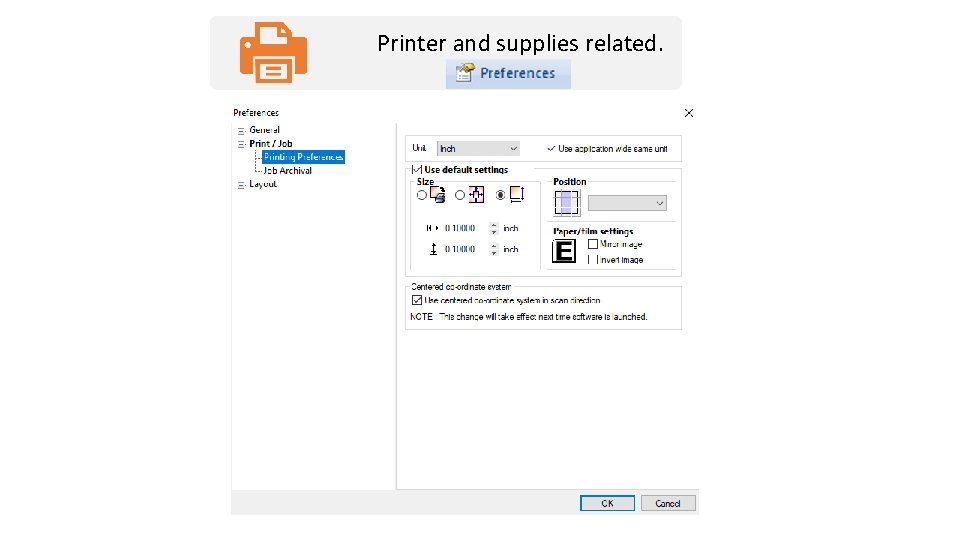
Printer and supplies related.
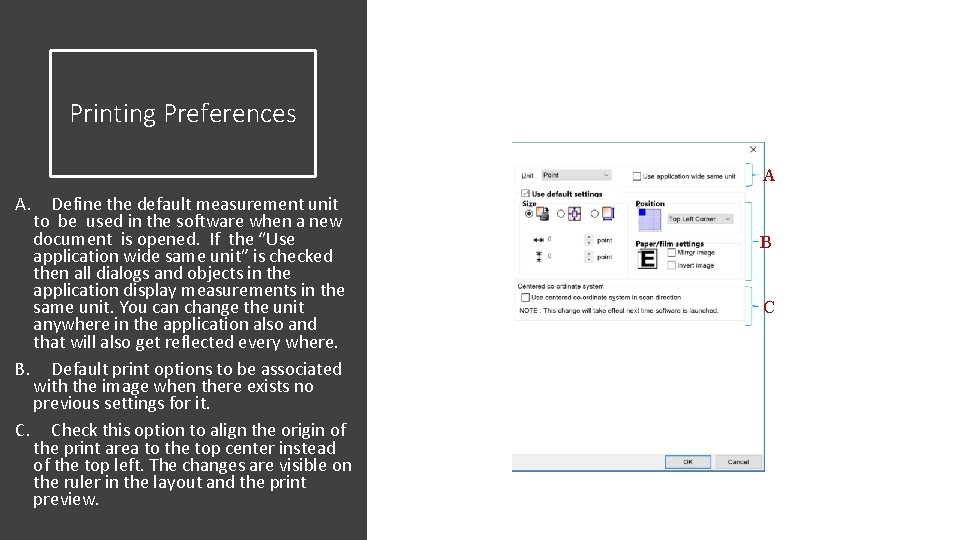
Printing Preferences A A. Define the default measurement unit to be used in the software when a new document is opened. If the “Use application wide same unit” is checked then all dialogs and objects in the application display measurements in the same unit. You can change the unit anywhere in the application also and that will also get reflected every where. B. Default print options to be associated with the image when there exists no previous settings for it. C. Check this option to align the origin of the print area to the top center instead of the top left. The changes are visible on the ruler in the layout and the print preview. B C
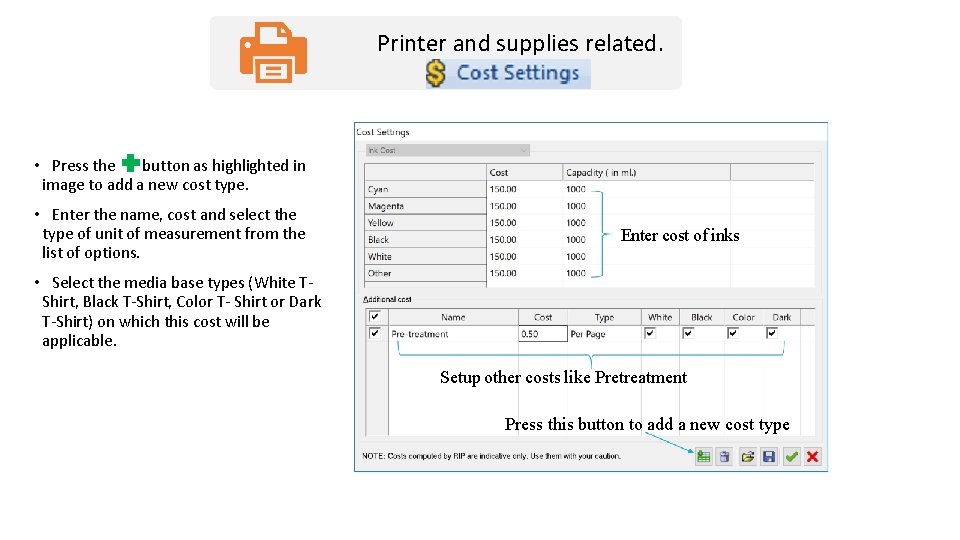
Printer and supplies related. • Press the button as highlighted in image to add a new cost type. • Enter the name, cost and select the type of unit of measurement from the list of options. Enter cost of inks • Select the media base types (White TShirt, Black T-Shirt, Color T- Shirt or Dark T-Shirt) on which this cost will be applicable. Setup other costs like Pretreatment Press this button to add a new cost type
Color management related.
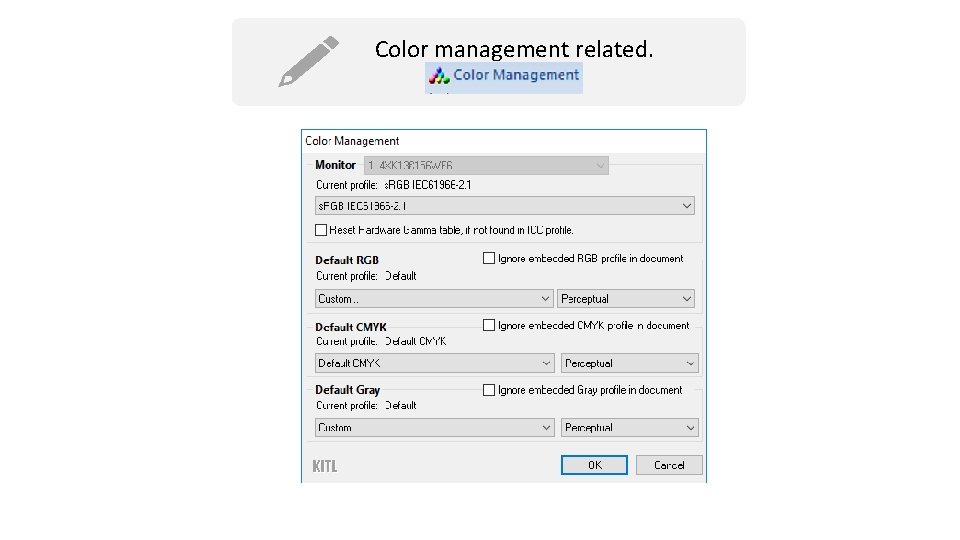
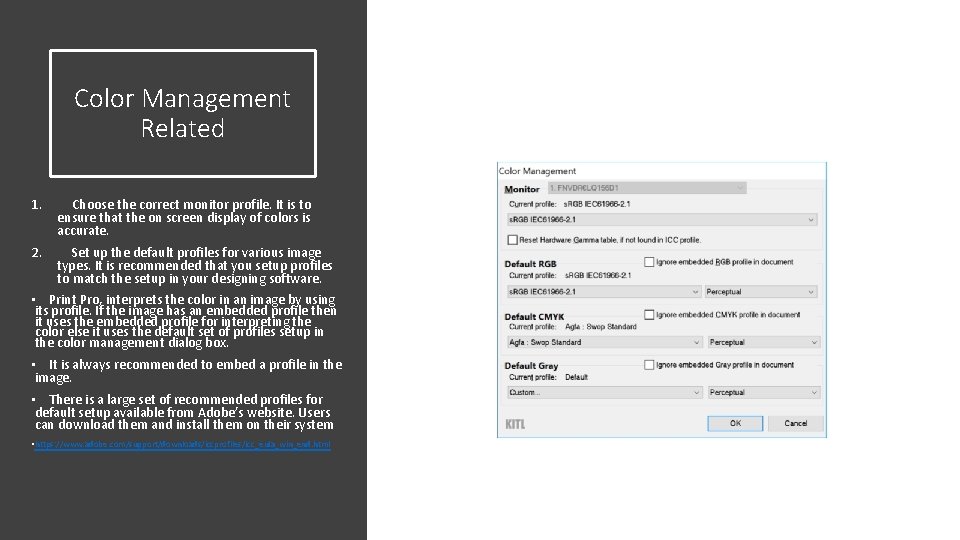
Color Management Related 1. Choose the correct monitor profile. It is to ensure that the on screen display of colors is accurate. 2. Set up the default profiles for various image types. It is recommended that you setup profiles to match the setup in your designing software. • Print Pro, interprets the color in an image by using its profile. If the image has an embedded profile then it uses the embedded profile for interpreting the color else it uses the default set of profiles setup in the color management dialog box. • It is always recommended to embed a profile in the image. • There is a large set of recommended profiles for default setup available from Adobe’s website. Users can download them and install them on their system • https: //www. adobe. com/support/downloads/iccprofiles/icc_eula_win_end. html
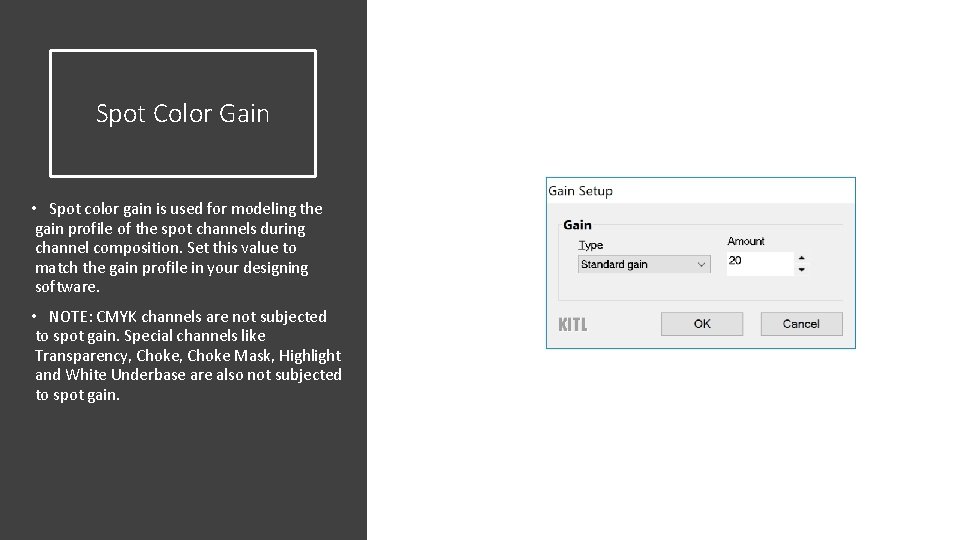
Spot Color Gain • Spot color gain is used for modeling the gain profile of the spot channels during channel composition. Set this value to match the gain profile in your designing software. • NOTE: CMYK channels are not subjected to spot gain. Special channels like Transparency, Choke Mask, Highlight and White Underbase are also not subjected to spot gain.
System Related • Set up the preferences for memory and disk usage, postscript engine, interpretation of spot channels in the image as predefined types, print settings when the image is opened for the first time, how print jobs are archived and user settings when working in the layout ?
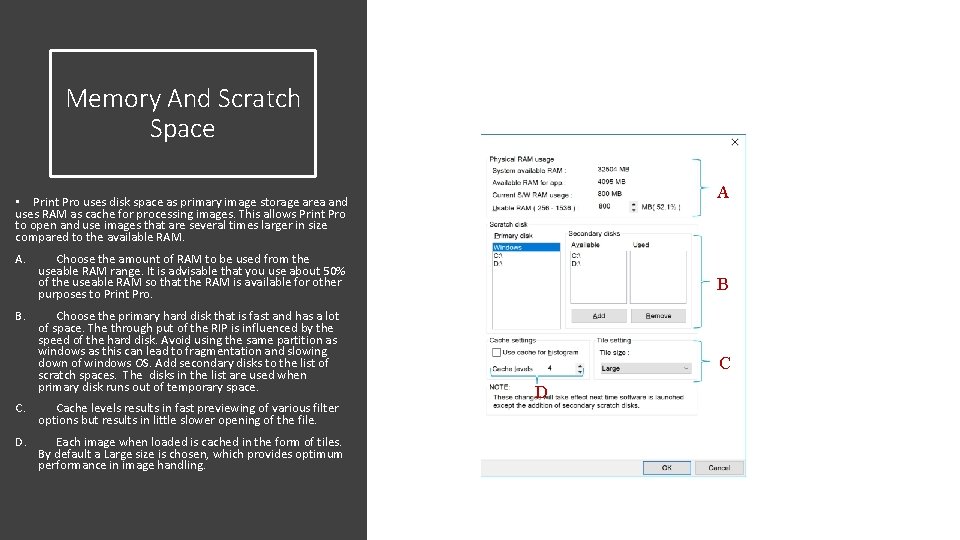
Memory And Scratch Space A • Print Pro uses disk space as primary image storage area and uses RAM as cache for processing images. This allows Print Pro to open and use images that are several times larger in size compared to the available RAM. A. B. Choose the amount of RAM to be used from the useable RAM range. It is advisable that you use about 50% of the useable RAM so that the RAM is available for other purposes to Print Pro. Choose the primary hard disk that is fast and has a lot of space. The through put of the RIP is influenced by the speed of the hard disk. Avoid using the same partition as windows as this can lead to fragmentation and slowing down of windows OS. Add secondary disks to the list of scratch spaces. The disks in the list are used when primary disk runs out of temporary space. Cache levels results in fast previewing of various filter options but results in little slower opening of the file. D. Each image when loaded is cached in the form of tiles. By default a Large size is chosen, which provides optimum performance in image handling. B C D
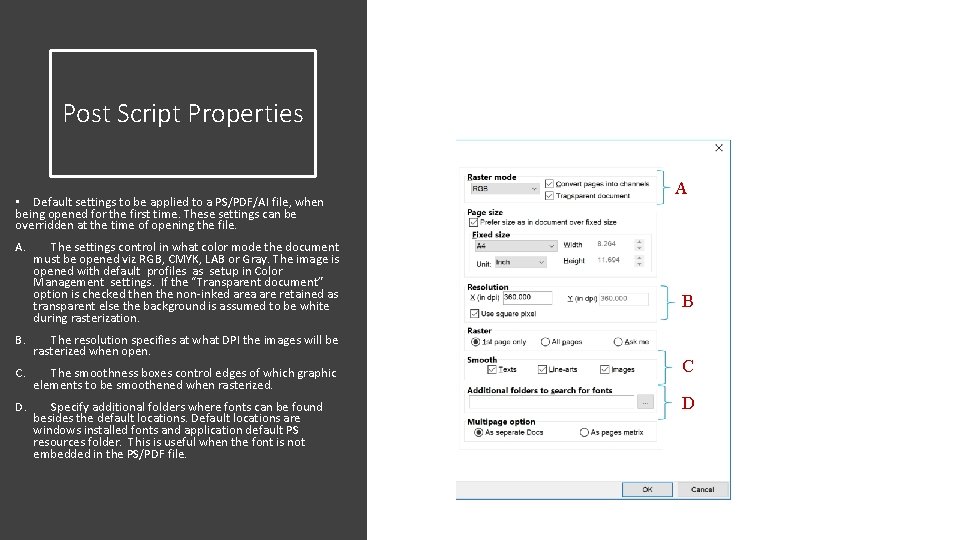
Post Script Properties • Default settings to be applied to a PS/PDF/AI file, when being opened for the first time. These settings can be overridden at the time of opening the file. A. The settings control in what color mode the document must be opened viz RGB, CMYK, LAB or Gray. The image is opened with default profiles as setup in Color Management settings. If the “Transparent document” option is checked then the non-inked area are retained as transparent else the background is assumed to be white during rasterization. B. The resolution specifies at what DPI the images will be rasterized when open. C. The smoothness boxes control edges of which graphic elements to be smoothened when rasterized. D. Specify additional folders where fonts can be found besides the default locations. Default locations are windows installed fonts and application default PS resources folder. This is useful when the font is not embedded in the PS/PDF file. A B C D
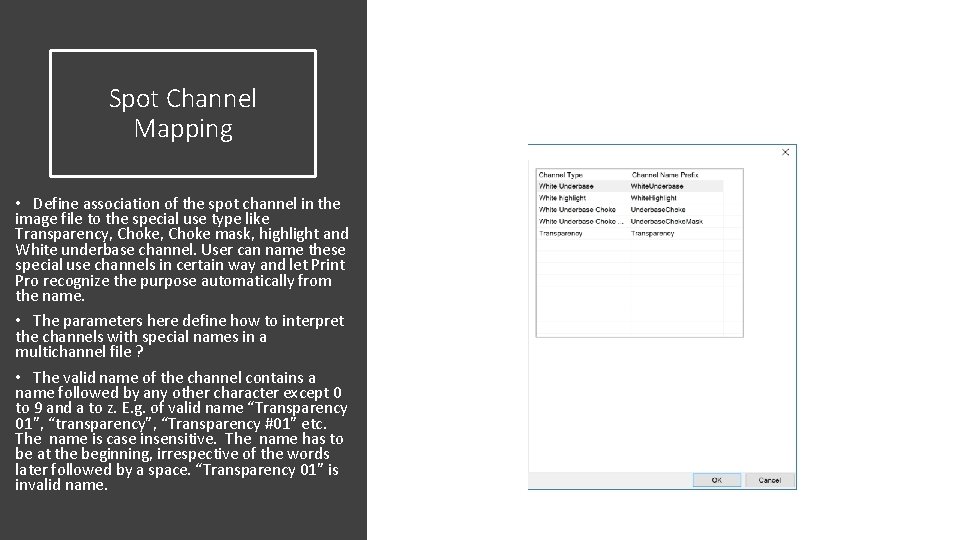
Spot Channel Mapping • Define association of the spot channel in the image file to the special use type like Transparency, Choke mask, highlight and White underbase channel. User can name these special use channels in certain way and let Print Pro recognize the purpose automatically from the name. • The parameters here define how to interpret the channels with special names in a multichannel file ? • The valid name of the channel contains a name followed by any other character except 0 to 9 and a to z. E. g. of valid name “Transparency 01”, “transparency”, “Transparency #01” etc. The name is case insensitive. The name has to be at the beginning, irrespective of the words later followed by a space. “Transparency 01” is invalid name.
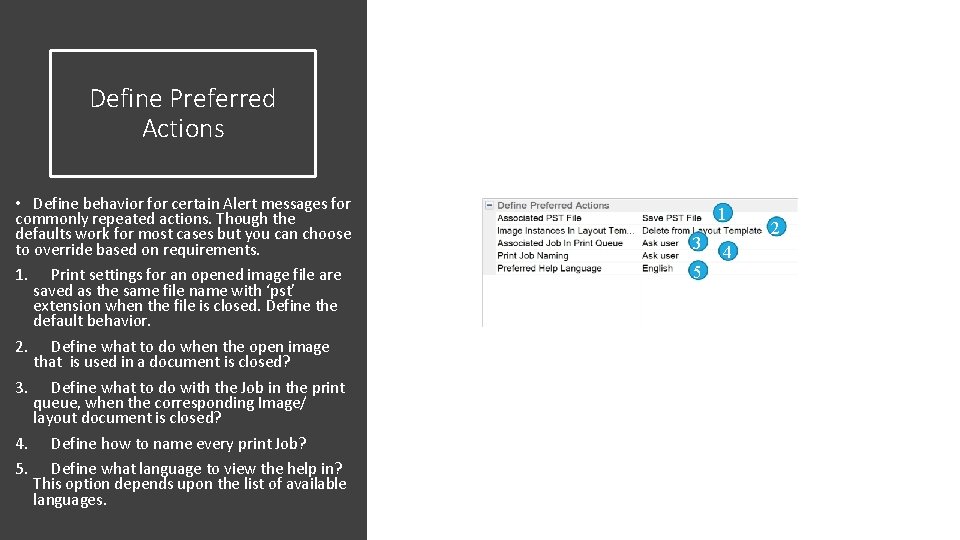
Define Preferred Actions • Define behavior for certain Alert messages for commonly repeated actions. Though the defaults work for most cases but you can choose to override based on requirements. 1. Print settings for an opened image file are saved as the same file name with ‘pst’ extension when the file is closed. Define the default behavior. 2. Define what to do when the open image that is used in a document is closed? 3. Define what to do with the Job in the print queue, when the corresponding Image/ layout document is closed? 4. Define how to name every print Job? 5. Define what language to view the help in? This option depends upon the list of available languages. 1 3 5 4 2
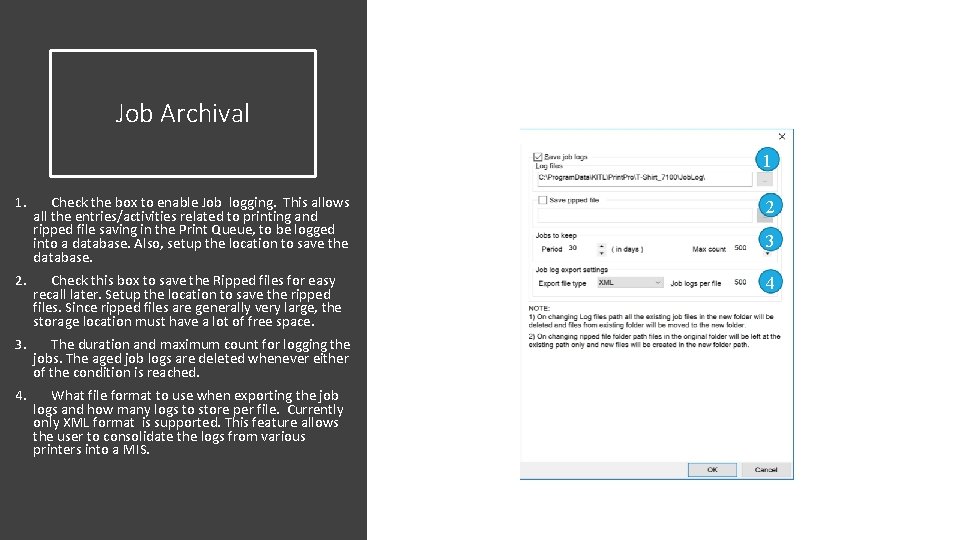
Job Archival 1 1. Check the box to enable Job logging. This allows all the entries/activities related to printing and ripped file saving in the Print Queue, to be logged into a database. Also, setup the location to save the database. 2 2. Check this box to save the Ripped files for easy recall later. Setup the location to save the ripped files. Since ripped files are generally very large, the storage location must have a lot of free space. 4 3. The duration and maximum count for logging the jobs. The aged job logs are deleted whenever either of the condition is reached. 4. What file format to use when exporting the job logs and how many logs to store per file. Currently only XML format is supported. This feature allows the user to consolidate the logs from various printers into a MIS. 3
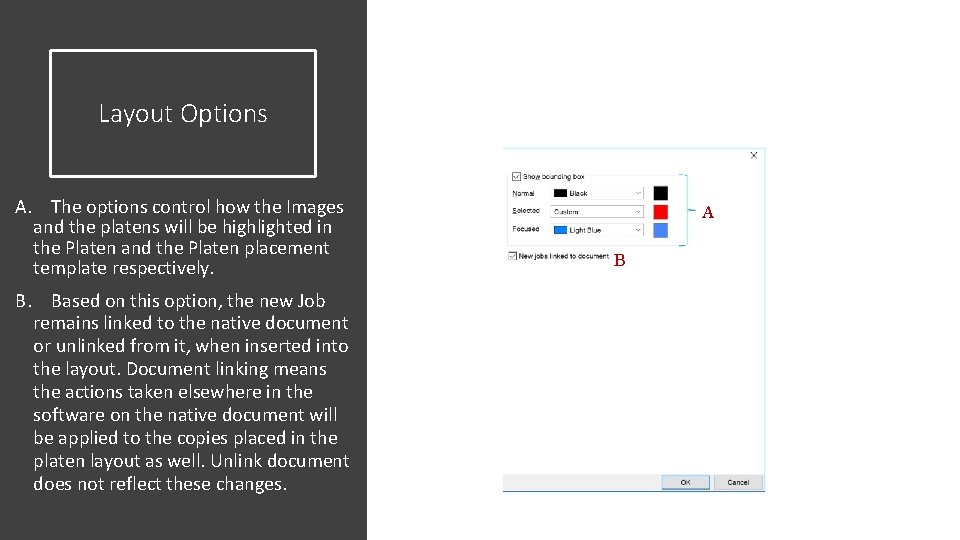
Layout Options A. The options control how the Images and the platens will be highlighted in the Platen and the Platen placement template respectively. B. Based on this option, the new Job remains linked to the native document or unlinked from it, when inserted into the layout. Document linking means the actions taken elsewhere in the software on the native document will be applied to the copies placed in the platen layout as well. Unlink document does not reflect these changes. A B
Placing an Image in Kothari
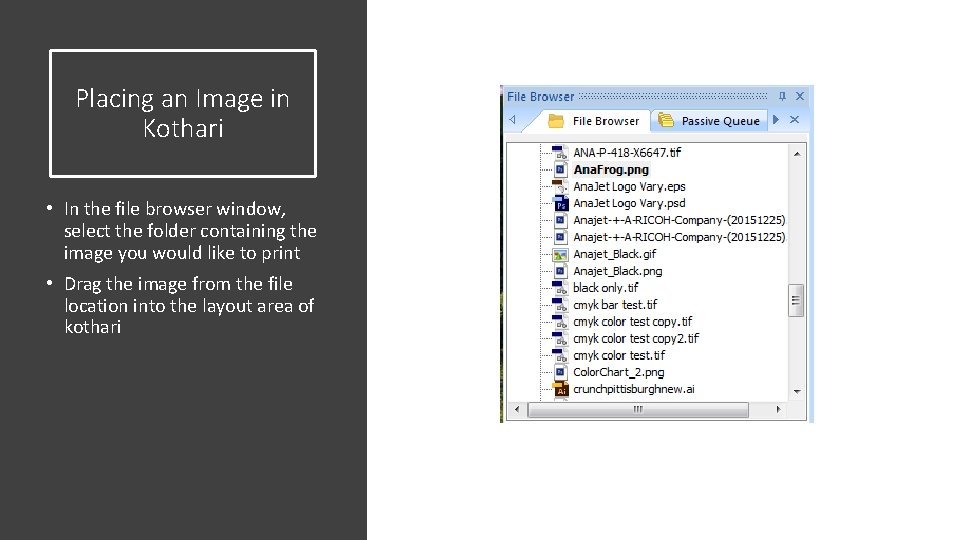
Placing an Image in Kothari • In the file browser window, select the folder containing the image you would like to print • Drag the image from the file location into the layout area of kothari
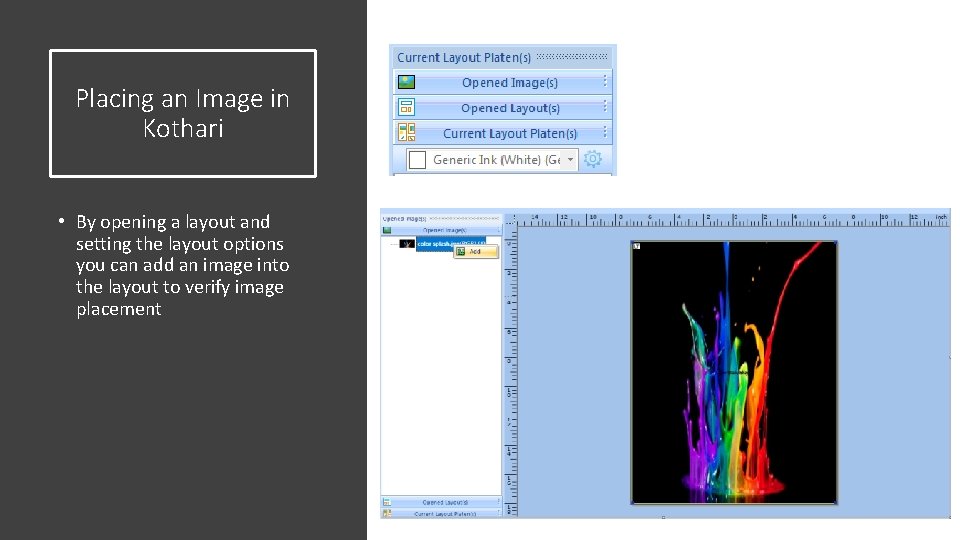
Placing an Image in Kothari • By opening a layout and setting the layout options you can add an image into the layout to verify image placement
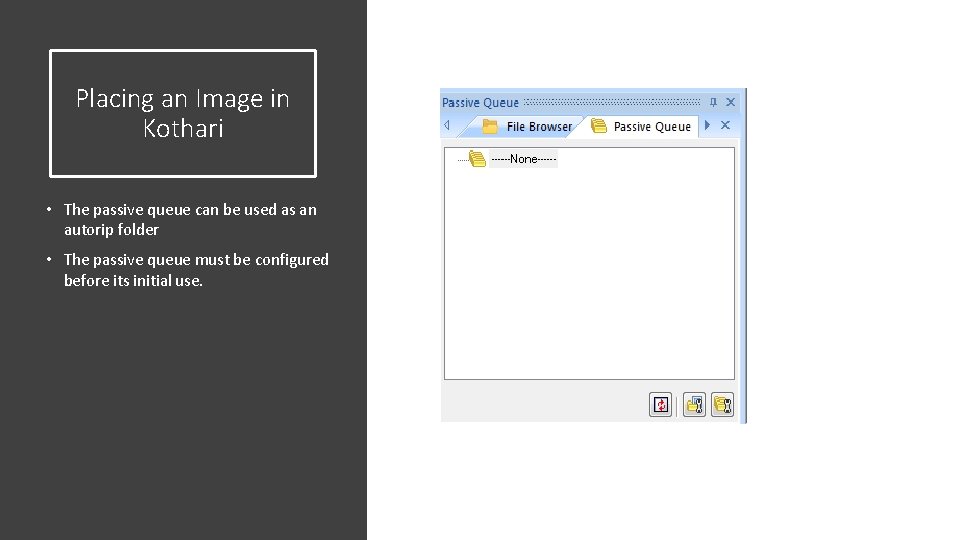
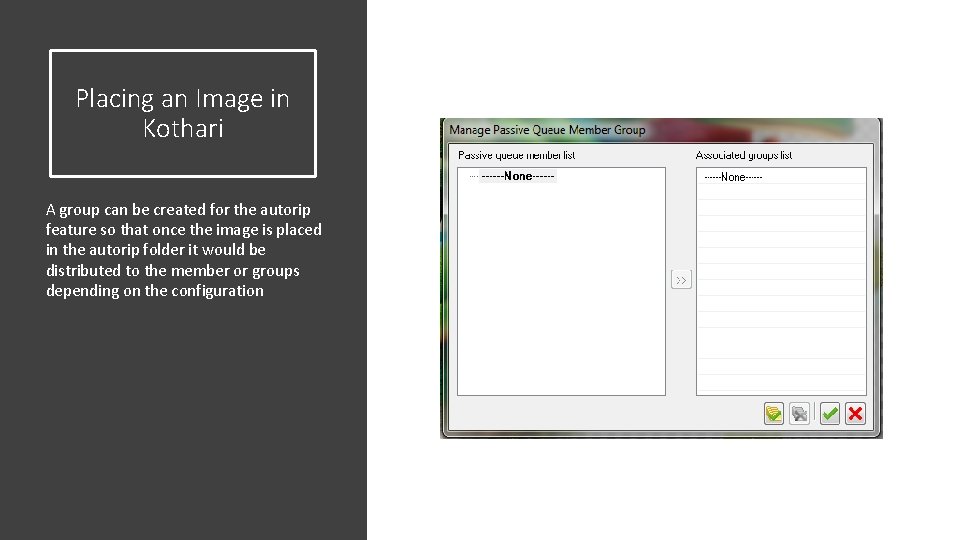
Placing an Image in Kothari • The passive queue can be used as an autorip folder • The passive queue must be configured before its initial use.
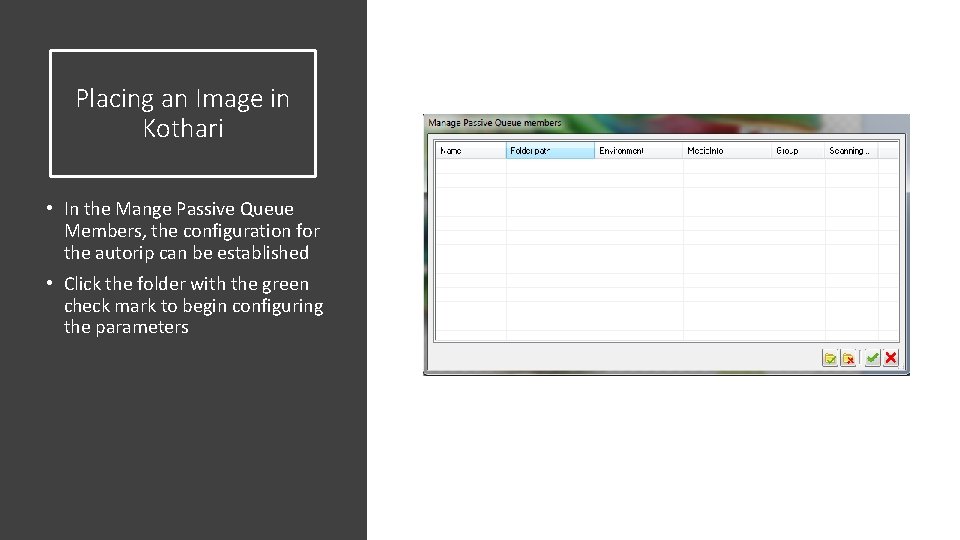
Placing an Image in Kothari • In the Mange Passive Queue Members, the configuration for the autorip can be established • Click the folder with the green check mark to begin configuring the parameters
Placing an Image in Kothari A group can be created for the autorip feature so that once the image is placed in the autorip folder it would be distributed to the member or groups depending on the configuration
Editing Your Image
Editing Your Image • Open the desired image from its file location by double clicking the image • This will open the image and then select the image tab • Here you can add a white highlight layer, add a transparency (remove a color) and make other hue and saturation adjustments to the image before printing
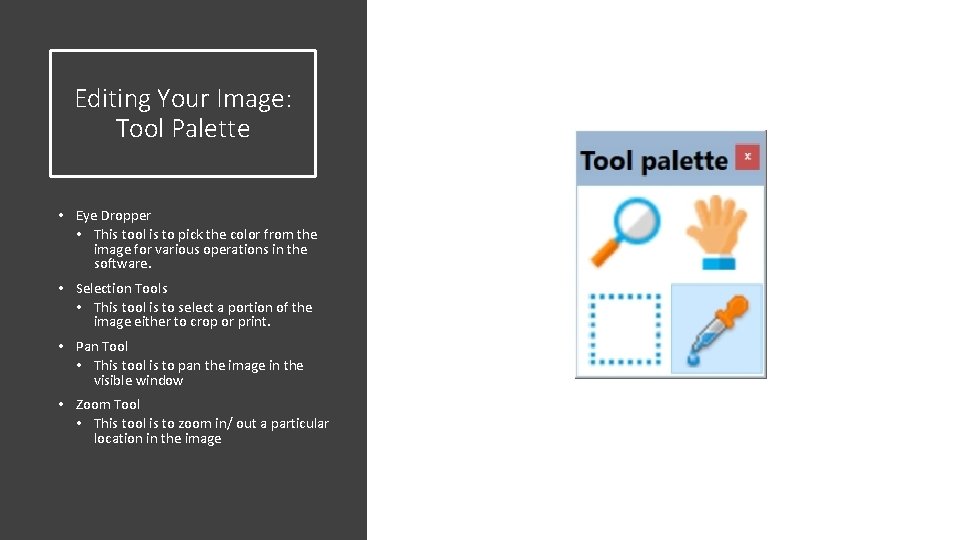
Editing Your Image: Tool Palette • Eye Dropper • This tool is to pick the color from the image for various operations in the software. • Selection Tools • This tool is to select a portion of the image either to crop or print. • Pan Tool • This tool is to pan the image in the visible window • Zoom Tool • This tool is to zoom in/ out a particular location in the image
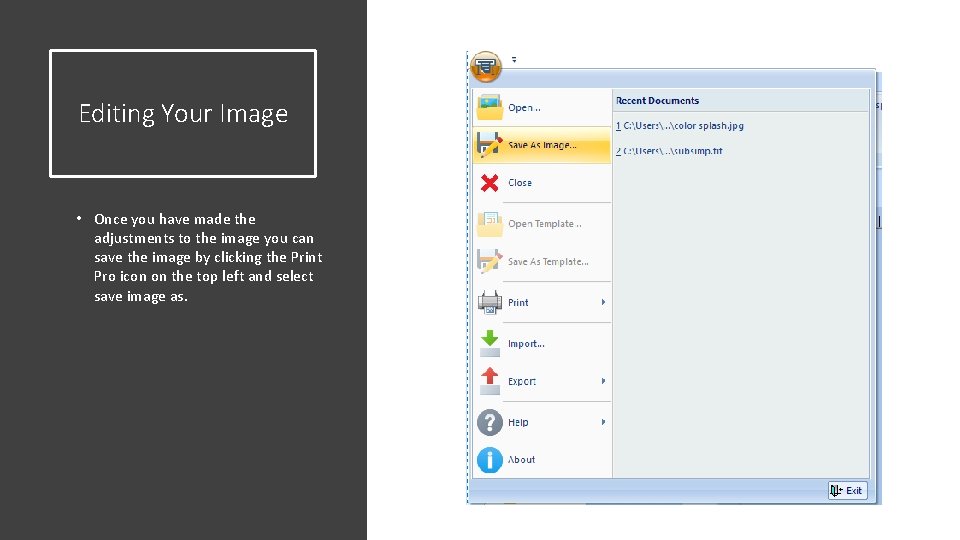
Editing Your Image • Once you have made the adjustments to the image you can save the image by clicking the Print Pro icon on the top left and select save image as.
Printing Your Image
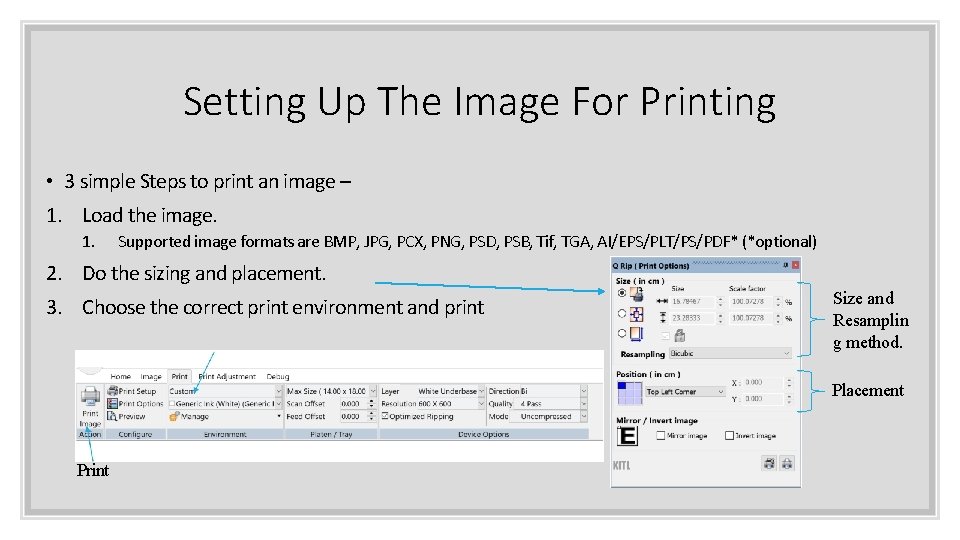
Setting Up The Image For Printing • 3 simple Steps to print an image – 1. Load the image. 1. Supported image formats are BMP, JPG, PCX, PNG, PSD, PSB, Tif, TGA, AI/EPS/PLT/PS/PDF* (*optional) 2. Do the sizing and placement. 3. Choose the correct print environment and print Size and Resamplin g method. Placement Print
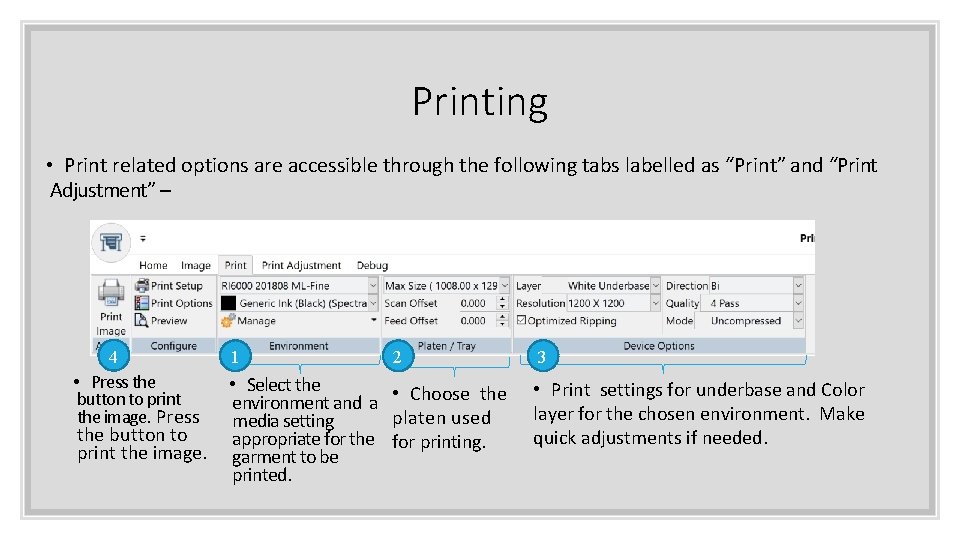
Printing • Print related options are accessible through the following tabs labelled as “Print” and “Print Adjustment” – 4 • Press the button to print the image. 1 2 • Select the environment and a • Choose the platen used media setting appropriate for the for printing. garment to be printed. 3 • Print settings for underbase and Color layer for the chosen environment. Make quick adjustments if needed.
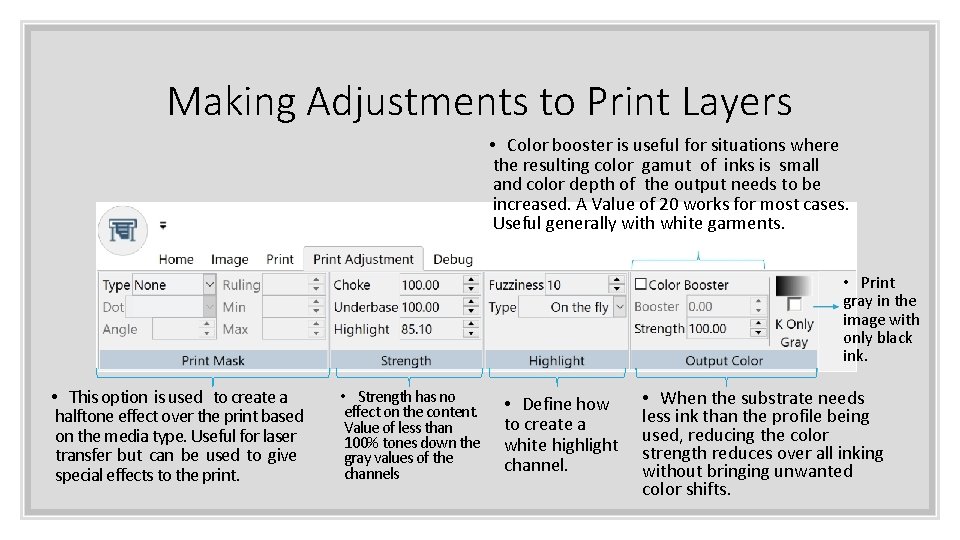
Making Adjustments to Print Layers • Color booster is useful for situations where the resulting color gamut of inks is small and color depth of the output needs to be increased. A Value of 20 works for most cases. Useful generally with white garments. • Print gray in the image with only black ink. • This option is used to create a halftone effect over the print based on the media type. Useful for laser transfer but can be used to give special effects to the print. • Strength has no effect on the content. Value of less than 100% tones down the gray values of the channels • Define how to create a white highlight channel. • When the substrate needs less ink than the profile being used, reducing the color strength reduces over all inking without bringing unwanted color shifts.
Loading and adjusting the image • You can load and adjust the image by selecting and the image from the file browser. You can drag the image from the file browser into the editing area. This can be done in two ways. • 1) You can drag the image into the editing area with out a layout open. You can then edit the image if you want (saturation, hue, contrast add layers such as choke, transparency, highlight. You can print the image from this view though it will not show the placement on the platen. The image can be positioned using he positioning controls to the right. • You can print by going to the print tab and selecting print image
Loading and positioning the image • 2) You can also open a layout. Then click on the empty layout and select an environment. Then drag the image in. You will be able to see where the image is on the platen and you can position either • Use the positioning and scaling controls on the right or • Click on the image and select the scaling icon. You can now drag the image where you want it on the platen. You can also grab a corner and resize the image. Click on it and select apply when done. • You can put multiple images on the layout • You can not edit the image in the layout – (most of the options on the image tab are not accessible) • You can print by going to the print tab and clicking on the print layout button
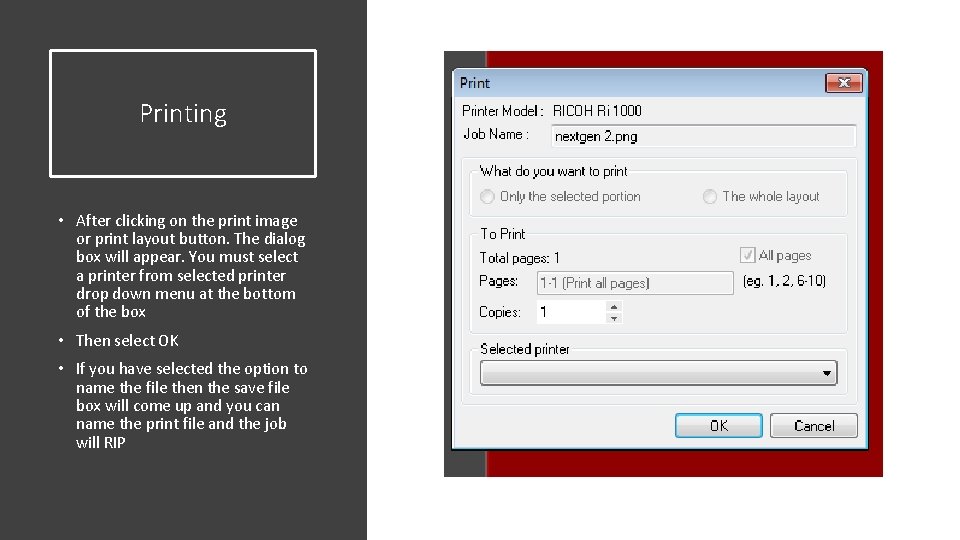
Printing • After clicking on the print image or print layout button. The dialog box will appear. You must select a printer from selected printer drop down menu at the bottom of the box • Then select OK • If you have selected the option to name the file then the save file box will come up and you can name the print file and the job will RIP
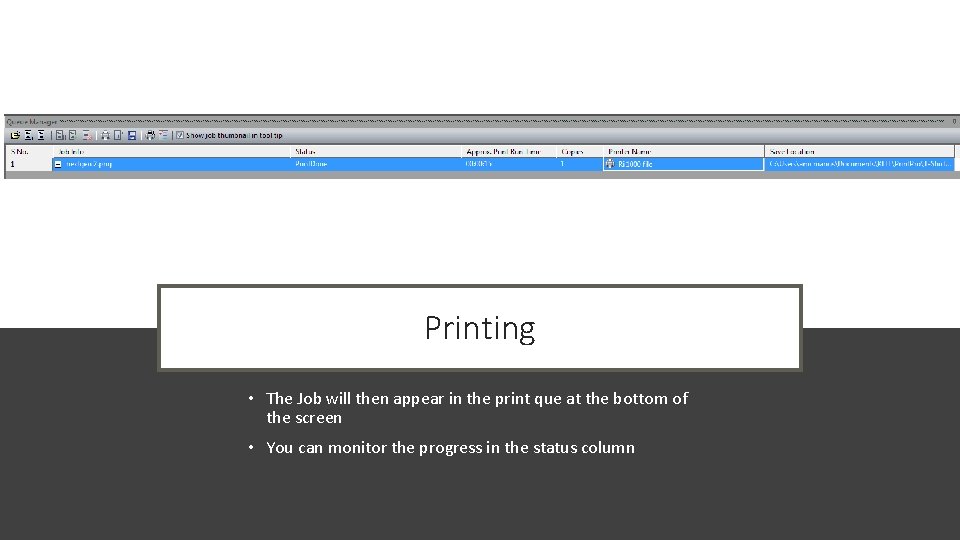
Printing • The Job will then appear in the print que at the bottom of the screen • You can monitor the progress in the status column
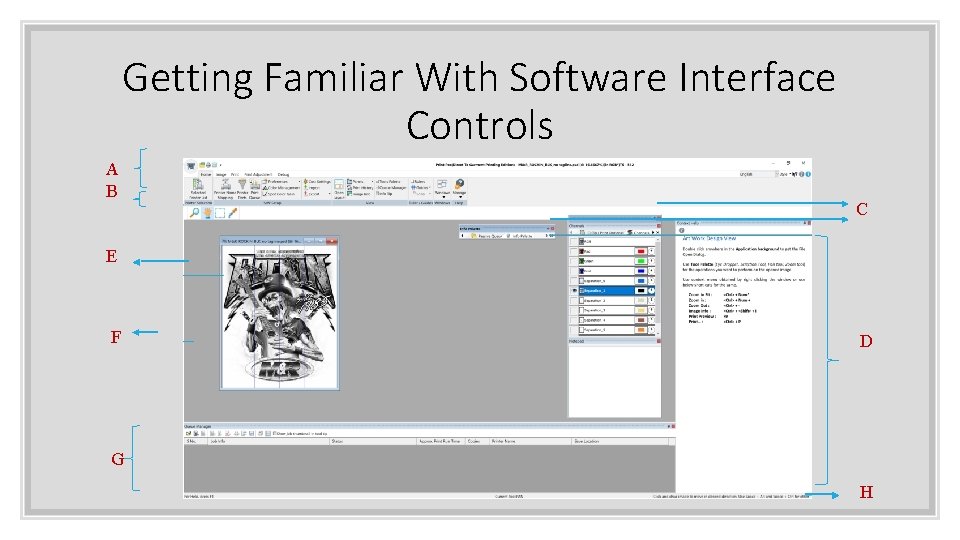
Getting Familiar With Software Interface Controls A B C E F D G H
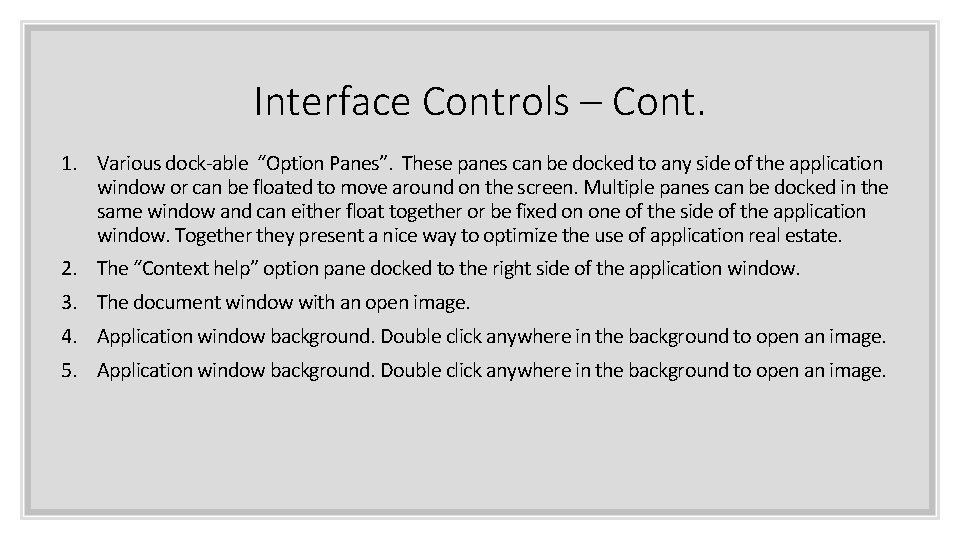
Interface Controls – Cont. 1. Various dock-able “Option Panes”. These panes can be docked to any side of the application window or can be floated to move around on the screen. Multiple panes can be docked in the same window and can either float together or be fixed on one of the side of the application window. Together they present a nice way to optimize the use of application real estate. 2. The “Context help” option pane docked to the right side of the application window. 3. The document window with an open image. 4. Application window background. Double click anywhere in the background to open an image. 5. Application window background. Double click anywhere in the background to open an image.
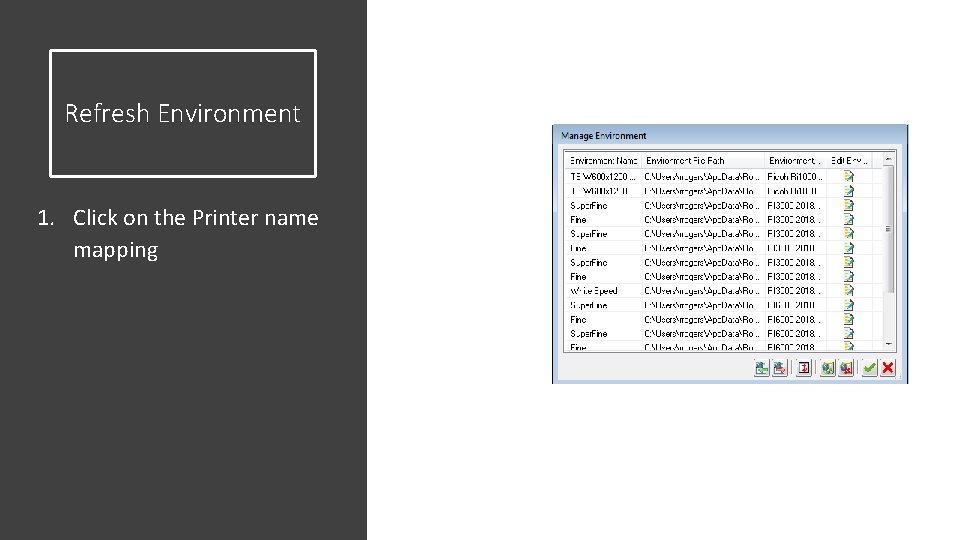
Refresh Environment 1. Click on the Printer name mapping
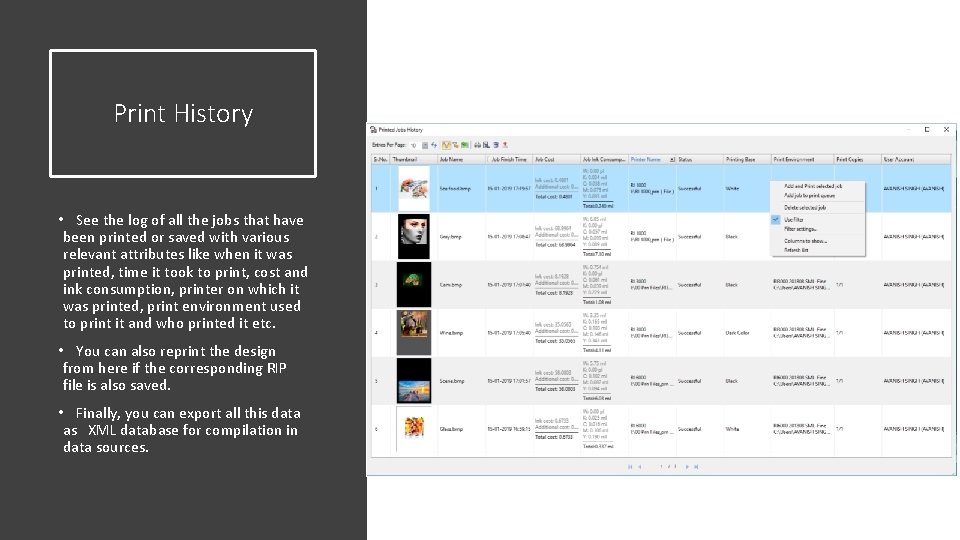
Print History • See the log of all the jobs that have been printed or saved with various relevant attributes like when it was printed, time it took to print, cost and ink consumption, printer on which it was printed, print environment used to print it and who printed it etc. • You can also reprint the design from here if the corresponding RIP file is also saved. • Finally, you can export all this data as XML database for compilation in data sources.
Other features • Layout/ Platen view for printing. • Passive queues. • Various filters for creating choke, transparency and highlight channel. • Image processing filters.