
KNX Multitouch Pro News Firmware 26 1 ETS
- Slides: 13
KNX Multitouch Pro News Firmware 26. 1 /ETS application ver 1. 4 Eco. Building Training Confidential Property of Schneider Electric
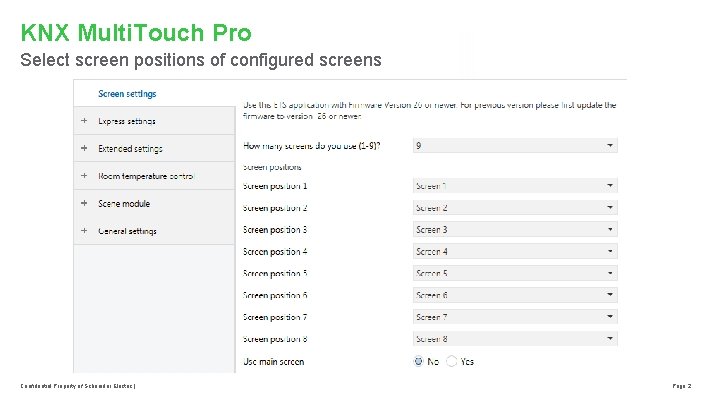
KNX Multi. Touch Pro Select screen positions of configured screens Confidential Property of Schneider Electric | Page 2
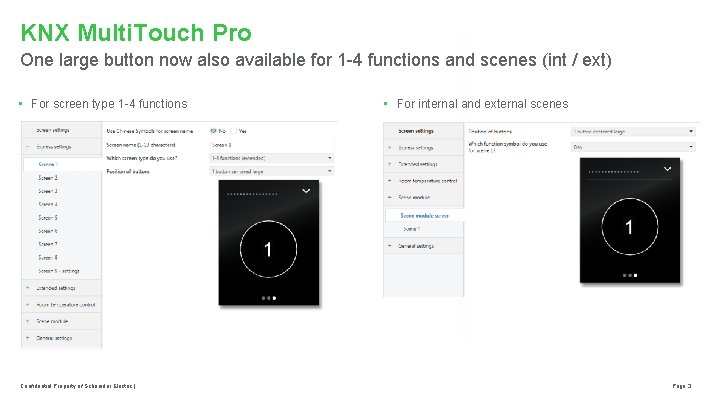
KNX Multi. Touch Pro One large button now also available for 1 -4 functions and scenes (int / ext) • For screen type 1 -4 functions Confidential Property of Schneider Electric | • For internal and external scenes Page 3
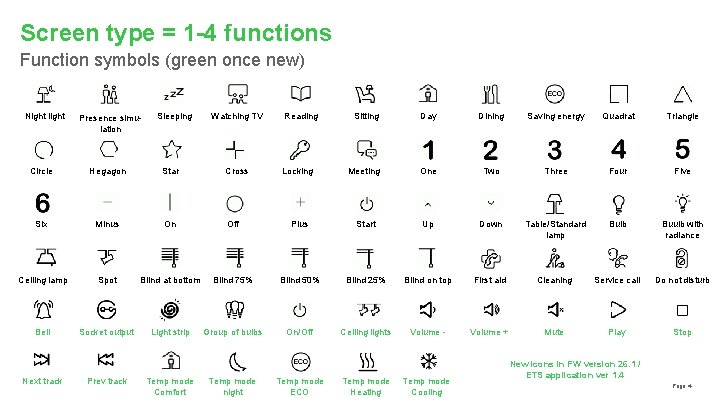
Screen type = 1 -4 functions Function symbols (green once new) Night light Presence simulation Sleeping Watching TV Reading Sitting Day Dining Saving energy Quadrat Triangle Locking Meeting One Two Three Four Five Circle Hegagon Star Cross Six Minus On Off Plus Start Up Down Table/Standard lamp Bulb Buulb with radiance Ceiling lamp Spot Blind at bottom Blind 75% Blind 50% Blind 25% Blind on top First aid Cleaning Service call Do not disturb Bell Socket output Light strip Group of bulbs On/Off Ceiling lights Volume - Volume + Mute Play Stop Next track Prev track Temp mode Comfort Temp mode night Temp mode ECO Temp mode Heating Temp mode Cooling New icons in FW version 26. 1 / ETS application ver 1. 4 Page 4
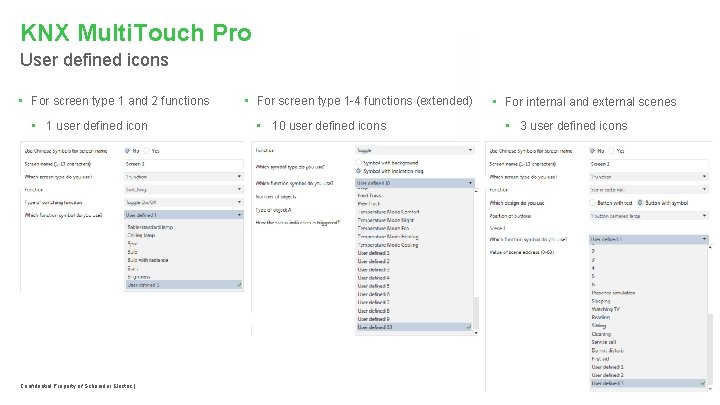
KNX Multi. Touch Pro User defined icons • For screen type 1 and 2 functions • 1 user defined icon Confidential Property of Schneider Electric | • For screen type 1 -4 functions (extended) • 10 user defined icons • For internal and external scenes • 3 user defined icons Page 5
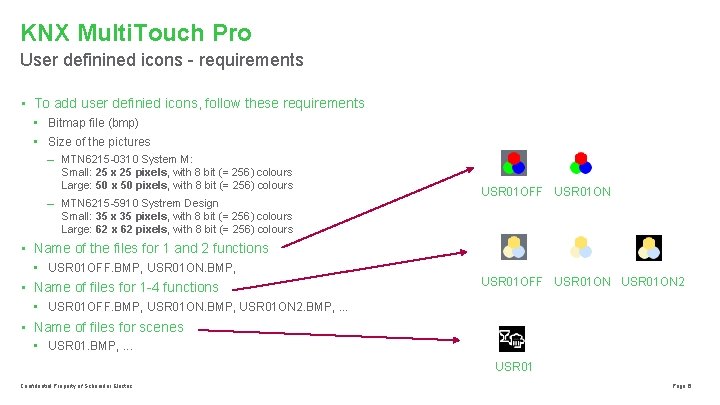
KNX Multi. Touch Pro User definined icons - requirements • To add user definied icons, follow these requirements • Bitmap file (bmp) • Size of the pictures – MTN 6215 -0310 System M: Small: 25 x 25 pixels, with 8 bit (= 256) colours Large: 50 x 50 pixels, with 8 bit (= 256) colours – MTN 6215 -5910 Systrem Design Small: 35 x 35 pixels, with 8 bit (= 256) colours Large: 62 x 62 pixels, with 8 bit (= 256) colours USR 01 OFF USR 01 ON • Name of the files for 1 and 2 functions • USR 01 OFF. BMP, USR 01 ON. BMP, • Name of files for 1 -4 functions USR 01 OFF USR 01 ON 2 • USR 01 OFF. BMP, USR 01 ON 2. BMP, . . . • Name of files for scenes • USR 01. BMP, . . . USR 01 Confidential Property of Schneider Electric Page 6
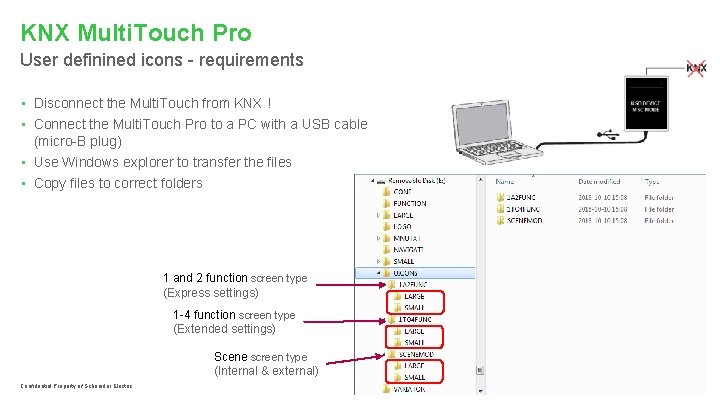
KNX Multi. Touch Pro User definined icons - requirements • Disconnect the Multi. Touch from KNX ! • Connect the Multi. Touch Pro to a PC with a USB cable (micro-B plug) • Use Windows explorer to transfer the files • Copy files to correct folders 1 and 2 function screen type (Express settings) 1 -4 function screen type (Extended settings) Scene screen type (Internal & external) Confidential Property of Schneider Electric Page 7
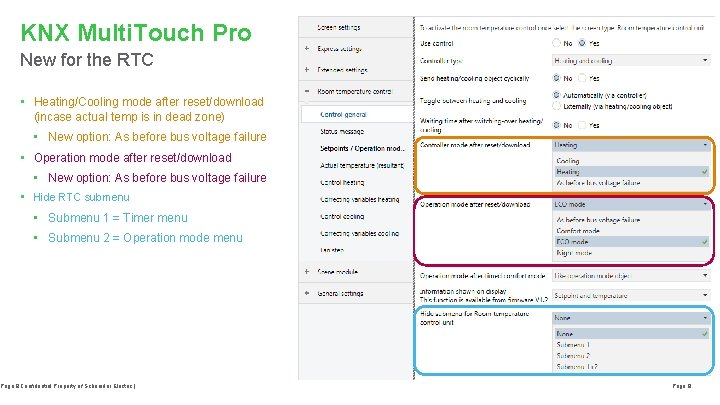
KNX Multi. Touch Pro New for the RTC • Heating/Cooling mode after reset/download (incase actual temp is in dead zone) • New option: As before bus voltage failure • Operation mode after reset/download • New option: As before bus voltage failure • Hide RTC submenu • Submenu 1 = Timer menu • Submenu 2 = Operation mode menu Page 8 Confidential Property of Schneider Electric | Page 8
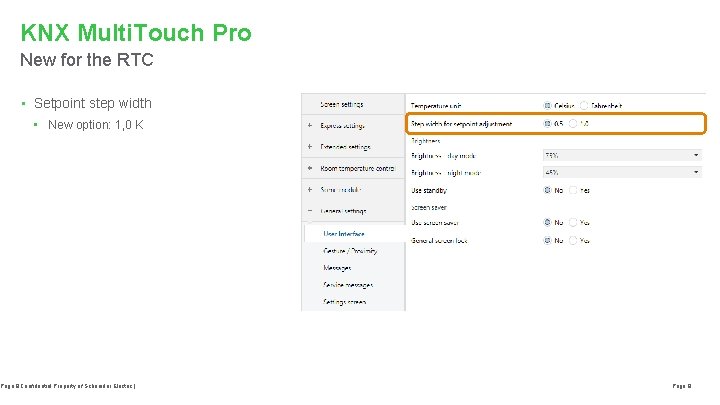
KNX Multi. Touch Pro New for the RTC • Setpoint step width • New option: 1, 0 K Page 9 Confidential Property of Schneider Electric | Page 9
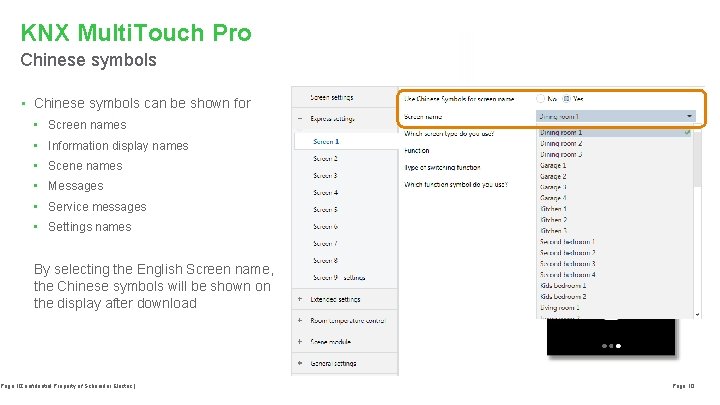
KNX Multi. Touch Pro Chinese symbols • Chinese symbols can be shown for • Screen names • Information display names • Scene names • Messages • Service messages • Settings names By selecting the English Screen name, the Chinese symbols will be shown on the display after download Page 10 Confidential Property of Schneider Electric | Page 10
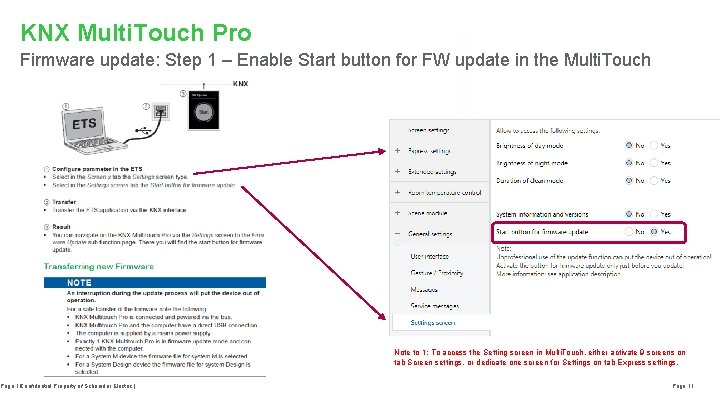
KNX Multi. Touch Pro Firmware update: Step 1 – Enable Start button for FW update in the Multi. Touch Page 11 Confidential Property of Schneider Electric | Note to 1: To access the Setting screen in Multi. Touch, either activate 9 screens on tab Screen settings, or dedicate one screen for Settings on tab Express settings. Page 11
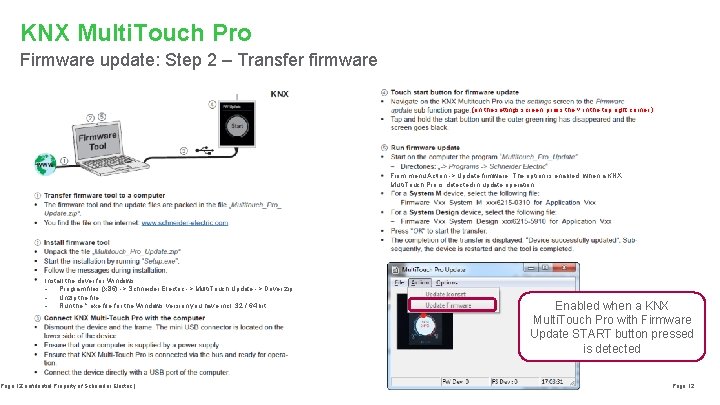
KNX Multi. Touch Pro Firmware update: Step 2 – Transfer firmware (on the settings screen, press the ˅ in the top right corner. ) From menu Action -> Update firmware. The option is enabled, when a KNX Multi. Touch Pro is detected in update operation Install the driver for Windows - Program files (x 86) -> Schneider Electric -> Multi. Touch Update -> Driver. zip - Unzip the file - Run the *. exe file for the Windows version you have incl. 32 / 64 bit Page 12 Confidential Property of Schneider Electric | Enabled when a KNX Multi. Touch Pro with Firmware Update START button pressed is detected Page 12
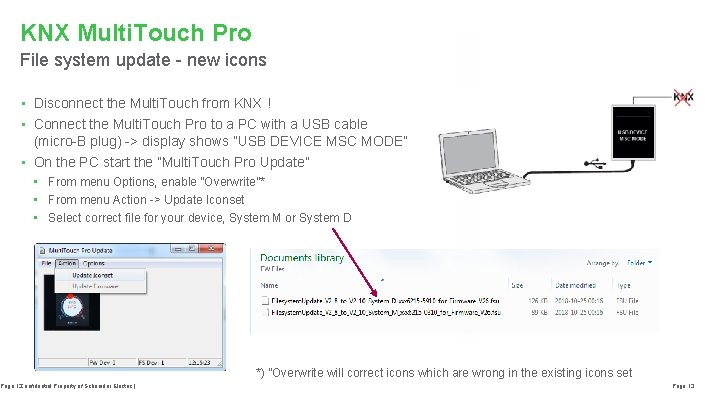
KNX Multi. Touch Pro File system update - new icons • Disconnect the Multi. Touch from KNX ! • Connect the Multi. Touch Pro to a PC with a USB cable (micro-B plug) -> display shows ”USB DEVICE MSC MODE” • On the PC start the ”Multi. Touch Pro Update” • From menu Options, enable ”Overwrite”* • From menu Action -> Update Iconset • Select correct file for your device, System M or System D Page 13 Confidential Property of Schneider Electric | *) ”Overwrite will correct icons which are wrong in the existing icons set Page 13