
Keyboarding Alphabetic Keys Execute the touch method in
Keyboarding – Alphabetic Keys Execute the touch method in operating the alphabetic keys
Essential Questions O What is touch typing?

Keyboard Layout ~ ! @ 2 1 Tab Shift Ctrl $ % ^ 3 4 5 6 W Q Caps Lock # A E S Z Alt R D X T F C & 7 Y G V *8 U H B ( 9 I J N Spacebar O K M _ - ) 0 { P : L < + = > } “ ? Alt Backspace Enter Shift Ctrl
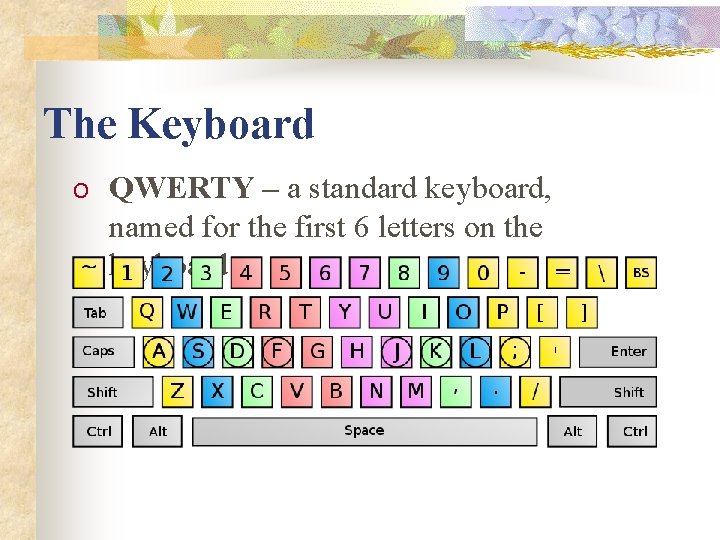
The Keyboard O QWERTY – a standard keyboard, named for the first 6 letters on the keyboard
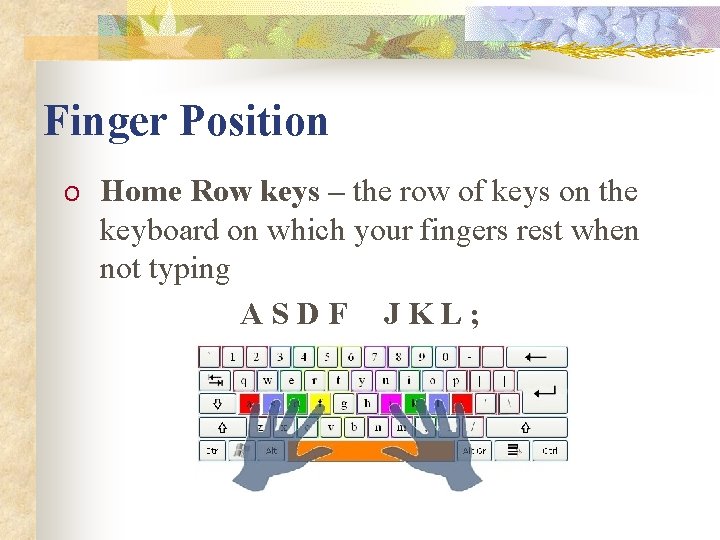
Finger Position O Home Row keys – the row of keys on the keyboard on which your fingers rest when not typing ASDF JKL;
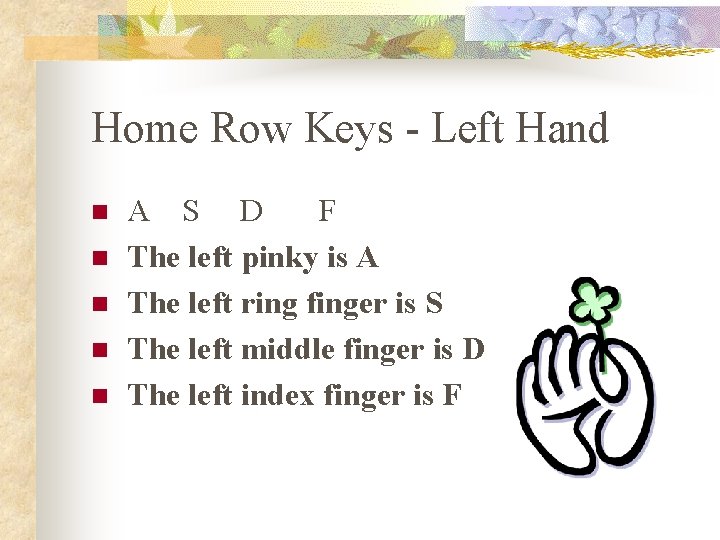
Home Row Keys - Left Hand n n n A S D F The left pinky is A The left ring finger is S The left middle finger is D The left index finger is F
Home Row Keys - Right Hand n n n J K L ; The right index finger is J The right middle finger is K The right ring finger is L The right pinky is ;
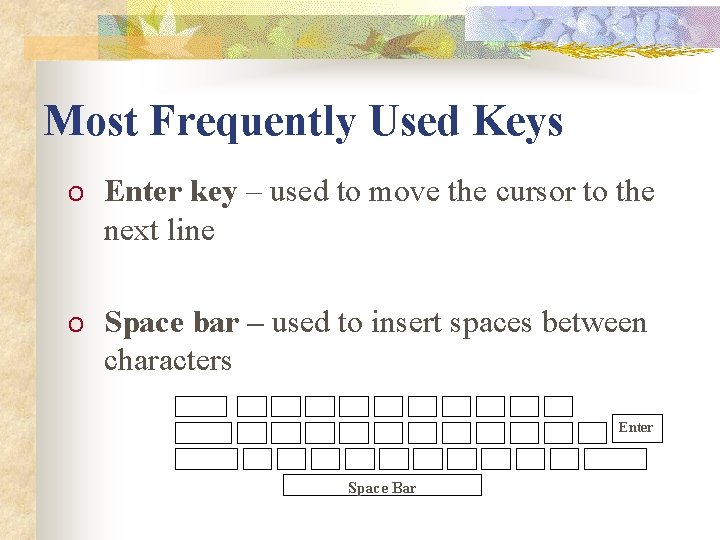
Most Frequently Used Keys O Enter key – used to move the cursor to the next line O Space bar – used to insert spaces between characters Enter Space Bar
Touch Typing O Touch typing – also known as the touch method of keyboarding, is the ability to type without looking at the keys on the keyboard
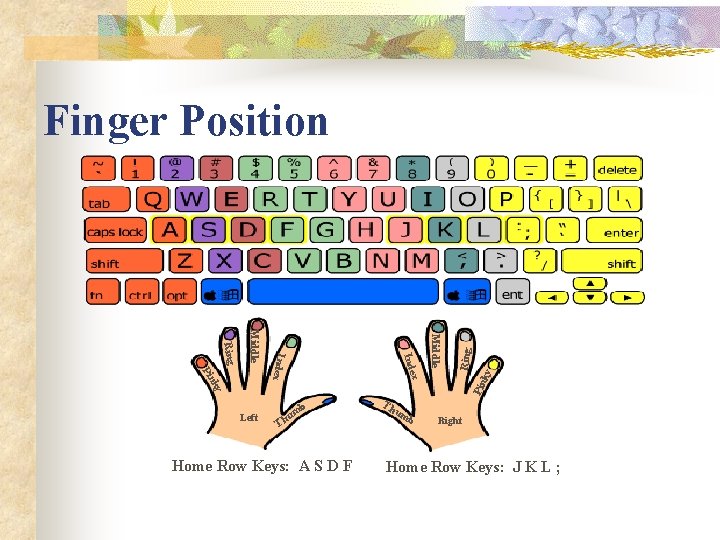
ky Middle ky Pin x Index Middle Ring Pin Ring Finger Position Left b um Th Home Row Keys: A S D F Th um b Right Home Row Keys: J K L ;
Touch Typing To build speed: O Use proper posture and technique to avoid fatigue and injury O Use the raised dots on the F and J keys to help you locate Home Row without looking at the keyboard O Practice typing regularly to build muscle memory O Keep your eyes on the copy that you are typing from
- Slides: 11