
Keeping your SystemComputer healthy and Operating Here is

- Slides: 20
Keeping your System/Computer healthy and Operating
Here is a list of tasks and programs that can be performed to keep your system running healthily
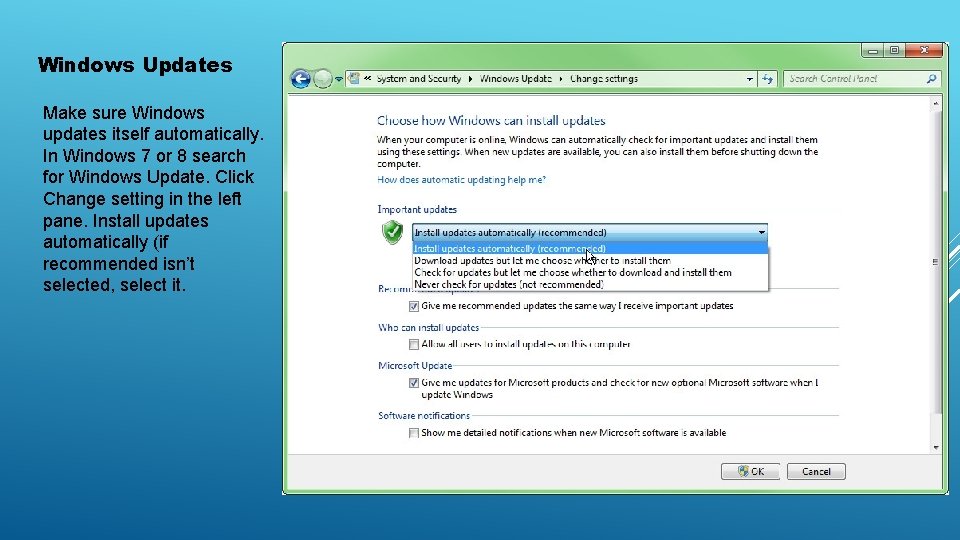
OK here are the first two and the most important: 1. Windows Updates Make sure Windows updates itself automatically. In Windows 7 or 8 search for Windows Update. Click Change settings in the left pane. Install updates automatically (if recommended isn’t selected, select it. ) 2. Windows Firewall Like an antivirus, this type of program runs in the background at all times. But this one controls the traffic between your PC and the rest of the network (and internet). Windows comes with a perfectly good firewall, but you should make sure it’s on.
Windows Updates Make sure Windows updates itself automatically. In Windows 7 or 8 search for Windows Update. Click Change setting in the left pane. Install updates automatically (if recommended isn’t selected, select it.
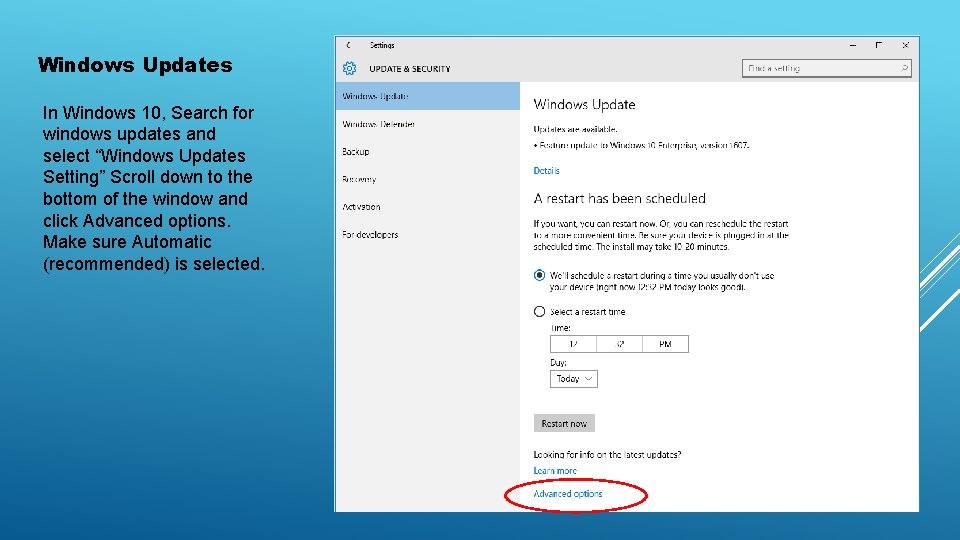
Windows Updates In Windows 10, Search for windows updates and select “Windows Updates Setting” Scroll down to the bottom of the window and click Advanced options. Make sure Automatic (recommended) is selected.
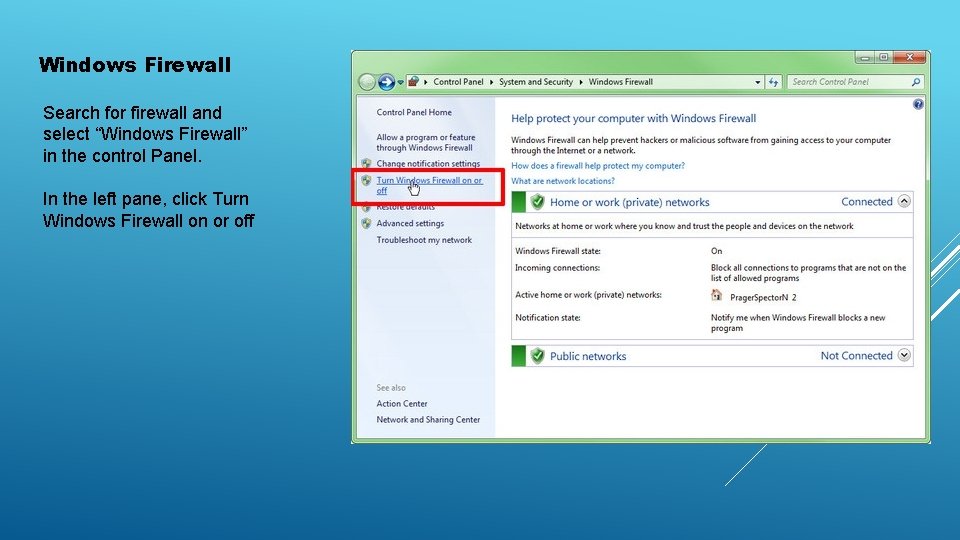
Windows Firewall Search for firewall and select “Windows Firewall” in the control Panel. In the left pane, click Turn Windows Firewall on or off
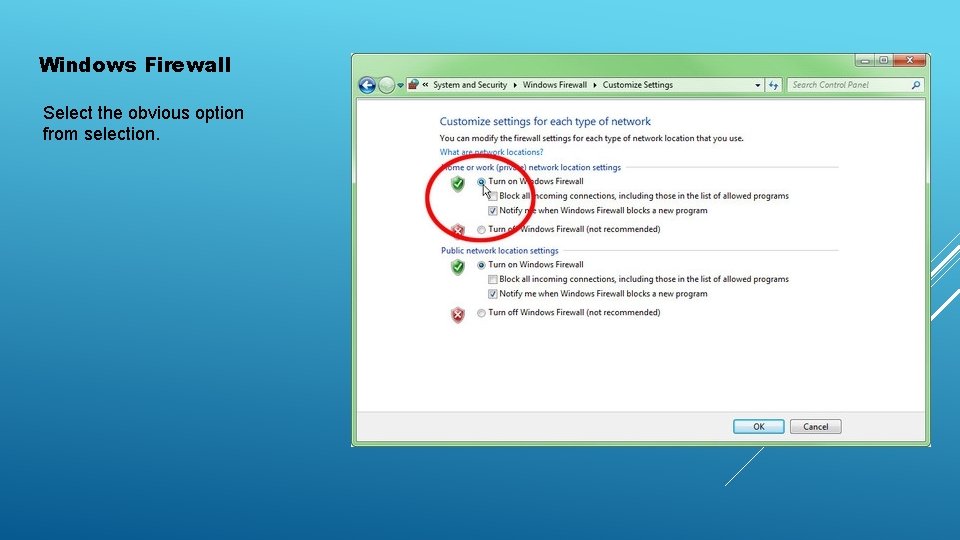
Windows Firewall Select the obvious option from selection.
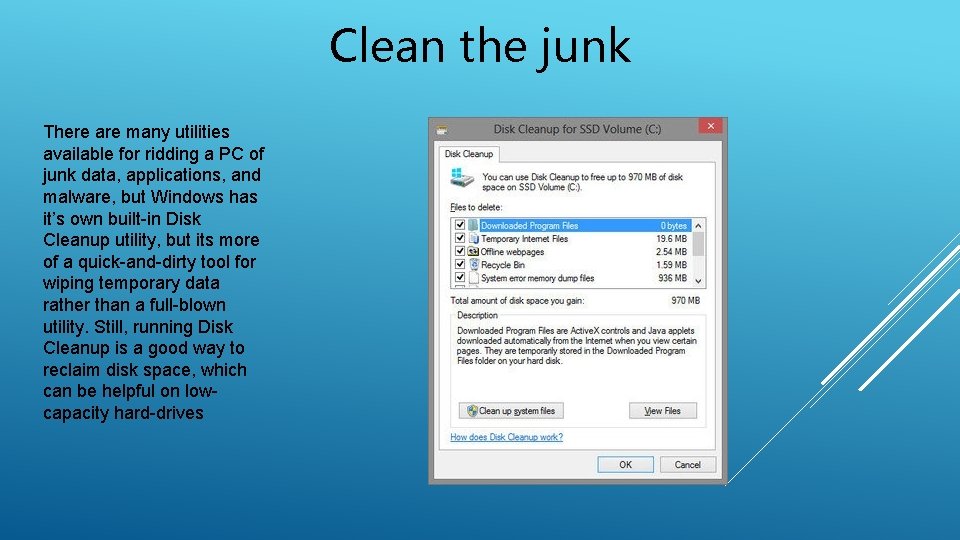
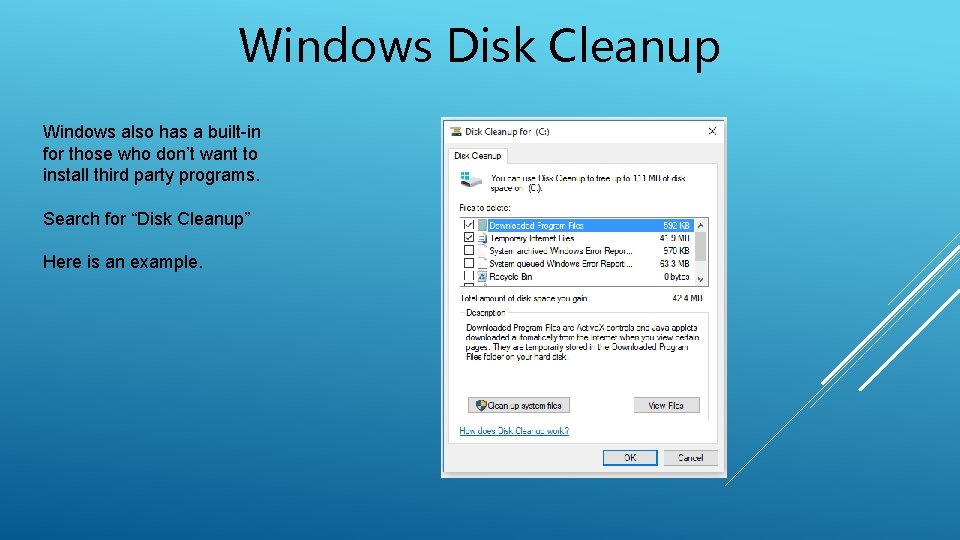
Clean the junk There are many utilities available for ridding a PC of junk data, applications, and malware, but Windows has it’s own built-in Disk Cleanup utility, but its more of a quick-and-dirty tool for wiping temporary data rather than a full-blown utility. Still, running Disk Cleanup is a good way to reclaim disk space, which can be helpful on lowcapacity hard-drives
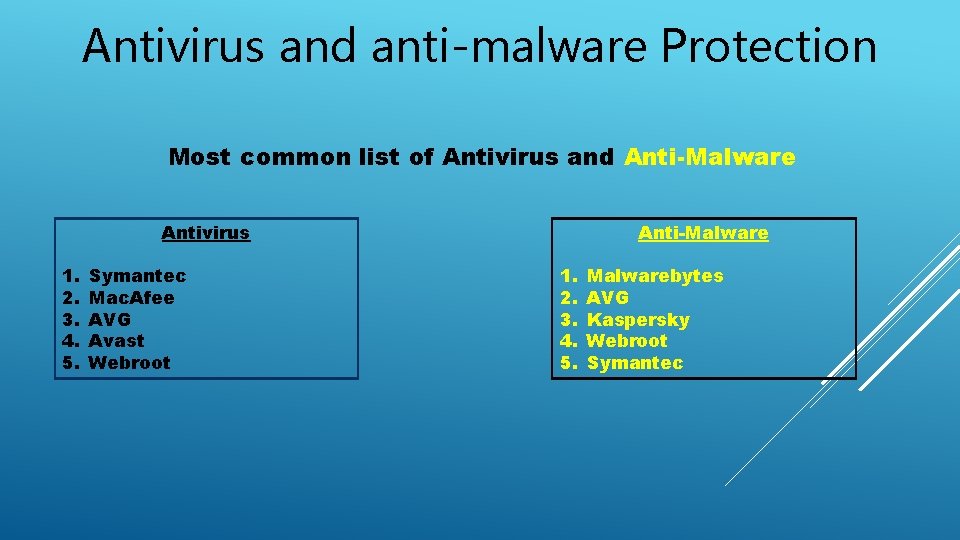
Antivirus and anti-malware Protection Most common list of Antivirus and Anti-Malware Antivirus 1. 2. 3. 4. 5. Symantec Mac. Afee AVG Avast Webroot Anti-Malware 1. 2. 3. 4. 5. Malwarebytes AVG Kaspersky Webroot Symantec
Windows Registry Cleaning The Windows Registry is a set of files that contains settings for your Windows PC – Such as what Program to use to open HTML files, when your antivirus program should run, or what desktop Background you use. You can read more about the Windows Registry at Wikipedia. A good program to use to clean Windows Registry would be “Ccleaner”
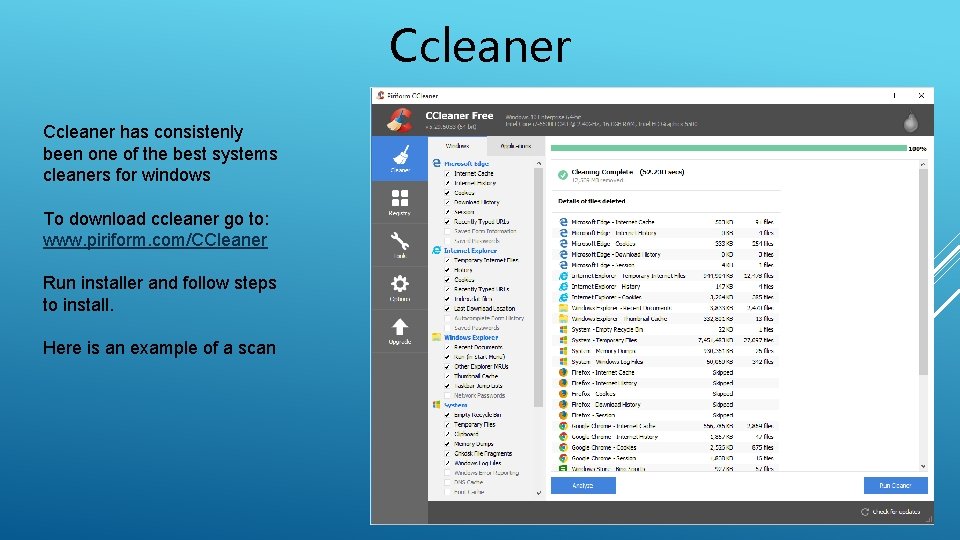
Ccleaner has consistenly been one of the best systems cleaners for windows To download ccleaner go to: www. piriform. com/CCleaner Run installer and follow steps to install. Here is an example of a scan
Windows Disk Cleanup Windows also has a built-in for those who don’t want to install third party programs. Search for “Disk Cleanup” Here is an example.
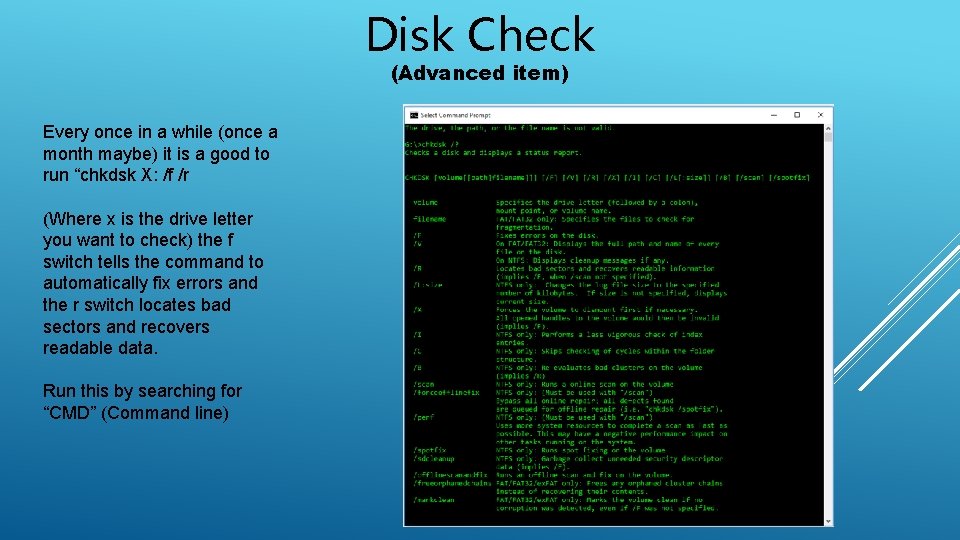
Disk Check (Advanced item) Every once in a while (once a month maybe) it is a good to run “chkdsk X: /f /r (Where x is the drive letter you want to check) the f switch tells the command to automatically fix errors and the r switch locates bad sectors and recovers readable data. Run this by searching for “CMD” (Command line)
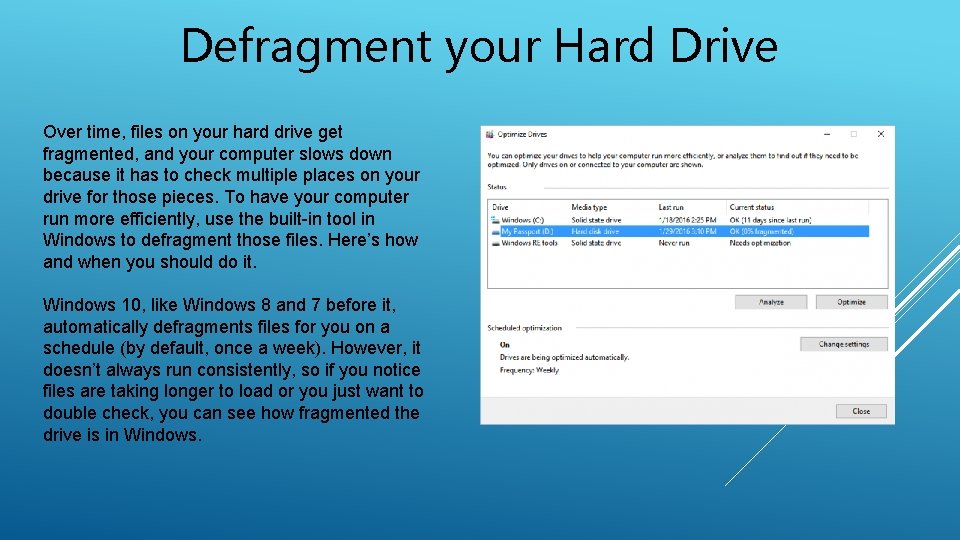
Defragment your Hard Drive Over time, files on your hard drive get fragmented, and your computer slows down because it has to check multiple places on your drive for those pieces. To have your computer run more efficiently, use the built-in tool in Windows to defragment those files. Here’s how and when you should do it. Windows 10, like Windows 8 and 7 before it, automatically defragments files for you on a schedule (by default, once a week). However, it doesn’t always run consistently, so if you notice files are taking longer to load or you just want to double check, you can see how fragmented the drive is in Windows.
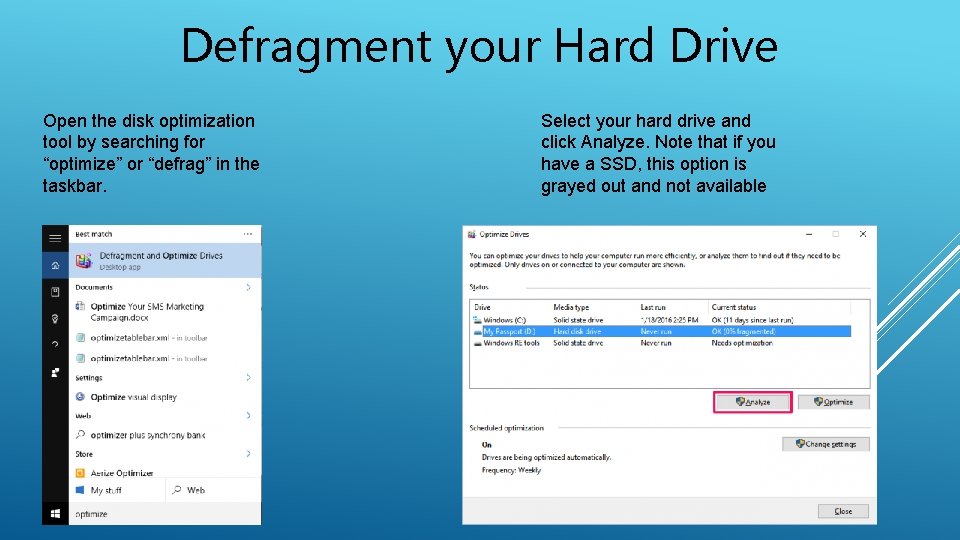
Defragment your Hard Drive Open the disk optimization tool by searching for “optimize” or “defrag” in the taskbar. Select your hard drive and click Analyze. Note that if you have a SSD, this option is grayed out and not available
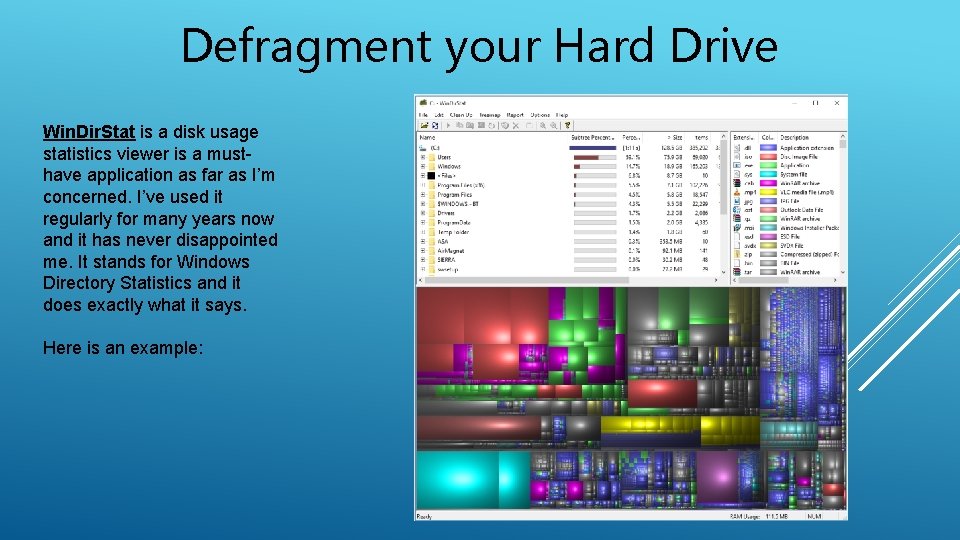
Defragment your Hard Drive Win. Dir. Stat is a disk usage statistics viewer is a musthave application as far as I’m concerned. I’ve used it regularly for many years now and it has never disappointed me. It stands for Windows Directory Statistics and it does exactly what it says. Here is an example:
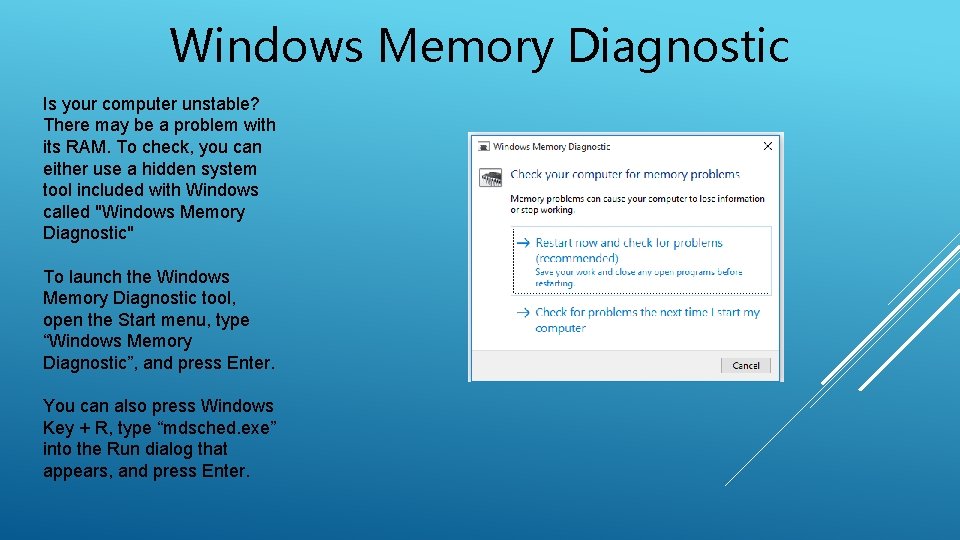
Windows Memory Diagnostic Is your computer unstable? There may be a problem with its RAM. To check, you can either use a hidden system tool included with Windows called "Windows Memory Diagnostic" To launch the Windows Memory Diagnostic tool, open the Start menu, type “Windows Memory Diagnostic”, and press Enter. You can also press Windows Key + R, type “mdsched. exe” into the Run dialog that appears, and press Enter.
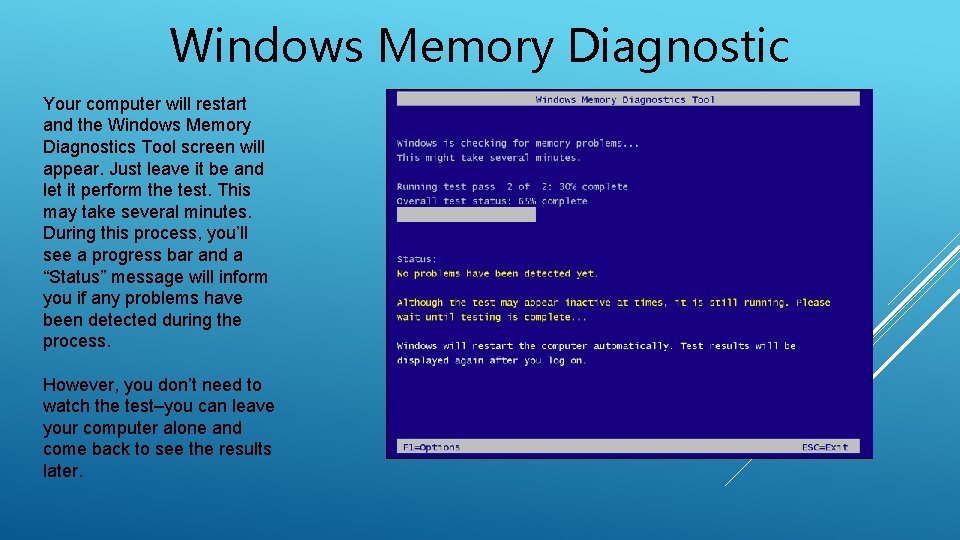
Windows Memory Diagnostic Your computer will restart and the Windows Memory Diagnostics Tool screen will appear. Just leave it be and let it perform the test. This may take several minutes. During this process, you’ll see a progress bar and a “Status” message will inform you if any problems have been detected during the process. However, you don’t need to watch the test–you can leave your computer alone and come back to see the results later.
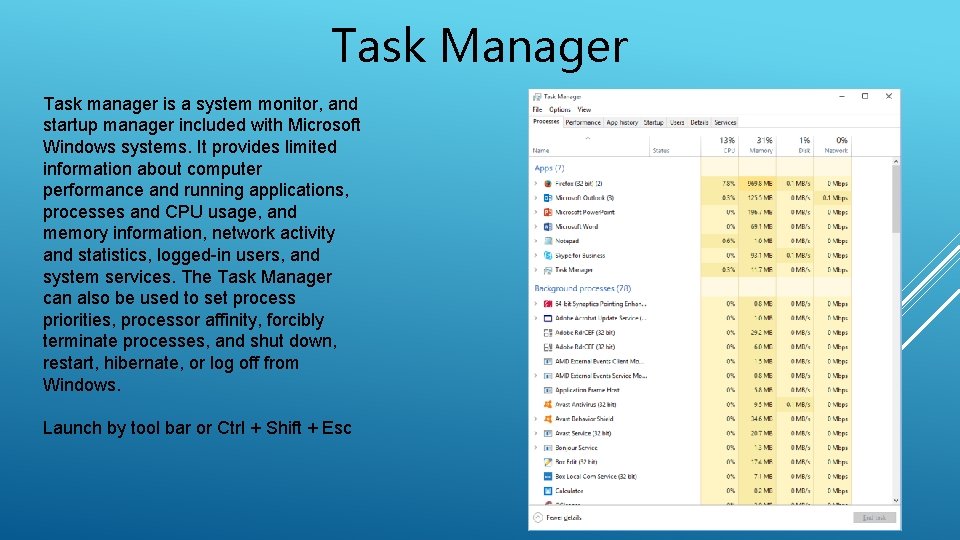
Task Manager Task manager is a system monitor, and startup manager included with Microsoft Windows systems. It provides limited information about computer performance and running applications, processes and CPU usage, and memory information, network activity and statistics, logged-in users, and system services. The Task Manager can also be used to set process priorities, processor affinity, forcibly terminate processes, and shut down, restart, hibernate, or log off from Windows. Launch by tool bar or Ctrl + Shift + Esc
QUESTIONS ?