
KC GUIDE FOR STUDENTS AND PARENTS This guide

![[My] Courses After you log in, go to “Courses” and click on it to](https://slidetodoc.com/presentation_image_h2/694f8628b5080048500ba8664747186a/image-8.jpg "[My] Courses After you log in, go to “Courses” and click on it to")
- Slides: 26
KC GUIDE FOR STUDENTS AND PARENTS
This guide is for KC Students and their Parents when accessing the KC Moodle for; • Lessons and Activities • Activity Submission, and • Moodle Message
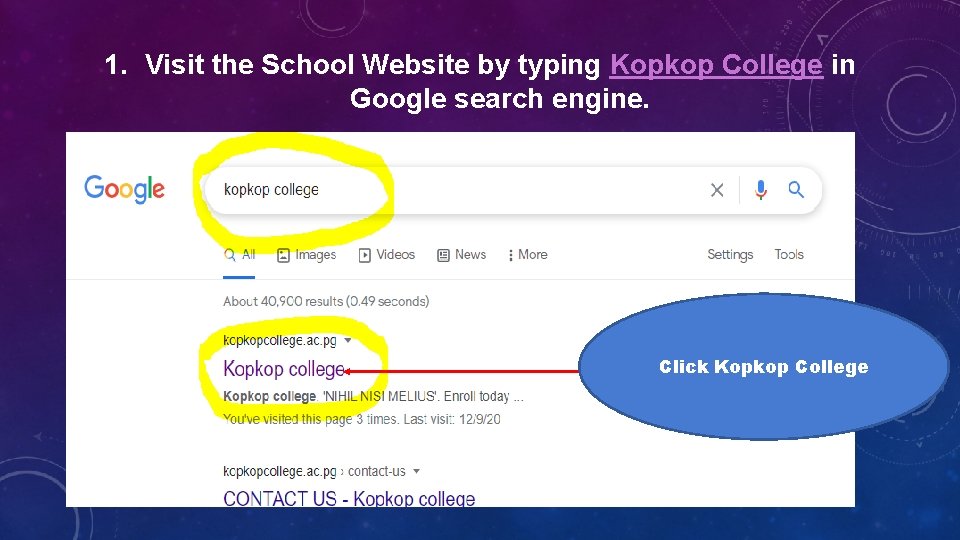
1. Visit the School Website by typing Kopkop College in Google search engine. Click Kopkop College
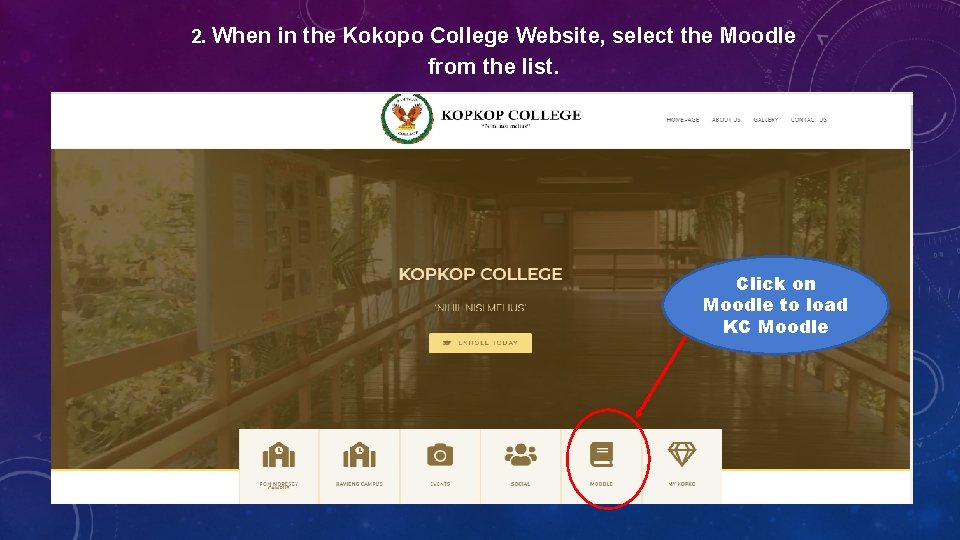
2. When in the Kokopo College Website, select the Moodle from the list. Click on Moodle to load KC Moodle
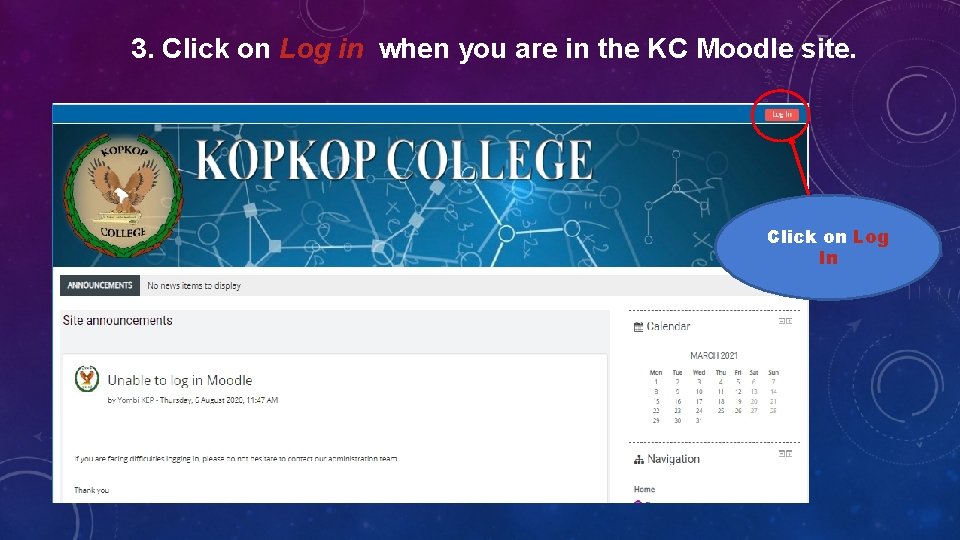
3. Click on Log in when you are in the KC Moodle site. Click on Log In
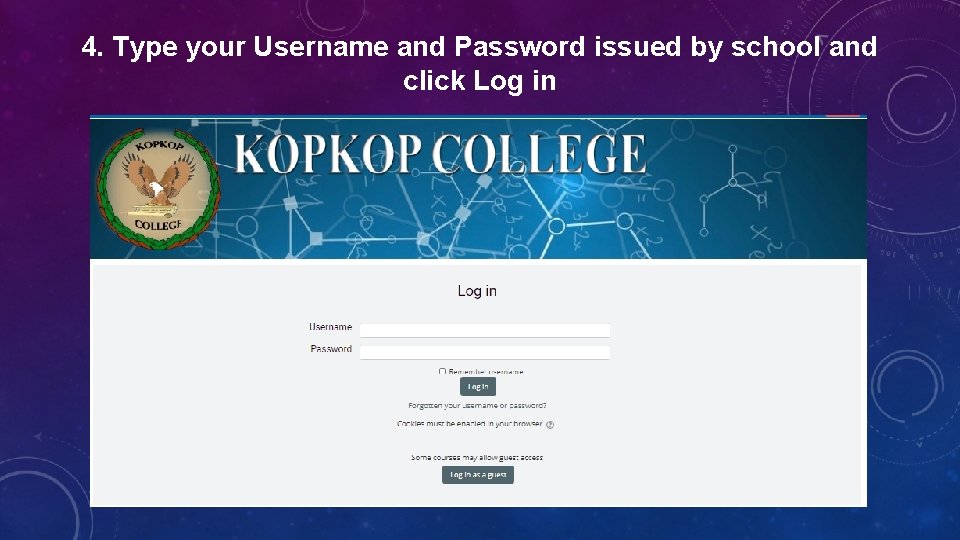
4. Type your Username and Password issued by school and click Log in
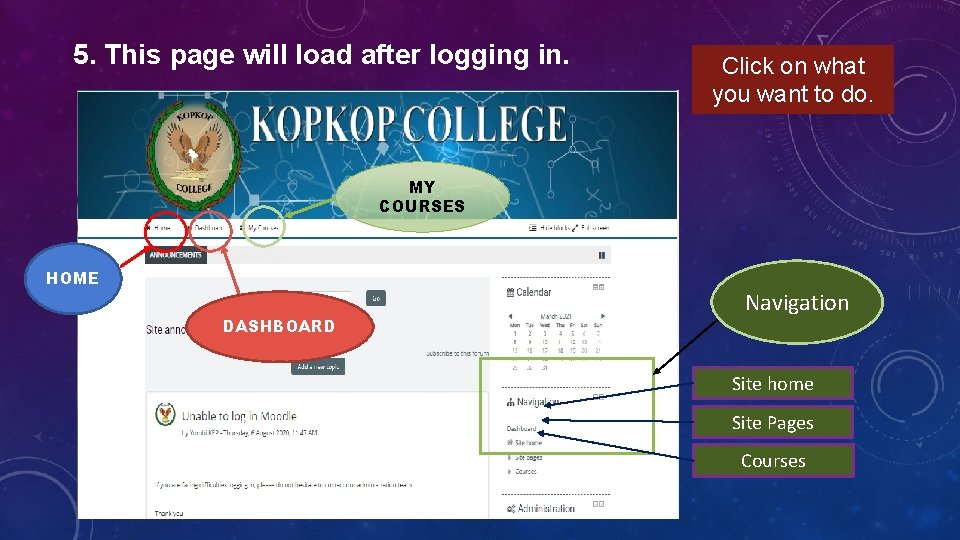
5. This page will load after logging in. Click on what you want to do. MY COURSES HOME DASHBOARD Navigation Site home Site Pages Courses
[My] Courses After you log in, go to “Courses” and click on it to open the courses. Look for courses here and click You can click courses here too
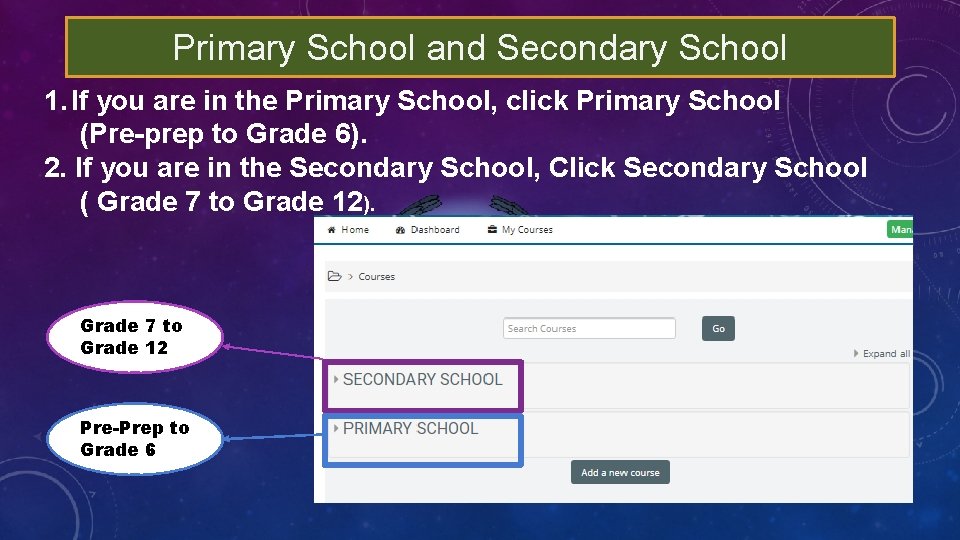
Primary School and Secondary School 1. If you are in the Primary School, click Primary School (Pre-prep to Grade 6). 2. If you are in the Secondary School, Click Secondary School ( Grade 7 to Grade 12). Grade 7 to Grade 12 Pre-Prep to Grade 6
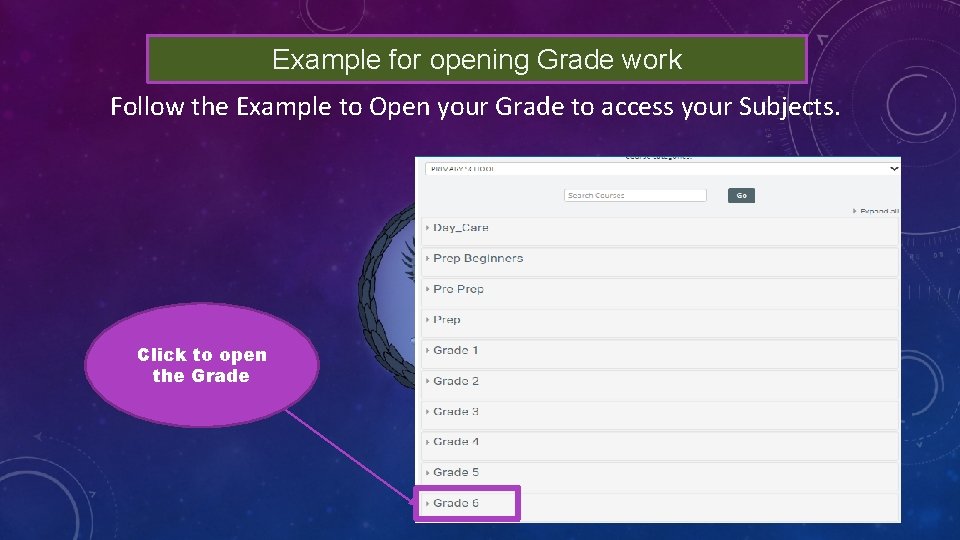
Example for opening Grade work Follow the Example to Open your Grade to access your Subjects. Click to open the Grade
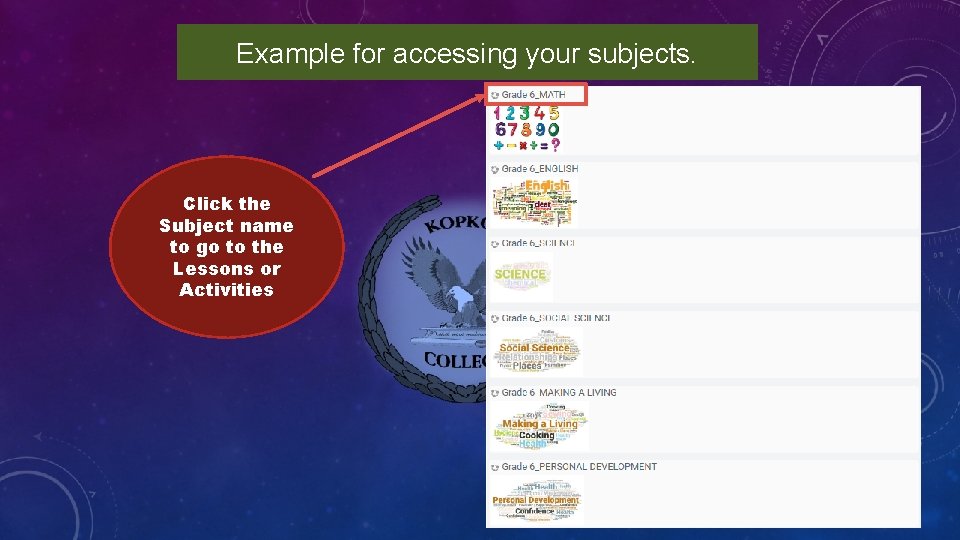
Example for accessing your subjects. Click the Subject name to go to the Lessons or Activities
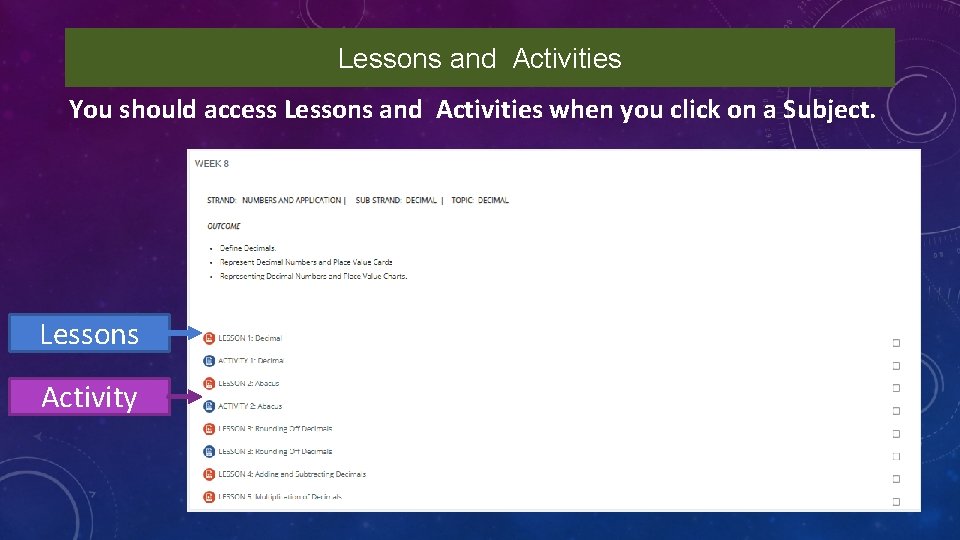
Lessons and Activities You should access Lessons and Activities when you click on a Subject. Lessons Activity
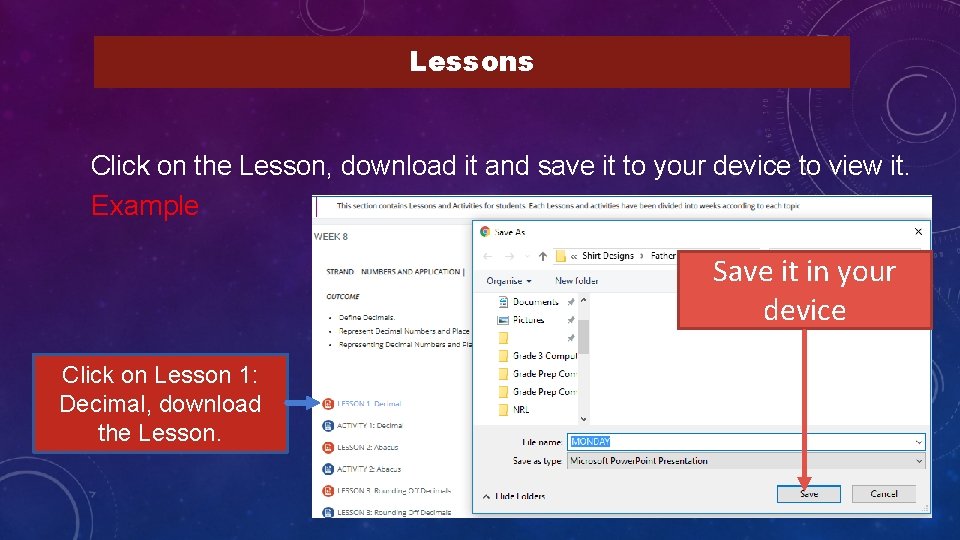
Lessons Click on the Lesson, download it and save it to your device to view it. Example Save it in your device Click on Lesson 1: Decimal, download the Lesson.
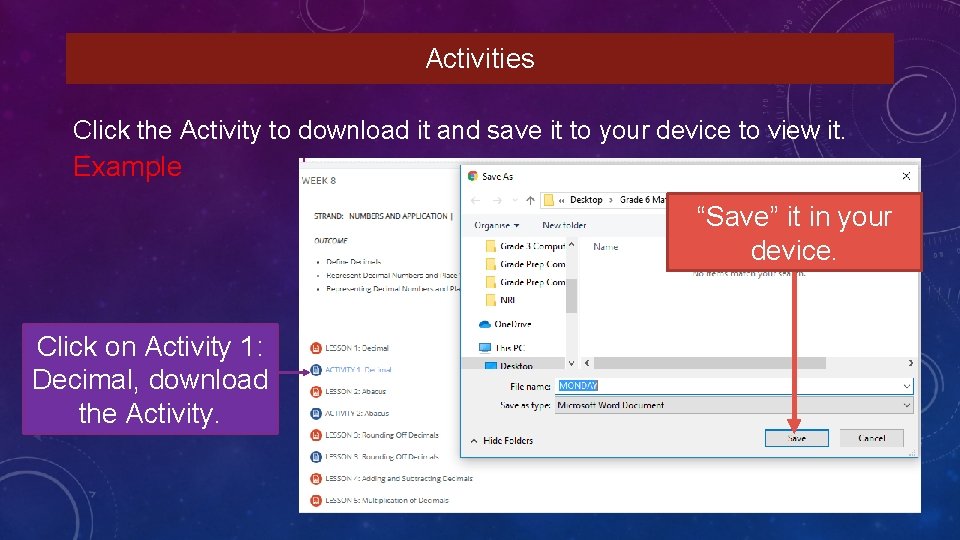
Activities Click the Activity to download it and save it to your device to view it. Example “Save” it in your device. Click on Activity 1: Decimal, download the Activity.
Submitting your Activities After downloading the Moodle Lessons and Activities. You are going to complete all your Activities using MS Word. If you have done your Activities using your Exercise Books or Paper, you are going to do the following; 1. Take a Clear Picture of your Activities in the Exercise book or Paper that you used to do the Activities. 2. Open MS Word. Continue on Slide 16 …
… continued from Slide 15, 3. Copy the pictures from your Device and into the MS Word. Make sure that all the Activities and Answers are in Correct Order. 4. After you are done with copying the pictures onto MS Word, make sure to Save As, For Example; Grade 6 Science Activity Week 8. 5. After Saving your Activity, you are going to submit it into the Submission Section in Moodle. Follow the steps carefully.
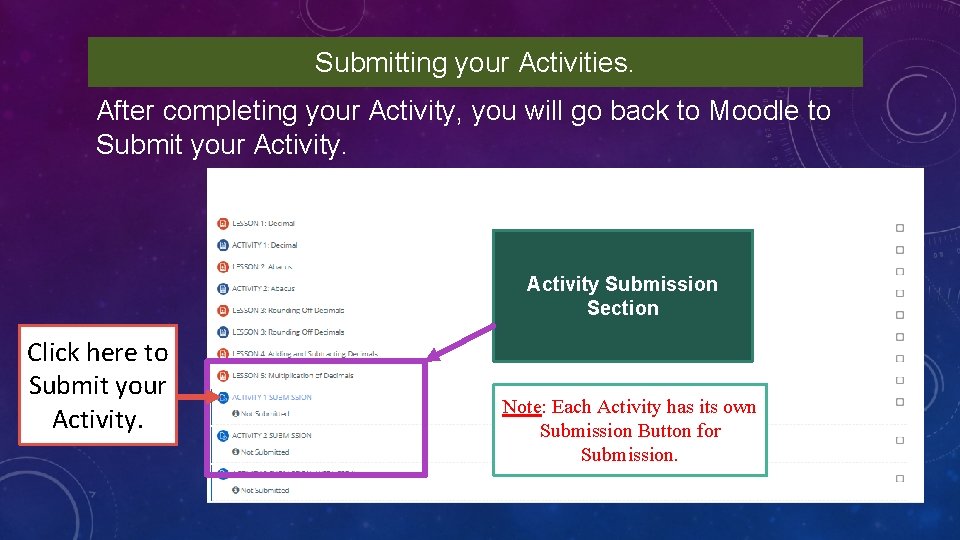
Submitting your Activities. After completing your Activity, you will go back to Moodle to Submit your Activity Submission Section Click here to Submit your Activity. Note: Each Activity has its own Submission Button for Submission.
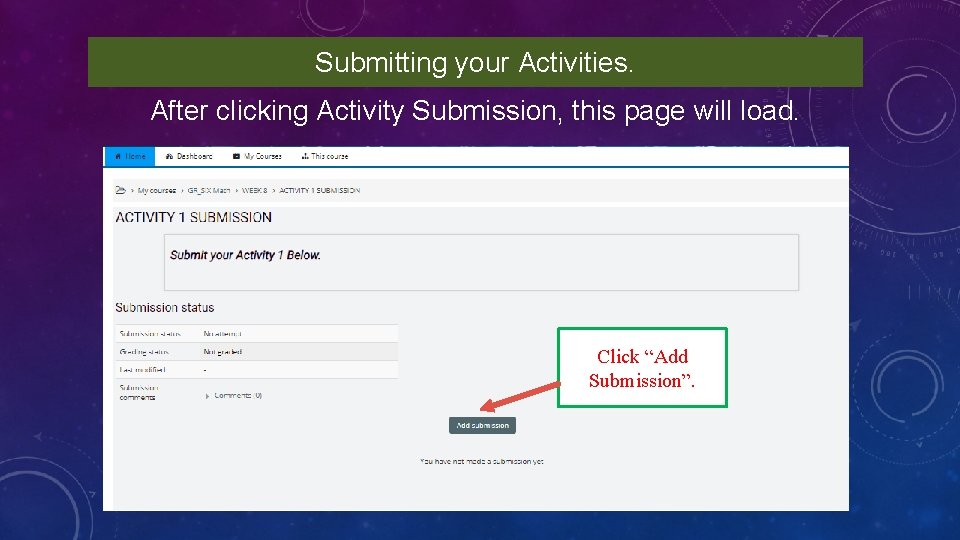
Submitting your Activities. After clicking Activity Submission, this page will load. Click “Add Submission”.
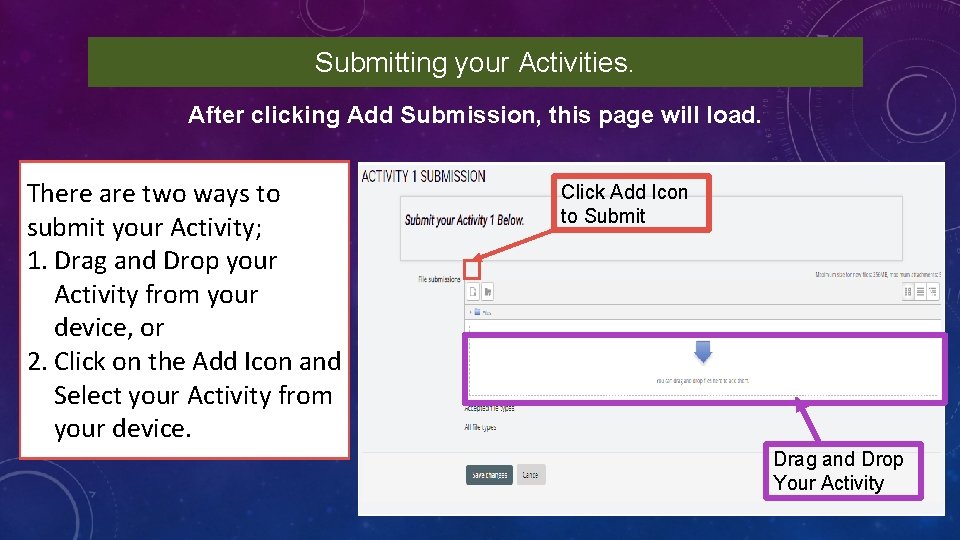
Submitting your Activities. After clicking Add Submission, this page will load. There are two ways to submit your Activity; 1. Drag and Drop your Activity from your device, or 2. Click on the Add Icon and Select your Activity from your device. Click Add Icon to Submit Drag and Drop Your Activity
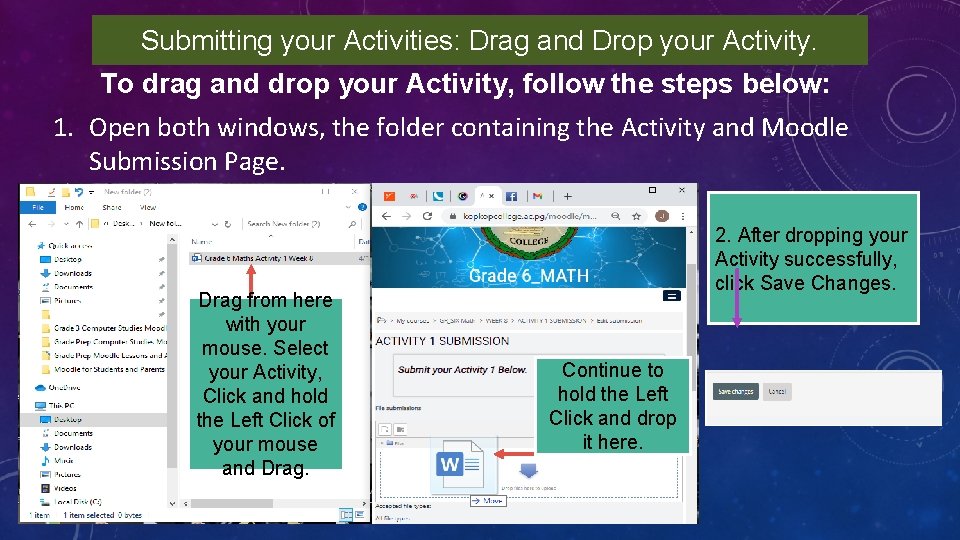
Submitting your Activities: Drag and Drop your Activity. To drag and drop your Activity, follow the steps below: 1. Open both windows, the folder containing the Activity and Moodle Submission Page. Drag from here with your mouse. Select your Activity, Click and hold the Left Click of your mouse and Drag. 2. After dropping your Activity successfully, click Save Changes. Continue to hold the Left Click and drop it here.
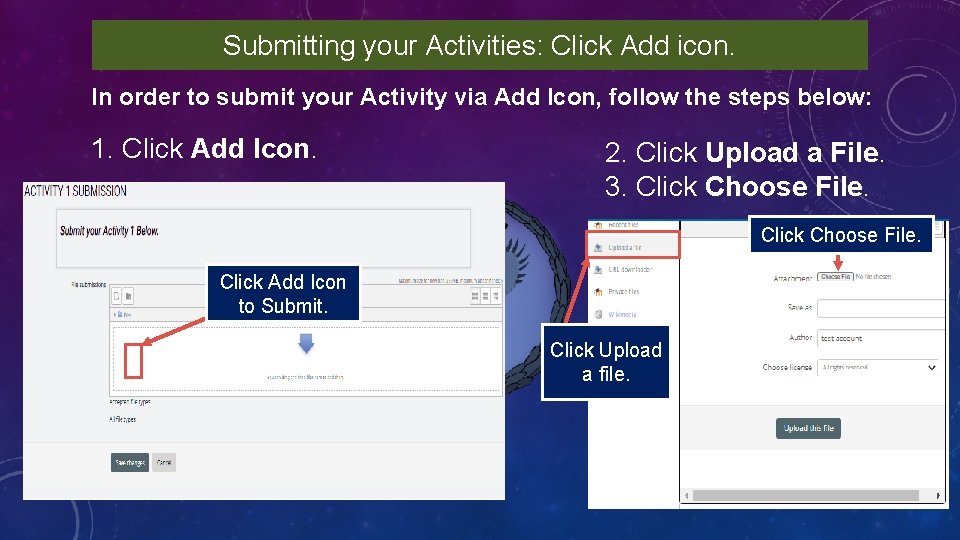
Submitting your Activities: Click Add icon. In order to submit your Activity via Add Icon, follow the steps below: 1. Click Add Icon. 2. Click Upload a File. 3. Click Choose File. Click Add Icon to Submit. Click Upload a file.
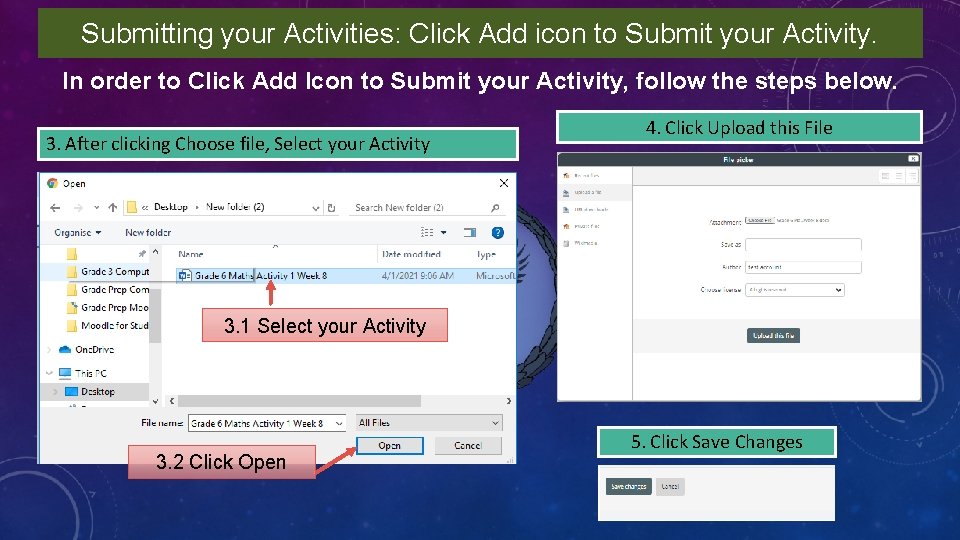
Submitting your Activities: Click Add icon to Submit your Activity. In order to Click Add Icon to Submit your Activity, follow the steps below. 3. After clicking Choose file, Select your Activity 4. Click Upload this File 3. 1 Select your Activity 3. 2 Click Open 5. Click Save Changes
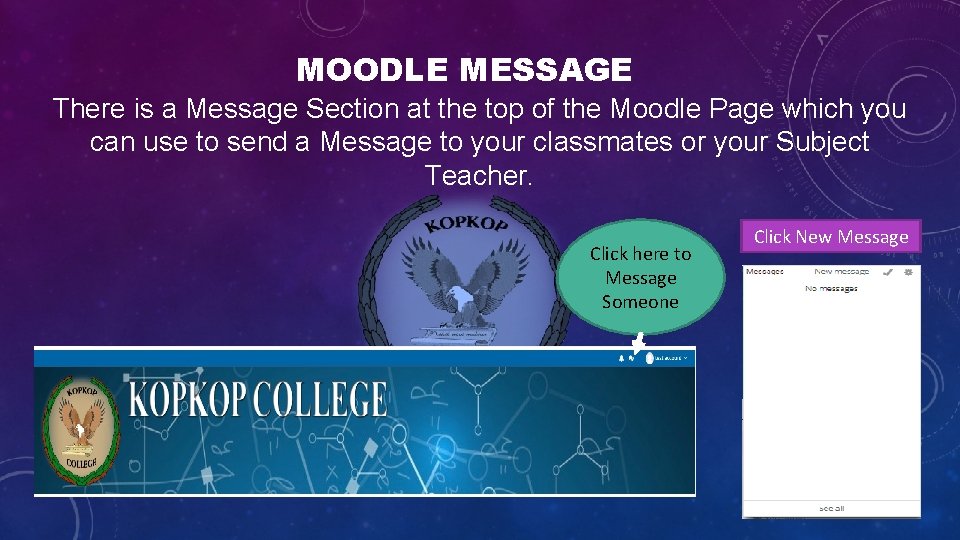
MOODLE MESSAGE There is a Message Section at the top of the Moodle Page which you can use to send a Message to your classmates or your Subject Teacher. Click here to Message Someone Click New Message
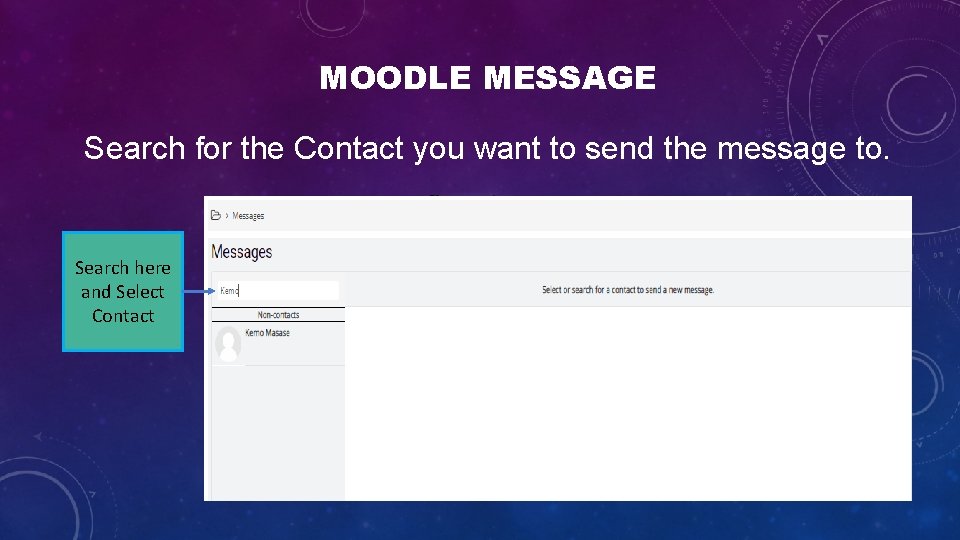
MOODLE MESSAGE Search for the Contact you want to send the message to. Search here and Select Contact
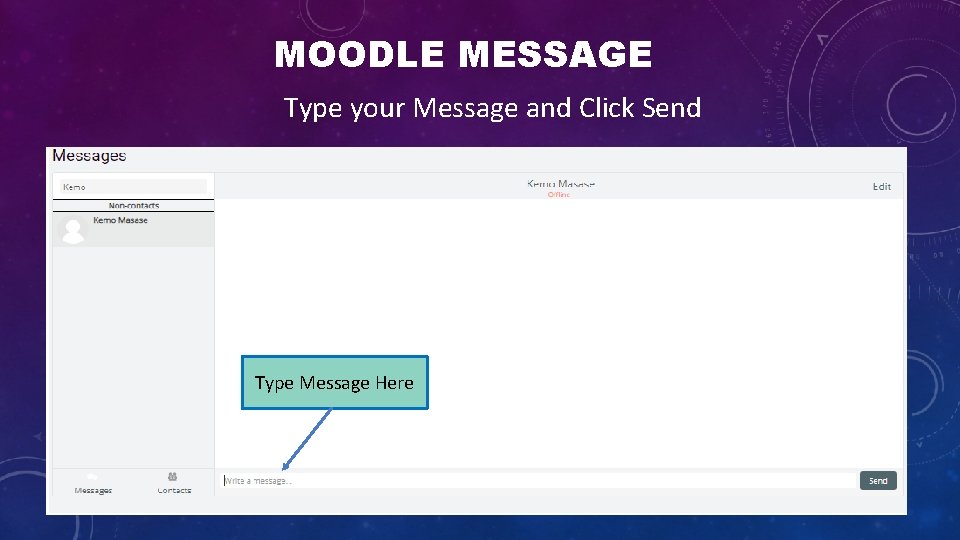
MOODLE MESSAGE Type your Message and Click Send Type Message Here
END OF TUTORIAL Hope you are able to access our KC Moodle. THANK YOU