
JUBLER http www jubler org Ruth Arranz Jimeno

JUBLER http: //www. jubler. org/ Ruth Arranz Jimeno International Office, Rector’s Cabinet Eötvös Loránd University (ELTE) Budapest, Hungary May 2017
WHAT IS JUBLER • Jubler is a tool to edit text-based subtitles. • It can be used as an authoring software for new subtitles or as a tool to convert, transform, correct and refine existing subtitles.
• Using Jubler you can export the subtitles as a text file which can then be used by a variety of applications including VLC to play back the subtitles with the video. • These text files can also be used by DVD authoring programs to embed the subtitle file in multilingual DVDs
REQUIREMENTS • Latest version of JRE = Java Runtime Environment. • MPlayer to view subtitles • ASpell to spell-check the subtitles. (Suggested) • Operating systems: OSX, Linux or Windows.
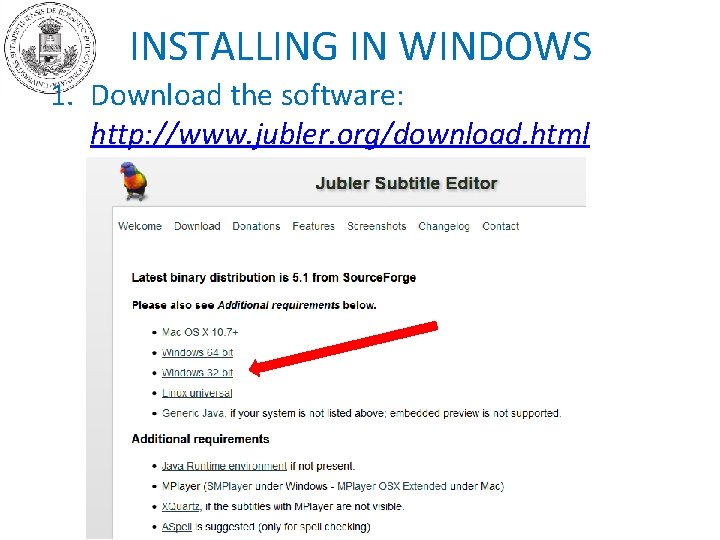
INSTALLING IN WINDOWS 1. Download the software: http: //www. jubler. org/download. html
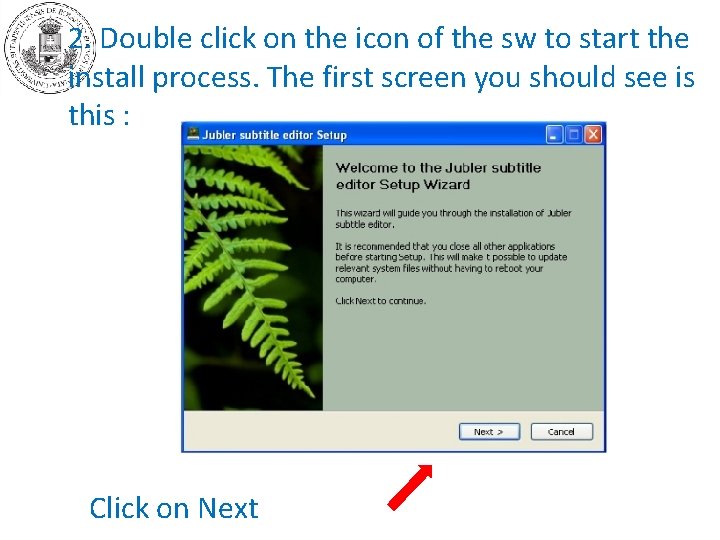
2. Double click on the icon of the sw to start the install process. The first screen you should see is this : Click on Next
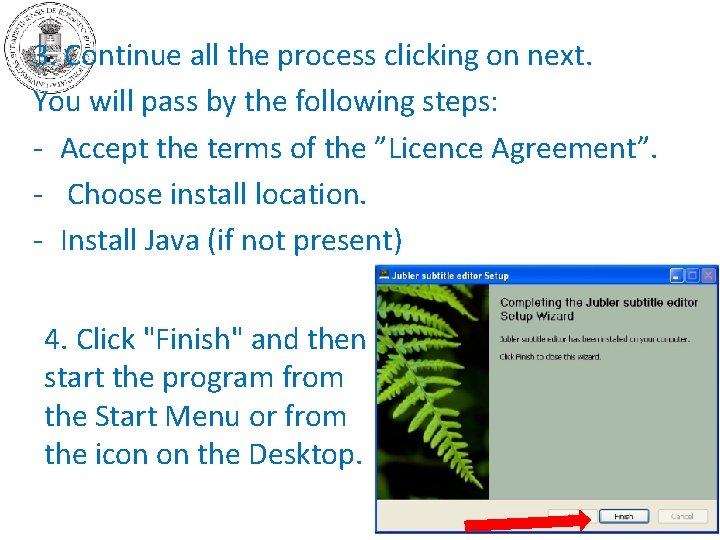
3. Continue all the process clicking on next. You will pass by the following steps: - Accept the terms of the ”Licence Agreement”. - Choose install location. - Install Java (if not present) 4. Click "Finish" and then start the program from the Start Menu or from the icon on the Desktop.
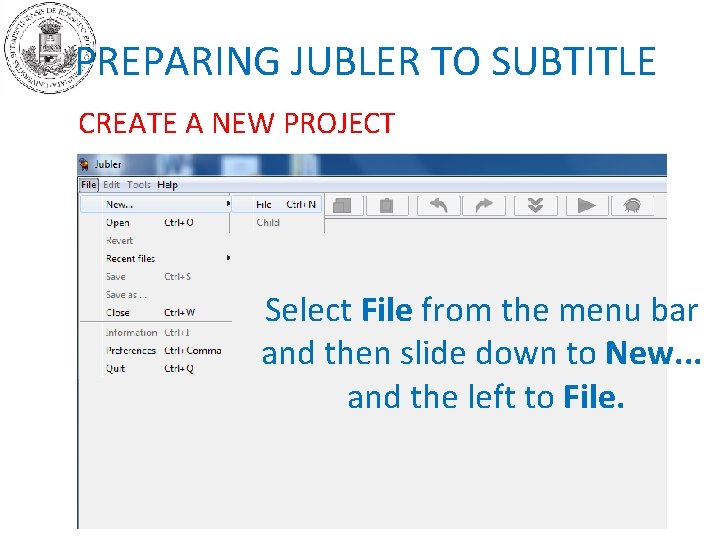
PREPARING JUBLER TO SUBTITLE CREATE A NEW PROJECT Select File from the menu bar and then slide down to New. . . and the left to File.
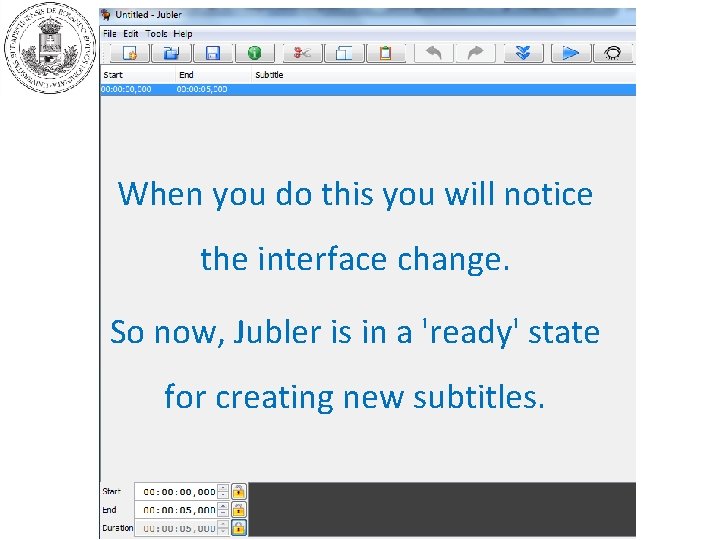
When you do this you will notice the interface change. So now, Jubler is in a 'ready' state for creating new subtitles.
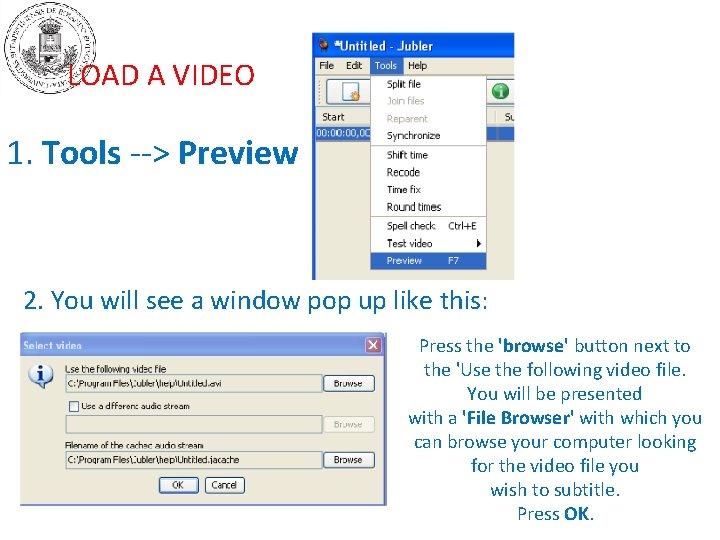
LOAD A VIDEO 1. Tools --> Preview 2. You will see a window pop up like this: Press the 'browse' button next to the 'Use the following video file. You will be presented with a 'File Browser' with which you can browse your computer looking for the video file you wish to subtitle. Press OK.
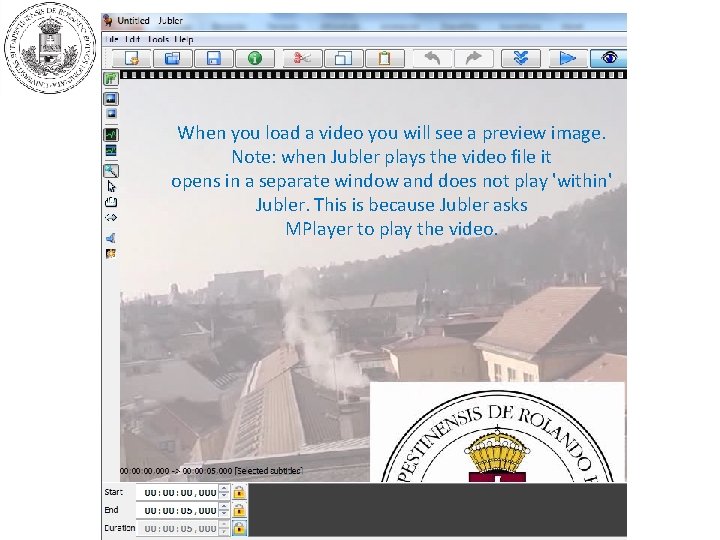
When you load a video you will see a preview image. Note: when Jubler plays the video file it opens in a separate window and does not play 'within' Jubler. This is because Jubler asks MPlayer to play the video.
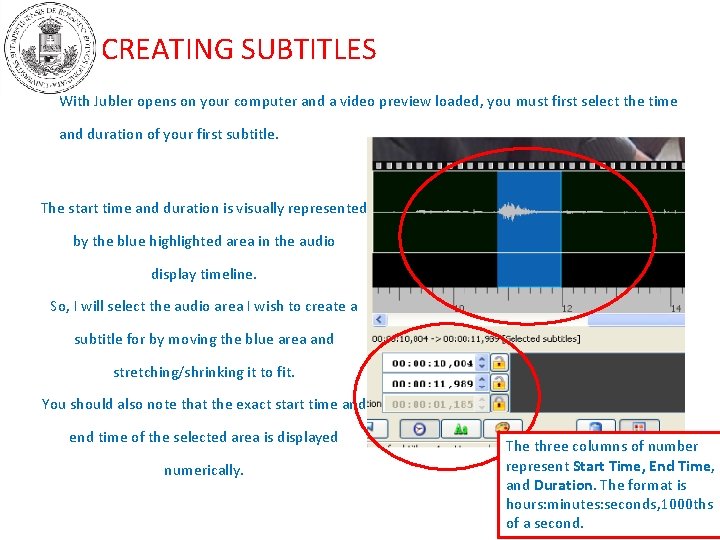
CREATING SUBTITLES With Jubler opens on your computer and a video preview loaded, you must first select the time and duration of your first subtitle. The start time and duration is visually represented by the blue highlighted area in the audio display timeline. So, I will select the audio area I wish to create a subtitle for by moving the blue area and stretching/shrinking it to fit. You should also note that the exact start time and end time of the selected area is displayed numerically. The three columns of number represent Start Time, End Time, and Duration. The format is hours: minutes: seconds, 1000 ths of a second.
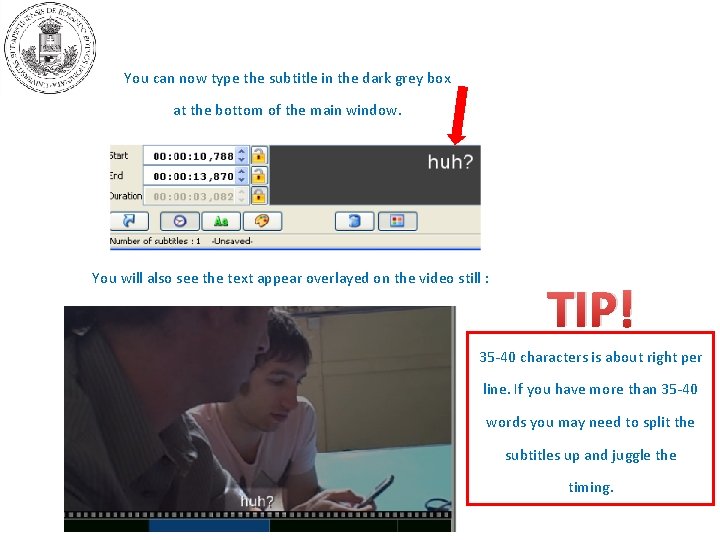
You can now type the subtitle in the dark grey box at the bottom of the main window. You will also see the text appear overlayed on the video still : TIP! 35 -40 characters is about right per line. If you have more than 35 -40 words you may need to split the subtitles up and juggle the timing.
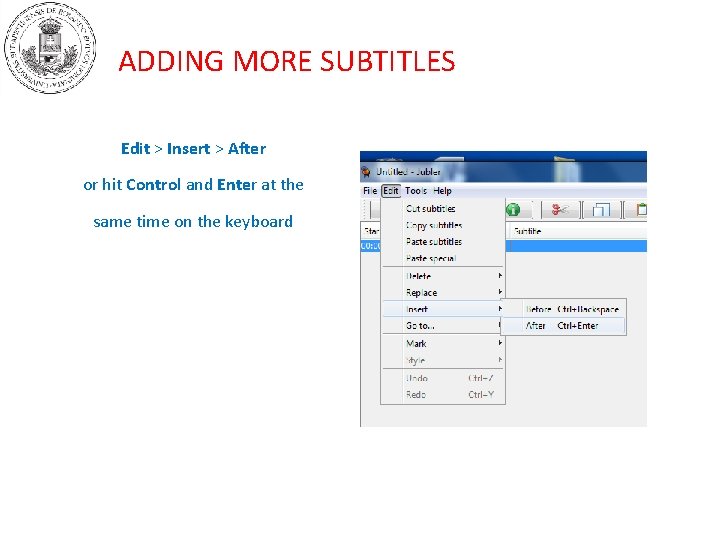
ADDING MORE SUBTITLES Edit > Insert > After or hit Control and Enter at the same time on the keyboard
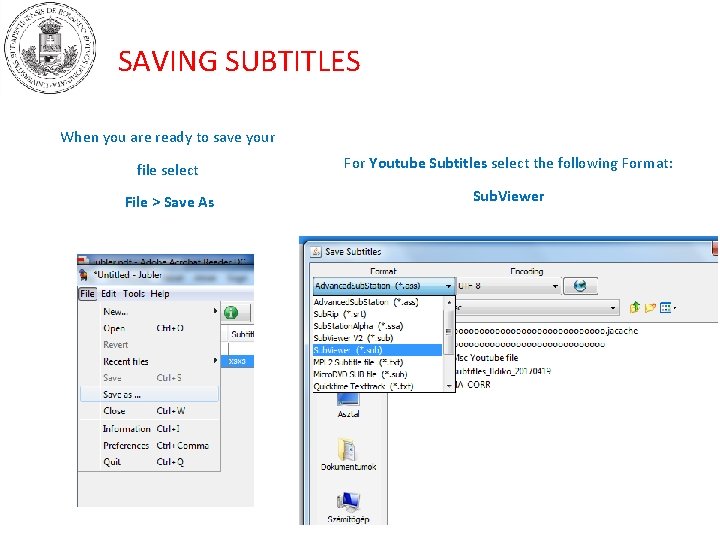
SAVING SUBTITLES When you are ready to save your file select For Youtube Subtitles select the following Format: File > Save As Sub. Viewer
MORE INFORMATION: • http: //archive. flossmanuals. net/_booki/jubler. pdf • http: //write. flossmanuals. net/jubler-on -windows/ • https: //www. youtube. com/watch? v=HEi 8 RF 4 yno 4
- Slides: 16