
Joining Spreadsheet data in Excel LName Smith Johnson










- Slides: 46
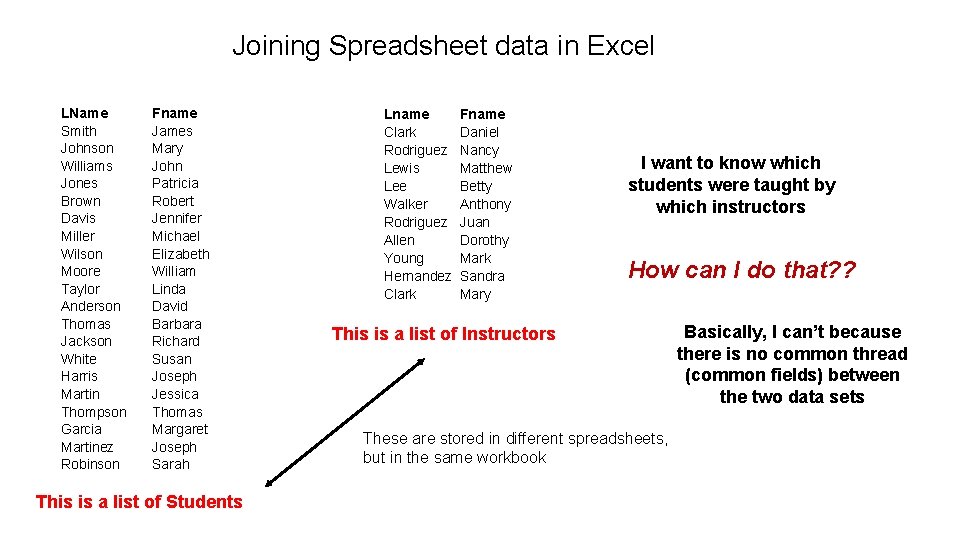
Joining Spreadsheet data in Excel LName Smith Johnson Williams Jones Brown Davis Miller Wilson Moore Taylor Anderson Thomas Jackson White Harris Martin Thompson Garcia Martinez Robinson Fname James Mary John Patricia Robert Jennifer Michael Elizabeth William Linda David Barbara Richard Susan Joseph Jessica Thomas Margaret Joseph Sarah This is a list of Students Lname Clark Rodriguez Lewis Lee Walker Rodriguez Allen Young Hernandez Clark Fname Daniel Nancy Matthew Betty Anthony Juan Dorothy Mark Sandra Mary I want to know which students were taught by which instructors How can I do that? ? This is a list of Instructors These are stored in different spreadsheets, but in the same workbook Basically, I can’t because there is no common thread (common fields) between the two data sets
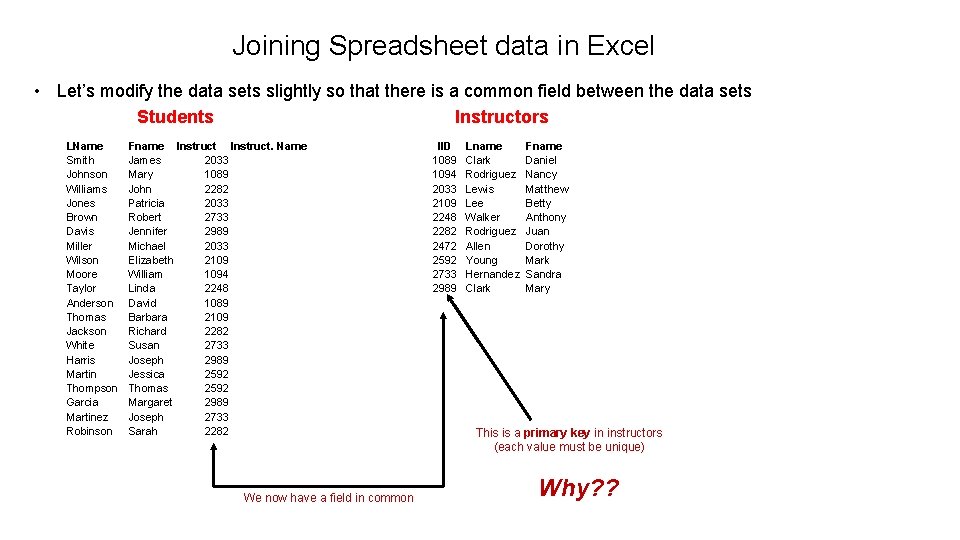
Joining Spreadsheet data in Excel • Let’s modify the data sets slightly so that there is a common field between the data sets Students Instructors LName Smith Johnson Williams Jones Brown Davis Miller Wilson Moore Taylor Anderson Thomas Jackson White Harris Martin Thompson Garcia Martinez Robinson Fname Instruct. Name James 2033 Mary 1089 John 2282 Patricia 2033 Robert 2733 Jennifer 2989 Michael 2033 Elizabeth 2109 William 1094 Linda 2248 David 1089 Barbara 2109 Richard 2282 Susan 2733 Joseph 2989 Jessica 2592 Thomas 2592 Margaret 2989 Joseph 2733 Sarah 2282 We now have a field in common IID 1089 1094 2033 2109 2248 2282 2472 2592 2733 2989 Lname Clark Rodriguez Lewis Lee Walker Rodriguez Allen Young Hernandez Clark Fname Daniel Nancy Matthew Betty Anthony Juan Dorothy Mark Sandra Mary This is a primary key in instructors (each value must be unique) Why? ?
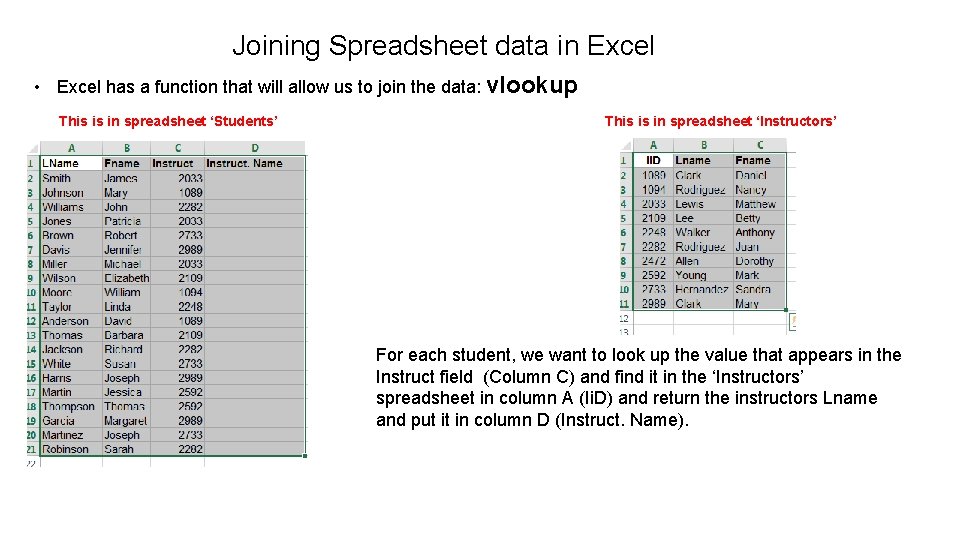
Joining Spreadsheet data in Excel • Excel has a function that will allow us to join the data: vlookup This is in spreadsheet ‘Students’ This is in spreadsheet ‘Instructors’ For each student, we want to look up the value that appears in the Instruct field (Column C) and find it in the ‘Instructors’ spreadsheet in column A (Ii. D) and return the instructors Lname and put it in column D (Instruct. Name).
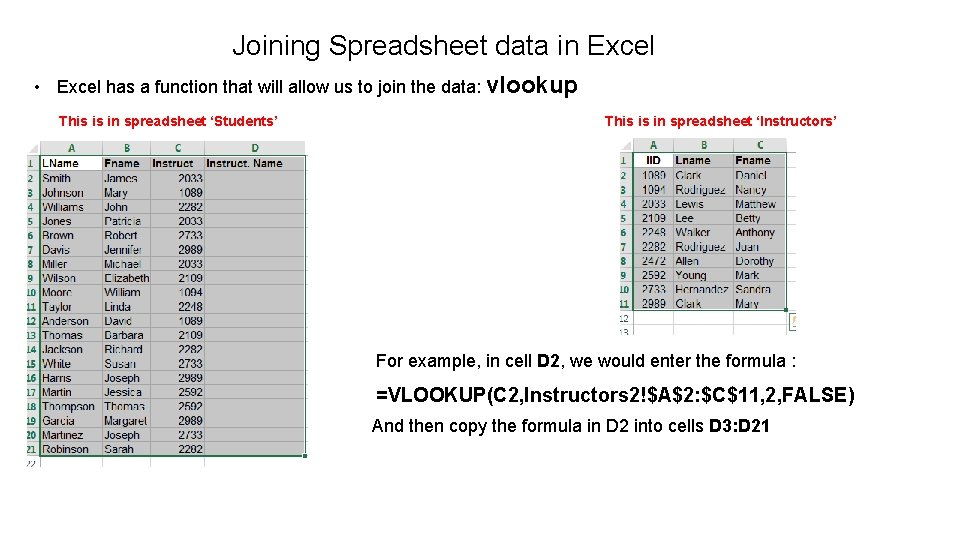
Joining Spreadsheet data in Excel • Excel has a function that will allow us to join the data: vlookup This is in spreadsheet ‘Students’ This is in spreadsheet ‘Instructors’ For example, in cell D 2, we would enter the formula : =VLOOKUP(C 2, Instructors 2!$A$2: $C$11, 2, FALSE) And then copy the formula in D 2 into cells D 3: D 21
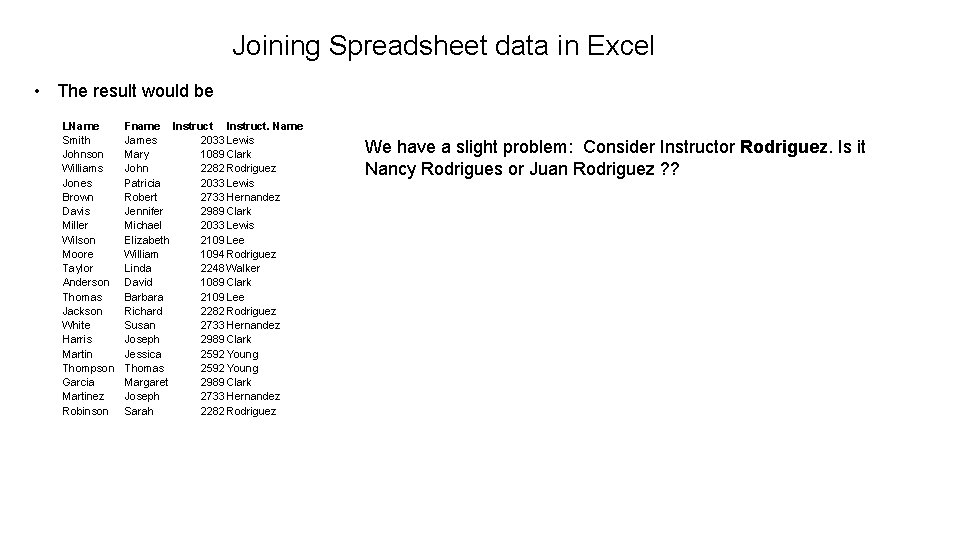
Joining Spreadsheet data in Excel • The result would be LName Smith Johnson Williams Jones Brown Davis Miller Wilson Moore Taylor Anderson Thomas Jackson White Harris Martin Thompson Garcia Martinez Robinson Fname Instruct. Name James 2033 Lewis Mary 1089 Clark John 2282 Rodriguez Patricia 2033 Lewis Robert 2733 Hernandez Jennifer 2989 Clark Michael 2033 Lewis Elizabeth 2109 Lee William 1094 Rodriguez Linda 2248 Walker David 1089 Clark Barbara 2109 Lee Richard 2282 Rodriguez Susan 2733 Hernandez Joseph 2989 Clark Jessica 2592 Young Thomas 2592 Young Margaret 2989 Clark Joseph 2733 Hernandez Sarah 2282 Rodriguez We have a slight problem: Consider Instructor Rodriguez. Is it Nancy Rodrigues or Juan Rodriguez ? ?
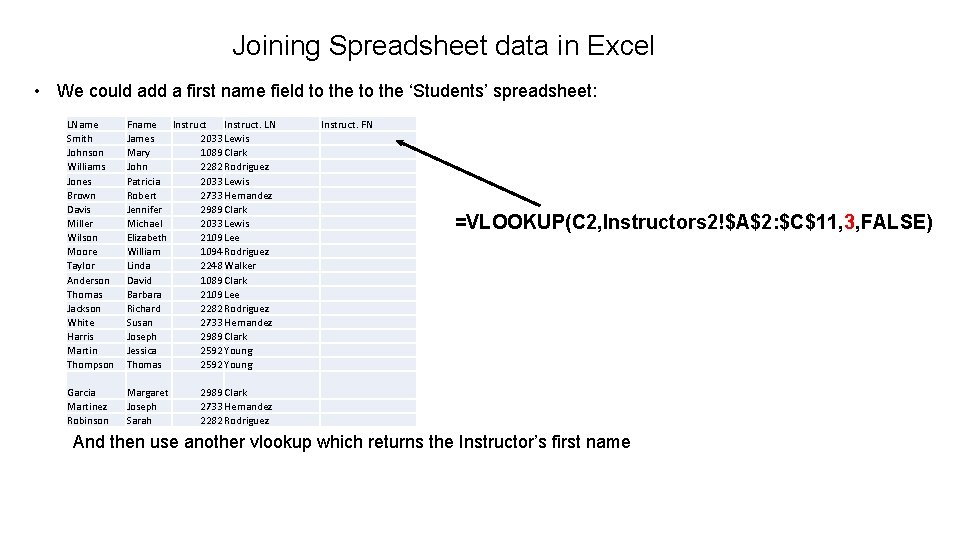
Joining Spreadsheet data in Excel • We could add a first name field to the ‘Students’ spreadsheet: LName Smith Johnson Williams Jones Brown Davis Miller Wilson Moore Taylor Anderson Thomas Jackson White Harris Martin Thompson Fname Instruct. LN James 2033 Lewis Mary 1089 Clark John 2282 Rodriguez Patricia 2033 Lewis Robert 2733 Hernandez Jennifer 2989 Clark Michael 2033 Lewis Elizabeth 2109 Lee William 1094 Rodriguez Linda 2248 Walker David 1089 Clark Barbara 2109 Lee Richard 2282 Rodriguez Susan 2733 Hernandez Joseph 2989 Clark Jessica 2592 Young Thomas 2592 Young Garcia Martinez Robinson Margaret Joseph Sarah Instruct. FN =VLOOKUP(C 2, Instructors 2!$A$2: $C$11, 3, FALSE) 2989 Clark 2733 Hernandez 2282 Rodriguez And then use another vlookup which returns the Instructor’s first name
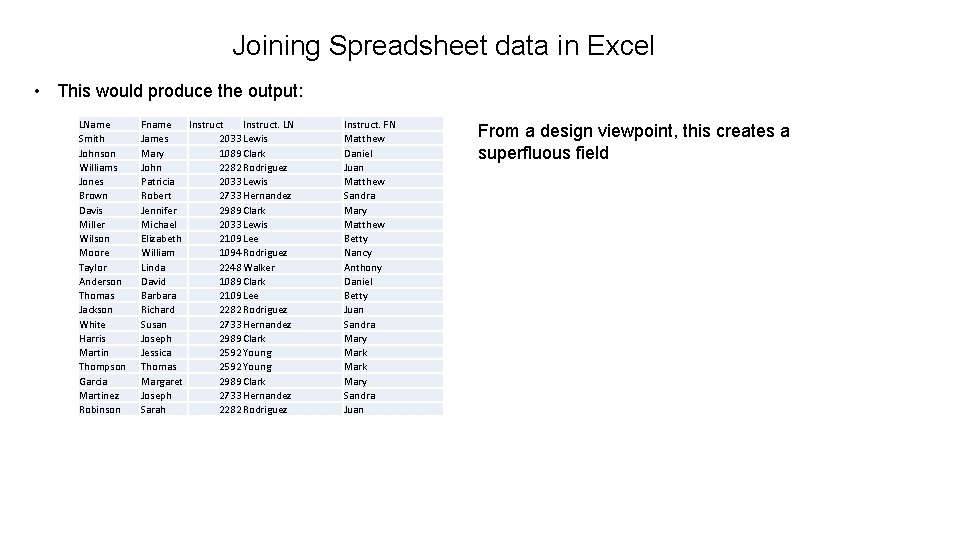
Joining Spreadsheet data in Excel • This would produce the output: LName Smith Johnson Williams Jones Brown Davis Miller Wilson Moore Taylor Anderson Thomas Jackson White Harris Martin Thompson Garcia Martinez Robinson Fname Instruct. LN James 2033 Lewis Mary 1089 Clark John 2282 Rodriguez Patricia 2033 Lewis Robert 2733 Hernandez Jennifer 2989 Clark Michael 2033 Lewis Elizabeth 2109 Lee William 1094 Rodriguez Linda 2248 Walker David 1089 Clark Barbara 2109 Lee Richard 2282 Rodriguez Susan 2733 Hernandez Joseph 2989 Clark Jessica 2592 Young Thomas 2592 Young Margaret 2989 Clark Joseph 2733 Hernandez Sarah 2282 Rodriguez Instruct. FN Matthew Daniel Juan Matthew Sandra Mary Matthew Betty Nancy Anthony Daniel Betty Juan Sandra Mary Mark Mary Sandra Juan From a design viewpoint, this creates a superfluous field
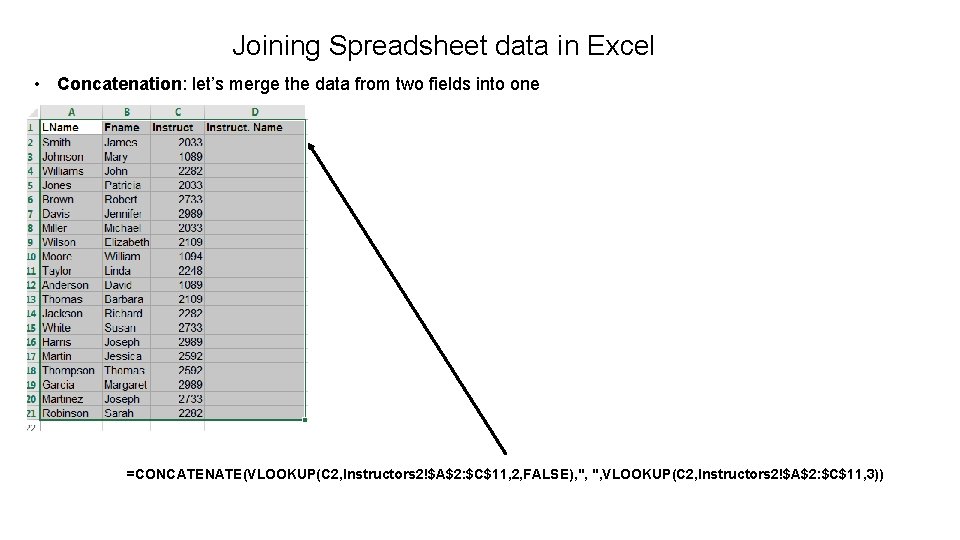
Joining Spreadsheet data in Excel • Concatenation: let’s merge the data from two fields into one =CONCATENATE(VLOOKUP(C 2, Instructors 2!$A$2: $C$11, 2, FALSE), ", ", VLOOKUP(C 2, Instructors 2!$A$2: $C$11, 3))
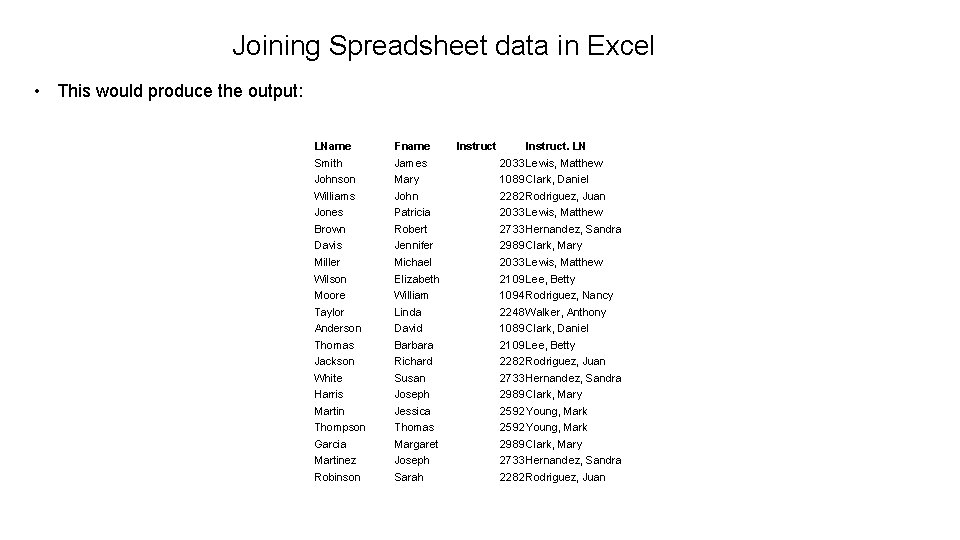
Joining Spreadsheet data in Excel • This would produce the output: LName Fname Instruct. LN Smith James 2033 Lewis, Matthew Johnson Mary 1089 Clark, Daniel Williams John 2282 Rodriguez, Juan Jones Patricia 2033 Lewis, Matthew Brown Robert 2733 Hernandez, Sandra Davis Jennifer 2989 Clark, Mary Miller Michael 2033 Lewis, Matthew Wilson Elizabeth 2109 Lee, Betty Moore William 1094 Rodriguez, Nancy Taylor Linda 2248 Walker, Anthony Anderson David 1089 Clark, Daniel Thomas Barbara 2109 Lee, Betty Jackson Richard 2282 Rodriguez, Juan White Susan 2733 Hernandez, Sandra Harris Joseph 2989 Clark, Mary Martin Jessica 2592 Young, Mark Thompson Thomas 2592 Young, Mark Garcia Margaret 2989 Clark, Mary Martinez Joseph 2733 Hernandez, Sandra Robinson Sarah 2282 Rodriguez, Juan
Joining Tables in Access • Open Access Open a Blank Database
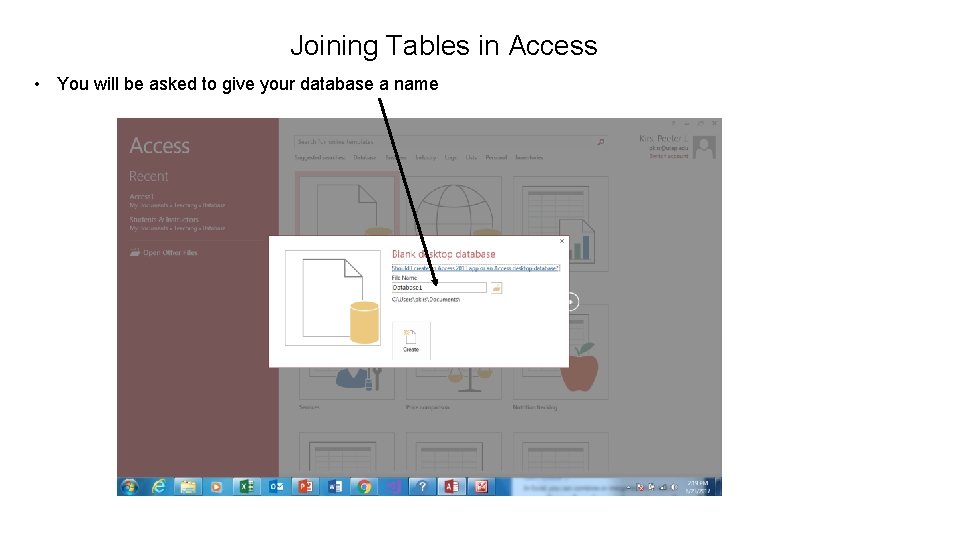
Joining Tables in Access • You will be asked to give your database a name
Joining Tables in Access You can now start entering data OR … Also by default, Access creates a ‘primary key for you By default, Access creates a table called ‘Table 1’
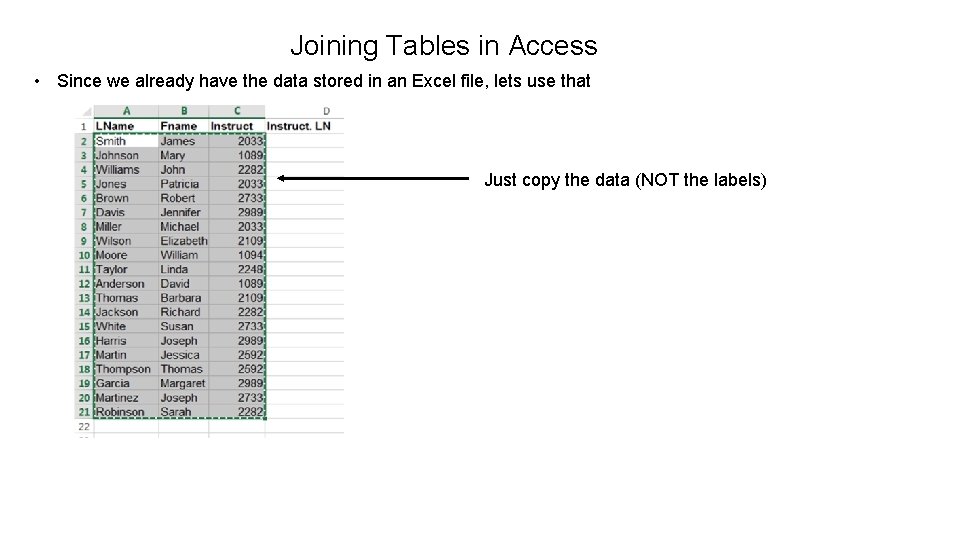
Joining Tables in Access • Since we already have the data stored in an Excel file, lets use that Just copy the data (NOT the labels)
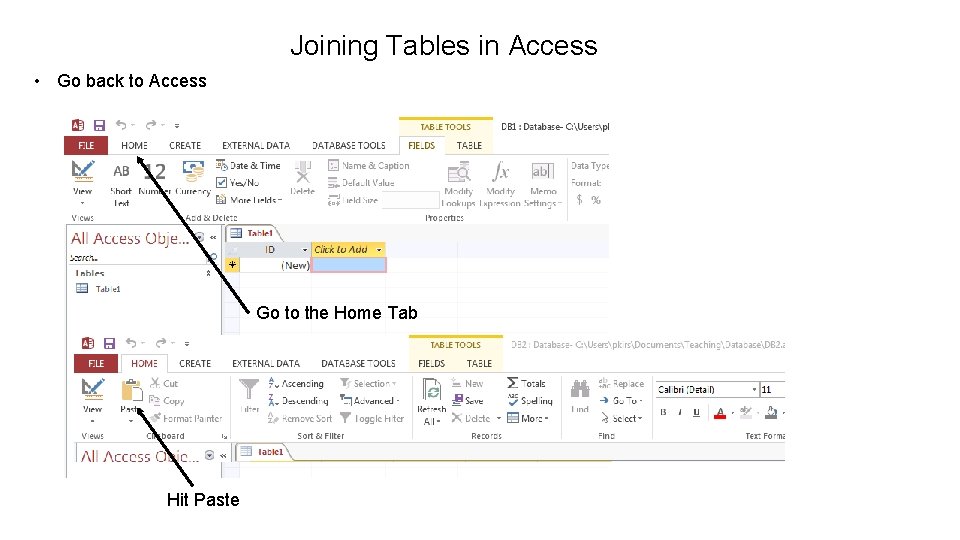
Joining Tables in Access • Go back to Access Go to the Home Tab Hit Paste
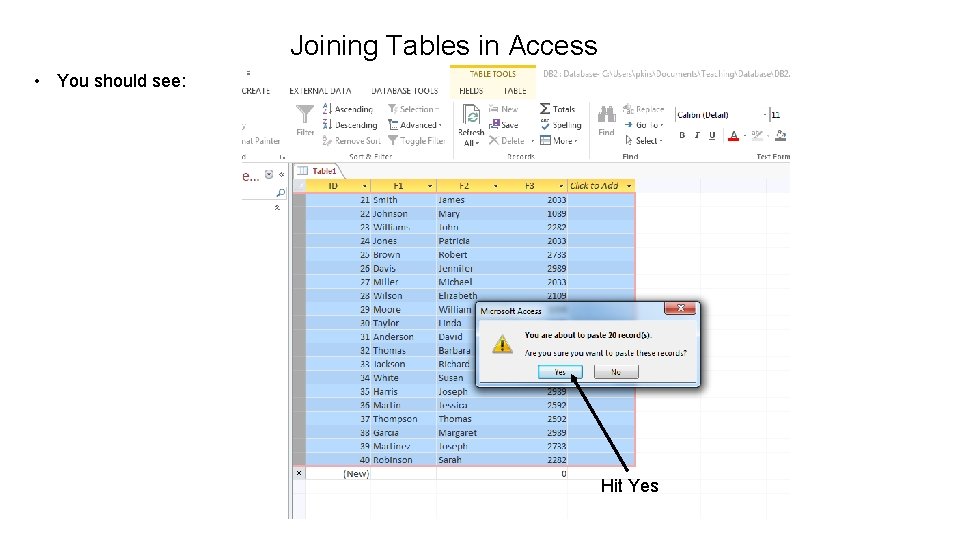
Joining Tables in Access • You should see: Hit Yes
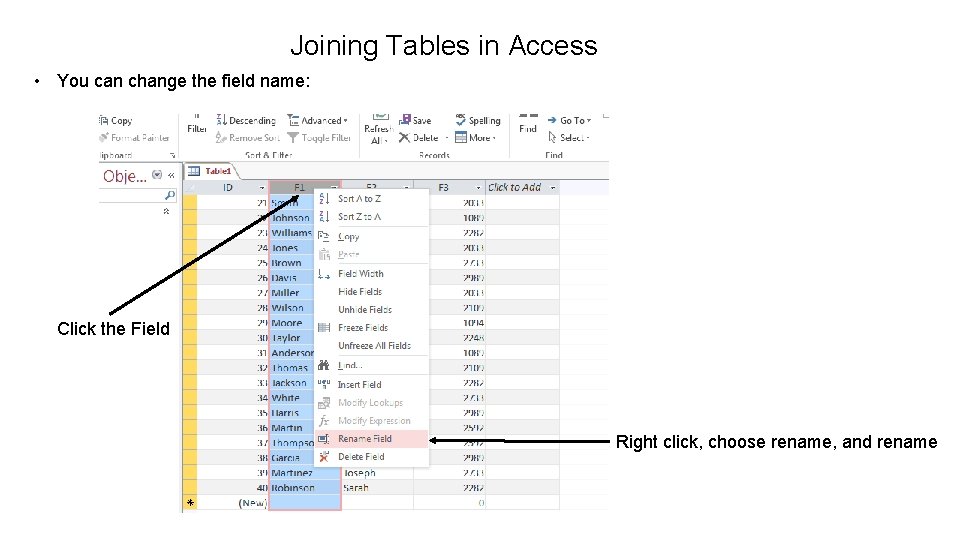
Joining Tables in Access • You can change the field name: Click the Field Right click, choose rename, and rename
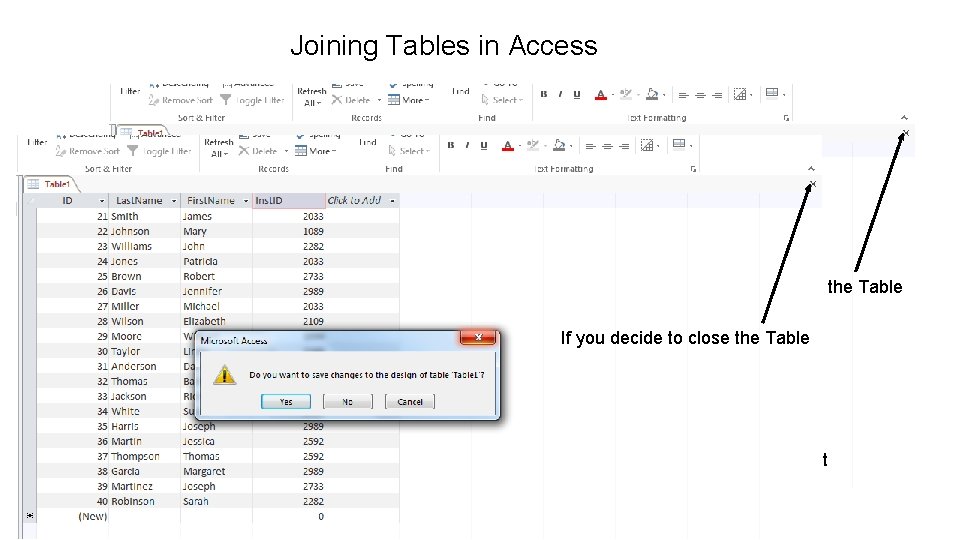
Joining Tables in Access If you decide to close the Table You will be asked if you want to save it
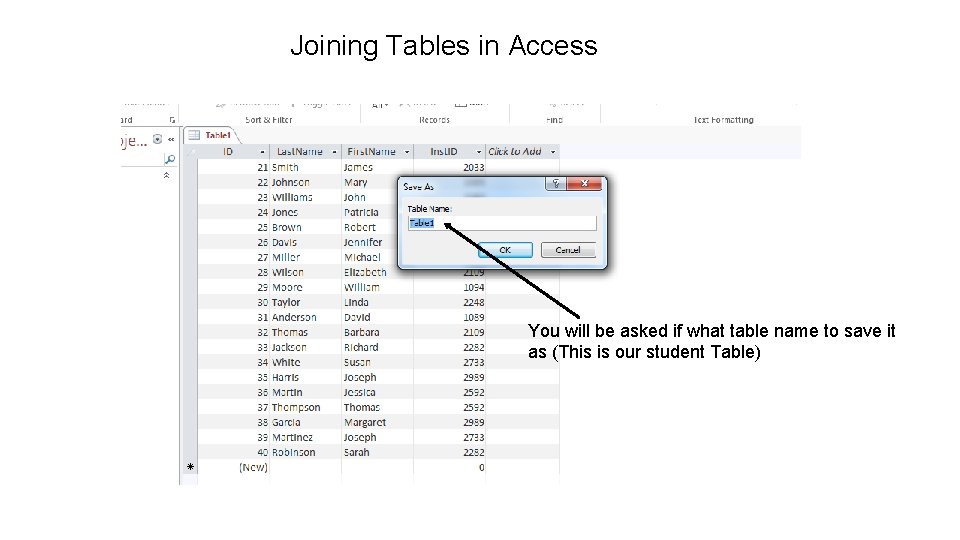
Joining Tables in Access You will be asked if what table name to save it as (This is our student Table)
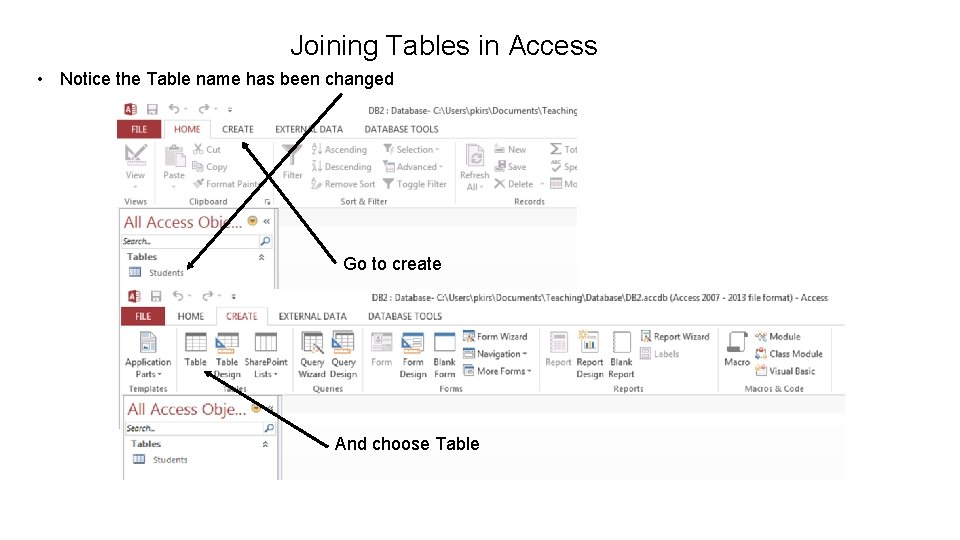
Joining Tables in Access • Notice the Table name has been changed Go to create And choose Table
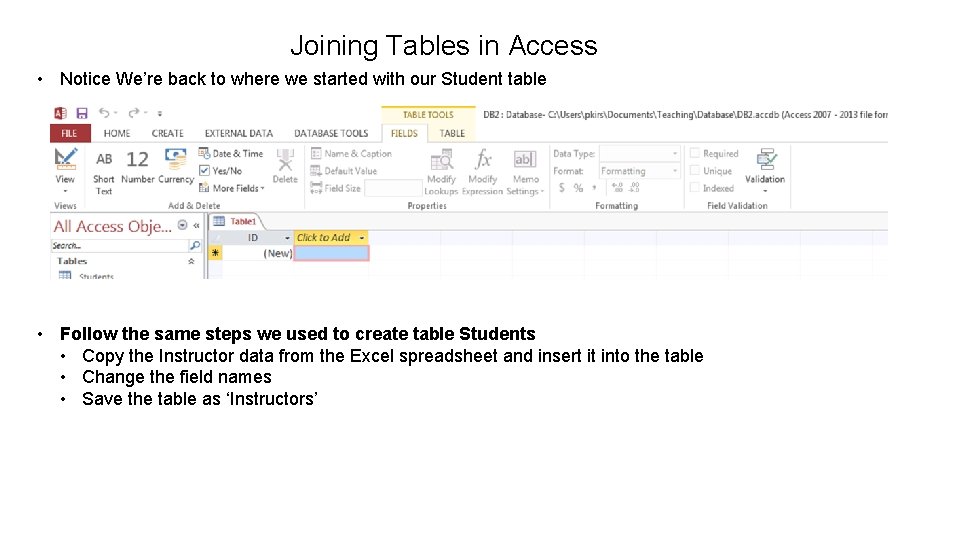
Joining Tables in Access • Notice We’re back to where we started with our Student table • Follow the same steps we used to create table Students • Copy the Instructor data from the Excel spreadsheet and insert it into the table • Change the field names • Save the table as ‘Instructors’
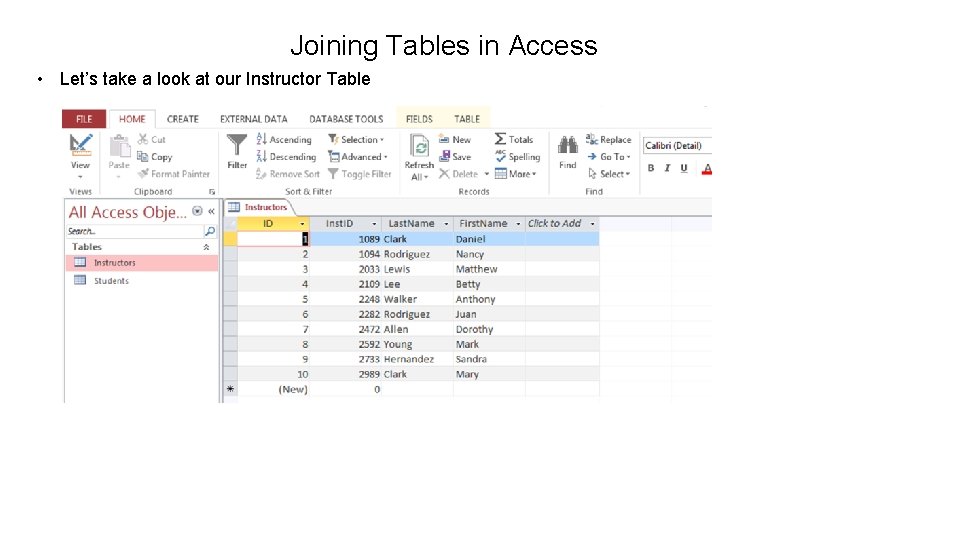
Joining Tables in Access • Let’s take a look at our Instructor Table
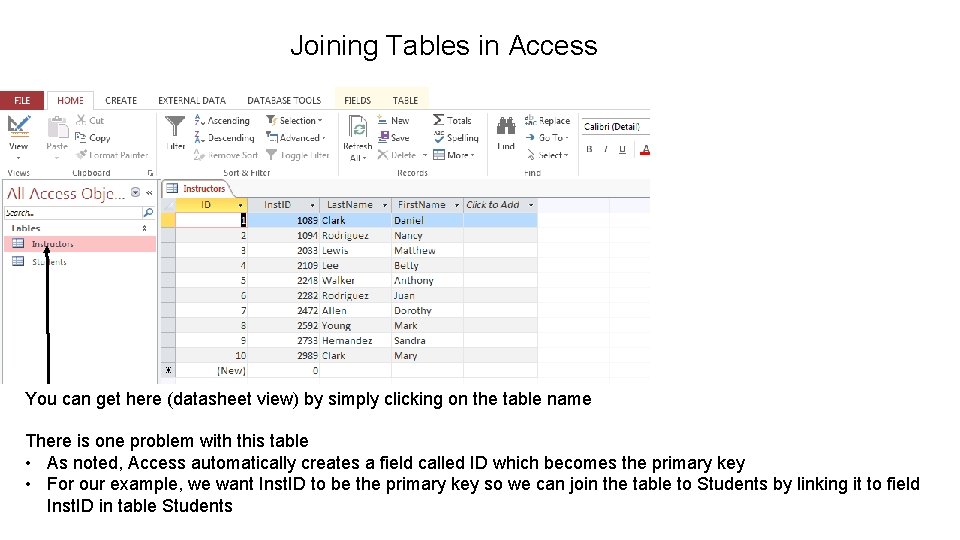
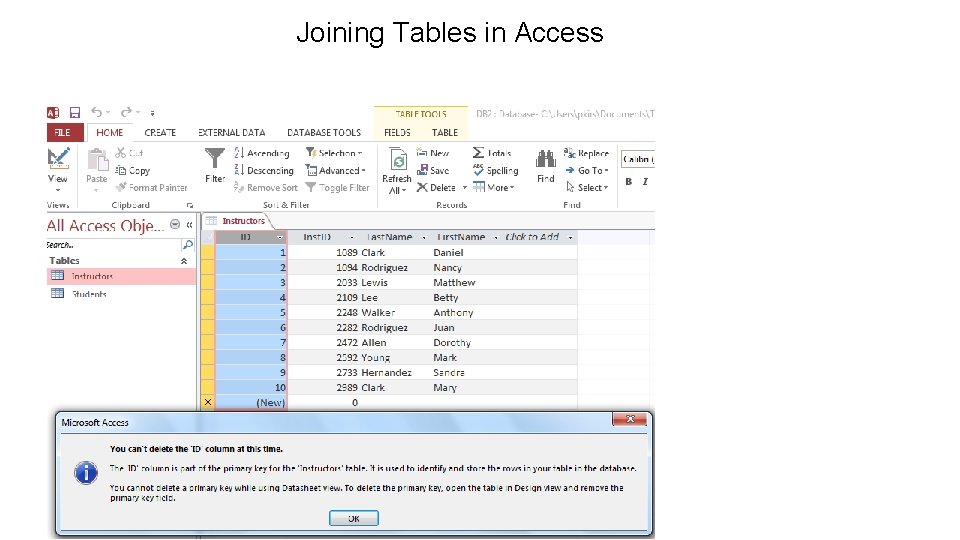
Joining Tables in Access You can get here (datasheet view) by simply clicking on the table name There is one problem with this table • As noted, Access automatically creates a field called ID which becomes the primary key • For our example, we want Inst. ID to be the primary key so we can join the table to Students by linking it to field Inst. ID in table Students
Joining Tables in Access
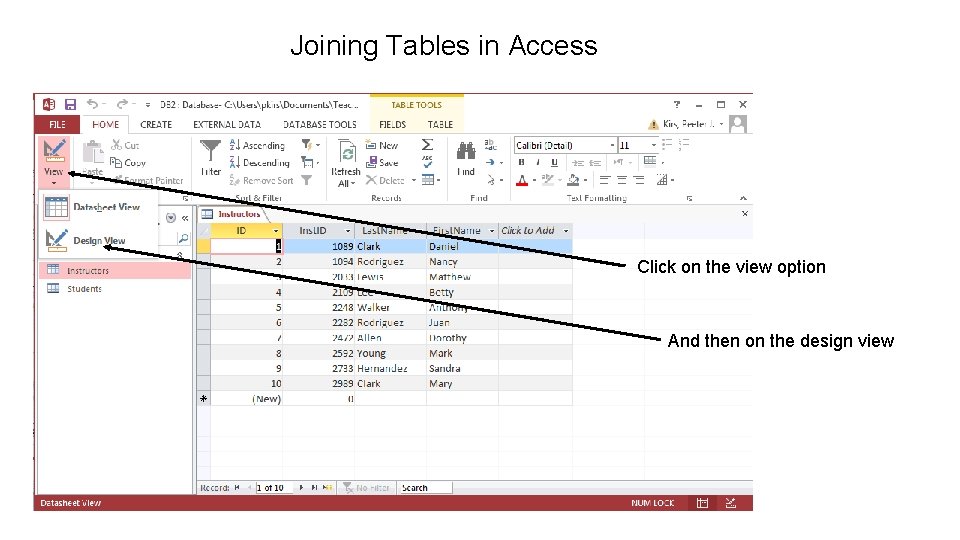
Joining Tables in Access Click on the view option And then on the design view
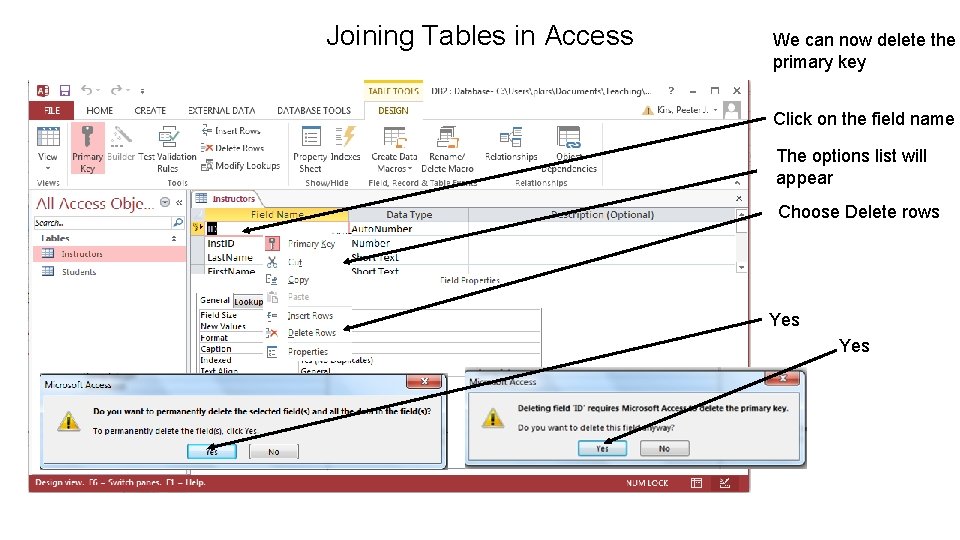
Joining Tables in Access We can now delete the primary key Click on the field name The options list will appear Choose Delete rows Yes
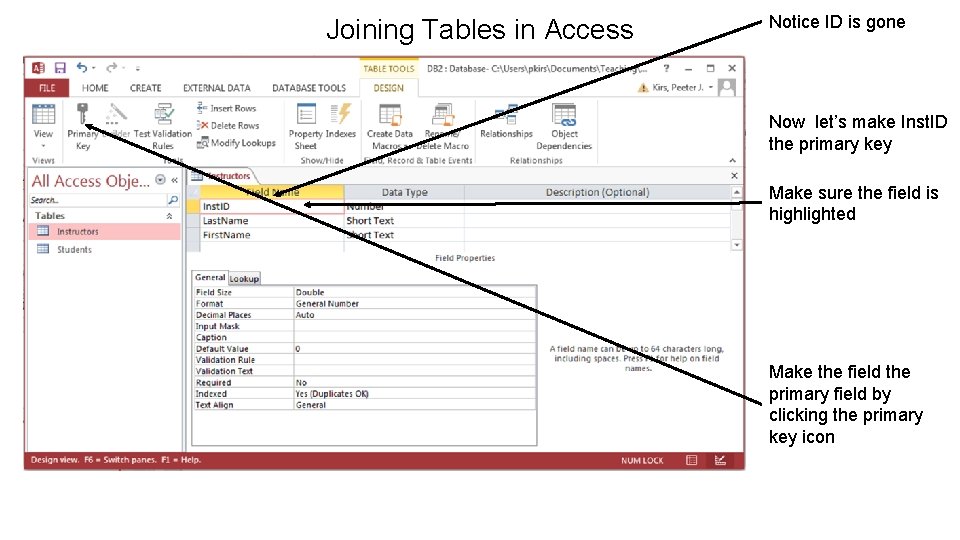
Joining Tables in Access Notice ID is gone Now let’s make Inst. ID the primary key Make sure the field is highlighted Make the field the primary field by clicking the primary key icon
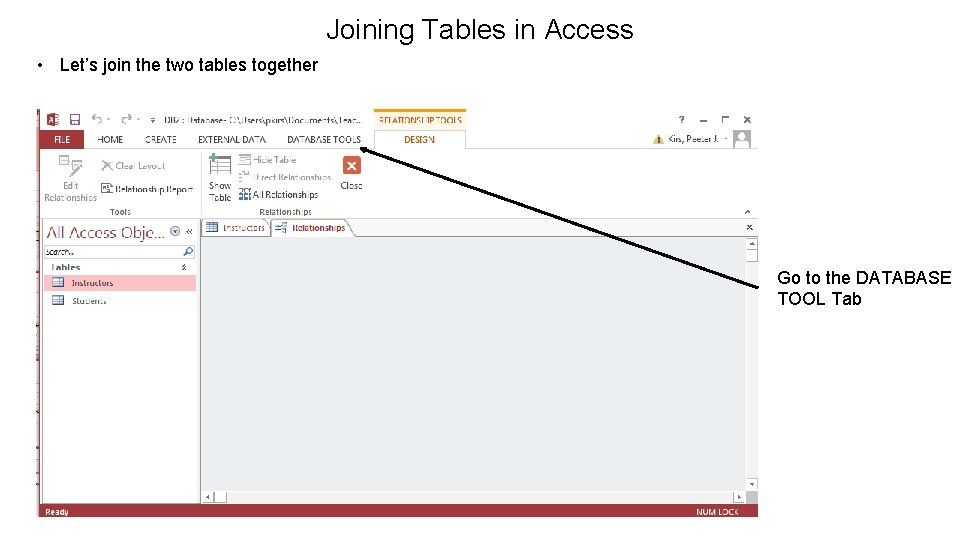
Joining Tables in Access • Let’s join the two tables together Go to the DATABASE TOOL Tab
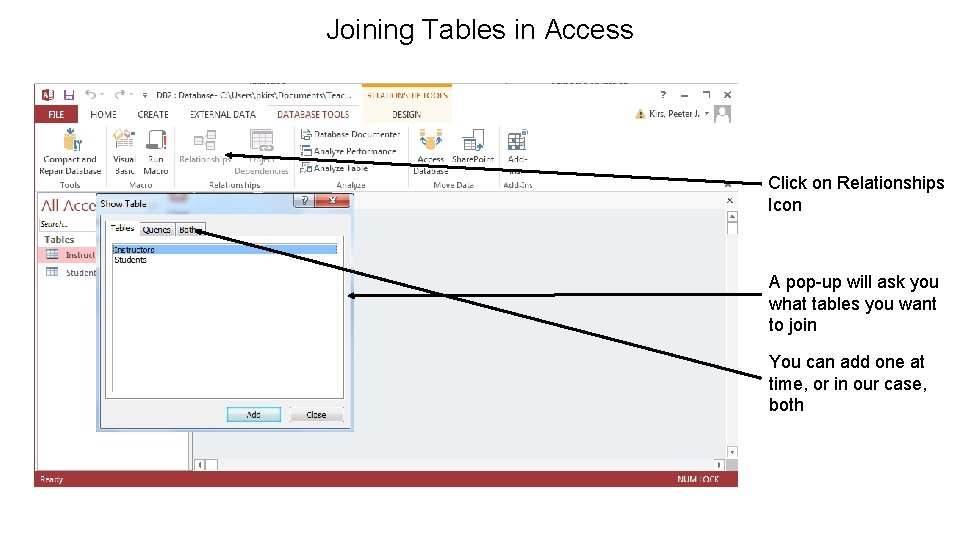
Joining Tables in Access Click on Relationships Icon A pop-up will ask you what tables you want to join You can add one at time, or in our case, both
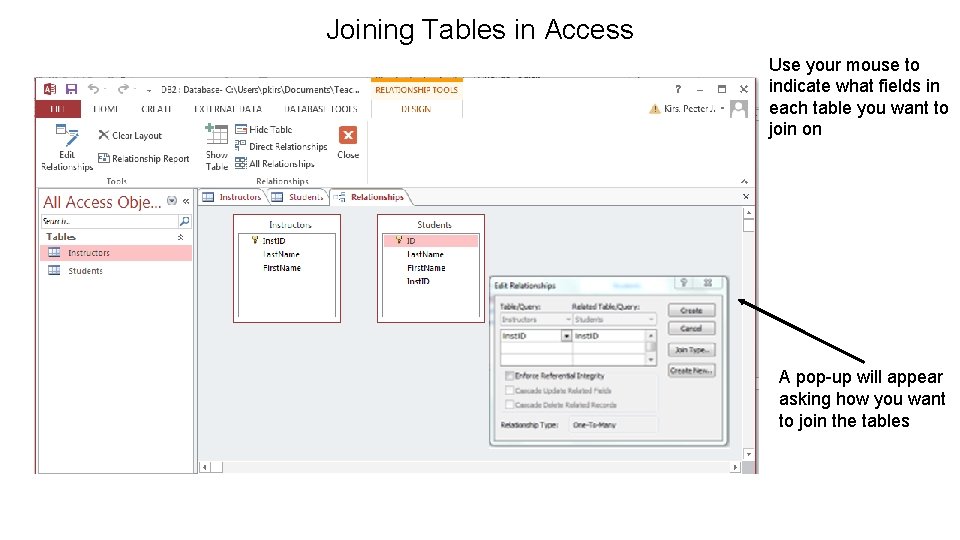
Joining Tables in Access Use your mouse to indicate what fields in each table you want to join on A pop-up will appear asking how you want to join the tables
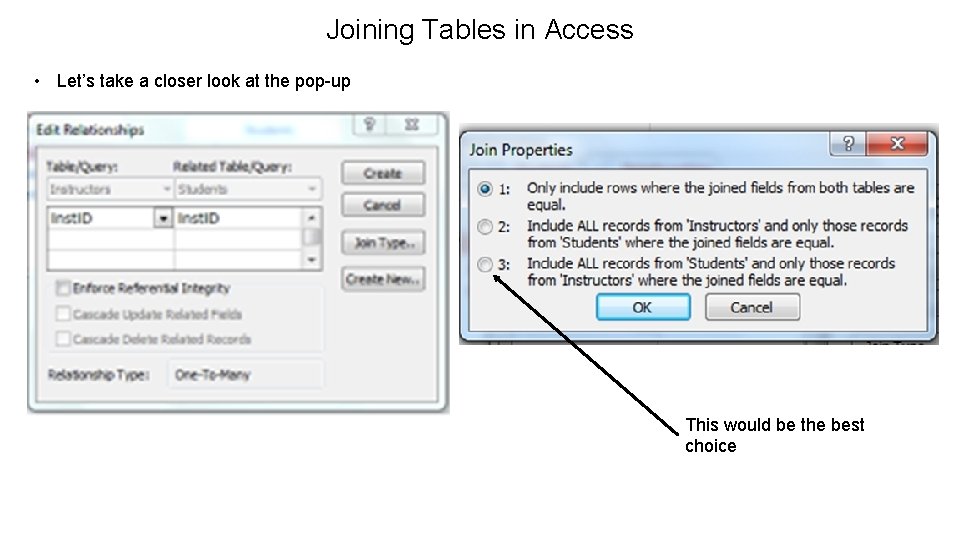
Joining Tables in Access • Let’s take a closer look at the pop-up This would be the best choice
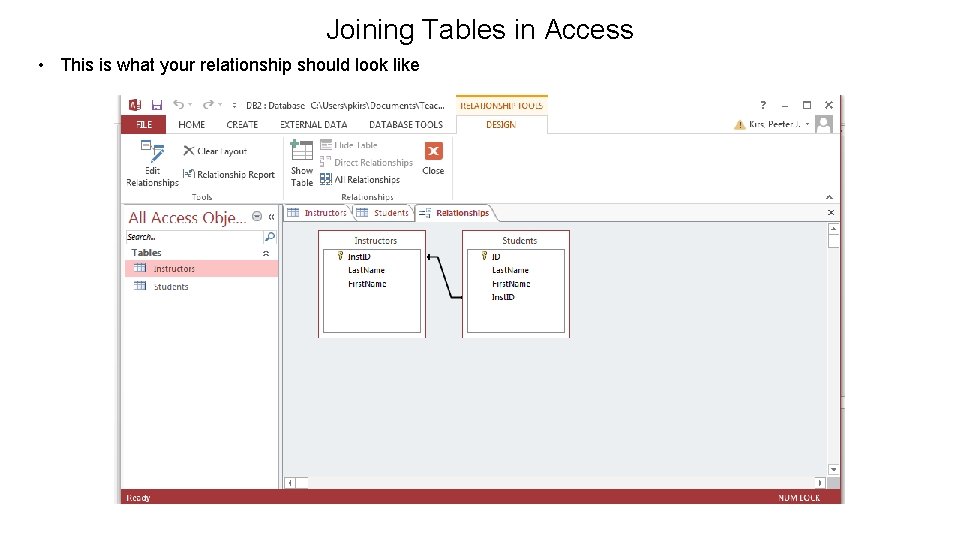
Joining Tables in Access • This is what your relationship should look like
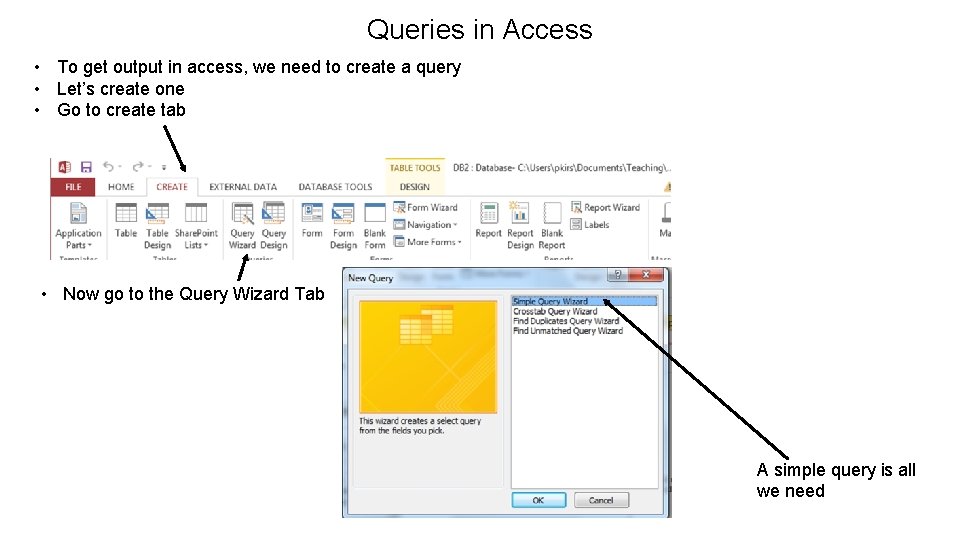
Queries in Access • To get output in access, we need to create a query • Let’s create one • Go to create tab • Now go to the Query Wizard Tab A simple query is all we need
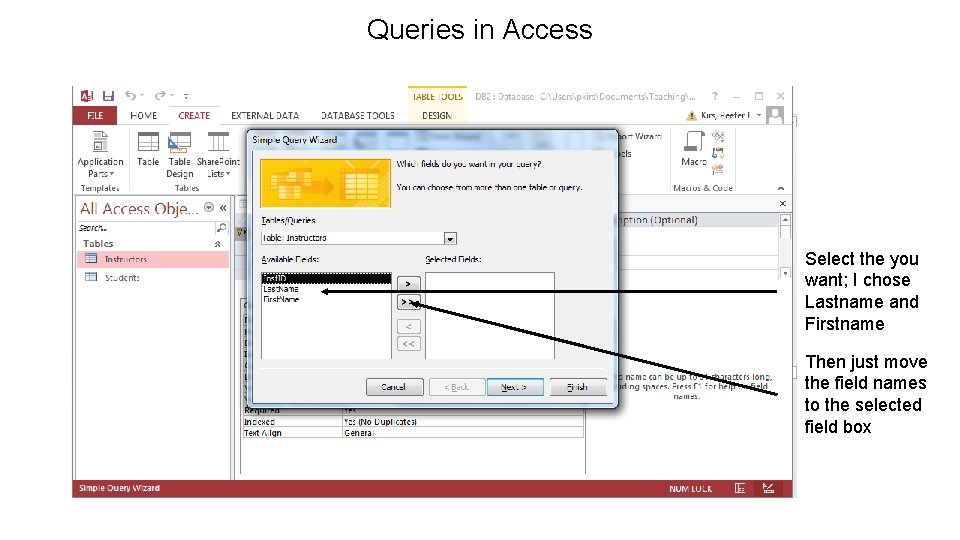
Queries in Access Select the you want; I chose Lastname and Firstname Then just move the field names to the selected field box
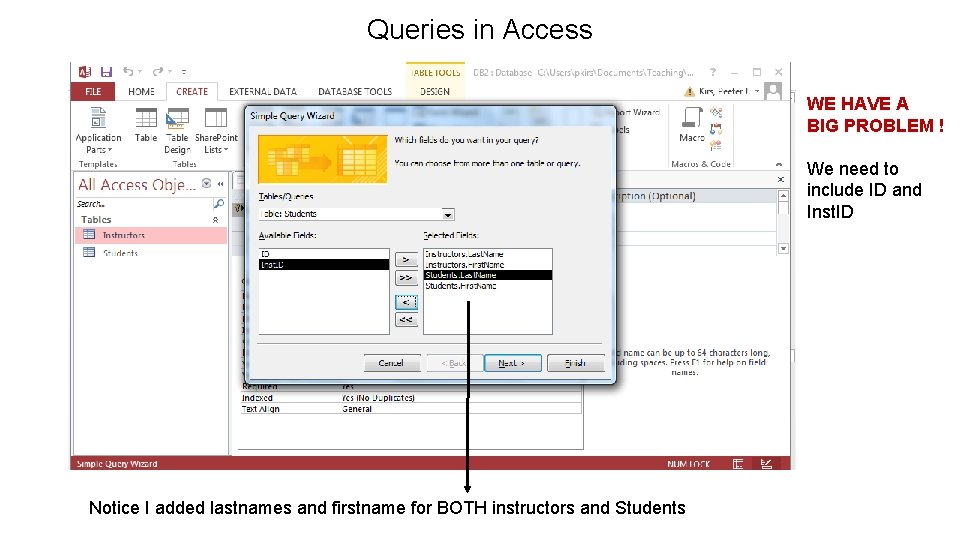
Queries in Access WE HAVE A BIG PROBLEM ! We need to include ID and Inst. ID Notice I added lastnames and firstname for BOTH instructors and Students
Queries in Access Now we can finish
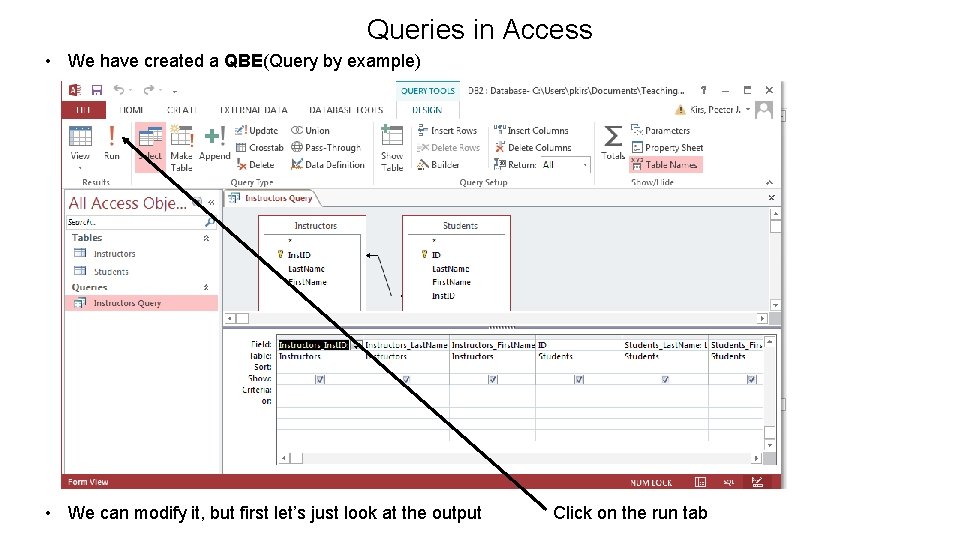
Queries in Access • We have created a QBE(Query by example) • We can modify it, but first let’s just look at the output Click on the run tab
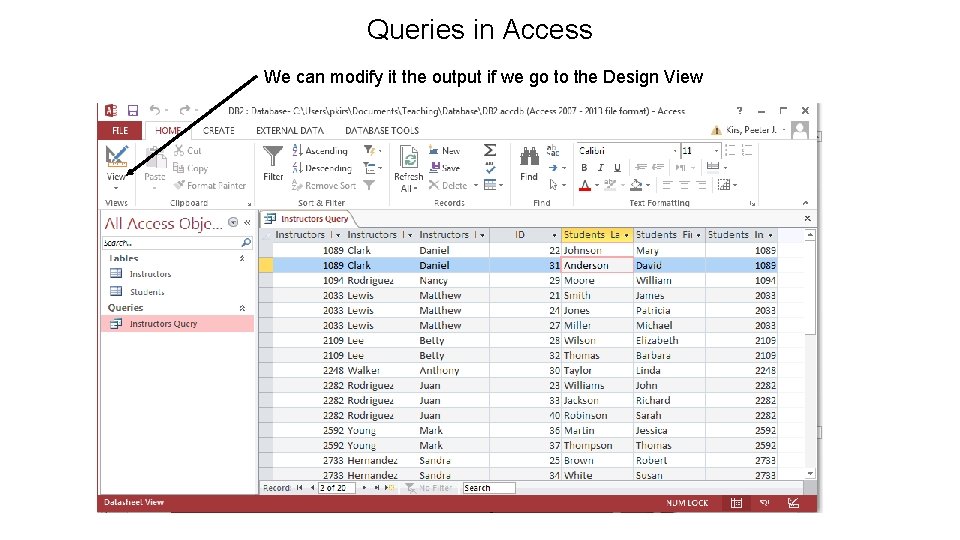
Queries in Access We can modify it the output if we go to the Design View
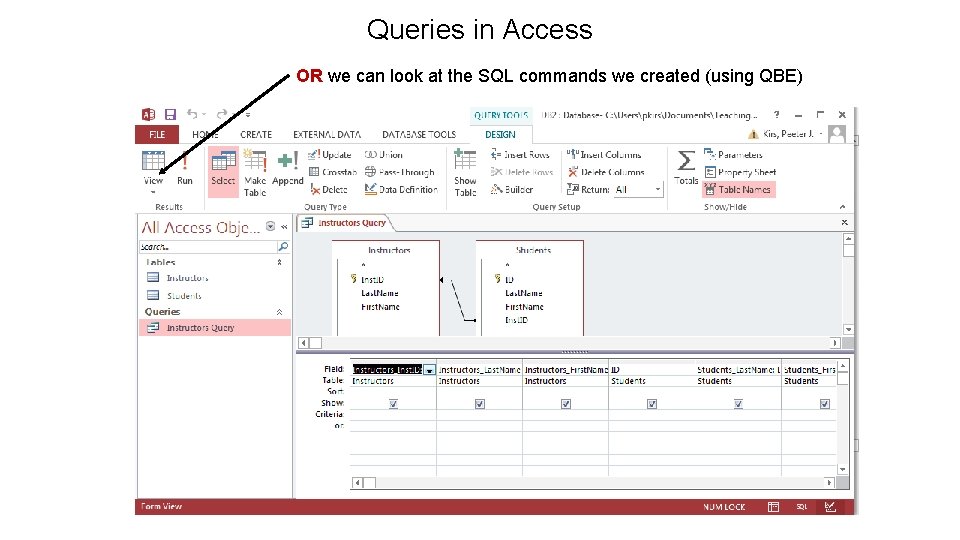
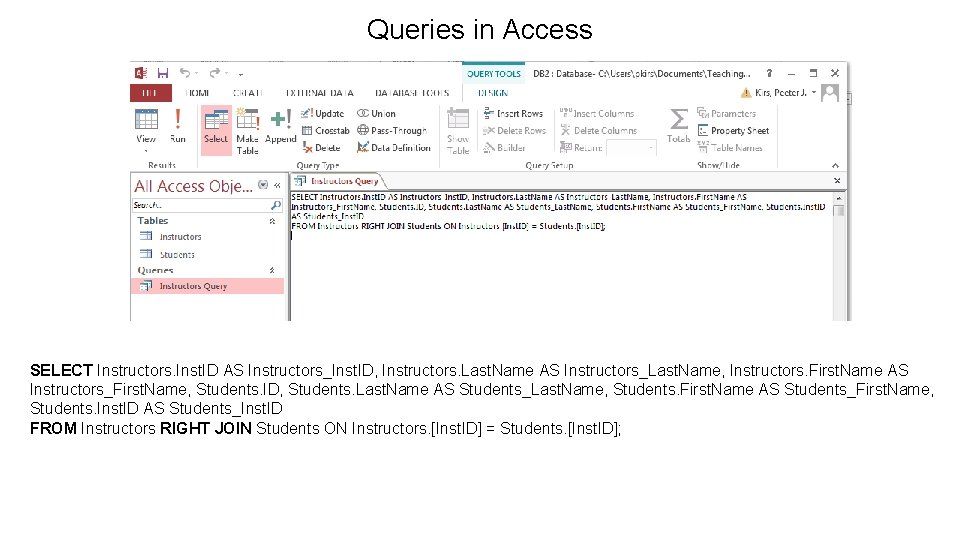
Queries in Access OR we can look at the SQL commands we created (using QBE)
Queries in Access SELECT Instructors. Inst. ID AS Instructors_Inst. ID, Instructors. Last. Name AS Instructors_Last. Name, Instructors. First. Name AS Instructors_First. Name, Students. ID, Students. Last. Name AS Students_Last. Name, Students. First. Name AS Students_First. Name, Students. Inst. ID AS Students_Inst. ID FROM Instructors RIGHT JOIN Students ON Instructors. [Inst. ID] = Students. [Inst. ID];