
Jing Easy Screen Recording by Tech Smith Eddie
Jing Easy Screen Recording by Tech. Smith Eddie Mathews EDTC 6340 (Fall 2010) Project 4 -E Presentation
Jing Explained in Easy Terms • Jing acts like a camera and video recorder built into your computer that “captures” what you see on your monitor screen • Jing is an easy-to-use software tool for capturing images and narrating what is being recorded on your screen
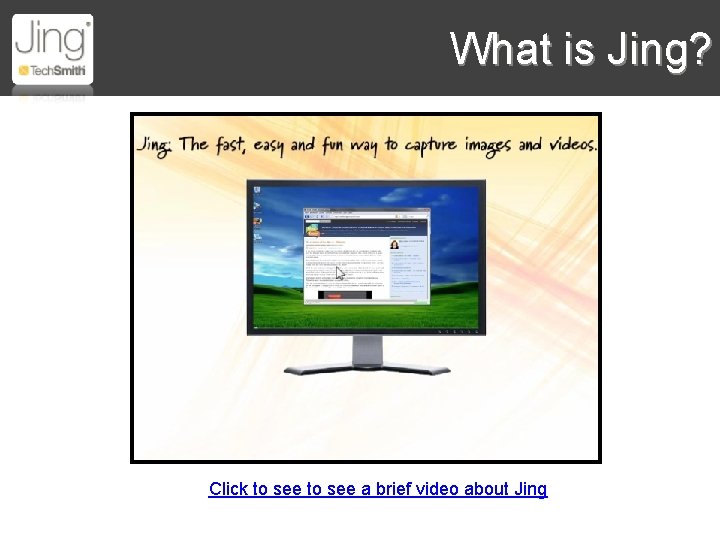
What is Jing? Click to see a brief video about Jing

What is Screencast? http: //tinyurl. com/moreaboutscreencast
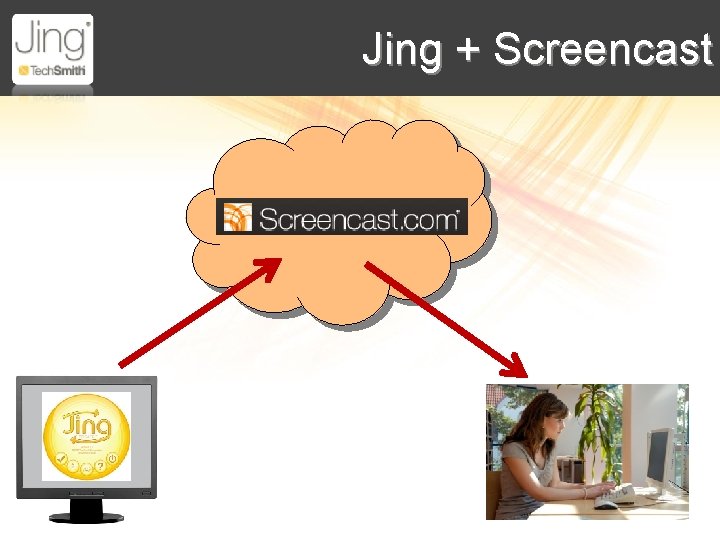
Jing + Screencast

How Do I Begin? Before you begin, you will need to: • Download and install Jing on your PC (create a free Screen. Cast account) • Take a few minutes to learn the basics • Create a narration script and prepare your screens that your plan to capture • Record in a quiet environment • Use a good microphone (USB headset) • Test your webcam if using Jing Pro
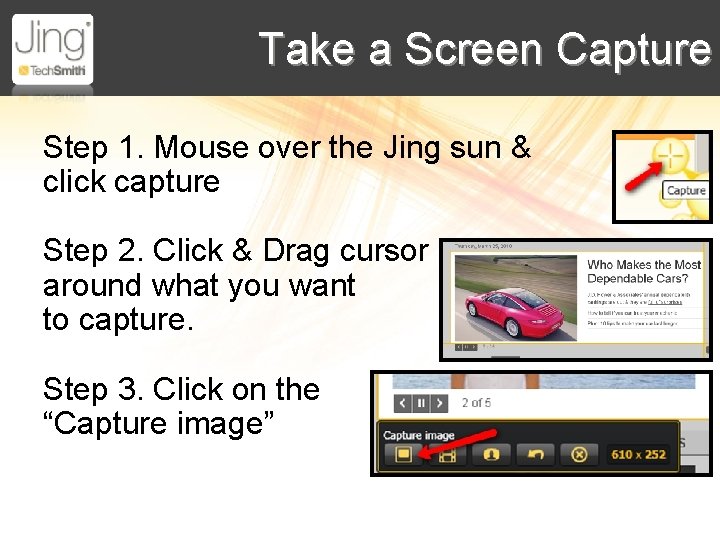
Take a Screen Capture Step 1. Mouse over the Jing sun & click capture Step 2. Click & Drag cursor around what you want to capture. Step 3. Click on the “Capture image”
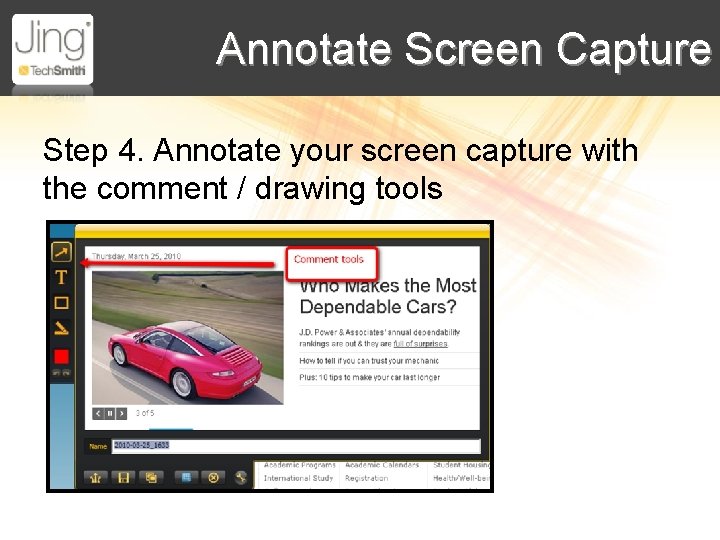
Annotate Screen Capture Step 4. Annotate your screen capture with the comment / drawing tools
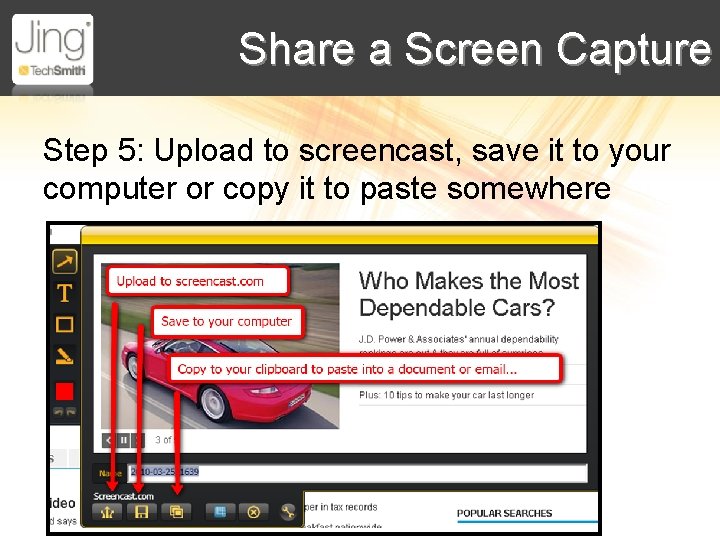
Share a Screen Capture Step 5: Upload to screencast, save it to your computer or copy it to paste somewhere
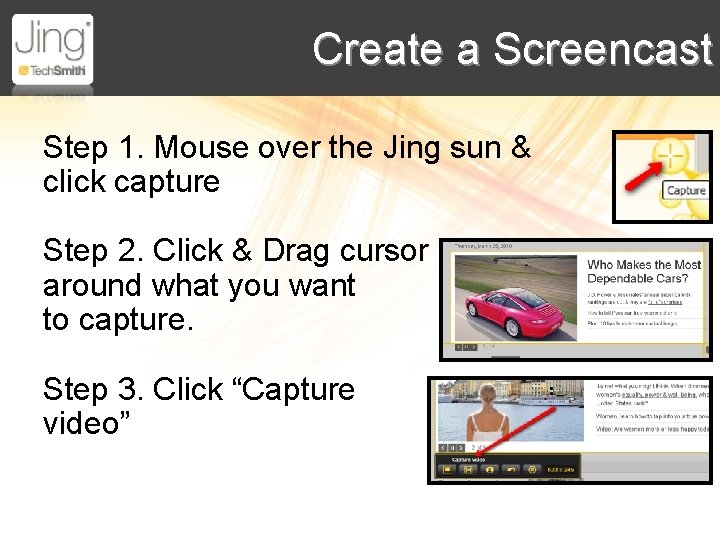
Create a Screencast Step 1. Mouse over the Jing sun & click capture Step 2. Click & Drag cursor around what you want to capture. Step 3. Click “Capture video”
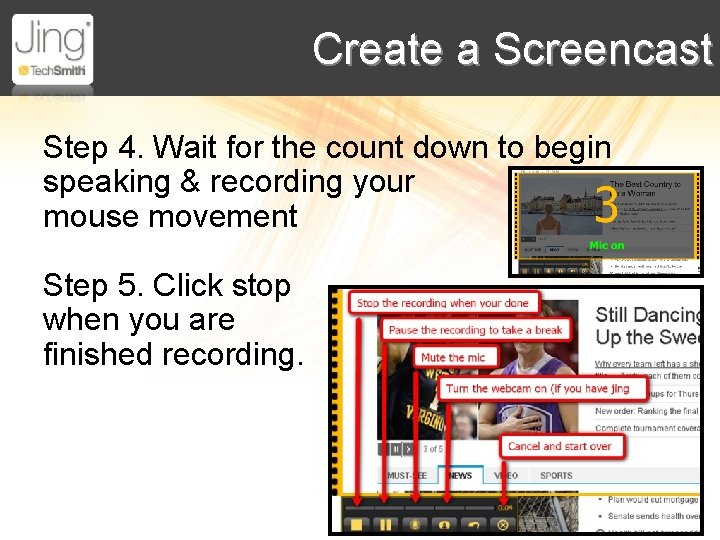
Create a Screencast Step 4. Wait for the count down to begin speaking & recording your mouse movement Step 5. Click stop when you are finished recording.
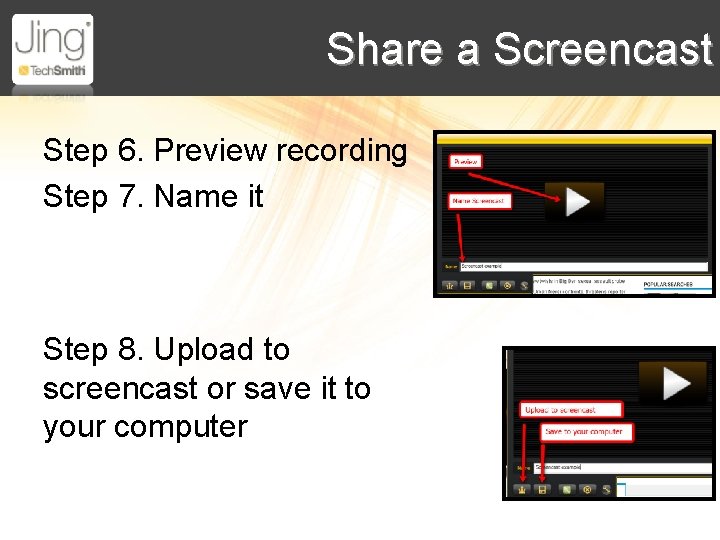
Share a Screencast Step 6. Preview recording Step 7. Name it Step 8. Upload to screencast or save it to your computer
Student Uses of Jing • Record a narrated historical or personal journey using Google Maps or Earth • Use as a digital story telling tool…maybe in another language • Create teaching tutorials, such as, a math video showing other students how to solve math problems
Teacher Uses of Jing • Create a tutorials of new technologies • Demonstrate how to access your social bookmarking, class wiki, or blog • Create Screencasts to publish student work or to make downloading easy • Have students create presentations using Jing to take them beyond Power. Point
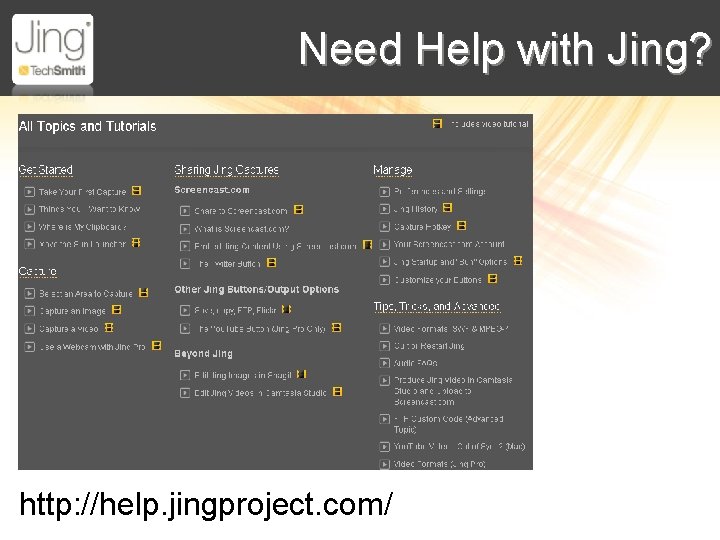
Need Help with Jing? http: //help. jingproject. com/
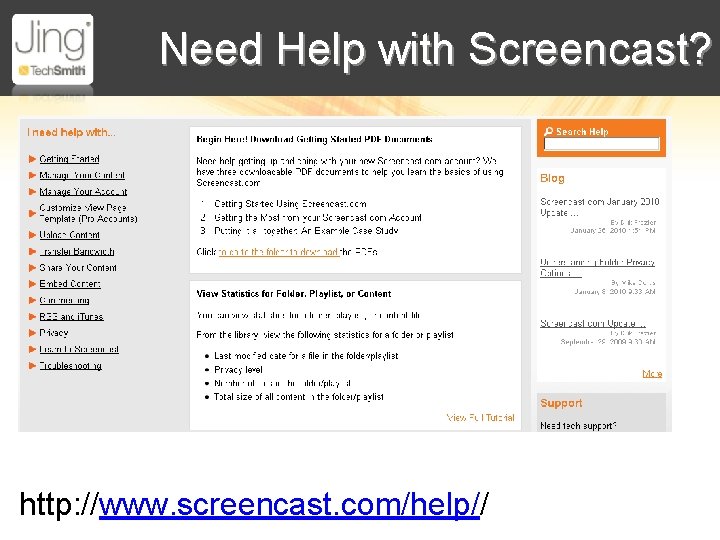
Need Help with Screencast? http: //www. screencast. com/help//
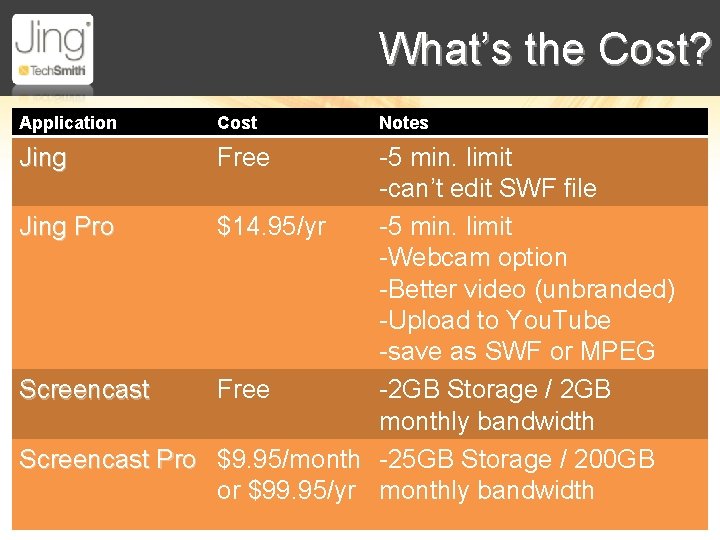
What’s the Cost? Application Cost Jing Free Notes -5 min. limit -can’t edit SWF file Jing Pro $14. 95/yr -5 min. limit -Webcam option -Better video (unbranded) -Upload to You. Tube -save as SWF or MPEG Screencast Free -2 GB Storage / 2 GB monthly bandwidth Screencast Pro $9. 95/month -25 GB Storage / 200 GB or $99. 95/yr monthly bandwidth
Resources & Credits Jing Web Site http: //www. techsmith. com/jing The Jing Project http: //www. techsmith. com/learn/jing/ Screencast Web Site http: //www. screencast. com/help/
- Slides: 18