
JDBC Tutorial CSCI 201 Principles of Software Development
JDBC Tutorial CSCI 201 Principles of Software Development Jeffrey Miller, Ph. D. jeffrey. miller@usc. edu
Outline • JDBC Tutorial • Program USC CSCI 201 L

Download My. SQL ▪ Hopefully you have already downloaded the My. SQL Community Server, but if not, download it from http: //dev. mysql. com/downloads/ ▪ You will also need the My. SQL Workbench from the same URL • JDBC Tutorial USC CSCI 201 L 3/16

My. SQL Workbench ▪ After installing My. SQL and the My. SQL Workbench, run My. SQL and then run the Workbench ▪ Click on the “Local instance My. SQLxx” box that is displayed • JDBC Tutorial USC CSCI 201 L 4/16
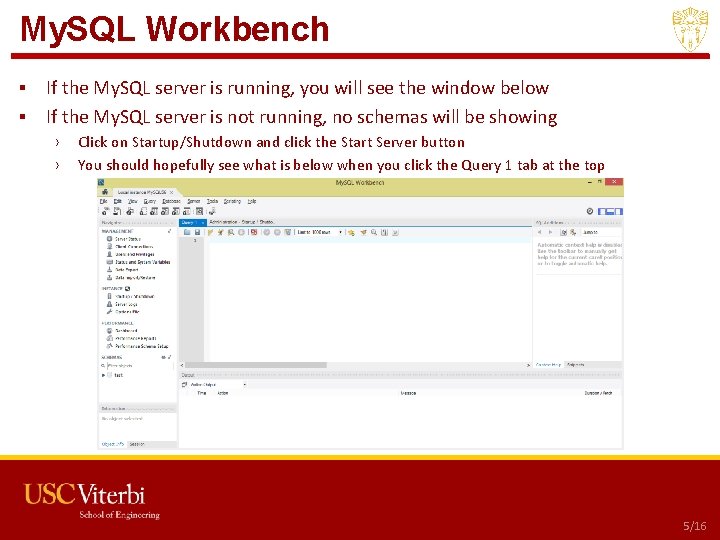
My. SQL Workbench ▪ If the My. SQL server is running, you will see the window below ▪ If the My. SQL server is not running, no schemas will be showing › › Click on Startup/Shutdown and click the Start Server button You should hopefully see what is below when you click the Query 1 tab at the top • JDBC Tutorial USC CSCI 201 L 5/16

My. SQL Database Creation ▪ Copy the content of http: //www-scf. usc. edu/~csci 201/lectures/Lecture 16/ Grades. sql into the Query 1 text area ▪ Click the lightning bolt that says “Execute the selected portion of the script or everything, if there is no selection” • JDBC Tutorial USC CSCI 201 L 6/16

My. SQL Database Viewing ▪ Click the refresh button next to SCHEMAS and you should see your new schema called studentgrades • JDBC Tutorial USC CSCI 201 L 7/16
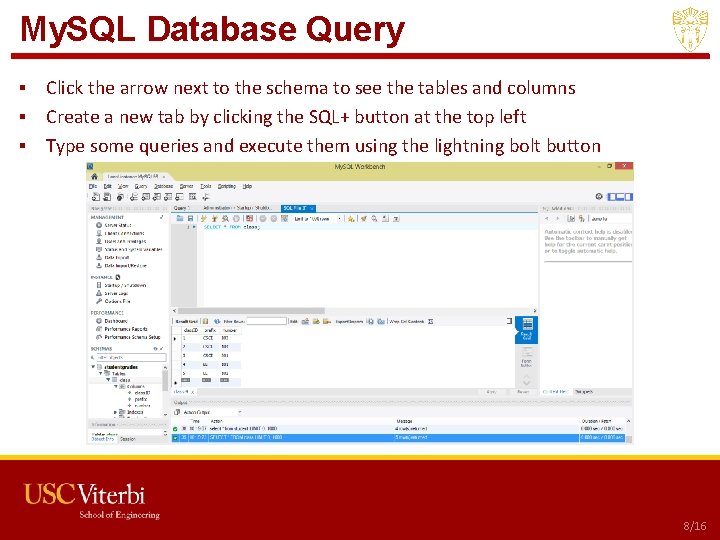
My. SQL Database Query ▪ Click the arrow next to the schema to see the tables and columns ▪ Create a new tab by clicking the SQL+ button at the top left ▪ Type some queries and execute them using the lightning bolt button • JDBC Tutorial USC CSCI 201 L 8/16

Download My. SQL JDBC Driver ▪ Download the My. SQL JDBC Driver from http: //dev. mysql. com/downloads/connector/j/ › You might already have this if you downloaded the entire DBMS when you downloaded My. SQL – it will be in the Connector. J subdirectory in the My. SQL directory ▪ Run the installer and find the directory where you saved it! • JDBC Tutorial USC CSCI 201 L 9/16
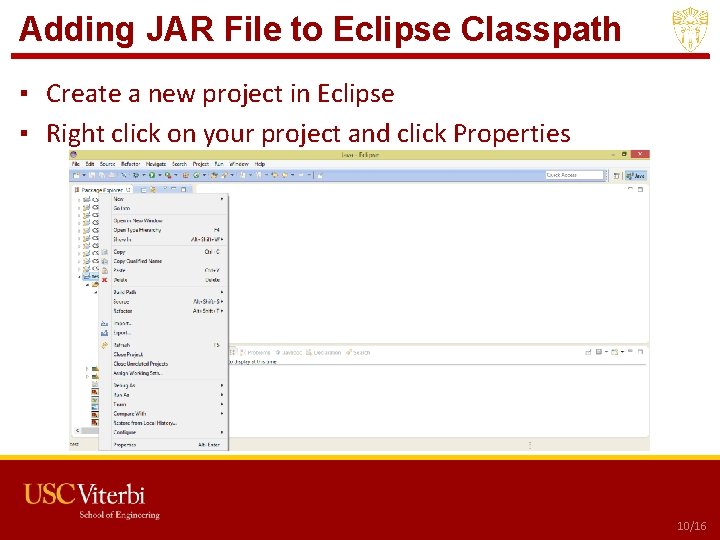
Adding JAR File to Eclipse Classpath ▪ Create a new project in Eclipse ▪ Right click on your project and click Properties • JDBC Tutorial USC CSCI 201 L 10/16
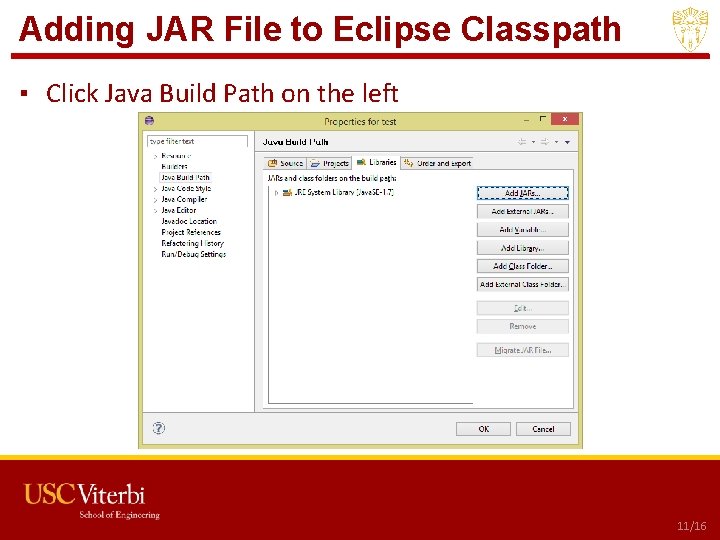
Adding JAR File to Eclipse Classpath ▪ Click Java Build Path on the left • JDBC Tutorial USC CSCI 201 L 11/16
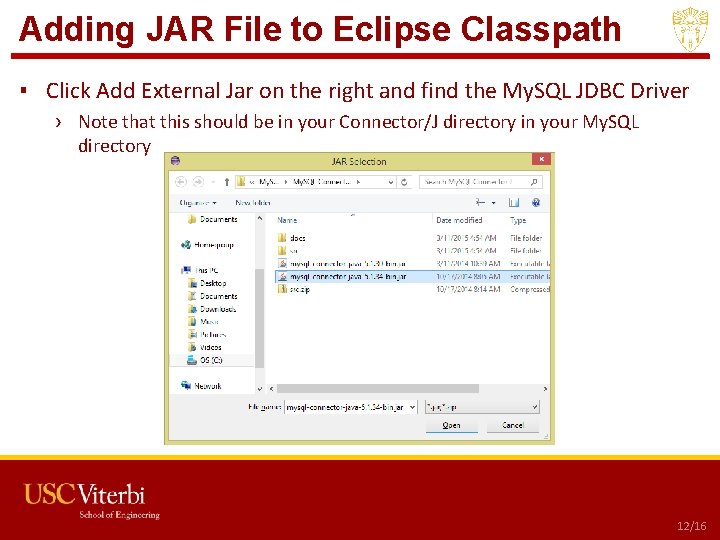
Adding JAR File to Eclipse Classpath ▪ Click Add External Jar on the right and find the My. SQL JDBC Driver › Note that this should be in your Connector/J directory in your My. SQL directory • JDBC Tutorial USC CSCI 201 L 12/16
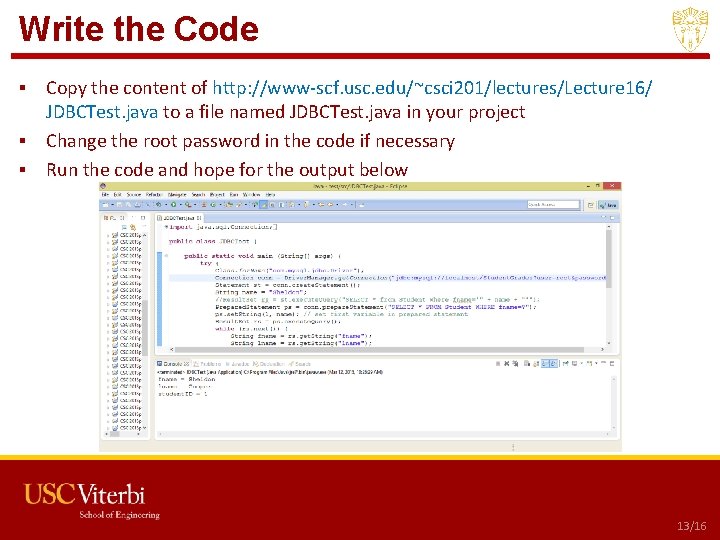
Write the Code ▪ Copy the content of http: //www-scf. usc. edu/~csci 201/lectures/Lecture 16/ JDBCTest. java to a file named JDBCTest. java in your project ▪ Change the root password in the code if necessary ▪ Run the code and hope for the output below • JDBC Tutorial USC CSCI 201 L 13/16
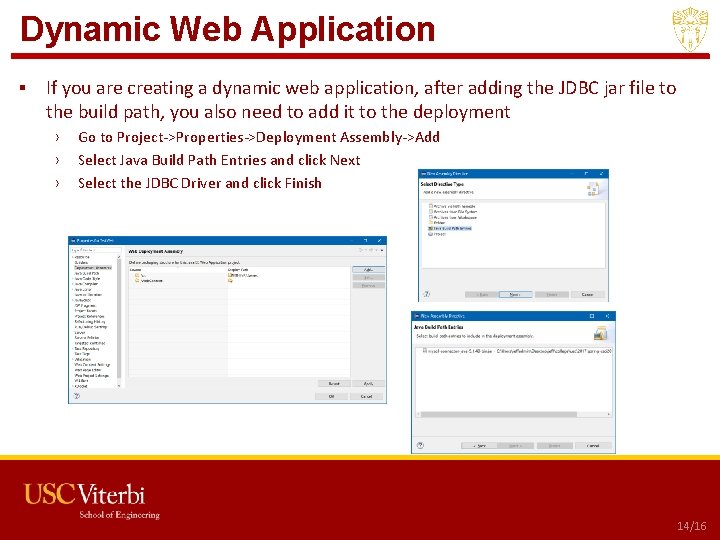
Dynamic Web Application ▪ If you are creating a dynamic web application, after adding the JDBC jar file to the build path, you also need to add it to the deployment › › › Go to Project->Properties->Deployment Assembly->Add Select Java Build Path Entries and click Next Select the JDBC Driver and click Finish • JDBC Tutorial USC CSCI 201 L 14/16
Outline • JDBC Tutorial • Program USC CSCI 201 L
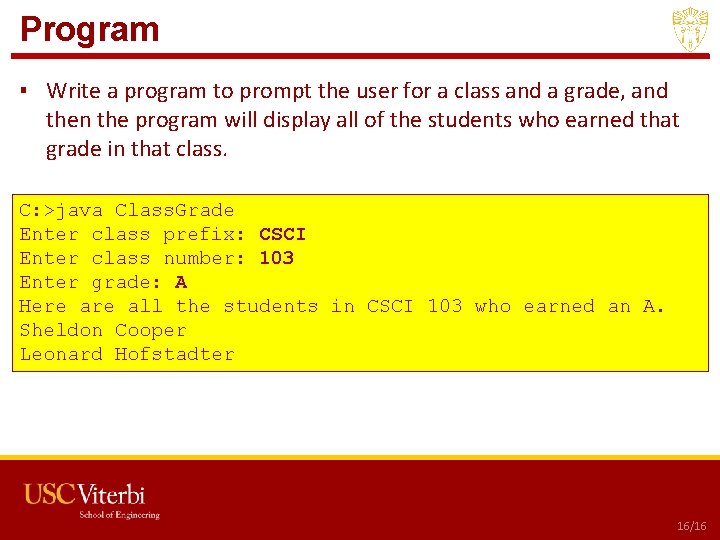
Program ▪ Write a program to prompt the user for a class and a grade, and then the program will display all of the students who earned that grade in that class. C: >java Class. Grade Enter class prefix: CSCI Enter class number: 103 Enter grade: A Here all the students in CSCI 103 who earned an A. Sheldon Cooper Leonard Hofstadter • Program USC CSCI 201 L 16/16
- Slides: 16