
JAWS Inspect Onboarding Taking A Bite Out Of
JAWS Inspect Onboarding: Taking A Bite Out Of JAWS Testing Mike De. Sorda Customer Success Manager
Obstacles When Conducting Manual Accessibility Testing Screen Readers are rich in features for end users, not applicable to testers: 1) Steep learning curve to configure and operate -many keyboard shortcuts. 2) Manually file bugs for tracking with only voice output 3) Challenging to collect consistent, reliable results 4) Difficult to multi-task using synthetic speech

Building An Inclusive Bridge Between Assistive Technology and Manual Testing • JAWS Inspect vastly simplifies accessibility and JAWS compatibility testing. • No synthetic speech or the complex feature set of the end-user product for the sighted developer or tester. • Fully accessible for vision impaired users to communicate with sighted peers. • Uses transcripts of JAWS output to quickly diagnose issues and share them easily across quality control and compliance systems.
Benefits • Simplifies assistive technology use for testers • Text transcript of JAWS output for use in bug tracking and compliance programs • Mouse and/or keyboard interface • Real-time identification of issues • Rapid rollout with limited training required • Demonstrates immediate impact of accessibility on users

Launching JAWS Inspect 1. Standard Windows application that can be ran on stand-alone Windows Machines, servers, and Macs via a Windows VM. Client responsible to set up the W VM; TPGi can support install as needed. 2. Launch it from the Start menu or a program shortcut on a desktop 5
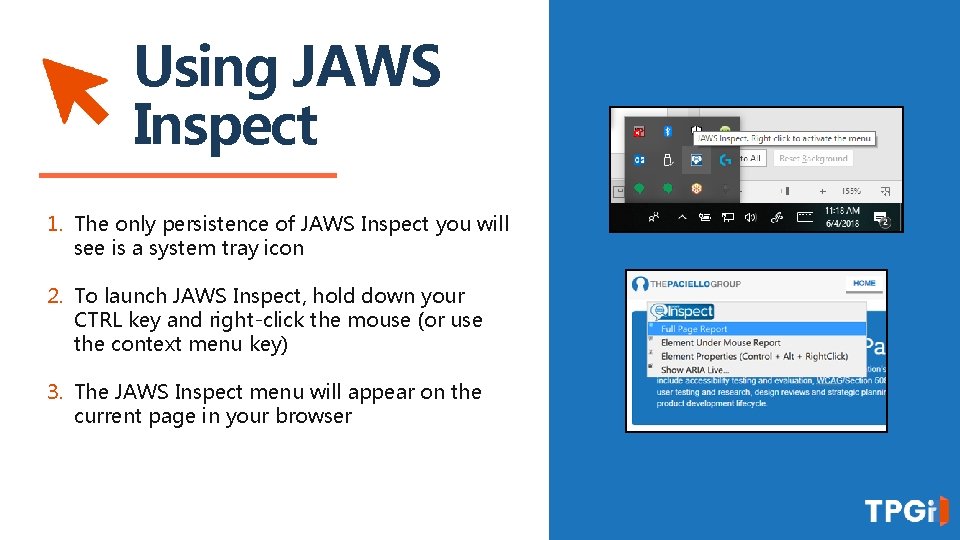
6 Using JAWS Inspect 1. The only persistence of JAWS Inspect you will see is a system tray icon 2. To launch JAWS Inspect, hold down your CTRL key and right-click the mouse (or use the context menu key) 3. The JAWS Inspect menu will appear on the current page in your browser
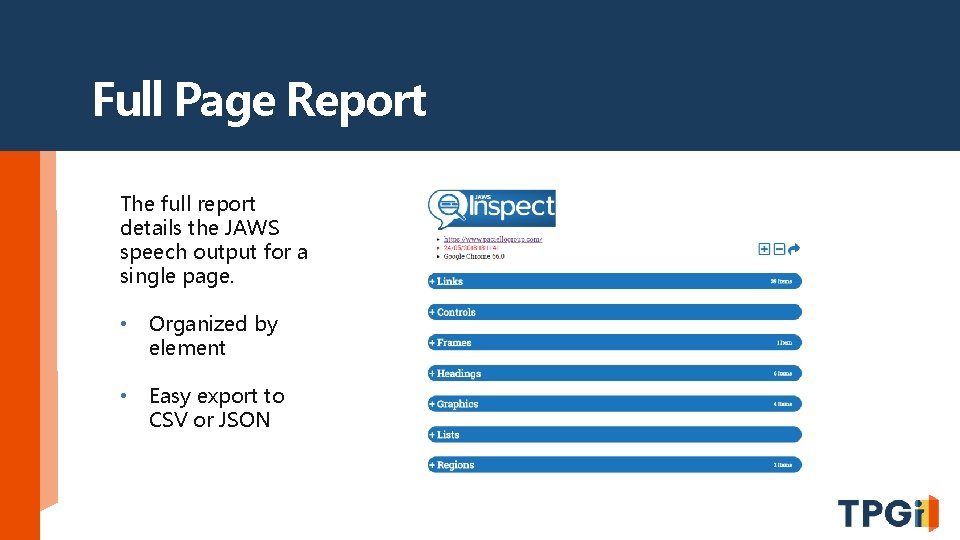
Full Page Report The full report details the JAWS speech output for a single page. • Organized by element • Easy export to CSV or JSON
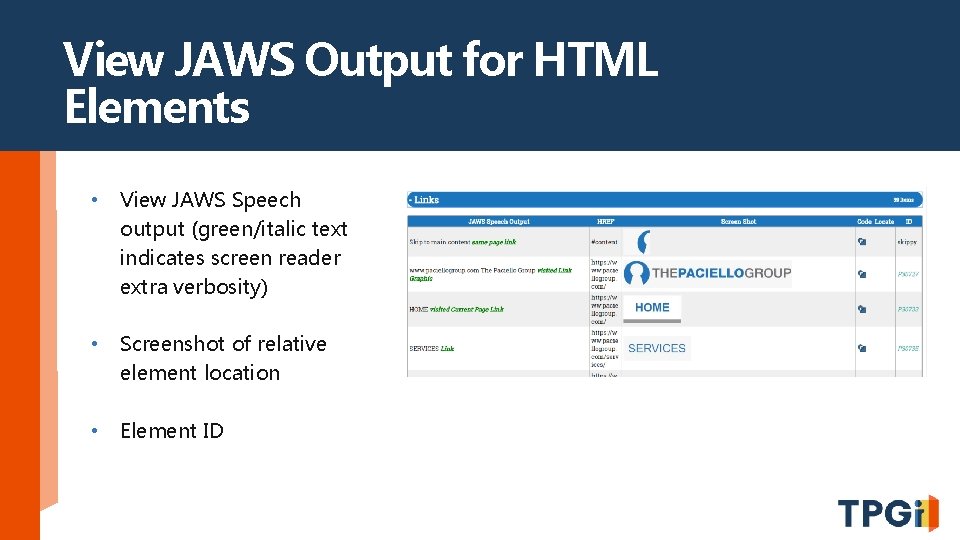
View JAWS Output for HTML Elements • View JAWS Speech output (green/italic text indicates screen reader extra verbosity) • Screenshot of relative element location • Element ID

View Code Snippet for Single Elements • View code snippet of each element as well

Issues Clearly Shown • A clear visual illustration of what screenreader experience on your site • No need for screenreading expertise to read and understand reports
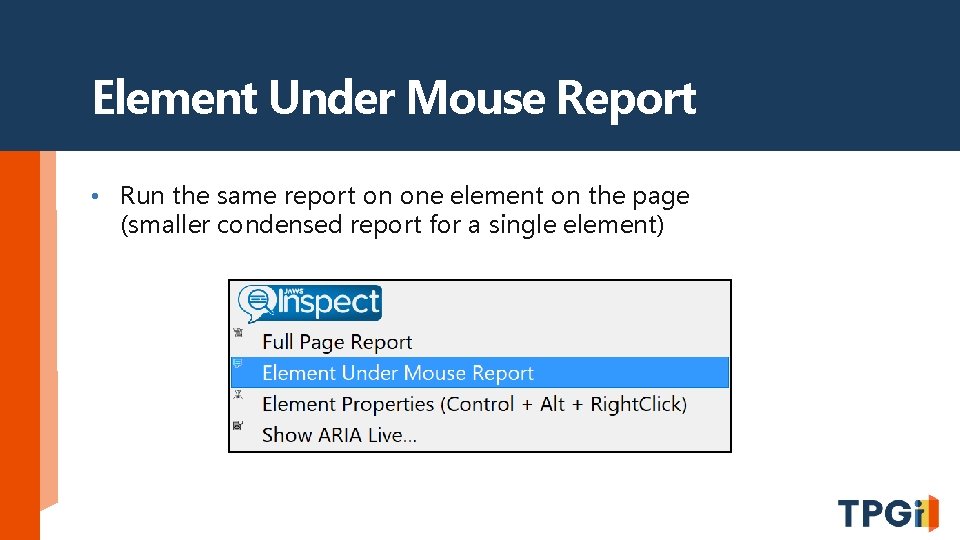
Element Under Mouse Report • Run the same report on one element on the page (smaller condensed report for a single element)

Element Properties • No need to try and locate an element with JAWS • Stay within your current browser tab, can help when troubleshooting individual components

Focus on the Element • Speech output • Extra information supplied by JAWS to the user in Bold, Italic format • Screenshot • Code • Navigate the DOM tree and find the same information for parent elements
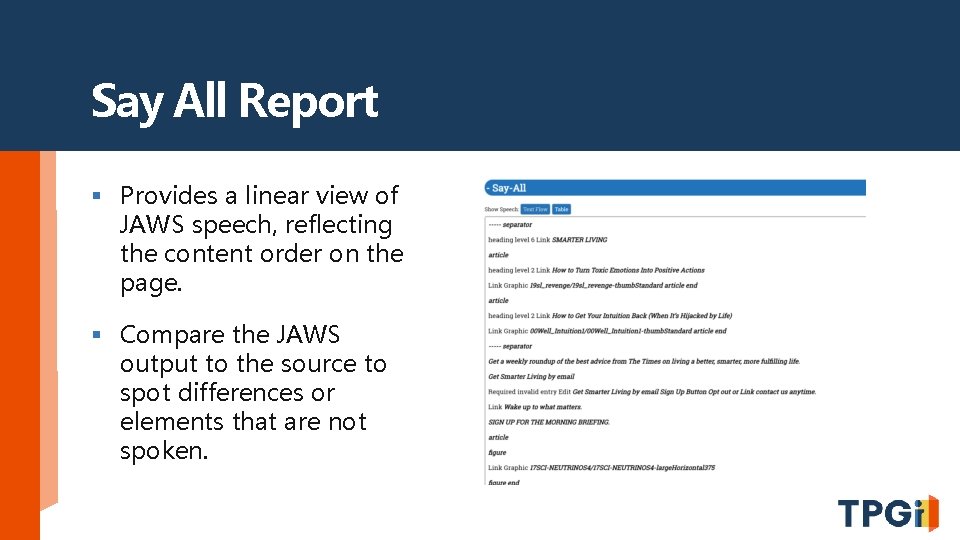
Say All Report § Provides a linear view of JAWS speech, reflecting the content order on the page. § Compare the JAWS output to the source to spot differences or elements that are not spoken.
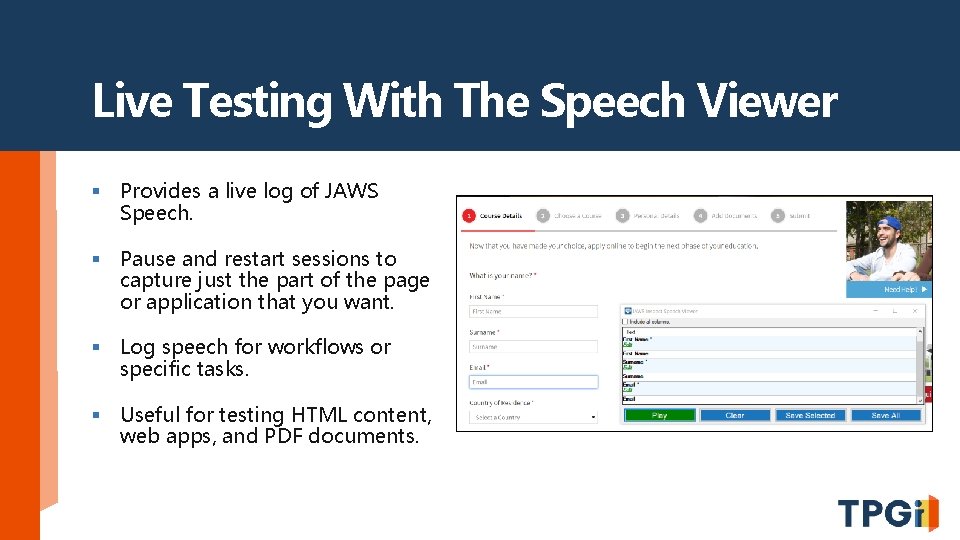
Live Testing With The Speech Viewer § Provides a live log of JAWS Speech. § Pause and restart sessions to capture just the part of the page or application that you want. § Log speech for workflows or specific tasks. § Useful for testing HTML content, web apps, and PDF documents.
JISpeak for Automated Speech Viewer Testing § JISpeak automatically stops and starts speech capturing § Automatically saves speech transcript § Helpful for running with automated test scripts of web content § Use hotkeys to “start” and “stop” recording
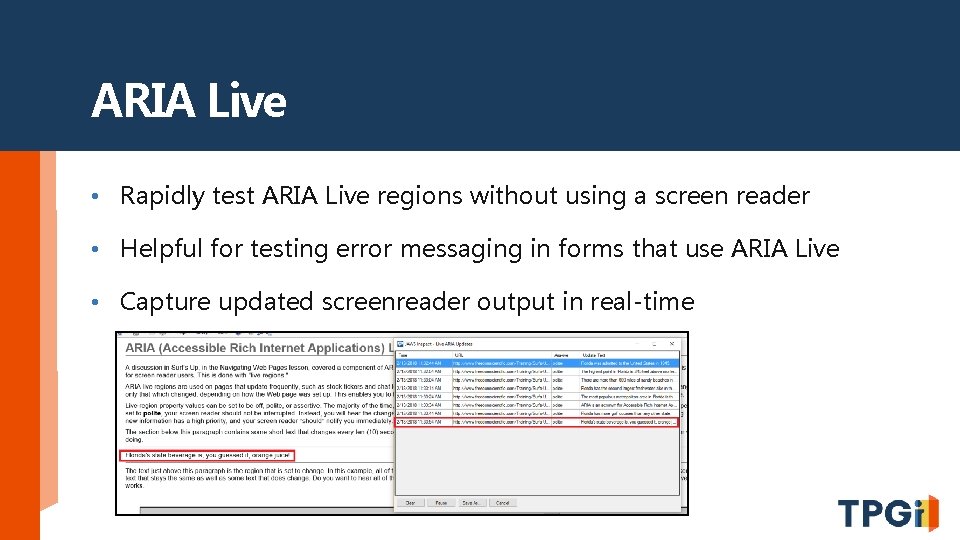
ARIA Live • Rapidly test ARIA Live regions without using a screen reader • Helpful for testing error messaging in forms that use ARIA Live • Capture updated screenreader output in real-time
FAQs 1. Does JAWS Inspect require JAWS to be installed or running on the machine? No, it is a completely standalone application 2. Which browsers does JAWS Inspect support? Microsoft Edge, Chrome, Fire. Fox, and Internet Explorer 11 3. Which operating systems are supported? Effectively the same as JAWS, so Windows based operating systems 4. Does JAWS Inspect identify compliance failures? JAWS Inspect will provide a report of what JAWS users will experience on your site but does not identify code level issues.
FAQ Continued 5. What is the sales model? JAWS Inspect is an annual, subscription-based license. 6. What license types are available? Workstation (seat based) and Network (concurrent). 7. Do I have to pay for upgrades? Upgrades are provided free of charge for current customers during the active subscription period. 8. How is JAWS Inspect installed? After purchase, our Sales team will provide you with a serial number, authentication code and download link for the product.
Conclusion • Streamline manual testing process to uncover accessibility issues • Rapid rollout with limited training required • Easily export data to CSV or JSON • Track and remediate usability defects • Provide consistent results between sighted testers and savvy end users. • Increase ability to test more content (time is money!)

Questions
- Slides: 21