
Jav a The Art and Science of CHAPTER
- Slides: 56
Jav a The Art and Science of CHAPTER 10 Event-driven Programs I claim not to have controlled events, but confess plainly that events have controlled me. —Abraham Lincoln, letter to Albert Hodges, 1864 10. 1 10. 2 10. 3 10. 4 10. 5 10. 6 10. 7 10. 8 The Java event model A simple event-driven program Responding to mouse events Responding to keyboard events Creating a simple GUI The Swing interactor hierarchy Managing component layout Using the Table. Layout class ERIC S. ROBERTS An Introduction to Computer Science
The Java Event Model • Graphical applications usually make it possible for the user to control the action of a program by using an input device such as a mouse. Programs that support this kind of user control are called interactive programs. • User actions such as clicking the mouse are called events. Programs that respond to events are said to be event-driven. • In modern interactive programs, user input doesn’t occur at predictable times. A running program doesn’t tell the user when to click the mouse. The user decides when to click the mouse, and the program responds. Because events are not controlled by the program, they are said to be asynchronous. • When you write a Java program, you indicate the events to which you wish to respond by designating some object as a listener for that event. When the event occurs, a message is sent to the listener, which triggers the appropriate response.
The Role of Event Listeners • One way to visualize the role of a listener is to imagine that you have access to one of Fred and George Weasley’s “Extendable Ears” from the Harry Potter series. • Suppose that you wanted to use these magical listeners to detect events in the canvas shown at the bottom of the slide. All you need to do is send those ears into the room where, being magical, they can keep you informed on anything that goes on there, making it possible for you to respond. Listener. Example
Event Types • Java events come in many different types. The event types used in this book include the following: – Mouse events, which occur when the user moves or clicks the mouse – Keyboard events, which occur when the user types on the keyboard – Action events, which occur in response to user-interface actions • Each event type is associated with a set of methods that specify how listeners should respond. These methods are defined in a listener interface for each event type. • As an example, one of the methods in the mouse listener interface is mouse. Clicked. As you would expect, Java calls that method when you click the mouse. • Listener methods like mouse. Clicked take a parameter that contains more information about the event. In the case of mouse. Clicked, the argument is a Mouse. Event indicating the location at which the click occurred.
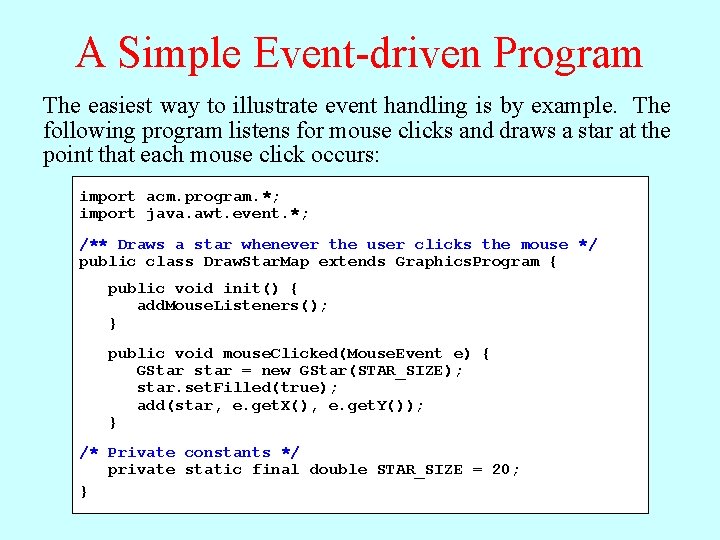
A Simple Event-driven Program In this init implementation example, method the isillustrate called init ofthe mouse. Clicked method automatically calls add. Mouse. Listeners creates aslistener part of a example. GStar the Program object The When easiest definitions the user wayclicks for to the standard mouse, event Java handling and responds is byby classes invoking are. The the in, the described mouse. Clicked package java. awt. event method in the package, listener. which argument means that eatis you start-up which (as following indicates process. program in Chapter that listens the 9) program forand mouse then isclicks adds prepared and it. The todraws to the listen canvas a star for and thea Mouse. Event that describes the event. need to respond location point that import to ofeach mouse theobject mouse this mouse events. package click occurs: in interactive programs. import acm. program. *; import java. awt. event. *; /** Draws a star whenever the user clicks the mouse */ public class Draw. Star. Map extends Graphics. Program { public void init() { add. Mouse. Listeners(); } public void mouse. Clicked(Mouse. Event e) { GStar star = new GStar(STAR_SIZE); star. set. Filled(true); add(star, e. get. X(), e. get. Y()); } /* Private constants */ private static final double STAR_SIZE = 20; }
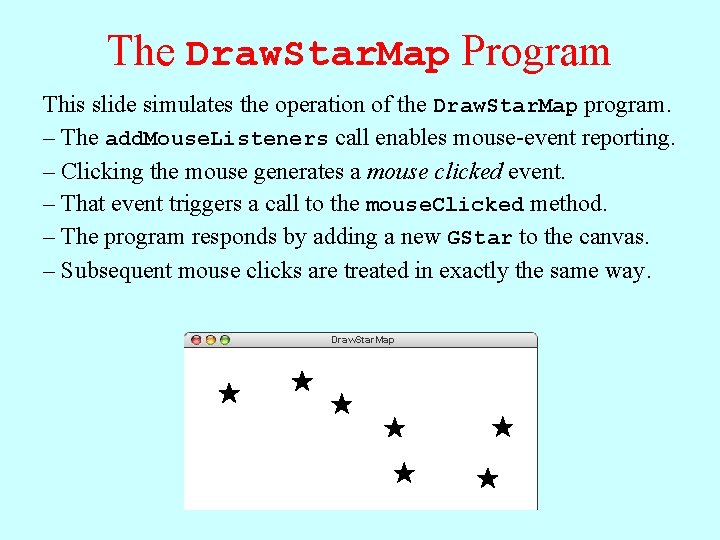
The Draw. Star. Map Program This slide simulates the operation of the Draw. Star. Map program. – The add. Mouse. Listeners call enables mouse-event reporting. – Clicking the mouse generates a mouse clicked event. – That event triggers a call to the mouse. Clicked method. – The program responds by adding a new GStar to the canvas. – Subsequent mouse clicks are treated in exactly the same way. Draw. Star. Map mouse clicked
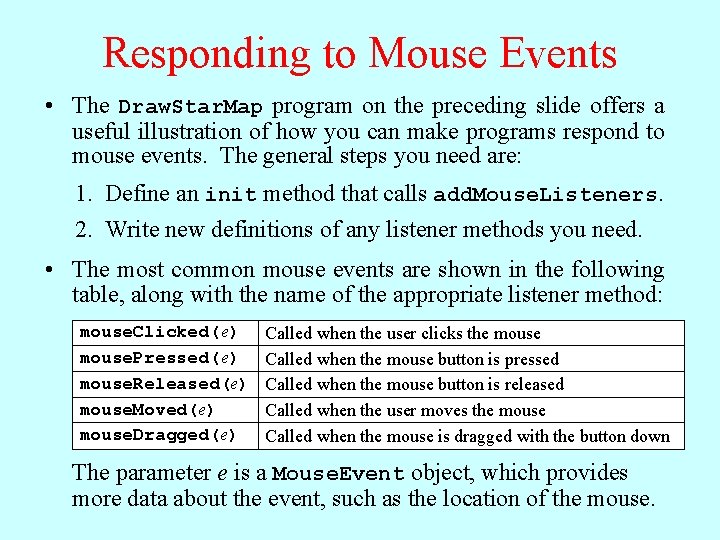
Responding to Mouse Events • The Draw. Star. Map program on the preceding slide offers a useful illustration of how you can make programs respond to mouse events. The general steps you need are: 1. Define an init method that calls add. Mouse. Listeners. 2. Write new definitions of any listener methods you need. • The most common mouse events are shown in the following table, along with the name of the appropriate listener method: mouse. Clicked( e) mouse. Pressed( e) mouse. Released(e) mouse. Moved(e) mouse. Dragged(e) Called when the user clicks the mouse Called when the mouse button is pressed Called when the mouse button is released Called when the user moves the mouse Called when the mouse is dragged with the button down The parameter e is a Mouse. Event object, which provides more data about the event, such as the location of the mouse.
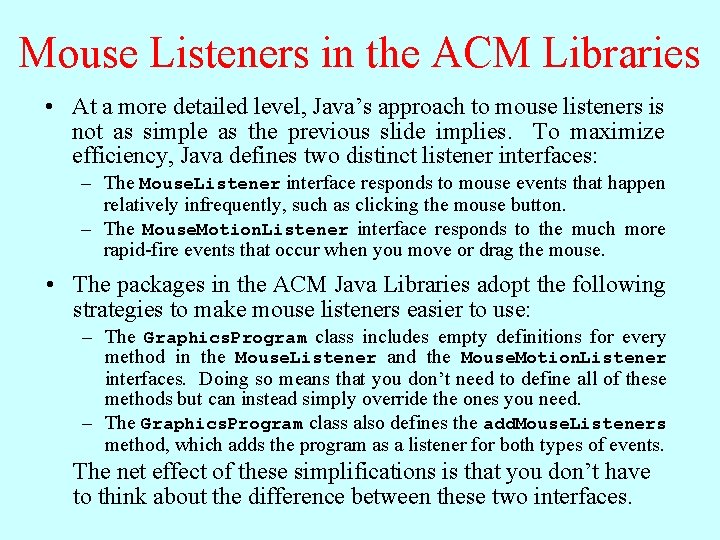
Mouse Listeners in the ACM Libraries • At a more detailed level, Java’s approach to mouse listeners is not as simple as the previous slide implies. To maximize efficiency, Java defines two distinct listener interfaces: – The Mouse. Listener interface responds to mouse events that happen relatively infrequently, such as clicking the mouse button. – The Mouse. Motion. Listener interface responds to the much more rapid-fire events that occur when you move or drag the mouse. • The packages in the ACM Java Libraries adopt the following strategies to make mouse listeners easier to use: – The Graphics. Program class includes empty definitions for every method in the Mouse. Listener and the Mouse. Motion. Listener interfaces. Doing so means that you don’t need to define all of these methods but can instead simply override the ones you need. – The Graphics. Program class also defines the add. Mouse. Listeners method, which adds the program as a listener for both types of events. The net effect of these simplifications is that you don’t have to think about the difference between these two interfaces.
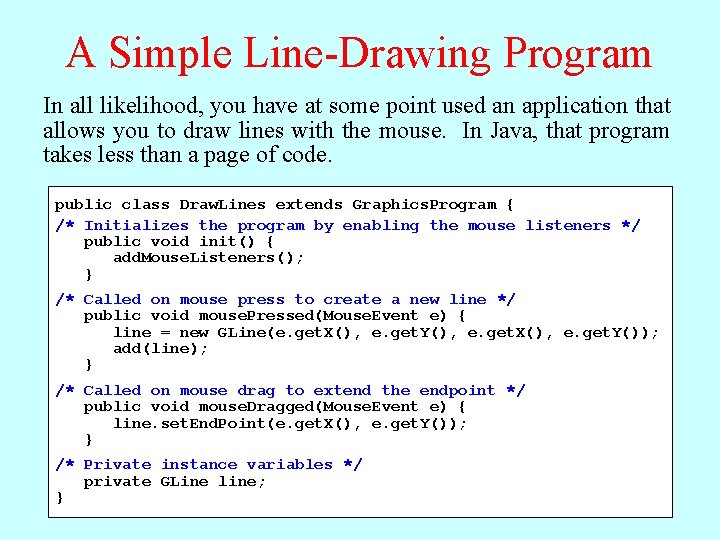
A Simple Line-Drawing Program Dragging mouse. Pressed mouse results method in responds awill series toof that mouse. Dragged event byas creating calls In Drawing The As all you effect likelihood, drag athe of line this using mouse, you strategy this have the program isatline that some the requires point user stretch, sees used three contract, the anactions: line application and itpressing change grows, thata the mouse new that providing direction allows come zero-length you asin the button to ifrapid the draw necessary line two atsuccession lines the that points starting with visual begins were the each feedback point and mouse. connected time ends ofthe In at tocomputer by Java, the line, position ancurrent elastic that dragging reads program the mouse band. line the position. mouse correctly. This takes technique less to the position. thandesired aispage Each therefore end of call code. point, simply called and rubber-banding. resets then the releasing end point the of mouse. the line. public class Draw. Lines extends Graphics. Program { /* Initializes the program by enabling the mouse listeners */ public void init() { add. Mouse. Listeners(); } /* Called on mouse press to create a new line */ public void mouse. Pressed(Mouse. Event e) { line = new GLine(e. get. X(), e. get. Y(), e. get. X(), e. get. Y()); add(line); } /* Called on mouse drag to extend the endpoint */ public void mouse. Dragged(Mouse. Event e) { line. set. End. Point(e. get. X(), e. get. Y()); } /* Private instance variables */ private GLine line; }
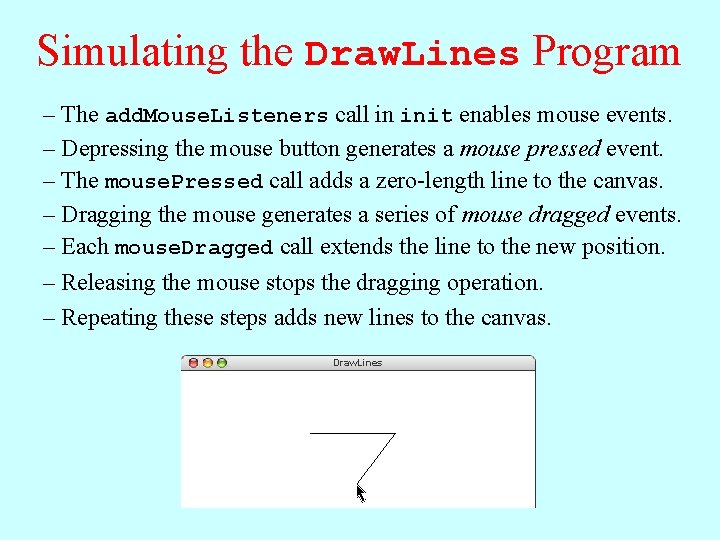
Simulating the Draw. Lines Program – The add. Mouse. Listeners call in init enables mouse events. – Depressing the mouse button generates a mouse pressed event. – The mouse. Pressed call adds a zero-length line to the canvas. – Dragging the mouse generates a series of mouse dragged events. – Each mouse. Dragged call extends the line to the new position. – Releasing the mouse stops the dragging operation. – Repeating these steps adds new lines to the canvas. Draw. Lines mouse mouse pressed dragged dragged
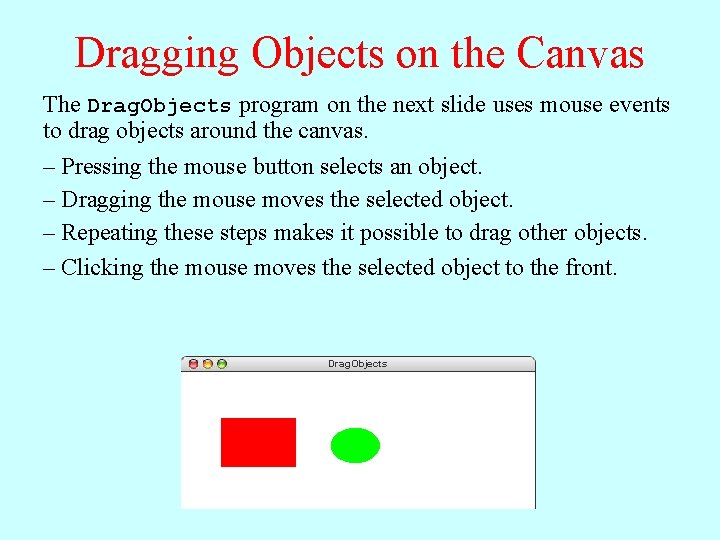
Dragging Objects on the Canvas The Drag. Objects program on the next slide uses mouse events to drag objects around the canvas. – Pressing the mouse button selects an object. – Dragging the mouse moves the selected object. – Repeating these steps makes it possible to drag other objects. – Clicking the mouse moves the selected object to the front. Drag. Objects
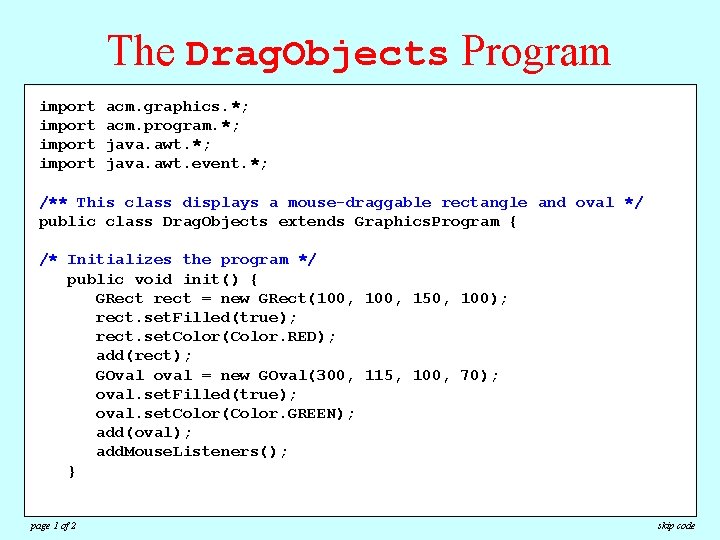
The Drag. Objects Program import acm. graphics. *; acm. program. *; java. awt. event. *; /** This class displays a mouse-draggable rectangle and oval */ public class Drag. Objects extends Graphics. Program { /* Initializes the program */ public void init() { GRect rect = new GRect(100, 150, 100); rect. set. Filled(true); rect. set. Color(Color. RED); add(rect); GOval oval = new GOval(300, 115, 100, 70); oval. set. Filled(true); oval. set. Color(Color. GREEN); add(oval); add. Mouse. Listeners(); } page 1 of 2 skip code
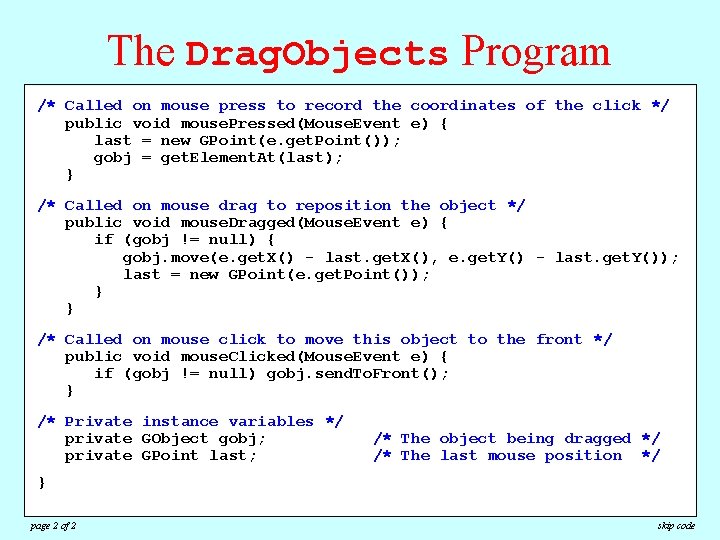
The Drag. Objects Program /* Called on mouse press to record the coordinates of the click */ import acm. graphics. *; public void mouse. Pressed(Mouse. Event e) { import acm. program. *; = new GPoint(e. get. Point()); importlast java. awt. *; = get. Element. At(last); importgobj java. awt. event. *; } /**Called This class displays a mouse-draggable rectangle /* on mouse drag to reposition the object */ and oval */ public class extends Graphics. Program { public void. Drag. Objects mouse. Dragged(Mouse. Event e) { if (gobj != null) { gobj. move(e. get. X() - last. get. X(), e. get. Y() - last. get. Y()); /* Initializes the program */ new GPoint(e. get. Point()); publiclast void= init() { }GRect rect = new GRect(100, 150, 100); } rect. set. Filled(true); rect. set. Color(Color. RED); /* Called on mouse click to move this object to the front */ add(rect); public void mouse. Clicked(Mouse. Event e) { if (gobj != =null) gobj. send. To. Front(); GOval oval new GOval(300, 115, 100, 70); } oval. set. Filled(true); oval. set. Color(Color. GREEN); /* Private instance variables */ add(oval); private GObject gobj; /* The object being dragged */ add. Mouse. Listeners(); private GPoint last; /* The last mouse position */ } } page 2 of 2 skip code
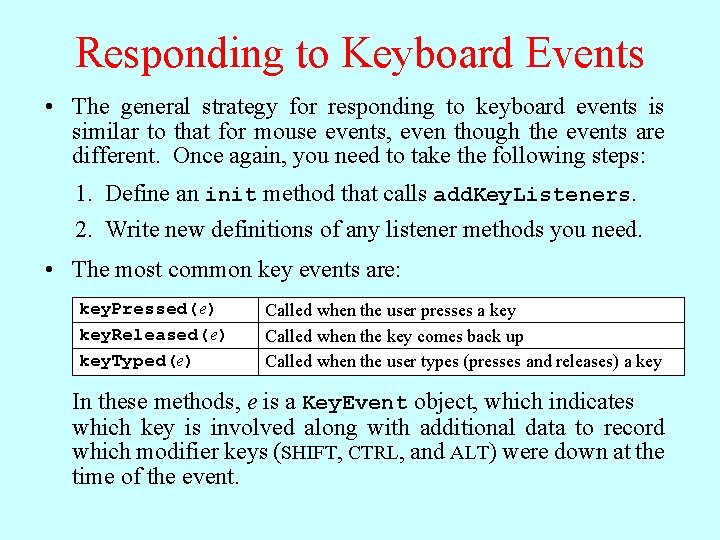
Responding to Keyboard Events • The general strategy for responding to keyboard events is similar to that for mouse events, even though the events are different. Once again, you need to take the following steps: 1. Define an init method that calls add. Key. Listeners. 2. Write new definitions of any listener methods you need. • The most common key events are: key. Pressed( e) key. Released( e) key. Typed(e) Called when the user presses a key Called when the key comes back up Called when the user types (presses and releases) a key In these methods, e is a Key. Event object, which indicates which key is involved along with additional data to record which modifier keys (SHIFT, CTRL, and ALT) were down at the time of the event.
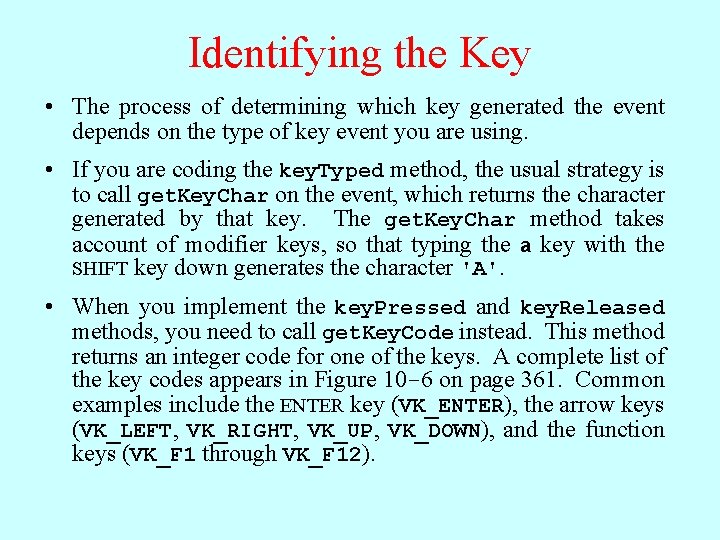
Identifying the Key • The process of determining which key generated the event depends on the type of key event you are using. • If you are coding the key. Typed method, the usual strategy is to call get. Key. Char on the event, which returns the character generated by that key. The get. Key. Char method takes account of modifier keys, so that typing the a key with the SHIFT key down generates the character 'A'. • When you implement the key. Pressed and key. Released methods, you need to call get. Key. Code instead. This method returns an integer code for one of the keys. A complete list of the key codes appears in Figure 10 -6 on page 361. Common examples include the ENTER key (VK_ENTER), the arrow keys (VK_LEFT, VK_RIGHT, VK_UP, VK_DOWN), and the function keys (VK_F 1 through VK_F 12).
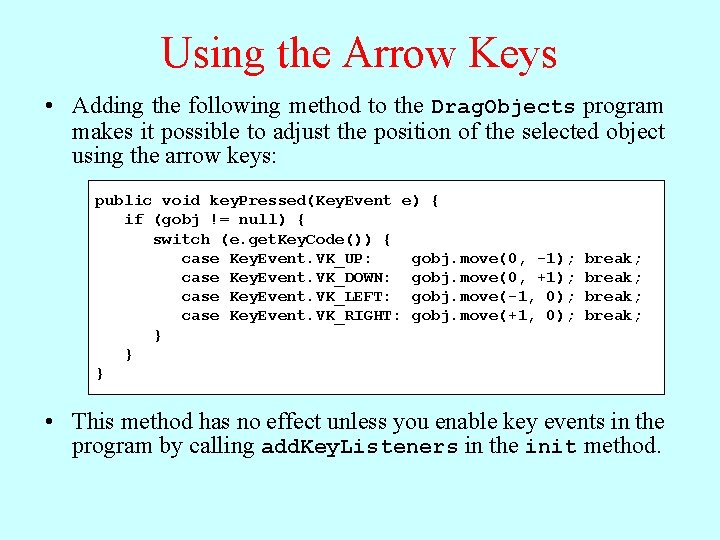
Using the Arrow Keys • Adding the following method to the Drag. Objects program makes it possible to adjust the position of the selected object using the arrow keys: public void key. Pressed(Key. Event e) { if (gobj != null) { switch (e. get. Key. Code()) { case Key. Event. VK_UP: gobj. move(0, -1); case Key. Event. VK_DOWN: gobj. move(0, +1); case Key. Event. VK_LEFT: gobj. move(-1, 0); case Key. Event. VK_RIGHT: gobj. move(+1, 0); } } } break; • This method has no effect unless you enable key events in the program by calling add. Key. Listeners in the init method.
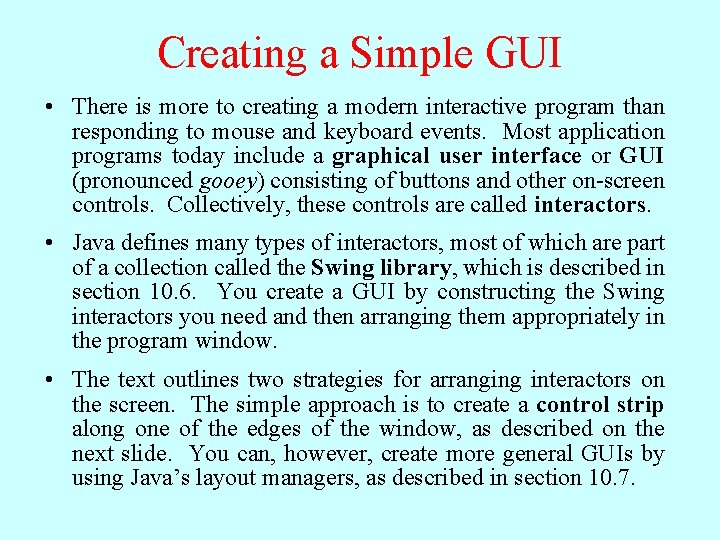
Creating a Simple GUI • There is more to creating a modern interactive program than responding to mouse and keyboard events. Most application programs today include a graphical user interface or GUI (pronounced gooey) consisting of buttons and other on-screen controls. Collectively, these controls are called interactors. • Java defines many types of interactors, most of which are part of a collection called the Swing library, which is described in section 10. 6. You create a GUI by constructing the Swing interactors you need and then arranging them appropriately in the program window. • The text outlines two strategies for arranging interactors on the screen. The simple approach is to create a control strip along one of the edges of the window, as described on the next slide. You can, however, create more general GUIs by using Java’s layout managers, as described in section 10. 7.
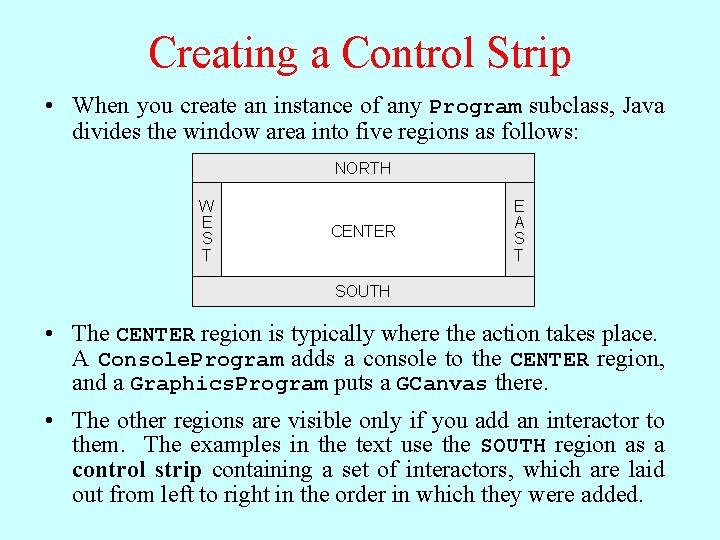
Creating a Control Strip • When you create an instance of any Program subclass, Java divides the window area into five regions as follows: NORTH W E S T CENTER E A S T SOUTH • The CENTER region is typically where the action takes place. A Console. Program adds a console to the CENTER region, and a Graphics. Program puts a GCanvas there. • The other regions are visible only if you add an interactor to them. The examples in the text use the SOUTH region as a control strip containing a set of interactors, which are laid out from left to right in the order in which they were added.
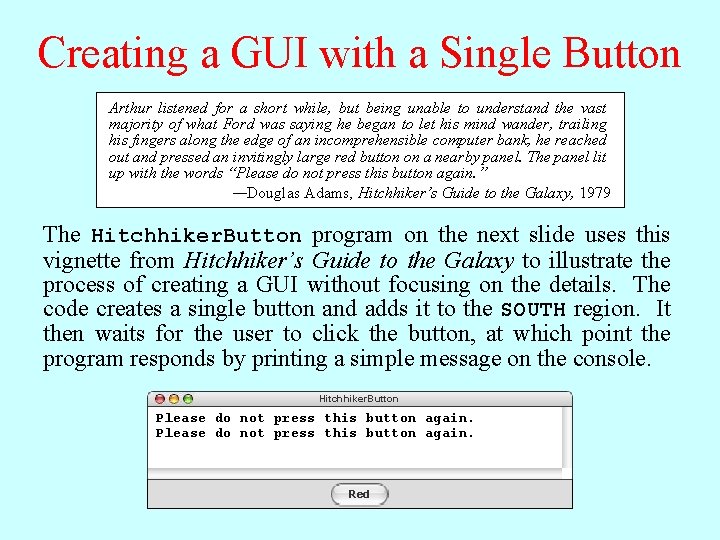
Creating a GUI with a Single Button Arthur listened for a short while, but being unable to understand the vast majority of what Ford was saying he began to let his mind wander, trailing his fingers along the edge of an incomprehensible computer bank, he reached out and pressed an invitingly large red button on a nearby panel. The panel lit up with the words “Please do not press this button again. ” —Douglas Adams, Hitchhiker’s Guide to the Galaxy, 1979 The Hitchhiker. Button program on the next slide uses this vignette from Hitchhiker’s Guide to the Galaxy to illustrate the process of creating a GUI without focusing on the details. The code creates a single button and adds it to the SOUTH region. It then waits for the user to click the button, at which point the program responds by printing a simple message on the console. Hitchhiker. Button Please do not press this button again. Red
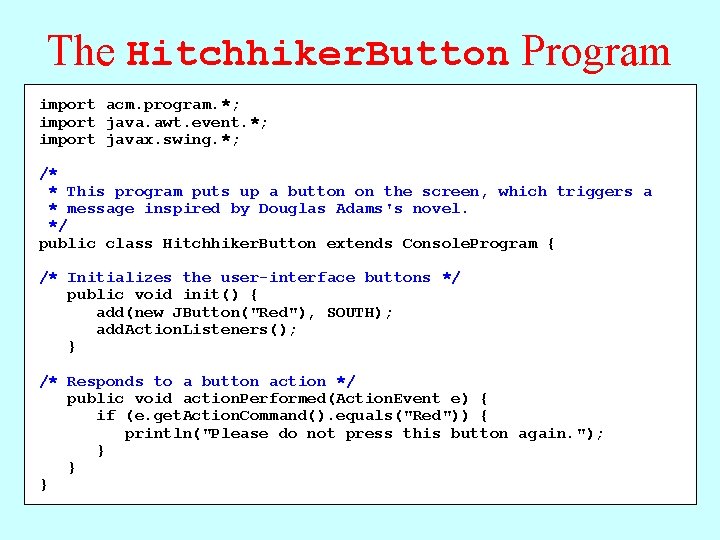
The Hitchhiker. Button Program import acm. program. *; import java. awt. event. *; import javax. swing. *; /* * This program puts up a button on the screen, which triggers a * message inspired by Douglas Adams's novel. */ public class Hitchhiker. Button extends Console. Program { /* Initializes the user-interface buttons */ public void init() { add(new JButton("Red"), SOUTH); add. Action. Listeners(); } /* Responds to a button action */ public void action. Performed(Action. Event e) { if (e. get. Action. Command(). equals("Red")) { println("Please do not press this button again. "); } } }
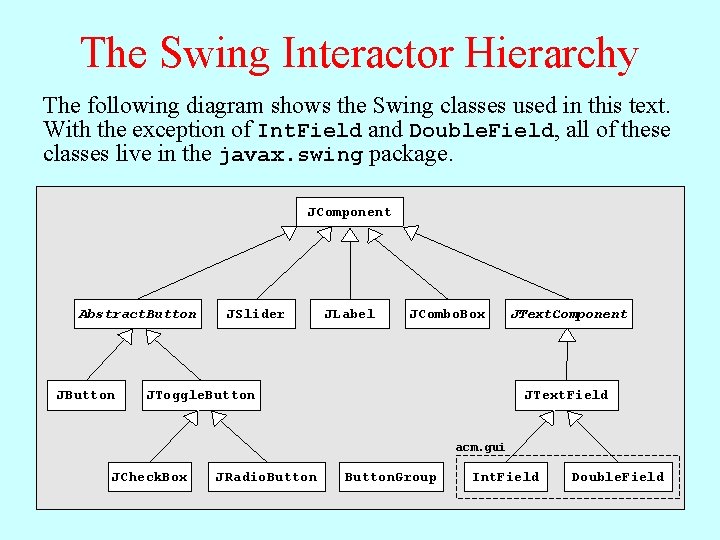
The Swing Interactor Hierarchy The following diagram shows the Swing classes used in this text. With the exception of Int. Field and Double. Field, all of these classes live in the javax. swing package. JComponent Abstract. Button JSlider JLabel JCombo. Box JToggle. Button JText. Component JText. Field acm. gui JCheck. Box JRadio. Button. Group Int. Field Double. Field
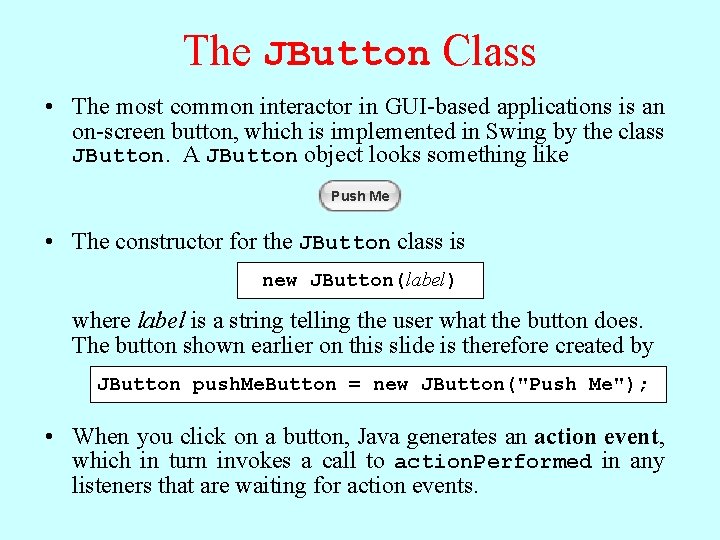
The JButton Class • The most common interactor in GUI-based applications is an on-screen button, which is implemented in Swing by the class JButton. A JButton object looks something like Push Me • The constructor for the JButton class is new JButton(label) where label is a string telling the user what the button does. The button shown earlier on this slide is therefore created by JButton push. Me. Button = new JButton("Push Me"); • When you click on a button, Java generates an action event, which in turn invokes a call to action. Performed in any listeners that are waiting for action events.
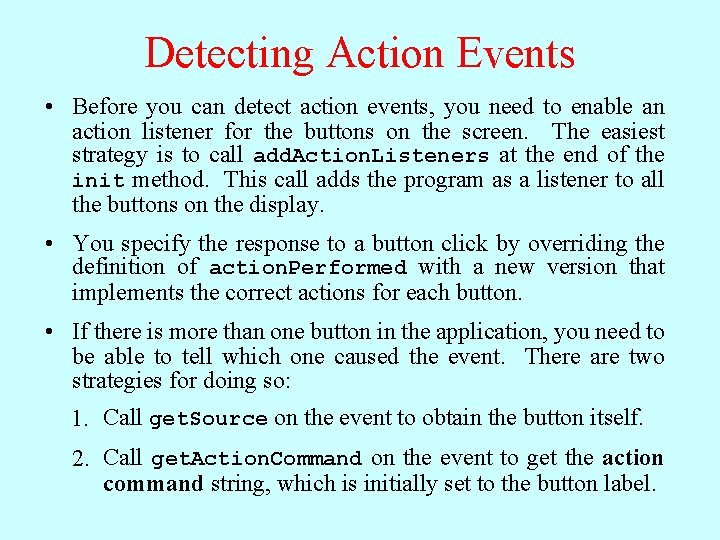
Detecting Action Events • Before you can detect action events, you need to enable an action listener for the buttons on the screen. The easiest strategy is to call add. Action. Listeners at the end of the init method. This call adds the program as a listener to all the buttons on the display. • You specify the response to a button click by overriding the definition of action. Performed with a new version that implements the correct actions for each button. • If there is more than one button in the application, you need to be able to tell which one caused the event. There are two strategies for doing so: 1. Call get. Source on the event to obtain the button itself. 2. Call get. Action. Command on the event to get the action command string, which is initially set to the button label.
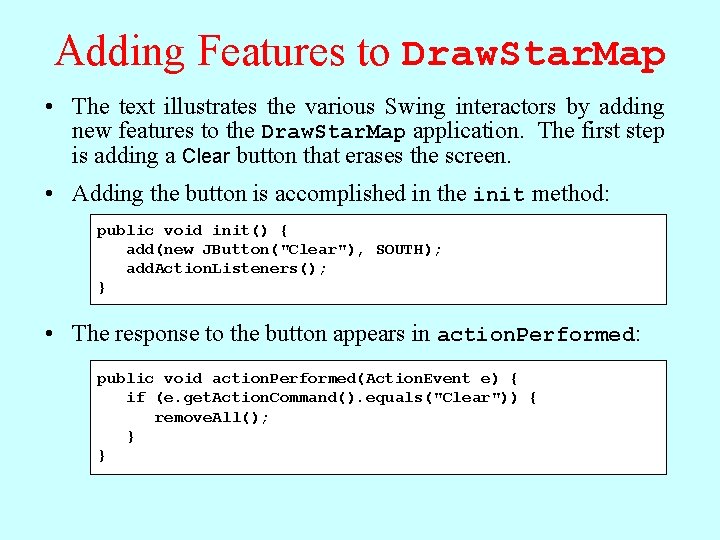
Adding Features to Draw. Star. Map • The text illustrates the various Swing interactors by adding new features to the Draw. Star. Map application. The first step is adding a Clear button that erases the screen. • Adding the button is accomplished in the init method: public void init() { add(new JButton("Clear"), SOUTH); add. Action. Listeners(); } • The response to the button appears in action. Performed: public void action. Performed(Action. Event e) { if (e. get. Action. Command(). equals("Clear")) { remove. All(); } }
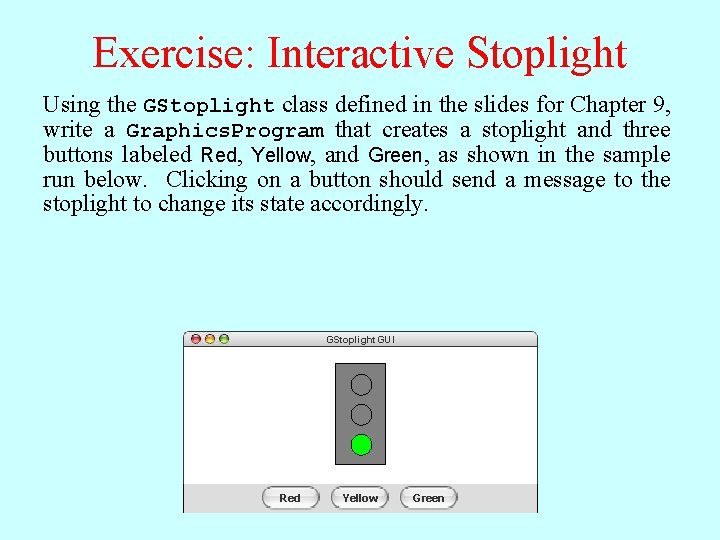
Exercise: Interactive Stoplight Using the GStoplight class defined in the slides for Chapter 9, write a Graphics. Program that creates a stoplight and three buttons labeled Red, Yellow, and Green, as shown in the sample run below. Clicking on a button should send a message to the stoplight to change its state accordingly. GStoplight. GUI Red Yellow Green
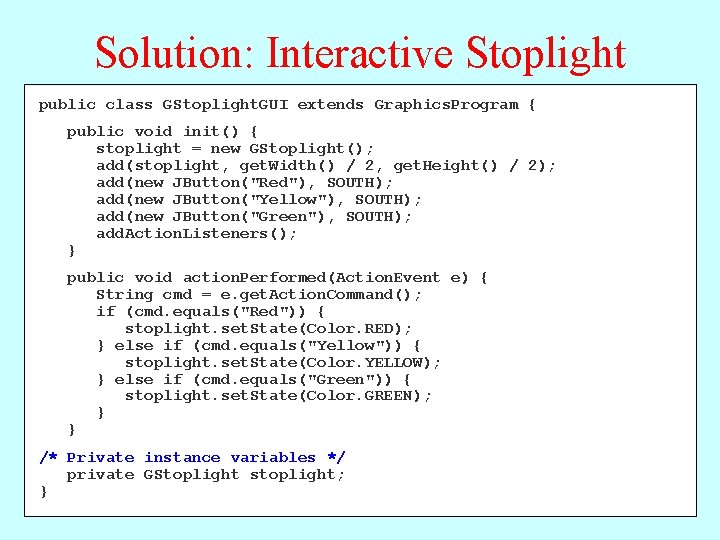
Solution: Interactive Stoplight public class GStoplight. GUI extends Graphics. Program { public void init() { stoplight = new GStoplight(); add(stoplight, get. Width() / 2, get. Height() / 2); add(new JButton("Red"), SOUTH); add(new JButton("Yellow"), SOUTH); add(new JButton("Green"), SOUTH); add. Action. Listeners(); } public void action. Performed(Action. Event e) { String cmd = e. get. Action. Command(); if (cmd. equals("Red")) { stoplight. set. State(Color. RED); } else if (cmd. equals("Yellow")) { stoplight. set. State(Color. YELLOW); } else if (cmd. equals("Green")) { stoplight. set. State(Color. GREEN); } } /* Private instance variables */ private GStoplight stoplight; }
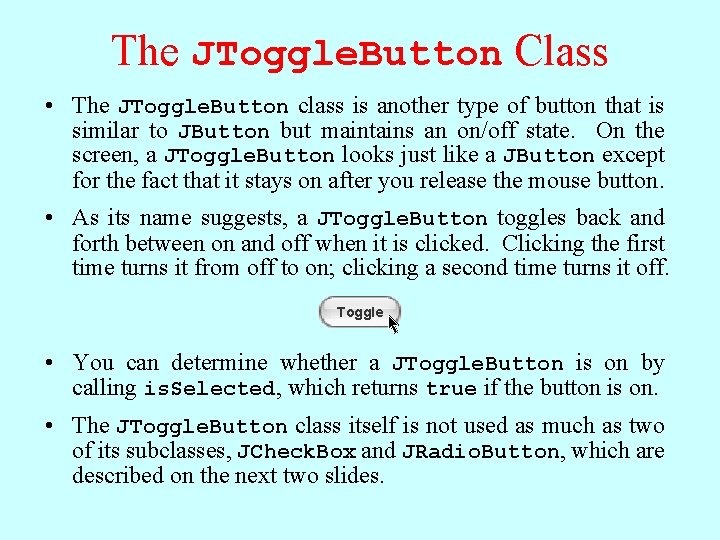
The JToggle. Button Class • The JToggle. Button class is another type of button that is similar to JButton but maintains an on/off state. On the screen, a JToggle. Button looks just like a JButton except for the fact that it stays on after you release the mouse button. • As its name suggests, a JToggle. Button toggles back and forth between on and off when it is clicked. Clicking the first time turns it from off to on; clicking a second time turns it off. Toggle • You can determine whether a JToggle. Button is on by calling is. Selected, which returns true if the button is on. • The JToggle. Button class itself is not used as much as two of its subclasses, JCheck. Box and JRadio. Button, which are described on the next two slides.
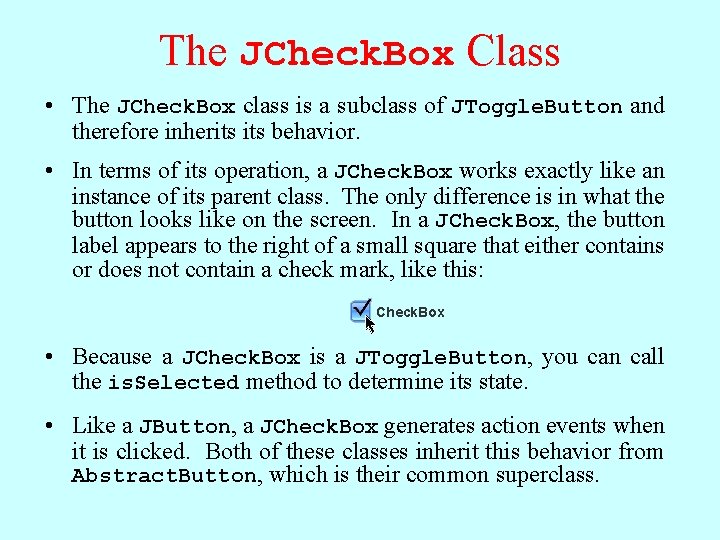
The JCheck. Box Class • The JCheck. Box class is a subclass of JToggle. Button and therefore inherits behavior. • In terms of its operation, a JCheck. Box works exactly like an instance of its parent class. The only difference is in what the button looks like on the screen. In a JCheck. Box, the button label appears to the right of a small square that either contains or does not contain a check mark, like this: Check. Box • Because a JCheck. Box is a JToggle. Button, you can call the is. Selected method to determine its state. • Like a JButton, a JCheck. Box generates action events when it is clicked. Both of these classes inherit this behavior from Abstract. Button, which is their common superclass.
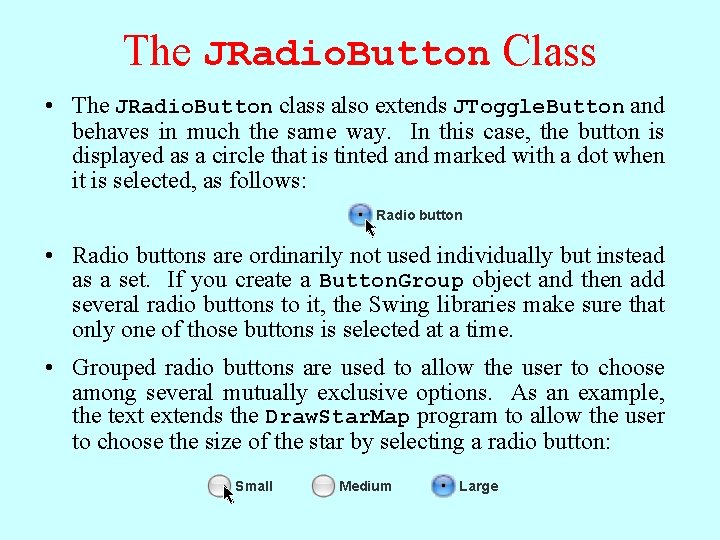
The JRadio. Button Class • The JRadio. Button class also extends JToggle. Button and behaves in much the same way. In this case, the button is displayed as a circle that is tinted and marked with a dot when it is selected, as follows: Radio button • Radio buttons are ordinarily not used individually but instead as a set. If you create a Button. Group object and then add several radio buttons to it, the Swing libraries make sure that only one of those buttons is selected at a time. • Grouped radio buttons are used to allow the user to choose among several mutually exclusive options. As an example, the text extends the Draw. Star. Map program to allow the user to choose the size of the star by selecting a radio button: Small Medium Large
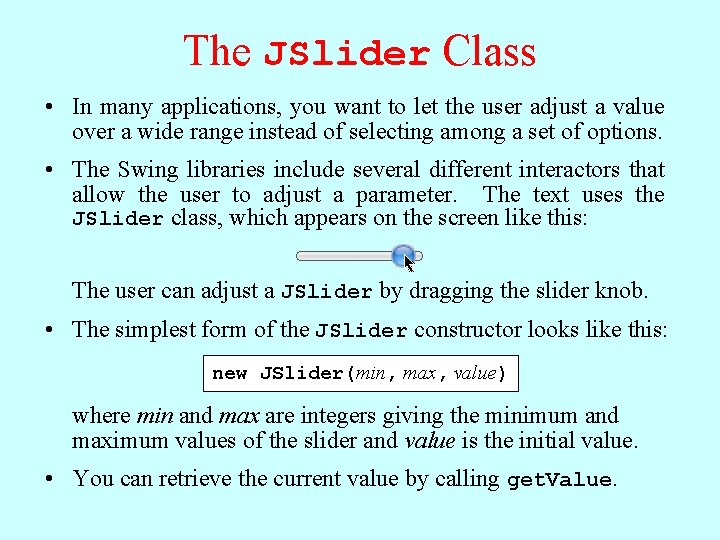
The JSlider Class • In many applications, you want to let the user adjust a value over a wide range instead of selecting among a set of options. • The Swing libraries include several different interactors that allow the user to adjust a parameter. The text uses the JSlider class, which appears on the screen like this: The user can adjust a JSlider by dragging the slider knob. • The simplest form of the JSlider constructor looks like this: new JSlider(min, max, value) where min and max are integers giving the minimum and maximum values of the slider and value is the initial value. • You can retrieve the current value by calling get. Value.
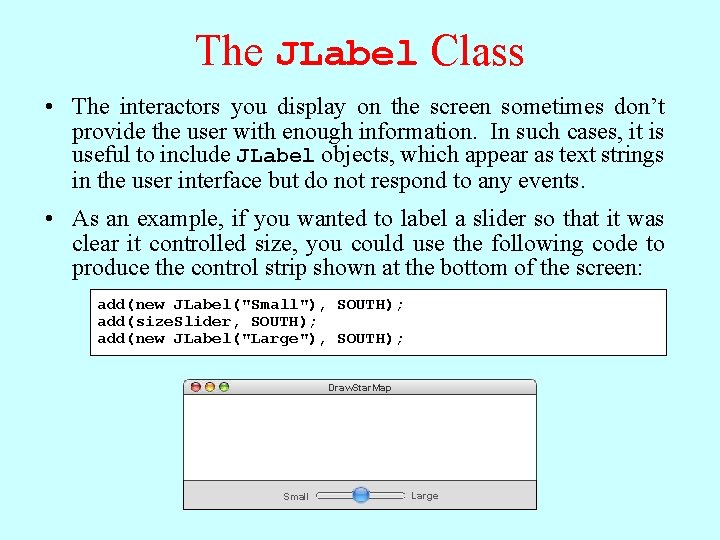
The JLabel Class • The interactors you display on the screen sometimes don’t provide the user with enough information. In such cases, it is useful to include JLabel objects, which appear as text strings in the user interface but do not respond to any events. • As an example, if you wanted to label a slider so that it was clear it controlled size, you could use the following code to produce the control strip shown at the bottom of the screen: add(new JLabel("Small"), SOUTH); add(size. Slider, SOUTH); add(new JLabel("Large"), SOUTH); Draw. Star. Map Small Large
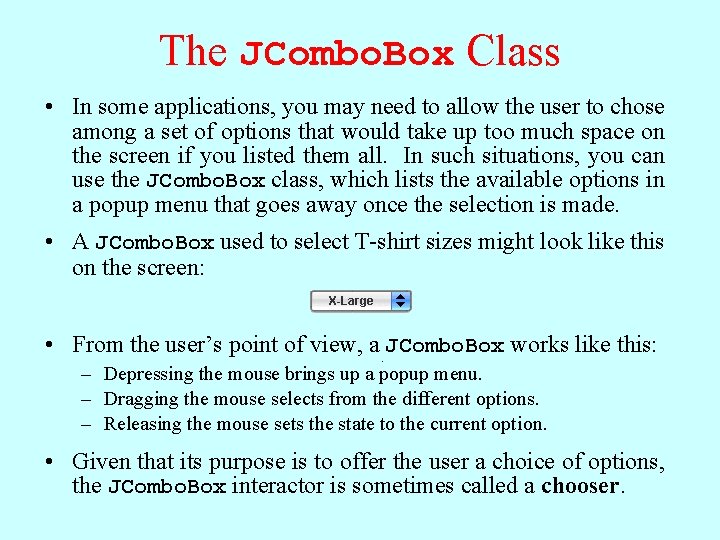
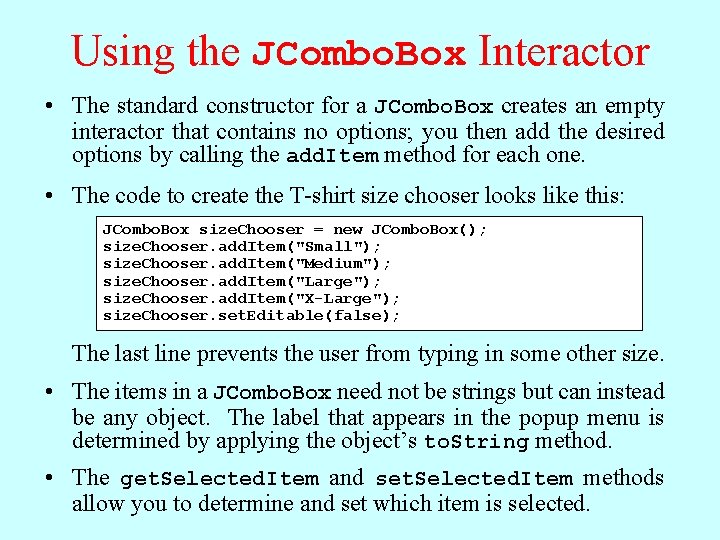
The JCombo. Box Class • In some applications, you may need to allow the user to chose among a set of options that would take up too much space on the screen if you listed them all. In such situations, you can use the JCombo. Box class, which lists the available options in a popup menu that goes away once the selection is made. • A JCombo. Box used to select T-shirt sizes might look like this on the screen: Small X-Large Medium Large X-Large • From the user’s point of view, a JCombo. Box works like this: – Depressing the mouse brings up a popup menu. – Dragging the mouse selects from the different options. – Releasing the mouse sets the state to the current option. • Given that its purpose is to offer the user a choice of options, the JCombo. Box interactor is sometimes called a chooser.
Using the JCombo. Box Interactor • The standard constructor for a JCombo. Box creates an empty interactor that contains no options; you then add the desired options by calling the add. Item method for each one. • The code to create the T-shirt size chooser looks like this: JCombo. Box size. Chooser = new JCombo. Box(); size. Chooser. add. Item("Small"); size. Chooser. add. Item("Medium"); size. Chooser. add. Item("Large"); size. Chooser. add. Item("X-Large"); size. Chooser. set. Editable(false); The last line prevents the user from typing in some other size. • The items in a JCombo. Box need not be strings but can instead be any object. The label that appears in the popup menu is determined by applying the object’s to. String method. • The get. Selected. Item and set. Selected. Item methods allow you to determine and set which item is selected.
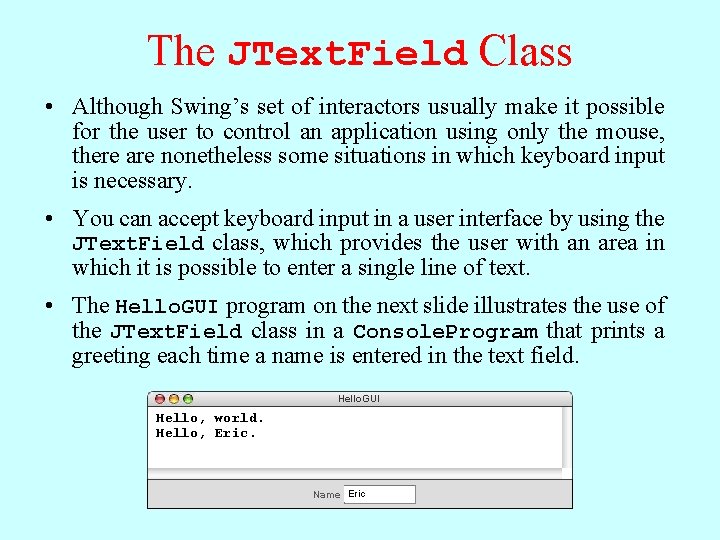
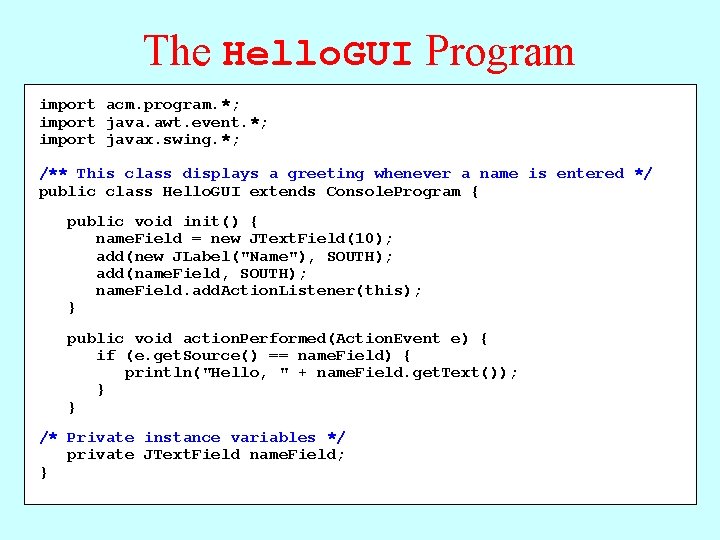
The JText. Field Class • Although Swing’s set of interactors usually make it possible for the user to control an application using only the mouse, there are nonetheless some situations in which keyboard input is necessary. • You can accept keyboard input in a user interface by using the JText. Field class, which provides the user with an area in which it is possible to enter a single line of text. • The Hello. GUI program on the next slide illustrates the use of the JText. Field class in a Console. Program that prints a greeting each time a name is entered in the text field. Hello. GUI Hello, world. Hello, Eric Name world
The Hello. GUI Program import acm. program. *; import java. awt. event. *; import javax. swing. *; /** This class displays a greeting whenever a name is entered */ public class Hello. GUI extends Console. Program { public void init() { name. Field = new JText. Field(10); add(new JLabel("Name"), SOUTH); add(name. Field, SOUTH); name. Field. add. Action. Listener(this); } public void action. Performed(Action. Event e) { if (e. get. Source() == name. Field) { println("Hello, " + name. Field. get. Text()); } } /* Private instance variables */ private JText. Field name. Field; }
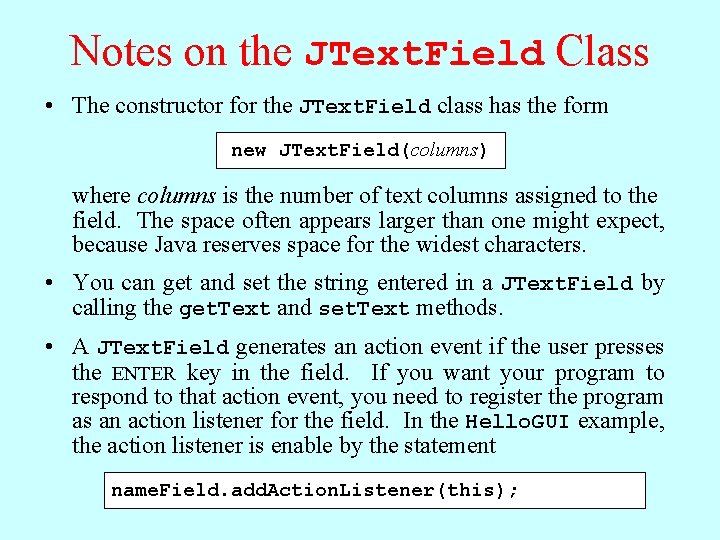
Notes on the JText. Field Class • The constructor for the JText. Field class has the form new JText. Field(columns) where columns is the number of text columns assigned to the field. The space often appears larger than one might expect, because Java reserves space for the widest characters. • You can get and set the string entered in a JText. Field by calling the get. Text and set. Text methods. • A JText. Field generates an action event if the user presses the ENTER key in the field. If you want your program to respond to that action event, you need to register the program as an action listener for the field. In the Hello. GUI example, the action listener is enable by the statement name. Field. add. Action. Listener(this);
Numeric Fields • The acm. gui package includes two JText. Field subclasses that simplify the process of reading numeric input within a graphical user interface. The Int. Field class interprets its text string as an int; the Double. Field class interprets the text string as a double. • In addition to the usual operations on a JText. Field, the Int. Field and Double. Field classes export get. Value and set. Value methods that get and set the numeric value of the field. • Although it is beyond the scope of the text, the Int. Field and Double. Field classes support numeric formatting so that you can control the number of digits in the display. The methods that support this capability are described in the javadoc documentation for these classes.
Managing Component Layout • Although using a control strip along the edge of a program is useful for simple applications, creating a more sophisticated user interface requires you to be able to place interactors anywhere inside a window. • Arranging interactors to form an elegant, easy-to-use interface is a difficult design challenge. One of the factors that complicates this type of design is the fact that the size of the program window can change over time. A layout that makes sense for a large window may not be appropriate for a small one. • Java seeks to solve the problem of changing window size by using layout managers, which are responsible for arranging interactors and other components when the windows that contain them change size.
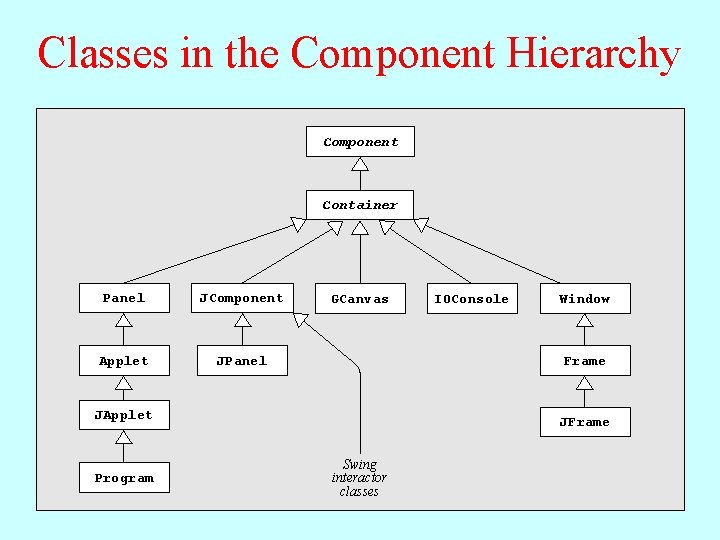
Components and Containers • Understanding how layout managers work is significantly easier if you first understand the relationship between two classes—Component and Container—that are fundamental to Java’s windowing system. • The Component class forms the root of Java’s window system hierarchy in the sense that anything that appears in a window is a subclass of Component. • The Container class is a subclass of Component that can contain other Components, thereby making it possible to nest components inside structures of arbitrary depth. • As you can see from the hierarchy diagram on the next slide, many of the classes you have seen in the text are subclasses of both Component and Container. In particular, all Swing interactors, the GCanvas class, and the Program class are both components and containers.
Classes in the Component Hierarchy Component Container Panel JComponent Applet JPanel GCanvas Window Frame JApplet Program IOConsole JFrame Swing interactor classes
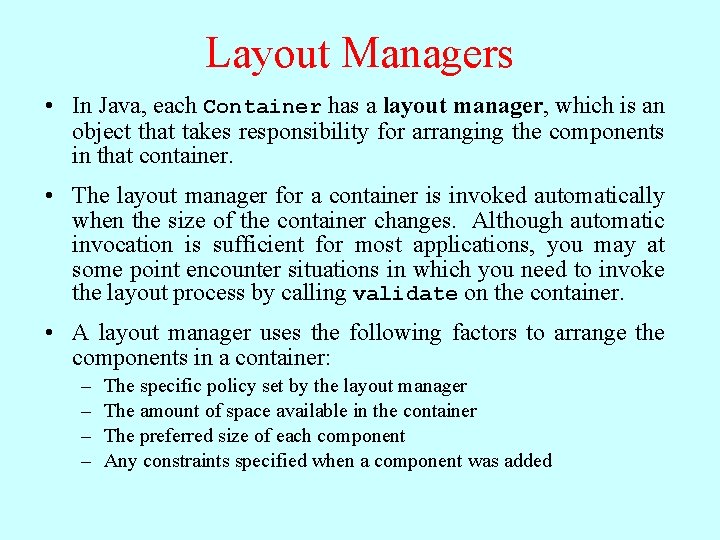
Layout Managers • In Java, each Container has a layout manager, which is an object that takes responsibility for arranging the components in that container. • The layout manager for a container is invoked automatically when the size of the container changes. Although automatic invocation is sufficient for most applications, you may at some point encounter situations in which you need to invoke the layout process by calling validate on the container. • A layout manager uses the following factors to arrange the components in a container: – – The specific policy set by the layout manager The amount of space available in the container The preferred size of each component Any constraints specified when a component was added
Assigning a New Layout Manager • You can assign a new layout manager to a Container by calling the set. Layout method with a new layout manager object that is usually constructed specifically for that purpose. • The Program class overrides the definition of set. Layout so it forwards the request to the CENTER region of the program rather than setting the layout for the program itself. This strategy makes it possible to use a control strip even if you call set. Layout. • Although it is possible to write layout managers of your own, you can usually rely on the standard layout managers supplied with Java’s libraries. The next few slides describe the Border. Layout, Flow. Layout, and Grid. Layout managers. The more flexible Table. Layout manager is covered in the slides for section 10. 8.
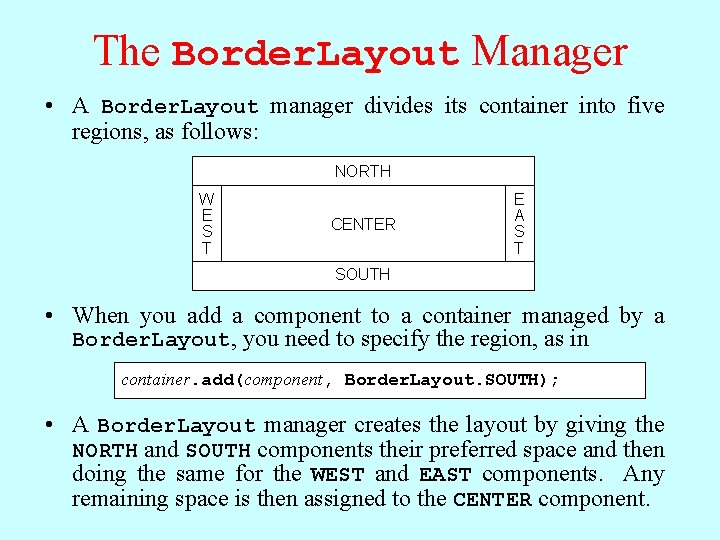
The Border. Layout Manager • A Border. Layout manager divides its container into five regions, as follows: NORTH W E S T CENTER E A S T SOUTH • When you add a component to a container managed by a Border. Layout, you need to specify the region, as in container. add(component, Border. Layout. SOUTH); • A Border. Layout manager creates the layout by giving the NORTH and SOUTH components their preferred space and then doing the same for the WEST and EAST components. Any remaining space is then assigned to the CENTER component.
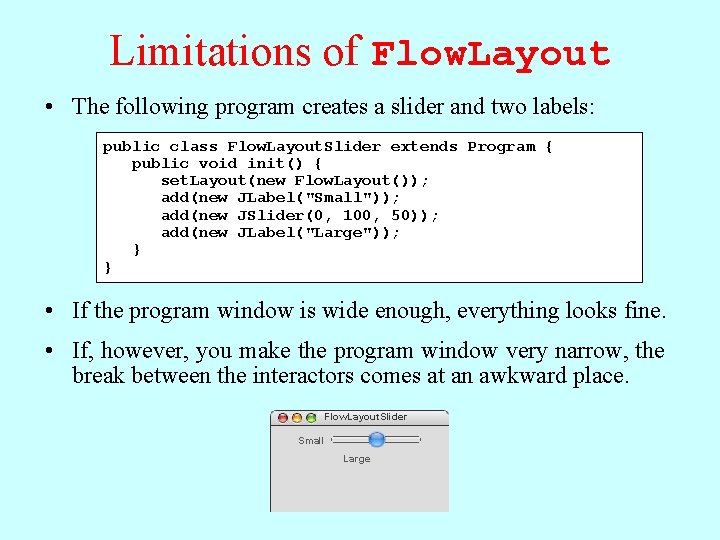
The Flow. Layout Manager • The Flow. Layout manager is in many ways the simplest manager to use and is particularly convenient for getting programs running quickly. • The Flow. Layout manager arranges its components in rows from top to bottom and then from left to right within each row. If there is space within the current row for the next component, the Flow. Layout manager puts it there. If not, the layout manager centers the components on the current row and starts the next one. The Flow. Layout manager also leaves a little space between each component so that the components don’t all run together. • The problem with the Flow. Layout manager is that it has no way to make sure that the divisions between the lines come at appropriate places, as illustrated by the example on the next slide.
Limitations of Flow. Layout • The following program creates a slider and two labels: public class Flow. Layout. Slider extends Program { public void init() { set. Layout(new Flow. Layout()); add(new JLabel("Small")); add(new JSlider(0, 100, 50)); add(new JLabel("Large")); } } • If the program window is wide enough, everything looks fine. • If, however, you make the program window very narrow, the break between the interactors comes at an awkward place. Flow. Layout. Slider Small Large
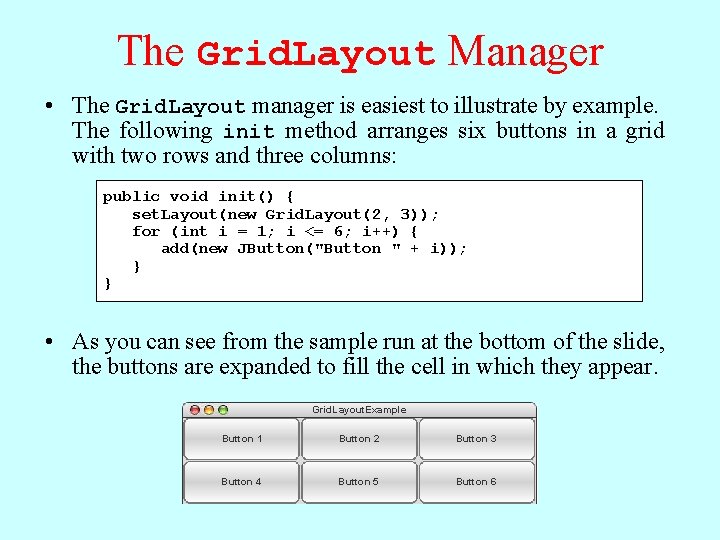
The Grid. Layout Manager • The Grid. Layout manager is easiest to illustrate by example. The following init method arranges six buttons in a grid with two rows and three columns: public void init() { set. Layout(new Grid. Layout(2, 3)); for (int i = 1; i <= 6; i++) { add(new JButton("Button " + i)); } } • If Asyou change can see the fromsize theof sample the program run at thewindow, bottom of thethe buttons slide, adjust the buttons so that arethey expanded continue to to fill thethe cell space. in which they appear. Grid. Layout. Example Button 1 1 Button 2 Button 3 3 Button 4 4 Button 55 Button 6 6
The Inadequacy of Layout Managers • The main problem with Java’s layout managers is that none of the library classes offer the right combination of simplicity and flexibility. • The simple managers—Border. Layout, Flow. Layout, and Grid. Layout—don’t have enough power to design effective user-interface layouts. Unfortunately, the Grid. Bag. Layout manager, which has the necessary flexibility to create good layout designs, is extremely difficult to use. • To address the lack of a simple but powerful layout manager, the ACM Java Task Force designed a new Table. Layout manager, which offers all the power of Grid. Bag. Layout but is much easier to use. The Table. Layout manager and its features are covered in the next few slides.
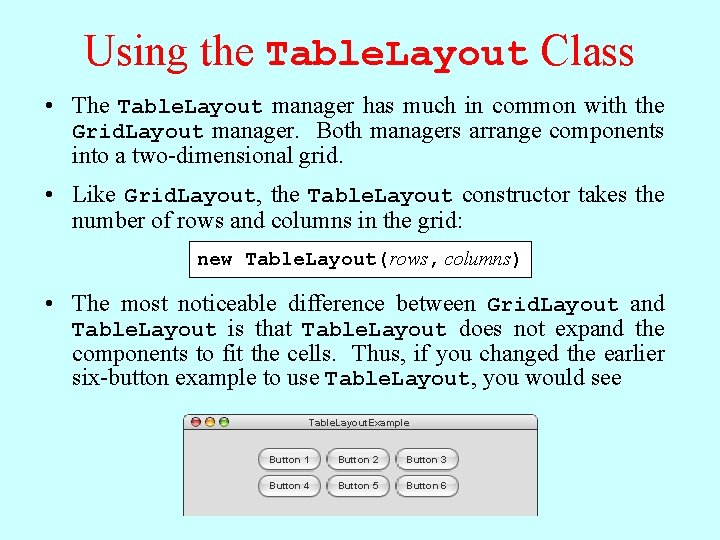
Using the Table. Layout Class • The Table. Layout manager has much in common with the Grid. Layout manager. Both managers arrange components into a two-dimensional grid. • Like Grid. Layout, the Table. Layout constructor takes the number of rows and columns in the grid: new Table. Layout(rows, columns) • The most noticeable difference between Grid. Layout and Table. Layout is that Table. Layout does not expand the components to fit the cells. Thus, if you changed the earlier six-button example to use Table. Layout, you would see Table. Layout. Example Button 1 Button 2 Button 3 Button 4 Button 5 Button 6
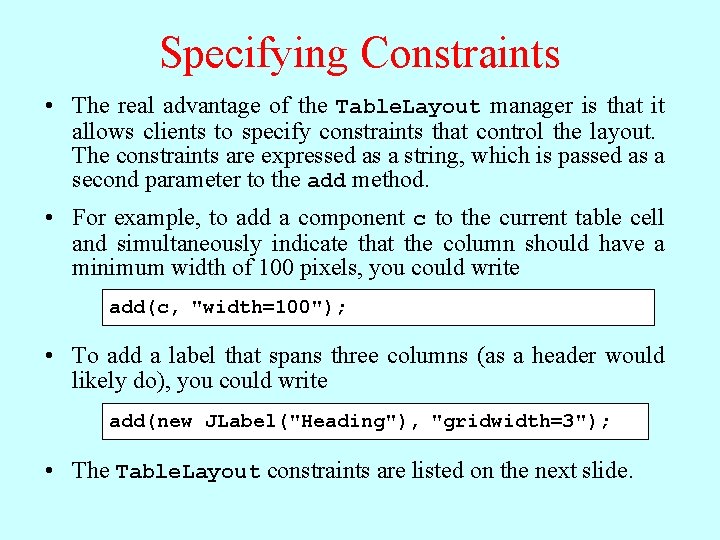
Specifying Constraints • The real advantage of the Table. Layout manager is that it allows clients to specify constraints that control the layout. The constraints are expressed as a string, which is passed as a second parameter to the add method. • For example, to add a component c to the current table cell and simultaneously indicate that the column should have a minimum width of 100 pixels, you could write add(c, "width=100"); • To add a label that spans three columns (as a header would likely do), you could write add(new JLabel("Heading"), "gridwidth=3"); • The Table. Layout constraints are listed on the next slide.
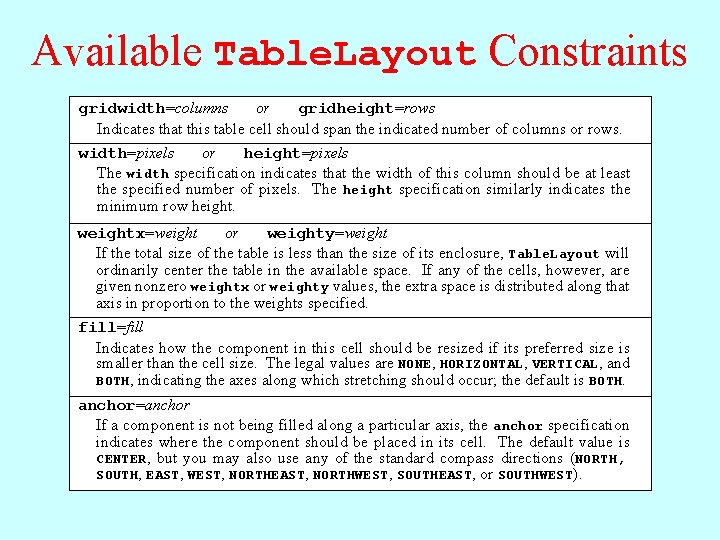
Available Table. Layout Constraints gridwidth=columns or gridheight=rows Indicates that this table cell should span the indicated number of columns or rows. width=pixels or height=pixels The width specification indicates that the width of this column should be at least the specified number of pixels. The height specification similarly indicates the minimum row height. weightx=weight or weighty=weight If the total size of the table is less than the size of its enclosure, Table. Layout will ordinarily center the table in the available space. If any of the cells, however, are given nonzero weightx or weighty values, the extra space is distributed along that axis in proportion to the weights specified. fill=fill Indicates how the component in this cell should be resized if its preferred size is smaller than the cell size. The legal values are NONE, HORIZONTAL, VERTICAL, and BOTH, indicating the axes along which stretching should occur; the default is BOTH. anchor=anchor If a component is not being filled along a particular axis, the anchor specification indicates where the component should be placed in its cell. The default value is CENTER, but you may also use any of the standard compass directions (NORTH, SOUTH, EAST, WEST, NORTHEAST, NORTHWEST, SOUTHEAST, or SOUTHWEST).
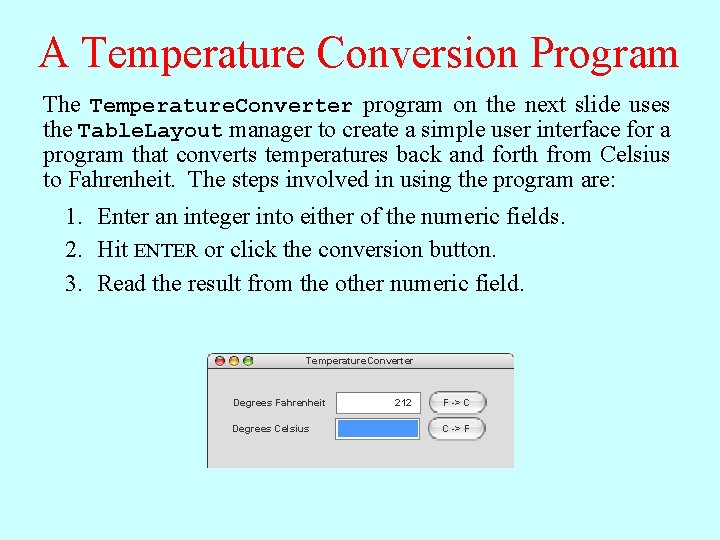
A Temperature Conversion Program The Temperature. Converter program on the next slide uses the Table. Layout manager to create a simple user interface for a program that converts temperatures back and forth from Celsius to Fahrenheit. The steps involved in using the program are: 1. Enter an integer into either of the numeric fields. 2. Hit ENTER or click the conversion button. 3. Read the result from the other numeric field. Temperature. Converter Degrees Fahrenheit 212 32 F -> C Degrees Celsius 101 100 0 C -> F
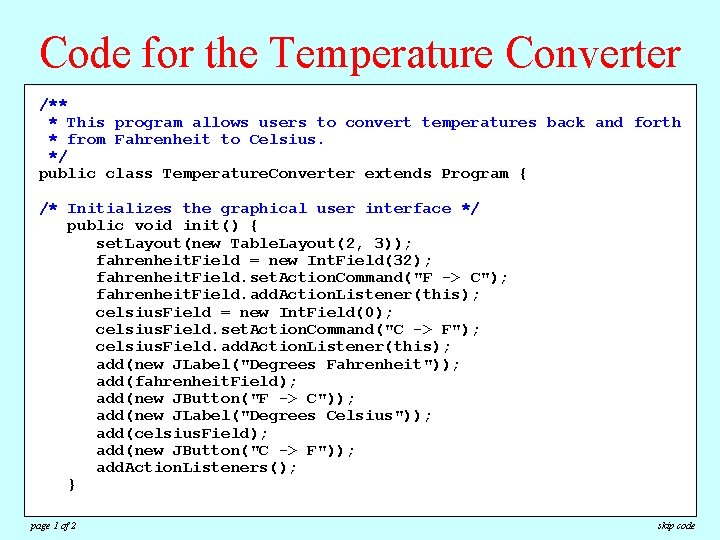
Code for the Temperature Converter /** * This program allows users to convert temperatures back and forth * from Fahrenheit to Celsius. */ public class Temperature. Converter extends Program { /* Initializes the graphical user interface */ public void init() { set. Layout(new Table. Layout(2, 3)); fahrenheit. Field = new Int. Field(32); fahrenheit. Field. set. Action. Command("F -> C"); fahrenheit. Field. add. Action. Listener(this); celsius. Field = new Int. Field(0); celsius. Field. set. Action. Command("C -> F"); celsius. Field. add. Action. Listener(this); add(new JLabel("Degrees Fahrenheit")); add(fahrenheit. Field); add(new JButton("F -> C")); add(new JLabel("Degrees Celsius")); add(celsius. Field); add(new JButton("C -> F")); add. Action. Listeners(); } page 1 of 2 skip code
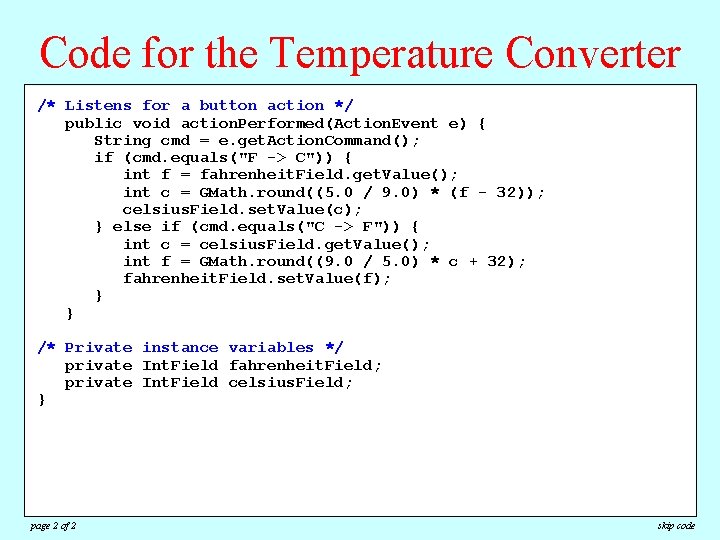
Code for the Temperature Converter /**Listens for a button action */ /* * public This program allows users to convert temperatures back and forth void action. Performed(Action. Event e) { * from Fahrenheit to Celsius. String cmd = e. get. Action. Command(); */ if (cmd. equals("F -> C")) { public class extends Program { int f. Temperature. Converter = fahrenheit. Field. get. Value(); int c = GMath. round((5. 0 / 9. 0) * (f - 32)); /* Initializes the graphical user interface */ celsius. Field. set. Value(c); public void { } else if init() (cmd. equals("C -> F")) { set. Layout(new Table. Layout(2, 3)); int c = celsius. Field. get. Value(); fahrenheit. Field = new Int. Field(32); int f = GMath. round((9. 0 / 5. 0) * c + 32); fahrenheit. Field. set. Action. Command("F -> C"); fahrenheit. Field. set. Value(f); }fahrenheit. Field. add. Action. Listener(this); } celsius. Field = new Int. Field(0); celsius. Field. set. Action. Command("C -> F"); celsius. Field. add. Action. Listener(this); /* Private instance variables */ add(new JLabel("Degrees Fahrenheit")); private Int. Field fahrenheit. Field; add(fahrenheit. Field); private Int. Field celsius. Field; add(new JButton("F -> C")); } add(new JLabel("Degrees Celsius")); add(celsius. Field); add(new JButton("C -> F")); add. Action. Listeners(); } page 2 of 2 skip code
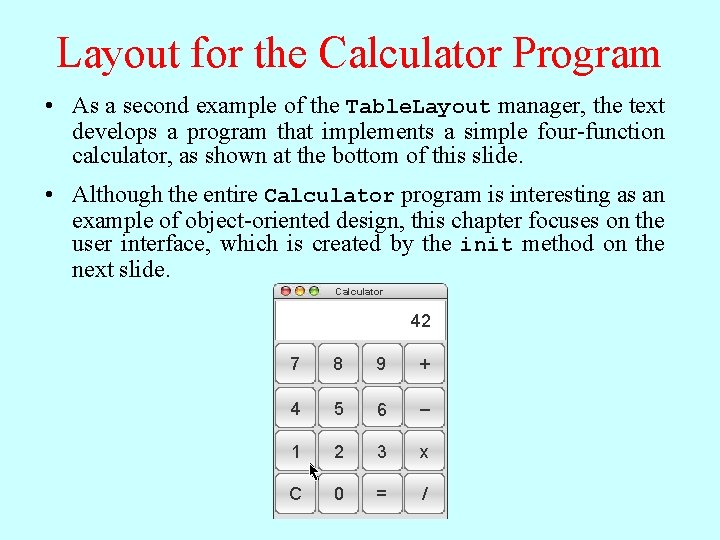
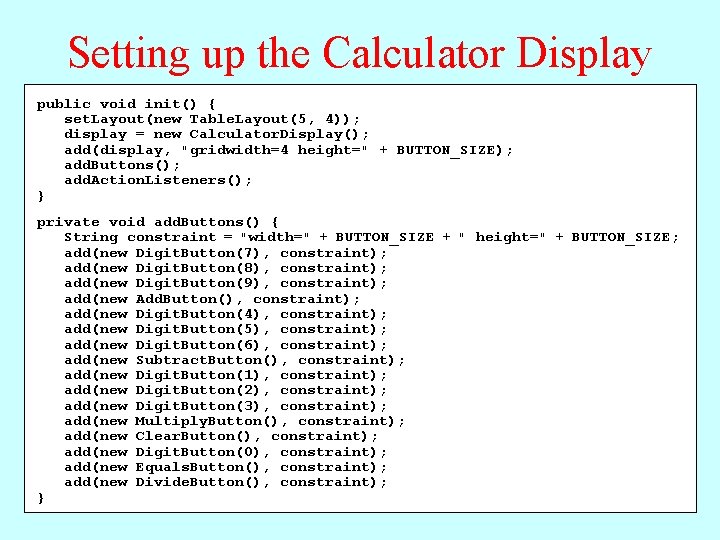
Layout for the Calculator Program • As a second example of the Table. Layout manager, the text develops a program that implements a simple four-function calculator, as shown at the bottom of this slide. • Although the entire Calculator program is interesting as an example of object-oriented design, this chapter focuses on the user interface, which is created by the init method on the next slide. Calculator 25 42 17 0 1 2 7 8 9 + 4 5 6 – 1 2 3 x C 0 = /
Setting up the Calculator Display public void init() { set. Layout(new Table. Layout(5, 4)); display = new Calculator. Display(); add(display, "gridwidth=4 height=" + BUTTON_SIZE); add. Buttons(); add. Action. Listeners(); } private void add. Buttons() { String constraint = "width=" + BUTTON_SIZE + " height=" + BUTTON_SIZE; add(new Digit. Button(7), constraint); add(new Digit. Button(8), constraint); add(new Digit. Button(9), constraint); add(new Add. Button(), constraint); add(new Digit. Button(4), constraint); add(new Digit. Button(5), constraint); add(new Digit. Button(6), constraint); add(new Subtract. Button(), constraint); add(new Digit. Button(1), constraint); add(new Digit. Button(2), constraint); add(new Digit. Button(3), constraint); add(new Multiply. Button(), constraint); add(new Clear. Button(), constraint); add(new Digit. Button(0), constraint); add(new Equals. Button(), constraint); add(new Divide. Button(), constraint); }
The End