
J 2 ME Screen Hierarchy Displayable Screen Form
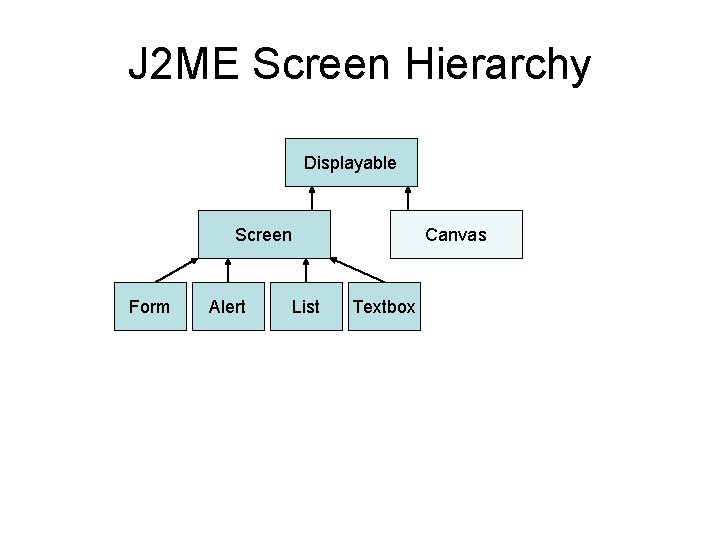
J 2 ME Screen Hierarchy Displayable Screen Form Alert List Canvas Textbox
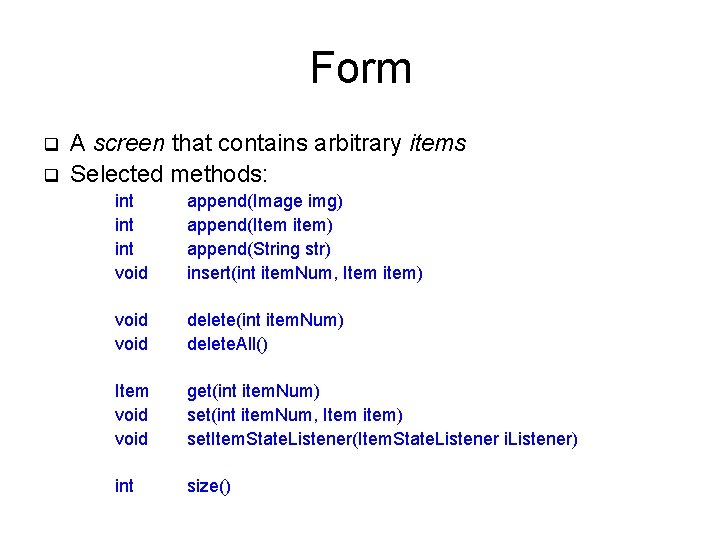
Form q q A screen that contains arbitrary items Selected methods: int int void append(Image img) append(Item item) append(String str) insert(int item. Num, Item item) void delete(int item. Num) delete. All() Item void get(int item. Num) set(int item. Num, Item item) set. Item. State. Listener(Item. State. Listener i. Listener) int size()
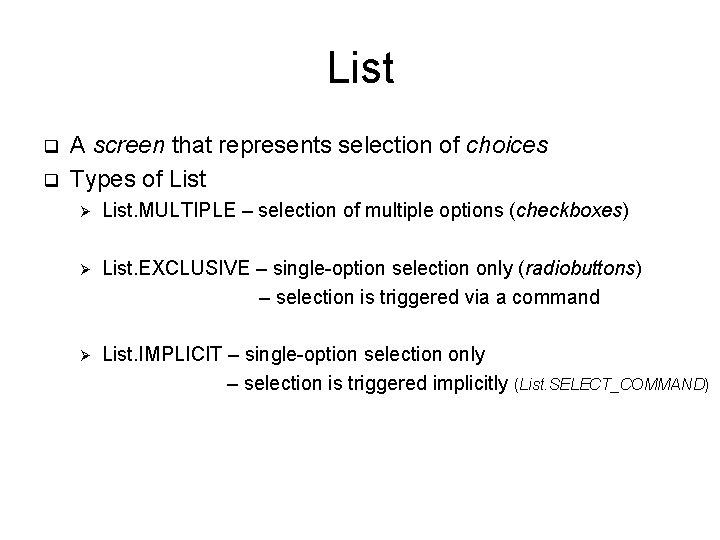
List q q A screen that represents selection of choices Types of List Ø List. MULTIPLE – selection of multiple options (checkboxes) Ø List. EXCLUSIVE – single-option selection only (radiobuttons) – selection is triggered via a command Ø List. IMPLICIT – single-option selection only – selection is triggered implicitly (List. SELECT_COMMAND)
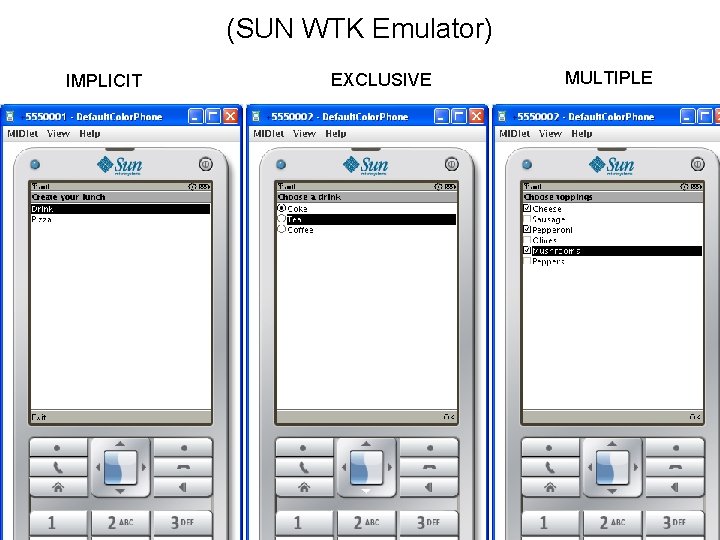
(SUN WTK Emulator) IMPLICIT EXCLUSIVE MULTIPLE
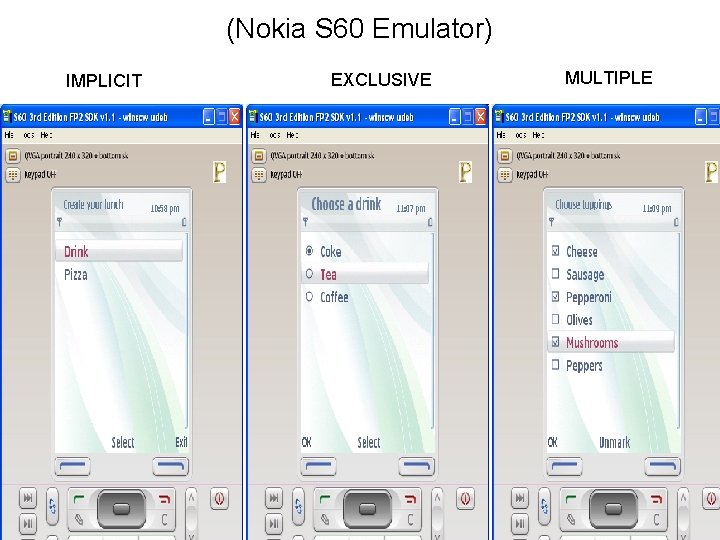
(Nokia S 60 Emulator) IMPLICIT EXCLUSIVE MULTIPLE
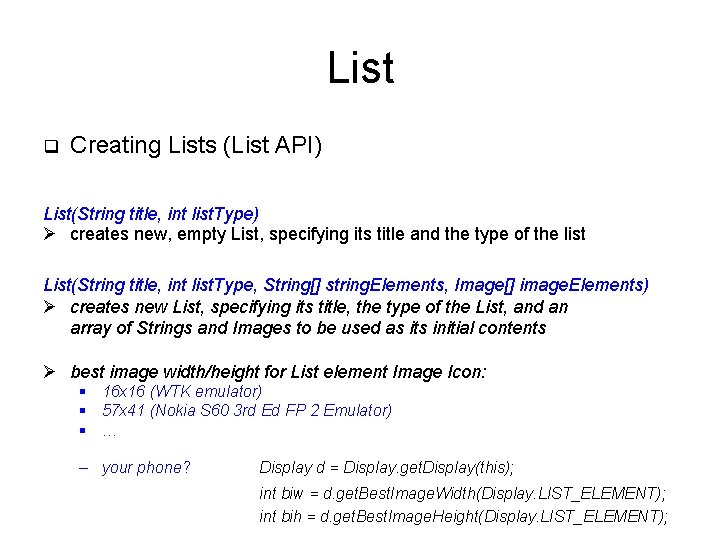
List q Creating Lists (List API) List(String title, int list. Type) Ø creates new, empty List, specifying its title and the type of the list List(String title, int list. Type, String[] string. Elements, Image[] image. Elements) Ø creates new List, specifying its title, the type of the List, and an array of Strings and Images to be used as its initial contents Ø best image width/height for List element Image Icon: § 16 x 16 (WTK emulator) § 57 x 41 (Nokia S 60 3 rd Ed FP 2 Emulator) § … – your phone? Display d = Display. get. Display(this); int biw = d. get. Best. Image. Width(Display. LIST_ELEMENT); int bih = d. get. Best. Image. Height(Display. LIST_ELEMENT);
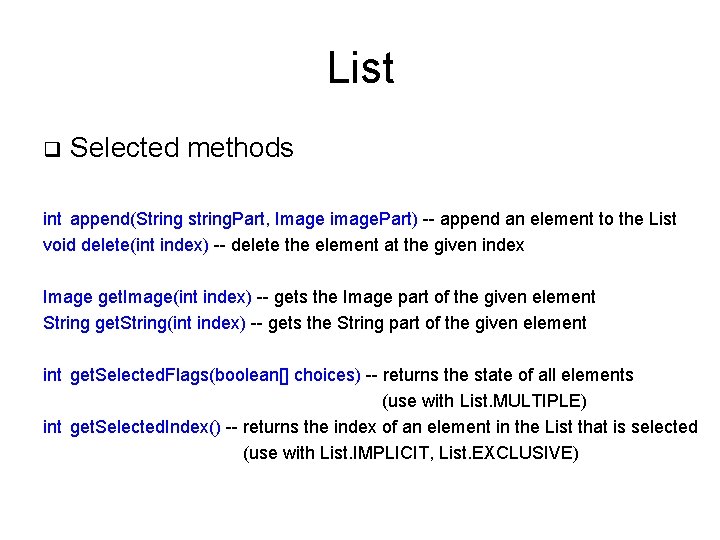
List q Selected methods int append(String string. Part, Image image. Part) -- append an element to the List void delete(int index) -- delete the element at the given index Image get. Image(int index) -- gets the Image part of the given element String get. String(int index) -- gets the String part of the given element int get. Selected. Flags(boolean[] choices) -- returns the state of all elements (use with List. MULTIPLE) int get. Selected. Index() -- returns the index of an element in the List that is selected (use with List. IMPLICIT, List. EXCLUSIVE)
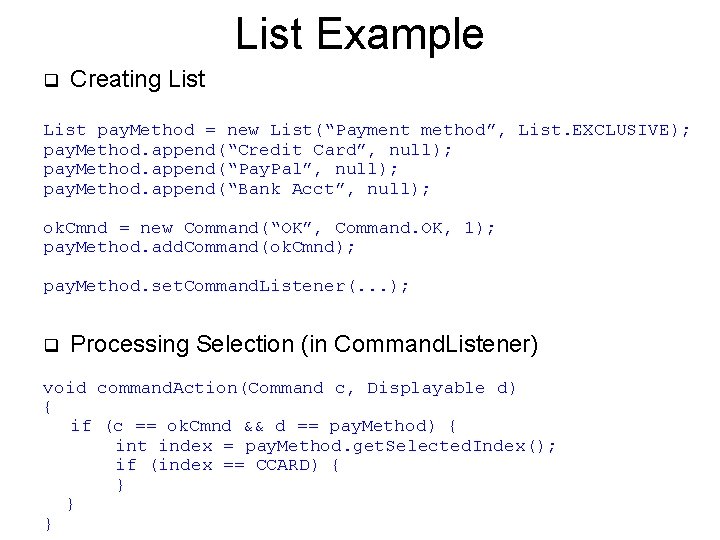
List Example q Creating List pay. Method = new List(“Payment method”, List. EXCLUSIVE); pay. Method. append(“Credit Card”, null); pay. Method. append(“Pay. Pal”, null); pay. Method. append(“Bank Acct”, null); ok. Cmnd = new Command(“OK”, Command. OK, 1); pay. Method. add. Command(ok. Cmnd); pay. Method. set. Command. Listener(. . . ); q Processing Selection (in Command. Listener) void command. Action(Command c, Displayable d) { if (c == ok. Cmnd && d == pay. Method) { int index = pay. Method. get. Selected. Index(); if (index == CCARD) { } } }
List Appearance q Control with Ø Choice. TEXT_WRAP_ON – long list items shown on multiple lines Ø Choice. TEXT_WRAP_OFF – truncate long list items to fit on one line Ø Choice. TEXT_WRAP_DEFAULT – use default policy (e. g. truncate with …) void set. Fit. Policy(int policy)
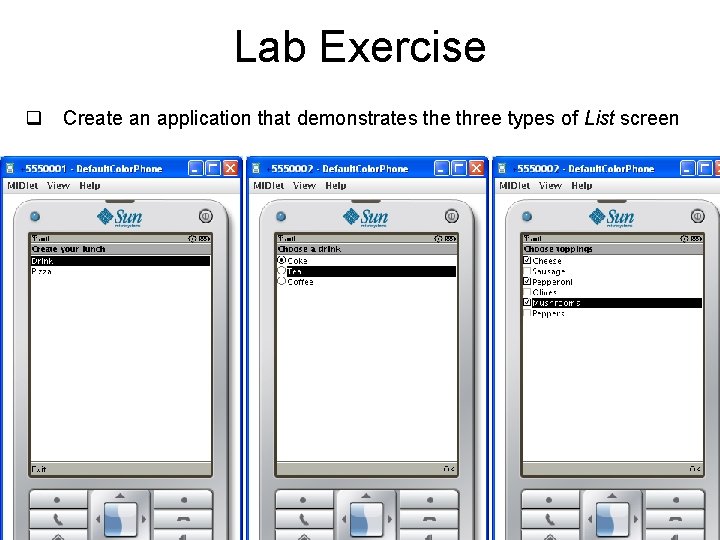
Lab Exercise q Create an application that demonstrates the three types of List screen
Images q MIDP implementations required to support PNG format q Place image files in project resource folder – res/ q Loading images Image logo = null; try { logo = Image. create. Image(“/gburg. png”); } catch (IOException e) {. . . handle exception. . . }
Alert Screen q Intended for showing notification messages q Creating Alerts Alert(String title, String alert. Text, Image alert. Image, Alert. Type alert. Type) Ø constructs a new Alert object with the given title, content, image, and type. q Alert types – WARNING, ERROR, INFO, CONFIRMATION q Screen sequencing and alerts Form receipt = new Form(“Receipt Details”); Alert confirm = new Alert(“Finished”, “The order is submitted!”, null, CONFIRMATION); Display. set. Current(confirm, receipt);
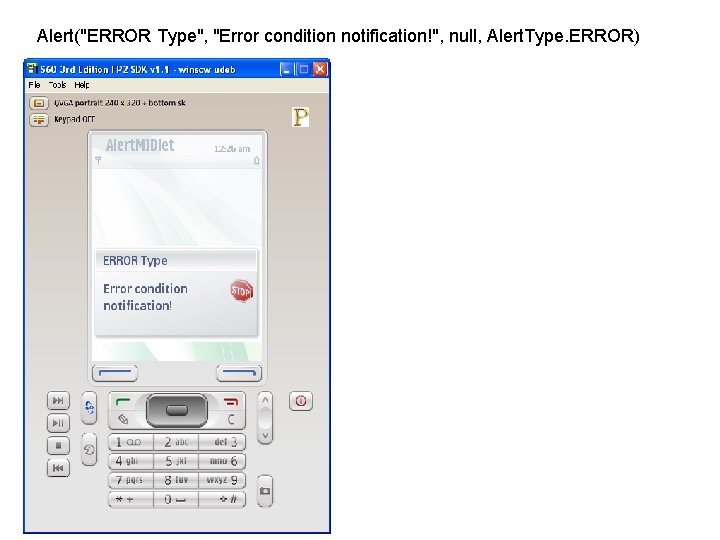
Alert("ERROR Type", "Error condition notification!", null, Alert. Type. ERROR)
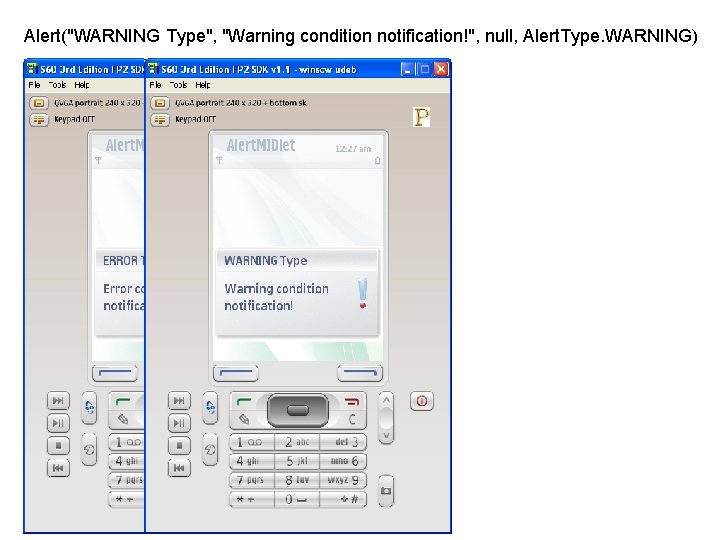
Alert("WARNING Type", "Warning condition notification!", null, Alert. Type. WARNING)
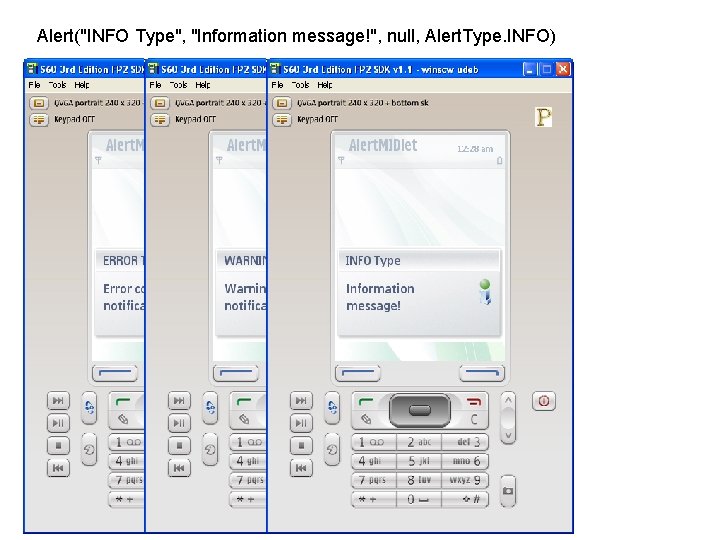
Alert("INFO Type", "Information message!", null, Alert. Type. INFO)
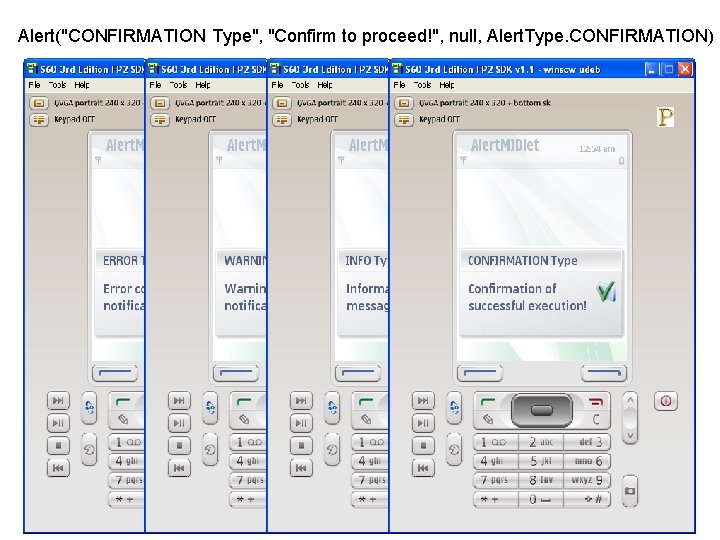
Alert("CONFIRMATION Type", "Confirm to proceed!", null, Alert. Type. CONFIRMATION)
Alert Screen q Selected methods Image get. Image() -- gets the Image used in the Alert Gauge get. Indicator() -- gets the activity indicator for this Alert String get. String() -- gets the text string used in the Alert. Type get. Type() – gets the type of the Alert int get. Timeout() -- gets the time this Alert will be shown void set. Timeout(int t) -- sets the time this Alert will be shown
Gauges q Used to show progress or get user input q Types of gauges Ø Ø Ø interactive – get user input (e. g. sliders) non-interactive, continuous – show operation is executing non-interactive, incremental – show progress (app should increment)
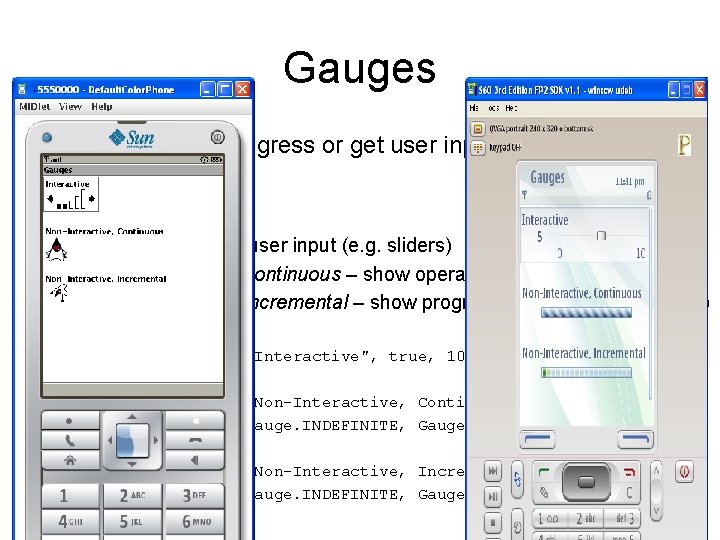
Gauges q Used to show progress or get user input q Types of gauges Ø Ø Ø interactive – get user input (e. g. sliders) non-interactive, continuous – show operation is executing non-interactive, incremental – show progress (app should increment) Gauge g 1 = new Gauge("Interactive", true, 10, 5); Gauge g 2 = new Gauge("Non-Interactive, Continuous", false, Gauge. INDEFINITE, Gauge. CONTINUOUS_RUNNING); Gauge g 3 = new Gauge("Non-Interactive, Incremental", false, Gauge. INDEFINITE, Gauge. INCREMENTAL_UPDATING);
- Slides: 19