
IT Infrastructure Architecture Infrastructure Building Blocks and Concepts
IT Infrastructure Architecture Infrastructure Building Blocks and Concepts Operating Systems – Part 2 (chapter 11)
Windows - introduction • Windows is a popular x 86 operating system, used on PCs and servers • Because of Window’s popularity, a large collection of software is available – Microsoft provides a fairly complete stack of business solutions like Share. Point, Biz. Talk, SQL Server, and Exchange – They also provide a development environment (Visual Studio and the. Net framework) – Microsoft Azure cloud runs on a slimmed down version of Windows • Many organizations have a "Microsoft unless" strategy – Software is purchased from Microsoft or built using Microsoft tools, unless there is no solution from Microsoft available
Windows for desktops • The first version of Microsoft Windows was released in 1985 • Early Windows versions ran as an application on top of MSDOS – Windows was no real operating system • In 1990, Microsoft Windows 3. 0 was the first successful Windows version • In late 1995, Microsoft released Windows 95, positioned as the new operating system for desktops – Windows 95 introduced the "start" button • Windows targeted at workstations include: – Windows XP – Windows Vista – Windows 7, 8 and 10
Windows for servers • In 1992, Windows NT was the first version of Windows designed to run on servers – A real operating system, not running on top of MS-DOS • Windows NT 4 – Included the Windows 95 style GUI – Companies started the switch from Novell servers to Windows NT 4 – Some UNIX systems were being replaced by Windows NT 4 systems • Windows 2000 introduced an implementation of LDAP directory services, called Active Directory • The server operating systems were named after the year of release: Windows server 2003, 2008, 2012, and 2016
Windows – Stability • While Net. Ware and UNIX would run for at least a year without crashing, it was not uncommon that a Windows server crashed once a day • Causes: – The need for backwards compatibility of Windows • Every version of Windows needed to be able to run all already developed software without recompilation – Windows runs on all kinds of hardware • As opposed to UNIX or Apple systems, which are designed for specific hardware • The quality of third-party drivers was not always guaranteed
Windows – Security • Windows security was weak – Windows was based on MS-DOS – a single user / single tasking operating system • Multi-user features and concurrently running multiple applications was built in later – Most Windows applications were not designed with multi user usage in mind • Applications had to run with the highest possible user permissions (administrator rights) • This led to the rise of viruses and worms attacking Windows
Windows – Security • The Trustworthy Computing Initiative – In 2002, spent several months’ full-time effort of all developers to update the Windows code base to make it more stable – As a result, today's Windows versions are reasonably stable and secure
Windows – Support • Windows is closed source software – Only Microsoft has access to the source code and knows how Windows works internally – Users are dependent on Microsoft for support and updates • Users must follow updates and software upgrades to get support – Extended support is sometimes possible, but at a price – This leads to frequent (and usually costly) upgrade projects
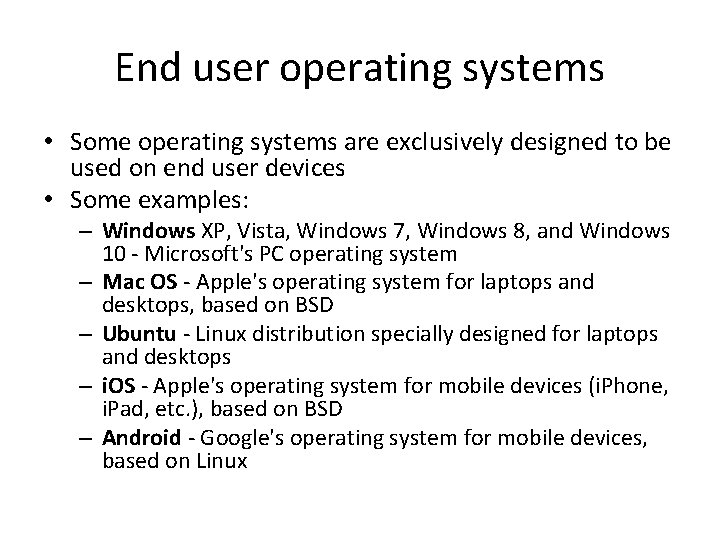
End user operating systems • Some operating systems are exclusively designed to be used on end user devices • Some examples: – Windows XP, Vista, Windows 7, Windows 8, and Windows 10 - Microsoft's PC operating system – Mac OS - Apple's operating system for laptops and desktops, based on BSD – Ubuntu - Linux distribution specially designed for laptops and desktops – i. OS - Apple's operating system for mobile devices (i. Phone, i. Pad, etc. ), based on BSD – Android - Google's operating system for mobile devices, based on Linux
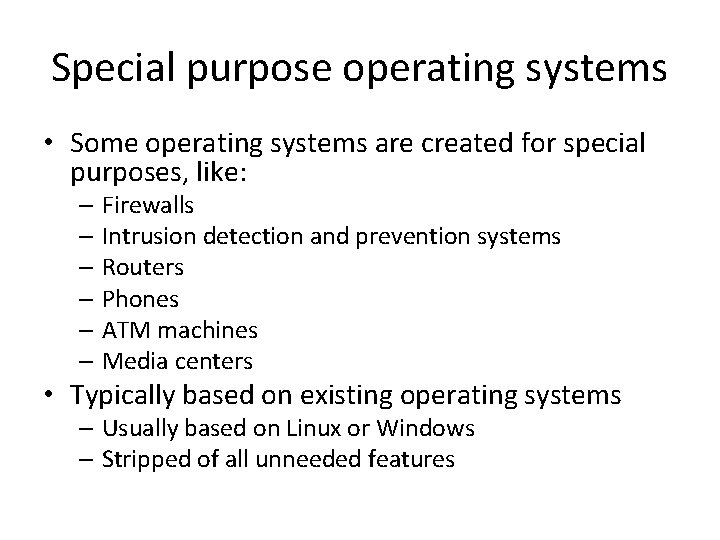
Special purpose operating systems • Some operating systems are created for special purposes, like: – Firewalls – Intrusion detection and prevention systems – Routers – Phones – ATM machines – Media centers • Typically based on existing operating systems – Usually based on Linux or Windows – Stripped of all unneeded features
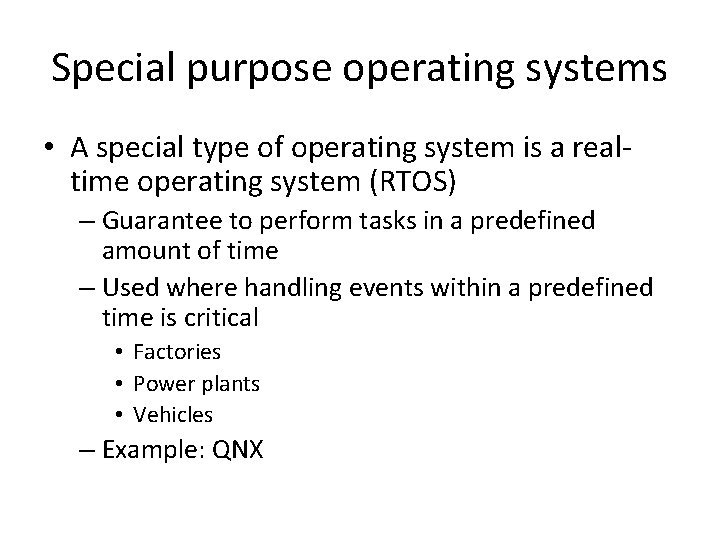
Special purpose operating systems • A special type of operating system is a realtime operating system (RTOS) – Guarantee to perform tasks in a predefined amount of time – Used where handling events within a predefined time is critical • Factories • Power plants • Vehicles – Example: QNX
Operating system availability
Failover clustering • A failover cluster is: – A group of independent servers running identical operating systems (known as “nodes”) – Connected via a network – Controlled by cluster software running on the nodes • Every active application has a standby counterpart available on a passive node – It sits idle until a failover is needed – After a failover, this standby application becomes active and provides service to clients • A failover cluster provides high availability to applications – It manages each running application within a node as a package of application components, called a resource pool or an application package
Failover clustering • Examples of cluster software products are: – Parallel Sysplex • For IBM mainframes – HACMP • For IBM AIX UNIX – MC/Service Guard • For HP-UX UNIX – Windows Cluster Service • For Microsoft Windows – Heartbeat and Pacemaker • For Linux
Failover clustering • A resource pool is the single unit of failover within a cluster. It typically contains: – Application name and identifier – Start script for the application – Stop script for the application – Monitor script for the application • Continuously checks the status of the application • If the application does not work as expected, a restart or failover is initiated – Virtual IP address the application can be addressed with – Mount points for storage – the disks that must be available to the application
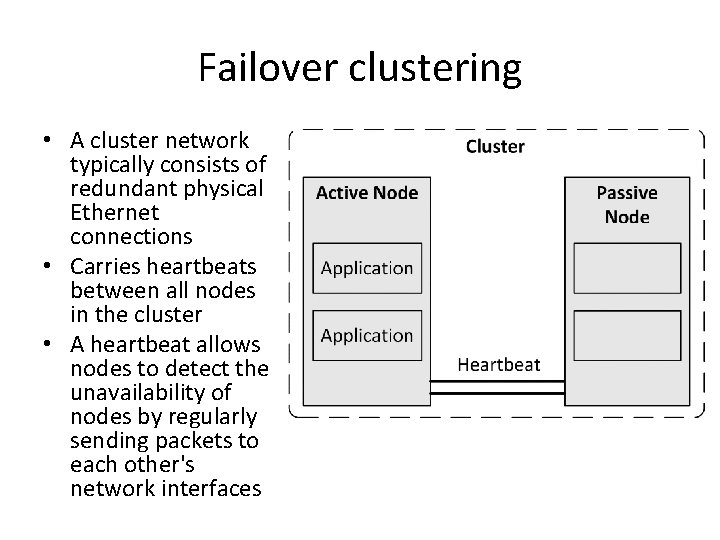
Failover clustering • A cluster network typically consists of redundant physical Ethernet connections • Carries heartbeats between all nodes in the cluster • A heartbeat allows nodes to detect the unavailability of nodes by regularly sending packets to each other's network interfaces
Failover clustering • All nodes are able to access data on shared storage – Every individual disk is mounted to one active application only at any given time – This usage of shared storage is also called ‘shared nothing clustering’ • Distributed Lock Management (DLM) clustering: – Each cluster node can access the same resource, for instance a disk, at the same time – A lock mechanism is responsible to manage data to avoid corruption
Failover clustering • In case of for instance a server crash or a power outage, all applications running on that server node will not be brought down cleanly – When the applications are restarted on another node in the cluster, standard crash recovery should take place – The file system must take care of performing file system checks before mounting – The application must perform its standard recovery on startup • Application recovery in case of a failover is identical to an application startup following a server power failure
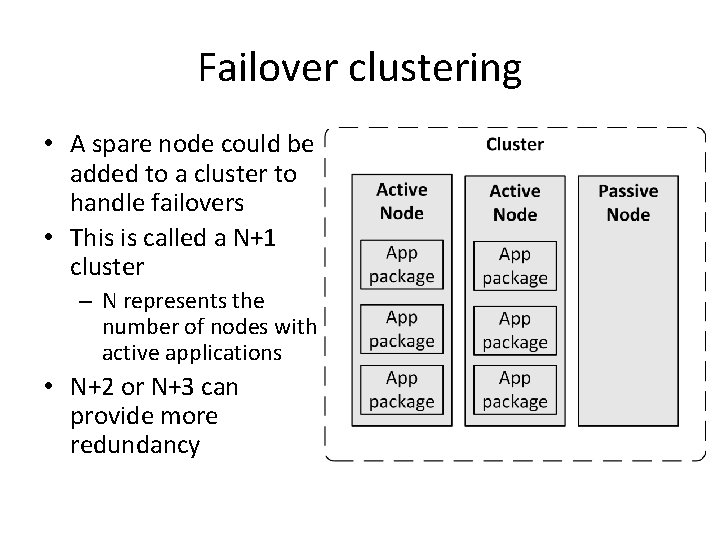
Failover clustering • A spare node could be added to a cluster to handle failovers • This is called a N+1 cluster – N represents the number of nodes with active applications • N+2 or N+3 can provide more redundancy
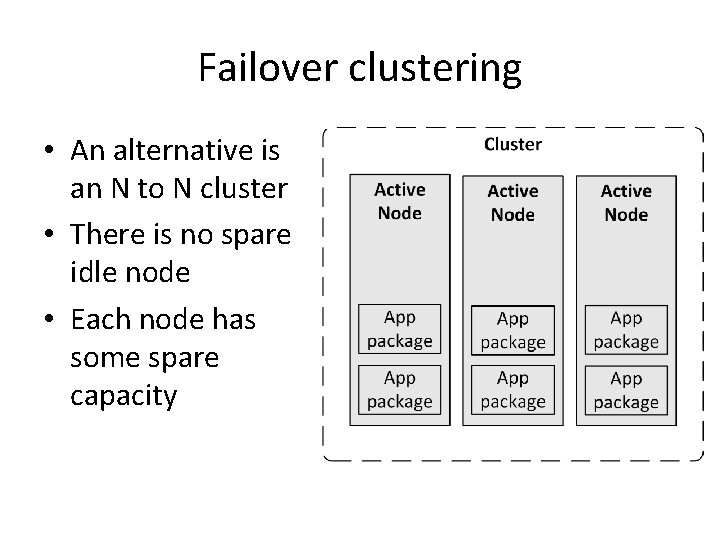
Failover clustering • An alternative is an N to N cluster • There is no spare idle node • Each node has some spare capacity
Failover clustering • The advantage of an N+N cluster is that the available hardware is always used • All memory and CPU cycles in the operating system can be used by all running applications – When a failover occurs, less memory and CPU cycles are available to the applications, possibly leading to some performance degradation
Voting and quorum disks • Most clusters contain two nodes • In a cluster with an even number of nodes, if the nodes are disconnected from each other, the status of the other nodes is unknown to each node • One of two situations occurs: – Each node decides that it has lost contact with the active cluster • Both nodes decide to stop (effectively bringing down the cluster) – Each node decides that the other node must be down • Each node decides to be the new active node in the cluster • Known as a split-brain situation
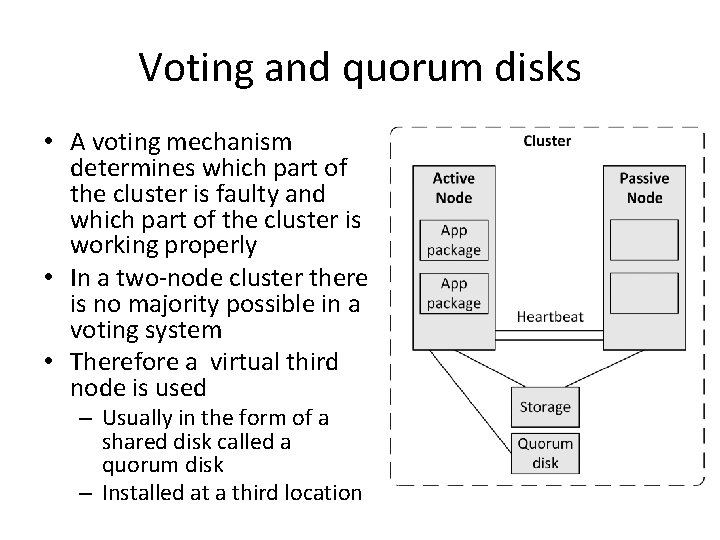
Voting and quorum disks • A voting mechanism determines which part of the cluster is faulty and which part of the cluster is working properly • In a two-node cluster there is no majority possible in a voting system • Therefore a virtual third node is used – Usually in the form of a shared disk called a quorum disk – Installed at a third location
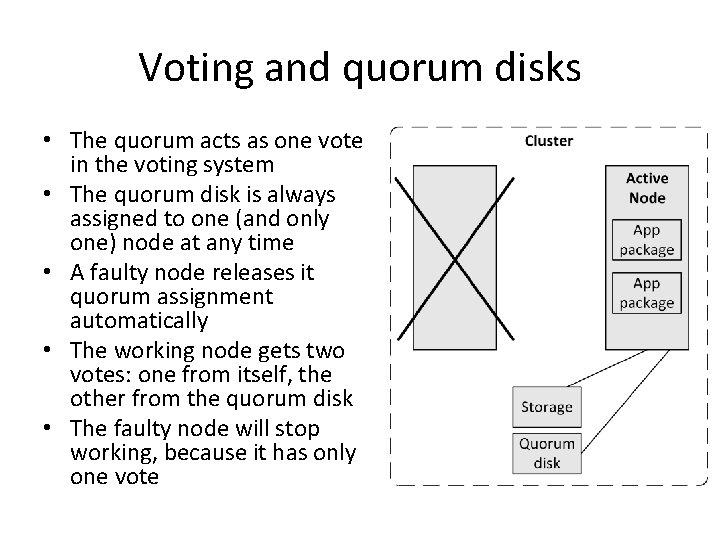
Voting and quorum disks • The quorum acts as one vote in the voting system • The quorum disk is always assigned to one (and only one) node at any time • A faulty node releases it quorum assignment automatically • The working node gets two votes: one from itself, the other from the quorum disk • The faulty node will stop working, because it has only one vote
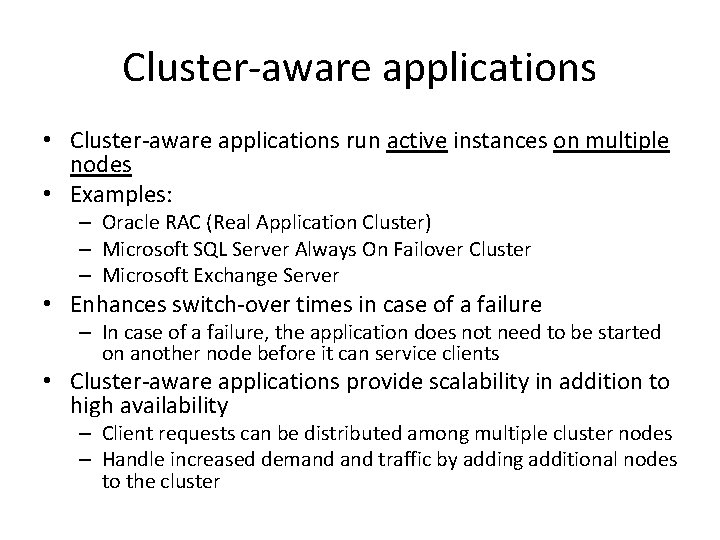
Cluster-aware applications • Cluster-aware applications run active instances on multiple nodes • Examples: – Oracle RAC (Real Application Cluster) – Microsoft SQL Server Always On Failover Cluster – Microsoft Exchange Server • Enhances switch-over times in case of a failure – In case of a failure, the application does not need to be started on another node before it can service clients • Cluster-aware applications provide scalability in addition to high availability – Client requests can be distributed among multiple cluster nodes – Handle increased demand traffic by adding additional nodes to the cluster
Operating system performance
Operating system performance • The performance of an operating system is dependent on: – The performance of the underlying hardware – The type of load generated by the applications – The configuration of the operating system itself • Some operating system performance can be gained by: – Increasing memory – Decreasing the kernel size
Increasing memory • An operating system should have enough memory to run all applications needed at any time • When an application needs more than the available memory, memory is freed: – Moving less used memory pages to disk • Paging • Some paging is not bad
Increasing memory – When memory is really low, moving an entire application’s allocated memory to disk • Swapping • Ruins the performance of an operating system • Data stored on disk is at least three orders of magnitude slower than data stored in RAM memory • Swapping must be avoided at all times – Increase memory – Run less (demanding) applications
Increasing memory • Increasing memory benefits the operating systems’ performance • All memory not used by applications is used to cache disk blocks – This is the main reason why the performance of operating systems usually increases when memory is added • Operating systems use highly sophisticated algorithms to optimize disk caching • In general, tweaking the memory management system of an operating system provides little benefits
Decreasing kernel size • Some operating systems (like UNIX and Linux) allow tuning kernel parameters of the operating system – Unused features (like support for IPv 6 or floppy disk drives) can be switched off, leading to a smaller kernel size • To create a smaller kernel, the kernel must be recompiled or re-linked – This is a highly automated, low risk operation on most UNIX and Linux systems – A restart of the operating system is needed after a kernel rebuild • Not all operating systems allow rebuilding the kernel – For instance, the Windows kernel cannot be rebuilt
Decreasing kernel size • A smaller kernel has the following benefits: – It simplifies the kernel: • Lower risk of crashes • Smaller security attack surface – The kernel must be in memory at all times • It cannot be paged or swapped-out • A smaller kernel will free up memory for applications and disk caching – Switched-off features don't need patching to keep them up-to-date – The operating system starts faster when the kernel is small
Operating system security
Patching • All operating system vendors provide small software updates called patches: – Fixing bugs or design flaws – Closing security holes – Small improvements
Patching • In general, patches come in three categories: – Regular patches • Meant to fix low priority software bugs • Some regular patches fix multiple bugs at once – Hot-fixes • Repairs a bug or flaw in the operating system that needs to be fixed fast • Used to close a security hole or to fix an error introduced by another patch or service pack • Hot-fixes should be installed as soon as possible – Service packs • Also known as support packs or patch packs • A collection of patches and hot-fixes that are packed together and can be installed in one deployment • Sometimes service packs also introduce new functionality to the operating system
Patching • It is good practice to install patches, hot-fixes, and service packs as soon as possible • Test them before deploying in production – They could introduce unwanted effects in the infrastructure • Patches hot-fixes, and service packs are usually provided with release notes – They describe what changes are made to the operating system – Read release notes before installing the patch! – When a patch or hot fix does not have impact on a specific deployment it can be discarded
Hardening • Hardening is a step by step process of configuring an operating system to protect it against security threats • The operating system is stripped down to support only essential services and processes – Unnecessary protocols and subsystems are switched off – Unused user accounts are removed or disabled – All new and relevant hot-fixes, patches, and service packs are applied • Harden all operating systems in the infrastructure using a hardened operating system configuration template – This template is used to instantiate new operating systems – Ensure security is optimal and is consistent in all deployments
Virus scanning • Windows, Linux and end user operating systems are vulnerable to viruses – It is good practice to install a virus scanner • Virus scanners can have an impact on the performance of the operating system – The virus scanner must be configured to only scan high risk files and directories based on a risk analysis – For instance, it makes no sense to protect a database table file with a virus scanner
Host-based firewalls • Most operating systems, including Windows, Linux, and UNIX, provide a built-in host-based firewall • A host-based firewall is a software firewall – Part of an operating system – Protecting an individual host from unwanted network traffic • Host-based firewalls typically block all incoming network traffic
Host-based firewalls • Rule sets define which type of traffic is allowed to communicate with the operating system, based on: – Source and destination IP address – TCP or UDP port – The running process sending and/or receiving the network traffic • It is good practice to enable host-based firewalls on all machines – Servers – End user devices
Limiting user accounts • Operating systems have local user accounts that can login to the operating system • Most operating systems also have a special super user account called "root", "supervisor", "admin", or "administrator“ – These accounts have almost unlimited power – They should be used only to provide permissions to user accounts bound to a physical person – Under normal circumstances, these accounts should never be used • It should be possible to do all work using a user-bound account with sufficient rights
Hashed passwords • Operating systems should only store hashed passwords – When a user logs in, her password is hashed – The hashed password is compared to the stored hash – If the two are equal the login succeeds • There is no way to calculate or extract the original password from the hashed one – The hashed passwords should never be disclosed • When weak passwords are used, brute force of dictionary attacks can be used to find the passwords
- Slides: 42