
IT Information Technology 1 Types of computer Personal
![• Accounting application[produce payroll – Stock control ]ﻓﺤﺺ ﺍﻟﻤﺨﺰﻭﻥ • Web browsing[View web](https://slidetodoc.com/presentation_image_h2/db4c5b00747afb06251226ab3c53c803/image-23.jpg "• Accounting application[produce payroll – Stock control ]ﻓﺤﺺ ﺍﻟﻤﺨﺰﻭﻥ • Web browsing[View web")
- Slides: 47
IT Information Technology 1
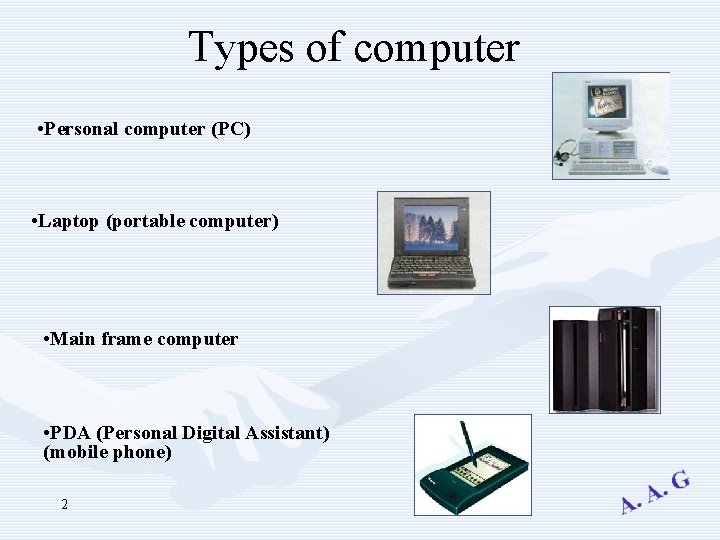
Types of computer • Personal computer (PC) • Laptop (portable computer) • Main frame computer • PDA (Personal Digital Assistant) (mobile phone) 2
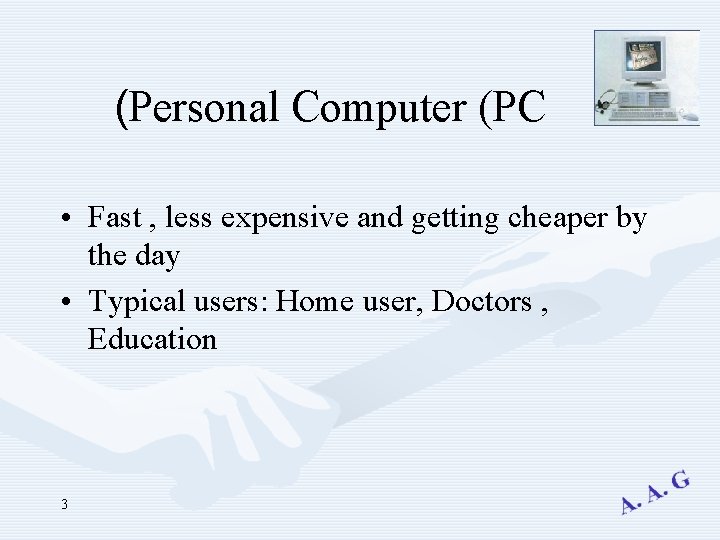
(Personal Computer (PC • Fast , less expensive and getting cheaper by the day • Typical users: Home user, Doctors , Education 3
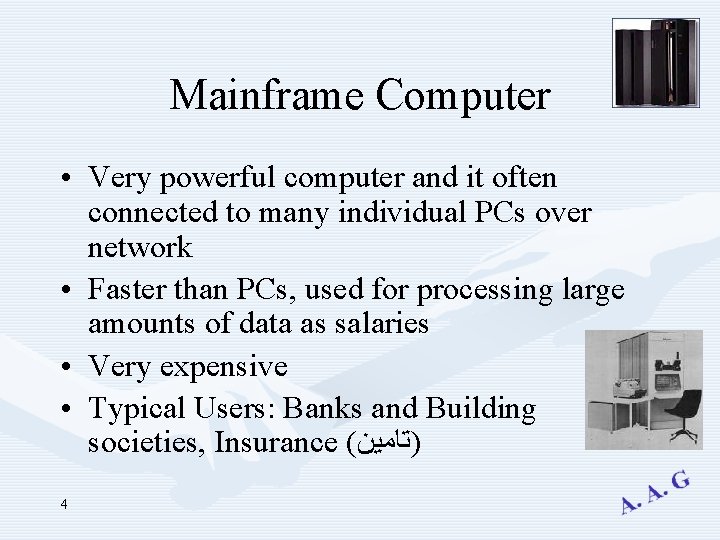
Mainframe Computer • Very powerful computer and it often connected to many individual PCs over network • Faster than PCs, used for processing large amounts of data as salaries • Very expensive • Typical Users: Banks and Building societies, Insurance ( )ﺗﺎﻣﻴﻦ 4
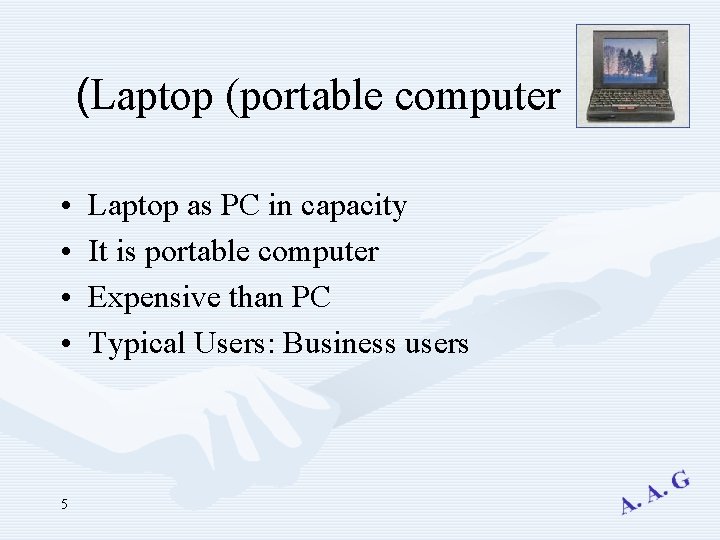
(Laptop (portable computer • • 5 Laptop as PC in capacity It is portable computer Expensive than PC Typical Users: Business users
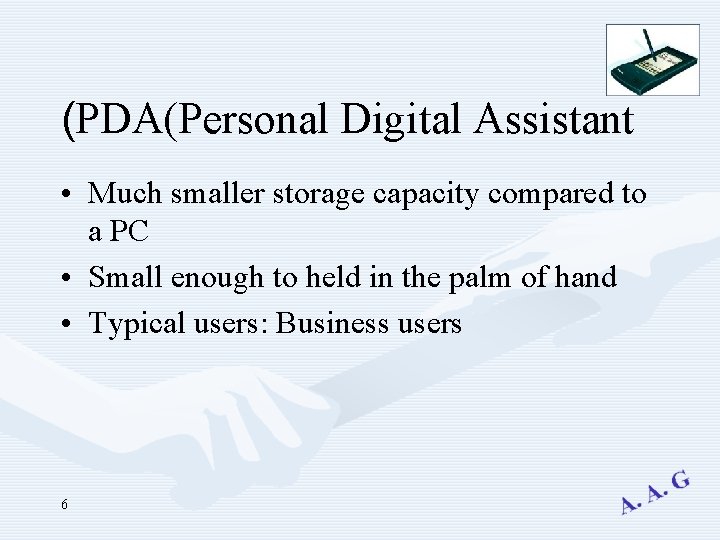
(PDA(Personal Digital Assistant • Much smaller storage capacity compared to a PC • Small enough to held in the palm of hand • Typical users: Business users 6
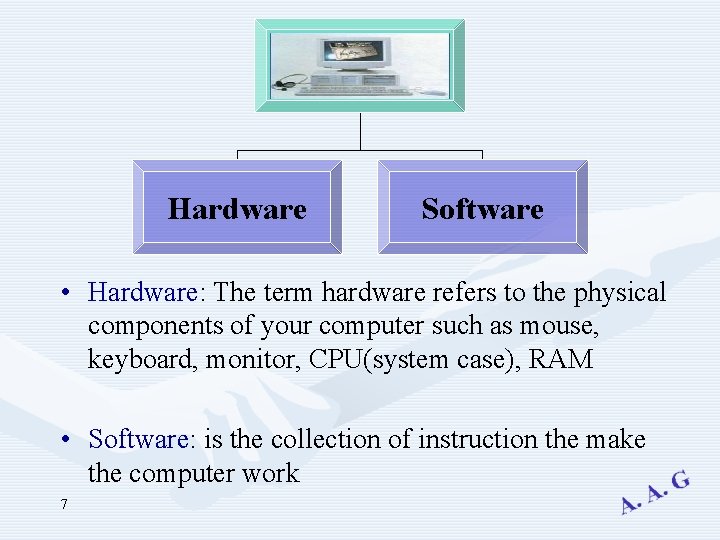
Hardware Software • Hardware: The term hardware refers to the physical components of your computer such as mouse, keyboard, monitor, CPU(system case), RAM • Software: is the collection of instruction the make the computer work 7
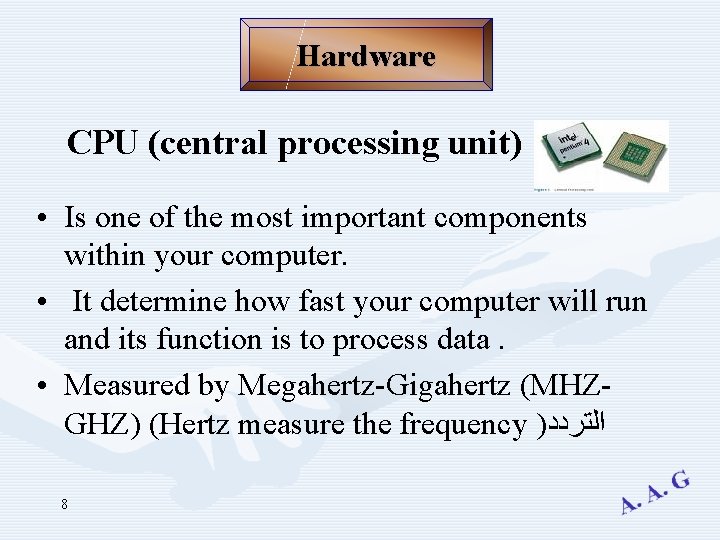
Hardware CPU (central processing unit) • Is one of the most important components within your computer. • It determine how fast your computer will run and its function is to process data. • Measured by Megahertz-Gigahertz (MHZGHZ) (Hertz measure the frequency ) ﺍﻟﺘﺮﺩﺩ 8
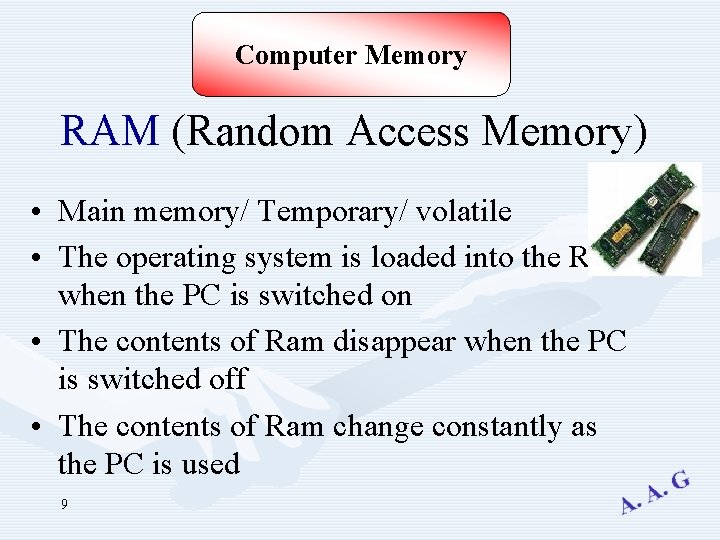
Computer Memory RAM (Random Access Memory) • Main memory/ Temporary/ volatile • The operating system is loaded into the Ram when the PC is switched on • The contents of Ram disappear when the PC is switched off • The contents of Ram change constantly as the PC is used 9
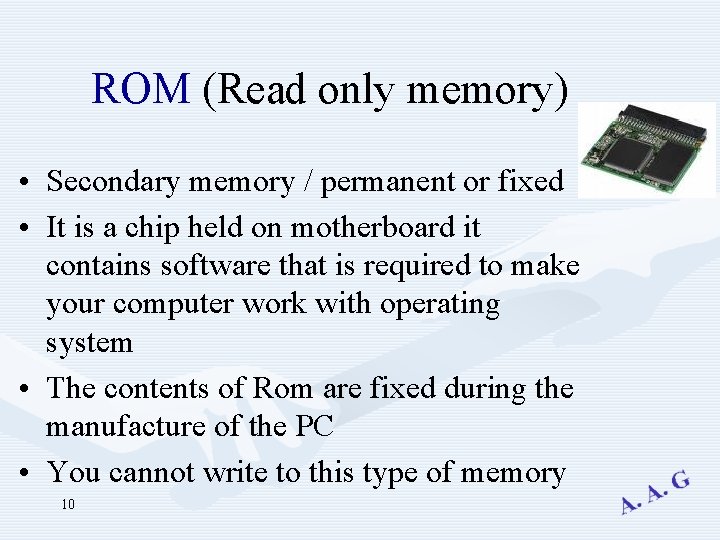
ROM (Read only memory) • Secondary memory / permanent or fixed • It is a chip held on motherboard it contains software that is required to make your computer work with operating system • The contents of Rom are fixed during the manufacture of the PC • You cannot write to this type of memory 10
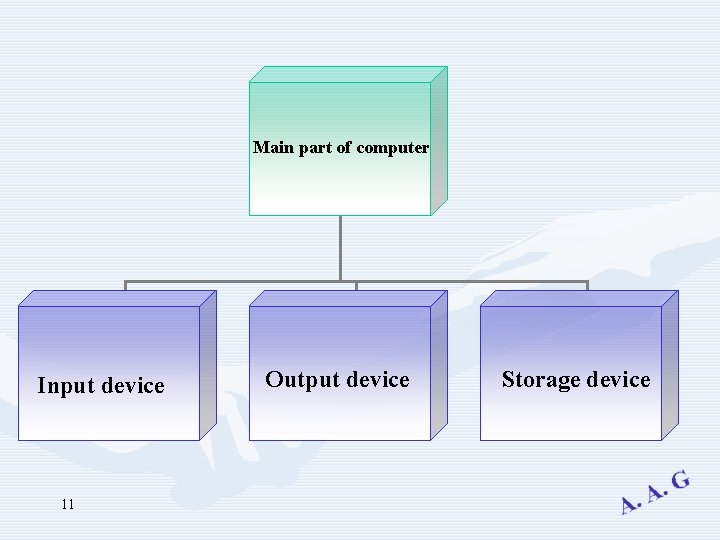
Main part of computer Input device 11 Output device Storage device
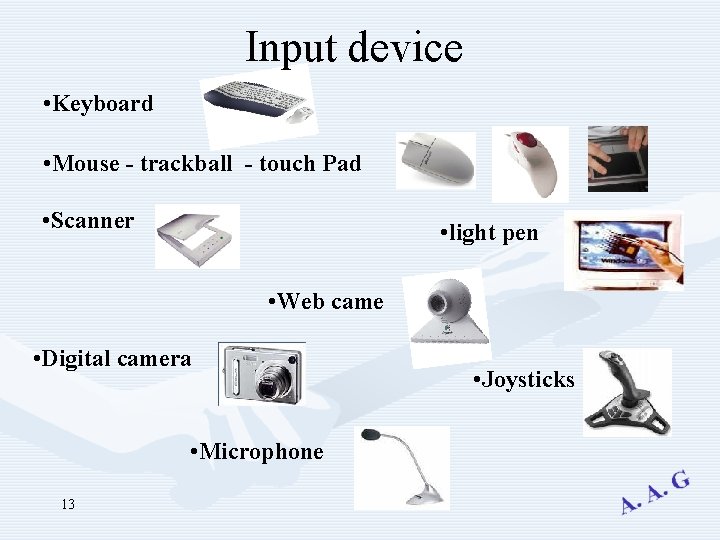
Input device • Keyboard • Mouse - trackball - touch Pad • Scanner • light pen • Web came • Digital camera • Microphone 13 • Joysticks
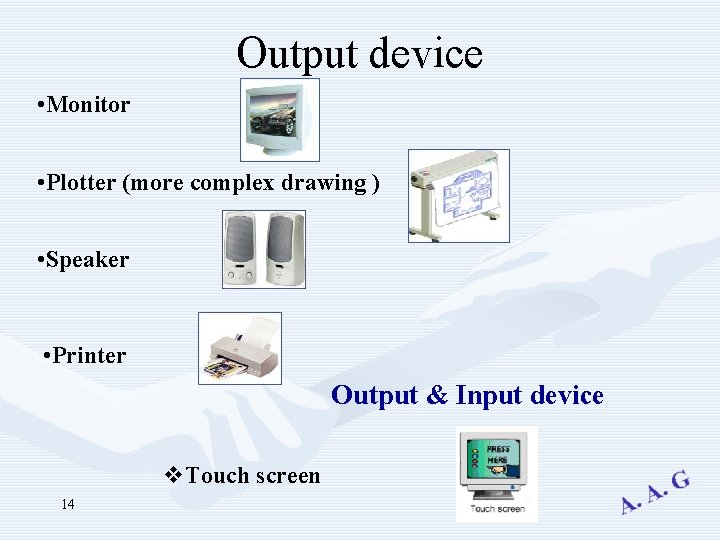
Output device • Monitor • Plotter (more complex drawing ) • Speaker • Printer Output & Input device v. Touch screen 14
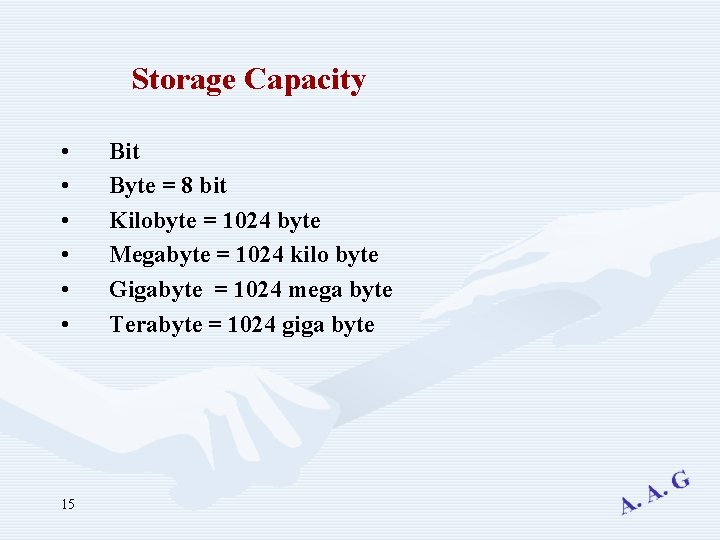
Storage Capacity • • • 15 Bit Byte = 8 bit Kilobyte = 1024 byte Megabyte = 1024 kilo byte Gigabyte = 1024 mega byte Terabyte = 1024 giga byte
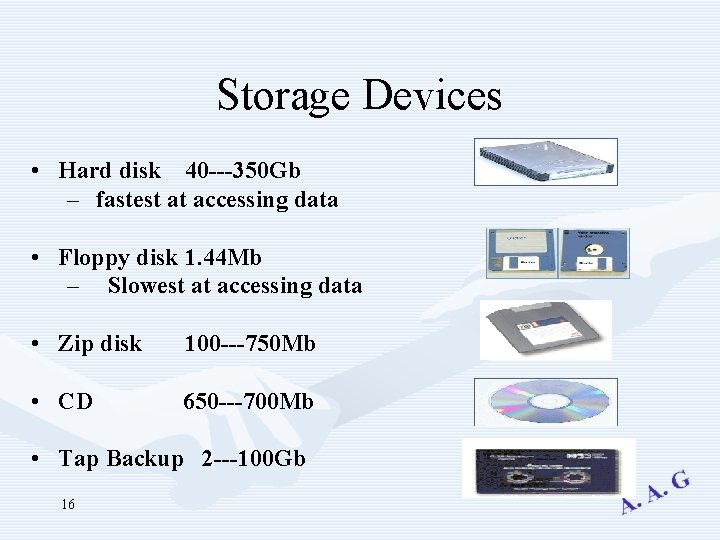
Storage Devices • Hard disk 40 ---350 Gb – fastest at accessing data • Floppy disk 1. 44 Mb – Slowest at accessing data • Zip disk 100 ---750 Mb • CD 650 ---700 Mb • Tap Backup 2 ---100 Gb 16
Format • Format is a special software(system file) added to unformatted disk so it can store data 17
Backup • Copying your computer files onto a separate storage device • Keeping copies of data in two locations 18
Computer performance • • • 19 Free space on Hard disk Capacity of RAM Speed of CPU Quality of equipments is installed on PC Number of application running
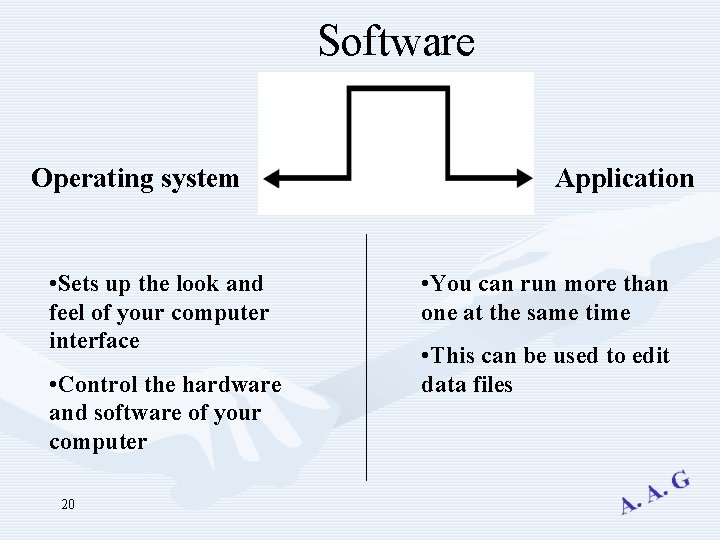
Software Operating system • Sets up the look and feel of your computer interface • Control the hardware and software of your computer 20 Application • You can run more than one at the same time • This can be used to edit data files
Operating system • Collection of instructions That makes the computer work • Types of Operating system/OS ØDos ØWindows ØUnix ØLinux ØMac 21
Operating system main task • Start up the computer • Control all the Hardware • Enable other programs to run GUI using icons (images) and Menus in windows OS by using mouse 22
Application Software • Word processing [creating letters – faxes – Memos –– producing catalogue containing graphics – business document] • Excel Spreadsheet [Charts – financial projection – working with budgets] • Access database[sort large amount of information – creating list of contact details ] • Power. Point presentation [create overhead projections slides] 23
• Accounting application[produce payroll – Stock control ]ﻓﺤﺺ ﺍﻟﻤﺨﺰﻭﻥ • Web browsing[View web pages] • Multimedia Application [Interactive learning Material and training material] • Desktop publishing[produce a newspaper & magazine layout] 24
System development cycle The development of computer based systems can include a variety of steps, depending largely on the size and type of the application, but atypical development part includes : 1. 2. 3. 4. 25 Analysis Design Programming Testing
Work group computing • The idea of work group is that group of people working together can share their resources with each other. People within the work group can share information on their hard disk as well as sharing printers modems and scanners • We can share files, disk storages, application, disk spaces 26
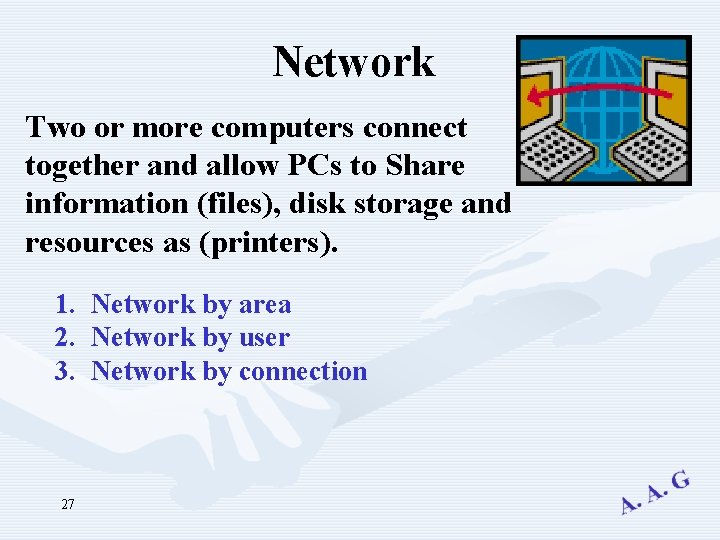
Network Two or more computers connect together and allow PCs to Share information (files), disk storage and resources as (printers). 1. Network by area 2. Network by user 3. Network by connection 27
Network by area LAN § local Area Network § Is system of individual pcs are connecting to gather within company or organization. § Authorized users can access and data stored anywhere on a LAN. § Large data files can be transferred computers using a LAN. 28 WAN § Wide Area Network § Allows pcs connect to gather over a wide area § Type of network that links computers in different cities or countries
Network by users Intranet & Extranet Intranet • An internal internet using e-mail and web within a single origination and access members of the same company organization to access it 29 Extranet • Internet between organizations and allow external users to access it by username and password.
Network by connection Internet connection • PSTN: public Switched telephone network ﺷﺒﻜﻪ ﺍﻟﺘﻠﻴﻔﻮﻥ ﺍﻟﻌﺎﻣﺔ • ISDN: Integrated Service Digital Network ﺍﻟﺨﺪﻣﻪ ﺍﻟﺘﻜﺎﻣﻠﻴﺔ ﺍﻟﺮﻗﻤﻴﻪ it is a digital line used for both voice and data • ADSL: Asymmetric Digital subscriber line ﺧﻂ ﺍﺷﺘﺮﺍﻙ ﺭﻗﻤﻲ ﻏﻴﺮ ﻣﺘﻤﺎﺛﻞ 30
Internet • Global collection of networked computers all over the world • A wide Area network of computers linked together • No License is needed to publish material • Providing search for information • Providing service of e-mail [Electronic mail] • E-commerce v Note: A network that grew out of the work of the American military 31
Requirements needed to connect to internet • Telephone line • ISP : [Internet service provider] • Modem [14. 4 Kbps to 56. 6 Kbps] convert digital and analog signals 32
(WWW (world wide web • Refers to vast collection of linked documents. • Small part of internet. • A vast collection of linked documents held on computers all over the world. • Can accessed using a web browser. 33
E-commerce (Electronic commerce) • Buy or sell good and services online anywhere in the world. • The consumer rights of the supplier’s country apply. • It’s more difficult to return goods purchased online than goods bought in a shop. • You are at risk from insecure payment methods. 34
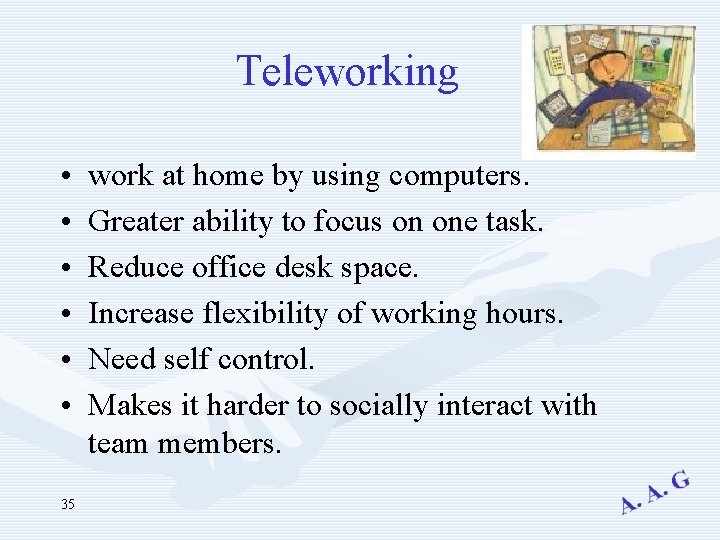
Teleworking • • • 35 work at home by using computers. Greater ability to focus on one task. Reduce office desk space. Increase flexibility of working hours. Need self control. Makes it harder to socially interact with team members.
Computer in every day life Computer in business v Business Administration ﺍﺩﺍﺭﺓ ﺍﻻﻋﻤﺎﻝ Ø Administer employee payroll ﺍﺩﺍﺭﺓ ﻗﺎﺋﻤﺔ ﺍﻟﺮﻭﺍﺗﺐ Ø Track invoices ﺗﻌﻘﺐ ﺍﻭﺍﻣﺮ ﺍﻟﺸﺮﺍﺀ Ø Manage payment record ﺍﺩﺍﺭﺓ ﺳﺠﻼﺕ ﺍﻟﺪﻓﻊ v Online Banking ﺍﻟﺼﺮﺍﻓﺔ Ø Check Balance )an accounts ) ﻓﺤﺺ ﺍﻟﻤﻴﺰﺍﻧﻴﺎﺕ Ø Transfer Founds ﺗﺤﻮﻳﻞ ﺍﻻﻣﻮﺍﻝ Ø Apply for Loans ﻃﻠﺐ ﺍﻟﻘﺮﻭﺽ 36
Computer & people • Computer – Can sort large amount of data – Can carry out complex calculation accurately 41 • People – Customer service ﺧﺪﻣﺔ ﺍﻟﻌﻤﻼﺀ – Taking decision ﺍﺗﺨﺎﺫ ﺍﻟﻘﺮﺍﺭﺍﺕ – Motivating the staff ﺗﺤﻔﺰ ﻓﺮﻳﻖ ﺍﻟﻌﻤﻞ
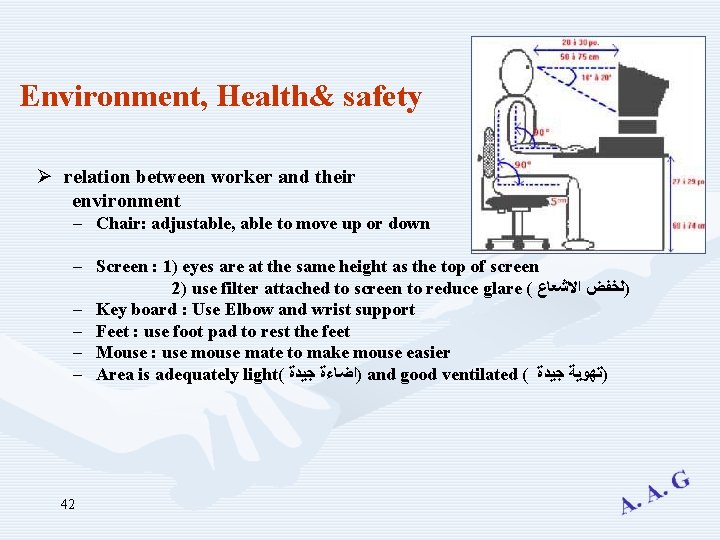
Environment, Health& safety Ø relation between worker and their environment – Chair: adjustable, able to move up or down – Screen : 1) eyes are at the same height as the top of screen 2) use filter attached to screen to reduce glare ( )ﻟﺨﻔﺾ ﺍﻻﺷﻌﺎﻉ – Key board : Use Elbow and wrist support – Feet : use foot pad to rest the feet – Mouse : use mouse mate to make mouse easier – Area is adequately light( )ﺍﺿﺎﺀﺓ ﺟﻴﺪﺓ and good ventilated ( )ﺗﻬﻮﻳﺔ ﺟﻴﺪﺓ 42
Health Issues ﻗﻀﺎﻳﺎ ﺍﻟﺼﺤﺔ • Reduce the risk of repetitive strain injury by Taking frequent breaks from the work. ( )ﺍﻟﺘﻘﻠﻴﻞ ﻣﻦ ﺍﻻﺻﺎﺑﺔ ﺑﺎﻹﺟﻬﺎﺩ ﺍﻟﻤﺘﻜﺮﺭ • Reduce the risk of neck, back and shoulder pain, by Using a fully adjustable operator’s chair ( )ﺍﻟﺤﺪ ﻣﻦ ﻣﺨﺎﻃﺮ آﻠﻢ ﺍﻟﺮﻗﺒﺔ ﻭﺍﻟﻈﻬﺮ ﻭﺍﻟﻜﺘﻒ Environment or good use of computer • Reuse the cartridge toner • Any device is on sleep mode (stand by) will save power • Don’t waste paper precautions ( )ﺍﺣﺘﻴﺎﻃﺎﺕ 1. Use safety and suitable cable 2. Power point are not over load and are near to computer 3. No run cables across open areas 4. Don’t touching internal parts of the PC 43
Security • Password • contain letters and number • Change regularly • Ensures that the person logging on is who they say they are • ID (user name) • Must be unique on the network • Identify specific user on the network • Not confidential 45
anization's information security policy ﻣﻨﻈﻤﻪ ﺍﻣﻦ ﺍﻟﻤﻌﻠﻮﻣﺎﺕ • PDA (Protect Data Act) ﻗﺎﻧﻮﻥ ﺣﻤﺎﻳﻪ ﺍﻟﺒﻴﺎﻧﺎﺕ Ø Safe guard of individual privacy ﺍﻻﻓﺮﺍﺩ ﺣﻤﺎﻳﺔ ﺧﺼﻮﺻﻴﺔ Ø Prevent an unauthorized user to access privacy data Ø Protect the individual’s right to privacy ﺣﻤﺎﻳﺔ ﺍﻟﺤﻘﻮﻕ ﺍﻟﺸﺨﺼﻴﺔ Obliges organizations to protect confidential data within their control ﻳﻠﺰﻡ ﺍﻟﻤﻨﻈﻤﺎﺕ ﺑﺤﻤﺎﻳﺔ ﺍﻟﺒﻴﺎﻧﺎﺕ ﺍﻟﺴﺮﻳﺔ 46
Copyright legislation ﻗﺎﻧﻮﻥ ﺣﻤﺎﻳﺔ ﺍﻟﻤﻠﻜﻴﺔ ﺍﻟﻔﻜﺮﻳﺔ • You can’t copy someone’s work and buy it. • Any material purchased on disk is copyright. • Scanned Images & Audio files & Graphics on the web are subject to copyright 47
Freeware & Shareware • Freeware freely available ØSoftware You can use it for free , you haven't pay for it • Shareware for trial period ØSoftware you can try it for free but you have to pay if you need to keep it. ØIt is illegal ﻏﻴﺮ ﻗﺎﻧﻮﻧﻰ if you copy and sell it. 48
• Virus program damage files or hard disk • Antivirus can detect and disinfect Virus • Good Antivirus Ø Check virus everyday. ØDelete email from unknown source. ØPutting a virus check in a floppy drive. ØRegularly visiting the web sites of your anti virus software supplier. ØRunning a virus check on an email attachment. 49