
IST 311 ObjectOriented Design and Software Applications Persistent
IST 311 Object-Oriented Design and Software Applications Persistent Data Martin K. -C. Yeh Penn State Brandywine Persistent Data 1
Objectives • Understand Relational Database (review) • Understand SQL (review) • Understand steps to add required JAR files to a Java database project • Be able to connect to a database and fetch data from the tables Persistent Data 2
Motivation • Software applications often need to store data permanently, even after the applications are terminated • We can use a flat file to store data • Everything is stored in a plain text file (easy to read and understand) • Need programmers to specifically deal with data manipulation (a lot of programming work) • The efficiency normally suffers • Difficult to exchange data across different system • Database Management Systems are created to address those issues Persistent Data 3
Relational Database Overview • RDBMS (relational database management system) is currently the most dominant database management system • No. SQL (not-only-sql) has become popular after the web 2. 0 era • There are standard languages for: • • Data Definition Languages (DDL) Data Manipulation Languages (DML) Data Control Languages (DCL) Transaction Control Languages (TCL) • SQL (structural query language) is the most common database language in this context • Examples of RDBMS are: My. SQL, MSSQL, Oracle, Postgre. SQL, SQLite, Apache Derby Persistent Data 4
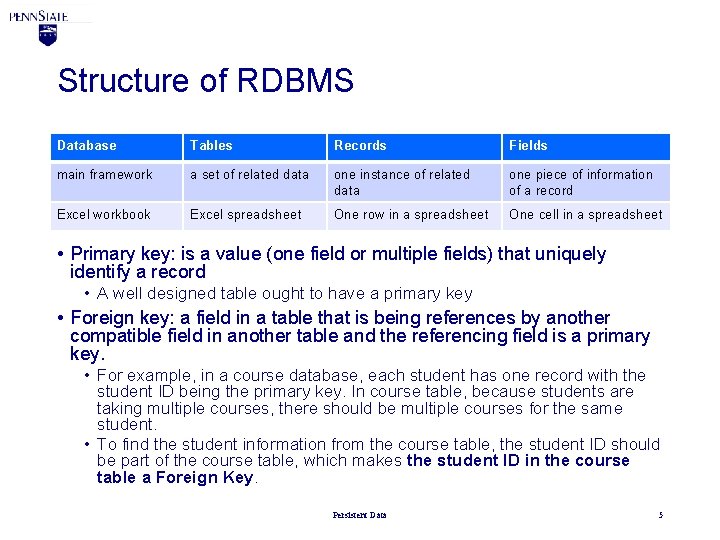
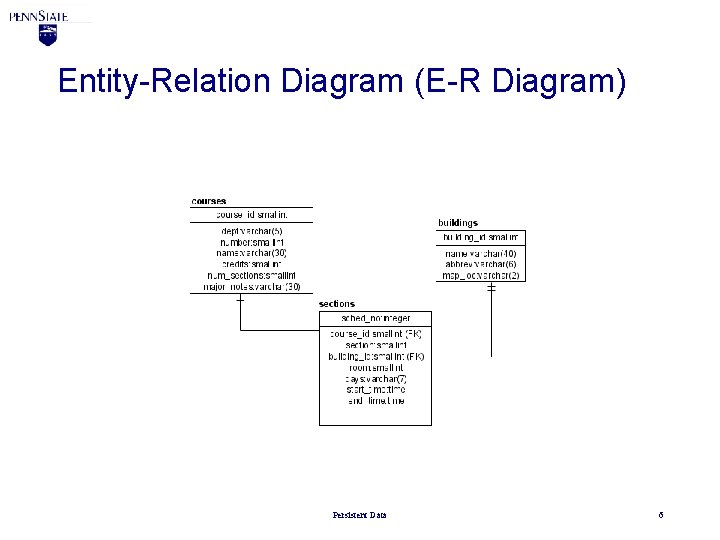
Structure of RDBMS Database Tables Records Fields main framework a set of related data one instance of related data one piece of information of a record Excel workbook Excel spreadsheet One row in a spreadsheet One cell in a spreadsheet • Primary key: is a value (one field or multiple fields) that uniquely identify a record • A well designed table ought to have a primary key • Foreign key: a field in a table that is being references by another compatible field in another table and the referencing field is a primary key. • For example, in a course database, each student has one record with the student ID being the primary key. In course table, because students are taking multiple courses, there should be multiple courses for the same student. • To find the student information from the course table, the student ID should be part of the course table, which makes the student ID in the course table a Foreign Key. Persistent Data 5
Entity-Relation Diagram (E-R Diagram) Persistent Data 6
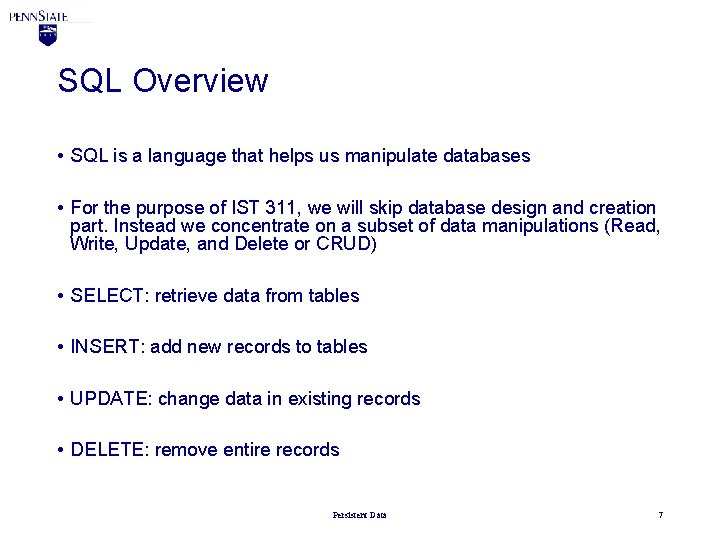
SQL Overview • SQL is a language that helps us manipulate databases • For the purpose of IST 311, we will skip database design and creation part. Instead we concentrate on a subset of data manipulations (Read, Write, Update, and Delete or CRUD) • SELECT: retrieve data from tables • INSERT: add new records to tables • UPDATE: change data in existing records • DELETE: remove entire records Persistent Data 7
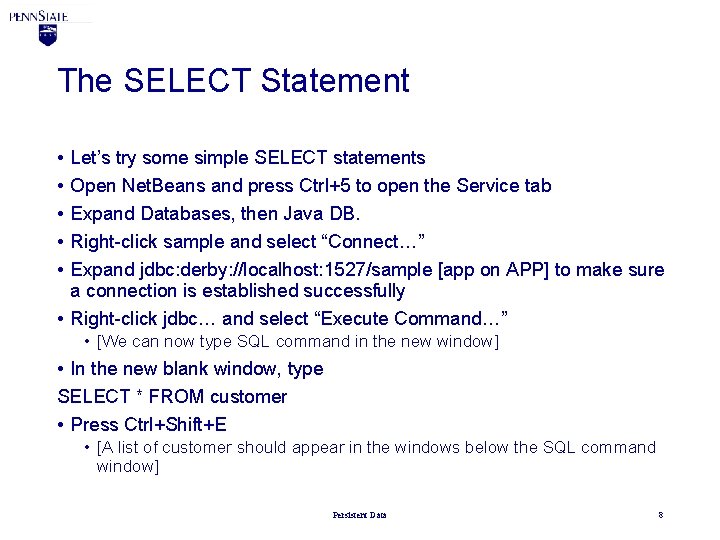
The SELECT Statement • • • Let’s try some simple SELECT statements Open Net. Beans and press Ctrl+5 to open the Service tab Expand Databases, then Java DB. Right-click sample and select “Connect…” Expand jdbc: derby: //localhost: 1527/sample [app on APP] to make sure a connection is established successfully • Right-click jdbc… and select “Execute Command…” • [We can now type SQL command in the new window] • In the new blank window, type SELECT * FROM customer • Press Ctrl+Shift+E • [A list of customer should appear in the windows below the SQL command window] Persistent Data 8
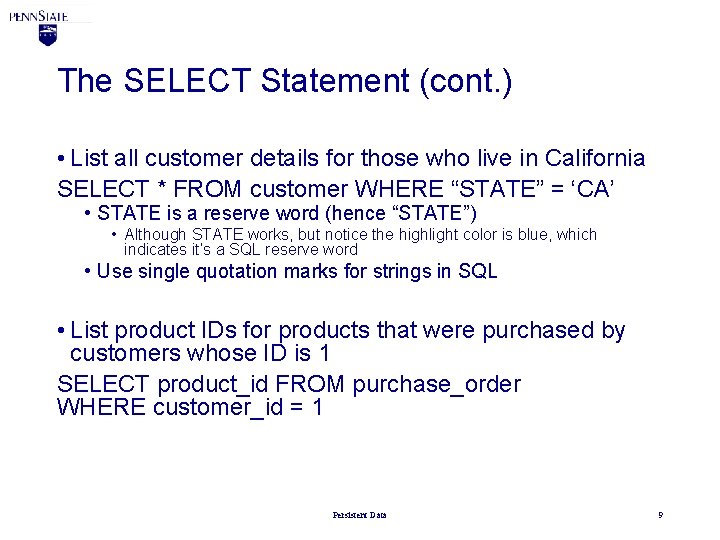
The SELECT Statement (cont. ) • List all customer details for those who live in California SELECT * FROM customer WHERE “STATE” = ‘CA’ • STATE is a reserve word (hence “STATE”) • Although STATE works, but notice the highlight color is blue, which indicates it’s a SQL reserve word • Use single quotation marks for strings in SQL • List product IDs for products that were purchased by customers whose ID is 1 SELECT product_id FROM purchase_order WHERE customer_id = 1 Persistent Data 9
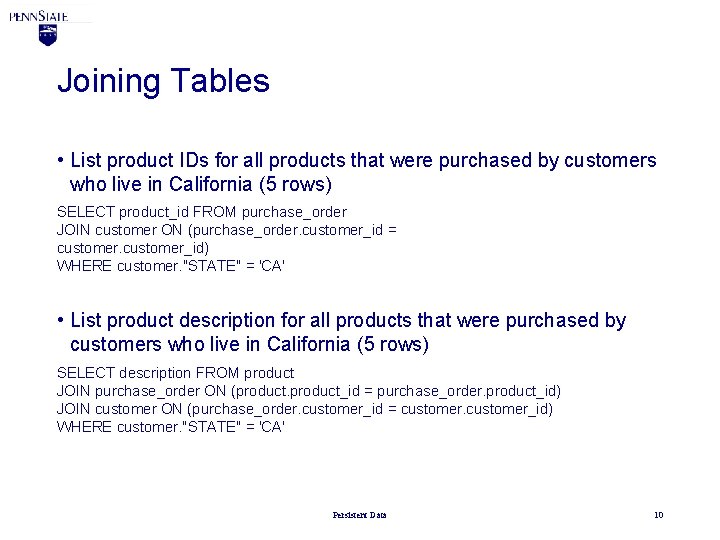
Joining Tables • List product IDs for all products that were purchased by customers who live in California (5 rows) SELECT product_id FROM purchase_order JOIN customer ON (purchase_order. customer_id = customer_id) WHERE customer. "STATE" = 'CA' • List product description for all products that were purchased by customers who live in California (5 rows) SELECT description FROM product JOIN purchase_order ON (product_id = purchase_order. product_id) JOIN customer ON (purchase_order. customer_id = customer_id) WHERE customer. "STATE" = 'CA' Persistent Data 10
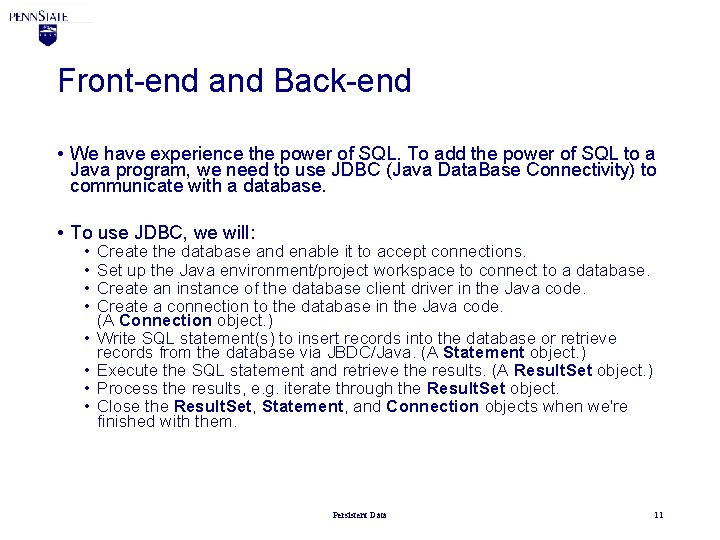
Front-end and Back-end • We have experience the power of SQL. To add the power of SQL to a Java program, we need to use JDBC (Java Data. Base Connectivity) to communicate with a database. • To use JDBC, we will: • • Create the database and enable it to accept connections. Set up the Java environment/project workspace to connect to a database. Create an instance of the database client driver in the Java code. Create a connection to the database in the Java code. (A Connection object. ) Write SQL statement(s) to insert records into the database or retrieve records from the database via JBDC/Java. (A Statement object. ) Execute the SQL statement and retrieve the results. (A Result. Set object. ) Process the results, e. g. iterate through the Result. Set object. Close the Result. Set, Statement, and Connection objects when we're finished with them. Persistent Data 11
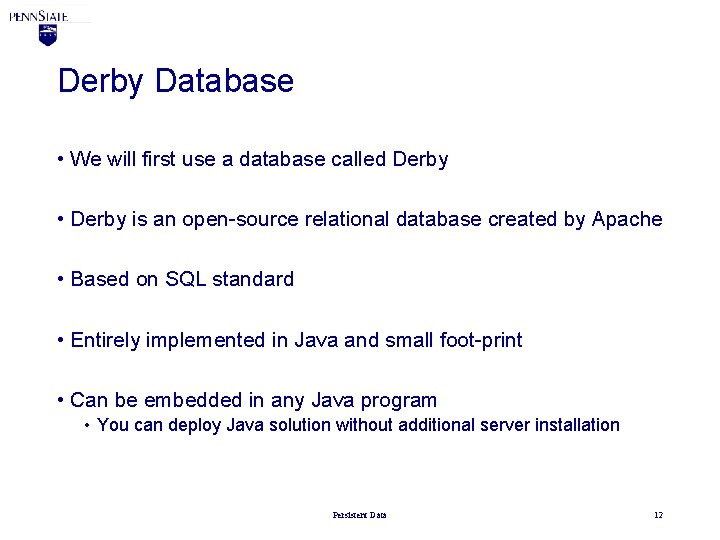
Derby Database • We will first use a database called Derby • Derby is an open-source relational database created by Apache • Based on SQL standard • Entirely implemented in Java and small foot-print • Can be embedded in any Java program • You can deploy Java solution without additional server installation Persistent Data 12
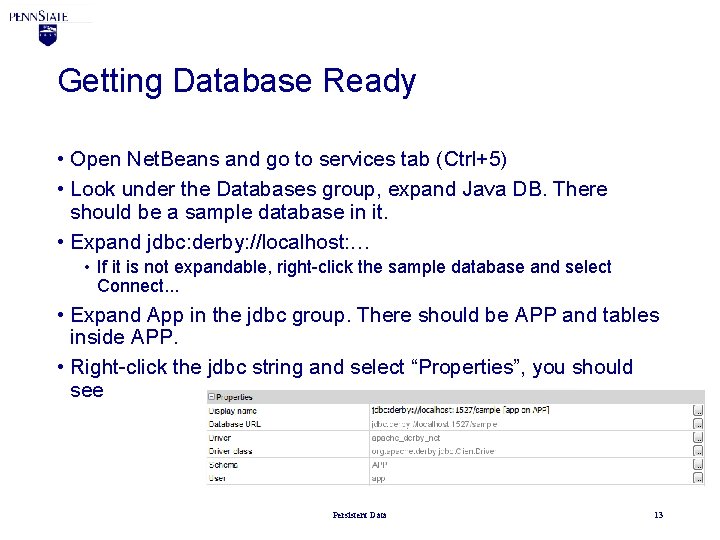
Getting Database Ready • Open Net. Beans and go to services tab (Ctrl+5) • Look under the Databases group, expand Java DB. There should be a sample database in it. • Expand jdbc: derby: //localhost: … • If it is not expandable, right-click the sample database and select Connect. . . • Expand App in the jdbc group. There should be APP and tables inside APP. • Right-click the jdbc string and select “Properties”, you should see Persistent Data 13
Creating a Project • • Create a Java Application project Create a folder named lib in the project directory Download derby. jar to the lib folder you just created Right-click the project name and select Properties Select Libraries from the Categories Select Run tab on the right and then select Add JAR/Folder… Find the derby. jar in the lib folder and select Relative Path (this should be the default value). Click Open • Now, you’ve added derby. jar to your project • Download derbyclient. jar and follow the same step to add it to the Compile tab • Notice that if you are using other database management system such as SQLite or My. SQL, the jar file(s) may be different. Persistent Data 14
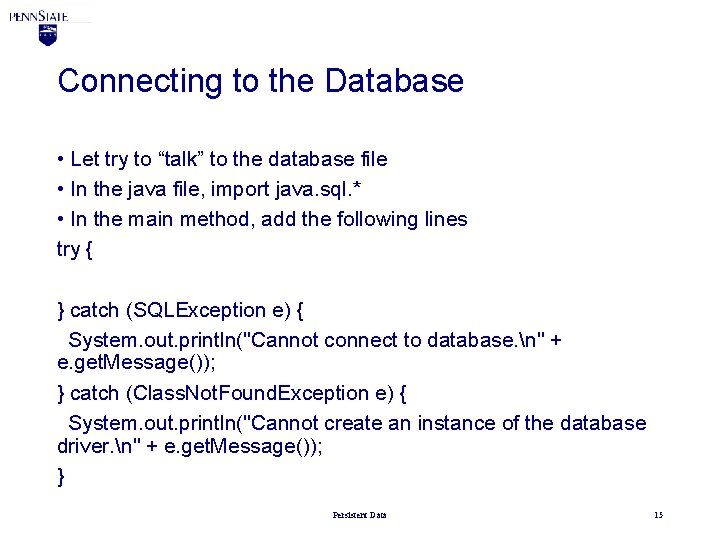
Connecting to the Database • Let try to “talk” to the database file • In the java file, import java. sql. * • In the main method, add the following lines try { } catch (SQLException e) { System. out. println("Cannot connect to database. n" + e. get. Message()); } catch (Class. Not. Found. Exception e) { System. out. println("Cannot create an instance of the database driver. n" + e. get. Message()); } Persistent Data 15
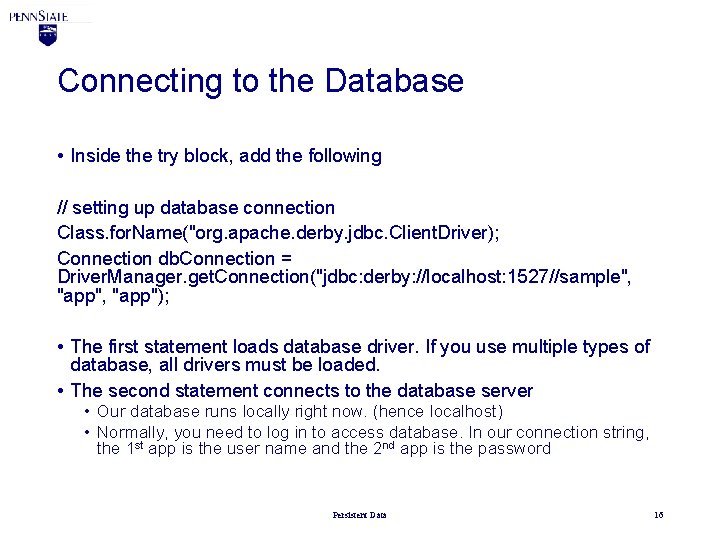
Connecting to the Database • Inside the try block, add the following // setting up database connection Class. for. Name("org. apache. derby. jdbc. Client. Driver); Connection db. Connection = Driver. Manager. get. Connection("jdbc: derby: //localhost: 1527//sample", "app", "app"); • The first statement loads database driver. If you use multiple types of database, all drivers must be loaded. • The second statement connects to the database server • Our database runs locally right now. (hence localhost) • Normally, you need to log in to access database. In our connection string, the 1 st app is the user name and the 2 nd app is the password Persistent Data 16
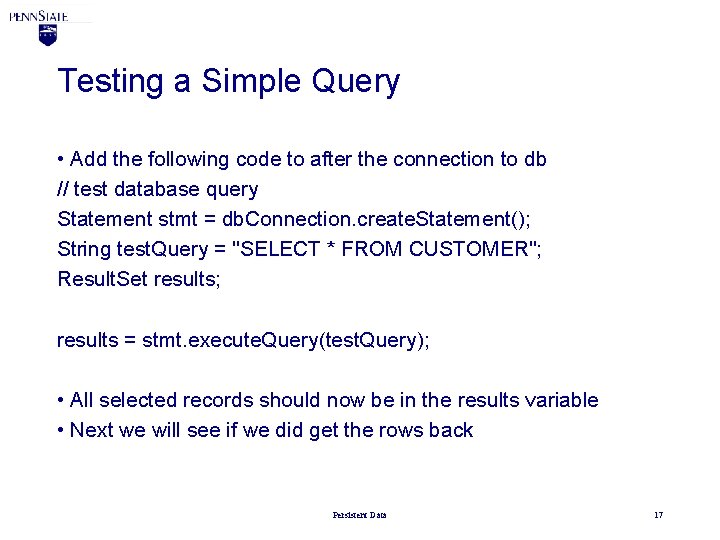
Testing a Simple Query • Add the following code to after the connection to db // test database query Statement stmt = db. Connection. create. Statement(); String test. Query = "SELECT * FROM CUSTOMER"; Result. Set results; results = stmt. execute. Query(test. Query); • All selected records should now be in the results variable • Next we will see if we did get the rows back Persistent Data 17
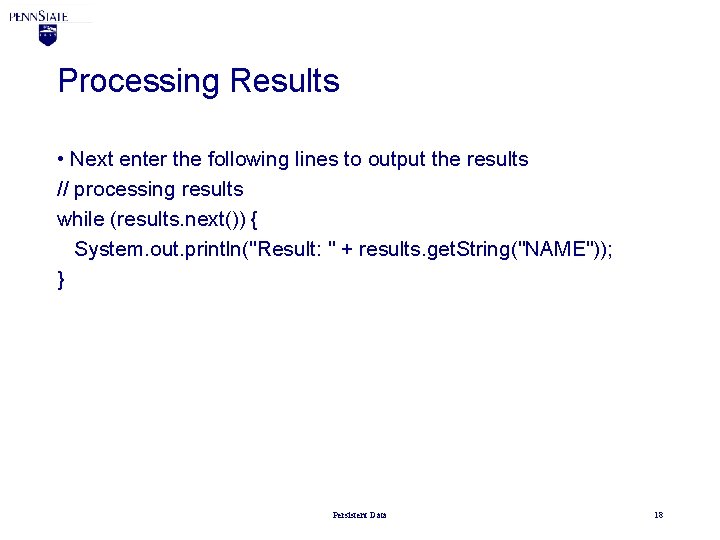
Processing Results • Next enter the following lines to output the results // processing results while (results. next()) { System. out. println("Result: " + results. get. String("NAME")); } Persistent Data 18
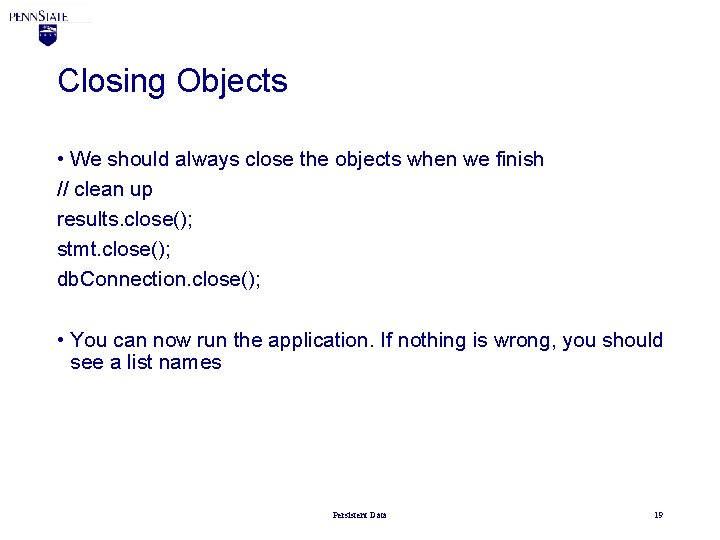
Closing Objects • We should always close the objects when we finish // clean up results. close(); stmt. close(); db. Connection. close(); • You can now run the application. If nothing is wrong, you should see a list names Persistent Data 19
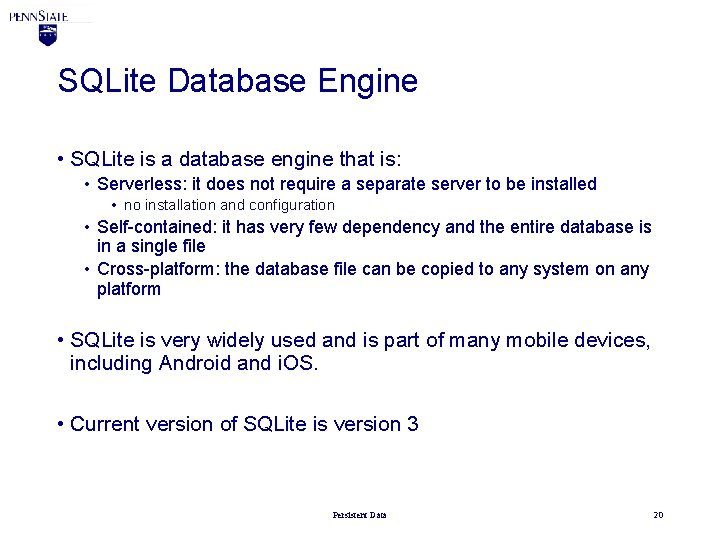
SQLite Database Engine • SQLite is a database engine that is: • Serverless: it does not require a separate server to be installed • no installation and configuration • Self-contained: it has very few dependency and the entire database is in a single file • Cross-platform: the database file can be copied to any system on any platform • SQLite is very widely used and is part of many mobile devices, including Android and i. OS. • Current version of SQLite is version 3 Persistent Data 20
Connecting to a SQLite database • Exercise • Download a sqlite database from http: //www. personal. psu. edu/kqy 1/teaching/ist 311/jdbc/sample. sqlite 3 • This SQLite database is a duplicate of the sample database in derby. • Download the sqlite Jar file from http: //www. personal. psu. edu/kqy 1/teaching/ist 311/jdbc/ sqlitejdbc-3. 14. 2. jar • Think about what we’ve done previously and now change the Driver. Manager and connection to this sqlite database. Persistent Data 21
Summary • Briefly review RDBMS • Briefly review the SELECT statement of SQL • Learned how to connect to Derby database • Practiced how to connect to SQLite database Persistent Data 22
References • Derby • SQLite • JDBC Basics Persistent Data 23
- Slides: 23