
IP Intercoms Call Configuration Technical Support last update
- Slides: 41
IP Intercoms Call Configuration Technical Support, last update 7/2017, best view in presentation mode
AGENDA Next 50 minutes • Interconnection to other IP devices • Call routing scenarios and settings • Call triggers and how to start a call • IP intercoms hardware related to calling • Overview of advanced integrations • Questions & Answers
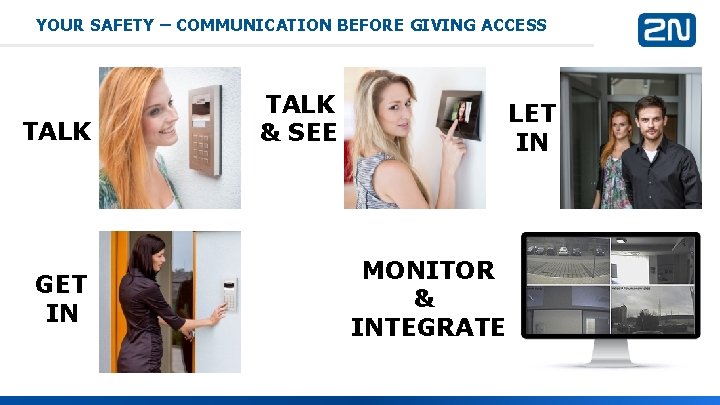
YOUR SAFETY – COMMUNICATION BEFORE GIVING ACCESS TALK GET IN TALK & SEE LET IN MONITOR & INTEGRATE
Quick introduction
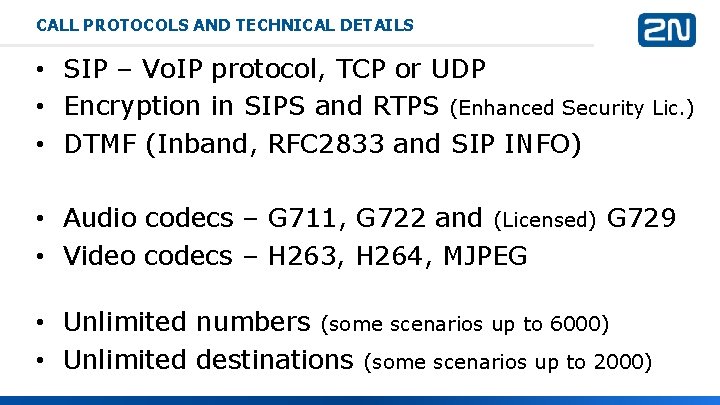
CALL PROTOCOLS AND TECHNICAL DETAILS • SIP – Vo. IP protocol, TCP or UDP • Encryption in SIPS and RTPS (Enhanced Security Lic. ) • DTMF (Inband, RFC 2833 and SIP INFO) • Audio codecs – G 711, G 722 and (Licensed) G 729 • Video codecs – H 263, H 264, MJPEG • Unlimited numbers (some scenarios up to 6000) • Unlimited destinations (some scenarios up to 2000)
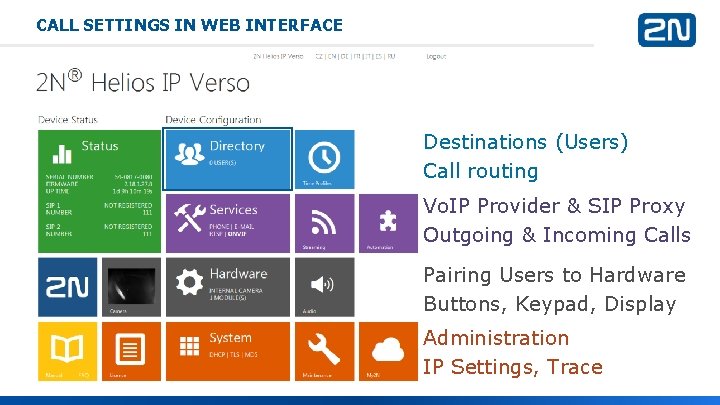
CALL SETTINGS IN WEB INTERFACE Destinations (Users) Call routing Vo. IP Provider & SIP Proxy Outgoing & Incoming Calls Pairing Users to Hardware Buttons, Keypad, Display Administration IP Settings, Trace
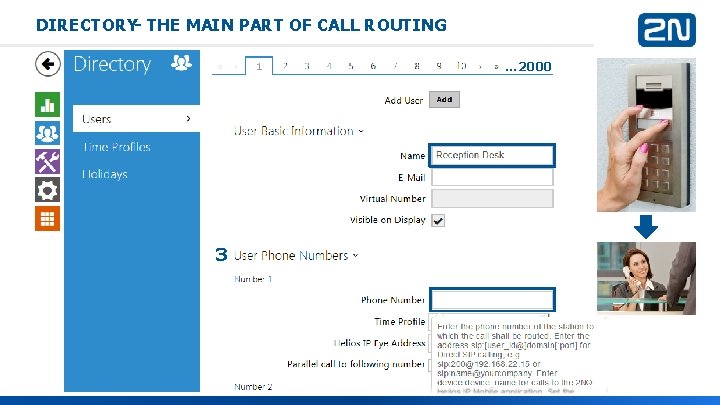
DIRECTORY- THE MAIN PART OF CALL ROUTING … 2000 3
Interconnection with different IP devices
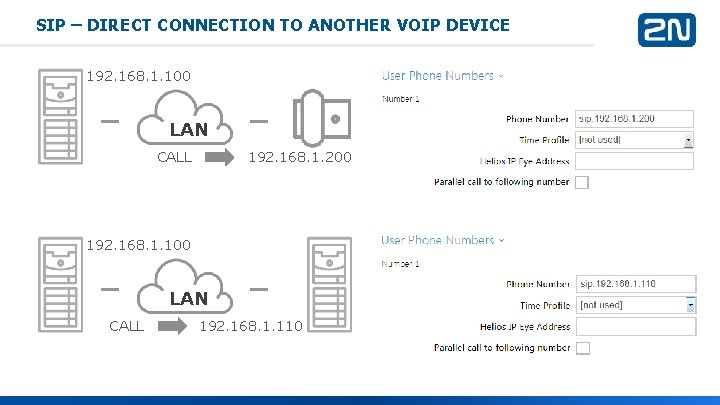
SIP – DIRECT CONNECTION TO ANOTHER VOIP DEVICE 192. 168. 1. 100 LAN CALL 192. 168. 1. 200 192. 168. 1. 100 LAN CALL 192. 168. 1. 110
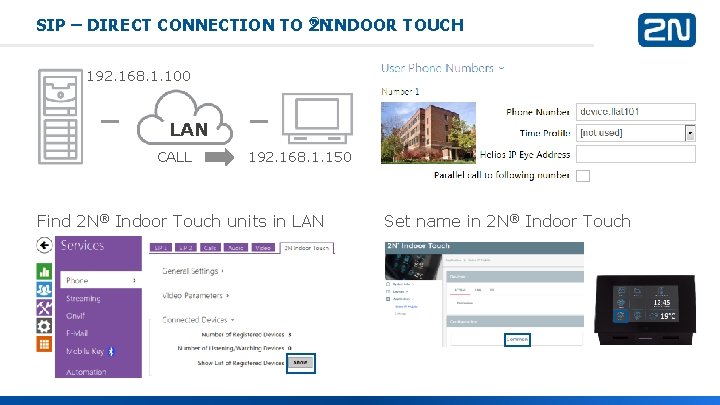
® INDOOR TOUCH SIP – DIRECT CONNECTION TO 2 N 192. 168. 1. 100 LAN CALL 192. 168. 1. 150 Find 2 N® Indoor Touch units in LAN Set name in 2 N® Indoor Touch
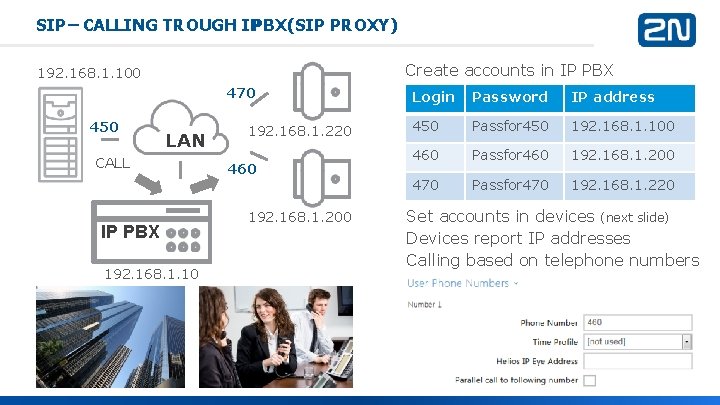
SIP – CALLING TROUGH IP PBX (SIP PROXY) Create accounts in IP PBX 192. 168. 1. 100 470 450 LAN CALL IP PBX 192. 168. 1. 10 192. 168. 1. 220 460 192. 168. 1. 200 Login Password IP address 450 Passfor 450 192. 168. 1. 100 460 Passfor 460 192. 168. 1. 200 470 Passfor 470 192. 168. 1. 220 Set accounts in devices (next slide) Devices report IP addresses Calling based on telephone numbers
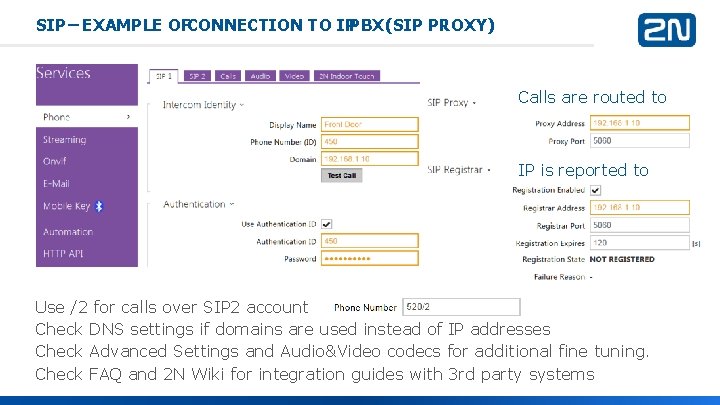
SIP – EXAMPLE OFCONNECTION TO IPPBX (SIP PROXY) Calls are routed to IP is reported to Use /2 for calls over SIP 2 account Check DNS settings if domains are used instead of IP addresses Check Advanced Settings and Audio&Video codecs for additional fine tuning. Check FAQ and 2 N Wiki for integration guides with 3 rd party systems
Call routing scenarios and settings
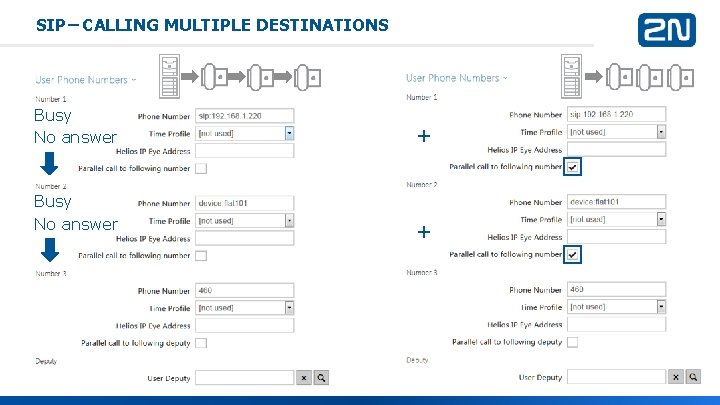
SIP – CALLING MULTIPLE DESTINATIONS Busy No answer + +
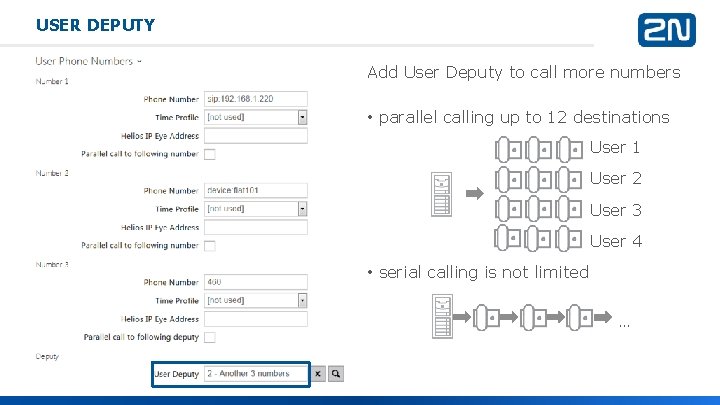
USER DEPUTY Add User Deputy to call more numbers • parallel calling up to 12 destinations User 1 User 2 User 3 User 4 • serial calling is not limited …
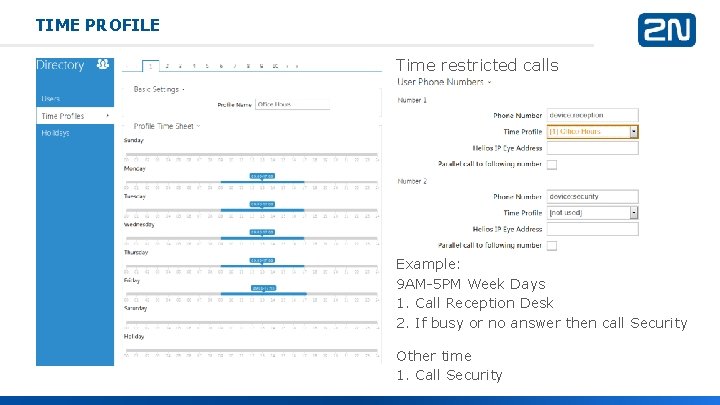
TIME PROFILE Time restricted calls Example: 9 AM-5 PM Week Days 1. Call Reception Desk 2. If busy or no answer then call Security Other time 1. Call Security
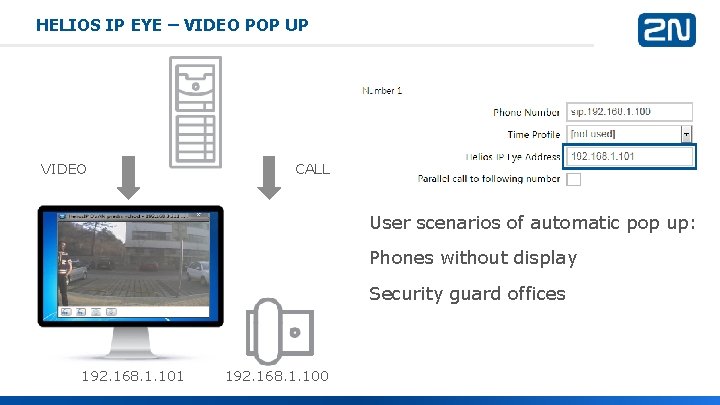
HELIOS IP EYE – VIDEO POP UP VIDEO CALL User scenarios of automatic pop up: Phones without display Security guard offices 192. 168. 1. 101 192. 168. 1. 100
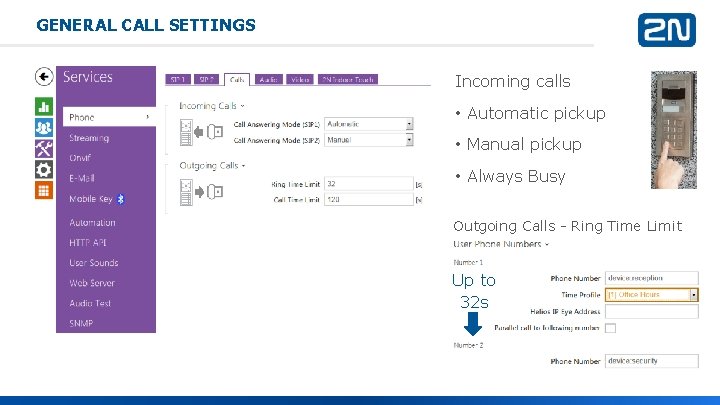
GENERAL CALL SETTINGS Incoming calls • Automatic pickup • Manual pickup • Always Busy Outgoing Calls - Ring Time Limit Up to 32 s
Hardware and settings
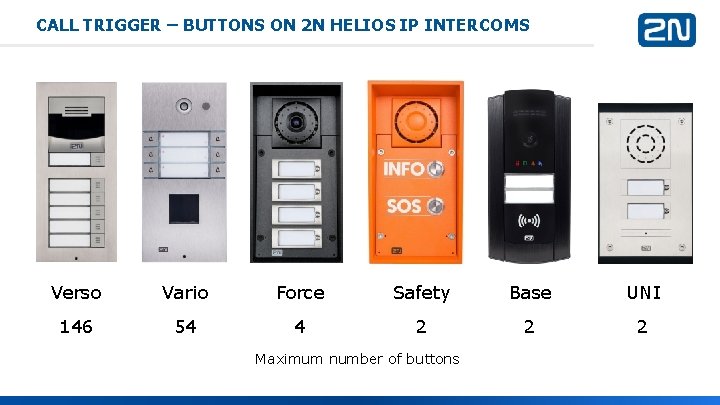
CALL TRIGGER – BUTTONS ON 2 N HELIOS IP INTERCOMS Verso Vario Force Safety Base UNI 146 54 4 2 2 2 Maximum number of buttons
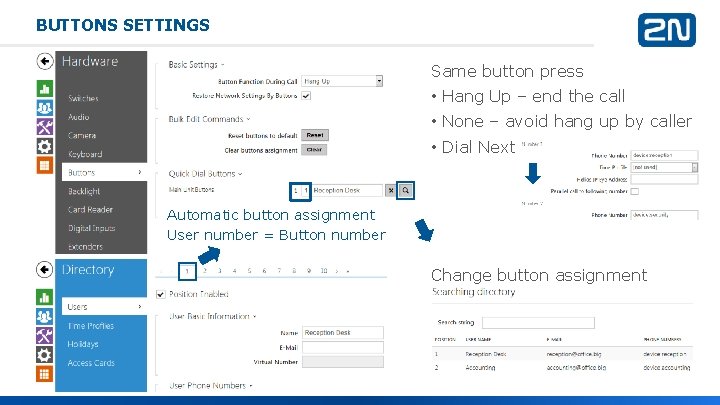
BUTTONS SETTINGS Same button press • Hang Up – end the call • None – avoid hang up by caller • Dial Next Automatic button assignment User number = Button number Change button assignment
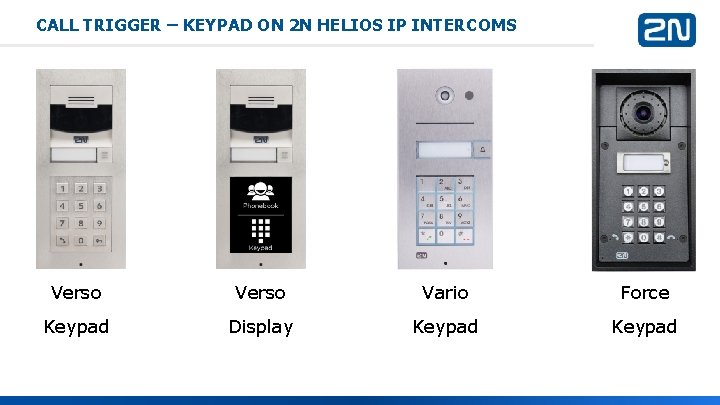
CALL TRIGGER – KEYPAD ON 2 N HELIOS IP INTERCOMS Verso Vario Force Keypad Display Keypad
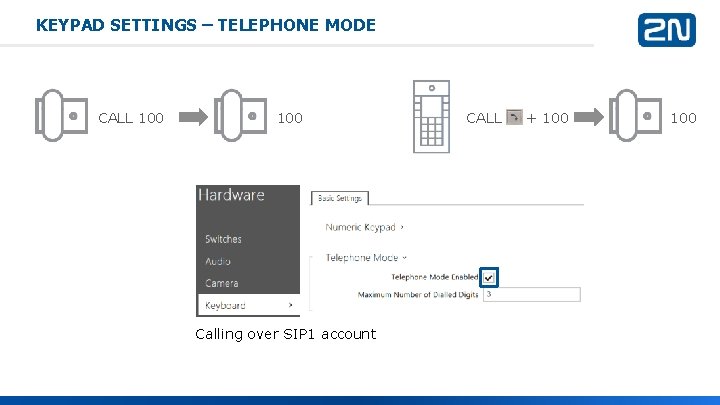
KEYPAD SETTINGS – TELEPHONE MODE CALL 100 Calling over SIP 1 account CALL + 100
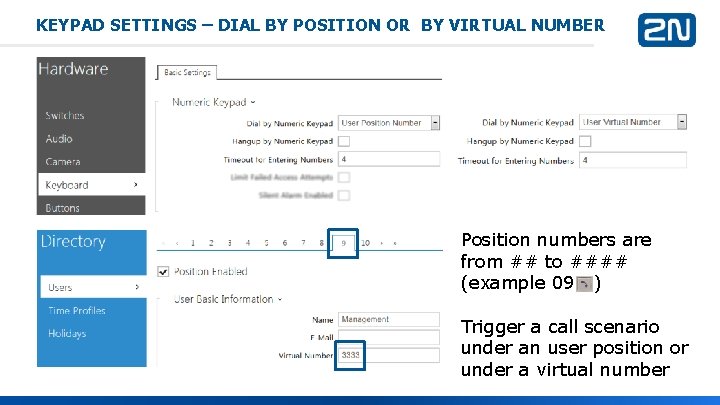
KEYPAD SETTINGS – DIAL BY POSITION OR BY VIRTUAL NUMBER Position numbers are from ## to #### (example 09 ) Trigger a call scenario under an user position or under a virtual number
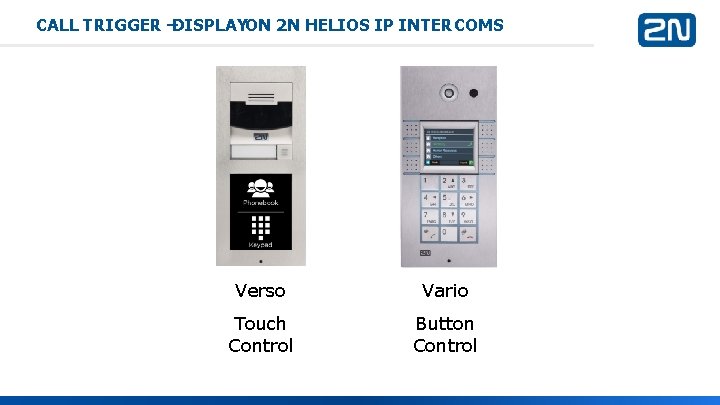
CALL TRIGGER –DISPLAYON 2 N HELIOS IP INTERCOMS Verso Vario Touch Control Button Control
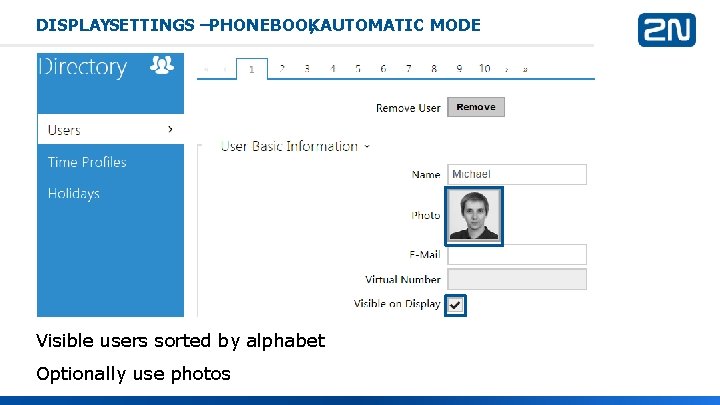
DISPLAYSETTINGS –PHONEBOOK , AUTOMATIC MODE Visible users sorted by alphabet Optionally use photos
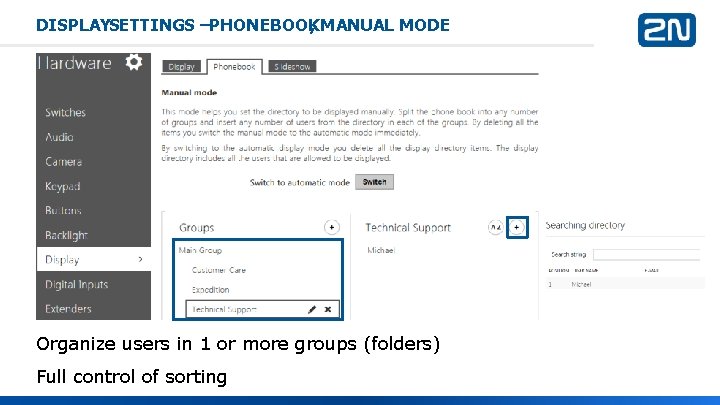
DISPLAYSETTINGS –PHONEBOOK , MANUAL MODE Organize users in 1 or more groups (folders) Full control of sorting
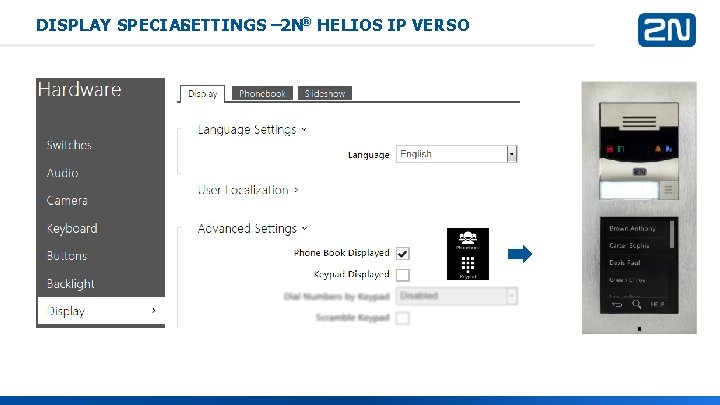
DISPLAY SPECIAL SETTINGS – 2 N® HELIOS IP VERSO
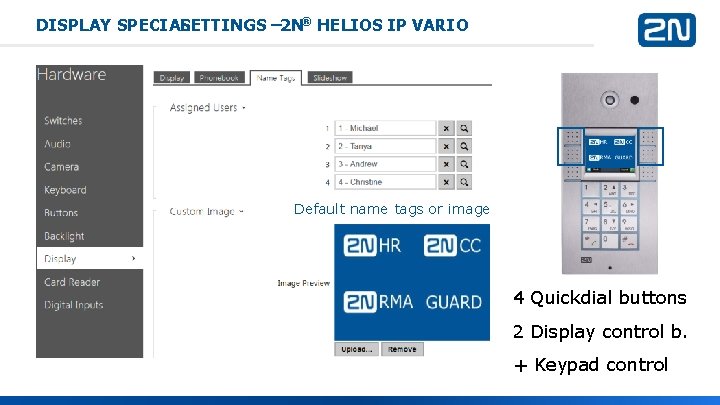
DISPLAY SPECIAL SETTINGS – 2 N® HELIOS IP VARIO Default name tags or image 4 Quickdial buttons 2 Display control b. + Keypad control
Advanced integration
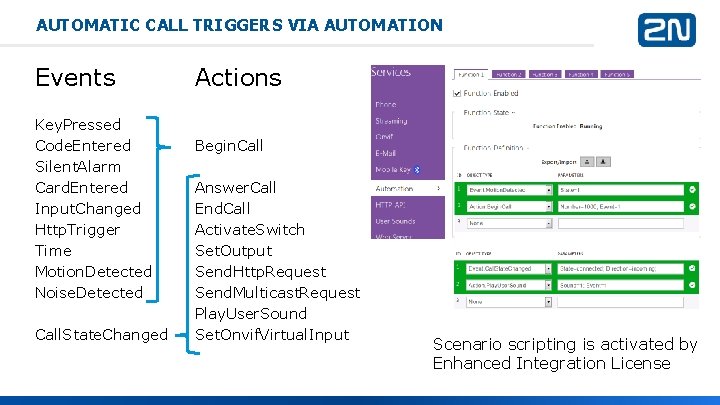
AUTOMATIC CALL TRIGGERS VIA AUTOMATION Events Key. Pressed Code. Entered Silent. Alarm Card. Entered Input. Changed Http. Trigger Time Motion. Detected Noise. Detected Call. State. Changed Actions Begin. Call Answer. Call End. Call Activate. Switch Set. Output Send. Http. Request Send. Multicast. Request Play. User. Sound Set. Onvif. Virtual. Input Scenario scripting is activated by Enhanced Integration License
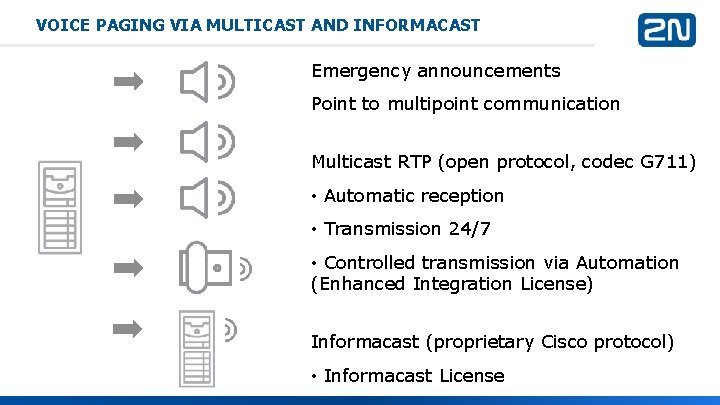
VOICE PAGING VIA MULTICAST AND INFORMACAST Emergency announcements Point to multipoint communication Multicast RTP (open protocol, codec G 711) • Automatic reception • Transmission 24/7 • Controlled transmission via Automation (Enhanced Integration License) Informacast (proprietary Cisco protocol) • Informacast License
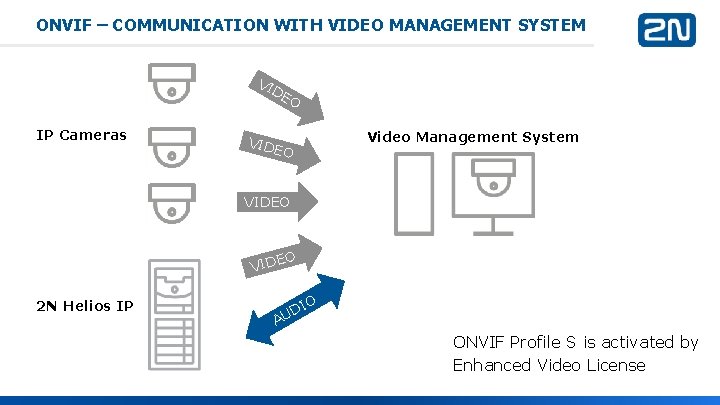
ONVIF – COMMUNICATION WITH VIDEO MANAGEMENT SYSTEM VI D EO IP Cameras VIDE Video Management System O VIDE 2 N Helios IP O O DI U A ONVIF Profile S is activated by Enhanced Video License
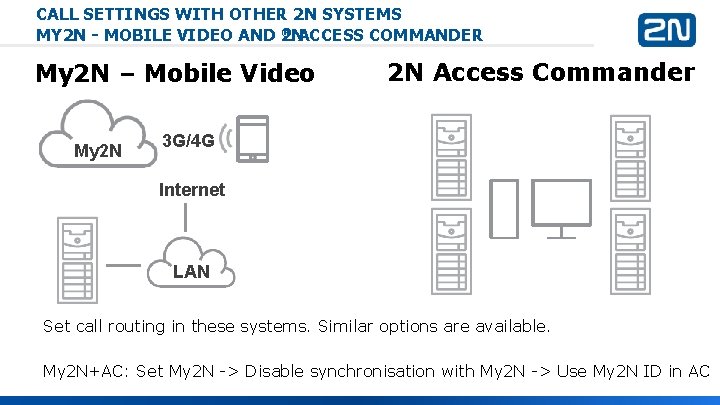
CALL SETTINGS WITH OTHER 2 N SYSTEMS ® ACCESS COMMANDER MY 2 N - MOBILE VIDEO AND 2 N My 2 N – Mobile Video My 2 N 2 N Access Commander 3 G/4 G Internet LAN Set call routing in these systems. Similar options are available. My 2 N+AC: Set My 2 N -> Disable synchronisation with My 2 N -> Use My 2 N ID in AC
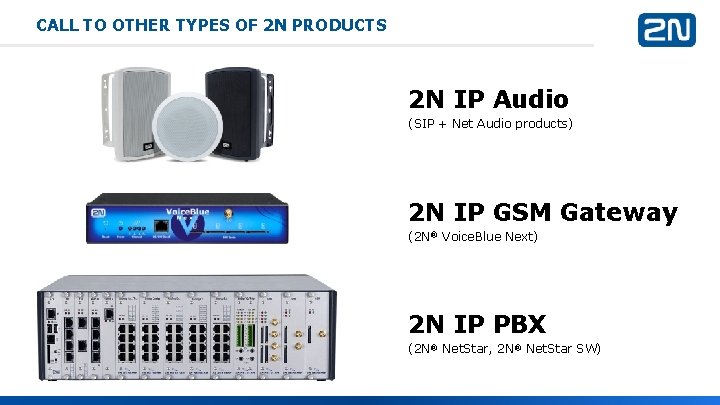
CALL TO OTHER TYPES OF 2 N PRODUCTS 2 N IP Audio (SIP + Net Audio products) 2 N IP GSM Gateway (2 N® Voice. Blue Next) 2 N IP PBX (2 N® Net. Star, 2 N® Net. Star SW)
Questions & Answers
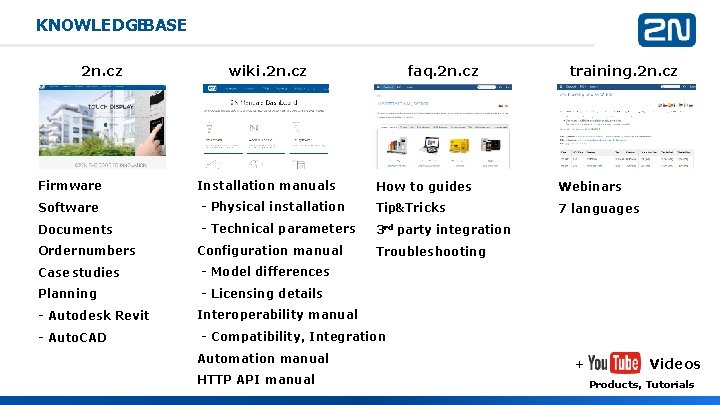
KNOWLEDGEBASE 2 n. cz Firmware wiki. 2 n. cz Installation manuals faq. 2 n. cz How to guides Webinars 7 languages Software - Physical installation Tip&Tricks Documents - Technical parameters 3 rd party integration Order numbers Configuration manual Case studies - Model differences Planning - Licensing details - Autodesk Revit - Auto. CAD training. 2 n. cz Troubleshooting Interoperability manual - Compatibility, Integration Automation manual HTTP API manual + Videos Products, Tutorials
Thank you! Follow next webinar Strenghten knowledge Basic Installation Call Configuration Access Configuration Presentation with extra slides • suggested activities • pop quiz Questions training@2 n. cz support. 2 n. cz
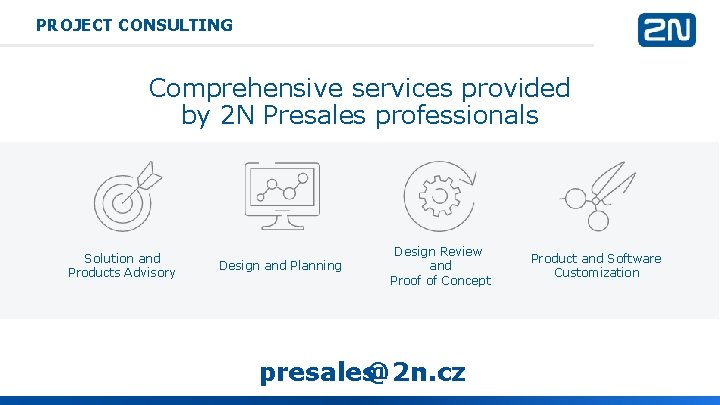
PROJECT CONSULTING Comprehensive services provided by 2 N Presales professionals Solution and Products Advisory Design and Planning Design Review and Proof of Concept presales@2 n. cz Product and Software Customization
SUGGESTED ACTIVITIES • Call from IP intercom to • Computer with soft phone (X-Lite, Micro. SIP) • Other IP device • Try 2 N Helios IP Eye • Set parallel and serial calling to 2 destinations • Try all 3 modes of keypad • Test other settings from this webinar
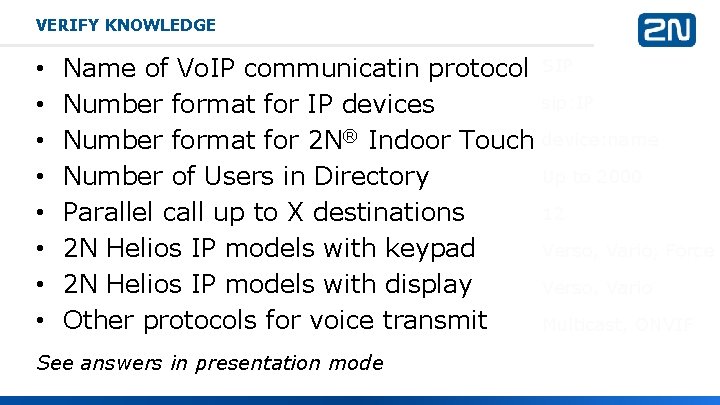
VERIFY KNOWLEDGE • • Name of Vo. IP communicatin protocol Number format for IP devices Number format for 2 N® Indoor Touch Number of Users in Directory Parallel call up to X destinations 2 N Helios IP models with keypad 2 N Helios IP models with display Other protocols for voice transmit See answers in presentation mode SIP sip: IP device: name Up to 2000 12 Verso, Vario, Force Verso, Vario Multicast, ONVIF