
Inventory How to approach using Sirsi Dynix Symphony






- Slides: 52
Inventory! How to approach using Sirsi. Dynix Symphony
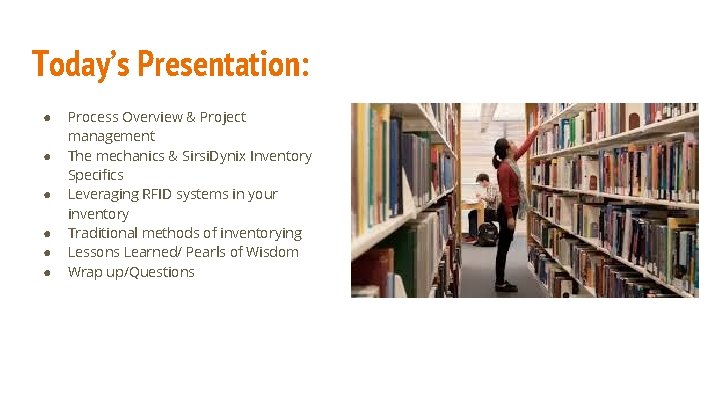
Today’s Presentation: ● ● ● Process Overview & Project management The mechanics & Sirsi. Dynix Inventory Specifics Leveraging RFID systems in your inventory Traditional methods of inventorying Lessons Learned/ Pearls of Wisdom Wrap up/Questions
First of all, why inventory?
Sound Familiar? ● Does your ILS software show items that have not circulated in decades? ● Are staff frustrated searching for items that can never be found? ● Do you have an inkling that your shelf list does not match what’s actually in your library? ● Have you never done an inventory before? If you answered ‘Yes’ to any of these questions, and inventory is right for you!
Don’t Panic!
The Overall Process ● Approach with basic project management principles and set a start date ● Determine what is on shelf: ○ Scan or otherwise check off all items on shelf in your library. Account for all items that are checked out or not on shelf. (in repair, at bindery, etc. ) ● Distinguish what has been accounted for and what has not ○ Compare what your ILS says against what was actually there. Search for missing items. ● Reconcile your first hand data with your ILS ○ After the final determination that unaccounted for items are gone for good, remove those records from your system.
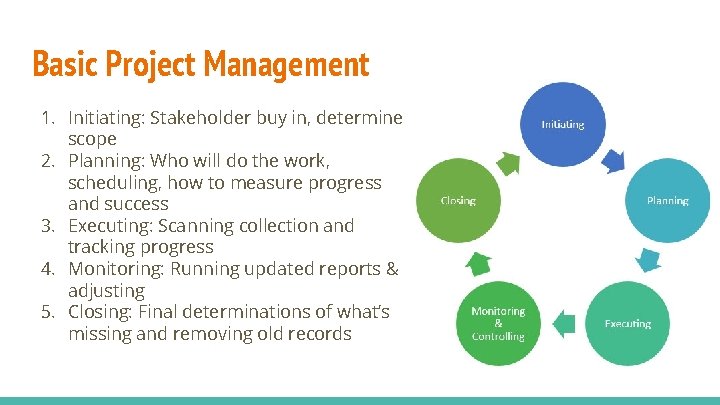
Basic Project Management 1. Initiating: Stakeholder buy in, determine scope 2. Planning: Who will do the work, scheduling, how to measure progress and success 3. Executing: Scanning collection and tracking progress 4. Monitoring: Running updated reports & adjusting 5. Closing: Final determinations of what’s missing and removing old records
1) Initiation Questions to answer up front: ● What portions of the collection will be inventoried? ● Will your building close for the project? Or complete during open hours? ● What other projects are you prepared to take on as result? ○ E. g. weeding, relabeling, recataloging ● Who will be responsible for scanning the items, searching for what’s unaccounted for, and for updating reports and lists? ○ How will you keep staff motivated? (Kick off parties, milestone celebrations, snacks) ● Set a start date
2) Planning ● Break collection up into manageable parts ● Set goals for when you anticipate starting and completing each section, but be flexible ● Devise a tracking system so you know what has been completed and what still needs to be done ● Think through the whole process to minimize repeated work
3) Execution ● Get scanning! ● Once a section has gone through the initial scan, run reports to see what was not found ● If you have different staff scanning vs. searching, both tasks can be worked on simultaneously once you get rolling. Keep track! ● Keep stakeholders abreast of your progress
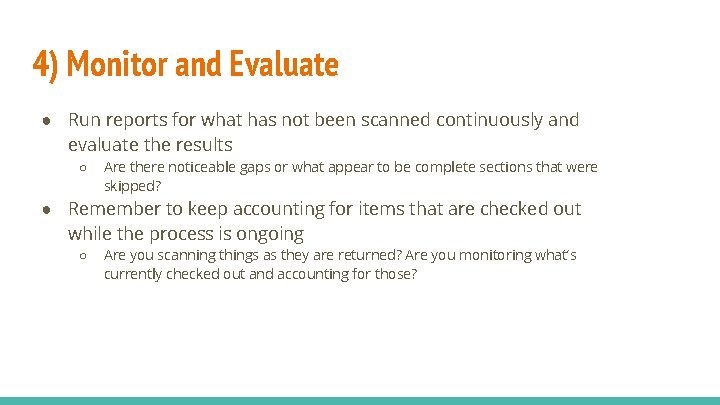
4) Monitor and Evaluate ● Run reports for what has not been scanned continuously and evaluate the results ○ Are there noticeable gaps or what appear to be complete sections that were skipped? ● Remember to keep accounting for items that are checked out while the process is ongoing ○ Are you scanning things as they are returned? Are you monitoring what’s currently checked out and accounting for those?
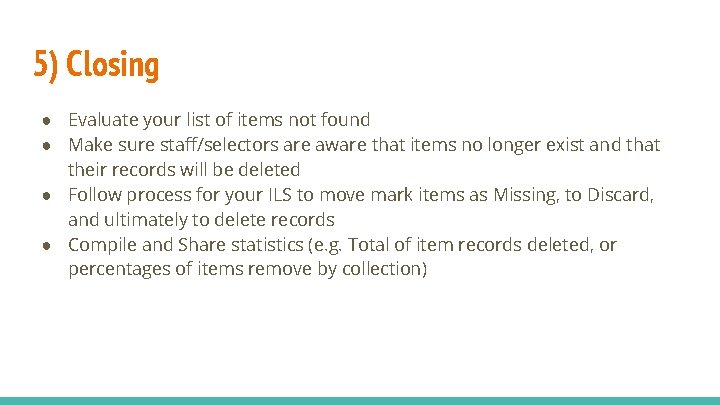
5) Closing ● Evaluate your list of items not found ● Make sure staff/selectors are aware that items no longer exist and that their records will be deleted ● Follow process for your ILS to move mark items as Missing, to Discard, and ultimately to delete records ● Compile and Share statistics (e. g. Total of item records deleted, or percentages of items remove by collection)
A Sirsi. Dynix Inventory In Symphony Workflows
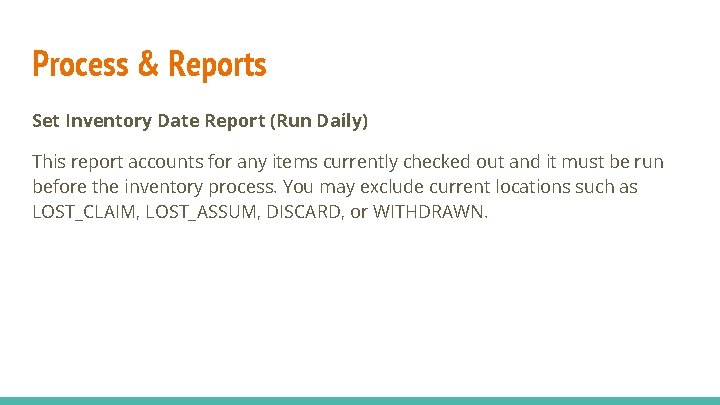
Process & Reports Set Inventory Date Report (Run Daily) This report accounts for any items currently checked out and it must be run before the inventory process. You may exclude current locations such as LOST_CLAIM, LOST_ASSUM, DISCARD, or WITHDRAWN.
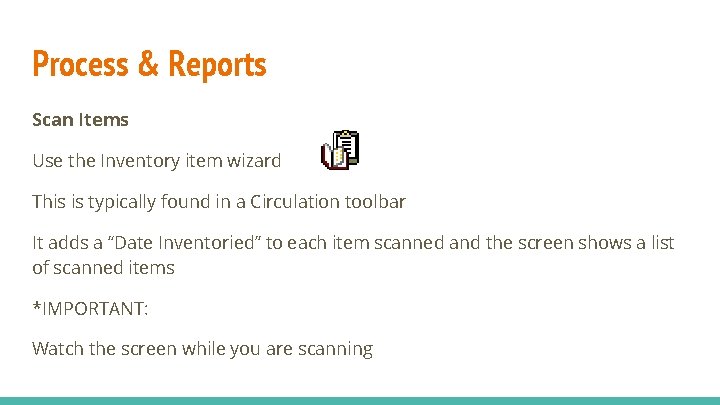
Process & Reports Scan Items Use the Inventory item wizard This is typically found in a Circulation toolbar It adds a “Date Inventoried” to each item scanned and the screen shows a list of scanned items *IMPORTANT: Watch the screen while you are scanning
How to identify what did not get scanned Once you have finished your section for the day you must run a report on the call number range you have inventoried. This will identify items that should be on the shelf but did not get scanned. It uses the times inventoried “NEVER” and call number range to determine missing items
Which Reports? List Inventory by Item number report (Symphony Report) List Items By Last Inventoried Date Range (Blue Cloud Analytics/SWAN)
Missing items After you have identified and searched for items that did not get inventoried use the Checkout to Missing (setmissing) report This identifies items without a date inventoried and checks them out to Missing
Set items to DISCARD report After the items that were set to Missing for an agreed upon interval of time, you can move forward with deletion process. There’s more than one way to approach. The Convert DISCARD Items (Cvtdiscard) report selects items based on the user ID (e. g MISSING) and changes the current location of the selected items to DISCARD. This report both changes items’ locations and discharges items from the MISSING user Set Items to DISCARD Report (Setdiscard). This report selects items based on location and catalog, call number, and item characteristics, and changes the current location of the selected items to DISCARD. Either report is the first step in the discard process. After you run this report, run the Remove DISCARD Items report to completely remove the items from the catalog.
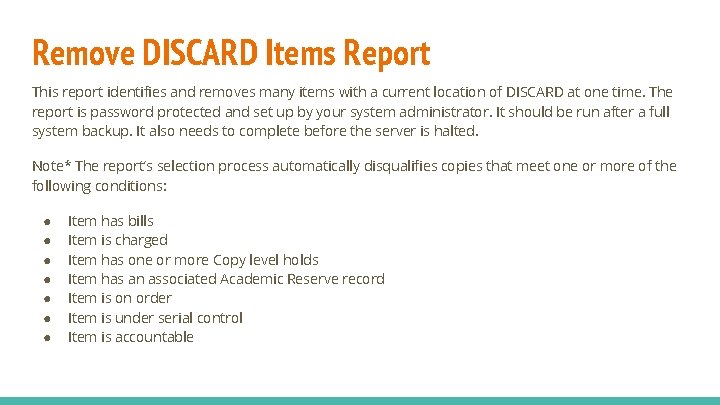
Remove DISCARD Items Report This report identifies and removes many items with a current location of DISCARD at one time. The report is password protected and set up by your system administrator. It should be run after a full system backup. It also needs to complete before the server is halted. Note* The report’s selection process automatically disqualifies copies that meet one or more of the following conditions: ● ● ● ● Item has bills Item is charged Item has one or more Copy level holds Item has an associated Academic Reserve record Item is on order Item is under serial control Item is accountable
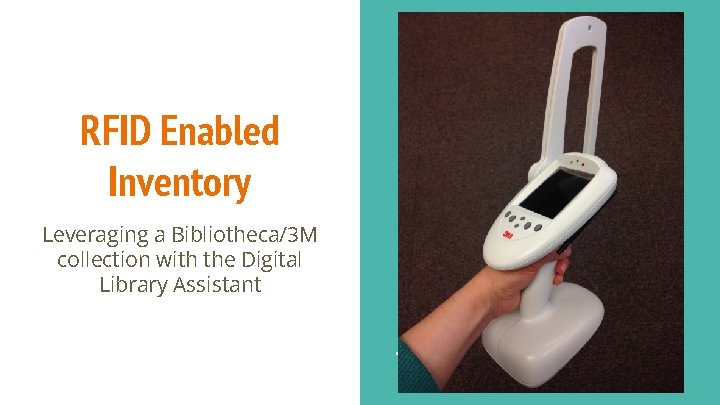
RFID Enabled Inventory Leveraging a Bibliotheca/3 M collection with the Digital Library Assistant
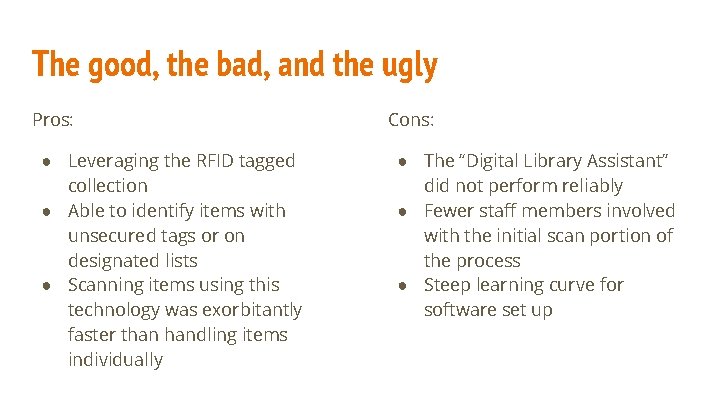
The good, the bad, and the ugly Pros: ● Leveraging the RFID tagged collection ● Able to identify items with unsecured tags or on designated lists ● Scanning items using this technology was exorbitantly faster than handling items individually Cons: ● The “Digital Library Assistant” did not perform reliably ● Fewer staff members involved with the initial scan portion of the process ● Steep learning curve for software set up
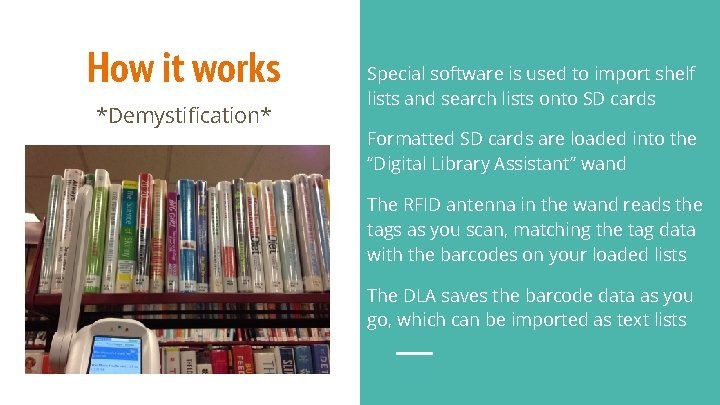
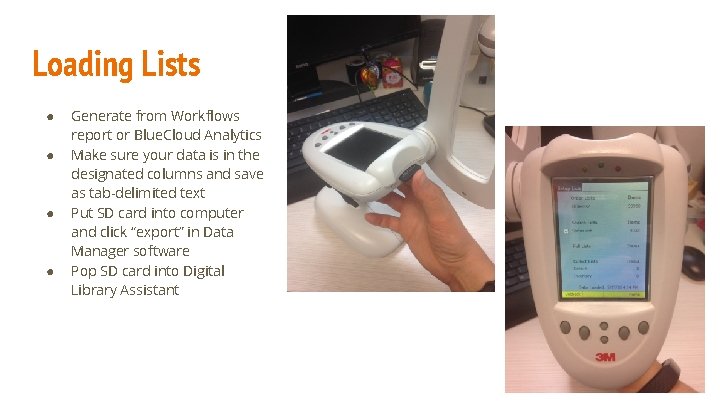
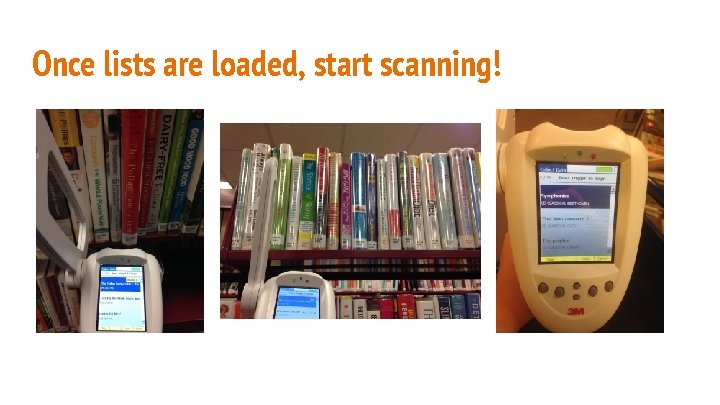
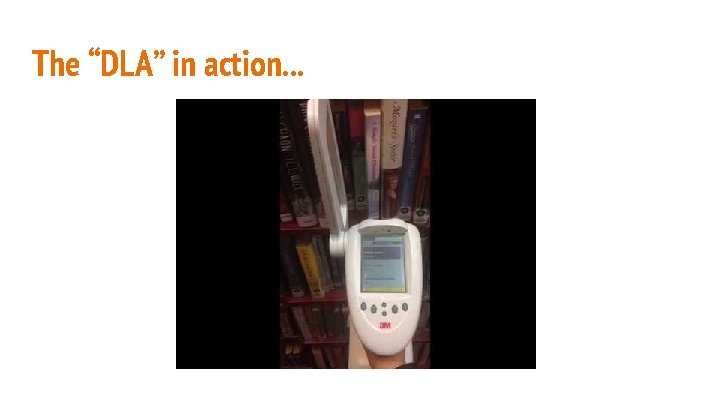
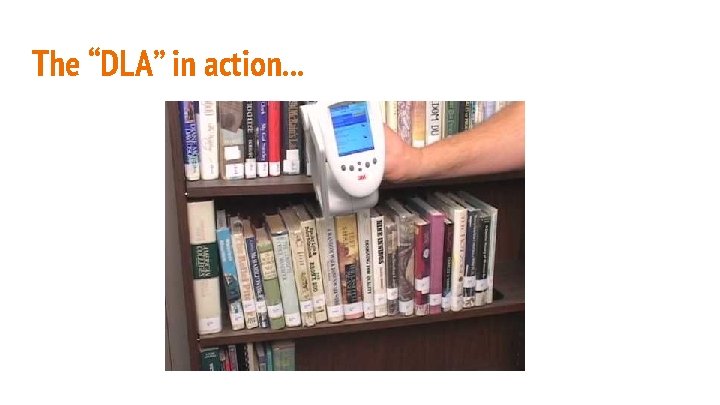
How it works *Demystification* Special software is used to import shelf lists and search lists onto SD cards Formatted SD cards are loaded into the “Digital Library Assistant” wand The RFID antenna in the wand reads the tags as you scan, matching the tag data with the barcodes on your loaded lists The DLA saves the barcode data as you go, which can be imported as text lists
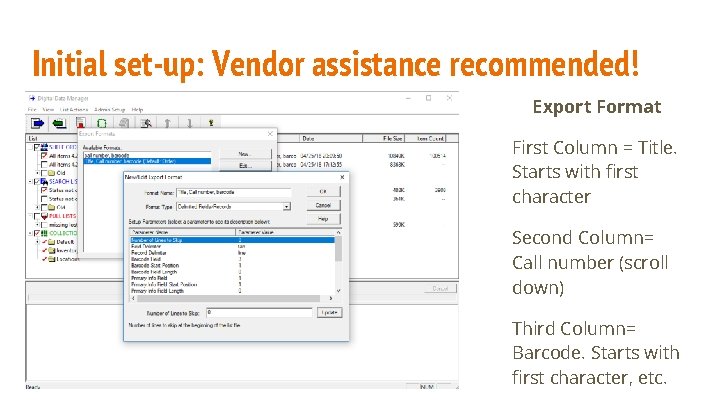
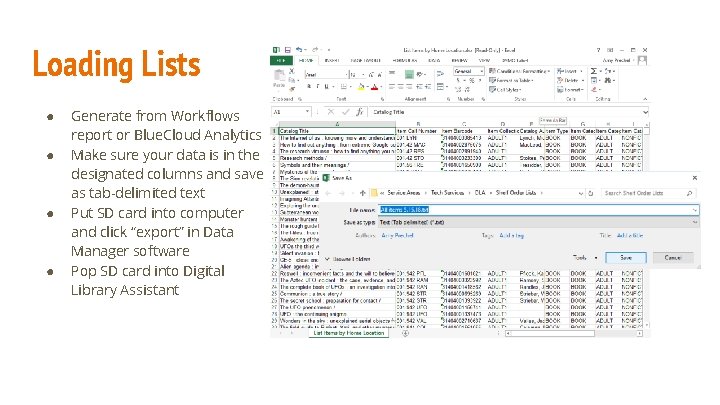
Initial set-up: Vendor assistance recommended! Export Format First Column = Title. Starts with first character Second Column= Call number (scroll down) Third Column= Barcode. Starts with first character, etc.
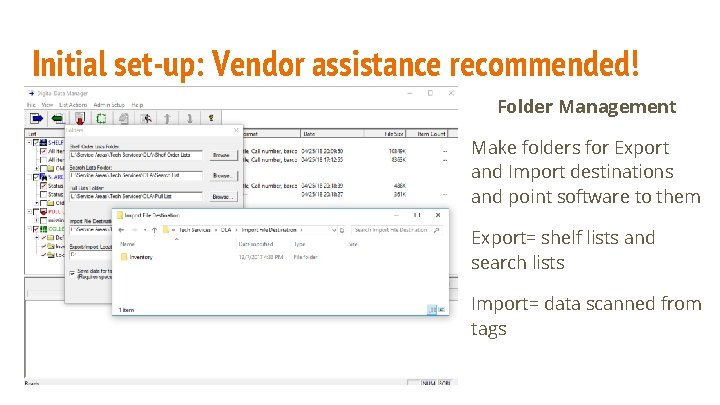
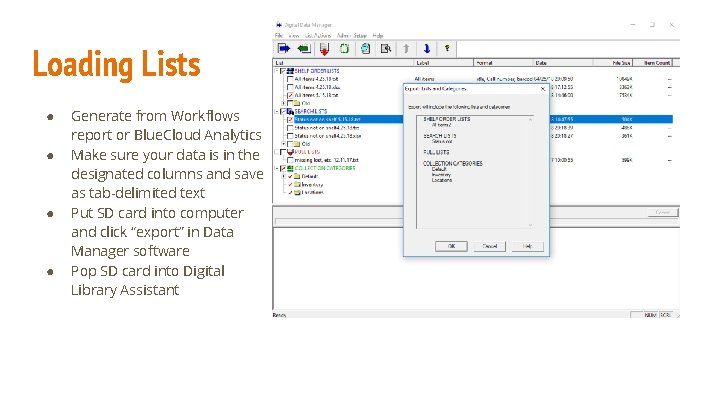
Initial set-up: Vendor assistance recommended! Folder Management Make folders for Export and Import destinations and point software to them Export= shelf lists and search lists Import= data scanned from tags
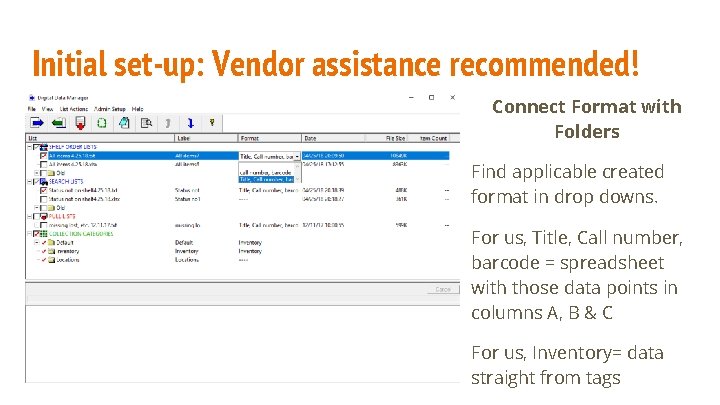
Initial set-up: Vendor assistance recommended! Connect Format with Folders Find applicable created format in drop downs. For us, Title, Call number, barcode = spreadsheet with those data points in columns A, B & C For us, Inventory= data straight from tags
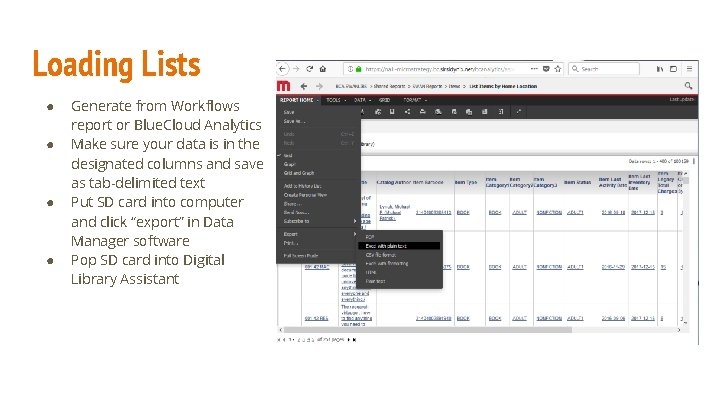
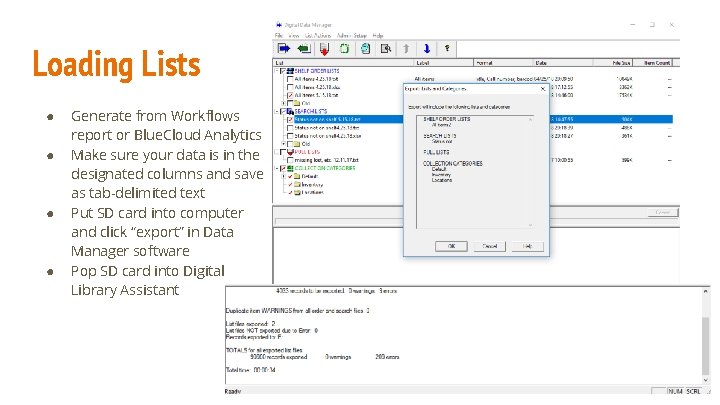
Loading Lists ● ● Generate from Workflows report or Blue. Cloud Analytics Make sure your data is in the designated columns and save as tab-delimited text Put SD card into computer and click “export” in Data Manager software Pop SD card into Digital Library Assistant
Loading Lists ● ● Generate from Workflows report or Blue. Cloud Analytics Make sure your data is in the designated columns and save as tab-delimited text Put SD card into computer and click “export” in Data Manager software Pop SD card into Digital Library Assistant
Loading Lists ● ● Generate from Workflows report or Blue. Cloud Analytics Make sure your data is in the designated columns and save as tab-delimited text Put SD card into computer and click “export” in Data Manager software Pop SD card into Digital Library Assistant
Loading Lists ● ● Generate from Workflows report or Blue. Cloud Analytics Make sure your data is in the designated columns and save as tab-delimited text Put SD card into computer and click “export” in Data Manager software Pop SD card into Digital Library Assistant
Loading Lists ● ● Generate from Workflows report or Blue. Cloud Analytics Make sure your data is in the designated columns and save as tab-delimited text Put SD card into computer and click “export” in Data Manager software Pop SD card into Digital Library Assistant
Once lists are loaded, start scanning!
It’s kind of like magic!
The “DLA” in action. . .
The “DLA” in action. . .
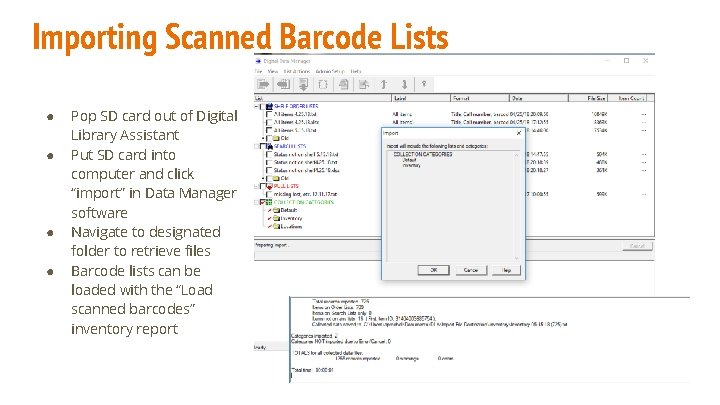
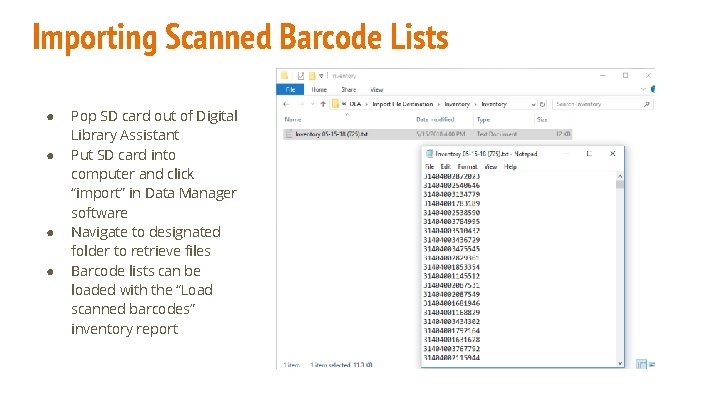
Importing Scanned Barcode Lists ● ● Pop SD card out of Digital Library Assistant Put SD card into computer and click “import” in Data Manager software Navigate to designated folder to retrieve files Barcode lists can be loaded with the “Load scanned barcodes” inventory report
Importing Scanned Barcode Lists ● ● Pop SD card out of Digital Library Assistant Put SD card into computer and click “import” in Data Manager software Navigate to designated folder to retrieve files Barcode lists can be loaded with the “Load scanned barcodes” inventory report
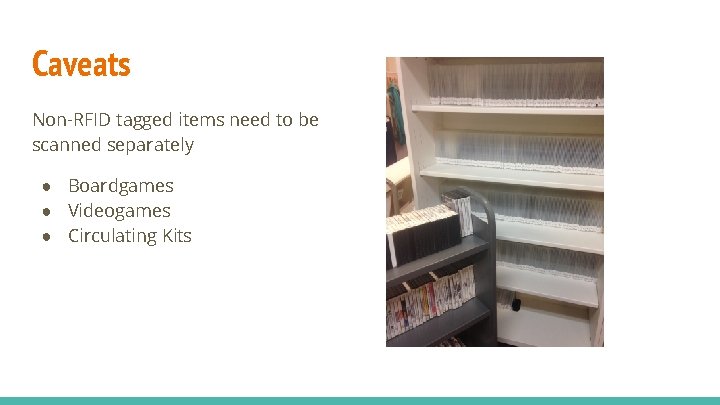
Caveats Non-RFID tagged items need to be scanned separately ● Boardgames ● Videogames ● Circulating Kits
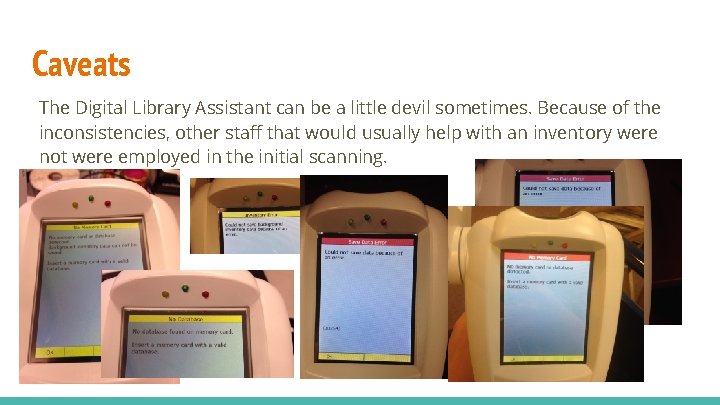
Caveats The Digital Library Assistant can be a little devil sometimes. Because of the inconsistencies, other staff that would usually help with an inventory were not were employed in the initial scanning.
Conclusions If your collection is tagged I recommend leveraging the RFID technology to complete the process faster. With the Bibliotheca ‘Digital Library Assistant’ you can also identify items with unsecured tags, or items that are Missing or otherwise not ‘on shelf’ in the ILS Just keep in mind that it’s not infallible. You may have some extra hurdles with the initial set up and using the equipment.
Live Scanning Method of Inventory
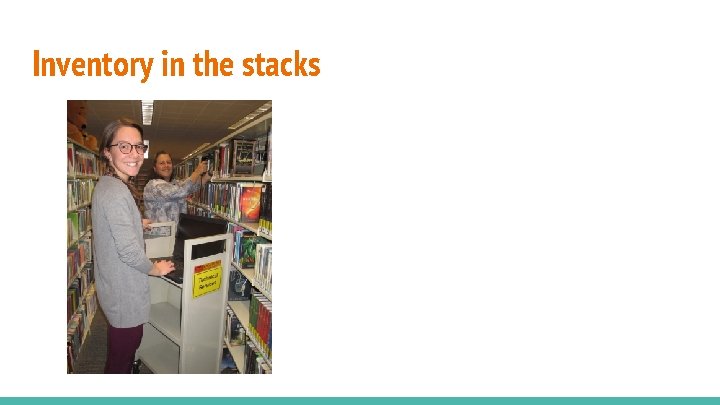
Inventory in the stacks
Live Scanning Inventory: The process Using devices connected to workflows, scan items live under Circulation > Inventory> Special Set up a mobile workstations with laptops, or Items can be moved back and forth to desks on carts Note* Because this process is live, items are updated right away. You can run updated reports in workflows immediately after scanning, and you’ll have accurate data on what has been scanned.
Live inventory: Equipment Needed ● Wifi enabled laptops ○ ○ Note: Keep in mind spotty wifi coverage in your building will present issues Access to outlets or backup batteries ● Barcode scanners ● Carts
Other methods of inventory Mobile Circ Symphony Web Barcode scanners that save data offline
Pearls of Wisdom Lessons we learned the hard way so that you don’t have to!
Lessons Learned: Staff Buy In To be honest, scanning every item in your collection is not the most thrilling work. Counter the drudgery with rewards and praise. Advertise the advantages at the forefront: ● ● Minimizing the frustration caused by looking for items that don’t exist Better information for collection managers, administration, boards etc. Space needs assessment Weeding Housekeeping & tidying of the collection
Lessons Learned: Scheduling and Record Keeping Scheduling - How many people can feasibly work on the same task at the same time? Mapping out what collections to tackle first/ keeping track - Scanning things multiple times doesn’t damage anything but its not a good use of time Keeping staff abreast of progress and celebrating milestones
Lessons Learned: Equipment Managing equipment Making sure tools were available to staff when needed Making sure that tools actually worked and that staff felt comfortable working with them
Lessons Learned: Quirks Staffing issues Other projects going on Collections without distinctive call numbers
Questions?
Contact us Amy Prechel Head of Access Services, Westmont Public Library aprechel@westmontlibrary. org (630) 696 -5625 x. 214 Amanda Kaiser Technical Services Manager, St. Charles Public Library akaiser@stcharleslibrary. org (630) 584 -0076 x. 237