
INTRODUCTORY MICROSOFT ACCESS Lesson 1 Access Basics Microsoft
INTRODUCTORY MICROSOFT ACCESS Lesson 1 – Access Basics Microsoft Office 2003: Introductory 1 Pasewark & Pasewark
Objectives l l l 2 Understand databases. Start Access and open a database. Identify parts of the Access screen. Identify the database objects. Understand database terminology.
Objectives (cont. ) l l 3 Create a new database and a new table. Design, modify, name, and save a table. Navigate a database and enter records. Print a table and exit Access.
Terms Used in This Lesson l l l 4 Database management system Datasheet view Design view l l l Record Field name Entry Primary key
Microsoft Access l l Microsoft Access is a program known as a database management system (DBMS). A DBMS allows you to: – – 5 Store thousands of pieces of data. Quickly search and retrieve data. Sort and analyze data. Print information.
What is a Database? l 6 A database is a collection of objects that work together to store, retrieve, and display data, print reports, and automate operations.

Parts of the Access Screen l l 7 The Access screen has a title bar, menu bar, and toolbar. The Status bar is at the bottom of the screen.
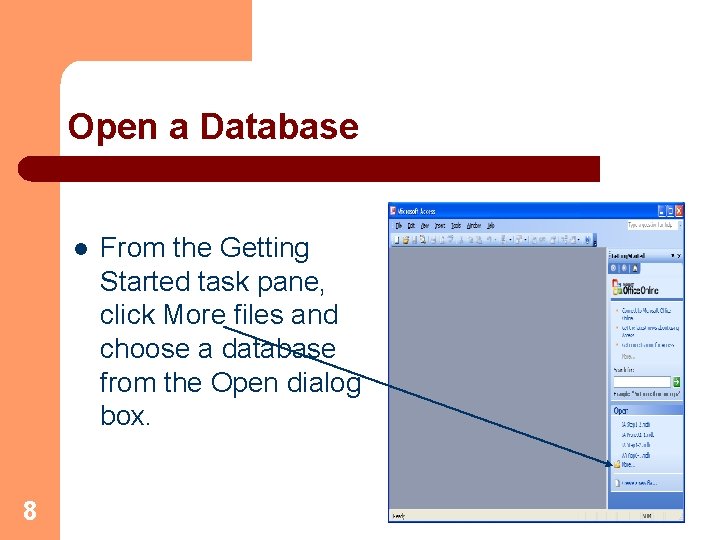
Open a Database l 8 From the Getting Started task pane, click More files and choose a database from the Open dialog box.
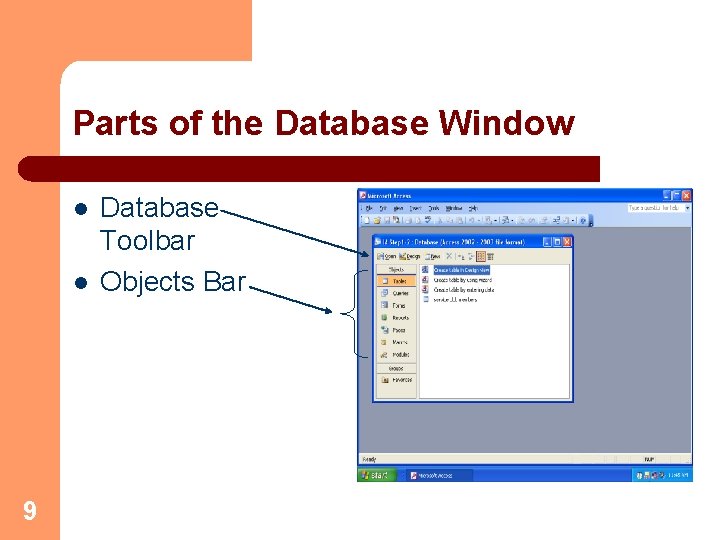
Parts of the Database Window l l 9 Database Toolbar Objects Bar
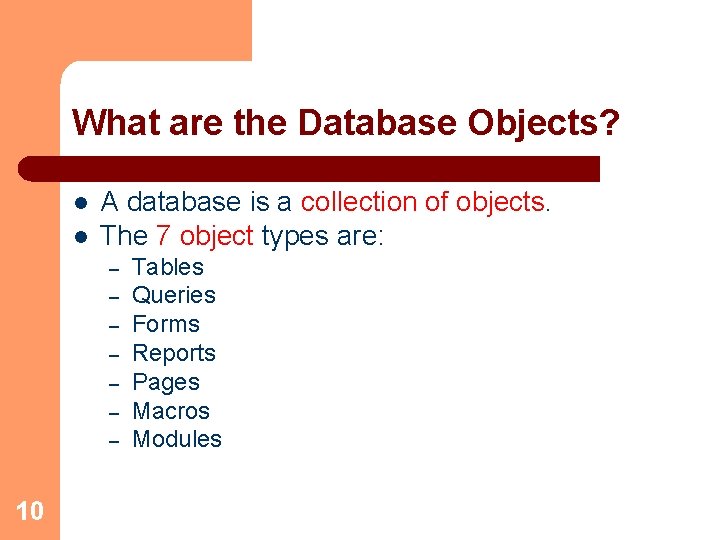
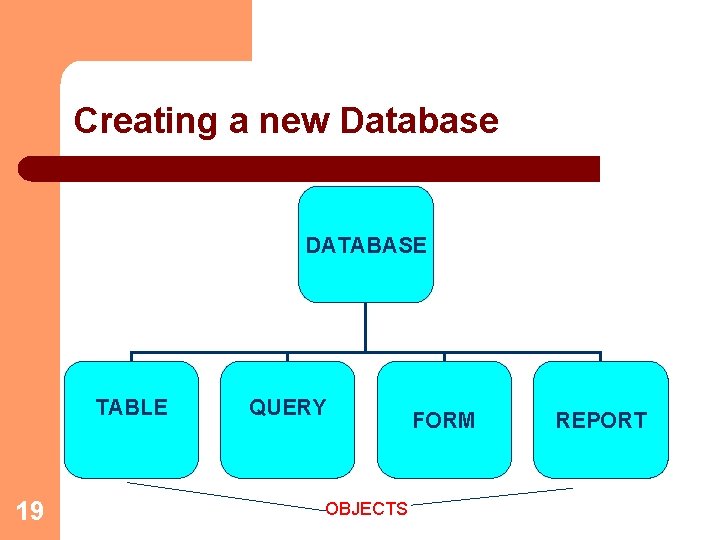
What are the Database Objects? l l A database is a collection of objects. The 7 object types are: – – – – 10 Tables Queries Forms Reports Pages Macros Modules
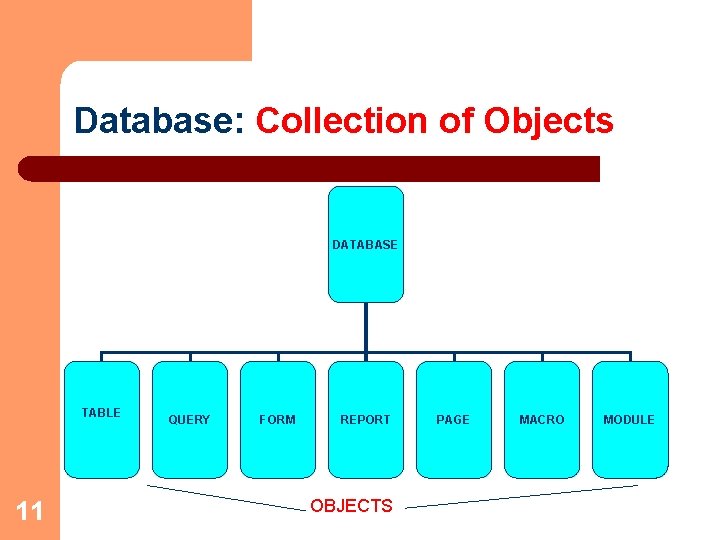
Database: Collection of Objects DATABASE TABLE 11 QUERY FORM REPORT OBJECTS PAGE MACRO MODULE
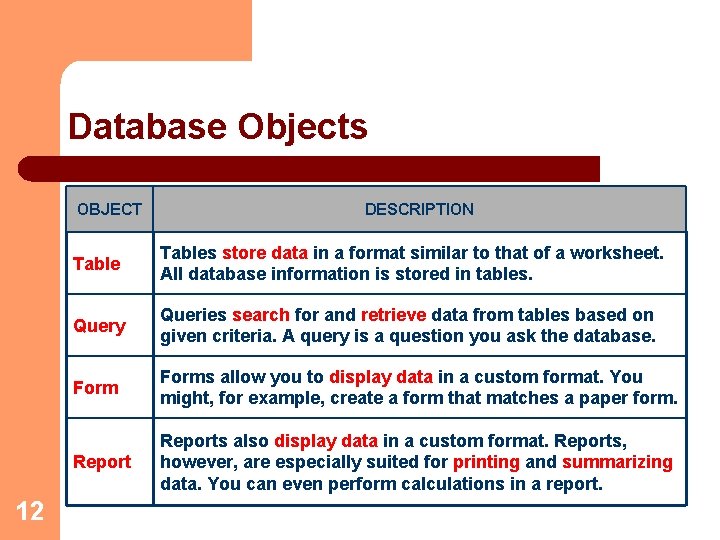
Database Objects OBJECT 12 DESCRIPTION Tables store data in a format similar to that of a worksheet. All database information is stored in tables. Query Queries search for and retrieve data from tables based on given criteria. A query is a question you ask the database. Forms allow you to display data in a custom format. You might, for example, create a form that matches a paper form. Reports also display data in a custom format. Reports, however, are especially suited for printing and summarizing data. You can even perform calculations in a report.
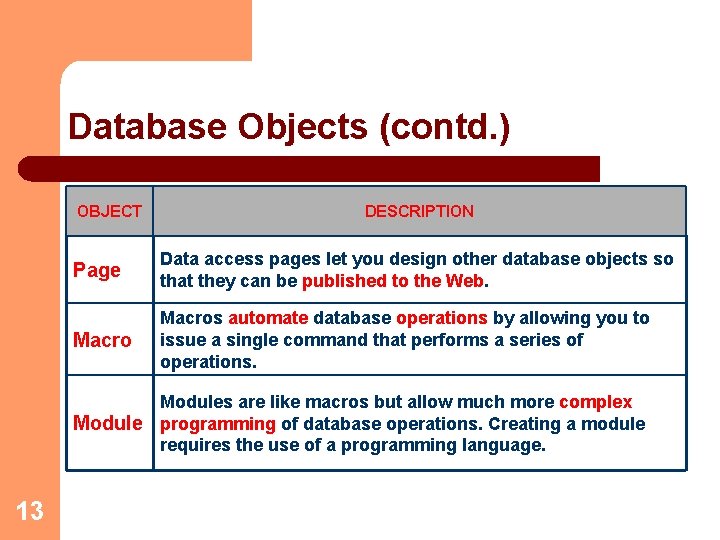
Database Objects (contd. ) OBJECT DESCRIPTION Page Data access pages let you design other database objects so that they can be published to the Web. Macros automate database operations by allowing you to issue a single command that performs a series of operations. Modules are like macros but allow much more complex Module programming of database operations. Creating a module requires the use of a programming language. 13
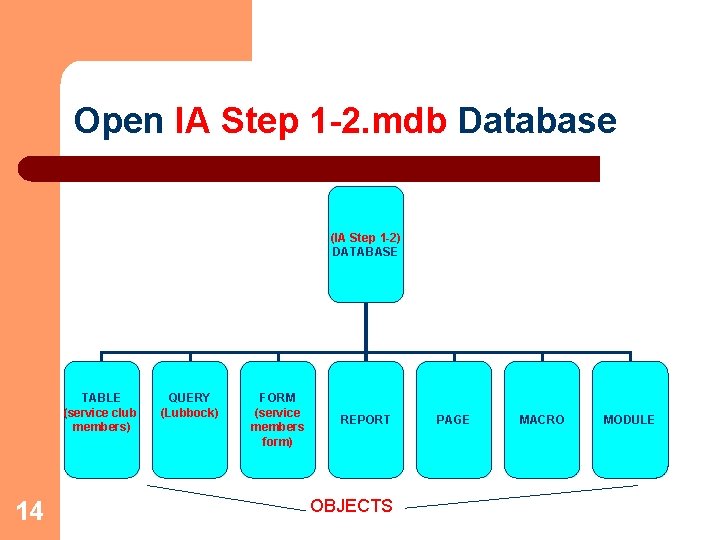
Open IA Step 1 -2. mdb Database (IA Step 1 -2) DATABASE TABLE (service club members) 14 QUERY (Lubbock) FORM (service members form) REPORT OBJECTS PAGE MACRO MODULE
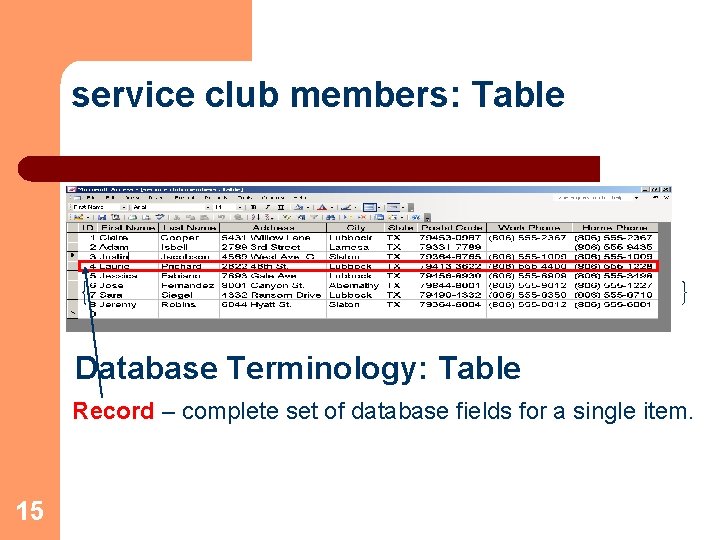
service club members: Table Database Terminology: Table Record – complete set of database fields for a single item. 15
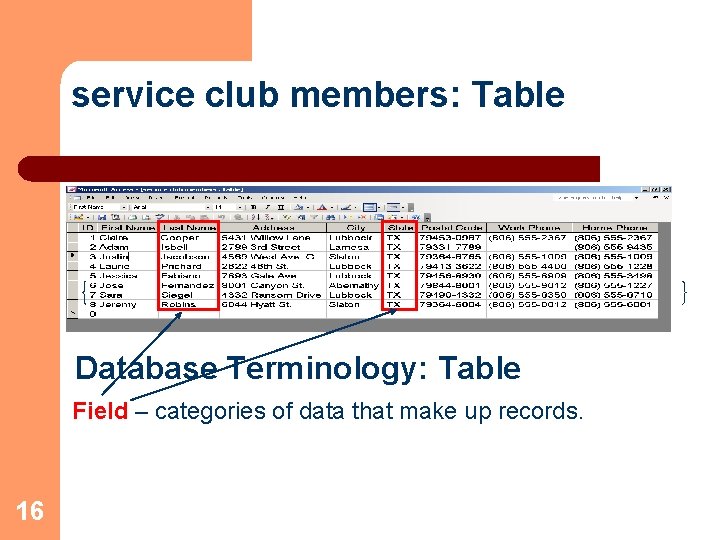
service club members: Table Database Terminology: Table Field – categories of data that make up records. 16
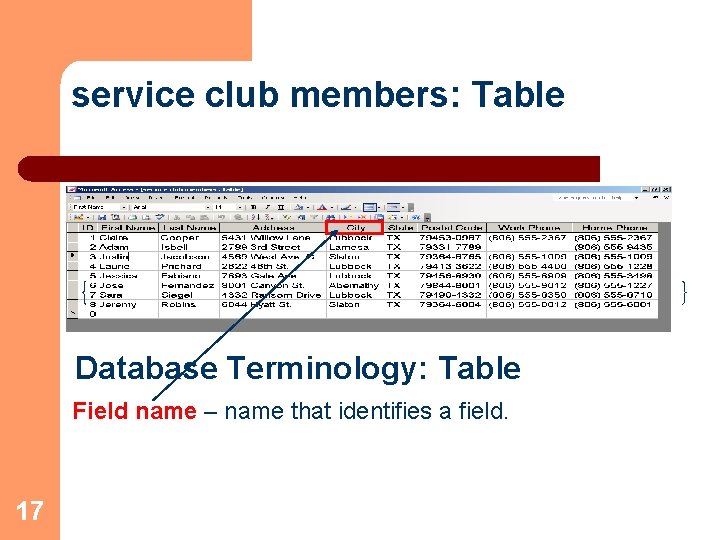
service club members: Table Database Terminology: Table Field name – name that identifies a field. 17
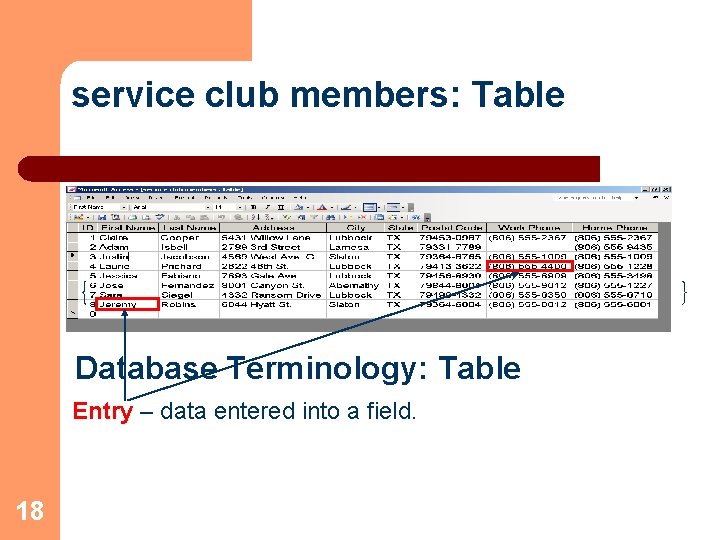
service club members: Table Database Terminology: Table Entry – data entered into a field. 18
Creating a new Database DATABASE TABLE 19 QUERY OBJECTS FORM REPORT
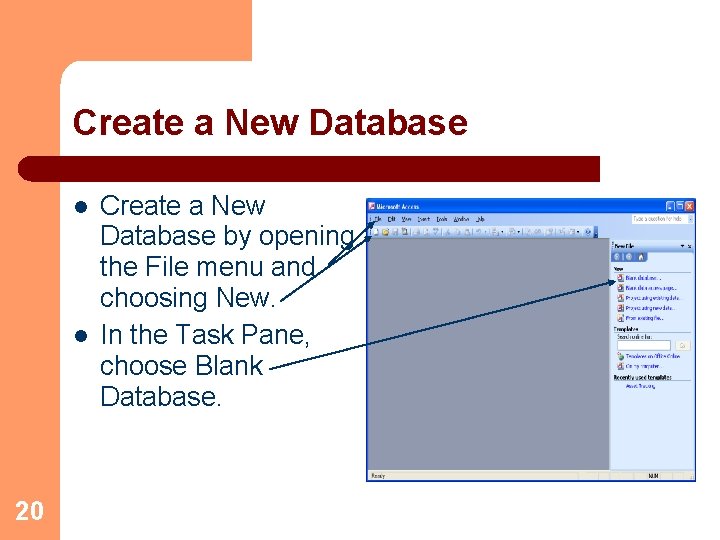
Create a New Database l l 20 Create a New Database by opening the File menu and choosing New. In the Task Pane, choose Blank Database.
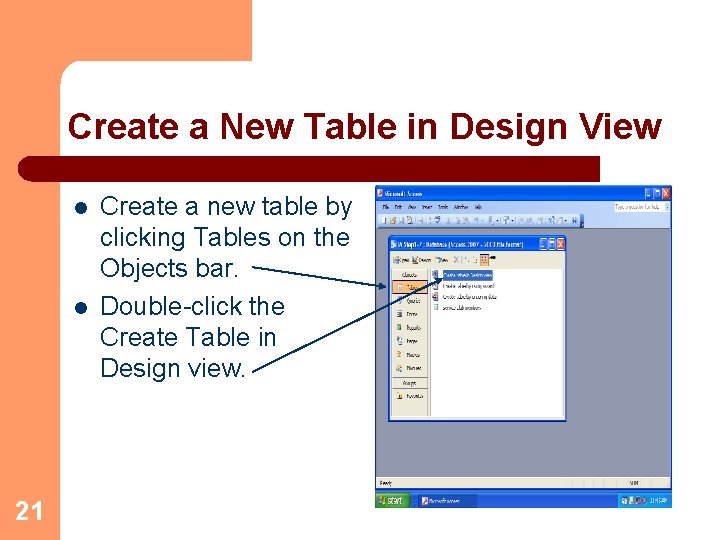
Create a New Table in Design View l l 21 Create a new table by clicking Tables on the Objects bar. Double-click the Create Table in Design view.
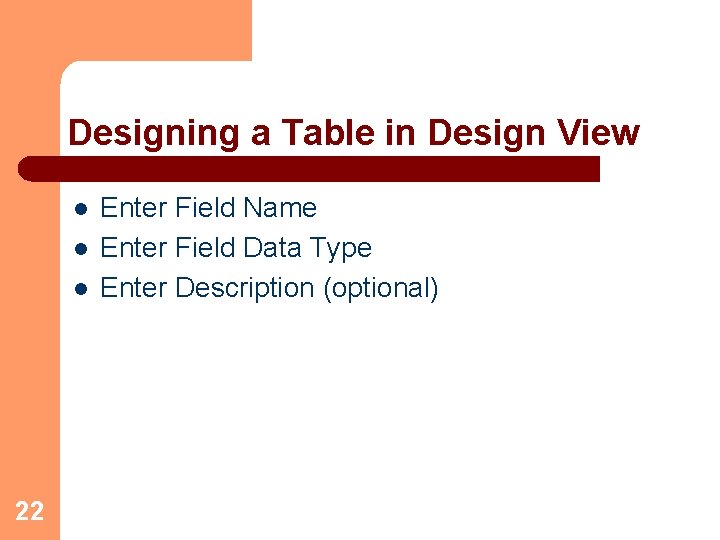
Designing a Table in Design View l l l 22 Enter Field Name Enter Field Data Type Enter Description (optional)
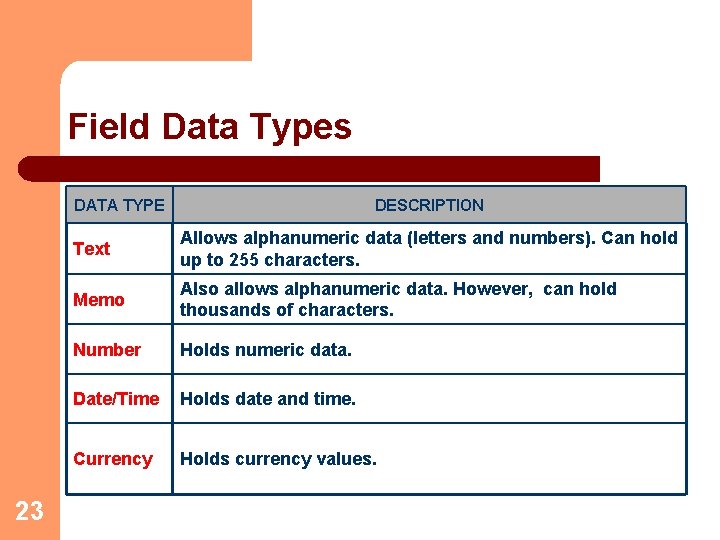
Field Data Types DATA TYPE 23 DESCRIPTION Text Allows alphanumeric data (letters and numbers). Can hold up to 255 characters. Memo Also allows alphanumeric data. However, can hold thousands of characters. Number Holds numeric data. Date/Time Holds date and time. Currency Holds currency values.
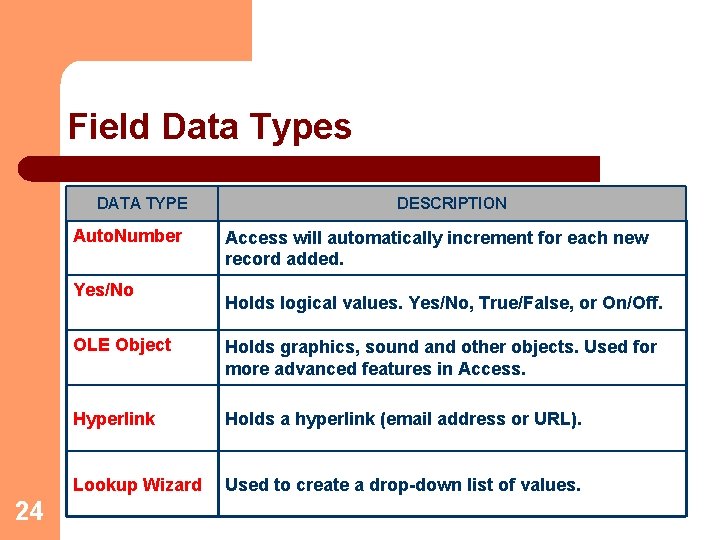
Field Data Types DATA TYPE Auto. Number Yes/No 24 DESCRIPTION Access will automatically increment for each new record added. Holds logical values. Yes/No, True/False, or On/Off. OLE Object Holds graphics, sound and other objects. Used for more advanced features in Access. Hyperlink Holds a hyperlink (email address or URL). Lookup Wizard Used to create a drop-down list of values.
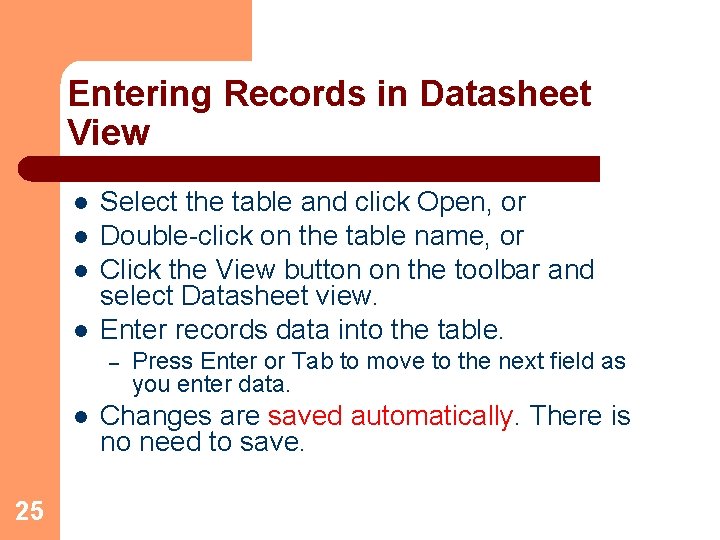
Entering Records in Datasheet View l l Select the table and click Open, or Double-click on the table name, or Click the View button on the toolbar and select Datasheet view. Enter records data into the table. – l 25 Press Enter or Tab to move to the next field as you enter data. Changes are saved automatically. There is no need to save.
Printing a Table l l l Open the File menu and choose Print, or Click the Print button on the toolbar. Choose to print – – – l Choose Page Setup – – 26 All records Pages to print Selected records Change the margins. Change page orientation.
Summary l l 27 Access is a database management system that allows you to store, retrieve, analyze, and print information. You can open an existing database from the File menu or from the Getting Started task pane displayed on the right side of the screen.
Summary (cont. ) l l 28 A database is a collection of objects that work together to store, retrieve, and display data, print reports, and automate operations. The object types are tables, queries, forms, reports, macros, and modules. A record is a complete set of data. Each record is made up of fields. Each field is identified by a field name. The actual data entered into a field is called an entry.
Summary (cont. ) l l l 29 You can create a new database by opening the File menu and choosing New. Choose Blank Database in the New File task pane. Create a new table by clicking Tables on the Objects Bar. Enter records into the table using Datasheet view. As in other Office 2003 applications, you exit Access by opening the File menu and choosing Exit.
- Slides: 29