
Introduction What if someone handed you a tool
- Slides: 27
Introduction • What if someone handed you a tool that could be use to reach thousands with your research (publications) and life’s work including the content that you teach? • They also said this can be done in a format where you can interact with those who are looking at your course materials while doing all of this in a time frame that would not greatly disrupt your life as a researcher? • What would you say to this? • Is this a possible reality?
Introduction • The answer is very complex. • It requires bringing together a number of disparate components. • We will discuss some of these and begin to look at one component in some detail. • Perspective: Shared as a Consultant – do not have all the answers just some ideas that may be useful.
Components • • • Vision Leadership Plan Funding Understanding Technological Infrastructure
Isaiah 40: 28 -31 Do you not know? Have You not heard? The Everlasting God, the Lord, the Creator of the ends of the earth Does not become weary or tired. His understanding is inscrutable. He gives strength to the weary, And to him who lack might He increases power. Though youths grow weary and tired, And vigorous young men stumble badly, Yet those who wait for the Lord will gain new strength; They will mount up with wings like eagles, They will run and not get tired, They will walk and not become tired.
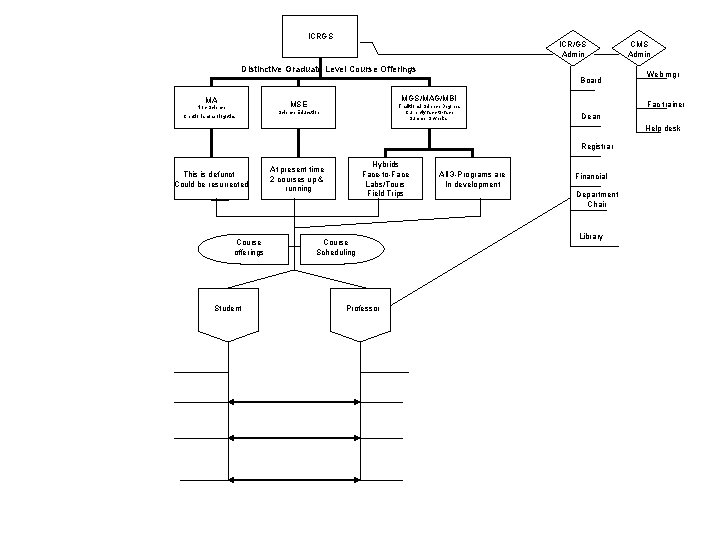
ICRGS ICR/GS Admin Distinctive Graduate Level Course Offerings Board MA MGS/MAG/MBI MSE Non-Science Creationism/apologetics Traditional Science Degrees Currently face-to-face Summer 3 weeks Science Education CMS Admin Web mgr Fac trainer Dean Help desk Registrar This is defunct Could be resurrected Course offerings Student Hybrids Face-to-Face Labs/Tours Field Trips At present time 2 courses up & running Course Scheduling Professor All 3 -Programs are In development Financial Department Chair Library
A Look at an On-line Library • http: //www. Liberty. edu • Let’s look at the LU library resources as and example of an on-line library.
Technological Component • The technology can assist ICR faculty in getting your life’s work out to a great number of people in a much more efficient manner than the current graduate school summer setup. The technology can open doors for thousands to experience the unique ICR perspective in settings that were never before feasible. Let’s explore how to get started on such an endeavor.
Technological Component • Can be in several forms • For comparative purposes we will explore two today – Moodle – LU
Moodle Basics • What’s in a Name • Modular Object Oriented Developmental (Dynamic) Learning Environment • Verb: to let the mind wander and do something creative but without a particular purpose. • CMS – course management system
Moodle References • Cole, J. (2005). Using Moodle: Teaching with the popular open source course management system. Cambridge: O’Rielly Community Press. • Rice, W. H. ((2006). From technologies to solutions: Moodle Elearning course development, a complete guide to successfully learning Moodle. Birmingham: Packet Publishing. • Humboldt State University faculty Training Website http: //learn. humboldt. edu/course/view. php? id=3765
Moodle Login & a Helpful site • Login: http: //www. icrglobal. net • Type in PW/UN – these will be supplied shortly • View of the Welcome Page • Humboldt State University faculty training website • http: //learn. humboldt. edu/course/view. php ? id=3765
Welcome Page • This one is for the Science Education Program • The science education students would see this when they login. • The general layout of this page can be constructed by each department chair and their particular faculty for their particular program. • Thus the potential for four Welcome Pages – That is unless the three hard sciences programs could agree on one welcome page. – That can be determined at a later date.
Welcome Page Continued • Note “My Courses” in the upper right hand corner. • The students courses (based on program) would be listed here. • For our purposes we will use the sandbox as a working environment
Blackboard Liberty University • • http: //www. liberty. edu Several differences Several similarities The choice is not easy – however it is critical in terms of time invested.
Moodle Adding Content • Think of adding Course materials in three ways: – Static – Interactive – Social – In this lesson/Workshop we will deal with Static only.
Moodle • Putting Static Content into Moodle • Click on (or open by right clicking and opening the hyperlink) the link: http: //www. icrglobal. net – Click on Sandbox – this is a place to play and learn at this point. – To make any changes within the CMS you must “turn on the editing” (located in the upper right corner) in the sandbox or under administration (lower left corner) – Let’s turn on the editing
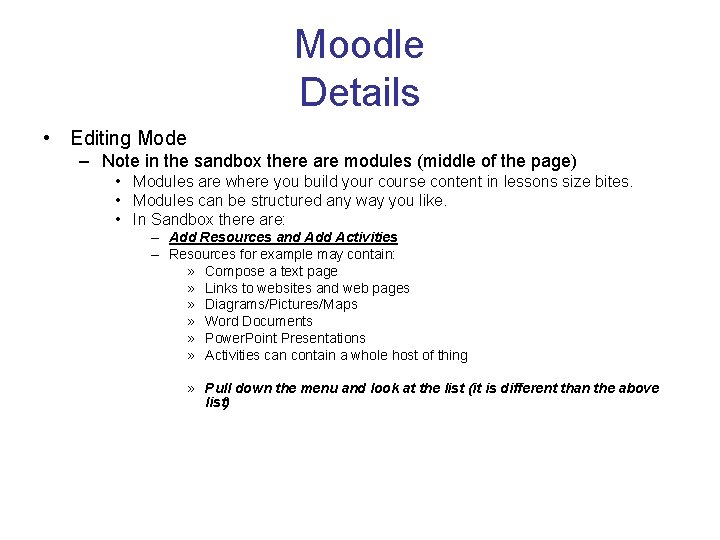
Moodle Details • Editing Mode – Note in the sandbox there are modules (middle of the page) • Modules are where you build your course content in lessons size bites. • Modules can be structured any way you like. • In Sandbox there are: – Add Resources and Add Activities – Resources for example may contain: » Compose a text page » Links to websites and web pages » Diagrams/Pictures/Maps » Word Documents » Power. Point Presentations » Activities can contain a whole host of thing » Pull down the menu and look at the list (it is different than the above list)
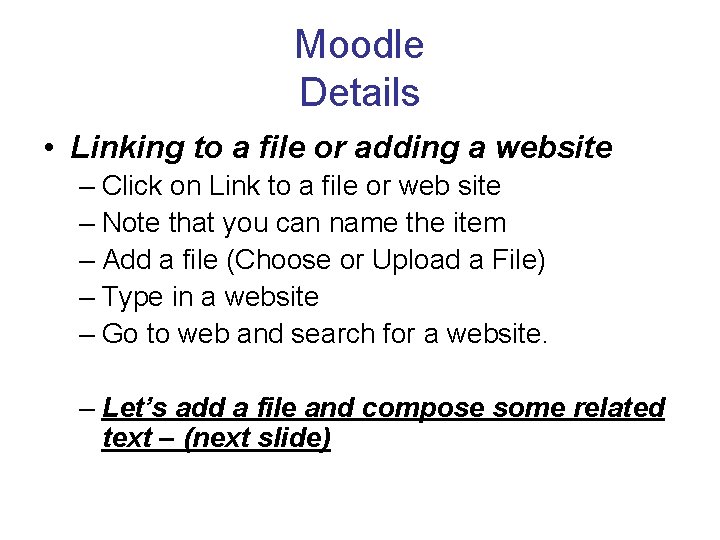
Moodle Details • Linking to a file or adding a website – Click on Link to a file or web site – Note that you can name the item – Add a file (Choose or Upload a File) – Type in a website – Go to web and search for a website. – Let’s add a file and compose some related text – (next slide)
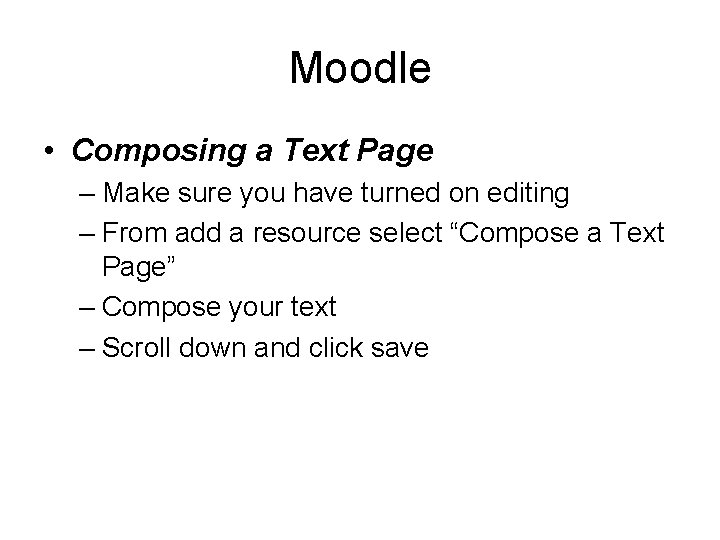
Moodle • Composing a Text Page – Make sure you have turned on editing – From add a resource select “Compose a Text Page” – Compose your text – Scroll down and click save
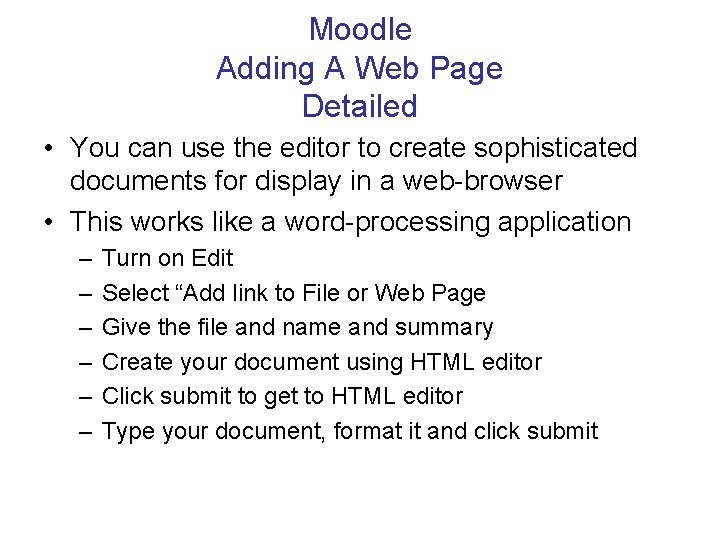
Moodle Adding A Web Page Detailed • You can use the editor to create sophisticated documents for display in a web-browser • This works like a word-processing application – – – Turn on Edit Select “Add link to File or Web Page Give the file and name and summary Create your document using HTML editor Click submit to get to HTML editor Type your document, format it and click submit
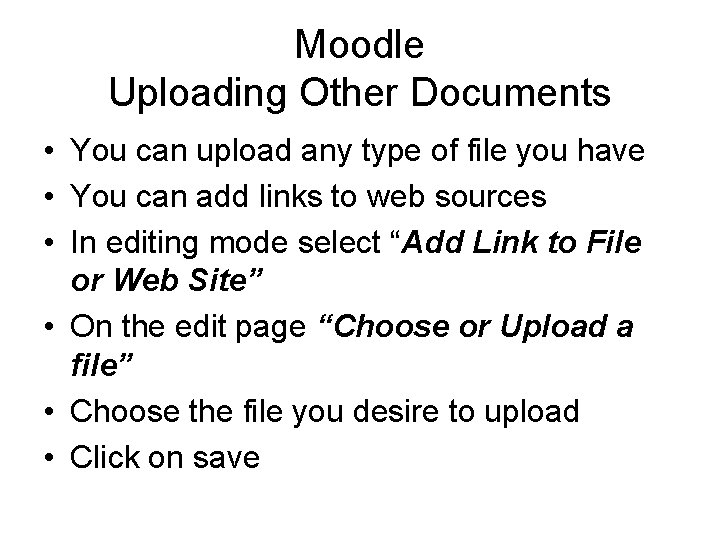
Moodle Uploading Other Documents • You can upload any type of file you have • You can add links to web sources • In editing mode select “Add Link to File or Web Site” • On the edit page “Choose or Upload a file” • Choose the file you desire to upload • Click on save
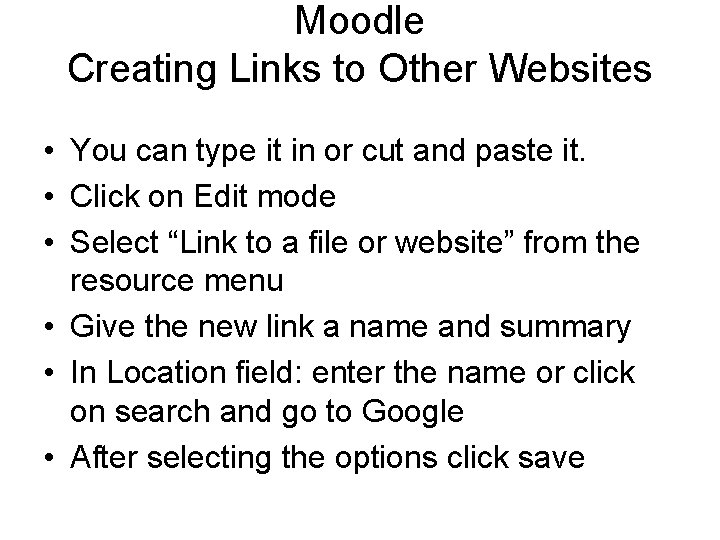
Moodle Creating Links to Other Websites • You can type it in or cut and paste it. • Click on Edit mode • Select “Link to a file or website” from the resource menu • Give the new link a name and summary • In Location field: enter the name or click on search and go to Google • After selecting the options click save
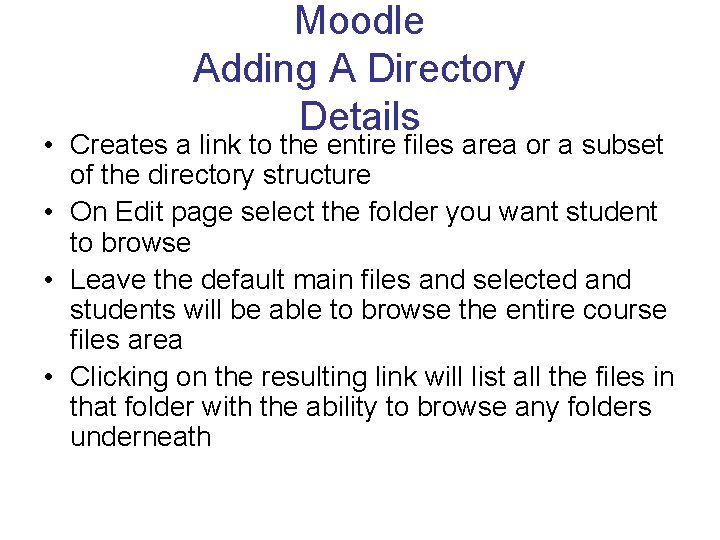
Moodle Adding A Directory Details • Creates a link to the entire files area or a subset of the directory structure • On Edit page select the folder you want student to browse • Leave the default main files and selected and students will be able to browse the entire course files area • Clicking on the resulting link will list all the files in that folder with the ability to browse any folders underneath
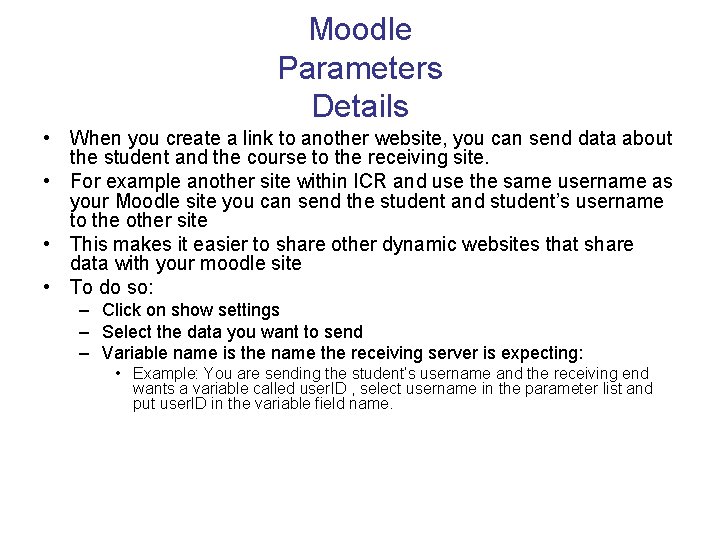
Moodle Parameters Details • When you create a link to another website, you can send data about the student and the course to the receiving site. • For example another site within ICR and use the same username as your Moodle site you can send the student and student’s username to the other site • This makes it easier to share other dynamic websites that share data with your moodle site • To do so: – Click on show settings – Select the data you want to send – Variable name is the name the receiving server is expecting: • Example: You are sending the student’s username and the receiving end wants a variable called user. ID , select username in the parameter list and put user. ID in the variable field name.
Moodle Managing & Updating Your Content • File Area Tools • Tracking Versions • Effective Content Practices – File Formats – Reducing file sizes – Creative Content
Reducing File Sizes • • Issues Use Compression for Images – Full resolution photo is about 4 megabytes – takes 5 minutes to download on 56 k modem – 72 dpi is viewable – Save in web-compatible formats jpeg or gif files • Scanned articles – Do so as text files not images – Use OCR – Omni. Page Pro will do the job • Power. Point Presentations – – Big PP files are real memory hogs Save as RFT files Students with dial up access Moodle capabilities
External Websites • http: //www. merlot. org • A community dedicated to sharing and evaluating educational resources, simulations and other materials • Graduate Center for Research & Evaluation • http: //www. liberty. edu/index. cfm? PID=7103