
Introduction to Windows Desktop Large area you see
- Slides: 8
Introduction to Windows
Desktop • Large area you see in the screen when you start Windows. • Your workspace on the computer screen
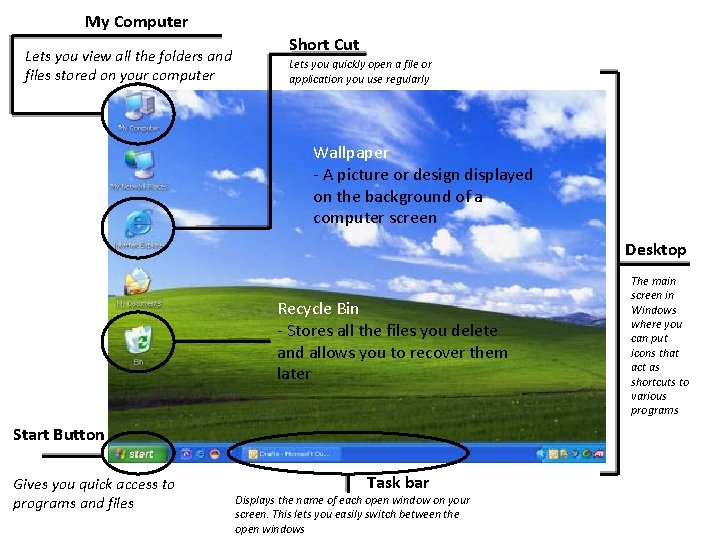
My Computer Lets you view all the folders and files stored on your computer Short Cut Lets you quickly open a file or application you use regularly Wallpaper - A picture or design displayed on the background of a computer screen Desktop Recycle Bin - Stores all the files you delete and allows you to recover them later Start Button Gives you quick access to programs and files Task bar Displays the name of each open window on your screen. This lets you easily switch between the open windows The main screen in Windows where you can put icons that act as shortcuts to various programs
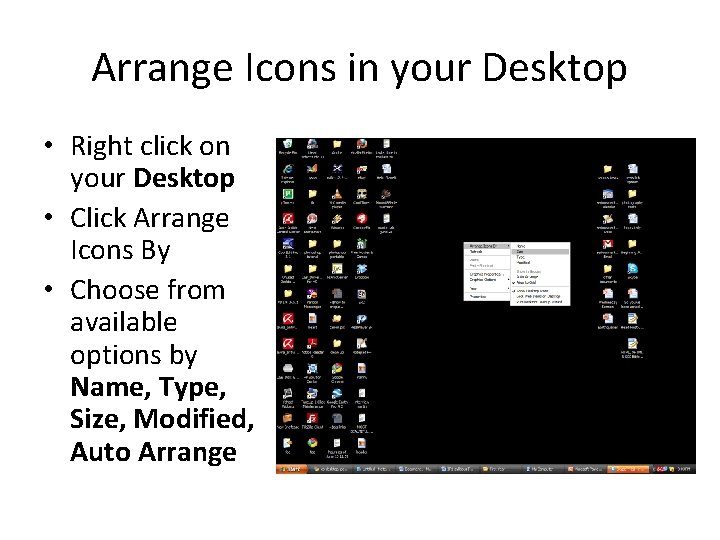
Arrange Icons in your Desktop • Right click on your Desktop • Click Arrange Icons By • Choose from available options by Name, Type, Size, Modified, Auto Arrange
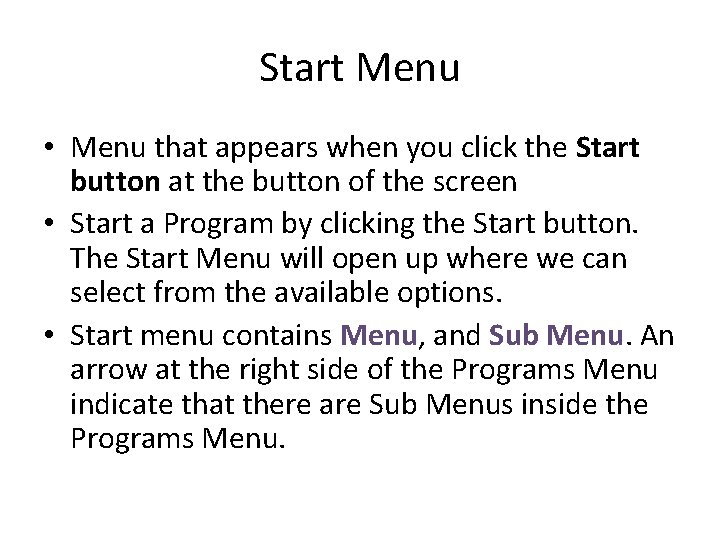
Start Menu • Menu that appears when you click the Start button at the button of the screen • Start a Program by clicking the Start button. The Start Menu will open up where we can select from the available options. • Start menu contains Menu, and Sub Menu. An arrow at the right side of the Programs Menu indicate that there are Sub Menus inside the Programs Menu.
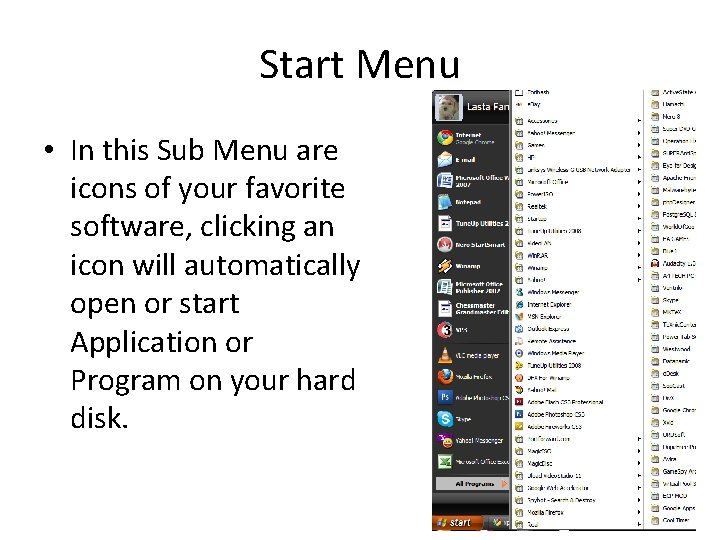
Start Menu • In this Sub Menu are icons of your favorite software, clicking an icon will automatically open or start Application or Program on your hard disk.
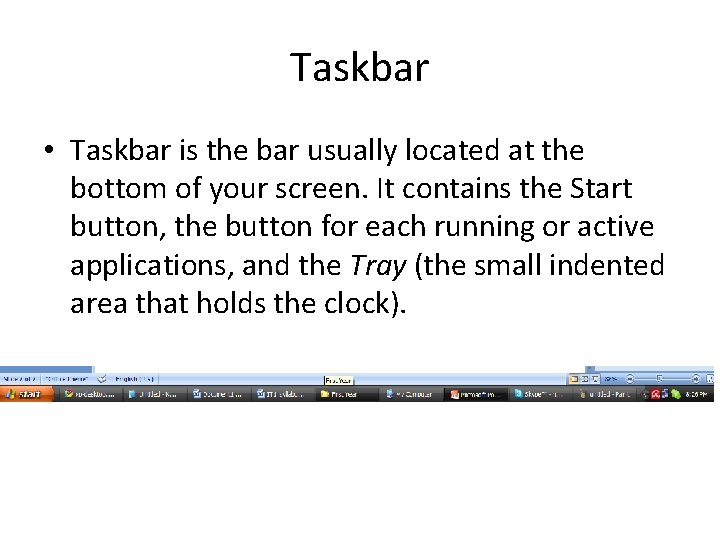
Taskbar • Taskbar is the bar usually located at the bottom of your screen. It contains the Start button, the button for each running or active applications, and the Tray (the small indented area that holds the clock).
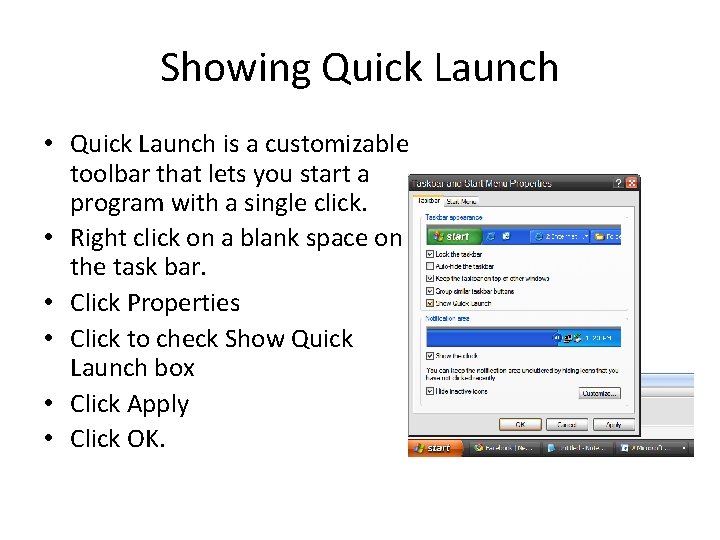
Showing Quick Launch • Quick Launch is a customizable toolbar that lets you start a program with a single click. • Right click on a blank space on the task bar. • Click Properties • Click to check Show Quick Launch box • Click Apply • Click OK.