
Introduction to the Online Data Collection OLDC System


- Slides: 59
Introduction to the Online Data Collection (OLDC) System ACF LIHEAP Grantee Training June, 2013 Presenters Josephine O. Rago-Adia Yuliya Rzad The Grants Center of Excellence www. grantsolutions. gov
Agenda – Introduction – Username and Password – Login – OLDC Home – Accessing Report Forms – Report Form • • • Initialize Report Save Validate Certify Submit Revisions – Resources 2
INTRODUCTION 3 The Grants Center of Excellence www. grantsolutions. gov
Introduction • OLDC is a convenient electronic method for submitting grant forms • Benefits include: – Report forms can be submitted quickly through a secure Internet site – Rule validation and checks can be added or modified to reduce errors, improve validity of data, and speed up Federal review process 4
Introduction • Advanced Help Resources – On-screen definitions and tips for fields – OLDC Documentation • Help Sheets • Tutorials • Grantee Videos 5
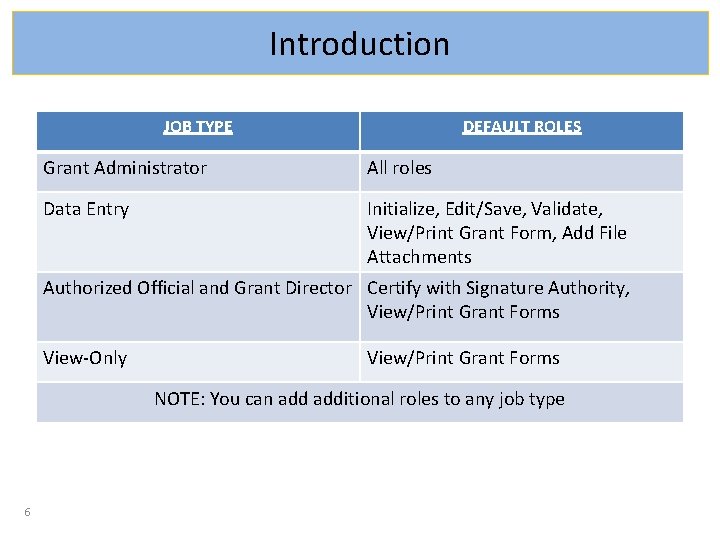
Introduction JOB TYPE DEFAULT ROLES Grant Administrator All roles Data Entry Initialize, Edit/Save, Validate, View/Print Grant Form, Add File Attachments Authorized Official and Grant Director Certify with Signature Authority, View/Print Grant Forms View-Only View/Print Grant Forms NOTE: You can additional roles to any job type 6
USER NAME AND PASSWORD 7 The Grants Center of Excellence www. grantsolutions. gov
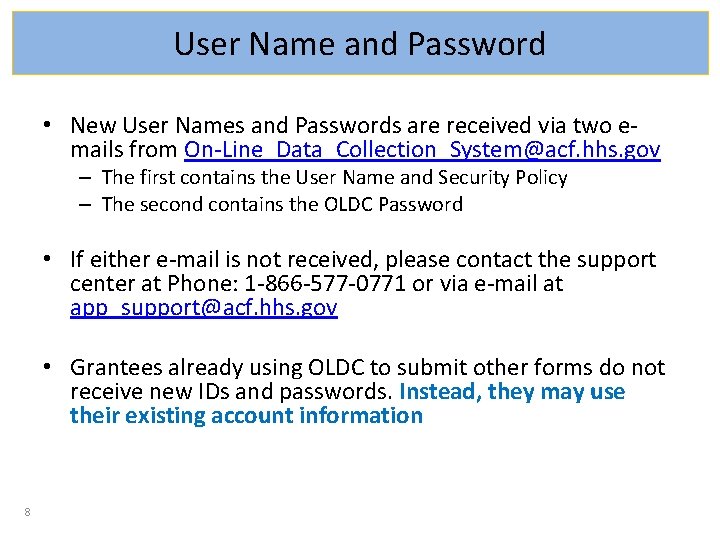
User Name and Password • New User Names and Passwords are received via two emails from On-Line_Data_Collection_System@acf. hhs. gov – The first contains the User Name and Security Policy – The second contains the OLDC Password • If either e-mail is not received, please contact the support center at Phone: 1 -866 -577 -0771 or via e-mail at app_support@acf. hhs. gov • Grantees already using OLDC to submit other forms do not receive new IDs and passwords. Instead, they may use their existing account information 8
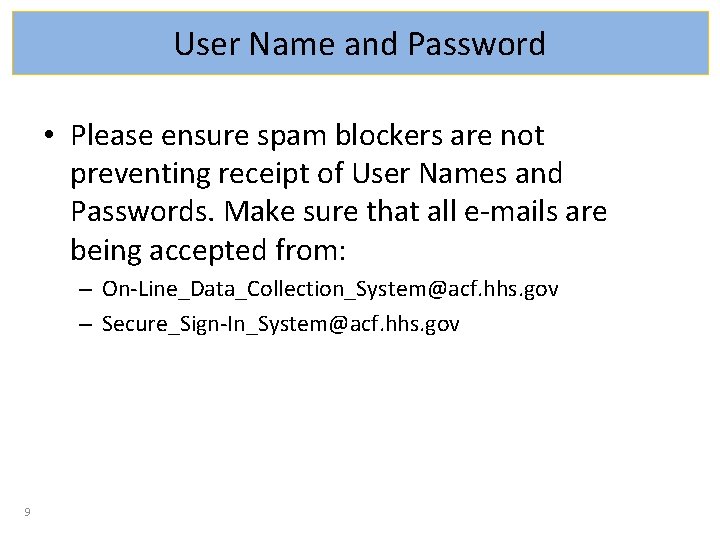
User Name and Password • Please ensure spam blockers are not preventing receipt of User Names and Passwords. Make sure that all e-mails are being accepted from: – On-Line_Data_Collection_System@acf. hhs. gov – Secure_Sign-In_System@acf. hhs. gov 9
LOGIN 10 The Grants Center of Excellence www. grantsolutions. gov
Log In • Enter the secure web address in your browser Address line (Internet Explorer recommended) https: //home. grantsolutions. gov/home/ • Save the web address as a Favorite for quick access 11
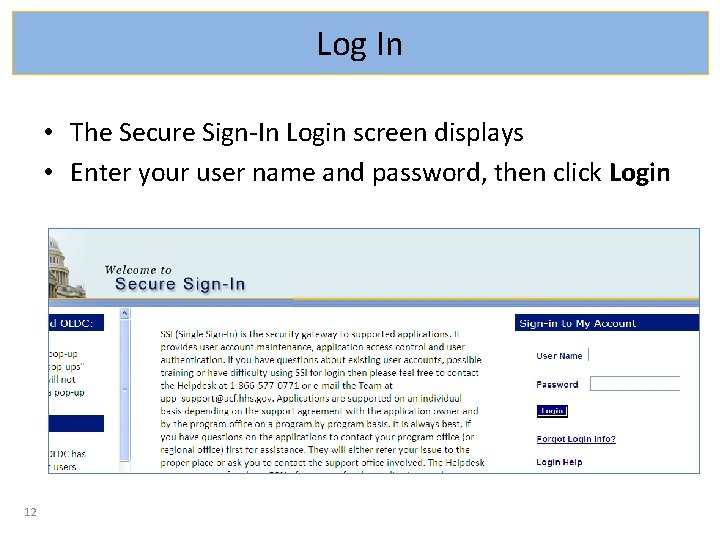
Log In • The Secure Sign-In Login screen displays • Enter your user name and password, then click Login 12
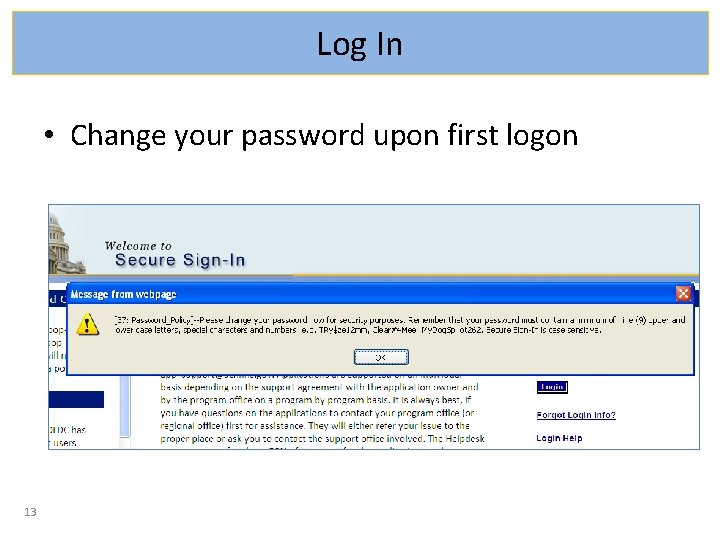
Log In • Change your password upon first logon 13
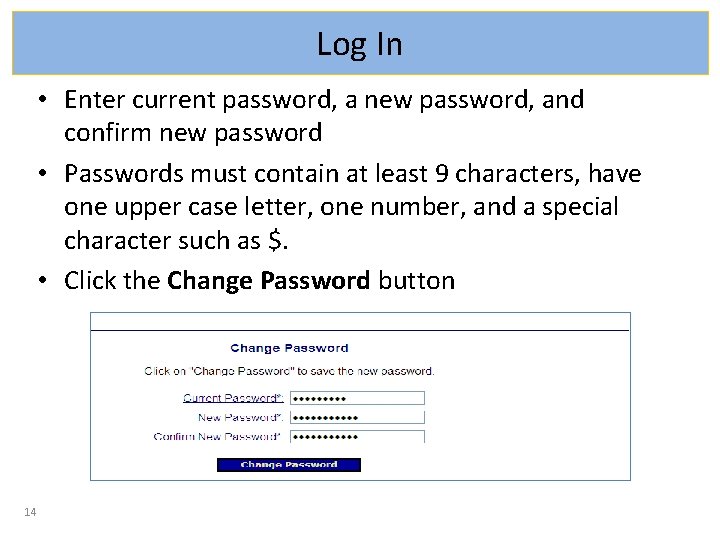
Log In • Enter current password, a new password, and confirm new password • Passwords must contain at least 9 characters, have one upper case letter, one number, and a special character such as $. • Click the Change Password button 14
Log In • Passwords must be changed every 60 days – A message prompts the user to change their password prior to the 60 days. • If the password is not changed with the timeframe, the account is disabled for security purposes – Contact the Support Center to re-enable the account 15
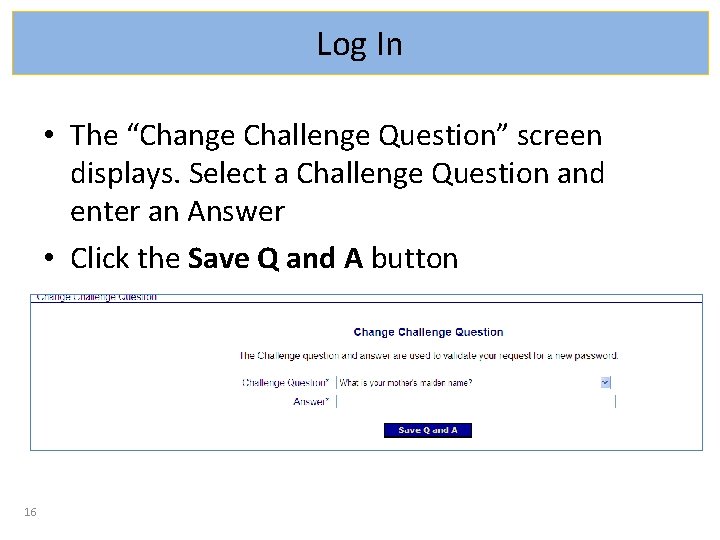
Log In • The “Change Challenge Question” screen displays. Select a Challenge Question and enter an Answer • Click the Save Q and A button 16
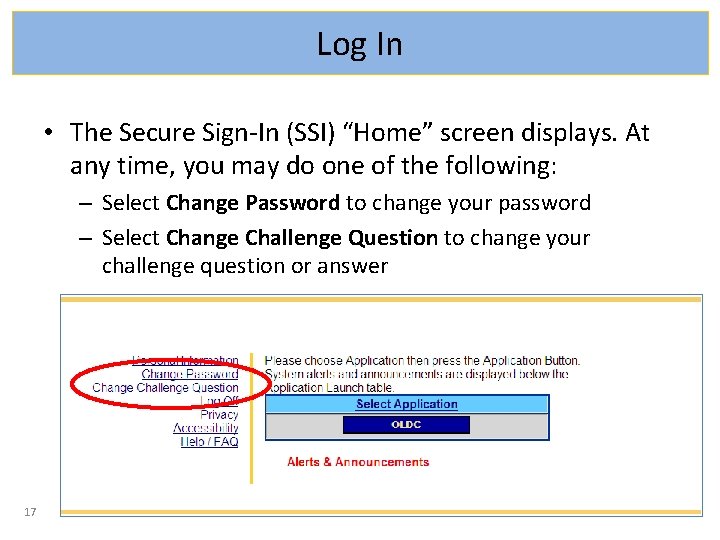
Log In • The Secure Sign-In (SSI) “Home” screen displays. At any time, you may do one of the following: – Select Change Password to change your password – Select Change Challenge Question to change your challenge question or answer 17
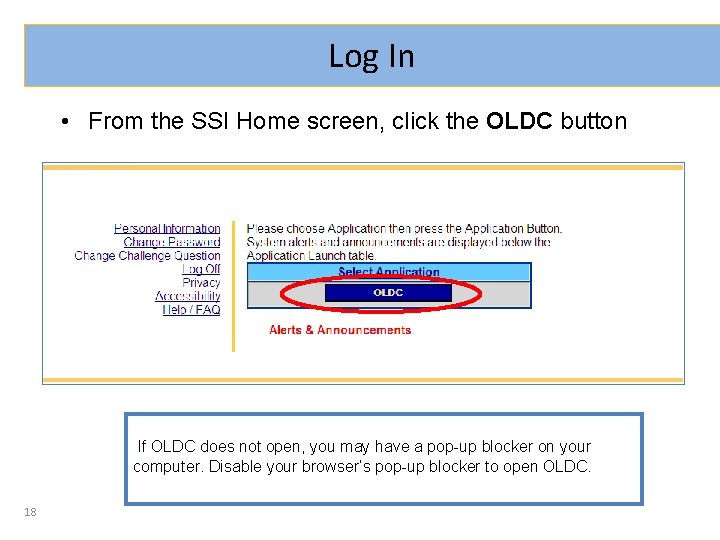
Log In • From the SSI Home screen, click the OLDC button If OLDC does not open, you may have a pop-up blocker on your computer. Disable your browser’s pop-up blocker to open OLDC. 18
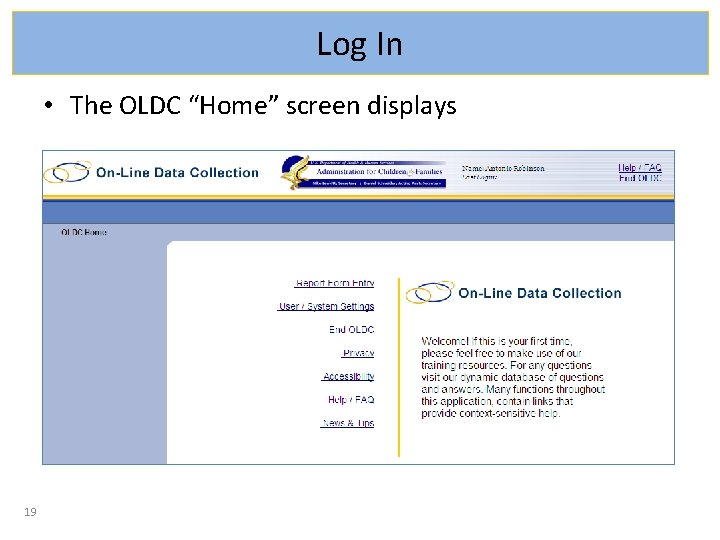
Log In • The OLDC “Home” screen displays 19
OLDC HOME 20 The Grants Center of Excellence www. grantsolutions. gov
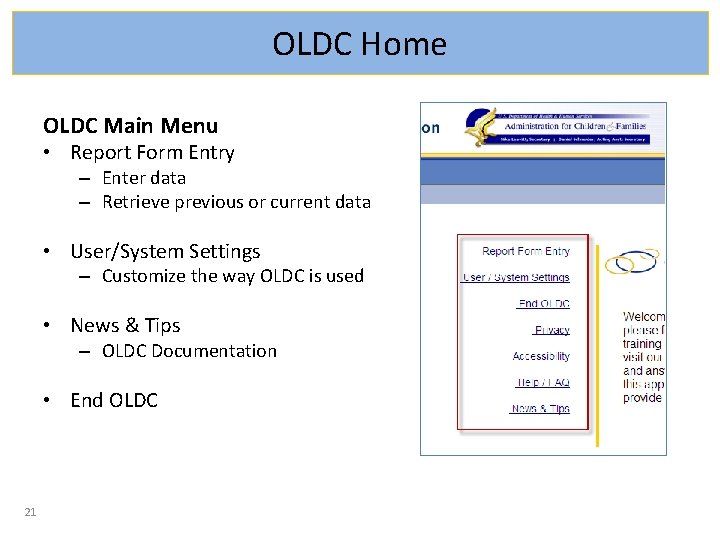
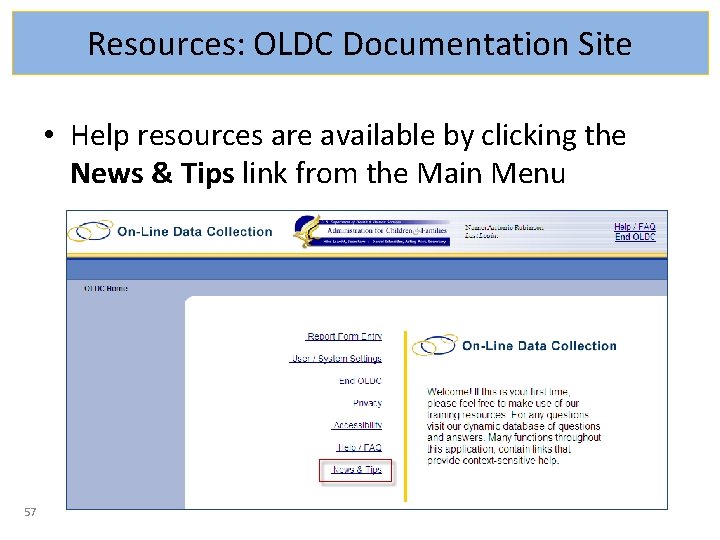
OLDC Home OLDC Main Menu • Report Form Entry – Enter data – Retrieve previous or current data • User/System Settings – Customize the way OLDC is used • News & Tips – OLDC Documentation • End OLDC 21
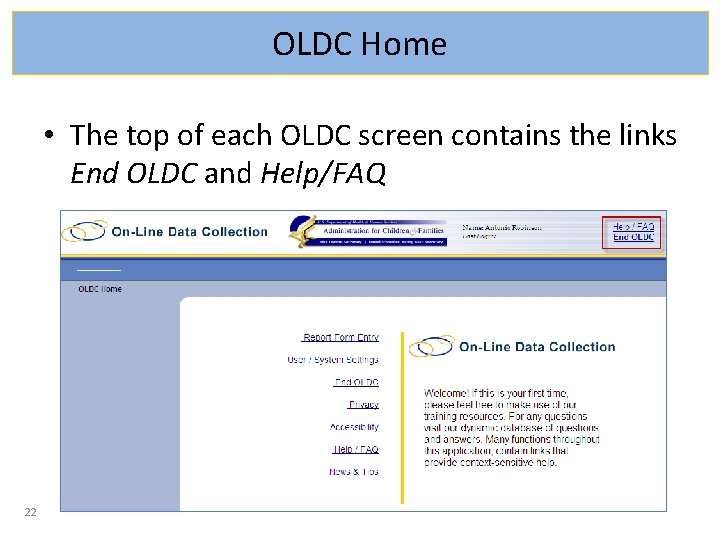
OLDC Home • The top of each OLDC screen contains the links End OLDC and Help/FAQ 22
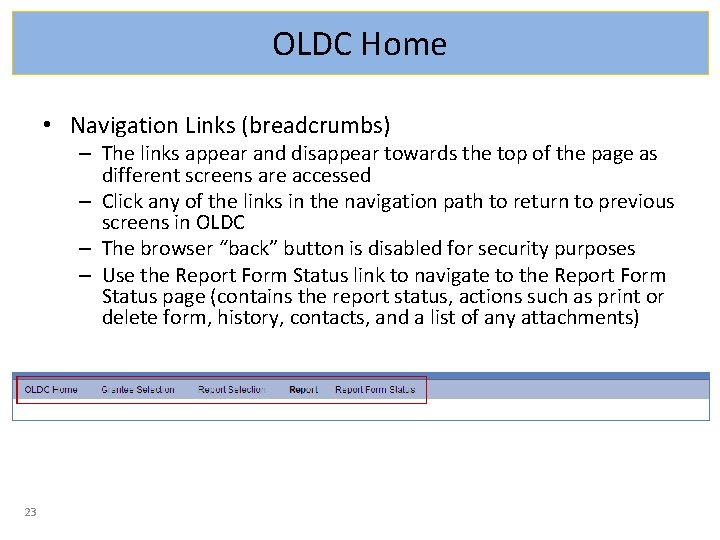
OLDC Home • Navigation Links (breadcrumbs) – The links appear and disappear towards the top of the page as different screens are accessed – Click any of the links in the navigation path to return to previous screens in OLDC – The browser “back” button is disabled for security purposes – Use the Report Form Status link to navigate to the Report Form Status page (contains the report status, actions such as print or delete form, history, contacts, and a list of any attachments) 23
ACCESSING REPORT FORMS 24 The Grants Center of Excellence www. grantsolutions. gov
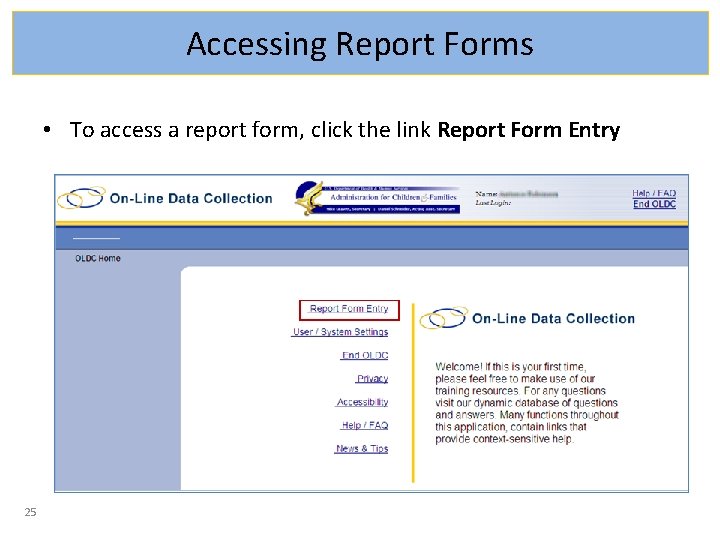
Accessing Report Forms • To access a report form, click the link Report Form Entry 25
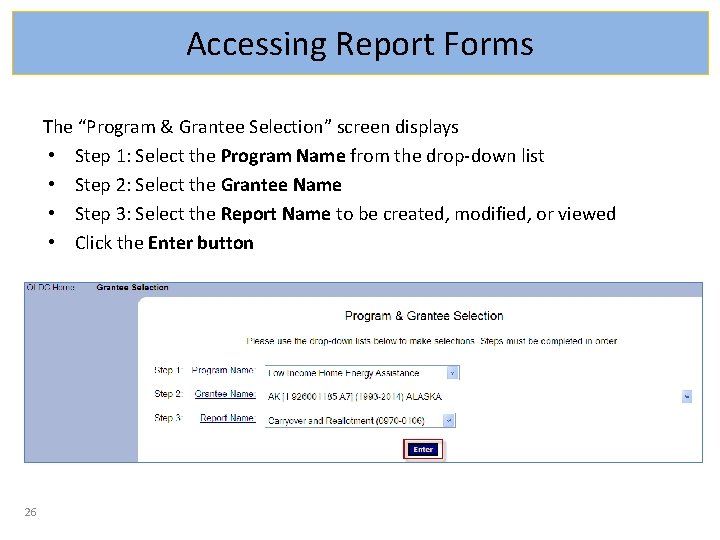
Accessing Report Forms The “Program & Grantee Selection” screen displays • Step 1: Select the Program Name from the drop-down list • Step 2: Select the Grantee Name • Step 3: Select the Report Name to be created, modified, or viewed • Click the Enter button 26
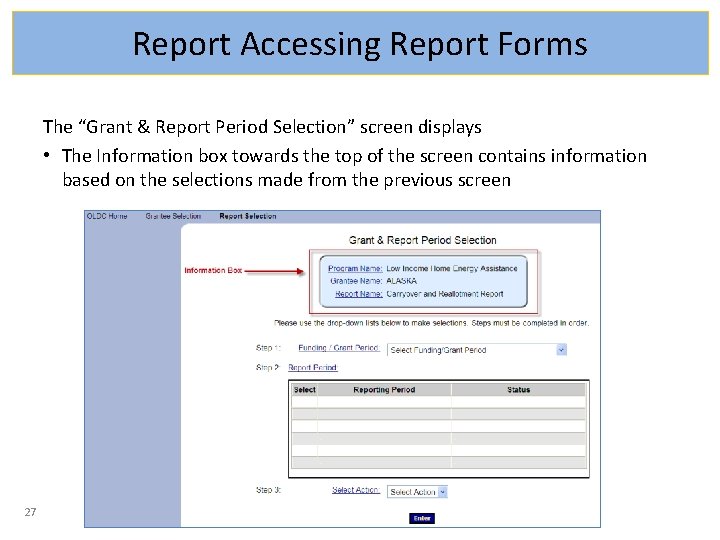
Report Accessing Report Forms The “Grant & Report Period Selection” screen displays • The Information box towards the top of the screen contains information based on the selections made from the previous screen 27
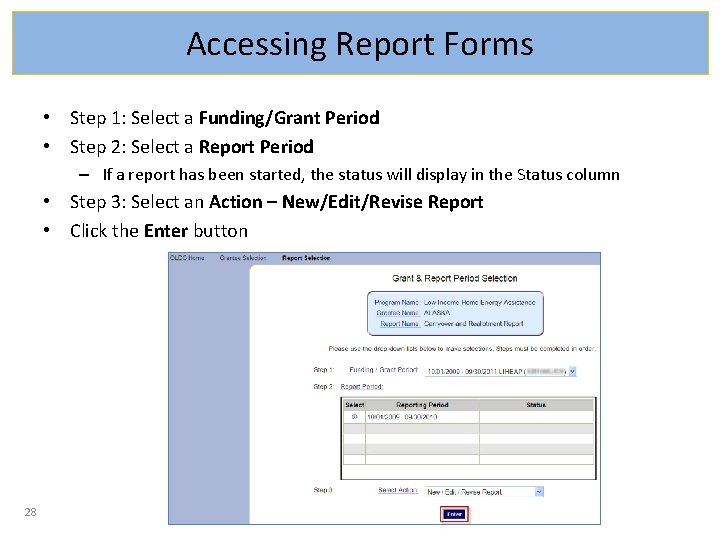
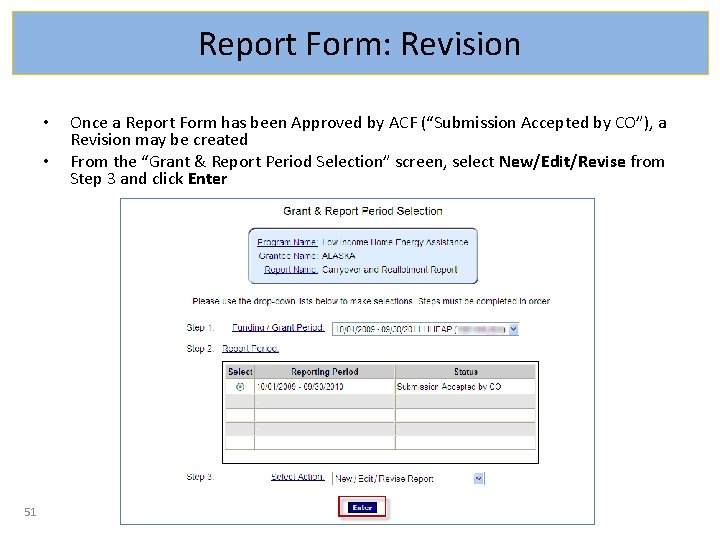
Accessing Report Forms • Step 1: Select a Funding/Grant Period • Step 2: Select a Report Period – If a report has been started, the status will display in the Status column • Step 3: Select an Action – New/Edit/Revise Report • Click the Enter button 28
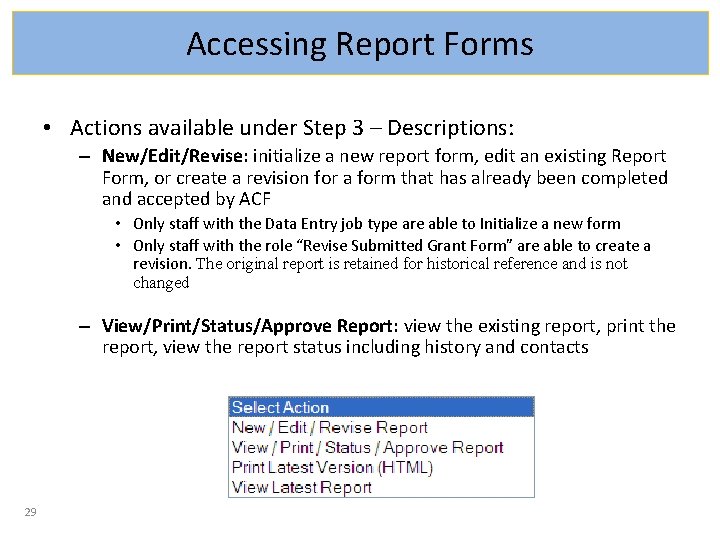
Accessing Report Forms • Actions available under Step 3 – Descriptions: – New/Edit/Revise: initialize a new report form, edit an existing Report Form, or create a revision for a form that has already been completed and accepted by ACF • Only staff with the Data Entry job type are able to Initialize a new form • Only staff with the role “Revise Submitted Grant Form” are able to create a revision. The original report is retained for historical reference and is not changed – View/Print/Status/Approve Report: view the existing report, print the report, view the report status including history and contacts 29
REPORT FORM 30 The Grants Center of Excellence www. grantsolutions. gov
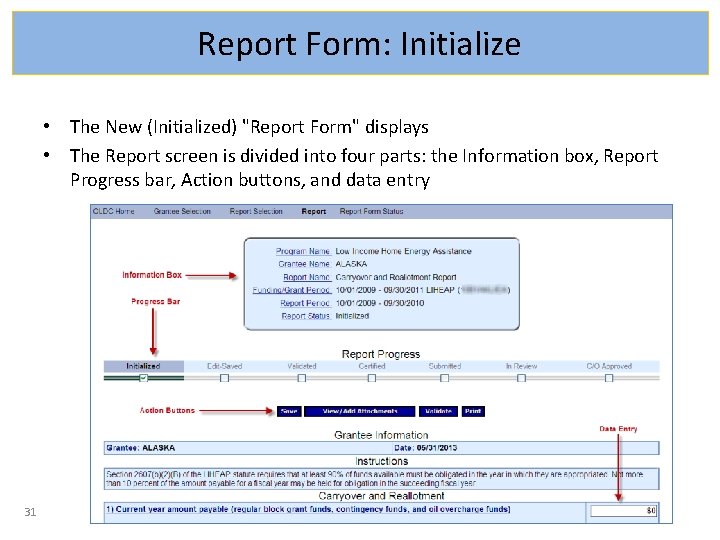
Report Form: Initialize • The New (Initialized) "Report Form" displays • The Report screen is divided into four parts: the Information box, Report Progress bar, Action buttons, and data entry 31
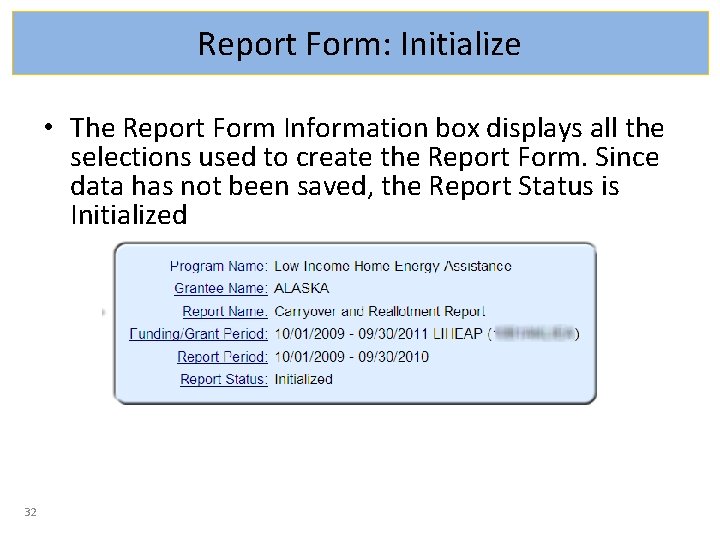
Report Form: Initialize • The Report Form Information box displays all the selections used to create the Report Form. Since data has not been saved, the Report Status is Initialized 32
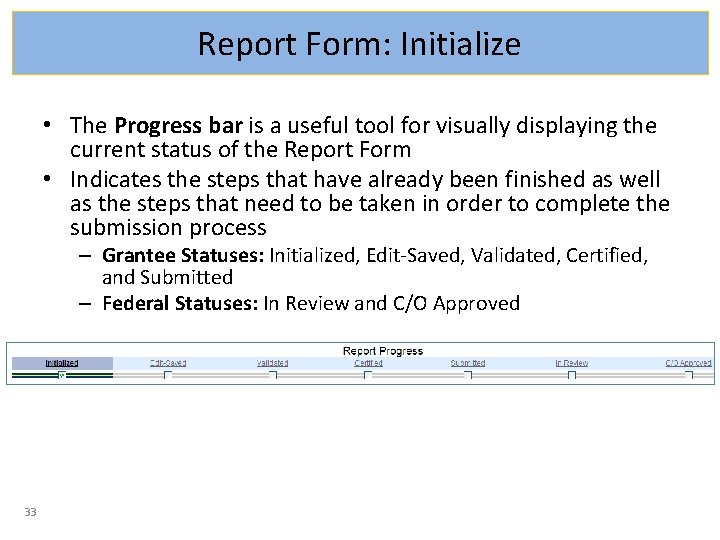
Report Form: Initialize • The Progress bar is a useful tool for visually displaying the current status of the Report Form • Indicates the steps that have already been finished as well as the steps that need to be taken in order to complete the submission process – Grantee Statuses: Initialized, Edit-Saved, Validated, Certified, and Submitted – Federal Statuses: In Review and C/O Approved 33
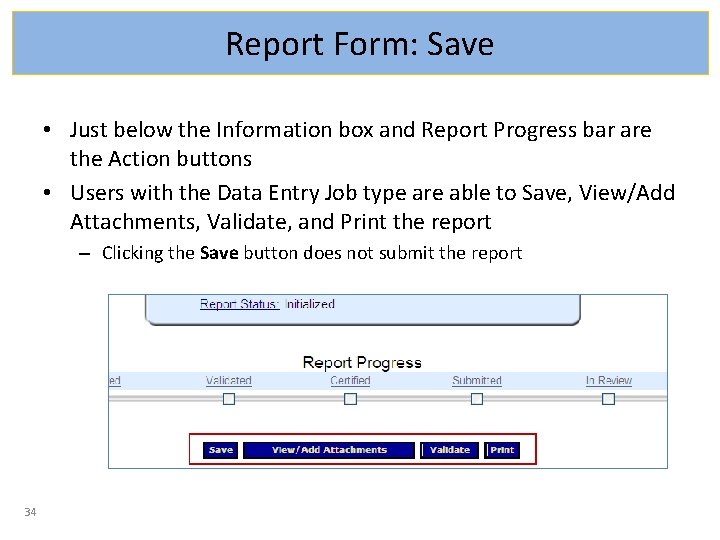
Report Form: Save • Just below the Information box and Report Progress bar are the Action buttons • Users with the Data Entry Job type are able to Save, View/Add Attachments, Validate, and Print the report – Clicking the Save button does not submit the report 34
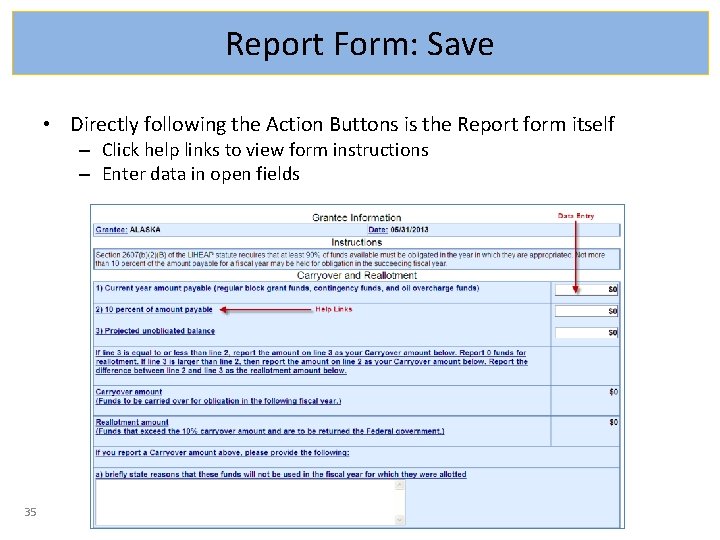
Report Form: Save • Directly following the Action Buttons is the Report form itself – Click help links to view form instructions – Enter data in open fields 35
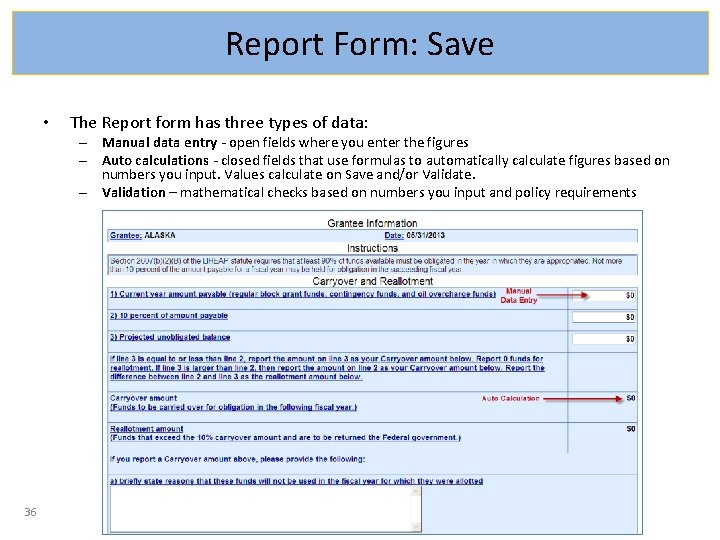
Report Form: Save • The Report form has three types of data: – Manual data entry - open fields where you enter the figures – Auto calculations - closed fields that use formulas to automatically calculate figures based on numbers you input. Values calculate on Save and/or Validate. – Validation – mathematical checks based on numbers you input and policy requirements 36
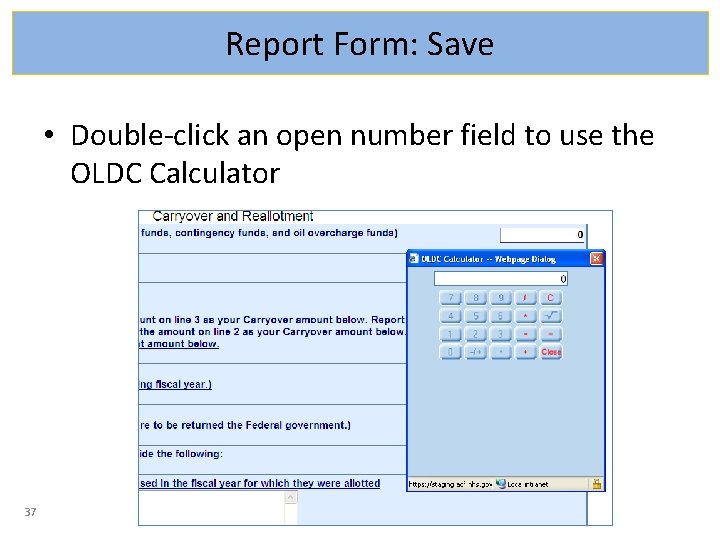
Report Form: Save • Double-click an open number field to use the OLDC Calculator 37
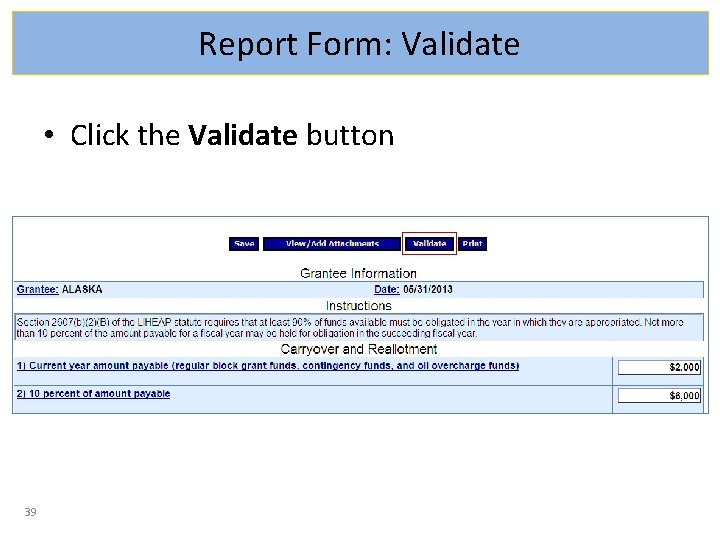
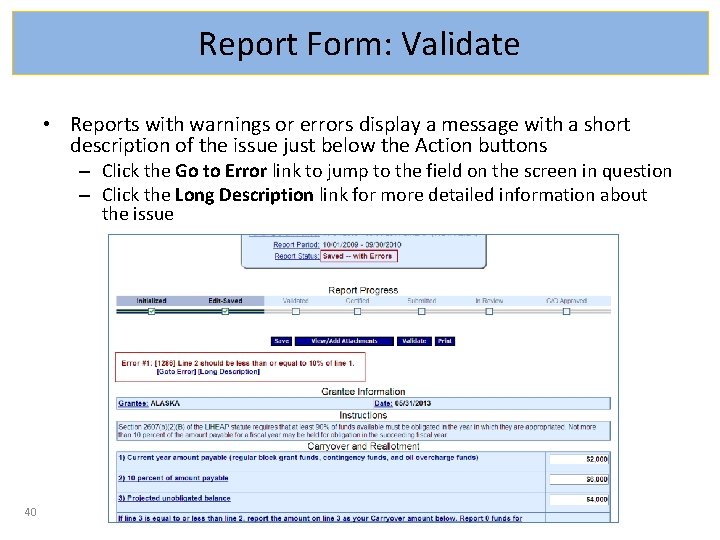
Report Form: Validate • Once data is entered and saved, the form must be validated. Validate checks the form for errors – Saved -- Validated: There are no errors and the form is ready to be certified – Validated -- with Warnings: The report form is saved and validated and there are some errors on the saved form. However, these errors are allowable and the report may still be submitted – Saved with Errors: An error message appears at the top of the form. Reports with errors cannot be certified and have the status “Saved with Errors”. Errors must be corrected 38
Report Form: Validate • Click the Validate button 39
Report Form: Validate • Reports with warnings or errors display a message with a short description of the issue just below the Action buttons – Click the Go to Error link to jump to the field on the screen in question – Click the Long Description link for more detailed information about the issue 40
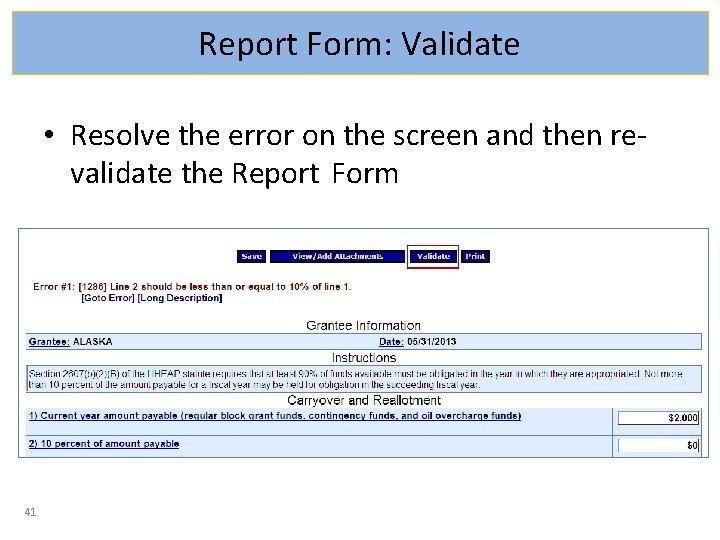
Report Form: Validate • Resolve the error on the screen and then revalidate the Report Form 41
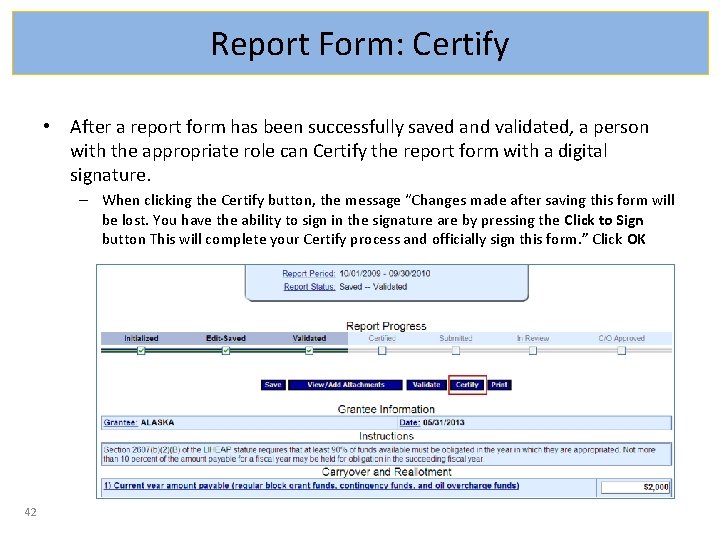
Report Form: Certify • After a report form has been successfully saved and validated, a person with the appropriate role can Certify the report form with a digital signature. – When clicking the Certify button, the message “Changes made after saving this form will be lost. You have the ability to sign in the signature are by pressing the Click to Sign button This will complete your Certify process and officially sign this form. ” Click OK 42
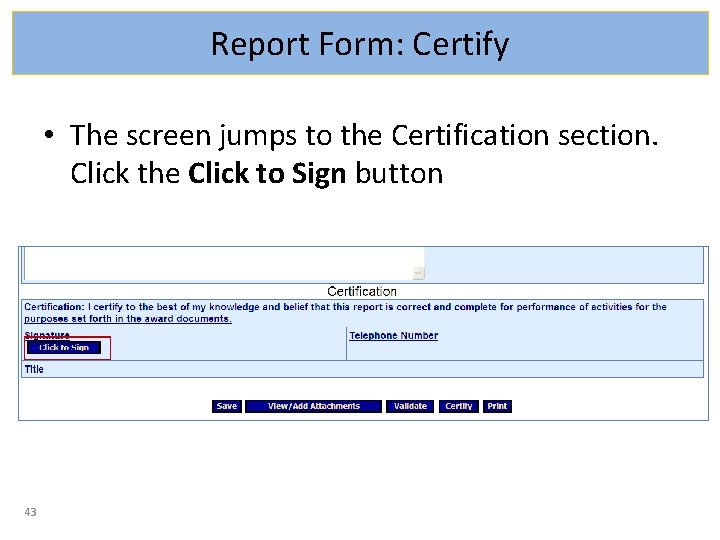
Report Form: Certify • The screen jumps to the Certification section. Click the Click to Sign button 43
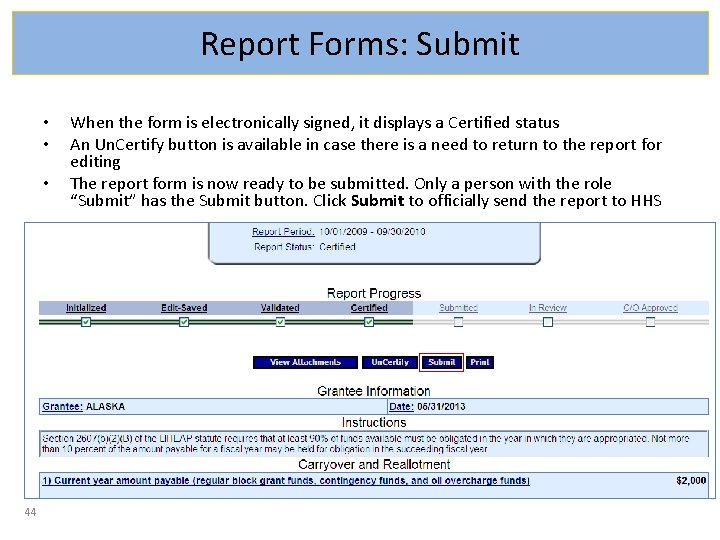
Report Forms: Submit • • • 44 When the form is electronically signed, it displays a Certified status An Un. Certify button is available in case there is a need to return to the report for editing The report form is now ready to be submitted. Only a person with the role “Submit” has the Submit button. Click Submit to officially send the report to HHS
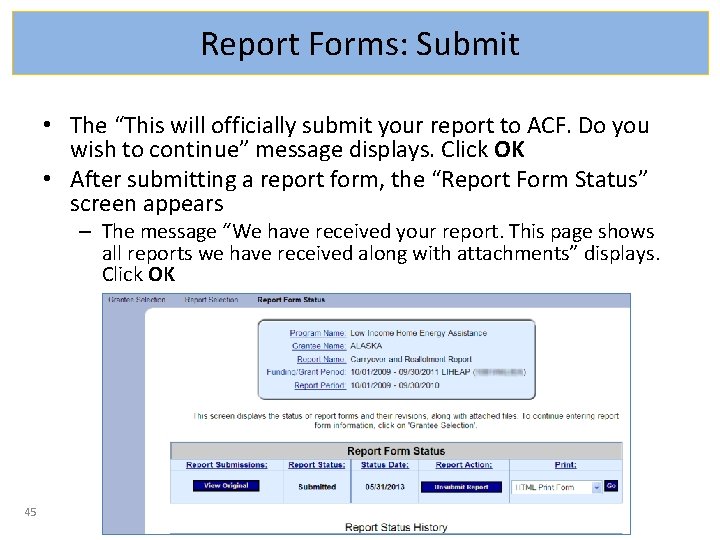
Report Forms: Submit • The “This will officially submit your report to ACF. Do you wish to continue” message displays. Click OK • After submitting a report form, the “Report Form Status” screen appears – The message “We have received your report. This page shows all reports we have received along with attachments” displays. Click OK 45
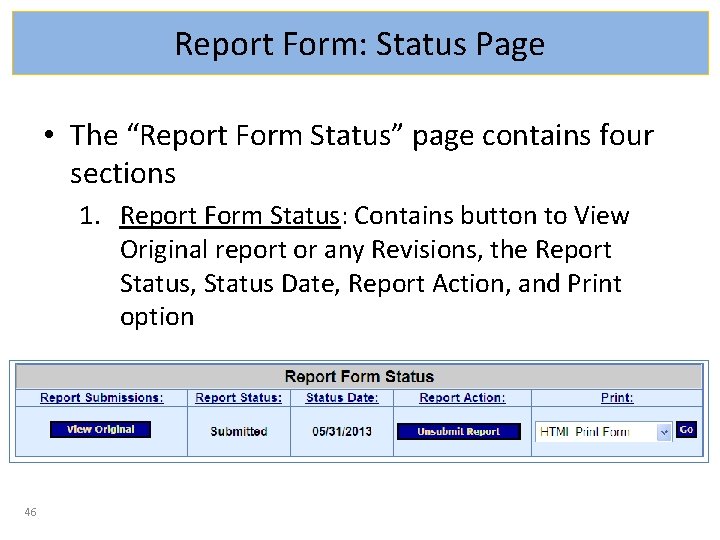
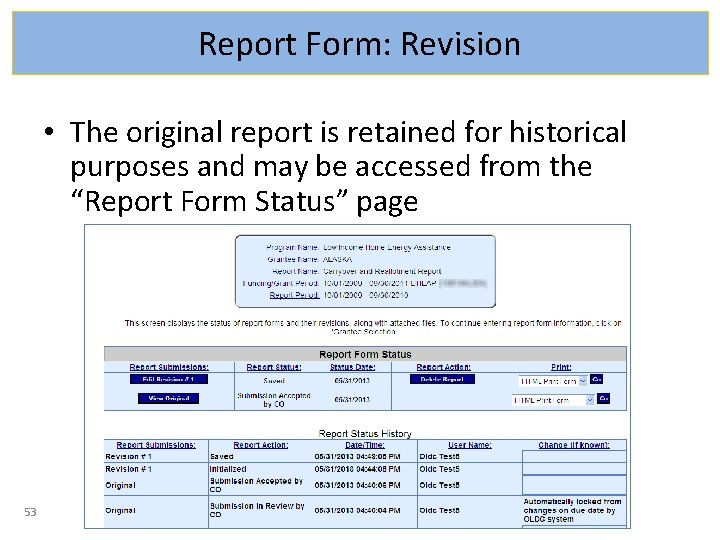
Report Form: Status Page • The “Report Form Status” page contains four sections 1. Report Form Status: Contains button to View Original report or any Revisions, the Report Status, Status Date, Report Action, and Print option 46
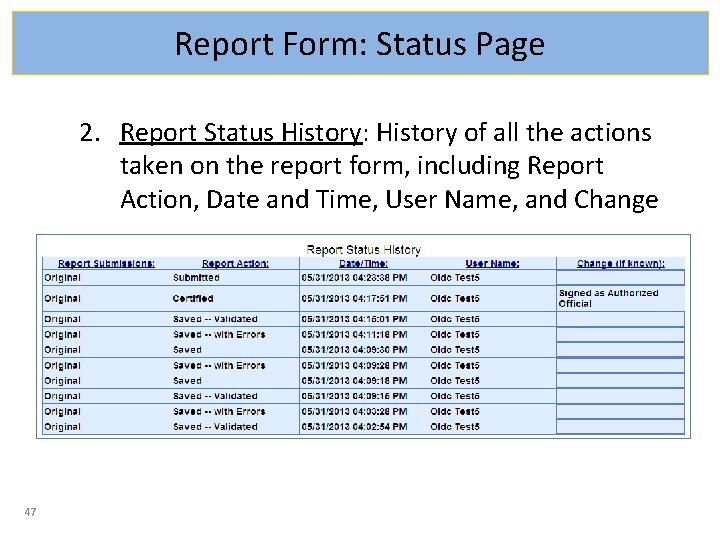
Report Form: Status Page 2. Report Status History: History of all the actions taken on the report form, including Report Action, Date and Time, User Name, and Change 47
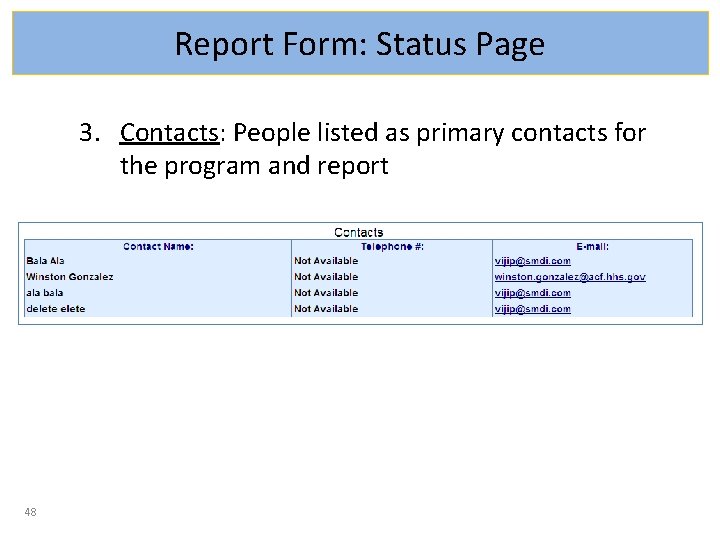
Report Form: Status Page 3. Contacts: People listed as primary contacts for the program and report 48
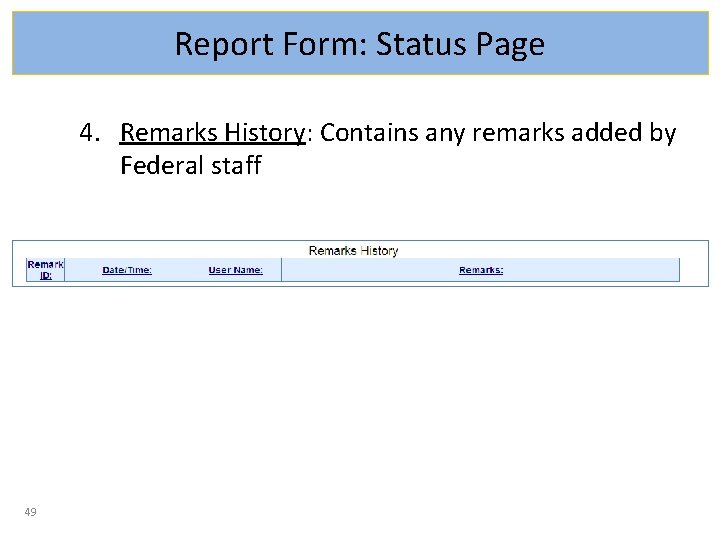
Report Form: Status Page 4. Remarks History: Contains any remarks added by Federal staff 49
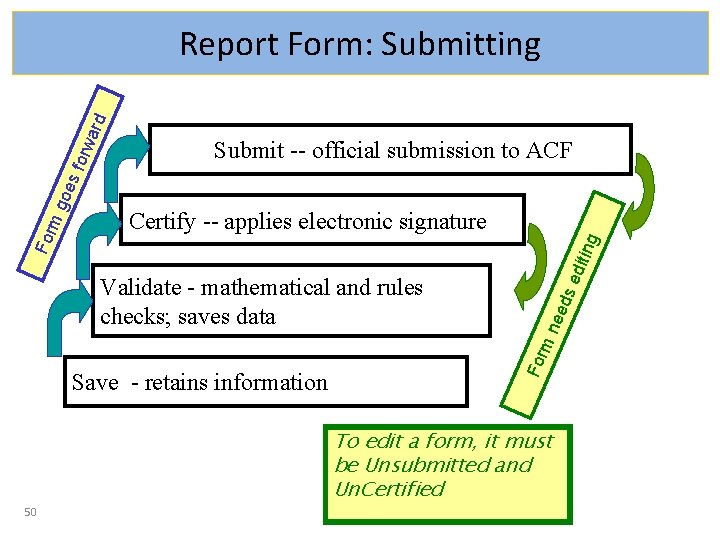
Submit -- official submission to ACF Save - retains information eed s For Validate - mathematical and rules checks; saves data edi ti ng Certify -- applies electronic signature mn For mg oes forw ard Report Form: Submitting To edit a form, it must be Unsubmitted and Un. Certified 50
Report Form: Revision • • 51 Once a Report Form has been Approved by ACF (“Submission Accepted by CO”), a Revision may be created From the “Grant & Report Period Selection” screen, select New/Edit/Revise from Step 3 and click Enter
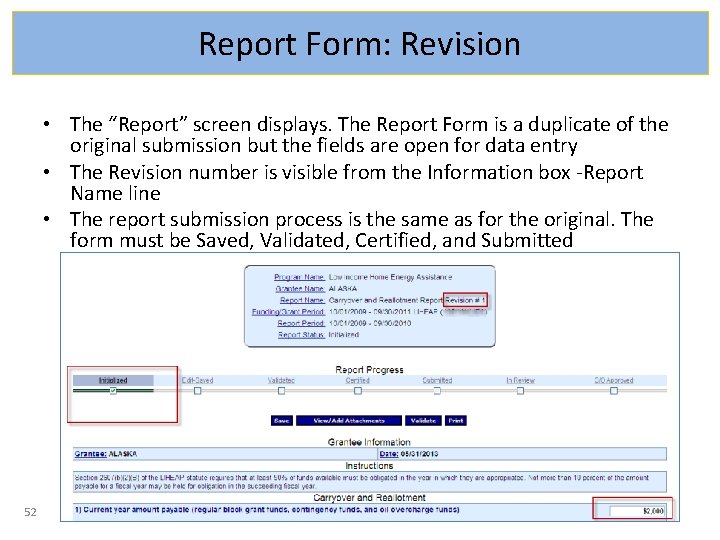
Report Form: Revision • The “Report” screen displays. The Report Form is a duplicate of the original submission but the fields are open for data entry • The Revision number is visible from the Information box -Report Name line • The report submission process is the same as for the original. The form must be Saved, Validated, Certified, and Submitted 52
Report Form: Revision • The original report is retained for historical purposes and may be accessed from the “Report Form Status” page 53
Report Form • It is important to save often. After 30 minutes of inactivity from your computer to the OLDC server, you are disconnected from the system. Any information not saved is lost. Activity includes Saving, Printing, Validating, Certifying, Submitting, etc. 54
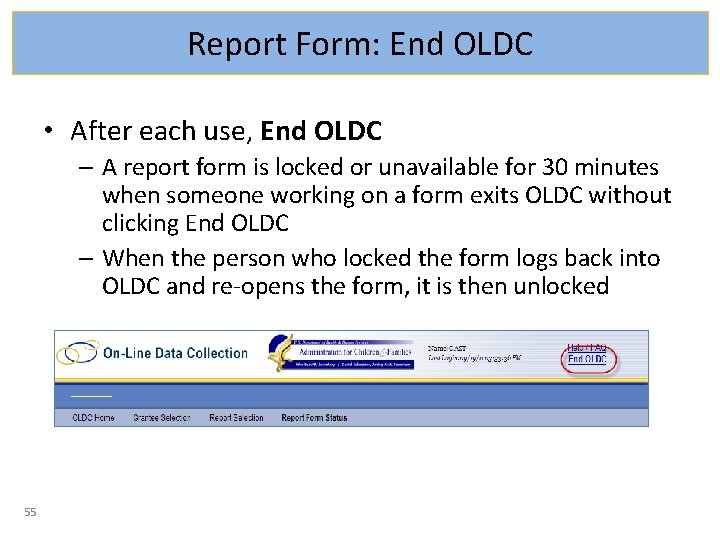
Report Form: End OLDC • After each use, End OLDC – A report form is locked or unavailable for 30 minutes when someone working on a form exits OLDC without clicking End OLDC – When the person who locked the form logs back into OLDC and re-opens the form, it is then unlocked 55
RESOURCES 56 The Grants Center of Excellence www. grantsolutions. gov
Resources: OLDC Documentation Site • Help resources are available by clicking the News & Tips link from the Main Menu 57
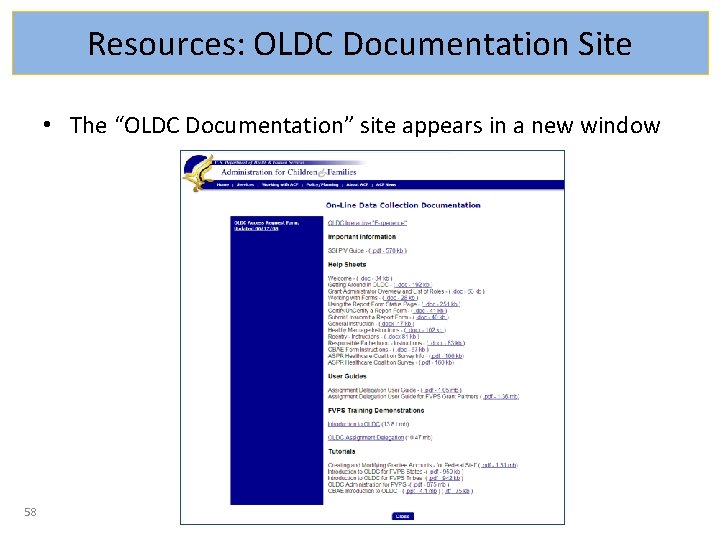
Resources: OLDC Documentation Site • The “OLDC Documentation” site appears in a new window 58
Resources: Support • The Support Center provides assistance for OLDC customers • Support team personnel are available Monday through Friday 8 a. m. to 6 p. m. ET • app_support@acf. hhs. gov • 866 -577 -0771 59