
Introduction to the NXT Brick and Software By
Introduction to the NXT Brick and Software By Sanjay and Arvind Seshan BEGINNER PROGRAMMING LESSON
LESSON OBJECTIVES 1. Learn how the NXT brick operates 2. Learn about the main components of the EV 3 software Copyright © EV 3 Lessons. com 2017 (Last edit: 05/15/2017)
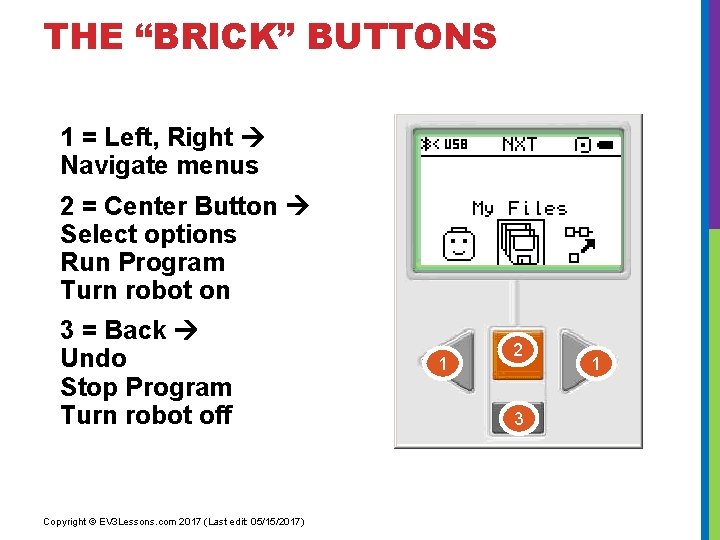
THE “BRICK” BUTTONS 1 = Left, Right Navigate menus 2 = Center Button Select options Run Program Turn robot on 3 = Back Undo Stop Program Turn robot off Copyright © EV 3 Lessons. com 2017 (Last edit: 05/15/2017) 1 2 3 1
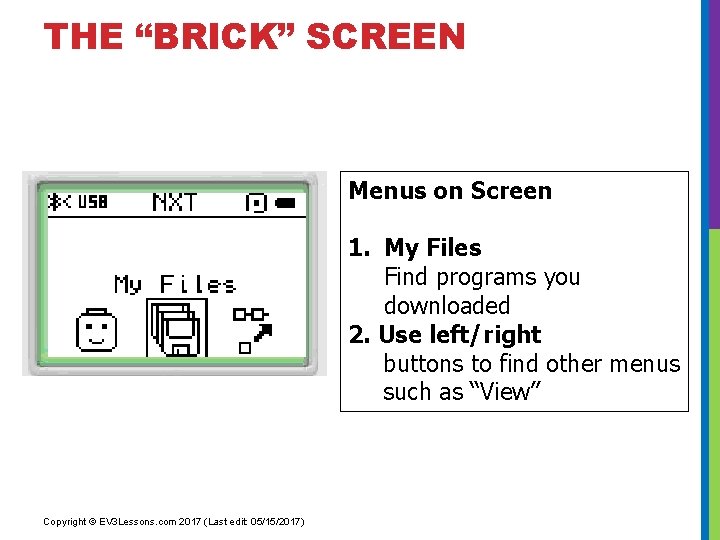
THE “BRICK” SCREEN Menus on Screen 1. My Files Find programs you downloaded 2. Use left/right buttons to find other menus such as “View” Copyright © EV 3 Lessons. com 2017 (Last edit: 05/15/2017)

PORTS, SENSORS, MOTORS Motors: make your robot move Ports A, B, C = Motors Default setup assumes Right Motor is in C, Left Motor is in B Touch Sensor: Make your robot detect objects Color sensor : Make your robot detect colors Ultrasonic sensor: Make your robot measure distances B Default setup Ports 1, 2, 3, 4 = Sensors Copyright © EV 3 Lessons. com 2017 (Last edit: 05/15/2017) Front C
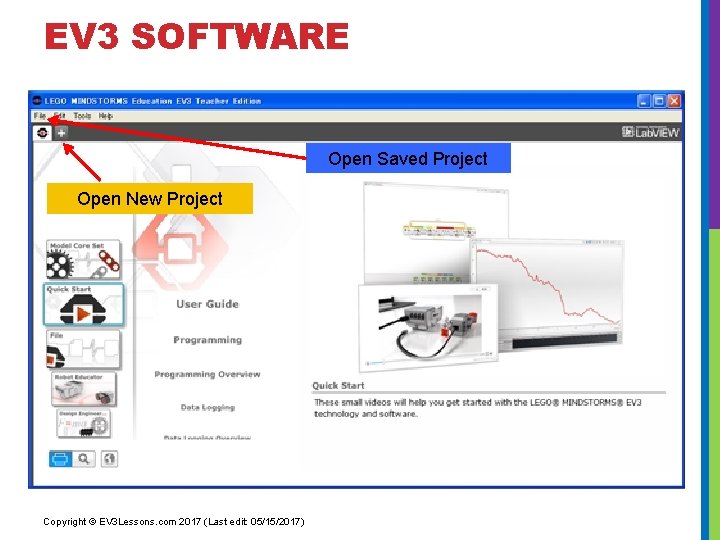
EV 3 SOFTWARE Open Saved Project Open New Project Copyright © EV 3 Lessons. com 2017 (Last edit: 05/15/2017)
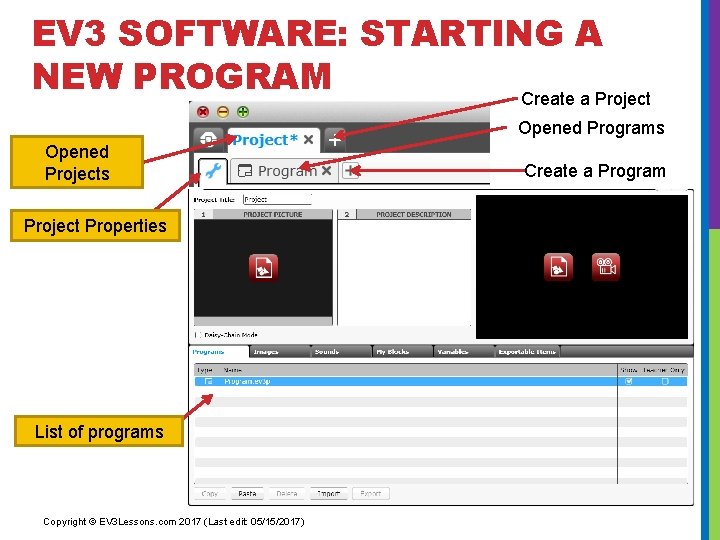
EV 3 SOFTWARE: STARTING A NEW PROGRAM Create a Project Opened Programs Opened Projects Project Properties List of programs Copyright © EV 3 Lessons. com 2017 (Last edit: 05/15/2017) Create a Program
PROJECTS VS. PROGRAMS • You will start by creating a PROJECT which has a. ev 3 extension. You change the name of a project by using the Save Project As option from the File menu. • You will write many PROGRAMS as part of each PROJECT file. You change the name of a program within a project by doubling clicking on the program’s tab and typing in a new name. • Note: If there is an * next to the project name, you have made changes to the project and you have not yet saved yet. • There is a “x” next to project and program names. Clicking on it simply closes the file (it does not get deleted). Here are some common file extensions in the EV 3: • • • Programs (. ev 3 p) Images (. rgf) Sounds (. rsf) Text (. rtf) Projects (. ev 3) – the only type of file you can open with the EV 3 software Import file (. ev 3 s) – can be imported by an EV 3 project Copyright © EV 3 Lessons. com 2017 (Last edit: 05/15/2017)
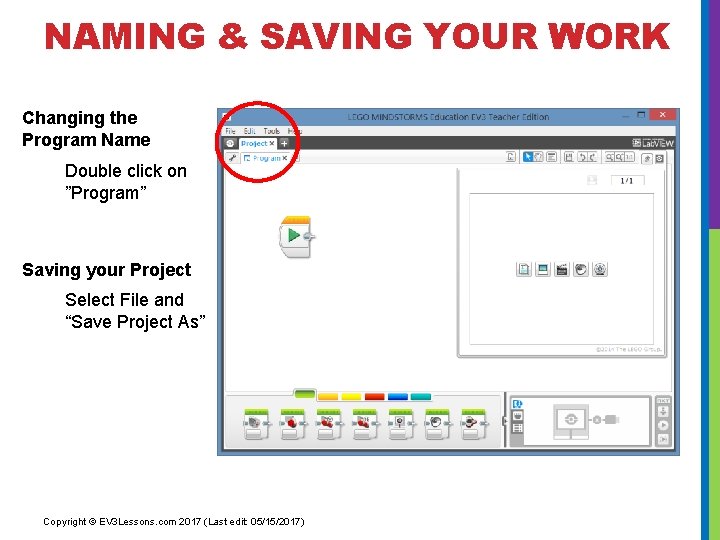
NAMING & SAVING YOUR WORK Changing the Program Name Double click on ”Program” Saving your Project Select File and “Save Project As” Copyright © EV 3 Lessons. com 2017 (Last edit: 05/15/2017)
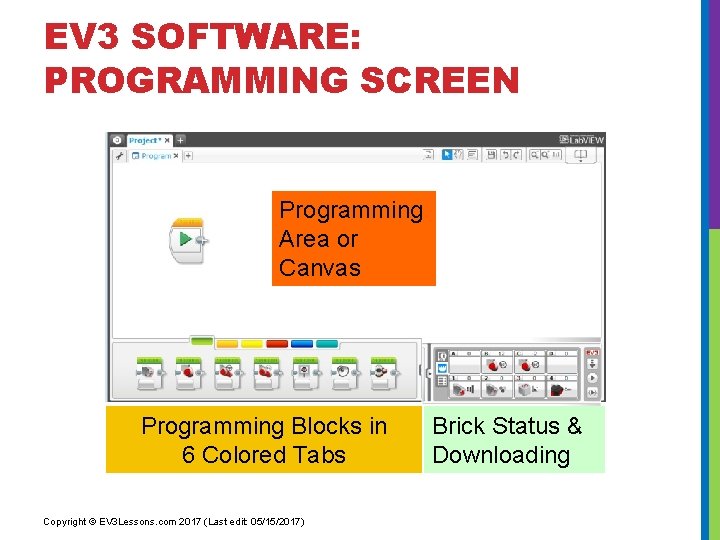
EV 3 SOFTWARE: PROGRAMMING SCREEN Programming Area or Canvas Programming Blocks in 6 Colored Tabs Copyright © EV 3 Lessons. com 2017 (Last edit: 05/15/2017) Brick Status & Downloading
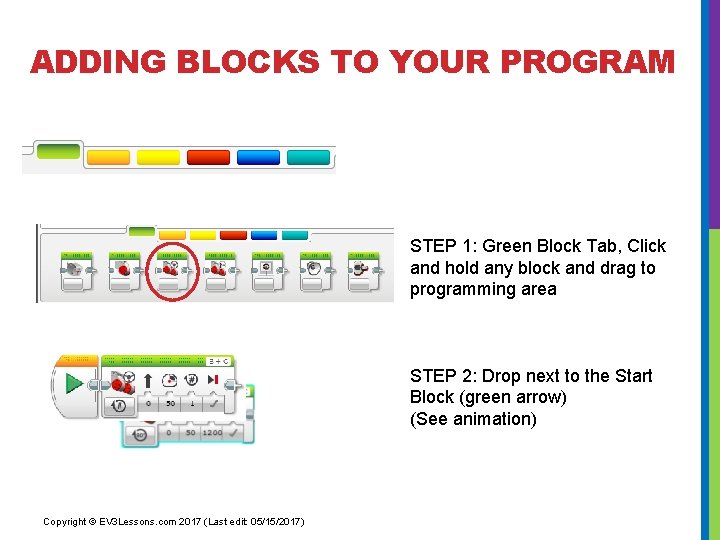
ADDING BLOCKS TO YOUR PROGRAM STEP 1: Green Block Tab, Click and hold any block and drag to programming area STEP 2: Drop next to the Start Block (green arrow) (See animation) Copyright © EV 3 Lessons. com 2017 (Last edit: 05/15/2017)
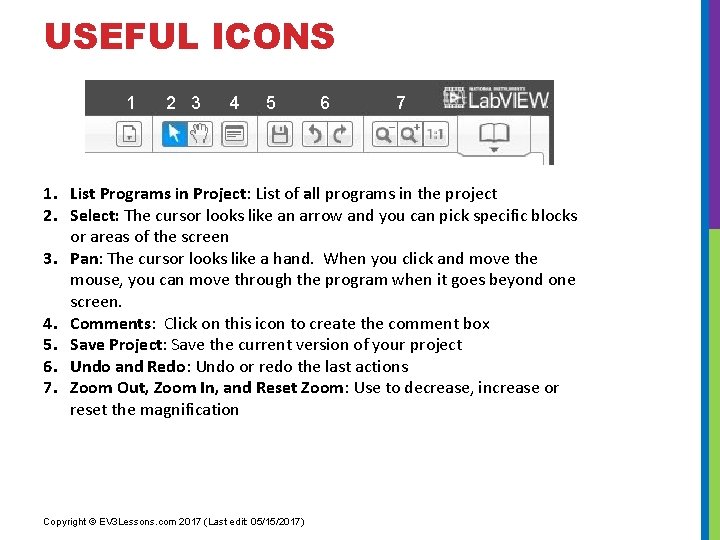
USEFUL ICONS 1 2 3 4 5 6 7 1. List Programs in Project: List of all programs in the project 2. Select: The cursor looks like an arrow and you can pick specific blocks or areas of the screen 3. Pan: The cursor looks like a hand. When you click and move the mouse, you can move through the program when it goes beyond one screen. 4. Comments: Click on this icon to create the comment box 5. Save Project: Save the current version of your project 6. Undo and Redo: Undo or redo the last actions 7. Zoom Out, Zoom In, and Reset Zoom: Use to decrease, increase or reset the magnification Copyright © EV 3 Lessons. com 2017 (Last edit: 05/15/2017)
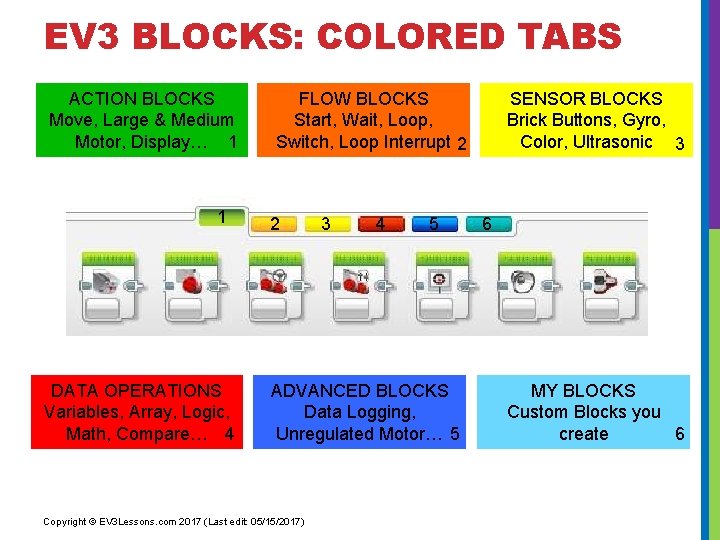
EV 3 BLOCKS: COLORED TABS ACTION BLOCKS Move, Large & Medium Motor, Display… 1 1 DATA OPERATIONS Variables, Array, Logic, Math, Compare… 4 FLOW BLOCKS Start, Wait, Loop, Switch, Loop Interrupt 2 2 3 4 5 ADVANCED BLOCKS Data Logging, Unregulated Motor… 5 Copyright © EV 3 Lessons. com 2017 (Last edit: 05/15/2017) SENSOR BLOCKS Brick Buttons, Gyro, Color, Ultrasonic 3 6 MY BLOCKS Custom Blocks you create 6
CREDITS Author: Sanjay and Arvind Seshan More lessons are available at www. ev 3 lessons. com This work is licensed under a Creative Commons Attribution. Non. Commercial-Share. Alike 4. 0 International License. Copyright © EV 3 Lessons. com 2017 (Last edit: 05/15/2017)
- Slides: 14