
Introduction to the CDC Health Systems Scorecard v
- Slides: 28
Introduction to the CDC Health Systems Scorecard v 2. 0 Applied Research and Evaluation Branch See speaker’s notes for additional information.
Overview Background and Purpose Implementation of HSSC in the Field Benefits of the HSSC v 2. 0 Updates informed by HSSC v 1. 0 Evaluation Evidence-Based Modules Module Structure and scoring Requesting Access to the HSSC v 2. 0 Establishing a Formsite® account Using and Sharing the HSSC v 2. 0 in Formsite® New Save & Return Feature E-Version Demonstration Managing HSSC v 2. 0 Data in Formsite® Future steps HSSC v 2. 0 = Health Systems Scorecard v 2. 0
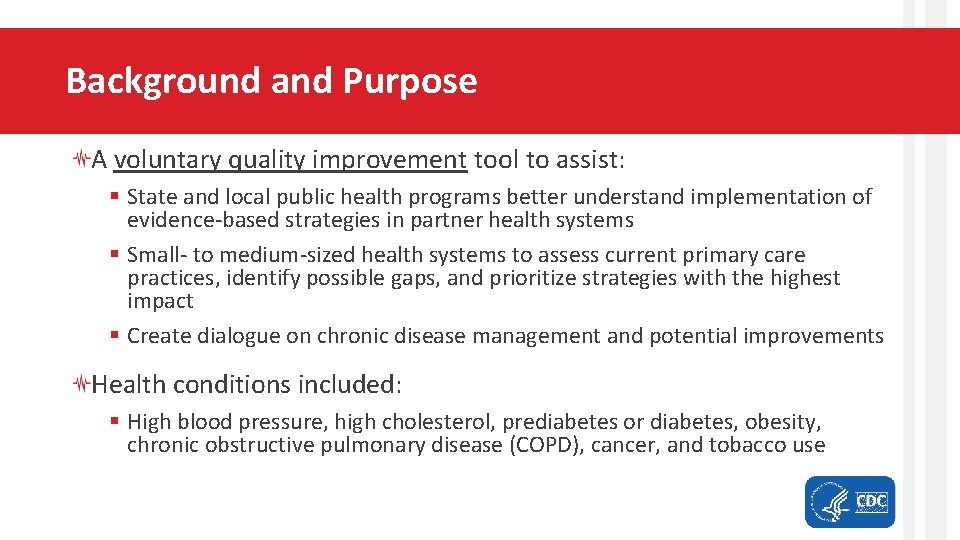
Background and Purpose A voluntary quality improvement tool to assist: § State and local public health programs better understand implementation of evidence-based strategies in partner health systems § Small- to medium-sized health systems to assess current primary care practices, identify possible gaps, and prioritize strategies with the highest impact § Create dialogue on chronic disease management and potential improvements Health conditions included: § High blood pressure, high cholesterol, prediabetes or diabetes, obesity, chronic obstructive pulmonary disease (COPD), cancer, and tobacco use
Implementation of HSSC in the Field A health department successfully deployed the CDC HSSC to more than 250 health systems to understand the use of evidence-based interventions to manage high blood pressure and diabetes. Results helped them refine the implementation of interventions designed to address high blood pressure and diabetes among health systems. § Ensure ongoing systematic support for quality improvement § Identify combinations of interventions with the biggest impact on clinical quality of health systems and health outcomes of the populations served
Benefits of the HSSC v 2. 0 Better understand implementation of evidence-based strategies in health systems Address comprehensive chronic disease focus areas, using strategies supported by best available evidence Assess and identify possible gaps and prioritize strategies with highest impact Use for quality improvement and evaluation purposes Immediate user score report with tailored implementation resources
Updates Informed by HSSC v 1. 0 Evaluation Selectively added items and resources Revised item wording for clarity/relevance to multiple audiences Added terms to the glossary and content to the resource guide Reordered and added links between the tool’s content Added a feature that enables users to save progress Added slide decks for health department and health system training Improved access to sample HSSC questions and feedback report
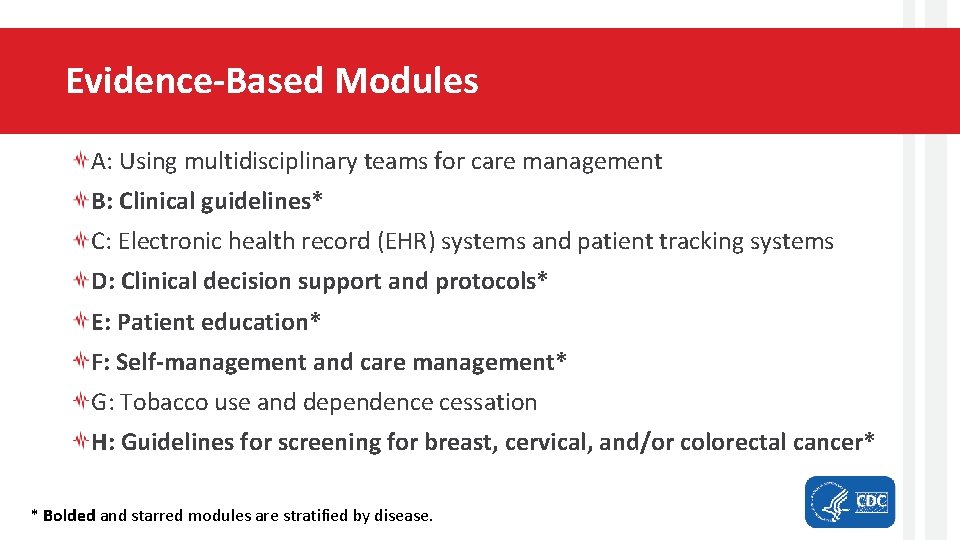
Evidence-Based Modules A: Using multidisciplinary teams for care management B: Clinical guidelines* C: Electronic health record (EHR) systems and patient tracking systems D: Clinical decision support and protocols* E: Patient education* F: Self-management and care management* G: Tobacco use and dependence cessation H: Guidelines for screening for breast, cervical, and/or colorectal cancer* * Bolded and starred modules are stratified by disease.
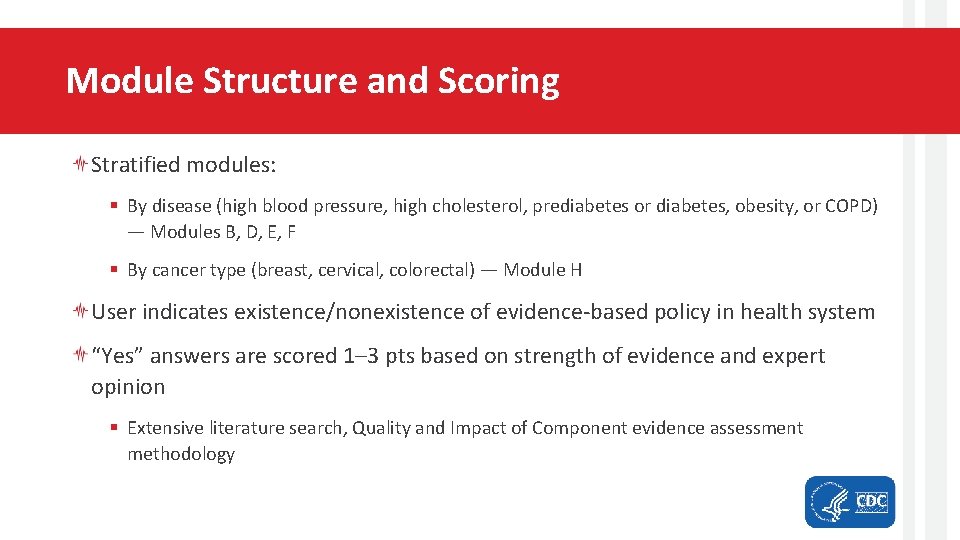
Module Structure and Scoring Stratified modules: § By disease (high blood pressure, high cholesterol, prediabetes or diabetes, obesity, or COPD) — Modules B, D, E, F § By cancer type (breast, cervical, colorectal) — Module H User indicates existence/nonexistence of evidence-based policy in health system “Yes” answers are scored 1– 3 pts based on strength of evidence and expert opinion § Extensive literature search, Quality and Impact of Component evidence assessment methodology
Requesting Access to the HSSC v 2. 0 Send an email requesting access to the HSSC v 2. 0 to hssc@cdc. gov. § “HSSC v 2. 0 Access Request” in the subject line of the email § The username you created and the name of your health department in the body of the email CDC will send the HSSC v 2. 0 directly to your Formsite® account within 5 business days. It will be available under “My Forms. ” You will then be able to use and share the HSSC v 2. 0 with health system partners. Users can review the comprehensive list of HSSC v 2. 0 questions at https: //www. cdc. gov/dhdsp/evaluation_resources/guides/index. htm.
Establishing a Formsite® Account HSSC v 2. 0 uses the web-based survey software Formsite® (www. formsite. com). To administer the HSSC v 2. 0, a health department must hold a Formsite® account. § Account prices vary depending on the estimated number of HSSC v 2. 0 end users. With an account, health departments will have access to the HSSC v 2. 0 and can send a link to any user (health system) to complete at no cost.
Using and Sharing the HSSC v 2. 0 in Formsite® Under “My Forms”, there is a table of forms available to your account. In the “Form Name” column of the table, you will see “Health Systems Scorecard [health department name]. ” Hovering over the HSSC v 2. 0 will show buttons for Edit, Settings, Share, and Results directly under the name Form name. Select Share to be brought to the “Links” page. Three link options will appear: “Form, ” “Pre-populated form, ” and “Printable form. ” The “Form” link is the link to the HSSC v 2. 0 assessment that is unique to your Formsite ® and can be shared and used by any user to complete at no additional cost. User responses to the HSSC v 2. 0 questions and raw data will be housed in your Formsite® account. NOTE: No data will be shared with or stored by the CDC.
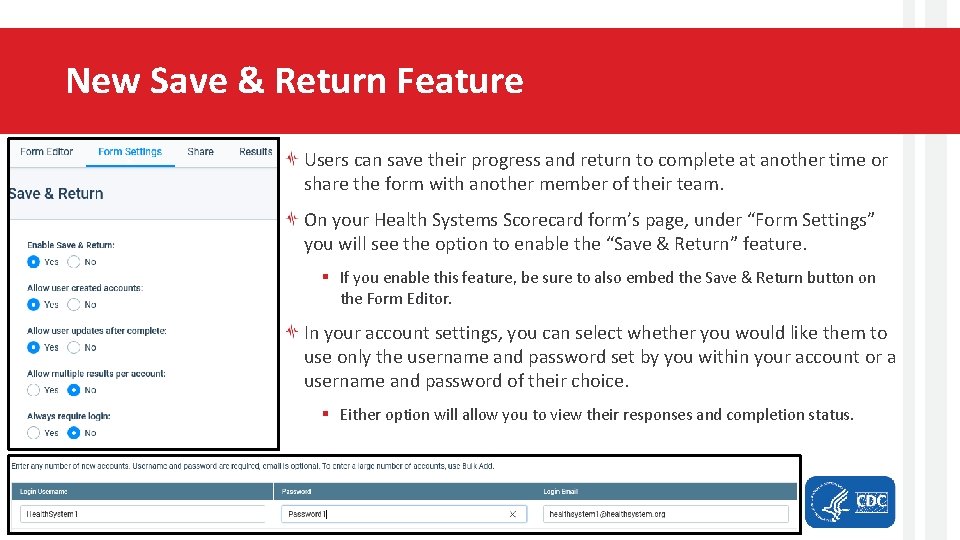
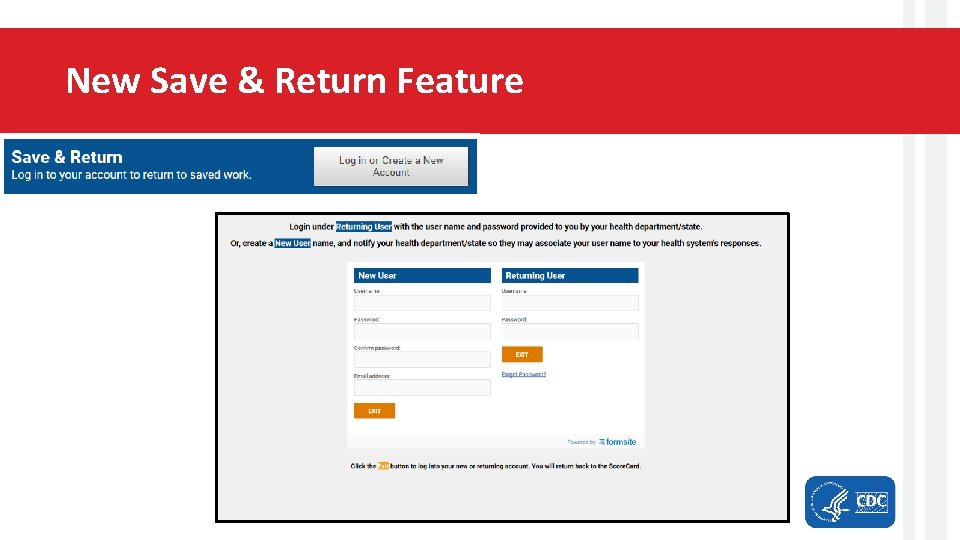
New Save & Return Feature Users can save their progress and return to complete at another time or share the form with another member of their team. On your Health Systems Scorecard form’s page, under “Form Settings” you will see the option to enable the “Save & Return” feature. § If you enable this feature, be sure to also embed the Save & Return button on the Form Editor. In your account settings, you can select whether you would like them to use only the username and password set by you within your account or a username and password of their choice. § Either option will allow you to view their responses and completion status.
New Save & Return Feature
E-Version Demonstration
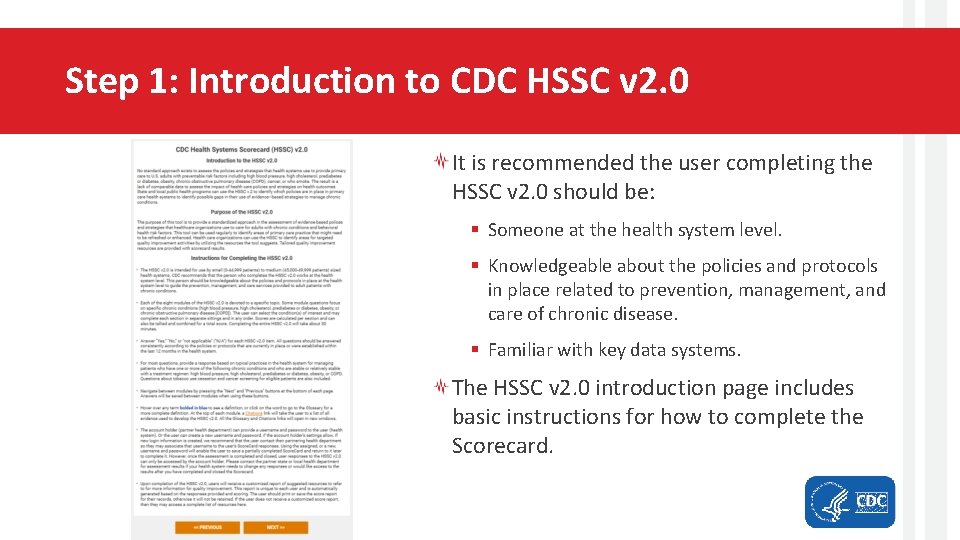
Step 1: Introduction to CDC HSSC v 2. 0 It is recommended the user completing the HSSC v 2. 0 should be: § Someone at the health system level. § Knowledgeable about the policies and protocols in place related to prevention, management, and care of chronic disease. § Familiar with key data systems. The HSSC v 2. 0 introduction page includes basic instructions for how to complete the Scorecard.
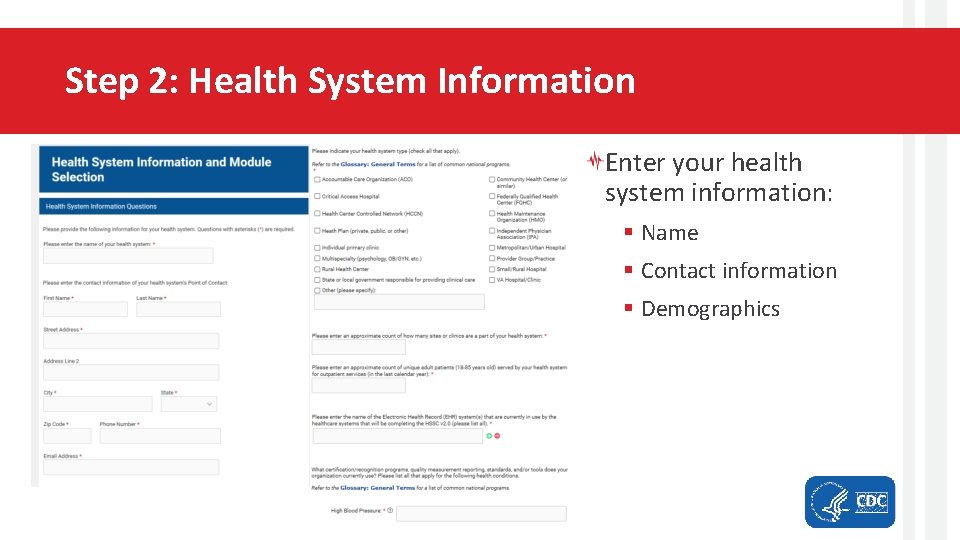
Step 2: Health System Information Enter your health system information: § Name § Contact information § Demographics
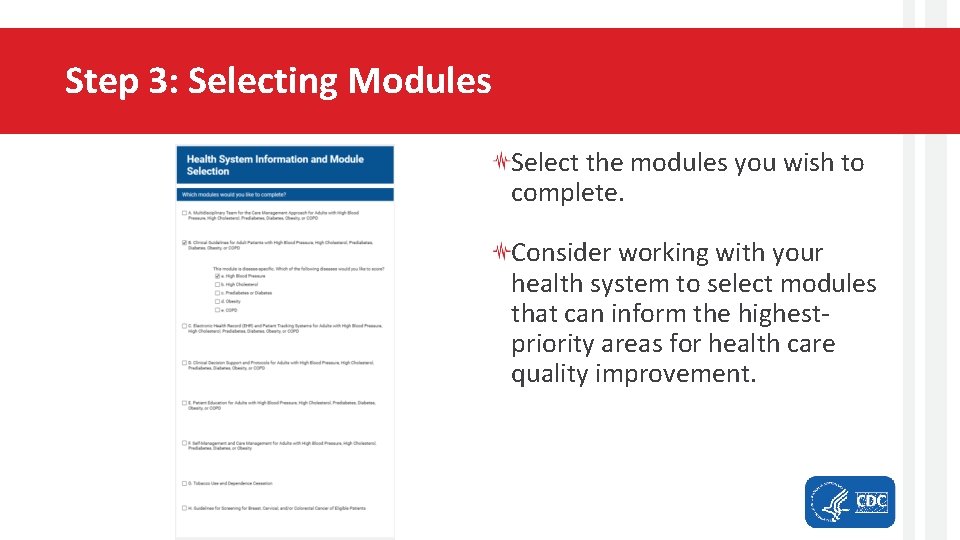
Step 3: Selecting Modules Select the modules you wish to complete. Consider working with your health system to select modules that can inform the highestpriority areas for health care quality improvement.
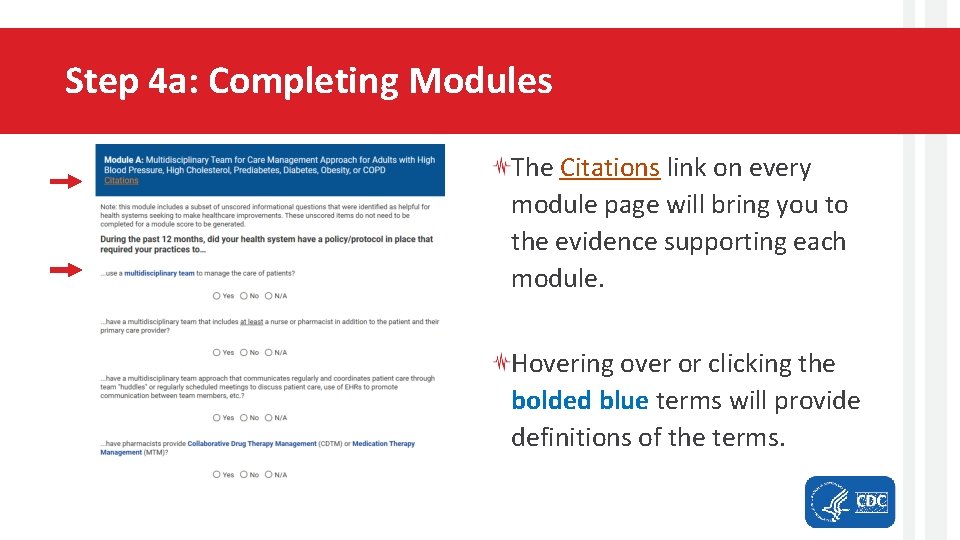
Step 4 a: Completing Modules The Citations link on every module page will bring you to the evidence supporting each module. Hovering over or clicking the bolded blue terms will provide definitions of the terms.
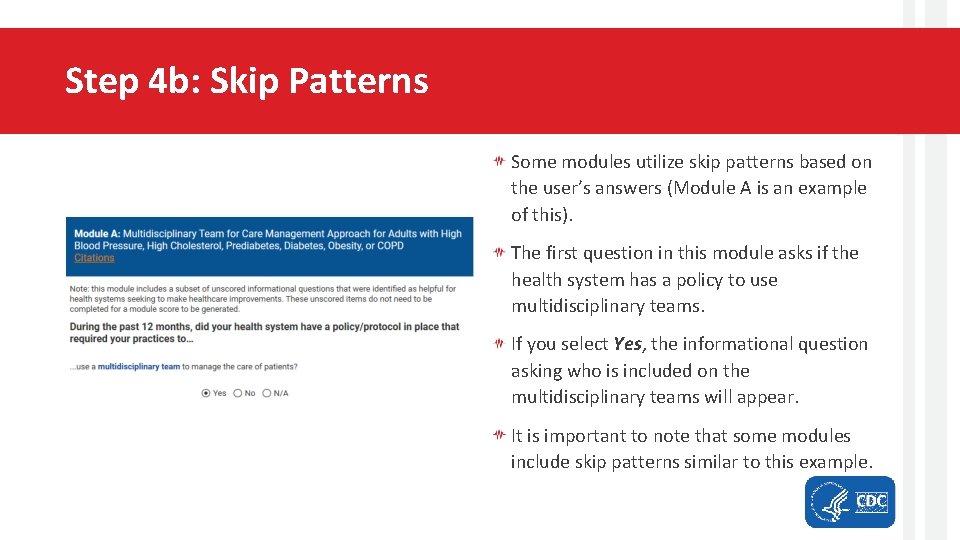
Step 4 b: Skip Patterns Some modules utilize skip patterns based on the user’s answers (Module A is an example of this). The first question in this module asks if the health system has a policy to use multidisciplinary teams. If you select Yes, the informational question asking who is included on the multidisciplinary teams will appear. It is important to note that some modules include skip patterns similar to this example.
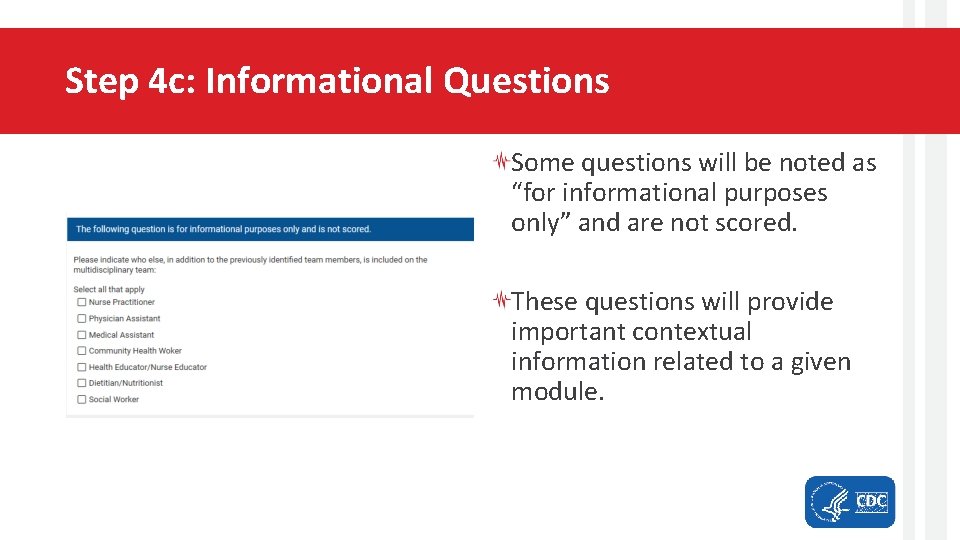
Step 4 c: Informational Questions Some questions will be noted as “for informational purposes only” and are not scored. These questions will provide important contextual information related to a given module.
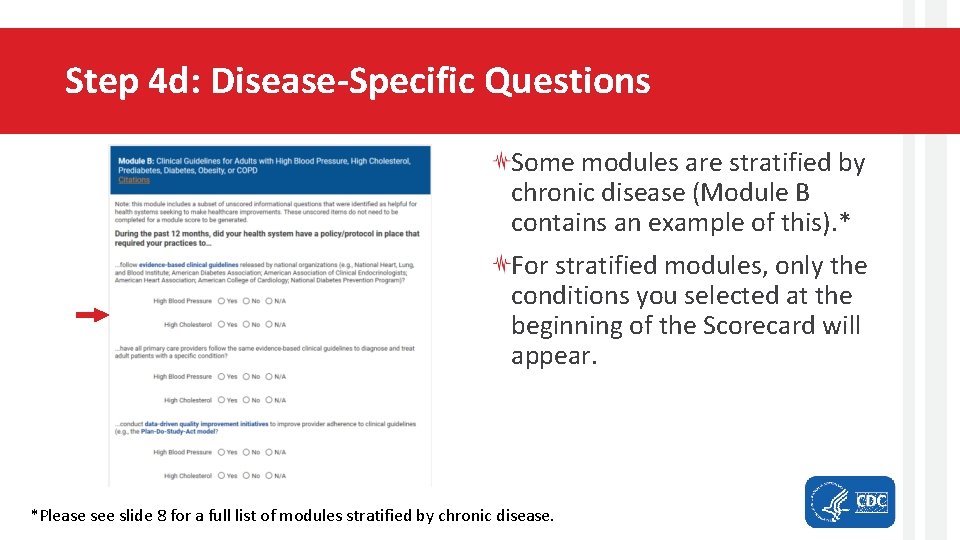
Step 4 d: Disease-Specific Questions Some modules are stratified by chronic disease (Module B contains an example of this). * For stratified modules, only the conditions you selected at the beginning of the Scorecard will appear. *Please see slide 8 for a full list of modules stratified by chronic disease.
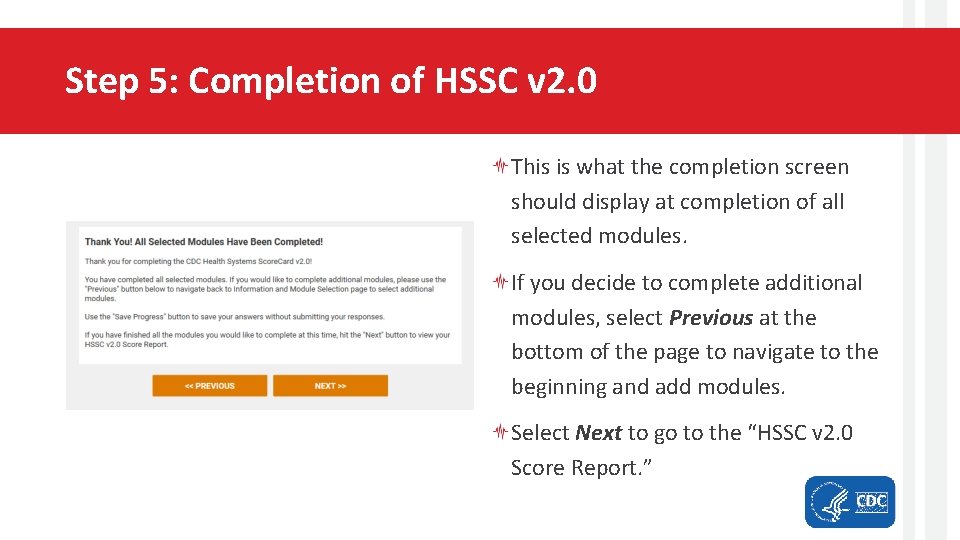
Step 5: Completion of HSSC v 2. 0 This is what the completion screen should display at completion of all selected modules. If you decide to complete additional modules, select Previous at the bottom of the page to navigate to the beginning and add modules. Select Next to go to the “HSSC v 2. 0 Score Report. ”
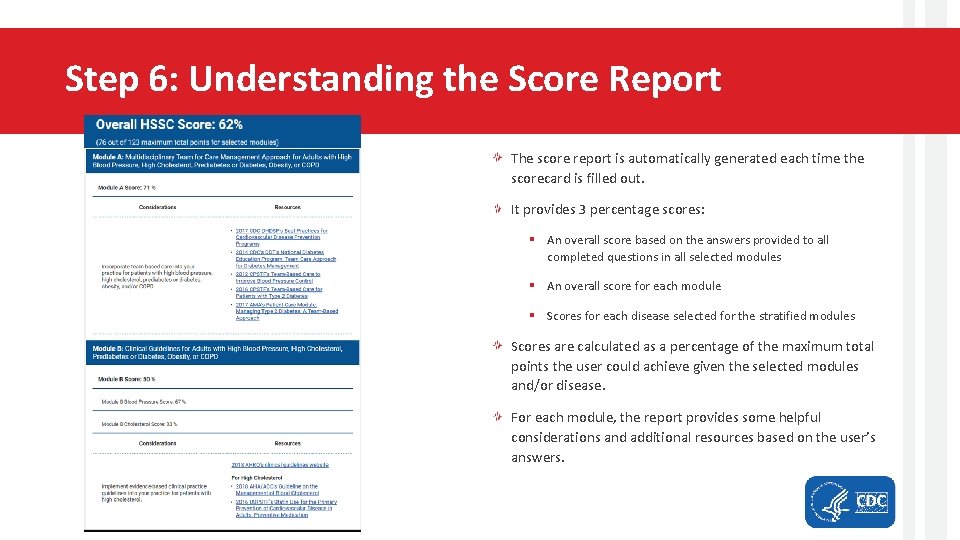
Step 6: Understanding the Score Report The score report is automatically generated each time the scorecard is filled out. It provides 3 percentage scores: § An overall score based on the answers provided to all completed questions in all selected modules § An overall score for each module § Scores for each disease selected for the stratified modules Scores are calculated as a percentage of the maximum total points the user could achieve given the selected modules and/or disease. For each module, the report provides some helpful considerations and additional resources based on the user’s answers.
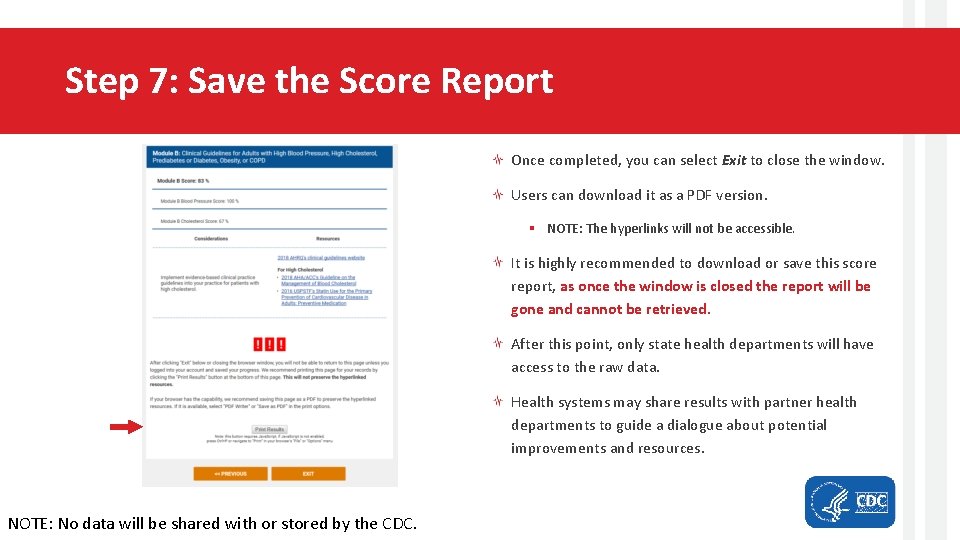
Step 7: Save the Score Report Once completed, you can select Exit to close the window. Users can download it as a PDF version. § NOTE: The hyperlinks will not be accessible. It is highly recommended to download or save this score report, as once the window is closed the report will be gone and cannot be retrieved. After this point, only state health departments will have access to the raw data. Health systems may share results with partner health departments to guide a dialogue about potential improvements and resources. NOTE: No data will be shared with or stored by the CDC.
Managing HSSC v 2. 0 Data in Formsite® All data will be collected in the form of a Results table in your Formsite® account. § Under the user My Forms, hover your mouse over the HSSC v 2. 0 and Select Results. § The data will be exported to an Excel file. The Results per form limit associated with your account level refers to the number of results data in this table. Once this limit is reached, HSSC v 2. 0 will no longer be usable until data are removed/exported or the account level is changed to increase the limit. Each row of data in the table corresponds to one entry of the HSSC v 2. 0 through your unique HSSC v 2. 0 link. It contains the answers selected by the user and the scores calculated from those answers.
Managing HSSC v 2. 0 Data in Formsite® (continued) To export data to Excel: § Select Export located on the right side of the results page. § Under Results format, choose Summary. § Under Data delimiter, choose whether you would like the file to be in a standard Excel file or a CSV file. § Under Results View, select Detailed Results from the drop down menu. § Click Export at the bottom of the page to download the results file.
Future Steps We recommend that health systems complete the HSSC v 2. 0 periodically to reprioritize health care quality improvement efforts. For more information regarding the HSSC v 2. 0 detailed instructions and the implication of results, please visit https: //www. cdc. gov/dhdsp/evaluation_resources/guides/index. htm.
Thank you! Questions? Discussion… For more information, contact: hssc@cdc. gov