
Introduction to Texas DPS UCR Summary Reporting System

- Slides: 66
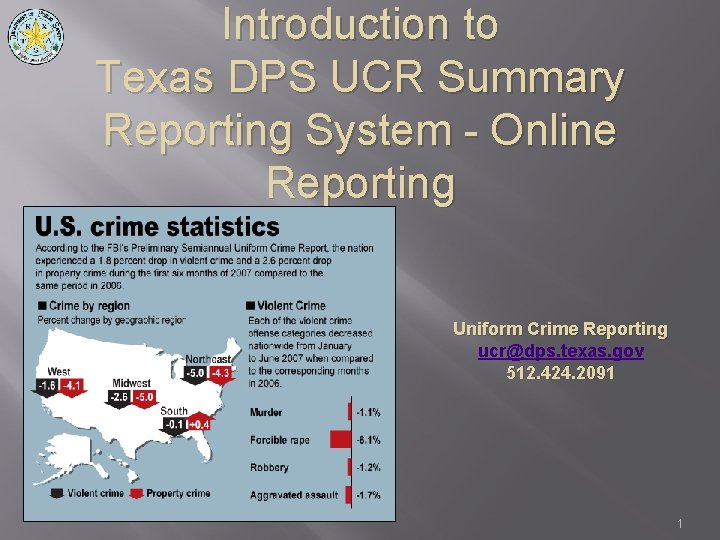
Introduction to Texas DPS UCR Summary Reporting System - Online Reporting Uniform Crime Reporting ucr@dps. texas. gov 512. 424. 2091 1
Why On Line Reporting • If you can do the paper reports, you can do online reporting! • DPS stops accepting paper reports beginning in 2018 • The FBI will retire SRS 2021. Texas has established the goal for NIBRS transition for 2019 • Be a hero; save time, paper and postage - ask for raise! 2
Gaining Access • Contact DPS UCR Section • Have the following information ready • Agency Name / ORI Number, Mailing and Physical Address, County, Phone Number, User’s official email address • Border County - Agency (Y/N) • MIP (Most in Population - >100 K population 3
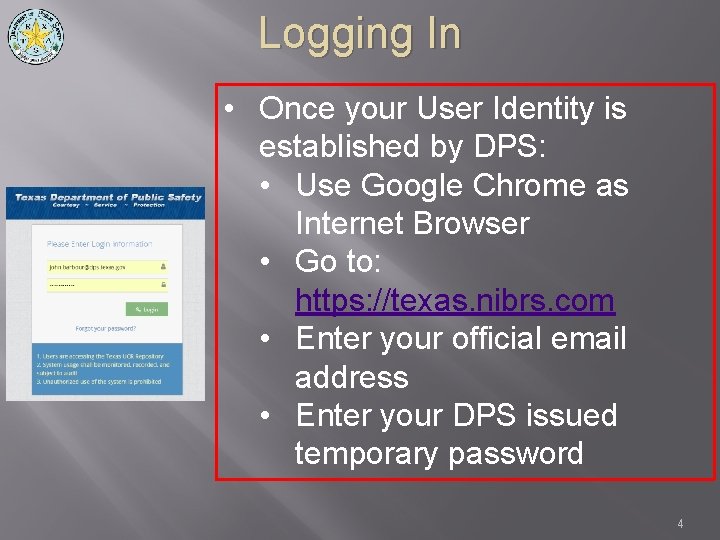
Logging In • Once your User Identity is established by DPS: • Use Google Chrome as Internet Browser • Go to: https: //texas. nibrs. com • Enter your official email address • Enter your DPS issued temporary password 4
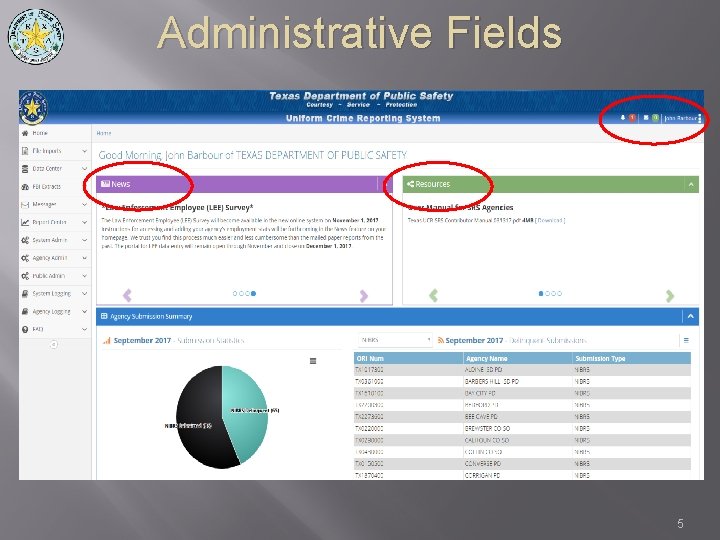
Administrative Fields 5
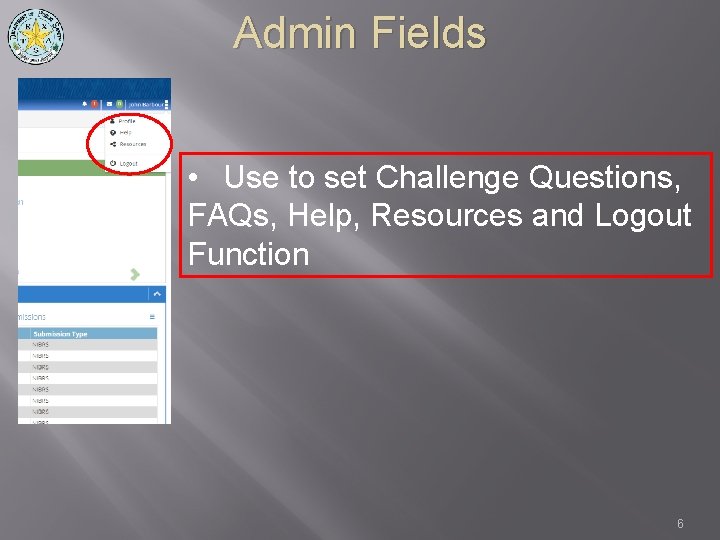
Admin Fields • Use to set Challenge Questions, FAQs, Help, Resources and Logout Function 6
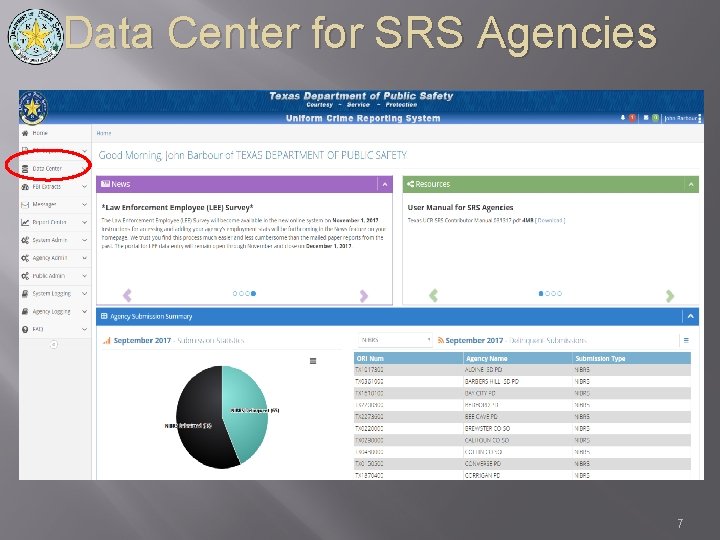
Data Center for SRS Agencies 7
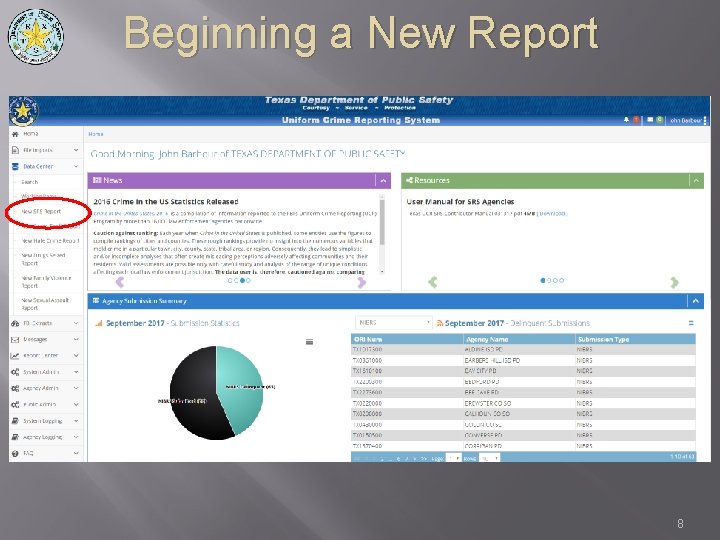
Beginning a New Report 8
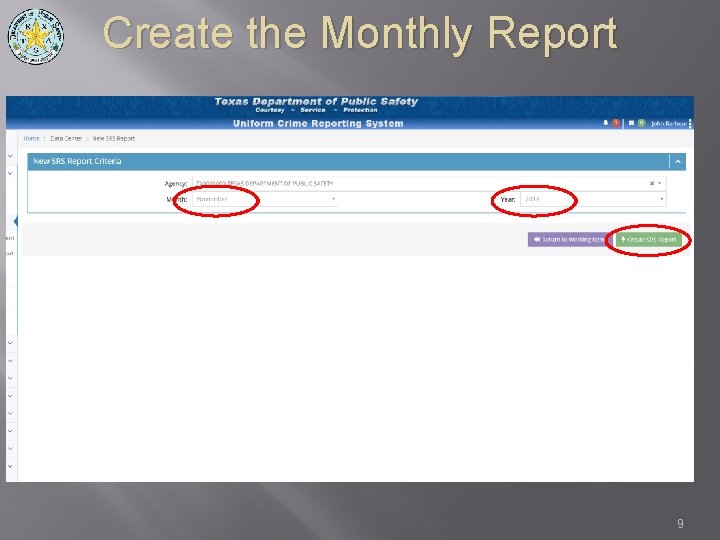
Create the Monthly Report 9
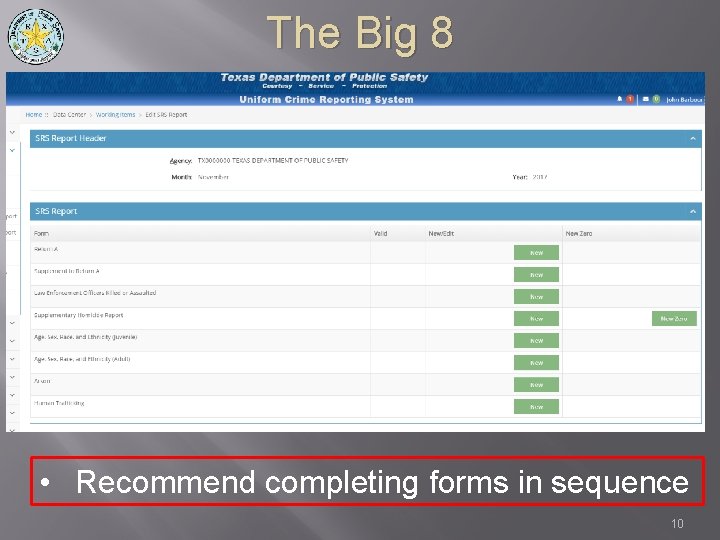
The Big 8 • Recommend completing forms in sequence 10
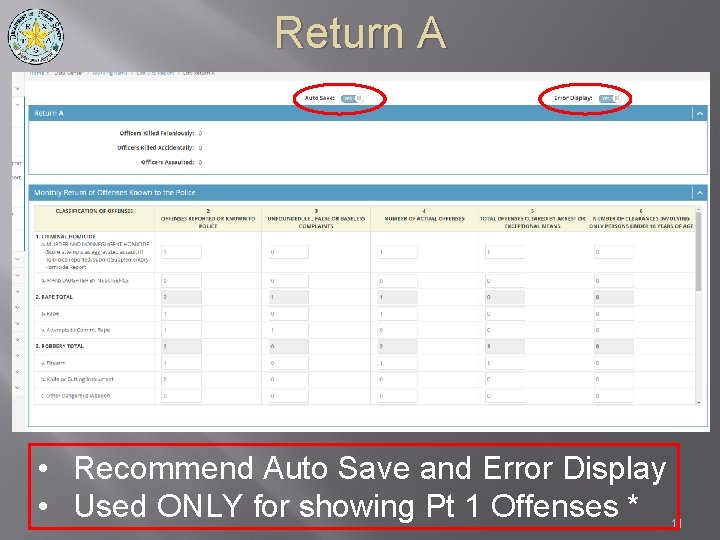
Return A • Recommend Auto Save and Error Display • Used ONLY for showing Pt 1 Offenses * 11
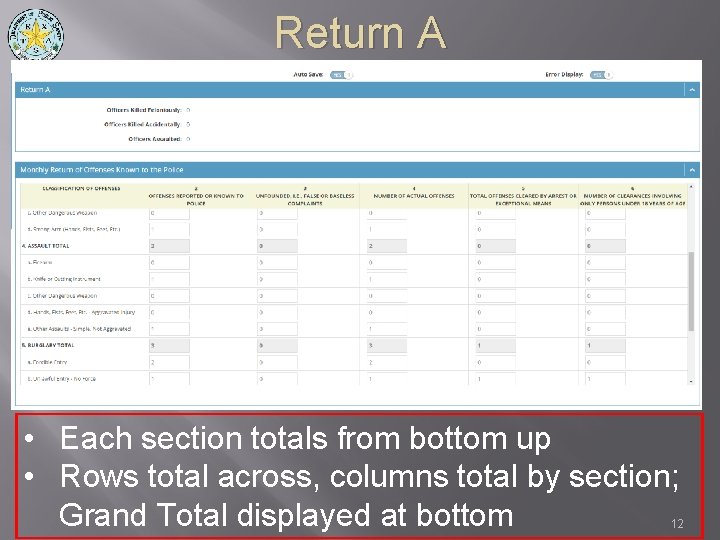
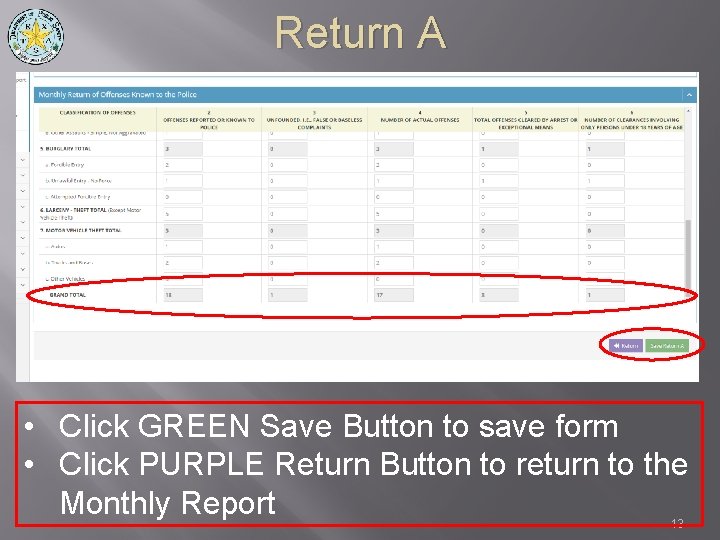
Return A • Each section totals from bottom up • Rows total across, columns total by section; Grand Total displayed at bottom 12
Return A • Click GREEN Save Button to save form • Click PURPLE Return Button to return to the Monthly Report 13
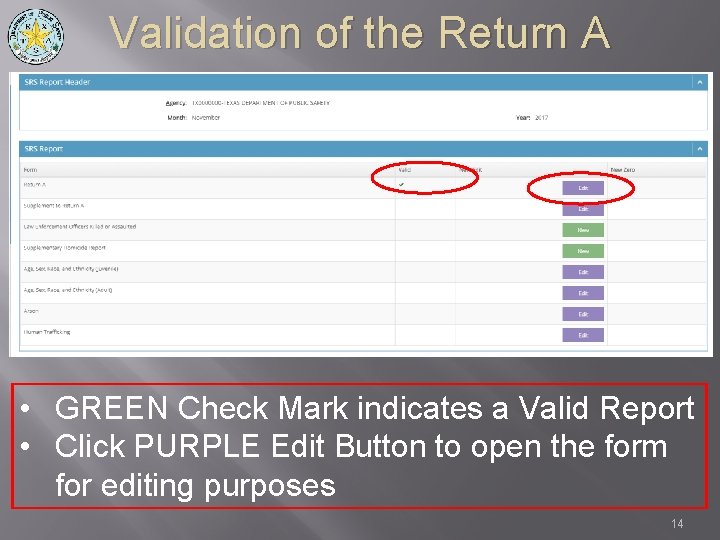
Validation of the Return A • GREEN Check Mark indicates a Valid Report • Click PURPLE Edit Button to open the form for editing purposes 14
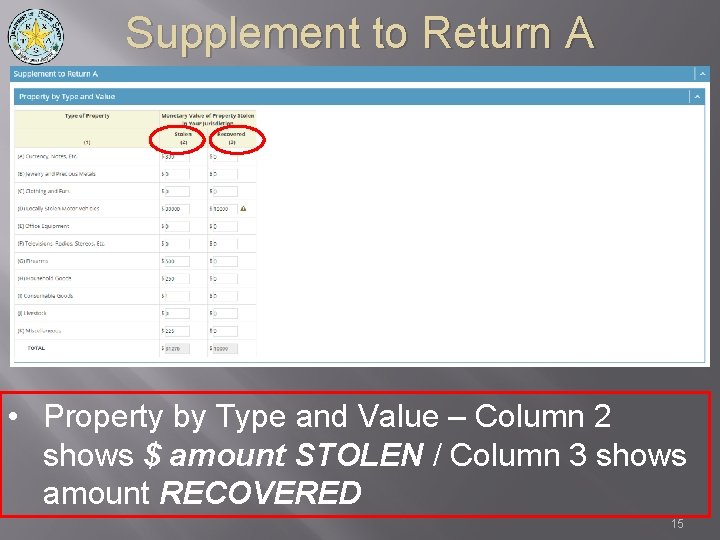
Supplement to Return A • Property by Type and Value – Column 2 shows $ amount STOLEN / Column 3 shows amount RECOVERED 15
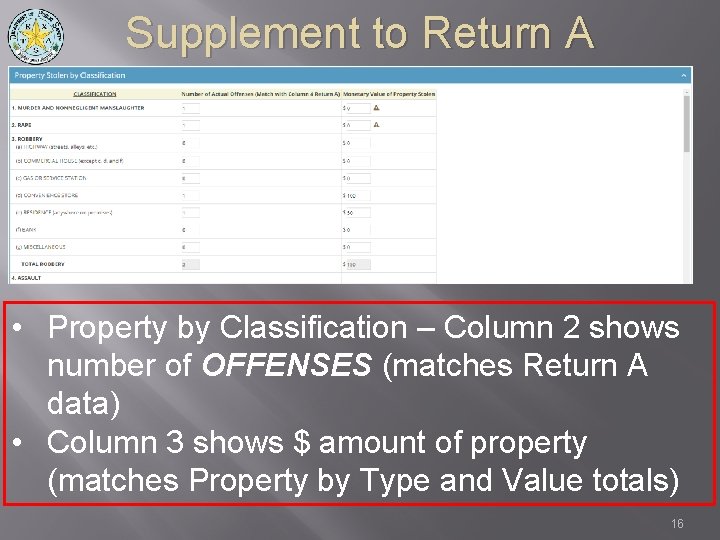
Supplement to Return A • Property by Classification – Column 2 shows number of OFFENSES (matches Return A data) • Column 3 shows $ amount of property (matches Property by Type and Value totals) 16
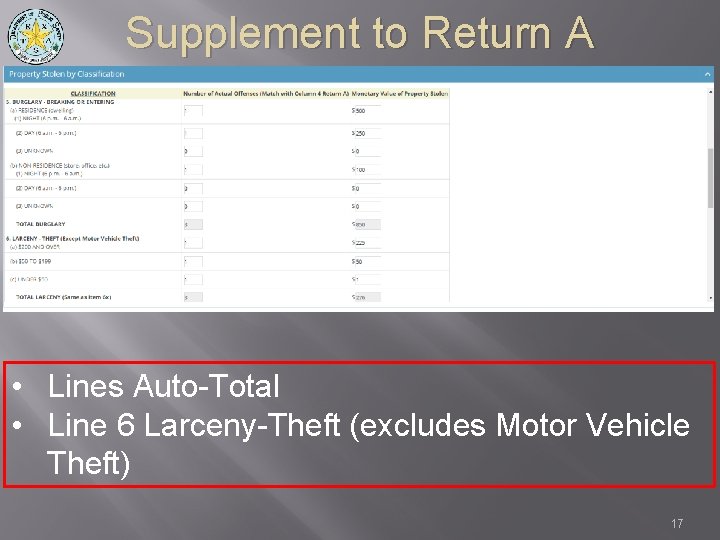
Supplement to Return A • Lines Auto-Total • Line 6 Larceny-Theft (excludes Motor Vehicle Theft) 17
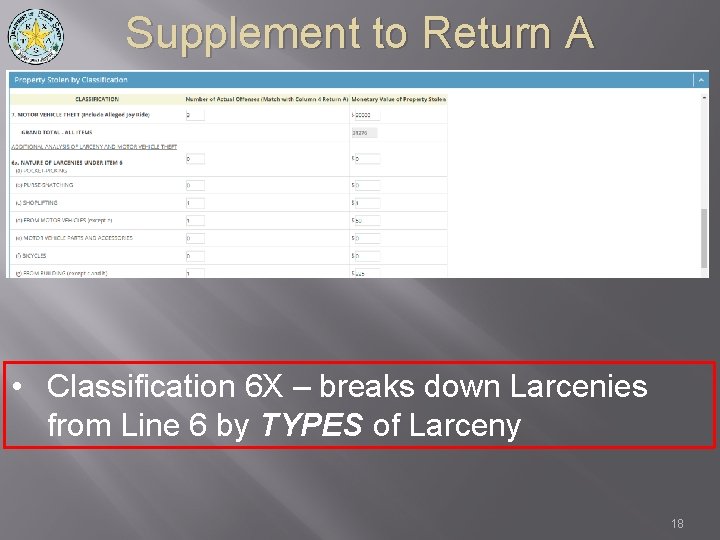
Supplement to Return A • Classification 6 X – breaks down Larcenies from Line 6 by TYPES of Larceny 18
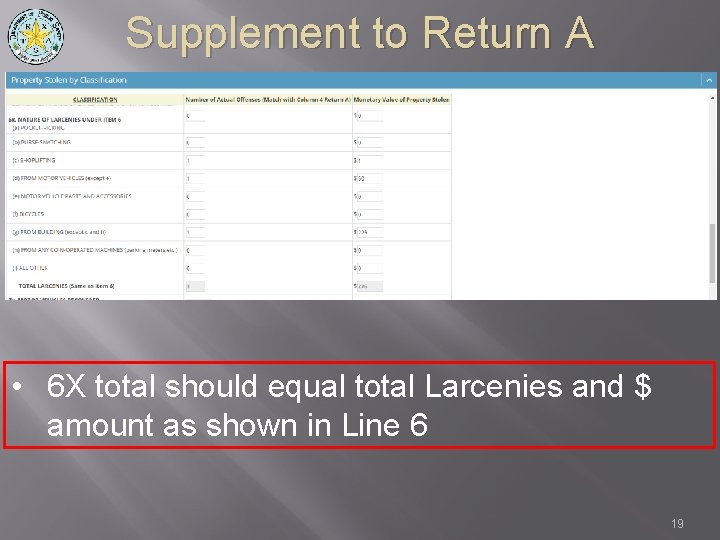
Supplement to Return A • 6 X total should equal total Larcenies and $ amount as shown in Line 6 19
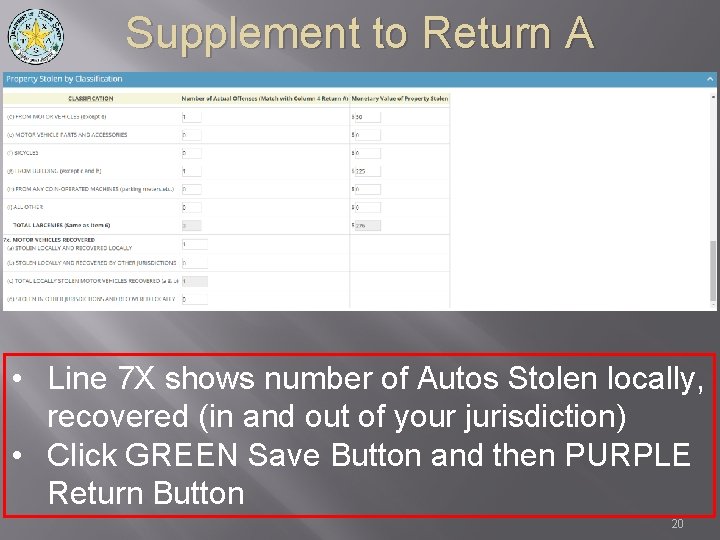
Supplement to Return A • Line 7 X shows number of Autos Stolen locally, recovered (in and out of your jurisdiction) • Click GREEN Save Button and then PURPLE Return Button 20
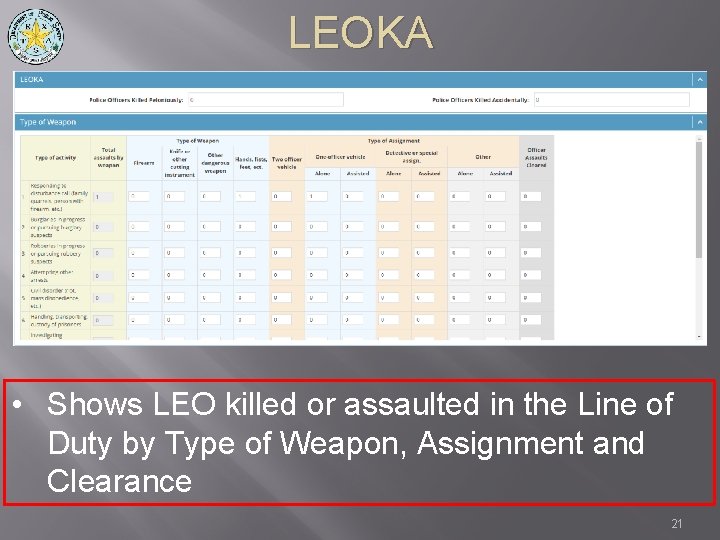
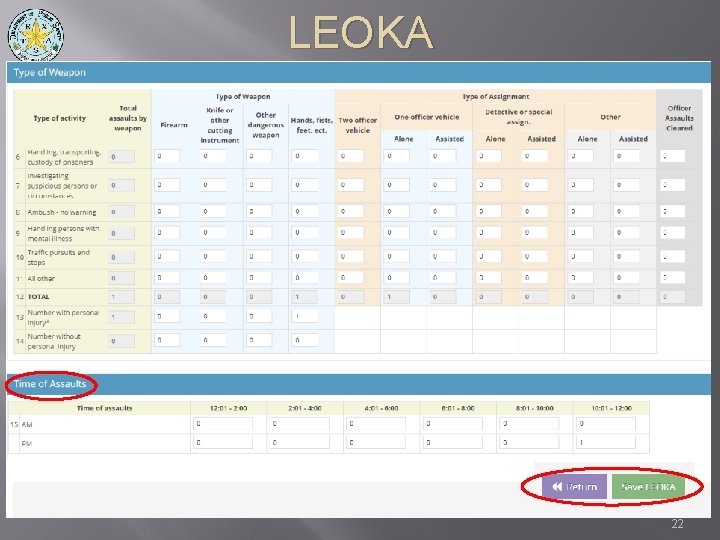
LEOKA • Shows LEO killed or assaulted in the Line of Duty by Type of Weapon, Assignment and Clearance 21
LEOKA 22
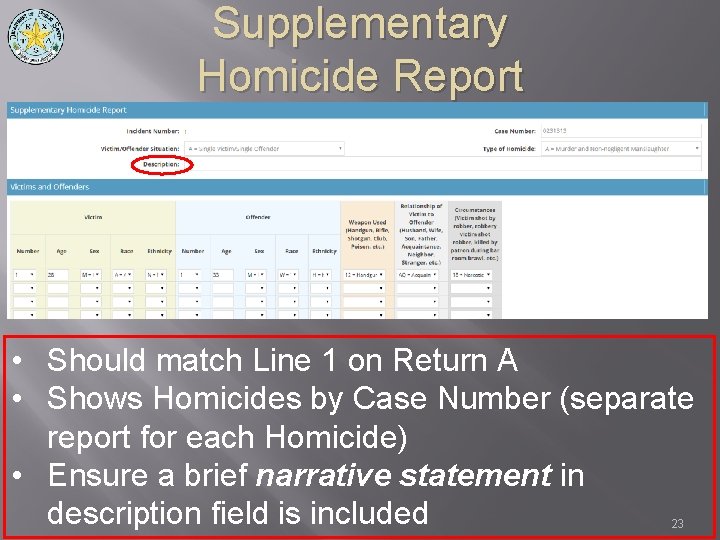
Supplementary Homicide Report • Should match Line 1 on Return A • Shows Homicides by Case Number (separate report for each Homicide) • Ensure a brief narrative statement in description field is included 23
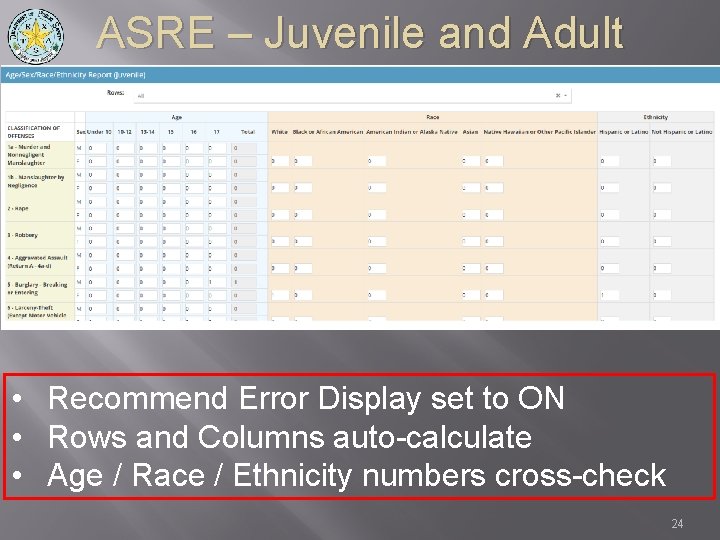
ASRE – Juvenile and Adult • Recommend Error Display set to ON • Rows and Columns auto-calculate • Age / Race / Ethnicity numbers cross-check 24
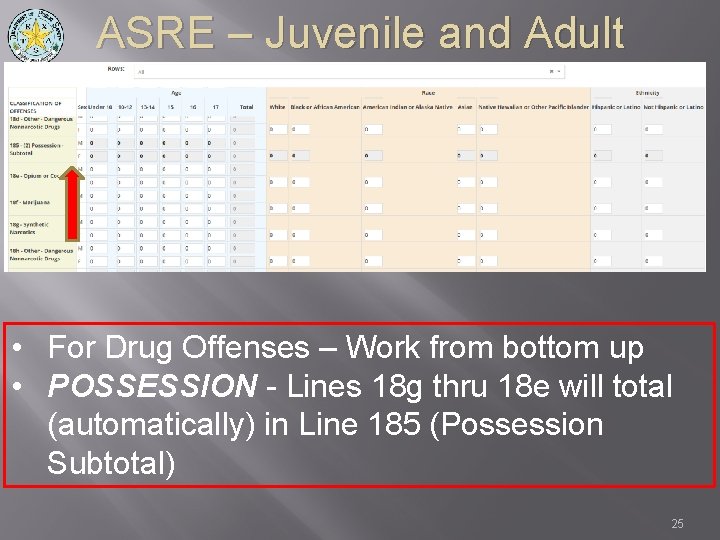
ASRE – Juvenile and Adult • For Drug Offenses – Work from bottom up • POSSESSION - Lines 18 g thru 18 e will total (automatically) in Line 185 (Possession Subtotal) 25
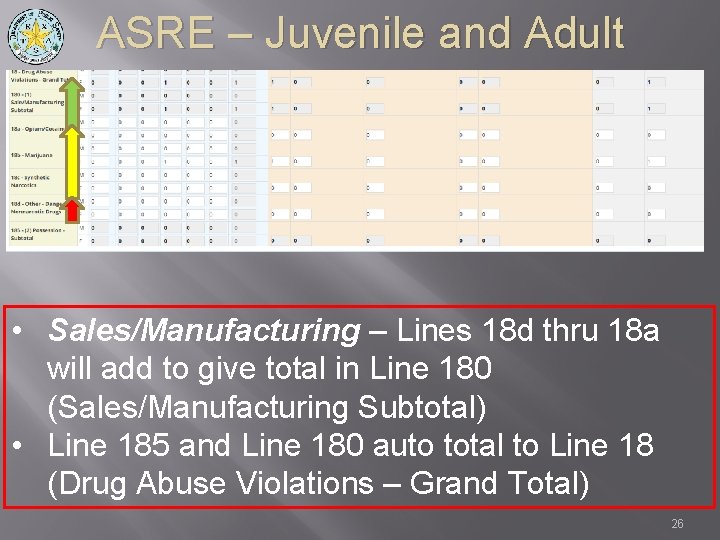
ASRE – Juvenile and Adult • Sales/Manufacturing – Lines 18 d thru 18 a will add to give total in Line 180 (Sales/Manufacturing Subtotal) • Line 185 and Line 180 auto total to Line 18 (Drug Abuse Violations – Grand Total) 26
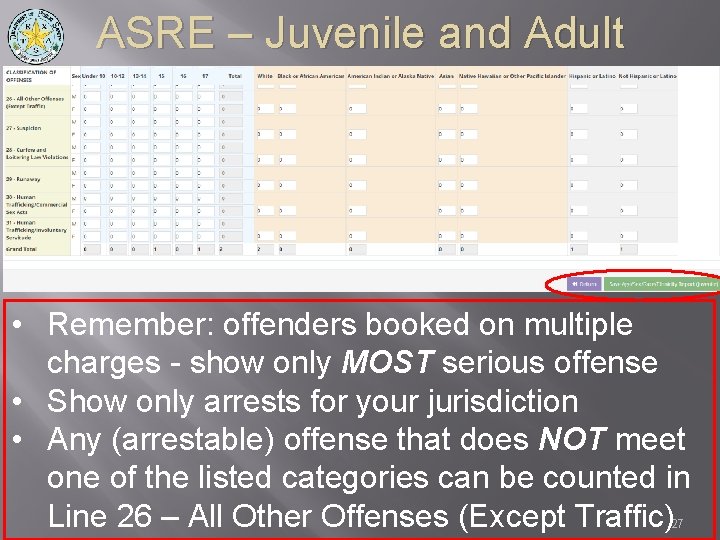
ASRE – Juvenile and Adult • Remember: offenders booked on multiple charges - show only MOST serious offense • Show only arrests for your jurisdiction • Any (arrestable) offense that does NOT meet one of the listed categories can be counted in Line 26 – All Other Offenses (Except Traffic) 27
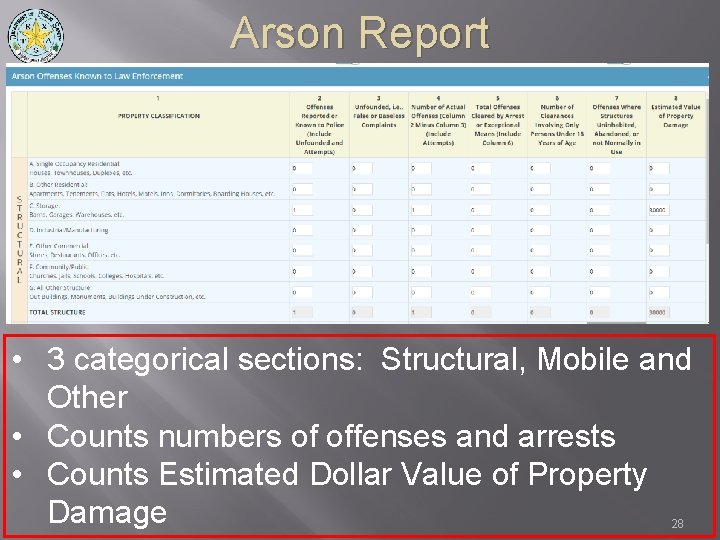
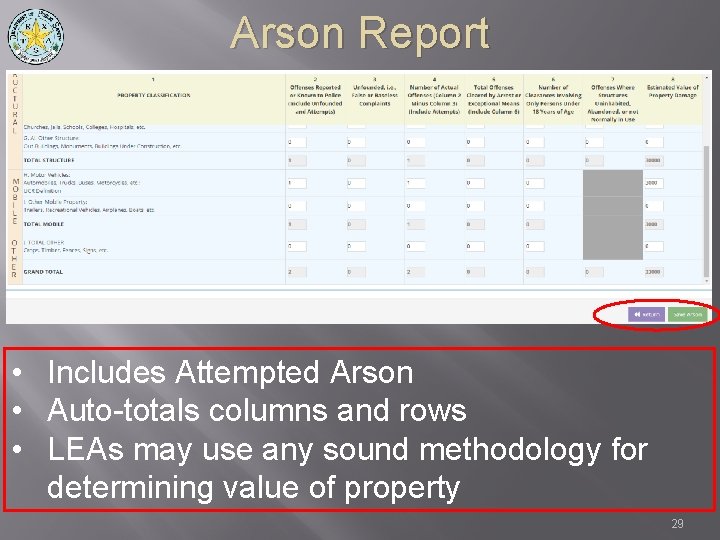
Arson Report • 3 categorical sections: Structural, Mobile and Other • Counts numbers of offenses and arrests • Counts Estimated Dollar Value of Property Damage 28
Arson Report • Includes Attempted Arson • Auto-totals columns and rows • LEAs may use any sound methodology for determining value of property 29
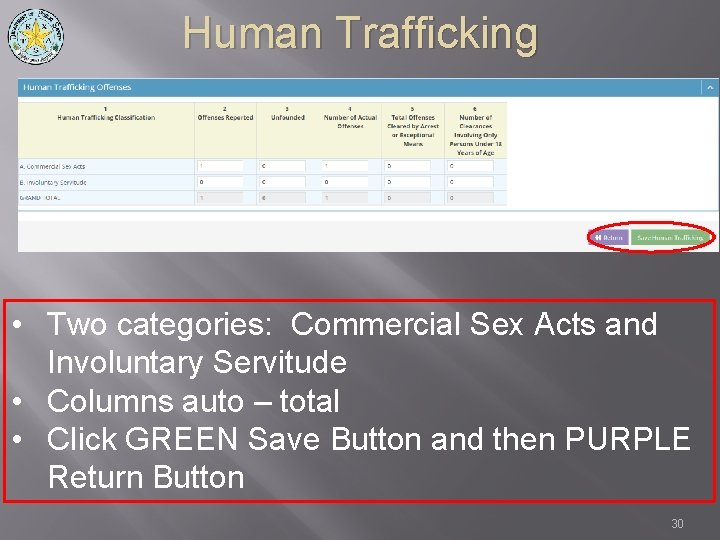
Human Trafficking • Two categories: Commercial Sex Acts and Involuntary Servitude • Columns auto – total • Click GREEN Save Button and then PURPLE Return Button 30
Submit the SRS Report • GREEN checkmarks – click PURPLE Submit Data Button 31
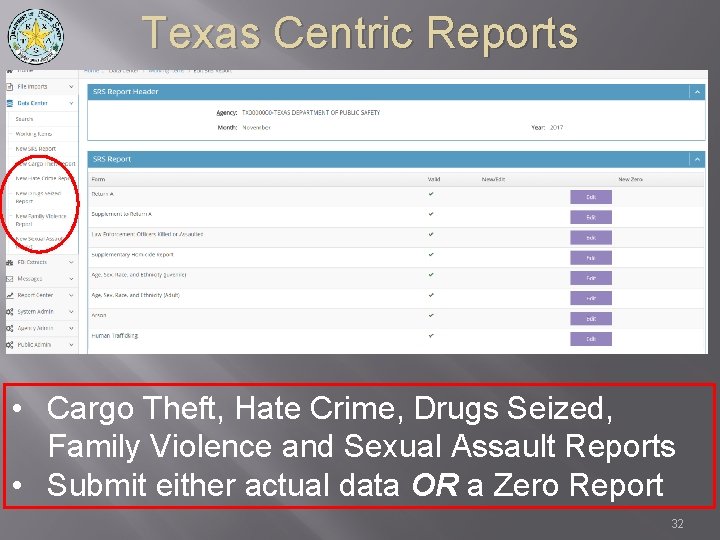
Texas Centric Reports • Cargo Theft, Hate Crime, Drugs Seized, Family Violence and Sexual Assault Reports • Submit either actual data OR a Zero Report 32
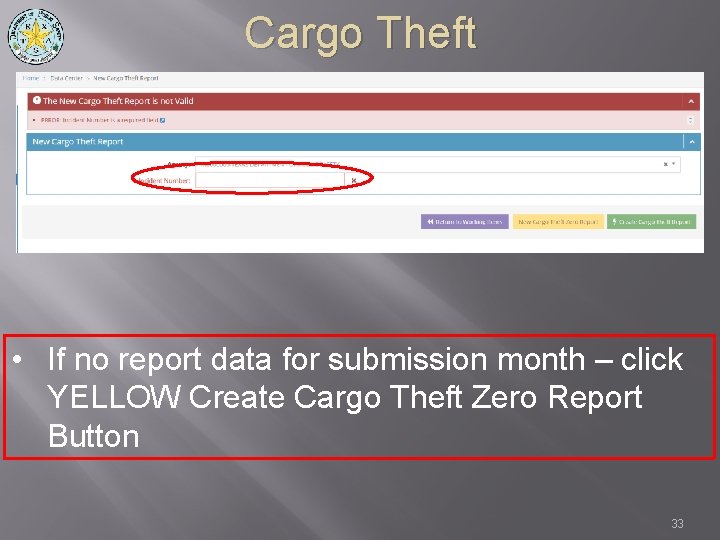
Cargo Theft • If no report data for submission month – click YELLOW Create Cargo Theft Zero Report Button 33
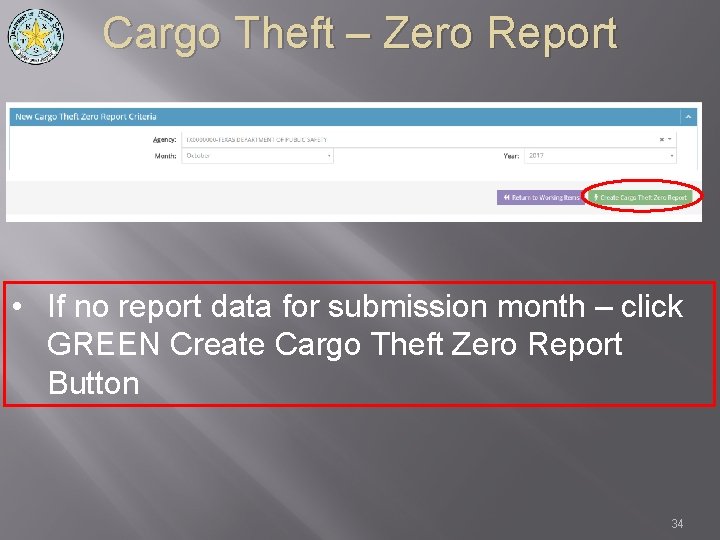
Cargo Theft – Zero Report • If no report data for submission month – click GREEN Create Cargo Theft Zero Report Button 34
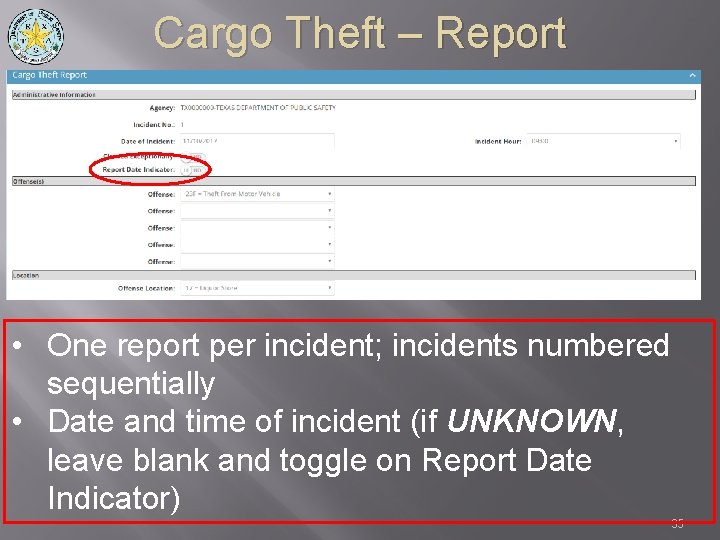
Cargo Theft – Report • One report per incident; incidents numbered sequentially • Date and time of incident (if UNKNOWN, leave blank and toggle on Report Date Indicator) 35
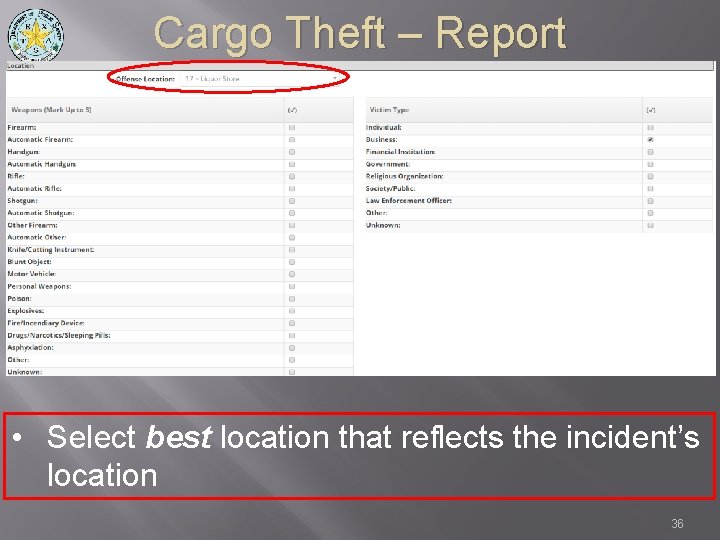
Cargo Theft – Report • Select best location that reflects the incident’s location 36
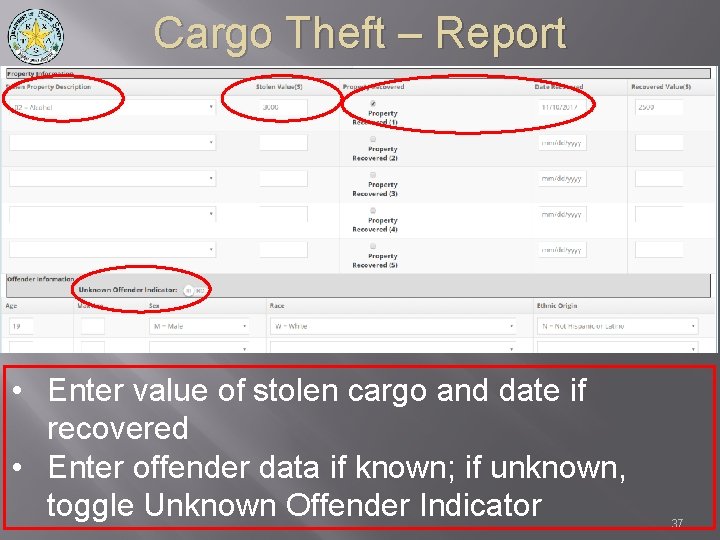
Cargo Theft – Report • Enter value of stolen cargo and date if recovered • Enter offender data if known; if unknown, toggle Unknown Offender Indicator 37
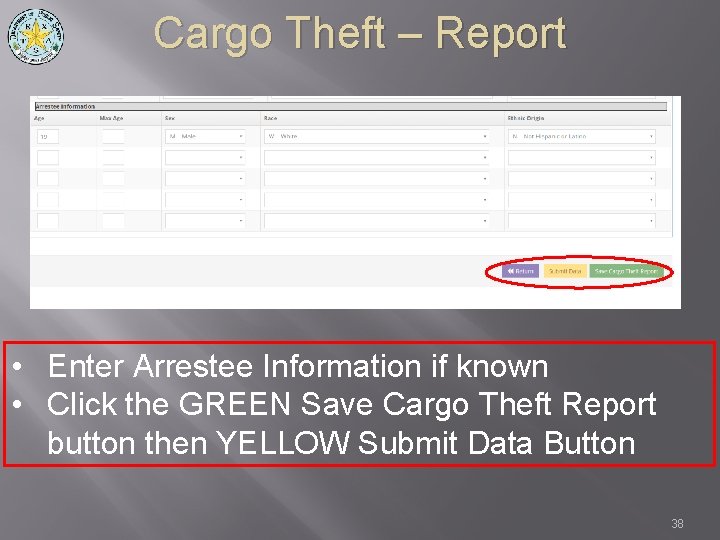
Cargo Theft – Report • Enter Arrestee Information if known • Click the GREEN Save Cargo Theft Report button then YELLOW Submit Data Button 38
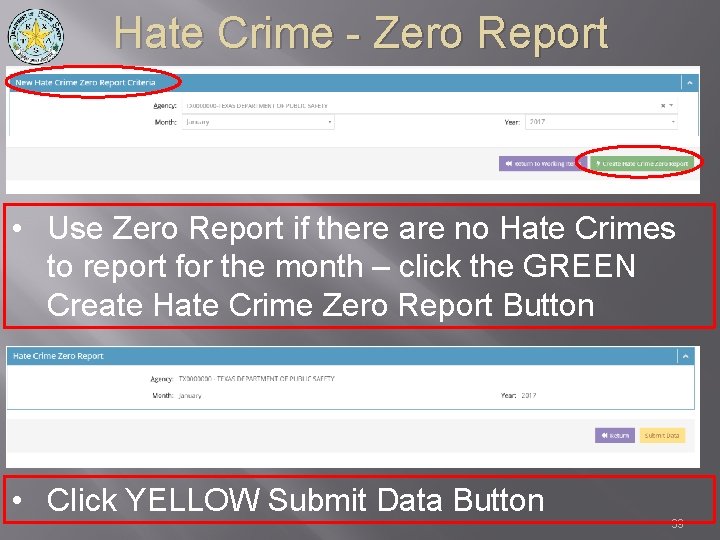
Hate Crime - Zero Report • Use Zero Report if there are no Hate Crimes to report for the month – click the GREEN Create Hate Crime Zero Report Button • Click YELLOW Submit Data Button 39
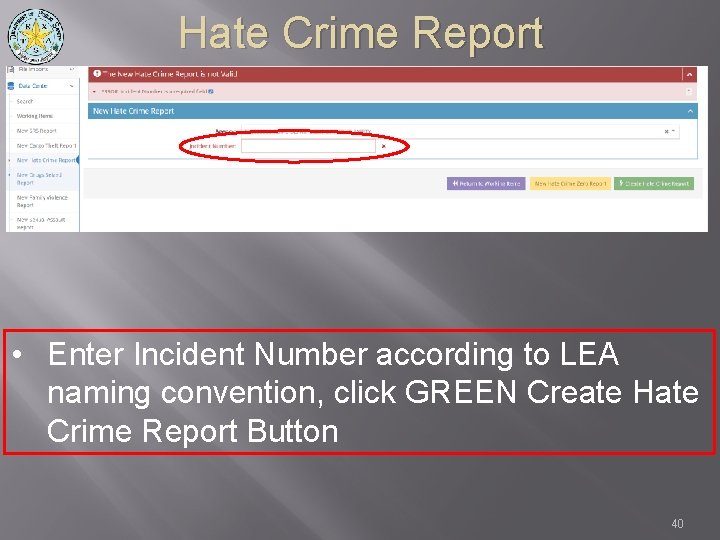
Hate Crime Report • Enter Incident Number according to LEA naming convention, click GREEN Create Hate Crime Report Button 40
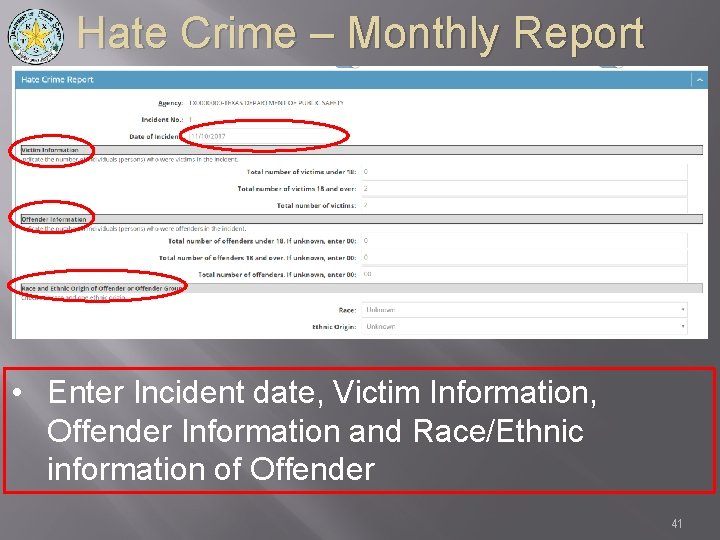
Hate Crime – Monthly Report • Enter Incident date, Victim Information, Offender Information and Race/Ethnic information of Offender 41
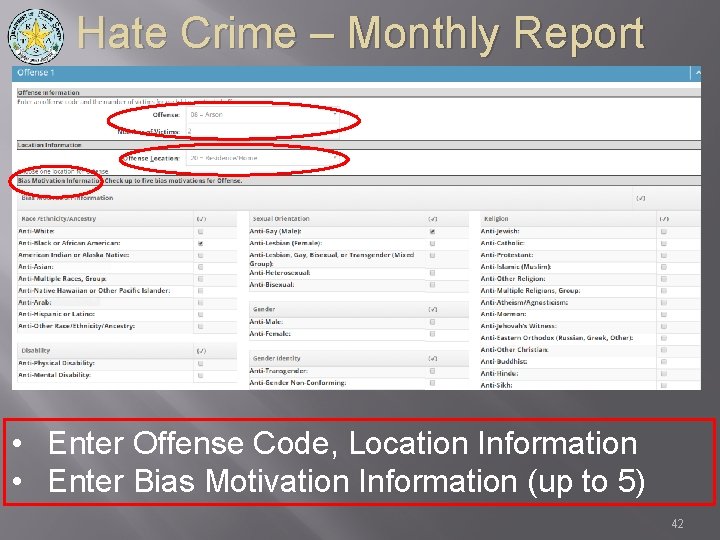
Hate Crime – Monthly Report • Enter Offense Code, Location Information • Enter Bias Motivation Information (up to 5) 42
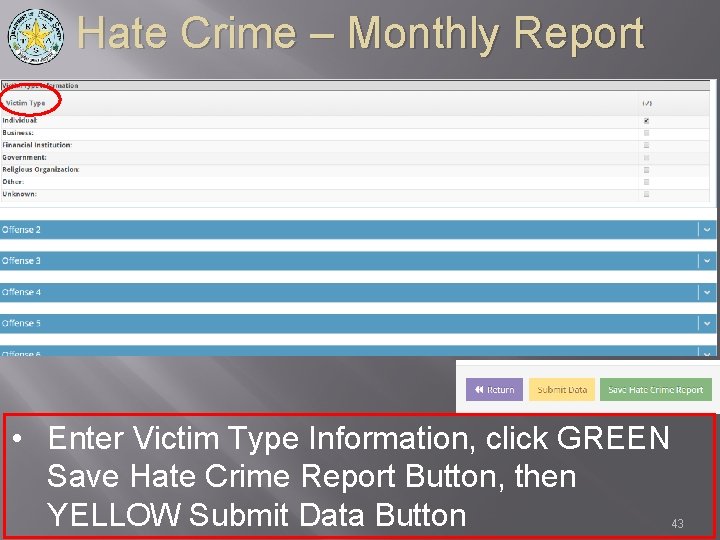
Hate Crime – Monthly Report • Enter Victim Type Information, click GREEN Save Hate Crime Report Button, then YELLOW Submit Data Button 43
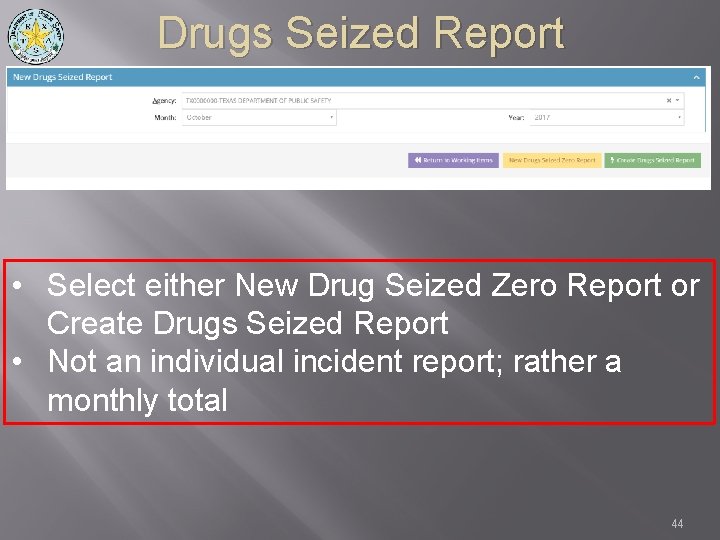
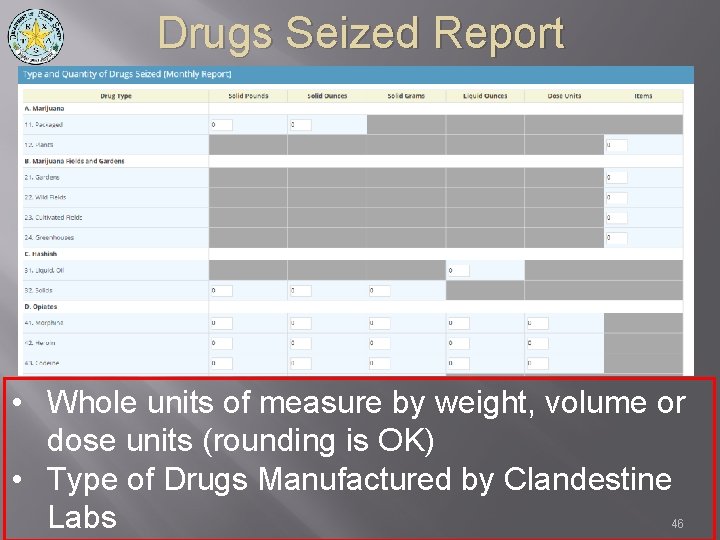
Drugs Seized Report • Select either New Drug Seized Zero Report or Create Drugs Seized Report • Not an individual incident report; rather a monthly total 44
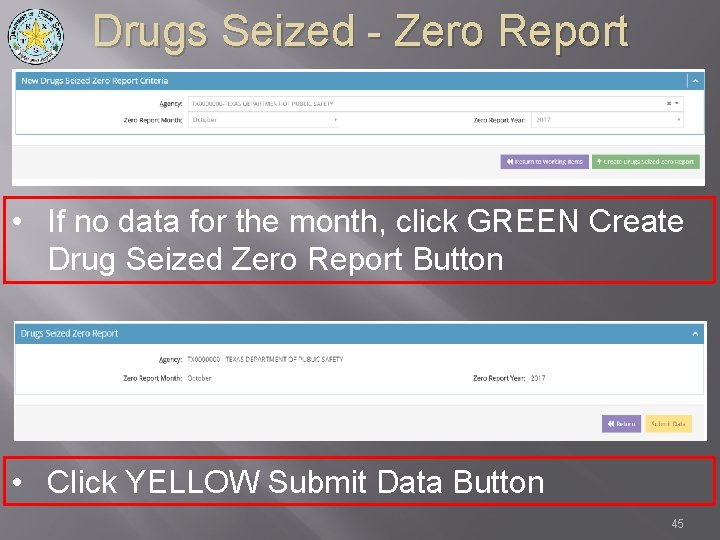
Drugs Seized - Zero Report • If no data for the month, click GREEN Create Drug Seized Zero Report Button • Click YELLOW Submit Data Button 45
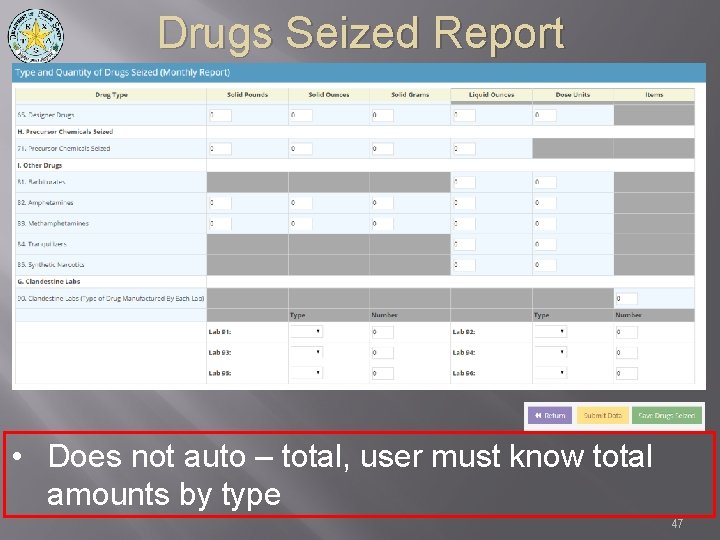
Drugs Seized Report • Whole units of measure by weight, volume or dose units (rounding is OK) • Type of Drugs Manufactured by Clandestine Labs 46
Drugs Seized Report • Does not auto – total, user must know total amounts by type 47
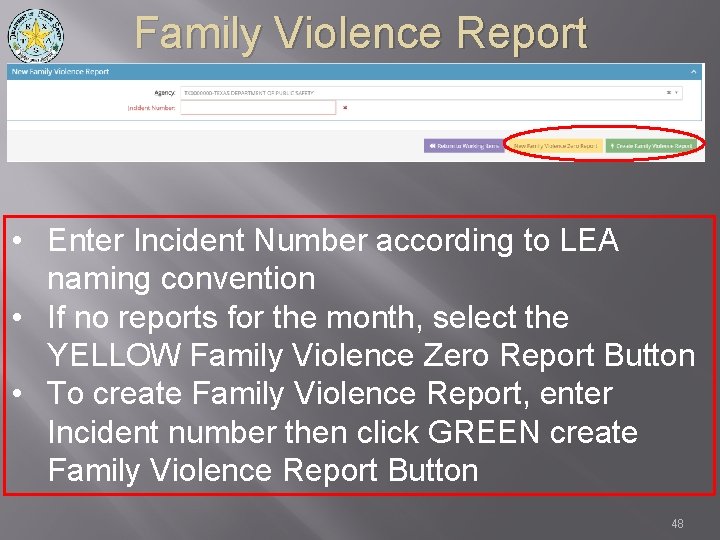
Family Violence Report • Enter Incident Number according to LEA naming convention • If no reports for the month, select the YELLOW Family Violence Zero Report Button • To create Family Violence Report, enter Incident number then click GREEN create Family Violence Report Button 48
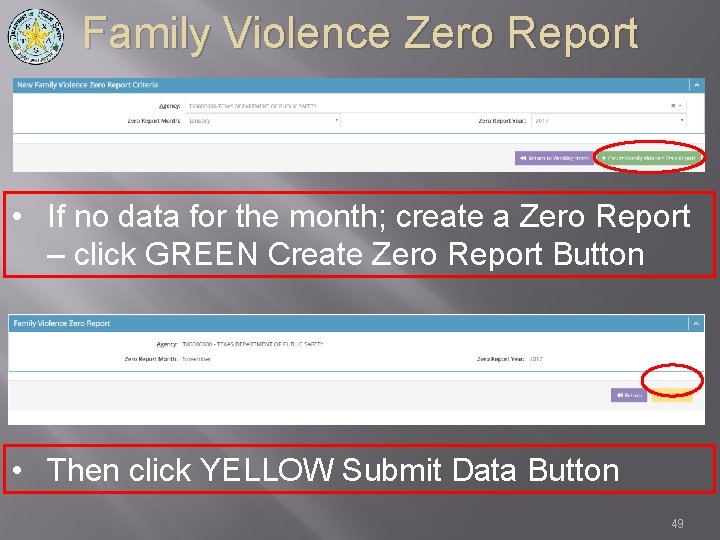
Family Violence Zero Report • If no data for the month; create a Zero Report – click GREEN Create Zero Report Button • Then click YELLOW Submit Data Button 49
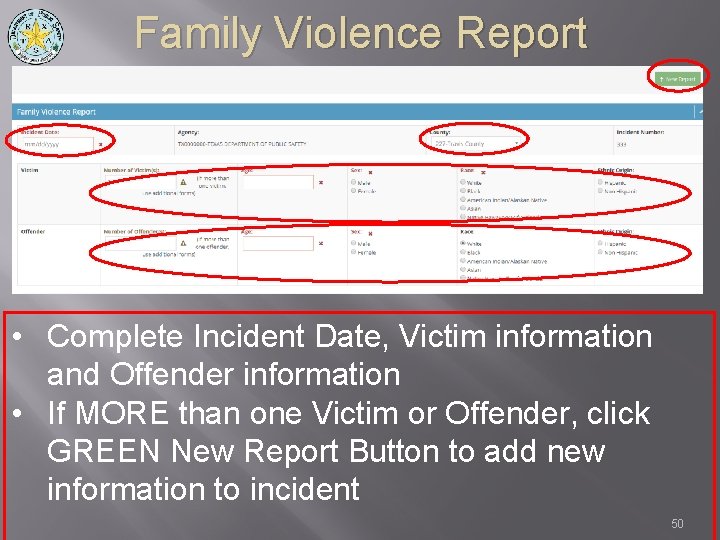
Family Violence Report • Complete Incident Date, Victim information and Offender information • If MORE than one Victim or Offender, click GREEN New Report Button to add new information to incident 50
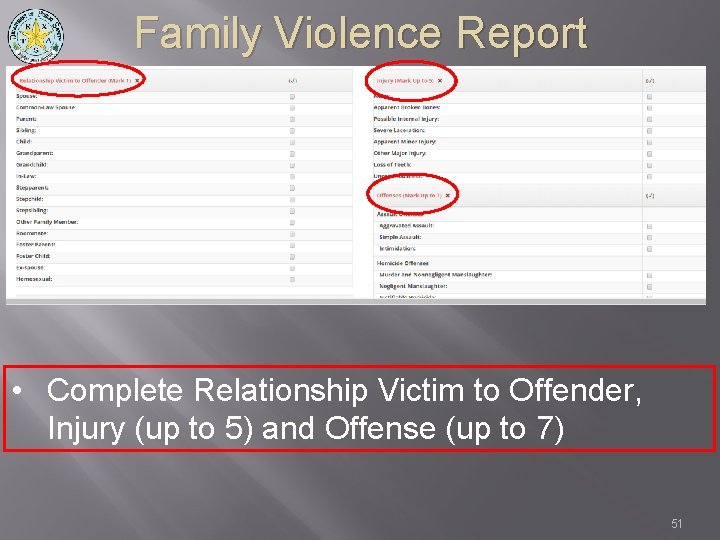
Family Violence Report • Complete Relationship Victim to Offender, Injury (up to 5) and Offense (up to 7) 51
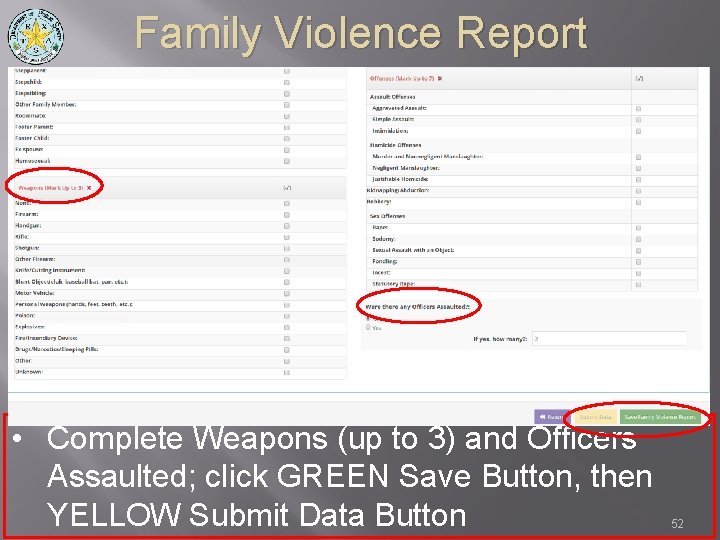
Family Violence Report • Complete Weapons (up to 3) and Officers Assaulted; click GREEN Save Button, then YELLOW Submit Data Button 52
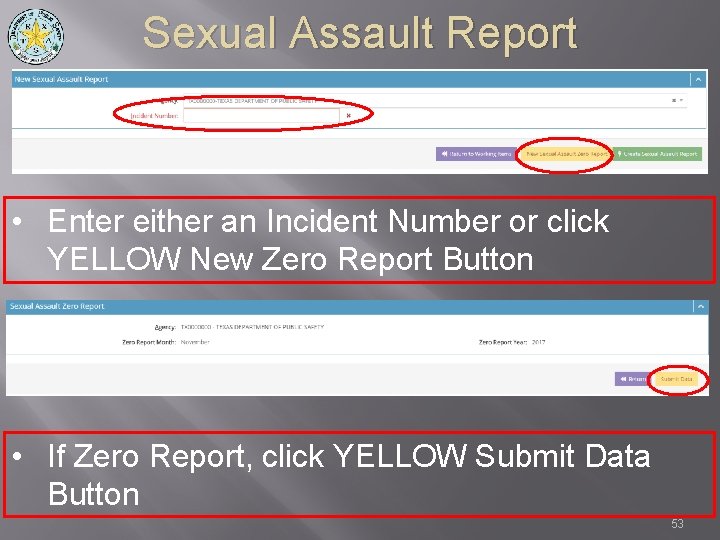
Sexual Assault Report • Enter either an Incident Number or click YELLOW New Zero Report Button • If Zero Report, click YELLOW Submit Data Button 53
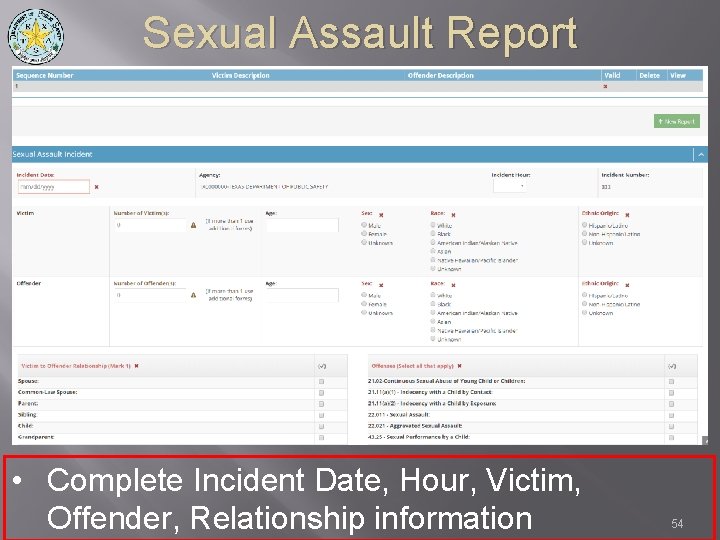
Sexual Assault Report • Complete Incident Date, Hour, Victim, Offender, Relationship information 54
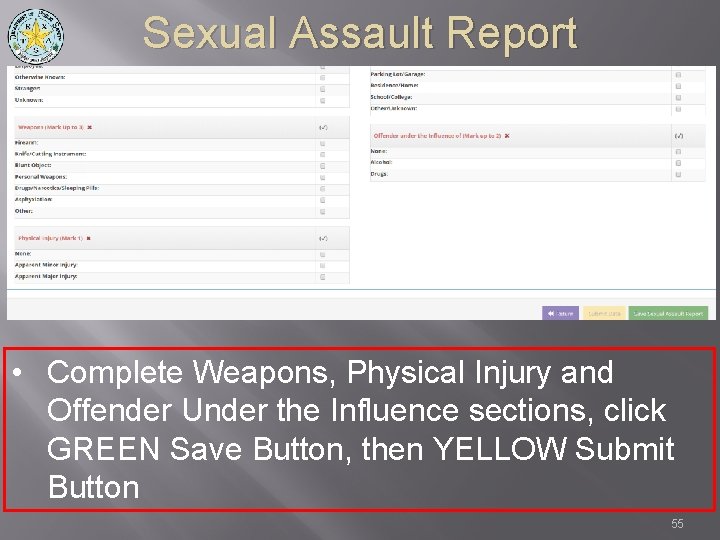
Sexual Assault Report • Complete Weapons, Physical Injury and Offender Under the Influence sections, click GREEN Save Button, then YELLOW Submit Button 55
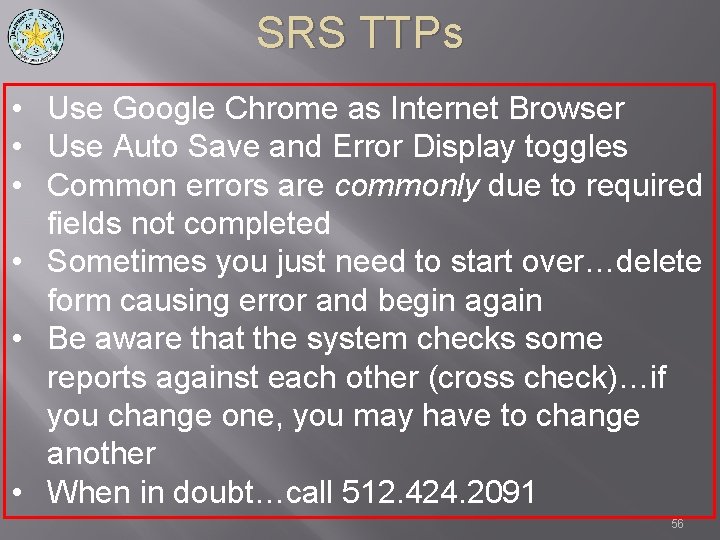
SRS TTPs • Use Google Chrome as Internet Browser • Use Auto Save and Error Display toggles • Common errors are commonly due to required fields not completed • Sometimes you just need to start over…delete form causing error and begin again • Be aware that the system checks some reports against each other (cross check)…if you change one, you may have to change another • When in doubt…call 512. 424. 2091 56
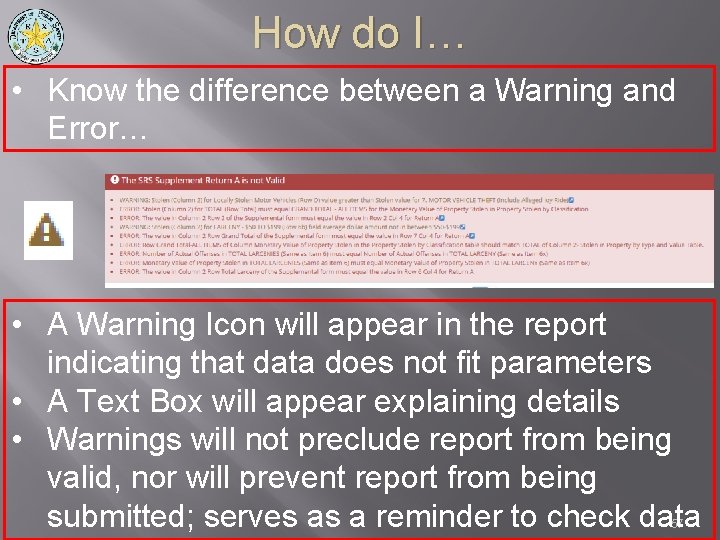
How do I… • Know the difference between a Warning and Error… • A Warning Icon will appear in the report indicating that data does not fit parameters • A Text Box will appear explaining details • Warnings will not preclude report from being valid, nor will prevent report from being submitted; serves as a reminder to check data 57
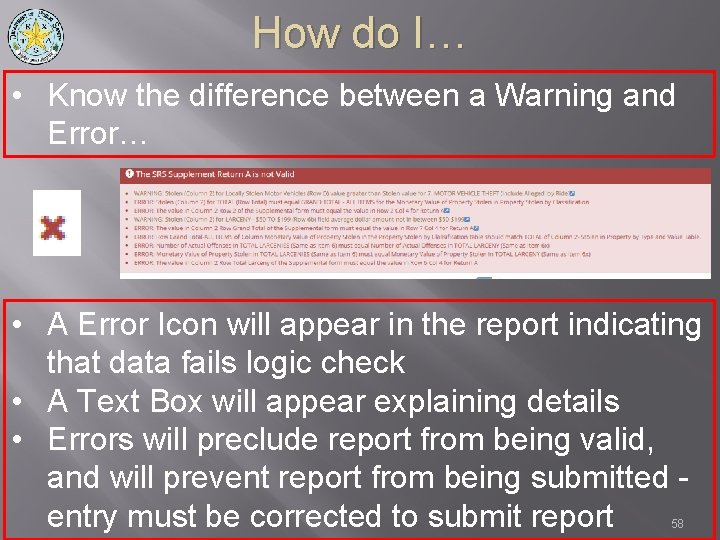
How do I… • Know the difference between a Warning and Error… • A Error Icon will appear in the report indicating that data fails logic check • A Text Box will appear explaining details • Errors will preclude report from being valid, and will prevent report from being submitted entry must be corrected to submit report 58
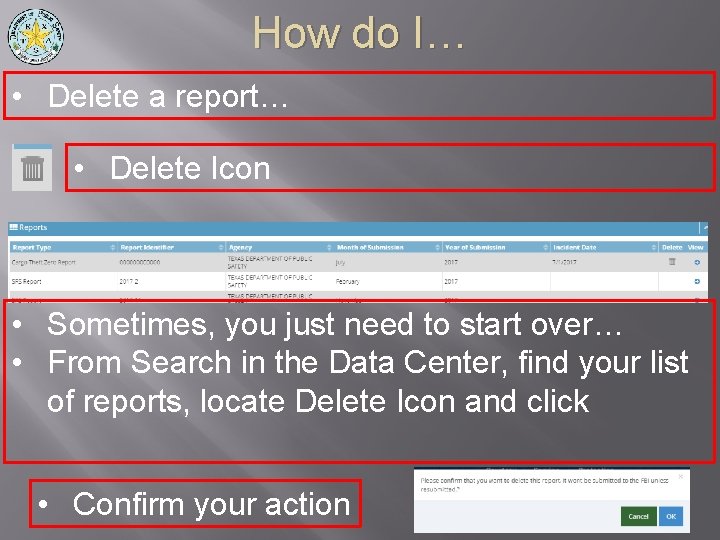
How do I… • Delete a report… • Delete Icon • Sometimes, you just need to start over… • From Search in the Data Center, find your list of reports, locate Delete Icon and click • Confirm your action 59
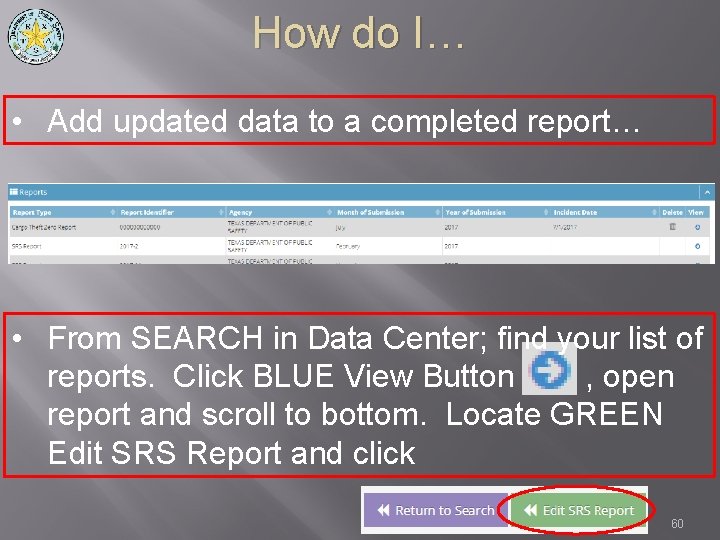
How do I… • Add updated data to a completed report… • From SEARCH in Data Center; find your list of reports. Click BLUE View Button , open report and scroll to bottom. Locate GREEN Edit SRS Report and click 60
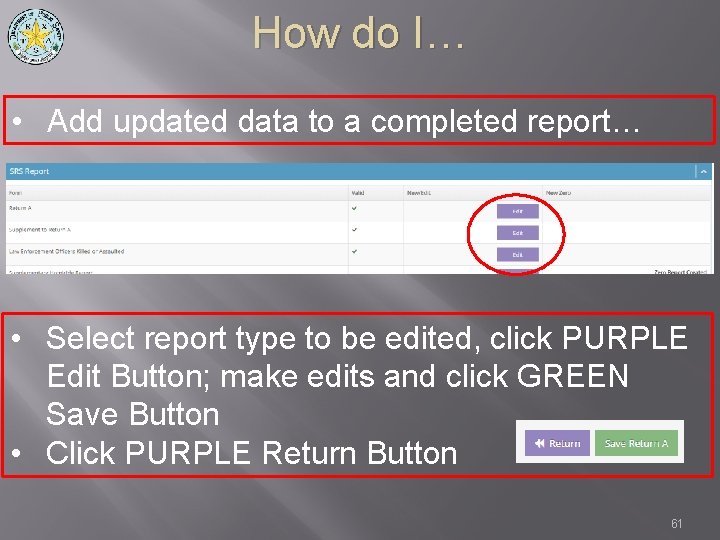
How do I… • Add updated data to a completed report… • Select report type to be edited, click PURPLE Edit Button; make edits and click GREEN Save Button • Click PURPLE Return Button 61
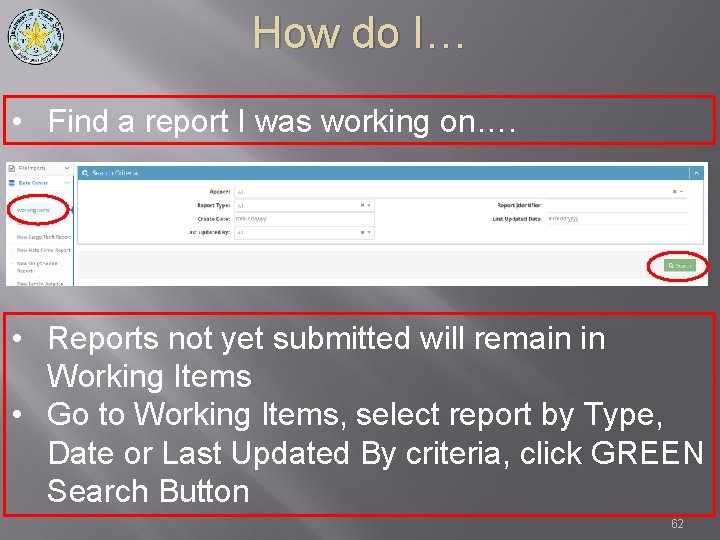
How do I… • Find a report I was working on…. • Reports not yet submitted will remain in Working Items • Go to Working Items, select report by Type, Date or Last Updated By criteria, click GREEN Search Button 62
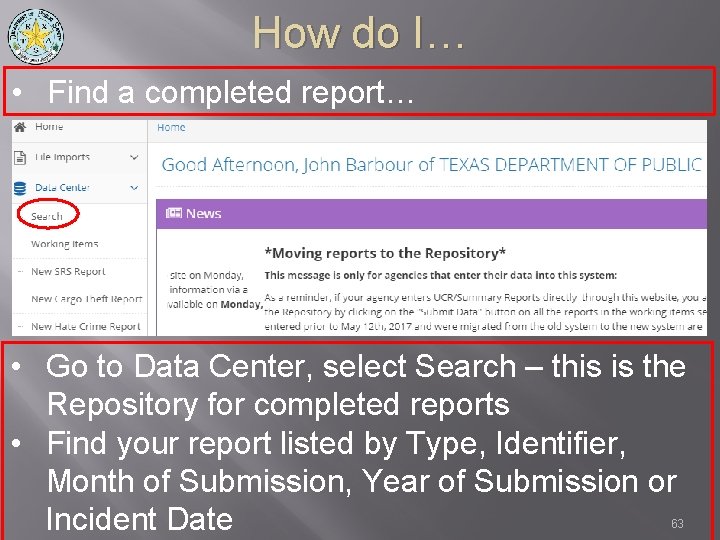
How do I… • Find a completed report… • Go to Data Center, select Search – this is the Repository for completed reports • Find your report listed by Type, Identifier, Month of Submission, Year of Submission or Incident Date 63
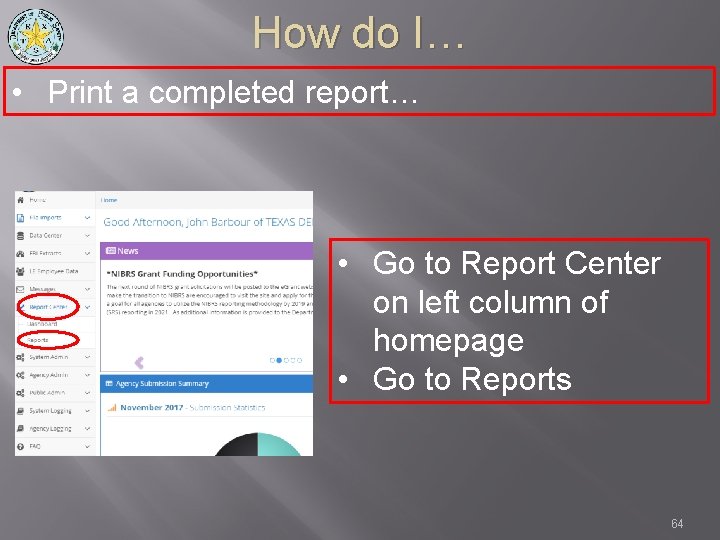
How do I… • Print a completed report… • Go to Report Center on left column of homepage • Go to Reports 64
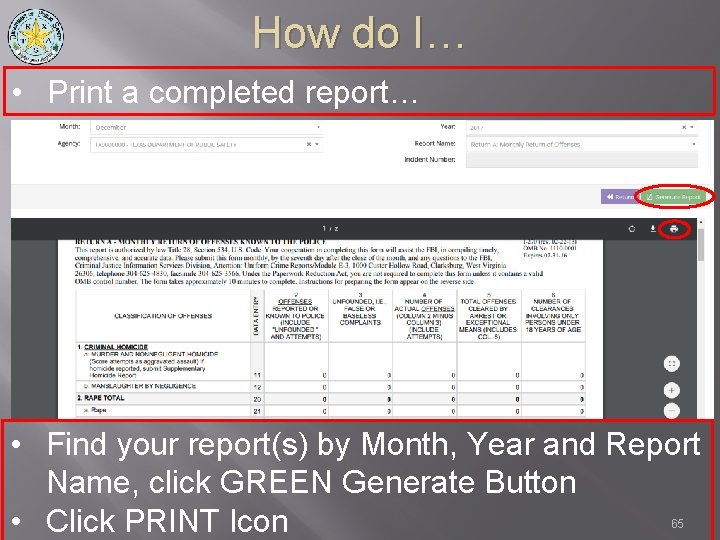
How do I… • Print a completed report… • Find your report(s) by Month, Year and Report Name, click GREEN Generate Button • Click PRINT Icon 65
Where to Get Help • DPS UCR Reporting System Homepage: https: //texas. nibrs. com • UCR Email Inbox: UCR@dps. texas. gov • When in doubt…call 512. 424. 2091 66