
Introduction to Team Viewer A Tutorial Objective Understand
Introduction to Team. Viewer A Tutorial
Objective • Understand the benefits of Team. Viewer vs other similar technologies • How to allow others to get remote control • Learn how to attend and host a meeting
Benefits of Team. Viewer • Team. Viewer allows another person to remotely control your computer and to host online meetings with Audio, Video and Desktop Sharing • Team. Viewer provides a very simple method to allow another person to remotely control your computer. This is very useful when you need assistance from someone else. • The person controlling your computer will be able to do everything they can do as if they are in physically sitting in front of the computer. • Team. Viewer allows you to host Online meetings Similar to Web. Ex • Team. Viewer is free for non-profit/personal use
When to Use Other Technologies • Web. Ex is better choice for re-occurring meetings • Team. Viewer requires installing their application to host a meeting and to download and run their application to give remote control • For Audio only Conference calls for a small number of individuals Skype may be a better option • For more than 25 participants Web. Ex and other tools are better
Giving Remote Control • Download the Team. Viewer Client from http: //download. teamviewer. com/download/Team Viewer_Setup_en. exe • Run the Team. Viewer Setup • Start Team. Viewer • Give the individual assisting you Your ID and Password • Now they will be able to control you computer. Do not use the mouse and keyboard unless instructed by them.
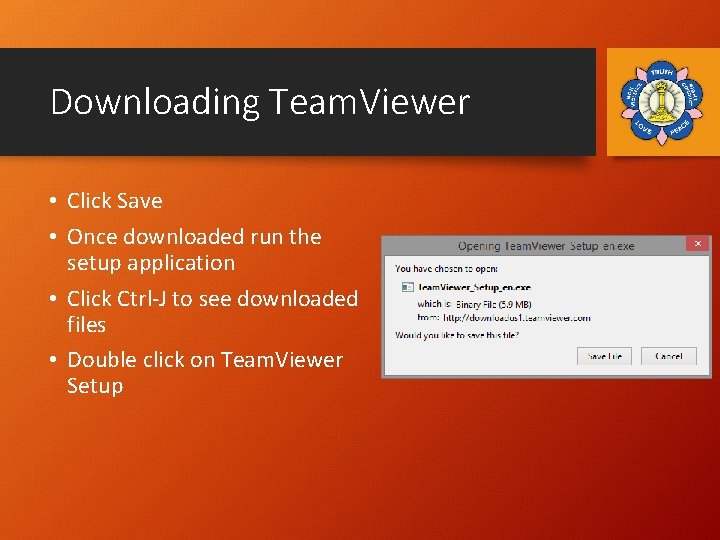
Downloading Team. Viewer • Click Save • Once downloaded run the setup application • Click Ctrl-J to see downloaded files • Double click on Team. Viewer Setup
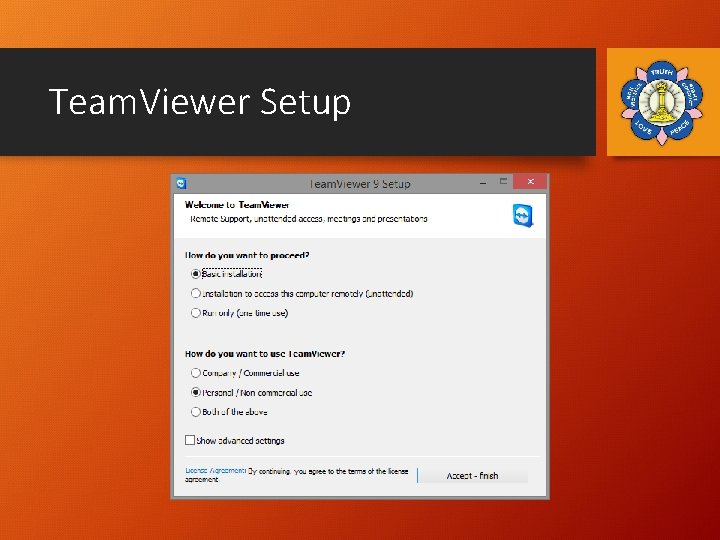
Team. Viewer Setup
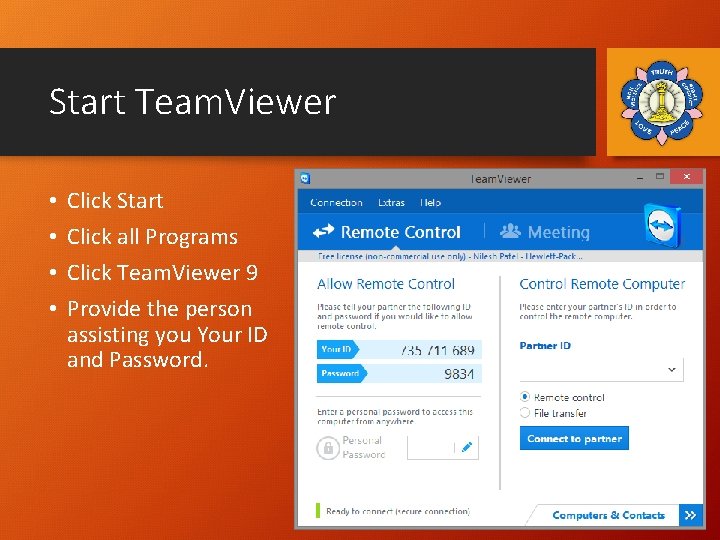
Start Team. Viewer • • Click Start Click all Programs Click Team. Viewer 9 Provide the person assisting you Your ID and Password.
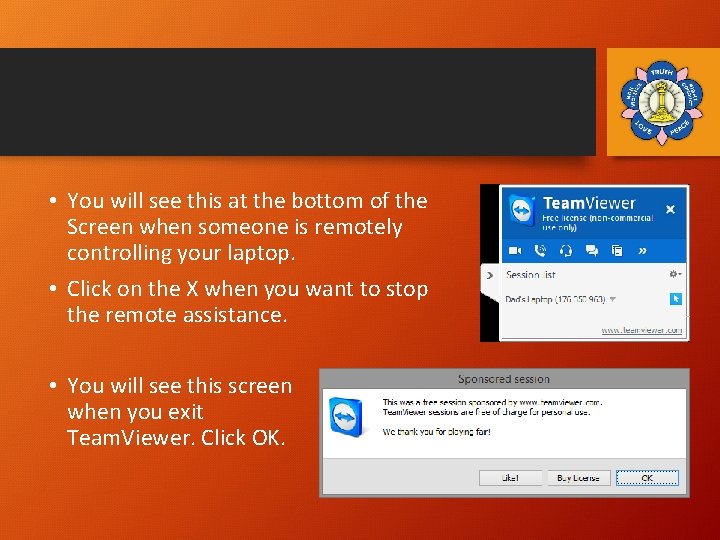
• You will see this at the bottom of the Screen when someone is remotely controlling your laptop. • Click on the X when you want to stop the remote assistance. • You will see this screen when you exit Team. Viewer. Click OK.
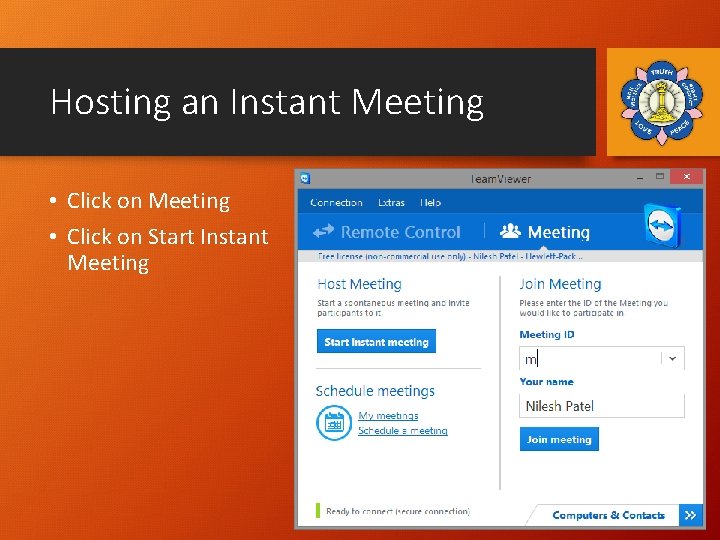
Hosting an Instant Meeting • Click on Start Instant Meeting
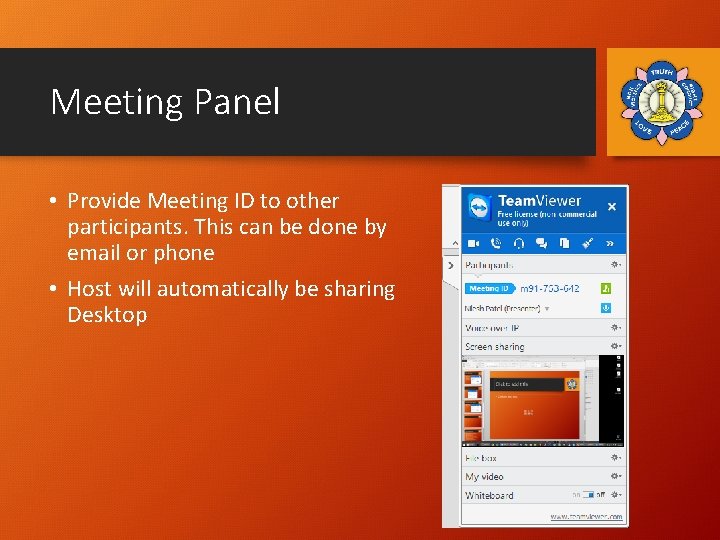
Meeting Panel • Provide Meeting ID to other participants. This can be done by email or phone • Host will automatically be sharing Desktop

Questions ?
- Slides: 12