
Introduction to SRS H K U Computer Centre

- Slides: 149
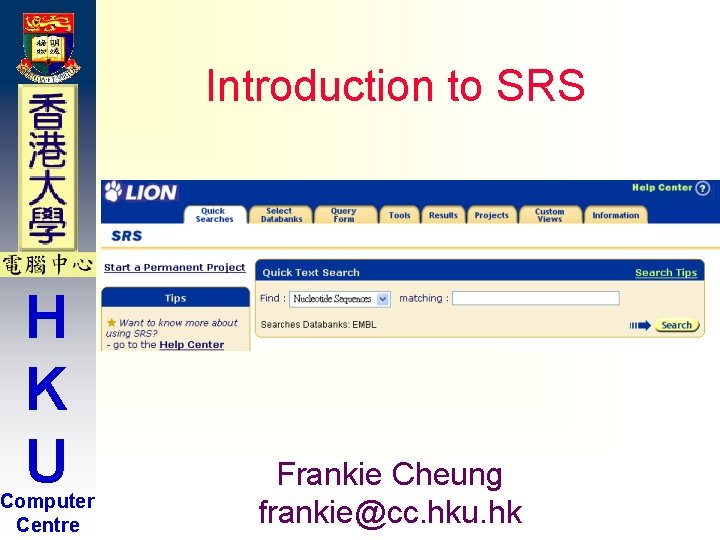
Introduction to SRS H K U Computer Centre Frankie Cheung frankie@cc. hku. hk
Introduction to SRS H K U Computer Centre Part 0. Introduction
H K U Computer Centre SRS Introduction |SRS system started out as a Sequence Retrieval System that employed sophisticated parsing and indexing of database text files
SRS Introduction | Fast access to diverse life science data - genetic, protein, cellular, molecular, and clinical for researchers and bioinformaticians | Integration of public and proprietary data through one interface | H K U Computer Centre Unique ability to perform cross-database queries | Rapid string search of large volumes of data | Seemless integration analysis tools of data and
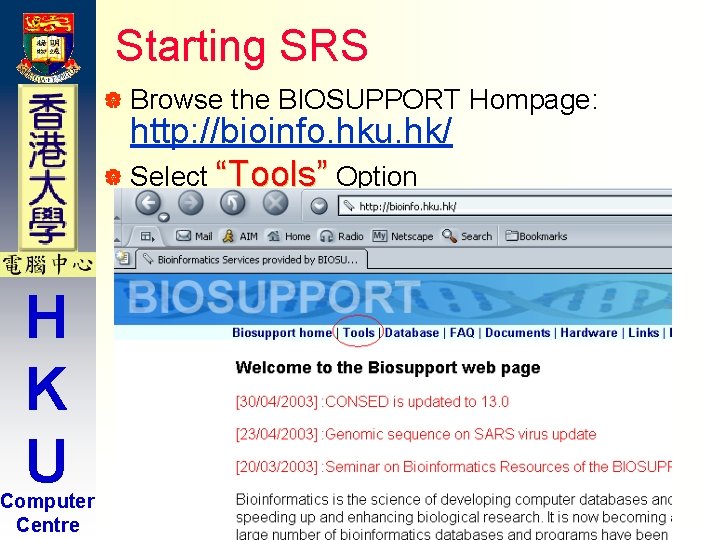
Starting SRS | Browse the BIOSUPPORT Hompage: http: //bioinfo. hku. hk/ | Select “Tools” Option H K U Computer Centre
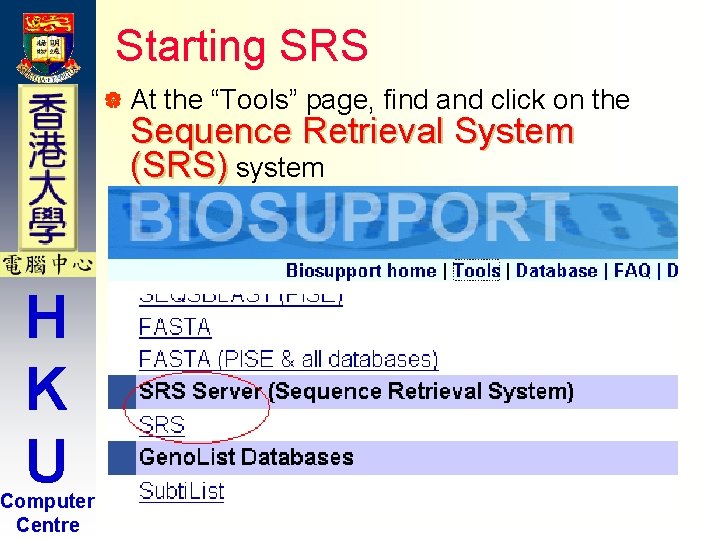
Starting SRS | At the “Tools” page, find and click on the Sequence Retrieval System (SRS) system H K U Computer Centre
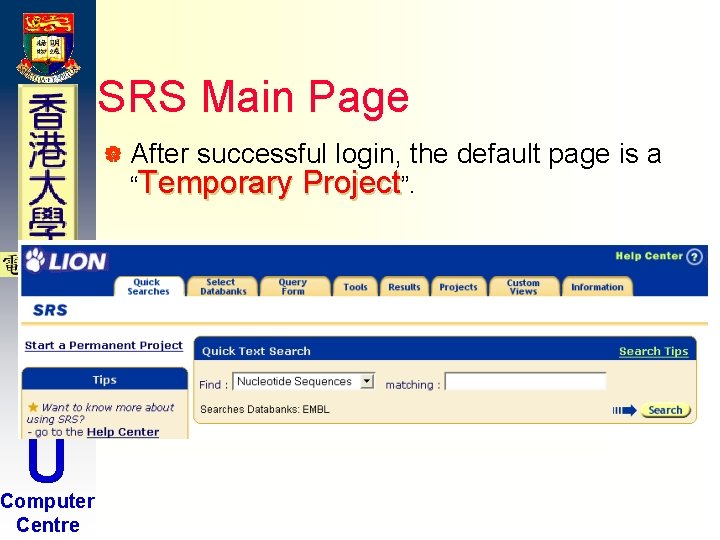
SRS Main Page | After successful login, the “Temporary Project”. H K U Computer Centre default page is a
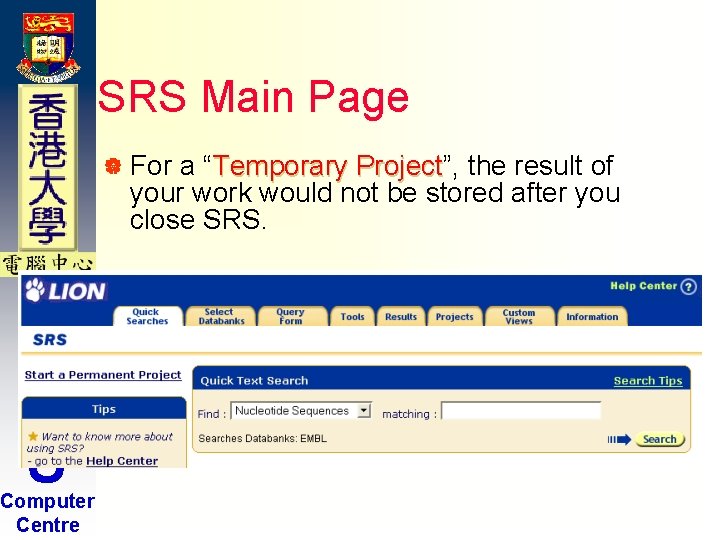
SRS Main Page | For a “Temporary Project”, Project the result of your work would not be stored after you close SRS. H K U Computer Centre
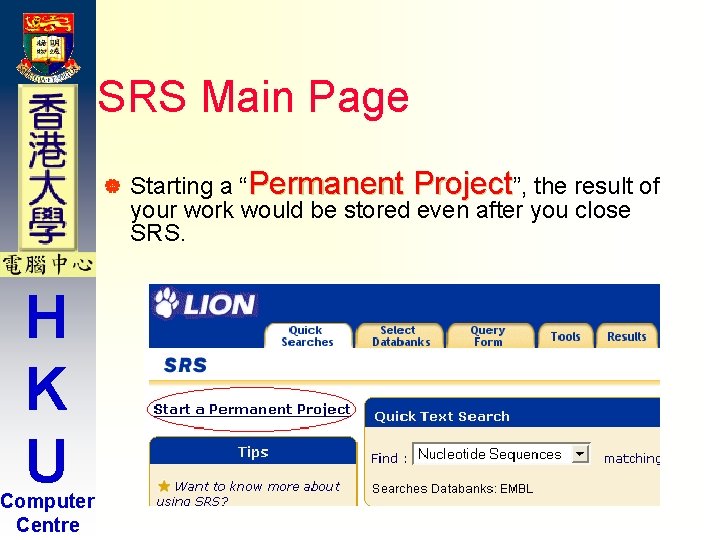
SRS Main Page | H K U Computer Centre Starting a “Permanent Project”, the result of your work would be stored even after you close SRS.
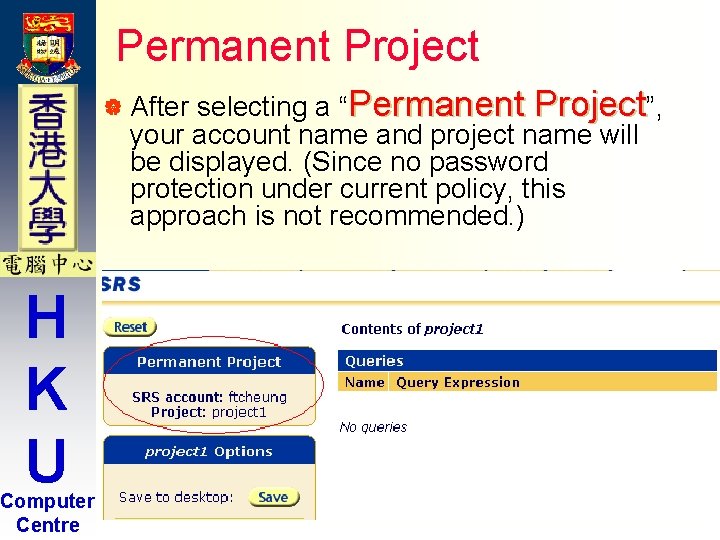
Permanent Project selecting a “Permanent Project”, your account name and project name will be displayed. (Since no password protection under current policy, this approach is not recommended. ) | After H K U Computer Centre
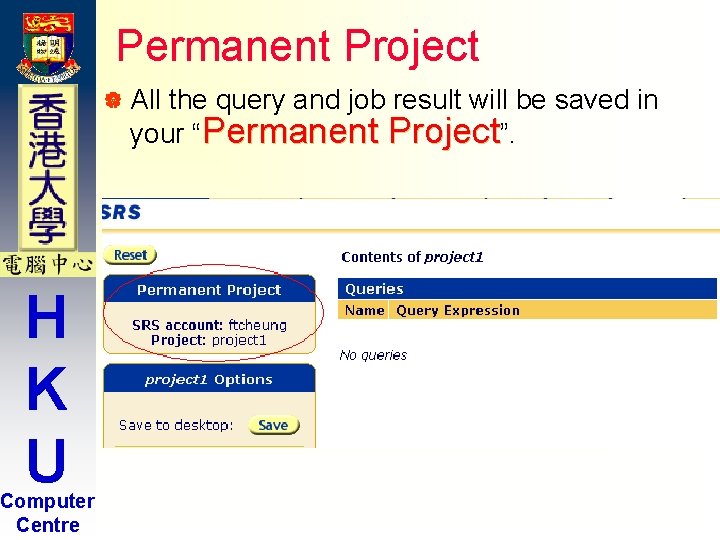
Permanent Project | All the query and job result will be saved in your “Permanent Project”. H K U Computer Centre
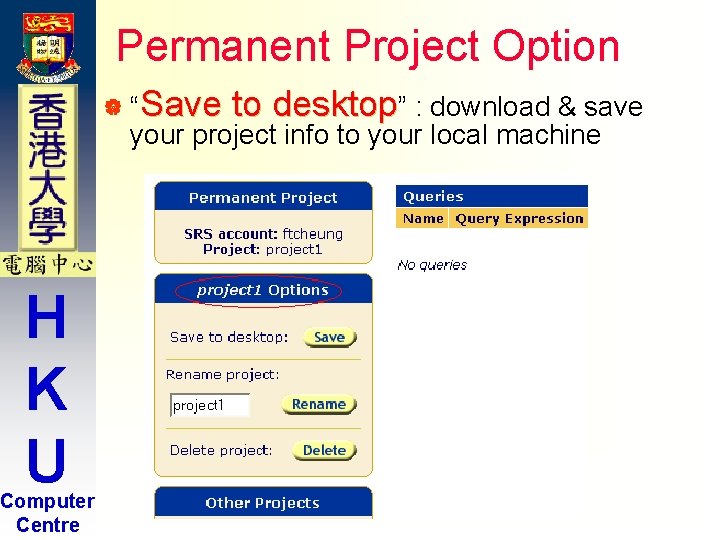
Permanent Project Option | “Save to desktop” : download & save your project info to your local machine H K U Computer Centre
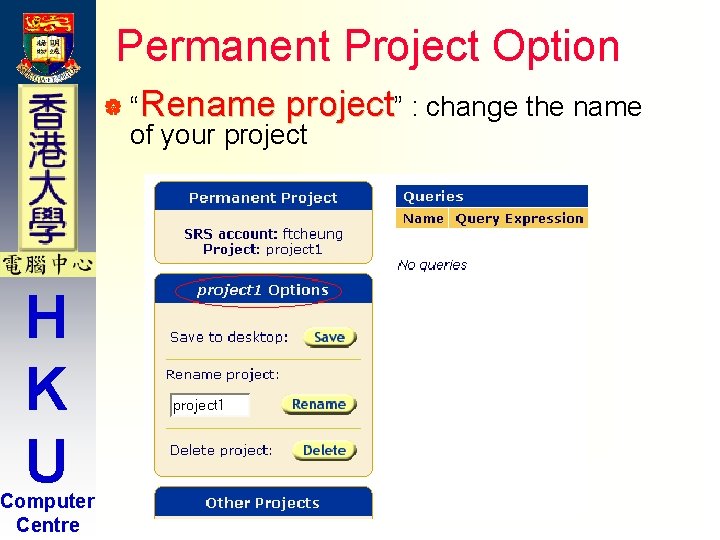
Permanent Project Option | “Rename project” : change the name of your project H K U Computer Centre
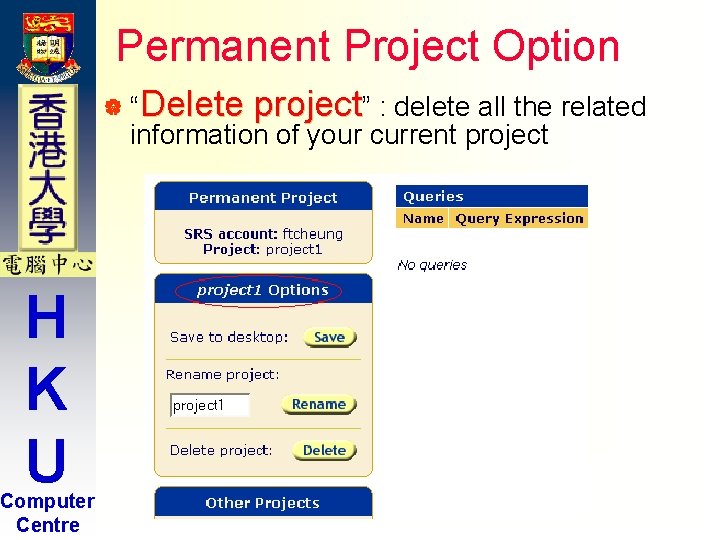
Permanent Project Option | “Delete project” : delete all the related information of your current project H K U Computer Centre
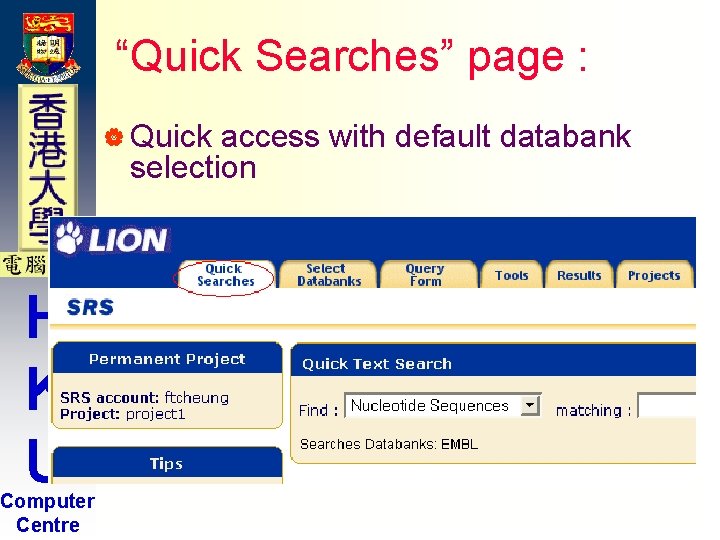
“Quick Searches” page : | Quick access with default databank selection H K U Computer Centre
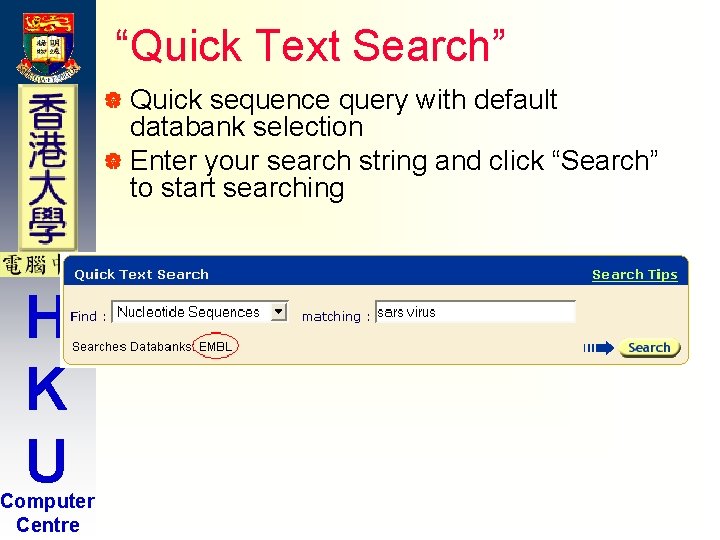
“Quick Text Search” | Quick sequence query with default databank selection | Enter your search string and click “Search” to start searching H K U Computer Centre
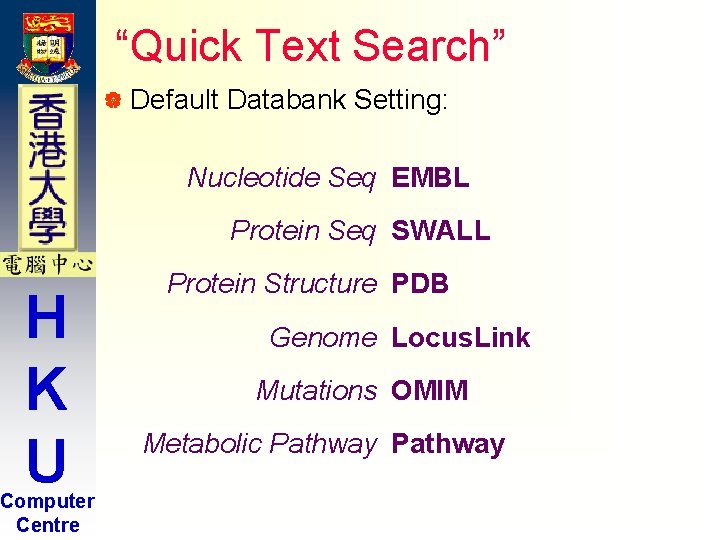
“Quick Text Search” | Default Databank Setting: Nucleotide Seq EMBL Protein Seq SWALL H K U Computer Centre Protein Structure PDB Genome Locus. Link Mutations OMIM Metabolic Pathway
Introduction to SRS H K U Computer Centre Part 1. Simple Query
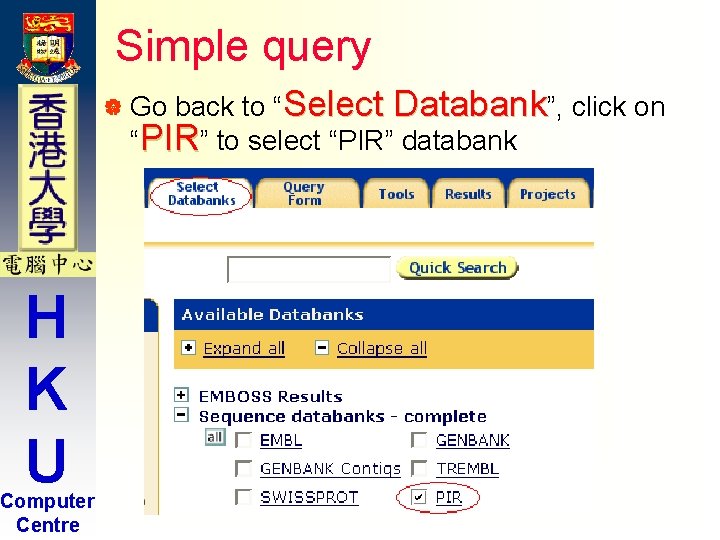
Simple query back to “Select Databank”, click on “PIR” to select “PIR” databank | Go H K U Computer Centre
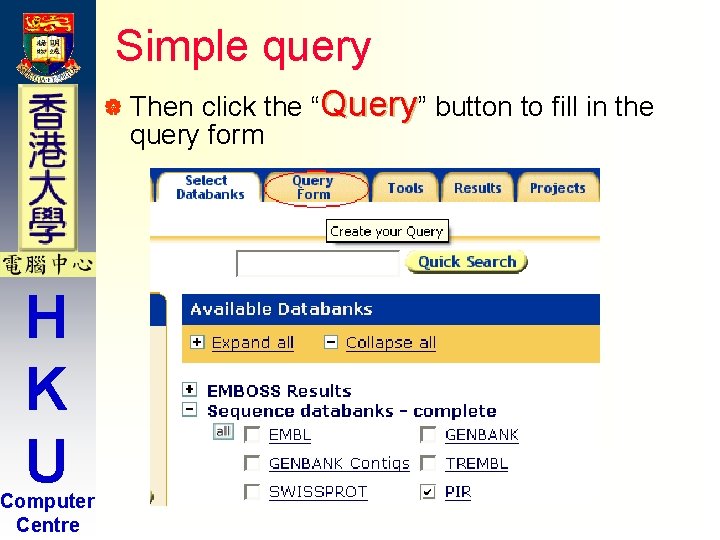
Simple query click the “Query” button to fill in the query form | Then H K U Computer Centre
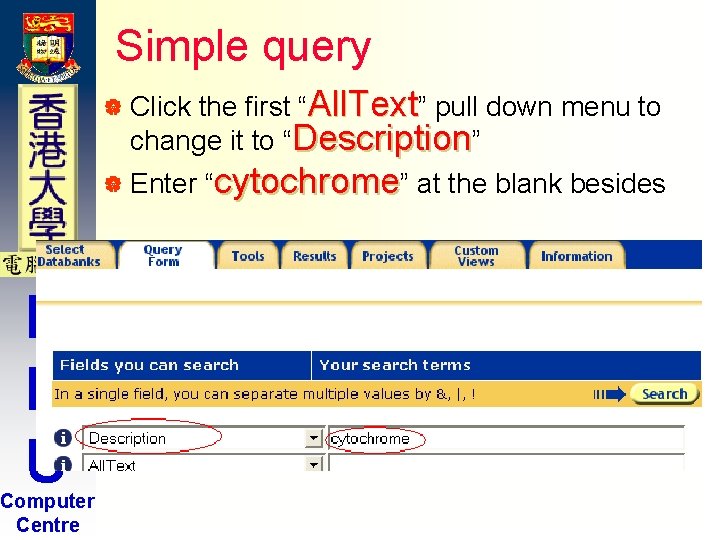
Simple query the first “All. Text” pull down menu to change it to “Description” | Click | Enter H K U Computer Centre “cytochrome” at the blank besides
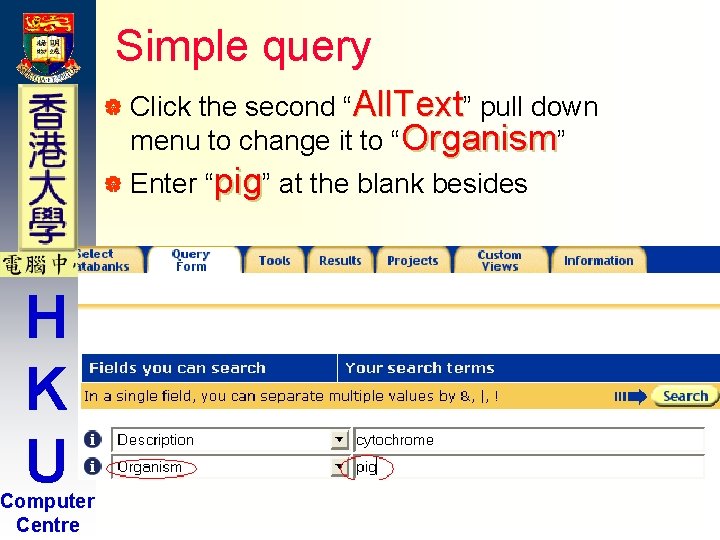
Simple query the second “All. Text” pull down menu to change it to “Organism” | Click | Enter H K U Computer Centre “pig” at the blank besides
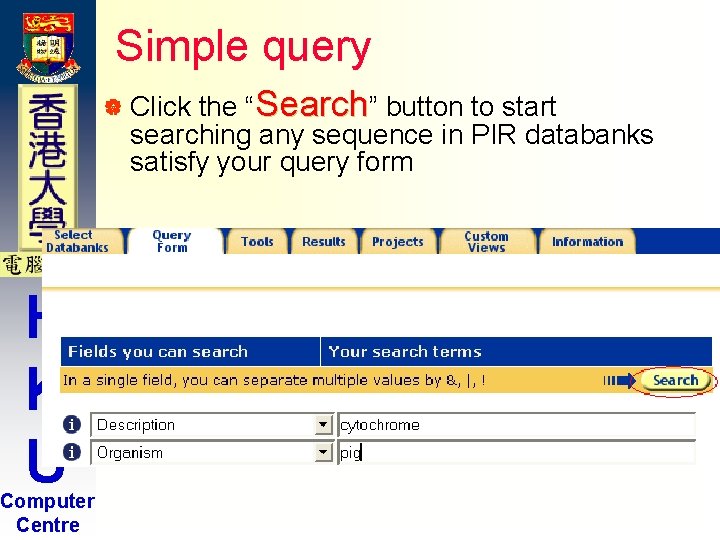
Simple query the “Search” button to start searching any sequence in PIR databanks satisfy your query form | Click H K U Computer Centre
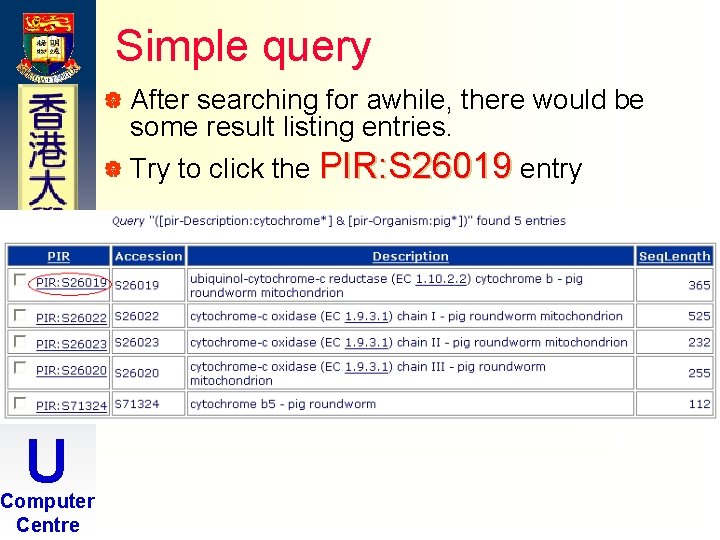
Simple query | After searching for awhile, there would be some result listing entries. | Try to click the PIR: S 26019 entry H K U Computer Centre
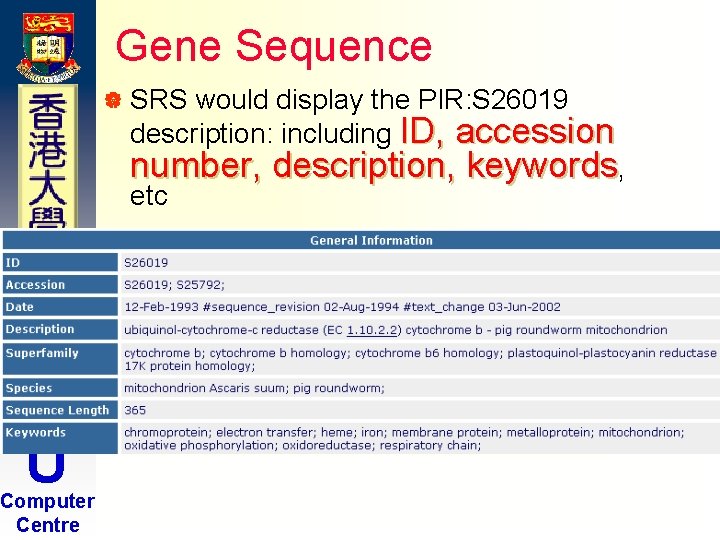
Gene Sequence | SRS would display the PIR: S 26019 description: including ID, accession number, description, keywords, etc H K U Computer Centre
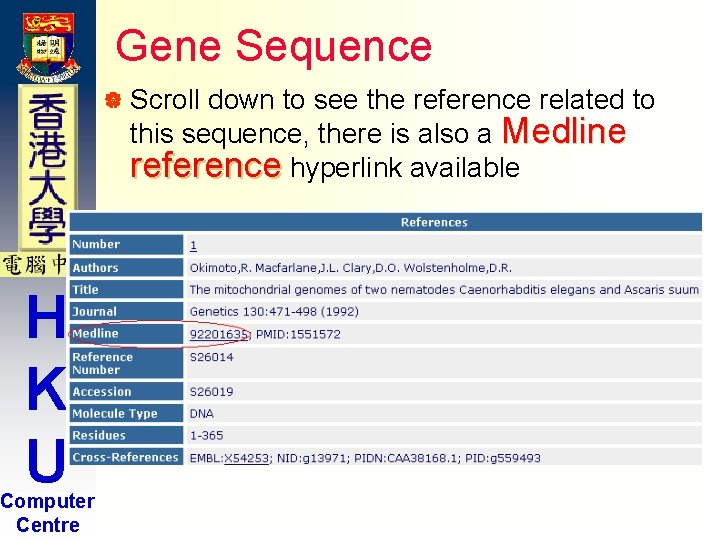
Gene Sequence | Scroll down to see the reference related to this sequence, there is also a Medline reference hyperlink available H K U Computer Centre
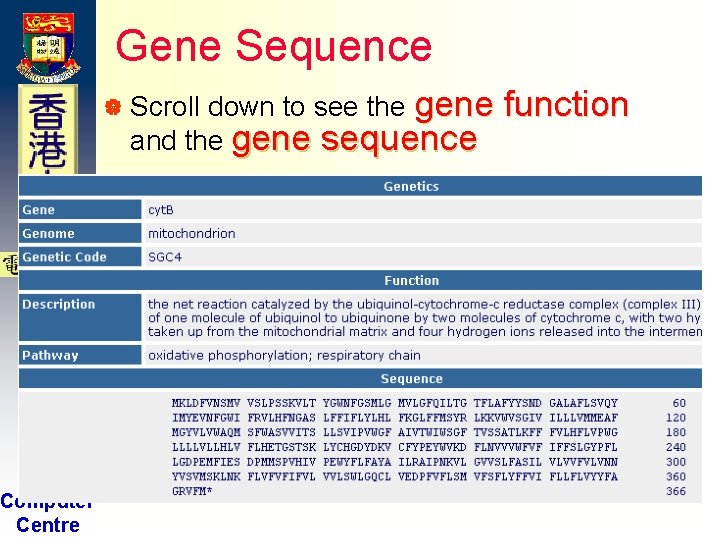
Gene Sequence down to see the gene and the gene sequence | Scroll H K U Computer Centre function
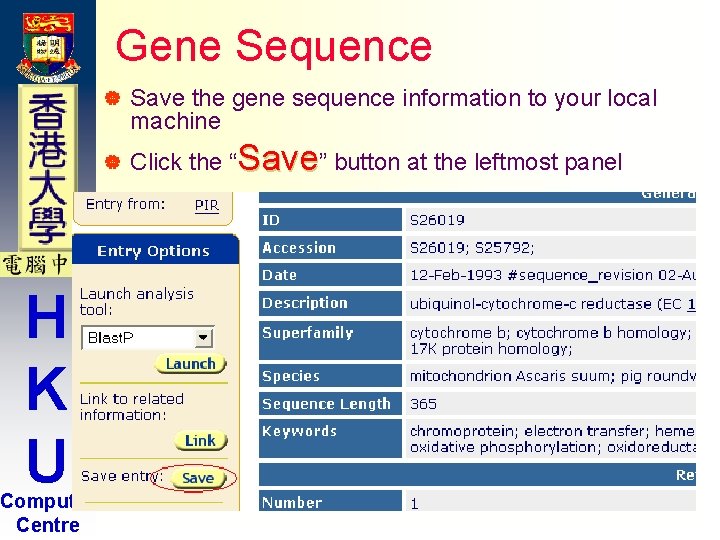
Gene Sequence | | H K U Computer Centre Save the gene sequence information to your local machine Click the “Save” button at the leftmost panel
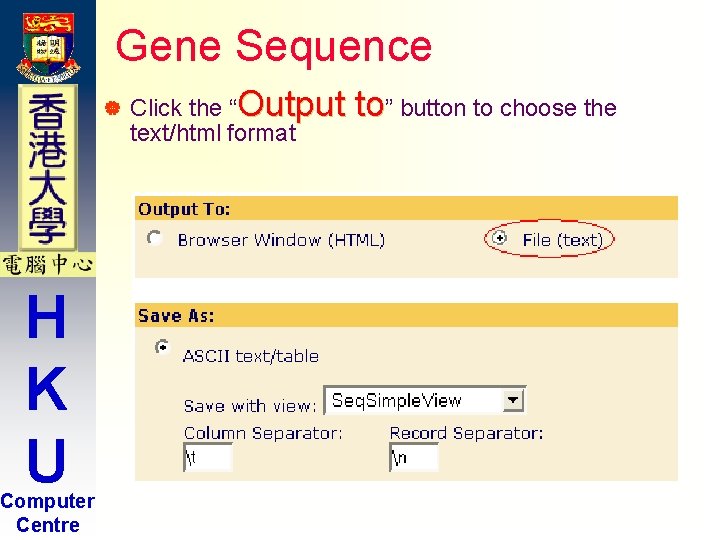
Gene Sequence | H K U Computer Centre Click the “Output text/html format to” button to choose the
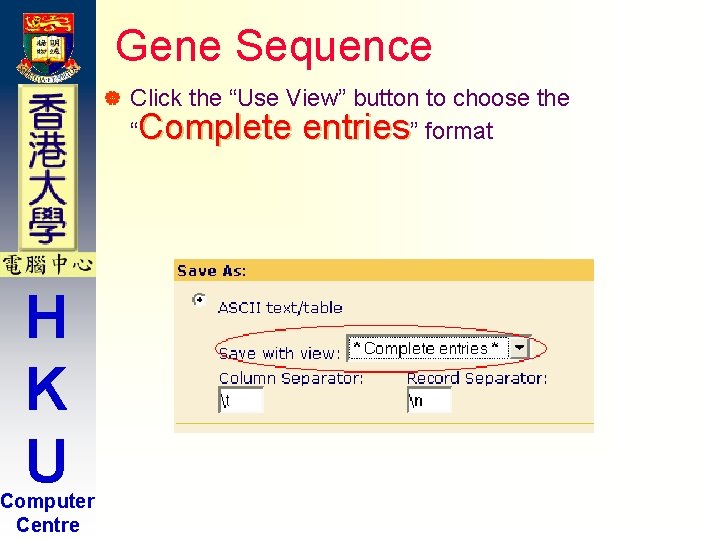
Gene Sequence | H K U Computer Centre Click the “Use View” button to choose the “Complete entries” format
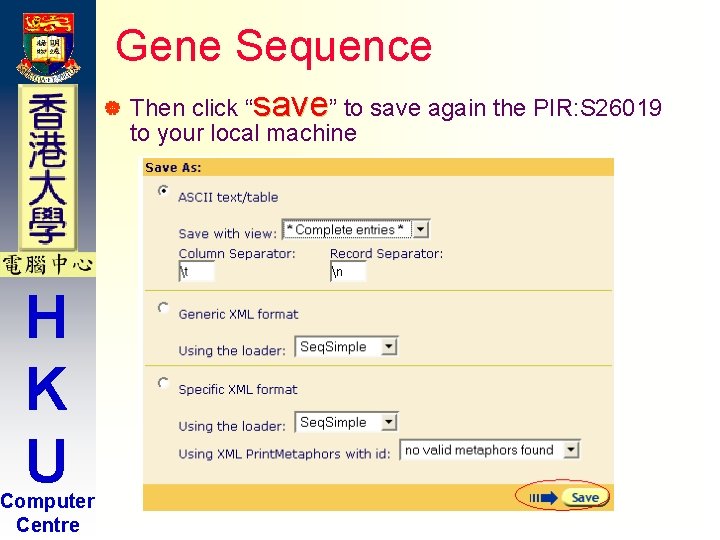
Gene Sequence | H K U Computer Centre Then click “save” to save again the PIR: S 26019 to your local machine
Simple query: Exercise 15 Minutes Break H K U Computer Centre Please try the following exercises by yourself!
Simple query: Exercise Question 1. H K U Computer Centre | Search all the “SARS virus” in EMBL databases
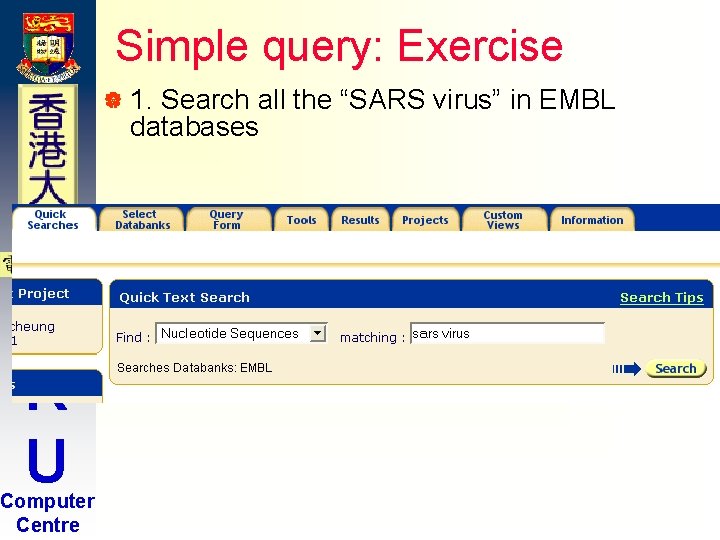
Simple query: Exercise | 1. Search all the “SARS virus” in EMBL databases H K U Computer Centre
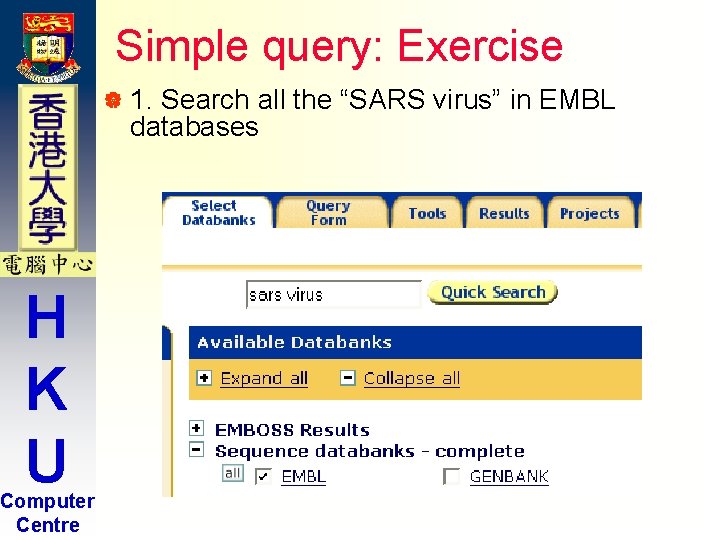
Simple query: Exercise | 1. Search all the “SARS virus” in EMBL databases H K U Computer Centre
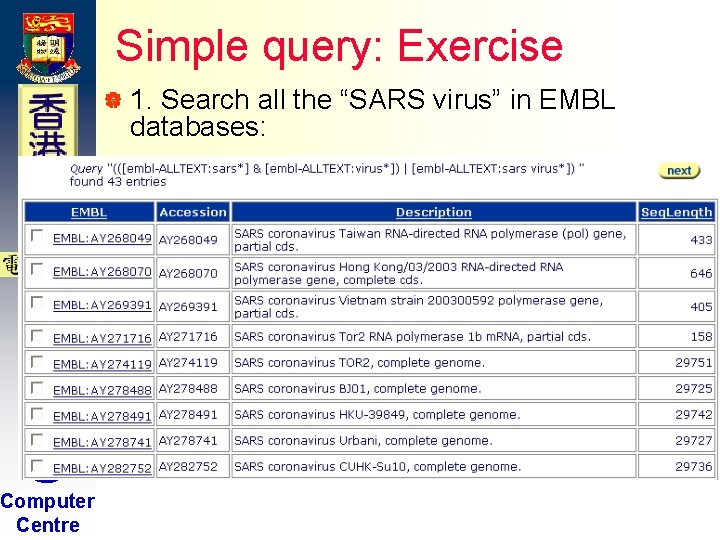
Simple query: Exercise | 1. Search all the “SARS virus” in EMBL databases: H K U Computer Centre
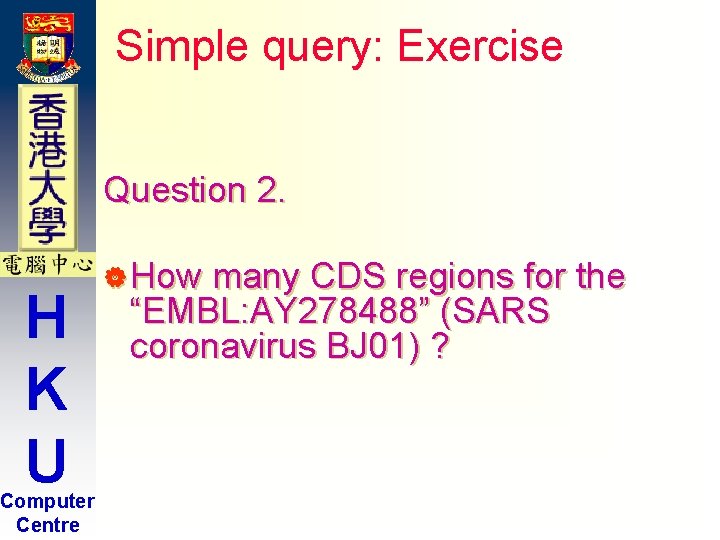
Simple query: Exercise Question 2. H K U Computer Centre | How many CDS regions for the “EMBL: AY 278488” (SARS coronavirus BJ 01) ?
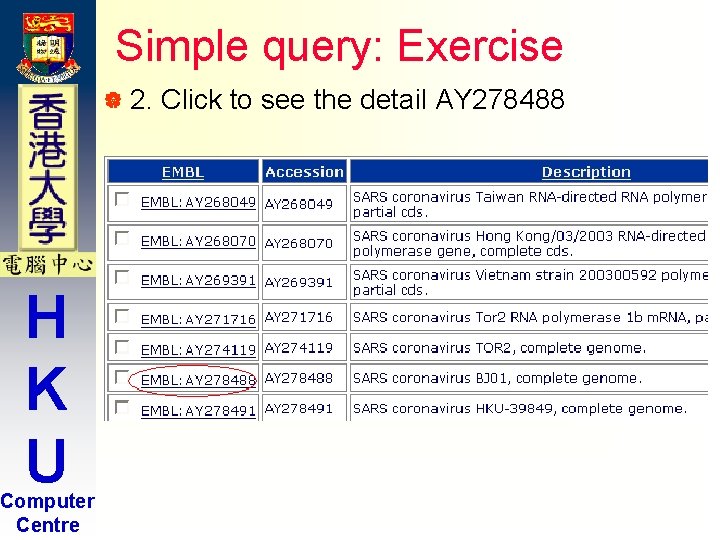
Simple query: Exercise | 2. H K U Computer Centre Click to see the detail AY 278488
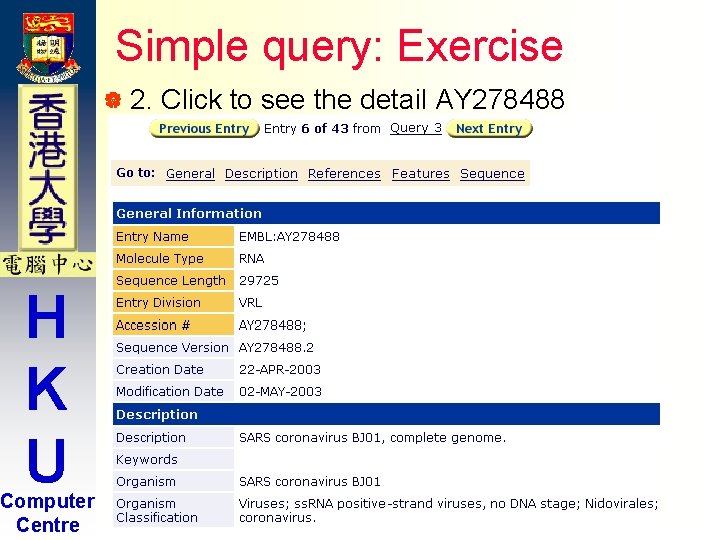
Simple query: Exercise | 2. H K U Computer Centre Click to see the detail AY 278488
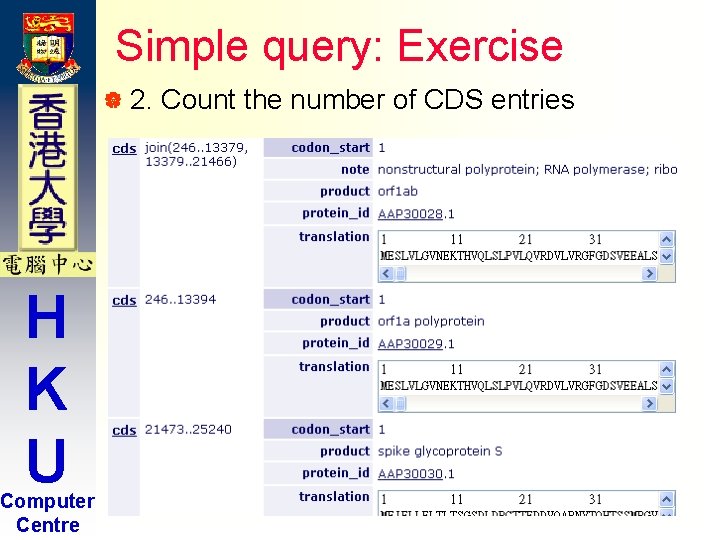
Simple query: Exercise | 2. H K U Computer Centre Count the number of CDS entries
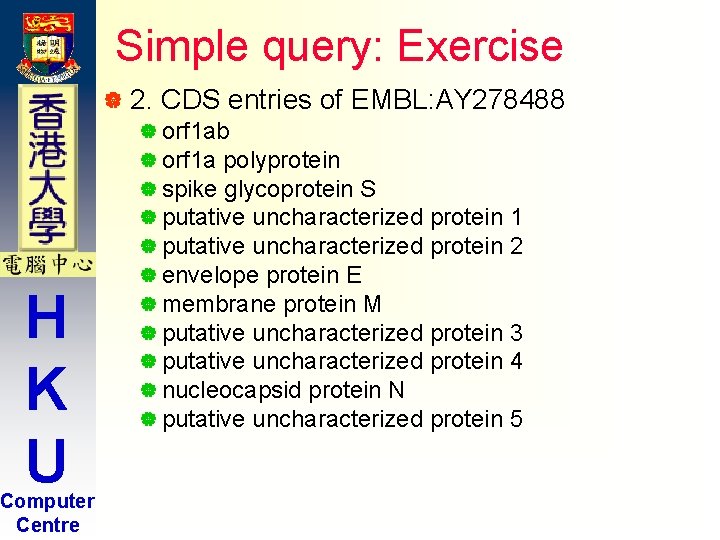
Simple query: Exercise | 2. H K U Computer Centre CDS entries of EMBL: AY 278488 | orf 1 ab | orf 1 a polyprotein | spike glycoprotein S | putative uncharacterized | envelope protein E | membrane protein M | putative uncharacterized | nucleocapsid protein N | putative uncharacterized protein 1 protein 2 protein 3 protein 4 protein 5
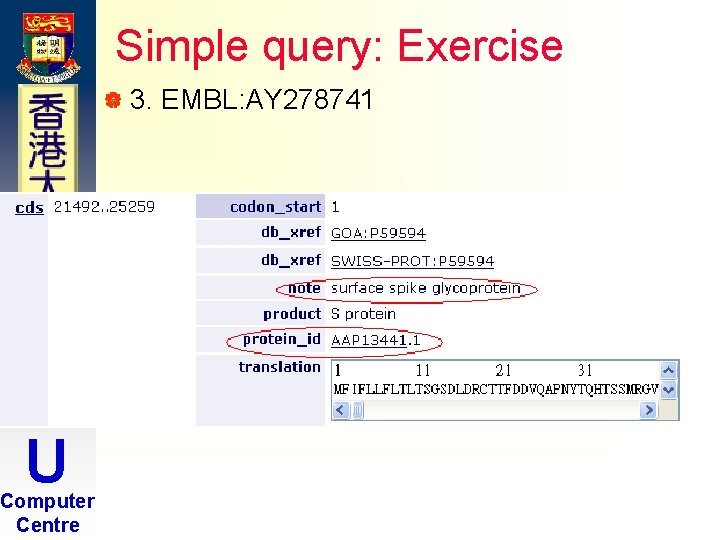
Simple query: Exercise Question 3. H K U Computer Centre | What is the protein ID for EMBL: AY 278741 (SARS coronavirus Urbani) spike glycoprotein?
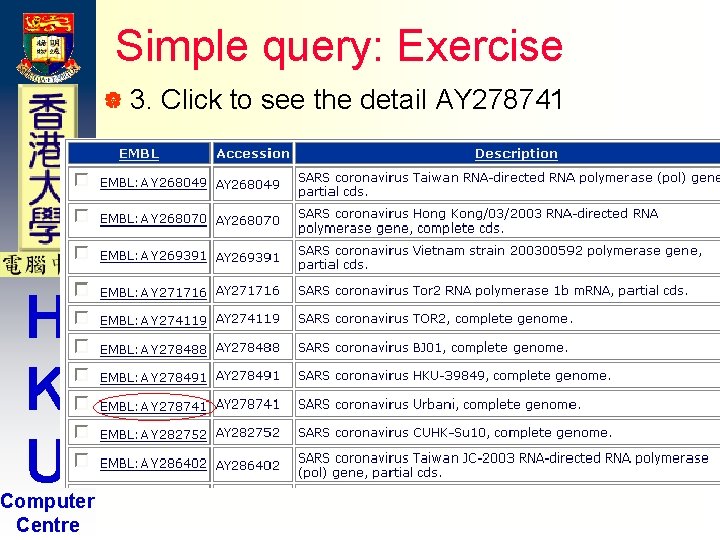
Simple query: Exercise | 3. H K U Computer Centre Click to see the detail AY 278741
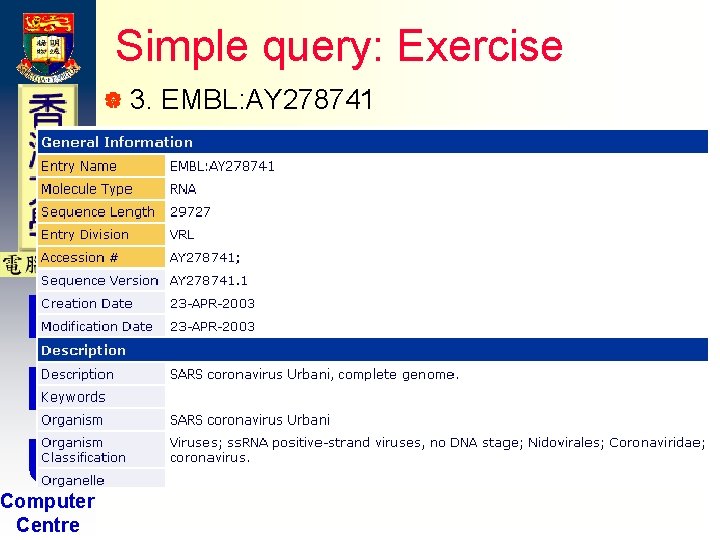
Simple query: Exercise | 3. H K U Computer Centre EMBL: AY 278741
Simple query: Exercise | 3. H K U Computer Centre EMBL: AY 278741
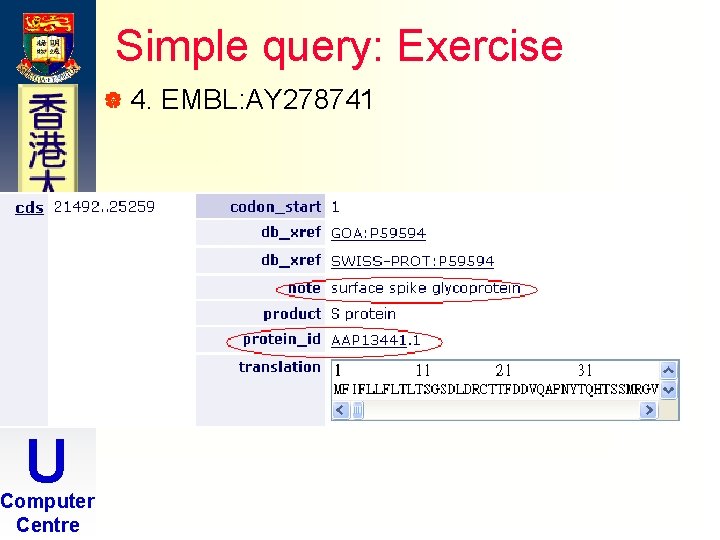
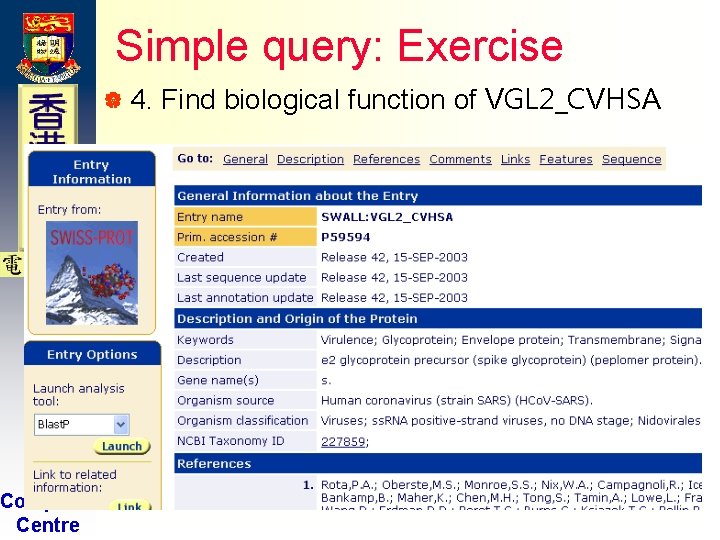
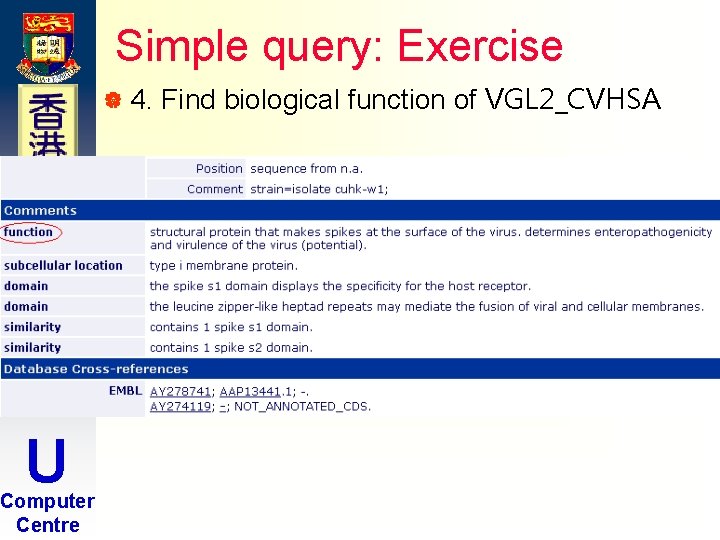
Simple query: Exercise Question 4. H K U Computer Centre | Following the link of the spike glycoprotein of EMBL: AY 278741, what is the biological function of this spike-protein?
Simple query: Exercise | 4. H K U Computer Centre EMBL: AY 278741
Simple query: Exercise | 4. H K U Computer Centre Find biological function of VGL 2_CVHSA
Simple query: Exercise | 4. H K U Computer Centre Find biological function of VGL 2_CVHSA
Introduction to SRS H K U Computer Centre Part 2. Extended Search
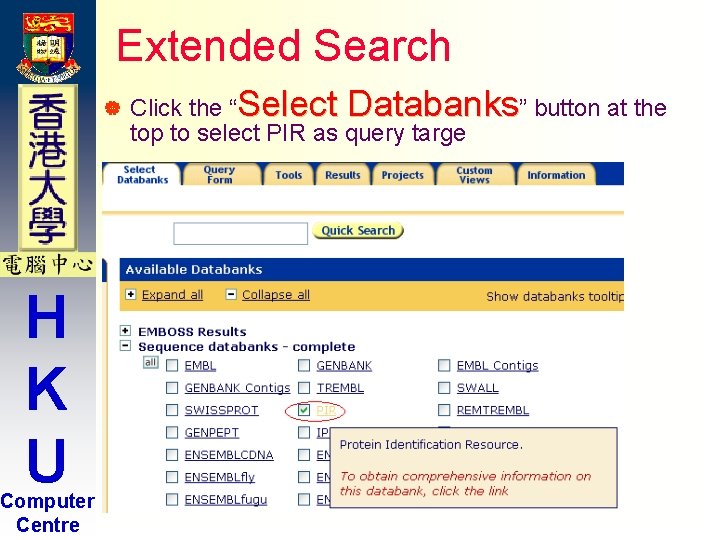
Extended Search | H K U Computer Centre Click the “Select Databanks” button at the top to select PIR as query targe
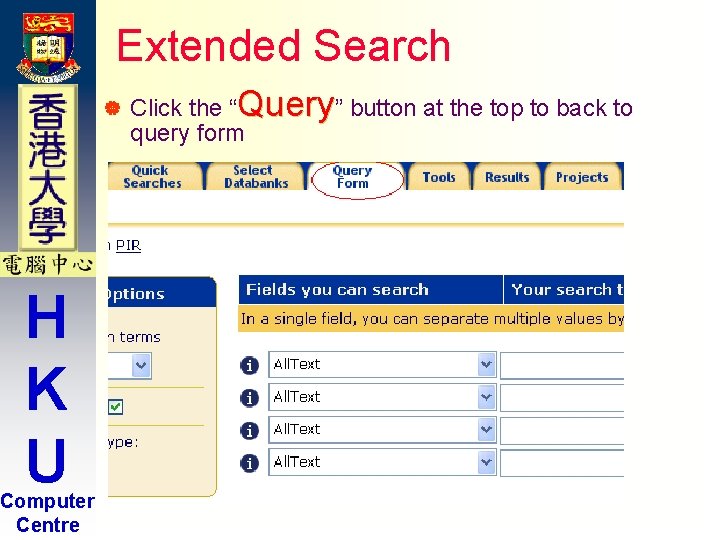
Extended Search | H K U Computer Centre Click the “Query” button at the top to back to query form
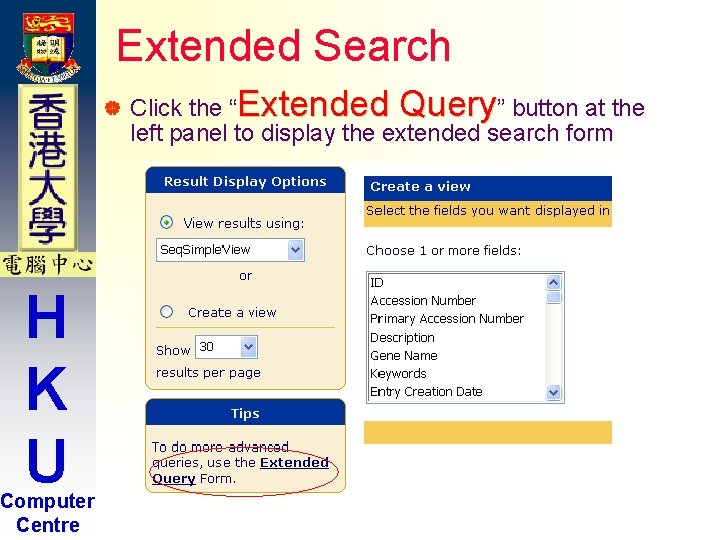
Extended Search | H K U Computer Centre Click the “Extended Query” button at the left panel to display the extended search form
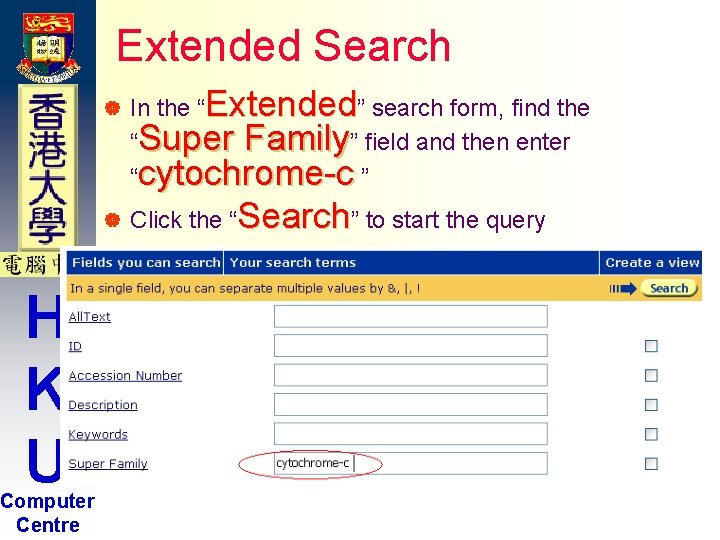
Extended Search | | H K U Computer Centre In the “Extended” search form, find the “Super Family” field and then enter “cytochrome-c ” Click the “Search” to start the query
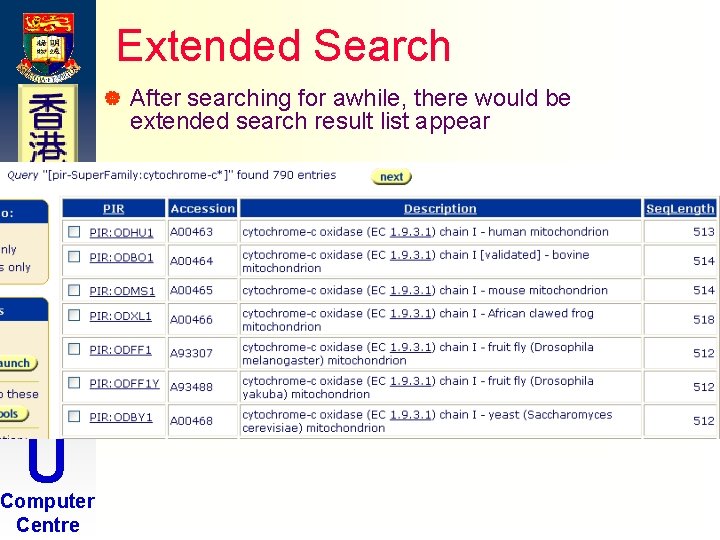
Extended Search | H K U Computer Centre After searching for awhile, there would be extended search result list appear
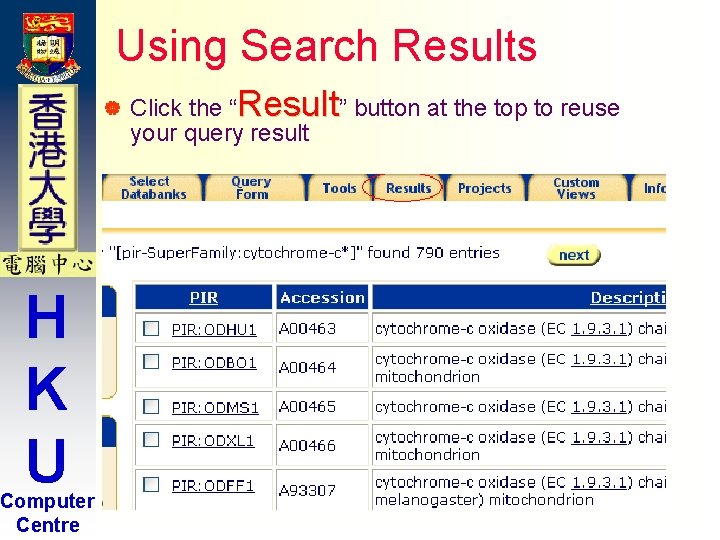
Using Search Results | H K U Computer Centre Click the “Result” button at the top to reuse your query result
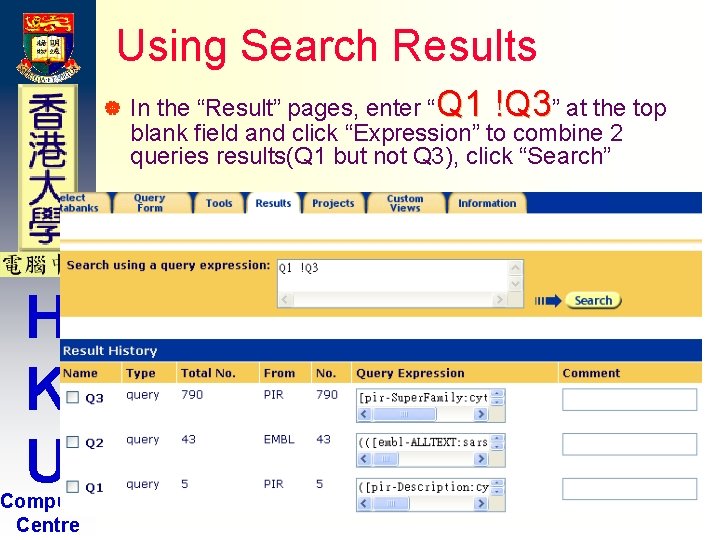
Using Search Results | H K U Computer Centre In the “Result” pages, enter “Q 1 !Q 3” at the top blank field and click “Expression” to combine 2 queries results(Q 1 but not Q 3), click “Search”
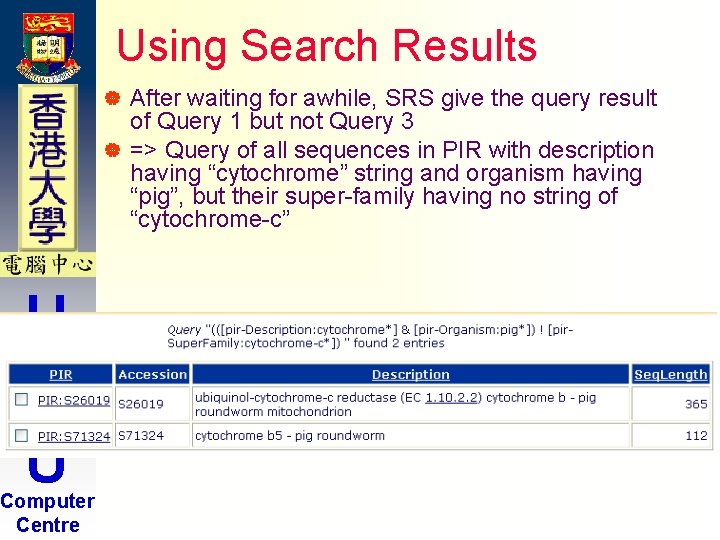
Using Search Results After waiting for awhile, SRS give the query result of Query 1 but not Query 3 | => Query of all sequences in PIR with description having “cytochrome” string and organism having “pig”, but their super-family having no string of “cytochrome-c” | H K U Computer Centre
Extended Search: Exercise 15 Minutes Break H K U Computer Centre Please try the following exercises by yourself!
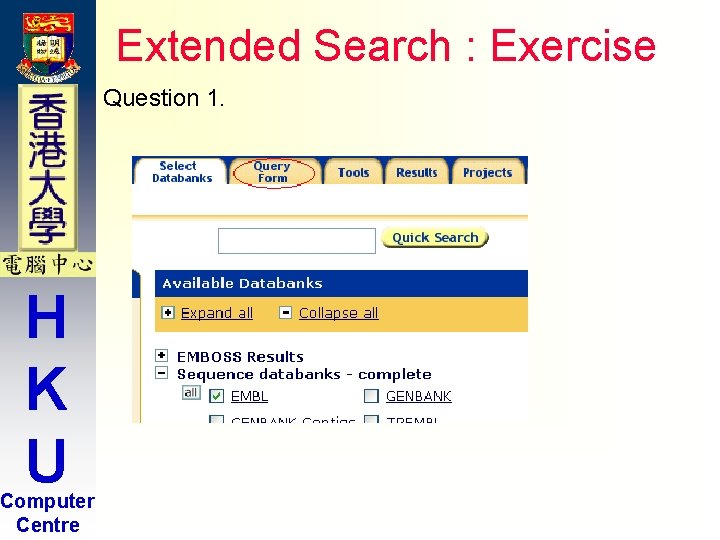
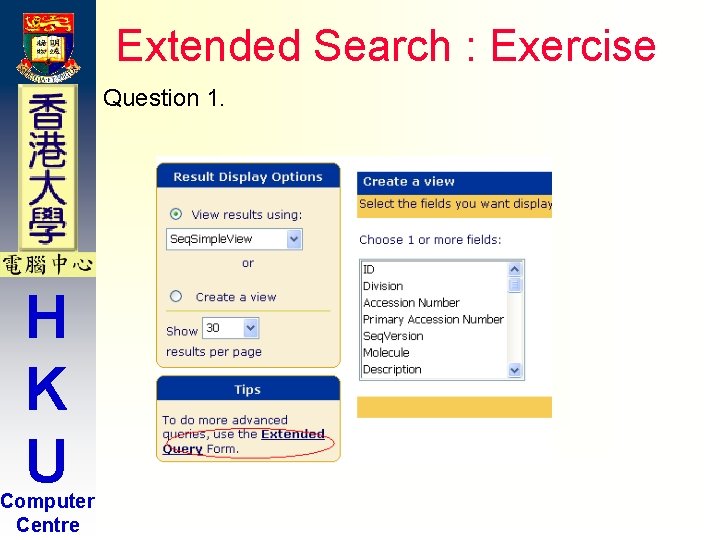
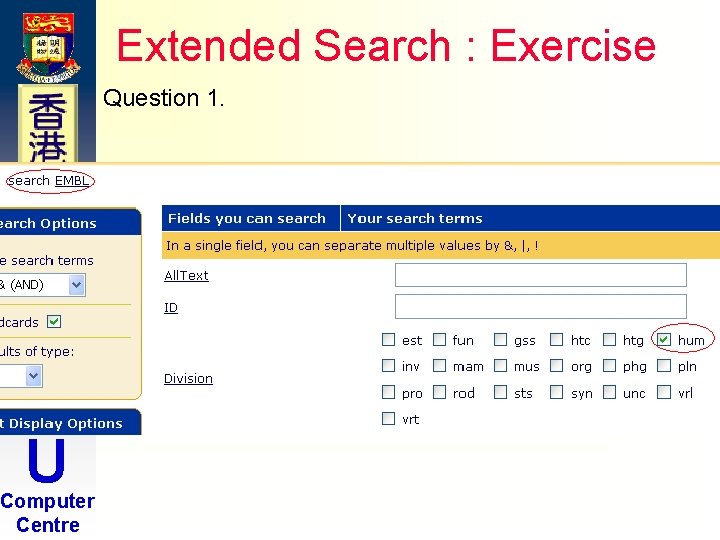
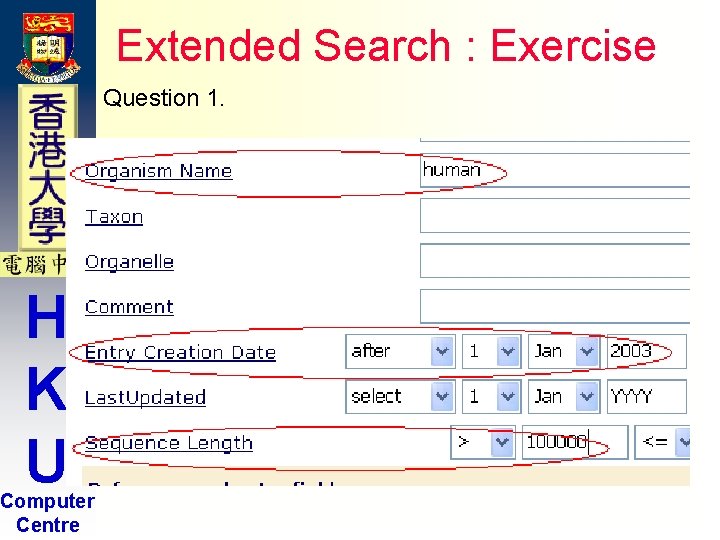
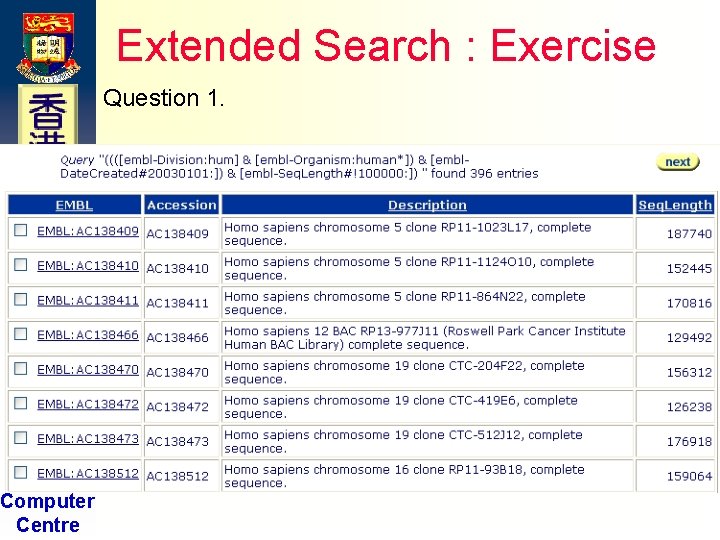
Extended Search : Exercise Question 1. H K U Computer Centre | Search all the human DNA sequence entries created after 01 -Jan-2003 with sequence length greater than 100000 in EMBL.
Extended Search : Exercise Question 1. H K U Computer Centre
Extended Search : Exercise Question 1. H K U Computer Centre
Extended Search : Exercise Question 1. H K U Computer Centre
Extended Search : Exercise Question 1. H K U Computer Centre
Extended Search : Exercise Question 1. H K U Computer Centre
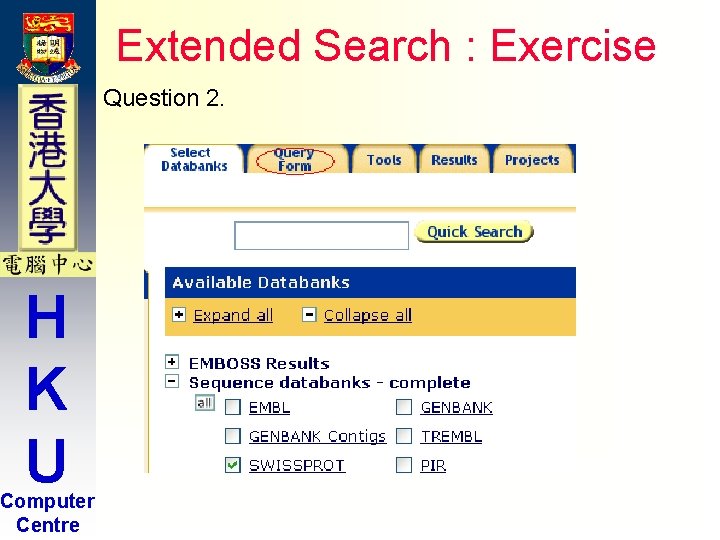
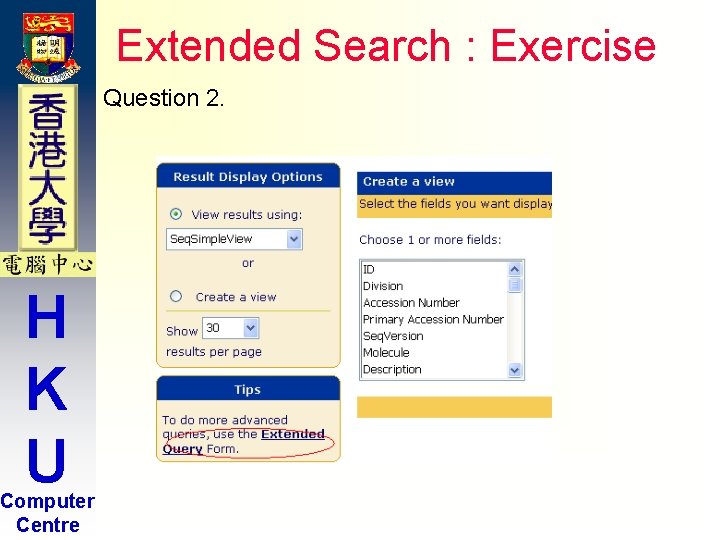
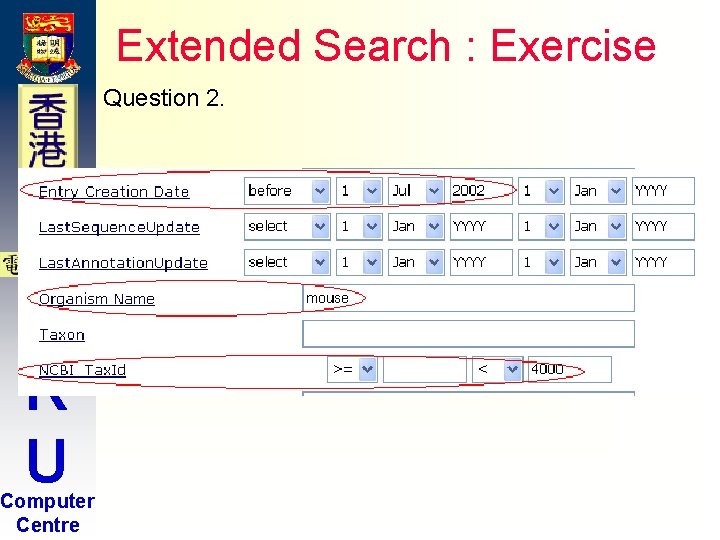
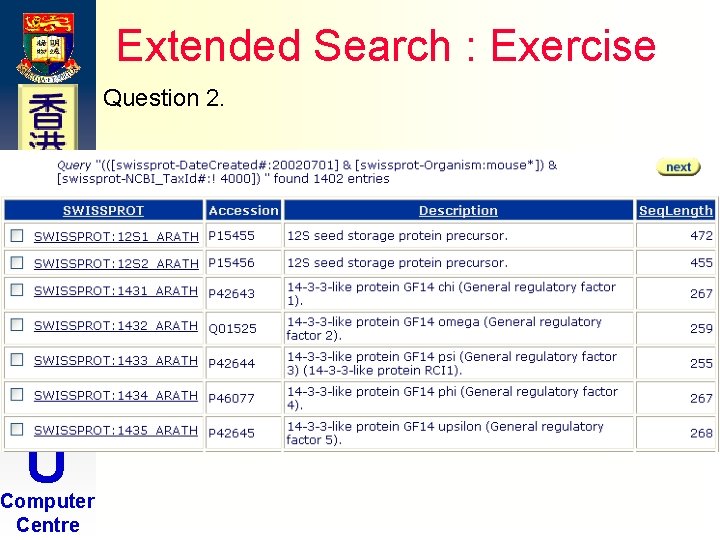
Extended Search : Exercise Question 2. H K U Computer Centre | Search all the mouse protein sequence entries created before 01 -Jul-2002 with NCBI TAX_ID less than 4000 in SWISSPROT.
Extended Search : Exercise Question 2. H K U Computer Centre
Extended Search : Exercise Question 2. H K U Computer Centre
Extended Search : Exercise Question 2. H K U Computer Centre
Extended Search : Exercise Question 2. H K U Computer Centre
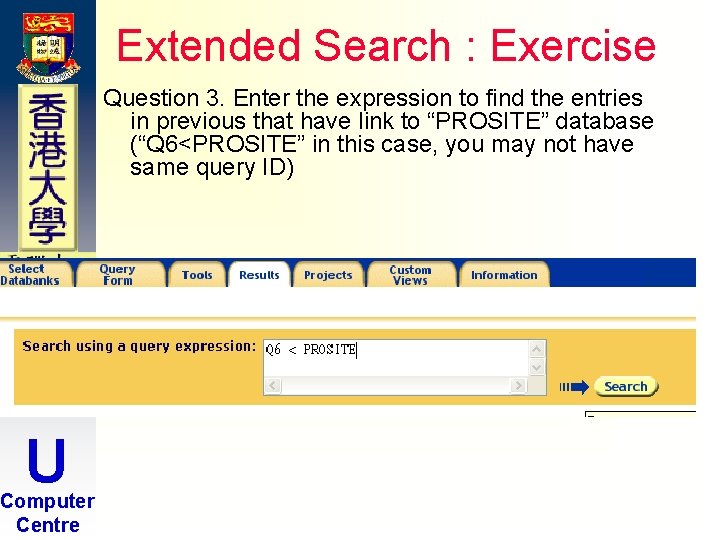
Extended Search : Exercise Question 3. H K U Computer Centre | Using the previous result, search the entries that have links to “PROSITE” database.
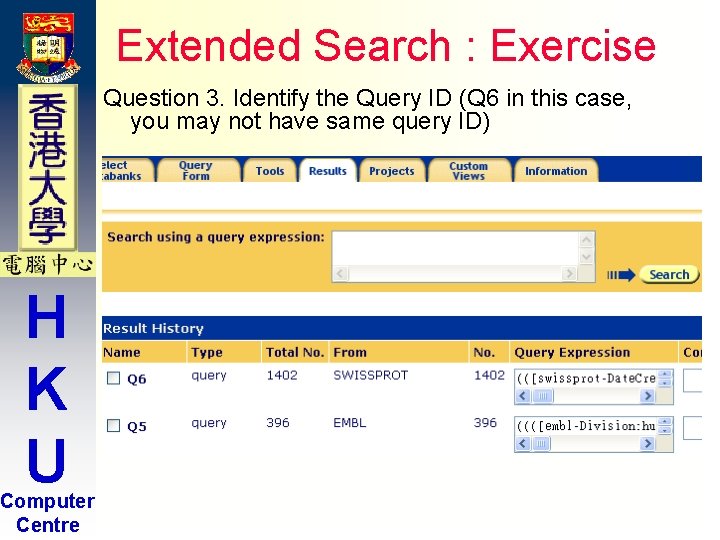
Extended Search : Exercise Question 3. Identify the Query ID (Q 6 in this case, you may not have same query ID) H K U Computer Centre
Extended Search : Exercise Question 3. Enter the expression to find the entries in previous that have link to “PROSITE” database (“Q 6<PROSITE” in this case, you may not have same query ID) H K U Computer Centre
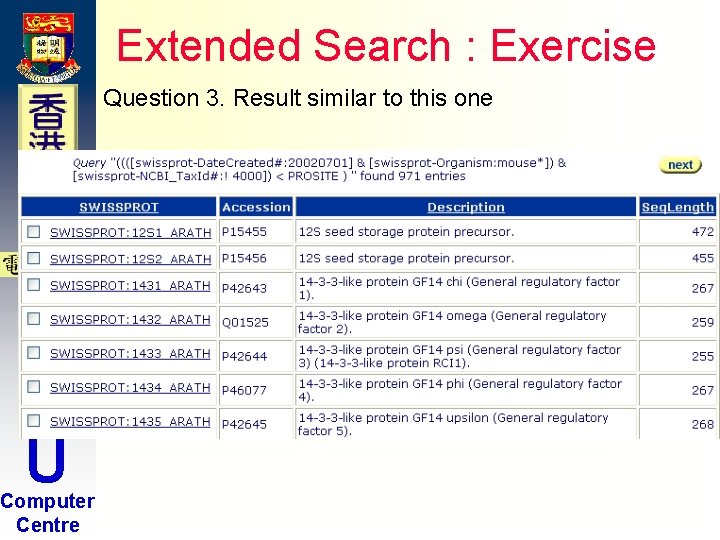
Extended Search : Exercise Question 3. Result similar to this one H K U Computer Centre
Introduction to SRS H K U Computer Centre Part 3. Linking related sequence / database
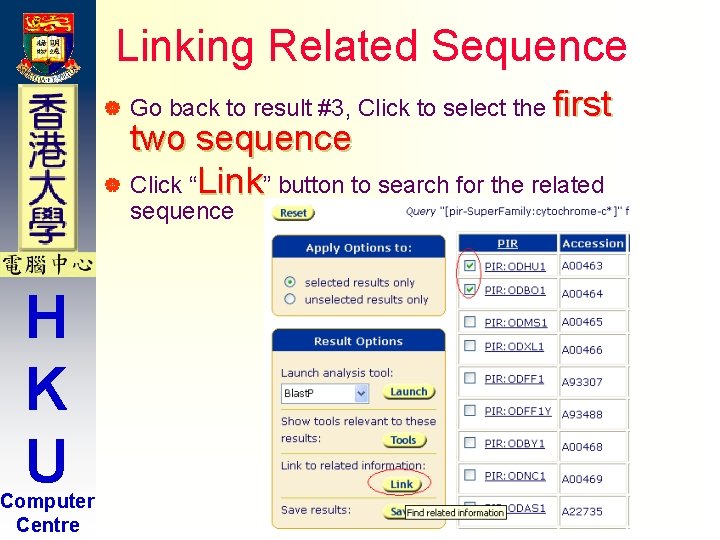
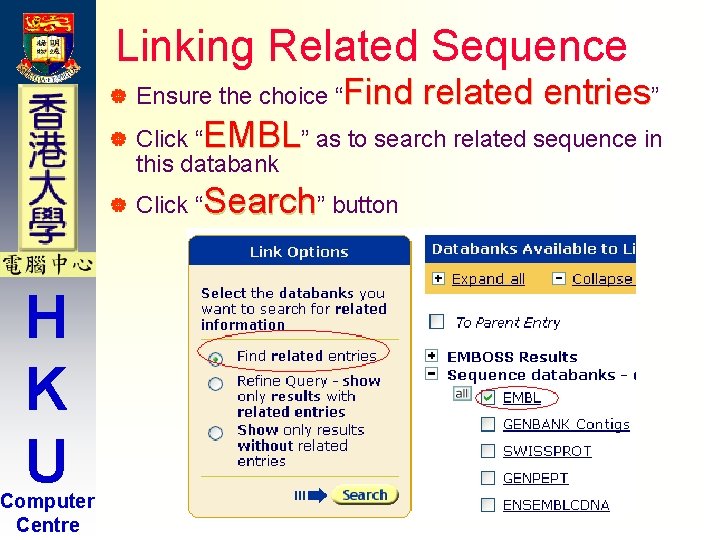
Linking Related Sequence | Go back to result #3, Click to select the first two sequence | Click “Link” button to search for the related sequence H K U Computer Centre
Linking Related Sequence H K U Computer Centre | Ensure the choice “Find related entries” | Click “EMBL” as to search related sequence in this databank | Click “Search” button
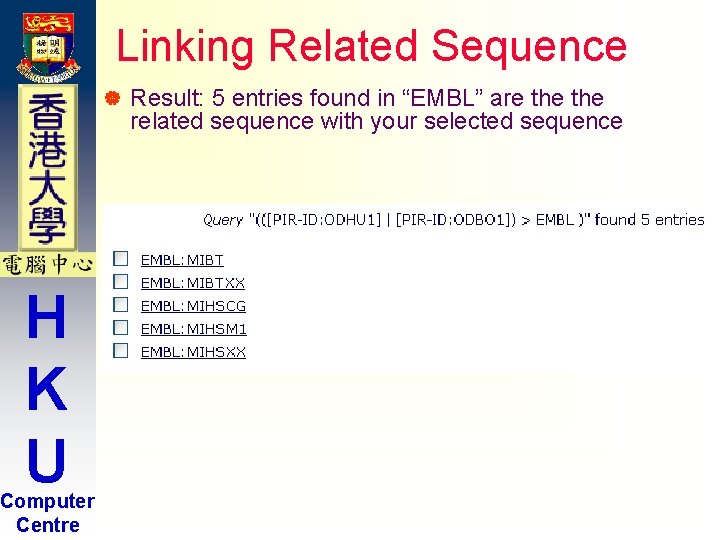
Linking Related Sequence | H K U Computer Centre Result: 5 entries found in “EMBL” are the related sequence with your selected sequence
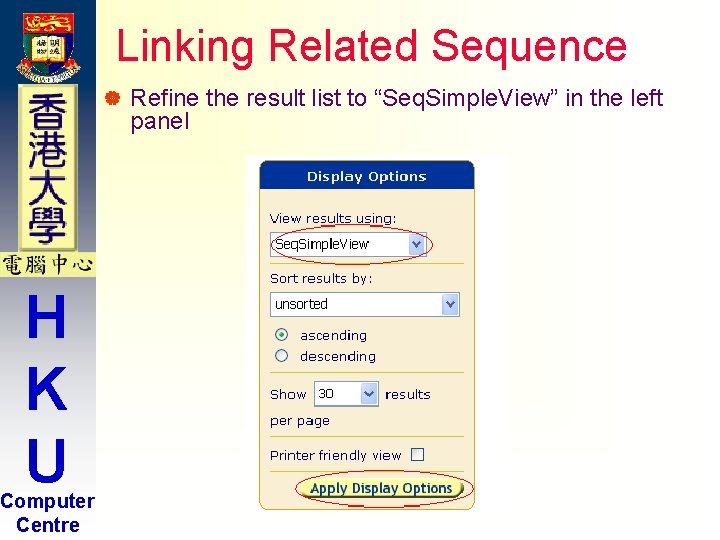
Linking Related Sequence | H K U Computer Centre Refine the result list to “Seq. Simple. View” in the left panel
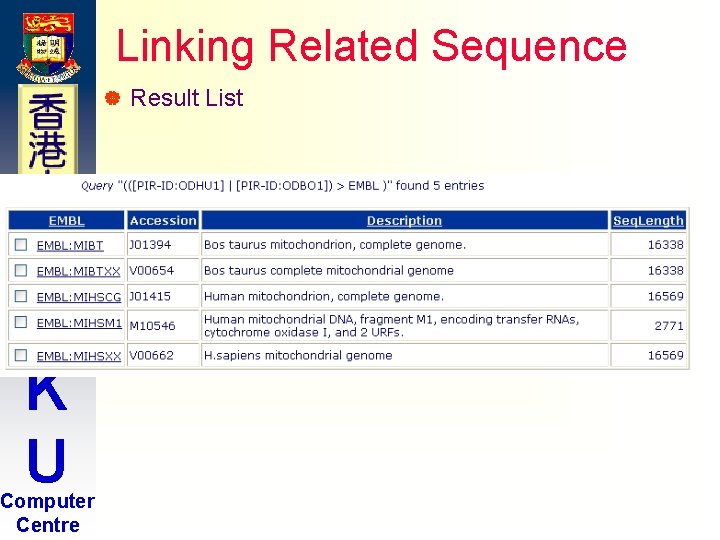
Linking Related Sequence | H K U Computer Centre Result List
Linking database: Exercise 15 Minutes Break H K U Computer Centre Please try the following exercises by yourself!
Linking database: Exercise H K U Computer Centre Question 1. Find in the EMBL database the corresponding sequences that link to the longest sequence of the previous result (question #2 in extended search)
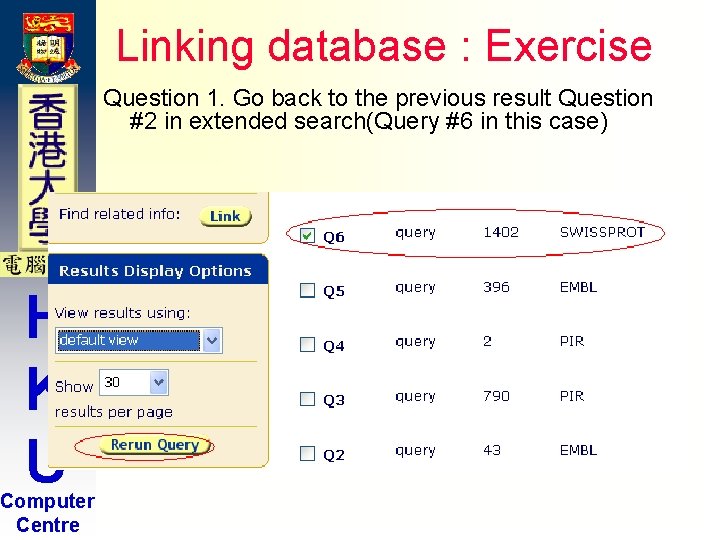
Linking database : Exercise Question 1. Go back to the previous result Question #2 in extended search(Query #6 in this case) H K U Computer Centre
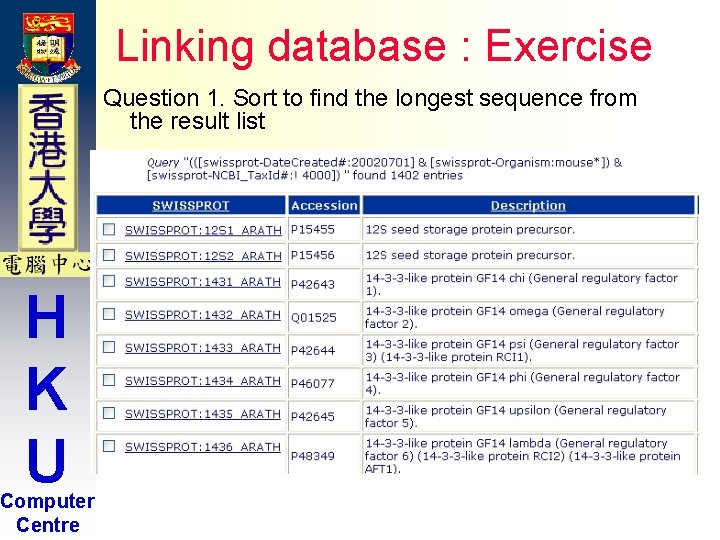
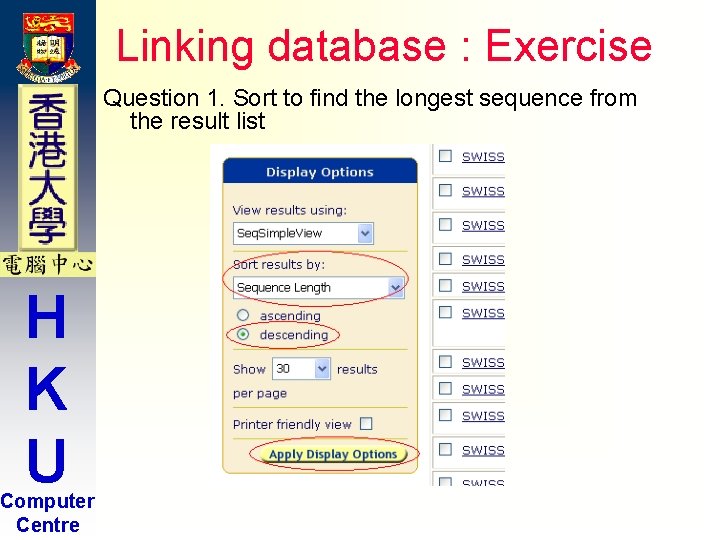
Linking database : Exercise Question 1. Sort to find the longest sequence from the result list H K U Computer Centre
Linking database : Exercise Question 1. Sort to find the longest sequence from the result list H K U Computer Centre
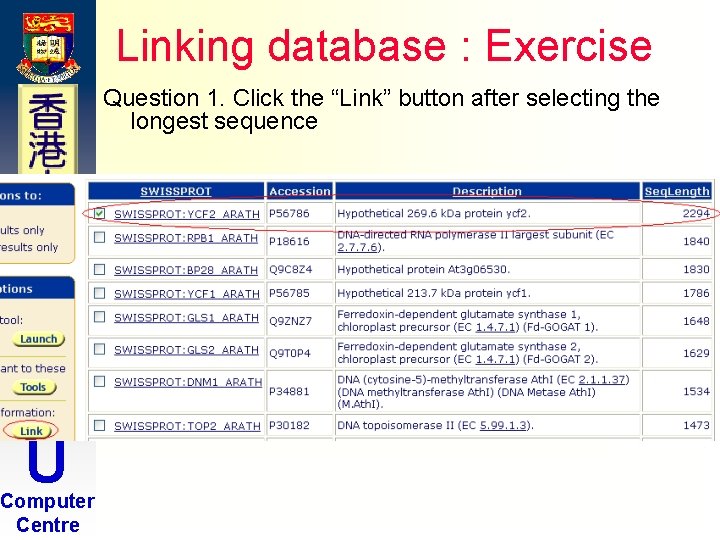
Linking database : Exercise Question 1. Click the “Link” button after selecting the longest sequence H K U Computer Centre
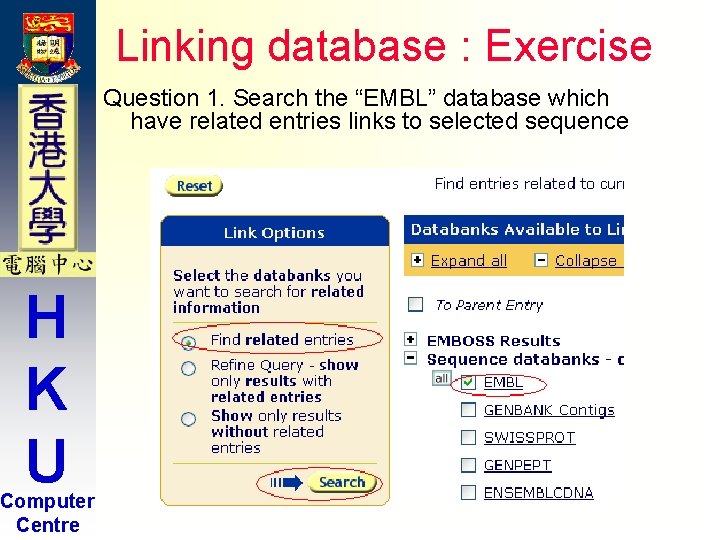
Linking database : Exercise Question 1. Search the “EMBL” database which have related entries links to selected sequence H K U Computer Centre
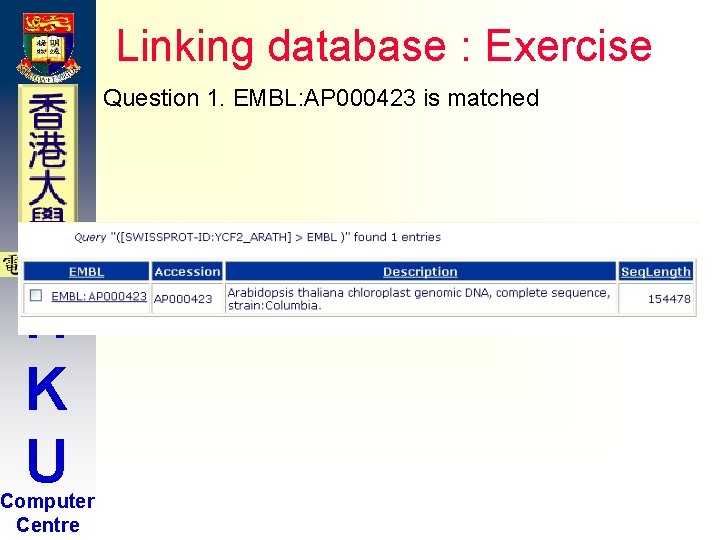
Linking database : Exercise Question 1. EMBL: AP 000423 is matched H K U Computer Centre
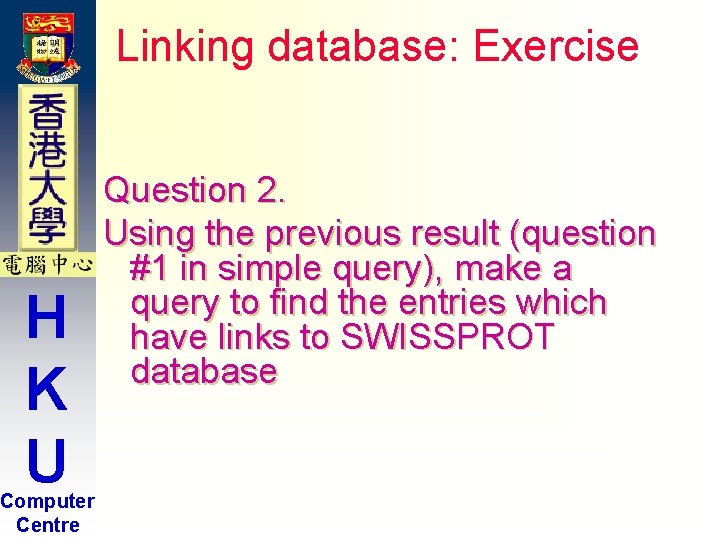
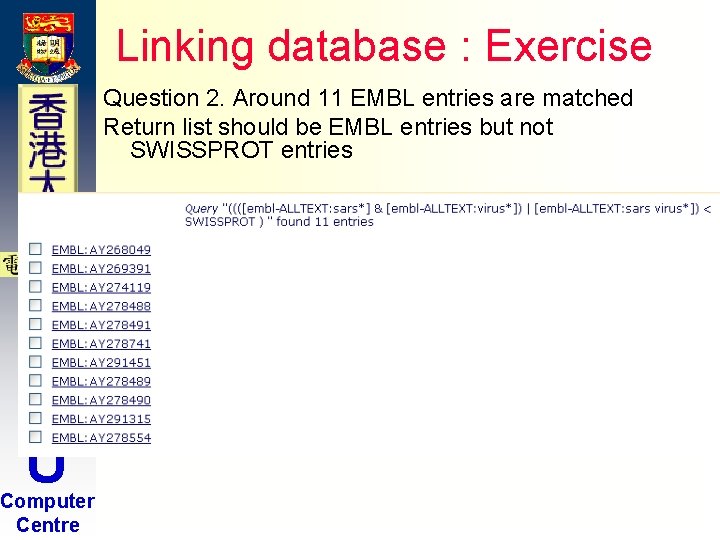
Linking database: Exercise H K U Computer Centre Question 2. Using the previous result (question #1 in simple query), make a query to find the entries which have links to SWISSPROT database
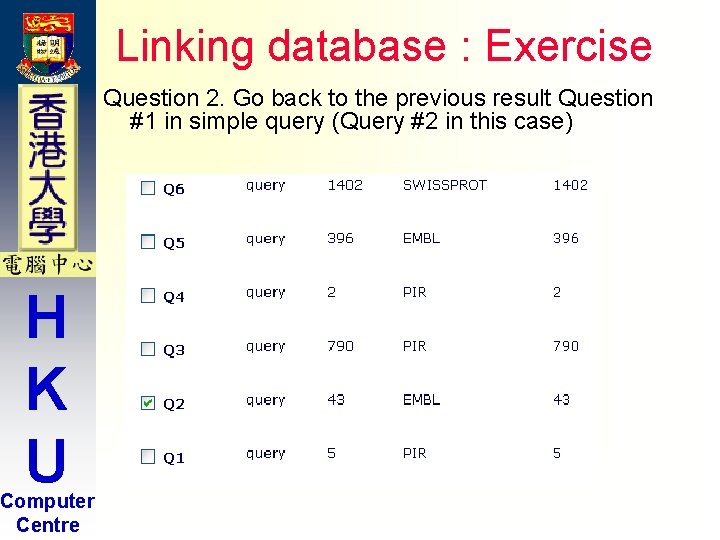
Linking database : Exercise Question 2. Go back to the previous result Question #1 in simple query (Query #2 in this case) H K U Computer Centre
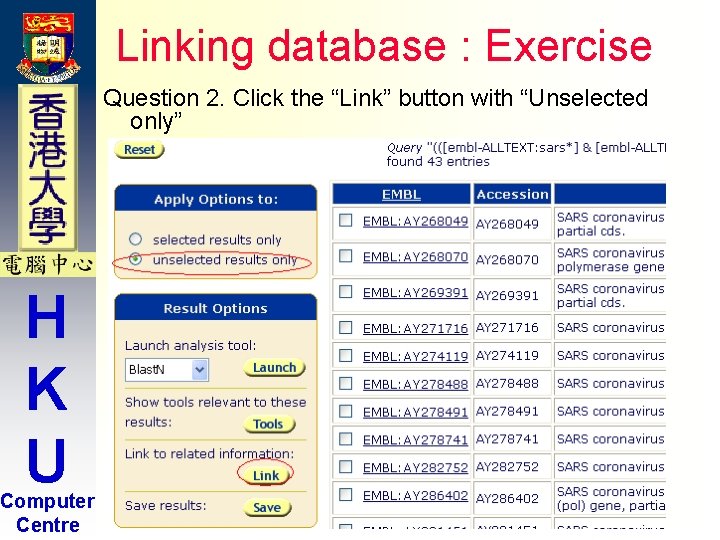
Linking database : Exercise Question 2. Click the “Link” button with “Unselected only” H K U Computer Centre
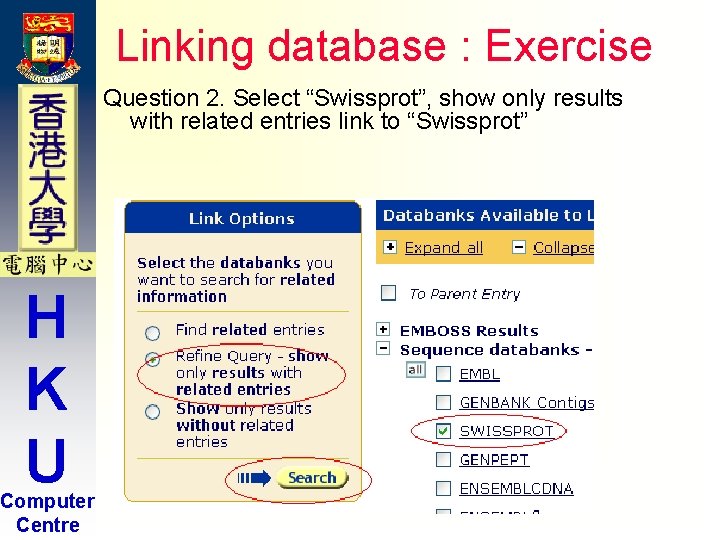
Linking database : Exercise Question 2. Select “Swissprot”, show only results with related entries link to “Swissprot” H K U Computer Centre
Linking database : Exercise Question 2. Around 11 EMBL entries are matched Return list should be EMBL entries but not SWISSPROT entries H K U Computer Centre
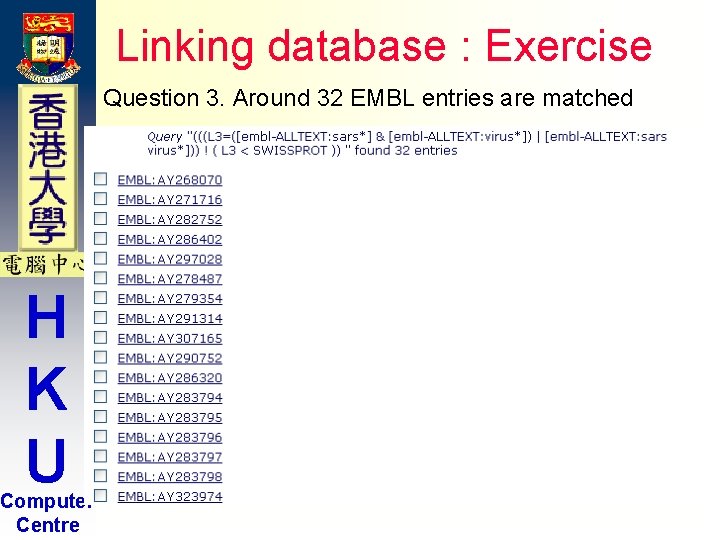
Linking database: Exercise H K U Computer Centre Question 3. Using the previous result (question #1 in simple query), make a query to find the entries which have no links to SWISSPROT database
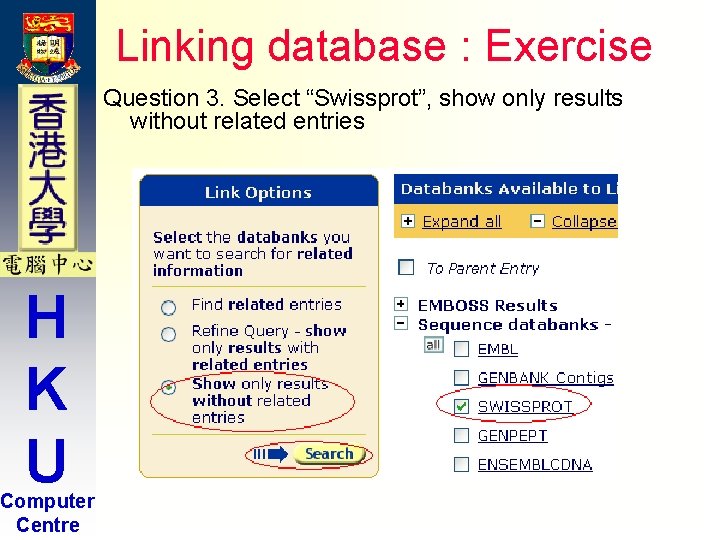
Linking database : Exercise Question 3. Select “Swissprot”, show only results without related entries H K U Computer Centre
Linking database : Exercise Question 3. Around 32 EMBL entries are matched H K U Computer Centre
Introduction to SRS H K U Computer Centre Part 4. Application
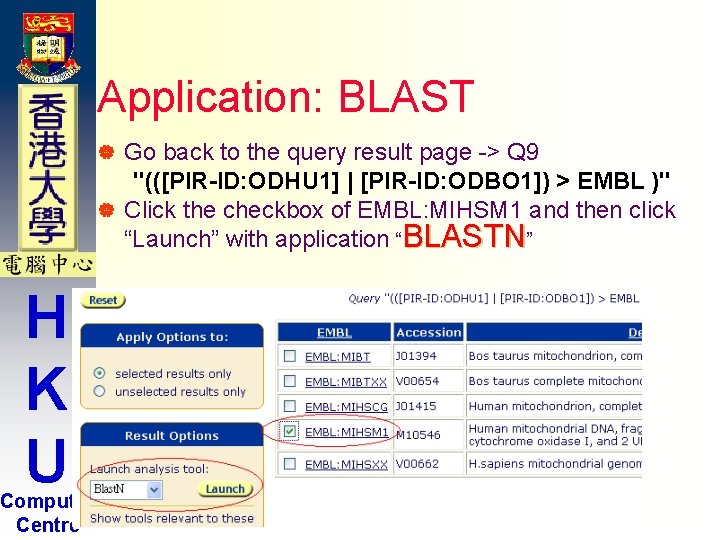
Application: BLAST Go back to the query result page -> Q 9 "(([PIR-ID: ODHU 1] | [PIR-ID: ODBO 1]) > EMBL )" | Click the checkbox of EMBL: MIHSM 1 and then click “Launch” with application “BLASTN” | H K U Computer Centre
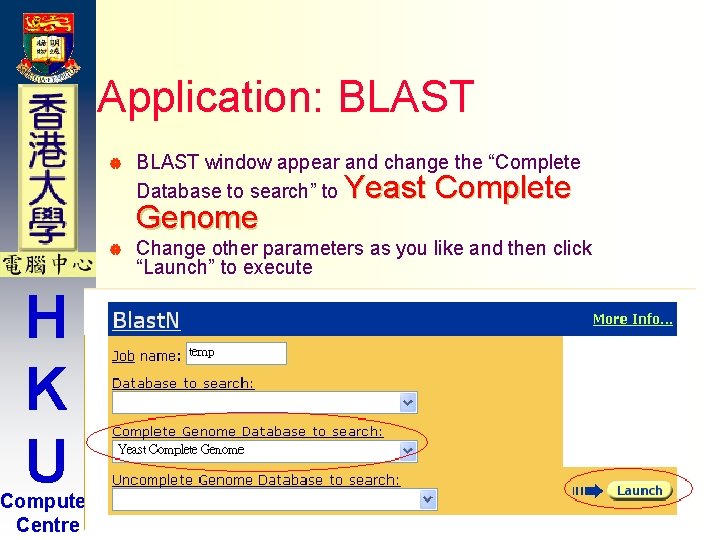
Application: BLAST | BLAST window appear and change the “Complete Database to search” to Genome | H K U Computer Centre Yeast Complete Change other parameters as you like and then click “Launch” to execute
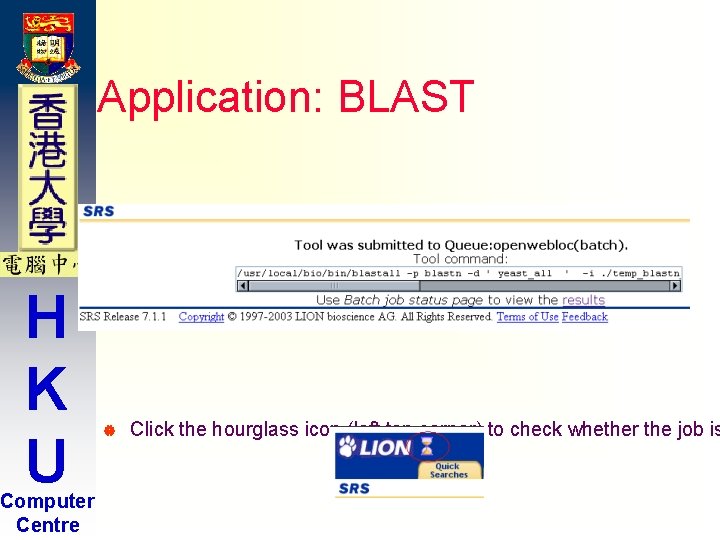
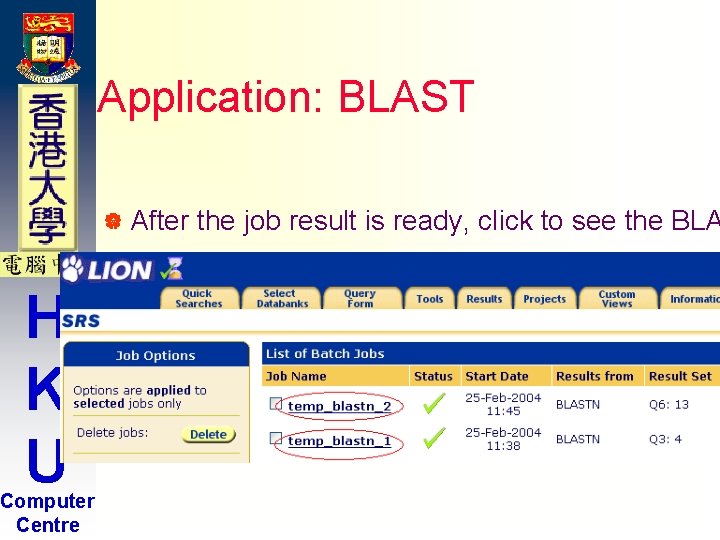
Application: BLAST H K U Computer Centre | BLAST job was submitted to the batch queue | Click the hourglass icon (left top corner) to check whether the job is
Application: BLAST | After H K U Computer Centre the job result is ready, click to see the BLA
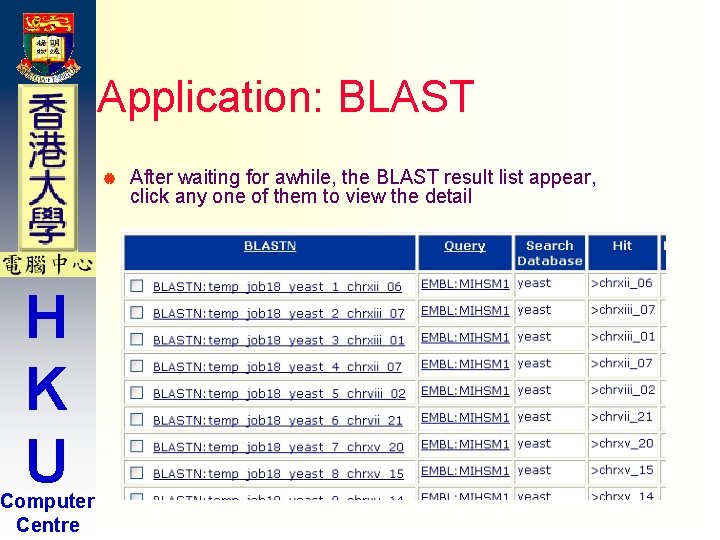
Application: BLAST | H K U Computer Centre After waiting for awhile, the BLAST result list appear, click any one of them to view the detail
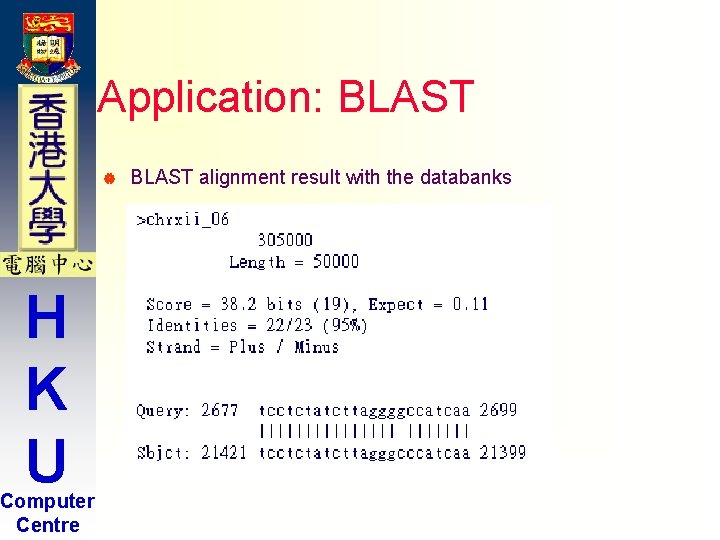
Application: BLAST | H K U Computer Centre BLAST alignment result with the databanks
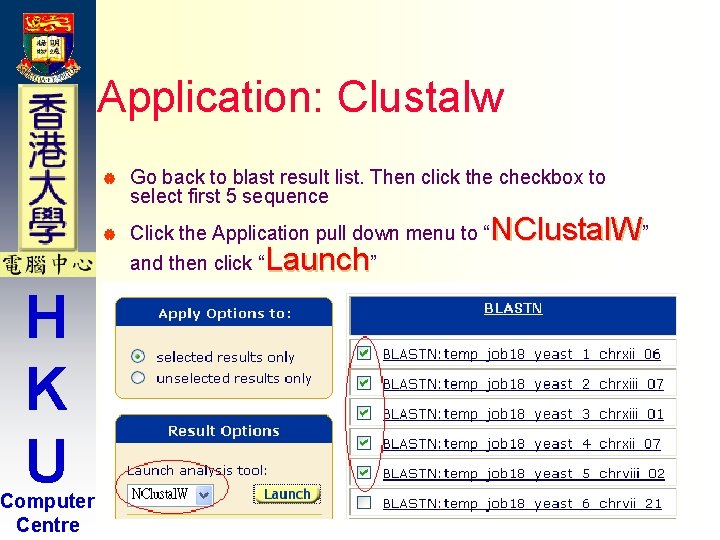
Application: Clustalw | Go back to blast result list. Then click the checkbox to select first 5 sequence | Click the Application pull down menu to “ and then click “ H K U Computer Centre Launch” NClustal. W”
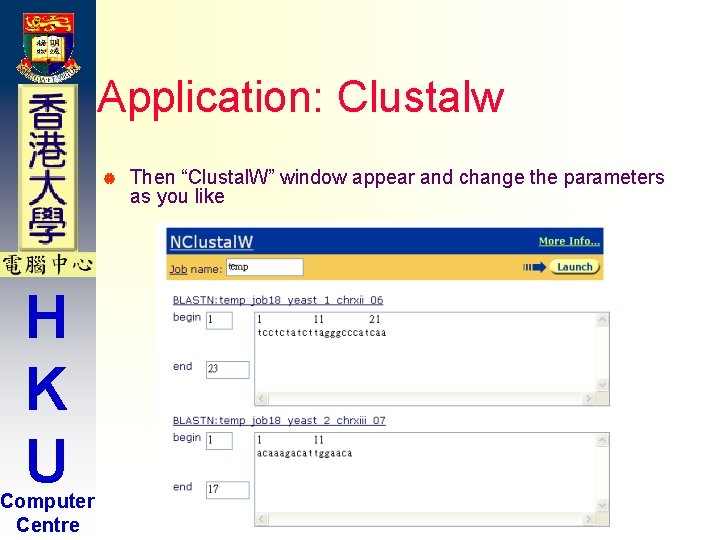
Application: Clustalw | H K U Computer Centre Then “Clustal. W” window appear and change the parameters as you like
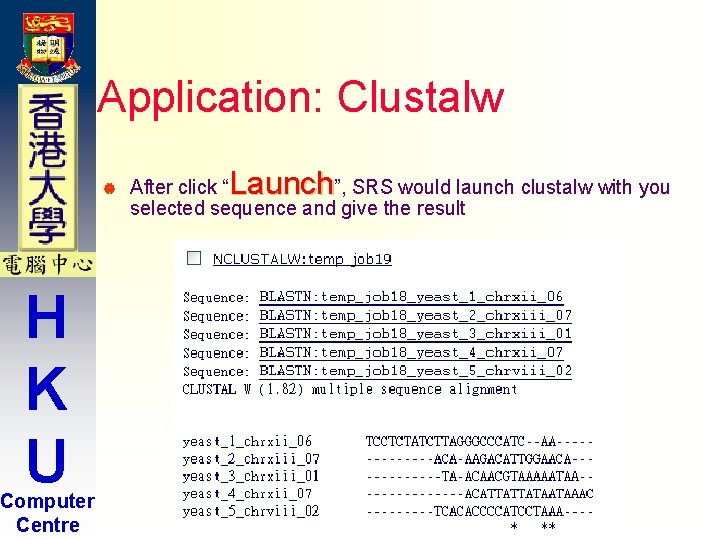
Application: Clustalw | H K U Computer Centre Launch After click “ ”, SRS would launch clustalw with you selected sequence and give the result
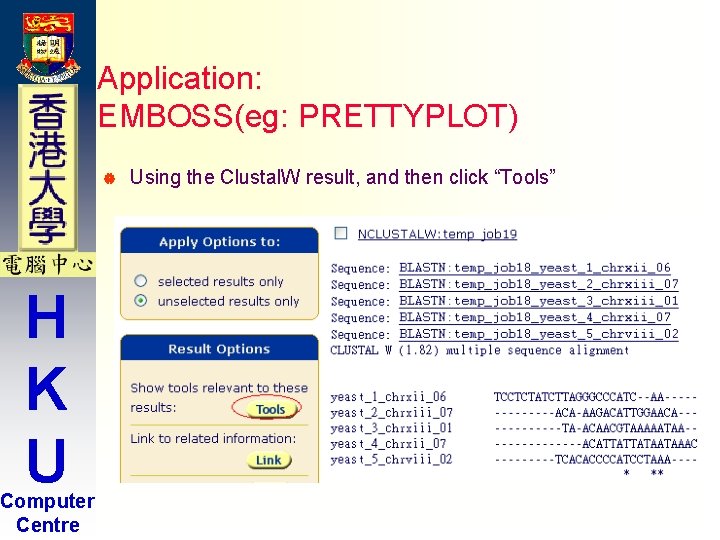
Application: EMBOSS(eg: PRETTYPLOT) | H K U Computer Centre Using the Clustal. W result, and then click “Tools”
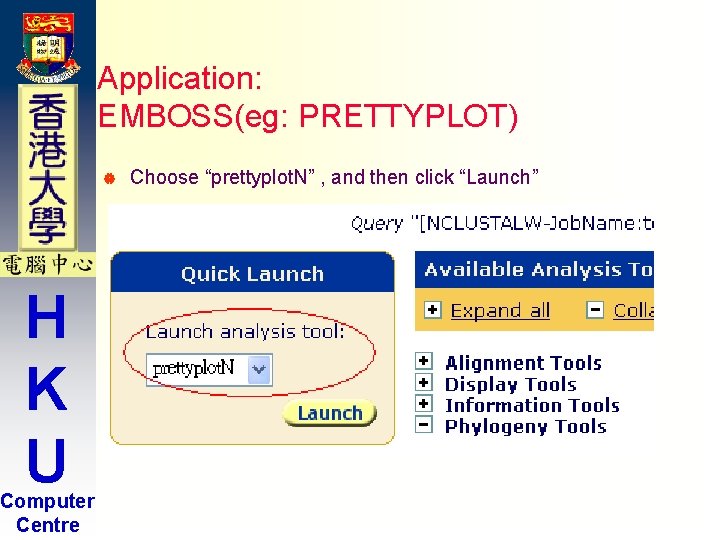
Application: EMBOSS(eg: PRETTYPLOT) | H K U Computer Centre Choose “prettyplot. N” , and then click “Launch”
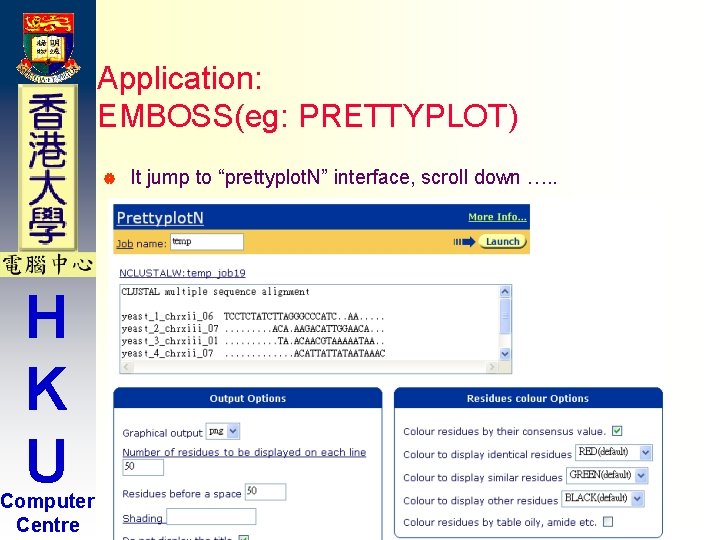
Application: EMBOSS(eg: PRETTYPLOT) | H K U Computer Centre It jump to “prettyplot. N” interface, scroll down …. .
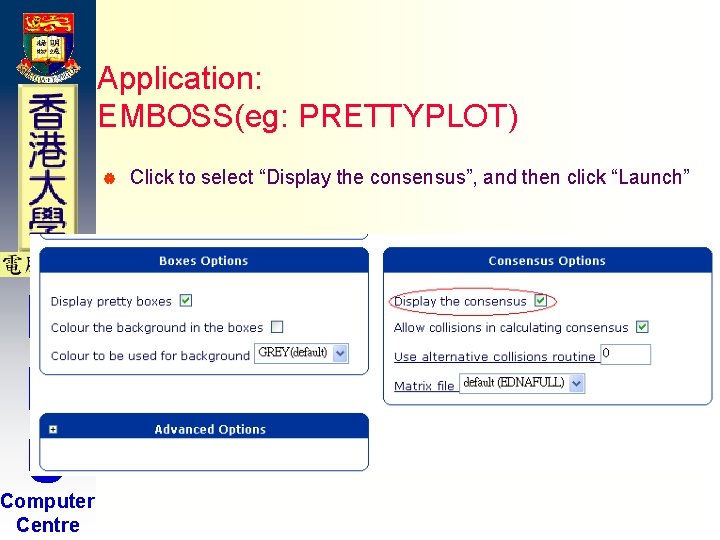
Application: EMBOSS(eg: PRETTYPLOT) | H K U Computer Centre Click to select “Display the consensus”, and then click “Launch”
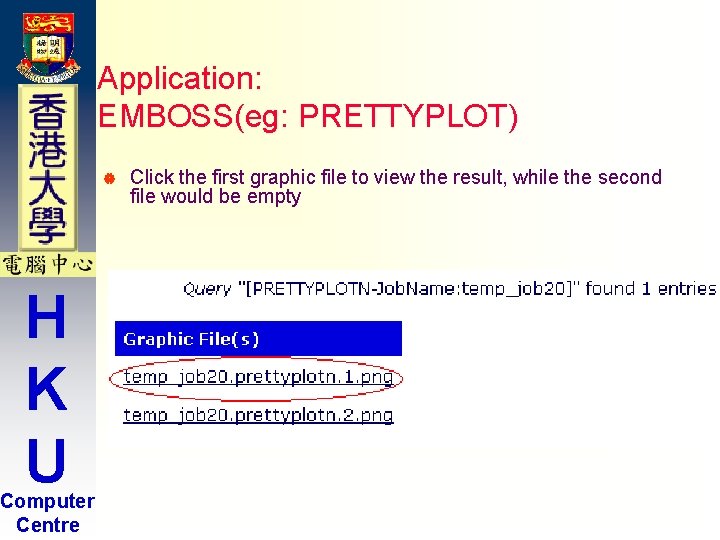
Application: EMBOSS(eg: PRETTYPLOT) | H K U Computer Centre Click the first graphic file to view the result, while the second file would be empty
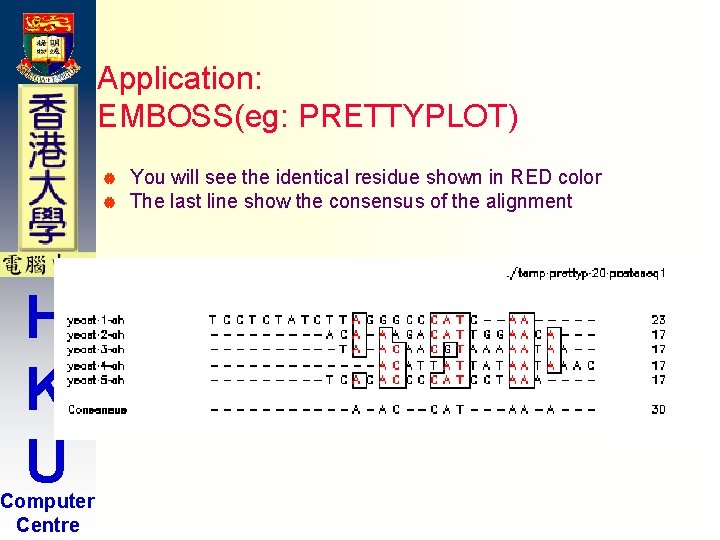
Application: EMBOSS(eg: PRETTYPLOT) | | H K U Computer Centre You will see the identical residue shown in RED color The last line show the consensus of the alignment
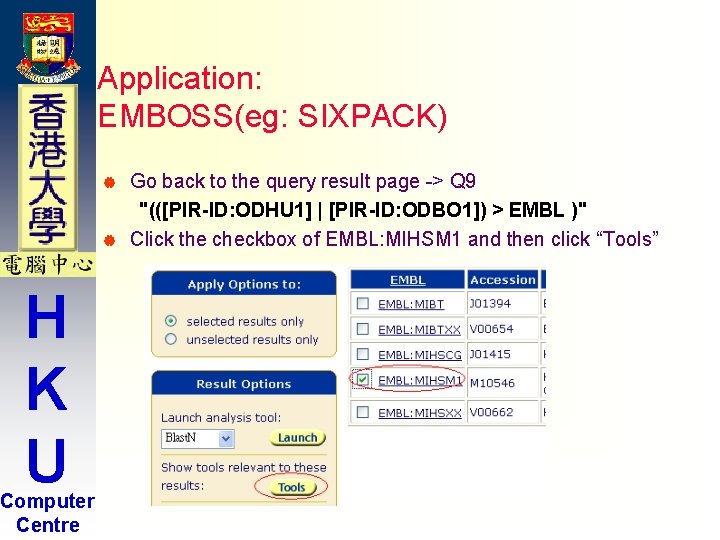
Application: EMBOSS(eg: SIXPACK) Go back to the query result page -> Q 9 "(([PIR-ID: ODHU 1] | [PIR-ID: ODBO 1]) > EMBL )" | Click the checkbox of EMBL: MIHSM 1 and then click “Tools” | H K U Computer Centre
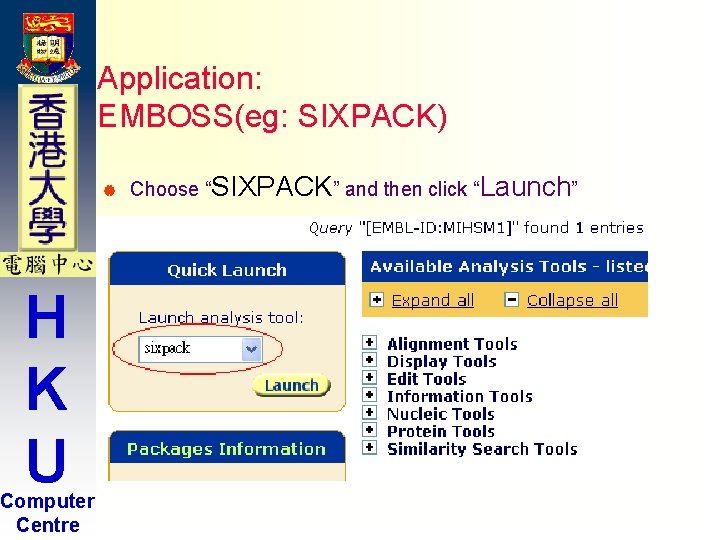
Application: EMBOSS(eg: SIXPACK) | H K U Computer Centre Choose “SIXPACK” and then click “Launch”
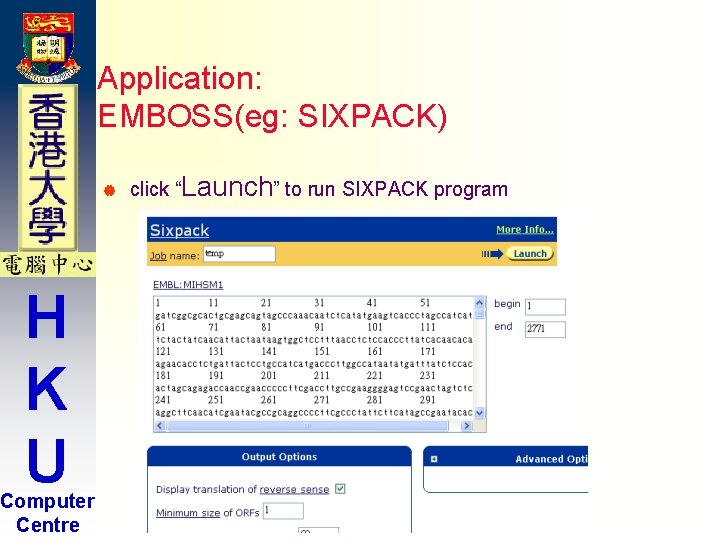
Application: EMBOSS(eg: SIXPACK) | H K U Computer Centre click “Launch” to run SIXPACK program
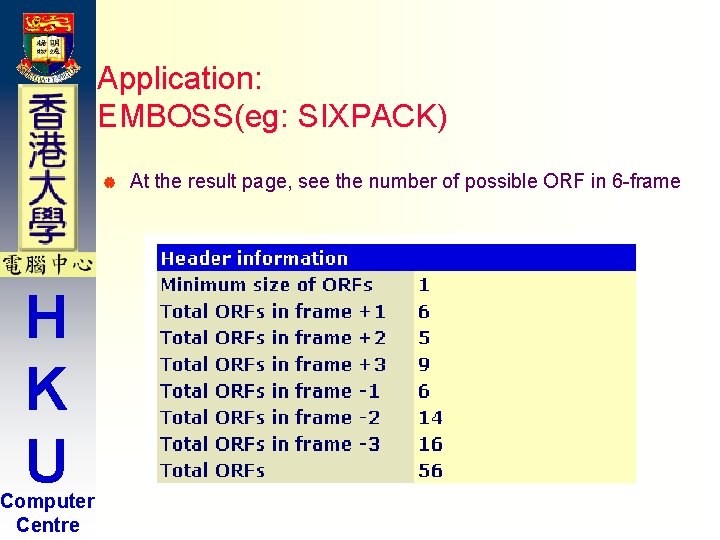
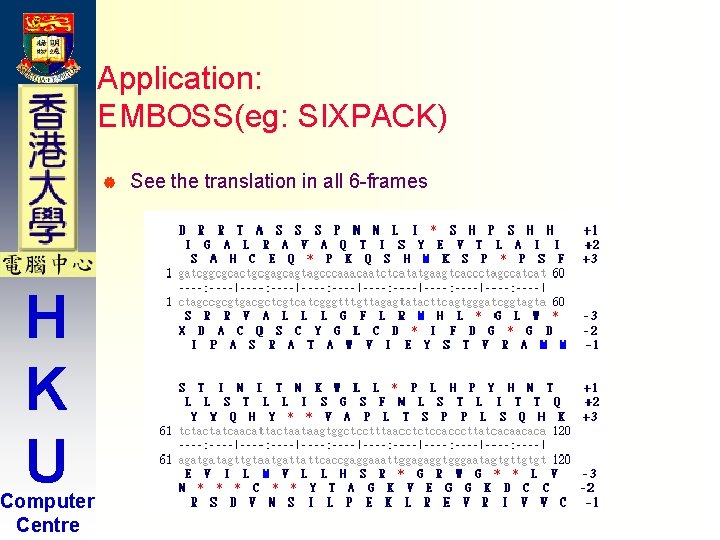
Application: EMBOSS(eg: SIXPACK) | H K U Computer Centre At the result page, see the number of possible ORF in 6 -frame
Application: EMBOSS(eg: SIXPACK) | H K U Computer Centre See the translation in all 6 -frames
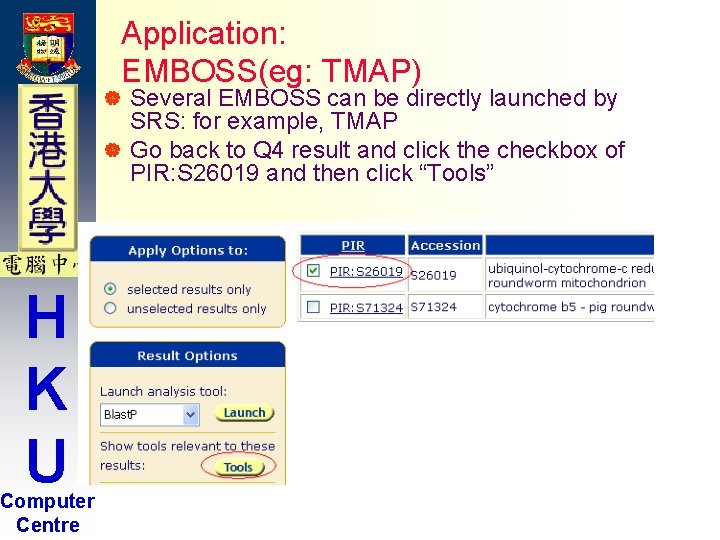
Application: EMBOSS(eg: TMAP) Several EMBOSS can be directly launched by SRS: for example, TMAP | Go back to Q 4 result and click the checkbox of PIR: S 26019 and then click “Tools” | H K U Computer Centre
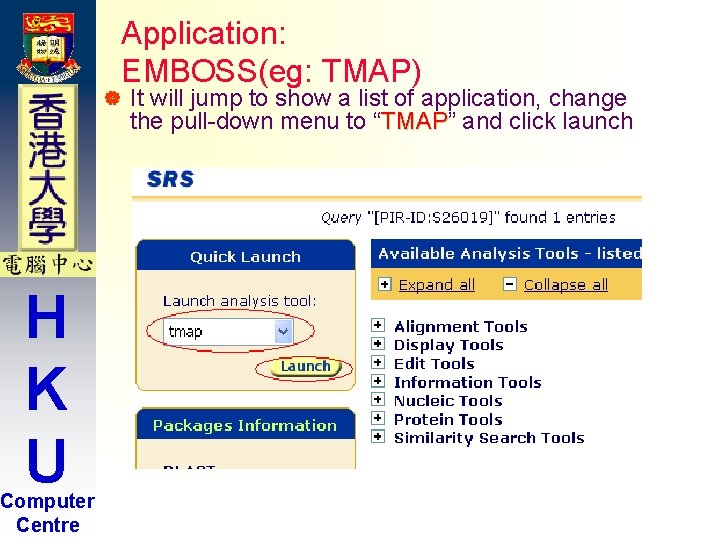
| H K U Computer Centre Application: EMBOSS(eg: TMAP) It will jump to show a list of application, change the pull-down menu to “TMAP” TMAP and click launch
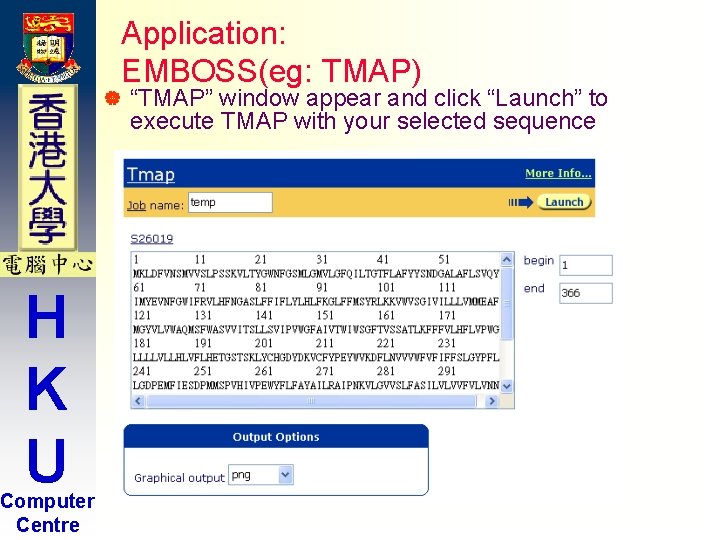
| H K U Computer Centre Application: EMBOSS(eg: TMAP) “TMAP” window appear and click “Launch” to execute TMAP with your selected sequence
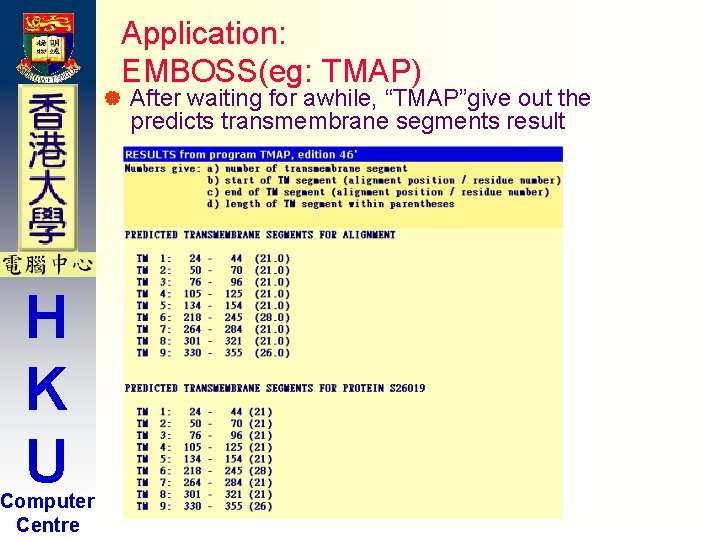
| H K U Computer Centre Application: EMBOSS(eg: TMAP) After waiting for awhile, “TMAP”give out the predicts transmembrane segments result
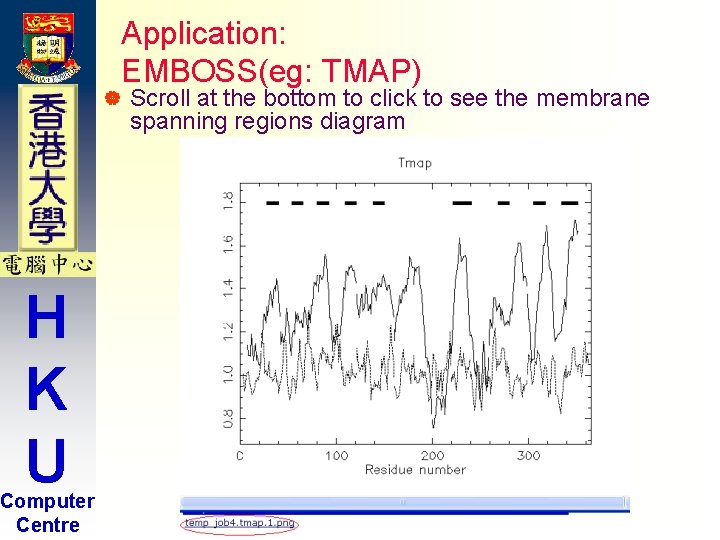
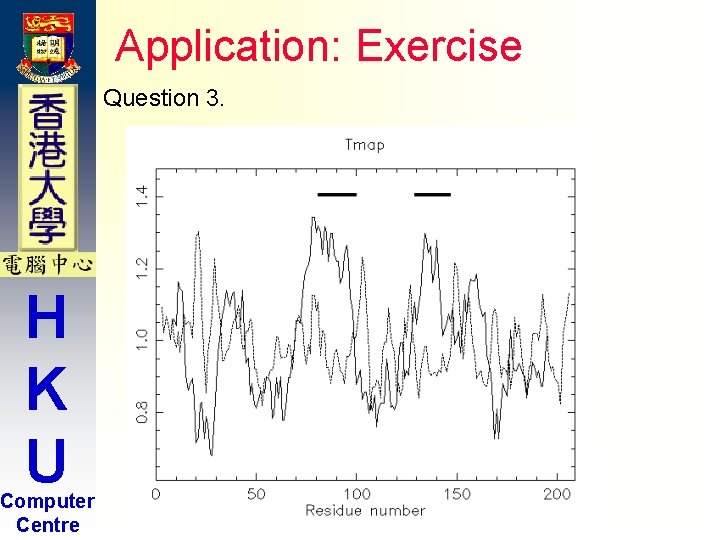
| H K U Computer Centre Application: EMBOSS(eg: TMAP) Scroll at the bottom to click to see the membrane spanning regions diagram
Application : Exercise 15 Minutes Break H K U Computer Centre Please try the following exercises by yourself!
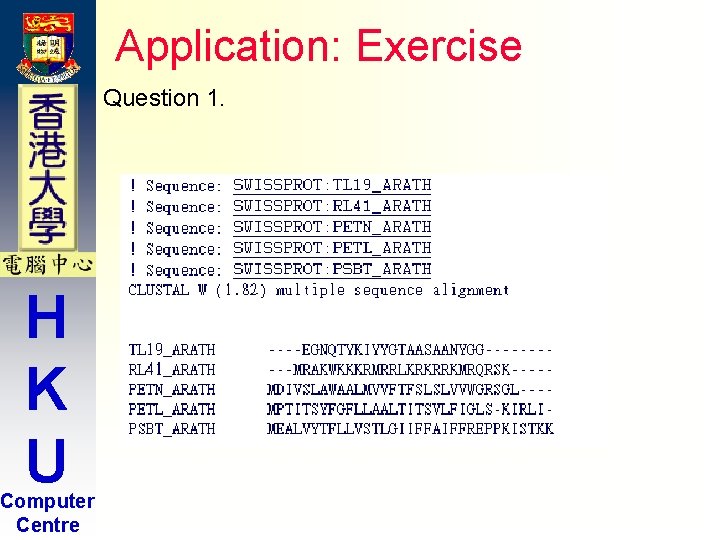
Application: Exercise H K U Computer Centre Question 1. Do the sequence alignment of the 5 shortest sequence from the previous result (question #2 in extended search) using clustalw
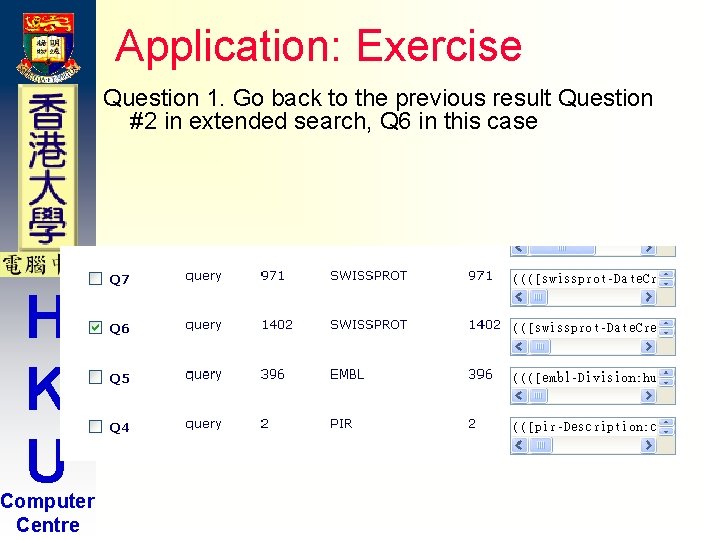
Application: Exercise Question 1. Go back to the previous result Question #2 in extended search, Q 6 in this case H K U Computer Centre
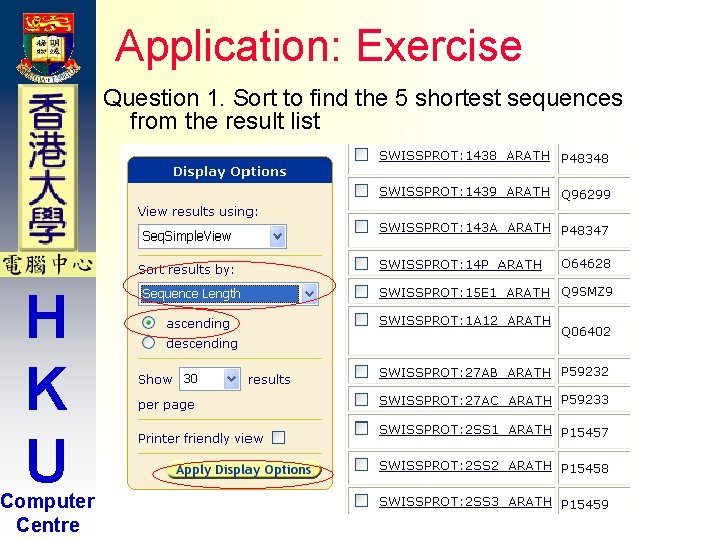
Application: Exercise Question 1. Sort to find the 5 shortest sequences from the result list H K U Computer Centre
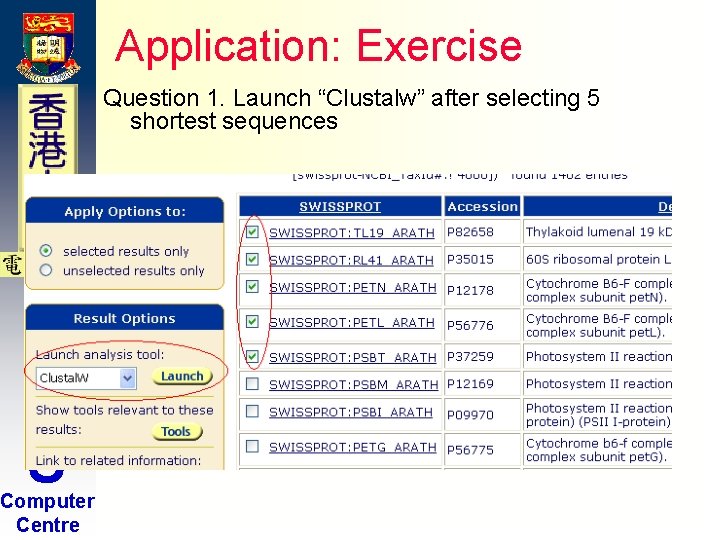
Application: Exercise Question 1. Launch “Clustalw” after selecting 5 shortest sequences H K U Computer Centre
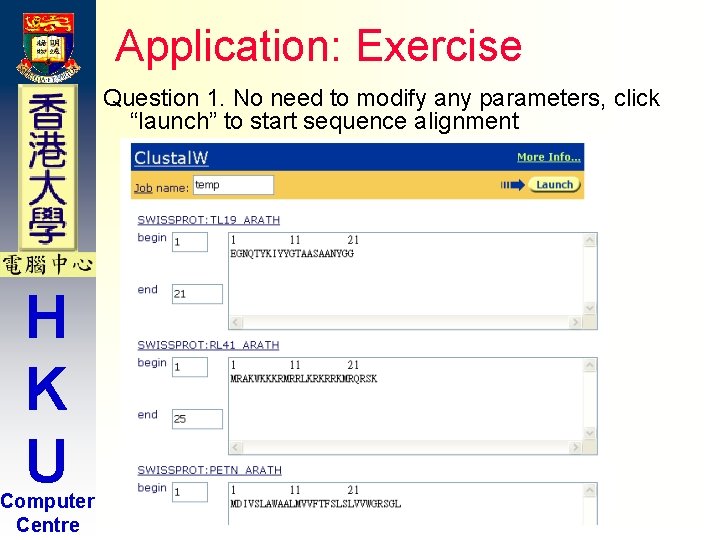
Application: Exercise Question 1. No need to modify any parameters, click “launch” to start sequence alignment H K U Computer Centre
Application: Exercise Question 1. H K U Computer Centre
Application: Exercise H K U Computer Centre Question 2. Do the BLAST search using the EMBL: AY 278491 (HKU-SARS virus) sequence against EMBL (Release): VRL(virus) database
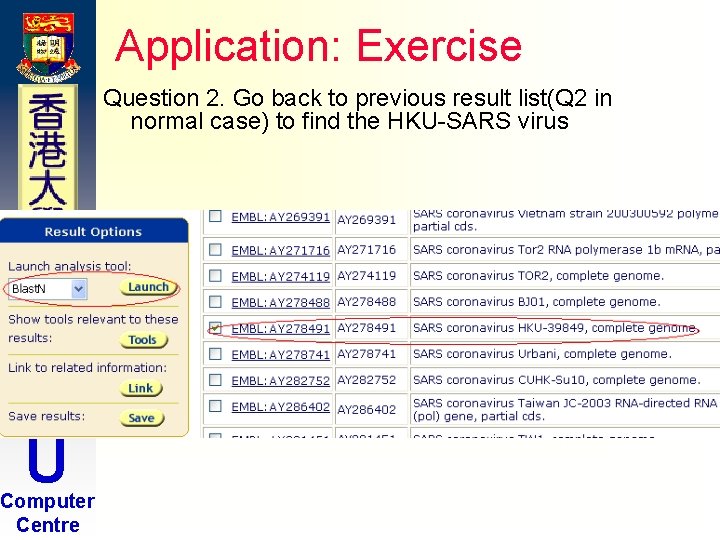
Application: Exercise Question 2. Go back to previous result list(Q 2 in normal case) to find the HKU-SARS virus H K U Computer Centre
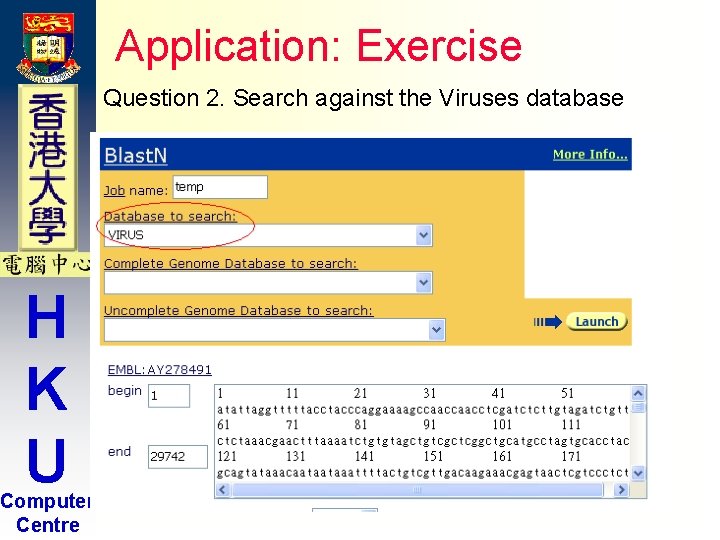
Application: Exercise Question 2. Search against the Viruses database H K U Computer Centre
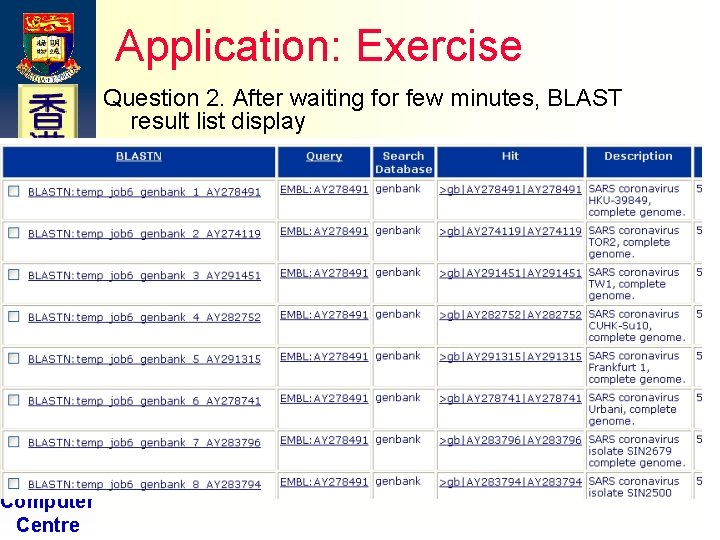
Application: Exercise Question 2. After waiting for few minutes, BLAST result list display H K U Computer Centre
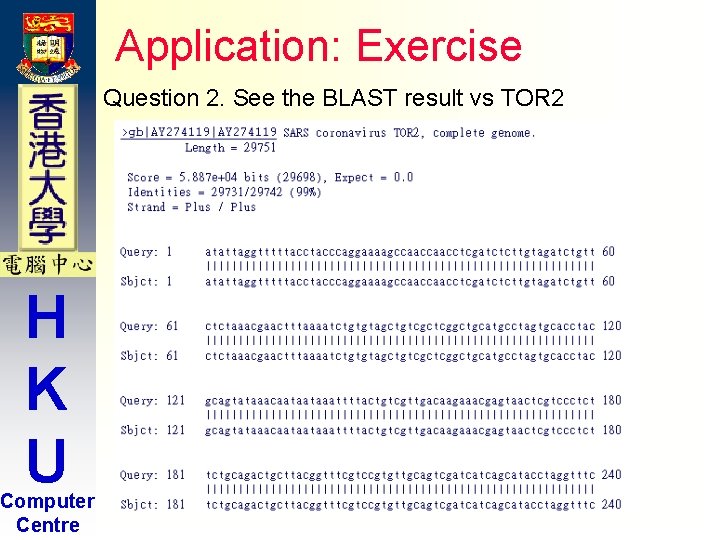
Application: Exercise Question 2. See the BLAST result vs TOR 2 H K U Computer Centre
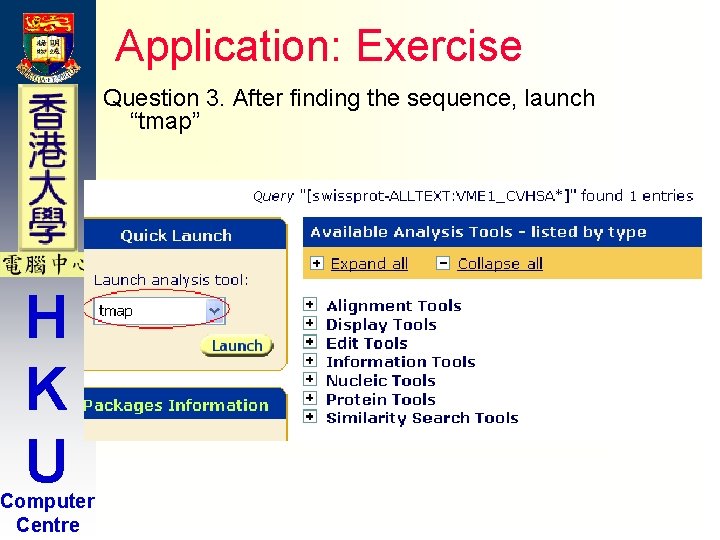
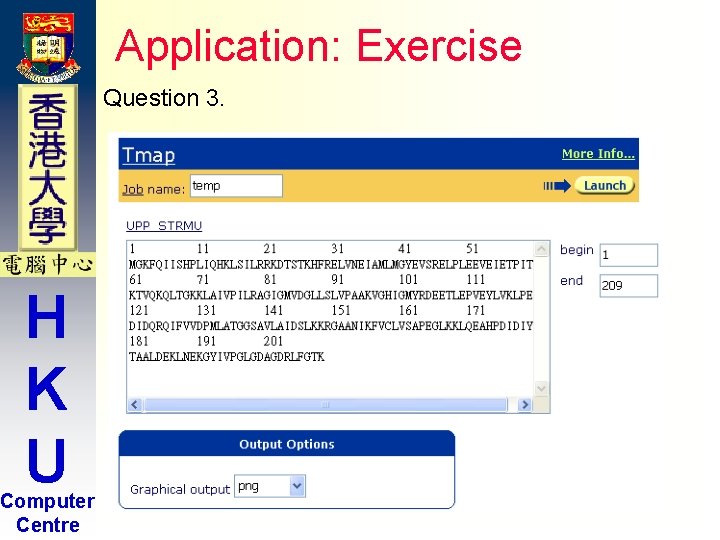
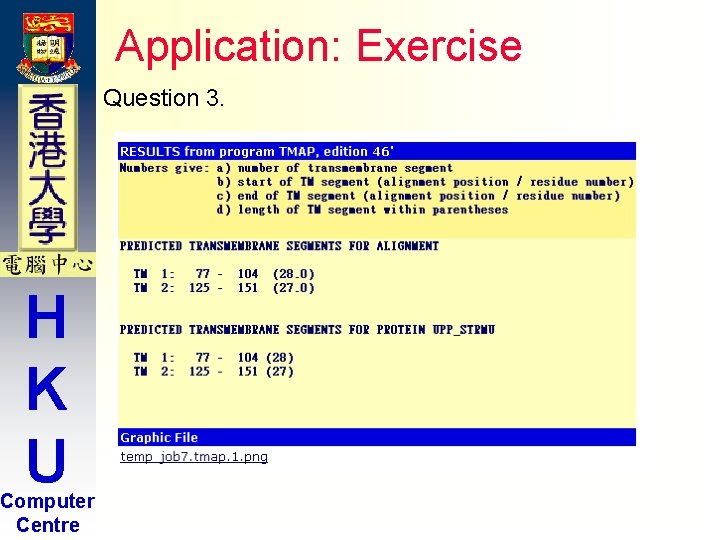
Application: Exercise H K U Computer Centre Question 3. Find the transmembrance segments of the SWISSPROT: VME 1_CVHSA (SARS virus M-protein) sequence using TMAP
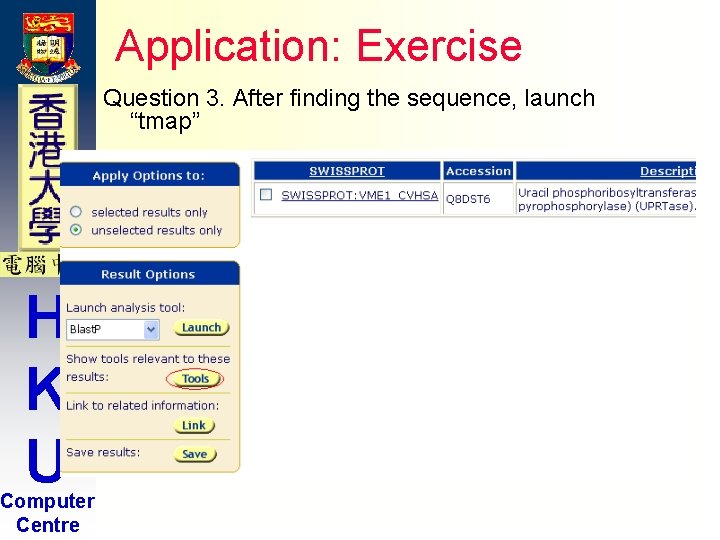
Application: Exercise Question 3. After finding the sequence, launch “tmap” H K U Computer Centre
Application: Exercise Question 3. After finding the sequence, launch “tmap” H K U Computer Centre
Application: Exercise Question 3. H K U Computer Centre
Application: Exercise Question 3. H K U Computer Centre
Application: Exercise Question 3. H K U Computer Centre
Introduction to SRS H K U Computer Centre Part 5. Others
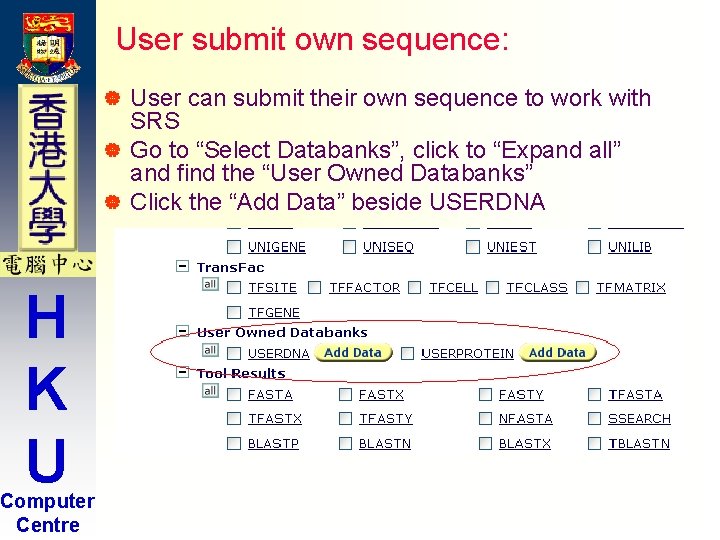
User submit own sequence: User can submit their own sequence to work with SRS | Go to “Select Databanks”, click to “Expand all” and find the “User Owned Databanks” | Click the “Add Data” beside USERDNA | H K U Computer Centre
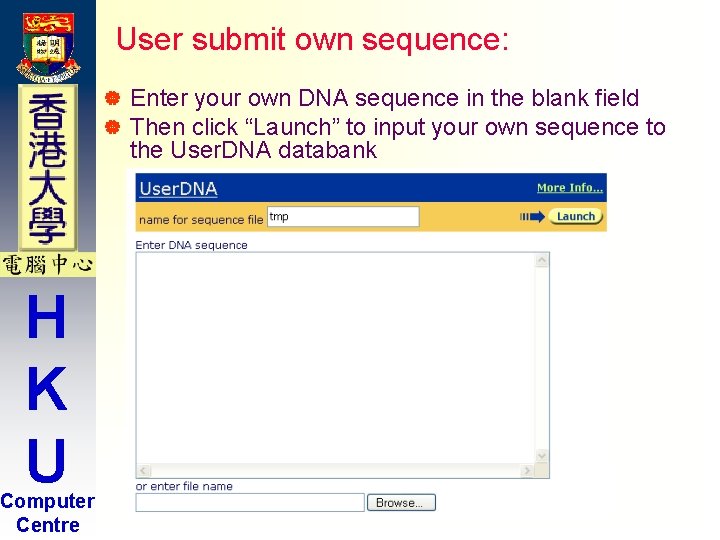
User submit own sequence: | | H K U Computer Centre Enter your own DNA sequence in the blank field Then click “Launch” to input your own sequence to the User. DNA databank
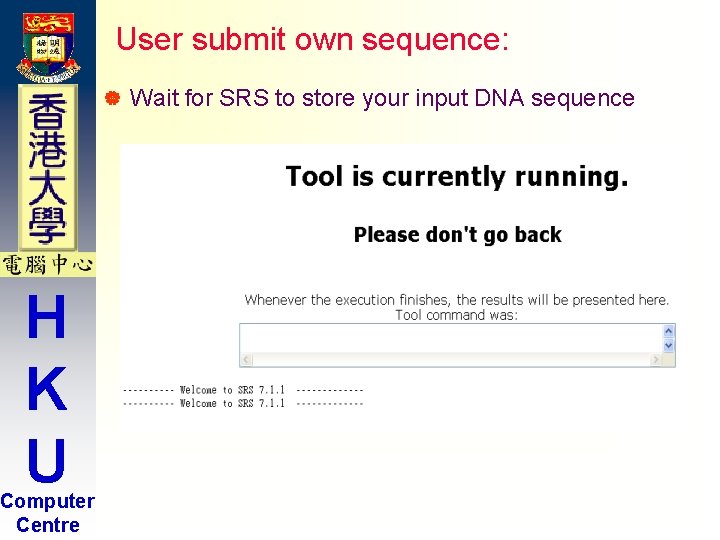
User submit own sequence: | H K U Computer Centre Wait for SRS to store your input DNA sequence
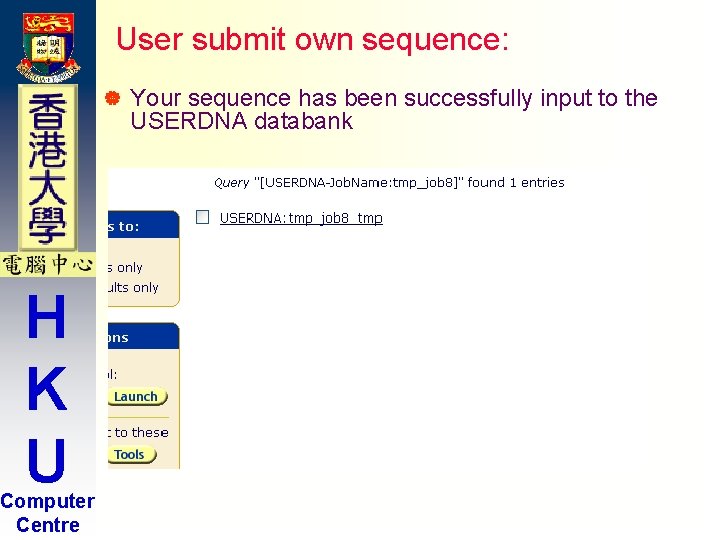
User submit own sequence: | H K U Computer Centre Your sequence has been successfully input to the USERDNA databank
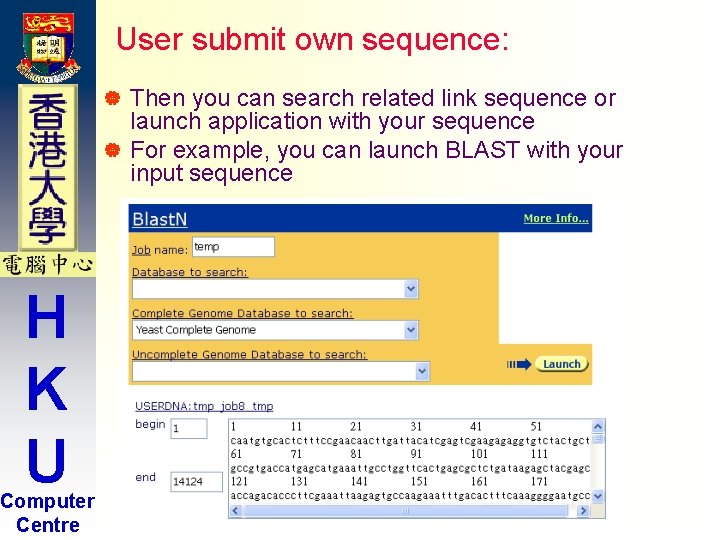
User submit own sequence: Then you can search related link sequence or launch application with your sequence | For example, you can launch BLAST with your input sequence | H K U Computer Centre
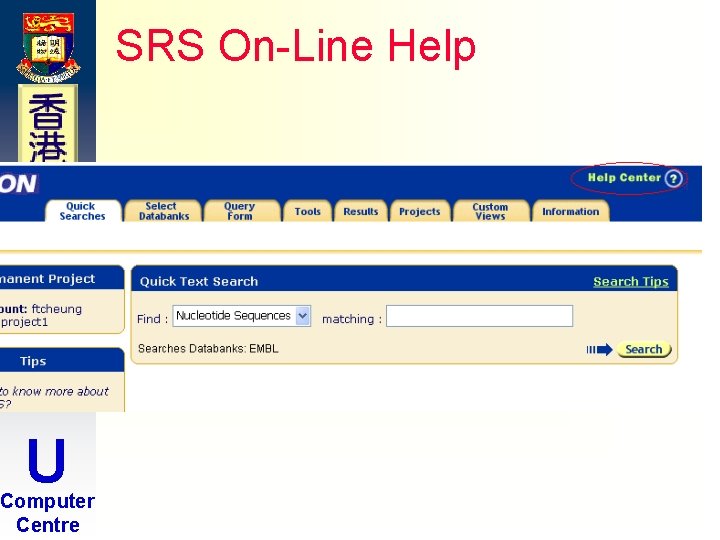
SRS On-Line Help H K U Computer Centre
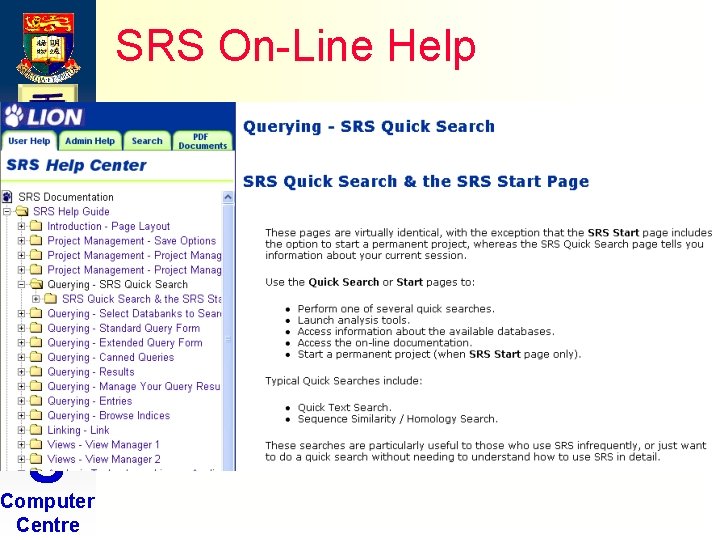
SRS On-Line Help H K U Computer Centre
H K U Computer Centre -END-