
Introduction to Scratch Created December 2007 by Michelle
Introduction to Scratch Created December 2007 by Michelle Venable-Foster and Barb Ericson Revised by Diane Royer May 2011 Adventures in Animation
What is Scratch? • Scratch is a free programmable toolkit that enables you to create games, animated stories, music videos, and interactive art and share your creations with one another over the Internet. Adventures in Animation
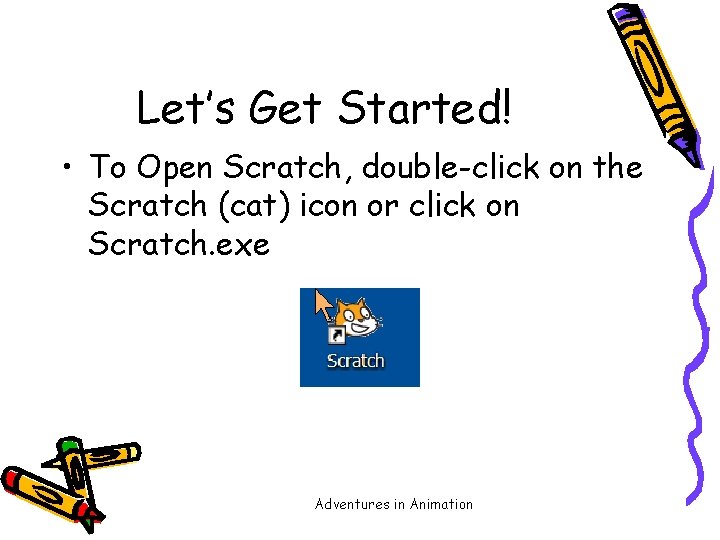
Let’s Get Started! • To Open Scratch, double-click on the Scratch (cat) icon or click on Scratch. exe Adventures in Animation
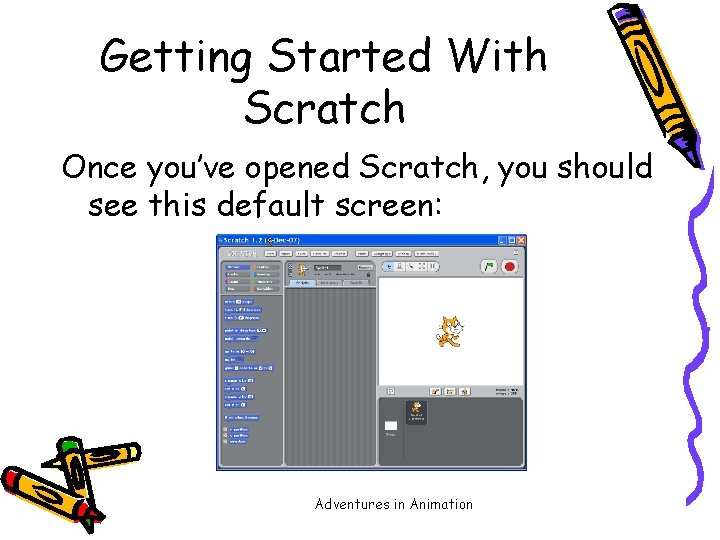
Getting Started With Scratch Once you’ve opened Scratch, you should see this default screen: Adventures in Animation
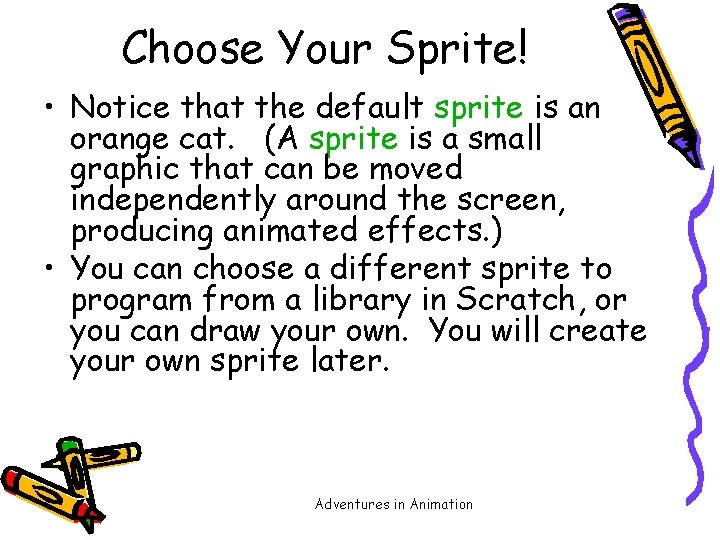
Choose Your Sprite! • Notice that the default sprite is an orange cat. (A sprite is a small graphic that can be moved independently around the screen, producing animated effects. ) • You can choose a different sprite to program from a library in Scratch, or you can draw your own. You will create your own sprite later. Adventures in Animation
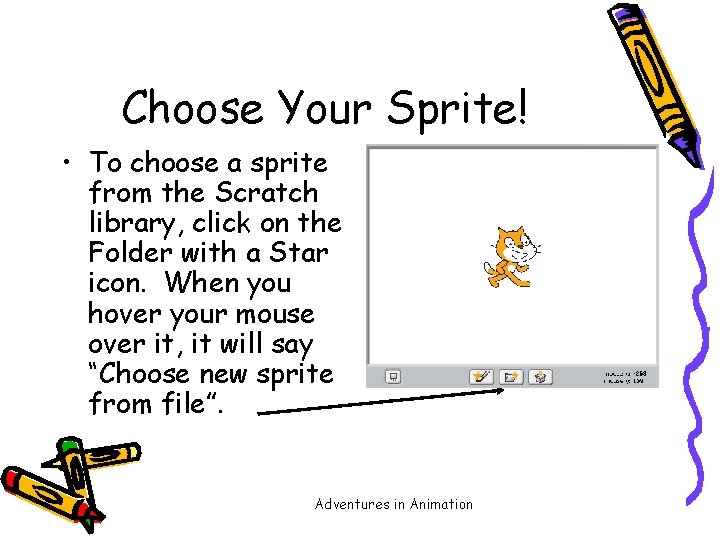
Choose Your Sprite! • To choose a sprite from the Scratch library, click on the Folder with a Star icon. When you hover your mouse over it, it will say “Choose new sprite from file”. Adventures in Animation
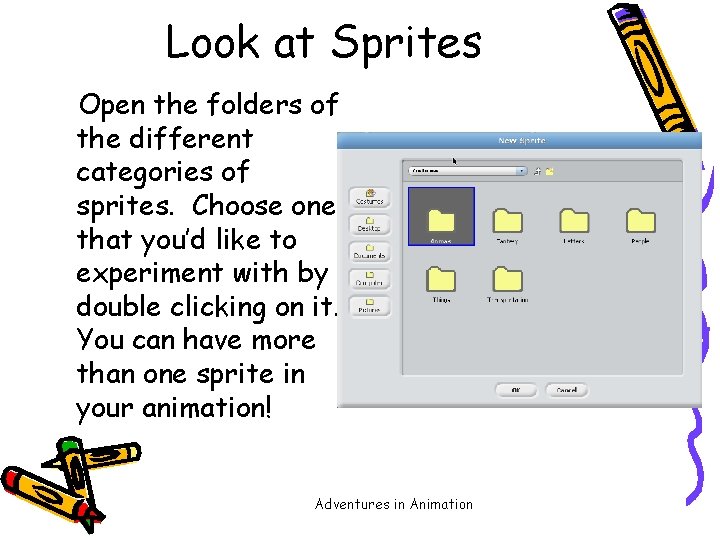
Look at Sprites Open the folders of the different categories of sprites. Choose one that you’d like to experiment with by double clicking on it. You can have more than one sprite in your animation! Adventures in Animation
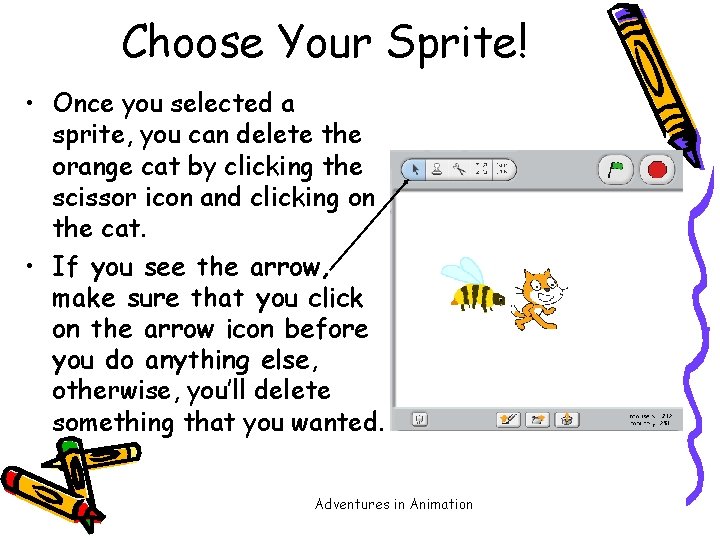
Choose Your Sprite! • Once you selected a sprite, you can delete the orange cat by clicking the scissor icon and clicking on the cat. • If you see the arrow, make sure that you click on the arrow icon before you do anything else, otherwise, you’ll delete something that you wanted. Adventures in Animation
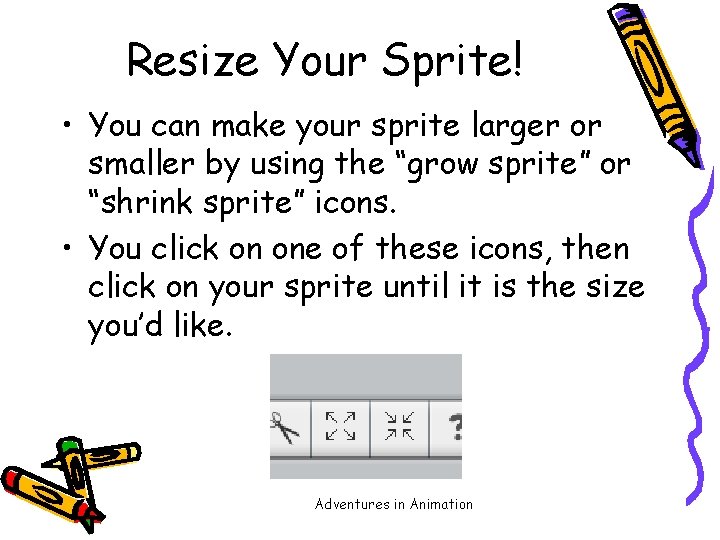
Resize Your Sprite! • You can make your sprite larger or smaller by using the “grow sprite” or “shrink sprite” icons. • You click on one of these icons, then click on your sprite until it is the size you’d like. Adventures in Animation
Choose Your Background! • Right now, you have a plain, white background – boring! • You can also change your background by choosing one from the Scratch library or creating your own. Adventures in Animation
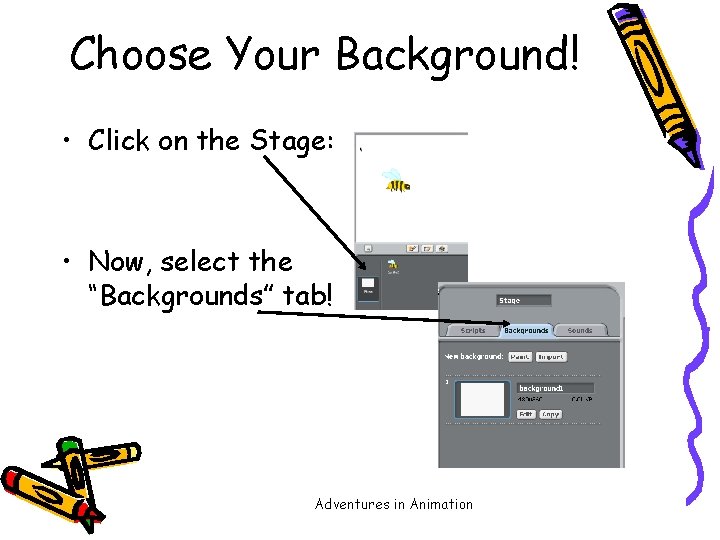
Choose Your Background! • Click on the Stage: • Now, select the “Backgrounds” tab! Adventures in Animation
Change Your Background! • You can experiment with creating or importing your own background later, but, for right now – choose one from the library by selecting Import. Adventures in Animation
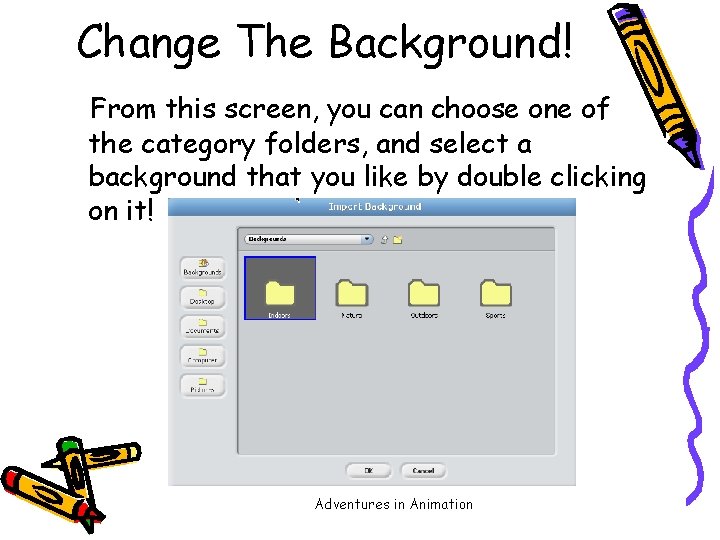
Change The Background! From this screen, you can choose one of the category folders, and select a background that you like by double clicking on it! Adventures in Animation
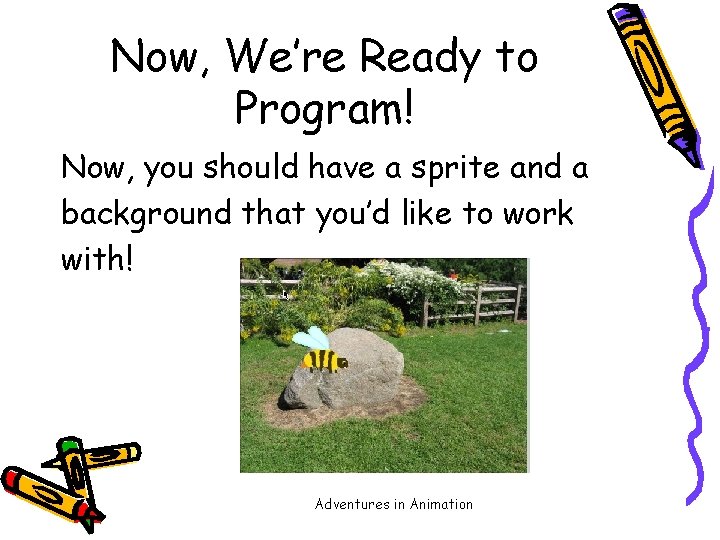
Now, We’re Ready to Program! Now, you should have a sprite and a background that you’d like to work with! Adventures in Animation
Programming In Scratch! • The first thing you need to do is to click on the sprite you want to program, and select the “Scripts” tab. • Since your sprite is the only thing that can be animated, make sure you have it selected. • The Scripts area is where you “build” your program by using the programming blocks. Adventures in Animation
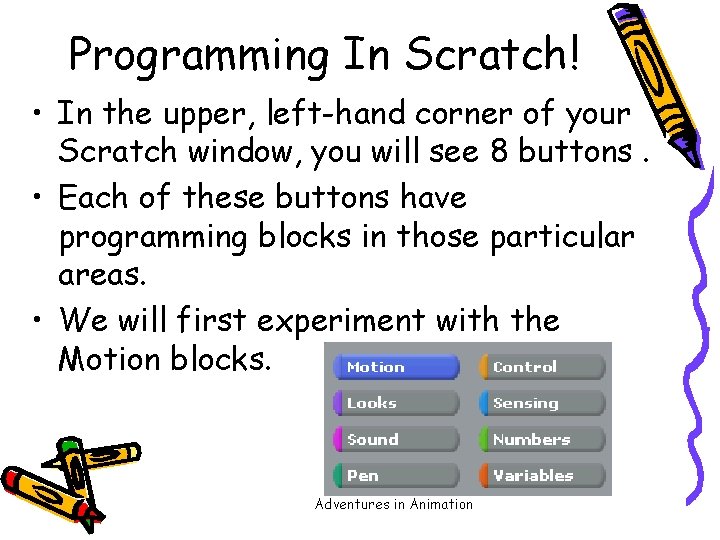
Programming In Scratch! • In the upper, left-hand corner of your Scratch window, you will see 8 buttons. • Each of these buttons have programming blocks in those particular areas. • We will first experiment with the Motion blocks. Adventures in Animation
Motion • When you click on the motion button, you will see the programming blocks that can be used with your sprite. • Let’s all program our sprites with the same code first, and then you’ll be allowed to experiment on your own! Adventures in Animation
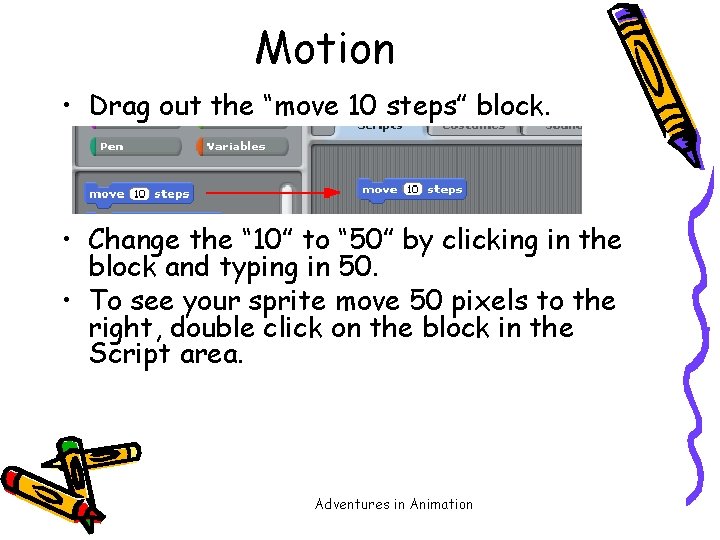
Motion • Drag out the “move 10 steps” block. • Change the “ 10” to “ 50” by clicking in the block and typing in 50. • To see your sprite move 50 pixels to the right, double click on the block in the Script area. Adventures in Animation
Motion • You can also set the motion block to move a negative number of pixels by typing a negative number in the block. • This will move your sprite that number of pixels in the opposite direction. Adventures in Animation
What Is A Pixel? • We’ve been talking about pixels – what is a pixel? • A pixel is one of the small units that make up an image on a computer or television screen. • It is derived from the words picture and element to make pixel! Adventures in Animation
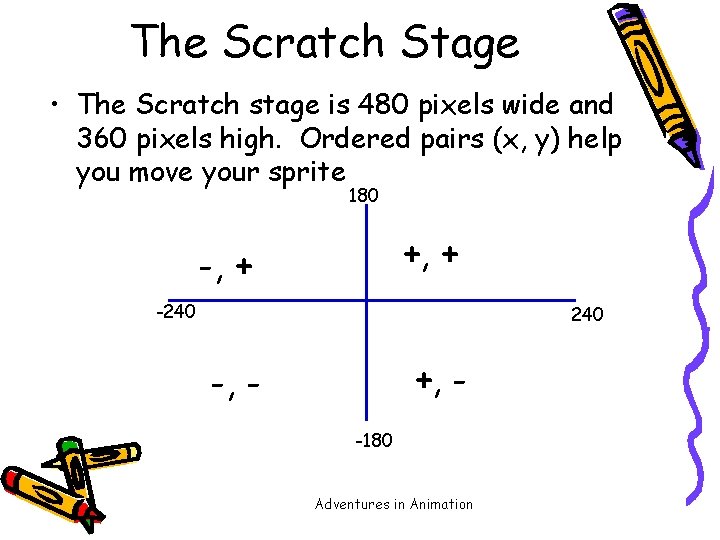
The Scratch Stage • The Scratch stage is 480 pixels wide and 360 pixels high. Ordered pairs (x, y) help you move your sprite 180 +, + -240 +, - -, -180 Adventures in Animation
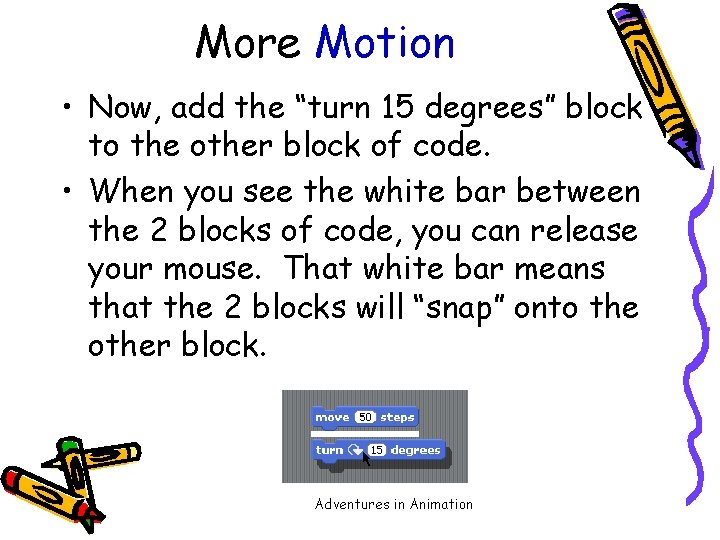
More Motion • Now, add the “turn 15 degrees” block to the other block of code. • When you see the white bar between the 2 blocks of code, you can release your mouse. That white bar means that the 2 blocks will “snap” onto the other block. Adventures in Animation
More Motion • Again, you can change the number of degrees by double clicking in that area and typing in the number of degrees you’d like your sprite to rotate. • Double click on the blocks to see your sprite move and rotate! Adventures in Animation
Experiment With Motion • We’ve only used 2 of the blocks in the Motion category. • For the next three minutes, I want you to experiment with all of the other blocks in the Motion category. If you’d like to see what a block does, right click on the block and then click on help. • You can delete code easily by just dragging it from the Script area. Adventures in Animation
Control • The next category of programming buttons we will experiment with is the Control category. • This is a very important category because it controls how many times an event happens, how long an event happens, or when an event happens. Adventures in Animation
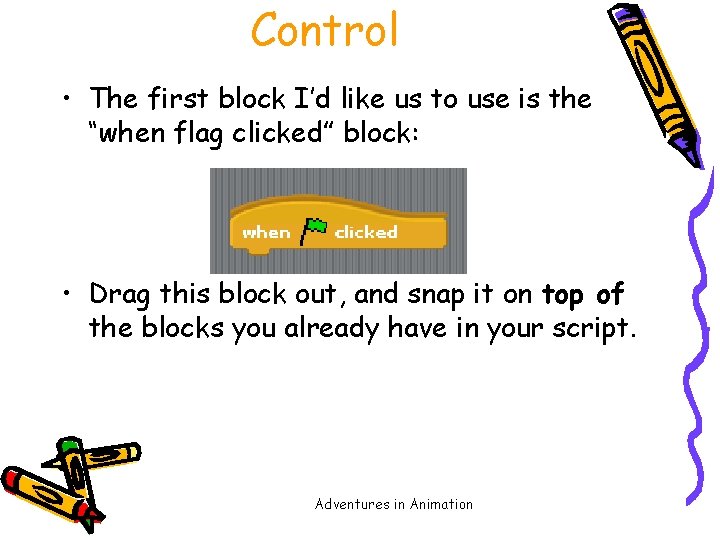
Control • The first block I’d like us to use is the “when flag clicked” block: • Drag this block out, and snap it on top of the blocks you already have in your script. Adventures in Animation
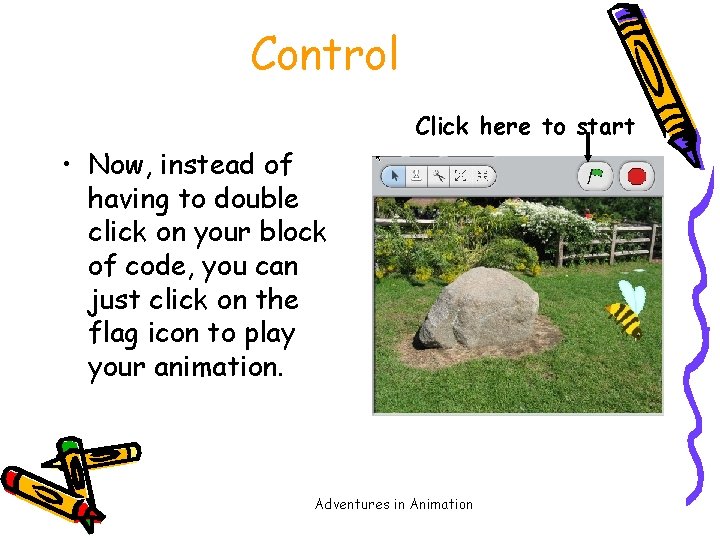
Control Click here to start • Now, instead of having to double click on your block of code, you can just click on the flag icon to play your animation. Adventures in Animation
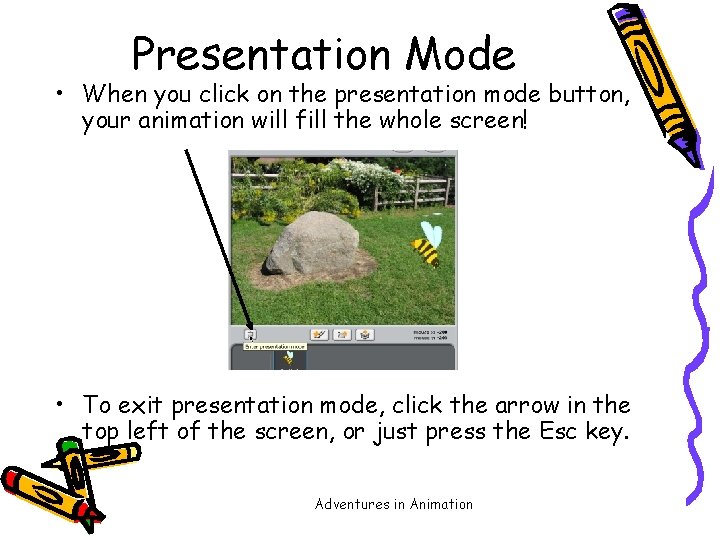
Presentation Mode • When you click on the presentation mode button, your animation will fill the whole screen! • To exit presentation mode, click the arrow in the top left of the screen, or just press the Esc key. Adventures in Animation
Back to Control • Other powerful blocks in the Control category are the blocks that handle conditional statements. • Conditional statements are commonly called “if statements” or “if-else statements”. Adventures in Animation
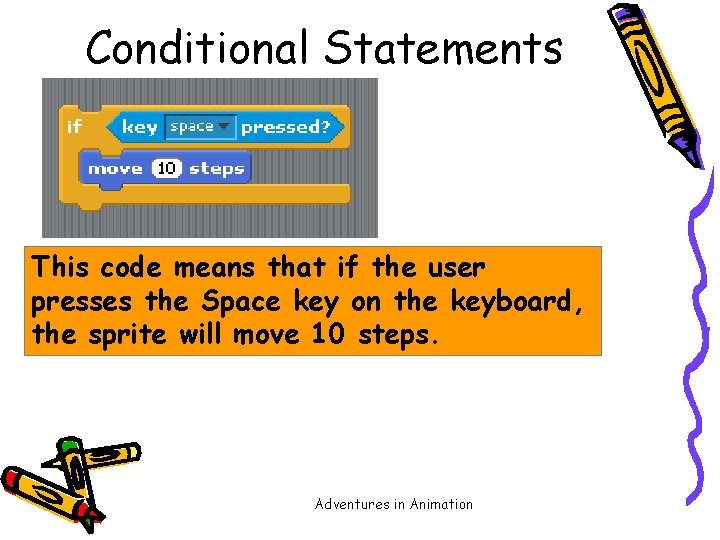
Conditional Statements This code means that if the user presses the Space key on the keyboard, the sprite will move 10 steps. Adventures in Animation
Sensing • The conditional statements must be used along with the sensing blocks. Notice the shape of some of the sensing blocks. They are the ones that will fit inside the “condition” since they have 6 sides. Adventures in Animation
Back to Control • For the next few minutes, experiment with the blocks in Motion, Control, and Sensing. • Right click on a block and select help to get information about a block. • When you get something cool, share it. Adventures in Animation
Doing the Cat walk fashion show • We will create a sprite fashion show which will teach you how to make your sprite change color, walk and undergo a costume change. • Click on the scripts tab and then on control. Adventures in Animation
Cat fashion show • Click and pull out the when space key pressed onto the script area • Click on Looks • Click and pull out the change color effect by 25 onto the script area • Snap the two blocks together. • Hit the space bar and watch your Sprite change color. Adventures in Animation
Starting position • Your stage is a coordinate plane from -240 to 240 on the x axis and -180 to 180 on the y axis. • Click on Motion • Click on and pull out the block go to x: __y: __ on the script area. Type in -139 for x and 0 for y. This will be your starting point. Adventures in Animation
Sprite starting position • Click on control • Click and pull out the block when green flag clicked on the script area • Snap these two blocks together • Click on the green flag and watch your sprite change locations. Adventures in Animation
Walking • Click on control • Click and pull these blocks: when green flag clicked, and wait 1 second, and repeat 10 • Click on Looks • Click and pull the block switch to costume 1 on the script area. Click the down triangle in the costume 1 box and select costume 2. Adventures in Animation
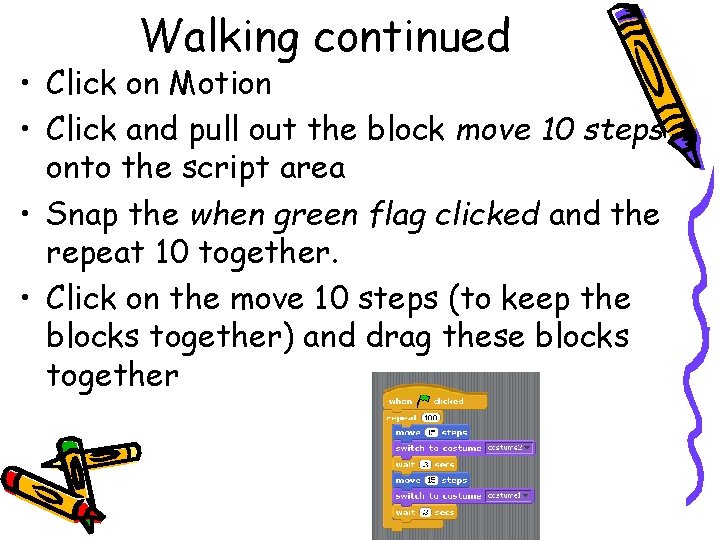
Walking continued • Click on Motion • Click and pull out the block move 10 steps onto the script area • Snap the when green flag clicked and the repeat 10 together. • Click on the move 10 steps (to keep the blocks together) and drag these blocks together
Press the green flag • Start the green flag and watch • Go up to the file tab and type in some project notes. You can leave instructions for other people who look at your scratch program. • Save your work as First name, last initial cat walk on the desktop. Adventures in Animation
Sound (use headphones) • Now, let’s add some sound to our animation. There are many different ways to get sound in your animation. • The first way we’re going to experiment with is by importing a sound from the Scratch sound library. Adventures in Animation
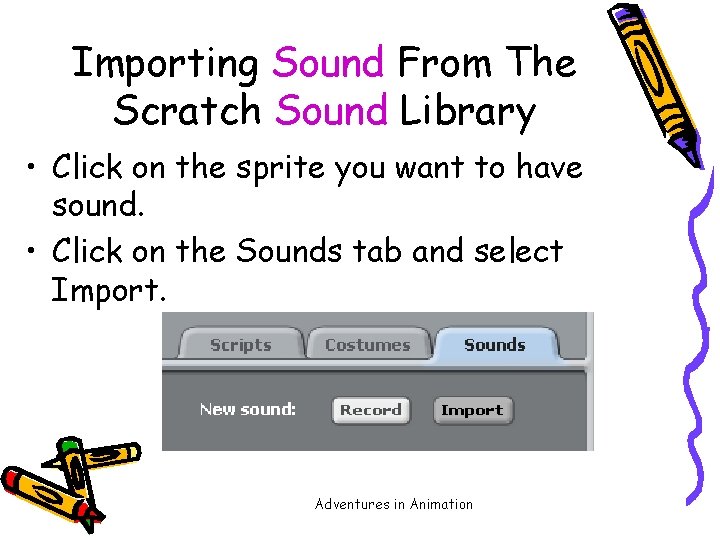
Importing Sound From The Scratch Sound Library • Click on the sprite you want to have sound. • Click on the Sounds tab and select Import. Adventures in Animation
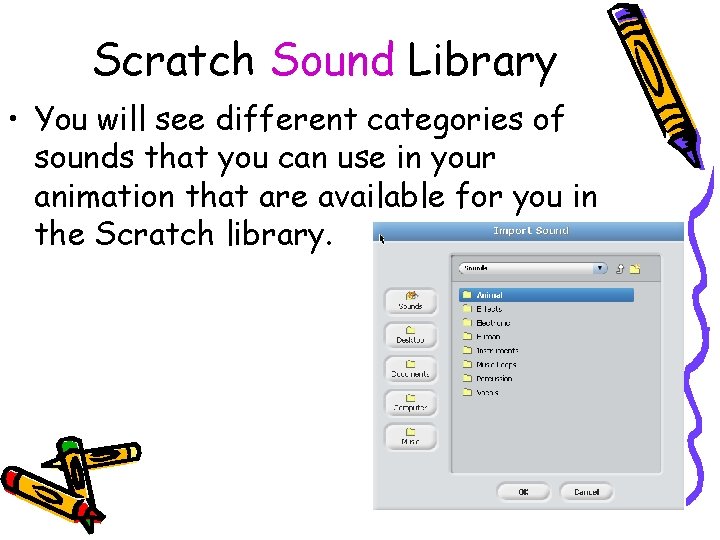
Scratch Sound Library • You will see different categories of sounds that you can use in your animation that are available for you in the Scratch library.
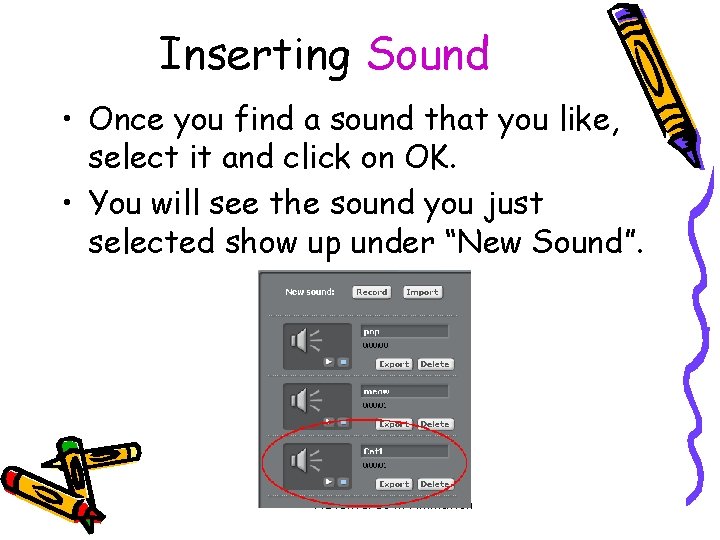
Inserting Sound • Once you find a sound that you like, select it and click on OK. • You will see the sound you just selected show up under “New Sound”. Adventures in Animation
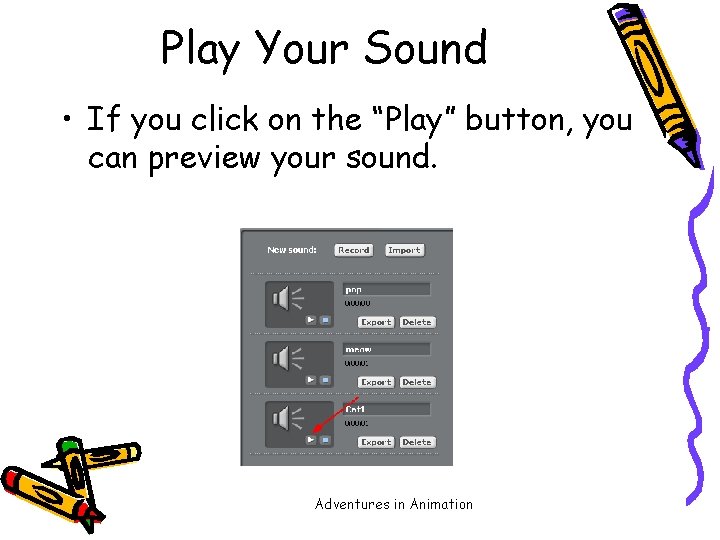
Play Your Sound • If you click on the “Play” button, you can preview your sound. Adventures in Animation
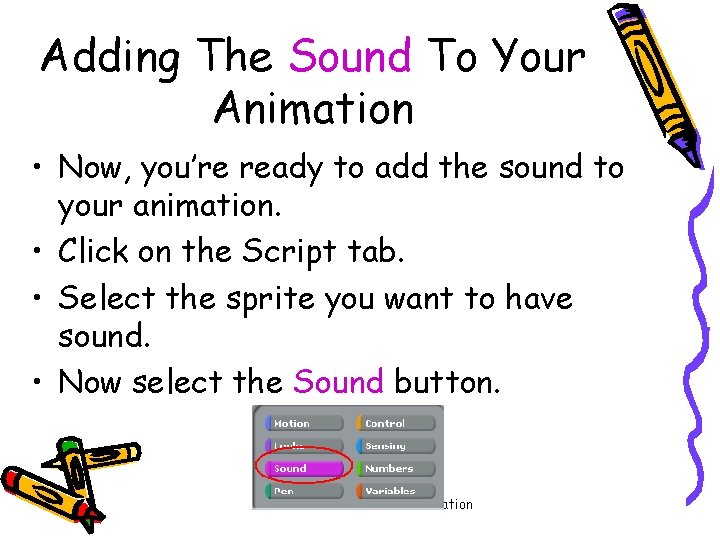
Adding The Sound To Your Animation • Now, you’re ready to add the sound to your animation. • Click on the Script tab. • Select the sprite you want to have sound. • Now select the Sound button. Adventures in Animation
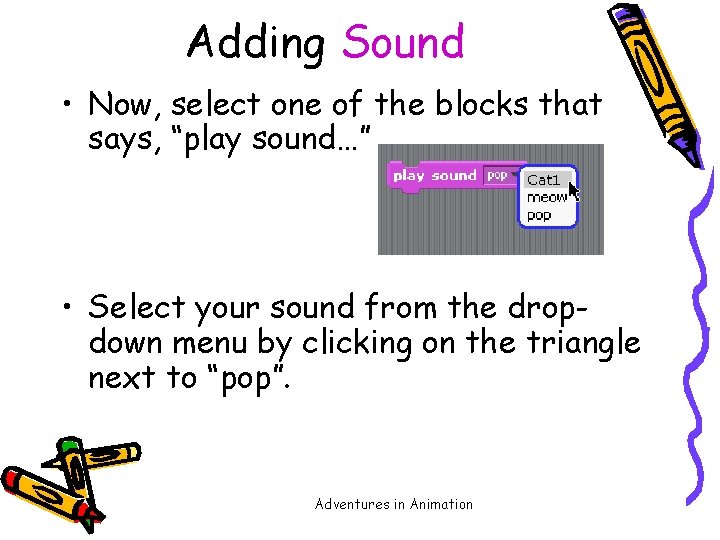
Adding Sound • Now, select one of the blocks that says, “play sound…” • Select your sound from the dropdown menu by clicking on the triangle next to “pop”. Adventures in Animation
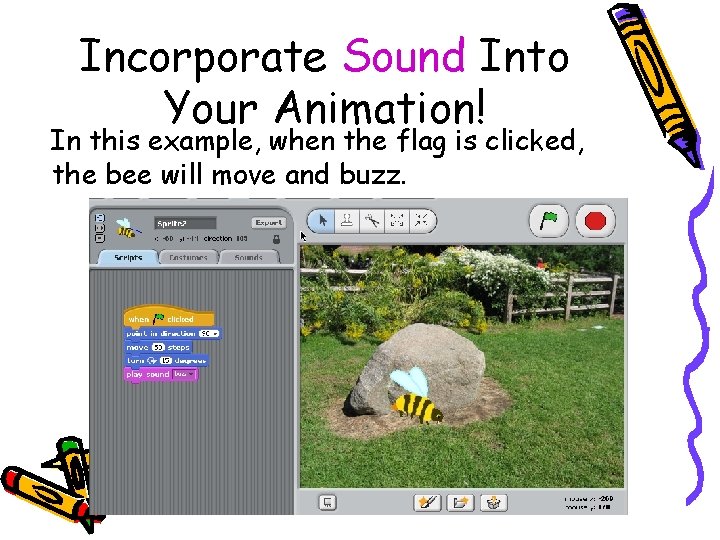
Incorporate Sound Into Your Animation! In this example, when the flag is clicked, the bee will move and buzz. Adventures in Animation
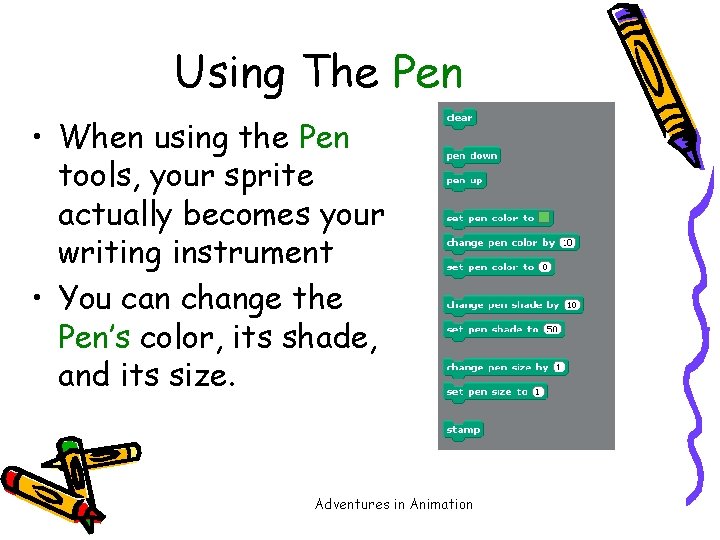
Using The Pen • When using the Pen tools, your sprite actually becomes your writing instrument • You can change the Pen’s color, its shade, and its size. Adventures in Animation
Pen Challenge • Your first Pen challenge is to write your initials using the Pen tools. • It may sound easy, but, you have to remember to lift your pen when necessary and also to put it back down. Adventures in Animation
Numbers and random moves • There are many animation effects you can create using Numbers in Scratch. • One effect is random movement of a sprite. Adventures in Animation
Random Movement • Remember that the Scratch animation area is 480 pixels wide and 360 pixels high. • That means that the range on the horizontal axis is from -240 to 240. • The range on the vertical axis is -180 to 180. Adventures in Animation
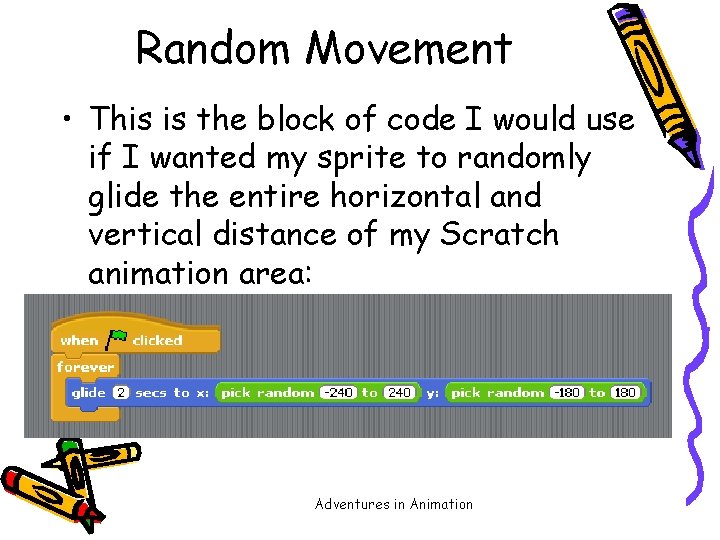
Random Movement • This is the block of code I would use if I wanted my sprite to randomly glide the entire horizontal and vertical distance of my Scratch animation area: Adventures in Animation
Numbers! • For the next few minutes, experiment with the tools in Motion, Control, Sensing, Sound, and Numbers. • Click right on a block and select help to see what it does. • When you get something cool, share it. Adventures in Animation
Variables • Variables are used mainly in the development of games. • Go to the help tab at the top of your screen, choose help screens, choose variables. Read about the variable for the score board. Your game must have a score board. Adventures in Animation
Time To Create • You are to create an animated game or music video. Projects are due May 19 th. We will do a gallery walk that day so you will get to play everyone’s game/video. • Check out the rubrics. Adventures in Animation
Examples • Look on my teacher web page for examples of games and videos. You can pattern your own game after these – using their code scripts to help you generate your own. • No exact copies allowed – if you choose to copy code from a game, you must change at least 50% of the code – otherwise it is plagiarism. Adventures in Animation
- Slides: 56