
Introduction to Risk Assessment Using Archer GRC Nancy






- Slides: 70
Introduction to Risk Assessment Using Archer GRC Nancy Rainosek Statewide GRC Program Manager State of Texas Department of Information Resources
SISAC Risk Assessment Subcommittee • • Kevin Kjosa, Co Chair – UT System Darrell Bateman - TTU Kent Dyer - TDLR Shirley Erp – HHSC Dave Gray - CPA Ann Hallam - SORM Mark Herber - DFPS Jeff Mc. Cabe - TAMU • • Arturo Montalvo - OAG Matt Riemersma - DARS Brandon Rogers - GLO Charlotte Russell - UNTS Khatija Syeda - HHSC Lisa Wei - CPA Robert Myles - Symantec 2
Today’s Game Plan • • • Background Understand common terms and roles Risk assessment workflow Bulk upload files Case Study 3
Background
TAC 202 § 202. 25/75 Managing Security Risks. A risk assessment of the agencies/institutions information and information systems shall be performed and documented.
TAC 202 (1) The inherent impact will be ranked, at a minimum, as either "High, " "Moderate, " or "Low“ and (2) The frequency of the future risk assessments will be documented. (3) Risk assessment results, vulnerability reports, and similar information shall be documented and presented to the Information Security Officer or his or her designated representative(s). (4) Approval of the security risk acceptance, transference, or mitigation decision shall be the responsibility of: a) the information security officer or his or her designee(s), in coordination with the information owner, for systems identified with a Low or Moderate residual risk. b) the state agency/institution of higher education head for all systems identified with a residual High Risk.
Understanding Common Terms and Roles
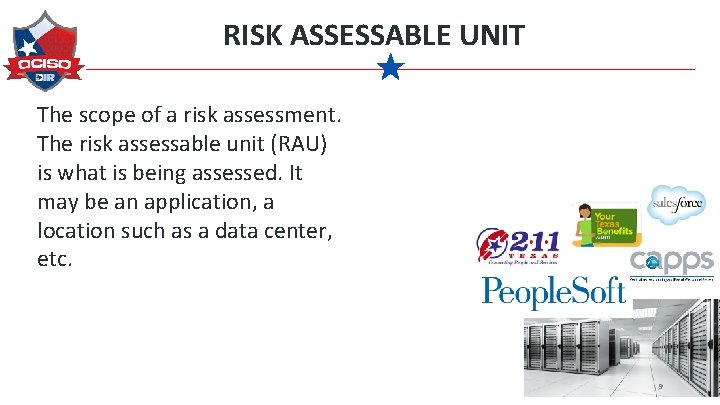
RISK ASSESSABLE UNIT The scope of a risk assessment. The risk assessable unit (RAU) is what is being assessed. It may be an application, a location such as a data center, etc. 9
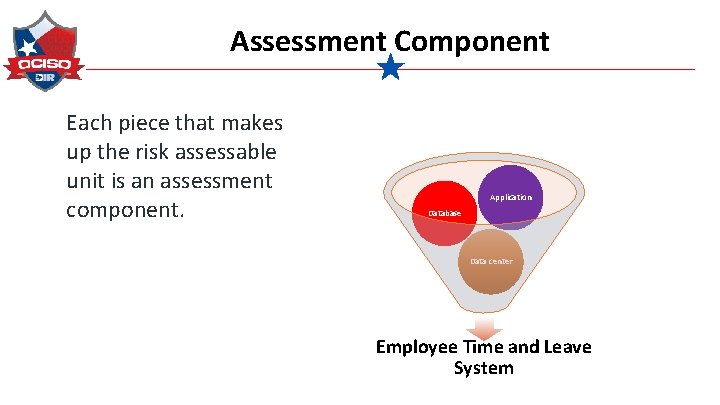
Assessment Component Each piece that makes up the risk assessable unit is an assessment component. Application Database Data center Employee Time and Leave System
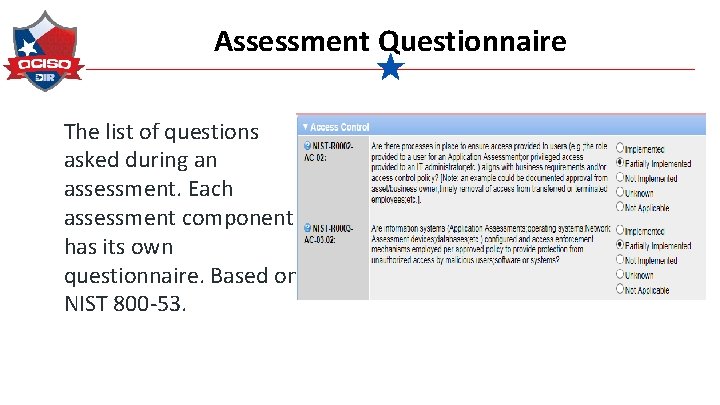
Assessment Questionnaire The list of questions asked during an assessment. Each assessment component has its own questionnaire. Based on NIST 800 -53.
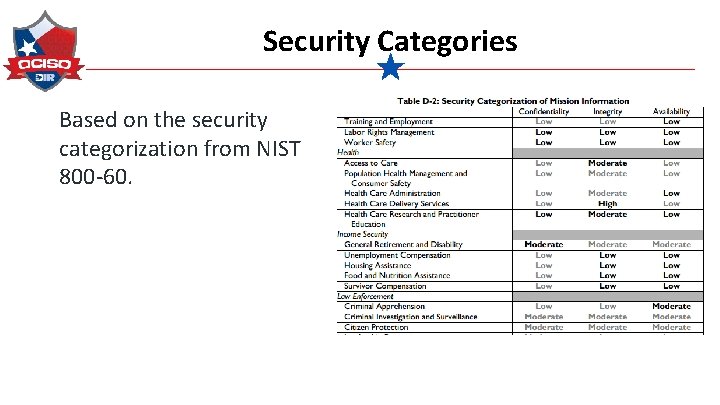
Security Categories Based on the security categorization from NIST 800 -60.
Risk Assessment Workflow
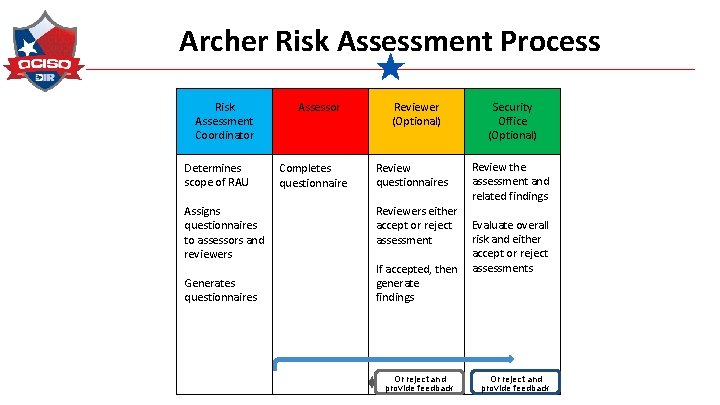
Archer Risk Assessment Process Risk Assessment Coordinator Determines scope of RAU Assigns questionnaires to assessors and reviewers Generates questionnaires C Assessor Completes questionnaire Reviewer (Optional) Review questionnaires Security Office (Optional) Review the assessment and related findings Reviewers either accept or reject Evaluate overall risk and either assessment accept or reject If accepted, then assessments generate findings Or reject and provide feedback
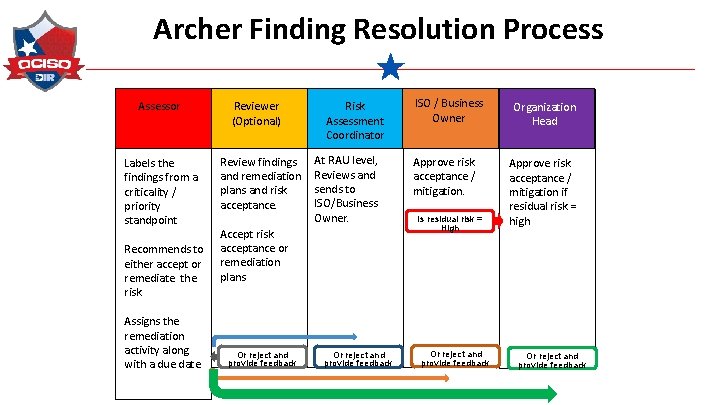
Archer Finding Resolution Process Assessor Labels the findings from a criticality / priority standpoint Recommends to either accept or remediate the risk Assigns the remediation activity along with a due date. Reviewer (Optional) Review findings and remediation plans and risk acceptance. Risk Assessment Coordinator At RAU level, Reviews and sends to ISO/Business Owner. Accept risk acceptance or remediation plans Or reject and provide feedback ISO / Business Owner Approve risk acceptance / mitigation. Is residual risk = High Or reject and provide feedback Organization Head Approve risk acceptance / mitigation if residual risk = high Or reject and provide feedback
Scoping the Assessment SCOPE Risk Assessment Coordinator determines what will be assessed: This will be your Risk Assessable Unit (RAU)
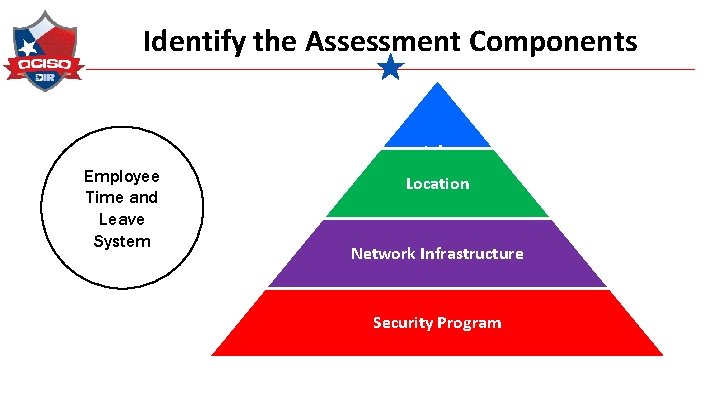
Identify the Assessment Components Employee Time and Leave System Info System Location Network Infrastructure Security Program
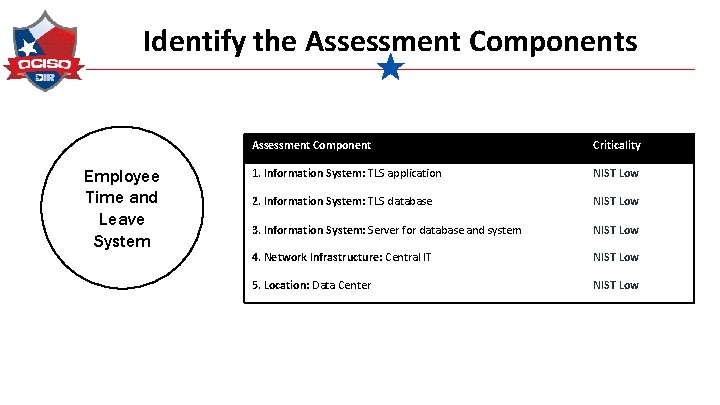
Identify the Assessment Components Employee Time and Leave System Assessment Component Criticality 1. Information System: TLS application NIST Low 2. Information System: TLS database NIST Low 3. Information System: Server for database and system NIST Low 4. Network Infrastructure: Central IT NIST Low 5. Location: Data Center NIST Low
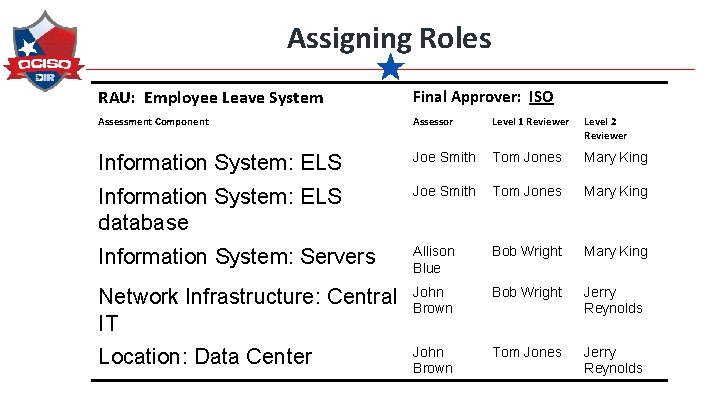
Assigning Roles Assign For each assessment component you need to assign an assessor, optional reviewers and approvers.
Assigning Roles RAU: Employee Leave System Final Approver: ISO Assessment Component Assessor Level 1 Reviewer Level 2 Reviewer Information System: ELS Joe Smith Tom Jones Mary King Information System: ELS database Joe Smith Tom Jones Mary King Information System: Servers Allison Blue Bob Wright Mary King Network Infrastructure: Central IT John Brown Bob Wright Jerry Reynolds Location: Data Center John Brown Tom Jones Jerry Reynolds
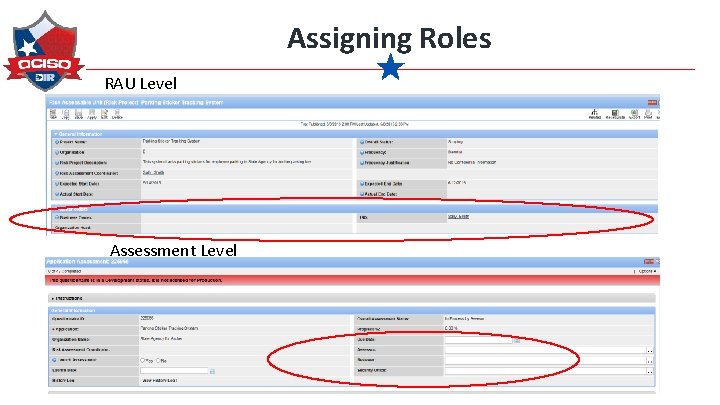
Assigning Roles RAU Level Assessment Level
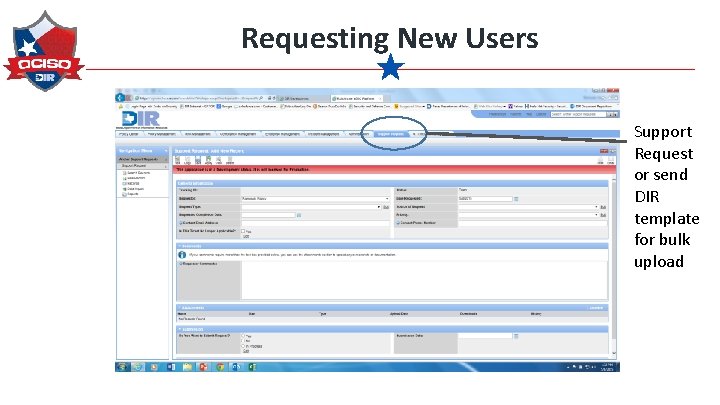
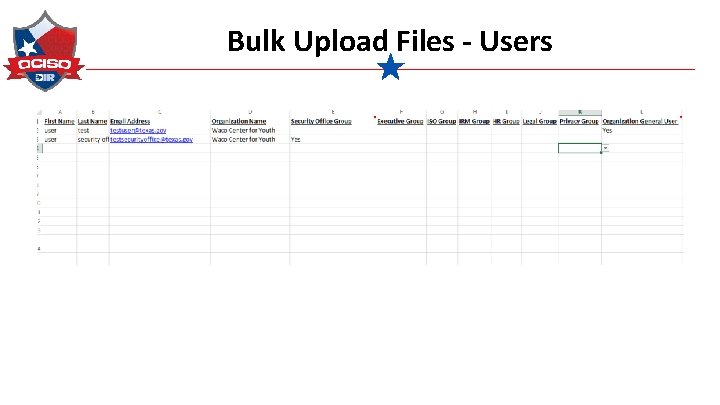
Requesting New Users Support Request or send DIR template for bulk upload
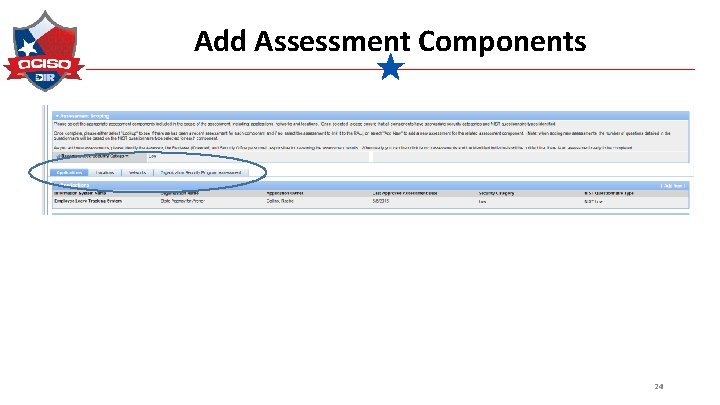
Add Assessment Components Add You can add applications, locations and networks individually or send to DIR for bulk upload.
Add Assessment Components 24
Assign Security Category Assign You add a security categories for an application. Location and network categories are inherited from application.
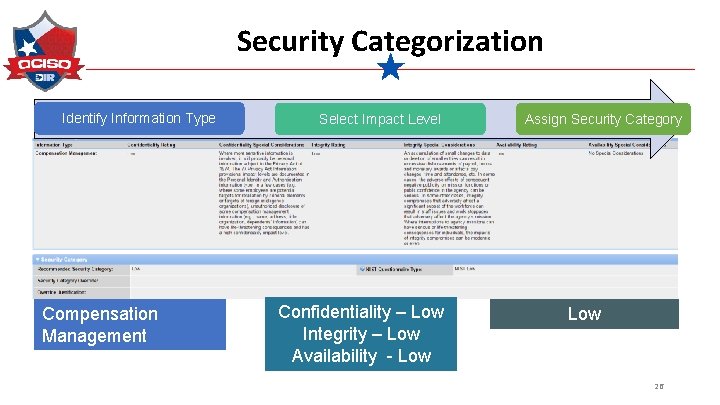
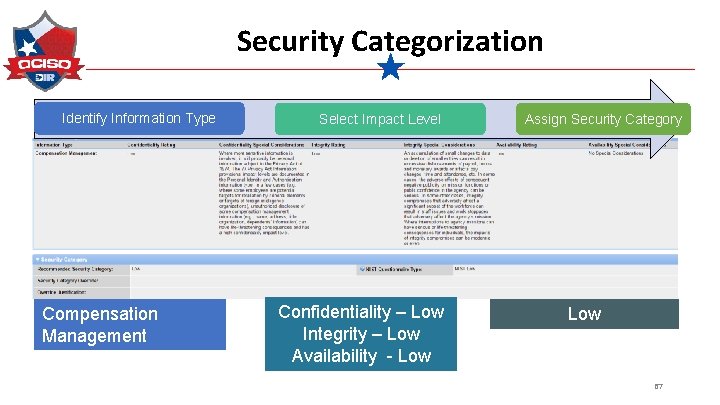
Security Categorization Identify Information Type Compensation Management Select Impact Level Confidentiality – Low Integrity – Low Availability - Low Assign Security Category Low 26
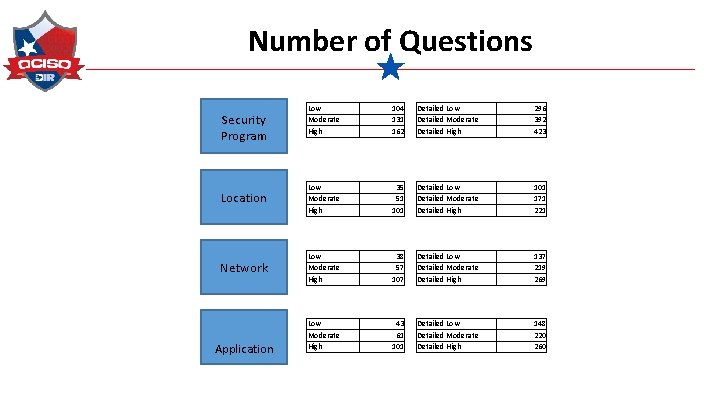
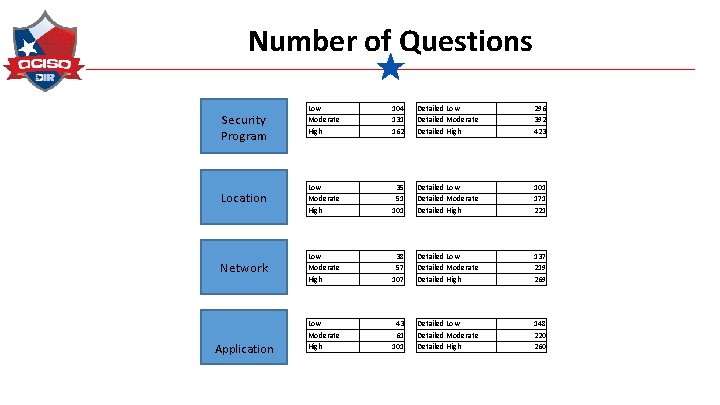
Number of Questions Security Program Location Network Application Low Moderate High 104 131 162 Detailed Low Detailed Moderate Detailed High 296 392 423 Detailed Low Detailed Moderate Detailed High 35 51 101 Detailed Low Detailed Moderate Detailed High 38 57 107 Detailed Low Detailed Moderate Detailed High 43 61 101 171 221 137 219 269 148 220 260
Generate the Questionnaire Generate an assessment questionnaire for each assessment component.
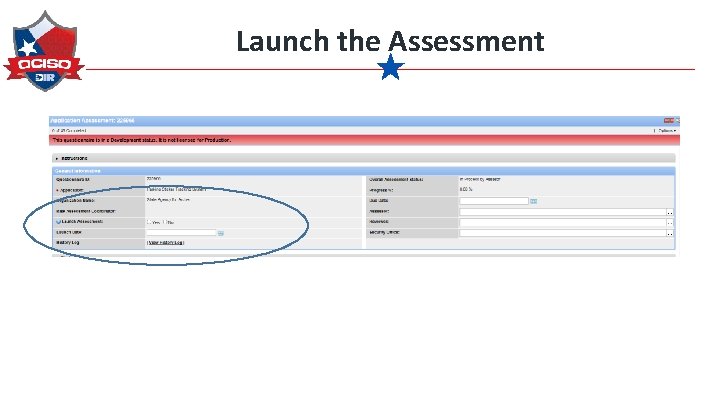
Launch the Assessment
Demonstration
Exercise #1 1. 2. 3. 4. 5. 6. 7. 8. 9. 10. 11. 12. 13. Log into the system with your account RACxx. Create a new Risk Assessable Unit. Add Network for your organization. Select NIST Low as your questionnaire type. Save the record. Add a new questionnaire for your Network. Add an Assessor and ISO as Reviewer and ISO. Save and close the Assessment Click Apply at the top of the RAU. Go back into the Network Questionnaire. Make sure you are assigned as the RAC. Edit the Questionnaire. Launch the assessment from the Questionnaire screen. Save and close the Questionnaire. Select “Assessments Launched” under Risk Assessment Coordinator Status and Save the RAU.
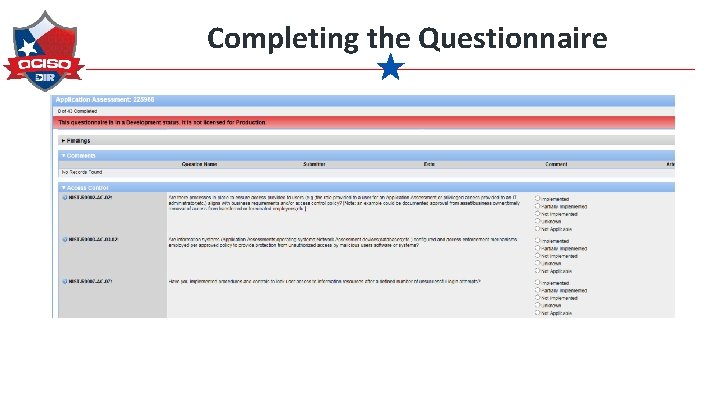
Complete the Questionnaire Complete The assessor completes the assigned assessment questionnaire.
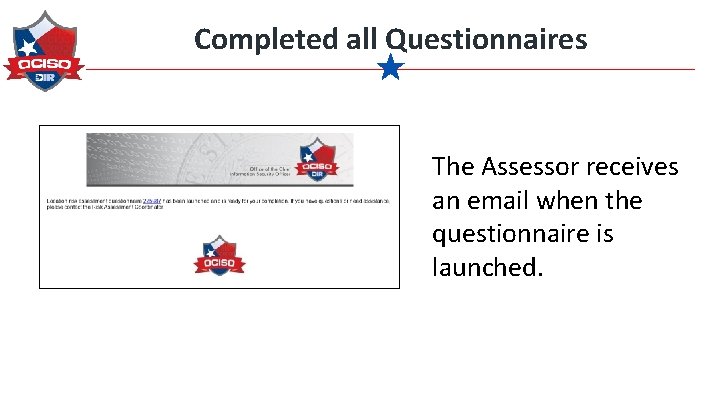
Completed all Questionnaires The Assessor receives an email when the questionnaire is launched.
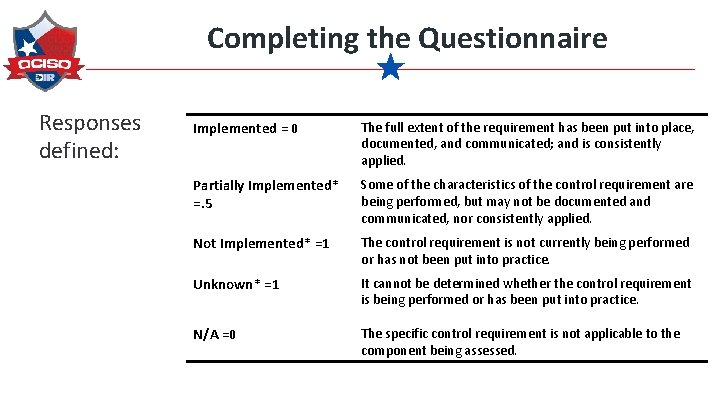
Completing the Questionnaire Responses defined: Implemented = 0 The full extent of the requirement has been put into place, documented, and communicated; and is consistently applied. Partially Implemented* =. 5 Some of the characteristics of the control requirement are being performed, but may not be documented and communicated, nor consistently applied. Not Implemented* =1 The control requirement is not currently being performed or has not been put into practice. Unknown* =1 It cannot be determined whether the control requirement is being performed or has been put into practice. N/A =0 The specific control requirement is not applicable to the component being assessed.
Completing the Questionnaire
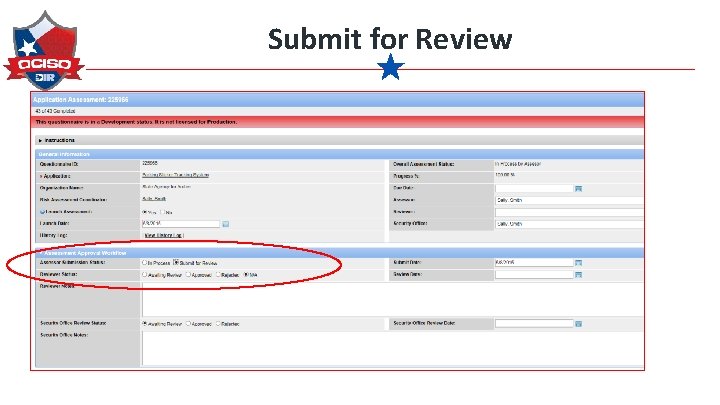
Submit for Review
Reviewing the Questionnaire Review If assigned, the reviewer performs a review of the assessment questionnaire
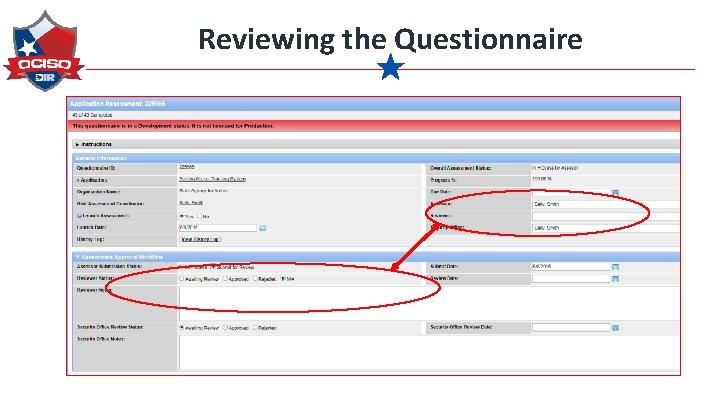
Reviewing the Questionnaire
Reviewing the Questionnaire Review The security office performs a review of the assessment questionnaire.
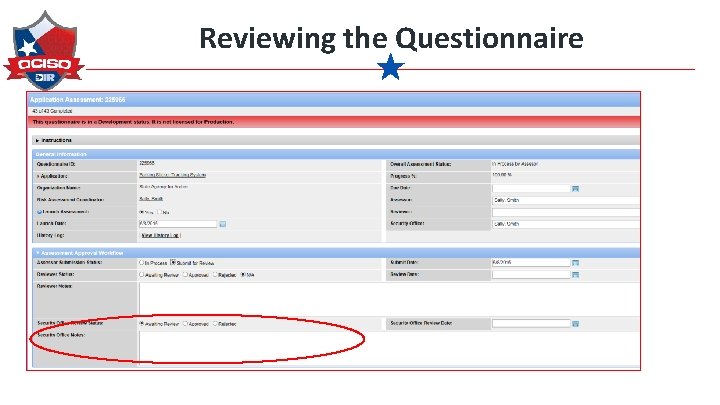
Reviewing the Questionnaire
Demonstration
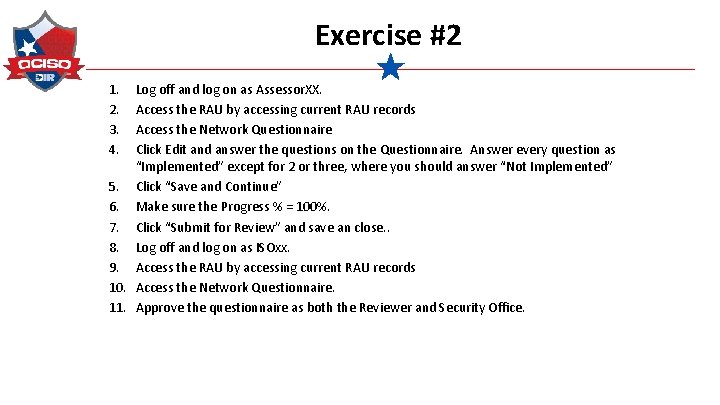
Exercise #2 1. 2. 3. 4. Log off and log on as Assessor. XX. Access the RAU by accessing current RAU records Access the Network Questionnaire Click Edit and answer the questions on the Questionnaire. Answer every question as “Implemented” except for 2 or three, where you should answer “Not Implemented” 5. Click “Save and Continue” 6. Make sure the Progress % = 100%. 7. Click “Submit for Review” and save an close. . 8. Log off and log on as ISOxx. 9. Access the RAU by accessing current RAU records 10. Access the Network Questionnaire. 11. Approve the questionnaire as both the Reviewer and Security Office.
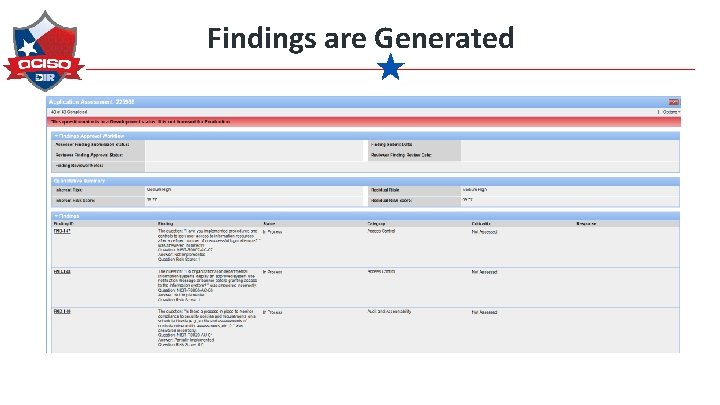
Findings are Generated
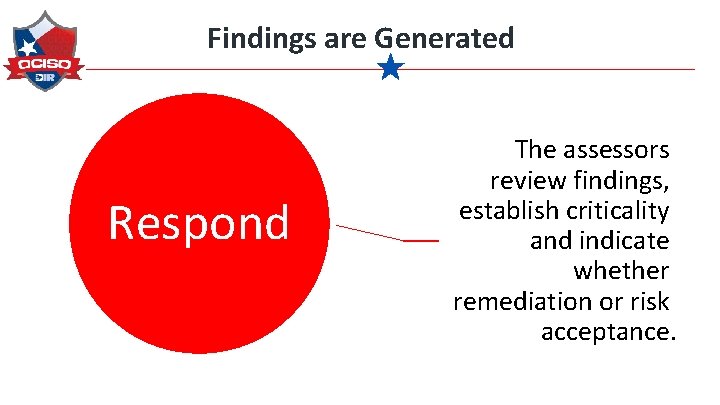
Findings are Generated Respond The assessors review findings, establish criticality and indicate whether remediation or risk acceptance.
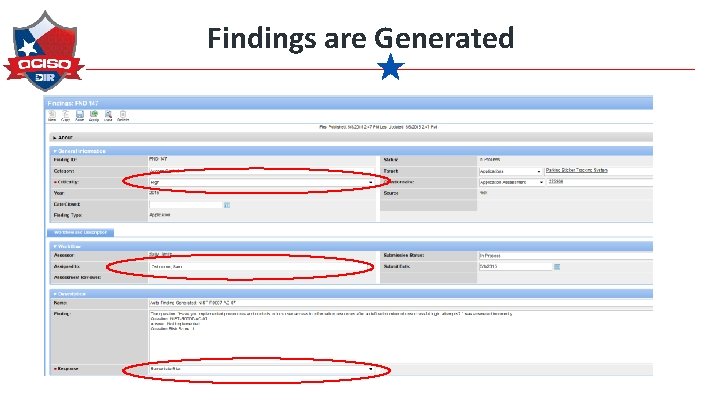
Findings are Generated
Reviewing Findings Review The Reviewer, if assigned, performs a review of the findings and remediation or risk acceptance.
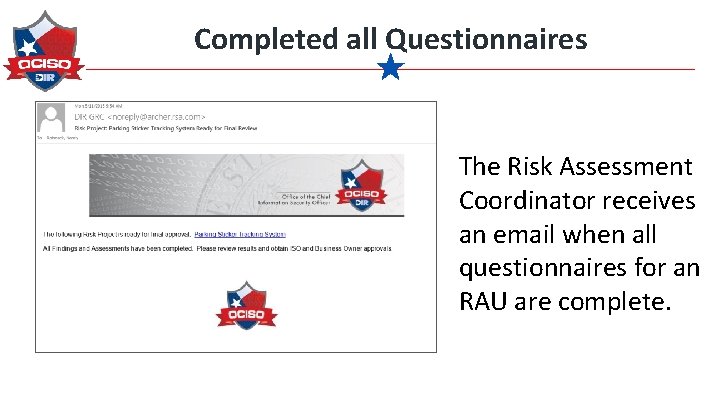
Completed all Questionnaires The Risk Assessment Coordinator receives an email when all questionnaires for an RAU are complete.
Completing the RAU Review The Risk Assessment Coordinator sends to the ISO after all questionnaires for the RAU are completed.
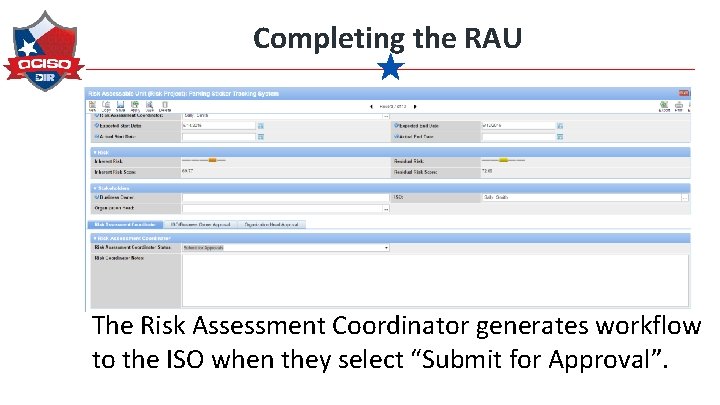
Completing the RAU The Risk Assessment Coordinator generates workflow to the ISO when they select “Submit for Approval”.
Approving the Risk Assessment Approve The ISO in coordination with the Business Owner approves the RAU.
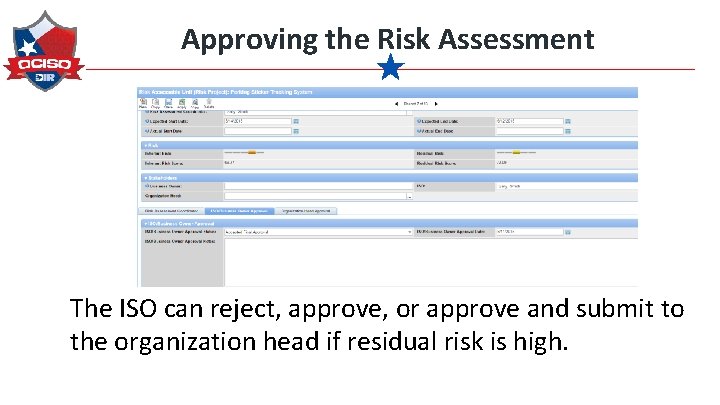
Approving the Risk Assessment The ISO can reject, approve, or approve and submit to the organization head if residual risk is high.
Approving the Risk Assessment Approve If residual risk is high, the organization head approves the Risk Assessment.
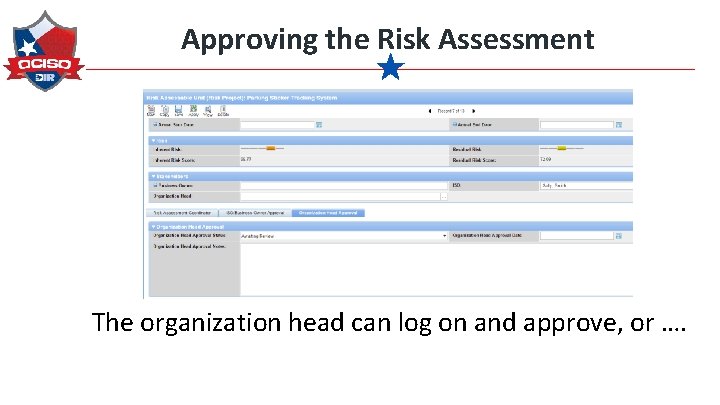
Approving the Risk Assessment The organization head can log on and approve, or ….
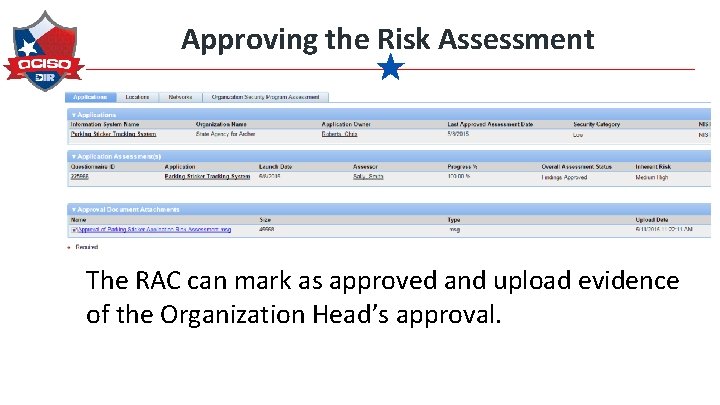
Approving the Risk Assessment The RAC can mark as approved and upload evidence of the Organization Head’s approval.
Demonstration
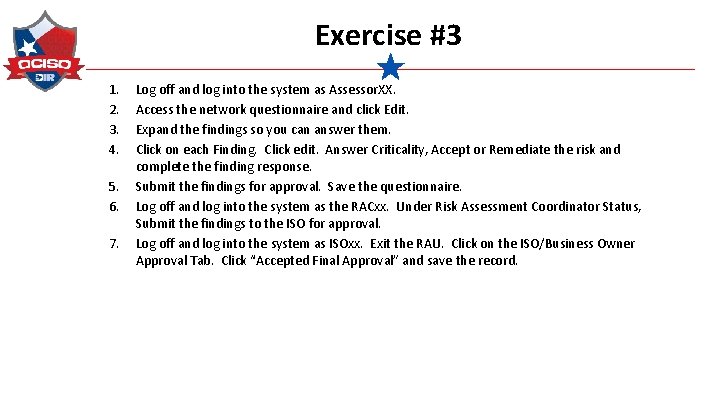
Exercise #3 1. 2. 3. 4. 5. 6. 7. Log off and log into the system as Assessor. XX. Access the network questionnaire and click Edit. Expand the findings so you can answer them. Click on each Finding. Click edit. Answer Criticality, Accept or Remediate the risk and complete the finding response. Submit the findings for approval. Save the questionnaire. Log off and log into the system as the RACxx. Under Risk Assessment Coordinator Status, Submit the findings to the ISO for approval. Log off and log into the system as ISOxx. Exit the RAU. Click on the ISO/Business Owner Approval Tab. Click “Accepted Final Approval” and save the record.
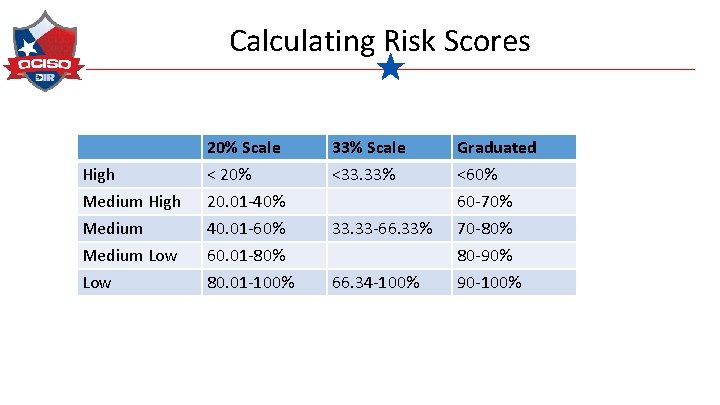
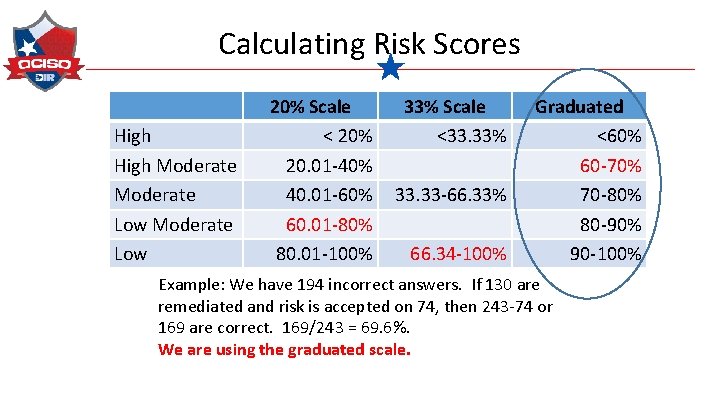
Calculating Risk Scores High Medium Low 20% Scale < 20% 20. 01 -40% 40. 01 -60% 60. 01 -80% 80. 01 -100% 33% Scale <33. 33% 33. 33 -66. 33% 66. 34 -100% Graduated <60% 60 -70% 70 -80% 80 -90% 90 -100%
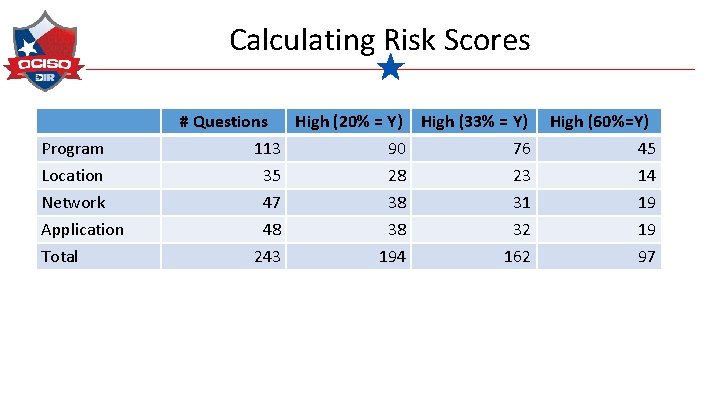
Calculating Risk Scores Program Location Network Application Total # Questions High (20% = Y) High (33% = Y) 113 90 76 35 28 23 47 38 31 48 38 32 243 194 162 High (60%=Y) 45 14 19 19 97
Calculating Risk Scores High Moderate Low 20% Scale < 20% 20. 01 -40% 40. 01 -60% 60. 01 -80% 80. 01 -100% 33% Scale <33. 33% 33. 33 -66. 33% 66. 34 -100% Graduated <60% 60 -70% 70 -80% 80 -90% 90 -100% Example: We have 194 incorrect answers. If 130 are remediated and risk is accepted on 74, then 243 -74 or 169 are correct. 169/243 = 69. 6%. We are using the graduated scale.
Bulk Upload Files - Users
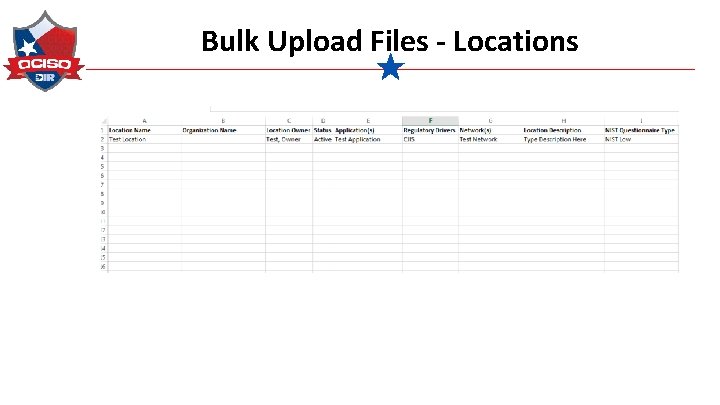
Bulk Upload Files - Locations
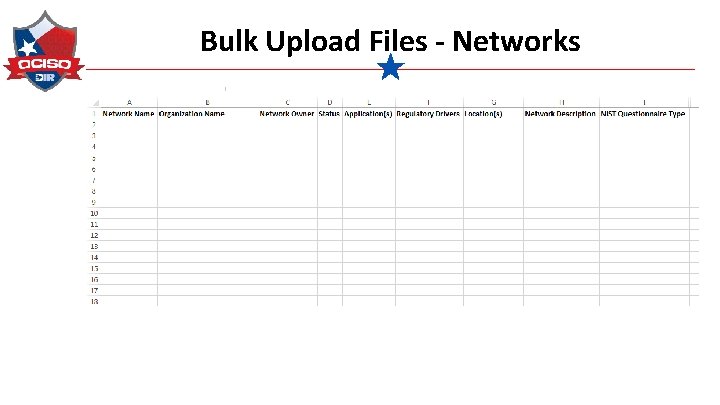
Bulk Upload Files - Networks
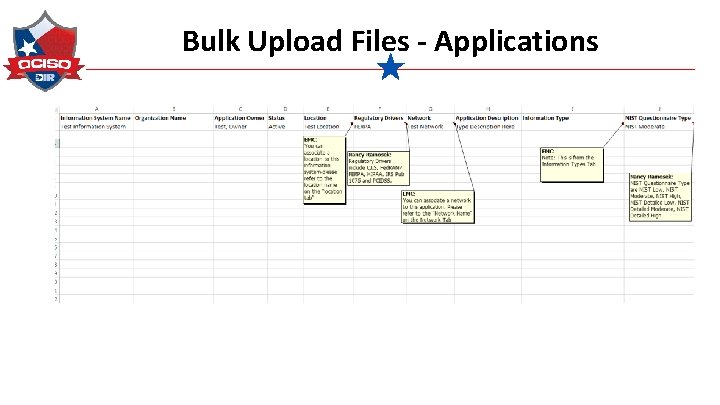
Bulk Upload Files - Applications
Number of Questions Security Program Location Network Application Low Moderate High 104 131 162 Detailed Low Detailed Moderate Detailed High 296 392 423 Detailed Low Detailed Moderate Detailed High 35 51 101 Detailed Low Detailed Moderate Detailed High 38 57 107 Detailed Low Detailed Moderate Detailed High 43 61 101 171 221 137 219 269 148 220 260
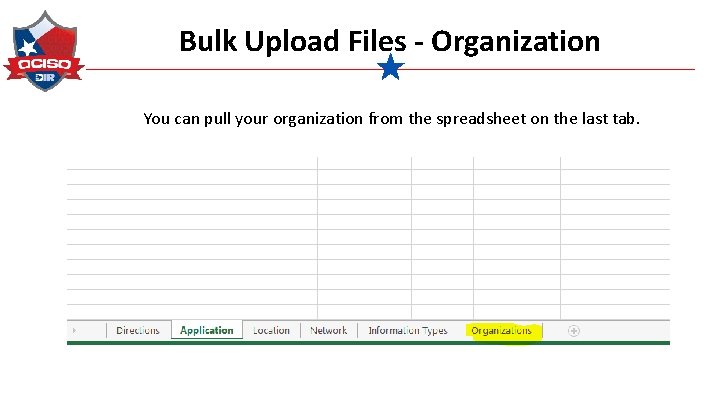
Bulk Upload Files - Organization You can pull your organization from the spreadsheet on the last tab.
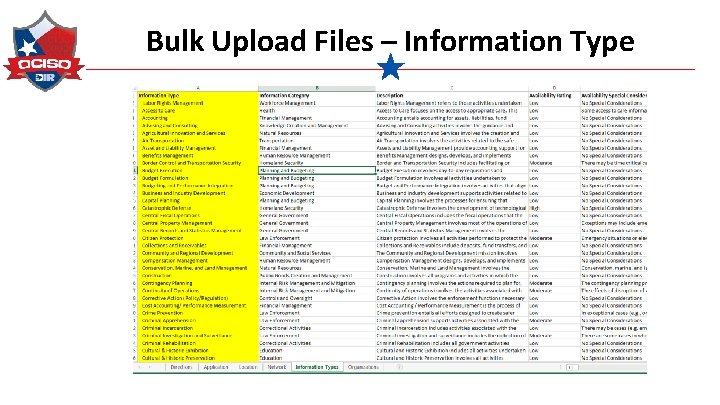
Bulk Upload Files – Information Type
Security Categorization Identify Information Type Compensation Management Select Impact Level Confidentiality – Low Integrity – Low Availability - Low Assign Security Category Low 67
Case Study
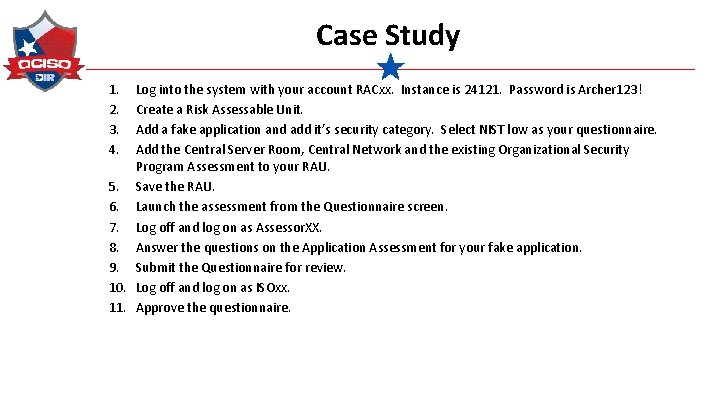
Case Study 1. 2. 3. 4. Log into the system with your account RACxx. Instance is 24121. Password is Archer 123! Create a Risk Assessable Unit. Add a fake application and add it’s security category. Select NIST low as your questionnaire. Add the Central Server Room, Central Network and the existing Organizational Security Program Assessment to your RAU. 5. Save the RAU. 6. Launch the assessment from the Questionnaire screen. 7. Log off and log on as Assessor. XX. 8. Answer the questions on the Application Assessment for your fake application. 9. Submit the Questionnaire for review. 10. Log off and log on as ISOxx. 11. Approve the questionnaire.
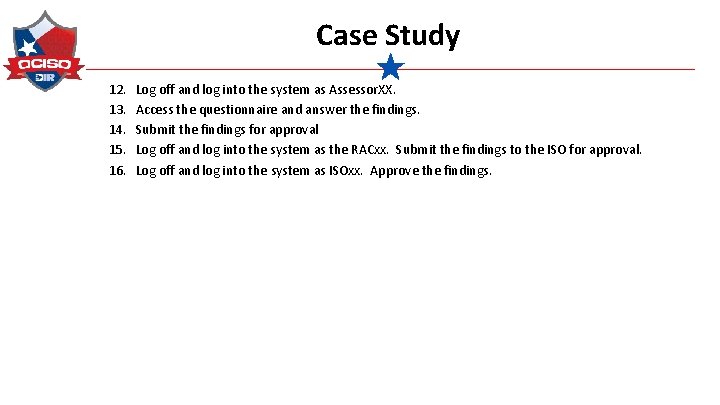
Case Study 12. 13. 14. 15. 16. Log off and log into the system as Assessor. XX. Access the questionnaire and answer the findings. Submit the findings for approval Log off and log into the system as the RACxx. Submit the findings to the ISO for approval. Log off and log into the system as ISOxx. Approve the findings.
Questions? Contact us at GRC@dir. texas. gov 71