
Introduction to Processing Working With Images PImage is


- Slides: 11
Introduction to Processing Working With Images
PImage is the datatype for storing images. Processing can display. gif, . jpg, and. png images. Images may be displayed in 2 D and 3 D space. Images must be in the sketch's "data" directory to load correctly. Before an image is used, it must be loaded with the load. Image() function. PImage img; img = load. Image(“photo. jpg”); // OR equivalently // img = load. Image(“data/photo. jpg”);
image() The image() function draws an image to the display window. image(img, x, y); image(img, x, y, width, height); The img parameter specifies the image to display and by default the x and y parameters define the location of its upper-left corner. The image is displayed at its original size unless the c and d parameters specify a different size. The image. Mode() function can be used to change the way these parameters draw the image. For example the following should be in setup() rect. Mode(CENTER); to put the center of an image at its center.
Transparency The transparency or the alpha channel of an image can allow the images to blend nicely with the background. GIFs and PNGs have the alpha channel whereas JPEGs do not! An image that does not have this transparency might appear tacky in a game or application. Google’s advanced search option allow you to narrow your results by images with transparency.
Free Images For free images, visit these sites. Kenney. nl Open. Game. Art. org Has. Graphics. com
key. Pressed() In the first lecture slides, we discussed using key. Pressed() to receive user keyboard inputs. Let's discussed how to move an image using the keyboard. An important to note is that when a user presses two keys simultaneously, key. Pressed() only detects the latest key. Thus if we want to move a character right and up at the same time, key. Pressed alone is not sufficient. Using key. Released(), we can better control a character on the screen.
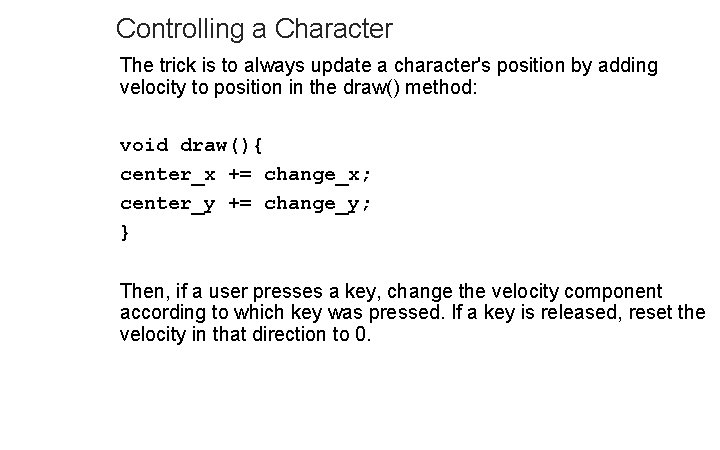
Controlling a Character The trick is to always update a character's position by adding velocity to position in the draw() method: void draw(){ center_x += change_x; center_y += change_y; } Then, if a user presses a key, change the velocity component according to which key was pressed. If a key is released, reset the velocity in that direction to 0.
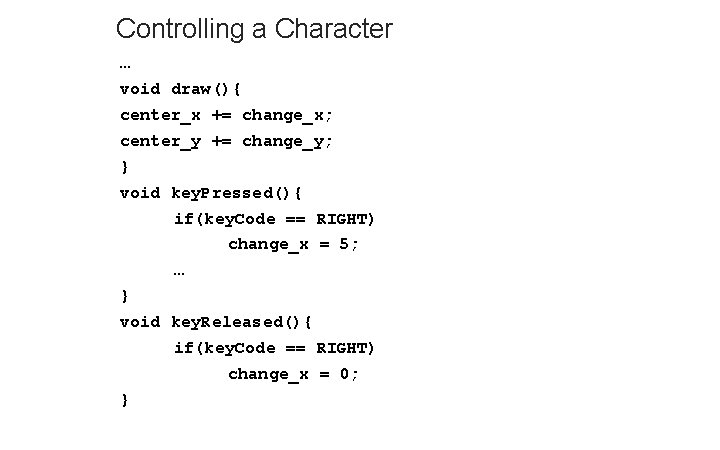
Controlling a Character … void draw(){ center_x += change_x; center_y += change_y; } void key. Pressed(){ if(key. Code == RIGHT) change_x = 5; … } void key. Released(){ if(key. Code == RIGHT) change_x = 0; }
Lab 1 Download the zip folder from this lecture slides on the website. An. png is included. Write code to move this image around on the screen.
Lab 2 Modify your previous lab so that a rectangle and a circle is drawn on the screen with some set colors. If the character's centers the circle/rectangle, then that shape changes color.
References For more tutorials/lecture notes in Java, Python, game programming, artificial intelligence with neural networks: https: //longbaonguyen. github. io • Processing’s website: www. processing. org • https: //processing. org/tutorials/