
Introduction to Processing Keyboard and Mouse Inputs def
Introduction to Processing Keyboard and Mouse Inputs
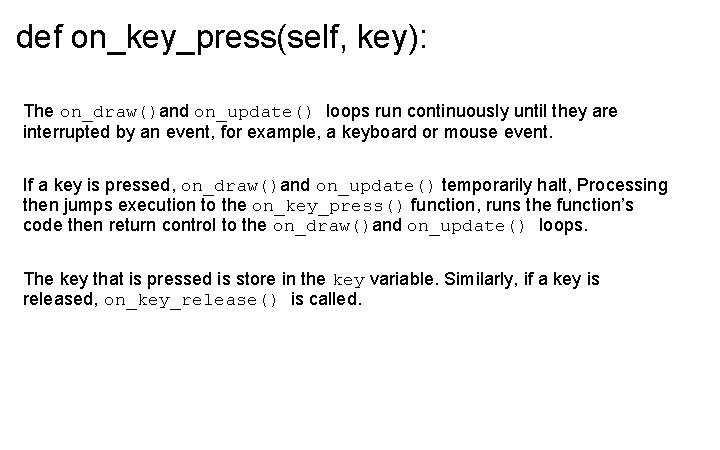
def on_key_press(self, key): The on_draw()and on_update() loops run continuously until they are interrupted by an event, for example, a keyboard or mouse event. If a key is pressed, on_draw()and on_update() temporarily halt, Processing then jumps execution to the on_key_press() function, runs the function’s code then return control to the on_draw()and on_update() loops. The key that is pressed is store in the key variable. Similarly, if a key is released, on_key_release() is called.
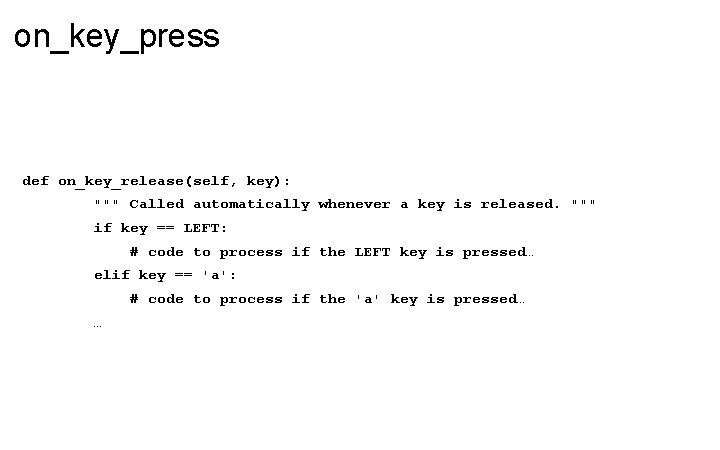
on_key_press def on_key_release(self, key): """ Called automatically whenever a key is released. """ if key == LEFT: # code to process if the LEFT key is pressed… elif key == 'a': # code to process if the 'a' key is pressed… …
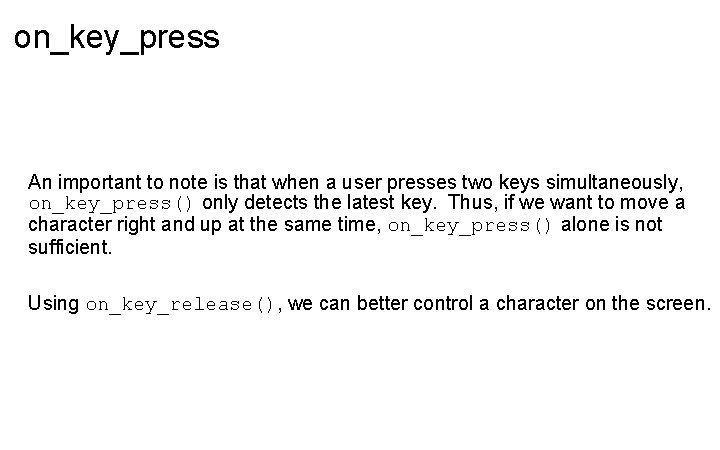
on_key_press An important to note is that when a user presses two keys simultaneously, on_key_press() only detects the latest key. Thus, if we want to move a character right and up at the same time, on_key_press() alone is not sufficient. Using on_key_release(), we can better control a character on the screen.
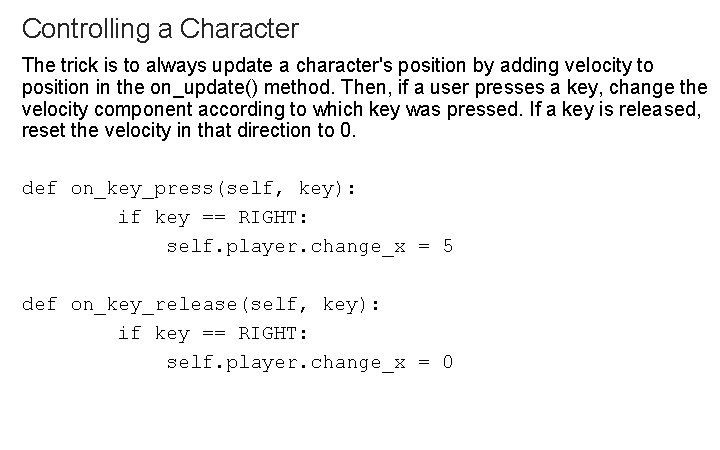
Controlling a Character The trick is to always update a character's position by adding velocity to position in the on_update() method. Then, if a user presses a key, change the velocity component according to which key was pressed. If a key is released, reset the velocity in that direction to 0. def on_key_press(self, key): if key == RIGHT: self. player. change_x = 5 def on_key_release(self, key): if key == RIGHT: self. player. change_x = 0
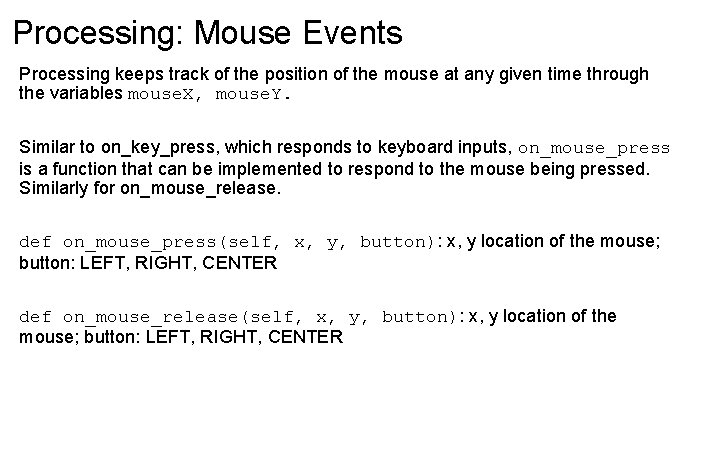
Processing: Mouse Events Processing keeps track of the position of the mouse at any given time through the variables mouse. X, mouse. Y. Similar to on_key_press, which responds to keyboard inputs, on_mouse_press is a function that can be implemented to respond to the mouse being pressed. Similarly for on_mouse_release. def on_mouse_press(self, x, y, button): x, y location of the mouse; button: LEFT, RIGHT, CENTER def on_mouse_release(self, x, y, button): x, y location of the mouse; button: LEFT, RIGHT, CENTER
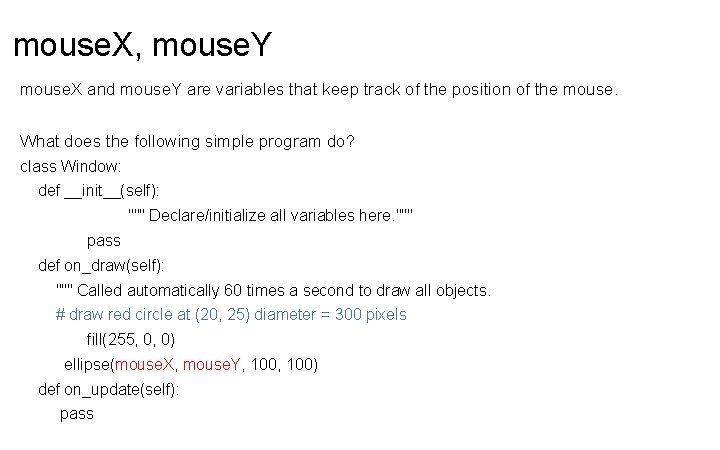
mouse. X, mouse. Y mouse. X and mouse. Y are variables that keep track of the position of the mouse. What does the following simple program do? class Window: def __init__(self): """ Declare/initialize all variables here. """ pass def on_draw(self): """ Called automatically 60 times a second to draw all objects. # draw red circle at (20, 25) diameter = 300 pixels fill(255, 0, 0) ellipse(mouse. X, mouse. Y, 100) def on_update(self): pass
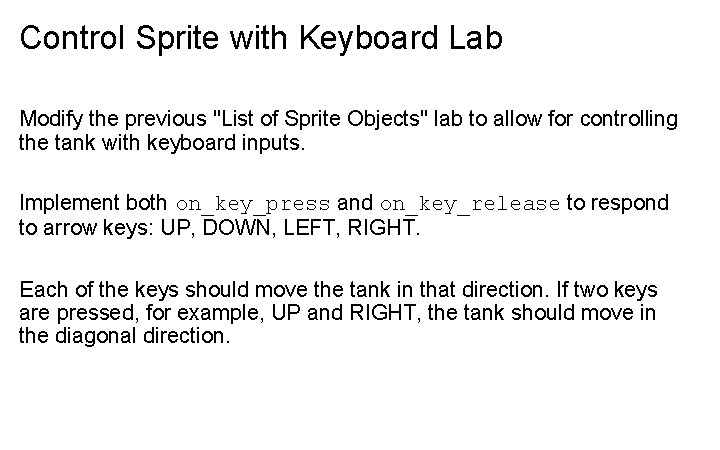
Control Sprite with Keyboard Lab Modify the previous "List of Sprite Objects" lab to allow for controlling the tank with keyboard inputs. Implement both on_key_press and on_key_release to respond to arrow keys: UP, DOWN, LEFT, RIGHT. Each of the keys should move the tank in that direction. If two keys are pressed, for example, UP and RIGHT, the tank should move in the diagonal direction.
- Slides: 8