
Introduction to Power Point Courtroom Preparation Technology November
Introduction to Power. Point Courtroom Preparation & Technology November 10, 2007
Today’s Objectives 1. 2. 3. 4. 5. 6. Understand Power. Point’s role Start and navigate a Power. Point file Modify and format a presentation Work with multimedia elements Modify the master slide Run a live presentation
Power. Point’s Role § Input once, deliver in multiple formats l l l Computer-based multimedia presentation Printed and online speaker notes Printed handouts for audience Web site creation for reference, absentees Transparencies or 35 mm slides for backup E-mail attachments

Terminology § § slide show = presentation = Power. Point file menu: pop-up or pull-down list of choices toolbar: array of icons, buttons, and menus view: one of five perspectives to choose from when working on a single presentation
2: Start and Navigate a Power. Point File § § § Quick start 1: Use Auto Content Wizard Navigate through a presentation Quick start 2: Use a Power. Point template Navigate the Power. Point screen Quick start 3: Open existing presentation Change views of the same presentation

Quick Start 1: Use the Auto Content Wizard
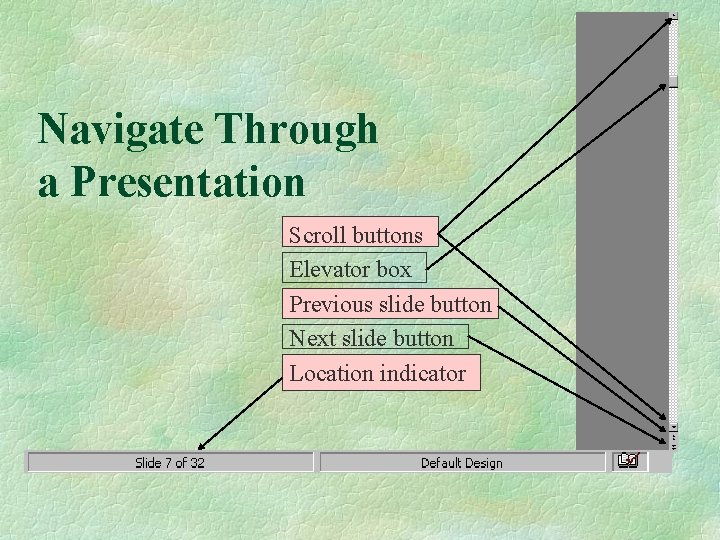
Navigate Through a Presentation Scroll buttons Elevator box Previous slide button Next slide button Location indicator
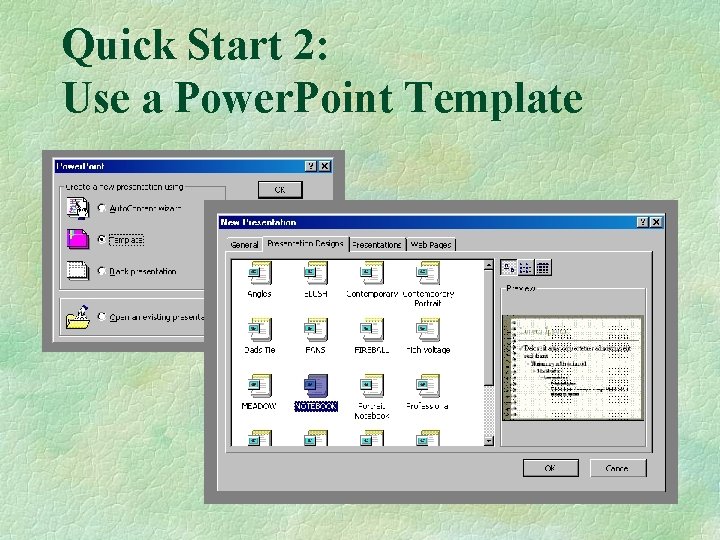
Quick Start 2: Use a Power. Point Template
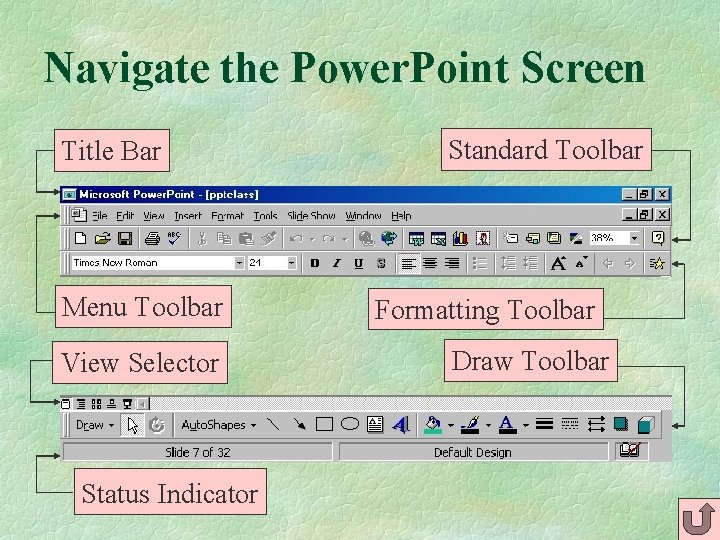
Navigate the Power. Point Screen Title Bar Menu Toolbar View Selector Status Indicator Standard Toolbar Formatting Toolbar Draw Toolbar
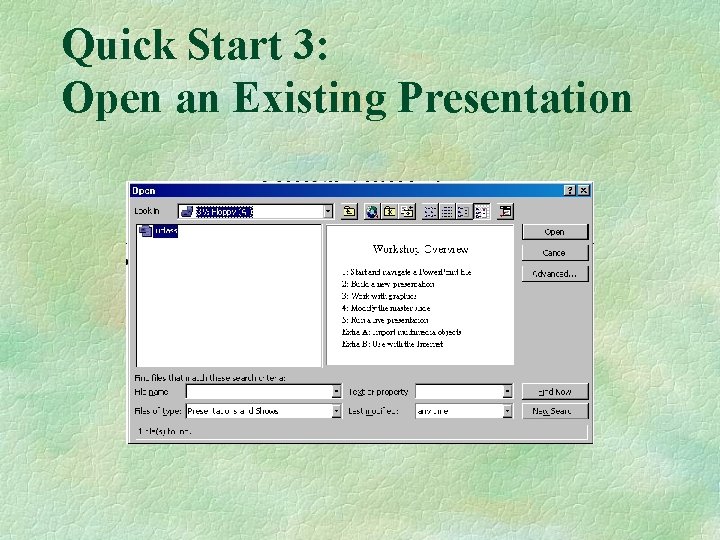
Quick Start 3: Open an Existing Presentation
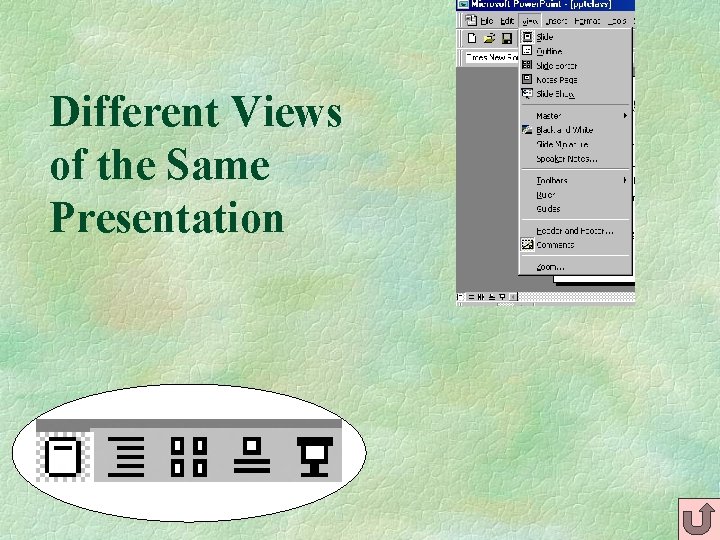
Different Views of the Same Presentation
Power. Point’s Role § You can get the most value from Power. Point by using all the options: l l l organize your ideas using outline view add detail for each idea in slide view arrange for good flow using slide sorter create speaker notes in notes view print audience handouts create transparencies as a backup
3: Modify and Format a Presentation § § § Create a new slide Enter text on a title slide Format text Delete a slide Use slide sorter view Check your spelling and save your work
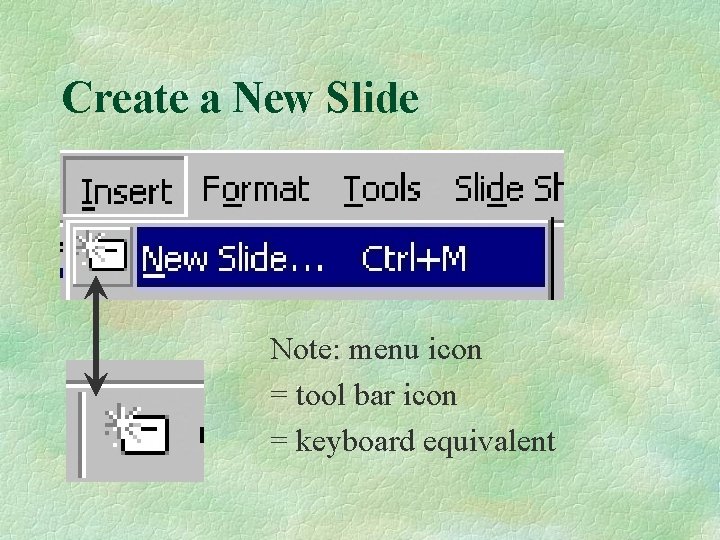
Create a New Slide Note: menu icon = tool bar icon = keyboard equivalent
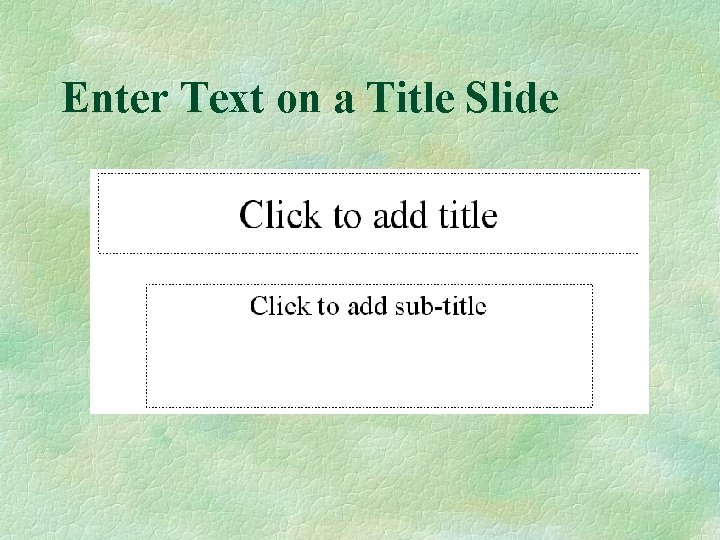
Enter Text on a Title Slide
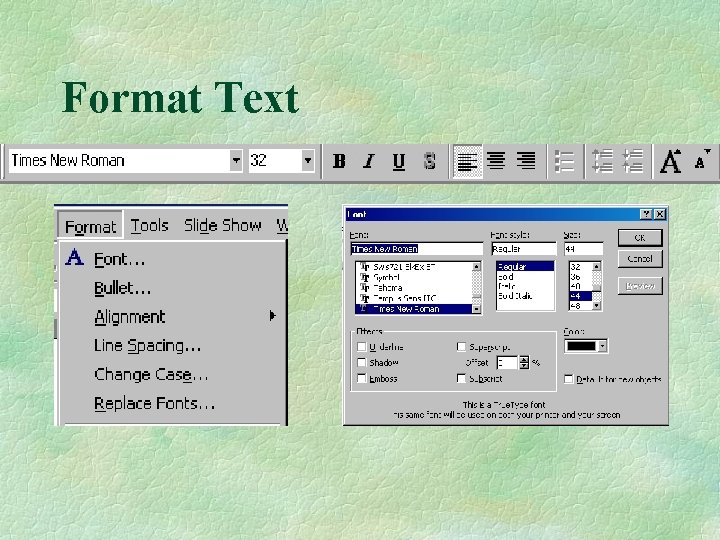
Format Text
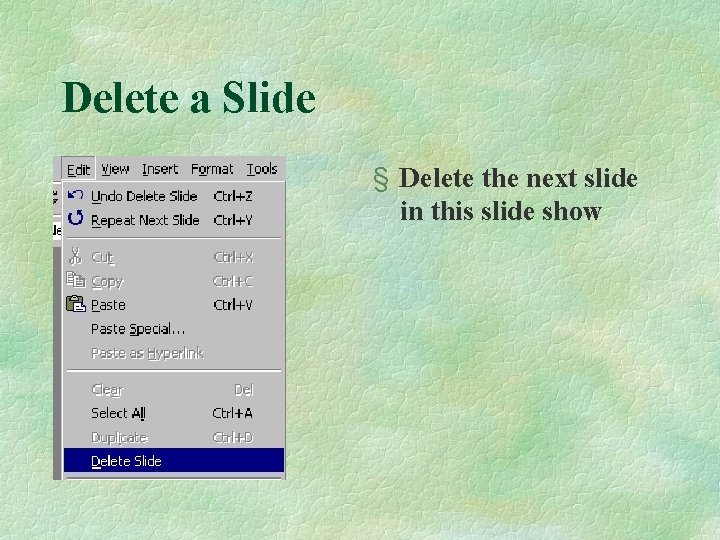
Delete a Slide § Delete the next slide in this slide show
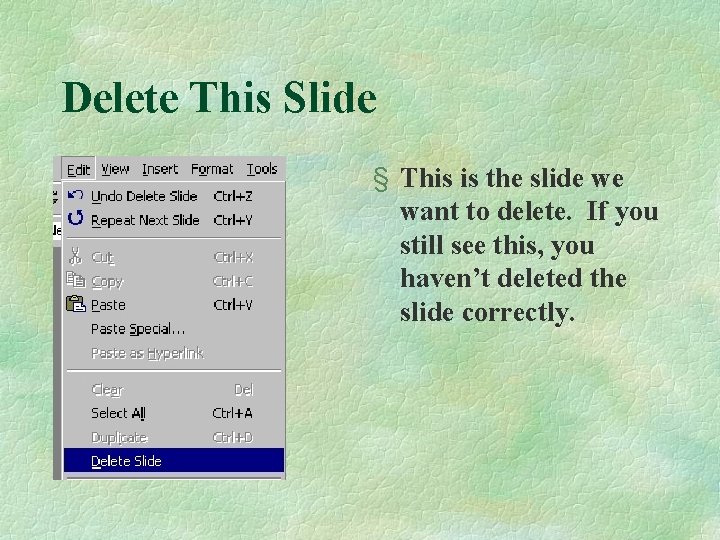
Delete This Slide § This is the slide we want to delete. If you still see this, you haven’t deleted the slide correctly.
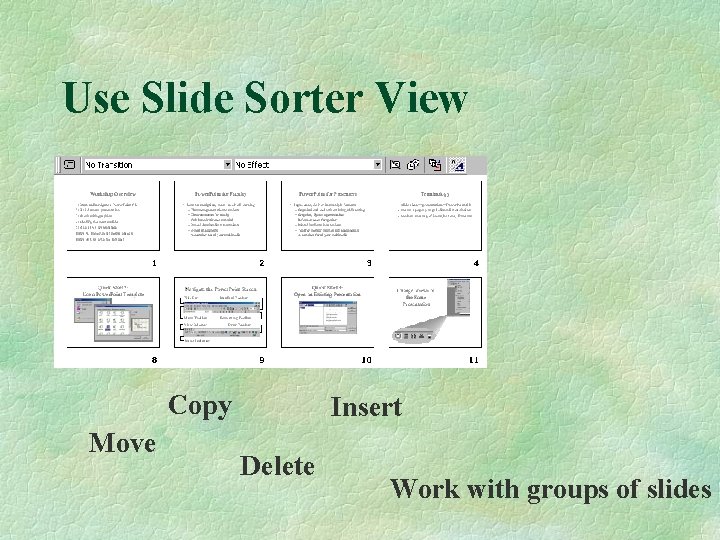
Use Slide Sorter View Copy Move Insert Delete Work with groups of slides
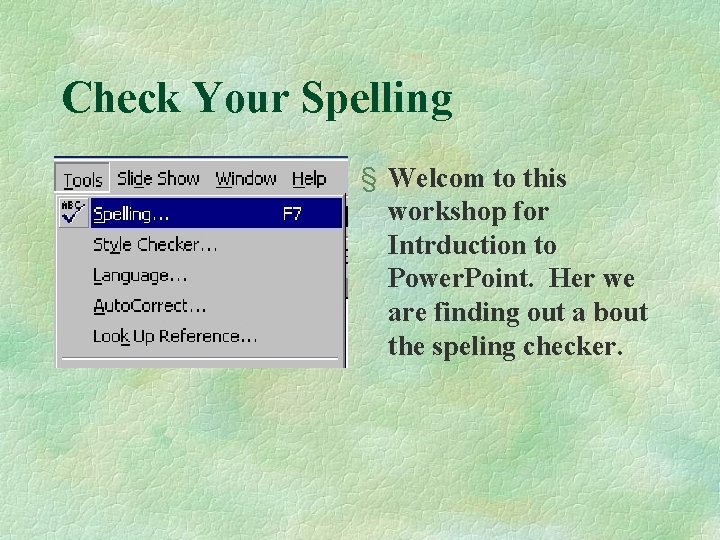
Check Your Spelling § Welcom to this workshop for Intrduction to Power. Point. Her we are finding out a bout the speling checker.
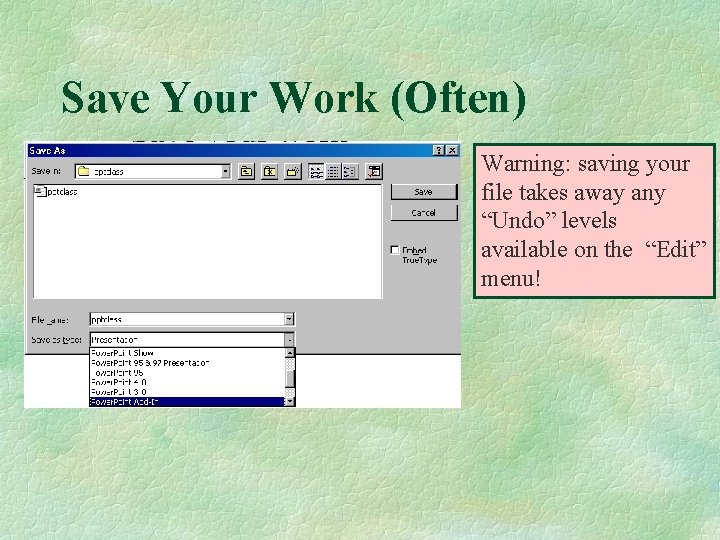
Save Your Work (Often) Warning: saving your file takes away any “Undo” levels available on the “Edit” menu!
Power. Point’s Role § Don’t let Power. Point’s formatting features keep you from getting your ideas across: l l l always get all your ideas down first before working with the formatting features keep the formatting to a level that will divert your audience’s attention this is only the start -- there are many more potential distractions to come!
3: Work with Multimedia Elements § § § Work with clip art Use draw options on clip art Explore the drawing toolbar Use scanned or digital camera images Use slide sorter view
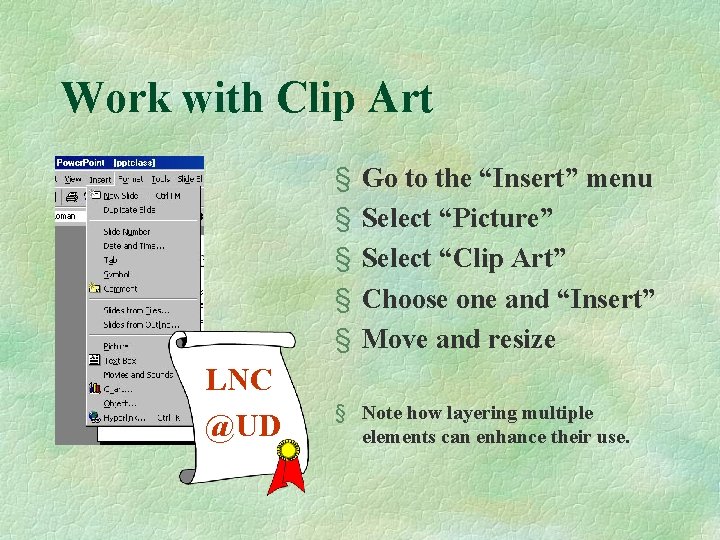
Work with Clip Art § § § LNC @UD Go to the “Insert” menu Select “Picture” Select “Clip Art” Choose one and “Insert” Move and resize § Note how layering multiple elements can enhance their use.
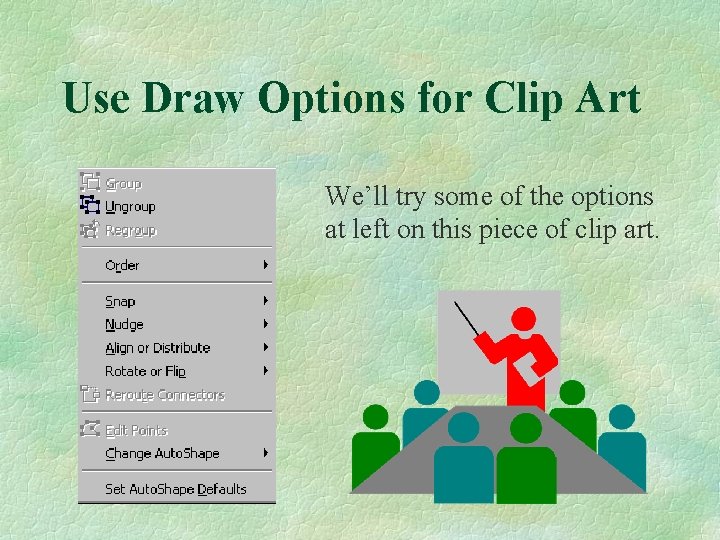
Use Draw Options for Clip Art We’ll try some of the options at left on this piece of clip art.
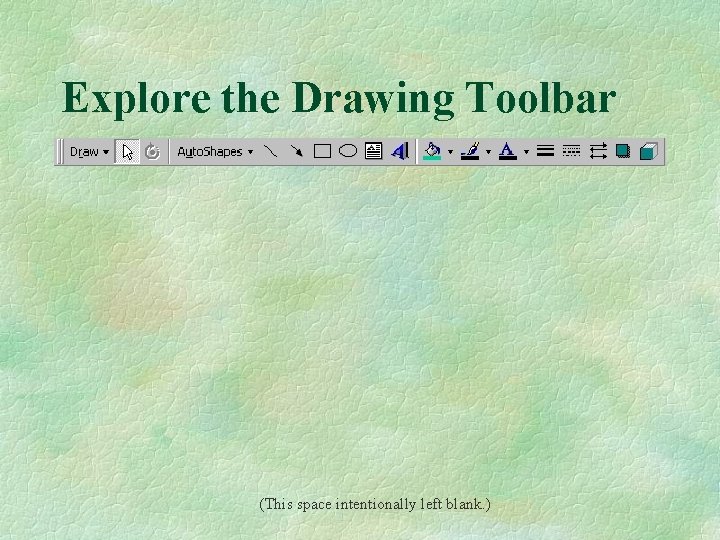
Explore the Drawing Toolbar (This space intentionally left blank. )
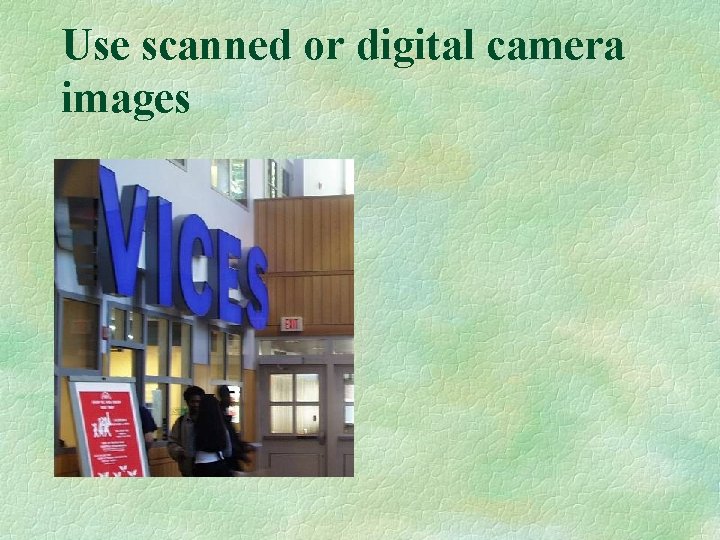
Use scanned or digital camera images

Using images from the Web
4: Modify the Master Slide § § § Change items on master slide Add a logo to the Slide Master Change transparency color of a picture Hide Master Slide object Print in various formats
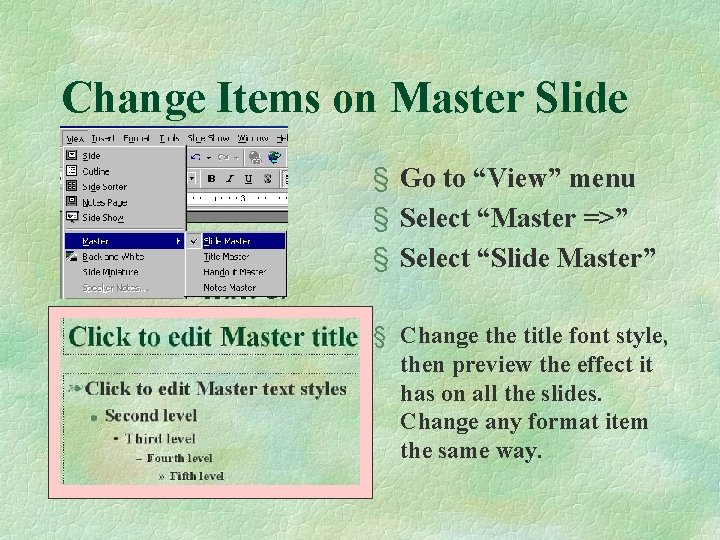
Change Items on Master Slide § Go to “View” menu § Select “Master =>” § Select “Slide Master” § Change the title font style, then preview the effect it has on all the slides. Change any format item the same way.
Add a Logo to the Slide Master This file is “udlogo. gif” after cropping, but before the transparency color has been changed.
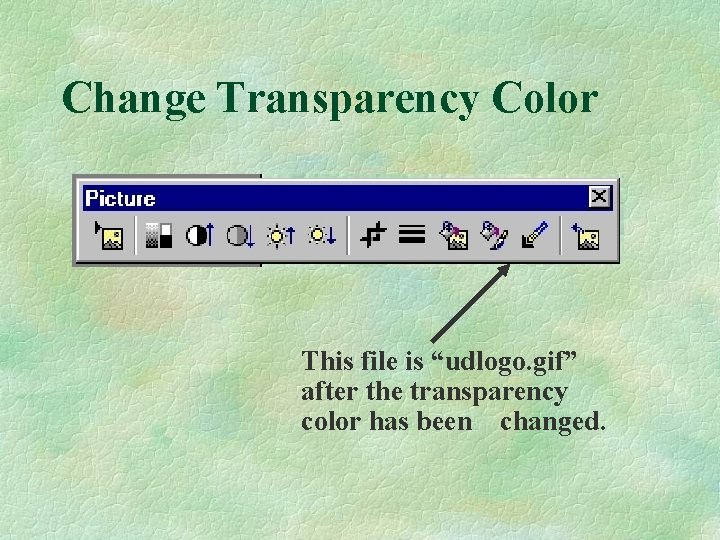
Change Transparency Color This file is “udlogo. gif” after the transparency color has been changed.
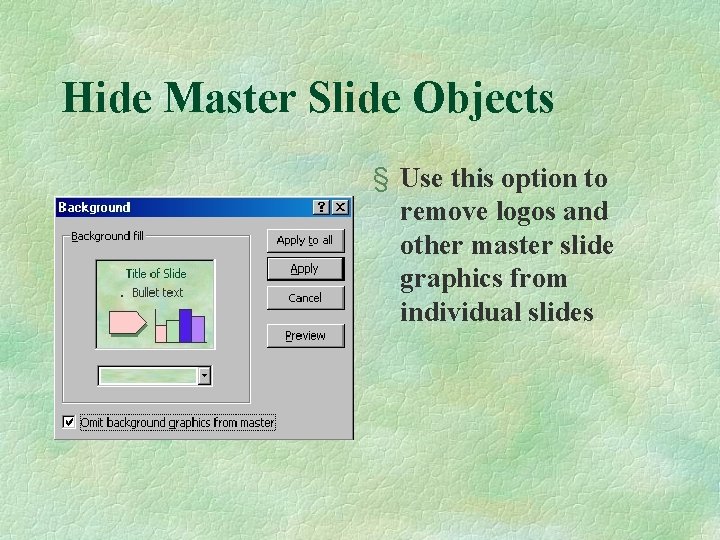
Hide Master Slide Objects § Use this option to remove logos and other master slide graphics from individual slides
Print in Various Formats § Design for output § Handout options § Speaker notes
Power. Point’s Role § Power. Point provides control for almost every presentation detail l l If there is something you want to change, chances are Power. Point has a way to do it We didn’t cover every option today, but they can all be found in the Help menu contents
6: Run a Live Presentation § Slide show options § Add transitions between slides § Add build effects within a slide Remember: you pay a big price in file size when you start adding transitions and build effects.

Slide Show Options § Try these options when running your slide show. To make this menu appear, click on the semitransparent box in the lower left corner, or -right- click with the mouse during slide show.
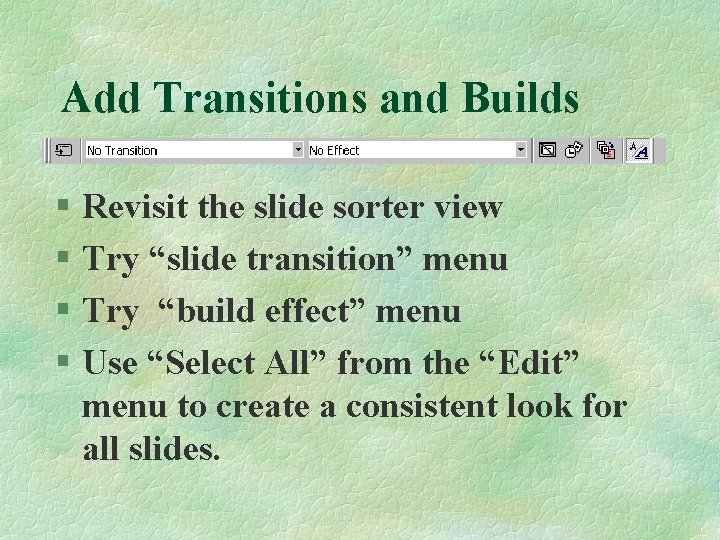
Add Transitions and Builds § Revisit the slide sorter view § Try “slide transition” menu § Try “build effect” menu § Use “Select All” from the “Edit” menu to create a consistent look for all slides.
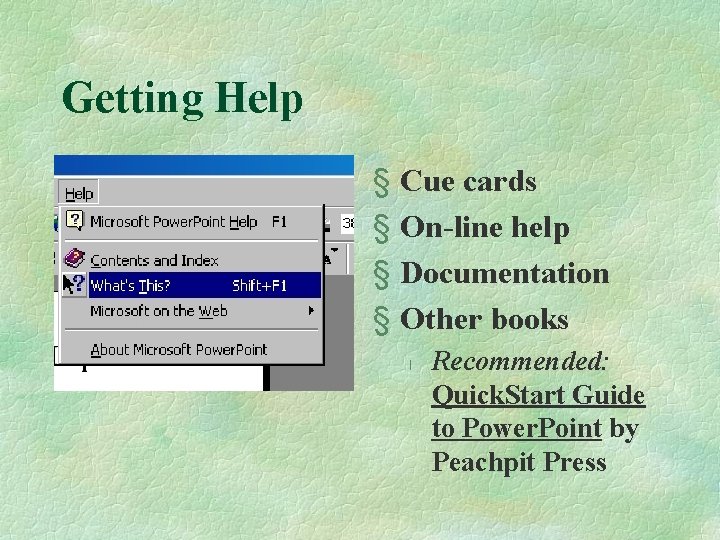
Getting Help § Cue cards § On-line help § Documentation § Other books l Recommended: Quick. Start Guide to Power. Point by Peachpit Press
Power. Point’s Role (5 of 5) § Know when to turn the computer off l l Critics say, “Computer presentations can take the life out of public speaking by homogenizing it at a low level and contribute to a kind of ersatz that is devoid of original ideas. ” Advocates say, “Visual things stay put, whereas sounds fade. If you zone out for 30 seconds—and who doesn’t—it is nice to be able to glance up on the screen and see what you missed. ” From “Does Popular Software Debase Public Speaking? ” Laurence Zuckerman, New York Times, 4/17/99

From “Does Popular Software Debase Public Speaking? ” Laurence Zuckerman, New York Times, 4/17/99
- Slides: 41