
Introduction to Oracle 10 g Chapter 10 Creating







- Slides: 42
Introduction to Oracle 10 g Chapter 10 Creating and Modifying Reports James Perry and Gerald Post 10 -1 © 2007 by Prentice Hall
Chapter Outline • • 2 Introducing Reports Developer Building and Modifying Reports Enhancing a Report Customizing Reports Controlling Data in a Report Creating Custom Templates Customizing a Web Report © 2007 by Prentice Hall
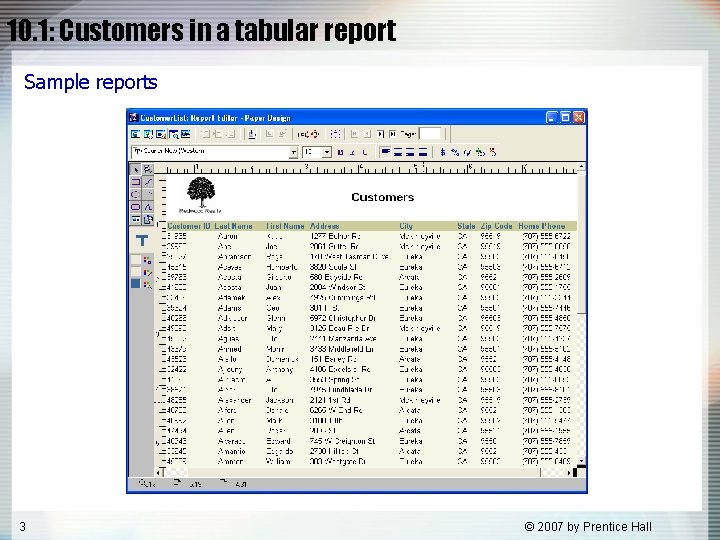
10. 1: Customers in a tabular report Sample reports 3 © 2007 by Prentice Hall
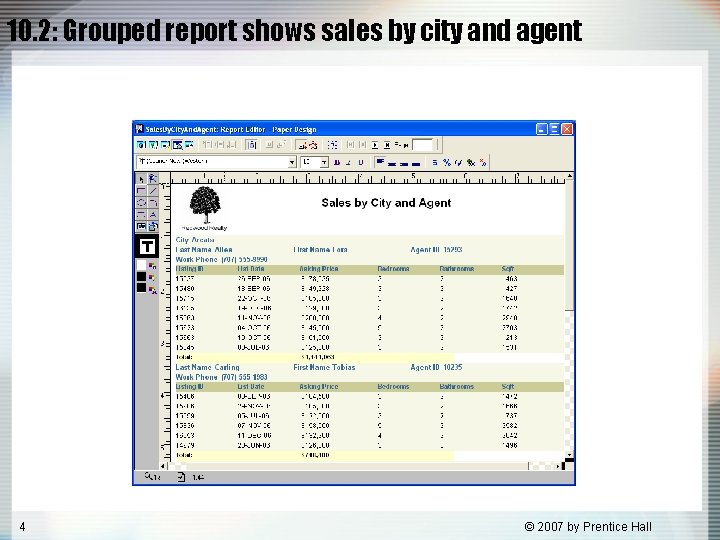
10. 2: Grouped report shows sales by city and agent 4 © 2007 by Prentice Hall
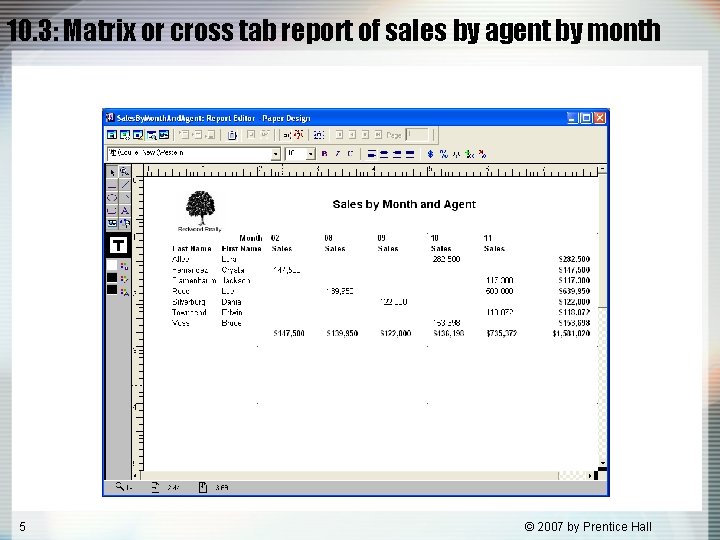
10. 3: Matrix or cross tab report of sales by agent by month 5 © 2007 by Prentice Hall
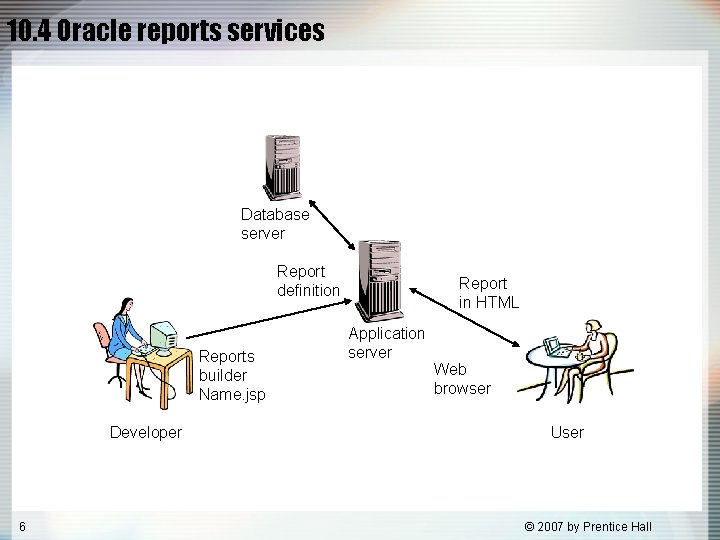
10. 4 Oracle reports services Database server Report definition Reports builder Name. jsp Developer 6 Report in HTML Application server Web browser User © 2007 by Prentice Hall
10. 5 Overall structure of a grouped report Building and modifying reports Report Header Page Header Break Header Detail Break Footer Page Footer Report Footer 7 © 2007 by Prentice Hall
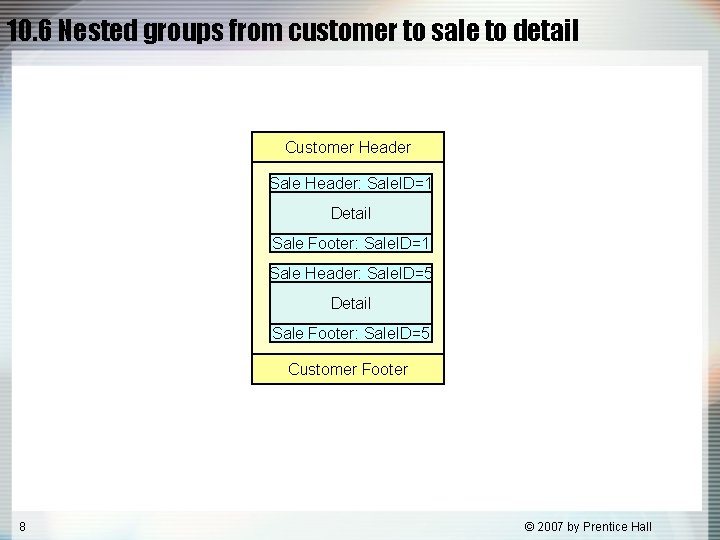
10. 6 Nested groups from customer to sale to detail Customer Header Sale Header: Sale. ID=1 Detail Sale Footer: Sale. ID=1 Sale Header: Sale. ID=5 Detail Sale Footer: Sale. ID=5 Customer Footer 8 © 2007 by Prentice Hall
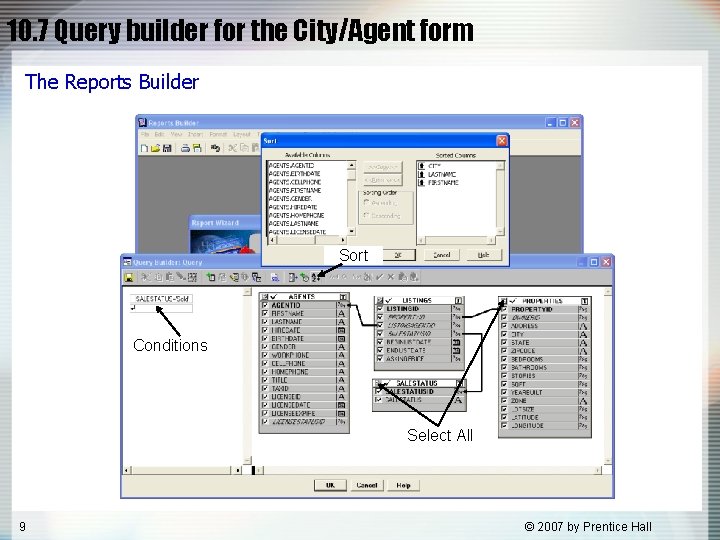
10. 7 Query builder for the City/Agent form The Reports Builder Sort Conditions Select All 9 © 2007 by Prentice Hall
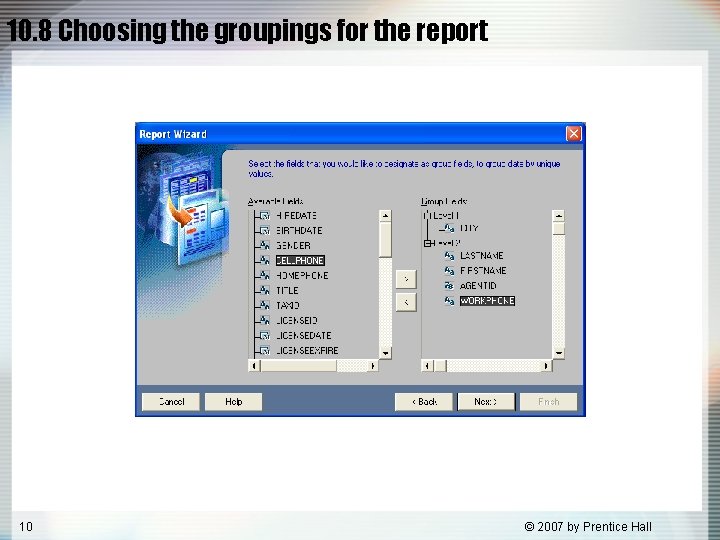
10. 8 Choosing the groupings for the report 10 © 2007 by Prentice Hall
10. 9 Initial report for sales by city and agent Run Web or Paper Layout Displays Page Navigation Format Options 11 © 2007 by Prentice Hall
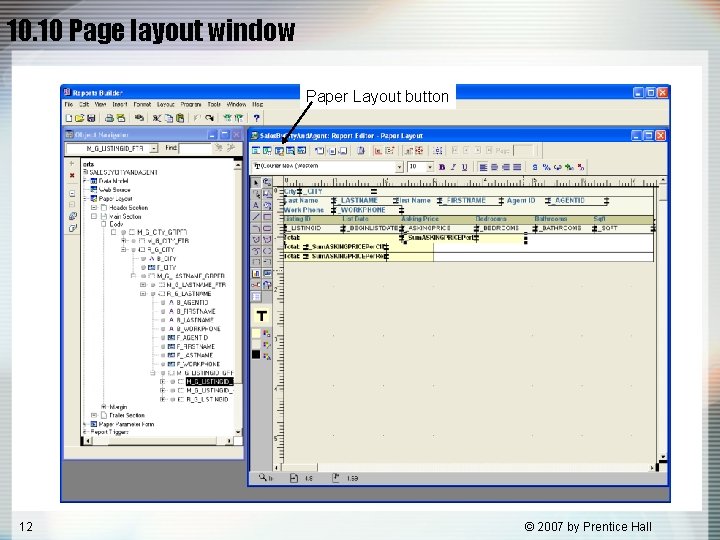
10. 10 Page layout window Paper Layout button 12 © 2007 by Prentice Hall
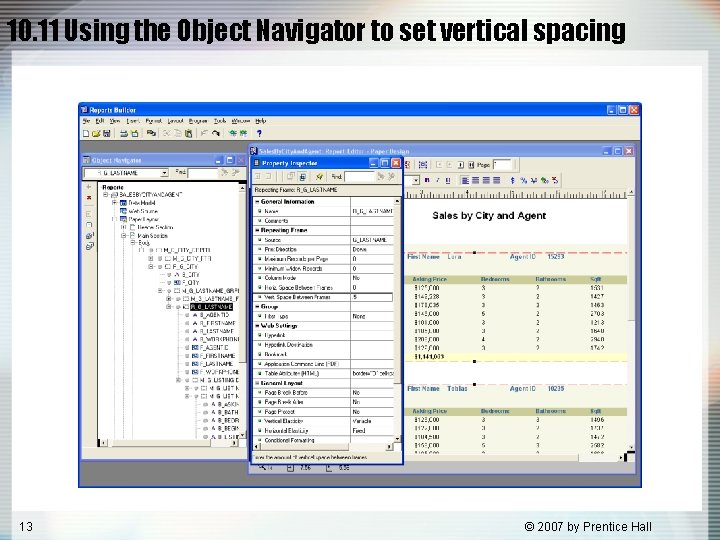
10. 11 Using the Object Navigator to set vertical spacing 13 © 2007 by Prentice Hall
10. 12 The Object Navigator Step through code Group Frame Group Footer Group Header Detail Group 14 © 2007 by Prentice Hall
10. 13 Choosing the fields for the matrix rows Enhancing a report 15 © 2007 by Prentice Hall
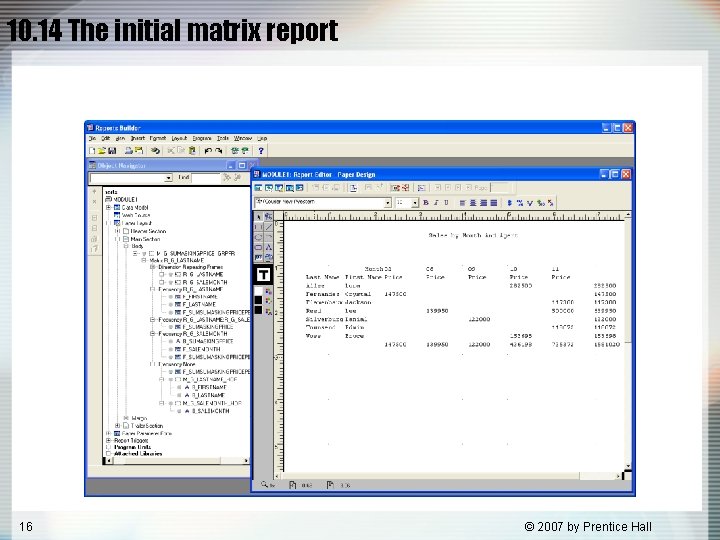
10. 14 The initial matrix report 16 © 2007 by Prentice Hall
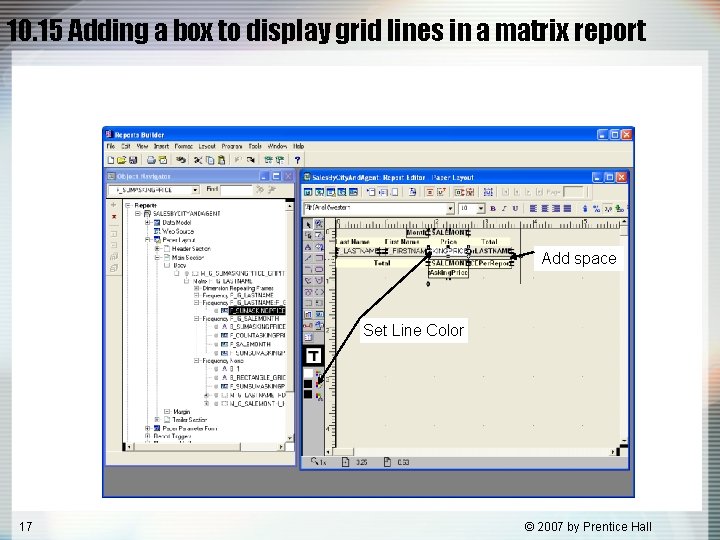
10. 15 Adding a box to display grid lines in a matrix report Add space Set Line Color 17 © 2007 by Prentice Hall
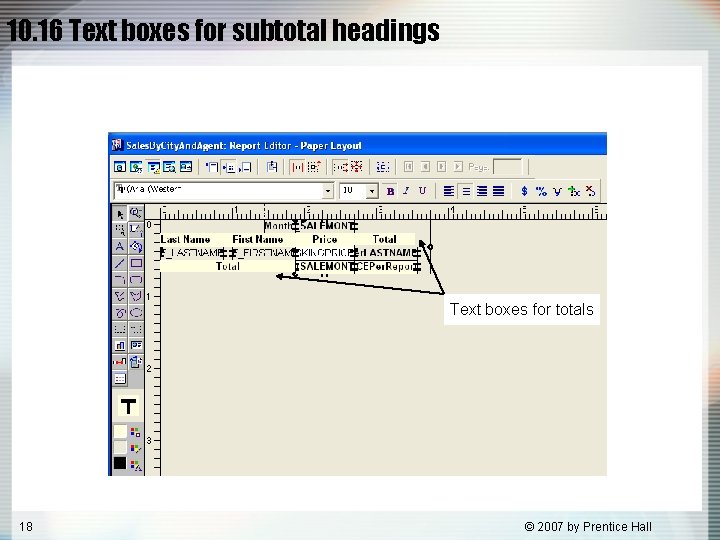
10. 16 Text boxes for subtotal headings Text boxes for totals 18 © 2007 by Prentice Hall
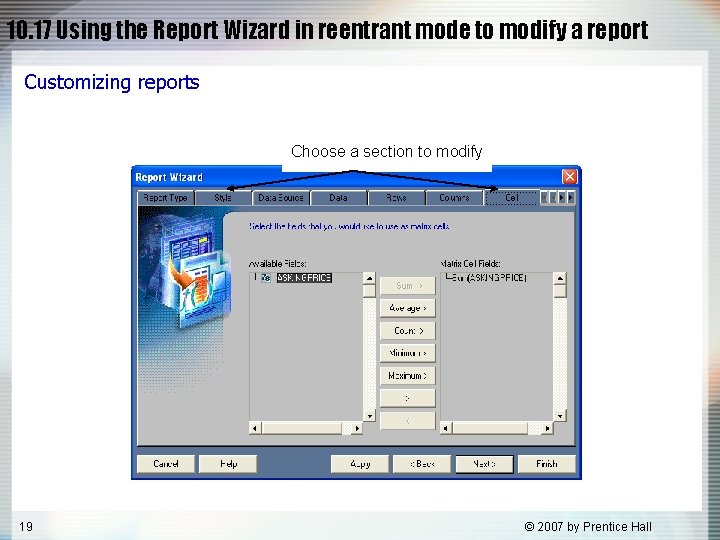
10. 17 Using the Report Wizard in reentrant mode to modify a report Customizing reports Choose a section to modify 19 © 2007 by Prentice Hall
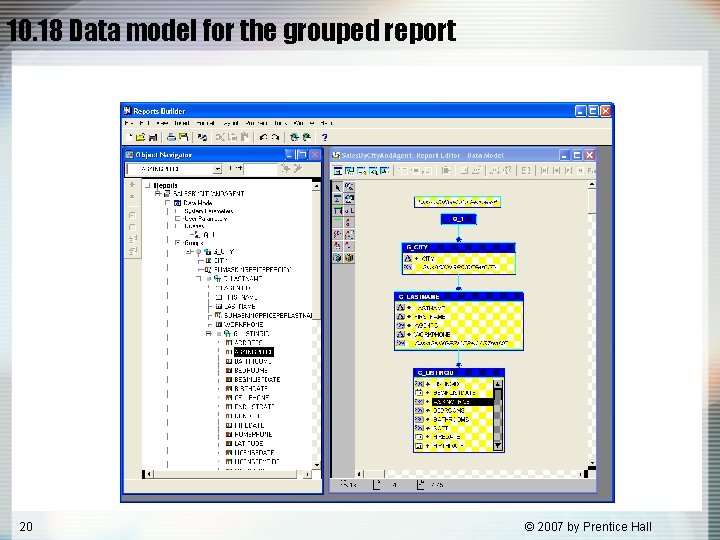
10. 18 Data model for the grouped report 20 © 2007 by Prentice Hall
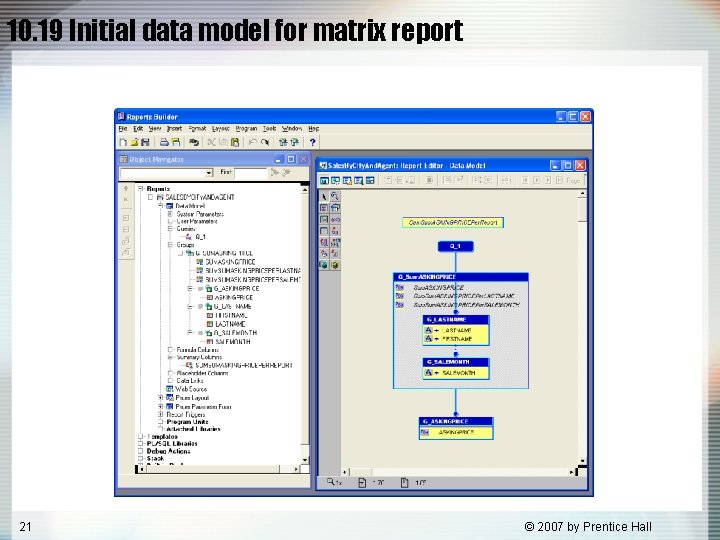
10. 19 Initial data model for matrix report 21 © 2007 by Prentice Hall
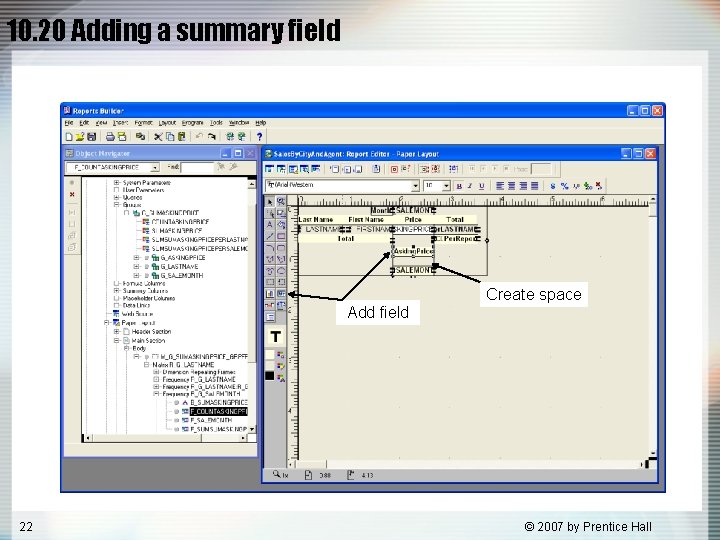
10. 20 Adding a summary field Create space Add field 22 © 2007 by Prentice Hall
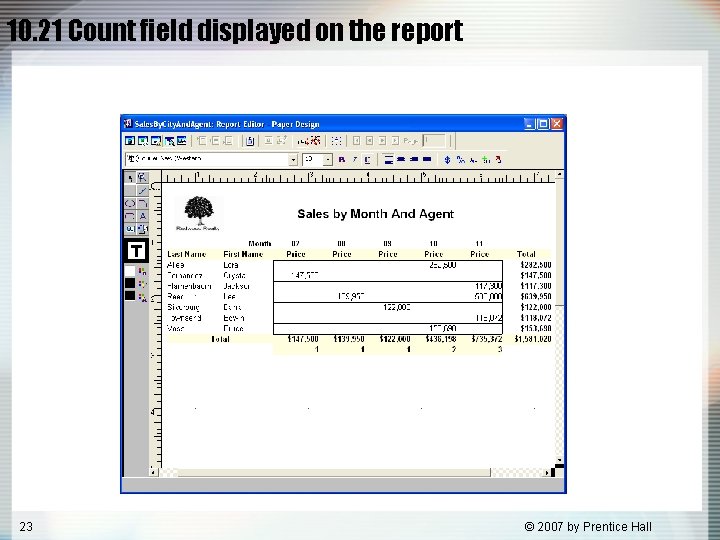
10. 21 Count field displayed on the report 23 © 2007 by Prentice Hall
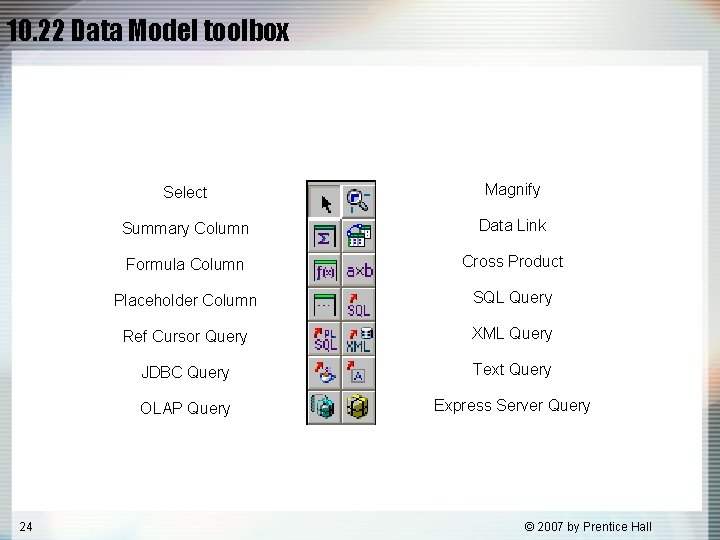
10. 22 Data Model toolbox 24 Select Magnify Summary Column Data Link Formula Column Cross Product Placeholder Column SQL Query Ref Cursor Query XML Query JDBC Query Text Query OLAP Query Express Server Query © 2007 by Prentice Hall
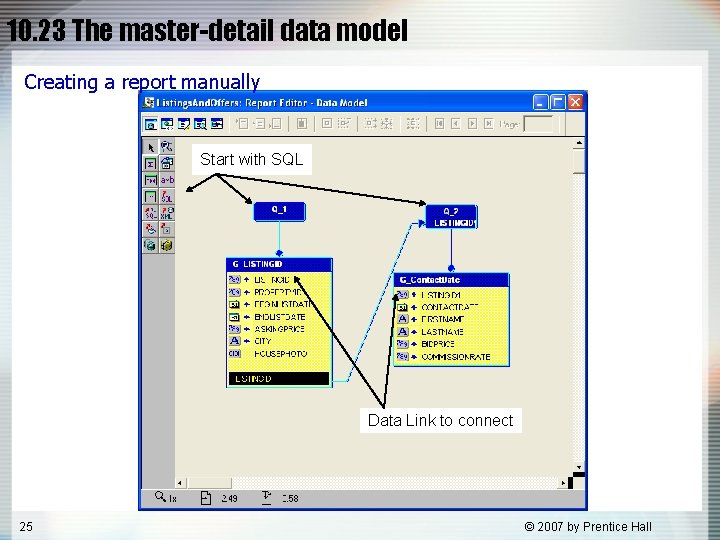
10. 23 The master-detail data model Creating a report manually Start with SQL Data Link to connect 25 © 2007 by Prentice Hall
10. 24 Paper Layout of the Listings and Offers report 26 © 2007 by Prentice Hall
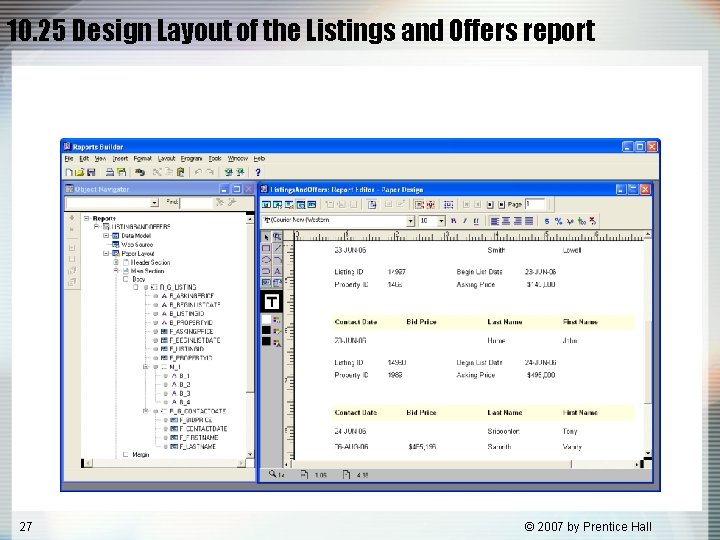
10. 25 Design Layout of the Listings and Offers report 27 © 2007 by Prentice Hall
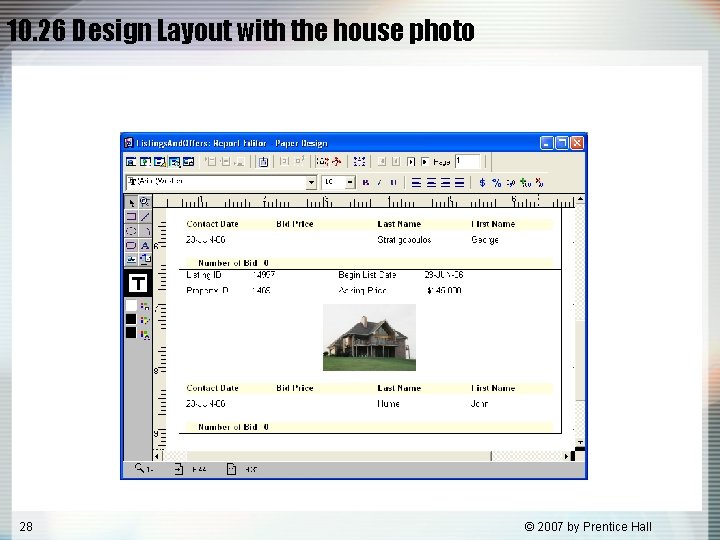
10. 26 Design Layout with the house photo 28 © 2007 by Prentice Hall
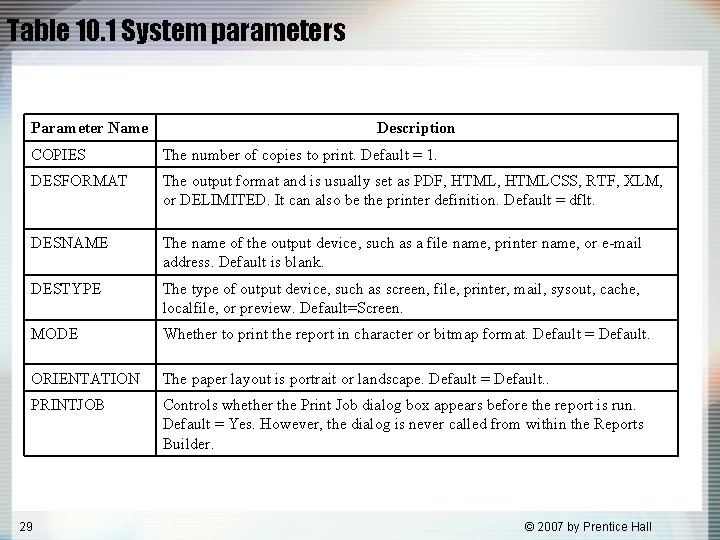
Table 10. 1 System parameters Parameter Name Description COPIES The number of copies to print. Default = 1. DESFORMAT The output format and is usually set as PDF, HTMLCSS, RTF, XLM, or DELIMITED. It can also be the printer definition. Default = dflt. DESNAME The name of the output device, such as a file name, printer name, or e-mail address. Default is blank. DESTYPE The type of output device, such as screen, file, printer, mail, sysout, cache, localfile, or preview. Default=Screen. MODE Whether to print the report in character or bitmap format. Default = Default. ORIENTATION The paper layout is portrait or landscape. Default = Default. . PRINTJOB Controls whether the Print Job dialog box appears before the report is run. Default = Yes. However, the dialog is never called from within the Reports Builder. 29 © 2007 by Prentice Hall
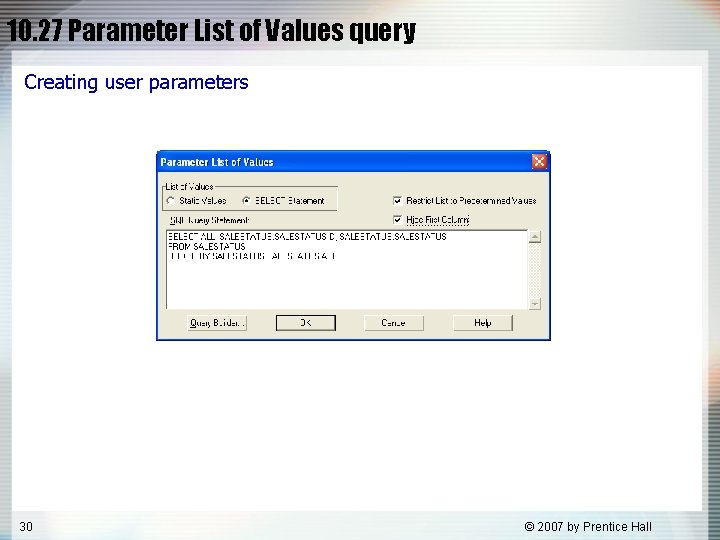
10. 27 Parameter List of Values query Creating user parameters 30 © 2007 by Prentice Hall
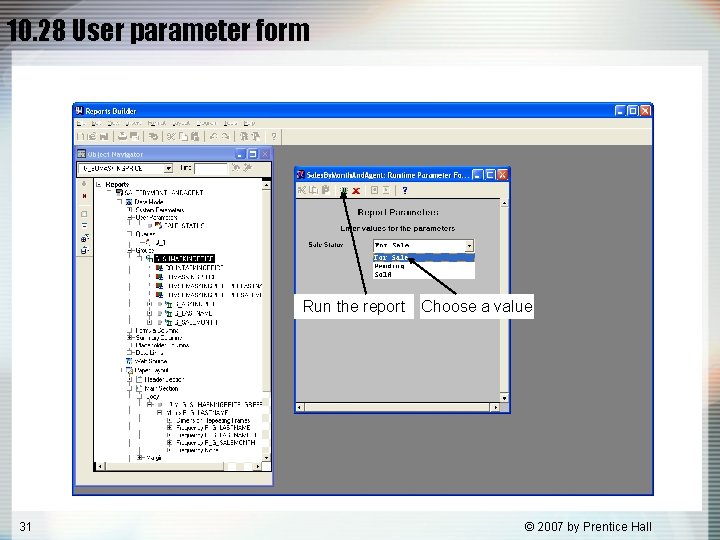
10. 28 User parameter form Run the report 31 Choose a value © 2007 by Prentice Hall
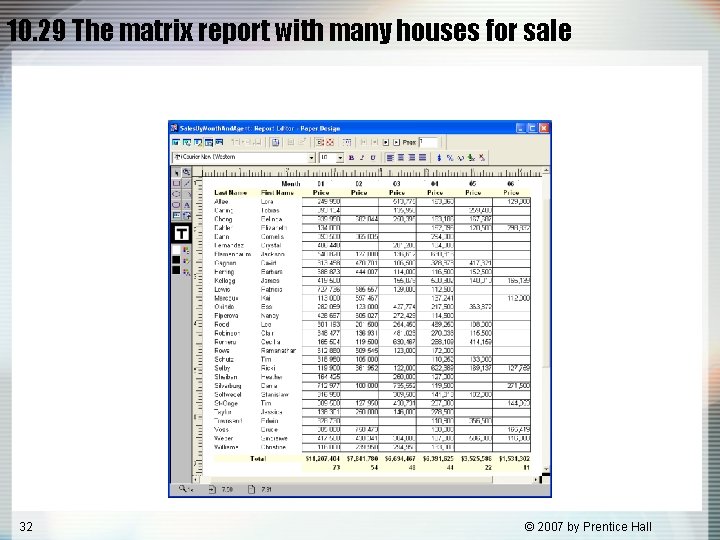
10. 29 The matrix report with many houses for sale 32 © 2007 by Prentice Hall
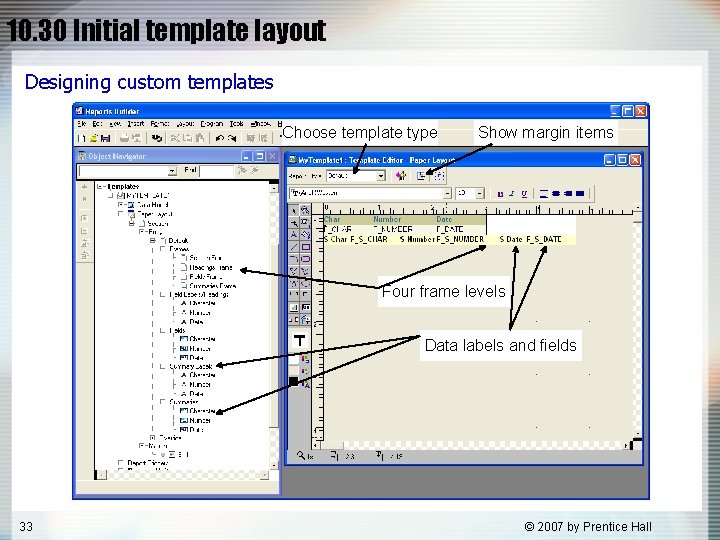
10. 30 Initial template layout Designing custom templates Choose template type Show margin items Four frame levels Data labels and fields 33 © 2007 by Prentice Hall
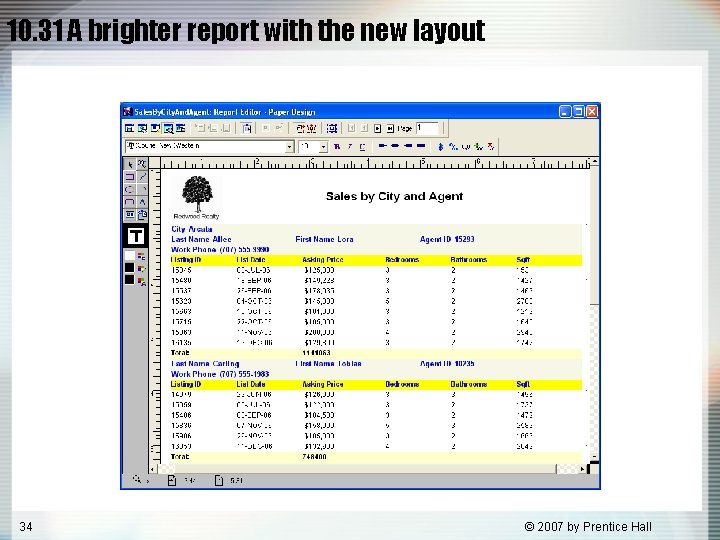
10. 31 A brighter report with the new layout 34 © 2007 by Prentice Hall
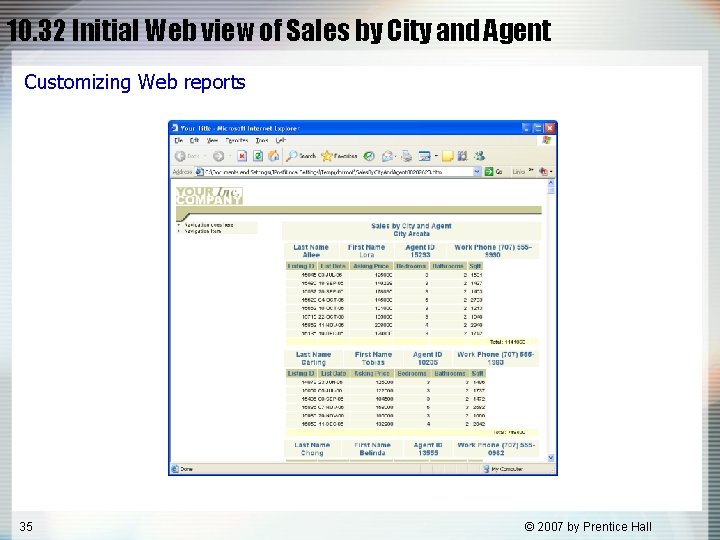
10. 32 Initial Web view of Sales by City and Agent Customizing Web reports 35 © 2007 by Prentice Hall
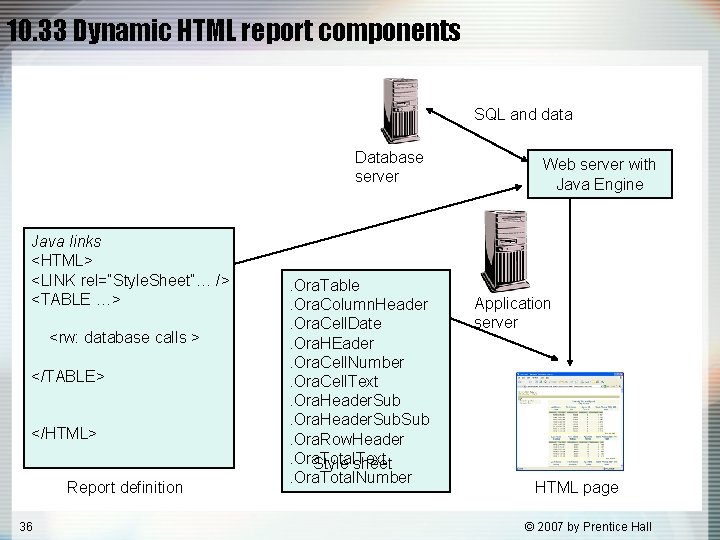
10. 33 Dynamic HTML report components SQL and data Database server Java links <HTML> <LINK rel=“Style. Sheet”… /> <TABLE …> <rw: database calls > </TABLE> </HTML> Report definition 36 . Ora. Table. Ora. Column. Header. Ora. Cell. Date. Ora. HEader. Ora. Cell. Number. Ora. Cell. Text. Ora. Header. Sub. Ora. Row. Header. Ora. Total. Text Style sheet. Ora. Total. Number Web server with Java Engine Application server HTML page © 2007 by Prentice Hall
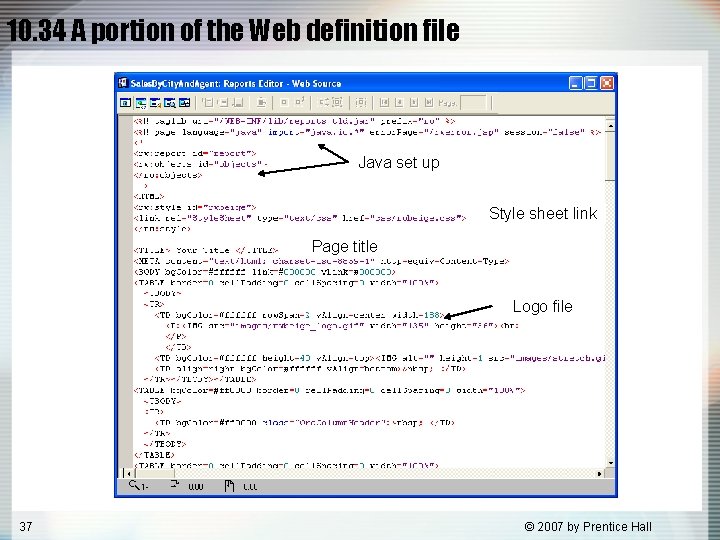
10. 34 A portion of the Web definition file Java set up Style sheet link Page title Logo file 37 © 2007 by Prentice Hall
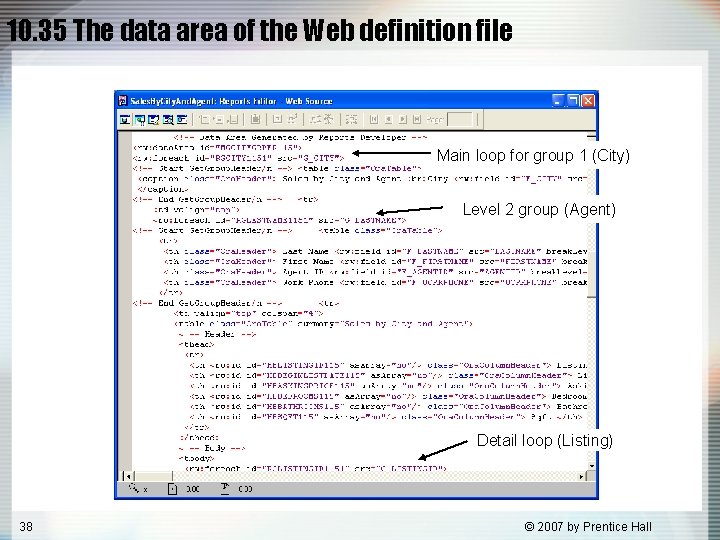
10. 35 The data area of the Web definition file Main loop for group 1 (City) Level 2 group (Agent) Detail loop (Listing) 38 © 2007 by Prentice Hall
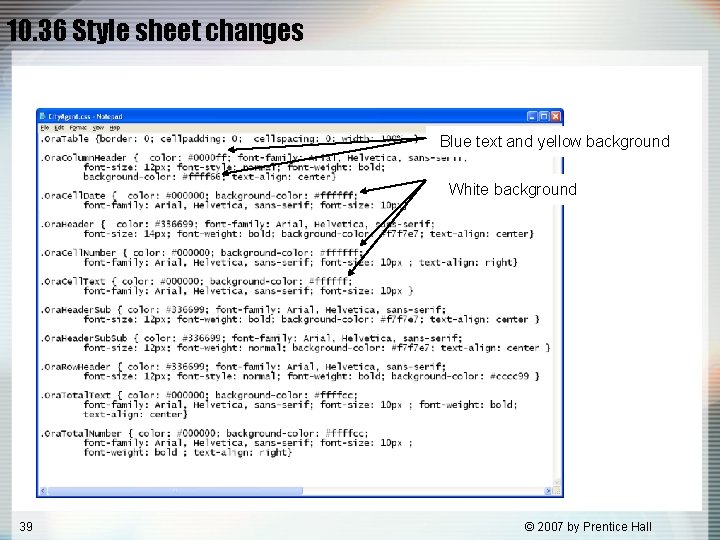
10. 36 Style sheet changes Blue text and yellow background White background 39 © 2007 by Prentice Hall
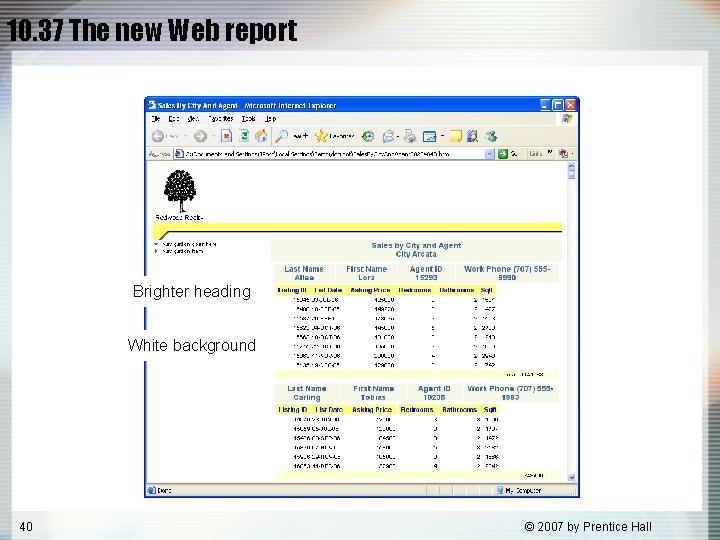
10. 37 The new Web report Brighter heading White background 40 © 2007 by Prentice Hall
10. 38 A chart at the bottom of the Web report 41 © 2007 by Prentice Hall
10. 39 Inserting a chart 42 © 2007 by Prentice Hall