
Introduction to Operation of the XL30 Scanning Electron
- Slides: 38
Introduction to Operation of the XL-30 Scanning Electron Microscope Tutorial # 1 Overview of XL-30 Microscope Control Program Central Analytical
Purpose • Purpose of these tutorials is to enable the user to understand the basics of OPERATING the XL-30 to obtain Secondary Electron and Back Scattered Electron Images, and to obtain an Energy Dispersive X-Ray Spectrum. • Very little theory is given. • If the user’s requirements demand further instruction, he or she should seek further formal instruction. Central Analytical
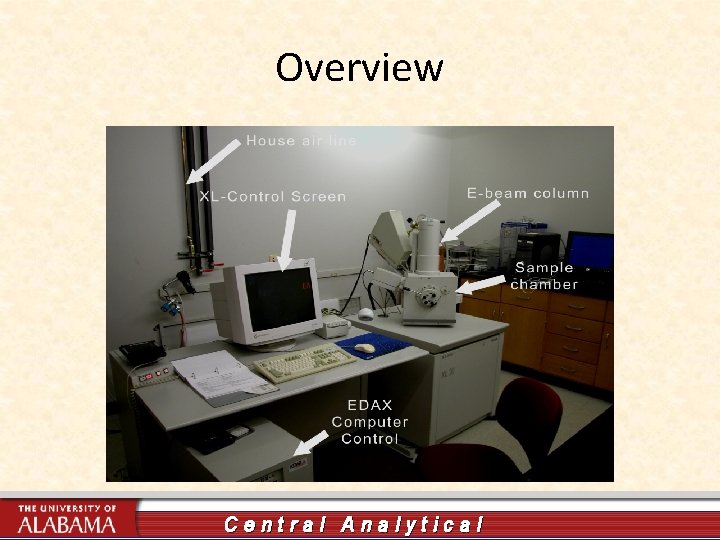
Overview Central Analytical
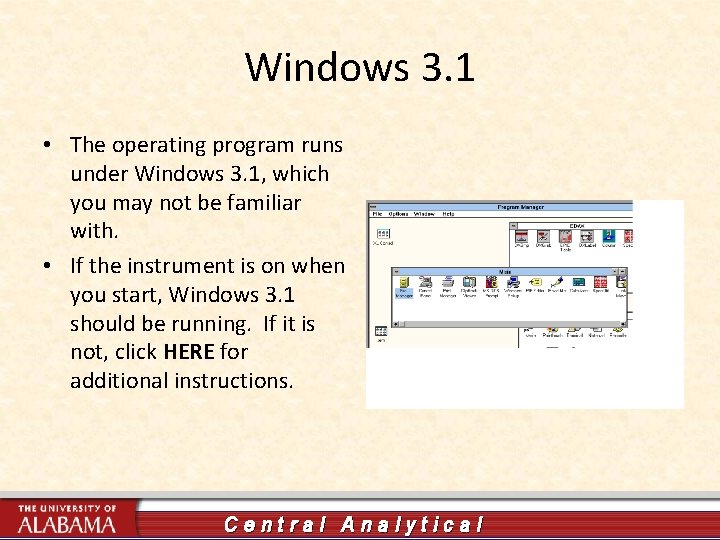
Windows 3. 1 • The operating program runs under Windows 3. 1, which you may not be familiar with. • If the instrument is on when you start, Windows 3. 1 should be running. If it is not, click HERE for additional instructions. Central Analytical
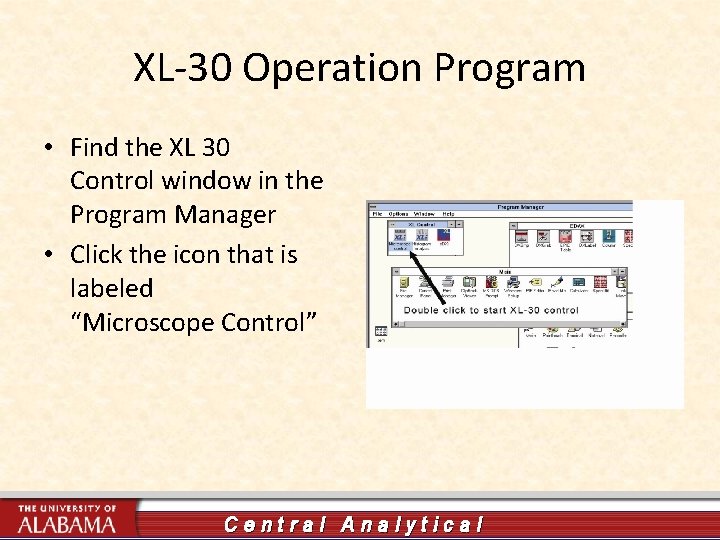
XL-30 Operation Program • Find the XL 30 Control window in the Program Manager • Click the icon that is labeled “Microscope Control” Central Analytical
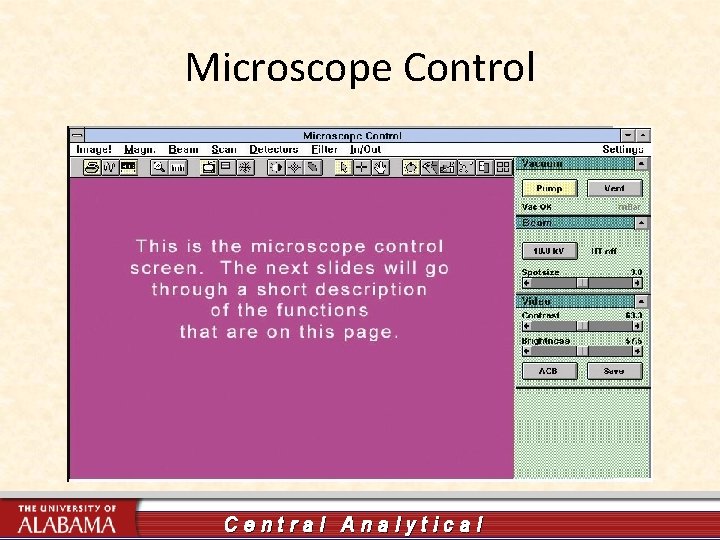
Microscope Control Central Analytical
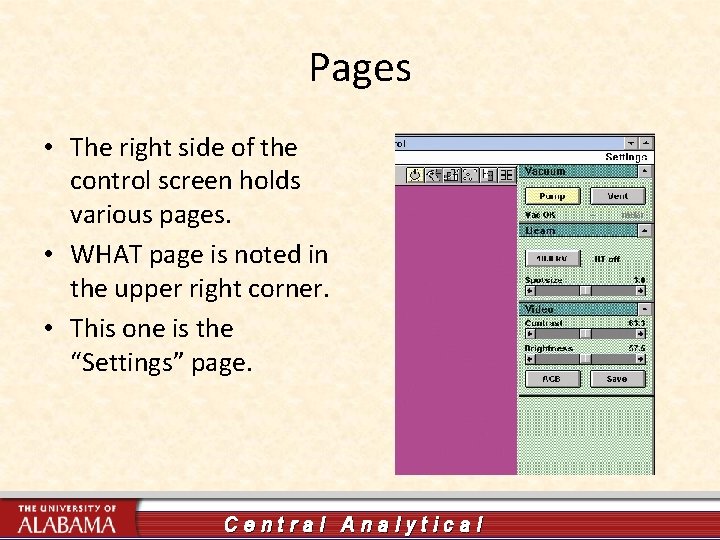
Pages • The right side of the control screen holds various pages. • WHAT page is noted in the upper right corner. • This one is the “Settings” page. Central Analytical
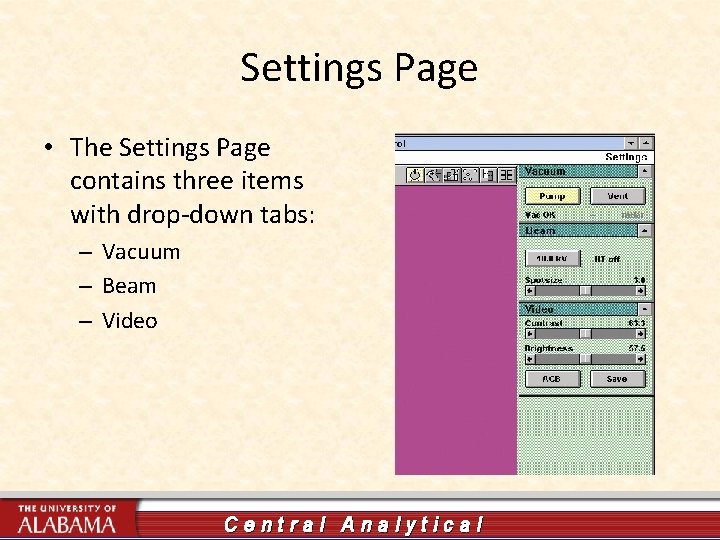
Settings Page • The Settings Page contains three items with drop-down tabs: – Vacuum – Beam – Video Central Analytical
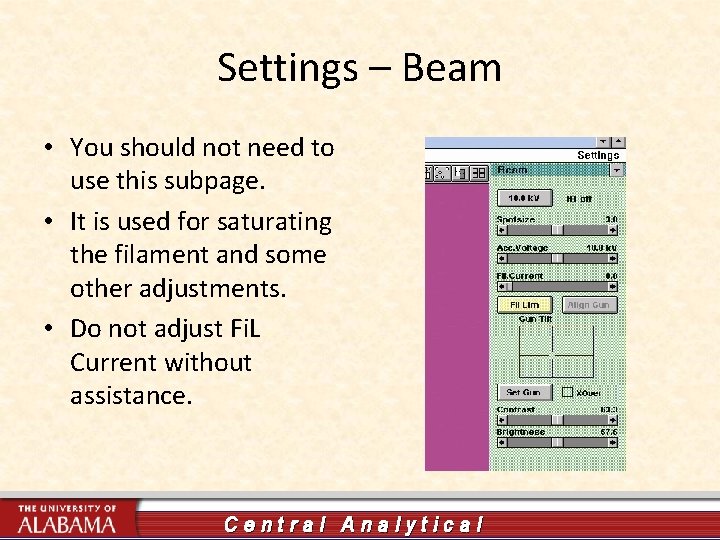
Settings – Beam • You should not need to use this subpage. • It is used for saturating the filament and some other adjustments. • Do not adjust Fi. L Current without assistance. Central Analytical
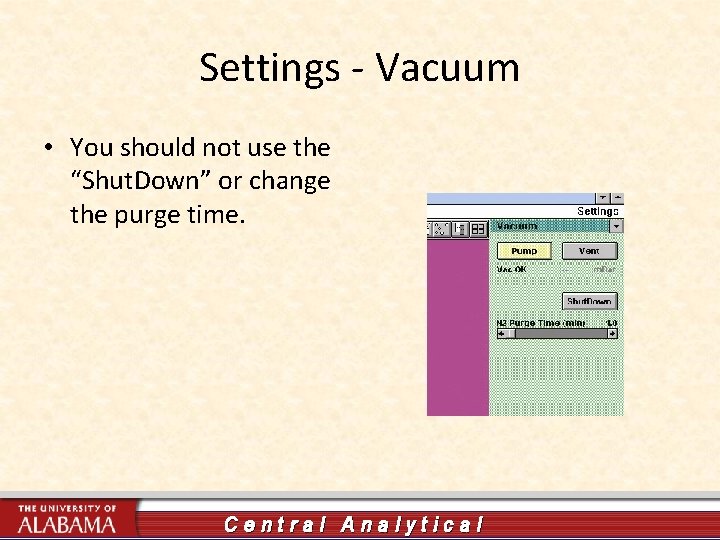
Settings - Vacuum • You should not use the “Shut. Down” or change the purge time. Central Analytical
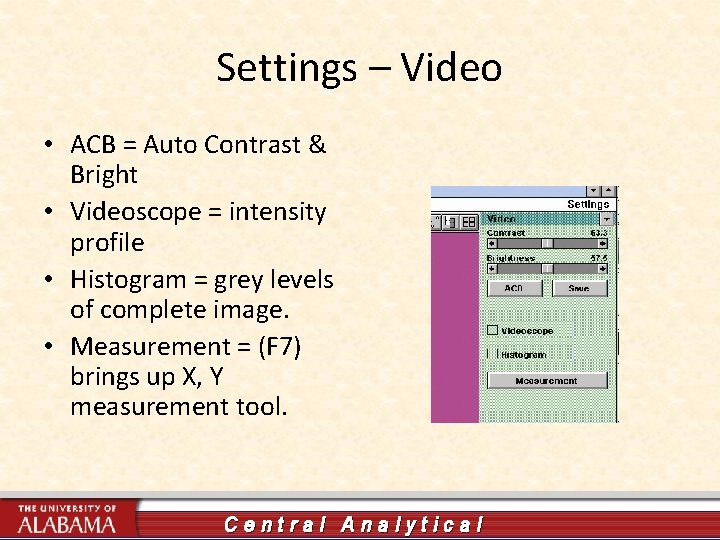
Settings – Video • ACB = Auto Contrast & Bright • Videoscope = intensity profile • Histogram = grey levels of complete image. • Measurement = (F 7) brings up X, Y measurement tool. Central Analytical
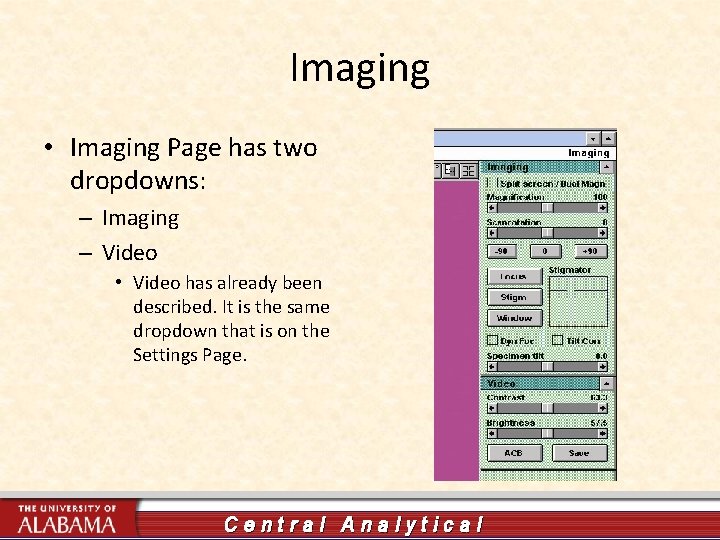
Imaging • Imaging Page has two dropdowns: – Imaging – Video • Video has already been described. It is the same dropdown that is on the Settings Page. Central Analytical
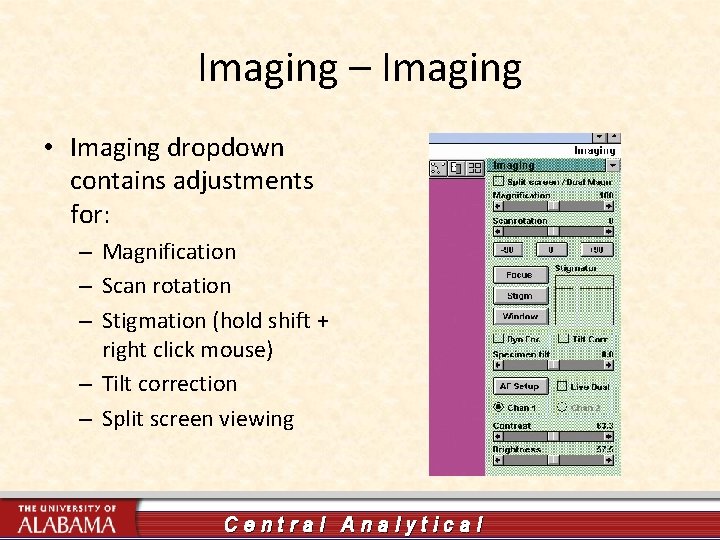
Imaging – Imaging • Imaging dropdown contains adjustments for: – Magnification – Scan rotation – Stigmation (hold shift + right click mouse) – Tilt correction – Split screen viewing Central Analytical
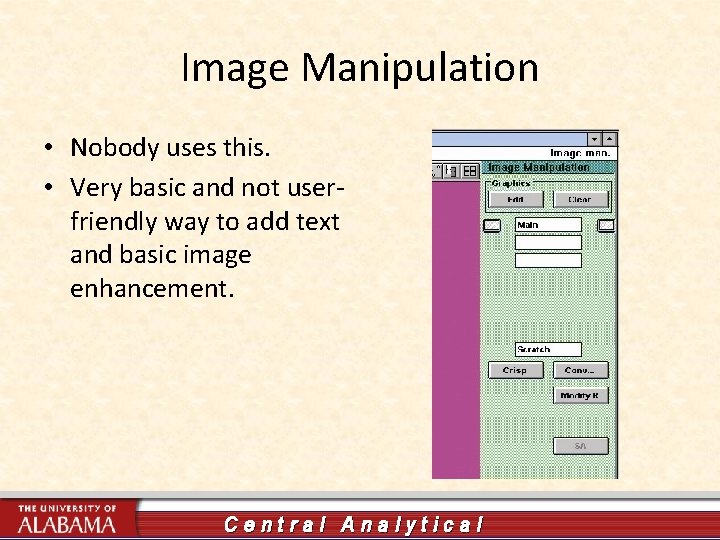
Image Manipulation • Nobody uses this. • Very basic and not userfriendly way to add text and basic image enhancement. Central Analytical
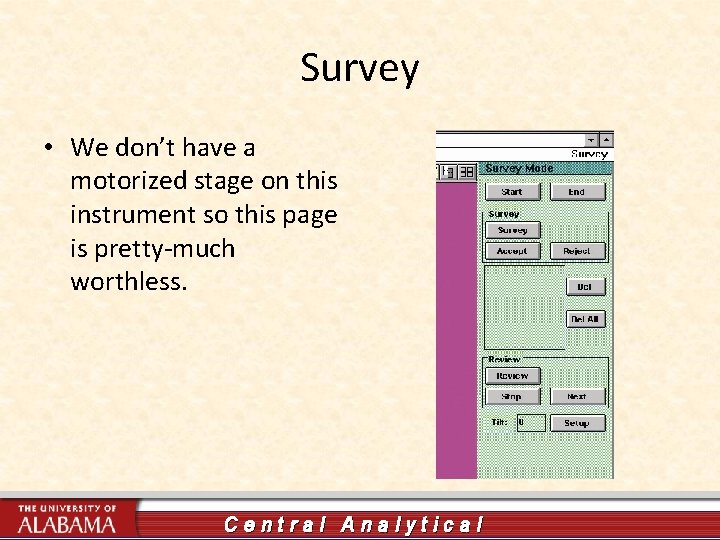
Survey • We don’t have a motorized stage on this instrument so this page is pretty-much worthless. Central Analytical
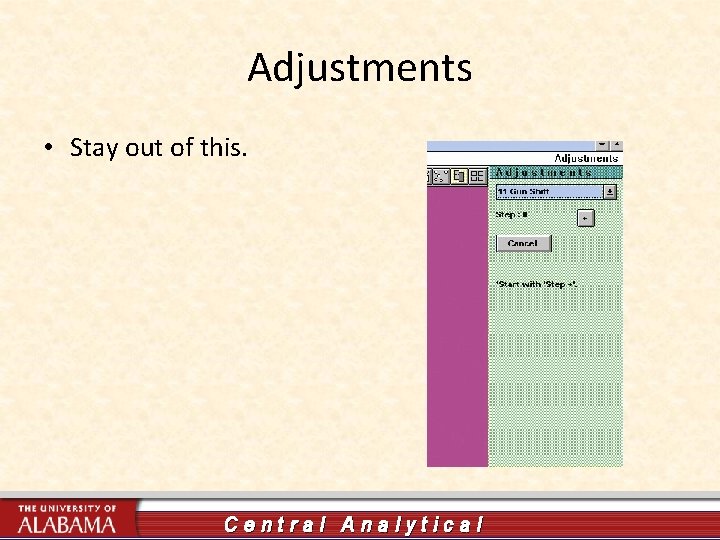
Adjustments • Stay out of this. Central Analytical
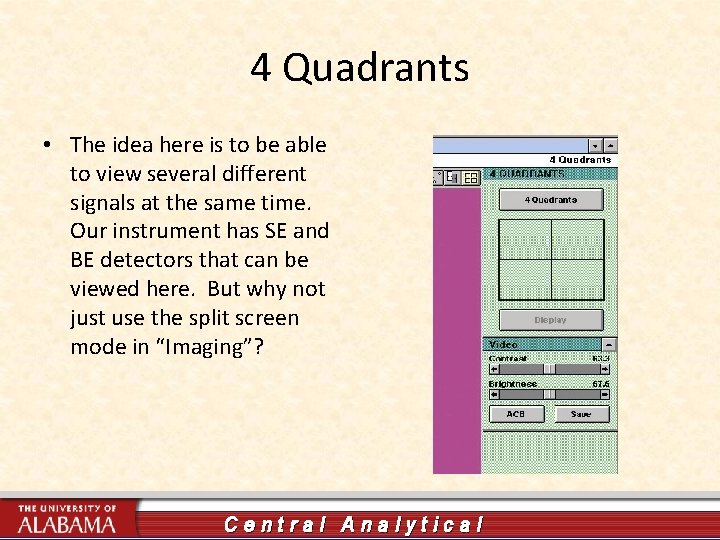
4 Quadrants • The idea here is to be able to view several different signals at the same time. Our instrument has SE and BE detectors that can be viewed here. But why not just use the split screen mode in “Imaging”? Central Analytical
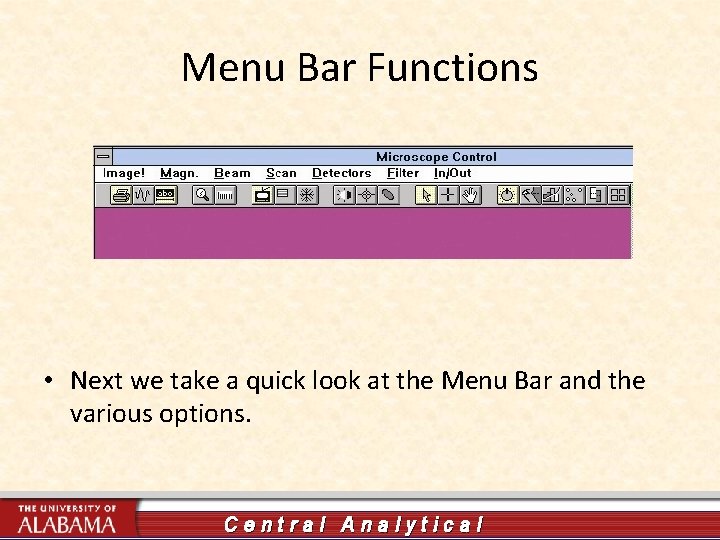
Menu Bar Functions • Next we take a quick look at the Menu Bar and the various options. Central Analytical
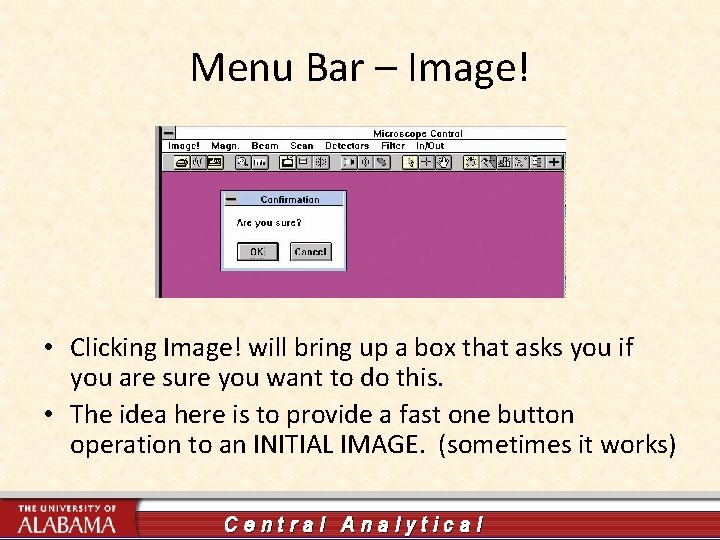
Menu Bar – Image! • Clicking Image! will bring up a box that asks you if you are sure you want to do this. • The idea here is to provide a fast one button operation to an INITIAL IMAGE. (sometimes it works) Central Analytical
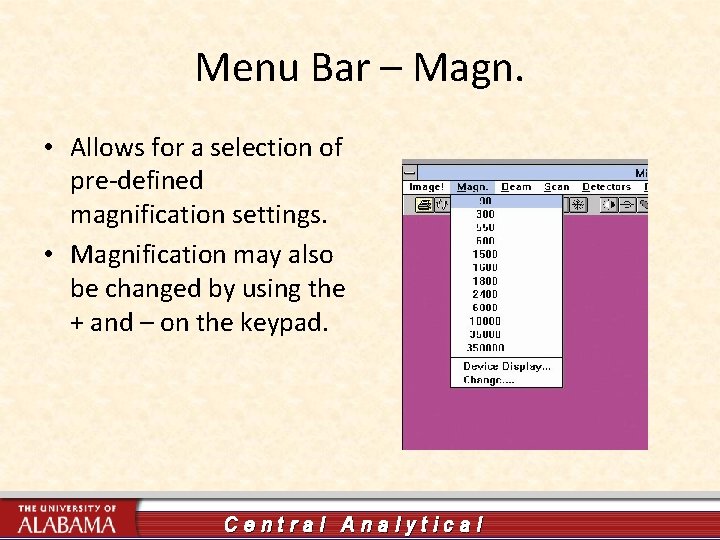
Menu Bar – Magn. • Allows for a selection of pre-defined magnification settings. • Magnification may also be changed by using the + and – on the keypad. Central Analytical
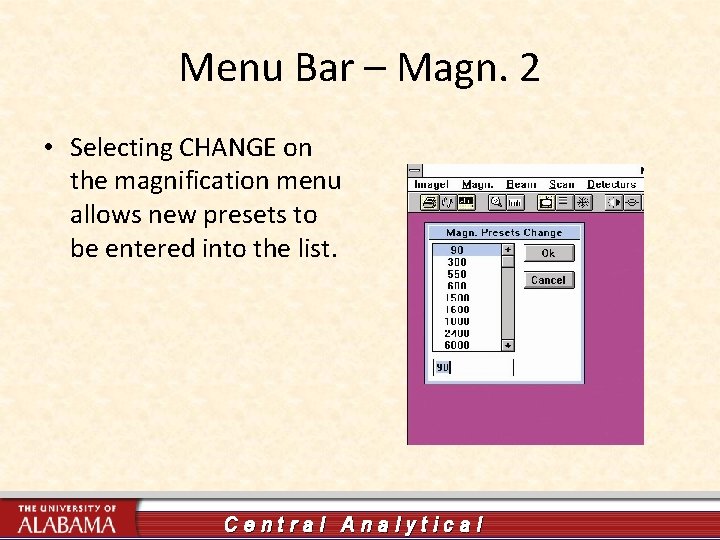
Menu Bar – Magn. 2 • Selecting CHANGE on the magnification menu allows new presets to be entered into the list. Central Analytical
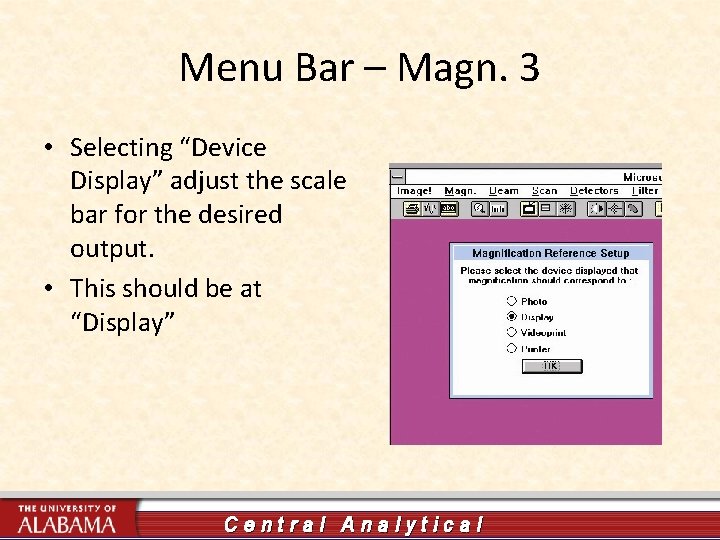
Menu Bar – Magn. 3 • Selecting “Device Display” adjust the scale bar for the desired output. • This should be at “Display” Central Analytical
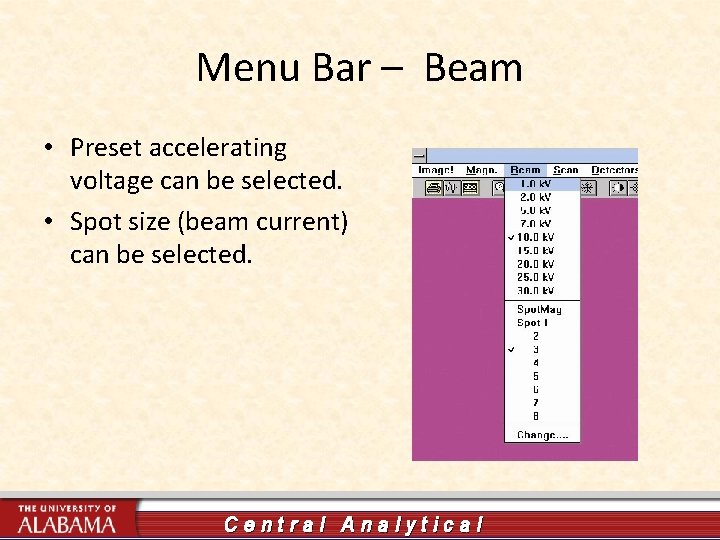
Menu Bar – Beam • Preset accelerating voltage can be selected. • Spot size (beam current) can be selected. Central Analytical
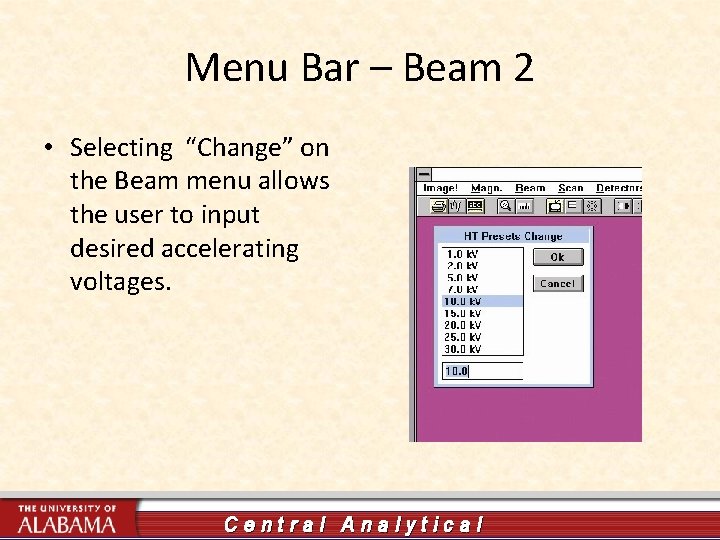
Menu Bar – Beam 2 • Selecting “Change” on the Beam menu allows the user to input desired accelerating voltages. Central Analytical
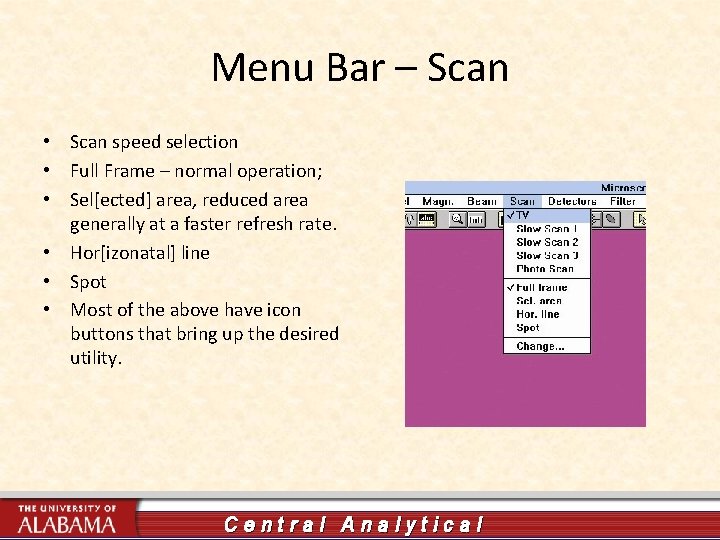
Menu Bar – Scan • Scan speed selection • Full Frame – normal operation; • Sel[ected] area, reduced area generally at a faster refresh rate. • Hor[izonatal] line • Spot • Most of the above have icon buttons that bring up the desired utility. Central Analytical
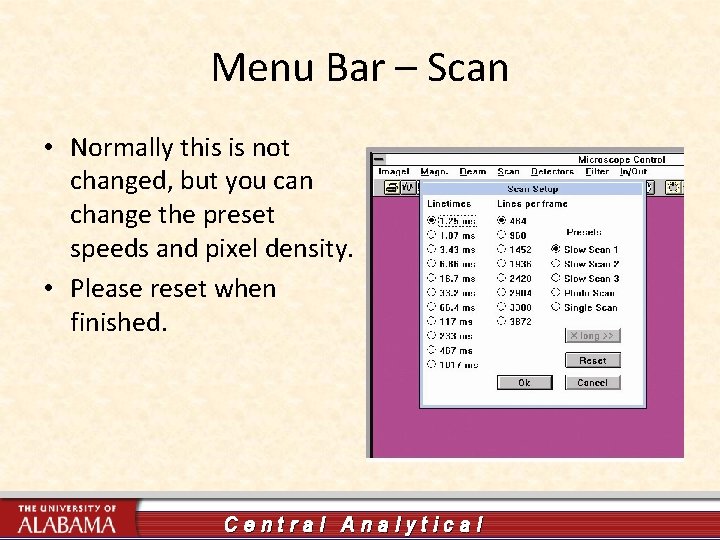
Menu Bar – Scan • Normally this is not changed, but you can change the preset speeds and pixel density. • Please reset when finished. Central Analytical
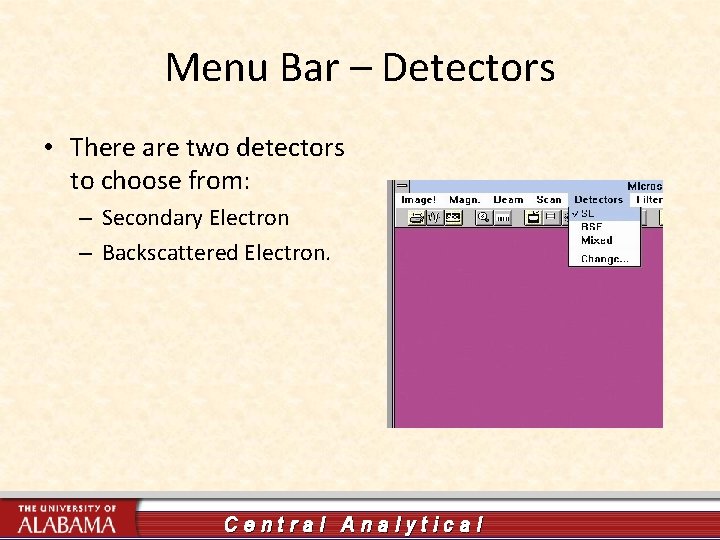
Menu Bar – Detectors • There are two detectors to choose from: – Secondary Electron – Backscattered Electron. Central Analytical
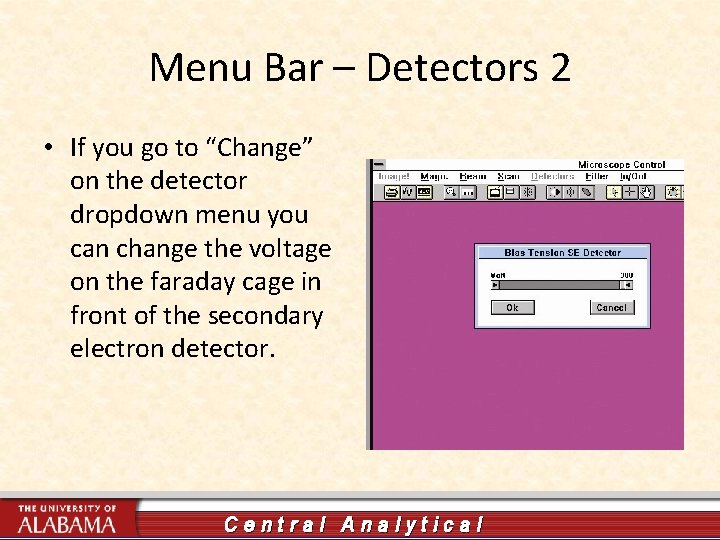
Menu Bar – Detectors 2 • If you go to “Change” on the detector dropdown menu you can change the voltage on the faraday cage in front of the secondary electron detector. Central Analytical
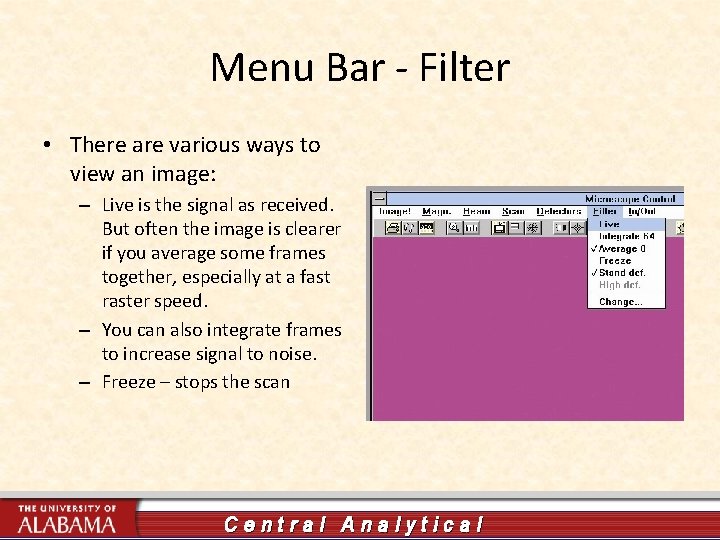
Menu Bar - Filter • There are various ways to view an image: – Live is the signal as received. But often the image is clearer if you average some frames together, especially at a fast raster speed. – You can also integrate frames to increase signal to noise. – Freeze – stops the scan Central Analytical
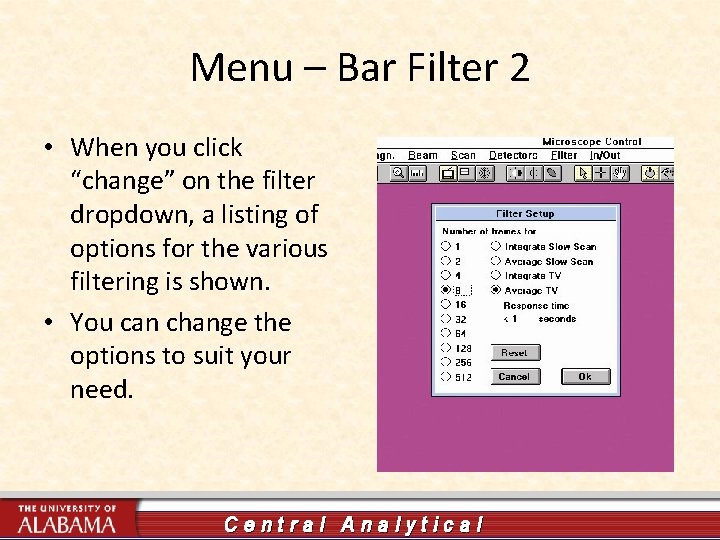
Menu – Bar Filter 2 • When you click “change” on the filter dropdown, a listing of options for the various filtering is shown. • You can change the options to suit your need. Central Analytical
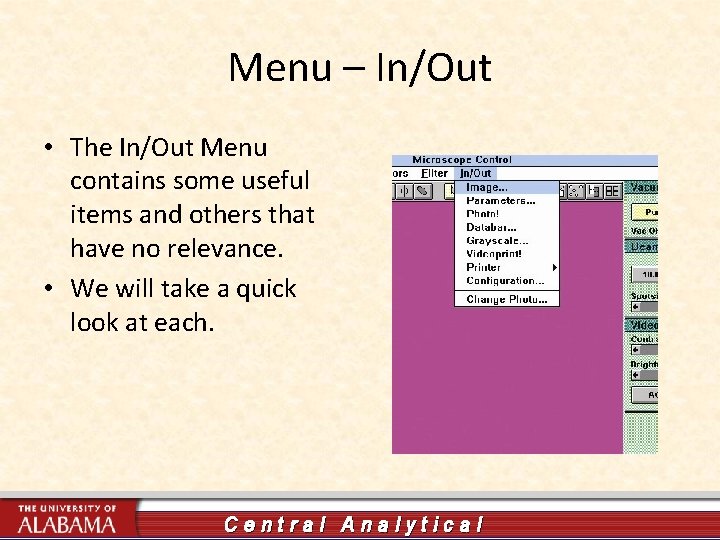
Menu – In/Out • The In/Out Menu contains some useful items and others that have no relevance. • We will take a quick look at each. Central Analytical
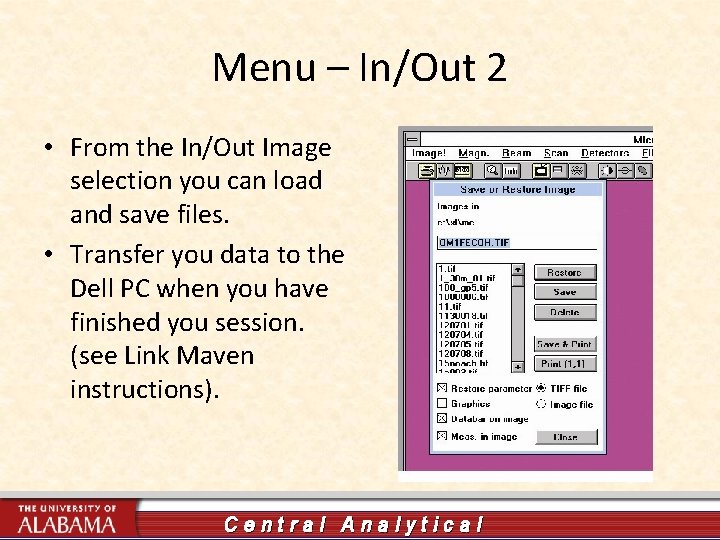
Menu – In/Out 2 • From the In/Out Image selection you can load and save files. • Transfer you data to the Dell PC when you have finished you session. (see Link Maven instructions). Central Analytical
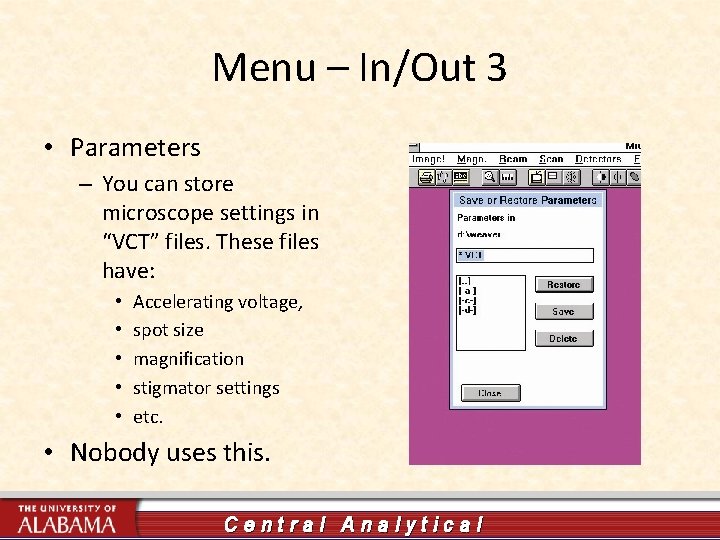
Menu – In/Out 3 • Parameters – You can store microscope settings in “VCT” files. These files have: • • • Accelerating voltage, spot size magnification stigmator settings etc. • Nobody uses this. Central Analytical
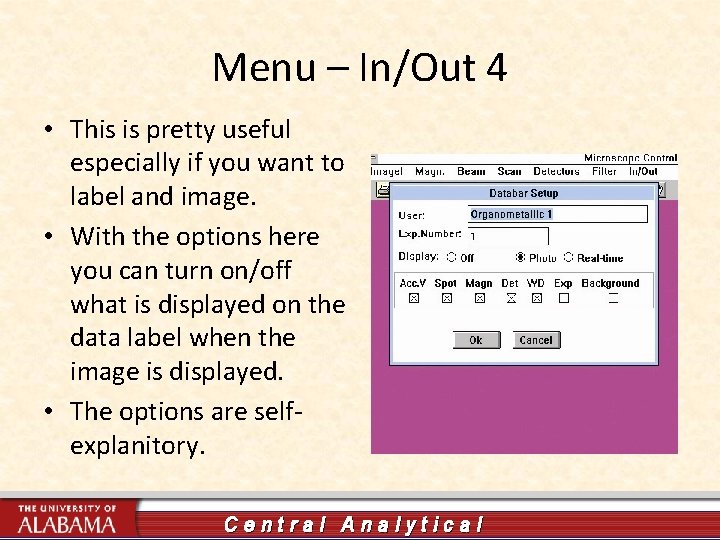
Menu – In/Out 4 • This is pretty useful especially if you want to label and image. • With the options here you can turn on/off what is displayed on the data label when the image is displayed. • The options are selfexplanitory. Central Analytical
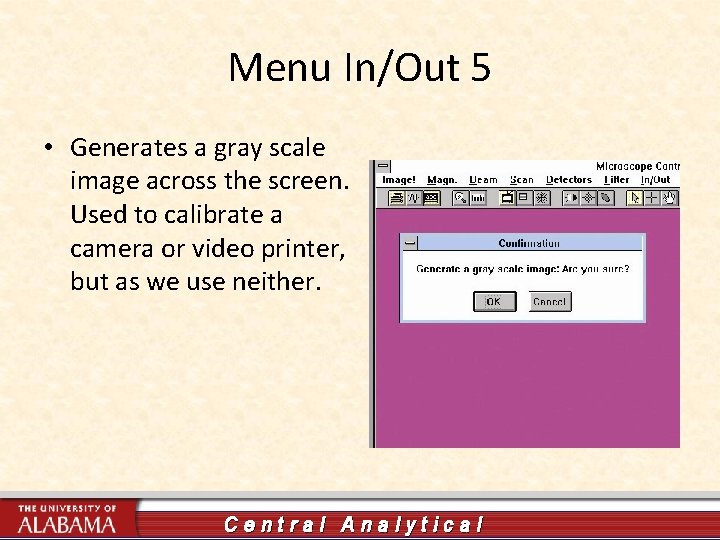
Menu In/Out 5 • Generates a gray scale image across the screen. Used to calibrate a camera or video printer, but as we use neither. Central Analytical
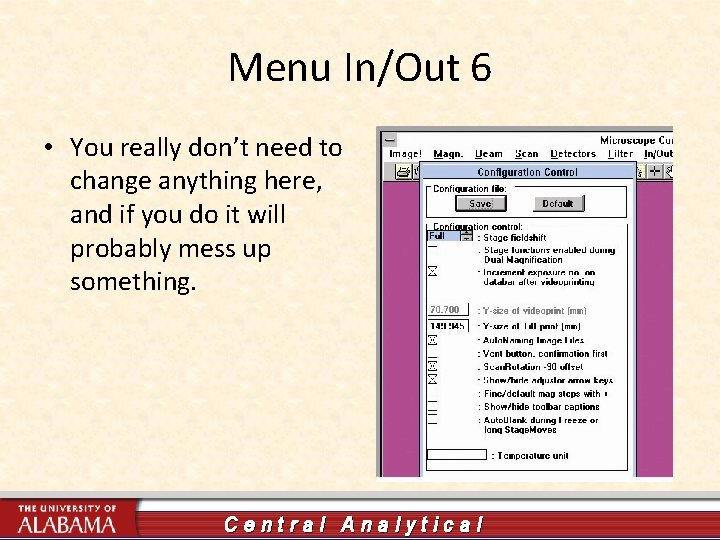
Menu In/Out 6 • You really don’t need to change anything here, and if you do it will probably mess up something. Central Analytical
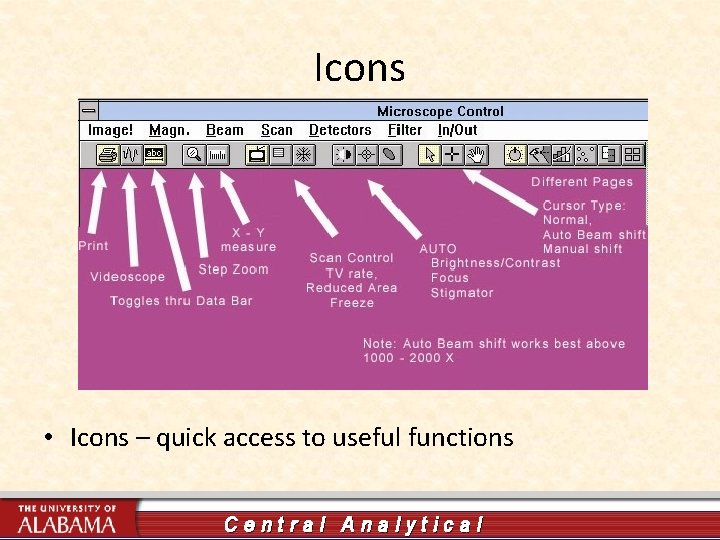
Icons • Icons – quick access to useful functions Central Analytical
Next Tutorial • The next tutorial will outline the general procedure for obtaining a secondary electron image. Central Analytical