
Introduction to Online Learning at THE HJ Mac
- Slides: 13
Introduction to Online Learning at THE HJ Mac. Donald Middle School
This presentation will guide you through the following items: ● How students access their accounts through NCEd. Cloud - NC Education Cloud. ○ Checking emails. ○ Accessing Power. School. ○ Checking and navigating Canvas for all classes. ○ How to use your class playlists. ● How parents/guardians can access Power. School’s Parent Portal to stay connected to grades, attendance, and other information for their child(ren).
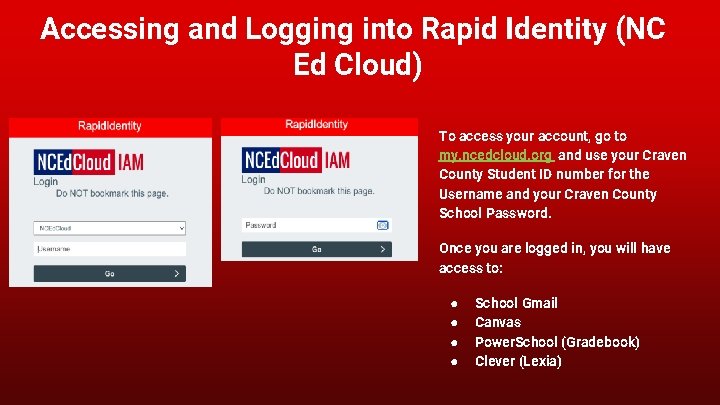
Accessing and Logging into Rapid Identity (NC Ed Cloud) To access your account, go to my. ncedcloud. org and use your Craven County Student ID number for the Username and your Craven County School Password. Once you are logged in, you will have access to: ● ● School Gmail Canvas Power. School (Gradebook) Clever (Lexia)
Checking Your Student Gmail (DAILY) ● Check your email daily for information from all of your teachers. ● Read the emails and reply to ask questions if something is not clear. ● You may turn off automatic notifications within Canvas if this becomes too many daily emails. ● Do not use Gmail inappropriately. Your email is subject to monitoring by the school system and parents are encouraged to monitor as well.
Checking your Grades with Power. School ● ● Official course grades are in Power. School (not Canvas). Click on the grade under the current quarter to see a list of specific assignment grades. Check at least 1 -2 times per week so you are not caught off guard by a forgotten assignment. Zeros or blanks normally mean that an assignment is missing. Canvas averages may be different from Power. School due to weighting, exemptions, and/or some grades not recorded in both places.
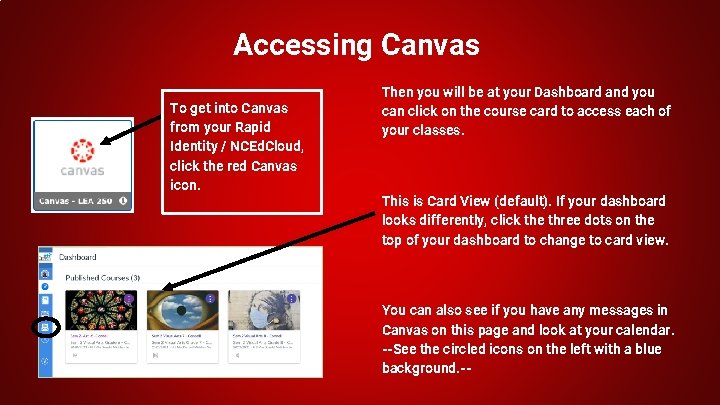
Accessing Canvas To get into Canvas from your Rapid Identity / NCEd. Cloud, click the red Canvas icon. Then you will be at your Dashboard and you can click on the course card to access each of your classes. This is Card View (default). If your dashboard looks differently, click the three dots on the top of your dashboard to change to card view. You can also see if you have any messages in Canvas on this page and look at your calendar. --See the circled icons on the left with a blue background. --
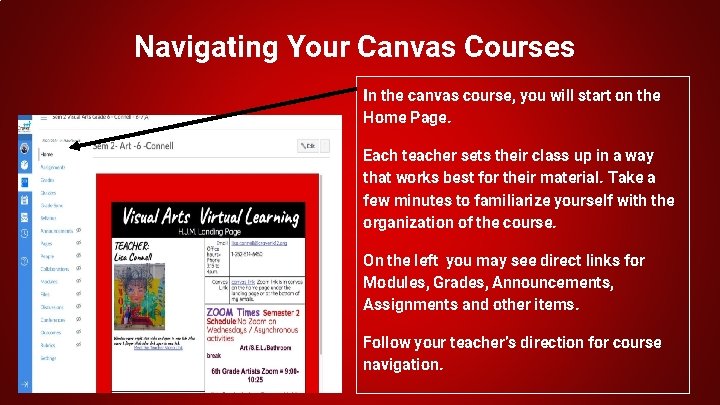
Navigating Your Canvas Courses In the canvas course, you will start on the Home Page. Each teacher sets their class up in a way that works best for their material. Take a few minutes to familiarize yourself with the organization of the course. On the left you may see direct links for Modules, Grades, Announcements, Assignments and other items. Follow your teacher’s direction for course navigation.
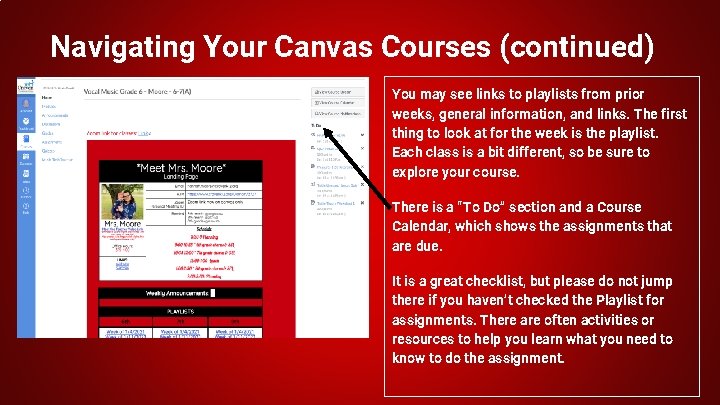
Navigating Your Canvas Courses (continued) You may see links to playlists from prior weeks, general information, and links. The first thing to look at for the week is the playlist. Each class is a bit different, so be sure to explore your course. There is a “To Do” section and a Course Calendar, which shows the assignments that are due. It is a great checklist, but please do not jump there if you haven’t checked the Playlist for assignments. There are often activities or resources to help you learn what you need to know to do the assignment.
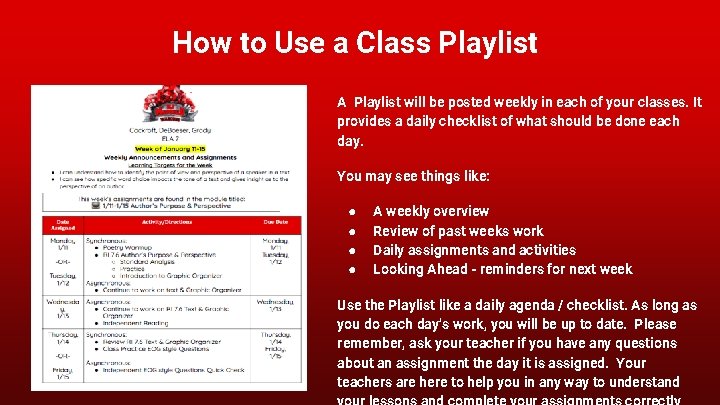
How to Use a Class Playlist A Playlist will be posted weekly in each of your classes. It provides a daily checklist of what should be done each day. Links given for slides and web resource. Link given for assignment submission in Canvas. You may see things like: ● ● A weekly overview Review of past weeks work Daily assignments and activities Looking Ahead - reminders for next week Use the Playlist like a daily agenda / checklist. As long as you do each day’s work, you will be up to date. Please remember, ask your teacher if you have any questions about an assignment the day it is assigned. Your teachers are here to help you in any way to understand
Checking Your Grades and Progress in Canvas It is important to monitor your grades and progress in Canvas, as well as Power. School. Contact your teacher immediately if you have questions about your grades or assignments. Your teacher may leave feedback regarding specific assignments or instructions about redoing insufficient work. This video will show you how to check your grades in Canvas.
Power. School Parent Portal If you do not currently have access to a parent portal for Power. School, please email Linda Bloomfield ( linda. bloomfield@cravenk 12. org) or Albert Duncan ( albert. duncan@cravenk 12. org ) to request access.
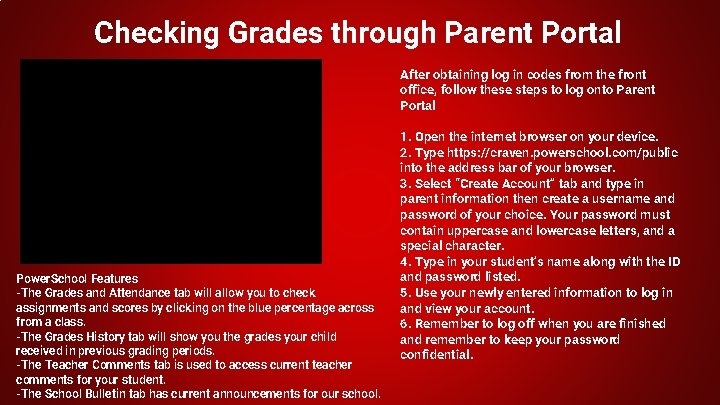
Checking Grades through Parent Portal After obtaining log in codes from the front office, follow these steps to log onto Parent Portal Power. School Features -The Grades and Attendance tab will allow you to check assignments and scores by clicking on the blue percentage across from a class. -The Grades History tab will show you the grades your child received in previous grading periods. -The Teacher Comments tab is used to access current teacher comments for your student. -The School Bulletin tab has current announcements for our school. 1. Open the internet browser on your device. 2. Type https: //craven. powerschool. com/public into the address bar of your browser. 3. Select “Create Account” tab and type in parent information then create a username and password of your choice. Your password must contain uppercase and lowercase letters, and a special character. 4. Type in your student’s name along with the ID and password listed. 5. Use your newly entered information to log in and view your account. 6. Remember to log off when you are finished and remember to keep your password confidential.
Power. School Parent Portal Features ● The Grades and Attendance tab will allow you to check assignments and scores by clicking on the blue percentage across from a class. ● The Grades History tab will show you the grades your child received in previous grading periods. ● The Teacher Comments tab is used to access current teacher comments for your student. ● The School Bulletin tab has current announcements for our school.