
Introduction to Multimedia The Internet The Web Driart

Introduction to Multimedia: The Internet & The Web Driart Elshani Msc, Ph. D Candidate
Web Components � Clients and Servers � Internet Service Providers � Web Site Hosting Services � Domains Names, URL’s and IP-s � Registrars
Clients & Servers Clients (Browser) � Internet Explorer � Firefox � Mozilla � Netscape � Opera � Amaya � AOL � MSN Servers � Apache � Microsoft � Netscape � zeus � AOLserver � AV � Java. Web. Server � Oracle
Web Components � Clients and Servers � Internet Service Providers � Web Site Hosting Services � Domains Names, URL’s and Ips � Registrars
Internet Service Providers Connect Clients to the Internet � Phone � AOL Company � Earthlink � Verizone � Net. Zero � Basic internet connection � Dialup/DSL/Cable/S at � Email
Web Components � Clients and Servers � Internet Service Providers � Web Site Hosting Services � Domains Names, URL’s and Ips � Registrars
Web Hosting Services Connects Web Sites to the Internet � Computer (server) farm � Web server software � Firewall hardware and software � IT services ◦ (Backup, troubleshooting, hardware repair) � Disk space � Bandwidth / connection to internet � Routers and switchers � Email server / storage
Web Components � Clients and Servers � Internet Service Providers � Web Site Hosting Services � Domains Names, URL’s and IP-s � Registrars
Domain’s URL’s and IPs � Domain name: The specific address of a computer on the Internet ◦ microsoft. com � Uniform Resource Locator (URL): � Internet protocol (IP) address ◦ http: //www. microsoft. com/faqs. html ◦ 213. 125. 1. 1
Web Components � Clients and Servers � Internet Service Providers � Web Site Hosting Services � Domains Names, URL’s and Ips � Registrars
Domain Registrar �A company that provides domain name registration services for a fee � Maintain database which maps domain names to IP’s � Propagate new domain name/IP address information across the internet
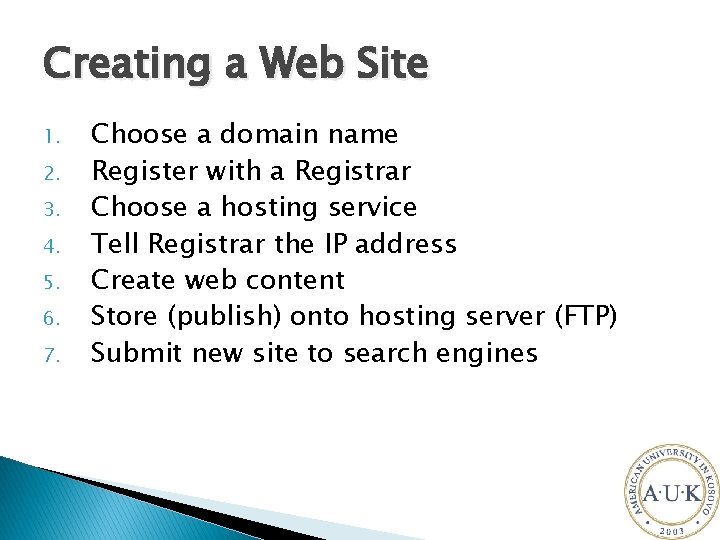
Creating a Web Site 1. 2. 3. 4. 5. 6. 7. Choose a domain name Register with a Registrar Choose a hosting service Tell Registrar the IP address Create web content Store (publish) onto hosting server (FTP) Submit new site to search engines
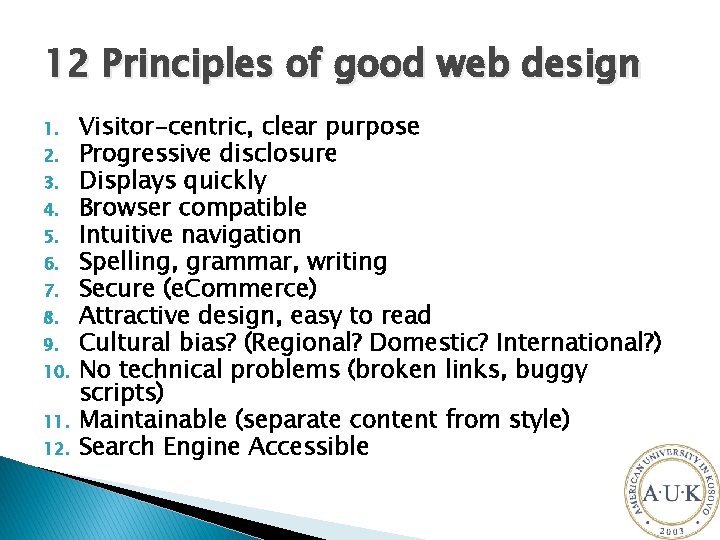
12 Principles of good web design 1. 2. 3. 4. 5. 6. 7. 8. 9. 10. 11. 12. Visitor-centric, clear purpose Progressive disclosure Displays quickly Browser compatible Intuitive navigation Spelling, grammar, writing Secure (e. Commerce) Attractive design, easy to read Cultural bias? (Regional? Domestic? International? ) No technical problems (broken links, buggy scripts) Maintainable (separate content from style) Search Engine Accessible
Creating your Web Site Technologies & Tools � Markup Languages ◦ HTML, DHTML, XSLT, etc. . � Cascading Style Sheets (CSS) � Scripting languages ◦ perl, javascript, php, etc. . � Web creation and editing software ◦ Notepad, Front. Page, Coldfusion, Flash, Hotmetal, Site Builder, etc. .
Markup Languages - HTML Derived from SGML (Standard Generalized Markup Language ) � Hyper. Text Markup Language
HTML Fundamentals � Clear text, case insensitive � Ignores white space � Comprised of tags <tag /> � Open tags and closed tags
HTML - Fundamentals � Open tags ◦ <name attributes/> ◦ <hr/>, <br/> ◦ <img src=“url” width=‘ 100 px’ height=’ 60 px’/> � Closed tags ◦ <name attributes> stuff </name> ◦ <b>text to be bolded</b> ◦ <h 1>level 1 heading text</h 1> � Comments < ! - - comment text -- >
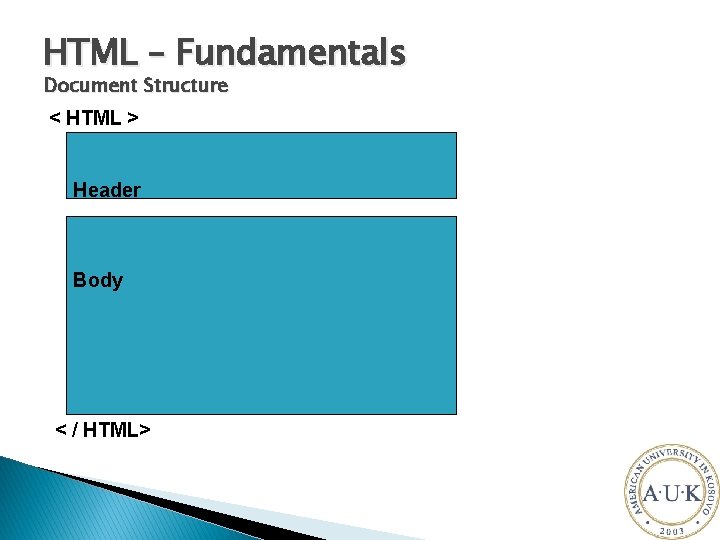
HTML – Fundamentals Document Structure < HTML > Header Body < / HTML>
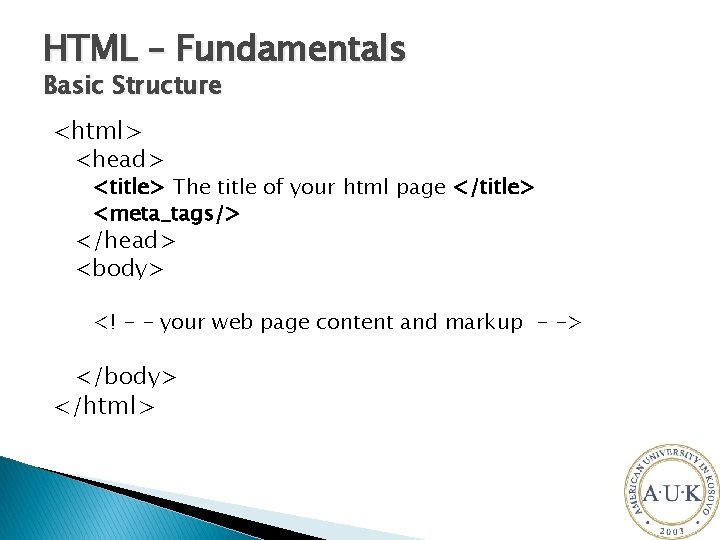
HTML – Fundamentals Basic Structure <html> <head> <title> The title of your html page </title> <meta_tags/> </head> <body> <! - - your web page content and markup - -> </body> </html>
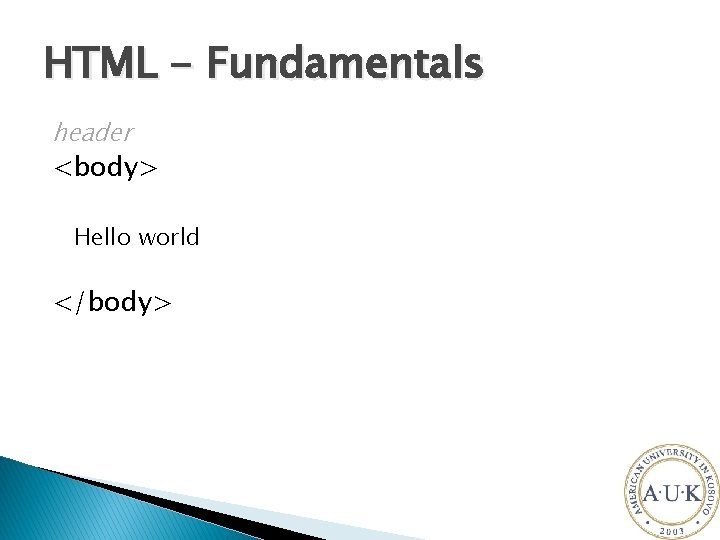
HTML - Fundamentals header <body> Hello world </body>
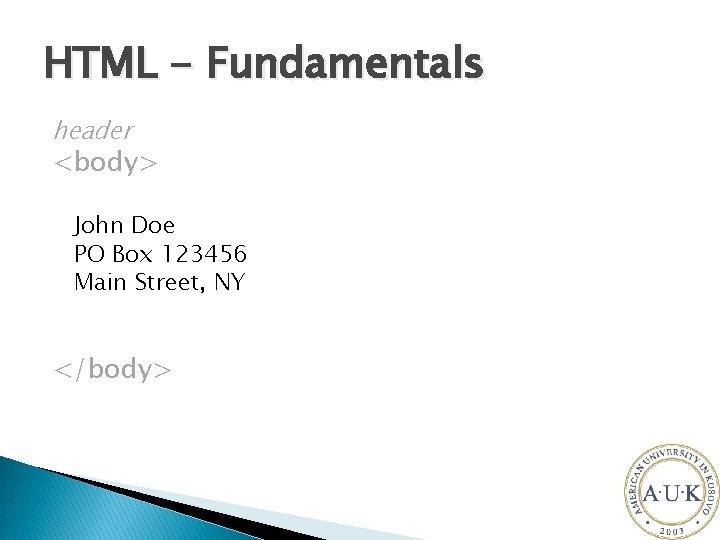
HTML - Fundamentals header <body> John Doe PO Box 123456 Main Street, NY </body>
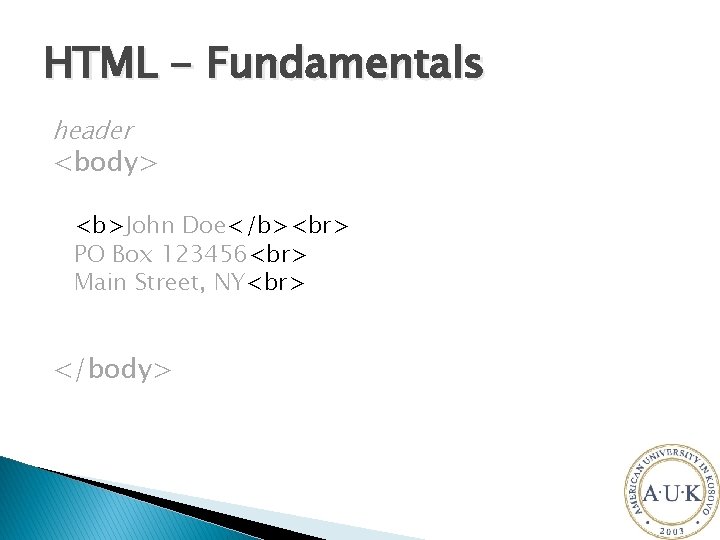
HTML - Fundamentals header <body> <b>John Doe</b> PO Box 123456 Main Street, NY </body>
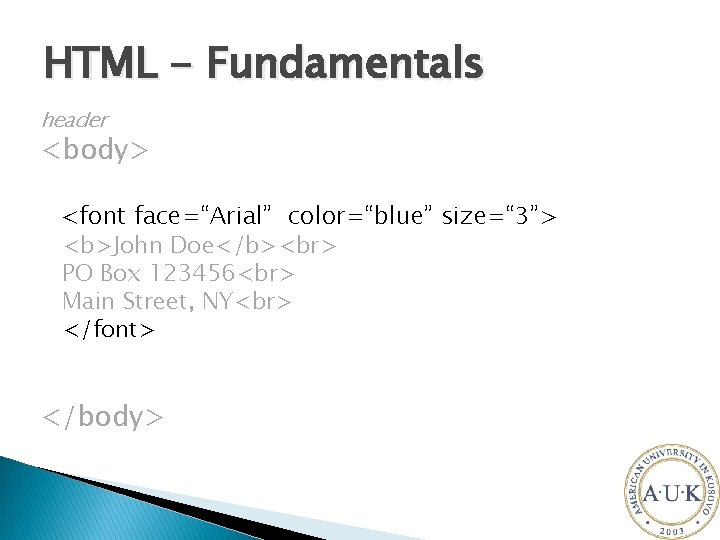
HTML - Fundamentals header <body> <font face=“Arial” color=“blue” size=“ 3”> <b>John Doe</b> PO Box 123456 Main Street, NY </font> </body>
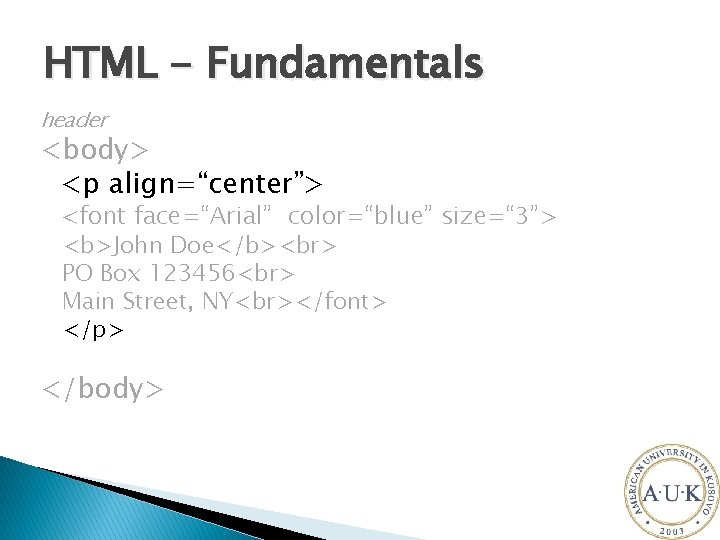
HTML - Fundamentals header <body> <p align=“center”> <font face=“Arial” color=“blue” size=“ 3”> <b>John Doe</b> PO Box 123456 Main Street, NY </font> </p> </body>
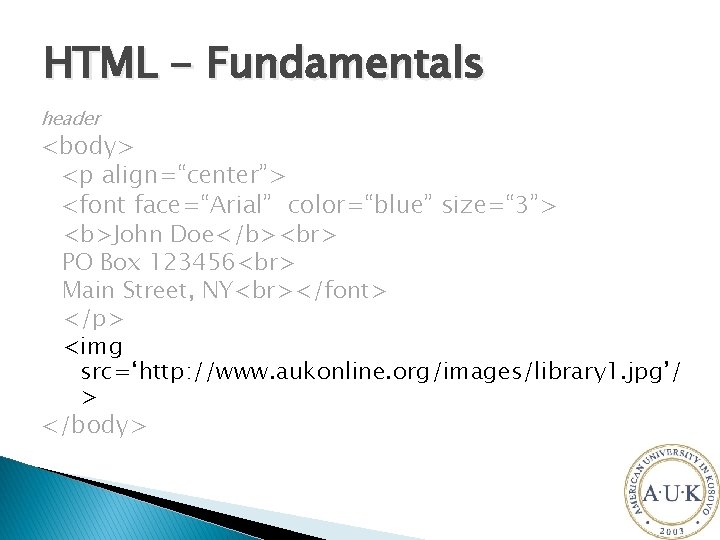
HTML - Fundamentals header <body> <p align=“center”> <font face=“Arial” color=“blue” size=“ 3”> <b>John Doe</b> PO Box 123456 Main Street, NY </font> </p> <img src=‘http: //www. aukonline. org/images/library 1. jpg’/ > </body>
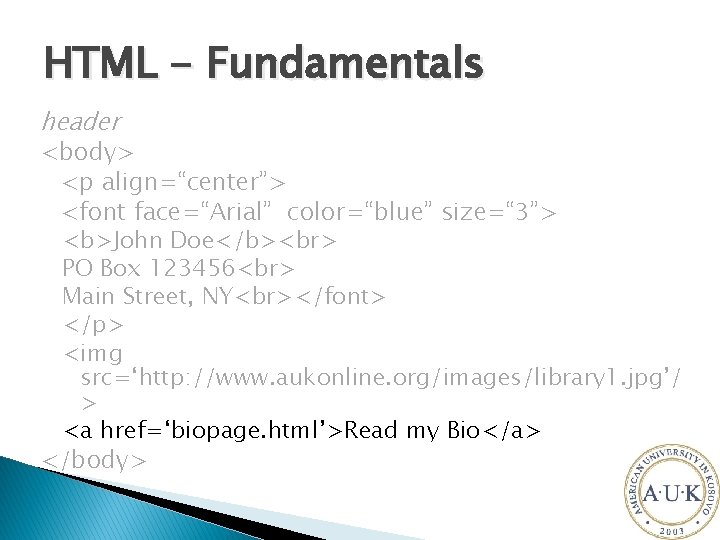
HTML - Fundamentals header <body> <p align=“center”> <font face=“Arial” color=“blue” size=“ 3”> <b>John Doe</b> PO Box 123456 Main Street, NY </font> </p> <img src=‘http: //www. aukonline. org/images/library 1. jpg’/ > <a href=‘biopage. html’>Read my Bio</a> </body>
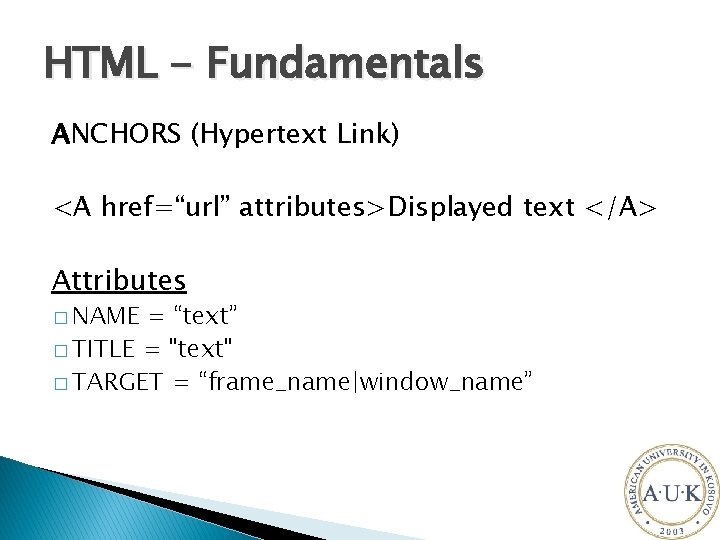
HTML - Fundamentals ANCHORS (Hypertext Link) <A href=“url” attributes>Displayed text </A> Attributes � NAME = “text” � TITLE = "text" � TARGET = “frame_name|window_name”
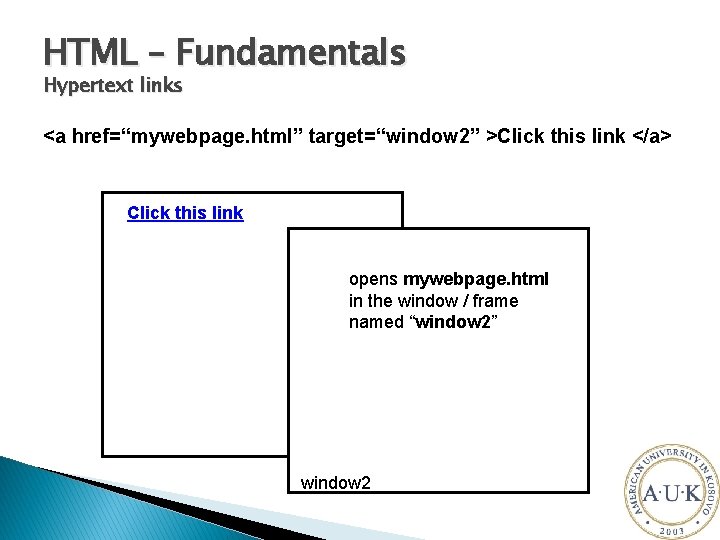
HTML – Fundamentals Hypertext links <a href=“mywebpage. html” target=“window 2” >Click this link </a> Click this link opens mywebpage. html in the window / frame named “window 2” window 2
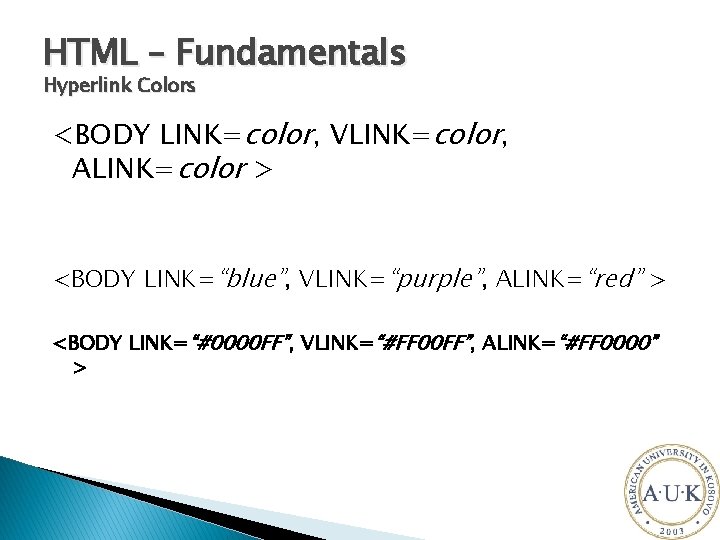
HTML – Fundamentals Hyperlink Colors <BODY LINK=color, VLINK=color, ALINK=color > <BODY LINK=“blue”, VLINK=“purple”, ALINK=“red” > <BODY LINK=“#0000 FF”, VLINK=“#FF 00 FF”, ALINK=“#FF 0000” >
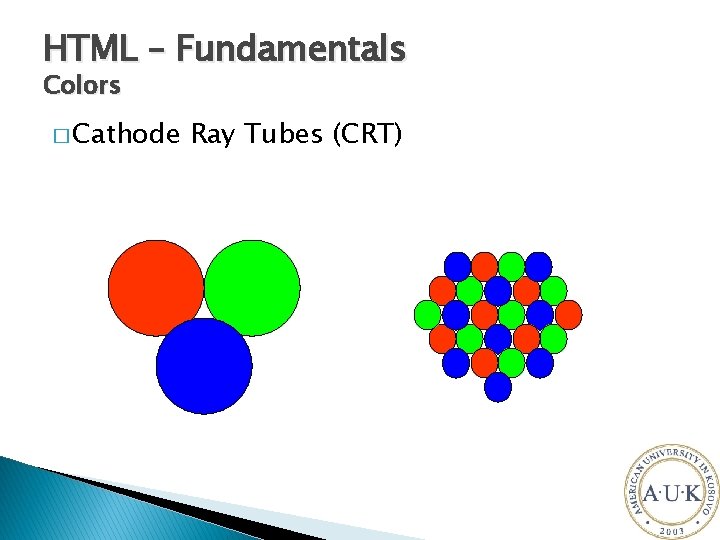
HTML – Fundamentals Colors � Cathode Ray Tubes (CRT)
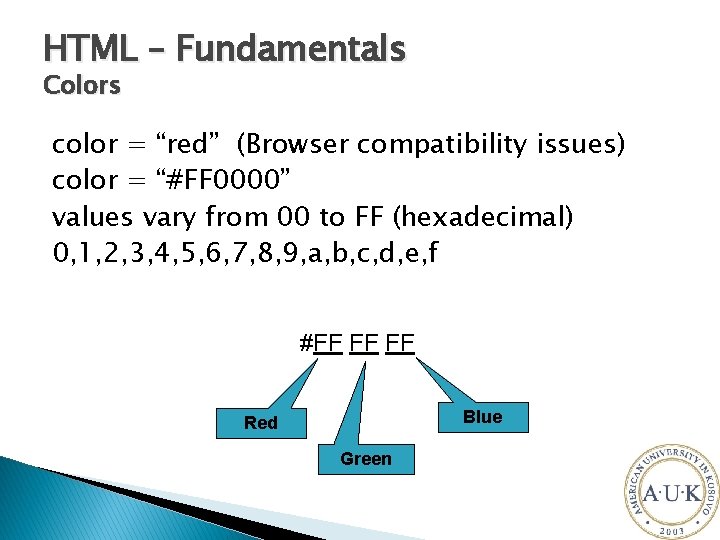
HTML – Fundamentals Colors color = “red” (Browser compatibility issues) color = “#FF 0000” values vary from 00 to FF (hexadecimal) 0, 1, 2, 3, 4, 5, 6, 7, 8, 9, a, b, c, d, e, f #FF FF FF Blue Red Green
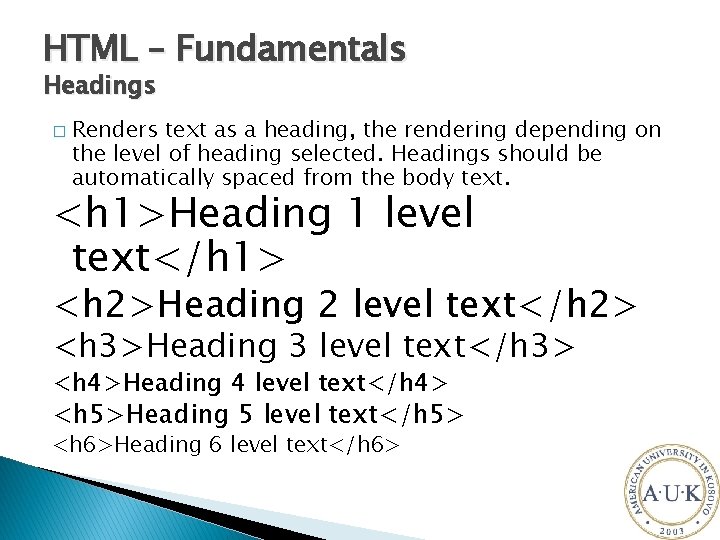
HTML – Fundamentals Headings � Renders text as a heading, the rendering depending on the level of heading selected. Headings should be automatically spaced from the body text. <h 1>Heading 1 level text</h 1> <h 2>Heading 2 level text</h 2> <h 3>Heading 3 level text</h 3> <h 4>Heading 4 level text</h 4> <h 5>Heading 5 level text</h 5> <h 6>Heading 6 level text</h 6>
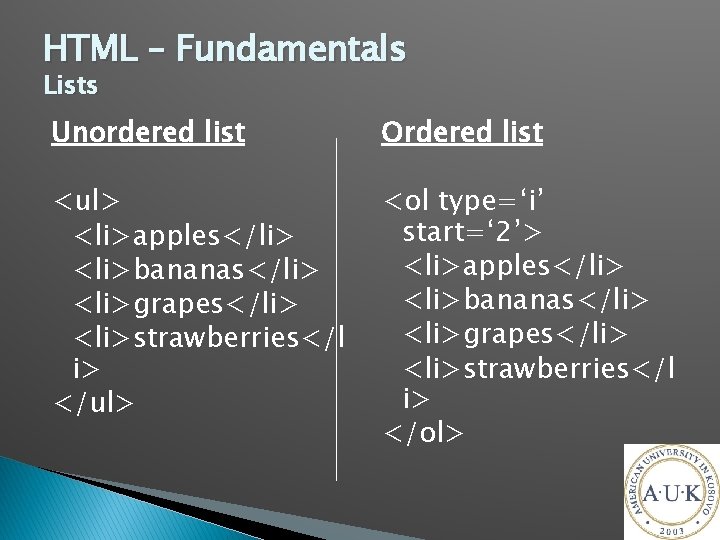
HTML – Fundamentals Lists Unordered list Ordered list <ul> <li>apples</li> <li>bananas</li> <li>grapes</li> <li>strawberries</l i> </ul> <ol type=‘i’ start=‘ 2’> <li>apples</li> <li>bananas</li> <li>grapes</li> <li>strawberries</l i> </ol>
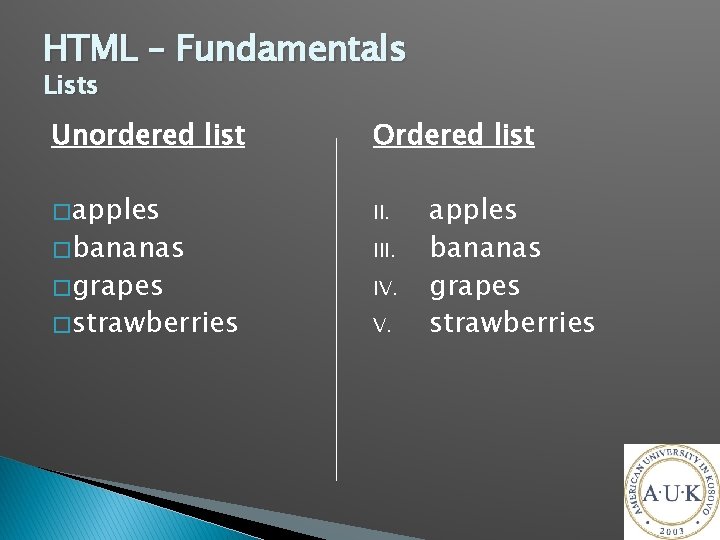
HTML – Fundamentals Lists Unordered list Ordered list � apples II. � bananas � grapes � strawberries III. IV. V. apples bananas grapes strawberries
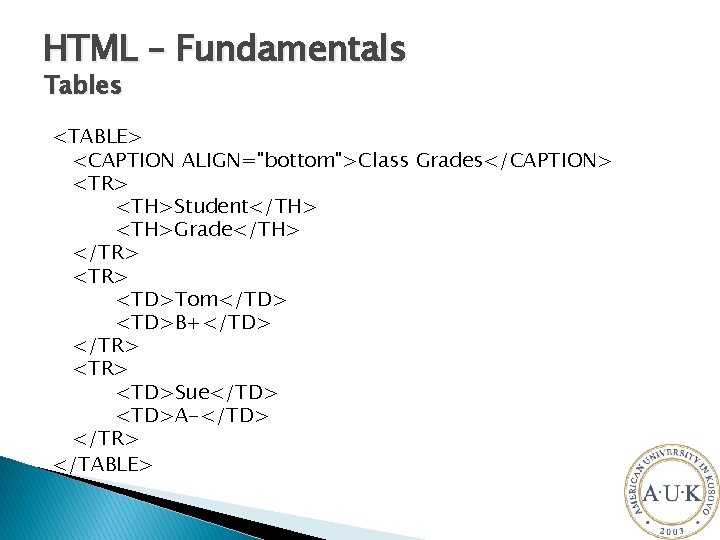
HTML – Fundamentals Tables <TABLE> <CAPTION ALIGN="bottom">Class Grades</CAPTION> <TR> <TH>Student</TH> <TH>Grade</TH> </TR> <TD>Tom</TD> <TD>B+</TD> </TR> <TD>Sue</TD> <TD>A-</TD> </TR> </TABLE>
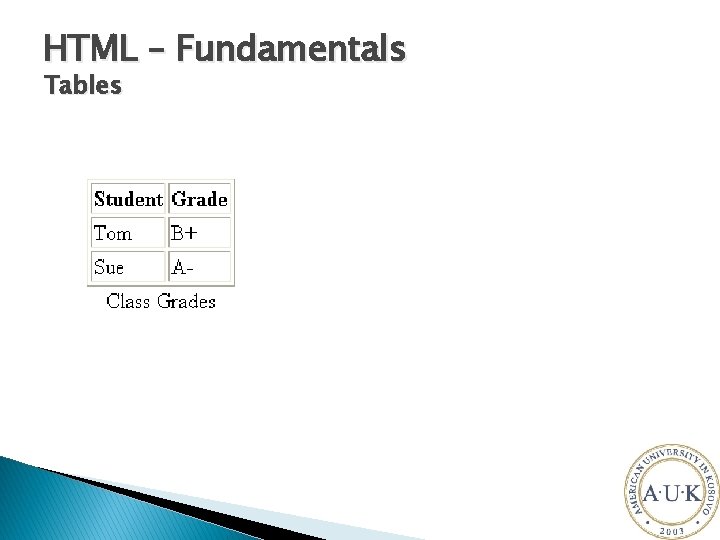
HTML – Fundamentals Tables
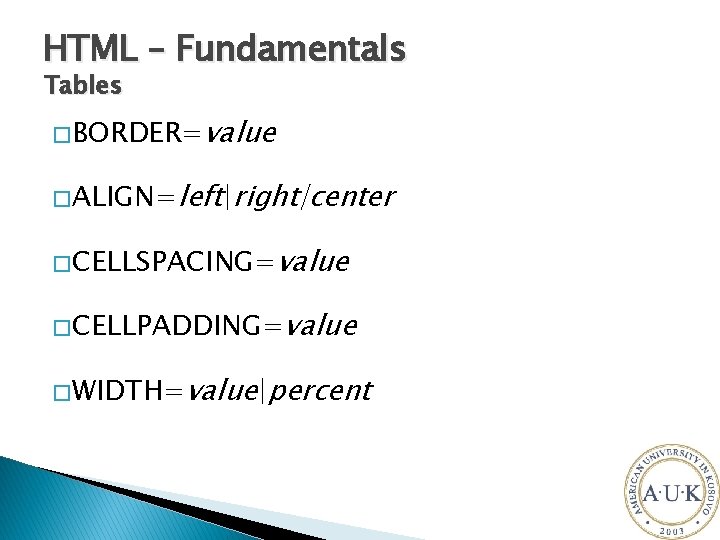
HTML – Fundamentals Tables � BORDER=value � ALIGN=left|right|center � CELLSPACING=value � CELLPADDING=value � WIDTH=value|percent
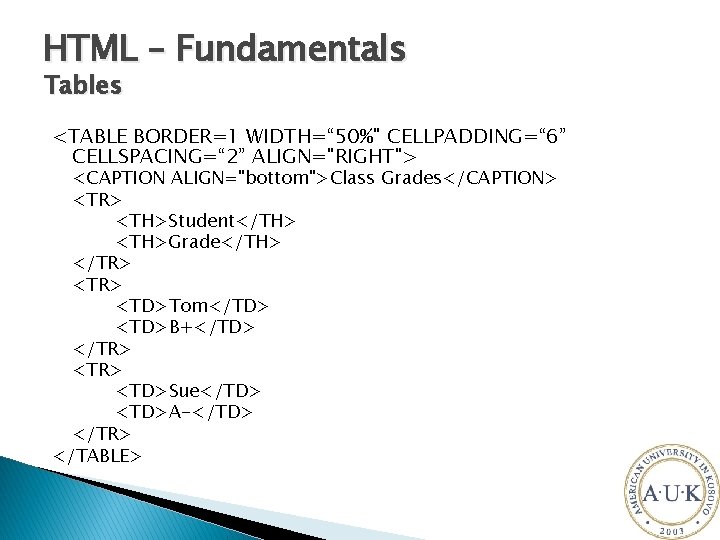
HTML – Fundamentals Tables <TABLE BORDER=1 WIDTH=“ 50%" CELLPADDING=“ 6” CELLSPACING=“ 2” ALIGN="RIGHT"> <CAPTION ALIGN="bottom">Class Grades</CAPTION> <TR> <TH>Student</TH> <TH>Grade</TH> </TR> <TD>Tom</TD> <TD>B+</TD> </TR> <TD>Sue</TD> <TD>A-</TD> </TR> </TABLE>
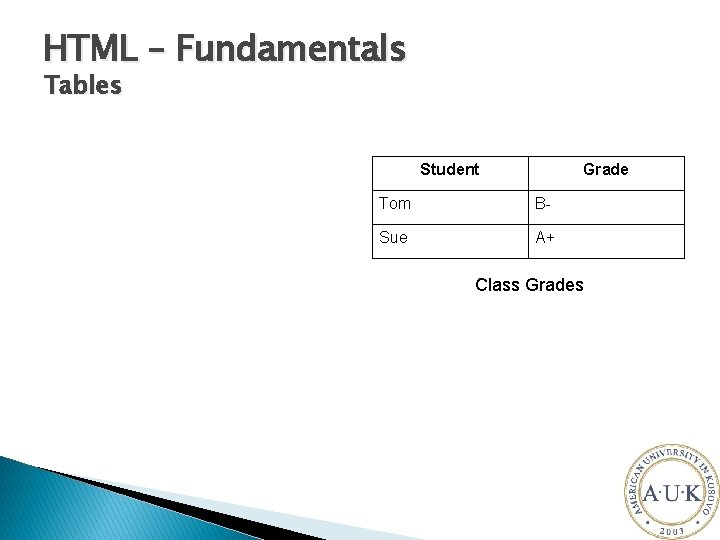
HTML – Fundamentals Tables Student Grade Tom B- Sue A+ Class Grades
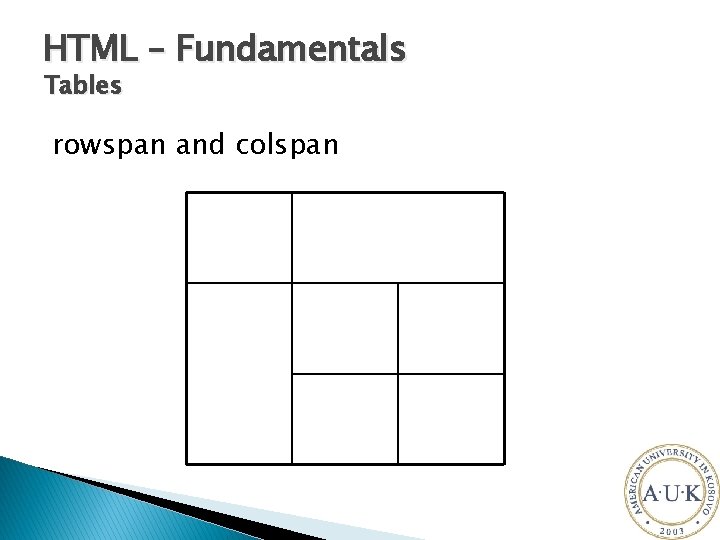
HTML – Fundamentals Tables rowspan and colspan
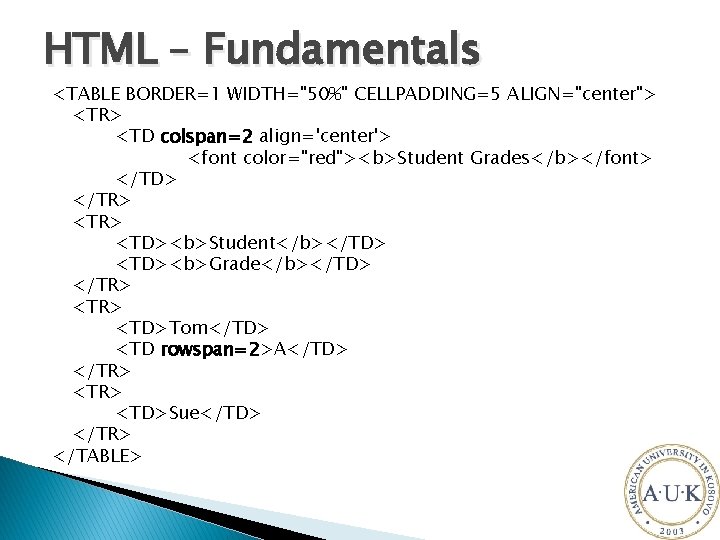
HTML – Fundamentals <TABLE BORDER=1 WIDTH="50%" CELLPADDING=5 ALIGN="center"> <TR> <TD colspan=2 align='center'> <font color="red"><b>Student Grades</b></font> </TD> </TR> <TD><b>Student</b></TD> <TD><b>Grade</b></TD> </TR> <TD>Tom</TD> <TD rowspan=2>A</TD> </TR> <TD>Sue</TD> </TR> </TABLE>
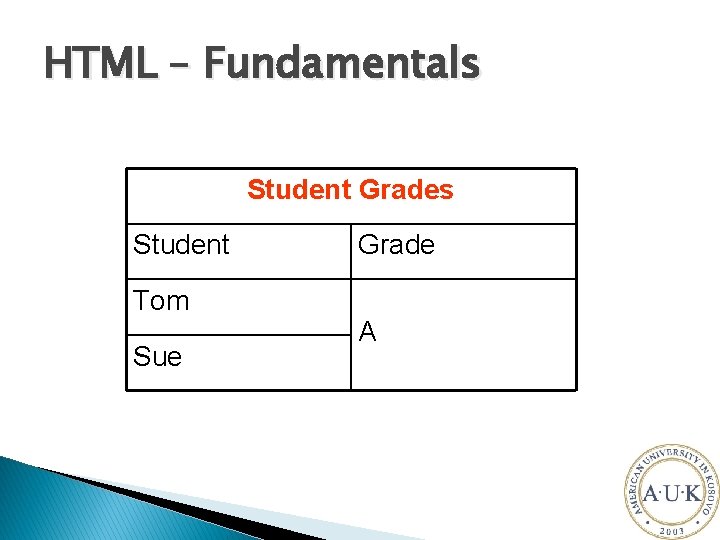
HTML – Fundamentals Student Grades Student Tom Sue Grade A
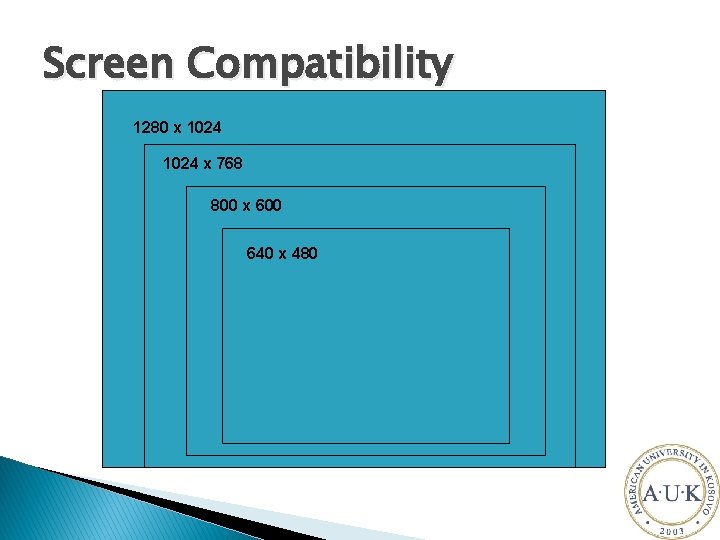
Screen Compatibility 1280 x 1024 x 768 800 x 600 640 x 480
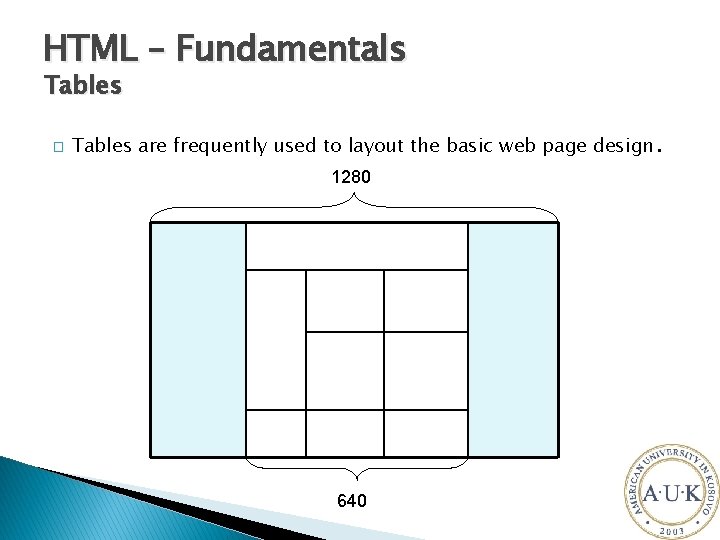
HTML – Fundamentals Tables � Tables are frequently used to layout the basic web page design. 1280 640
HTML – Fundamentals Frames � Basic Frames � Floating Frames (inline frames) � Picture in picture � Frames let you divide a screen into windows with each window viewing a different web page.
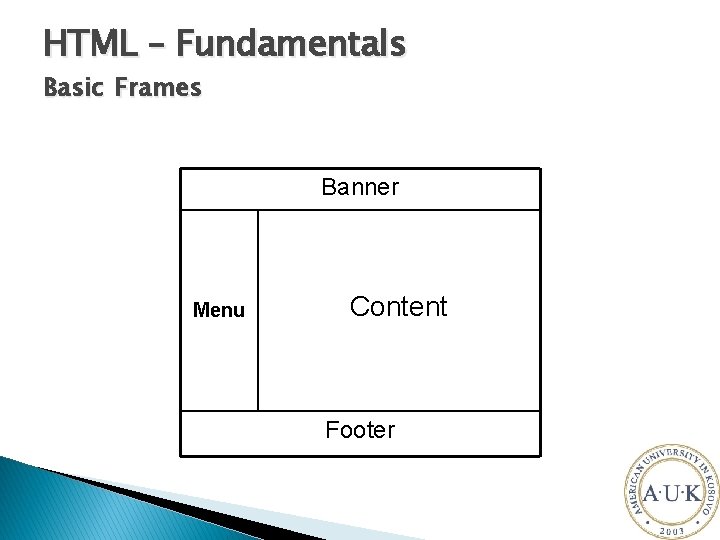
HTML – Fundamentals Basic Frames Banner Menu Content Footer
HTML – Fundamentals Basic Frames Basic tags � <frameset>. . </frameset> � <frame /> � <noframes>. . </noframes> Basic attributes � cols = “values” � rows = “values” � name = “frame_name” � src = “frame_source(url)” � target = “frame_name”
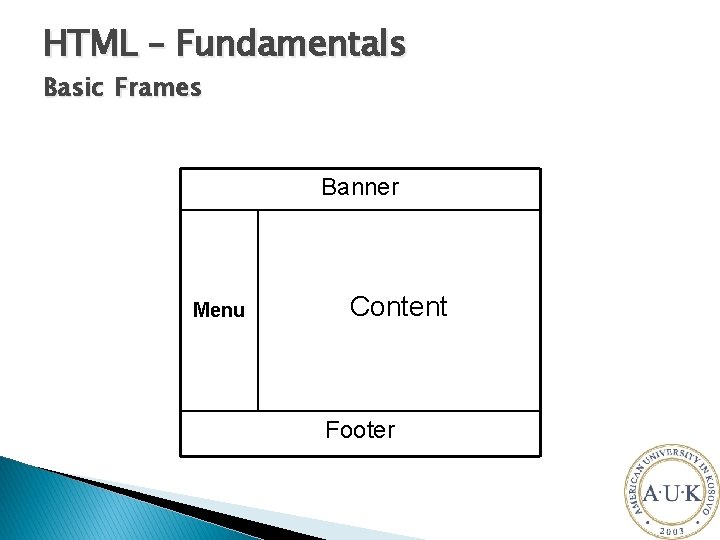
HTML – Fundamentals Basic Frames Banner Menu Content Footer
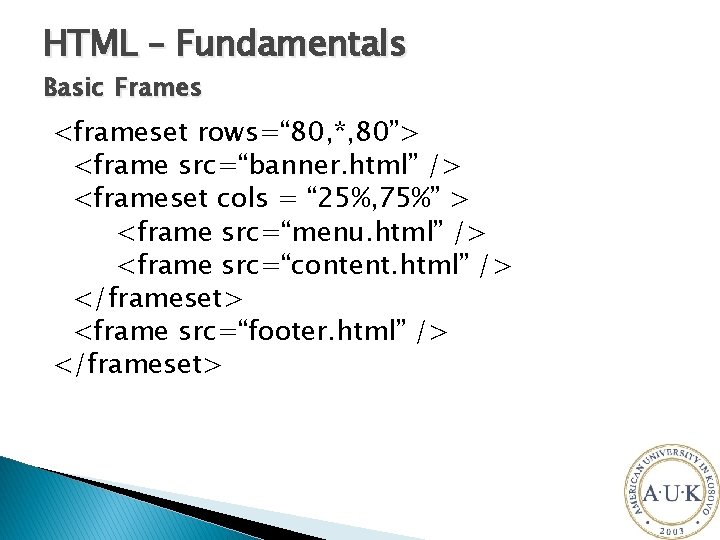
HTML – Fundamentals Basic Frames <frameset rows=“ 80, *, 80”> <frame src=“banner. html” /> <frameset cols = “ 25%, 75%” > <frame src=“menu. html” /> <frame src=“content. html” /> </frameset> <frame src=“footer. html” /> </frameset>
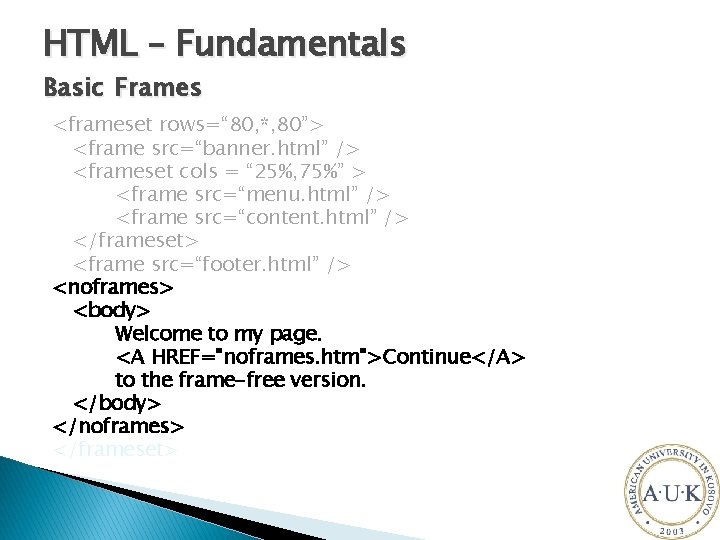
HTML – Fundamentals Basic Frames <frameset rows=“ 80, *, 80”> <frame src=“banner. html” /> <frameset cols = “ 25%, 75%” > <frame src=“menu. html” /> <frame src=“content. html” /> </frameset> <frame src=“footer. html” /> <noframes> <body> Welcome to my page. <A HREF="noframes. htm">Continue</A> to the frame-free version. </body> </noframes> </frameset>
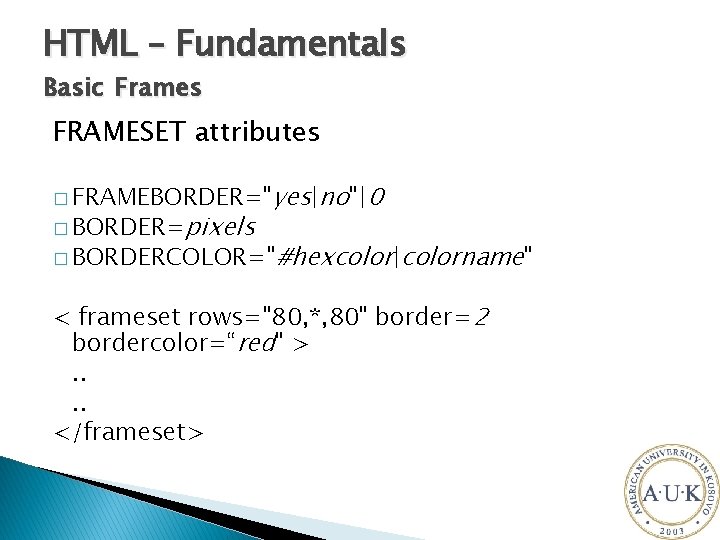
HTML – Fundamentals Basic Frames FRAMESET attributes � FRAMEBORDER="yes|no"|0 � BORDER=pixels � BORDERCOLOR="#hexcolor|colorname" < frameset rows="80, *, 80" border=2 bordercolor=“red" >. . </frameset>
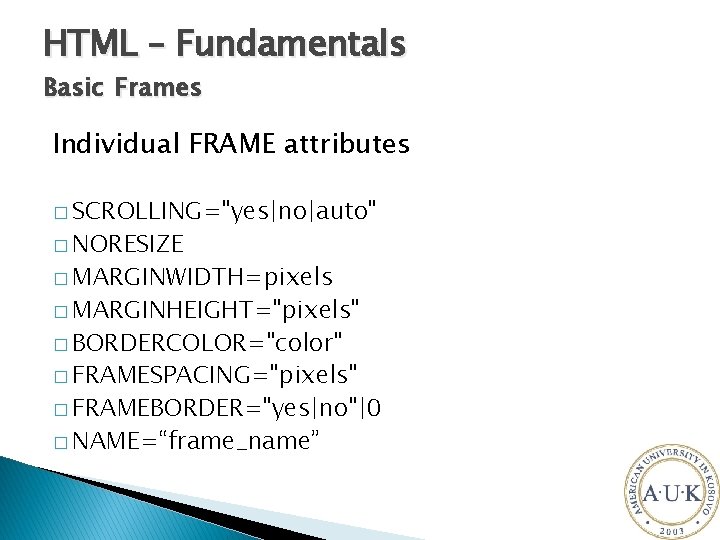
HTML – Fundamentals Basic Frames Individual FRAME attributes � SCROLLING="yes|no|auto" � NORESIZE � MARGINWIDTH=pixels � MARGINHEIGHT="pixels" � BORDERCOLOR="color" � FRAMESPACING="pixels" � FRAMEBORDER="yes|no"|0 � NAME=“frame_name”
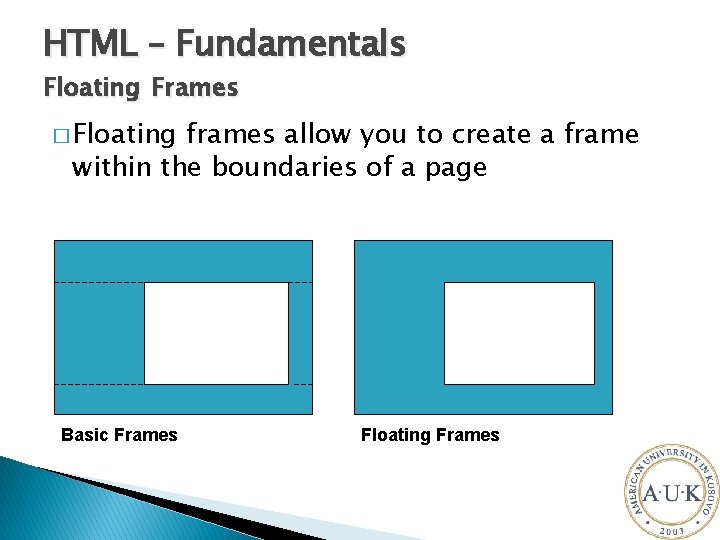
HTML – Fundamentals Floating Frames � Floating frames allow you to create a frame within the boundaries of a page Basic Frames Floating Frames
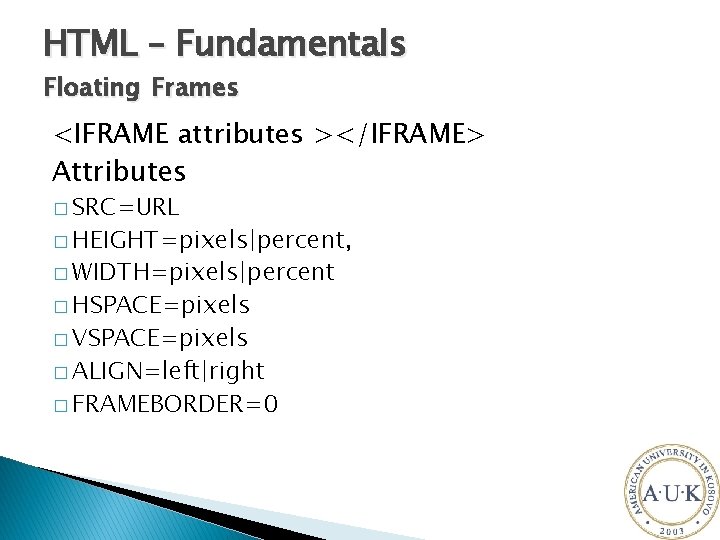
HTML – Fundamentals Floating Frames <IFRAME attributes ></IFRAME> Attributes � SRC=URL � HEIGHT=pixels|percent, � WIDTH=pixels|percent � HSPACE=pixels � VSPACE=pixels � ALIGN=left|right � FRAMEBORDER=0
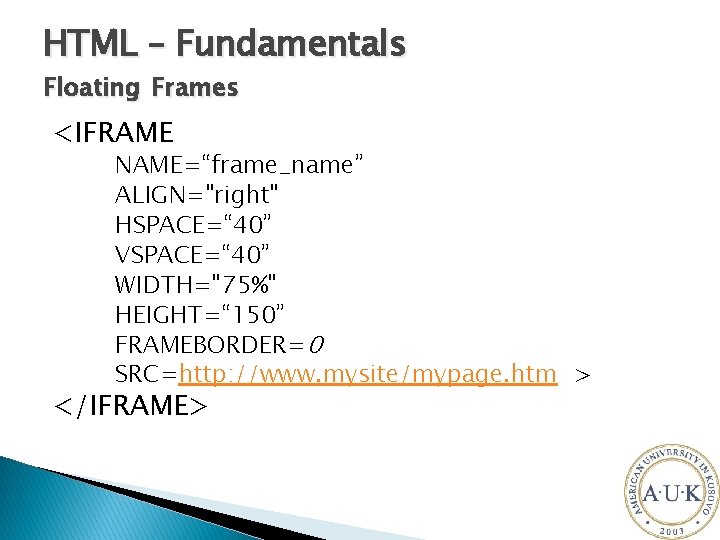
HTML – Fundamentals Floating Frames <IFRAME NAME=“frame_name” ALIGN="right" HSPACE=“ 40” VSPACE=“ 40” WIDTH="75%" HEIGHT=“ 150” FRAMEBORDER=0 SRC=http: //www. mysite/mypage. htm > </IFRAME>
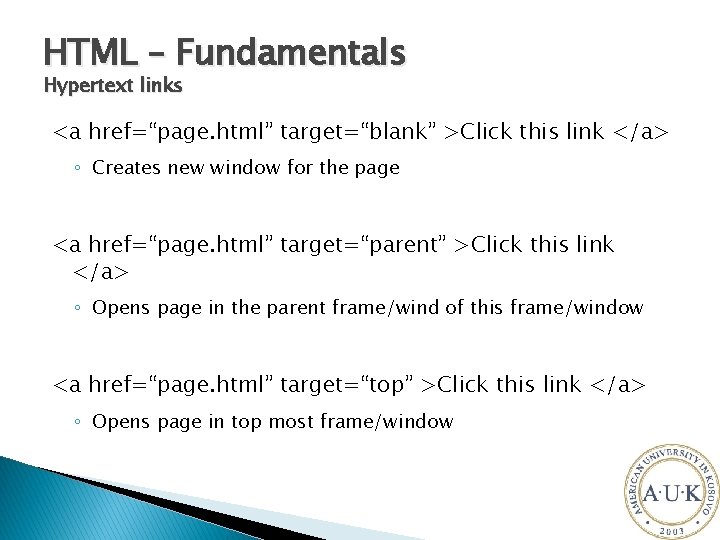
HTML – Fundamentals Hypertext links <a href=“page. html” target=“blank” >Click this link </a> ◦ Creates new window for the page <a href=“page. html” target=“parent” >Click this link </a> ◦ Opens page in the parent frame/wind of this frame/window <a href=“page. html” target=“top” >Click this link </a> ◦ Opens page in top most frame/window
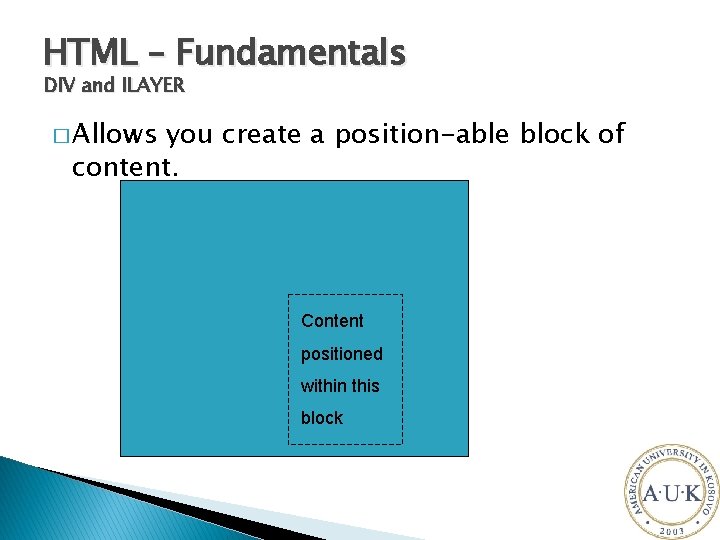
HTML – Fundamentals DIV and ILAYER � Allows you create a position-able block of content. Content positioned within this block
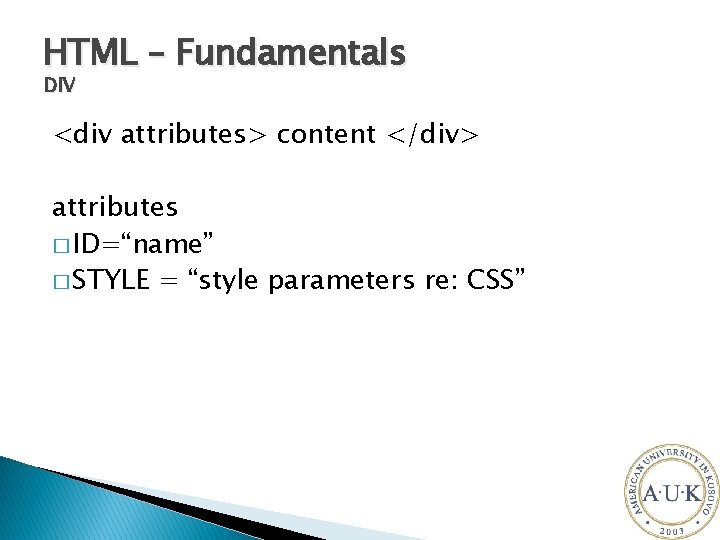
HTML – Fundamentals DIV <div attributes> content </div> attributes � ID=“name” � STYLE = “style parameters re: CSS”
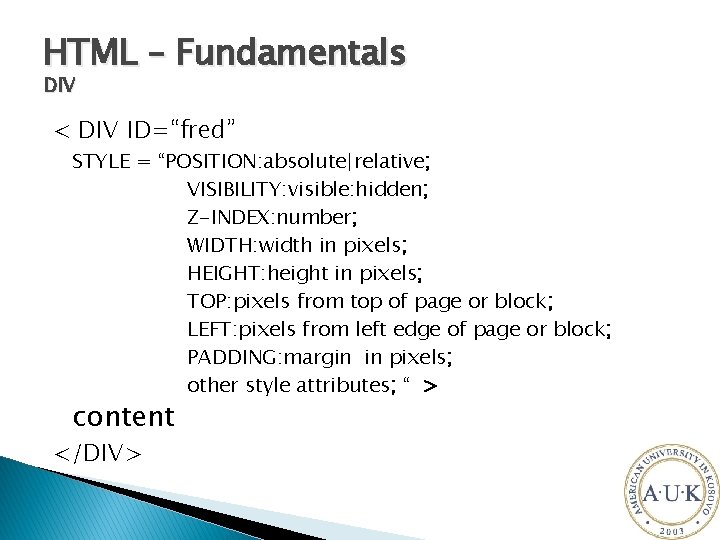
HTML – Fundamentals DIV < DIV ID=“fred” STYLE = “POSITION: absolute|relative; VISIBILITY: visible: hidden; Z-INDEX: number; WIDTH: width in pixels; HEIGHT: height in pixels; TOP: pixels from top of page or block; LEFT: pixels from left edge of page or block; PADDING: margin in pixels; other style attributes; “ > content </DIV>
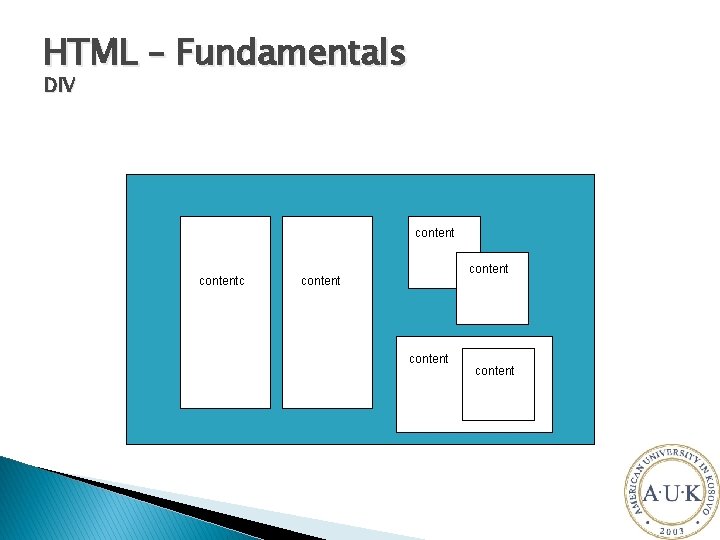
HTML – Fundamentals DIV contentc content content
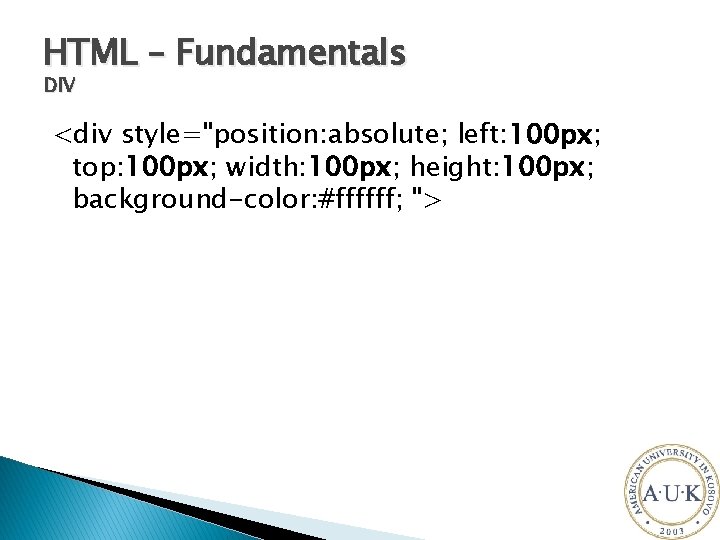
HTML – Fundamentals DIV <div style="position: absolute; left: 100 px; top: 100 px; width: 100 px; height: 100 px; background-color: #ffffff; ">
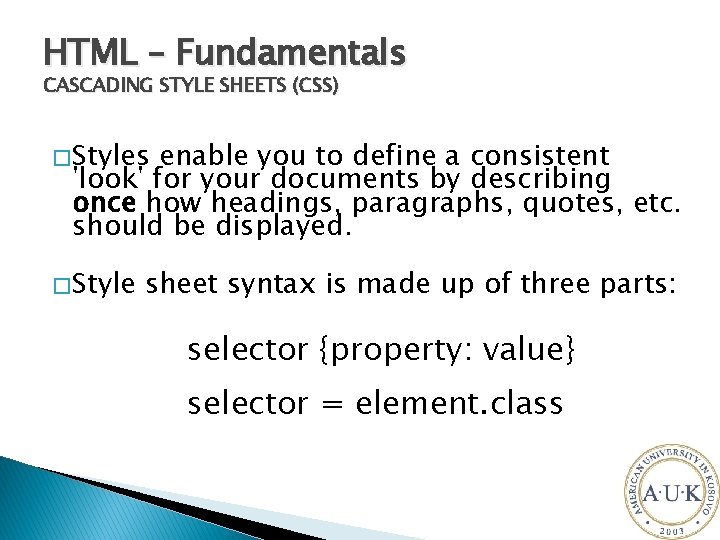
HTML – Fundamentals CASCADING STYLE SHEETS (CSS) � Styles enable you to define a consistent 'look' for your documents by describing once how headings, paragraphs, quotes, etc. should be displayed. � Style sheet syntax is made up of three parts: selector {property: value} selector = element. class
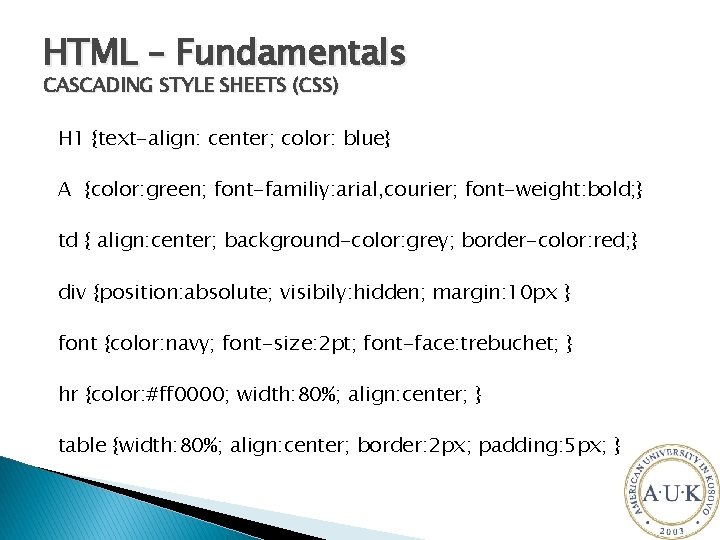
HTML – Fundamentals CASCADING STYLE SHEETS (CSS) H 1 {text-align: center; color: blue} A {color: green; font-familiy: arial, courier; font-weight: bold; } td { align: center; background-color: grey; border-color: red; } div {position: absolute; visibily: hidden; margin: 10 px } font {color: navy; font-size: 2 pt; font-face: trebuchet; } hr {color: #ff 0000; width: 80%; align: center; } table {width: 80%; align: center; border: 2 px; padding: 5 px; }
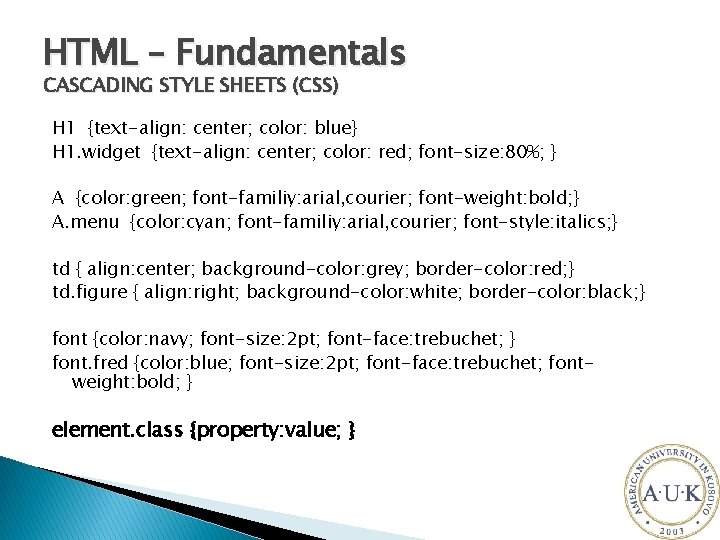
HTML – Fundamentals CASCADING STYLE SHEETS (CSS) H 1 {text-align: center; color: blue} H 1. widget {text-align: center; color: red; font-size: 80%; } A {color: green; font-familiy: arial, courier; font-weight: bold; } A. menu {color: cyan; font-familiy: arial, courier; font-style: italics; } td { align: center; background-color: grey; border-color: red; } td. figure { align: right; background-color: white; border-color: black; } font {color: navy; font-size: 2 pt; font-face: trebuchet; } font. fred {color: blue; font-size: 2 pt; font-face: trebuchet; fontweight: bold; } element. class {property: value; }
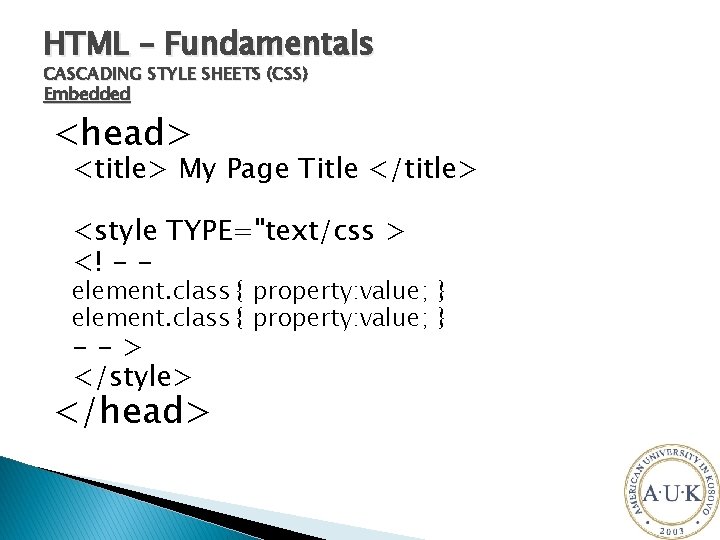
HTML – Fundamentals CASCADING STYLE SHEETS (CSS) Embedded <head> <title> My Page Title </title> <style TYPE="text/css > <! - - element. class { property: value; } --> </style> </head>
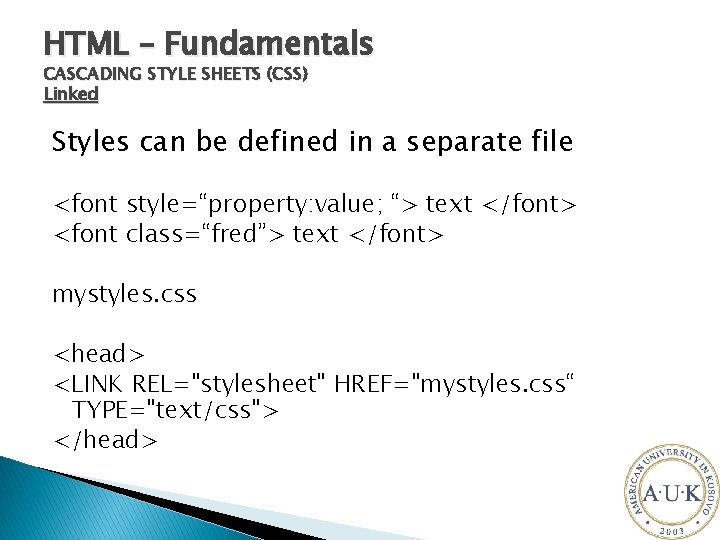
HTML – Fundamentals CASCADING STYLE SHEETS (CSS) Linked Styles can be defined in a separate file <font style=“property: value; “> text </font> <font class=“fred”> text </font> mystyles. css <head> <LINK REL="stylesheet" HREF="mystyles. css“ TYPE="text/css"> </head>
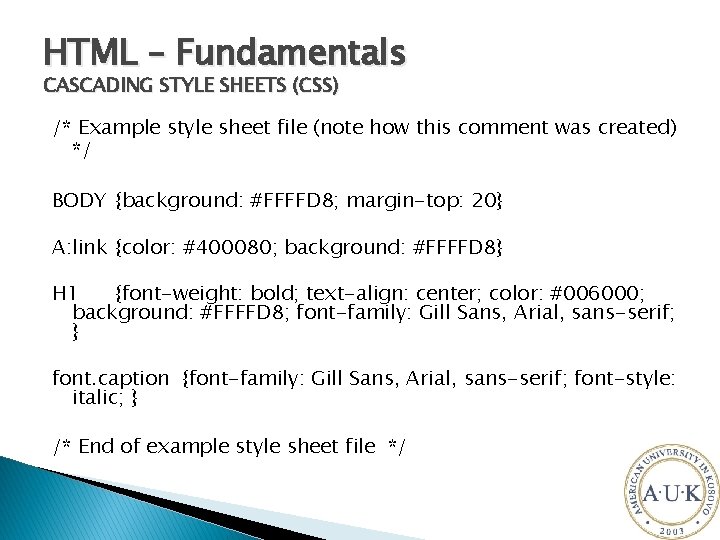
HTML – Fundamentals CASCADING STYLE SHEETS (CSS) /* Example style sheet file (note how this comment was created) */ BODY {background: #FFFFD 8; margin-top: 20} A: link {color: #400080; background: #FFFFD 8} H 1 {font-weight: bold; text-align: center; color: #006000; background: #FFFFD 8; font-family: Gill Sans, Arial, sans-serif; } font. caption {font-family: Gill Sans, Arial, sans-serif; font-style: italic; } /* End of example style sheet file */
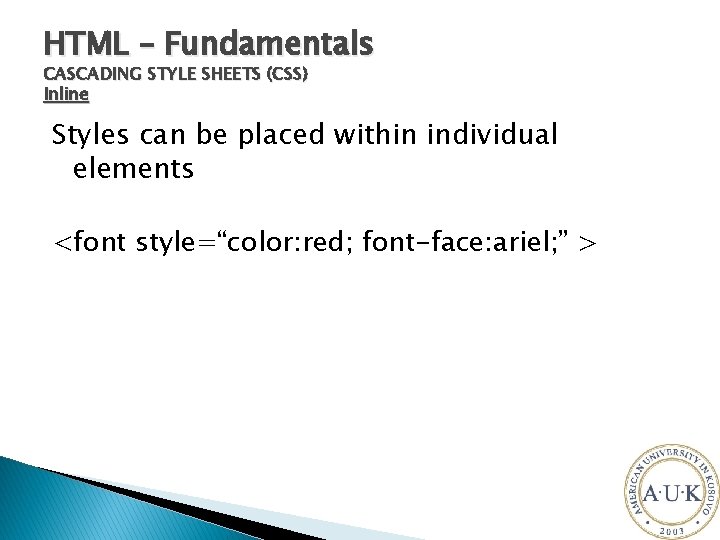
HTML – Fundamentals CASCADING STYLE SHEETS (CSS) Inline Styles can be placed within individual elements <font style=“color: red; font-face: ariel; ” >
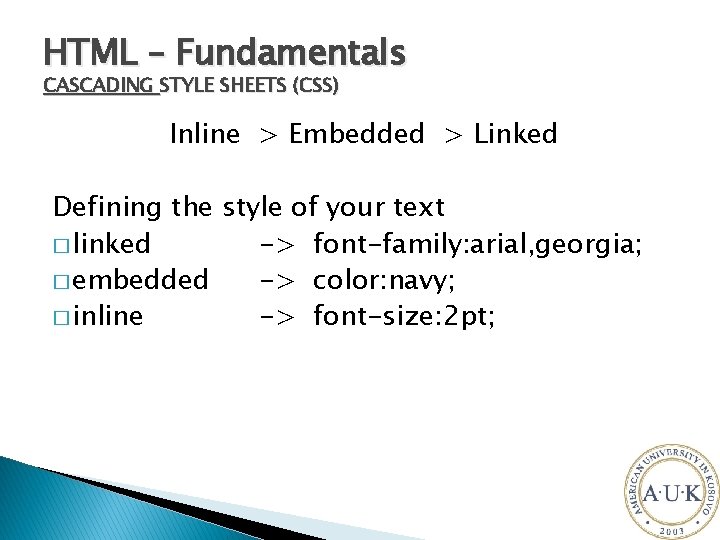
HTML – Fundamentals CASCADING STYLE SHEETS (CSS) Inline > Embedded > Linked Defining the style of your text � linked -> font-family: arial, georgia; � embedded -> color: navy; � inline -> font-size: 2 pt;
HTML – Fundamentals CASCADING STYLE SHEETS (CSS) Using IDs � IDs enable you to define a unique style which you can apply to a number of elements. <STYLE> <!– #copyright {font-style: italic; font-size: smaller; } --> </STYLE> <p ID=“copyright”> Any textual content </p>
HTML – Fundamentals Images <img src=“images/pic 1. jpg” width=75 px, height=50 px /> <img class=“pics” src=“images/pic 1. jpg” /> img. pics { width: 75 px; height: 50 px; borderwidth: 3 px }
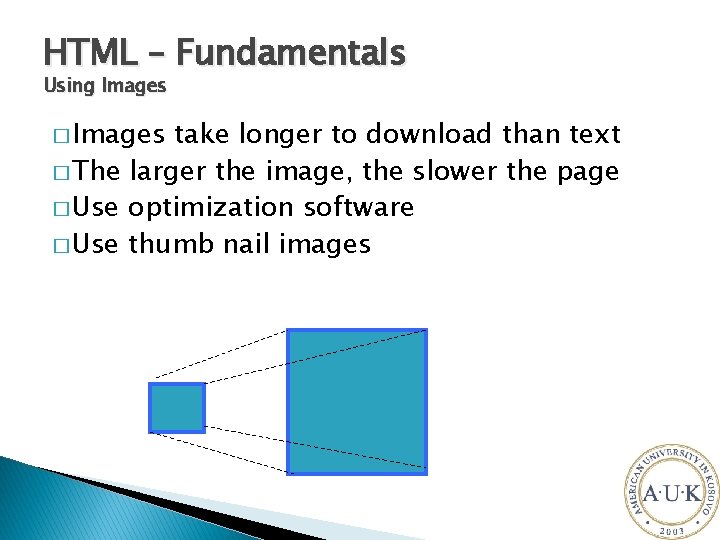
HTML – Fundamentals Using Images � Images take longer to download than text � The larger the image, the slower the page � Use optimization software � Use thumb nail images
HTML – Fundamentals Other uses of Images � Page background (not recommended) ◦ <body background-image = “url” > ◦ <body class=“background”> �body. background { background-image: $url; } � Table background ◦ <table background-image=“url”> ◦ <table class=“background”> �table. background { backlground-image: url; } � DIV background ◦ <div style={ background-image: url; } >
Resources http: //www. w 3 schools. com/ � � � HTML Tutorials Learn HTML Learn XHTML Learn CSS Learn TCP/IP Browser Scripting Learn Java. Script Learn DHTML Learn VBScript Learn HTML DOM Learn WMLScript Server Scripting Learn SQL Learn ASP Learn ADO Learn PHP � XML Tutorials Learn XML Learn XSLT Learn XSL-FO Learn XPath Learn XQuery Learn XLink Learn XPointer Learn DTD Learn Schema Learn XML DOM Learn XForms Learn SOAP Learn WSDL Learn RDF Learn RSS Learn WAP l. NET (dotnet). NET Microsoft. NET ASP. NET Mobile l Multimedia Learn Media Learn SMIL Learn SVG Learn Flash l Web Building Web W 3 C Web Browsers Web Quality Web Semantic Web Careers Web Hosting Web Certification
- Slides: 74