
Introduction to MS Project 2007 TUTORIAL 6 INSTRUCTOR
- Slides: 14
Introduction to MS Project 2007 TUTORIAL 6 INSTRUCTOR: HANIF ULLAH EMAIL ID: hanif. ksu@hotmail. com OFFICE #: 2029 DATE: 25/11/2012
Tracking Progress on Tasks 2 �In This Chapter, You will Learn How to: �Save current values in a schedule as a baseline. �Record progress on tasks through a specific date. �Record a task’s percentage of completion. �Enter actual work and duration values for tasks
Saving a Project Baseline 3 �After developing a project plan, one of a project manager’s most important activities is to record actuals and evaluate project performance. To judge project performance properly, you will need to compare it with your original plan. This original plan is called the baseline plan or just the baseline. �A baseline is a collection of important values in a project plan such as the planned start dates, finish dates, and costs of the tasks, resources, and assignments. When you save a baseline, Project takes a “snapshot” of the existing values and saves it in your Project plan for future comparison.
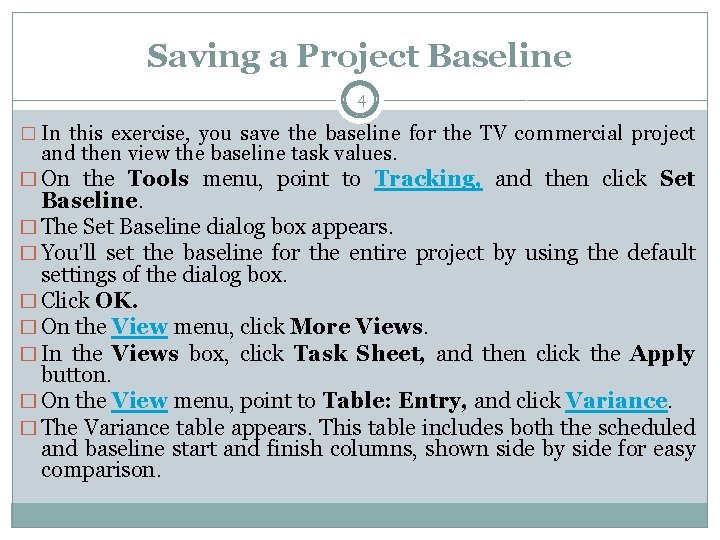
Saving a Project Baseline 4 � In this exercise, you save the baseline for the TV commercial project and then view the baseline task values. � On the Tools menu, point to Tracking, and then click Set Baseline. � The Set Baseline dialog box appears. � You’ll set the baseline for the entire project by using the default settings of the dialog box. � Click OK. � On the View menu, click More Views. � In the Views box, click Task Sheet, and then click the Apply button. � On the View menu, point to Table: Entry, and click Variance. � The Variance table appears. This table includes both the scheduled and baseline start and finish columns, shown side by side for easy comparison.
Tracking a Project as Scheduled 5 �In the TV commercial project, suppose that some time has now passed since saving the baseline. Work has started, and so far, so good. In this exercise, you record project actuals by updating work to a specific date �On the View menu, click Gantt Chart. �On the Tools menu, point to Tracking, and click Update Project. �Make sure the Update work as complete through option is selected. In the adjacent date box, type or select 25/11/12. �Click OK.
Entering a Task’s Completion Percentage 6 � After work has begun on a task, you can quickly record its progress as a percentage. �In this exercise, you record completion percentages of tasks via the Tracking toolbar. �On the View menu, point to Toolbars, and then click Tracking �Click the name of task 4, Pick Locations �On the Tracking toolbar, click the 100% Complete button �Click the name of task 5, Hold auditions �On the Tracking toolbar, click the 50% Complete button. �Now take your mouse over the bar in the Gantt chart, you will see the completion of that task in percentage.
Entering Actual Values for Tasks 7 �A more detailed way to keep your schedule up to date is to record what actually happens for each task in your project. You can record each task’s actual start, finish, work, and duration values. �click the name of task 5, Hold auditions �On the View menu, point to Table: Entry, and click Work. �In the Actual field for task 5, type or select 80, and then press Enter �In the Task Name column, click task 8, Rehearse. �On the Tools menu, point to Tracking, and then click Update Tasks
Entering Actual Values for Tasks 8 �In the Start field in the Actual box on the left side of the dialog box, type or select 25/11/12. �In the Actual dur field, type or select 3 d �Click OK. �In the Task Name column, click task 9, Shoot Video �On the Tools menu, point to Tracking, and then click Update Tasks. �In the Actual dur field, type or select 3 d, and then click OK. �On the Standard toolbar, click Scroll To Task �On the View menu, point to Toolbars and then click Tracking. �Project hides the Tracking toolbar
Part 2 : ADVANCED PROJECT SCHEDULING
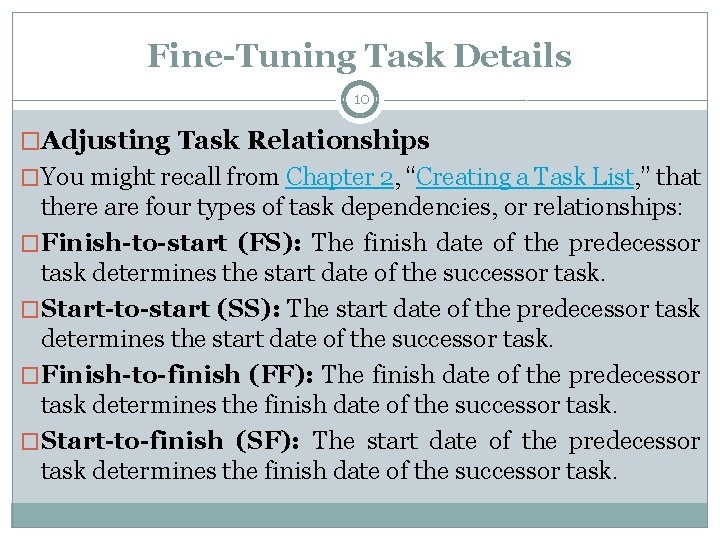
Fine-Tuning Task Details 10 �Adjusting Task Relationships �You might recall from Chapter 2, “Creating a Task List, ” that there are four types of task dependencies, or relationships: �Finish-to-start (FS): The finish date of the predecessor task determines the start date of the successor task. �Start-to-start (SS): The start date of the predecessor task determines the start date of the successor task. �Finish-to-finish (FF): The finish date of the predecessor task determines the finish date of the successor task. �Start-to-finish (SF): The start date of the predecessor task determines the finish date of the successor task.
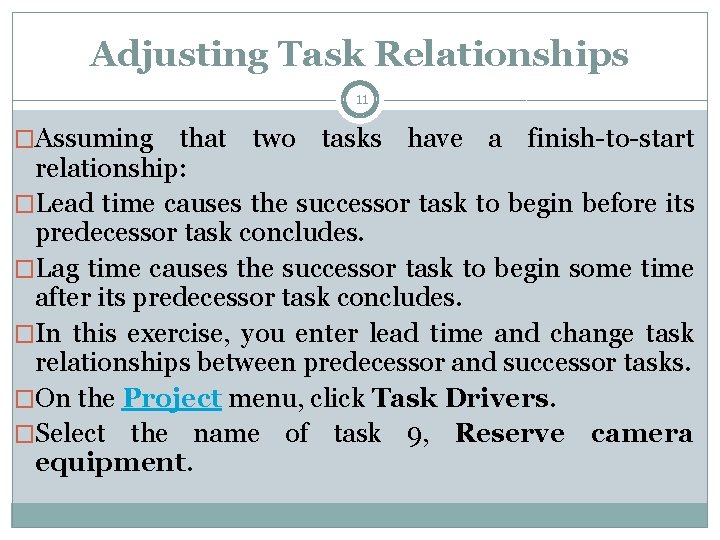
Adjusting Task Relationships 11 �Assuming that two tasks have a finish-to-start relationship: �Lead time causes the successor task to begin before its predecessor task concludes. �Lag time causes the successor task to begin some time after its predecessor task concludes. �In this exercise, you enter lead time and change task relationships between predecessor and successor tasks. �On the Project menu, click Task Drivers. �Select the name of task 9, Reserve camera equipment.
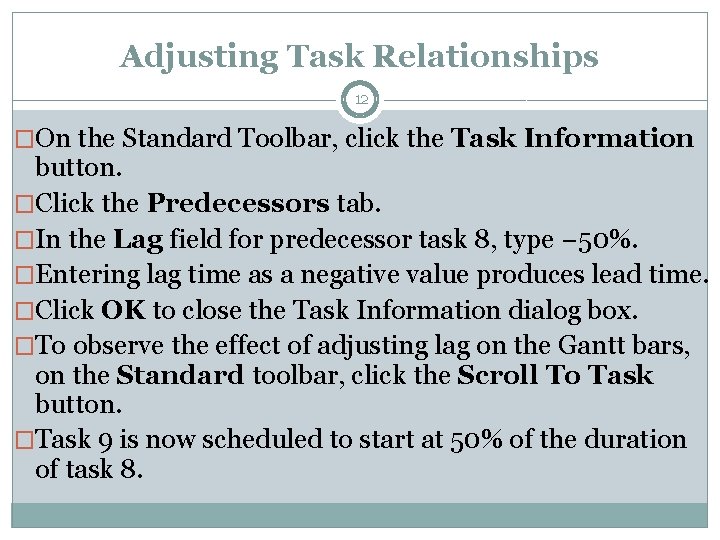
Adjusting Task Relationships 12 �On the Standard Toolbar, click the Task Information button. �Click the Predecessors tab. �In the Lag field for predecessor task 8, type − 50%. �Entering lag time as a negative value produces lead time. �Click OK to close the Task Information dialog box. �To observe the effect of adjusting lag on the Gantt bars, on the Standard toolbar, click the Scroll To Task button. �Task 9 is now scheduled to start at 50% of the duration of task 8.
Adjusting Task Relationships 13 �Next, you will change the task relationship between two tasks �Double-click the name of task 10, Reserve sound equipment. The Task Information dialog box appears. �On the Predecessors tab, click in the Type column for predecessor task 9. Select Start-to-Start (SS), and click OK. �Project changes the task relationship between tasks 9 and 10 to start-to-start.
14 END of Tutorial 6