
Introduction to MidFi Prototyping with Power Point Matthias
- Slides: 59
Introduction to Mid-Fi Prototyping with Power. Point Matthias Rauterberg © TU Eindhoven 2002
Mid-Fidelity Prototyping (MFP) l l Please read the following text as an introduction in mid-fi[delity] prototyping using Power. Point [URL] Example-1: Dr Health Hospital [URL] Example-2: E-Commerce [URL] Example-3: CD-player [URL]
What Power. Point will not do l l l It will not replace having to think It will not eliminate the need for planning and designing with paper and pen It will not make the students ‘smarter’ It will not take over from the teacher’s many roles It is not indispensable It will not make your world dissolve if you do not use it To get a full animated impression of this tutorial, please download the PPT and run it from your computer!
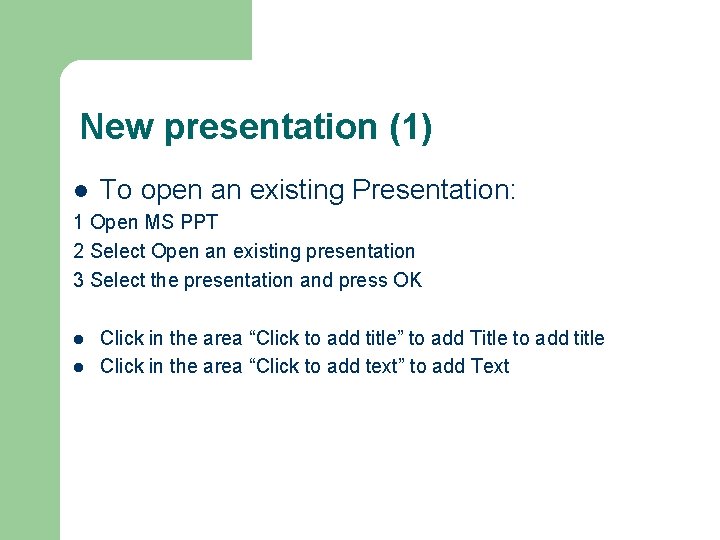
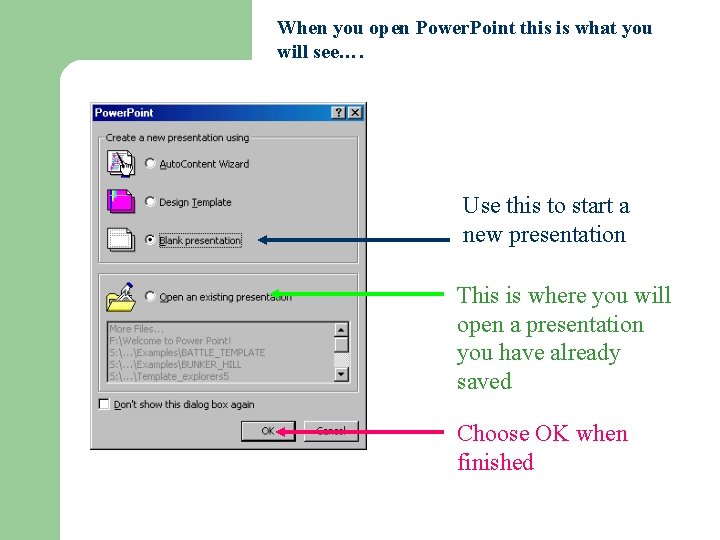
New presentation (1) l To open an existing Presentation: 1 Open MS PPT 2 Select Open an existing presentation 3 Select the presentation and press OK l l Click in the area “Click to add title” to add Title to add title Click in the area “Click to add text” to add Text
When you open Power. Point this is what you will see…. Use this to start a new presentation This is where you will open a presentation you have already saved Choose OK when finished
New presentation (2) l Inserting a new Slide: 1 Select New Slide from the Insert Menu 2 Select the Bulleted List Slide Layout µ Formatting Text Using Outline: 1 Select The Outline View and Type 2 Use the Promote, Demote icons to indent and create new slides
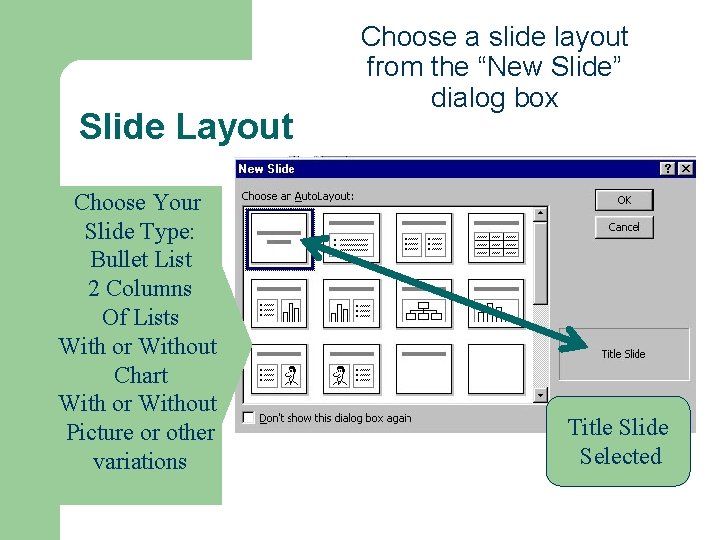
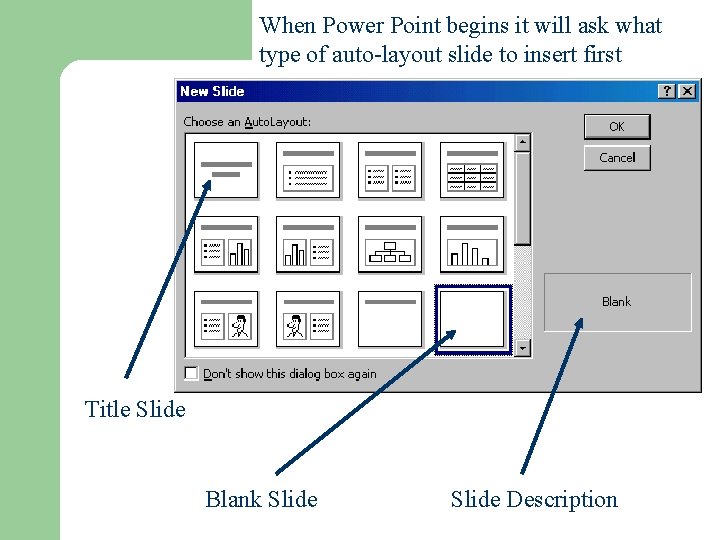
Slide Layout Choose Your Slide Type: Bullet List 2 Columns Of Lists With or Without Chart With or Without Picture or other variations Choose a slide layout from the “New Slide” dialog box Title Slide Selected
What are Auto-layout slides? l l l Power. Point provides users with a choice of some commonly used slide formats Each slide is made up of one or more frames or boxes There are text frames, pictures frames, chart frames, etc. These frames are pre-formatted to certain fonts, sizes and alignments, but they can be changed to suit the user Each time a new slide is required, go to the Insert menu and choose New slide
When Power Point begins it will ask what type of auto-layout slide to insert first Title Slide Blank Slide Description
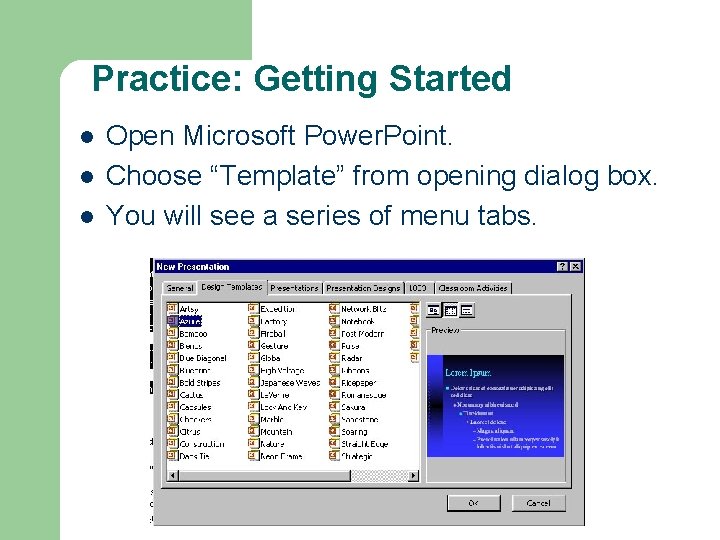
Practice: Getting Started l l l Open Microsoft Power. Point. Choose “Template” from opening dialog box. You will see a series of menu tabs.
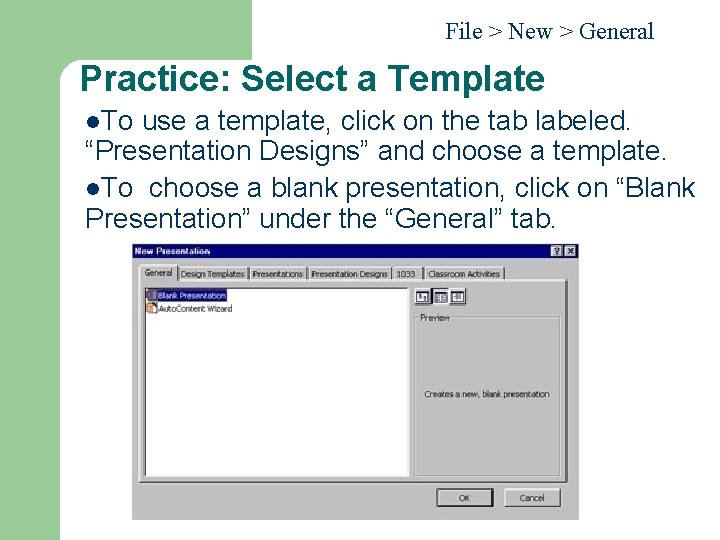
File > New > General Practice: Select a Template l. To use a template, click on the tab labeled. “Presentation Designs” and choose a template. l. To choose a blank presentation, click on “Blank Presentation” under the “General” tab.
Design Templates Select Design Template: 1 Select Template 2 Select Slide Layout l Power. Point Views: Normal View, Slide Sorter, Slide show view, Notes Pages.
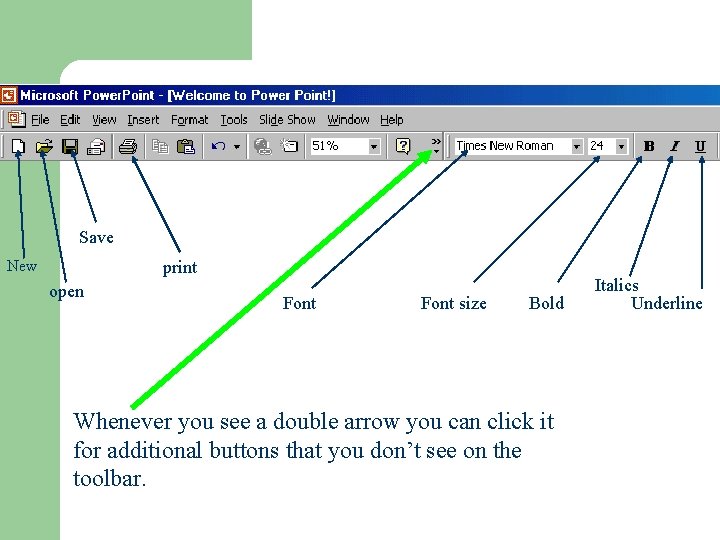
Save New print open Font size Bold Whenever you see a double arrow you can click it for additional buttons that you don’t see on the toolbar. Italics Underline
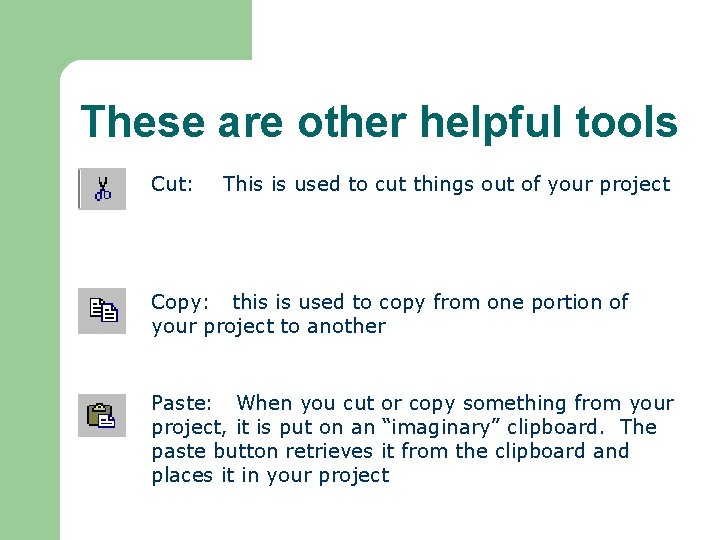
These are other helpful tools Cut: This is used to cut things out of your project Copy: this is used to copy from one portion of your project to another Paste: When you cut or copy something from your project, it is put on an “imaginary” clipboard. The paste button retrieves it from the clipboard and places it in your project
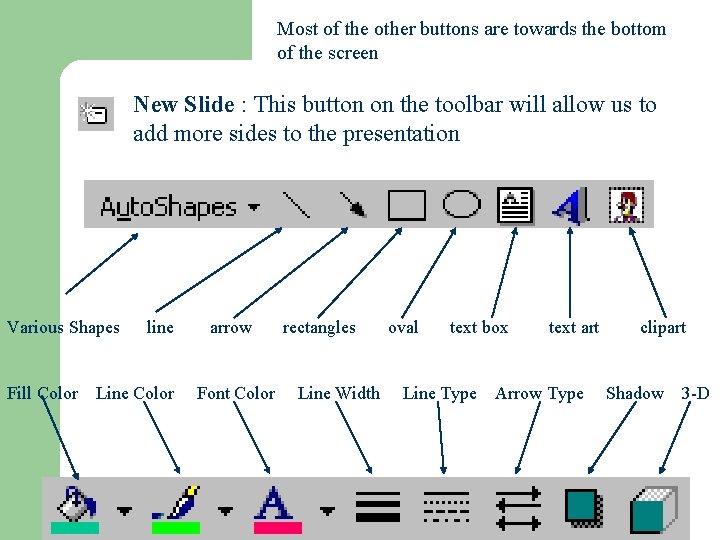
Most of the other buttons are towards the bottom of the screen New Slide : This button on the toolbar will allow us to add more sides to the presentation Various Shapes Fill Color line Line Color arrow Font Color rectangles Line Width oval text box Line Type text art Arrow Type clipart Shadow 3 -D
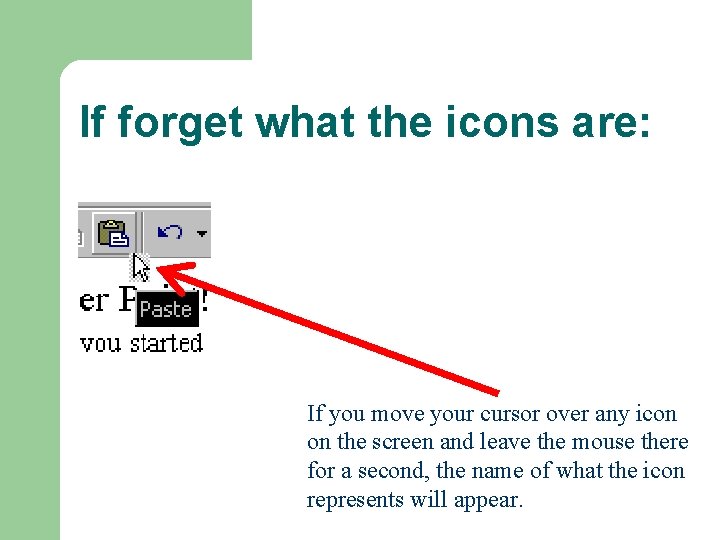
If forget what the icons are: If you move your cursor over any icon on the screen and leave the mouse there for a second, the name of what the icon represents will appear.
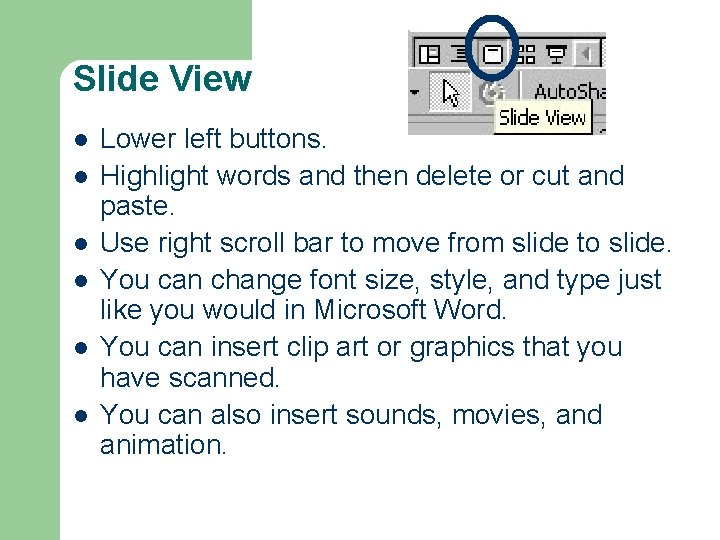
Slide View l l l Lower left buttons. Highlight words and then delete or cut and paste. Use right scroll bar to move from slide to slide. You can change font size, style, and type just like you would in Microsoft Word. You can insert clip art or graphics that you have scanned. You can also insert sounds, movies, and animation.
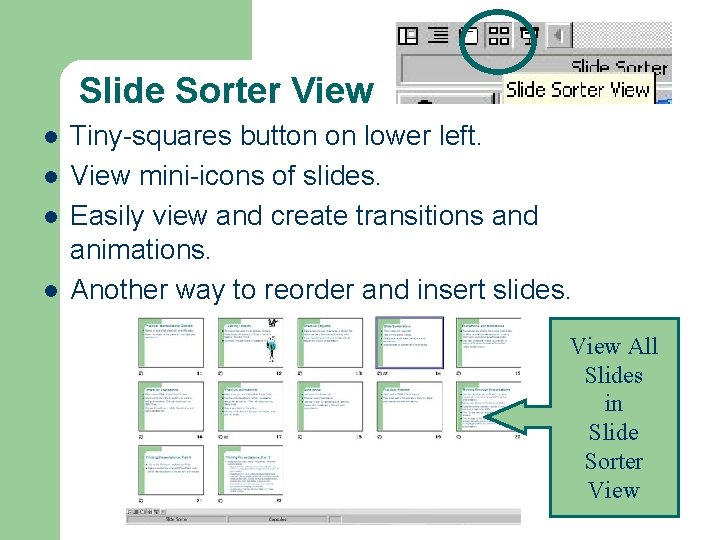
Slide Sorter View l l Tiny-squares button on lower left. View mini-icons of slides. Easily view and create transitions and animations. Another way to reorder and insert slides. View All Slides in Slide Sorter View
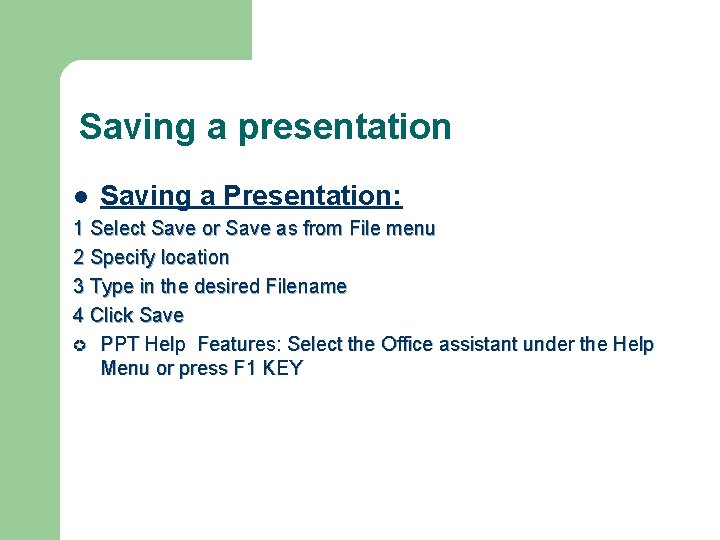
Saving a presentation l Saving a Presentation: 1 Select Save or Save as from File menu 2 Specify location 3 Type in the desired Filename 4 Click Save µ PPT Help Features: Select the Office assistant under the Help Menu or press F 1 KEY
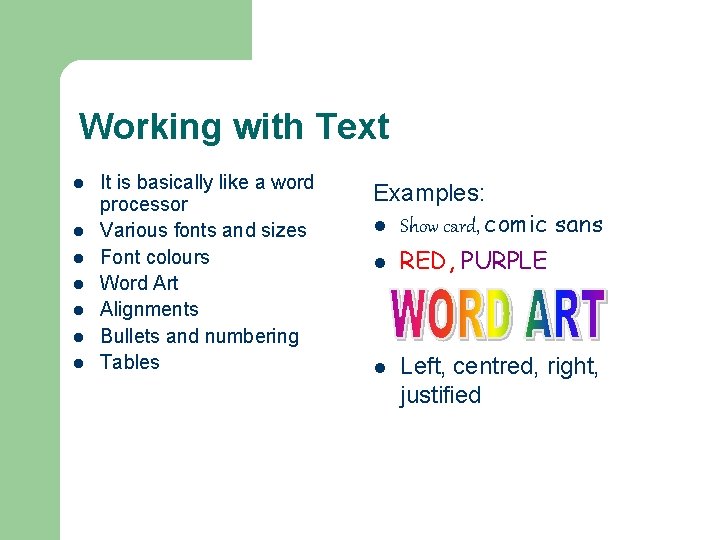
Working with Text l l l l It is basically like a word processor Various fonts and sizes Font colours Word Art Alignments Bullets and numbering Tables Examples: l Show card, comic sans l l RED, PURPLE Left, centred, right, justified
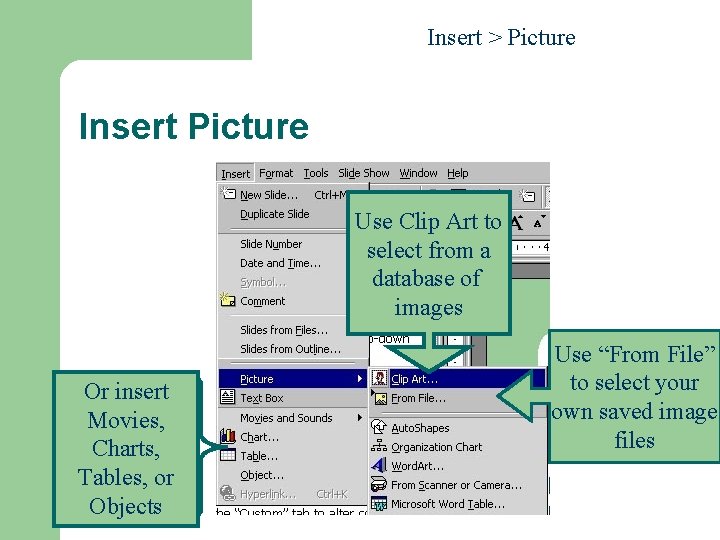
Working with pictures and sounds PICTURES l Go to the INSERT menu l Choose Picture from… l Clip. Art or File l Clip Art gives you a selection l File…you have to find the picture file you want to use SOUNDS l Go to the INSERT menu l Choose Movies and Sounds (in Power. Point 2000) from… l Sound Gallery gives you a selection l Sound file…you have to find the sound file you have recorded or saved and want to use
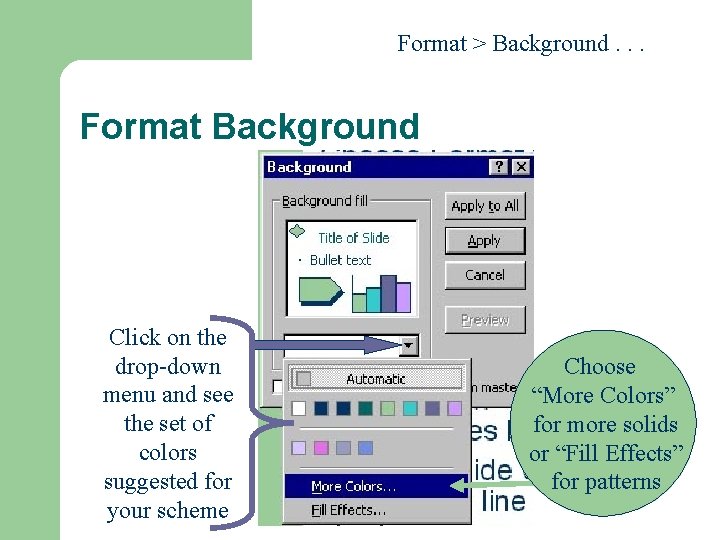
Format > Background. . . Format Background Click on the drop-down menu and see the set of colors suggested for your scheme Choose “More Colors” for more solids or “Fill Effects” for patterns
Practice: Background l l Go to Format > Background. Click on the down arrow on the drop-down list box to choose a new color. Clicking on “Apply” modifies a particular slide; “Apply to all” modifies the entire presentation. Note: Some templates use background graphics. If you can’t see changes, click on “Omit background graphics from master. ”
Slide background colors l l The default background color of your slide is white You can change this to a different color, a pattern or a design template Go to the FORMAT menu and choose Background… Click on the down arrow button next to the narrow box for a selection of colors
Background colors l The FORMAT menu – Slide Color Scheme, has some pre-set options for background and text colors The FORMAT menu – Apply Design Template, gives you some picture designs for the background of the slides l WARNING !! Removing and/or changing a Design l Template is almost impossible! Choose wisely
Editing Style and Color l l l Choose Format > Background to change background color and shading. Click the down arrow on drop-down list box for color and fill effects options. Click on “Fill Effects” to customize the background with lighting, textures, and patterns. The “Preview” button allows you to try out your changes before you commit to them. Format > Slide Color Scheme to change text, accent, and line colors and to create shadows.
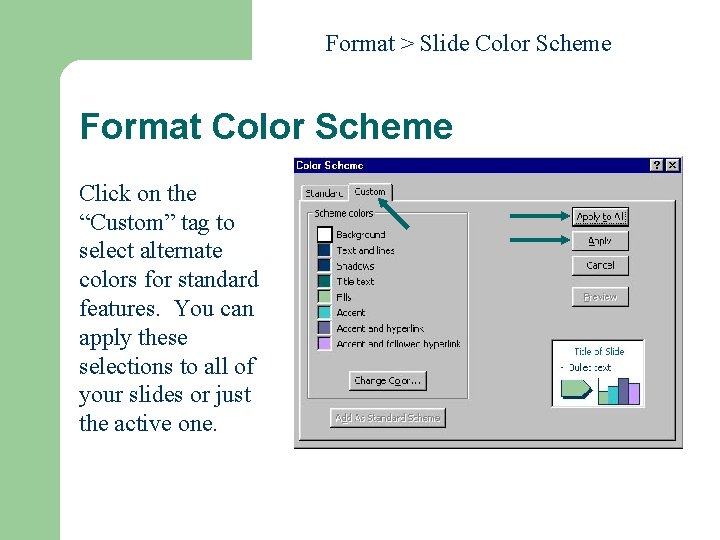
Format > Slide Color Scheme Format Color Scheme Click on the “Custom” tag to select alternate colors for standard features. You can apply these selections to all of your slides or just the active one.
Practice: Color Scheme l l l Click on Format > Slide Color Scheme. Click on the “Custom” tab to alter colors for individual elements; choose the “Standard” tab to select pre-defined schemes. Double-click on the colored square labeled “Text and lines. ” Choose a new color. Click on “Preview”; then click on “Apply” to accept.
Action Buttons l l Use Action Buttons if you want the viewer to be able to move backward and forwards between slides Go to the SLIDE SHOW menu and choose Action Buttons The forward and backward buttons act like hyperlinks This means that when you click on them, the action will take you back to the previous or next slide
Moving Through Presentations l l l Use the down arrow or “Enter” key or a mouse click to move forward through a presentation. Up arrow returns to the previous slide. Type a number followed by the “Enter” key to jump to a particular slide. The “B” key temporarily blacks out the screen. The arrows in the lower left corner of the screen provide menu options such as a pen to highlight particular points in your presentation.
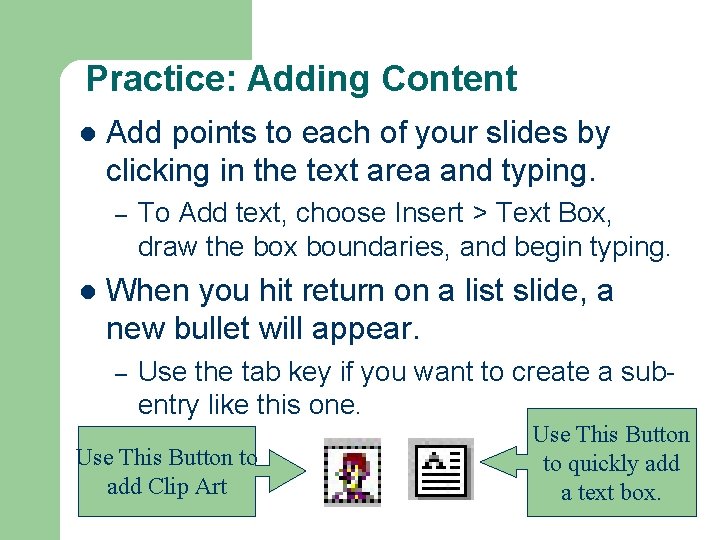
Practice: Adding Content l Add points to each of your slides by clicking in the text area and typing. – l To Add text, choose Insert > Text Box, draw the box boundaries, and begin typing. When you hit return on a list slide, a new bullet will appear. – Use the tab key if you want to create a subentry like this one. Use This Button to add Clip Art Use This Button to quickly add a text box.
Inserting Objects l l Use Insert > Picture for a graphic. Choose Insert > Picture > Clip Art. Choose Insert > Object for other MS objects. For scanned images, select “Adobe Photoshop Image” from the dialog under Insert > Object.
Manipulating Objects l l l To move, click in the center of the object to select, hold and move. To resize, click on one of the handles and resize. To delete, click to select and hit the delete key.
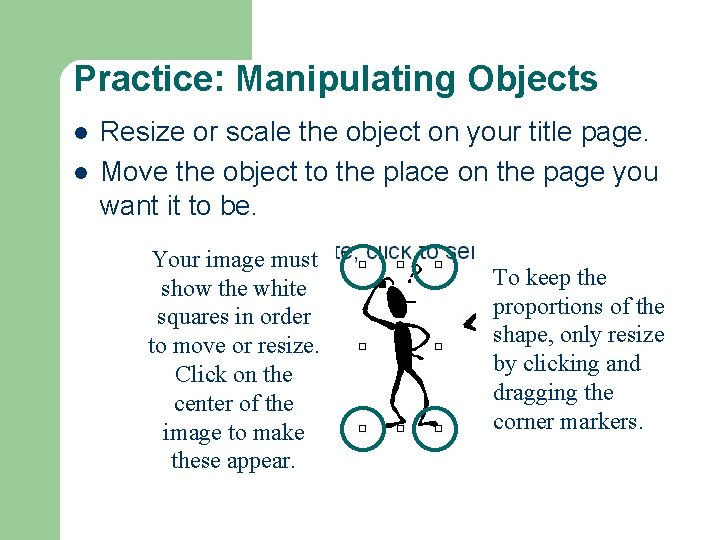
Practice: Manipulating Objects l l Resize or scale the object on your title page. Move the object to the place on the page you want it to be. Your image must show the white squares in order to move or resize. Click on the center of the image to make these appear. To keep the proportions of the shape, only resize by clicking and dragging the corner markers.
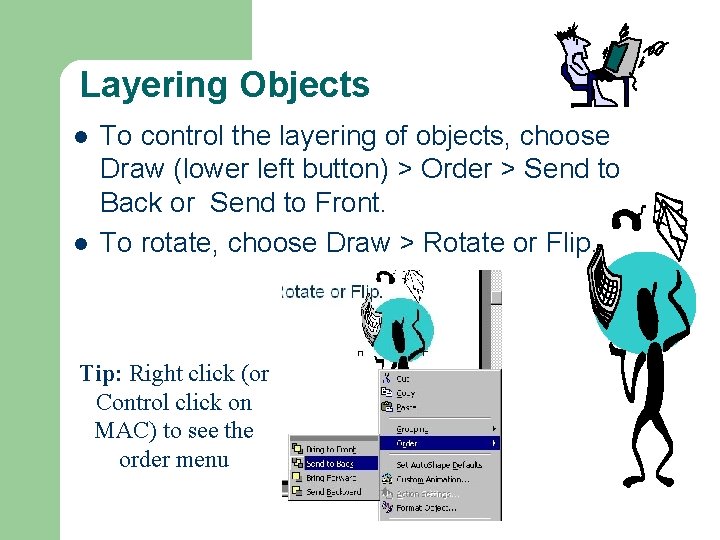
Layering Objects l l To control the layering of objects, choose Draw (lower left button) > Order > Send to Back or Send to Front. To rotate, choose Draw > Rotate or Flip. Tip: Right click (or Control click on MAC) to see the order menu
Practice: Objects l l Take a few minutes to arrange or delete the object we have been experimenting with. If you have time, insert appropriate clip art elsewhere in your presentation.
Insert > Picture Insert Picture Use Clip Art to select from a database of images Or insert Movies, Charts, Tables, or Objects Use “From File” to select your own saved image files
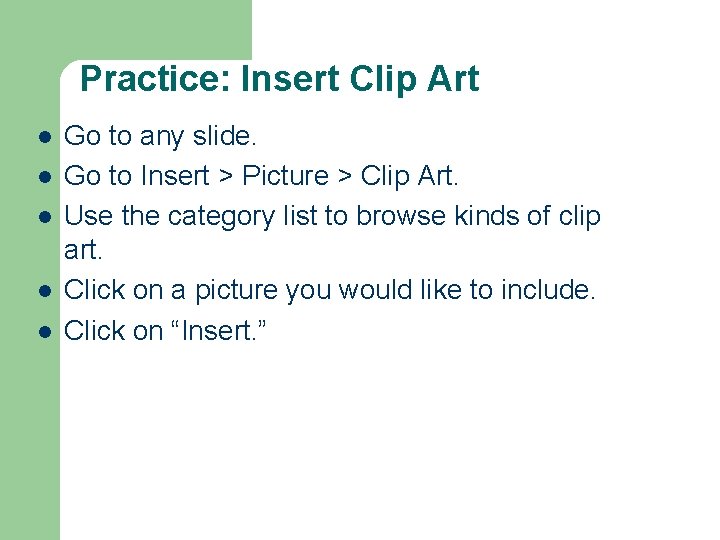
Practice: Insert Clip Art l l l Go to any slide. Go to Insert > Picture > Clip Art. Use the category list to browse kinds of clip art. Click on a picture you would like to include. Click on “Insert. ”
Animation l l Each slide is made up of a number of parts/frames Animation is the tool which gives you control over the way your slide appears on the screen
Slide Transition l l l This tool controls the way the whole slide appears on the screen Each slide in a presentation can appear in a different way To do this you need to view all your slides in the slide sorter Go to the VIEW menu and choose the Slide Sorter option Click once on the slide on which you want to use the slide transition
Slide Transition - continued l l l Go to the SLIDE SHOW menu Choose the Slide Transition option You are given a number of effects to choose from You can select an effect and preview it before deciding one you like Then click on the Apply button to activate this on the selected slide, or Apply All to apply it to all the slides in your presentation
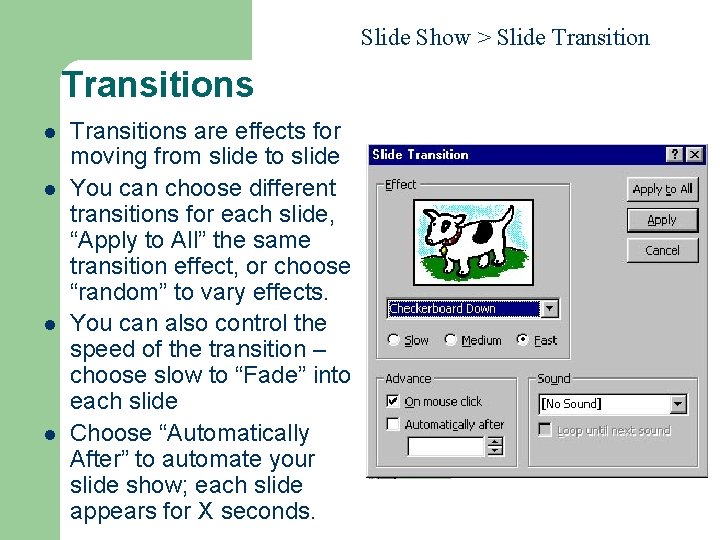
Slide Show > Slide Transitions l l Transitions are effects for moving from slide to slide You can choose different transitions for each slide, “Apply to All” the same transition effect, or choose “random” to vary effects. You can also control the speed of the transition – choose slow to “Fade” into each slide Choose “Automatically After” to automate your slide show; each slide appears for X seconds.
Practice: Transitions l l l Click on the “Slide Sorter View” button. Double-click the slide to which you want to assign a transition. This will return you to Slide View. Choose Slide Show > Slide Transitions, and select a transition.
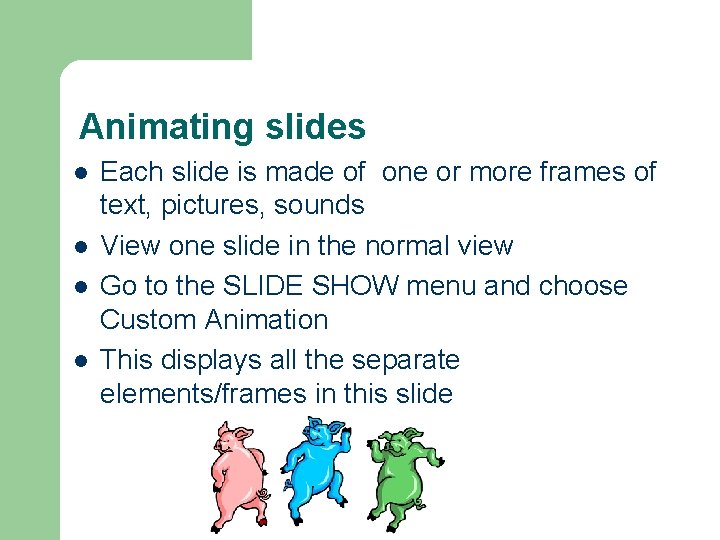
Animating slides l l Each slide is made of one or more frames of text, pictures, sounds View one slide in the normal view Go to the SLIDE SHOW menu and choose Custom Animation This displays all the separate elements/frames in this slide
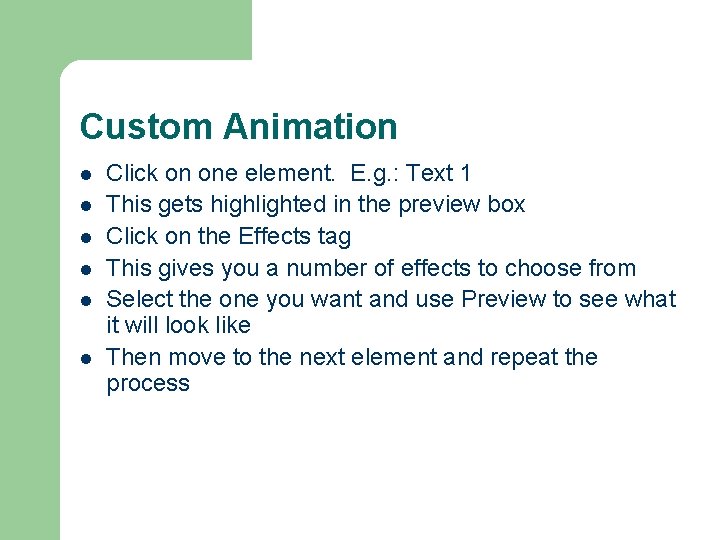
Custom Animation l l l Click on one element. E. g. : Text 1 This gets highlighted in the preview box Click on the Effects tag This gives you a number of effects to choose from Select the one you want and use Preview to see what it will look like Then move to the next element and repeat the process
Slide Show > Custom Animations l. Animations change how objects, text boxes, and pictures appear in your slide. l. You can choose a “Preset Animation” or design a “Custom Animation” from the “Slide Show” menu.
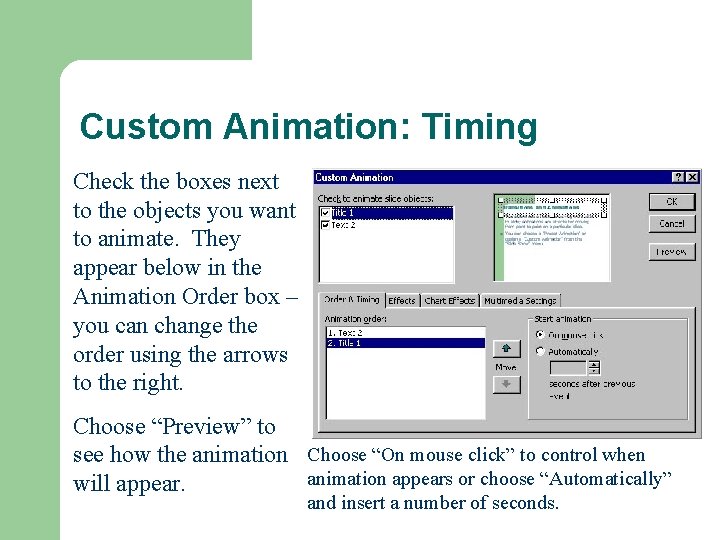
Custom Animation: Timing Check the boxes next to the objects you want to animate. They appear below in the Animation Order box – you can change the order using the arrows to the right. Choose “Preview” to see how the animation Choose “On mouse click” to control when animation appears or choose “Automatically” will appear. and insert a number of seconds.
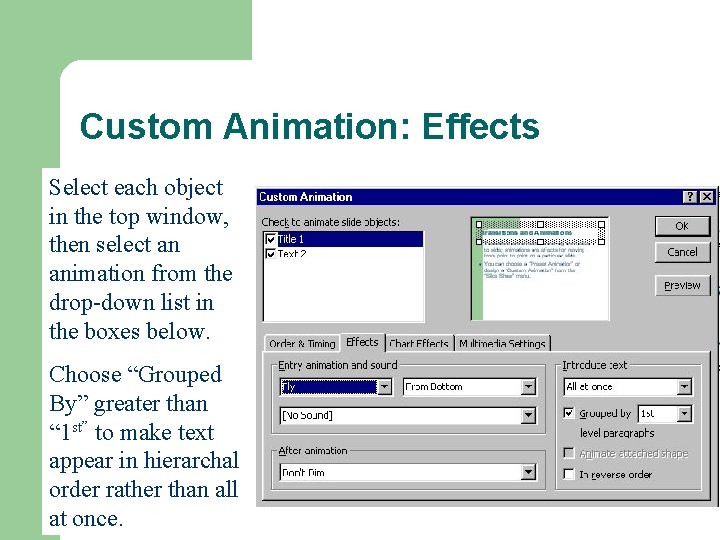
Custom Animation: Effects Select each object in the top window, then select an animation from the drop-down list in the boxes below. Choose “Grouped By” greater than “ 1 st” to make text appear in hierarchal order rather than all at once.
Practice: Animations l l Make sure you are in the Slide Sorter View. Double-click the slide to which you want to assign an animation. This will return you to Slide View. Select an object on the slide. Choose Slide Show > Custom Animation, and pick an effect.
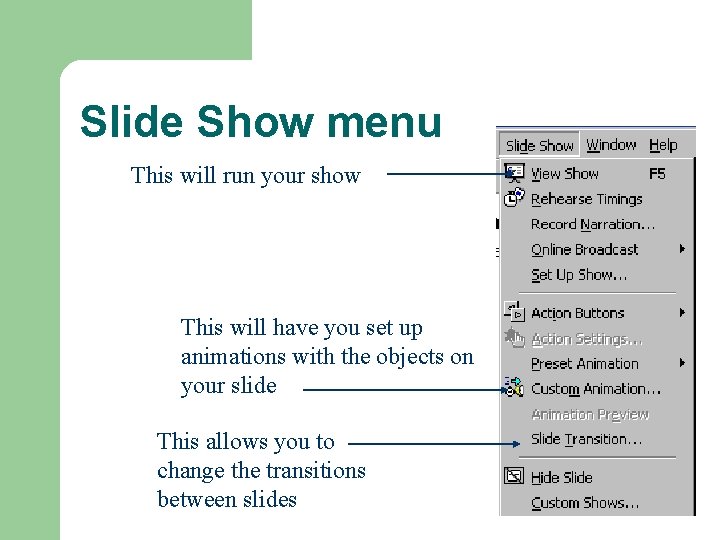
Slide Show menu This will run your show This will have you set up animations with the objects on your slide This allows you to change the transitions between slides
Viewing the slide show l l l After creating your slides, go to the VIEW menu and choose Slide Show When the first element in the first slide loads on screen you will need to click once on the left mouse button to proceed to the next step Click on the mouse to progress through the presentation Press the ESC key (top left of keyboard) to exit a presentation at any time Clicking on the SLIDE SHOW menu and Set Up Show option allows you to select the slides you want to view.
Record Automatic slide timings l l l l You can set the slides to run continuously and automatically Firstly, complete creating the slides, setting slide transitions and animations Go to the SLIDE SHOW menu and choose Rehearse Timings The first slide appears on screen Click the left mouse button to proceed to the next step At the next viewing of the slides you can choose to save the timings or rehearse new timings New timings can be recorded at a later stage as well
Run slide show continuously l l Go to the SLIDE SHOW menu Choose Set Up Show Select the “Loop Continuously until ‘Esc’” box, then click on OK The slide show will now run repeatedly until the ESC key on the keyboard is pressed
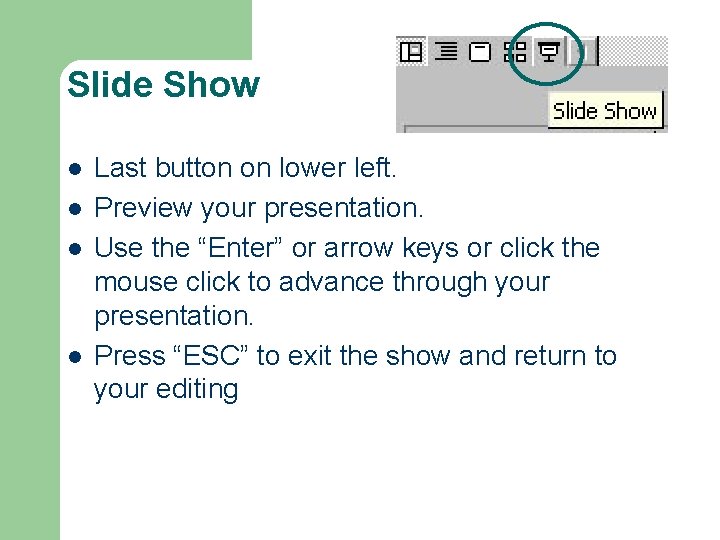
Slide Show l l Last button on lower left. Preview your presentation. Use the “Enter” or arrow keys or click the mouse click to advance through your presentation. Press “ESC” to exit the show and return to your editing
Practice: Preview l l Click on the “Slide Show” button. View your entire presentation, thinking about your transitions and animations.
Printing Presentations, Part 1 l l Go to the File menu and choose Print Make sure the box marked “Pure Black and White” at the bottom of the screen is checked.
Printing Presentations, Part 2 l Under the Pull Down menu “Print What, ” there are several options: – Slides (choose without animations) will print one slide to a page (good for making transparencies of your slides). – Handouts (2, 3, or 6 sides per page) prints miniversions of your slides on the left with blank lines for notes on the right. (Good for a presentation where people may want the ability to take notes). – Notes will print out the notes you’ve written for yourself to accompany your slides. – Outline prints the text of your slides in a linear outline format.
Useful links to relevant information If this tutorial does not provide sufficient information to you, please try one of the following references. . . l Introduction to Power Point [URL] l Other Power Point Tutorials [URL] l STEVEN BELL'S Power. Point and Presentation Skills Resource Page [URL]
Conclusion l l l There are many other features available in this program Trial and error – although very stressful - is a very good teacher Necessity is the mother of invention GOOD LUCK! Once again. . .