
Introduction to Microsoft WORD 2016 Discovering Computers and

- Slides: 43
Introduction to Microsoft WORD 2016 Discovering Computers and Microsoft Office 365 (Pages Off 12 -Off 24) COSC 1301 Introduction to Computing © 2017 Cengage Learning. All Rights Reserved. May not be copied, scanned, or duplicated, in whole or in part, except for use as permitted in a license distributed with a certain product or service or otherwise on a password-protected website for classroom use.
Microsoft Word – What is Word-processing? • Word-processing - is the term associated with application software designed to create or modify text files • Word-processing software was introduced shortly after the introduction of the personal computer and is today probably the most common software employed on PCs • Prior to the introduction of word-processing software, most documents were created on a typewriter or manually. Word-processing software revolutionized the task of word-processing © 2017 Cengage Learning. All Rights Reserved. May not be copied, scanned, or duplicated, in whole or in part, except for use as permitted in a license distributed with a certain product or service or otherwise on a password-protected website for classroom use. 2
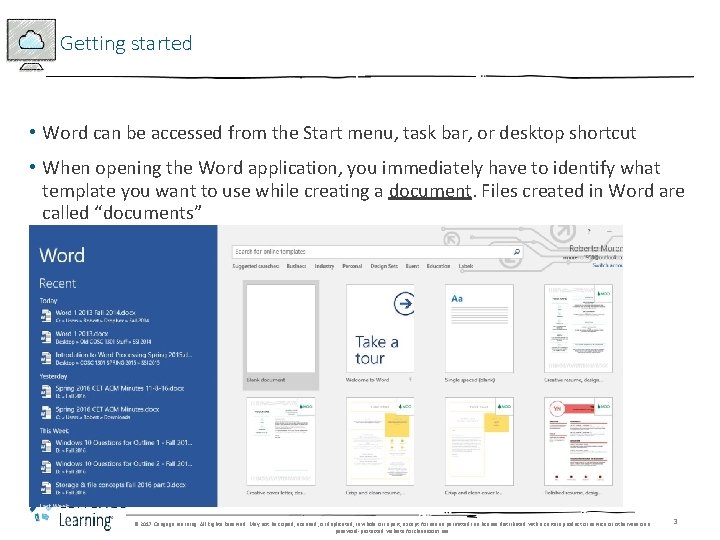
Getting started • Word can be accessed from the Start menu, task bar, or desktop shortcut • When opening the Word application, you immediately have to identify what template you want to use while creating a document. Files created in Word are called “documents” © 2017 Cengage Learning. All Rights Reserved. May not be copied, scanned, or duplicated, in whole or in part, except for use as permitted in a license distributed with a certain product or service or otherwise on a password-protected website for classroom use. 3
Blank document or Normal template • A multitude of templates exist (identified on previous slide), many are added to your hard drive when you install Word, many can be accessed online • Unless creating a specialty document, the Blank document or Normal template should suffice. Characteristics of the Normal template: Font – Calibri Font size – 11 Spacing – single Tabs -. 5” Margins (left & right) – 1” Margins (top & bottom) – 1” View - Print Layout Extension -. docx © 2017 Cengage Learning. All Rights Reserved. May not be copied, scanned, or duplicated, in whole or in part, except for use as permitted in a license distributed with a certain product or service or otherwise on a password-protected website for classroom use. 4
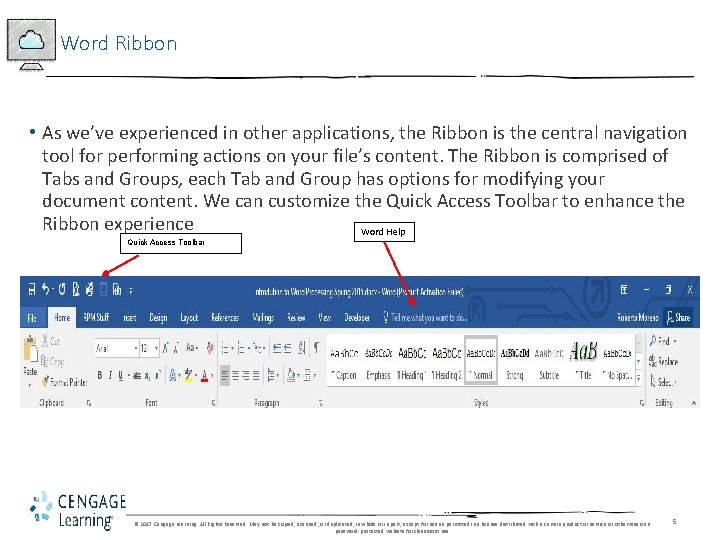
Word Ribbon • As we’ve experienced in other applications, the Ribbon is the central navigation tool for performing actions on your file’s content. The Ribbon is comprised of Tabs and Groups, each Tab and Group has options for modifying your document content. We can customize the Quick Access Toolbar to enhance the Ribbon experience Word Help Quick Access Toolbar © 2017 Cengage Learning. All Rights Reserved. May not be copied, scanned, or duplicated, in whole or in part, except for use as permitted in a license distributed with a certain product or service or otherwise on a password-protected website for classroom use. 5
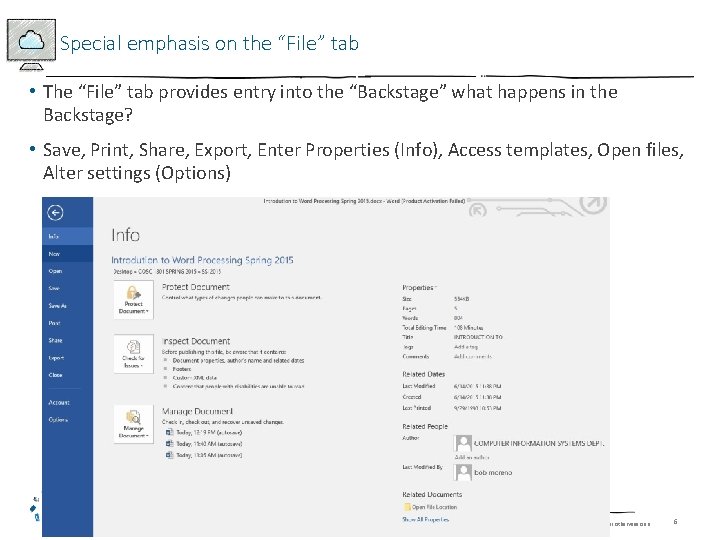
Special emphasis on the “File” tab • The “File” tab provides entry into the “Backstage” what happens in the Backstage? • Save, Print, Share, Export, Enter Properties (Info), Access templates, Open files, Alter settings (Options) © 2017 Cengage Learning. All Rights Reserved. May not be copied, scanned, or duplicated, in whole or in part, except for use as permitted in a license distributed with a certain product or service or otherwise on a password-protected website for classroom use. 6
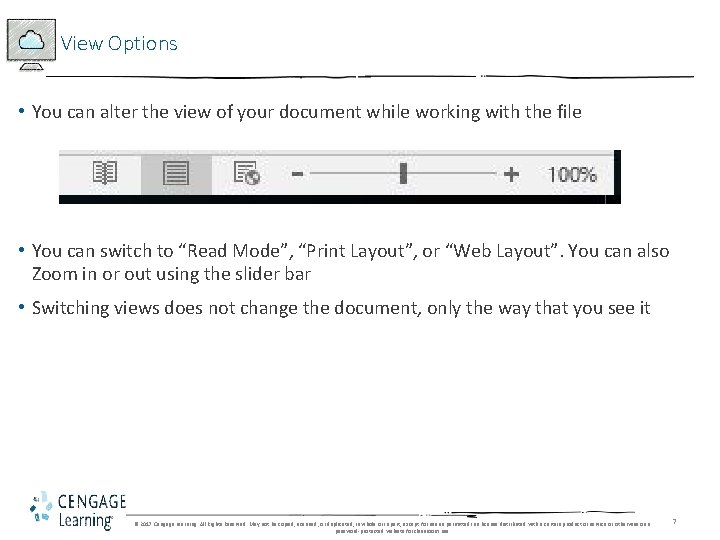
View Options • You can alter the view of your document while working with the file • You can switch to “Read Mode”, “Print Layout”, or “Web Layout”. You can also Zoom in or out using the slider bar • Switching views does not change the document, only the way that you see it © 2017 Cengage Learning. All Rights Reserved. May not be copied, scanned, or duplicated, in whole or in part, except for use as permitted in a license distributed with a certain product or service or otherwise on a password-protected website for classroom use. 7
Cursor Movement Keys allow for navigation throughout a document • • • CTRL + Left arrow - Moves cursor left one word CTRL + Right arrow - Moves cursor right one word HOME – Advances to the beginning of a line END – Advances to the end of a line CTRL + Up arrow - Up one paragraph* CTRL + Down arrow - Down one paragraph* PAGEUP - Up one screen PAGEDOWN - Down one screen CTRL + HOME – advances to the very beginning of the document CTRL + END – advances to the very end of the document More on page WD 11 • * NOTE: A paragraph is identified as any line ending with a paragraph mark (¶) A blank line, space, word, sentence, multiple sentences, all can be considered paragraphs if they end in a paragraph mark © 2017 Cengage Learning. All Rights Reserved. May not be copied, scanned, or duplicated, in whole or in part, except for use as permitted in a license distributed with a certain product or service or otherwise on a password-protected website for classroom use. 8
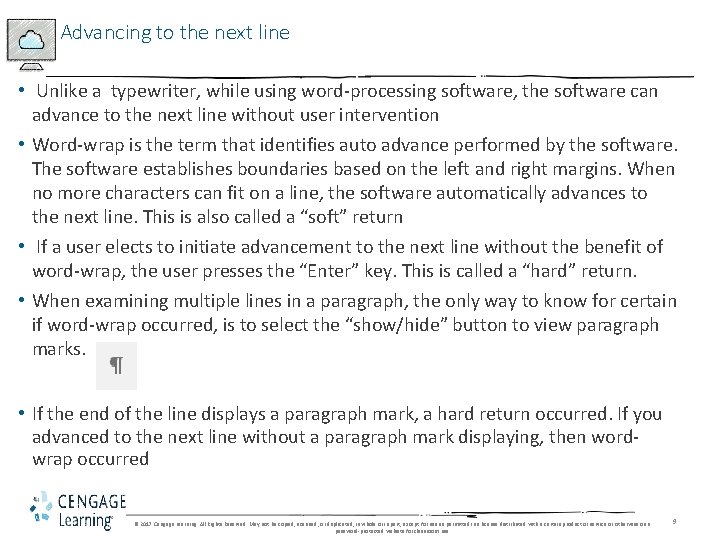
Advancing to the next line • Unlike a typewriter, while using word-processing software, the software can advance to the next line without user intervention • Word-wrap is the term that identifies auto advance performed by the software. The software establishes boundaries based on the left and right margins. When no more characters can fit on a line, the software automatically advances to the next line. This is also called a “soft” return • If a user elects to initiate advancement to the next line without the benefit of word-wrap, the user presses the “Enter” key. This is called a “hard” return. • When examining multiple lines in a paragraph, the only way to know for certain if word-wrap occurred, is to select the “show/hide” button to view paragraph marks. • If the end of the line displays a paragraph mark, a hard return occurred. If you advanced to the next line without a paragraph mark displaying, then wordwrap occurred © 2017 Cengage Learning. All Rights Reserved. May not be copied, scanned, or duplicated, in whole or in part, except for use as permitted in a license distributed with a certain product or service or otherwise on a password-protected website for classroom use. 9
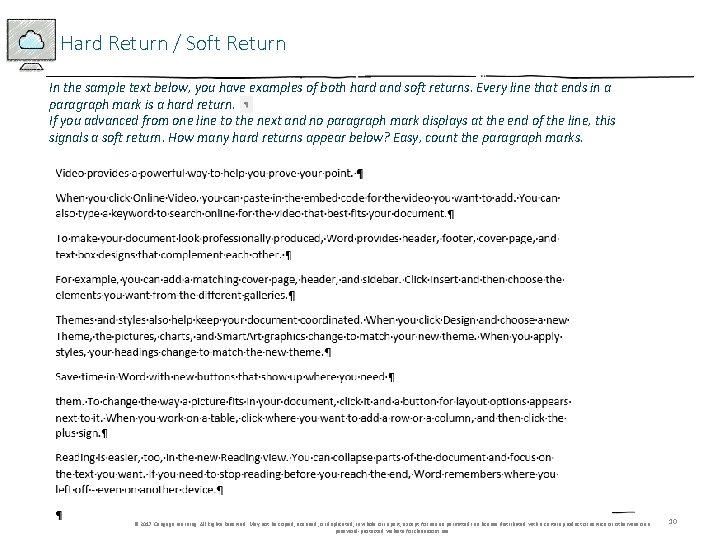
Hard Return / Soft Return In the sample text below, you have examples of both hard and soft returns. Every line that ends in a paragraph mark is a hard return. If you advanced from one line to the next and no paragraph mark displays at the end of the line, this signals a soft return. How many hard returns appear below? Easy, count the paragraph marks. © 2017 Cengage Learning. All Rights Reserved. May not be copied, scanned, or duplicated, in whole or in part, except for use as permitted in a license distributed with a certain product or service or otherwise on a password-protected website for classroom use. 10
Printing – several methods • Select the “print” option from within the Backstage (select the File tab) This option provides additional print features • Select the “Quick print” button on the Quick Access Toolbar • Press “CTRL + P” on the keyboard © 2017 Cengage Learning. All Rights Reserved. May not be copied, scanned, or duplicated, in whole or in part, except for use as permitted in a license distributed with a certain product or service or otherwise on a password-protected website for classroom use. 11
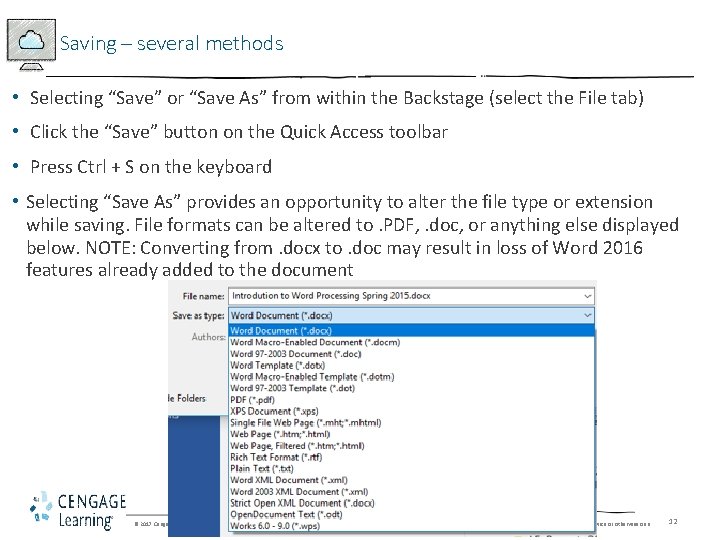
Saving – several methods • Selecting “Save” or “Save As” from within the Backstage (select the File tab) • Click the “Save” button on the Quick Access toolbar • Press Ctrl + S on the keyboard • Selecting “Save As” provides an opportunity to alter the file type or extension while saving. File formats can be altered to. PDF, . doc, or anything else displayed below. NOTE: Converting from. docx to. doc may result in loss of Word 2016 features already added to the document © 2017 Cengage Learning. All Rights Reserved. May not be copied, scanned, or duplicated, in whole or in part, except for use as permitted in a license distributed with a certain product or service or otherwise on a password-protected website for classroom use. 12
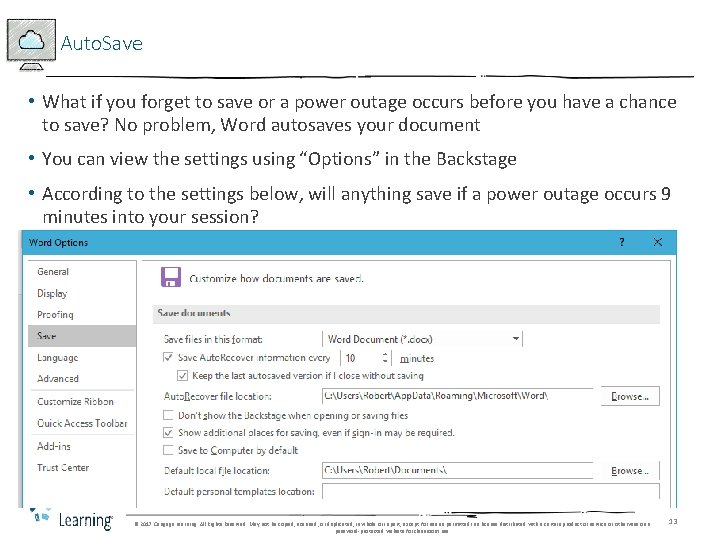
Auto. Save • What if you forget to save or a power outage occurs before you have a chance to save? No problem, Word autosaves your document • You can view the settings using “Options” in the Backstage • According to the settings below, will anything save if a power outage occurs 9 minutes into your session? © 2017 Cengage Learning. All Rights Reserved. May not be copied, scanned, or duplicated, in whole or in part, except for use as permitted in a license distributed with a certain product or service or otherwise on a password-protected website for classroom use. 13
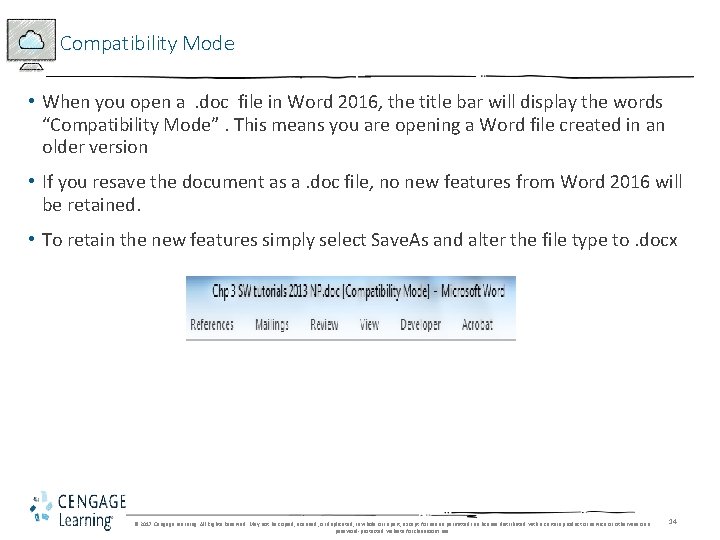
Compatibility Mode • When you open a. doc file in Word 2016, the title bar will display the words “Compatibility Mode”. This means you are opening a Word file created in an older version • If you resave the document as a. doc file, no new features from Word 2016 will be retained. • To retain the new features simply select Save. As and alter the file type to. docx © 2017 Cengage Learning. All Rights Reserved. May not be copied, scanned, or duplicated, in whole or in part, except for use as permitted in a license distributed with a certain product or service or otherwise on a password-protected website for classroom use. 14
Built-in programs • In addition to the Word processing features of your program, Word also contains additional mini programs that perform specialty tasks • Spellchecker (Review tab) • Grammar checker (Review tab) • Thesaurus – by the way, what’s another word for thesaurus? (Review tab) • Others © 2017 Cengage Learning. All Rights Reserved. May not be copied, scanned, or duplicated, in whole or in part, except for use as permitted in a license distributed with a certain product or service or otherwise on a password-protected website for classroom use. 15
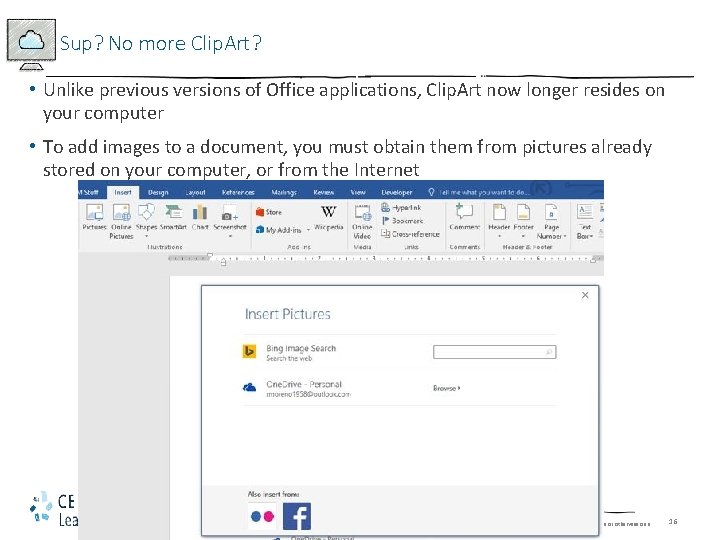
Sup? No more Clip. Art? • Unlike previous versions of Office applications, Clip. Art now longer resides on your computer • To add images to a document, you must obtain them from pictures already stored on your computer, or from the Internet © 2017 Cengage Learning. All Rights Reserved. May not be copied, scanned, or duplicated, in whole or in part, except for use as permitted in a license distributed with a certain product or service or otherwise on a password-protected website for classroom use. 16
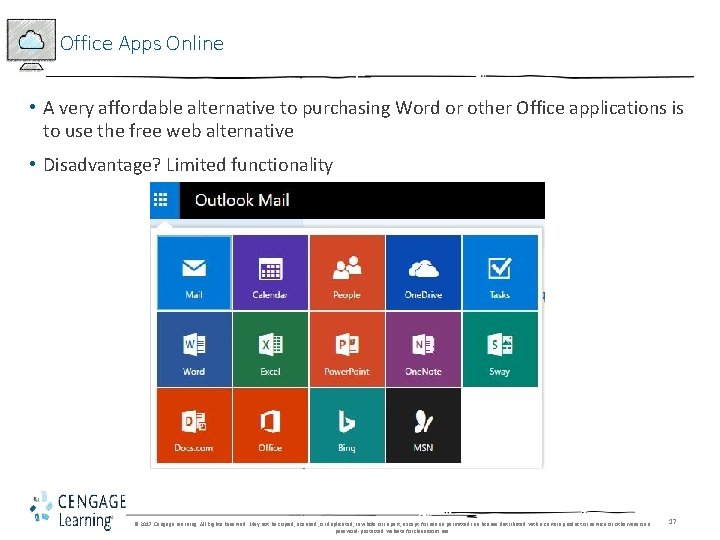
Office Apps Online • A very affordable alternative to purchasing Word or other Office applications is to use the free web alternative • Disadvantage? Limited functionality © 2017 Cengage Learning. All Rights Reserved. May not be copied, scanned, or duplicated, in whole or in part, except for use as permitted in a license distributed with a certain product or service or otherwise on a password-protected website for classroom use. 17
Shelly Cashman: Microsoft Word 2016 Module 1: Creating, Formatting, and Editing a Word Document with a Picture The next 24 slides outline the objectives in the Word Chapter 1 assignment from your textbook. Please refer to the Calendar and Assignments page in Canvas for more details about assignment 1 © 2017 Cengage Learning. All Rights Reserved. May not be copied, scanned, or duplicated, in whole or in part, except for use as permitted in a license distributed with a certain product or service or otherwise on a password-protected website for classroom use. 18
Objectives (Slide 1 of 2) • Enter text in a Word document • Check spelling as you type • Format paragraphs • Format text • Undo and redo commands or actions • Change theme colors © 2017 Cengage Learning. All Rights Reserved. May not be copied, scanned, or duplicated, in whole or in part, except for use as permitted in a license distributed with a certain product or service or otherwise on a password-protected website for classroom use. 19
Objectives (Slide 2 of 2) • Insert digital pictures in a Word document • Format pictures • Add a page border • Adjust spacing • Correct errors and revise a document © 2017 Cengage Learning. All Rights Reserved. May not be copied, scanned, or duplicated, in whole or in part, except for use as permitted in a license distributed with a certain product or service or otherwise on a password-protected website for classroom use. 20
Project – Flyer with a Picture – This is a sample of your completed assignment © 2017 Cengage Learning. All Rights Reserved. May not be copied, scanned, or duplicated, in whole or in part, except for use as permitted in a license distributed with a certain product or service or otherwise on a password-protected website for classroom use. 21
Roadmap • Enter text in a new document • Format the text in the flyer • Insert a picture, called Surfer, in the flyer • Format the picture in the flyer • Enhance the page with a border and spacing • Correct errors and revise text in the flyer © 2017 Cengage Learning. All Rights Reserved. May not be copied, scanned, or duplicated, in whole or in part, except for use as permitted in a license distributed with a certain product or service or otherwise on a password-protected website for classroom use. 22
Entering Text (Slide 1 of 3) • To Type Text • Type the text in the Word document • To move the insertion point to the beginning of the next line, press the ENTER key • To Display Formatting Marks • If the HOME tab is not the active tab, click HOME on the ribbon to display the HOME tab • If it is not selected already, click the Show/Hide ¶ button to display formatting marks on the screen © 2017 Cengage Learning. All Rights Reserved. May not be copied, scanned, or duplicated, in whole or in part, except for use as permitted in a license distributed with a certain product or service or otherwise on a password-protected website for classroom use. 23
Entering Text (Slide 2 of 3) • To Insert a Blank Line • Press the ENTER key to insert a blank line in the document • To Zoom Page Width • Click VIEW on the ribbon to display the VIEW tab • Click the Page Width button to display the page the same width as the document window • To Wordwrap Text as You Type • Wordwrap allows you to type words in a paragraph continually without pressing the ENTER key at the end of each line © 2017 Cengage Learning. All Rights Reserved. May not be copied, scanned, or duplicated, in whole or in part, except for use as permitted in a license distributed with a certain product or service or otherwise on a password-protected website for classroom use. 24
Entering Text (Slide 3 of 3) • To Check Spelling and Grammar as You Type • Type the misspelled text and then press the SPACEBAR so that a red wavy line appears below the misspelled word • Right-click the flagged word to display a shortcut menu that presents a list of suggested spelling corrections for the flagged word • Click the correct word on the shortcut menu © 2017 Cengage Learning. All Rights Reserved. May not be copied, scanned, or duplicated, in whole or in part, except for use as permitted in a license distributed with a certain product or service or otherwise on a password-protected website for classroom use. 25
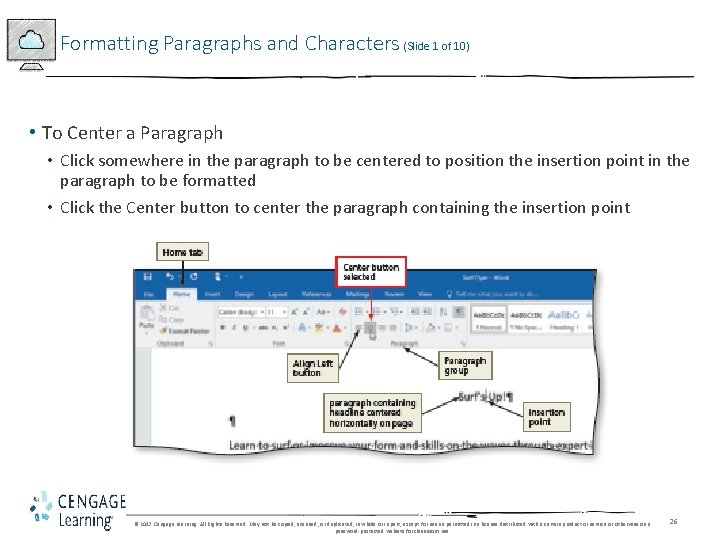
Formatting Paragraphs and Characters (Slide 1 of 10) • To Center a Paragraph • Click somewhere in the paragraph to be centered to position the insertion point in the paragraph to be formatted • Click the Center button to center the paragraph containing the insertion point © 2017 Cengage Learning. All Rights Reserved. May not be copied, scanned, or duplicated, in whole or in part, except for use as permitted in a license distributed with a certain product or service or otherwise on a password-protected website for classroom use. 26
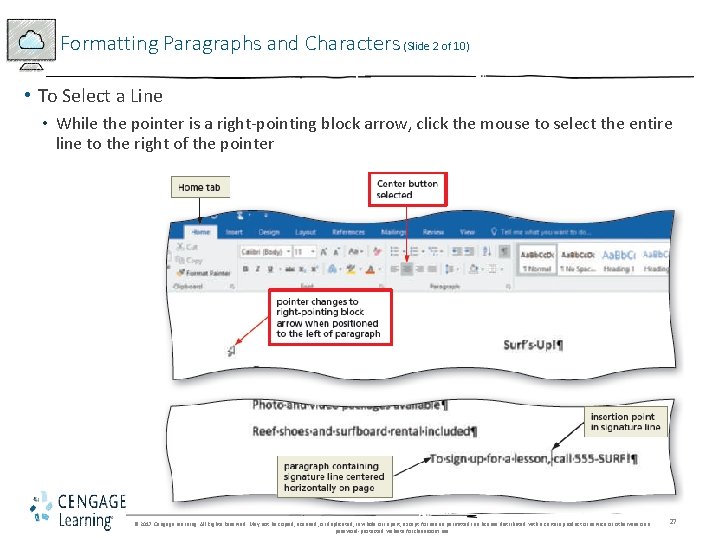
Formatting Paragraphs and Characters (Slide 2 of 10) • To Select a Line • While the pointer is a right-pointing block arrow, click the mouse to select the entire line to the right of the pointer © 2017 Cengage Learning. All Rights Reserved. May not be copied, scanned, or duplicated, in whole or in part, except for use as permitted in a license distributed with a certain product or service or otherwise on a password-protected website for classroom use. 27
Formatting Paragraphs and Characters (Slide 3 of 10) • To Change the Font Size of Selected Text • With the text selected, click the Font Size arrow to display the Font Size gallery • Point to the desired point size in the Font Size gallery to display a live preview of the selected text at the selected point size • Click the desired point size to change the font size of the selected text • To Change the Font of Selected Text • With the text selected, click the Font arrow to display the Font gallery • Scroll through the Font gallery, and then point to the desired font to display a live preview of the selected text in the selected font • Click the font to change the font of the selected text © 2017 Cengage Learning. All Rights Reserved. May not be copied, scanned, or duplicated, in whole or in part, except for use as permitted in a license distributed with a certain product or service or otherwise on a password-protected website for classroom use. 28
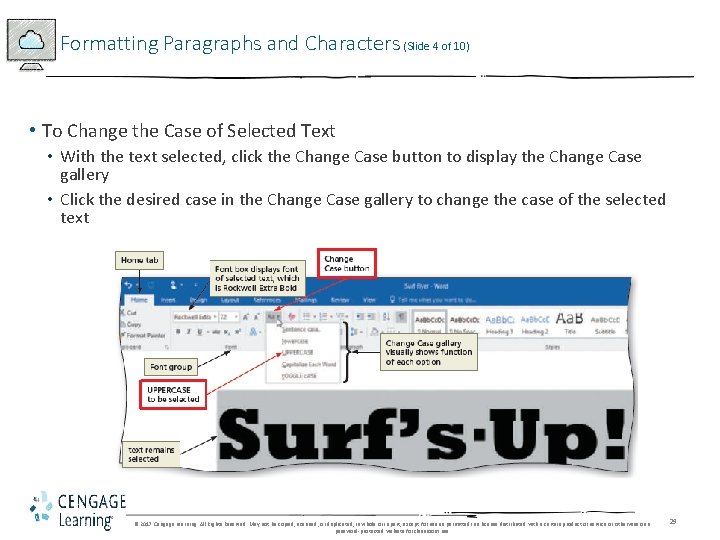
Formatting Paragraphs and Characters (Slide 4 of 10) • To Change the Case of Selected Text • With the text selected, click the Change Case button to display the Change Case gallery • Click the desired case in the Change Case gallery to change the case of the selected text © 2017 Cengage Learning. All Rights Reserved. May not be copied, scanned, or duplicated, in whole or in part, except for use as permitted in a license distributed with a certain product or service or otherwise on a password-protected website for classroom use. 29
Formatting Paragraphs and Characters (Slide 5 of 10) • To Apply a Text Effect to Selected Text • With the text selected, click the Text Effects button to display the Text Effects and Typography gallery • Point to the desired text effect to display a live preview of the selected text in the selected text effect • Click the text effect to change the text effect of the selected text • To Shade a Paragraph • Click somewhere in the paragraph to be shaded • Click the Shading arrow to display the Shading gallery • Click the desired shading color © 2017 Cengage Learning. All Rights Reserved. May not be copied, scanned, or duplicated, in whole or in part, except for use as permitted in a license distributed with a certain product or service or otherwise on a password-protected website for classroom use. 30
Formatting Paragraphs and Characters (Slide 6 of 10) • To Select Multiple Lines • Move the pointer to the left of the first paragraph to be selected until the pointer changes to a right-pointing block arrow • While the pointer is a right-pointing block arrow, drag downward to select all lines that will be formatted • To Change the Font Size of Selected Text • With the text selected, click the Font Size arrow to display the Font Size gallery • Click the desired font size • Click anywhere in the document window to remove the selection from the text © 2017 Cengage Learning. All Rights Reserved. May not be copied, scanned, or duplicated, in whole or in part, except for use as permitted in a license distributed with a certain product or service or otherwise on a password-protected website for classroom use. 31
Formatting Paragraphs and Characters (Slide 7 of 10) • To Bullet a List of Paragraphs • Select the paragraphs to be formatted • Click the Bullets button to place a bullet character at the beginning of each selected paragraph • To Undo and Redo an Action • Click the Undo button on the Quick Access Toolbar to reverse your most recent action • Click the Redo button on the Quick Access Toolbar to reverse your most recent undo © 2017 Cengage Learning. All Rights Reserved. May not be copied, scanned, or duplicated, in whole or in part, except for use as permitted in a license distributed with a certain product or service or otherwise on a password-protected website for classroom use. 32
Formatting Paragraphs and Characters (Slide 8 of 10) • To Italicize Text • Click somewhere in the word to be italicized to position the insertion point in the word to be formatted • Click the Italic button to italicize the word containing the insertion point • To Color Text • With the insertion point in the word to format, click the Font Color arrow to display the Font Color gallery • Click the font color to change the color of the text • To Use the Mini Toolbar to Format Text • Select the text to format to display the mini toolbar © 2017 Cengage Learning. All Rights Reserved. May not be copied, scanned, or duplicated, in whole or in part, except for use as permitted in a license distributed with a certain product or service or otherwise on a password-protected website for classroom use. 33
Formatting Paragraphs and Characters (Slide 9 of 10) • To Underline Text • With the text selected, click the Underline button to underline the selected text • To Bold Text • With the text selected, click the Bold button to bold the selected text • To Zoom One Page • Click VIEW on the ribbon to display the VIEW tab • Click the One Page button to display the entire page in the document window as large as possible © 2017 Cengage Learning. All Rights Reserved. May not be copied, scanned, or duplicated, in whole or in part, except for use as permitted in a license distributed with a certain product or service or otherwise on a password-protected website for classroom use. 34
Formatting Paragraphs and Characters (Slide 10 of 10) • To Change Theme Colors • Click DESIGN on the ribbon to display the DESIGN tab • Click the Theme Colors button to display the Theme Colors gallery • Click the desired theme color to change the document theme colors © 2017 Cengage Learning. All Rights Reserved. May not be copied, scanned, or duplicated, in whole or in part, except for use as permitted in a license distributed with a certain product or service or otherwise on a password-protected website for classroom use. 35
Inserting and Formatting a Picture in a Word Document (Slide 1 of 3) • To Insert a Picture • • • Position the insertion point where you want to insert the picture Click INSERT on the ribbon to display the INSERT tab Click the From File button to display the Insert Picture dialog box Navigate to the picture location Select the picture you wish to insert Click the Insert button to insert the picture at the location of the insertion point in the document © 2017 Cengage Learning. All Rights Reserved. May not be copied, scanned, or duplicated, in whole or in part, except for use as permitted in a license distributed with a certain product or service or otherwise on a password-protected website for classroom use. 36
Inserting and Formatting a Picture in a Word Document (Slide 2 of 3) • To Zoom the Document • Click the Zoom Out or Zoom In button as many times as necessary until the Zoom button on the status bar displays the desired value • To Resize a Graphic • Drag one of the sizing handles to increase or decrease the size of the graphic • To Zoom 100% • Click VIEW on the ribbon to display the VIEW tab • Click the 100% button to display the page at 100% in the document window © 2017 Cengage Learning. All Rights Reserved. May not be copied, scanned, or duplicated, in whole or in part, except for use as permitted in a license distributed with a certain product or service or otherwise on a password-protected website for classroom use. 37
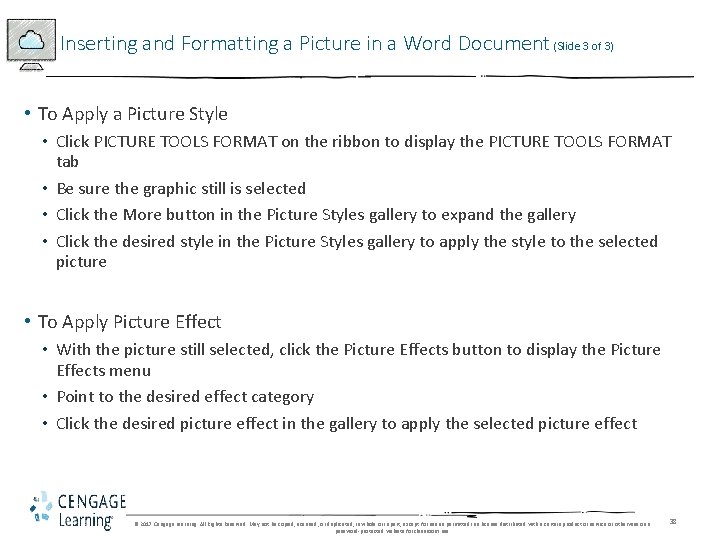
Inserting and Formatting a Picture in a Word Document (Slide 3 of 3) • To Apply a Picture Style • Click PICTURE TOOLS FORMAT on the ribbon to display the PICTURE TOOLS FORMAT tab • Be sure the graphic still is selected • Click the More button in the Picture Styles gallery to expand the gallery • Click the desired style in the Picture Styles gallery to apply the style to the selected picture • To Apply Picture Effect • With the picture still selected, click the Picture Effects button to display the Picture Effects menu • Point to the desired effect category • Click the desired picture effect in the gallery to apply the selected picture effect © 2017 Cengage Learning. All Rights Reserved. May not be copied, scanned, or duplicated, in whole or in part, except for use as permitted in a license distributed with a certain product or service or otherwise on a password-protected website for classroom use. 38
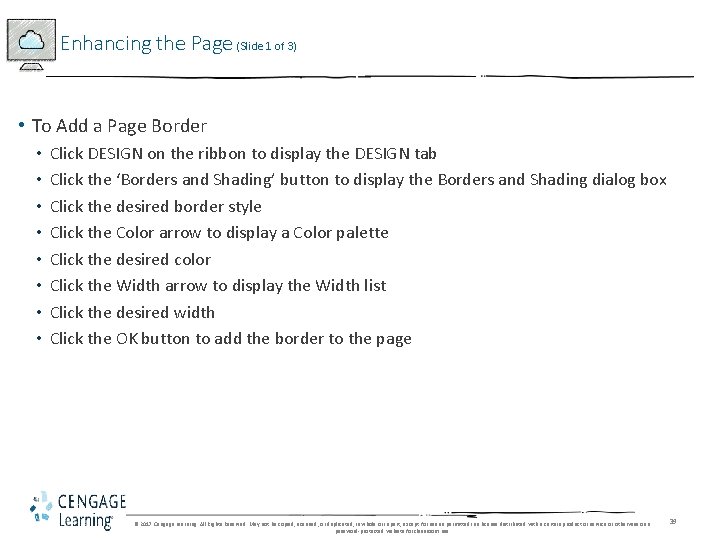
Enhancing the Page (Slide 1 of 3) • To Add a Page Border • • Click DESIGN on the ribbon to display the DESIGN tab Click the ‘Borders and Shading’ button to display the Borders and Shading dialog box Click the desired border style Click the Color arrow to display a Color palette Click the desired color Click the Width arrow to display the Width list Click the desired width Click the OK button to add the border to the page © 2017 Cengage Learning. All Rights Reserved. May not be copied, scanned, or duplicated, in whole or in part, except for use as permitted in a license distributed with a certain product or service or otherwise on a password-protected website for classroom use. 39
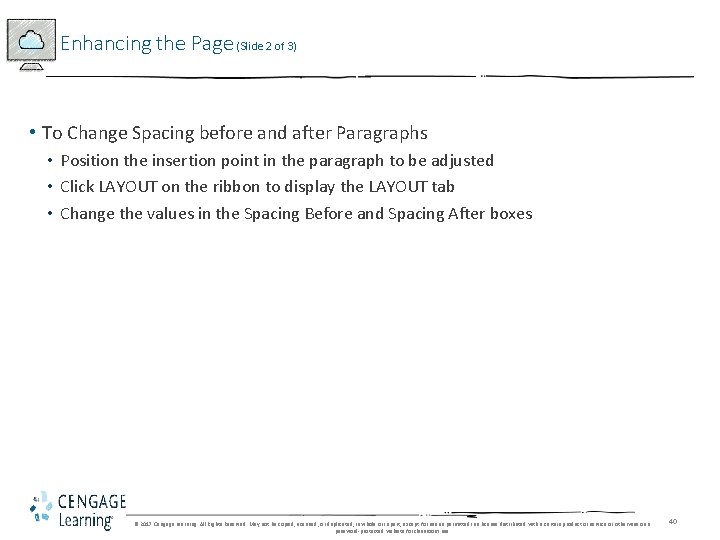
Enhancing the Page (Slide 2 of 3) • To Change Spacing before and after Paragraphs • Position the insertion point in the paragraph to be adjusted • Click LAYOUT on the ribbon to display the LAYOUT tab • Change the values in the Spacing Before and Spacing After boxes © 2017 Cengage Learning. All Rights Reserved. May not be copied, scanned, or duplicated, in whole or in part, except for use as permitted in a license distributed with a certain product or service or otherwise on a password-protected website for classroom use. 40
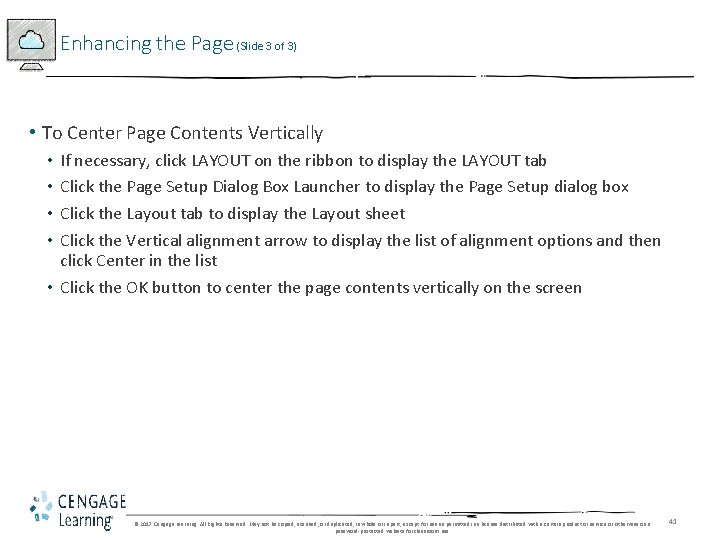
Enhancing the Page (Slide 3 of 3) • To Center Page Contents Vertically If necessary, click LAYOUT on the ribbon to display the LAYOUT tab Click the Page Setup Dialog Box Launcher to display the Page Setup dialog box Click the Layout tab to display the Layout sheet Click the Vertical alignment arrow to display the list of alignment options and then click Center in the list • Click the OK button to center the page contents vertically on the screen • • © 2017 Cengage Learning. All Rights Reserved. May not be copied, scanned, or duplicated, in whole or in part, except for use as permitted in a license distributed with a certain product or service or otherwise on a password-protected website for classroom use. 41
Correcting Errors and Revising a Document (Slide 1 of 2) • To Delete Text • Select the text to be deleted • With the text selected, press the DELETE key to delete the selected text • To Move Text • Select the text to be moved • With the pointer in the selected text, press and hold down the mouse button, which displays a small dotted box with the pointer • Drag the insertion point to the location where the selected text is to be moved • Release the mouse button to move the selected text to the location of the dotted insertion point • Click anywhere in the document window to remove the selection © 2017 Cengage Learning. All Rights Reserved. May not be copied, scanned, or duplicated, in whole or in part, except for use as permitted in a license distributed with a certain product or service or otherwise on a password-protected website for classroom use. 42
Correcting Errors and Revising a Document (Slide 2 of 2) • To Save and Print the Document • Save the document again on the same storage location with the same file name • Print the document • To Switch to Read Mode • Click the Read Mode button on the status bar to switch to Read mode • To Switch to Print Layout View • Click the Print Layout button on the status bar to switch to Print Layout • Again, refer to the course Calendar and the Assignments page for more assignment details © 2017 Cengage Learning. All Rights Reserved. May not be copied, scanned, or duplicated, in whole or in part, except for use as permitted in a license distributed with a certain product or service or otherwise on a password-protected website for classroom use. 43