
Introduction to MATLAB Basic Graphics www opencadd com
Introduction to MATLAB Basic Graphics www. opencadd. com. br
Introduction to MATLAB Basic Graphics - 2 Section Outline • • 2 -D plotting Graph Annotation Subplots & Alternative Axes 3 -D plotting Specialized plotting routines Patches & Images Saving & Exporting Figures Introduction to Handle Graphics Ref: Color, Linestyle, Marker options Special characters using La. Te. X Copyright ã 1984 - 1998 by The Math. Works, Inc.

Introduction to MATLAB Basic Graphics - 3 2 -D Plotting • Specify x-data and/or y-data • Specify color, line style and marker symbol (Default values used if ‘clmnot specified) • Syntax: • Plotting single line: plot(xdata, ydata, 'color_linestyle_marker') • Plotting multiple lines: plot(x 1, y 1, 'clm 1', x 2, y 2, 'clm 2', . . . ) Ref: Color, Linestyle, Marker options Copyright ã 1984 - 1998 by The Math. Works, Inc.
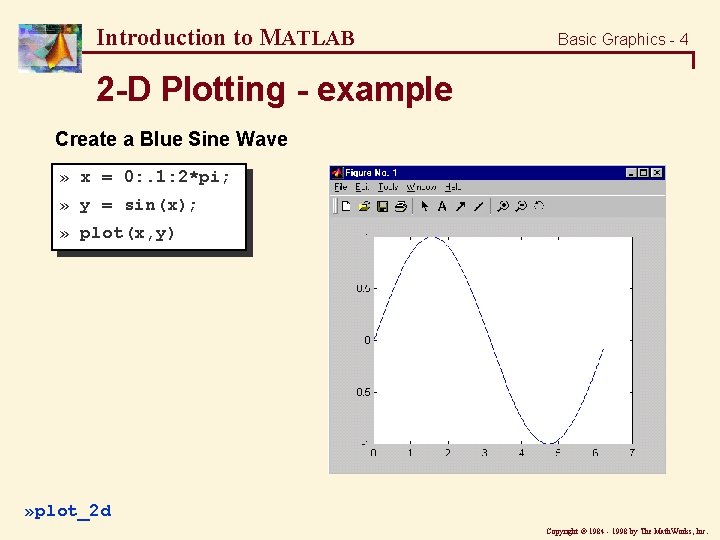
Introduction to MATLAB Basic Graphics - 4 2 -D Plotting - example Create a Blue Sine Wave » x = 0: . 1: 2*pi; » y = sin(x); » plot(x, y) » plot_2 d Copyright ã 1984 - 1998 by The Math. Works, Inc.
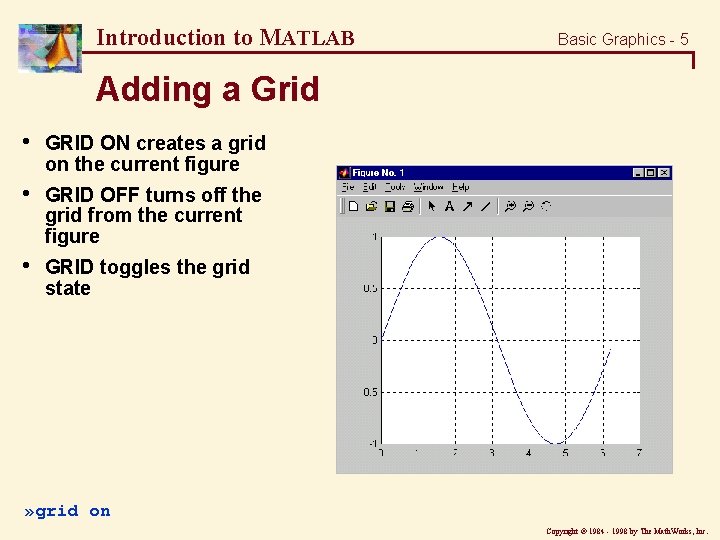
Introduction to MATLAB Basic Graphics - 5 Adding a Grid • GRID ON creates a grid on the current figure • GRID OFF turns off the grid from the current figure • GRID toggles the grid state » grid on Copyright ã 1984 - 1998 by The Math. Works, Inc.
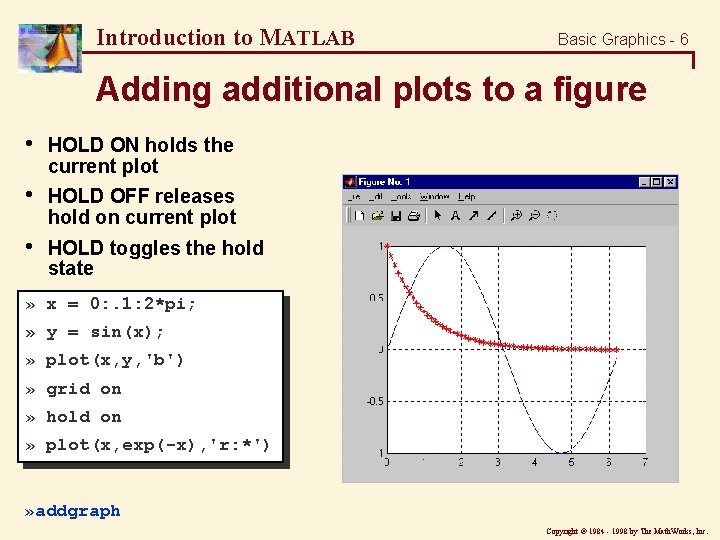
Introduction to MATLAB Basic Graphics - 6 Adding additional plots to a figure • HOLD ON holds the current plot • HOLD OFF releases hold on current plot • HOLD toggles the hold state » x = 0: . 1: 2*pi; » y = sin(x); » plot(x, y, 'b') » grid on » hold on » plot(x, exp(-x), 'r: *') » addgraph Copyright ã 1984 - 1998 by The Math. Works, Inc.
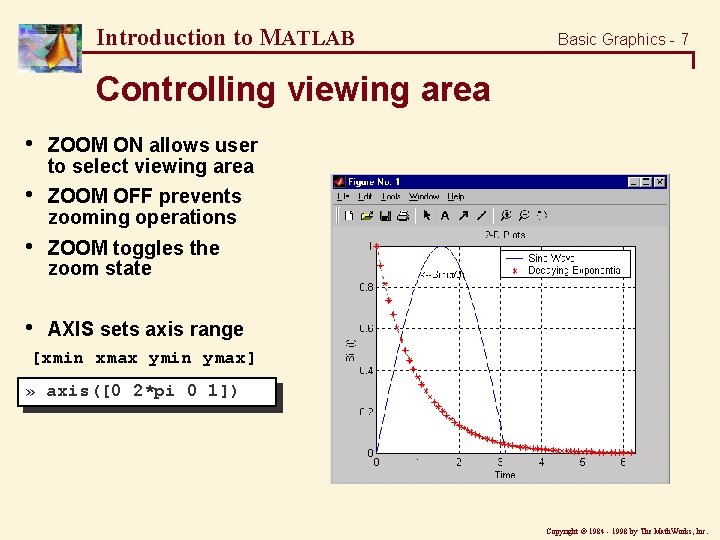
Introduction to MATLAB Basic Graphics - 7 Controlling viewing area • ZOOM ON allows user to select viewing area • ZOOM OFF prevents zooming operations • ZOOM toggles the zoom state • AXIS sets axis range [xmin xmax ymin ymax] » axis([0 2*pi 0 1]) Copyright ã 1984 - 1998 by The Math. Works, Inc.
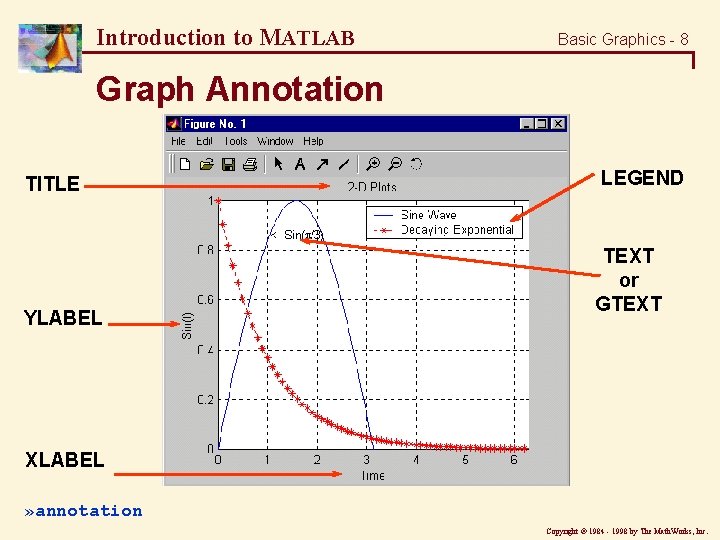
Introduction to MATLAB Basic Graphics - 8 Graph Annotation TITLE YLABEL LEGEND TEXT or GTEXT XLABEL » annotation Copyright ã 1984 - 1998 by The Math. Works, Inc.
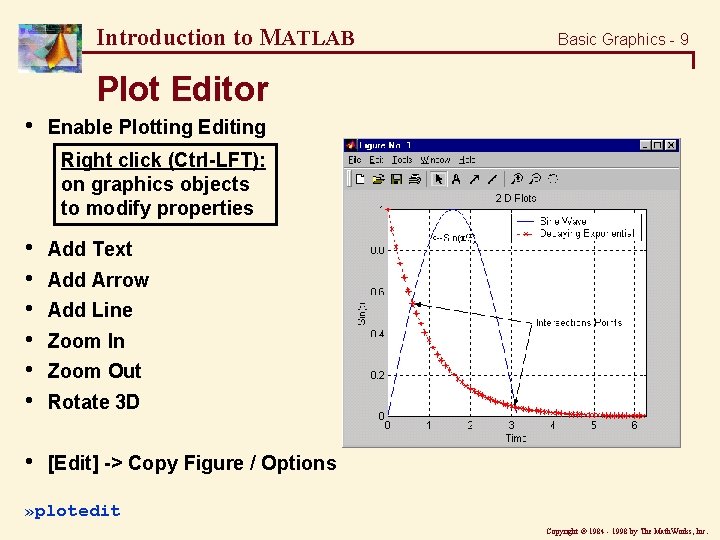
Introduction to MATLAB Basic Graphics - 9 Plot Editor • Enable Plotting Editing Right click (Ctrl-LFT): on graphics objects to modify properties • • • Add Text • [Edit] -> Copy Figure / Options Add Arrow Add Line Zoom In Zoom Out Rotate 3 D » plotedit Copyright ã 1984 - 1998 by The Math. Works, Inc.
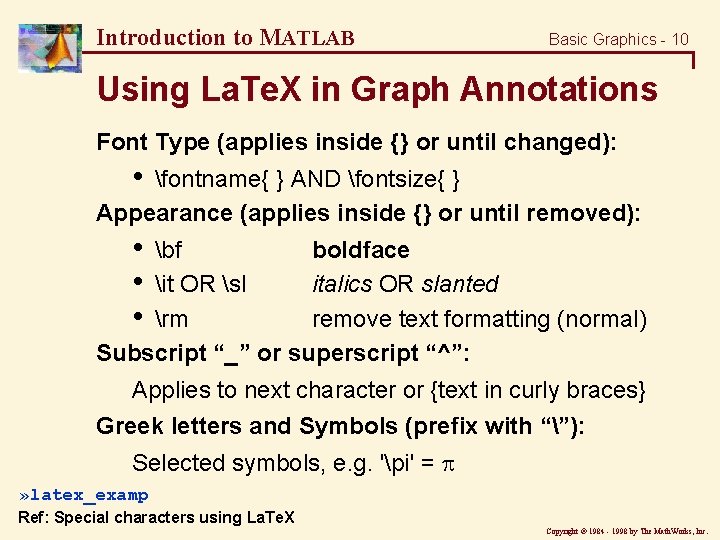
Introduction to MATLAB Basic Graphics - 10 Using La. Te. X in Graph Annotations Font Type (applies inside {} or until changed): • fontname{ } AND fontsize{ } Appearance (applies inside {} or until removed): • • • bf boldface it OR sl italics OR slanted rm remove text formatting (normal) Subscript “_” or superscript “^”: Applies to next character or {text in curly braces} Greek letters and Symbols (prefix with “”): Selected symbols, e. g. 'pi' = » latex_examp Ref: Special characters using La. Te. X Copyright ã 1984 - 1998 by The Math. Works, Inc.
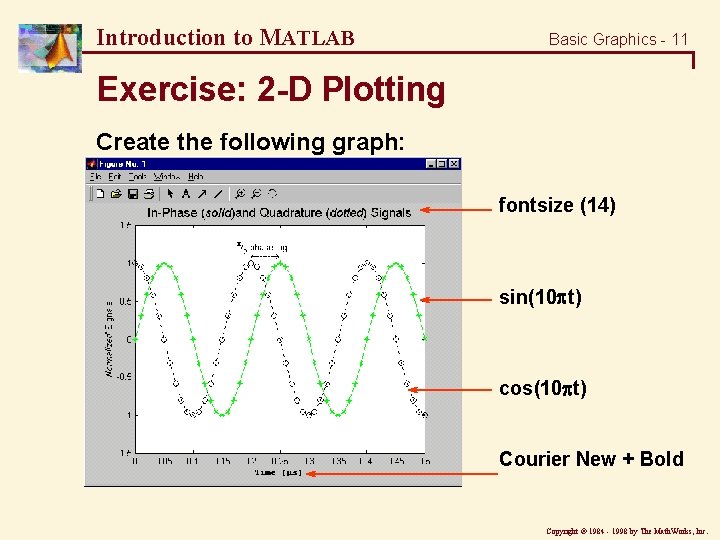
Introduction to MATLAB Basic Graphics - 11 Exercise: 2 -D Plotting Create the following graph: fontsize (14) sin(10 t) cos(10 t) Courier New + Bold Copyright ã 1984 - 1998 by The Math. Works, Inc.
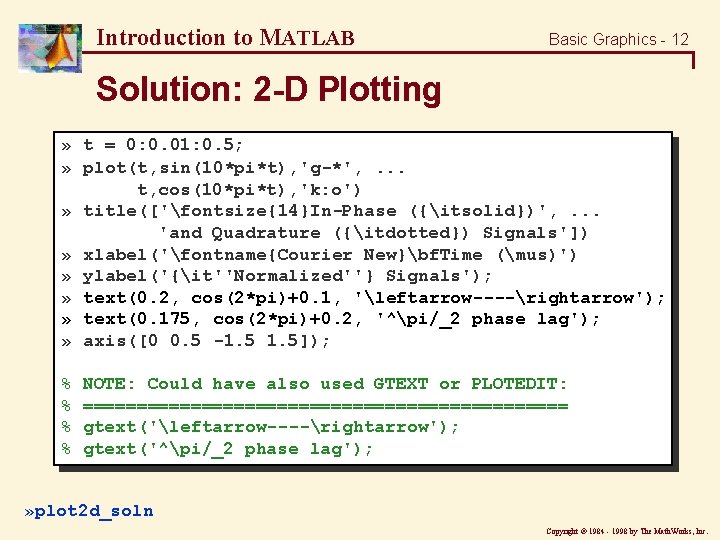
Introduction to MATLAB Basic Graphics - 12 Solution: 2 -D Plotting » t = 0: 0. 01: 0. 5; » plot(t, sin(10*pi*t), 'g-*', . . . t, cos(10*pi*t), 'k: o') » title(['fontsize{14}In-Phase ({itsolid})', . . . 'and Quadrature ({itdotted}) Signals']) » xlabel('fontname{Courier New}bf. Time (mus)') » ylabel('{it''Normalized''} Signals'); » text(0. 2, cos(2*pi)+0. 1, 'leftarrow----rightarrow'); » text(0. 175, cos(2*pi)+0. 2, '^pi/_2 phase lag'); » axis([0 0. 5 -1. 5]); % % NOTE: Could have also used GTEXT or PLOTEDIT: ======================= gtext('leftarrow----rightarrow'); gtext('^pi/_2 phase lag'); » plot 2 d_soln Copyright ã 1984 - 1998 by The Math. Works, Inc.
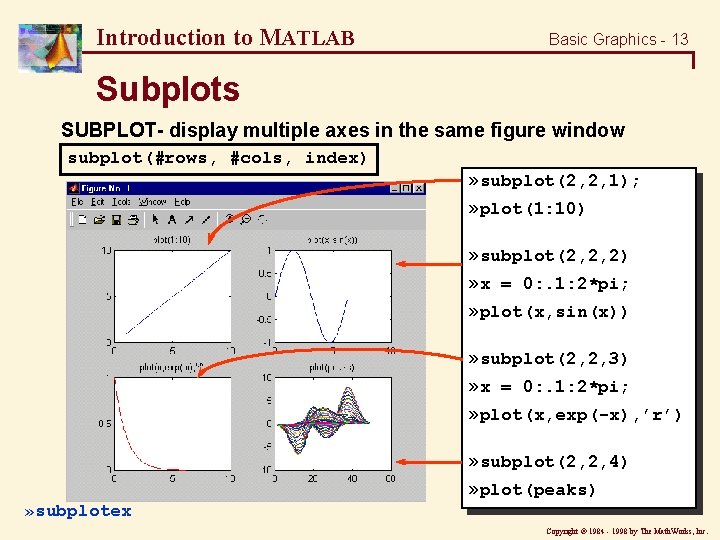
Introduction to MATLAB Basic Graphics - 13 Subplots SUBPLOT- display multiple axes in the same figure window subplot(#rows, #cols, index) » subplot(2, 2, 1); » plot(1: 10) » subplot(2, 2, 2) » x = 0: . 1: 2*pi; » plot(x, sin(x)) » subplot(2, 2, 3) » x = 0: . 1: 2*pi; » plot(x, exp(-x), ’r’) » subplot(2, 2, 4) » plot(peaks) » subplotex Copyright ã 1984 - 1998 by The Math. Works, Inc.
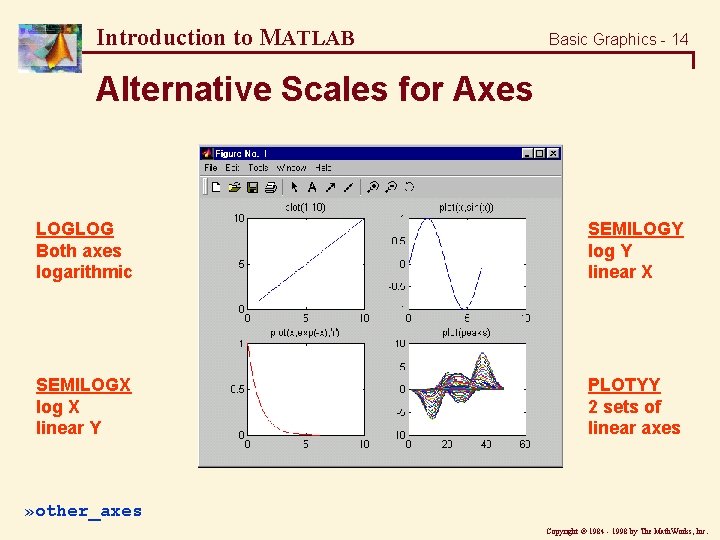
Introduction to MATLAB Basic Graphics - 14 Alternative Scales for Axes LOGLOG Both axes logarithmic SEMILOGY log Y linear X SEMILOGX log X linear Y PLOTYY 2 sets of linear axes » other_axes Copyright ã 1984 - 1998 by The Math. Works, Inc.
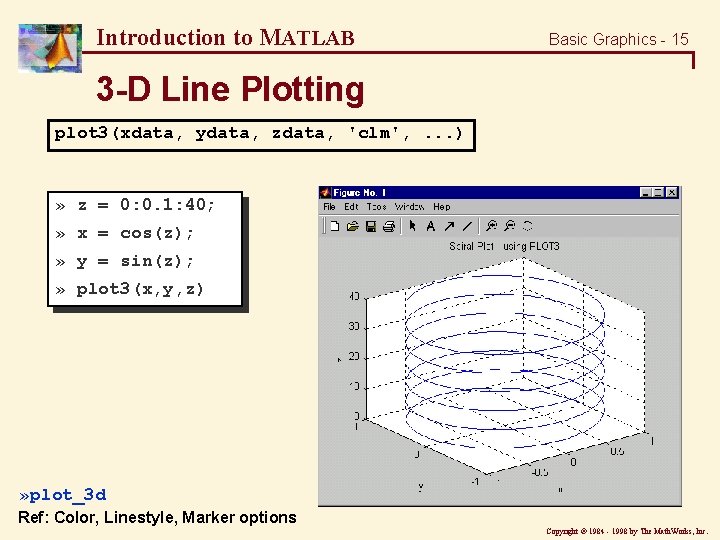
Introduction to MATLAB Basic Graphics - 15 3 -D Line Plotting plot 3(xdata, ydata, zdata, 'clm', . . . ) » z = 0: 0. 1: 40; » x = cos(z); » y = sin(z); » plot 3(x, y, z) » plot_3 d Ref: Color, Linestyle, Marker options Copyright ã 1984 - 1998 by The Math. Works, Inc.
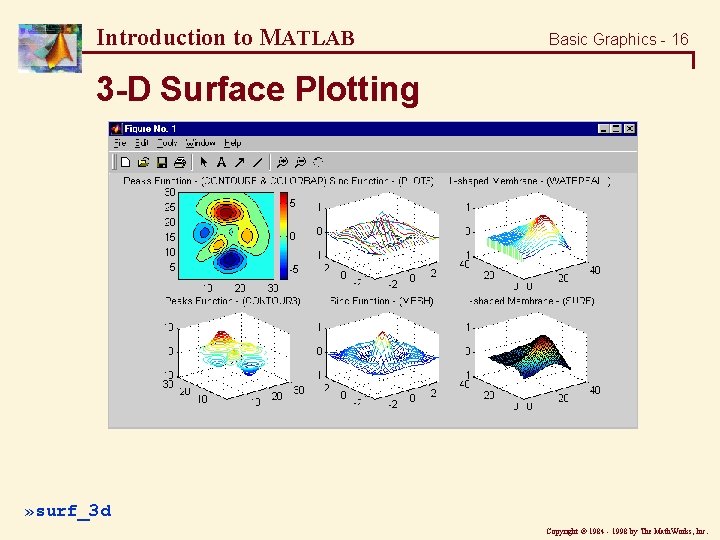
Introduction to MATLAB Basic Graphics - 16 3 -D Surface Plotting » surf_3 d Copyright ã 1984 - 1998 by The Math. Works, Inc.
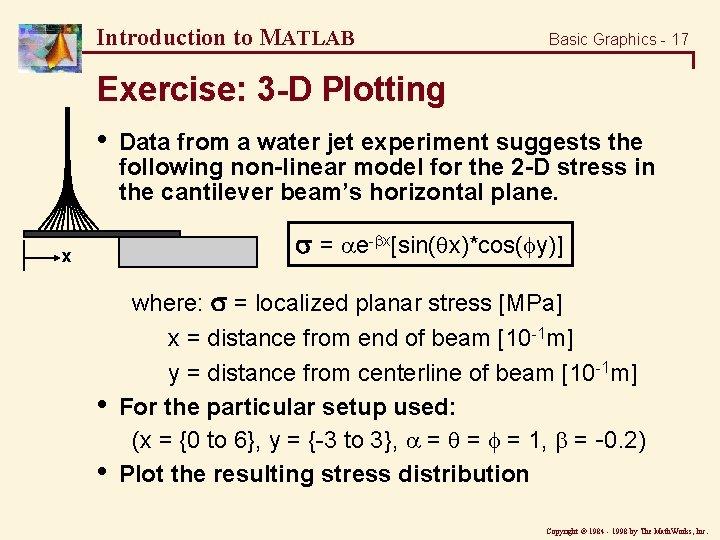
Introduction to MATLAB Basic Graphics - 17 Exercise: 3 -D Plotting • Data from a water jet experiment suggests the following non-linear model for the 2 -D stress in the cantilever beam’s horizontal plane. = e- x[sin( x)*cos( y)] x • • where: = localized planar stress [MPa] x = distance from end of beam [10 -1 m] y = distance from centerline of beam [10 -1 m] For the particular setup used: (x = {0 to 6}, y = {-3 to 3}, = = = 1, = -0. 2) Plot the resulting stress distribution Copyright ã 1984 - 1998 by The Math. Works, Inc.
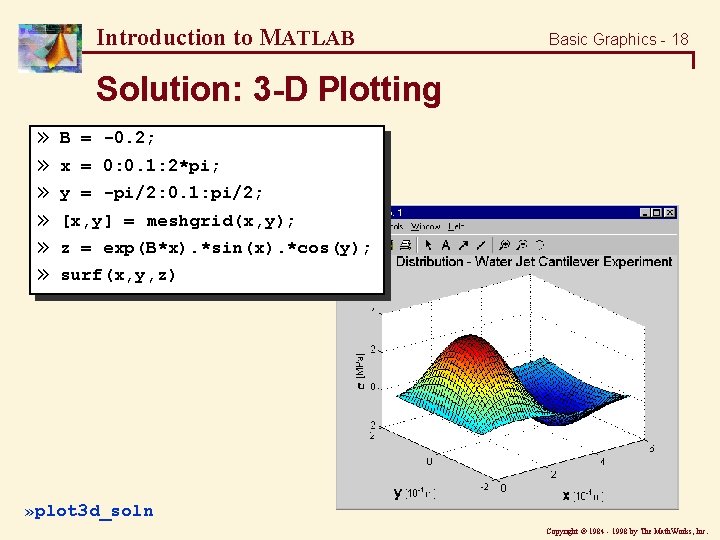
Introduction to MATLAB Basic Graphics - 18 Solution: 3 -D Plotting » » » B = -0. 2; x = 0: 0. 1: 2*pi; y = -pi/2: 0. 1: pi/2; [x, y] = meshgrid(x, y); z = exp(B*x). *sin(x). *cos(y); surf(x, y, z) » plot 3 d_soln Copyright ã 1984 - 1998 by The Math. Works, Inc.
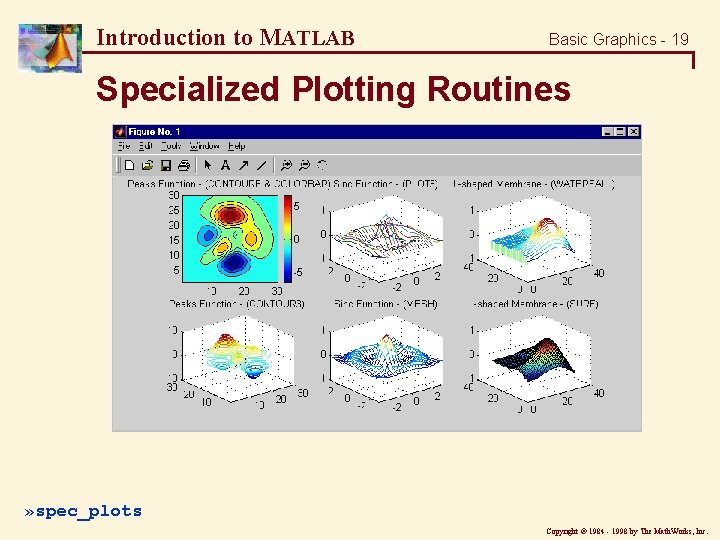
Introduction to MATLAB Basic Graphics - 19 Specialized Plotting Routines » spec_plots Copyright ã 1984 - 1998 by The Math. Works, Inc.
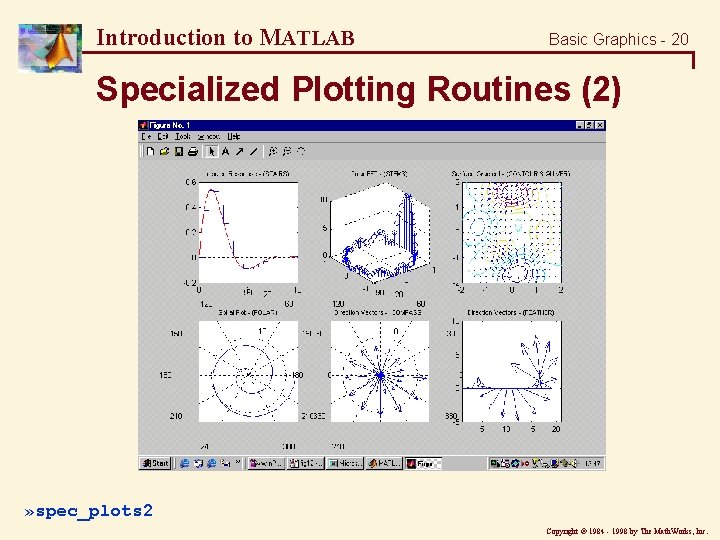
Introduction to MATLAB Basic Graphics - 20 Specialized Plotting Routines (2) » spec_plots 2 Copyright ã 1984 - 1998 by The Math. Works, Inc.
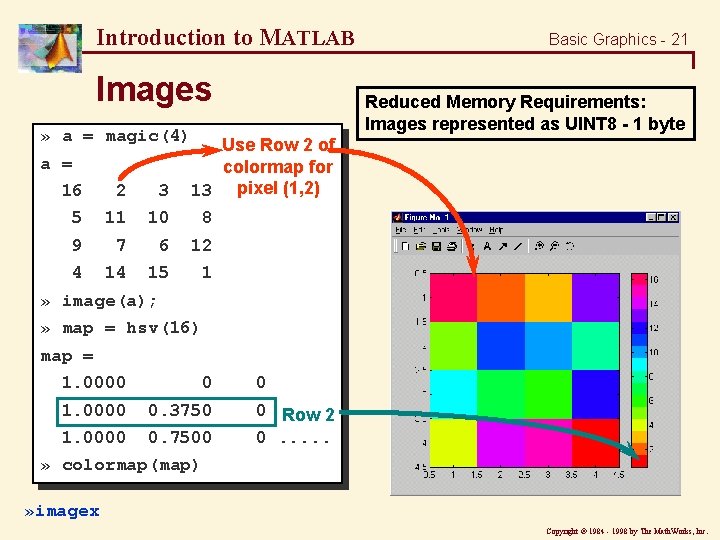
Introduction to MATLAB Images Reduced Memory Requirements: Images represented as UINT 8 - 1 byte » a = magic(4) a = Basic Graphics - 21 Use Row 2 of colormap for 13 pixel (1, 2) 16 2 3 5 11 10 8 9 7 6 12 4 14 15 1 » image(a); » map = hsv(16) map = 1. 0000 0. 3750 1. 0000 0. 7500 0 0 Row 2 0. . . » colormap(map) » imagex Copyright ã 1984 - 1998 by The Math. Works, Inc.
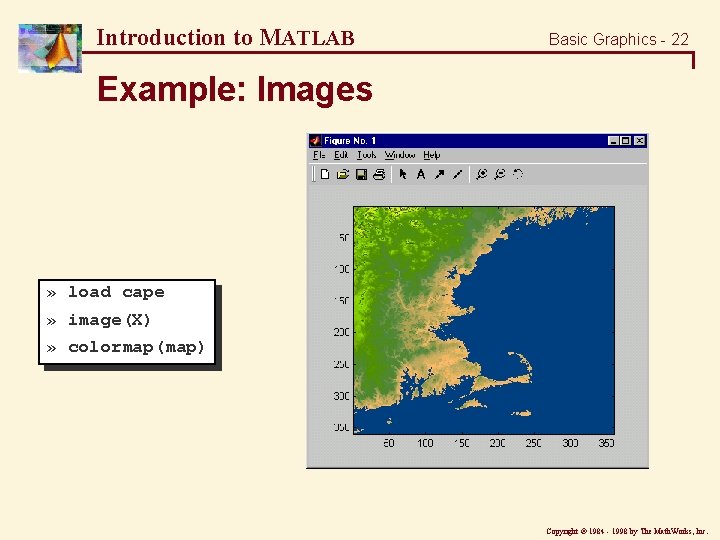
Introduction to MATLAB Basic Graphics - 22 Example: Images » load cape » image(X) » colormap(map) Copyright ã 1984 - 1998 by The Math. Works, Inc.
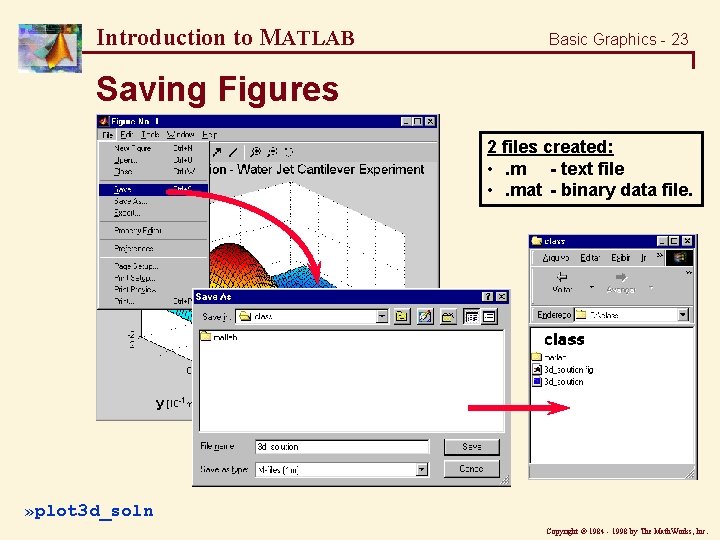
Introduction to MATLAB Basic Graphics - 23 Saving Figures 2 files created: • . m - text file • . mat - binary data file. » plot 3 d_soln Copyright ã 1984 - 1998 by The Math. Works, Inc.
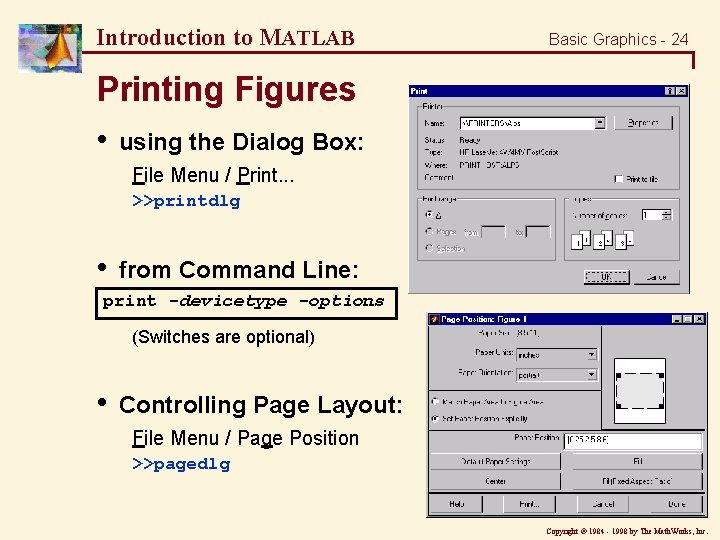
Introduction to MATLAB Basic Graphics - 24 Printing Figures • using the Dialog Box: File Menu / Print. . . >>printdlg • from Command Line: print -devicetype -options (Switches are optional) • Controlling Page Layout: File Menu / Page Position >>pagedlg Copyright ã 1984 - 1998 by The Math. Works, Inc.
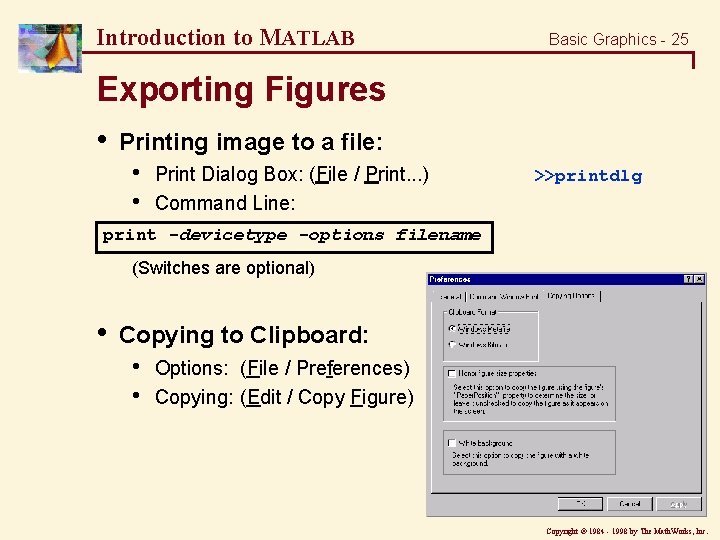
Introduction to MATLAB Basic Graphics - 25 Exporting Figures • Printing image to a file: • • Print Dialog Box: (File / Print. . . ) Command Line: >>printdlg print -devicetype -options filename (Switches are optional) • Copying to Clipboard: • • Options: (File / Preferences) Copying: (Edit / Copy Figure) Copyright ã 1984 - 1998 by The Math. Works, Inc.
Introduction to MATLAB Basic Graphics - 26 Introduction to Handle Graphics • • Graphics in MATLAB consist of objects • Objects are arranged in terms of a set hierarchy Every graphics objects has a unique handle and a set of properties which define it’s appearance. Copyright ã 1984 - 1998 by The Math. Works, Inc.
Introduction to MATLAB Basic Graphics - 27 Hierarchy of Graphics Objects Root object Figure object UIMenu objects Axes object UIControl objects Surface object Line objects Text objects Copyright ã 1984 - 1998 by The Math. Works, Inc.
Introduction to MATLAB Basic Graphics - 28 Obtaining an Object’s Handle 1. Upon Creation h_line = plot(x_data, y_data, . . . ) 2. Utility Functions 0 - root object handle gcf - current figure handle gca - current axis handle gco - current object handle What is the current object? • Last object created • OR • Last object clicked 3. FINDOBJ h_obj = findobj(h_parent, 'Property', 'Value', . . . ) Default = 0 (root object) Copyright ã 1984 - 1998 by The Math. Works, Inc.
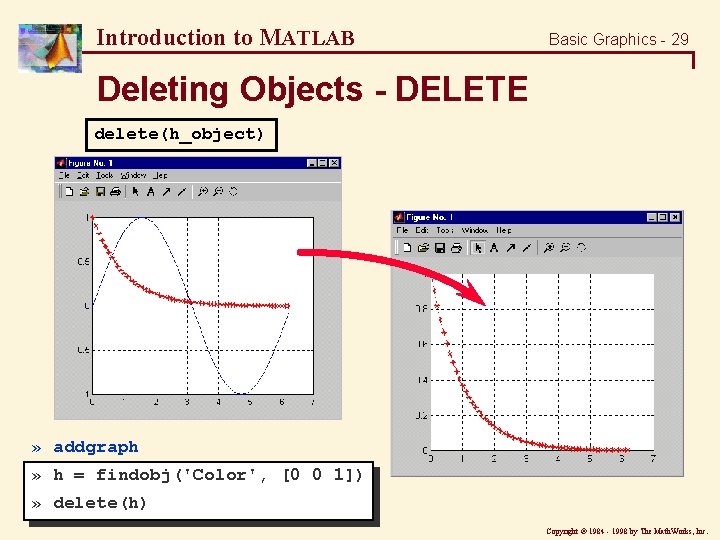
Introduction to MATLAB Basic Graphics - 29 Deleting Objects - DELETE delete(h_object) » addgraph » h = findobj('Color', [0 0 1]) » delete(h) Copyright ã 1984 - 1998 by The Math. Works, Inc.
Introduction to MATLAB Basic Graphics - 30 Modifying Object Properties Using GET & SET • Obtaining a list of current properties: get(h_object) • Obtaining a list of settable properties: set(h_object) • Modifying an object’s properties: set(h_object, 'Property. Name', 'New_Value', . . . ) Ref: HELPDESK - Handle Graphics Objects: helptechdocinfotoolhgpropdoc_frame. html Copyright ã 1984 - 1998 by The Math. Works, Inc.
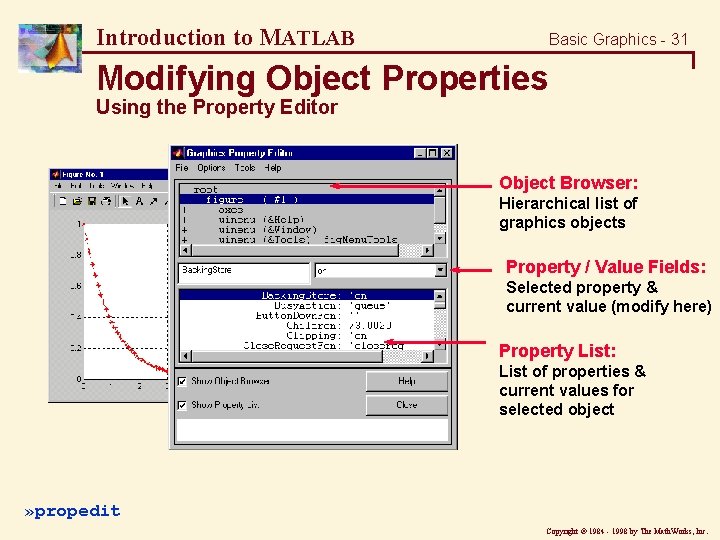
Introduction to MATLAB Basic Graphics - 31 Modifying Object Properties Using the Property Editor Object Browser: Hierarchical list of graphics objects Property / Value Fields: Selected property & current value (modify here) Property List: List of properties & current values for selected object » propedit Copyright ã 1984 - 1998 by The Math. Works, Inc.
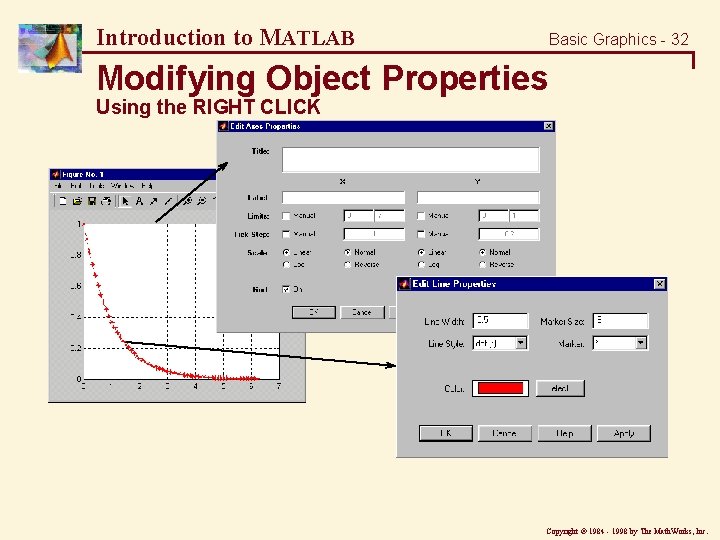
Introduction to MATLAB Basic Graphics - 32 Modifying Object Properties Using the RIGHT CLICK Copyright ã 1984 - 1998 by The Math. Works, Inc.
Introduction to MATLAB Basic Graphics - 33 Working with Defaults - setting • Most properties have pre-defined 'factory' values (Used whenever property values are not specified. ) • You can define your own 'default' values to be used for creating new objects. (Put default settings in “startup. m” to apply to whole session) Syntax: set(ancestor, 'Default<Object><Property>', <Property_Val>) Use root object (0) to apply to all new objects Copyright ã 1984 - 1998 by The Math. Works, Inc.
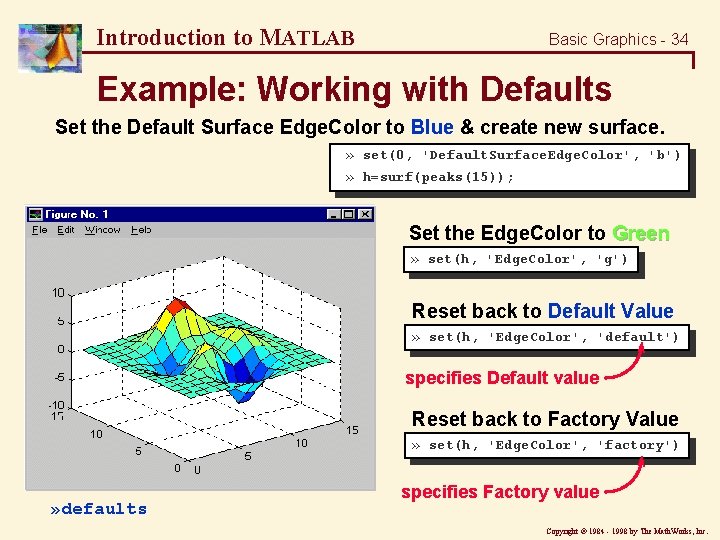
Introduction to MATLAB Basic Graphics - 34 Example: Working with Defaults Set the Default Surface Edge. Color to Blue & create new surface. » set(0, 'Default. Surface. Edge. Color', 'b') » h=surf(peaks(15)); Set the Edge. Color to Green » set(h, 'Edge. Color', 'g') Reset back to Default Value » set(h, 'Edge. Color', 'default') specifies Default value Reset back to Factory Value » set(h, 'Edge. Color', 'factory') » defaults specifies Factory value Copyright ã 1984 - 1998 by The Math. Works, Inc.
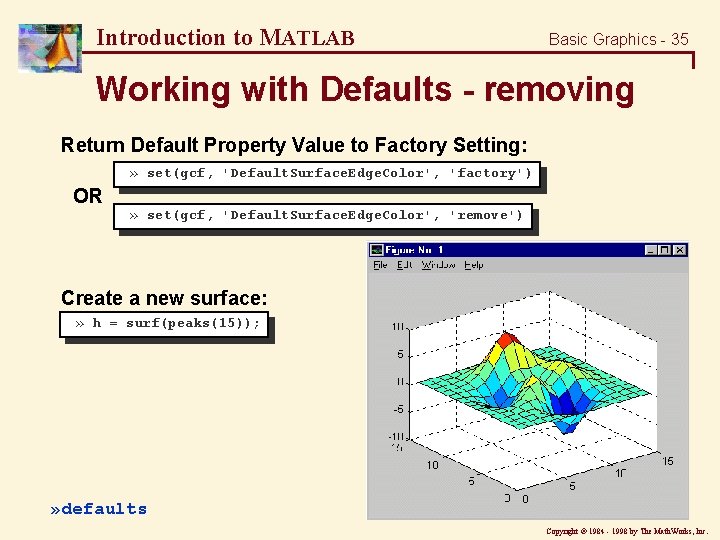
Introduction to MATLAB Basic Graphics - 35 Working with Defaults - removing Return Default Property Value to Factory Setting: » set(gcf, 'Default. Surface. Edge. Color', 'factory') OR » set(gcf, 'Default. Surface. Edge. Color', 'remove') Create a new surface: » h = surf(peaks(15)); » defaults Copyright ã 1984 - 1998 by The Math. Works, Inc.
- Slides: 35