
Introduction to Linux Robert Putnam Research Computing IST
Introduction to Linux Robert Putnam Research Computing, IS&T putnam@bu. edu
Introduction to Linux - agenda � What is Linux? � The Bash shell � I/O redirection (pipes, etc. ) � Navigating the file system � Processes and job control � Editors � Hello, world in C
What is Linux? The Most Common O/S Used By BU Researchers When Working on a Server or Computer Cluster
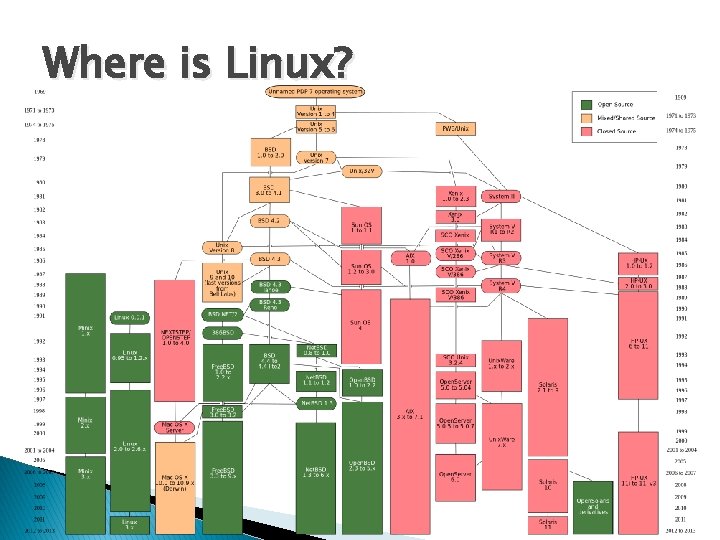
Where is Linux?

What is Linux? http: //en. wikipedia. org/wiki/Darwin_%28 operating_system%29
What is Linux? � Linux is a Unix* clone begun in 1991 and written from scratch by Linus Torvalds with assistance from a loosely-knit team of hackers across the Net. � 64% of the world’s servers run some variant of Unix or Linux. The Android phone and the Amazon Kindle run Linux. *kernel
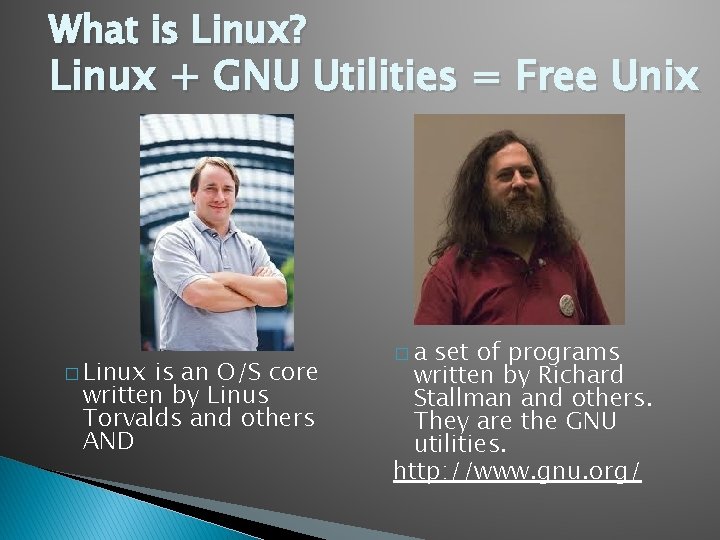
What is Linux? Linux + GNU Utilities = Free Unix � Linux is an O/S core written by Linus Torvalds and others AND �a set of programs written by Richard Stallman and others. They are the GNU utilities. http: //www. gnu. org/
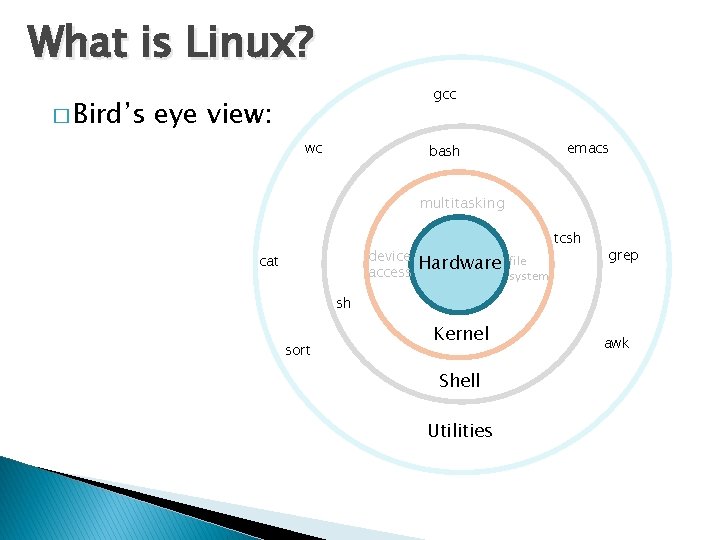
What is Linux? � Bird’s gcc eye view: wc emacs bash multitasking device access cat tcsh Hardware file system grep sh sort Kernel Shell Utilities awk
What is Linux? “Small programs that do one thing well” � From The Unix Programming Environment, Kernighan and Pike: … at its heart is the idea that the power of a system comes more from the relationships among programs than from the programs themselves. Many UNIX programs do quite trivial things in isolation, but, combined with other programs, become general and useful tools.
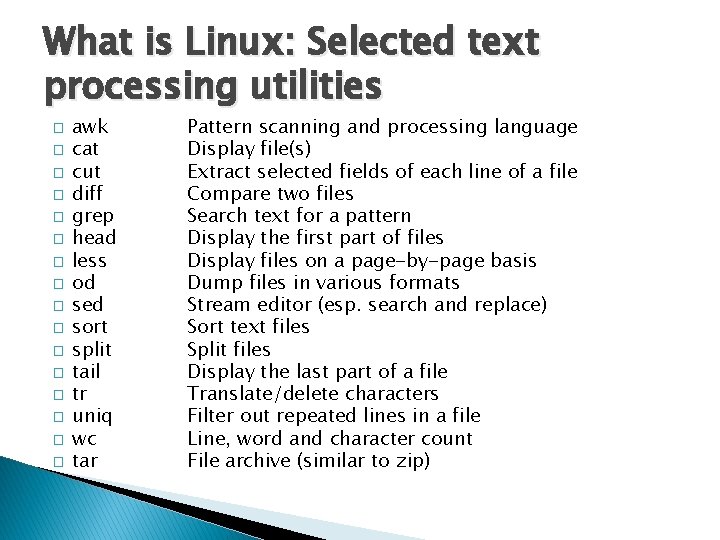
What is Linux: Selected text processing utilities � � � � awk cat cut diff grep head less od sed sort split tail tr uniq wc tar Pattern scanning and processing language Display file(s) Extract selected fields of each line of a file Compare two files Search text for a pattern Display the first part of files Display files on a page-by-page basis Dump files in various formats Stream editor (esp. search and replace) Sort text files Split files Display the last part of a file Translate/delete characters Filter out repeated lines in a file Line, word and character count File archive (similar to zip)
Connecting to a Linux Host – Windows Client Software � You need a “xterm” emulation – software that emulates an “X” terminal and that connects using the “SSH” Secure Shell protocol. ◦ Windows �Recommended: Moba. Xterm (http: //mobaxterm. mobatek. net/) �Also available at BU, Xwin 32 (http: //www. bu. edu/tech/services/support/ desktop/distribution/xwindows/xwin 32/)
Connecting to a Linux Host – Mac OS X Client Software ◦ Mac OS X �“Terminal” is already installed �Why? Darwin, the system on which Apple's Mac OS X is built, is a derivative of 4. 4 BSD-Lite 2 and Free. BSD. In other words, the Mac is a Unix system! �For X 11 (graphics), see XQuartz (http: //xquartz. macosforge. org/landing/)
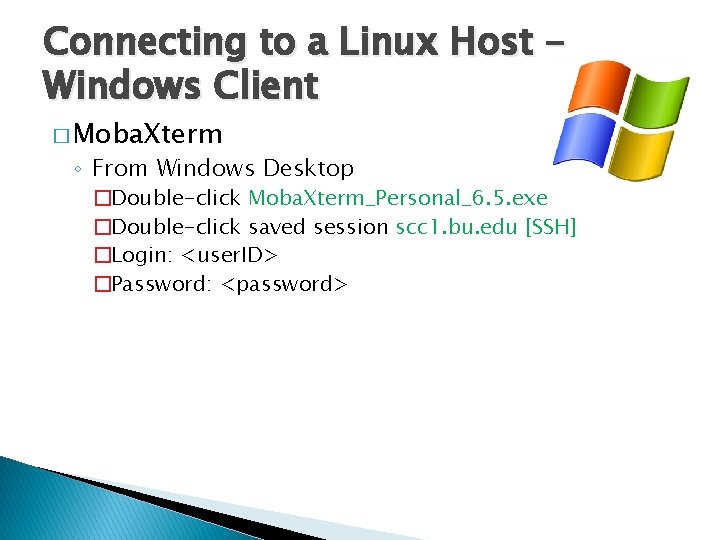
Connecting to a Linux Host Windows Client � Moba. Xterm ◦ From Windows Desktop �Double-click Moba. Xterm_Personal_6. 5. exe �Double-click saved session scc 1. bu. edu [SSH] �Login: <user. ID> �Password: <password>
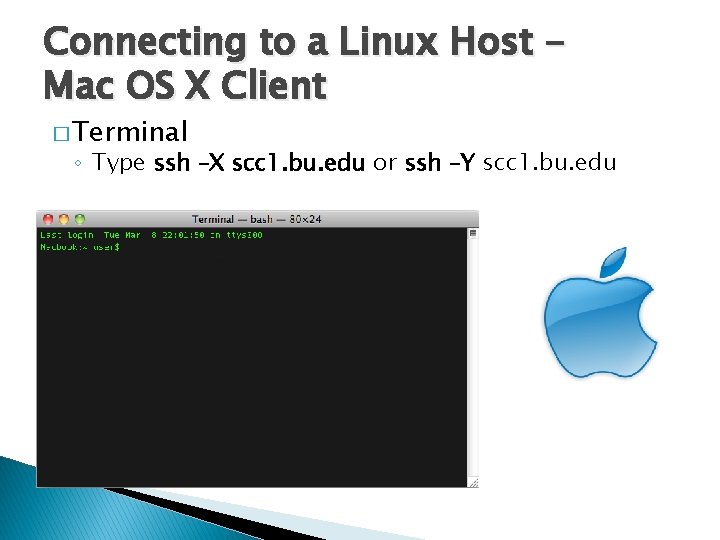
Connecting to a Linux Host Mac OS X Client � Terminal ◦ Type ssh –X scc 1. bu. edu or ssh –Y scc 1. bu. edu
Get supplementary files � At the command prompt, type the following: ◦ cd ◦ tar xf /tmp/linux-materials. tar
The Shell � � � A shell is a computer program that interprets the commands you type and sends them to the operating system. On Linux systems (and others, like DOS/Windows), it also provides a set of built-in commands and programming control structures, environment variables, etc. Most Linux systems, including BU’s Shared Computing Cluster, support at least two shells: TCSH and BASH. The default shell for your account is BASH. (Which is best? Caution: flame war potential here!) “BASH” = “Bourne-again Shell” (GNU version of ~1977 shell written by Stephen Bourne)
Bash environment variables � Variables are named storage locations. So-called “environment variables” are conventionally used by the shell to store information such as where it should look for commands (i. e. , the PATH). Environment variables are shared with programs that the shell runs. � To see the current value of PATH, do: ◦ echo $PATH � To see all currently defined environment variables do: ◦ printenv
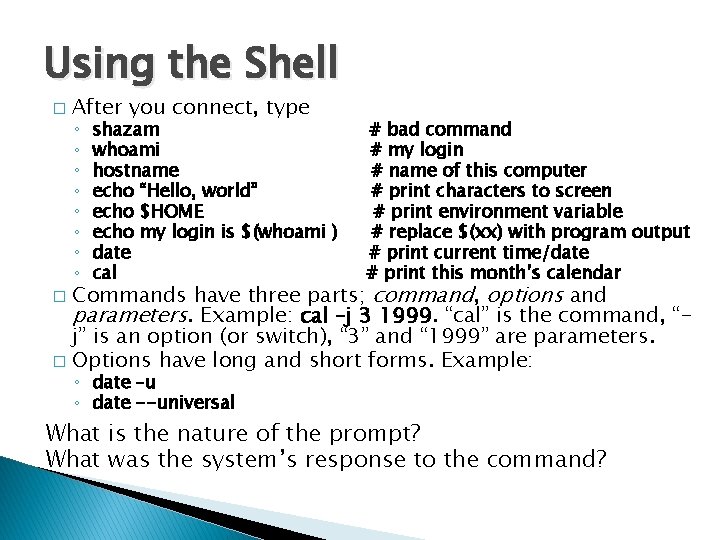
Using the Shell � After you connect, type ◦ ◦ ◦ ◦ shazam whoami hostname echo “Hello, world” echo $HOME echo my login is $(whoami ) date cal # bad command # my login # name of this computer # print characters to screen # print environment variable # replace $(xx) with program output # print current time/date # print this month’s calendar Commands have three parts; command, options and parameters. Example: cal –j 3 1999. “cal” is the command, “j” is an option (or switch), “ 3” and “ 1999” are parameters. � Options have long and short forms. Example: � ◦ date –u ◦ date --universal What is the nature of the prompt? What was the system’s response to the command?
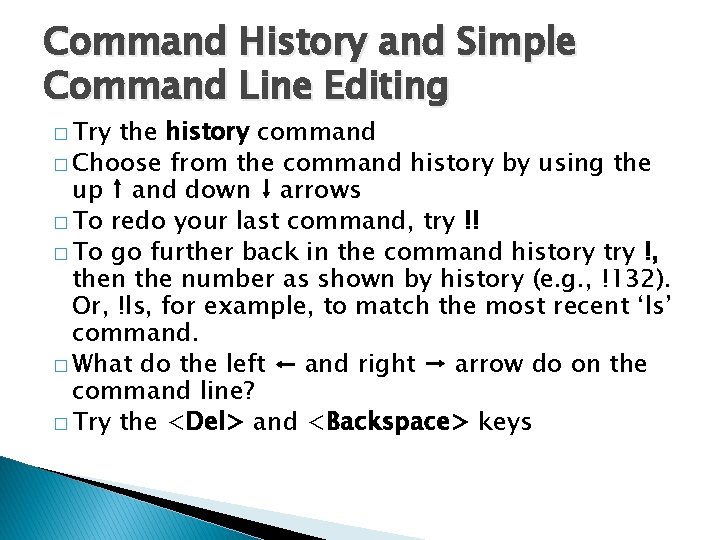
Command History and Simple Command Line Editing � Try the history command � Choose from the command history by using the up ↑ and down ↓ arrows � To redo your last command, try !! � To go further back in the command history try !, then the number as shown by history (e. g. , !132). Or, !ls, for example, to match the most recent ‘ls’ command. � What do the left ← and right → arrow do on the command line? � Try the <Del> and <Backspace> keys
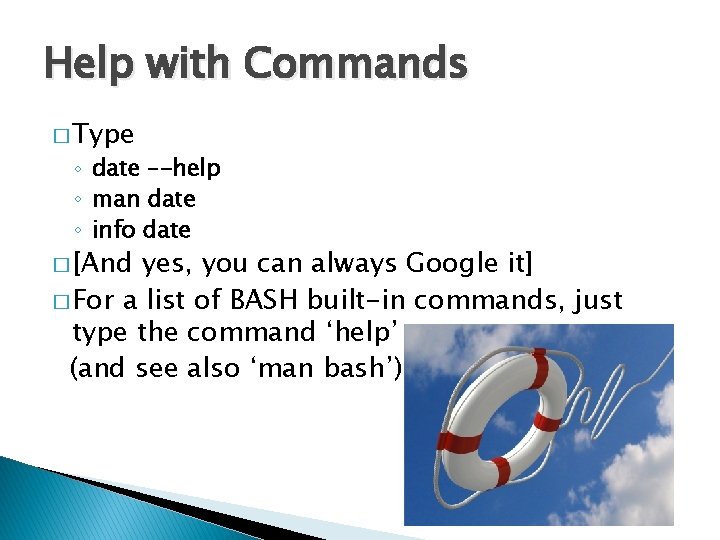
Help with Commands � Type ◦ date –-help ◦ man date ◦ info date � [And yes, you can always Google it] � For a list of BASH built-in commands, just type the command ‘help’ (and see also ‘man bash’)
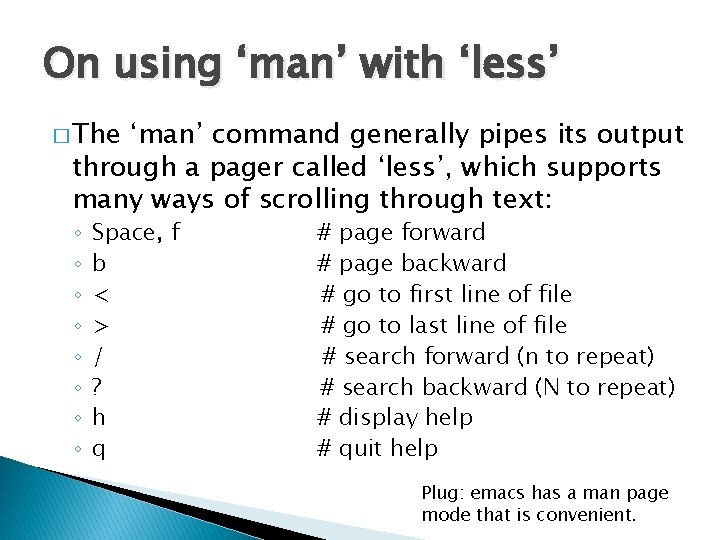
On using ‘man’ with ‘less’ � The ‘man’ command generally pipes its output through a pager called ‘less’, which supports many ways of scrolling through text: ◦ ◦ ◦ ◦ Space, f b < > / ? h q # page forward # page backward # go to first line of file # go to last line of file # search forward (n to repeat) # search backward (N to repeat) # display help # quit help Plug: emacs has a man page mode that is convenient.
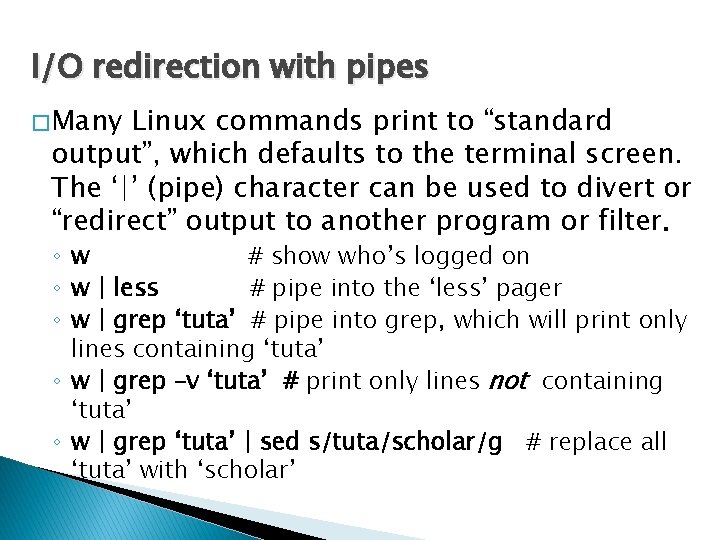
I/O redirection with pipes � Many Linux commands print to “standard output”, which defaults to the terminal screen. The ‘|’ (pipe) character can be used to divert or “redirect” output to another program or filter. ◦w # show who’s logged on ◦ w | less # pipe into the ‘less’ pager ◦ w | grep ‘tuta’ # pipe into grep, which will print only lines containing ‘tuta’ ◦ w | grep –v ‘tuta’ # print only lines not containing ‘tuta’ ◦ w | grep ‘tuta’ | sed s/tuta/scholar/g # replace all ‘tuta’ with ‘scholar’
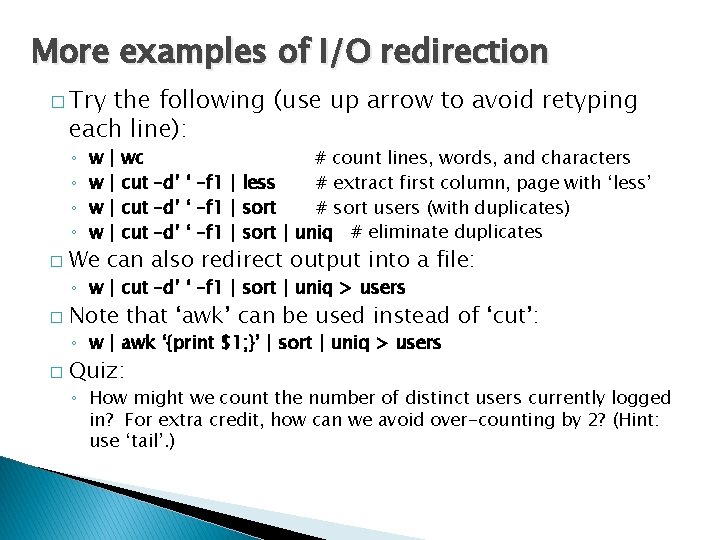
More examples of I/O redirection � Try the following (use up arrow to avoid retyping each line): ◦ ◦ � w w | | wc # count lines, words, and characters cut –d’ ‘ –f 1 | less # extract first column, page with ‘less’ cut –d’ ‘ –f 1 | sort # sort users (with duplicates) cut –d’ ‘ –f 1 | sort | uniq # eliminate duplicates We can also redirect output into a file: ◦ w | cut –d’ ‘ –f 1 | sort | uniq > users � Note that ‘awk’ can be used instead of ‘cut’: ◦ w | awk ‘{print $1; }’ | sort | uniq > users � Quiz: ◦ How might we count the number of distinct users currently logged in? For extra credit, how can we avoid over-counting by 2? (Hint: use ‘tail’. )
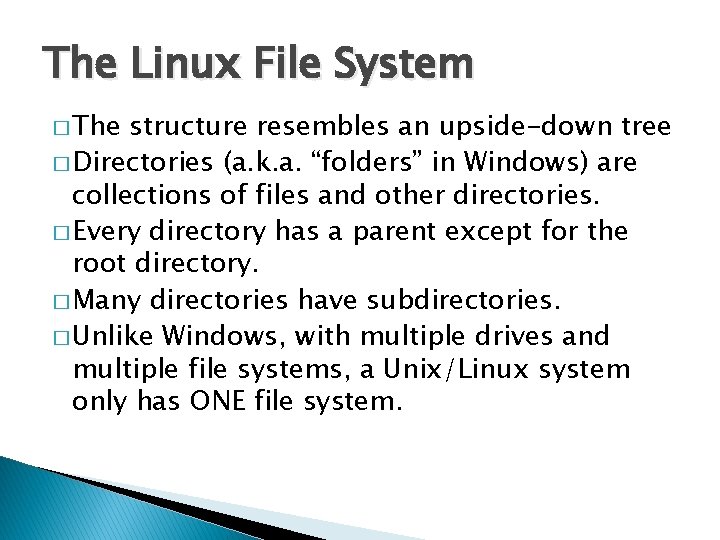
The Linux File System � The structure resembles an upside-down tree � Directories (a. k. a. “folders” in Windows) are collections of files and other directories. � Every directory has a parent except for the root directory. � Many directories have subdirectories. � Unlike Windows, with multiple drives and multiple file systems, a Unix/Linux system only has ONE file system.
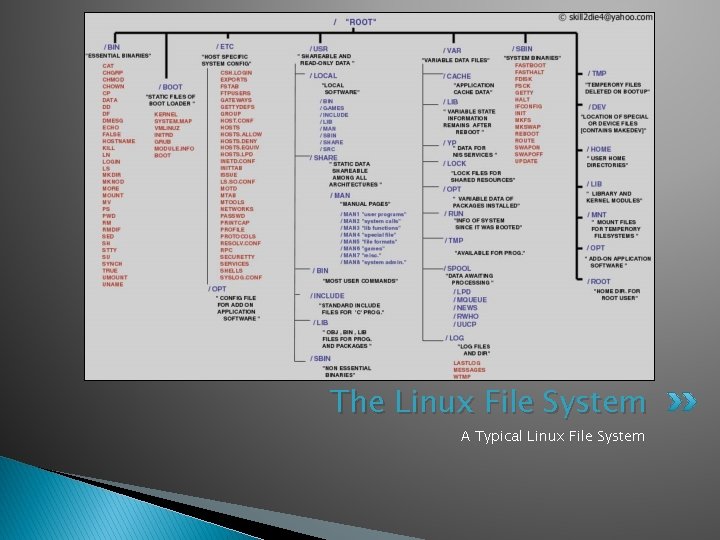
The Linux File System A Typical Linux File System
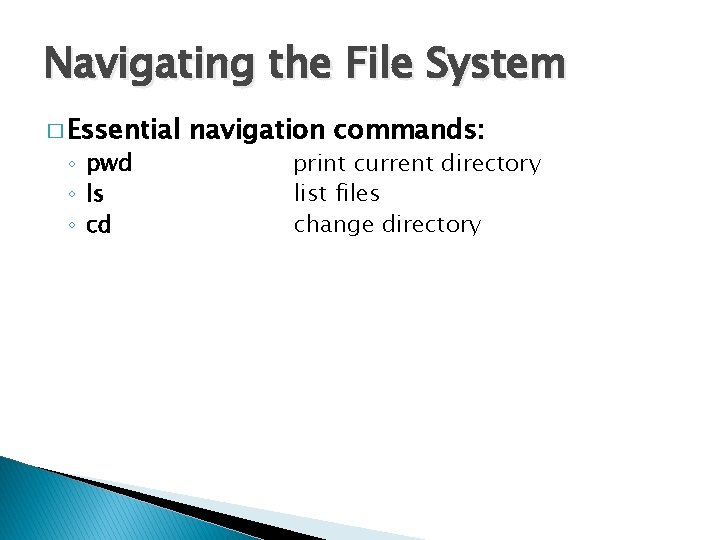
Navigating the File System � Essential ◦ pwd ◦ ls ◦ cd navigation commands: print current directory list files change directory
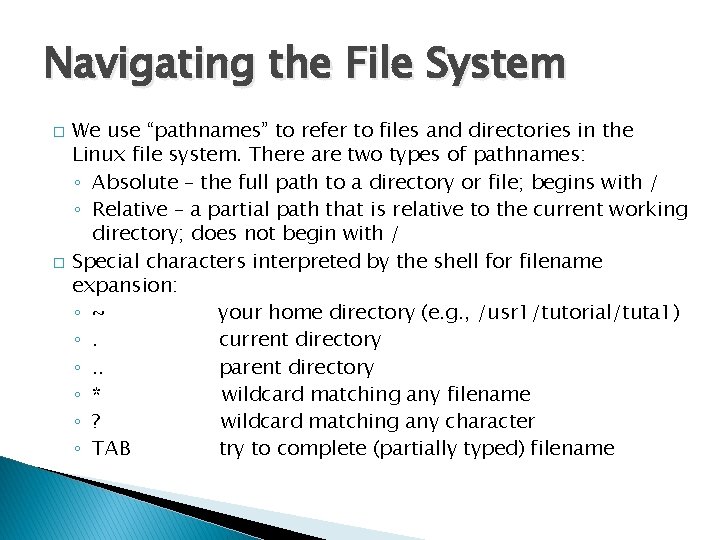
Navigating the File System � � We use “pathnames” to refer to files and directories in the Linux file system. There are two types of pathnames: ◦ Absolute – the full path to a directory or file; begins with / ◦ Relative – a partial path that is relative to the current working directory; does not begin with / Special characters interpreted by the shell for filename expansion: ◦ ~ your home directory (e. g. , /usr 1/tutorial/tuta 1) ◦. current directory ◦. . parent directory ◦ * wildcard matching any filename ◦ ? wildcard matching any character ◦ TAB try to complete (partially typed) filename
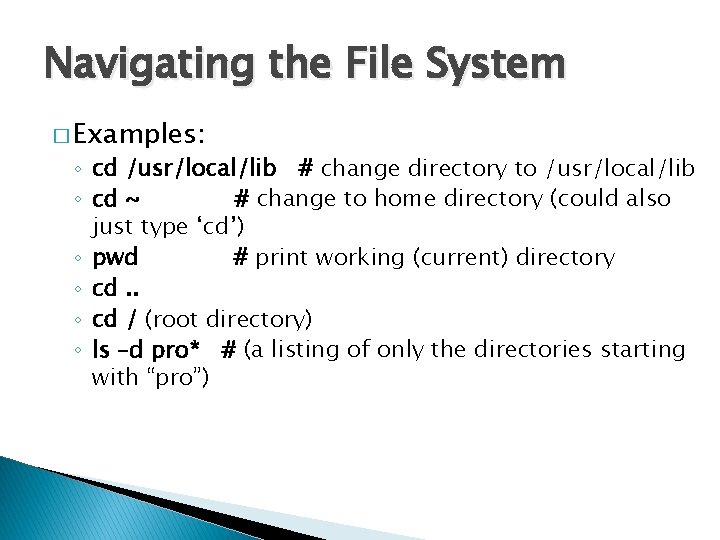
Navigating the File System � Examples: ◦ cd /usr/local/lib # change directory to /usr/local/lib ◦ cd ~ # change to home directory (could also just type ‘cd’) ◦ pwd # print working (current) directory ◦ cd. . ◦ cd / (root directory) ◦ ls –d pro* # (a listing of only the directories starting with “pro”)
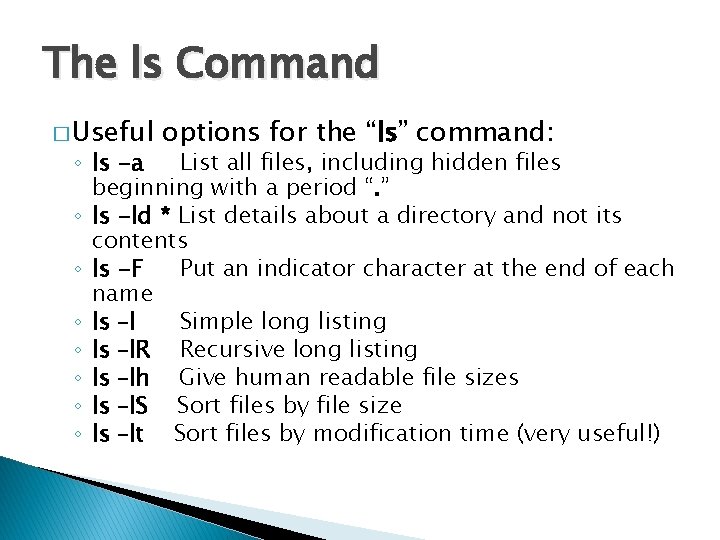
The ls Command � Useful options for the “ls” command: ◦ ls -a List all files, including hidden files beginning with a period “. ” ◦ ls -ld * List details about a directory and not its contents ◦ ls -F Put an indicator character at the end of each name ◦ ls –l Simple long listing ◦ ls –l. R Recursive long listing ◦ ls –lh Give human readable file sizes ◦ ls –l. S Sort files by file size ◦ ls –lt Sort files by modification time (very useful!)
![Some Useful File Commands � cp [file 1] [file 2] copy file � mkdir](http://slidetodoc.com/presentation_image_h/ec55f18926ee4e1bd7499516f7f64006/image-30.jpg "Some Useful File Commands � cp [file 1] [file 2] copy file � mkdir")
Some Useful File Commands � cp [file 1] [file 2] copy file � mkdir [name] make directory � rmdir [name] remove (empty) directory � mv [file] [destination] move/rename file � rm [file] remove (-r for recursive) � file [file] identify file type � less [file] page through file � head -n [file] display first n lines � tail -n [file] display last n lines � ln –s [file] [new] create symbolic link � cat [file] [file 2…] display file(s) � tac [file] [file 2…] display file in reverse order � touch [file] update modification time � od [file] display file contents, esp. binary
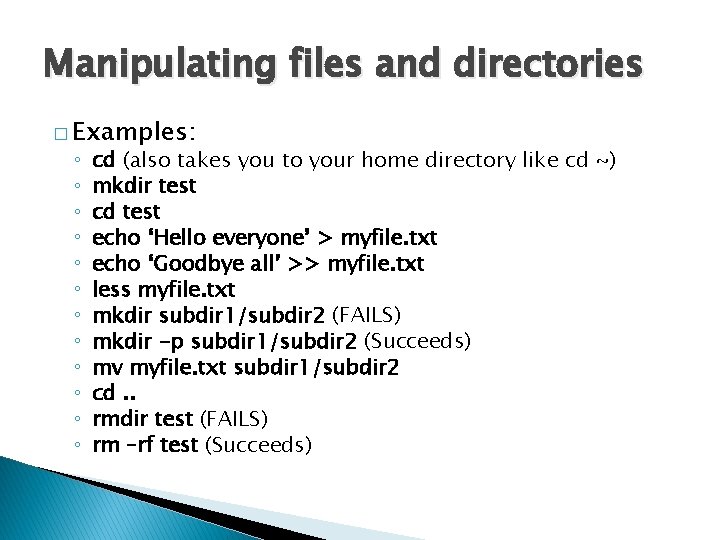
Manipulating files and directories � Examples: ◦ ◦ ◦ cd (also takes you to your home directory like cd ~) mkdir test cd test echo ‘Hello everyone’ > myfile. txt echo ‘Goodbye all’ >> myfile. txt less myfile. txt mkdir subdir 1/subdir 2 (FAILS) mkdir -p subdir 1/subdir 2 (Succeeds) mv myfile. txt subdir 1/subdir 2 cd. . rmdir test (FAILS) rm –rf test (Succeeds)
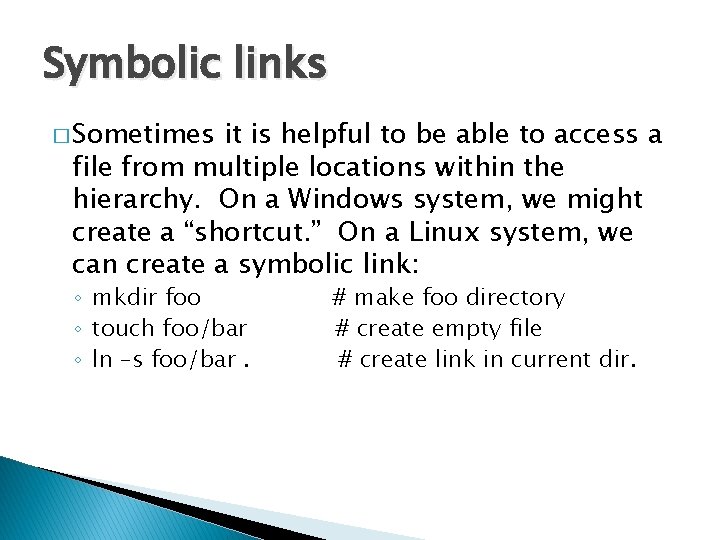
Symbolic links � Sometimes it is helpful to be able to access a file from multiple locations within the hierarchy. On a Windows system, we might create a “shortcut. ” On a Linux system, we can create a symbolic link: ◦ mkdir foo ◦ touch foo/bar ◦ ln –s foo/bar. # make foo directory # create empty file # create link in current dir.
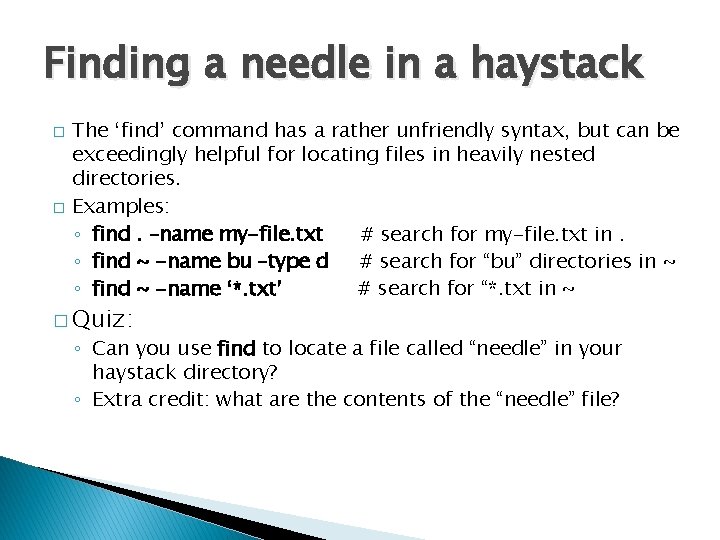
Finding a needle in a haystack � � The ‘find’ command has a rather unfriendly syntax, but can be exceedingly helpful for locating files in heavily nested directories. Examples: ◦ find. –name my-file. txt # search for my-file. txt in. ◦ find ~ -name bu –type d # search for “bu” directories in ~ ◦ find ~ -name ‘*. txt’ # search for “*. txt in ~ � Quiz: ◦ Can you use find to locate a file called “needle” in your haystack directory? ◦ Extra credit: what are the contents of the “needle” file?
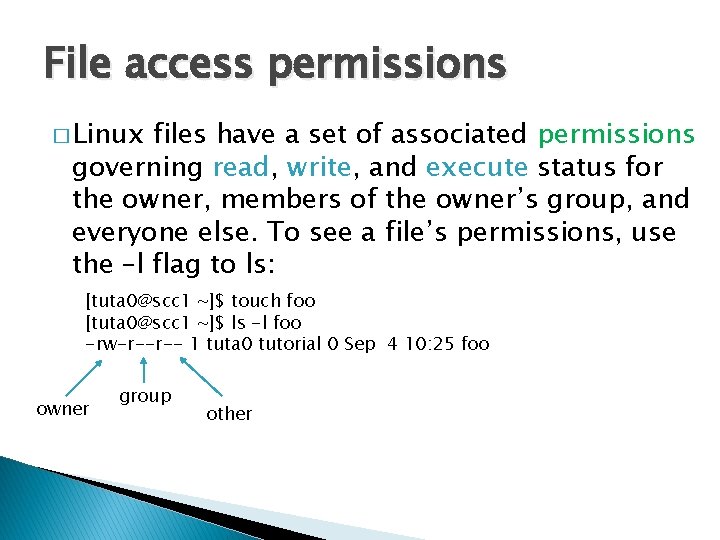
File access permissions � Linux files have a set of associated permissions governing read, write, and execute status for the owner, members of the owner’s group, and everyone else. To see a file’s permissions, use the –l flag to ls: [tuta 0@scc 1 ~]$ touch foo [tuta 0@scc 1 ~]$ ls -l foo -rw-r--r-- 1 tuta 0 tutorial 0 Sep 4 10: 25 foo owner group other
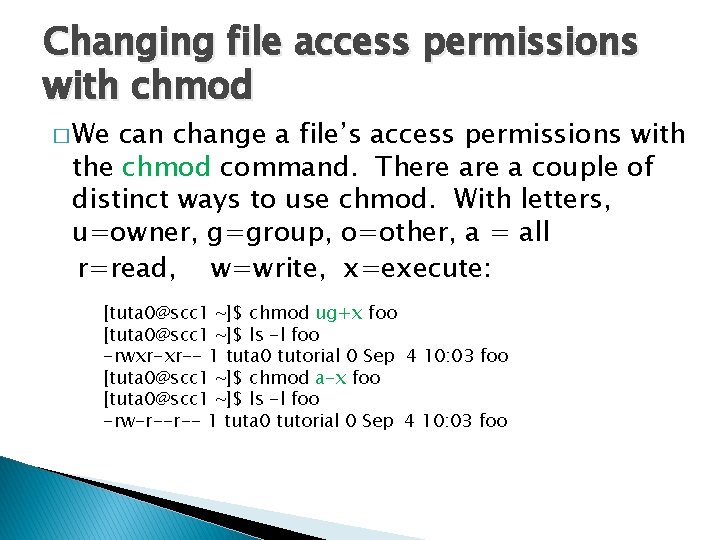
Changing file access permissions with chmod � We can change a file’s access permissions with the chmod command. There a couple of distinct ways to use chmod. With letters, u=owner, g=group, o=other, a = all r=read, w=write, x=execute: [tuta 0@scc 1 ~]$ chmod ug+x foo [tuta 0@scc 1 ~]$ ls -l foo -rwxr-xr-- 1 tuta 0 tutorial 0 Sep 4 10: 03 foo [tuta 0@scc 1 ~]$ chmod a-x foo [tuta 0@scc 1 ~]$ ls -l foo -rw-r--r-- 1 tuta 0 tutorial 0 Sep 4 10: 03 foo
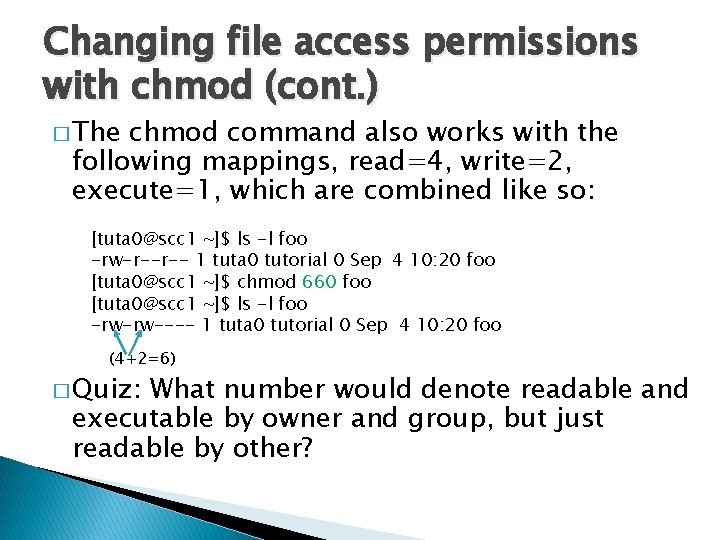
Changing file access permissions with chmod (cont. ) � The chmod command also works with the following mappings, read=4, write=2, execute=1, which are combined like so: [tuta 0@scc 1 ~]$ ls -l foo -rw-r--r-- 1 tuta 0 tutorial 0 Sep 4 10: 20 foo [tuta 0@scc 1 ~]$ chmod 660 foo [tuta 0@scc 1 ~]$ ls -l foo -rw-rw---- 1 tuta 0 tutorial 0 Sep 4 10: 20 foo (4+2=6) � Quiz: What number would denote readable and executable by owner and group, but just readable by other?
Bash startup files – dot files � When bash is started when you log in, a number of startup files are read. Some are system files (and are protected), but others are in your home directory and can be edited if you wish to customize your environment. These files generally start with ‘. ’, and are hidden from view unless you use the –a switch to ls. Try typing ‘ls –al’ now.
. bash_profile, . bashrc, alias � View . bash_profile (with less, or cat). � View . bashrc ◦ This file is executed when you log in. ◦ Note that PATH is set here. ◦ This file is executed when a new shell is created. ◦ Note this line: alias rm='rm –i’ (ask for confirmation when deleting files) � To remove the alias, edit. bashrc (e. g. , with gedit or emacs or vim) and comment out the alias by placing ‘#’ at the beginning of the line. This will take effect the next time a bash shell is created. (For an immediate effect, type ‘unalias rm’. ) Type ‘which rm’ or ‘type rm’ to see whether the alias is currently in effect. To see all current aliases, type ‘alias’.
Processes and job control � As we interact with Linux, we create numbered instances of running programs called “processes. ” You can use the ‘ps’ command to see a listing of your processes (and others!). To see a long listing, for example, of all processes on the system try: ◦ ps -ef � To see all the processes owned by you and other members of the class, try: ◦ ps –ef | grep tuta � To see the biggest consumers of CPU, use the top command (which refreshes every few seconds): ◦ top
Foreground/background � Thus far, we have run commands at the prompt and waited for them to complete. We call this running in the “foreground. ” It is also possible, using the “&” operator, to run programs in the “background”, with the result that the shell prompts immediately without waiting for the command to complete: ◦ $ mycommand & ◦ [1] 54356 ---- process id ◦ $
Process control � To get experience with process control, let’s look at the “countdown” script, in your scripts folder: ◦ cd ~/linux-materials/scripts ◦ cat countdown � Make the script executable with chmod: ◦ chmod +x countdown � First, run it for a few seconds, then kill with Control-C.
Process control � Now, let’s try running it in the background with &: ◦ countdown 20 & � The program’s output is distracting, so redirect it to a file: ◦ countdown 20 > c. txt & � Type ‘ps’ to see your countdown process. � Also, try running ‘jobs’ to see any jobs running in the background from this bash shell.
Process control � To kill the job, use the ‘kill’ command, either with the five-digit process id: ◦ kill 56894 #for example � Or, you can use the job number, with ‘%’: ◦ kill %1 #for example
Backgrounding a running job with C-z and ‘bg’ � Sometimes you start a program, then decide you want to run it in the background. Here’s how: ◦ ◦ countdown 200 > c. out Press C-z to suspend the job. Type ‘bg’ at the command prompt. The job is now running in the background. To bring it back to the foreground, type ‘fg’ at the command prompt.
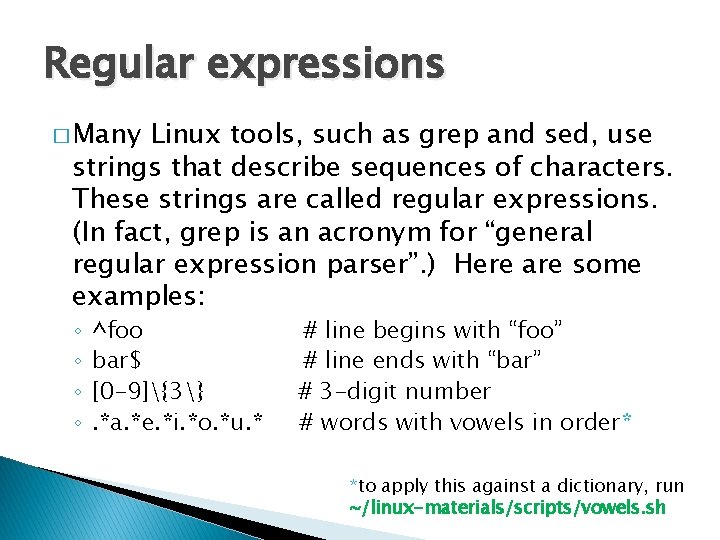
Regular expressions � Many Linux tools, such as grep and sed, use strings that describe sequences of characters. These strings are called regular expressions. (In fact, grep is an acronym for “general regular expression parser”. ) Here are some examples: ◦ ◦ ^foo bar$ [0 -9]{3}. *a. *e. *i. *o. *u. * # line begins with “foo” # line ends with “bar” # 3 -digit number # words with vowels in order* *to apply this against a dictionary, run ~/linux-materials/scripts/vowels. sh
File Editors � emacs ◦ Swiss-army knife, has modes for all major languages, and can be customized ad infinitum (with Emacs lisp). Formerly steep learning curve has been reduced with introduction of menu and tool bars. Can be used under Xwindows or not. � vim ◦ A better version of ‘vi’ (an early full-screen editor). In the right hands, is efficient, fast. Still popular among systems programmers. Non-Xwindows. � gedit ◦ Notepad-like editor with some programming features (e. g. , keyword highlighting). Requires Xwindows. � Nano ◦ Lightweight editor. Non-Xwindows.
“Hello, world” in C � cd to “~/linux-materials/c”, and read hello. c into your editor of choice. � Modify the text on the printf line between “[“ and “]” and save the file. � Produce an executable file called “hello” by compiling the program with gcc: ◦ gcc –o hello. c � Run the program at the command line: ◦ hello � Optional: modify countdown script to run hello program
Obtaining the Supplementary Course Material � In browser, search for “SCV tutorials” (or go to http: //www. bu. edu/tech/support/research/training -consulting/live-tutorials/), scroll to Introduction to Linux and select “Cheat Sheets”. � See also other Linux tutorials: ◦ http: //www. tutorialspoint. com/unix/ ◦ Edx Linux intro [Google “edx linux”] ◦ http: //www. cse. sc. edu/~okeefe/tutorials/unixtut/

Questions?
- Slides: 49